
Java (485)
Knowing the number of pages in a PDF helps you understand the length of the document, which is especially useful in scenarios where a large number of PDF documents need to be processed, such as office work, academic research, or legal document management. By getting the PDF page count, you can estimate the time required to process the document, thus rationalizing tasks and increasing efficiency. In this article, you will learn how to get the number of pages in a PDF file in Java using Spire.PDF for Java.
Install Spire.PDF for Java
First of all, you're required to add the Spire.Pdf.jar file as a dependency in your Java program. The JAR file can be downloaded from this link. If you use Maven, you can easily import the JAR file in your application by adding the following code to your project's pom.xml file.
<repositories>
    <repository>
        <id>com.e-iceblue</id>
        <name>e-iceblue</name>
        <url>https://repo.e-iceblue.com/nexus/content/groups/public/</url>
    </repository>
</repositories>
<dependencies>
    <dependency>
        <groupId>e-iceblue</groupId>
        <artifactId>spire.pdf</artifactId>
        <version>12.8.20</version>
    </dependency>
</dependencies>
Count the Number of Pages in a PDF File in Java
The PdfDocument.getPages().getCount() method provided by Spire.PDF for Java allows to quickly count the number of pages in a PDF file without opening it. The following are the detailed steps.
- Create a PdfDocument object.
- Load a sample PDF file using PdfDocument.loadFromFile() method.
- Count the number of pages in the PDF file using PdfDocument.getPages().getCount() method.
- Print out the result.
- Java
import com.spire.pdf.PdfDocument;

public class CountPdfPages {

    public static void main(String[] args) {

        //Create a PdfDocument instance
        PdfDocument pdf = new PdfDocument();

        //Load a PDF file
       pdf.loadFromFile("contract.pdf");

        //Count the number of pages in the PDF file
        int pageCount = pdf.getPages().getCount();

        //Output the result
        System.out.print("The number of pages in the PDF is: " + pageCount);
    }
}

Apply for a Temporary License
If you'd like to remove the evaluation message from the generated documents, or to get rid of the function limitations, please request a 30-day trial license for yourself.
A fillable PDF form is useful for collecting data from users. Being able to create interactive and fillable PDF forms is important since PDF has become one of the most popular file formats in business. This article demonstrates how to create, fill, or remove fillable form fields in PDF using Spire.PDF for Java.
- Create Fillable Form Fields in a PDF Document
- Fill Form Fields in an Existing PDF Document
- Delete a Particular Field or All Fields in an Existing PDF Document
Spire.PDF for Java offers a series of useful classes under the com.spire.pdf.fields namespace, allowing programmers to create and edit various types of form fields including text box, check box, combo box, list box, and radio button. The table below lists some of the core classes involved in this tutorial.
| Class | Description |
| PdfForm | Represents interactive form of the PDF document. |
| PdfField | Represents field of the PDF document's interactive form. |
| PdfTextBoxField | Represents text box field in the PDF form. |
| PdfCheckBoxField | Represents check box field in the PDF form. |
| PdfComboBoxField | Represents combo box field in the PDF Form. |
| PdfListBoxField | Represents list box field of the PDF form. |
| PdfListFieldItem | Represents an item of a list field. |
| PdfRadioButtonListField | Represents radio button field in the PDF form. |
| PdfRadioButtonListItem | Represents an item of a radio button list. |
| PdfButtonField | Represents button field in the PDF form. |
| PdfSignatureField | Represents signature field in the PDF form. |
Install Spire.PDF for Java
First, you're required to add the Spire.Pdf.jar file as a dependency in your Java program. The JAR file can be downloaded from this link. If you use Maven, you can easily import the JAR file in your application by adding the following code to your project's pom.xml file.
<repositories>
    <repository>
        <id>com.e-iceblue</id>
        <name>e-iceblue</name>
        <url>https://repo.e-iceblue.com/nexus/content/groups/public/</url>
    </repository>
</repositories>
<dependencies>
    <dependency>
        <groupId>e-iceblue</groupId>
        <artifactId>spire.pdf</artifactId>
        <version>12.8.20</version>
    </dependency>
</dependencies>
Create Fillable Form Fields in a PDF Document in Java
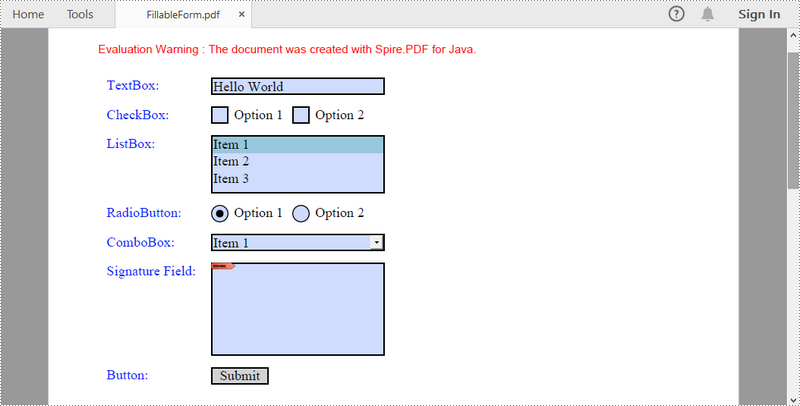
To create a field, initialize an instance of the corresponding class. Specify its size and position in the document using setBounds() method, and then add it to PDF using PdfForm.getFields().add() method. The following are the steps to create various types of form fields in a PDF document using Spire.PDF for Java.
- Create a PdfDocument object.
- Add a page using PdfDocuemnt.getPages().add() method.
- Create a PdfTextBoxField object, set the properties of the field including Bounds, Font and Text, and then add it to the document using PdFormfFieldCollection.add() method.
- Repeat the step 3 to add check box, combo box, list box, radio button, signature field and button to the document.
- Save the document to a PDF file using PdfDocument.saveToFile() method.
- Java
import com.spire.pdf.FileFormat;
import com.spire.pdf.PdfDocument;
import com.spire.pdf.PdfPageBase;
import com.spire.pdf.actions.PdfSubmitAction;
import com.spire.pdf.fields.*;
import com.spire.pdf.graphics.*;
import com.spire.pdf.packages.sprcfn;

import java.awt.*;
import java.awt.geom.Point2D;
import java.awt.geom.Rectangle2D;

public class CreateFillableFormFields {

    public static void main(String[] args) throws Exception {

        //Create a PdfDocument object
        PdfDocument doc = new PdfDocument();

        //Add a page
        PdfPageBase page = doc.getPages().add();

        //Initialize x and y coordinates
        float baseX = 100;
        float baseY = 30;

        //Create two brush objects
        PdfSolidBrush brush1 = new PdfSolidBrush(new PdfRGBColor(Color.blue));
        PdfSolidBrush brush2 = new PdfSolidBrush(new PdfRGBColor(Color.black));

        //Create a font
        PdfFont font = new PdfFont(PdfFontFamily.Times_Roman, 12f, PdfFontStyle.Regular);

        //Add a textbox
        page.getCanvas().drawString("TextBox:", font, brush1, new Point2D.Float(10, baseY));
        Rectangle2D.Float tbxBounds = new Rectangle2D.Float(baseX, baseY, 150, 15);
        PdfTextBoxField textBox = new PdfTextBoxField(page, "textbox");
        textBox.setBounds(tbxBounds);
        textBox.setText("Hello World");
        textBox.setFont(font);
        doc.getForm().getFields().add(textBox);
        baseY += 25;

        //add two checkboxes
        page.getCanvas().drawString("CheckBox:", font, brush1, new Point2D.Float(10, baseY));
        Rectangle2D.Float checkboxBound1 = new Rectangle2D.Float(baseX, baseY, 15, 15);
        PdfCheckBoxField checkBoxField1 = new PdfCheckBoxField(page, "checkbox1");
        checkBoxField1.setBounds(checkboxBound1);
        checkBoxField1.setChecked(false);
        page.getCanvas().drawString("Option 1", font, brush2, new Point2D.Float(baseX + 20, baseY));

        Rectangle2D.Float checkboxBound2 = new Rectangle2D.Float(baseX + 70, baseY, 15, 15);
        PdfCheckBoxField checkBoxField2 = new PdfCheckBoxField(page, "checkbox2");
        checkBoxField2.setBounds(checkboxBound2);
        checkBoxField2.setChecked(false);
        page.getCanvas().drawString("Option 2", font, brush2, new Point2D.Float(baseX + 90, baseY));
        doc.getForm().getFields().add(checkBoxField1);
        doc.getForm().getFields().add(checkBoxField2);
        baseY += 25;

        //Add a listbox
        page.getCanvas().drawString("ListBox:", font, brush1, new Point2D.Float(10, baseY));
        Rectangle2D.Float listboxBound = new Rectangle2D.Float(baseX, baseY, 150, 50);
        PdfListBoxField listBoxField = new PdfListBoxField(page, "listbox");
        listBoxField.getItems().add(new PdfListFieldItem("Item 1", "item1"));
        listBoxField.getItems().add(new PdfListFieldItem("Item 2", "item2"));
        listBoxField.getItems().add(new PdfListFieldItem("Item 3", "item3")); ;
        listBoxField.setBounds(listboxBound);
        listBoxField.setFont(font);
        listBoxField.setSelectedIndex(0);
        doc.getForm().getFields().add(listBoxField);
        baseY += 60;

        //Add two radio buttons
        page.getCanvas().drawString("RadioButton:", font, brush1, new Point2D.Float(10, baseY));
        PdfRadioButtonListField radioButtonListField = new PdfRadioButtonListField(page, "radio");
        PdfRadioButtonListItem radioItem1 = new PdfRadioButtonListItem("option1");
        Rectangle2D.Float radioBound1 = new Rectangle2D.Float(baseX, baseY, 15, 15);
        radioItem1.setBounds(radioBound1);
        page.getCanvas().drawString("Option 1", font, brush2, new Point2D.Float(baseX + 20, baseY));

        PdfRadioButtonListItem radioItem2 = new PdfRadioButtonListItem("option2");
        Rectangle2D.Float radioBound2 = new Rectangle2D.Float(baseX + 70, baseY, 15, 15);
        radioItem2.setBounds(radioBound2);
        page.getCanvas().drawString("Option 2", font, brush2, new Point2D.Float(baseX + 90, baseY));
        radioButtonListField.getItems().add(radioItem1);
        radioButtonListField.getItems().add(radioItem2);
        radioButtonListField.setSelectedIndex(0);
        doc.getForm().getFields().add(radioButtonListField);
        baseY += 25;

        //Add a combobox
        page.getCanvas().drawString("ComboBox:", font, brush1, new Point2D.Float(10, baseY));
        Rectangle2D.Float cmbBounds = new Rectangle2D.Float(baseX, baseY, 150, 15);
        PdfComboBoxField comboBoxField = new PdfComboBoxField(page, "combobox");
        comboBoxField.setBounds(cmbBounds);
        comboBoxField.getItems().add(new PdfListFieldItem("Item 1", "item1"));
        comboBoxField.getItems().add(new PdfListFieldItem("Item 2", "itme2"));
        comboBoxField.getItems().add(new PdfListFieldItem("Item 3", "item3"));
        comboBoxField.getItems().add(new PdfListFieldItem("Item 4", "item4"));
        comboBoxField.setSelectedIndex(0);
        comboBoxField.setFont(font);
        doc.getForm().getFields().add(comboBoxField);
        baseY += 25;

        //Add a signature field
        page.getCanvas().drawString("Signature Field:", font, brush1, new Point2D.Float(10, baseY));
        PdfSignatureField sgnField = new PdfSignatureField(page, "sgnField");
        Rectangle2D.Float sgnBounds = new Rectangle2D.Float(baseX, baseY, 150, 80);
        sgnField.setBounds(sgnBounds);
        doc.getForm().getFields().add(sgnField);
        baseY += 90;

        //Add a button
        page.getCanvas().drawString("Button:", font, brush1, new Point2D.Float(10, baseY));
        Rectangle2D.Float btnBounds = new Rectangle2D.Float(baseX, baseY, 50, 15);
        PdfButtonField buttonField = new PdfButtonField(page, "button");
        buttonField.setBounds(btnBounds);
        buttonField.setText("Submit");
        buttonField.setFont(font);
        PdfSubmitAction submitAction = new PdfSubmitAction("https://www.e-iceblue.com/getformvalues.php");
        buttonField.getActions().setMouseDown(submitAction);
        doc.getForm().getFields().add(buttonField);

        //Save to file
        doc.saveToFile("FillableForm.pdf", FileFormat.PDF);
    }
}
Fill Form Fields in an Existing PDF Document in Java
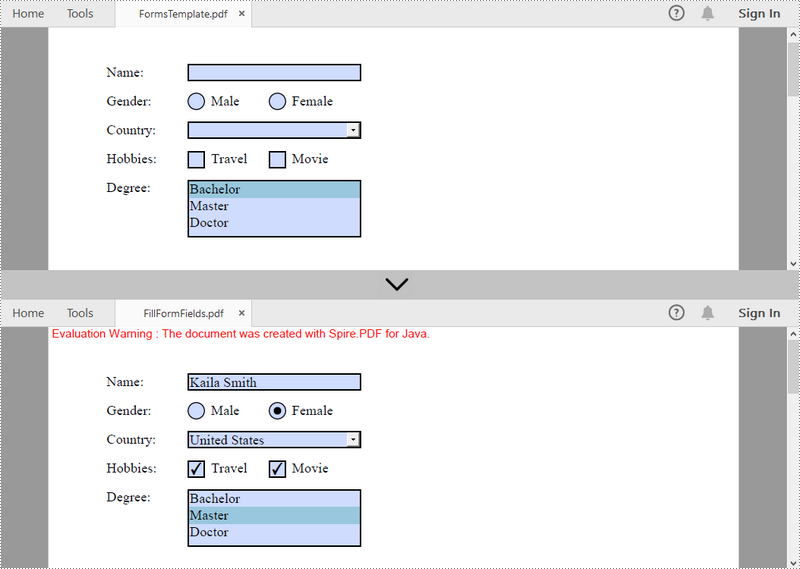
In order to fill out a form, we must first get all the form fields from the PDF document, determine the type of a certain field, and then input a value or select a value from a predefined list. The following are the steps to fill form fields in an existing PDF document using Spire.PDF for Java.
- Create a PdfDocument object.
- Load a sample PDF document using PdfDocument.loadFromFile() method.
- Get the form from the document through PdfDocument.getForm() method.
- Get the form field widget collection through PdfFormWidget.getFieldsWidget() method.
- Loop through the field widget collection to get a specific PdfField.
- Determine if the PdfField is a certain field type such as text box. If yes, set the text of the text box using PdfTextBoxFieldWidget.setText() method.
- Repeat the sixth step to fill radio button, check box, combo box, and list box with values.
- Save the document to a PDF file using PdfDocument.saveToFile() method.
- Java
import com.spire.pdf.FileFormat;
import com.spire.pdf.PdfDocument;
import com.spire.pdf.fields.PdfField;
import com.spire.pdf.widget.*;

public class FillFormFields {

    public static void main(String[] args) {

        //Create a PdfDocument object
        PdfDocument doc = new PdfDocument();

        //Load a template containing forms
        doc.loadFromFile("C:\\Users\\Administrator\\Desktop\\FormsTemplate.pdf");

        //Get the form from the document
        PdfFormWidget form = (PdfFormWidget)doc.getForm();

        //Get the form widget collection
        PdfFormFieldWidgetCollection formWidgetCollection = form.getFieldsWidget();

        //Loop through the widgets
        for (int i = 0; i < formWidgetCollection.getCount(); i++)
        {
            //Get a specific field
            PdfField field = formWidgetCollection.get(i);

            //Determine if the field is a text box
            if (field instanceof PdfTextBoxFieldWidget)
            {
                if (field.getName().equals("name"))
                {
                    //Set the text of text box
                    PdfTextBoxFieldWidget textBoxField = (PdfTextBoxFieldWidget)field;
                    textBoxField.setText("Kaila Smith");
                }
            }

            //Determine if the field is a radio button
            if (field instanceof PdfRadioButtonListFieldWidget)
            {
                if (field.getName().equals("gender"))
                {
                    //Set the selected index of radio button
                    PdfRadioButtonListFieldWidget radioButtonListField = (PdfRadioButtonListFieldWidget)field;
                    radioButtonListField.setSelectedIndex(1);
                }
            }

            //Determine if the field is a combo box
            if (field instanceof PdfComboBoxWidgetFieldWidget)
            {
                if (field.getName().equals("country"))
                {
                    //Set the selected index of combo box
                    PdfComboBoxWidgetFieldWidget comboBoxField = (PdfComboBoxWidgetFieldWidget)field;
                    comboBoxField.setSelectedIndex(0);
                }
            }

            //Determine if the field is a check box
            if (field instanceof PdfCheckBoxWidgetFieldWidget)
            {
                //Set the "Checked" status of check box
                PdfCheckBoxWidgetFieldWidget checkBoxField = (PdfCheckBoxWidgetFieldWidget)field;
                switch (checkBoxField.getName())
                {
                    case "travel":
                    case "movie":
                        checkBoxField.setChecked(true);
                        break;
                }
            }

            //Determine if the field is a list box
            if (field instanceof PdfListBoxWidgetFieldWidget)
            {
                if (field.getName().equals("degree"))
                {
                    //Set the selected index of list box
                    PdfListBoxWidgetFieldWidget listBox = (PdfListBoxWidgetFieldWidget)field;
                    listBox.setSelectedIndex(1);
                }
            }
        }

        //Save to file
        doc.saveToFile("FillFormFields.pdf", FileFormat.PDF);
    }
}
Delete a Particular Field or All Fields in an Existing PDF Document in Java
A form field in a PDF document can be accessed by its index or name and removed by PdfFieldCollection.remove() method. The following are the steps to remove a particular field or all fields from an existing PDF document using Sprie.PDF for Java.
- Create a PdfDocument object.
- Load a sample PDF document using PdfDocument.loadFromFile() method.
- Get the form from the document using PdfDocument.getForm() method.
- Get the form field widget collection using PdfFormWidget.getFieldsWidget() method.
- Loop through the widget collection to get a specific PdfField. Remove the field one by one using PdfFieldCollection.remove() method.
- To remove a certain form field, get it from the document using PdfFormFieldWidgetCollection.get() method and then call the PdfFieldCollection.remove() method.
- Save the document to a PDF file using PdfDocument.saveToFile() method.
- Java
import com.spire.pdf.PdfDocument;
import com.spire.pdf.fields.PdfField;
import com.spire.pdf.widget.PdfFormFieldWidgetCollection;
import com.spire.pdf.widget.PdfFormWidget;

public class DeleteFormFields {

    public static void main(String[] args) {

        //Create a PdfDocument object
        PdfDocument doc = new PdfDocument();

        //Load a PDF file
        doc.loadFromFile("C:\\Users\\Administrator\\Desktop\\FormsTemplate.pdf");

        //Get the form from the document
        PdfFormWidget form= (PdfFormWidget)doc.getForm();

        //Get form widgets from the form
         PdfFormFieldWidgetCollection widgets = form.getFieldsWidget();

        //Loop through the widgets
        for (int i = widgets.getCount() - 1; i >= 0; i--)
        {
            //Get a specific field
            PdfField field = (PdfField)widgets.getList().get(i) ;

            //Remove the field
            widgets.remove(field);
        }

        //Get a specific field by its name
        //PdfField field = widgets.get("name");
        //Remove the field
        //widgets.remove(field);

        //Save to file
        doc.saveToFile("DeleteAllFields.pdf");
    }
}
Apply for a Temporary License
If you'd like to remove the evaluation message from the generated documents, or to get rid of the function limitations, please request a 30-day trial license for yourself.
PDF is a cornerstone for document sharing across diverse platforms. In Java development, the ability to generate PDF in Java efficiently is a common requirement for applications ranging from invoicing systems to report generators. Among the myriad libraries available, Spire.PDF for Java stands out as a robust solution. This comprehensive guide explores how to use this powerful Java library to create PDF files from scratch, from templates or from HTML.
- Getting Started with Spire.PDF for Java
- Background: The Coordinate System
- Generate a Basic PDF in Java
- Create PDF from Template in Java
- Bonus: Generate PDF from HTML in Java
- Conclusion
- Frequently Asked Questions (FAQs)
Getting Started with Spire.PDF for Java
Spire.PDF for Java is a robust library simplifies PDF generation in Java without Adobe dependencies. Key features:
- Cross-Platform Support: Runs seamlessly on Windows, Linux, and macOS.
- Rich Content Creation: Add text, images, tables, lists, and barcodes.
- Advanced Security: Apply passwords, digital signatures, and permission controls.
- Easy Integration: Works seamlessly with Java SE and EE environments.
Setup & Installation
To start creating PDF in Java, you first need to add Spire.PDF for Java to your project. You can download the JAR files from the E-iceblue website or add it as a Maven dependency:
<repositories>
    <repository>
        <id>com.e-iceblue</id>
        <name>e-iceblue</name>
        <url>https://repo.e-iceblue.com/nexus/content/groups/public/</url>
    </repository>
</repositories>
<dependencies>
    <dependency>
        <groupId>e-iceblue</groupId>
        <artifactId>spire.pdf</artifactId>
        <version>12.8.20</version>
    </dependency>
</dependencies>
Background: The Coordinate System
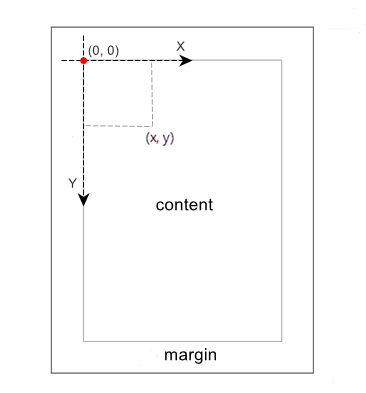
In Spire.PDF for Java, the coordinate system defines the positioning of elements (text, images, shapes) on a PDF page. Here’s the key concepts:
- Origin Point (0,0): The origin of the coordinate system is located at the top-left corner of the content area.
- X-axis: Extends horizontally from the left to the right.
- Y-axis: Extends vertically from the top downward.
Generate a Basic PDF in Java
Let’s start with a simple example of creating a PDF document with text. Spire.PDF for Java provides two methods to draw text on a PDF page:
- PdfCanvas.drawString(): Draws single-line text at exact coordinates. Best for headings, labels, or short text snippets.
- PdfTextWidget.draw(): Manages multi-line text with automatic word wrapping and line breaks. Best for paragraphs, long content, paginated text.
Here's the Jave code to create PDF:
import com.spire.pdf.*;
import com.spire.pdf.graphics.*;

import java.awt.*;
import java.awt.geom.Point2D;
import java.awt.geom.Rectangle2D;

public class CreatePdfDocument {

    public static void main(String[] args) {

        // Create a PdfDocument object
        PdfDocument pdf = new PdfDocument();

        // Add a page with specified size and margin
        PdfPageBase page = pdf.getPages().add(PdfPageSize.A4, new PdfMargins(35f));

        // Specify page content
        String titleText = "Spire.PDF for Java";
        String paraText = "Spire.PDF for Java is a PDF API that enables Java applications to read, write and save PDF documents. " +
                "Using this Java PDF component, developers and programmers can implement rich capabilities to" +
                "create PDF files from scratch or process existing PDF documents entirely on Java applications (J2SE and J2EE). " +
                "Spire.PDF for Java is a totally independent Java PDF library. " +
                "It does not require Adobe Acrobat or any other 3rd party software/library installed on system.";

        // Create solid brushes
        PdfSolidBrush titleBrush = new PdfSolidBrush(new PdfRGBColor(Color.BLUE));
        PdfSolidBrush paraBrush = new PdfSolidBrush(new PdfRGBColor(Color.BLACK));

        // Create true type fonts
        PdfTrueTypeFont titleFont = new PdfTrueTypeFont(new Font("Times New Roman",Font.BOLD,18));
        PdfTrueTypeFont paraFont = new PdfTrueTypeFont(new Font("Times New Roman",Font.PLAIN,12));

        // Set the text alignment via PdfStringFormat class
        PdfStringFormat format = new PdfStringFormat();
        format.setAlignment(PdfTextAlignment.Center);

        // Draw title on the page
        page.getCanvas().drawString(titleText, titleFont, titleBrush, new Point2D.Float((float)page.getClientSize().getWidth()/2, 40),format);

        // Create a PdfTextWidget object to hold the paragraph content
        PdfTextWidget widget = new PdfTextWidget(paraText, paraFont, paraBrush);

        // Create a rectangle where the paragraph content will be placed
        Rectangle2D.Float rect = new Rectangle2D.Float(0, 70, (float)page.getClientSize().getWidth(),(float)page.getClientSize().getHeight());

        // Set the PdfLayoutType to Paginate to make the content paginated automatically
        PdfTextLayout layout = new PdfTextLayout();
        layout.setLayout(PdfLayoutType.Paginate);

        // Draw paragraph text on the page
        widget.draw(page, rect, layout);

        // Save the PDF file
        pdf.saveToFile("CreatePdfDocument.pdf");
        pdf.dispose();
    }
}
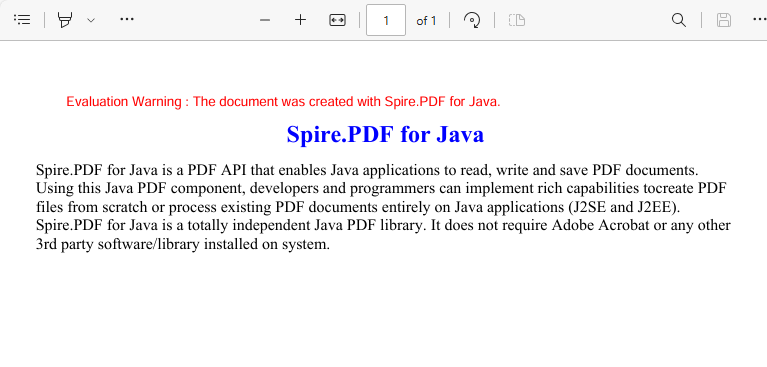
The code creates a PDF with a centered title and a paragraph that automatically paginates if it exceeds the page height.
The generated PDF file:
Beyond simple text, you can also add other elements to PDF, such as:
Add Images to PDF
Add images (JPG, PNG, etc.) at specified locations on a PDF page:
//Load an image
PdfImage image = PdfImage.fromFile("image.jpg");

//Specify the width and height of the image area on the page
float width = image.getWidth() * 0.50f;
float height = image.getHeight() * 0.50f;

//Draw the image at a specified location on the page
page.getCanvas().drawImage(image, 100f, 60f, width, height);
Add Tables to PDF
Organize data with tables, a useful feature when you generate PDF reports:
//Create a PdfTable object
PdfTable table = new PdfTable();

//Define data
String[] data = {"ID;Name;Department;Position",
        "1; David; IT; Manager",
        "3; Julia; HR; Manager",
        "4; Sophie; Marketing; Manager",
        "7; Wickey; Marketing; Sales Rep",
        "9; Wayne; HR; HR Supervisor",
        "11; Mia; Dev; Developer"};
String[][] dataSource = new String[data.length][];
for (int i = 0; i < data.length; i++) {
    dataSource[i] = data[i].split("[;]", -1);
}

//Set data as the table data
table.setDataSource(dataSource);

//Set the first row as header row
table.getStyle().setHeaderSource(PdfHeaderSource.Rows);
table.getStyle().setHeaderRowCount(1);

//Show header(the header is hidden by default)
table.getStyle().setShowHeader(true);

//Draw table on the page
table.draw(page, new Point2D.Float(0, 30));
Refer to: Create Tables in PDF in Java
Create PDF from Template in Java
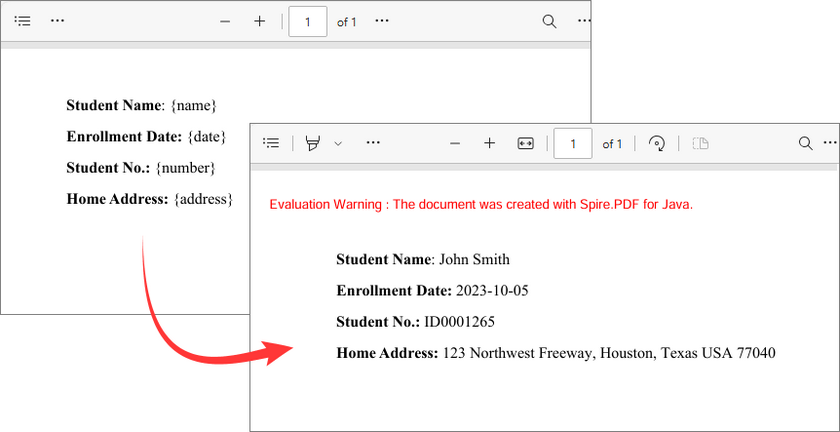
This Java code demonstrates how to generate a PDF by dynamically replacing placeholders in a pre-designed PDF template. Common use cases include generating emails, reports, invoice or contracts.
import com.spire.pdf.*;
import com.spire.pdf.texts.PdfTextReplaceOptions;
import com.spire.pdf.texts.PdfTextReplacer;
import com.spire.pdf.texts.ReplaceActionType;

import java.util.EnumSet;
import java.util.HashMap;
import java.util.Map;

public class GeneratePdfFromTemplate
    {
        public static void main(String[] args)
        {

            // Create a PdfDocument object
            PdfDocument pdf = new PdfDocument();

            // Load a template
            pdf.loadFromFile("PdfTemplate.pdf");

            // Create a PdfTextReplaceOptions object
            PdfTextReplaceOptions textReplaceOptions = new PdfTextReplaceOptions();

            // Specify the replace options
            textReplaceOptions.setReplaceType(EnumSet.of(ReplaceActionType.IgnoreCase));
            textReplaceOptions.setReplaceType(EnumSet.of(ReplaceActionType.WholeWord));

            // Get the first page
            PdfPageBase page = pdf.getPages().get(0);

            // Create a PdfTextReplacer object based on the page
            PdfTextReplacer textReplacer = new PdfTextReplacer(page);

            // Set replace options
            textReplacer.setOptions(textReplaceOptions);

            // Specify the placeholder-value pairs in a map
            Map<String, String> replacements = new HashMap<>();
            replacements.put("{name}", "John Smith");
            replacements.put("{date}", "2023-10-05");
            replacements.put("{number}", "ID0001265");
            replacements.put("{address}", "123 Northwest Freeway, Houston, Texas USA 77040");

            // Iterate over the map to replace each placeholder
            for (Map.Entry<String, String> entry : replacements.entrySet())
            {
                textReplacer.replaceAllText(entry.getKey(), entry.getValue());
            }

            // Save the result PDF
            pdf.saveToFile("GeneratePDFromTemplate.pdf");
            pdf.dispose();
        }
    }
Explanation:
Here are some core components for the template-based PDF generation:
- PdfTextReplaceOptions: Defines how replacements are performed (case-insensitive, whole words).
- PdfTextReplacer: Represents the text replacement in a PDF page.
- replaceAllText(): Replaces all occurrences of old text (a placeholder like "{name}") with new text (e.g., "John Smith").
Output:
Bonus: Generate PDF from HTML in Java
Spire.PDF for Java also provides intuitive APIs to convert web URLs, local HTML files, or raw HTML strings to PDF files. For a comprehensive implementation guide, refer to:
Convert HTML to PDF in Java – URLs and HTML Strings/ Files
By mastering the HTML to PDF conversion, Java developers can automate invoice/report generation from web templates, or archive web pages as searchable PDFs.
Conclusion
Spire.PDF for Java provides an efficient way to generate PDF in Java—whether creating basic documents, generating PDFs from HTML or templates. By following the examples in this article, you can quickly integrate professional PDF creation in your Java projects.
Explore Full Features: Spire.PDF for Java Online Documentation
Frequently Asked Questions (FAQs)
Q1: Is Spire.PDF for Java free?
A: Spire.PDF for Java offers both commercial and free versions (with limitations). You can request a trial license to test the commercial version without any restrictions.
Q2: Does it support non-English languages (e.g., Chinese, Japanese)?
A: Yes, use the font that supports the target language. For example:
// To display Chinese text, use a font like "SimSun" or "Microsoft YaHei"
PdfTrueTypeFont font = new PdfTrueTypeFont(new Font("SimSun", Font.PLAIN, 12));

// To display Japanese text, use a font like "MS Gothic" or "Yu Gothic"
PdfTrueTypeFont font = new PdfTrueTypeFont(new Font("MS Gothic", Font.PLAIN, 12));
Q3: How to secure PDFs with passwords?
A: Set open/permission passwords:
// Create a password-based security policy with open and permission passwords
PdfSecurityPolicy securityPolicy = new PdfPasswordSecurityPolicy("openPwd", "permissionPwd");

// Set the encryption algorithm to AES 256-bit
securityPolicy.setEncryptionAlgorithm(PdfEncryptionAlgorithm.AES_256);

// Encrypt the PDF file
pdf.encrypt(securityPolicy);
