
.NET (1327)
Children categories
Insert Image at Specified Location in C#, VB.NET
2014-03-06 02:26:37Image can add interest and take effect to your Word documents. Suppose you've written an article introducing a city about its beautiful scenery. Just using words describe, you cannot present perfect scenery to your readers, because that page of text looks indistinct and dull. You need image to embellish your scenery.
Spire.Doc for .NET, a professional .NET word component to fast generate, open, modify and save Word documents without using MS Office Automation, enables users to insert image into Word document and set its size according to page by using C#.NET. This guide introduces an easy method how to insert image via Spire.Doc for .NET.
At first, create new Word document and add section, paragraph for this document. Then, insert image in the new created paragraph. You can set this image's size, position, rotate it and choice the wrapping-style about the text. Download and Install Spire.Doc for .NET. Use the following code to insert image in Word by using C#.
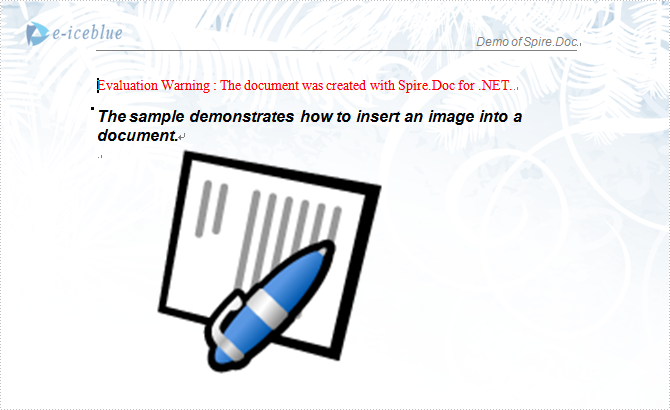
The sample demo shows how to insert an image into a document.
using System;
using Spire.Doc;
using Spire.Doc.Documents;
using Spire.Doc.Fields;
using System.Drawing;

namespace Insert_image_to_Word_Document
{
    class Program
    {
        static void Main(string[] args)
        {
 //Open a blank word document as template
            Document document = new Document(@"Blank.doc");
            Section section = document.Sections[0];
            Paragraph paragraph
                = section.Paragraphs.Count > 0 ? section.Paragraphs[0] : section.AddParagraph();
            paragraph.AppendText("The sample demonstrates how to insert an image into a document.");
            paragraph.ApplyStyle(BuiltinStyle.Heading2);
            paragraph = section.AddParagraph();

            //get original image
            Bitmap p = new Bitmap(Image.FromFile(@"Word.jpg"));

            //rotate image and insert image to word document
            p.RotateFlip(RotateFlipType.Rotate90FlipX);

            DocPicture picture = document.Sections[0].Paragraphs[0].AppendPicture(p);

            //set image's position
            picture.HorizontalPosition = 50.0F;
            picture.VerticalPosition = 60.0F;

            //set image's size
            picture.Width = 200;
            picture.Height = 200;

            //set textWrappingStyle with image;
            picture.TextWrappingStyle = TextWrappingStyle.Through;

            //Save doc file.
            document.SaveToFile("Sample.doc", FileFormat.Doc);

            //Launching the MS Word file.            System.Diagnostics.Process.Start("Sample.doc");
        }
       }
}
If you have finished the tutorial Spire.Doc Quick Start, the steps above will be simpler.
With Spire.Doc, you can insert an image into your Word documents and do more same thing in your ASP.NET, WPF and Silverlight applications without Word automation and any other third party add-ins.
When uploading or submitting PDF files on certain platforms, you are sometimes faced with the dilemma that the platforms require a specific version of PDF file. If your PDF files fail to meet the requirements, it is necessary to convert them to a different version for compatibility purposes. This article will demonstrate how to programmatically convert PDF between different versions using Spire.PDF for .NET.
Install Spire.PDF for .NET
To begin with, you need to add the DLL files included in the Spire.PDF for.NET package as references in your .NET project. The DLL files can be either downloaded from this link or installed via NuGet.
PM> Install-Package Spire.PDF
Change PDF Version in C# and VB.NET
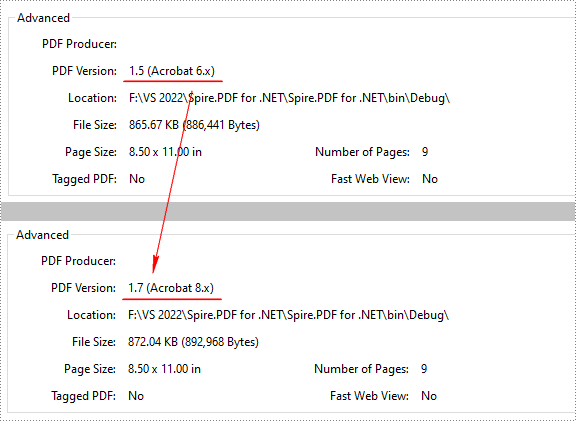
Spire.PDF for .NET supports PDF versions from 1.0 to 1.7. To convert a PDF file to a newer or older version, you can use the PdfDocument.FileInfo.Version property. The following are the detailed steps.
- Create a PdfDocument object.
- Load a sample PDF file using PdfDocument.LoadFromFile() method.
- Change the PDF version to a newer or older version using PdfDocument.FileInfo.Version property.
- Save the result document using PdfDocument.SaveToFile() method.
- C#
- VB.NET
using Spire.Pdf;

namespace ConvertPDFVersion
{
    class Program
    {
        static void Main(string[] args)
        {
            //Create a PdfDocument object
            PdfDocument pdf = new PdfDocument();

            //Load a sample PDF file
            pdf.LoadFromFile("sample.pdf");

            //Change the PDF to version 1.7
            pdf.FileInfo.Version = PdfVersion.Version1_7;

            //Save the result file
            pdf.SaveToFile("PDFVersion.pdf");
        }
    }
}
Apply for a Temporary License
If you'd like to remove the evaluation message from the generated documents, or to get rid of the function limitations, please request a 30-day trial license for yourself.
Document properties (also known as metadata) are a set of information about a document. All Word documents come with a set of built-in document properties, including title, author name, subject, keywords, etc. In addition to the built-in document properties, Microsoft Word also allows users to add custom document properties to Word documents. In this article, we will explain how to add these document properties to Word documents in C# and VB.NET using Spire.Doc for .NET.
- Add Built-in Document Properties to a Word Document
- Add Custom Document Properties to a Word Document
Install Spire.Doc for .NET
To begin with, you need to add the DLL files included in the Spire.Doc for.NET package as references in your .NET project. The DLL files can be either downloaded from this link or installed via NuGet.
PM> Install-Package Spire.Doc
Add Built-in Document Properties to a Word Document in C# and VB.NET
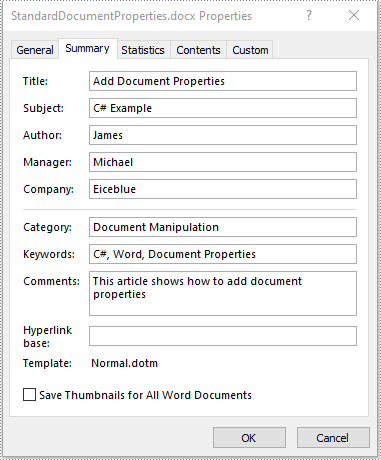
A built-in document property consists of a name and a value. You cannot set or change the name of a built-in document property as it's predefined by Microsoft Word, but you can set or change its value. The following steps demonstrate how to set values for built-in document properties in a Word document:
- Initialize an instance of Document class.
- Load a Word document using Document.LoadFromFile() method.
- Get the built-in document properties of the document through Document.BuiltinDocumentProperties property.
- Set values for specific document properties such as title, subject and author through Title, Subject and Author properties of BuiltinDocumentProperties class.
- Save the result document using Document.SaveToFile() method.
- C#
- VB.NET
using Spire.Doc;

namespace BuiltinDocumentProperties
{
    class Program
    {
        static void Main(string[] args)
        {
            //Create a Document instance
            Document document = new Document();
            //Load a Word document
            document.LoadFromFile("Sample.docx");

            //Add built-in document properties to the document
            BuiltinDocumentProperties standardProperties = document.BuiltinDocumentProperties;
            standardProperties.Title = "Add Document Properties";
            standardProperties.Subject = "C# Example";
            standardProperties.Author = "James";
            standardProperties.Company = "Eiceblue";
            standardProperties.Manager = "Michael";
            standardProperties.Category = "Document Manipulation";
            standardProperties.Keywords = "C#, Word, Document Properties";
            standardProperties.Comments = "This article shows how to add document properties";

            //Save the result document
            document.SaveToFile("StandardDocumentProperties.docx", FileFormat.Docx2013);
        }
    }
}
Add Custom Document Properties to a Word Document in C# and VB.NET
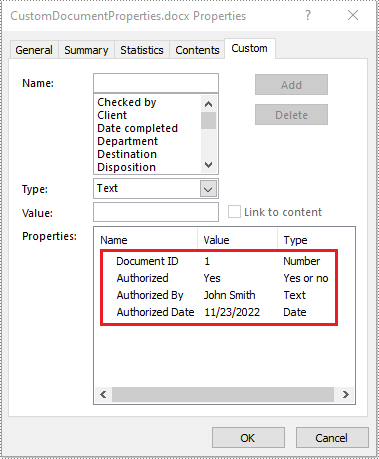
A custom document property can be defined by a document author or user. Each custom document property should contain a name, a value and a data type. The data type can be one of these four types: Text, Date, Number and Yes or No. The following steps demonstrate how to add custom document properties with different data types to a Word document:
- Initialize an instance of Document class.
- Load a Word document using Document.LoadFromFile() method.
- Get the custom document properties of the document through Document.CustomDocumentProperties property.
- Add custom document properties with different data types to the document using CustomDocumentProperties.Add(string, object) method.
- Save the result document using Document.SaveToFile() method.
- C#
- VB.NET
using Spire.Doc;
using System;

namespace CustomDocumentProperties
{
    class Program
    {
        static void Main(string[] args)
        {
            //Create a Document instance
            Document document = new Document();
            //Load a Word document
            document.LoadFromFile("Sample.docx");

            //Add custom document properties to the document
            CustomDocumentProperties customProperties = document.CustomDocumentProperties;
            customProperties.Add("Document ID", 1);
            customProperties.Add("Authorized", true);
            customProperties.Add("Authorized By", "John Smith");
            customProperties.Add("Authorized Date", DateTime.Today);

            //Save the result document
            document.SaveToFile("CustomDocumentProperties.docx", FileFormat.Docx2013);
        }
    }
}
Apply for a Temporary License
If you'd like to remove the evaluation message from the generated documents, or to get rid of the function limitations, please request a 30-day trial license for yourself.
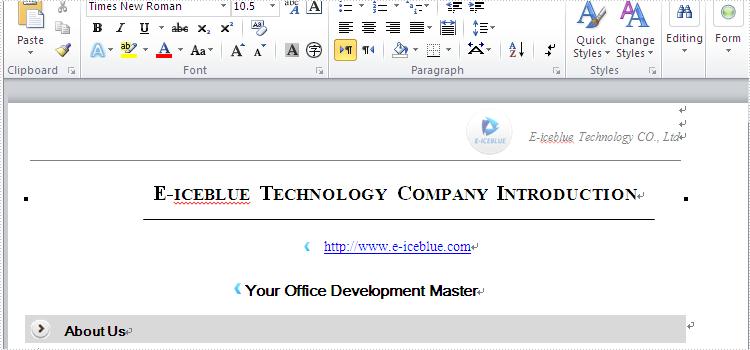
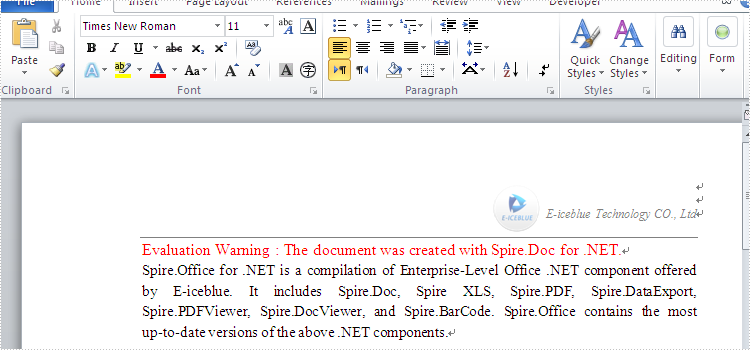
A document can have one or more pages. It is probably easy to add a header for all pages of the document. If you want to add the header only for the first page of the document, Spire.Doc for .NET component can provide you an easy and flexible solution to handle it. The following steps will guide how to add a header into the first page of a document using Spire.Doc for .NET component in C#. In the example, the header is got from an existing document.
Step 1: Load a word document, documen1.docx.
Document document1 = new Document();
document1.LoadFromFile("D:\\document1.docx");
Step 2: Get the header of document1.docx.
HeaderFooter header = document1.Sections[0].HeadersFooters.Header;
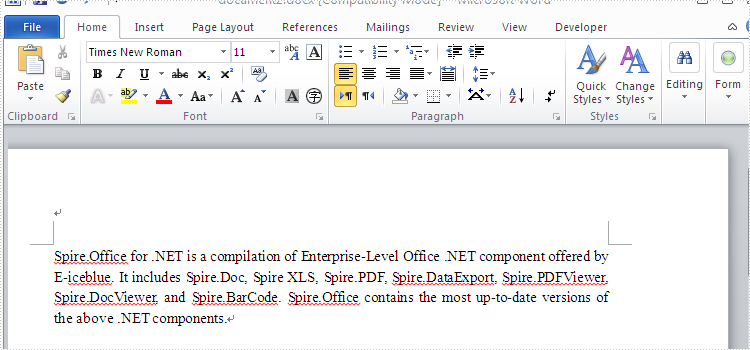
Step 3: Load another word document which will be added the header, document2.docx.
Document document2 = new Document();
document2.LoadFromFile("D:\\document2.docx");
Step 4: Get the first page header of document2.docx.
HeaderFooter firstPageHeader = document2.Sections[0].HeadersFooters.FirstPageHeader;
Step 5: Specify that the current section has a different header/footer for the first page.
foreach (Section section in document2.Sections)
{
section.PageSetup.DifferentFirstPageHeaderFooter = true;
}
Step 6: Removes all child objects in firstPageHeader.
firstPageHeader.Paragraphs.Clear();
Step 7: Add all child objects of the header to firstPageHeader.
foreach (DocumentObject obj in header.ChildObjects)
{
firstPageHeader.ChildObjects.Add(obj.Clone());
}
Step 8: Save document2.docx to a new document, header.docx.
document2.SaveToFile("D:\\Header.docx"", FileFormat.Docx);
Full code:
Document document1 = new Document();
document1.LoadFromFile(@"..\..\document1.docx");
Document document2 = new Document();
document2.LoadFromFile(@"..\..\document2.docx");
HeaderFooter header = document1.Sections[0].HeadersFooters.Header;
HeaderFooter firstPageHeader = document2.Sections[0].HeadersFooters.FirstPageHeader;

foreach (Section section in document2.Sections)
{
section.PageSetup.DifferentFirstPageHeaderFooter = true;
}

firstPageHeader.Paragraphs.Clear();
foreach (DocumentObject obj in header.ChildObjects)
{
firstPageHeader.ChildObjects.Add(obj.Clone());
}

document2.SaveToFile("Header.docx", FileFormat.Docx);
Screenshots:
document1.docx:
document2.docx:
Header.docx:
How to Convert Excel (XLS or XLSX) to PDF in C# .NET: Complete Guide
2025-05-08 08:50:00 Written by Koohji
Converting Excel files to PDF is a crucial task for anyone looking to share spreadsheet data in a secure, consistent, and universally accessible format. Whether you are generating financial reports, creating invoices, or sharing analytical data, PDFs ensure that your document's layout and formatting remain intact across all devices and platforms. Unlike Excel files, which require compatible software to open, PDFs are universally viewable without any dependency.
This guide provides a comprehensive overview of how to efficiently convert Excel files to PDF in C# using a .NET Excel library – Spire.XLS for .NET. You will learn both basic and advanced conversion techniques, including how to export specific sheets or cell ranges, customize page setup, secure converted PDFs with passwords, generate PDF/A-compliant files, and more.
Table of Contents
- Why Convert Excel to PDF
- C# .NET Excel to PDF Conversion Library
- Basic Excel to PDF Conversion
- Advanced Excel to PDF Conversion Features
- FAQs
- Conclusion
Why Convert Excel to PDF
Converting Excel files to PDF offers several key advantages:
- Preserved Layout and Formatting: PDF maintains the original structure and formatting of your Excel file, ensuring consistent appearance across devices.
- Cross-Platform Accessibility: PDF is universally compatible, viewable on any device or operating system without requiring Excel or other spreadsheet software.
- Enhanced Security: PDF files can be encrypted, digitally signed, and restricted to prevent unauthorized access, copying, or editing.
C# .NET Excel to PDF Conversion Library
Spire.XLS for .NET is a comprehensive Excel library that enables seamless conversion of Excel files to PDF within .NET applications without the need for Microsoft Office. It provides developers with full control over how the content is rendered and ensures that the layout and formatting are preserved during the conversion process.
Install Spire.XLS for .NET
Before starting the conversion process, install Spire.XLS for .NET using one of the following methods:
- Option 1: Install via NuGet (Recommended)
Install-Package Spire.XLS- Option 2: Manually Add DLLs to Your Project
- Download the Spire.XLS package and extract the files.
- In Visual Studio, right-click References > Add Reference > Browse, then select the appropriate Spire.Xls.dll based on your target framework.
Basic Excel to PDF Conversion
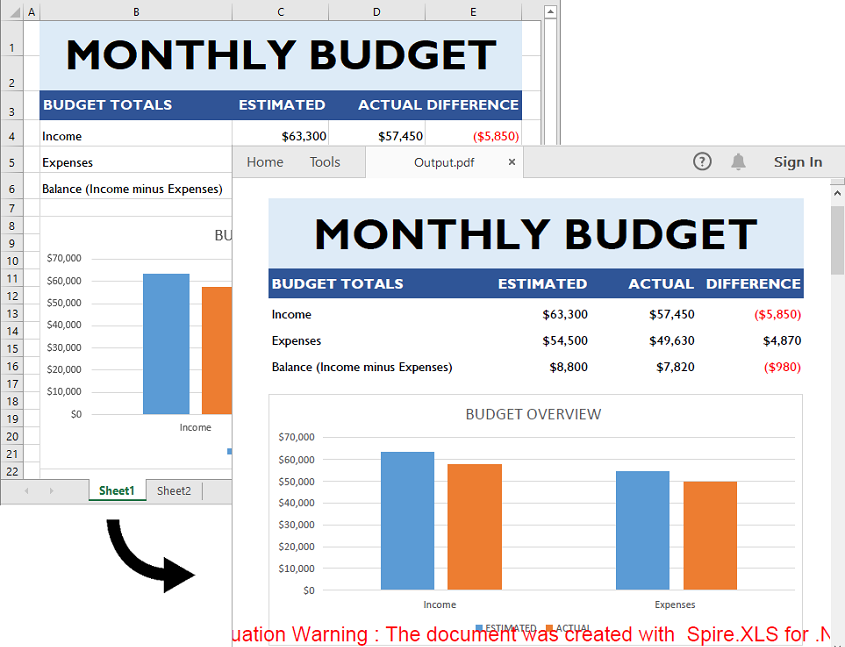
Converting an Excel file to PDF with Spire.XLS is simple and requires only a few lines of code. The following example demonstrates how to load an Excel file and save it as a PDF:
- C#
using Spire.Xls;

namespace ExcelToPdf
{
    internal class Program
    {
        static void Main(string[] args)
        {
            // Create a Workbook object
            Workbook workbook = new Workbook();
            // Load an Excel file
            workbook.LoadFromFile("C:\\Users\\Administrator\\Desktop\\Example.xlsx");

            // Save the Excel file to PDF
            workbook.SaveToFile("Output.pdf", FileFormat.PDF);
            // Dispose resources
            workbook.Dispose();
        }
    }
}
Advanced Excel to PDF Conversion Features
In addition to basic conversion, Spire.XLS for .NET provides advanced options for customized Excel-to-PDF conversions, including:
- Export specific sheet or cell range as PDF.
- Fit sheet to one page.
- Adjust page setup options (e.g., margins, orientation, paper size) for customized PDF output.
- Secure the converted PDF with password.
- Generate PDF/A-compliant files for long-term preservation.
Export Specific Sheet or Cell Range as PDF
Sometimes, you may want to export only a specific sheet or range of cells from an Excel file to PDF. Here's how to do that:
- C#
using Spire.Xls;

namespace WorksheetOrCellRangeToPdf
{
    internal class Program
    {
        static void Main(string[] args)
        {
            // Create a Workbook object
            Workbook workbook = new Workbook();
            // Load the Excel file
            workbook.LoadFromFile("C:\\Users\\Administrator\\Desktop\\Example.xlsx");

            // Get the first worksheet
            Worksheet sheet = workbook.Worksheets[0];

            // Set the print area to a specific cell range
            // Comment this line out if you need to export the entire worksheet as a PDF
            sheet.PageSetup.PrintArea = "B1:E6";

            // Save the cell range as a PDF
            sheet.SaveToPdf("CellRange.pdf");
            // Dispose resources
            workbook.Dispose();
        }
    }
}
Fit Sheet to One Page
Spire.XLS allows you to fit the content of a sheet to one page, which is particularly useful for printing or distributing concise reports.
- C#
using Spire.Xls;

namespace FitWorksheetToOnePage
{
    internal class Program
    {
        static void Main(string[] args)
        {
            // Create a Workbook object
            Workbook workbook = new Workbook();
            // Load the Excel file
            workbook.LoadFromFile("C:\\Users\\Administrator\\Desktop\\Example.xlsx");

            // Fit every worksheet in the workbook to one page
            workbook.ConverterSetting.SheetFitToPage = true;

            // Save the Excel file to PDF
            workbook.SaveToFile("FitToOnePage.pdf", FileFormat.PDF);
            // Dispose resources
            workbook.Dispose();
        }
    }
}
Adjust Page Setup for Customized PDF Output
Before converting an Excel worksheet to PDF, you can adjust page setup options such as margins, paper size, orientation, and gridline visibility. This ensures the final PDF is accurately formatted to meet your presentation requirements.
- C#
using Spire.Xls;

namespace AdjustPageSetup
{
    internal class Program
    {
        static void Main(string[] args)
        {
            // Create a Workbook object
            Workbook workbook = new Workbook();
            // Load the Excel file
            workbook.LoadFromFile("C:\\Users\\Administrator\\Desktop\\Example.xlsx");

            // Get the first worksheet
            Worksheet sheet = workbook.Worksheets[0];

            // Adjust page setup settings
            // Set page orientation
            sheet.PageSetup.Orientation = PageOrientationType.Landscape;
            // Set paper size
            sheet.PageSetup.PaperSize = PaperSizeType.PaperA4;
            // Set margins
            sheet.PageSetup.LeftMargin = 0.5;
            sheet.PageSetup.RightMargin = 0.5;
            sheet.PageSetup.TopMargin = 0.5;
            sheet.PageSetup.BottomMargin = 0.5;
            // Display Gridlines
            sheet.PageSetup.IsPrintGridlines = true;

            // Save the worksheet as a PDF
            sheet.SaveToPdf("CustomPageSetup.pdf");
            // Dispose resources
            workbook.Dispose();
        }
    }
}
Secure the Converted PDF with Password
You can secure the converted PDF by applying password protection. This ensures that unauthorized users cannot access or modify the document.
- C#
using Spire.Xls;
using Spire.Xls.Pdf.Security;

namespace SecurePdfWithPassword
{
    internal class Program
    {
        static void Main(string[] args)
        {
            // Create a Workbook object
            Workbook workbook = new Workbook();
            // Load the Excel file
            workbook.LoadFromFile("C:\\Users\\Administrator\\Desktop\\Example.xlsx");

            // Set the open and permission passwords for the converted PDF
            workbook.ConverterSetting.PdfSecurity.Encrypt("openPassword", "persmissionPassword", PdfPermissionsFlags.Print, PdfEncryptionKeySize.Key128Bit);

            // Save the Excel file to PDF
            workbook.SaveToFile("SecurePdf.pdf", FileFormat.PDF);
            // Dispose resources
            workbook.Dispose();
        }
    }
}
Generate PDF/A-compliant Files
If you need to archive your documents for long-term storage or ensure they meet certain accessibility standards, you can generate PDF/A-compliant files from Excel.
- C#
using Spire.Xls;
using Spire.Xls.Pdf;

namespace ExcelToPdfA
{
    internal class Program
    {
        static void Main(string[] args)
        {
            // Create a Workbook object
            Workbook workbook = new Workbook();
            // Load the Excel file
            workbook.LoadFromFile("C:\\Users\\Administrator\\Desktop\\Example.xlsx");

            // Set the compliance for the converted PDF
            workbook.ConverterSetting.PdfConformanceLevel = PdfConformanceLevel.Pdf_A1A;

            // Save the Excel file to PDF
            workbook.SaveToFile("PdfA_Compliant.pdf", FileFormat.PDF);
            // Dispose resources
            workbook.Dispose();
        }
    }
}
FAQs
Q1: Can I convert a password-protected Excel file to PDF?
Yes, you can load password-protected Excel files by providing the password before loading:
- C#
Workbook workbook = new Workbook();
workbook.OpenPassword = "ExcelPassword";
workbook.LoadFromFile("ProtectedExcel.xlsx");
workbook.SaveToFile("Output.pdf", FileFormat.PDF);
Q2: Is Spire.XLS compatible with .NET Core?
Yes, Spire.XLS supports .NET Framework, .NET Core, and .NET Standard.
Q3: Can I batch convert multiple Excel files to PDF?
Yes, you can batch convert multiple Excel files to PDF using a loop:
- C#
string[] files = Directory.GetFiles("ExcelFolder", "*.xlsx");
foreach (string file in files)
{
    Workbook workbook = new Workbook();
    workbook.LoadFromFile(file);
    string outputPath = Path.ChangeExtension(file, ".pdf");
    workbook.SaveToFile(outputPath, FileFormat.PDF);
}
Q4: Can I convert multiple Excel files to a single PDF?
Yes, you can combine multiple Excel files into a single workbook and then save them as a single PDF:
- C#
Workbook combinedWorkbook = new Workbook();
combinedWorkbook.Worksheets.Clear();
foreach (string file in Directory.GetFiles("ExcelFolder", "*.xlsx"))
{
    Workbook tempWorkbook = new Workbook();
    tempWorkbook.LoadFromFile(file);
    foreach (Worksheet sheet in tempWorkbook.Worksheets)
    {
        combinedWorkbook.Worksheets.AddCopy(sheet);
    }
}
combinedWorkbook.SaveToFile("Combined.pdf", FileFormat.PDF);
Q5: Why does my converted PDF look different from the Excel file?
This issue could be due to missing fonts on the system. Make sure that all fonts used in the Excel file are installed on the machine performing the conversion.
Conclusion
Spire.XLS for .NET provides a powerful and flexible solution for converting Excel files to PDF in C#. Whether you need simple conversions or advanced features—such as exporting specific sheets or cell ranges, customizing page setup, applying password protection to the converted PDF, or generating PDF/A-compliant files—Spire.XLS offers a comprehensive set of tools to meet all your requirements. By following the steps outlined in this guide, you can easily integrate Excel-to-PDF conversion capabilities into your .NET applications.
Get a Free License
To fully experience the capabilities of Spire.XLS for .NET without any evaluation limitations, you can request a free 30-day trial license.
Superscript and subscript are formatting styles that allow you to display characters or numerals above or below the regular text baseline respectively. By utilizing these formatting styles, you can emphasize certain elements, denote exponents, powers, chemical formulas, or mathematical equations, and present data in a more visually appealing and informative manner. In this article, we will demonstrate how to apply superscript and subscript styles in Excel in C# and VB.NET using Spire.XLS for .NET.
Install Spire.XLS for .NET
To begin with, you need to add the DLL files included in the Spire.XLS for .NET package as references in your .NET project. The DLL files can be either downloaded from this link or installed via NuGet.
PM> Install-Package Spire.XLS
Apply Superscript and Subscript in Excel in C# and VB.NET
To apply the superscript or subscript style to specific characters in a cell, you need to create a custom font, enable the superscript or subscript property of the font, and then assign the custom font to the specific characters within the cell. The detailed steps are as follows:
- Create a Workbook object.
- Get a specific worksheet using Workbook.Worksheets[int index] property.
- Get a specific cell using Worksheet.Range[string name] property and add rich text to the cell using CellRange.RichText.Text property.
- Create a custom font using Workbook.CreateFont() method.
- Enable the subscript property of the font by setting ExcelFont.IsSubscript property to true.
- Assign the custom font to specific characters of the rich text in the cell using CellRange.RichText.SetFont() method.
- Get a specific cell using Worksheet.Range[string name] property and add rich text to the cell using CellRange.RichText.Text property.
- Create a custom font using Workbook.CreateFont() method.
- Enable the superscript property of the font by setting ExcelFont.IsSuperscript property to true.
- Assign the custom font to specific characters of the rich text in the cell using CellRange.RichText.SetFont() method.
- Save the result file using Workbook.SaveToFile() method.
- C#
- VB.NET
using Spire.Xls;
using System.Drawing;

namespace ApplySuperscriptAndSubscript
{
    internal class Program
    {
        static void Main(string[] args)
        {
            //Create a Workbook object
            Workbook workbook = new Workbook();

            //Get the first worksheet
            Worksheet sheet = workbook.Worksheets[0];

            //Add text to specific cells
            sheet.Range["B2"].Text = "This is an example of subscript:";
            sheet.Range["D2"].Text = "This is an example of superscript:";

            //Add rich text to a specific cell
            CellRange range = sheet.Range["B3"];
            range.RichText.Text = "an = Sn - Sn-1";

            //Create a custom font
            ExcelFont font = workbook.CreateFont();
            //Enable the subscript property of the font
            font.IsSubscript = true;
            //Set font color
            font.Color = Color.Green;
            //Assign the font to specific characters of the rich text in the cell
            range.RichText.SetFont(6, 6, font);
            range.RichText.SetFont(11, 13, font);

            //Add rich text to a specific cell
            range = sheet.Range["D3"];
            range.RichText.Text = "a2 + b2 = c2";

            //Create a custom font
            font = workbook.CreateFont();
            //Enable the superscript property of the font
            font.IsSuperscript = true;
            //Assign the font to specific characters of the rich text in the cell
            range.RichText.SetFont(1, 1, font);
            range.RichText.SetFont(6, 6, font);
            range.RichText.SetFont(11, 11, font);

            //Auto-fit column widths
            sheet.AllocatedRange.AutoFitColumns();

            //Save the result file
            workbook.SaveToFile("ApplySubscriptAndSuperscript.xlsx", ExcelVersion.Version2013);
            workbook.Dispose();
        }
    }
}

Apply for a Temporary License
If you'd like to remove the evaluation message from the generated documents, or to get rid of the function limitations, please request a 30-day trial license for yourself.
Textboxes in Microsoft Word are versatile tools that enhance document layout and design. They allow users to position text independently of the main text flow, making it easier to create visually appealing documents. In some cases, you may need to extract text from textboxes for repurposing, or update the text inside a textbox to ensure clarity and relevance.
In this article, you will learn how to extract or update text in a textbox in a Word document using C# with Spire.Doc for .NET.
Install Spire.Doc for .NET
To begin with, you need to add the DLL files included in the Spire.Doc for .NET package as references in your .NET project. The DLL files can be either downloaded from this link or installed via NuGet.
PM> Install-Package Spire.Doc
Extract Text from Textbox in a Word Document
Using Spire.Doc for .NET, you can access a specific text box in a document with the Document.TextBoxes[index] property. Iterate through the text box's child objects to check if each one is a paragraph or a table. For paragraphs, retrieve the text using the Paragraph.Text property. For tables, loop through the cells to extract text from each cell.
The steps to extract text from a textbox in a Word document are as follows:
- Create a Document object.
- Load a Word file using Document.LoadFromFile() method.
- Get a specific textbox using Document.TextBoxes[index] property
- Iterate through the child objects of the textbox.
- Determine if a child object if a paragraph. If yes, get the text from the paragraph using Paragraph.Text property.
- Determine if a child object if a table. If yes, get the text from the table using ExtractTextFromTable() method.
- C#
using Spire.Doc;
using Spire.Doc.Documents;
using Spire.Doc.Fields;

namespace ExtractTextFromTextbox
{
    class Program
    {
        static void Main(string[] args)
        {
            // Create a Document object
            Document document = new Document();

            // Load a Word file
            document.LoadFromFile("C:\\Users\\Administrator\\Desktop\\Input.docx");

            // Get a specific textbox
            TextBox textBox = document.TextBoxes[0];

            // Create a StreamWriter to write extracted text to a txt file
            using (StreamWriter sw = File.CreateText("result.txt"))
            {
                // Iterate though child objects of the textbox
                foreach (DocumentObject objt in textBox.ChildObjects)
                {
                    // Determine if the child object is a paragraph
                    if (objt.DocumentObjectType == DocumentObjectType.Paragraph)
                    {
                        // Write paragraph text to the txt file
                        sw.Write((objt as Paragraph).Text);
                    }

                    // Determine if the child object is a table
                    if (objt.DocumentObjectType == DocumentObjectType.Table)
                    {
                        // Extract text from table to the txt file
                        ExtractTextFromTable(objt as Table, sw);
                    }
                }

            }

        }

        // Extract text from a table
        static void ExtractTextFromTable(Table table, StreamWriter sw)
        {
            for (int i = 0; i < table.Rows.Count; i++)
            {
                TableRow row = table.Rows[i];
                for (int j = 0; j < row.Cells.Count; j++)
                {
                    TableCell cell = row.Cells[j];
                    foreach (Paragraph paragraph in cell.Paragraphs)
                    {
                        sw.Write(paragraph.Text);
                    }
                }
            }
        }
    }
}

Update a Textbox in a Word Document
To update a text box, first clear its existing content using the TextBox.ChildObjects.Clear() method. Then, add a new paragraph and set its text.
The steps to update a textbox in a Word document are as follows:
- Create a Document object.
- Load a Word file using Document.LoadFromFile() method.
- Get a specific textbox using Document.TextBoxes[index] property
- Remove existing content of the textbox using TextBox.ChildObjects.Clear() method.
- Add a paragraph to the textbox using TextBox.Body.AddParagraph() method.
- Add text to the paragraph using Paragraph.AppendText() method.
- Save the document to a different Word file.
- C#
using Spire.Doc;
using Spire.Doc.Documents;
using Spire.Doc.Fields;

namespace UpdateTextbox
{
    class Program
    {
        static void Main(string[] args)
        {
            // Create a Document object
            Document document = new Document();

            // Load a Word file
            document.LoadFromFile("C:\\Users\\Administrator\\Desktop\\Input.docx");

            // Get a specific textbox
            TextBox textBox = document.TextBoxes[0];

            // Remove child objects of the textbox
            textBox.ChildObjects.Clear();

            // Add a new paragraph to the textbox
            Paragraph paragraph = textBox.Body.AddParagraph();

            // Set line spacing
            paragraph.Format.LineSpacing = 15f;

            // Add text to the paragraph
            TextRange textRange = paragraph.AppendText("The text in this textbox has been updated.");

            // Set font size
            textRange.CharacterFormat.FontSize = 15f;

            // Save the document to a different Word file
            document.SaveToFile("UpdateTextbox.docx", FileFormat.Docx2019);

            // Dispose resources
            document.Dispose();
        }

    }

}

Apply for a Temporary License
If you'd like to remove the evaluation message from the generated documents, or to get rid of the function limitations, please request a 30-day trial license for yourself.
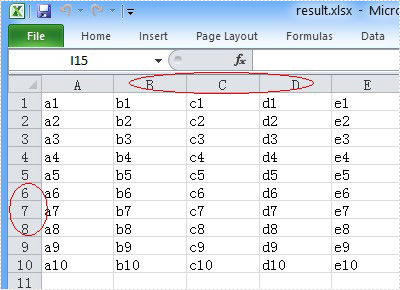
You can hide the Excel row or column by using the c# code, but a row or column also becomes hidden when you want to show the full Excel worksheet. You can unhide the Excel row and column by using the c# code. This article aims at introducing the method sheet.ShowRow and sheet.ShowColumn in the Excel .NET component Spire.Xls to show the hidden row and column.
First, let’s preview the hidden row and column.

Here comes to the steps of the process.
Step 1: Create an instance of Spire.XLS.Workbook.
Workbook workbook = new Workbook();
Step 2: Load the existing Excel file that hidden the row and column in the specified path.
workbook.LoadFromFile("hide.xlsx");
Step 3: Get the first worksheet of the Excel file.
Worksheet sheet = workbook.Worksheets[0];
Step 4: Unhide the hidden row and column.
sheet.ShowRow(7);
sheet.ShowColumn(3);
Step 5: Generate the new Excel file.
workbook.SaveToFile("result.xlsx", ExcelVersion.Version2010);
Now let's preview the effect screenshot.
Here is the full code.
using Spire.Xls;
namespace UnhideExcelRow
{
    class Program
    {
        static void Main(string[] args)
        {
            Workbook workbook = new Workbook();
            workbook.LoadFromFile("hide.xlsx");
            Worksheet sheet = workbook.Worksheets[0];
            // unhide the hidden row and column of the worksheet.
            sheet.ShowRow(7);
            sheet.ShowColumn(3);
            workbook.SaveToFile("result.xlsx", ExcelVersion.Version2010);
        }
    }
}
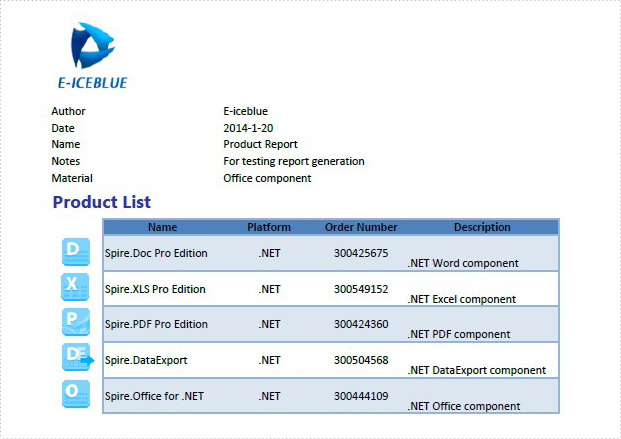
Excel header and footer gives additional information of a spreadsheet. And it can be in text and image. We have already shows you the text header and footer in excel worksheet, this guide focuses on introducing how to insert image header and footer for Excel files in C# by using Spire.XLS for .NET.
Firstly, Download Spire.XLS for .NET (or Spire.Office for .NET) and install it on your system. The Spire.XLS installation is clean, professional and wrapped up in a MSI installer.
Then, adds Spire.XLS.dll as reference in the downloaded Bin folder thought the below path: "..\Spire.XLS\Bin\NET4.0\ Spire.XLS.dll".
Now it comes to the details of how to add image header and footer in C#:
Step 1: Create a new excel document and load from the file.
Workbook workbook = new Workbook();
workbook.LoadFromFile(@"..\..\XLS1.xlsx");
Step 2: Get a first worksheet.
Worksheet sheet = workbook.Worksheets[0];
Step 3: Load the image and set header and footer style.
Image image = Image.FromFile(@"..\..\logo.png");

//Set Header format
sheet.PageSetup.LeftHeaderImage = image;
sheet.PageSetup.LeftHeader = "&G";

//Set Footer format
sheet.PageSetup.CenterFooterImage = image;
sheet.PageSetup.CenterFooter = "&G";
Step 4: Save the document to file.
workbook.SaveToFile(@"..\..\result.xlsx", ExcelVersion.Version2010);
Effected screenshot:
The full codes:
using Spire.Xls;
using System.Drawing;
namespace AddImageHeaderandFooter
{
    class Program
    {
        static void Main(string[] args)
        {
            Workbook workbook = new Workbook();
            workbook.LoadFromFile(@"..\..\XLS1.xlsx");
            Worksheet sheet = workbook.Worksheets[0];
            Image image = Image.FromFile(@"..\..\logo.png");

            sheet.PageSetup.LeftHeaderImage = image;
            sheet.PageSetup.LeftHeader = "&G";

            sheet.PageSetup.CenterFooterImage = image;
            sheet.PageSetup.CenterFooter = "&G";

            workbook.SaveToFile(@"..\..\result.xlsx", ExcelVersion.Version2010);
        }
    }
}
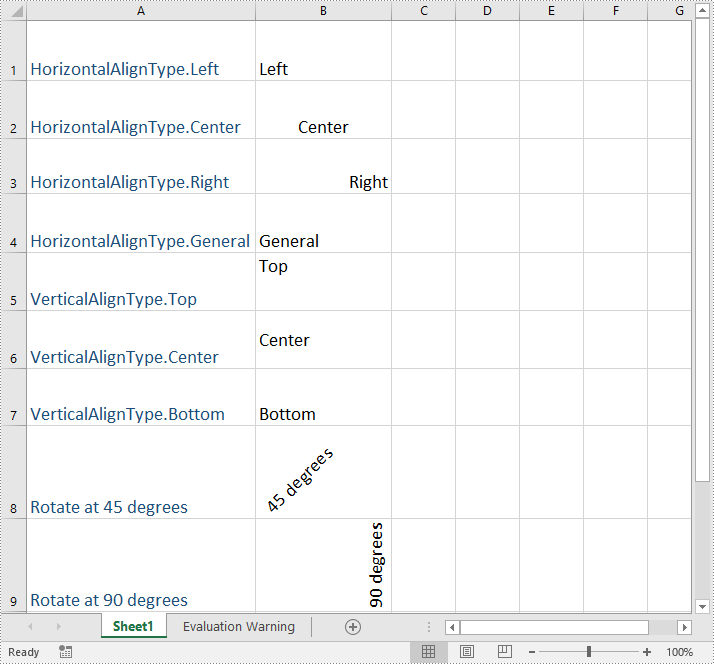
Text alignment and orientation are essential formatting features in Excel that allow you to position and orient text within cells according to your specific needs. By adjusting text alignment and orientation, you can enhance the readability and aesthetics of your spreadsheet. In this article, we will explain how to set text alignment and orientation in Excel in C# and VB.NET using Spire.XLS for .NET.
Install Spire.XLS for .NET
To begin with, you need to add the DLL files included in the Spire.XLS for.NET package as references in your .NET project. The DLL files can be either downloaded from this link or installed via NuGet.
PM> Install-Package Spire.XLS
Set Text Alignment and Orientation in Excel in C# and VB.NET
You can set the horizontal or vertical alignment of text in individual cells or a range of cells using the CellRange.Style.HorizontalAlignment or CellRange.Style.VerticalAlignment properties. In addition, you are also able to change the orientation of text by assigning a rotation value to the corresponding cell or cells using the CellRange.Style.Rotation property. The detailed steps are as follows:
- Create a Workbook object.
- Load an Excel file using Workbook.LoadFromFile() method.
- Get a specific worksheet using Workbook.Worksheets[int index] property.
- Access specific cells in the worksheet using Worksheet.Range[string name] property and then set the horizontal alignment of text in them using CellRange.Style.HorizontalAlignment property.
- Access specific cells in the worksheet using Worksheet.Range[string name] property and then set the vertical alignment of text in them using CellRange.Style.VerticalAlignment property.
- Access specific cells in the worksheet using Worksheet.Range[string name] property and then change their text orientation using CellRange.Style.Rotation property.
- Save the result file using Workbook.SaveToFile() method.
- C#
- VB.NET
using Spire.Xls;

namespace TextAlignmentAndRotation
{
    internal class Program
    {
        static void Main(string[] args)
        {
            //Create a Workbook object
            Workbook workbook = new Workbook();

            //Load an Excel file
            workbook.LoadFromFile(@"Sample.xlsx");

            //Get the first worksheet
            Worksheet sheet = workbook.Worksheets[0];

            //Set the horizontal alignment for text in a specific cell to Left
            sheet.Range["B1"].Style.HorizontalAlignment = HorizontalAlignType.Left;

            //Set the horizontal alignment for text in a specific cell to Center
            sheet.Range["B2"].Style.HorizontalAlignment = HorizontalAlignType.Center;

            //Set the horizontal alignment for text in a specific cell to Right
            sheet.Range["B3"].Style.HorizontalAlignment = HorizontalAlignType.Right;

            //Set the horizontal alignment for text in a specific cell to General
            sheet.Range["B4"].Style.HorizontalAlignment = HorizontalAlignType.General;

            //Set the vertical alignment for text in a specific cell to Top
            sheet.Range["B5"].Style.VerticalAlignment = VerticalAlignType.Top;

            //Set the vertical alignment for text in a specific cell to Center
            sheet.Range["B6"].Style.VerticalAlignment = VerticalAlignType.Center;

            //Set the vertical alignment for text in a specific cell to Bottom
            sheet.Range["B7"].Style.VerticalAlignment = VerticalAlignType.Bottom;

            //Change the text orientation in specific cells by assigning a rotation value
            sheet.Range["B8"].Style.Rotation = 45;
            sheet.Range["B9"].Style.Rotation = 90;

            //Set the row height for specific cells
            sheet.Range["B8:C9"].RowHeight = 70;

            //Save the result file
            workbook.SaveToFile("TextAlignmentAndOrientation.xlsx", ExcelVersion.Version2016);
            workbook.Dispose();
        }
    }
}
Apply for a Temporary License
If you'd like to remove the evaluation message from the generated documents, or to get rid of the function limitations, please request a 30-day trial license for yourself.
