
Document Operation (24)
PDF layers are supported through the usage of Optional Content Group (OCG) objects. As its name implies, optional content refers to the content in a PDF document that can be made visible or invisible dynamically by the user of PDF viewer applications. In this article, you will learn how to programmatically add, hide or delete layers in a PDF file using Spire.PDF for Java.
- Add Layers to a PDF Document in Java
- Set Visibility of Layers in a PDF Document in Java
- Delete Layers in a PDF Document in Java
Install Spire.PDF for Java
First of all, you're required to add the Spire.Pdf.jar file as a dependency in your Java program. The JAR file can be downloaded from this link. If you use Maven, you can easily import the JAR file in your application by adding the following code to your project's pom.xml file.
<repositories>
    <repository>
        <id>com.e-iceblue</id>
        <name>e-iceblue</name>
        <url>https://repo.e-iceblue.com/nexus/content/groups/public/</url>
    </repository>
</repositories>
<dependencies>
    <dependency>
        <groupId>e-iceblue</groupId>
        <artifactId>spire.pdf</artifactId>
        <version>12.4.4</version>
    </dependency>
</dependencies>
Add Layers to a PDF Document in Java
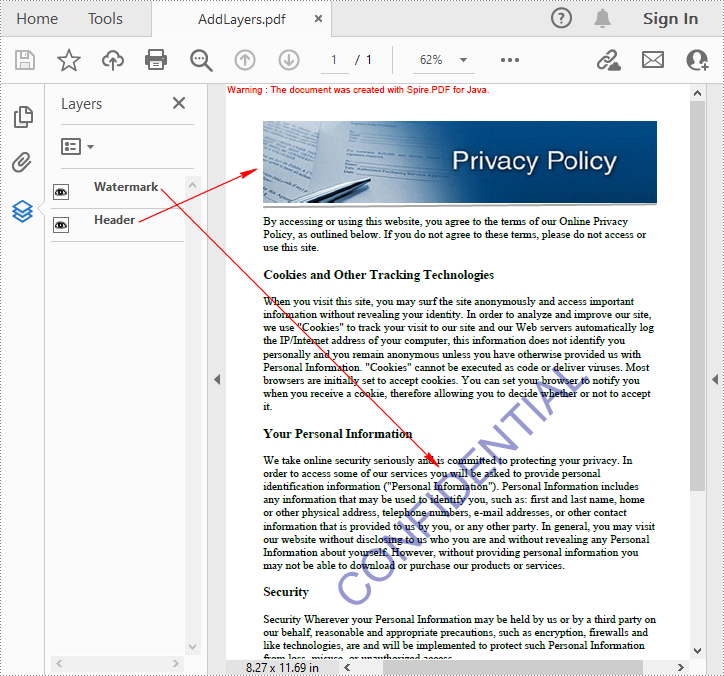
Spire.PDF for Java provides PdfDocument.getLayers().addLayer() method to add a layer in a PDF document, and you can then draw text, lines, images or shapes on the PDF layer. The detailed steps are as follows.
- Create a PdfDocument instance.
- Load a sample PDF file using PdfDocument.loadFromFile() method.
- Add a layer with specified name in the PDF using PdfDocument.getLayers().addLayer(java.lang.String name) method. Or you can also set the visibility of the layer while adding it using PdfDocument. getLayers().addLayer(java.lang.String name, PdfVisibility state) method.
- Create a canvas for the layer using PdfLayer.createGraphics() method.
- Draw text, image or other elements on the canvas.
- Save the result document using PdfDocument.saveToFile() method.
- Java
import com.spire.pdf.PdfDocument;
import com.spire.pdf.PdfPageBase;
import com.spire.pdf.graphics.*;
import com.spire.pdf.graphics.layer.PdfLayer;

import java.awt.*;
import java.awt.geom.Dimension2D;
import java.io.IOException;

public class AddLayersToPdf {

    public static void main(String[] args) throws IOException {

        //Create a PdfDocument instance and load the sample PDF file
        PdfDocument pdf = new PdfDocument();
        pdf.loadFromFile("C:\\Users\\Administrator\\Desktop\\Sample.pdf");

        //Invoke AddLayerWatermark method to add a watermark layer
        AddLayerWatermark(pdf);

        //Invoke AddLayerHeader method to add a header layer
        AddLayerHeader(pdf);

        //Save to file
        pdf.saveToFile("AddLayers.pdf");
        pdf.close();
    }

    private static void AddLayerWatermark(PdfDocument doc) throws IOException {

        //Create a layer named "watermark"
        PdfLayer layer = doc.getLayers().addLayer("Watermark");

        //Create a font
        PdfTrueTypeFont font = new PdfTrueTypeFont(new Font("Arial", Font.PLAIN,48),true);

        //Specify watermark text
        String watermarkText = "CONFIDENTIAL";

        //Get text size
        Dimension2D fontSize = font.measureString(watermarkText);

        //Calculate two offsets
        float offset1 = (float)(fontSize.getWidth() * Math.sqrt(2) / 4);
        float offset2 = (float)(fontSize.getHeight() * Math.sqrt(2) / 4);

        //Get page count
        int pageCount = doc.getPages().getCount();

        //Declare two variables
        PdfPageBase page;
        PdfCanvas canvas;

        //Loop through the pages
        for (int i = 0; i < pageCount; i++) {

            page = doc.getPages().get(i);

            //Create a canvas from layer
            canvas = layer.createGraphics(page.getCanvas());
            canvas.translateTransform(canvas.getSize().getWidth() / 2 - offset1 - offset2, canvas.getSize().getHeight() / 2 + offset1 - offset2);
            canvas.setTransparency(0.4f);
            canvas.rotateTransform(-45);

            //Draw sting on the canvas of layer
            canvas.drawString(watermarkText, font, PdfBrushes.getDarkBlue(), 0, 0);
        }
    }

    private static void AddLayerHeader(PdfDocument doc) {

        //Create a layer named "header"
        PdfLayer layer = doc.getLayers().addLayer("Header");

        //Get page size
        Dimension2D size = doc.getPages().get(0).getSize();

        //Specify the initial values of X and y
        float x = 90;
        float y = 40;

        //Get page count
        int pageCount = doc.getPages().getCount();

        //Declare two variables
        PdfPageBase page;
        PdfCanvas canvas;

        //Loop through the pages
        for (int i = 0; i < pageCount; i++) {

            //Draw an image on the layer
            PdfImage pdfImage = PdfImage.fromFile("C:\\Users\\Administrator\\Desktop\\img.jpg");
            float width = pdfImage.getWidth();
            float height = pdfImage.getHeight();
            page = doc.getPages().get(i);
            canvas = layer.createGraphics(page.getCanvas());
            canvas.drawImage(pdfImage, x, y, width, height);

            //Draw a line on the layer
            PdfPen pen = new PdfPen(PdfBrushes.getDarkGray(), 2f);
            canvas.drawLine(pen, x, y + height + 5, size.getWidth() - x, y + height + 2);
        }
    }
}
Set Visibility of Layers in a PDF Document in Java
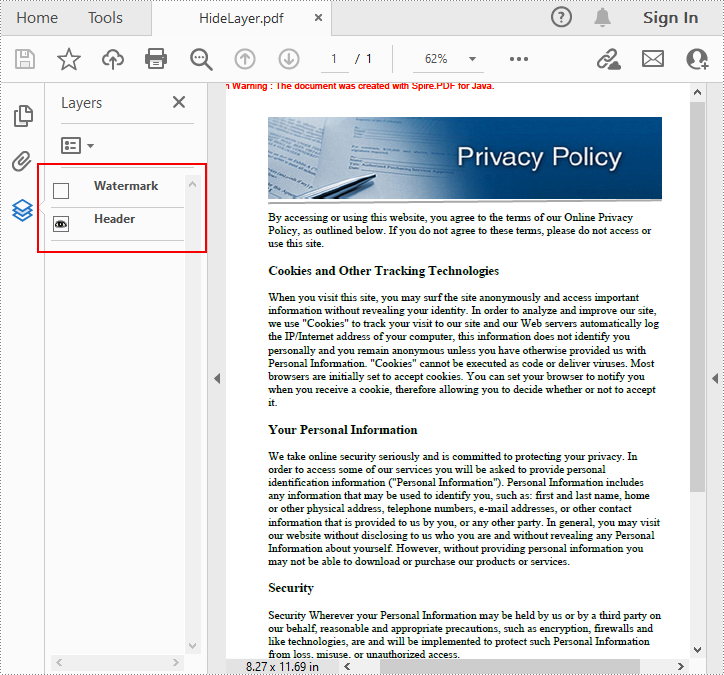
To set the visibility of an existing layer, you'll need to get a specified layer by its index or name using PdfDocument.getLayers().get() method, and then show or hide the layer using PdfLayer.setVisibility(PdfVisibility value) method. The detailed steps are as follows.
- Create a PdfDocument instance.
- Load a sample PDF document using PdfDocument.loadFromFile() method.
- Set the visibility of a specified layer using PdfDocument.getLayers().get().setVisibility() method.
- Save the result document using PdfDocument.saveToFile() method.
- Java
import com.spire.pdf.FileFormat;
import com.spire.pdf.PdfDocument;
import com.spire.pdf.graphics.layer.PdfVisibility;

public class SetLayerVisibility {
    public static void main(String[] args) {

        //Create a PdfDocument instance
        PdfDocument pdf = new PdfDocument();

        //Load a sample PDF file
        pdf.loadFromFile("AddLayers.pdf");

        //Set the visibility of the first layer to off
        pdf.getLayers().get(0).setVisibility(PdfVisibility.Off);

        //Save to file
        pdf.saveToFile("HideLayer.pdf", FileFormat.PDF);
        pdf.dispose();
    }
}
Delete Layers in a PDF Document in Java
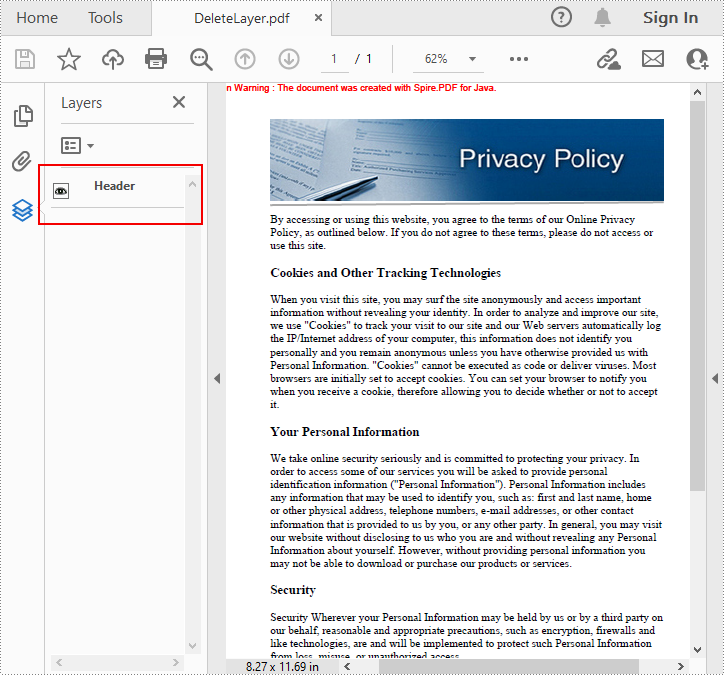
Spire.PDF for Java also allows you to remove an existing layer by its name using PdfDocument.getLayers().removeLayer(java.lang.String name) method. But kindly note that the names of PDF layers may not be unique and this method will remove all PDF layers with the same name. The detailed steps are as follows.
- Create a PdfDocument instance.
- Load a sample PDF document using PdfDocument.LoadFromFile() method.
- Delete a specified layer by its name using PdfDocument.getLayers().removeLayer() method.
- Save the result document using PdfDocument.saveToFile() method.
- Java
import com.spire.pdf.PdfDocument;

public class DeleteLayers {

    public static void main(String[] args) {

        //Create a PdfDocument object and load the sample PDF file
        PdfDocument pdf = new PdfDocument();
        pdf.loadFromFile("AddLayers.pdf");

        //Delete the specific layer by its name
        pdf.getLayers().removeLayer("Watermark");

        //Save to file
        pdf.saveToFile("DeleteLayer.pdf");
        pdf.close();
    }
}
Apply for a Temporary License
If you'd like to remove the evaluation message from the generated documents, or to get rid of the function limitations, please request a 30-day trial license for yourself.
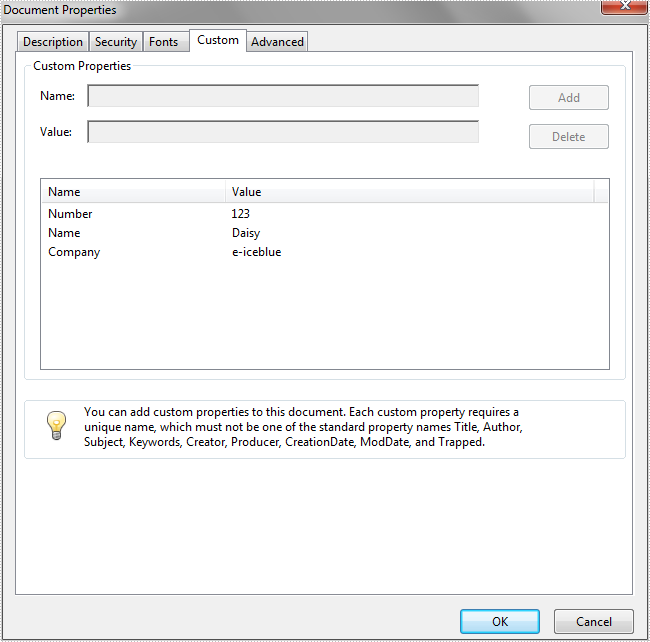
We have already demonstrated how to set PDF Document Properties in Java. This article we will show you how to set custom properties for PDF files in Java.
import com.spire.pdf.*;

public class PDFCustomProperties {
    public static void main(String[] args) throws Exception {

        String inputPath = "Sample.pdf";
        PdfDocument doc = new PdfDocument(inputPath);
        doc.loadFromFile(inputPath);

        //Set the custom properties
       doc.getDocumentInformation().setCustomProperty("Number", "123");
       doc.getDocumentInformation().setCustomProperty("Name", "Daisy");
       doc.getDocumentInformation().setCustomProperty("Company", "e-iceblue");"


        //Save the document to file
        doc.saveToFile("Output/result.pdf");
        doc.close();

    }
}
Effective screenshot after adding custom properties to PDF document:
Master PDF Compression in Java: Reduce PDF File Size Efficiently
2023-06-27 08:23:00 Written by hayes Liu
Handling large PDF files is a common challenge for Java developers. PDFs with high-resolution images, embedded fonts, and multimedia content can quickly become heavy, slowing down applications, increasing storage costs, and creating a poor user experience—especially on mobile devices.
Mastering PDF compression in Java is essential to reduce file size efficiently while maintaining document quality. This step-by-step guide demonstrates how to compress and optimize PDF files in Java. You’ll learn how to compress document content, optimize images, fonts, and metadata, ensuring faster file transfers, improved performance, and a smoother user experience in your Java applications.
What You Will Learn
- Setting Up Your Development Environment
- Reduce PDF File Size by Compressing Document Content in Java
- Reduce PDF File Size by Optimizing Specific Elements in Java
- Full Java Example that Combines All PDF Compressing Techniques
- Best Practices for PDF Compression
- Conclusion
- FAQs
1. Setting Up Your Development Environment
Before implementing PDF compression in Java, ensure your development environment is properly configured.
1.1. Prerequisites
- Java Development Kit (JDK): Ensure you have JDK 1.8 or later installed.
- Build Tool: Maven or Gradle is recommended for dependency management.
- Integrated Development Environment (IDE): IntelliJ IDEA or Eclipse is suitable.
1.2. Adding Dependencies
To programmatically compress PDF files, you need a PDF library that supports compression features. Spire.PDF for Java provides APIs for loading, reading, editing, and compressing PDF documents. You can include it via Maven or Gradle.
Maven (pom.xml):
Add the following repository and dependency to your project's pom.xml file within the <repositories> and <dependencies> tags, respectively:
<repositories>
    <repository>
        <id>com.e-iceblue</id>
        <name>e-iceblue</name>
        <url>https://repo.e-iceblue.com/nexus/content/groups/public/</url>
    </repository>
</repositories>
<dependencies>
    <dependency>
        <groupId>e-iceblue</groupId>
        <artifactId>spire.pdf</artifactId>
        <version>12.4.4</version>
    </dependency>
</dependencies>
Gradle (build.gradle):
For Gradle users, add the repository and dependency as follows:
repositories {
    mavenCentral()
    maven {
        url "https://repo.e-iceblue.com/nexus/content/groups/public/"
    }
}

dependencies {
    implementation 'e-iceblue:spire.pdf:11.8.0'
}
After adding the dependency, refresh your Maven or Gradle project to download the necessary JAR files.
2. Reduce PDF File Size by Compressing Document Content in Java
One of the most straightforward techniques for reducing PDF file size is to apply document content compression. This approach automatically compresses the internal content streams of the PDF, such as text and graphics data, without requiring any manual fine-tuning. It is especially useful when you want a quick and effective solution that minimizes file size while maintaining document integrity.
The following example demonstrates how to enable and apply content compression in a PDF file using Java.
import com.spire.pdf.conversion.compression.PdfCompressor;

public class CompressContent {
    public static void main(String[] args){
        // Create a compressor
        PdfCompressor compressor = new PdfCompressor("test.pdf");

        // Enable document content compression
        compressor.getOptions().setCompressContents(true);

        // Compress and save
        compressor.compressToFile("ContentCompression.pdf");
    }
}
Key Points:
- setCompressContents(true) enables document content compression.
- Original PDFs remain unchanged; compressed files are saved separately.
3. Reduce PDF File Size by Optimizing Specific Elements in Java
Beyond compressing content streams, developers can also optimize individual elements of the PDF, such as images, fonts, and metadata. This allows for granular control over file size optimization.
3.1. Image Compression
Images are frequently the primary reason for large files. By lowering the image quality, you can significantly minimize the size of image-heavy PDF files.
import com.spire.pdf.conversion.compression.ImageCompressionOptions;
import com.spire.pdf.conversion.compression.ImageQuality;
import com.spire.pdf.conversion.compression.PdfCompressor;

public class CompressImages {
    public static void main(String[] args){
        // Load the PDF document
        PdfCompressor compressor = new PdfCompressor("test.pdf");

        // Get image compression options
        ImageCompressionOptions imageCompression = compressor.getOptions().getImageCompressionOptions();

        // Compress images and set quality
        imageCompression.setCompressImage(true);          // Enable image compression
        imageCompression.setImageQuality(ImageQuality.Low); // Set image quality (Low, Medium, High)
        imageCompression.setResizeImages(true);           // Resize images to reduce size

        // Save the compressed PDF
        compressor.compressToFile("ImageCompression.pdf");
    }
}
Key Points:
- setCompressImage(true) enables image compression.
- setImageQuality(...) adjusts the output image quality; the lower the quality, the smaller the image size.
- setResizeImages(true) enables image resizing.
3.2. Font Compression or Unembedding
When a PDF uses custom fonts, the entire font file might be embedded, even if only a few characters are used. Font compression or unembedding is a technique that reduces the size of embedded fonts by compressing them or removing them entirely from the PDF.
import com.spire.pdf.conversion.compression.PdfCompressor;
import com.spire.pdf.conversion.compression.TextCompressionOptions;

public class CompressPDFWithOptions {
    public static void main(String[] args){
        // Load the PDF document
        PdfCompressor compressor = new PdfCompressor("test.pdf");

        // Get text compression options
        TextCompressionOptions textCompression = compressor.getOptions().getTextCompressionOptions();

        // Compress fonts
        textCompression.setCompressFonts(true);

        // Optional: unembed fonts to reduce size
        // textCompression.setUnembedFonts(true);

        // Save the compressed PDF
        compressor.compressToFile("FontOptimization.pdf");
    }
}
Key Points:
- setCompressFonts(true) compresses embedded fonts while preserving document appearance.
- setUnembedFonts(true) removes embedded fonts entirely, which may reduce file size but could affect text rendering if the fonts are not available on the system.
3.3 Metadata Removal
PDFs often store metadata such as author details, timestamps, and editing history that aren’t needed for viewing. Removing metadata reduces file size and protects sensitive information.
import com.spire.pdf.conversion.compression.PdfCompressor;

public class CompressPDFWithOptions {
    public static void main(String[] args){
        // Load the PDF document
        PdfCompressor compressor = new PdfCompressor("test.pdf");

        // Remove metadata
        compressor.getOptions().setRemoveMetadata(true);

        // Save the compressed PDF
        compressor.compressToFile("MetadataRemoval.pdf");
    }
}
4. Full Java Example that Combines All PDF Compressing Techniques
After exploring both document content compression and element-specific optimizations (images, fonts, and metadata), let’s explore how to apply all these techniques together in one workflow.
import com.spire.pdf.conversion.compression.ImageQuality;
import com.spire.pdf.conversion.compression.OptimizationOptions;
import com.spire.pdf.conversion.compression.PdfCompressor;

public class CompressPDFWithAllTechniques {
    public static void main(String[] args){
        // Initialize compressor
        PdfCompressor compressor = new PdfCompressor("test.pdf");

        // Enable document content compression
        OptimizationOptions options = compressor.getOptions();
        options.setCompressContents(true);

        // Optimize images (downsampling and compression)
        options.getImageCompressionOptions().setCompressImage(true);
        options.getImageCompressionOptions().setImageQuality(ImageQuality.Low);
        options.getImageCompressionOptions().setResizeImages(true);

        // Optimize fonts (compression or unembedding)
        // Compress fonts
        options.getTextCompressionOptions().setCompressFonts(true);
        // Optional: unembed fonts to reduce size
        // options.getTextCompressionOptions().setUnembedFonts(true);

        // Remove unnecessary metadata
        options.setRemoveMetadata(true);

        // Save the compressed PDF
        compressor.compressToFile("CompressPDFWithAllTechniques.pdf");
    }
}
Reviewing the Compression Effect:
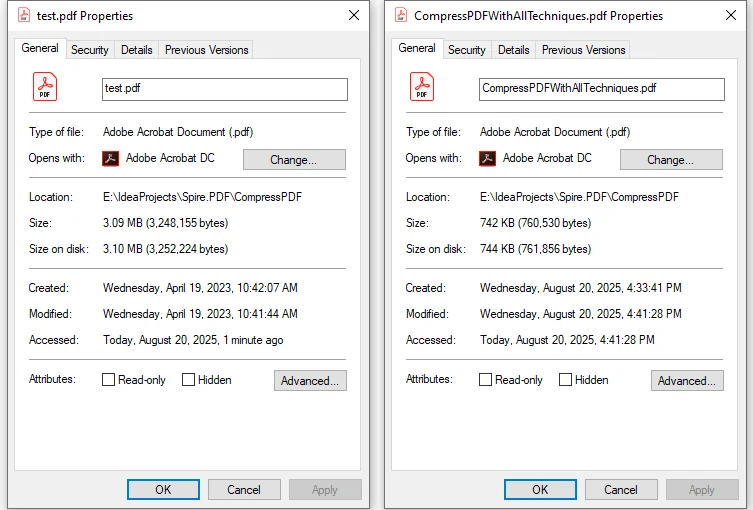
After running the code, the original sample PDF of 3.09 MB was reduced to 742 KB. The compression ratio is approximately 76%.
5. Best Practices for PDF Compression
When applying PDF compression in Java, it’s important to follow some practical guidelines to ensure the file size is reduced effectively without sacrificing usability or compatibility.
- Choose methods based on content: PDF compression depends heavily on the type of content. Text-based files may only require content and font optimization, while image-heavy documents benefit more from image compression. In many cases, combining multiple techniques yields the best results.
- Balance quality with file size: Over-compression may influence the document's readability, so it’s important to maintain a balance.
- Test across PDF readers: Ensure compatibility with Adobe Acrobat, browser viewers, and mobile apps.
6. Conclusion
Compressing PDF in Java is not just about saving disk space—it directly impacts performance, user experience, and system efficiency. Using Libraries like Spire.PDF for Java, developers can implement fine-grained compression techniques, from compressing content, optimizing images and fonts, to cleaning up unused metadata.
By applying the right strategies, you can minimize PDF size in Java significantly without sacrificing quality. This leads to faster file transfers, lower storage costs, and smoother rendering across platforms. Mastering these compression methods ensures your Java applications remain responsive and efficient, even when handling complex, resource-heavy PDFs.
7. FAQs
Q1: Can I reduce PDF file size in Java without losing quality?
A1: Yes. Spire.PDF allows selective compression of images, fonts, and other objects while maintaining readability and layout.
Q2: Will compressed PDFs remain compatible with popular PDF readers?
A2: Yes. Compressed PDFs remain compatible with Adobe Acrobat, browser viewers, mobile apps, and other standard PDF readers.
Q3: What’s the difference between image compression and font compression?
A3: Image compression reduces the size of embedded images, while font compression reduces embedded font data or removes unused fonts. Both techniques together optimize file size effectively.
Q4: How do I choose the best compression strategy?
A4: Consider the PDF content. Use image compression for image-heavy PDFs and font compression for text-heavy PDFs. Often, combining both techniques yields the best results without affecting readability.
Q5: Can I automate PDF compression for multiple files in Java?
A5: Yes. You can write Java scripts to batch compress multiple PDFs by applying the same compression settings consistently across all files.
When you edit a PDF document, it is sometimes necessary to delete redundant pages of the document or add new pages to the document. This article will show you how to add or delete pages in a PDF document using Spire.PDF for Java.
Install Spire.PDF for Java
First of all, you're required to add the Spire.Pdf.jar file as a dependency in your Java program. The JAR file can be downloaded from this link. If you use Maven, you can easily import the JAR file in your application by adding the following code to your project's pom.xml file.
<repositories>
    <repository>
        <id>com.e-iceblue</id>
        <name>e-iceblue</name>
        <url>https://repo.e-iceblue.com/nexus/content/groups/public/</url>
    </repository>
</repositories>
<dependencies>
    <dependency>
        <groupId>e-iceblue</groupId>
        <artifactId>spire.pdf</artifactId>
        <version>12.4.4</version>
    </dependency>
</dependencies>
Add Empty Pages to a PDF Document
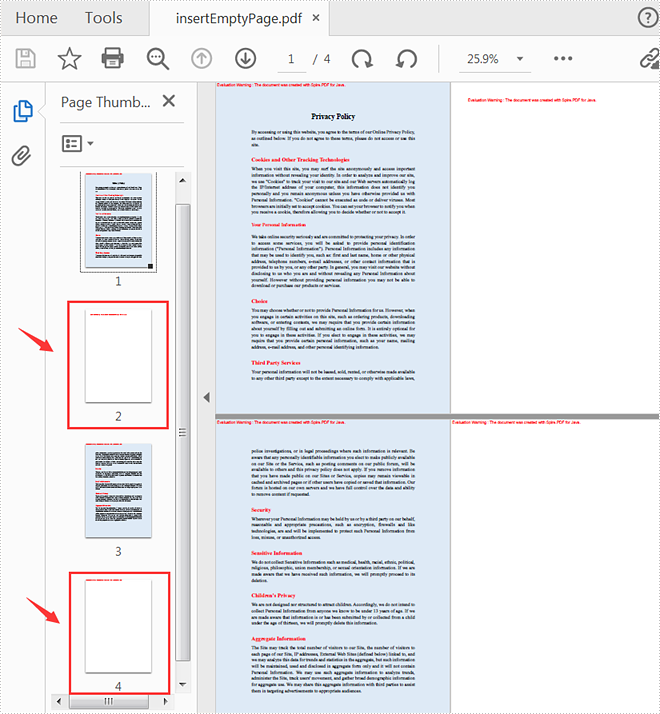
The following steps show you how to add empty pages to a specific position of a PDF document and its end.
- Create a PdfDocument instance.
- Load a sample PDF document using PdfDocument.loadFromFile() method.
- Create a new blank page and insert it into a specific position of the document using PdfDocument.getPages().insert(int index) method.
- Create another new blank page with the specified size and margins and then append it to the end of the document using PdfDocument.getPages().add(java.awt.geom.Dimension2D size, PdfMargins margins) method.
- Save the document to another file using PdfDocument.saveToFile() method.
- Java
import com.spire.pdf.*;
import com.spire.pdf.graphics.PdfMargins;

public class InsertEmptyPage {
    public static void main(String[] args) {
        //Create a PdfDocument instance
        PdfDocument pdf = new PdfDocument();

        //Load a sample PDF document
        pdf.loadFromFile("C:\\Users\\Test1\\Desktop\\sample.pdf");

        //Insert a blank page to the document as the second page
        pdf.getPages().insert(1);

        //Add an empty page to the end of the document
        pdf.getPages().add(PdfPageSize.A4, new PdfMargins(0, 0));

        //Save the document to another file
        pdf.saveToFile("output/insertEmptyPage.pdf");
        pdf.close();
    }
}
Delete an Existing Page in a PDF Document
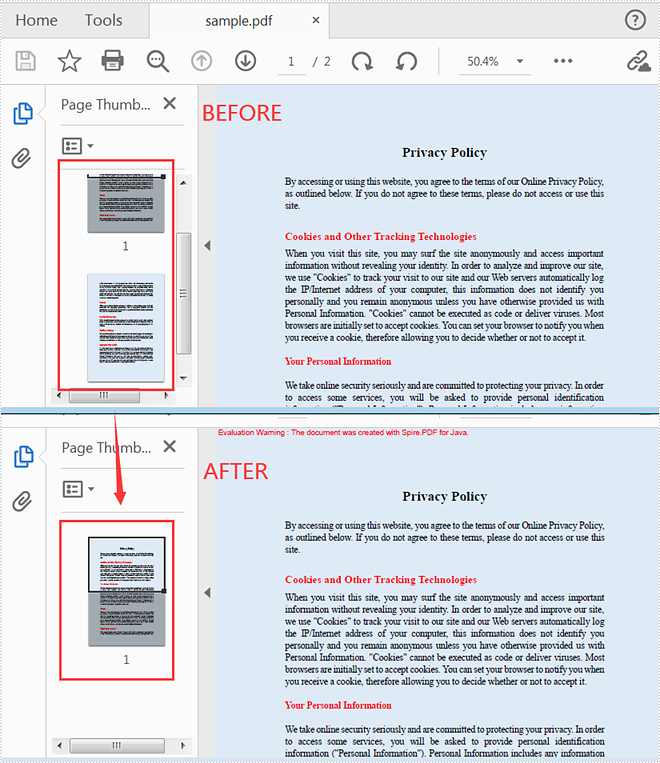
The following steps are to delete a specific page of a PDF document.
- Create a PdfDocument instance.
- Load a sample PDF document using PdfDocument.loadFromFile() method.
- Remove a specific page of the document using PdfDocument.getPages().removeAt(int index) method.
- Save the document to another file using PdfDocument.saveToFile() method.
- Java
import com.spire.pdf.*;

public class DeletePage {
    public static void main(String[] args) {

        //Create a PdfDocument instance
        PdfDocument pdf = new PdfDocument();

        //Load a sample PDF document
        pdf.loadFromFile("C:\\Users\\Test1\\Desktop\\sample.pdf");

        //Delete the second page of the document
        pdf.getPages().removeAt(1);

        //Save the document to another file
        pdf.saveToFile("output/deletePage.pdf");
        pdf.close();
    }
}
Apply for a Temporary License
If you'd like to remove the evaluation message from the generated documents, or to get rid of the function limitations, please request a 30-day trial license for yourself.
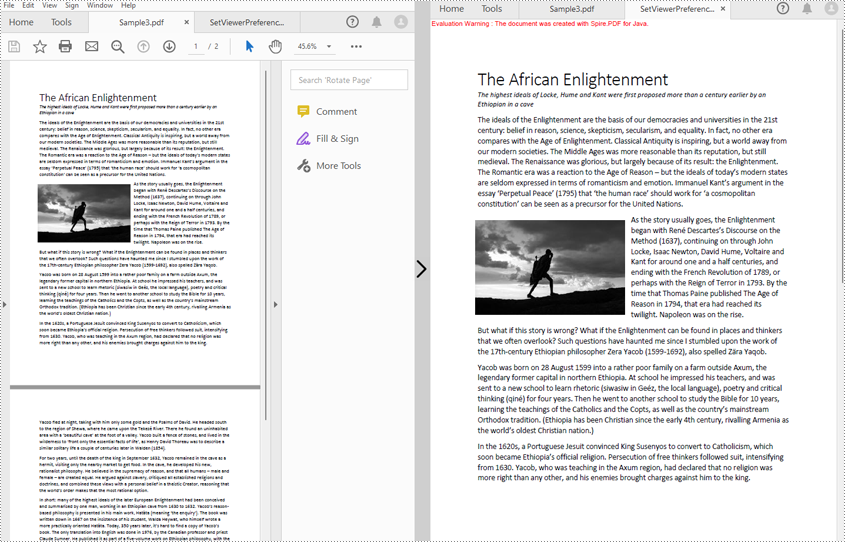
Preserving and displaying documents precisely is a primary function of PDF. However, the viewing preference settings of different devices and users would still affect the display of PDF documents. To solve this problem, PDF provides the viewer preference entry in a document to control the way the PDF document presents on screen. Without it, PDF documents will display according to the current user’s preference setting. This article will show how to set PDF viewer preferences by programming using Spire.PDF for Java.
Install Spire.PDF for Java
First of all, you're required to add the Spire.Pdf.jar file as a dependency in your Java program. The JAR file can be downloaded from this link. If you use Maven, you can easily import the JAR file in your application by adding the following code to your project's pom.xml file.
<repositories>
    <repository>
        <id>com.e-iceblue</id>
        <name>e-iceblue</name>
        <url>https://repo.e-iceblue.com/nexus/content/groups/public/</url>
    </repository>
</repositories>
<dependencies>
    <dependency>
        <groupId>e-iceblue</groupId>
        <artifactId>spire.pdf</artifactId>
        <version>12.4.4</version>
    </dependency>
</dependencies>
Set Viewer Preferences of a PDF Document
Spire.PDF for Java includes several methods under PdfViewerPreferences class, which can decide whether to center the window, display title, fit the window, and hide menu bar as well as tool bar and set page layout, page mode, and scaling mode. The detailed steps of setting viewer preferences are as follows.
- Create an object of PdfDocument class.
- Load a PDF file using PdfDocument.loadFromFile() method.
- Get viewer preferences of the document using PdfDocument.getViewerPreferences() method.
- Set the viewer preferences using the methods under PdfViewerPreferences object.
- Save the file using PdfDocument.saveToFile() method.
- Java
import com.spire.pdf.*;

public class setViewerPreference {
    public static void main(String[] args) {

        //Create an object of PdfDocument class
        PdfDocument pdf = new PdfDocument();

        //Load a PDF file
        pdf.loadFromFile("C:/Sample3.pdf");

        //Get viewer preferences of the document
        PdfViewerPreferences preferences = pdf.getViewerPreferences();

        //Set viewer preferences
        preferences.setCenterWindow(true);
        preferences.setDisplayTitle(false);
        preferences.setFitWindow(true);
        preferences.setHideMenubar(true);
        preferences.setHideToolbar(true);
        preferences.setPageLayout(PdfPageLayout.Single_Page);
        //preferences.setPageMode(PdfPageMode.Full_Screen);
        //preferences.setPrintScaling(PrintScalingMode.App_Default);

        //Save the file
        pdf.saveToFile("SetViewerPreference.pdf");
        pdf.close();
    }
}
Apply for a Temporary License
If you'd like to remove the evaluation message from the generated documents, or to get rid of the function limitations, please request a 30-day trial license for yourself.
PDF properties, as a part of a PDF document, are not shown on a page. Those properties contain information on documents, including title, author, subject, keywords, creation date, and creator. Some of the property values will not be produced automatically, and we have to set them by ourselves. This article will show you how to set or retrieve PDF properties programmatically using Spire.PDF for Java.
Install Spire.PDF for Java
First of all, you're required to add the Spire.Pdf.jar file as a dependency in your Java program. The JAR file can be downloaded from this link. If you use Maven, you can easily import the JAR file in your application by adding the following code to your project's pom.xml file.
<repositories>
    <repository>
        <id>com.e-iceblue</id>
        <name>e-iceblue</name>
        <url>https://repo.e-iceblue.com/nexus/content/groups/public/</url>
    </repository>
</repositories>
<dependencies>
    <dependency>
        <groupId>e-iceblue</groupId>
        <artifactId>spire.pdf</artifactId>
        <version>12.4.4</version>
    </dependency>
</dependencies>
Set Properties of a PDF Document in Java
The detailed steps of setting PDF properties are as follows.
- Create an object of PdfDocument class.
- Load a PDF document from disk using PdfDocument.loadFromFile() method.
- Set document properties including title, author, subject, keywords, creation date, modification date, creator, and producer using the methods under DocumentInformation object returned by PdfDocument.getDocumentInformation() method.
- Save the document using PdfDocument.saveToFile() method.
- Java
import com.spire.pdf.*;
import java.util.Date;

public class setPDFProperties {
    public static void main(String[] args) {
        //Create an object of PdfDocument
        PdfDocument pdfDocument = new PdfDocument();

        //Load a PDF document from disk
        pdfDocument.loadFromFile("D:/Samples/Sample.pdf");

        //Set the title
        pdfDocument.getDocumentInformation().setTitle("PDF(Portable Document Format)");

        //Set the author
        pdfDocument.getDocumentInformation().setAuthor("John");

        //Set the subject
        pdfDocument.getDocumentInformation().setSubject("Introduction of PDF");

        //Set the keywords
        pdfDocument.getDocumentInformation().setKeywords("PDF, document format");

        //Set the creation time
        pdfDocument.getDocumentInformation().setCreationDate(new Date());

        //Set the creator name
        pdfDocument.getDocumentInformation().setCreator("John");

        //Set the modification time
        pdfDocument.getDocumentInformation().setModificationDate(new Date());

        //Set the producer name
        pdfDocument.getDocumentInformation().setProducer("Spire.PDF for Java");

        //Save the document
        pdfDocument.saveToFile("output/setPDFProperties.pdf");
    }
}
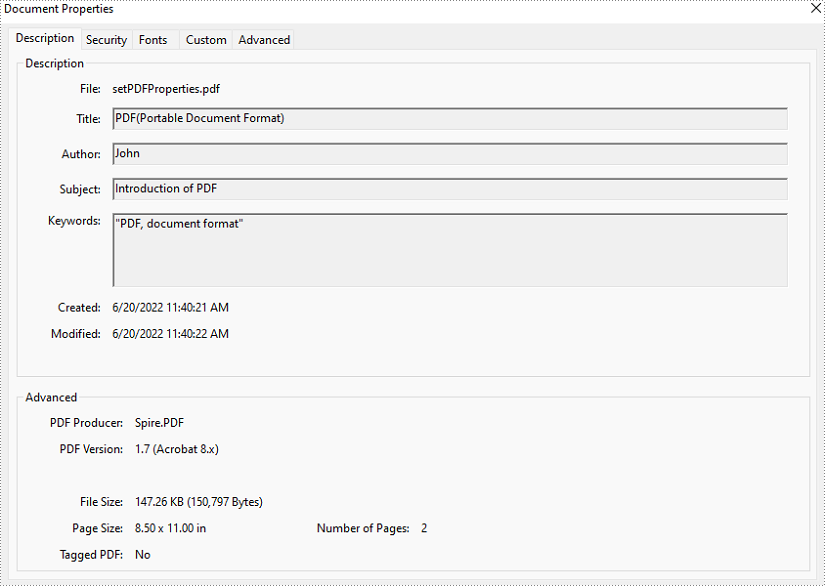
Get Properties of a PDF Document in Java
The detailed steps of retrieving PDF properties are as follows.
- Create an object of PdfDocument class.
- Load a PDF document from disk using PdfDocument.loadFromFile() method.
- Create a StringBuilder instance to store the values of document properties.
- Get properties using the methods under DocumentInformation object returned by PdfDocument.getDocumentInformation() method and put them in the StringBuilder.
- Create a new TXT file using File.createNewFile() method.
- Write the StringBuilder to the TXT file using BufferedWriter.write() method.
- Java
import com.spire.pdf.*;
import java.io.*;

public class getPDFProperties {
    public static void main(String[] args) throws IOException {
        //Create an object of PdfDocument class
        PdfDocument pdf = new PdfDocument();

        //Load a PDF document from disk
        pdf.loadFromFile("D:/Samples/Sample.pdf");

        //Create a StringBuilder instance to store the values of document properties
        StringBuilder stringBuilder = new StringBuilder();

        //Retrieve property values and put them in the StringBuilder
        stringBuilder.append("Title: " + pdf.getDocumentInformation().getTitle() + "\r\n");
        stringBuilder.append("Author: " + pdf.getDocumentInformation().getAuthor() + "\r\n");
        stringBuilder.append("Subject: " + pdf.getDocumentInformation().getSubject() + "\r\n");
        stringBuilder.append("Keywords: " + pdf.getDocumentInformation().getKeywords() + "\r\n");
        stringBuilder.append("Creator: " + pdf.getDocumentInformation().getCreator() + "\r\n");
        stringBuilder.append("Creation Date: " + pdf.getDocumentInformation().getCreationDate() + "\r\n");
        stringBuilder.append("Producer: " + pdf.getDocumentInformation().getProducer() + "\r\n");

        //Create a new TXT file
        File file = new File("D:/output/getPDFProperties.txt");
        file.createNewFile();

        //Write the StringBuilder to the TXT file
        FileWriter fileWriter = new FileWriter(file, true);
        BufferedWriter bufferedWriter = new BufferedWriter(fileWriter);
        bufferedWriter.write(stringBuilder.toString());
        bufferedWriter.flush();
    }
}
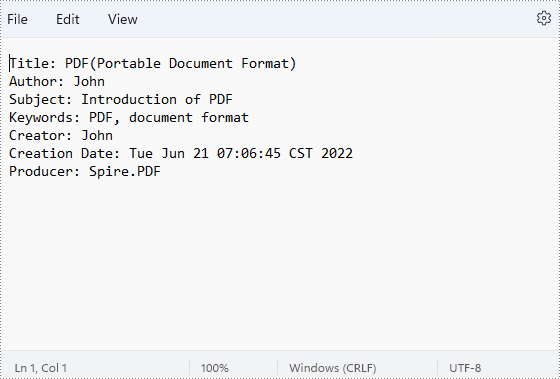
Apply for a Temporary License
If you'd like to remove the evaluation message from the generated documents, or to get rid of the function limitations, please request a 30-day trial license for yourself.
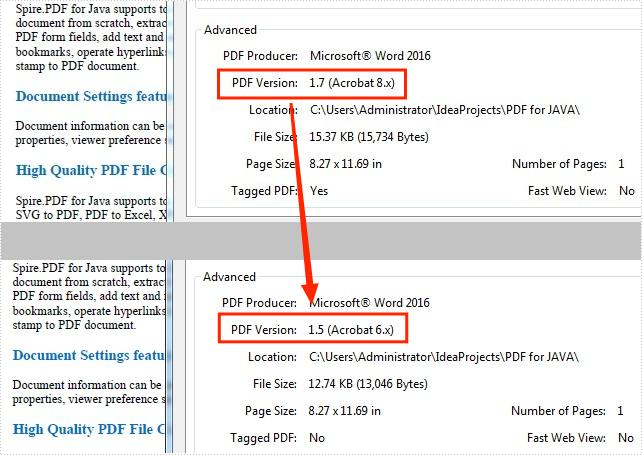
PDF is a file format developed by Adobe in 1992, and during the years, it has undergone a lot of changes. Sometimes you may find that some devices have strict requirements on the PDF version. In such a case, it's necessary to change the PDF file to a different version for compatibility purpose. This article will show how to programmatically change the PDF version using Spire.PDF for Java.
Install Spire.PDF for Java
First of all, you're required to add the Spire.Pdf.jar file as a dependency in your Java program. The JAR file can be downloaded from this link. If you use Maven, you can easily import the JAR file in your application by adding the following code to your project's pom.xml file.
<repositories>
    <repository>
        <id>com.e-iceblue</id>
        <name>e-iceblue</name>
        <url>https://repo.e-iceblue.com/nexus/content/groups/public/</url>
    </repository>
</repositories>
<dependencies>
    <dependency>
        <groupId>e-iceblue</groupId>
        <artifactId>spire.pdf</artifactId>
        <version>12.4.4</version>
    </dependency>
</dependencies>
Change PDF Version
Spire.PDF for Java supports the PDF versions from 1.0 to 1.7. The following are the detailed steps to change the PDF version.
- Create a PdfDocument object.
- Load a sample PDF file using PdfDocument.loadFromFile() method.
- Change the PDF file to another version using PdfDocument.getFileInfo().setVersion() method.
- Save the document to another file using PdfDocument.saveToFile() method.
- Java
import com.spire.pdf.*;

public class ChangePdfVersion {

    public static void main(String[] args) {

        //Create a PdfDocument object
        PdfDocument document = new PdfDocument();

        //Load a sample PDF file
        document.loadFromFile("sample.pdf");

        //Change the PDF to version 1.5
        document.getFileInfo().setVersion(PdfVersion.Version_1_5);

        //Save to file
        document.saveToFile("PdfVersion.pdf", FileFormat.PDF);
        document.close();
    }
}
Apply for a Temporary License
If you'd like to remove the evaluation message from the generated documents, or to get rid of the function limitations, please request a 30-day trial license for yourself.
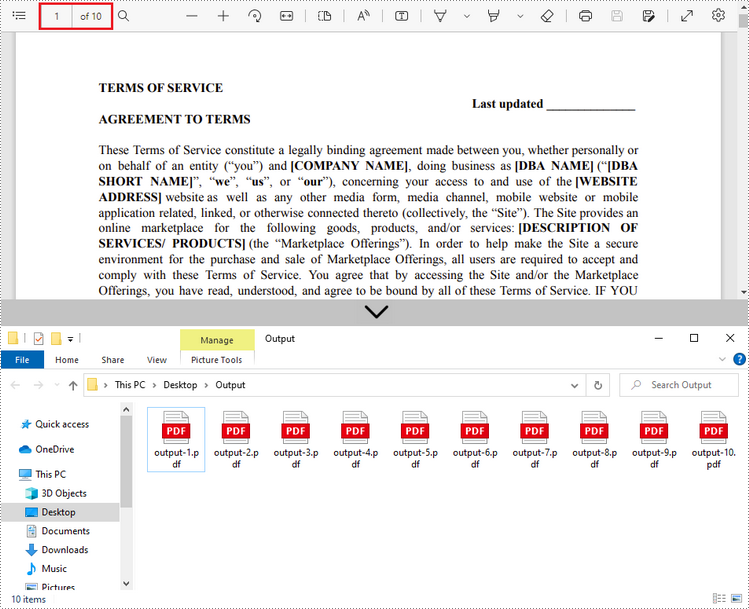
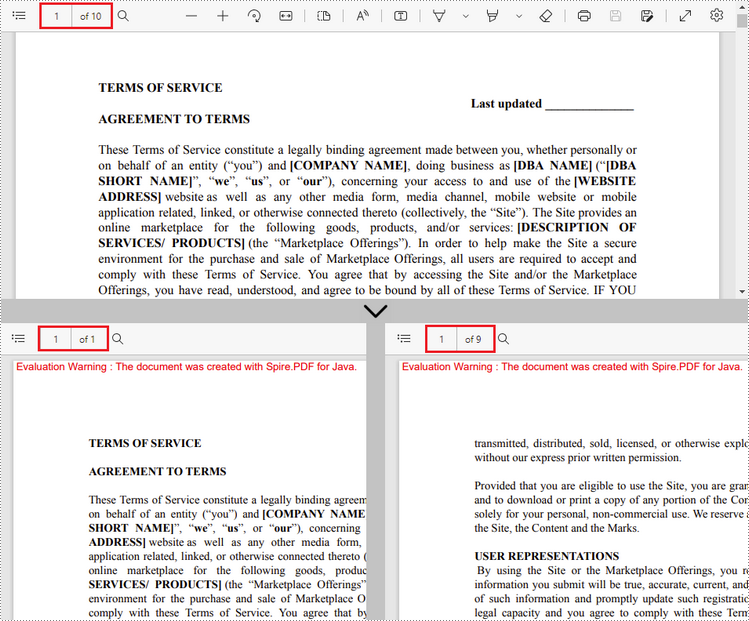
By splitting PDF pages into separate files, you get smaller PDF documents that have one or some pages extracted from the original. A split file contains less information and is naturally smaller in size and easier to share over the internet. In this article, you will learn how to split PDF into single-page PDFs and how to split PDF by page ranges in Java using Spire.PDF for Java.
Install Spire.PDF for Java
First, you're required to add the Spire.Pdf.jar file as a dependency in your Java program. The JAR file can be downloaded from ;this link. If you use Maven, you can easily import the JAR file in your application by adding the following code to your project's pom.xml file.
<repositories>
    <repository>
        <id>com.e-iceblue</id>
        <name>e-iceblue</name>
        <url>https://repo.e-iceblue.com/nexus/content/groups/public/</url>
    </repository>
</repositories>
<dependencies>
    <dependency>
        <groupId>e-iceblue</groupId>
        <artifactId>spire.pdf</artifactId>
        <version>12.4.4</version>
    </dependency>
</dependencies>
Split a PDF File into Multiple Single-Page PDFs in Java
Spire.PDF for Java offers the split() method to divide a multipage PDF document into multiple single-page files. The following are the detailed steps.
- Create a PdfDcoument object.
- Load a PDF document using PdfDocument.loadFromFile() method.
- Split the document into one-page PDFs using PdfDocument.split(string destFilePattern, int startNumber) method.
- Java
import com.spire.pdf.PdfDocument;

public class SplitPdfByEachPage {

    public static void main(String[] args) {

        //Specify the input file path
        String inputFile = "C:\\Users\\Administrator\\Desktop\\Terms of Service.pdf";

        //Specify the output directory
        String outputDirectory = "C:\\Users\\Administrator\\Desktop\\Output\\";

        //Create a PdfDocument object
        PdfDocument doc = new PdfDocument();

        //Load a PDF file
        doc.loadFromFile(inputFile);

        //Split the PDF to one-page PDFs
        doc.split(outputDirectory + "output-{0}.pdf", 1);
    }
}
Split a PDF File by Page Ranges in Java
No straightforward method is offered for splitting PDF documents by page ranges. To do so, we create two or more new PDF documents and import the selected page or page range from the source document into them. Here are the detailed steps.
- Load the source PDF file while initialing the PdfDocument object.
- Create two additional PdfDocument objects.
- Import the first page from the source file to the first document using PdfDocument.insertPage() method.
- Import the remaining pages from the source file to the second document using PdfDocument.insertPageRange() method.
- Save the two documents as separate PDF files using PdfDocument.saveToFile() method.
- Java
import com.spire.pdf.PdfDocument;

public class SplitPdfByPageRange {

    public static void main(String[] args) {

        //Specify the input file path
        String inputFile = "C:\\Users\\Administrator\\Desktop\\Terms of Service.pdf";

        //Specify the output directory
        String outputDirectory = "C:\\Users\\Administrator\\Desktop\\Output\\";

        //Load the source PDF file while initialing the PdfDocument object
        PdfDocument sourceDoc = new PdfDocument(inputFile);

        //Create two additional PdfDocument objects
        PdfDocument newDoc_1 = new PdfDocument();
        PdfDocument newDoc_2 = new PdfDocument();

        //Insert the first page of source file to the first document
        newDoc_1.insertPage(sourceDoc, 0);

        //Insert the rest pages of source file to the second document
        newDoc_2.insertPageRange(sourceDoc, 1, sourceDoc.getPages().getCount() - 1);

        //Save the two documents as PDF files
        newDoc_1.saveToFile(outputDirectory + "output-1.pdf");
        newDoc_2.saveToFile(outputDirectory + "output-2.pdf");
    }
}
Apply for a Temporary License
If you'd like to remove the evaluation message from the generated documents, or to get rid of the function limitations, please request a 30-day trial license for yourself.
Merge PDF Files in Java: Full, Partial, and Stream-Based Merging
2022-06-09 07:47:00 Written by hayes Liu
Merging PDFs in Java is a critical requirement for document-intensive applications, from consolidating financial reports to automating archival systems. However, developers face significant challenges in preserving formatting integrity or managing resource efficiency across diverse PDF sources. Spire.PDF for Java provides a robust and straightforward solution to streamline the PDF merging task.
This comprehensive guide explores how to combine PDFs in Java, complete with practical examples to merge multiple files, selected pages, or stream-based merging.
- Setting Up the Java PDF Merge Library
- Merge Multiple PDF Files in Java
- Merge Specific Pages from Multiple PDFs in Java
- Merge PDF Files by Streams in Java
- Conclusion
- FAQs
Setting Up the Java PDF Merge Library
Why Choose Spire.PDF for Java?
- No External Dependencies: Pure Java implementation.
- Rich Features: Merge, split, encrypt, and annotate PDFs.
- Cross-Platform: Works on Windows, Linux, and macOS.
Installation
Before using Spire.PDF for Java, you need to add it to your project.
Option 1: Maven
Add the repository and dependency to pom.xml:
<repositories>
    <repository>
        <id>com.e-iceblue</id>
        <name>e-iceblue</name>
        <url>https://repo.e-iceblue.com/nexus/content/groups/public/</url>
    </repository>
</repositories>
<dependencies>
    <dependency>
        <groupId>e-iceblue</groupId>
        <artifactId>spire.pdf</artifactId>
        <version>12.4.4</version>
    </dependency>
</dependencies>
Option 2: Manual JAR
Download the JAR from the E-iceblue website and add it to your project's build path.
Merge Multiple PDF Files in Java
This example is ideal when you want to merge two or more PDF documents entirely. It’s simple, straightforward, and perfect for batch processing.
How It Works:
- Define File Paths: Create an array of strings containing the full paths to the source PDFs.
- Merge Files: The mergeFiles() method takes the array of paths, combines the PDFs, and returns a PdfDocumentBase object representing the merged file.
- Save the Result: The merged PDF is saved to a new file using the save() method.
Java code to combine PDFs:
import com.spire.pdf.FileFormat;
import com.spire.pdf.PdfDocument;
import com.spire.pdf.PdfDocumentBase;

public class MergePdfs {
    public static void main(String[] args) {

        // Get the paths of the PDF documents to be merged
        String[] files = new String[] {"sample-1.pdf", "sample-2.pdf", "sample-3.pdf"};

        // Merge these PDF documents
        PdfDocumentBase pdf = PdfDocument.mergeFiles(files);

        // Save the merged PDF file
        pdf.save("MergePDF.pdf", FileFormat.PDF);
    }
}
Best For:
- Merging entire PDFs stored locally.
- Simple batch operations where no page selection is needed.
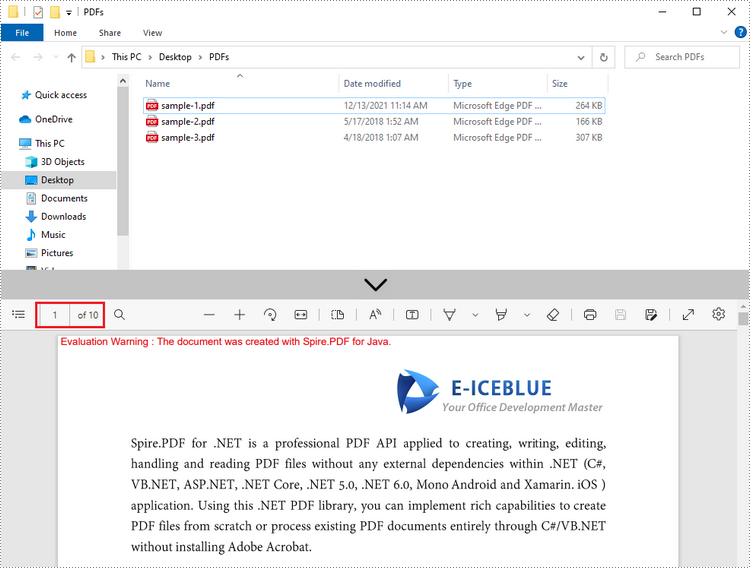
Result: Combine three PDF files (a total of 10 pages) into one PDF file.
Merging PDFs often results in large file sizes. To reduce the size, refer to: Compress PDF Files in Java.
Merge Specific Pages from Multiple PDFs in Java
Sometimes, you may only want to merge specific pages from different PDFs (e.g., pages 1-3 from File A and pages 2-5 from File B). This example gives you granular control over which pages to include from each source PDF.
How It Works:
- Load PDFs: Load each source PDF into a PdfDocument object and store them in an array.
- Create a New PDF: A blank PDF document is initialized to serve as the container for merged pages.
- Insert Specific Pages:
- insertPage(): Insert a specified page into the new PDF.
- insertPageRange(): Inserts a range of pages into the new PDF.
- Save the Result: The merged PDF is saved using the saveToFile() method.
Java code to combine selected PDF pages:
import com.spire.pdf.PdfDocument;

public class MergeSelectedPages {

    public static void main(String[] args) {

        // Get the paths of the PDF documents to be merged
        String[] files = new String[] {"sample-1.pdf", "sample-2.pdf", "sample-3.pdf"};

        // Create an array of PdfDocument
        PdfDocument[] pdfs = new PdfDocument[files.length];

        // Loop through the documents
        for (int i = 0; i < files.length; i++)
        {
            // Load a specific document
            pdfs[i] = new PdfDocument(files[i]);
        }

        // Create a new PDF document
        PdfDocument pdf = new PdfDocument();

        // Insert the selected pages from different PDFs to the new PDF
        pdf.insertPage(pdfs[0], 0);
        pdf.insertPageRange(pdfs[1], 1,3);
        pdf.insertPage(pdfs[2], 0);

        // Save the merged PDF
        pdf.saveToFile("MergePdfPages.pdf");
    }
}
Best For:
- Creating custom PDFs with selected pages (e.g., extracting key sections from reports).
- Scenarios where you need to exclude irrelevant pages from source documents.
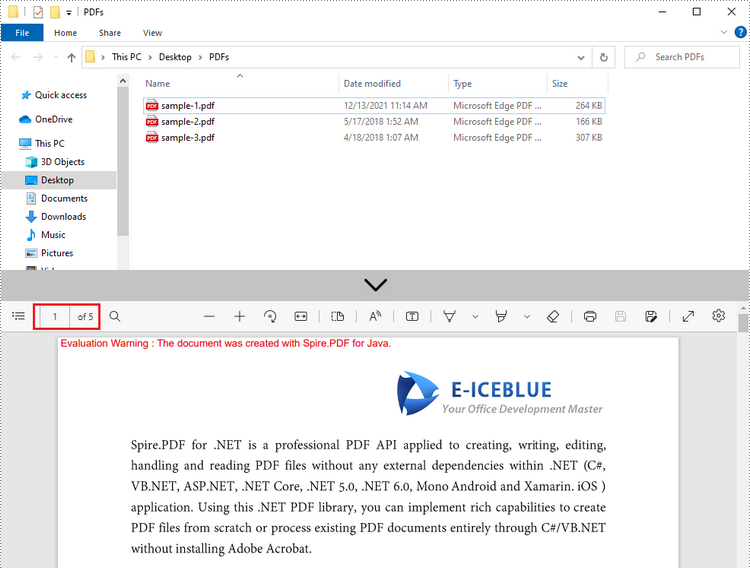
Result: Combine selected pages from three separate PDF files into a new PDF
Merge PDF Files by Streams in Java
In applications where PDFs are stored as streams (e.g., PDFs from network streams, in-memory data, or temporary files), Spire.PDF supports merging without saving files to disk.
How It Works:
- Create Input Streams: The FileInputStream objects read the raw byte data of each PDF file.
- Merge Streams: The mergeFiles() method accepts an array of streams, merges them, and returns a PdfDocumentBase object.
- Save and Clean Up: The merged PDF is saved, and all streams and documents are closed to free system resources (critical for preventing leaks).
Java code to merge PDFs via streams:
import com.spire.pdf.*;
import java.io.*;

public class mergePdfsByStream {
    public static void main(String[] args) throws IOException {
        // Create FileInputStream objects for each PDF document file
        FileInputStream stream1 = new FileInputStream(new File("Template_1.pdf"));
        FileInputStream stream2 = new FileInputStream(new File("Template_2.pdf"));
        FileInputStream stream3 = new FileInputStream(new File("Template_3.pdf"));

        // Initialize an array of InputStream objects containing the file input streams
        InputStream[] streams = new FileInputStream[]{stream1, stream2, stream3};

        // Merge the input streams into a single PdfDocumentBase object
        PdfDocumentBase pdf = PdfDocument.mergeFiles(streams);

        // Save the merged PDF file
        pdf.save("MergePdfsByStream.pdf", FileFormat.PDF);

        // Releases system resources used by the merged document
        pdf.close();
        pdf.dispose();

        // Closes all input streams to free up resources
        stream1.close();
        stream2.close();
        stream3.close();
    }
}
Best For:
- Merging PDFs from non-file sources (e.g., network downloads, in-memory generation).
- Environments where direct file path access is restricted.
Conclusion
Spire.PDF for Java simplifies complex PDF merging tasks through its intuitive, user-friendly API. Whether you need to merge entire documents, create custom page sequences, or combine PDFs from stream sources, these examples enable efficient PDF merging in Java to address diverse document processing requirements.
To explore more features (e.g., encrypting merged PDFs, adding bookmarks), refer to the official documentation.
Frequently Asked Questions (FAQs)
Q1: Why do merged PDFs show "Evaluation Warning" watermarks?
A: The commercial version adds watermarks. Solutions:
- Request a 30-day trial license to test without any restrictions.
- Use the free version for documents ≤10 pages
Q2: How do I control the order of pages in the merged PDF?
A: The order of pages in the merged PDF is determined by the order of input files (or streams) and the pages you select. For example:
- In full-document merging, files in the input array are merged in the order they appear.
- In selective page merging, use insertPage() or insertPageRange() in the sequence you want pages to appear.
Q3: Can I merge password-protected PDFs?
A: Yes. Spire.PDF for Java supports merging encrypted PDFs, but you must provide the password when loading the file. Use the overloaded loadFromFile() method with the password parameter:
PdfDocument pdf = new PdfDocument();
pdf.loadFromFile("sample.pdf", "userPassword"); // Decrypt with password
Q4: How to merge scanned/image-based PDFs?
A: Spire.PDF handles image-PDFs like regular PDFs, but file sizes may increase significantly.
PDF is a cornerstone for document sharing across diverse platforms. In Java development, the ability to generate PDF in Java efficiently is a common requirement for applications ranging from invoicing systems to report generators. Among the myriad libraries available, Spire.PDF for Java stands out as a robust solution. This comprehensive guide explores how to use this powerful Java library to create PDF files from scratch, from templates or from HTML.
- Getting Started with Spire.PDF for Java
- Background: The Coordinate System
- Generate a Basic PDF in Java
- Create PDF from Template in Java
- Bonus: Generate PDF from HTML in Java
- Conclusion
- Frequently Asked Questions (FAQs)
Getting Started with Spire.PDF for Java
Spire.PDF for Java is a robust library simplifies PDF generation in Java without Adobe dependencies. Key features:
- Cross-Platform Support: Runs seamlessly on Windows, Linux, and macOS.
- Rich Content Creation: Add text, images, tables, lists, and barcodes.
- Advanced Security: Apply passwords, digital signatures, and permission controls.
- Easy Integration: Works seamlessly with Java SE and EE environments.
Setup & Installation
To start creating PDF in Java, you first need to add Spire.PDF for Java to your project. You can download the JAR files from the E-iceblue website or add it as a Maven dependency:
<repositories>
    <repository>
        <id>com.e-iceblue</id>
        <name>e-iceblue</name>
        <url>https://repo.e-iceblue.com/nexus/content/groups/public/</url>
    </repository>
</repositories>
<dependencies>
    <dependency>
        <groupId>e-iceblue</groupId>
        <artifactId>spire.pdf</artifactId>
        <version>12.4.4</version>
    </dependency>
</dependencies>
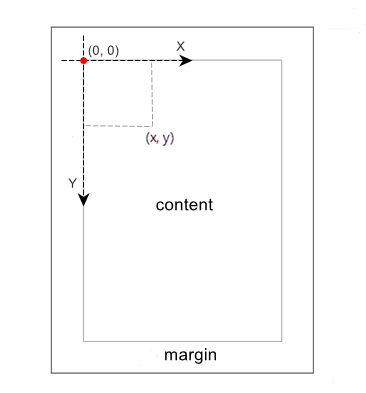
Background: The Coordinate System
In Spire.PDF for Java, the coordinate system defines the positioning of elements (text, images, shapes) on a PDF page. Here’s the key concepts:
- Origin Point (0,0): The origin of the coordinate system is located at the top-left corner of the content area.
- X-axis: Extends horizontally from the left to the right.
- Y-axis: Extends vertically from the top downward.
Generate a Basic PDF in Java
Let’s start with a simple example of creating a PDF document with text. Spire.PDF for Java provides two methods to draw text on a PDF page:
- PdfCanvas.drawString(): Draws single-line text at exact coordinates. Best for headings, labels, or short text snippets.
- PdfTextWidget.draw(): Manages multi-line text with automatic word wrapping and line breaks. Best for paragraphs, long content, paginated text.
Here's the Jave code to create PDF:
import com.spire.pdf.*;
import com.spire.pdf.graphics.*;

import java.awt.*;
import java.awt.geom.Point2D;
import java.awt.geom.Rectangle2D;

public class CreatePdfDocument {

    public static void main(String[] args) {

        // Create a PdfDocument object
        PdfDocument pdf = new PdfDocument();

        // Add a page with specified size and margin
        PdfPageBase page = pdf.getPages().add(PdfPageSize.A4, new PdfMargins(35f));

        // Specify page content
        String titleText = "Spire.PDF for Java";
        String paraText = "Spire.PDF for Java is a PDF API that enables Java applications to read, write and save PDF documents. " +
                "Using this Java PDF component, developers and programmers can implement rich capabilities to" +
                "create PDF files from scratch or process existing PDF documents entirely on Java applications (J2SE and J2EE). " +
                "Spire.PDF for Java is a totally independent Java PDF library. " +
                "It does not require Adobe Acrobat or any other 3rd party software/library installed on system.";

        // Create solid brushes
        PdfSolidBrush titleBrush = new PdfSolidBrush(new PdfRGBColor(Color.BLUE));
        PdfSolidBrush paraBrush = new PdfSolidBrush(new PdfRGBColor(Color.BLACK));

        // Create true type fonts
        PdfTrueTypeFont titleFont = new PdfTrueTypeFont(new Font("Times New Roman",Font.BOLD,18));
        PdfTrueTypeFont paraFont = new PdfTrueTypeFont(new Font("Times New Roman",Font.PLAIN,12));

        // Set the text alignment via PdfStringFormat class
        PdfStringFormat format = new PdfStringFormat();
        format.setAlignment(PdfTextAlignment.Center);

        // Draw title on the page
        page.getCanvas().drawString(titleText, titleFont, titleBrush, new Point2D.Float((float)page.getClientSize().getWidth()/2, 40),format);

        // Create a PdfTextWidget object to hold the paragraph content
        PdfTextWidget widget = new PdfTextWidget(paraText, paraFont, paraBrush);

        // Create a rectangle where the paragraph content will be placed
        Rectangle2D.Float rect = new Rectangle2D.Float(0, 70, (float)page.getClientSize().getWidth(),(float)page.getClientSize().getHeight());

        // Set the PdfLayoutType to Paginate to make the content paginated automatically
        PdfTextLayout layout = new PdfTextLayout();
        layout.setLayout(PdfLayoutType.Paginate);

        // Draw paragraph text on the page
        widget.draw(page, rect, layout);

        // Save the PDF file
        pdf.saveToFile("CreatePdfDocument.pdf");
        pdf.dispose();
    }
}
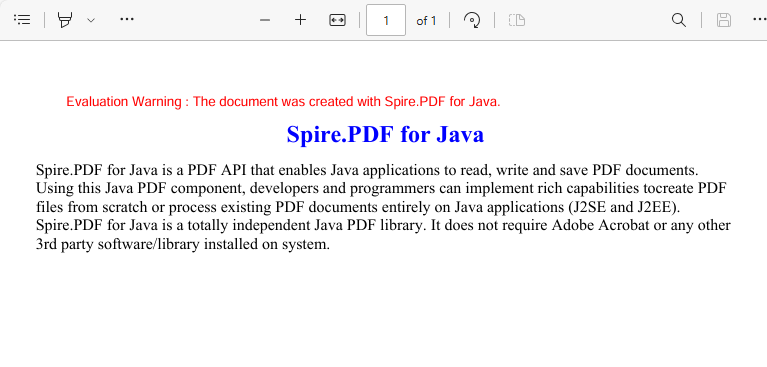
The code creates a PDF with a centered title and a paragraph that automatically paginates if it exceeds the page height.
The generated PDF file:
Beyond simple text, you can also add other elements to PDF, such as:
Add Images to PDF
Add images (JPG, PNG, etc.) at specified locations on a PDF page:
//Load an image
PdfImage image = PdfImage.fromFile("image.jpg");

//Specify the width and height of the image area on the page
float width = image.getWidth() * 0.50f;
float height = image.getHeight() * 0.50f;

//Draw the image at a specified location on the page
page.getCanvas().drawImage(image, 100f, 60f, width, height);
Add Tables to PDF
Organize data with tables, a useful feature when you generate PDF reports:
//Create a PdfTable object
PdfTable table = new PdfTable();

//Define data
String[] data = {"ID;Name;Department;Position",
        "1; David; IT; Manager",
        "3; Julia; HR; Manager",
        "4; Sophie; Marketing; Manager",
        "7; Wickey; Marketing; Sales Rep",
        "9; Wayne; HR; HR Supervisor",
        "11; Mia; Dev; Developer"};
String[][] dataSource = new String[data.length][];
for (int i = 0; i < data.length; i++) {
    dataSource[i] = data[i].split("[;]", -1);
}

//Set data as the table data
table.setDataSource(dataSource);

//Set the first row as header row
table.getStyle().setHeaderSource(PdfHeaderSource.Rows);
table.getStyle().setHeaderRowCount(1);

//Show header(the header is hidden by default)
table.getStyle().setShowHeader(true);

//Draw table on the page
table.draw(page, new Point2D.Float(0, 30));
Refer to: Create Tables in PDF in Java
Create PDF from Template in Java
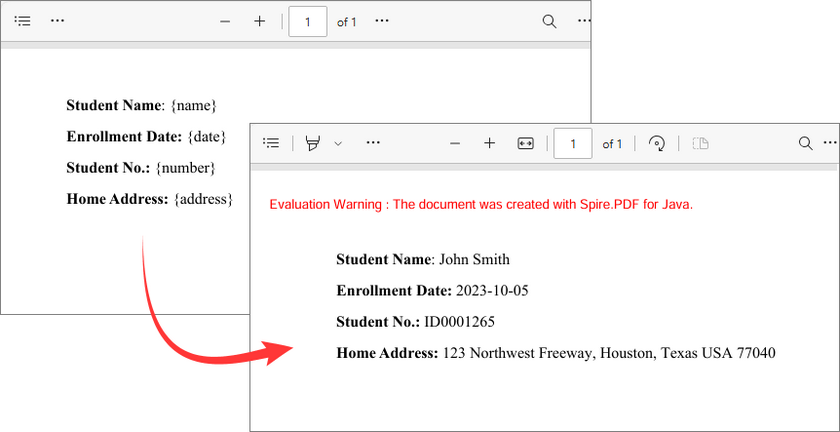
This Java code demonstrates how to generate a PDF by dynamically replacing placeholders in a pre-designed PDF template. Common use cases include generating emails, reports, invoice or contracts.
import com.spire.pdf.*;
import com.spire.pdf.texts.PdfTextReplaceOptions;
import com.spire.pdf.texts.PdfTextReplacer;
import com.spire.pdf.texts.ReplaceActionType;

import java.util.EnumSet;
import java.util.HashMap;
import java.util.Map;

public class GeneratePdfFromTemplate
    {
        public static void main(String[] args)
        {

            // Create a PdfDocument object
            PdfDocument pdf = new PdfDocument();

            // Load a template
            pdf.loadFromFile("PdfTemplate.pdf");

            // Create a PdfTextReplaceOptions object
            PdfTextReplaceOptions textReplaceOptions = new PdfTextReplaceOptions();

            // Specify the replace options
            textReplaceOptions.setReplaceType(EnumSet.of(ReplaceActionType.IgnoreCase));
            textReplaceOptions.setReplaceType(EnumSet.of(ReplaceActionType.WholeWord));

            // Get the first page
            PdfPageBase page = pdf.getPages().get(0);

            // Create a PdfTextReplacer object based on the page
            PdfTextReplacer textReplacer = new PdfTextReplacer(page);

            // Set replace options
            textReplacer.setOptions(textReplaceOptions);

            // Specify the placeholder-value pairs in a map
            Map<String, String> replacements = new HashMap<>();
            replacements.put("{name}", "John Smith");
            replacements.put("{date}", "2023-10-05");
            replacements.put("{number}", "ID0001265");
            replacements.put("{address}", "123 Northwest Freeway, Houston, Texas USA 77040");

            // Iterate over the map to replace each placeholder
            for (Map.Entry<String, String> entry : replacements.entrySet())
            {
                textReplacer.replaceAllText(entry.getKey(), entry.getValue());
            }

            // Save the result PDF
            pdf.saveToFile("GeneratePDFromTemplate.pdf");
            pdf.dispose();
        }
    }
Explanation:
Here are some core components for the template-based PDF generation:
- PdfTextReplaceOptions: Defines how replacements are performed (case-insensitive, whole words).
- PdfTextReplacer: Represents the text replacement in a PDF page.
- replaceAllText(): Replaces all occurrences of old text (a placeholder like "{name}") with new text (e.g., "John Smith").
Output:
Bonus: Generate PDF from HTML in Java
Spire.PDF for Java also provides intuitive APIs to convert web URLs, local HTML files, or raw HTML strings to PDF files. For a comprehensive implementation guide, refer to:
Convert HTML to PDF in Java – URLs and HTML Strings/ Files
By mastering the HTML to PDF conversion, Java developers can automate invoice/report generation from web templates, or archive web pages as searchable PDFs.
Conclusion
Spire.PDF for Java provides an efficient way to generate PDF in Java—whether creating basic documents, generating PDFs from HTML or templates. By following the examples in this article, you can quickly integrate professional PDF creation in your Java projects.
Explore Full Features: Spire.PDF for Java Online Documentation
Frequently Asked Questions (FAQs)
Q1: Is Spire.PDF for Java free?
A: Spire.PDF for Java offers both commercial and free versions (with limitations). You can request a trial license to test the commercial version without any restrictions.
Q2: Does it support non-English languages (e.g., Chinese, Japanese)?
A: Yes, use the font that supports the target language. For example:
// To display Chinese text, use a font like "SimSun" or "Microsoft YaHei"
PdfTrueTypeFont font = new PdfTrueTypeFont(new Font("SimSun", Font.PLAIN, 12));

// To display Japanese text, use a font like "MS Gothic" or "Yu Gothic"
PdfTrueTypeFont font = new PdfTrueTypeFont(new Font("MS Gothic", Font.PLAIN, 12));
Q3: How to secure PDFs with passwords?
A: Set open/permission passwords:
// Create a password-based security policy with open and permission passwords
PdfSecurityPolicy securityPolicy = new PdfPasswordSecurityPolicy("openPwd", "permissionPwd");

// Set the encryption algorithm to AES 256-bit
securityPolicy.setEncryptionAlgorithm(PdfEncryptionAlgorithm.AES_256);

// Encrypt the PDF file
pdf.encrypt(securityPolicy);
