
Program Guide (124)
Children categories
SVG files are vector-based graphics that can be scaled and resized without losing quality. While they can be very useful in certain scenarios, there may still be times when you need to convert them to PDFs for further processing, sharing, distributing, printing, or archiving. In this article, you will learn how to programmatically convert SVG images to PDF files using Spire.PDF for Java.
Install Spire.PDF for Java
First of all, you're required to add the Spire.Pdf.jar file as a dependency in your Java program. The JAR file can be downloaded from this link. If you use Maven, you can easily import the JAR file in your application by adding the following code to your project's pom.xml file.
<repositories>
    <repository>
        <id>com.e-iceblue</id>
        <name>e-iceblue</name>
        <url>https://repo.e-iceblue.com/nexus/content/groups/public/</url>
    </repository>
</repositories>
<dependencies>
    <dependency>
        <groupId>e-iceblue</groupId>
        <artifactId>spire.pdf</artifactId>
        <version>12.4.4</version>
    </dependency>
</dependencies>
Convert SVG to PDF in Java
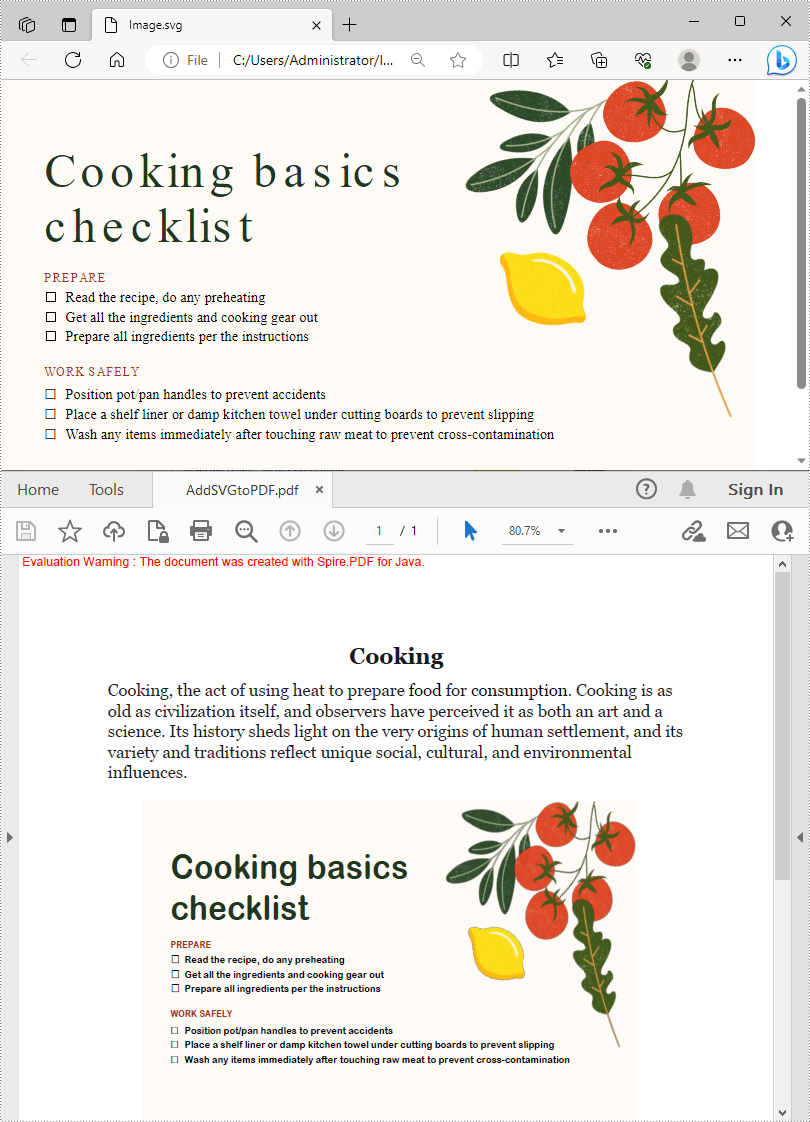
Spire.PDF for Java offers the PdfDocument.loadFromSvg() method to load an SVG file directly, and you can then convert it to a PDF file through the PdfDocument.saveToFile() method. The following are the detailed steps.
- Create a PdfDocument instance.
- Load a sample SVG file using PdfDocument.loadFromSvg() method.
- Convert the SVG file to PDF using PdfDocument.saveToFile(String filename, FileFormat.PDF) method.
- Java
import com.spire.pdf.FileFormat;
import com.spire.pdf.PdfDocument;

public class SVGToPDF {
    public static void main(String[] args) {
        //Create a PdfDocument instance
        PdfDocument pdf = new PdfDocument();

        //Load a sample SVG file
        pdf.loadFromSvg("sample.svg");

        //Save as PDF file
        pdf.saveToFile("SVGToPDF.pdf", FileFormat.PDF);
    }
}

Add SVG Images to PDF in Java
In addition to converting SVG to PDF, Spire.PDF for Java also supports adding SVG images to PDF files. During the process, you are allowed to set the position and size of the SVG image. The following are the detailed steps.
- Create a PdfDocument instance and load an SVG file using PdfDocument.loadFromSvg() method.
- Create a template based on the content of the SVG file using PdfDocument.getPages().get().createTemplate() method.
- Create another PdfDocument object and load a PDF file using PdfDocument.loadFromFile() method.
- Get a specified page in the PDF file using PdfDocument.getPages().get() method.
- Draw the template with a custom size at a specified location on the PDF page using PdfPageBase.getCanvas().drawTemplate() method.
- Save the result PDF file using PdfDocument.saveToFile() method.
- Java
import com.spire.pdf.FileFormat;
import com.spire.pdf.PdfDocument;
import com.spire.pdf.graphics.PdfTemplate;

import java.awt.*;
import java.awt.geom.Point2D;

public class AddSVGImagetoPDF {
    public static void main(String[] args) {
        //Create a PdfDocument instance
        PdfDocument doc1 = new PdfDocument();

        //Load an SVG file
        doc1.loadFromSvg("Image.svg");

        //Create a template based on the content of the SVG file
        PdfTemplate template = doc1.getPages().get(0).createTemplate();

        //Create another PdfDocument instance
        PdfDocument doc2 = new PdfDocument();

        //Load a PDF file
        doc2.loadFromFile("Intro.pdf");

        //Draw the template with a custom size at a specified location in the PDF file
        doc2.getPages().get(0).getCanvas().drawTemplate(template, new Point2D.Float(100,200), new Dimension(400,280) );

        //Save the result file
        doc2.saveToFile("AddSVGtoPDF.pdf", FileFormat.PDF);
        doc1.close();
        doc2.close();
    }
}
Apply for a Temporary License
If you'd like to remove the evaluation message from the generated documents, or to get rid of the function limitations, please request a 30-day trial license for yourself.
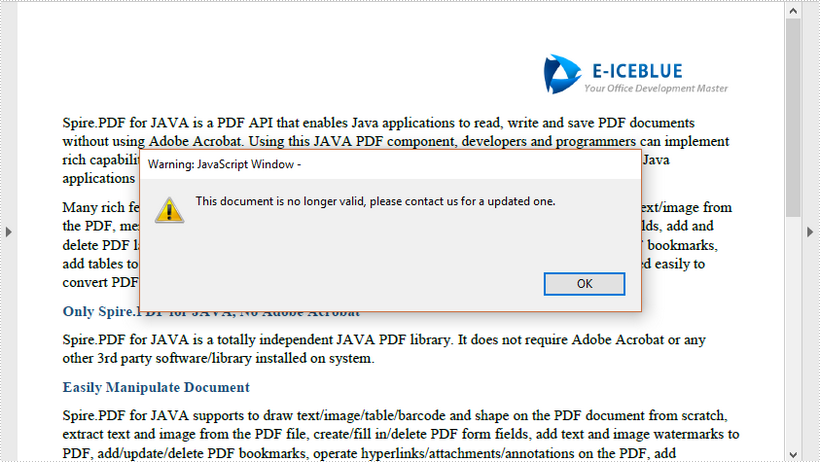
This article demonstrates how to set an expiration date for a PDF document using Spire.PDF for Java.
import com.spire.pdf.actions.PdfJavaScriptAction;

public class ExpiryDate {

    public static void main(String[] args) {

        //Create a PdfDocument object
        PdfDocument doc = new PdfDocument();

        //Load a PDF file
        doc.loadFromFile("C:\\Users\\Administrator\\Desktop\\sample.pdf");

        //Set expiration date and warning information,and close the document through JavaScript
        String javaScript = "var rightNow = new Date();"
                + "var endDate = new Date('June 20, 2020 23:59:59');"
                + "if(rightNow.getTime() > endDate)"
                + "app.alert('This document is no longer valid, please contact us for a updated one.',1);"
                + "this.closeDoc();";

        //Create a PdfJavaScriptAction object based on the javascript
        PdfJavaScriptAction js = new PdfJavaScriptAction(javaScript);

        //Set PdfJavaScriptAction as the AfterOpenAction
        doc.setAfterOpenAction(js);

        //Save to file
        doc.saveToFile("ExpirationDate.pdf", FileFormat.PDF);
    }
}
For security reasons, many financial documents such as invoices are usually saved in PDF format. If you want to perform data analysis and calculation on these documents, you may need to convert them to Excel. In this article, we will introduce how to convert PDF to Excel in Java using Spire.PDF for Java.
Install Spire.PDF for Java
First of all, you're required to add the Spire.Pdf.jar file as a dependency in your Java program. The JAR file can be downloaded from this link. If you use Maven, you can easily import the JAR file in your application by adding the following code to your project's pom.xml file.
<repositories>
    <repository>
        <id>com.e-iceblue</id>
        <name>e-iceblue</name>
        <url>https://repo.e-iceblue.com/nexus/content/groups/public/</url>
    </repository>
</repositories>
<dependencies>
    <dependency>
        <groupId>e-iceblue</groupId>
        <artifactId>spire.pdf</artifactId>
        <version>12.4.4</version>
    </dependency>
</dependencies>
Convert PDF to Excel in Java
The following are the steps to convert a PDF document to Excel:
- Initialize an instance of PdfDocument class.
- Load the PDF document using PdfDocument.loadFromFile(String) method.
- Save the document to Excel using PdfDocument.saveToFile(String, FileFormat) method.
- Java
import com.spire.pdf.FileFormat;
import com.spire.pdf.PdfDocument;

public class ConvertPdfToExcel {
    public static void main(String[] args) {
        //Initialize an instance of PdfDocument class
        PdfDocument pdf = new PdfDocument();
        //Load the PDF document
        pdf.loadFromFile("Sample.pdf");

        //Save the PDF document to XLSX
        pdf.saveToFile("PdfToExcel.xlsx", FileFormat.XLSX);
    }
}
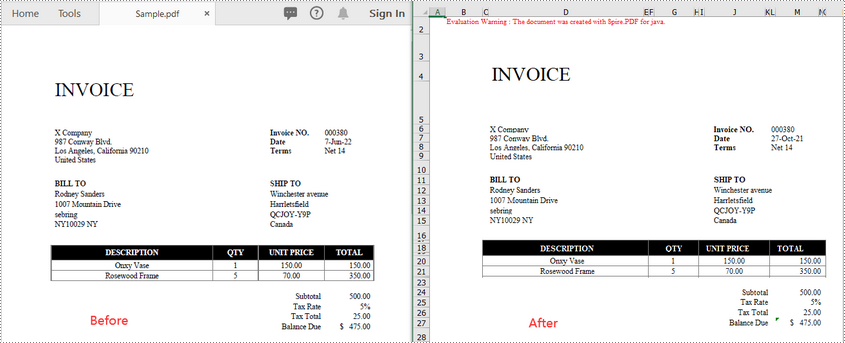
This example converts multiple PDF pages to multiple Excel worksheets. If you want to convert a multi-page PDF to a single Excel sheet, please refer to this article: Java: Convert a Multi-Page PDF to One Excel Worksheet.
Apply for a Temporary License
If you'd like to remove the evaluation message from the generated documents, or to get rid of the function limitations, please request a 30-day trial license for yourself.
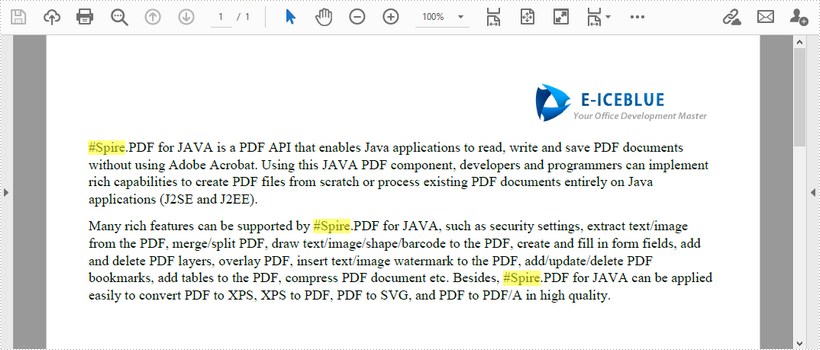
This article demonstrates how to find the text that matches a specific regular expression in a PDF document using Spire.PDF for Java.
import com.spire.pdf.*;
import com.spire.pdf.texts.*;
import java.awt.*;
import java.util.*;
import java.util.List;

public class FindText {
    public static void main(String[] args) {
        //Load a PDF document
        PdfDocument pdf = new PdfDocument();
        pdf.loadFromFile("C:\\Users\\Administrator\\Desktop\\test.pdf");

        //Create a object of PdfTextFind collection
        PdfTextFindOptions findOptions = new PdfTextFindOptions();

        //Loop through the pages
        for (Object page : (Iterable) pdf.getPages()) {
            PdfPageBase pageBase = (PdfPageBase) page;

            //Define a regular expression
            String pattern = "\\#\\w+\\b";
            // Set search parameter to use regular expression
            findOptions.setTextFindParameter(EnumSet.of(TextFindParameter.Regex));

            // Create a text finder object for the page
            PdfTextFinder textFinder = new PdfTextFinder(pageBase);

            // Find text fragments that match the pattern
            List<PdfTextFragment> finds = textFinder.find(pattern, findOptions);

            //Highlight the search results with yellow
            for (PdfTextFragment find : finds) {
                find.highLight(Color.yellow);
            }
        }

        //Save to file
        pdf.saveToFile("FindByPattern.pdf");
    }
}
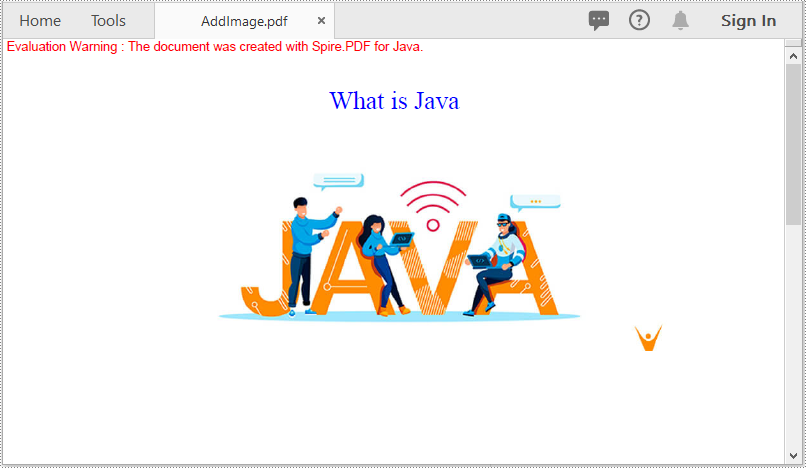
Images play a vital role in various documents. They are helpful in conveying complex information that is difficult to present in plain text and making documents more visually appealing. In this article, we will focus on how to insert, replace or delete images in PDF documents in Java using Spire.PDF for Java.
- Insert an Image into a PDF Document
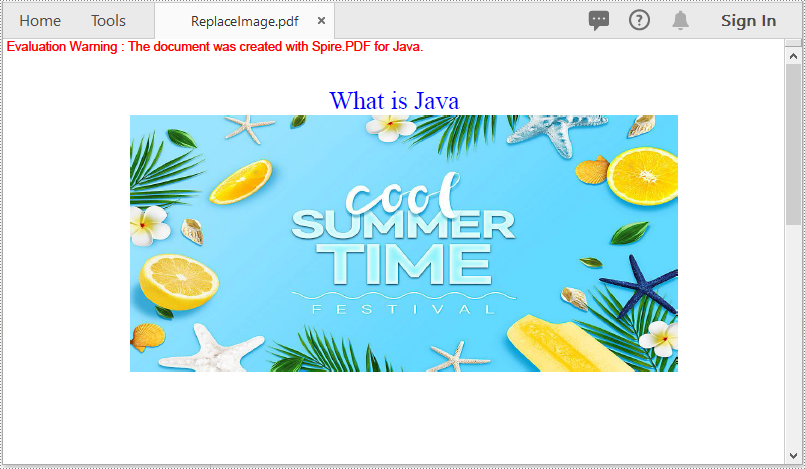
- Replace an Image with Another Image in a PDF Document
- Delete a Specific Image in a PDF Document
Install Spire.PDF for Java
First of all, you're required to add the Spire.Pdf.jar file as a dependency in your Java program. The JAR file can be downloaded from this link. If you use Maven, you can easily import the JAR file in your application by adding the following code to your project's pom.xml file.
<repositories>
    <repository>
        <id>com.e-iceblue</id>
        <name>e-iceblue</name>
        <url>https://repo.e-iceblue.com/nexus/content/groups/public/</url>
    </repository>
</repositories>
<dependencies>
    <dependency>
        <groupId>e-iceblue</groupId>
        <artifactId>spire.pdf</artifactId>
        <version>12.4.4</version>
    </dependency>
</dependencies>
Insert an Image into a PDF Document in Java
The following steps demonstrate how to insert an image into an existing PDF document:
- Initialize an instance of the PdfDocument class.
- Load a PDF document using PdfDocument.loadFromFile() method.
- Get the desired page in the PDF document using PdfDocument.getPages().get() method.
- Load an image using PdfImage.fromFile() method.
- Specify the width and height of the image area on the page.
- Specify the X and Y coordinates to start drawing the image.
- Draw the image on the page using PdfPageBase.getCanvas().drawImage() method.
- Save the result document using PdfDocument.saveToFile() method.
- Java
import com.spire.pdf.FileFormat;
import com.spire.pdf.PdfDocument;
import com.spire.pdf.PdfPageBase;
import com.spire.pdf.graphics.*;

public class AddImage {
    public static void main(String []args){
        //Create a PdfDocument instance
        PdfDocument pdf = new PdfDocument();
        pdf.loadFromFile("Input.pdf");

        //Get the first page in the PDF document
        PdfPageBase page = pdf.getPages().get(0);

        //Load an image
        PdfImage image = PdfImage.fromFile("image.jpg");

        //Specify the width and height of the image area on the page
        float width = image.getWidth() * 0.50f;
        float height = image.getHeight() * 0.50f;

        //Specify the X and Y coordinates to start drawing the image
        float x = 100f;
        float y = 60f;

        //Draw the image at a specified location on the page
        page.getCanvas().drawImage(image, x, y, width, height);

        //Save the result document
        pdf.saveToFile("AddImage.pdf", FileFormat.PDF);
    }
}
Replace an Image with Another Image in a PDF Document in Java
The following steps demonstrate how to replace an image with another image in a PDF document:
- Initialize an instance of the PdfDocument class.
- Load a PDF document using PdfDocument.loadFromFile() method.
- Get the desired page in the PDF document using PdfDocument.getPages().get() method.
- Load an image using PdfImage.fromFile() method.
- Create the PdfImageHelper class.
- Use the PdfImageHelper. getImagesInfo() method to obtain a collection of all images on the page.
- Use the PdfImageHelper. replaceImage() method to replace the specified index of images in the collection.
- Save the result document using PdfDocument.saveToFile() method.
- Java
import com.spire.pdf.*;
import com.spire.pdf.graphics.PdfImage;
import com.spire.pdf.utilities.PdfImageHelper;
import com.spire.pdf.utilities.PdfImageInfo;

public class ReplaceImage
{
    public static void main(String []args)
    {
        //Create a PdfDocument instance
        PdfDocument doc = new PdfDocument();
        //Load a PDF document
        doc.loadFromFile("AddImage.pdf");

        //Get the first page
        PdfPageBase page = doc.getPages().get(0);

        //Load an image
        PdfImage image = PdfImage.fromFile("image1.jpg");

        // Get the image information from the page
        PdfImageHelper imageHelper = new PdfImageHelper();
        PdfImageInfo[] imageInfos = imageHelper.getImagesInfo(page);

        // Replace Image
        imageHelper.replaceImage(imageInfos[0], image);

        //Save the result document
        doc.saveToFile("ReplaceImage.pdf", FileFormat.PDF);

        //Dispose the document
        doc.dispose();
    }
}
Delete a Specific Image in a PDF Document in Java
The following steps demonstrate how to delete an image from a PDF document:
- Initialize an instance of the PdfDocument class.
- Load a PDF document using PdfDocument.loadFromFile() method.
- Get the desired page in the PDF document using PdfDocument.getPages().get() method.
- Create the PdfImageHelper class.
- Use the PdfImageHelper. getImagesInfo() method to obtain a collection of all images on the page.
- Use the PdfImageHelper. deleteImage() method to delete specific images on the page.
- Save the result document using PdfDocument.saveToFile() method.
- Java
import com.spire.pdf.*;
import com.spire.pdf.utilities.PdfImageHelper;
import com.spire.pdf.utilities.PdfImageInfo;

public class DeleteImage
{
    public static void main(String []args)
    {
        //Create a PdfDocument instance
        PdfDocument pdf = new PdfDocument();
        //Load a PDF document
        pdf.loadFromFile("AddImage.pdf");

        //Get the first page
        PdfPageBase page = pdf.getPages().get(0);

        // Get the image information from the page
        PdfImageHelper imageHelper = new PdfImageHelper();
        PdfImageInfo[] imageInfos = imageHelper.getImagesInfo(page);

        //Delete the first image on the page
        imageHelper.deleteImage(imageInfos[0]);

        //Save the result document
        pdf.saveToFile("DeleteImage.pdf", FileFormat.PDF);

        //Dispose the document
        pdf.dispose();
    }
}
Apply for a Temporary License
If you'd like to remove the evaluation message from the generated documents, or to get rid of the function limitations, please request a 30-day trial license for yourself.
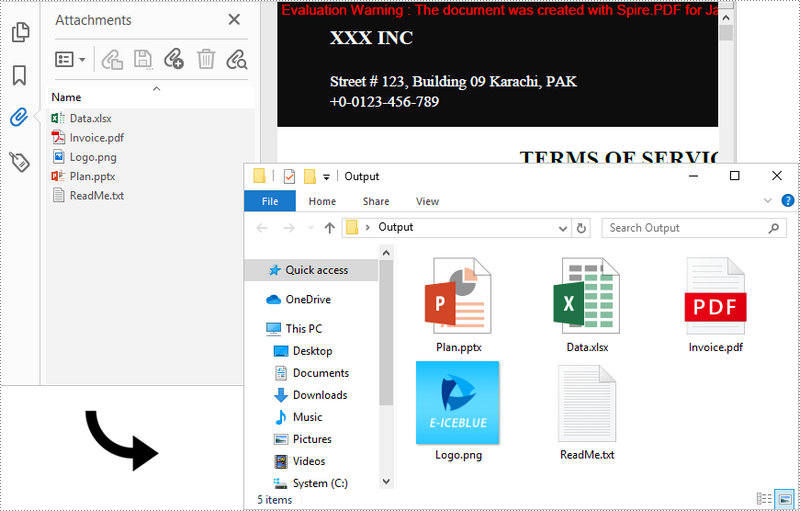
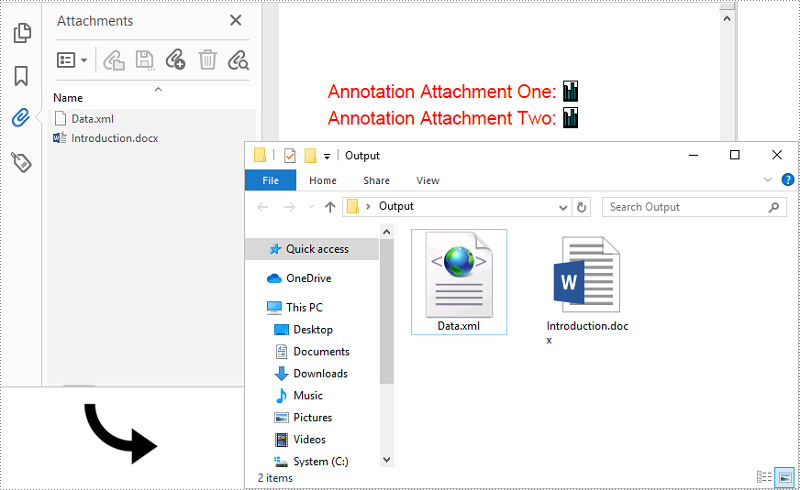
A large number of users today preserve different files within PDF documents as attachments. These attachments can be extracted and used for other purposes when necessary. Basically, there are two types of attachments in PDF: document level attachment and annotation attachment. Below are the differences between them.
- Document Level Attachment (represented by PdfAttachment class): A file attached to a PDF at the document level won't appear on a page, but can only be viewed in the "Attachments" panel of a PDF reader.
- Annotation Attachment (represented by PdfAttachmentAnnotation class): A file will be added to a specific position of a page. Annotation attachments are shown as a paper clip icon on the page; reviewers can double-click the icon to open the file.
In this article, you will learn how to extract these two kinds of attachments from a PDF document in Java using Spire.PDF for Java.
Install Spire.PDF for Java
First, you need to add the Spire.Pdf.jar file as a dependency in your Java program. The JAR file can be downloaded from this link. If you use Maven, you can easily import the JAR file by adding the following code to your project's pom.xml file.
<repositories>
    <repository>
        <id>com.e-iceblue</id>
        <name>e-iceblue</name>
        <url>https://repo.e-iceblue.com/nexus/content/groups/public/</url>
    </repository>
</repositories>
<dependencies>
    <dependency>
        <groupId>e-iceblue</groupId>
        <artifactId>spire.pdf</artifactId>
        <version>12.4.4</version>
    </dependency>
</dependencies>
Extract Attachments from PDF in Java
The document level attachments of a PDF document can be obtained using PdfDocument.getAttachments() method. The following steps show you how to extract attachments and save them to a local folder.
- Create a PdfDocument object.
- Load a PDF file using PdfDocument.loadFromFile() method.
- Get the attachment collection from the document using PdfDocument.getAttachments() method.
- Get a specific attachment using PdfAttachmentCollection.get() method and get its data using PdfAttachment.getData() method. Write the data to a file and save to a specified folder.
- Java
import com.spire.pdf.PdfDocument;
import com.spire.pdf.annotations.*;
import com.spire.pdf.attachments.PdfAttachmentCollection;

import java.io.*;

public class ExtractAttachments {

    public static void main(String[] args) throws Exception {

        //Create a PdfDocument object
        PdfDocument doc = new PdfDocument();

        //Load a PDF file that contains attachments
        doc.loadFromFile("C:\\Users\\Administrator\\Desktop\\Attachments.pdf");

        //Get the attachment collection of the PDF document
        PdfAttachmentCollection attachments = doc.getAttachments();

        //Loop through the collection
        for (int i = 0; i < attachments.getCount(); i++) {

        //Specify the output file path and name
        File file = new File("C:\\Users\\Administrator\\Desktop\\output\\" + attachments.get(i).getFileName());
        OutputStream output = new FileOutputStream(file);
        BufferedOutputStream bufferedOutput = new BufferedOutputStream(output);

        //Get a specific attachment and write to file
        bufferedOutput.write(attachments.get(i).getData());
        bufferedOutput.close();
        }
    }
}
Extract Annotation Attachments from PDF in Java
Annotation attachment is a page-based element. To get annotations from a specific page, use PdfPageBase.getAnnotationsWidget() method. After that, you'll need to determine if a specific annotation is an annotation attachment. The follows are the steps to extract annotation attachments from a whole document and save them to a local folder.
- Create a PdfDocument object.
- Load a PDF file using PdfDocument.loadFromFile() method.
- Get a specific page from the document using PdfDocument.getPages().get() method.
- Get the annotation collection from the page using PdfPageBase.getAnnotationsWidget() method.
- Determine if a specific annotation is an instance of PdfAttachmentAnnotationWidget. If yes, write the annotation attachment to a file and save it to a specified folder.
- Java
import com.spire.pdf.PdfDocument;
import com.spire.pdf.annotations.PdfAnnotationCollection;
import com.spire.pdf.annotations.PdfAttachmentAnnotationWidget;

import java.io.*;

public class ExtractAnnotationAttachments {

    public static void main(String[] args) throws Exception {

        //Create a PdfDocument object
        PdfDocument doc = new PdfDocument();

        //Load a PDF file that contains attachments
        doc.loadFromFile("C:\\Users\\Administrator\\Desktop\\AnnotationAttachments.pdf");

        //Loop through the pages
        for (int i = 0; i < doc.getPages().getCount(); i++) {

        //Get the annotation collection
        PdfAnnotationCollection collection = doc.getPages().get(i).getAnnotationsWidget();

        //Loop through the annotations
        for (Object annotation : collection) {

        //Determine if an annotation is an instance of PdfAttachmentAnnotationWidget
        if (annotation instanceof PdfAttachmentAnnotationWidget) {

        //Save the annotation attachment out of the document
        String fullPath = ((PdfAttachmentAnnotationWidget) annotation).getFileName();
        String fileName = fullPath.substring(fullPath.lastIndexOf("\\") + 1);
        File file = new File("C:\\Users\\Administrator\\Desktop\\output\\" + fileName);
        OutputStream output = new FileOutputStream(file);
        BufferedOutputStream bufferedOutput = new BufferedOutputStream(output);
        bufferedOutput.write(((PdfAttachmentAnnotationWidget) annotation).getData());
        bufferedOutput.close();
                }
            }
        }
    }
}
Apply for a Temporary License
If you'd like to remove the evaluation message from the generated documents, or to get rid of the function limitations, please request a 30-day trial license for yourself.
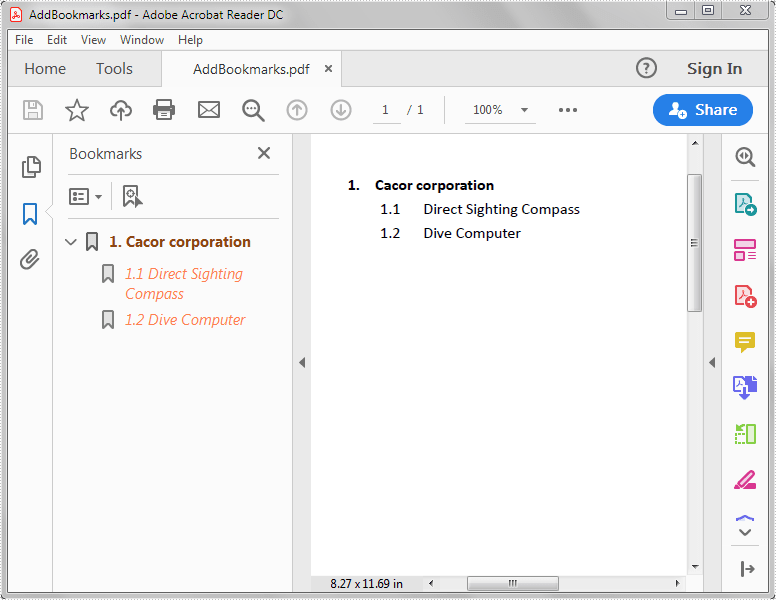
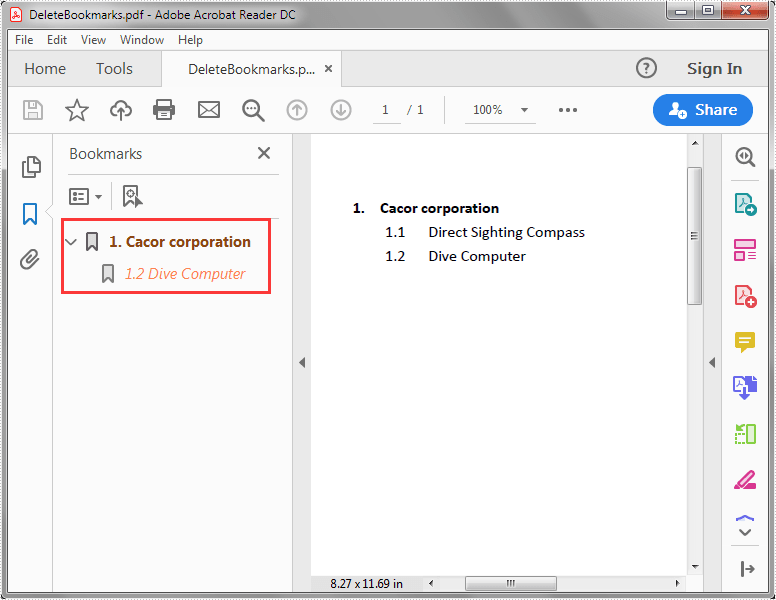
Spire.PDF for Java supports deleting a specific child bookmark, a parent bookmark along with its child bookmark(s) or delete all the bookmarks from a PDF file. In this article, you will learn how to delete PDF bookmarks using Spire.PDF for Java.
The input PDF file:
import com.spire.pdf.PdfDocument;

public class DeleteBookmarks {
    public static void main(String[] args) {
        //Create a PdfDocument instance
        PdfDocument pdf = new PdfDocument();
        //Load the PDF file
        pdf.loadFromFile("AddBookmarks.pdf");

        //Delete the first child bookmark
        pdf.getBookmarks().get(0).removeAt(0);

        //Delete the first bookmark along with its child bookmark
        //pdf.getBookmarks().removeAt(0);

        //Delete all the bookmarks
        //pdf.getBookmarks().clear();

        //Save the result file
        pdf.saveToFile("DeleteBookmarks.pdf");
    }
}
The output PDF file after deleting the first child bookmark:
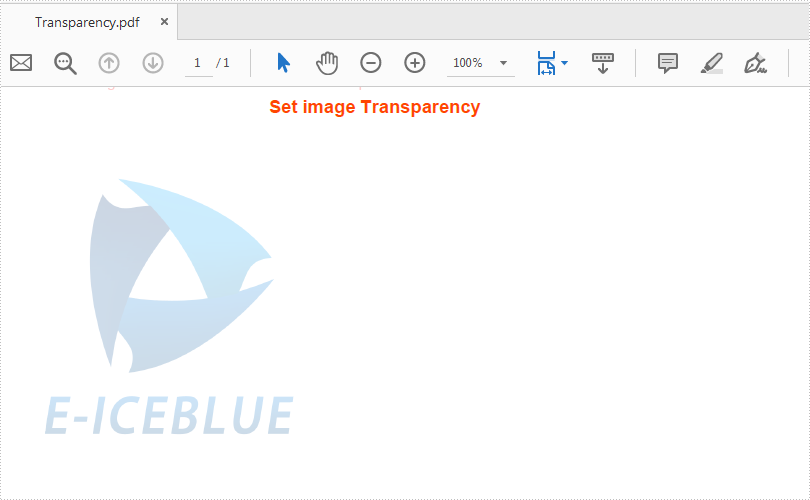
This article demonstrates how to set the transparency of image on a PDF file using Spire.PDF for Java.
import com.spire.pdf.*;
import com.spire.pdf.graphics.*;
import java.awt.geom.*;
import java.awt.*;

public class ImageTransparency {
    public static void main(String[] args) {

        //Create a PDFDocument
        PdfDocument doc = new PdfDocument();
        //Add a section
        PdfSection section = doc.getSections().add();

        // Load image and set its width and height
        PdfImage image = PdfImage.fromFile("logo.png");
        double imageWidth = image.getPhysicalDimension().getWidth() / 3;
        double imageHeight = image.getPhysicalDimension().getHeight() / 3;

        //Add a page
        PdfPageBase page = section.getPages().add();
        float pageWidth = (float) page.getCanvas().getClientSize().getWidth();
        float y = 10;

        //Draw Title and set the font and format
        y = y + 5;
        PdfBrush brush = new PdfSolidBrush(new PdfRGBColor(new Color(255,69,0)));
        PdfTrueTypeFont font = new PdfTrueTypeFont(new Font("Arial", Font.BOLD,12));
        PdfStringFormat format = new PdfStringFormat(PdfTextAlignment.Center);
        String text = String.format(" Set image Transparency ");
        page.getCanvas().drawString(text, font, brush, pageWidth / 2, y, format);
        Dimension2D size = font.measureString(text, format);
        y = y + (float) size.getHeight() + 6;

        //Set image transparency
        page.getCanvas().setTransparency(0.2f, 0.2f, PdfBlendMode.Normal);

        //Add image to the page
        page.getCanvas().drawImage(image, 0, y, imageWidth, imageHeight);
        page.getCanvas().save();

        // Save pdf file.
        doc.saveToFile("output/Transparency.pdf");
        // Close pdf file
        doc.close();
    }
}
Effective screenshot after adding the image to PDF and set the image transparency:
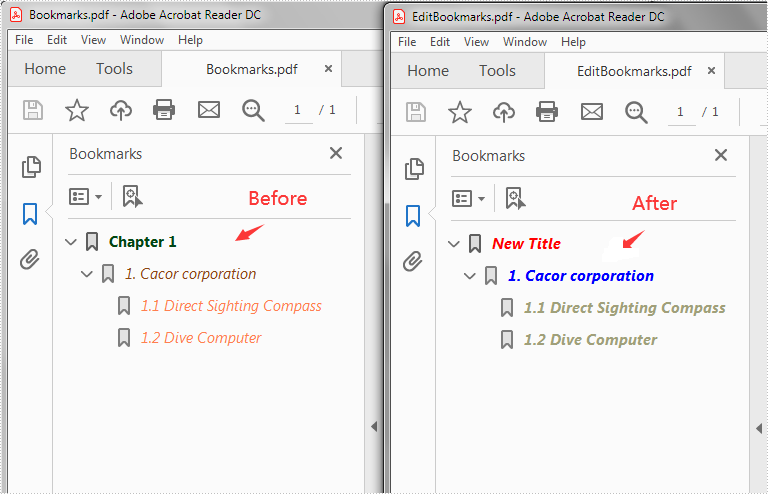
This article demonstrates how to edit the existing bookmarks in a PDF file, for example, change the bookmark title, font color and text style using Spire.PDF for Java.
import com.spire.pdf.PdfDocument;
import com.spire.pdf.bookmarks.PdfBookmark;
import com.spire.pdf.bookmarks.PdfTextStyle;
import com.spire.pdf.graphics.PdfRGBColor;
import java.awt.*;
public class EditBookmarks {
public static void main(String[] args) {
//Create a PdfDocument instance
PdfDocument doc = new PdfDocument();
//Load the PDF file
doc.loadFromFile("Bookmarks.pdf");
//Get the first bookmark
PdfBookmark bookmark = doc.getBookmarks().get(0);
//Change the title of the bookmark
bookmark.setTitle("New Title");
//Change the font color of the bookmark
bookmark.setColor(new PdfRGBColor(new Color(255,0,0)));
//Change the outline text style of the bookmark
bookmark.setDisplayStyle(PdfTextStyle.Italic);
//Edit child bookmarks of the first bookmark
for (Object Bookmark : (Iterable) bookmark) {
PdfBookmark childBookmark=(PdfBookmark)Bookmark;
childBookmark.setColor(new PdfRGBColor(new Color(0,0,255)));
childBookmark.setDisplayStyle(PdfTextStyle.Bold);
for (PdfBookmark Bookmark2 : (IterablePdfBookmark>) bookmark){
PdfBookmark childBookmark2=(PdfBookmark)Bookmark2;
childBookmark2.setColor(new PdfRGBColor(new Color(160,160,122)) );
childBookmark2.setDisplayStyle(PdfTextStyle.Bold);
}
}
//Save the result file
doc.saveToFile("EditBookmarks.pdf");
doc.close();
}
}
Output:
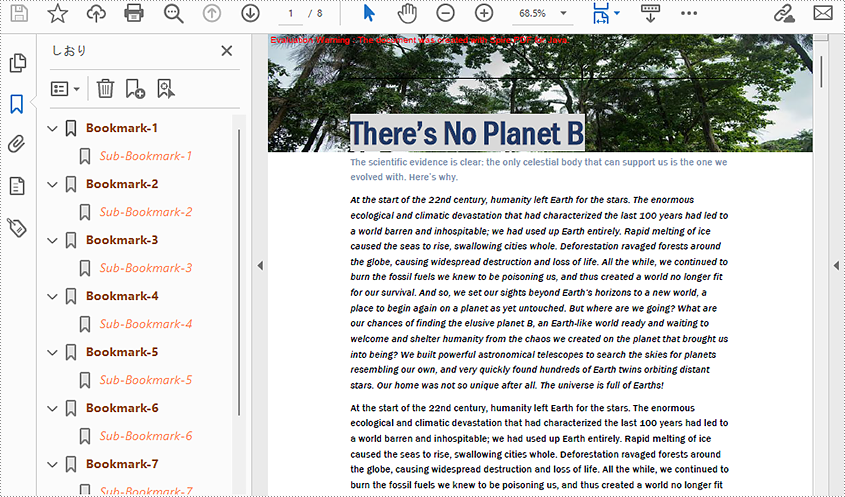
A bookmark in a PDF document consists of formatted text linking to a specific section of the document. Readers can navigate through pages by simply clicking on the bookmarks displayed on the side of the page instead of scrolling up and down, which is very helpful for those huge documents. Moreover, well-organized bookmarks can also serve as contents. When you create a PDF document with a lot of pages, it’s better to add bookmarks to link to significant content. This article is going to show how to add, modify, and remove bookmarks in PDF documents using Spire.PDF for Java through programming.
- Add Bookmarks to a PDF Document
- Edit Bookmarks in a PDF Document
- Delete Bookmarks from a PDF Document
Install Spire.PDF for Java
First of all, you're required to add the Spire.Pdf.jar file as a dependency in your Java program. The JAR file can be downloaded from this link. If you use Maven, you can easily import the JAR file in your application by adding the following code to your project's pom.xml file.
<repositories>
    <repository>
        <id>com.e-iceblue</id>
        <name>e-iceblue</name>
        <url>https://repo.e-iceblue.com/nexus/content/groups/public/</url>
    </repository>
</repositories>
<dependencies>
    <dependency>
        <groupId>e-iceblue</groupId>
        <artifactId>spire.pdf</artifactId>
        <version>12.4.4</version>
    </dependency>
</dependencies>
Add Bookmarks to a PDF Document
Spire.PDF for Java provides PdfDocument.getBookmarks().add() method to add bookmarks to a PDF document. In addition to adding primary bookmarks, we can use PdfBookmark.add() method to add a sub-bookmark to a primary bookmark. There are also many other methods under PdfBookmark class which are used to set the destination, text color, and text style of bookmarks. The detailed steps of adding bookmarks to a PDF document are as follows.
- Create a PdfDocument class instance.
- Load a PDF document using PdfDocument.loadFromFile() method.
- Loop through the pages in the PDF document to add bookmarks and set their styles.
- Add a primary bookmark to the document using PdfDocument.getBookmarks().add() method.
- Create a PdfDestination class object and set the destination of the primary bookmark using PdfBookmark.setAction() method.
- Set the text color of the primary bookmark using PdfBookmark.setColor() method.
- Set the text style of the Primary bookmark using PdfBookmark.setDisplayStyle() method.
- Add a sub-bookmark to the primary bookmark using PdfBookmark.add() method.
- Use the above methods to set the destination, text color, and text style of the sub-bookmark.
- Save the document using PdfDocument.saveToFile() method.
- Java
import com.spire.pdf.PdfDocument;
import com.spire.pdf.PdfPageBase;
import com.spire.pdf.actions.PdfGoToAction;
import com.spire.pdf.bookmarks.PdfBookmark;
import com.spire.pdf.bookmarks.PdfTextStyle;
import com.spire.pdf.general.PdfDestination;
import com.spire.pdf.graphics.PdfRGBColor;

import java.awt.*;
import java.awt.geom.Point2D;

public class addBookmark {
    public static void main(String[] args) {

        //Create a PdfDocument class instance
        PdfDocument pdf = new PdfDocument();

        //Load a PDF file
        pdf.loadFromFile("There's No Planet B.pdf");

        //Loop through the pages in the PDF file
        for(int i = 0; i< pdf.getPages().getCount();i++) {
            PdfPageBase page = pdf.getPages().get(i);
            //Add a bookmark
            PdfBookmark bookmark = pdf.getBookmarks().add(String.format("Bookmark-%s", i + 1));
            //Set the destination page and location
            PdfDestination destination = new PdfDestination(page, new Point2D.Float(0, 0));
            bookmark.setAction(new PdfGoToAction(destination));
            //Set the text color
            bookmark.setColor(new PdfRGBColor(new Color(139, 69, 19)));
            //Set the text style
            bookmark.setDisplayStyle(PdfTextStyle.Bold);
            //Add a child bookmark
            PdfBookmark childBookmark = bookmark.add(String.format("Sub-Bookmark-%s", i + 1));
            //Set the destination page and location
            PdfDestination childDestination = new PdfDestination(page, new Point2D.Float(0, 100));
            childBookmark.setAction(new PdfGoToAction(childDestination));
            //Set the text color
            childBookmark.setColor(new PdfRGBColor(new Color(255, 127, 80)));
            //Set the text style
            childBookmark.setDisplayStyle(PdfTextStyle.Italic);
        }

        //Save the result file
        pdf.saveToFile("AddBookmarks.pdf");
    }
}
Edit Bookmarks in a PDF Document
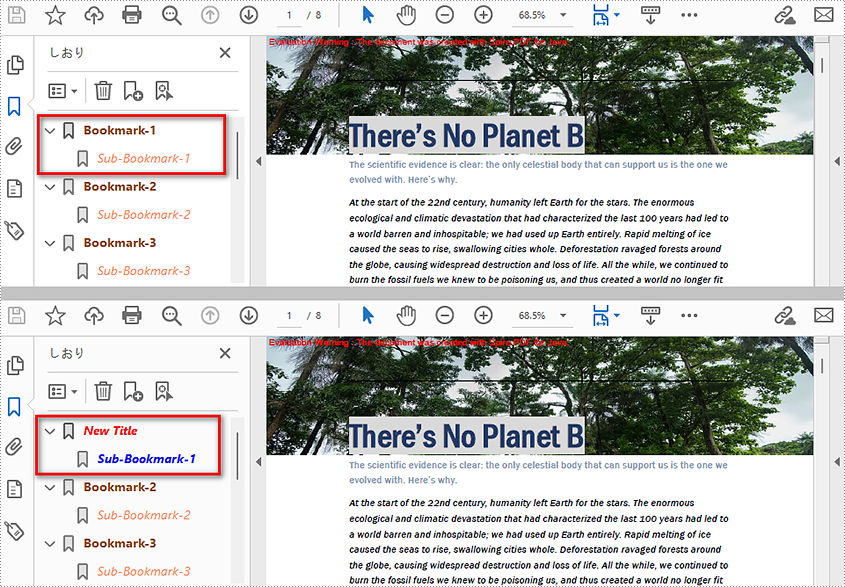
We can also use methods of PdfBookmark class in Spire.PDF for Java to edit existing PDF bookmarks. The detailed steps are as follows.
- Create a PdfDocument class instance.
- Load a PDF document using PdfDocument.loadFromFile() method.
- Get the first bookmark using PdfDocument.getBookmarks().get() method.
- Change the title of the bookmark using PdfBookmark.setTitle() method.
- Change the font color of the bookmark using PdfBookmark.setColor() method.
- Change the outline text style of the bookmark using PdfBookmark.setDisplayStyle() method.
- Change the text color and style of the sub-bookmark using the above methods.
- Save the document using PdfDocument.saveToFile() method.
- Java
import com.spire.pdf.PdfDocument;
import com.spire.pdf.bookmarks.PdfBookmark;
import com.spire.pdf.bookmarks.PdfTextStyle;
import com.spire.pdf.graphics.PdfRGBColor;

import java.awt.*;

public class editBookmarks {
    public static void main(String[] args) {

        //Create a PdfDocument class instance
        PdfDocument doc = new PdfDocument();

        //Load a PDF file
        doc.loadFromFile("AddBookmarks.pdf");

        //Get the first bookmark
        PdfBookmark bookmark = doc.getBookmarks().get(0);
        //Change the title of the bookmark
        bookmark.setTitle("New Title");
        //Change the font color of the bookmark
        bookmark.setColor(new PdfRGBColor(new Color(255,0,0)));
        //Change the outline text style of the bookmark
        bookmark.setDisplayStyle(PdfTextStyle.Italic);

        //Edit sub-bookmarks of the first bookmark
        for (Object Bookmark : (Iterable) bookmark) {
            PdfBookmark childBookmark=(PdfBookmark)Bookmark;
            childBookmark.setColor(new PdfRGBColor(new Color(0,0,255)));
            childBookmark.setDisplayStyle(PdfTextStyle.Bold);
        }


        //Save the result file
        doc.saveToFile("EditBookmarks.pdf");
        doc.close();
    }
}
Delete Bookmarks from a PDF Document
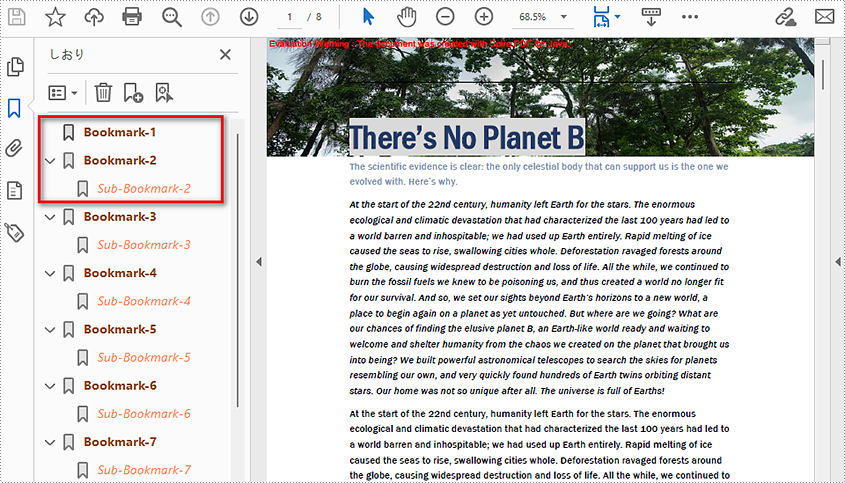
We can use Spire.PDF for Java to delete any bookmark in a PDF document. PdfDocument.getBookmarks().removeAt() is used to remove a specific primary bookmark, PdfDocument.getBookmarks().clear() method is used to remove all bookmarks, and PdfBookmark.removeAt() method is used to remove a specific sub-bookmark of a primary bookmark. The detailed steps of removing bookmarks form a PDF document are as follows.
- Create PdfDocument class instance.
- Load a PDF document using PdfDocument.loadFromFile() method.
- Get the first bookmark using PdfDocument.getBookmarks().get() method.
- Remove the sub-bookmark of the first bookmark using PdfBookmark.removeAt() method.
- Save the document using PdfDocument.saveToFile() method.
- Java
import com.spire.pdf.PdfDocument;
import com.spire.pdf.bookmarks.PdfBookmark;

public class deleteBookmarks {
    public static void main(String[] args) {

        //Create a PdfDocument instance
        PdfDocument pdf = new PdfDocument();

        //Load the PDF file
        pdf.loadFromFile("AddBookmarks.pdf");

        //Get the first bookmark
        PdfBookmark pdfBookmark = pdf.getBookmarks().get(0);

        //Delete the sub-bookmark of the first bookmark
        pdfBookmark.removeAt(0);

        //Delete the first bookmark along with its child bookmark
        //pdf.getBookmarks().removeAt(0);

        //Delete all the bookmarks
        //pdf.getBookmarks().clear();

        //Save the result file
        pdf.saveToFile("DeleteBookmarks.pdf");
    }
}
Apply for a Temporary License
If you'd like to remove the evaluation message from the generated documents, or to get rid of the function limitations, please request a 30-day trial license for yourself.
