
Spire.PDF for .NET (291)
PDF has become the standard format for sharing and preserving documents across different platforms, playing a ubiquitous role in both professional and personal settings. However, creating high-quality PDF documents requires multiple checks and revisions. In this context, knowing how to efficiently compare PDF files and pinpoint their differences becomes crucial, which enables document editors to quickly identify discrepancies between different versions of a document, resulting in significant time savings during the document creation and review process. This article aims to demonstrate how to compare PDF documents effortlessly using Spire.PDF for .NET in C# programs.
Install Spire.PDF for .NET
To begin with, you need to add the DLL files included in the Spire.PDF for.NET package as references in your .NET project. The DLL files can be either downloaded from this link or installed via NuGet.
PM> Install-Package Spire.PDF
Compare Two PDF Documents in C#
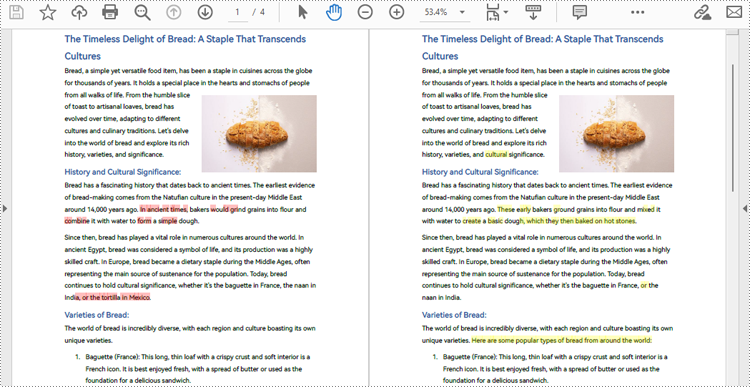
With Spire.PDF for .NET, developers can create an instance of the PdfComparer class, passing two PdfDocument objects as parameters, and then utilize the PdfComparer.Compare(String fileName) method to compare the two documents. The resulting comparison is saved as a new PDF document, allowing for further analysis or review of the differences between the two PDFs.
The resulting PDF document displays the two original documents on the left and the right, with the deleted items in red and the added items in yellow.
The following are the detailed steps for comparing two PDF documents:
- Create two objects of PdfDocument class and load two PDF documents using PdfDocument.LoadFromFile() method.
- Create an instance of PdfComparer class and pass the two PdfDocument objects as parameters.
- Compare the two documents and save the result as another PDF document using PdfComparer.Compare() method.
- C#
using Spire.Pdf;
using Spire.Pdf.Comparison;

namespace ExtractTablesToExcel
{
    class Program
    {
        static void Main(string[] args)
        {
            //Create an object of PdfDocument class and load a PDF document
            PdfDocument pdf1 = new PdfDocument();
            pdf1.LoadFromFile("Sample1.pdf");

            //Create another object of PdfDocument class and load another PDF document
            PdfDocument pdf2 = new PdfDocument();
            pdf2.LoadFromFile("Sample2.pdf");

            //Create an object of PdfComparer class with the two document
            PdfComparer comparer = new PdfComparer(pdf1, pdf2);

            //Compare the two document and save the comparing result to another PDF document
            comparer.Compare("output/ComparingResult.pdf");
            pdf1.Close();
            pdf2.Close();
        }
    }
}
Compare a Specific Page Range of Two PDF Documents
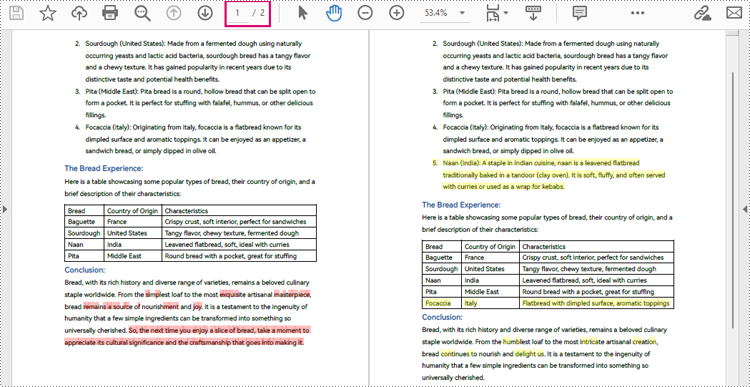
After creating an instance of PdfComparer class, developers can also use the PdfComparer.Options.SetPageRange() method to set the page range to be compared. This allows for comparing only the specified page range in two PDF documents. The detailed steps are as follows:
- Create two objects of PdfDocument class and load two PDF documents using PdfDocument.LoadFromFile() method.
- Create an instance of PdfComparer class and pass the two PdfDocument objects as parameters.
- Set the page range to be compared using PdfComparer.Options.SetPageRange() method.
- Compare the specified page range in the two PDF documents and save the result as another PDF document using PdfComparer.Compare() method.
- C#
using Spire.Pdf;
using Spire.Pdf.Comparison;

namespace ExtractTablesToExcel
{
    class Program
    {
        static void Main(string[] args)
        {
            //Create an object of PdfDocument class and load a PDF document
            PdfDocument pdf1 = new PdfDocument();
            pdf1.LoadFromFile("Sample1.pdf");

            //Create another object of PdfDocument class and load another PDF document
            PdfDocument pdf2 = new PdfDocument();
            pdf2.LoadFromFile("Sample2.pdf");

            //Create an object of PdfComparer class with the two document
            PdfComparer comparer = new PdfComparer(pdf1, pdf2);

            //Set the page range to be compared
            comparer.Options.SetPageRanges(1, 1, 1, 1);

            //Compare the specified page range and save the comparing result to another PDF document
            comparer.Compare("output/PageRangeComparingResult.pdf");
            pdf1.Close();
            pdf2.Close();
        }
    }
}
Apply for a Temporary License
If you'd like to remove the evaluation message from the generated documents, or to get rid of the function limitations, please request a 30-day trial license for yourself.
Convert PDF and Byte Array in C# (Load, Edit, Save in Memory)
2025-08-25 06:56:30 Written by zaki zou
Working with PDFs as byte arrays is common in C# development. Developers often need to store PDF documents in a database, transfer them through an API, or process them entirely in memory without touching the file system. In such cases, converting between PDF and bytes using C# becomes essential.
This tutorial explains how to perform these operations step by step using Spire.PDF for .NET. You will learn how to convert a byte array to PDF, convert a PDF back into a byte array, and even edit a PDF directly from memory with C# code.
Jump right where you need
- Why Work with Byte Arrays and PDFs in C#?
- Convert Byte Array to PDF in C#
- Convert PDF to Byte Array in C#
- Create and Edit PDF Directly from a Byte Array
- Advantages of Using Spire.PDF for .NET
- Conclusion
- FAQ
Why Work with Byte Arrays and PDFs in C#?
Using byte[] as the transport format lets you avoid temporary files and makes your code friendlier to cloud and container environments.
- Database storage (BLOB): Persist PDFs as raw bytes; hydrate only when needed.
- Web APIs: Send/receive PDFs over HTTP without touching disk.
- In-memory processing: Transform or watermark PDFs entirely in streams.
- Security & isolation: Limit file I/O, reduce temp-file risks.
Getting set up: before running the examples, add the NuGet package of Spire.PDF for .NET so the API surface is available in your project.
Install-Package Spire.PDF
Once installed, you can load from byte[] or Stream, edit pages, and write outputs back to memory or disk—no extra converters required.
Convert Byte Array to PDF in C#
When an upstream service (e.g., an API or message queue) hands you a byte[] that represents a PDF, you often need to materialize it as a document for further processing or for a one-time save to disk. With Spire.PDF for .NET, this is a direct load operation—no intermediate temp file.
Scenario & approach: we’ll accept a byte[] (from DB/API), construct a PdfDocument in memory, optionally validate basic metadata, and then save the document.
using Spire.Pdf;
using System.IO;

class Program
{
    static void Main()
    {
        // Example source: byte[] retrieved from DB/API
        byte[] pdfBytes = File.ReadAllBytes("Sample.pdf"); // substitute with your source

        // 1) Load PDF from raw bytes (in memory)
        PdfDocument doc = new PdfDocument();
        doc.LoadFromBytes(pdfBytes);

        // 2) (Optional) inspect basic info before saving or further processing
        // int pageCount = doc.Pages.Count;

        // 3) Save to a file
        doc.SaveToFile("Output.pdf");
        doc.Close();
    }
}
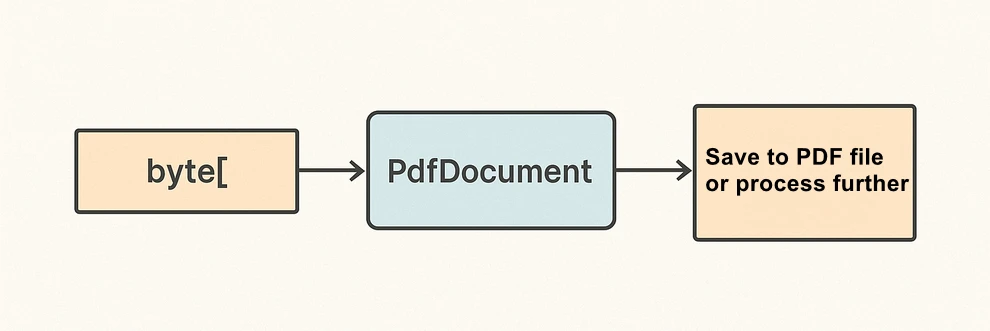
The diagram below illustrates the byte[] to PDF conversion workflow:
What the code is doing & why it matters:
- LoadFromBytes(byte[]) initializes the PDF entirely in memory—perfect for services without write access.
- You can branch after loading: validate pages, redact, stamp, or route elsewhere.
- SaveToFile(string) saves the document to disk for downstream processing or storing.
Convert PDF to Byte Array in C#
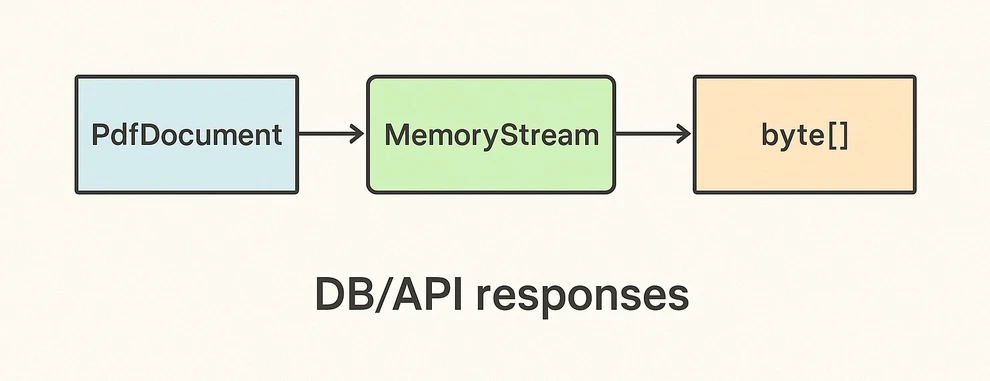
In the reverse direction, converting a PDF to a byte[] enables database writes, caching, or streaming the file through an HTTP response. Spire.PDF for .NET writes directly to a MemoryStream, which you can convert to a byte array with ToArray().
Scenario & approach: load an existing PDF, push the document into a MemoryStream, then extract the byte[]. This pattern is especially useful when returning PDFs from APIs or persisting them to databases.
using Spire.Pdf;
using System.IO;

class Program
{
    static void Main()
    {
        // 1) Load a PDF from disk, network share, or embedded resource
        PdfDocument doc = new PdfDocument();
        doc.LoadFromFile("Input.pdf");

        // 2) Save to a MemoryStream for fileless output
        byte[] pdfBytes;
        using (var ms = new MemoryStream())
        {
            doc.SaveToStream(ms);
            pdfBytes = ms.ToArray();
        }

        doc.Close();

        // pdfBytes now contains the full document (ready for DB/API)
        // e.g., return File(pdfBytes, "application/pdf");
    }
}
The diagram below shows the PDF to byte[] conversion workflow:
Key takeaways after the code:
- SaveToStream → ToArray is the standard way to obtain a PDF as bytes in C# without creating temp files.
- This approach scales for large PDFs; the only limit is available memory.
- Great for ASP.NET: return the byte array directly in your controller or minimal API endpoint.
If you want to learn more about working with streams, check out our guide on loading and saving PDF documents via streams in C#.
Create and Edit PDF Directly from a Byte Array
The real power comes from editing PDFs fully in memory. You can load from byte[], add text or images, stamp a watermark, fill form fields, and save the edited result back into a new byte[]. This enables fileless pipelines and is well-suited for microservices.
Scenario & approach: we’ll load a PDF from bytes, draw a small text annotation on page 1 (stand-in for any edit operation), and emit the edited document as a fresh byte array.
using Spire.Pdf;
using Spire.Pdf.Graphics;
using System.Drawing;
using System.IO;

class Program
{
    static void Main()
    {
        // Source could be DB, API, or file — represented as byte[]
        byte[] inputBytes = File.ReadAllBytes("Input.pdf");

        // 1) Load in memory
        var doc = new PdfDocument();
        doc.LoadFromBytes(inputBytes);

        // 2) Edit: write a small marker on the first page
        PdfPageBase page = doc.Pages[0];
        page.Canvas.DrawString(
            "Edited in memory",
            new PdfFont(PdfFontFamily.Helvetica, 12f),
            PdfBrushes.DarkBlue,
            new PointF(100, page.Size.Height - 100)
        );

        // 3) Save the edited PDF back to byte[]
        byte[] editedBytes;
        using (var ms = new MemoryStream())
        {
            doc.SaveToStream(ms);
            editedBytes = ms.ToArray();
        }

        doc.Close();

        // editedBytes can now be persisted or returned by an API
    }
}
The image below shows the edited PDF page:

After-code insights:
- The same pattern works for text, images, watermarks, annotations, and form fields.
- Keep edits idempotent (e.g., check if you already stamped a page) for safe reprocessing.
- For ASP.NET, this is ideal for on-the-fly stamping or conditional redaction before returning the response.
For a step-by-step tutorial on building a PDF from scratch, see our article on creating PDF documents in C#.
Advantages of Using Spire.PDF for .NET
A concise view of why this API pairs well with byte-array workflows:
| Concern | What you get with Spire.PDF for .NET |
|---|---|
| I/O flexibility | Load/save from file path, Stream, or byte[] with the same PdfDocument API. |
| In-memory editing | Draw text/images, manage annotations/forms, watermark, and more—no temp files. |
| Service-friendly | Clean integration with ASP.NET endpoints and background workers. |
| Scales to real docs | Handles multi-page PDFs; you control memory via streams. |
| Straightforward code | Minimal boilerplate; avoids manual byte fiddling and fragile interop. |
Conclusion
You’ve seen how to convert byte array to PDF in C#, how to convert PDF to byte array, and how to edit a PDF directly from memory—all with concise code. Keeping everything in streams and byte[] simplifies API design, accelerates response times, and plays nicely with databases and cloud hosting. Spire.PDF for .NET gives you a consistent, fileless workflow that’s easy to extend from quick conversions to full in-memory document processing.
If you want to try these features without limitations, you can request a free 30-day temporary license. Alternatively, you can explore Free Spire.PDF for .NET for lightweight PDF tasks.
FAQ
Can I create a PDF from a byte array in C# without saving to disk?
Yes. Load from byte[] with LoadFromBytes, then either save to a MemoryStream or return it directly from an API—no disk required.
How do I convert PDF to byte array in C# for database storage?
Use SaveToStream on PdfDocument and call ToArray() on the MemoryStream. Store that byte[] as a BLOB (or forward it to another service).
Can I edit a PDF that only exists as a byte array?
Absolutely. Load from bytes, apply edits (text, images, watermarks, annotations, form fill), then save the result back to a new byte[].
Any tips for performance and reliability?
Dispose streams promptly, reuse buffers when appropriate, and create a new PdfDocument per operation/thread. For large files, stream I/O keeps memory usage predictable.

Creating PDFs in ASP.NET applications is a common requirement, whether you're generating invoices, reports, forms, or exporting dynamic content. To streamline this process, you can utilize Spire.PDF for .NET, a professional and lightweight library that enables developers to easily create and manipulate PDF documents programmatically, without the need for complex APIs or third-party printer drivers.
In this tutorial, we’ll show you how to create PDF documents in an ASP.NET Core Web application using Spire.PDF for .NET, with examples of creating a PDF from scratch and converting HTML to PDF.
On this page:
- Why Use Spire.PDF for .NET?
- Step-by-Step: Generate PDF in ASP.NET Core Web App
- Create PDF from HTML in ASP.NET Core
- Best Practices for ASP.NET PDF Generation
- Conclusion
- FAQs
Why Use Spire.PDF for .NET?
There are many ways to create PDF in ASP.NET, but most involve trade-offs: some depend on printer drivers, others have limited layout control, and many require heavy third-party frameworks. Spire.PDF for .NET offers a more streamlined approach. It’s a dedicated .NET library that handles the majority of PDF creation and manipulation tasks on its own, without external tools.
Key advantages include:
- No Adobe dependency – Generate and manage PDFs without Acrobat installed.
- Full-featured PDF toolkit – Beyond creation, you can edit, merge, split, protect, or annotate PDFs.
- High-fidelity rendering – Preserve fonts, CSS, images, and layouts when exporting content.
- ASP.NET ready – Compatible with both ASP.NET Web Forms/MVC and ASP.NET Core projects.
- Flexible generation options – Create PDFs from scratch, images, or streams.
(Note: HTML-to-PDF conversion requires a lightweight external plugin such as Qt WebEngine.)
Step-by-Step: Generate PDF in ASP.NET Core Web App
Step 1. Create a New ASP.NET Core Web App
- Open Visual Studio .
- Select Create a new project .
- Choose ASP.NET Core Web App (Model-View-Controller) → Click Next .
- Enter a project name, e.g., PdfDemoApp.
- Select your target framework (e.g., . NET 6 , 7 , or 8 ).
- Click Create .
Step 2. Install Spire.PDF via NuGet
- Right-click on your project → Manage NuGet Packages .
- Search for Spire.PDF .
- Install the package Spire.PDF (latest stable version).
Or install using the Package Manager Console :
Install-Package Spire.PDF
Step 3. Add a Controller for PDF Generation
- Right-click on the Controllers folder → Add → Controller → MVC Controller – Empty .
- Name it: PdfController.cs.
- Replace the default code with this:
using Microsoft.AspNetCore.Mvc;
using Spire.Pdf;
using Spire.Pdf.Graphics;
using System.Drawing;

namespace PdfDemoApp.Controllers
{
    public class PdfController : Controller
    {
        public IActionResult CreatePdf()
        {
            // Create a new PDF document
            PdfDocument doc = new PdfDocument();
            PdfPageBase page = doc.Pages.Add(PdfPageSize.A4, new PdfMargins(40));

            // Draw text on the page
            PdfFont font = new PdfFont(PdfFontFamily.Helvetica, 25f);
            PdfSolidBrush brush = new PdfSolidBrush(Color.Black);
            page.Canvas.DrawString("Hello from ASP.NET Core!", font, brush, 10, 50);

            // Save to memory stream
            using (MemoryStream ms = new MemoryStream())
            {
                doc.SaveToStream(ms);
                doc.Close();
                ms.Position = 0;

                // Return PDF file
                return File(ms.ToArray(), "application/pdf", "Generated.pdf");
            }
        }
    }
}
Step 4: (Optional) Add a Button or Link in Your View
Open Views/Home/Index.cshtml (or whichever view is your homepage).
Add a button or link like this:
<div>
    <a asp-controller="Pdf" asp-action="CreatePdf" class="btn btn-primary">
        Create PDF from Scratch
    </a>
</div>
This uses ASP.NET Core tag helpers to generate the correct route (/Pdf/CreatePdf).
Step 5. Run and Test
- Press F5 to run your app.
- On the home page, click the "Create PDF from Scratch" button. This will call the CreatePdf method in PdfController and trigger a download of the generated PDF.
- If you didn’t add the button, you can still run the CreatePdf method directly by visiting this URL in your browser:
https://localhost:xxxx/Pdf/CreatePdf
(where xxxx is your local port number).
Output:

In addition to text, Spire.PDF supports adding a wide range of elements to PDF, such as images, shapes, tables, lists, hyperlinks, annotations, and watermarks. For more details and advanced usage, check the .NET PDF Tutorials.
Create PDF from HTML in ASP.NET Core
Spire.PDF allows you to convert HTML content directly into PDF files. This feature is particularly useful for generating invoices, reports, receipts, or exporting styled web pages with consistent formatting.
To render HTML as PDF, Spire.PDF relies on an external rendering engine. You can choose between Qt WebEngine or Google Chrome . In this guide, we’ll use Qt WebEngine .
Setup the Qt plugin:
-
Download the Qt WebEngine plugin for your operating system:
-
Extract the package to obtain the plugins directory, e.g.: C:\plugins-windows-x64\plugins
-
Register the plugin path inyour code:
HtmlConverter.PluginPath = @"C:\plugins-windows-x64\plugins";
Once the plugin is ready, you can follow the steps from the previous section and add the code snippet below to your controller to generate PDF output from HTML content.
using Microsoft.AspNetCore.Mvc;
using Spire.Additions.Qt;
using Spire.Pdf.Graphics;
using System.Drawing;

namespace PdfDemoApp.Controllers
{
    public class PdfController : Controller
    {
        [HttpGet]
        public IActionResult HtmlToPdf()
        {
            // Example HTML string
            string html = @"
                <html>
                  <head>
                    <style>
                      body { font-family: Arial, sans-serif; }
                      h1 { color: #2563eb; }
                    </style>
                  </head>
                  <body>
                    <h1>ASP.NET Core: Create PDF from HTML</h1>
                    <p>This PDF was generated using the Qt-based converter.</p>
                  </body>
                </html>";

            // Path to the Qt plugin folder
            // ⚠️ Ensure this folder exists on your server/deployment environment
            string pluginPath = @"C:\plugins-windows-x64\plugins";
            HtmlConverter.PluginPath = pluginPath;

            // Create a temp file path (on server side)
            string tempFile = Path.GetTempFileName();

            // Convert HTML string → PDF using Qt
            HtmlConverter.Convert(
                html,
                tempFile,
                enableJavaScript: true,
                timeout: 100000,                        // milliseconds
                pageSize: new SizeF(595, 842),          // A4 page size in points
                margins: new PdfMargins(40),            // 40pt margins
                LoadHtmlType.SourceCode                 // Load from HTML string
            );

            // Read the generated PDF into memory
            byte[] fileBytes = System.IO.File.ReadAllBytes(tempFile);

            // Clean up temp file
            System.IO.File.Delete(tempFile);

            // Return PDF to browser as download
            return File(fileBytes, "application/pdf", "HtmlToPdf.pdf");
        }
    }
}
Output:
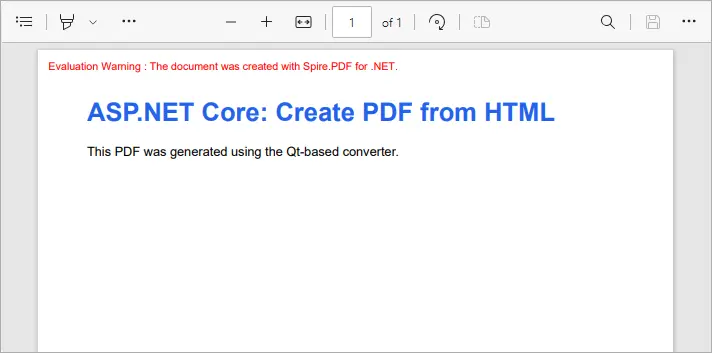
This example converts inline HTML into a properly formatted PDF. You can also load external HTML files or URLs - see our detailed guide on Convert HTML to PDF in C# for more information.
Best Practices for ASP.NET PDF Generation
- Use memory streams instead of disk storage for performance and scalability.
- Cache static PDFs (like terms & conditions or forms) to reduce server load.
- Use HTML-to-PDF for dynamic reports with CSS styling.
- Consider templates (like Word-to-PDF with Spire.Doc) when documents have complex layouts.
- Secure sensitive PDFs with password protection or access permissions.
Conclusion
With Spire.PDF for .NET, you can easily generate PDF in ASP.NET Core applications. Whether you’re creating PDFs from scratch or performing HTML-to-PDF conversion in C# , Spire.PDF provides a reliable, developer-friendly solution—no external dependencies required.
If you also need to generate PDFs from Word documents, that feature is available via Spire.Doc for .NET, another product in the Spire family. Together, they cover the full range of PDF document generation scenarios.
By integrating these tools, developers can streamline workflows, reduce reliance on Adobe or other third-party components, and ensure consistent, professional-quality output. This makes your ASP.NET PDF solutions more scalable, maintainable, and ready for enterprise use.
FAQs
Q1. Do I need Adobe Acrobat installed on the server?
No. Spire.PDF is a standalone library and works independently of Adobe Acrobat.
Q2. Can I generate PDFs from both raw content and HTML?
Yes. You can build documents programmatically (drawing text, shapes, tables) or convert HTML pages to PDF.
Q3. Can I convert Word documents to PDF with Spire.PDF?
No. Word-to-PDF is supported by Spire.Doc for .NET, not Spire.PDF. You can use them together if your project requires it.
Q4. How can I protect generated PDFs?
Spire.PDF supports setting passwords, permissions, and digital signatures for document security.
Q5. Does Spire.PDF support ASP.NET Framework?
Yes. It works with both ASP.NET Core and ASP.NET Framework.
Get a Free License
To fully experience the capabilities of Spire.PDF for .NET without any evaluation limitations, you can request a free 30-day trial license.
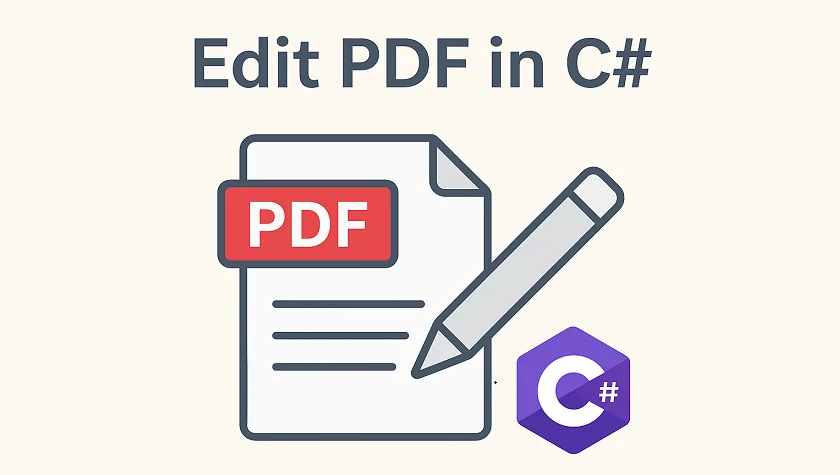
PDF (Portable Document Format) is widely used for sharing, distributing, and preserving documents because it maintains a consistent layout and formatting across platforms. Developers often need to edit PDF files in C#, whether it's to replace text, insert images, add watermarks, or extract pages.
In this step-by-step tutorial, you will learn how to programmatically edit PDFs in C# with the Spire.PDF for .NET library.
Table of Contents
- Why Edit PDFs Programmatically in C#
- C# Library to Edit PDFs
- Step-by-Step Guide: Editing PDF in C#
- Tips for Efficient PDF Editing in C#
- Conclusion
- FAQs
Why Edit PDFs Programmatically in C
While tools like Adobe Acrobat provide manual PDF editing, programmatically editing PDFs has significant advantages:
- Automation: Batch process hundreds of documents without human intervention.
- Integration: Edit PDFs as part of a workflow, such as generating reports, invoices, or certificates dynamically.
- Consistency: Apply uniform styling, stamps, or watermarks across multiple PDFs.
- Flexibility: Extract or replace content programmatically to integrate with databases or external data sources.
C# Library to Edit PDFs
Spire.PDF for .NET is a robust .NET PDF library that enables developers to generate, read, edit, and convert PDF files in .NET applications. It's compatible with both .NET Framework and .NET Core applications.
This library provides a rich set of features for developers working with PDFs:
- PDF Creation: Generate new PDFs from scratch or from existing documents.
- Text Editing: Add, replace, or delete text on any page.
- Image Editing: Insert images, resize, or remove them.
- Page Operations: Insert, remove, extract, or reorder pages.
- Annotations: Add stamps, comments, and shapes for marking content.
- Watermarking: Add text or image watermarks for branding or security.
- Form Handling: Create and fill PDF forms programmatically.
- Digital Signatures: Add and validate signatures for authenticity.
- Encryption: Apply password protection and user permissions.
Step-by-Step Guide: Editing PDF in C
Modifying a PDF file in C# involves several steps: setting up a C# project, installing the library, loading the PDF file, making necessary changes, and saving the document. Let's break down each step in detail.
Step 1: Set Up Your C# Project
Before you start editing PDFs, you need to create a new C# project by following the steps below:
- Open Visual Studio.
- Create a new project. You can choose a Console App or a Windows Forms App depending on your use case.
- Name your project (e.g., PdfEditorDemo) and click Create.
Step 2: Install Spire.PDF
Next, you need to install the Spire.PDF library, which provides all the functionality required to read, edit, and save PDF files programmatically.
You can simply install it via the NuGet Package Manager Console with the following command:
Install-Package Spire.PDF
Alternatively, you can use the NuGet Package Manager GUI to search for Spire.PDF and click Install.
Step 3: Load an Existing PDF
Before you can modify an existing PDF file, you need to load it into a PdfDocument object. This gives you access to its pages, text, images, and structure.
using Spire.Pdf;
PdfDocument pdf = new PdfDocument();
pdf.LoadFromFile("example.pdf");
Step 4: Edit PDF Content
Text editing, image insertion, page management, and watermarking are common operations when working with PDFs. This step covers all these editing tasks.
4.1 Edit Text
Text editing is one of the most common operations when working with PDFs. Depending on your needs, you might want to replace existing text or add new text to specific pages.
Replace existing text:
Replacing text in PDF allows you to update content across a single page or an entire PDF while maintaining formatting consistency. Using the PdfTextReplacer class, you can quickly find and replace text programmatically:
// Get the first page
PdfPageBase page = pdf.Pages[0];
// Create a PdfTextReplacer
PdfTextReplacer textReplacer = new PdfTextReplacer(page);

// Replace all occurrences of target text with new text
textReplacer.ReplaceAllText("Old text", "New text");
Add new text:
In addition to replacing existing content, you may need to insert new text into a PDF. With just one line of code, you can add text to any location on a PDF page:
page.Canvas.DrawString(
    "Hello, World!",
    new PdfTrueTypeFont(new Font("Arial Unicode MS", 15f, FontStyle.Bold), true),
    new PdfSolidBrush(Color.Black),
    90, 30
);
4.2 Insert and Update Images
PDFs often contain visual elements such as logos, charts, or illustrations. You can insert new images or update outdated graphics to enhance the document's visual appeal.
Insert an Image:
// Load an image
PdfImage image = PdfImage.FromFile("logo.png");
// Draw the image at a specific location with defined size
page.Canvas.DrawImage(image, 100, 150, 200, 100);
Update an image:
// Load the new image
PdfImage newImage = PdfImage.FromFile("image1.jpg");
// Create a PdfImageHelper instance
PdfImageHelper imageHelper = new PdfImageHelper();
// Get the image information from the page
PdfImageInfo[] imageInfo = imageHelper.GetImagesInfo(page);
// Replace the first image on the page with the new image
imageHelper.ReplaceImage(imageInfo[0], newImage);
4.3 Add, Remove, or Extract Pages
Managing page structure is another important aspect of PDF editing, such as adding new pages, removing unwanted pages, and extracting particular pages to a new document.
Add a new page:
// Add a new page
PdfPageBase newPage = pdf.Pages.Add();
Remove a page:
// Remove the last page
pdf.Pages.RemoveAt(pdf.Pages.Count - 1);
Extract a page to a new document:
// Create a new PDF document
PdfDocument newPdf = new PdfDocument();
// Extract the third page to a new PDF document
newPdf.InsertPage(pdf, pdf.Pages[2]);
// Save the new PDF document
newPdf.SaveToFile("extracted_page.pdf");
4.4 Add Watermarks
Adding Watermarks to PDFs can help indicate confidentiality, add branding, or protect intellectual property. You can easily add them programmatically to any page:
// Iterate through each page in the PDF document
foreach (PdfPageBase page in pdf.Pages)
{
    // Create a tiling brush for the watermark
    // The brush size is set to half the page width and one-third of the page height
    PdfTilingBrush brush = new PdfTilingBrush(
        new SizeF(page.Canvas.ClientSize.Width / 2, page.Canvas.ClientSize.Height / 3));

    // Set the brush transparency to 0.3 for a semi-transparent watermark
    brush.Graphics.SetTransparency(0.3f);

    // Save the current graphics state for later restoration
    brush.Graphics.Save();

    // Move the origin of the brush to its center to prepare for rotation
    brush.Graphics.TranslateTransform(brush.Size.Width / 2, brush.Size.Height / 2);

    // Rotate the coordinate system by -45 degrees to angle the watermark
    brush.Graphics.RotateTransform(-45);

    // Draw the watermark text on the brush
    // Using Helvetica font, size 24, violet color, centered alignment
    brush.Graphics.DrawString(
        "DO NOT COPY",
        new PdfFont(PdfFontFamily.Helvetica, 24),
        PdfBrushes.Violet,
        0, 0,
        new PdfStringFormat(PdfTextAlignment.Center));

    // Restore the previously saved graphics state, undoing rotation and translation
    brush.Graphics.Restore();

    // Reset the transparency to fully opaque
    brush.Graphics.SetTransparency(1);

    // Draw the brush over the entire page area to apply the watermark
    page.Canvas.DrawRectangle(brush, new RectangleF(new PointF(0, 0), page.Canvas.ClientSize));
}
Step 5: Save the Modified PDF
After making all the necessary edits, the final step is to save your changes.
// Save the Modified PDF and release resources
pdf.SaveToFile("modified.pdf");
pdf.Close();
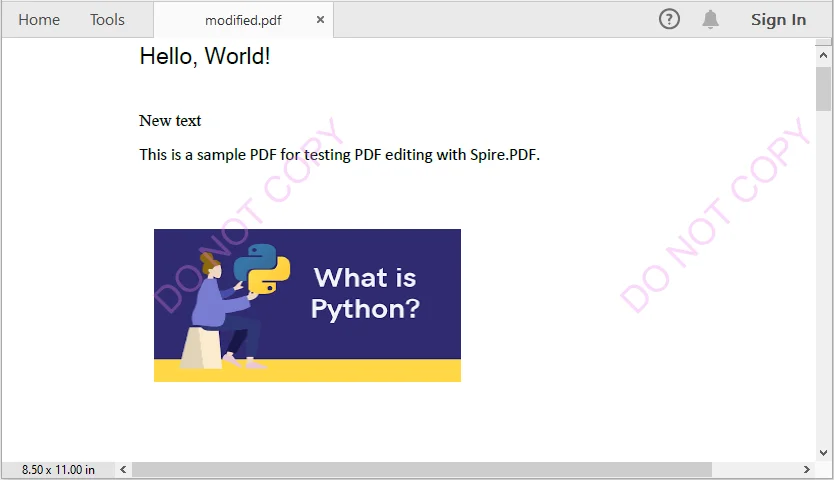
Output PDF
The output modified.pdf looks like this:
Tips for Efficient PDF Editing in C
When editing PDFs programmatically, it's important to keep a few best practices in mind to ensure the output remains accurate, readable, and efficient.
- Batch Processing: For repetitive tasks, process multiple PDF files in a loop rather than handling them individually. This approach improves efficiency and reduces manual effort.
- Text Placement: Use coordinates carefully when inserting new text. Proper positioning prevents content from overlapping with existing elements and maintains a clean layout.
- Fonts and Encoding: Choose fonts that support the characters you need. This is especially critical for languages such as Chinese, Arabic, or other scripts that require extended font support.
- Memory Management: Always release resources by disposing of PdfDocument objects after use. Proper memory management helps avoid performance issues in larger applications.
Conclusion
This tutorial demonstrates how to edit PDF in C# using Spire.PDF. From replacing text, inserting images, and managing pages, to adding watermarks, each step includes practical code examples. Developers can now automate PDF editing, enhance document presentation, and handle PDFs efficiently within professional applications.
FAQs
Q1: How can I programmatically edit text in a PDF using C#?
A1: You can use a C# PDF library like Spire.PDF to replace existing text or add new text to a PDF. Classes such as PdfTextReplacer and page.Canvas.DrawString() provide precise control over text editing while preserving formatting.
Q2: How do I replace or add text in a PDF using C#?
A2: With C#, libraries like Spire.PDF let you search and replace existing text using PdfTextReplacer or add new text anywhere on a page using page.Canvas.DrawString().
Q3: Can I insert or update images in a PDF programmatically?
A3: Yes. You can load images into your project and use classes like PdfImage and PdfImageHelper to draw or replace images on a PDF page.
Q4: Is it possible to add watermarks to a PDF using code?
A4: Absolutely. You can add text or image watermarks programmatically, control transparency, rotation, and position, and apply them to one or all pages of a PDF.
Q5: How can I extract specific pages from a PDF?
A5: You can create a new PDF document and insert selected pages from the original PDF, enabling you to extract single pages or ranges for separate use.
In many modern .NET applications, generating professional-looking PDF documents is a common requirement — especially for invoices, reports, certificates, and forms. Instead of creating PDFs manually, a smarter approach is to use HTML templates . HTML makes it easy to design layouts using CSS, include company branding, and reuse the same structure across multiple documents.
By dynamically inserting data into HTML and converting it to PDF programmatically, you can automate document generation while maintaining design consistency.
In this tutorial, you’ll learn how to generate a PDF from an HTML template in C# .NET using Spire.PDF for .NET. We’ll guide you step-by-step — from setting up your development environment (including the required HTML-to-PDF plugin), preparing the HTML template, inserting dynamic data, and generating the final PDF file.
On this page:
- Why Generate PDFs from HTML Templates in C#?
- Set Up Your .NET Environment
- Prepare an HTML Template
- Insert Dynamic Data into HTML Before Conversion
- Convert Updated HTML Template to PDF in C#
- Best Practices for Generating PDF from HTML in C#
- Final Words
- FAQs About C# HTML Template to PDF Conversion
Why Generate PDFs from HTML Templates in C#?
Using HTML templates for PDF generation offers several advantages:
- Reusability: Design once, reuse anywhere — perfect for reports, receipts, and forms.
- Styling flexibility: HTML + CSS allow rich formatting without complex PDF drawing code.
- Dynamic content: Easily inject runtime data such as customer names, order totals, or timestamps.
- Consistency: Ensure all generated documents follow the same layout and style guidelines.
- Ease of maintenance: You can update the HTML template without changing your C# logic.
Set Up Your .NET Environment
Before you begin coding, make sure your project is properly configured to handle HTML-to-PDF conversion.
1. Install Spire.PDF for .NET
Spire.PDF for .NET is a professional library designed for creating, reading, editing, and converting PDF documents in C# and VB.NET applications—without relying on Adobe Acrobat. It provides powerful APIs for handling text, images, annotations, forms, and HTML-to-PDF conversion.
You can install it via NuGet:
Install-Package Spire.PDF
Or download it directly from the official website and reference the DLL in your project.
2. Install the HTML Rendering Plugin
Spire.PDF relies on an external rendering engine (Qt WebEngine or Chrome) to accurately convert HTML content into PDF. This plugin must be installed separately.
Steps:
- Download the plugin package for your platform.
- Extract the contents to a local folder, such as: C:\plugins-windows-x64\plugins
- In your C# code, register the plugin path before performing the conversion.
HtmlConverter.PluginPath = @"C:\plugins-windows-x64\plugins";
Prepare an HTML Template
Create an HTML file with placeholders for your dynamic data. For example, name it invoice_template.html :
<!DOCTYPE html>
<html>
<head>
  <meta charset="UTF-8">
  <title>Invoice</title>
  <style>
    body { font-family: Arial; margin: 40px; }
    .header { font-size: 24px; font-weight: bold; margin-bottom: 20px; }
    table { width: 100%; border-collapse: collapse; margin-top: 20px; }
    th, td { border: 1px solid #999; padding: 8px; text-align: left; }
  </style>
</head>
<body>
  <div class="header">Invoice for {CustomerName}</div>
  <p>Date: {InvoiceDate}</p>
  <table>
    <tr><th>Item</th><th>Price</th></tr>
    <tr><td>{Item}</td><td>{Price}</td></tr>
  </table>
</body>
</html>
Tips:
- Keep CSS inline or embedded within the HTML file.
- Avoid JavaScript or complex animations.
- Use placeholders like {CustomerName} and {InvoiceDate} for data replacement.
Insert Dynamic Data into HTML Before Conversion
You can read your HTML file as text, replace placeholders with real values, and then save it as a new temporary file.
using System;
using System.IO;

string template = File.ReadAllText("invoice_template.html");

template = template.Replace("{CustomerName}", "John Doe");
template = template.Replace("{InvoiceDate}", DateTime.Now.ToShortDateString());
template = template.Replace("{Item}", "Wireless Mouse");
template = template.Replace("{Price}", "$25.99");

File.WriteAllText("invoice_ready.html", template);
This approach lets you generate customized PDFs for each user or transaction dynamically.
Convert Updated HTML Template to PDF in C#
Now that your HTML content is ready, you can use the HtmlConverter.Convert() method to directly convert the HTML string into a PDF file.
Below is a full code example to create PDF from HTML template file in C#:
using System;
using System.Collections.Generic;
using System.Drawing;
using System.IO;
using Spire.Additions.Qt;
using Spire.Pdf.Graphics;
using Spire.Pdf.HtmlConverter;

namespace CreatePdfFromHtmlTemplate
{
    class Program
    {
        static void Main(string[] args)
        {
            // Path to the HTML template file
            string htmlFilePath = "invoice_template.html";

            // Step 1: Read the HTML template from file
            if (!File.Exists(htmlFilePath))
            {
                Console.WriteLine("Error: HTML template file not found.");
                return;
            }

            string htmlTemplate = File.ReadAllText(htmlFilePath);

            // Step 2: Define dynamic data for invoice placeholders
            Dictionary<string, string> invoiceData = new Dictionary<string, string>()
            {
                { "INVOICE_NUMBER", "INV-2025-001" },
                { "INVOICE_DATE", DateTime.Now.ToString("yyyy-MM-dd") },
                { "BILLER_NAME", "John Doe" },
                { "BILLER_ADDRESS", "123 Main Street, New York, USA" },
                { "BILLER_EMAIL", "john.doe@example.com" },
                { "ITEM_DESCRIPTION", "Consulting Services" },
                { "ITEM_QUANTITY", "10" },
                { "ITEM_UNIT_PRICE", "$100" },
                { "ITEM_TOTAL", "$1000" },
                { "SUBTOTAL", "$1000" },
                { "TAX_RATE", "5" },
                { "TAX", "$50" },
                { "TOTAL", "$1050" }
            };

            // Step 3: Replace placeholders in the HTML template with real values
            string populatedInvoice = PopulateInvoice(htmlTemplate, invoiceData);

            // Optional: Save the populated HTML for debugging or review
            File.WriteAllText("invoice_ready.html", populatedInvoice);

            // Step 4: Specify the plugin path for the HTML to PDF conversion
            string pluginPath = @"C:\plugins-windows-x64\plugins";
            HtmlConverter.PluginPath = pluginPath;

            // Step 5: Define output PDF file path
            string outputFile = "InvoiceOutput.pdf";

            try
            {
                // Step 6: Convert the HTML string to PDF
                HtmlConverter.Convert(
                    populatedInvoice,
                    outputFile,
                    enableJavaScript: true,
                    timeout: 100000,                // 100 seconds
                    pageSize: new SizeF(595, 842),  // A4 size in points
                    margins: new PdfMargins(20),    // 20-point margins
                    loadHtmlType: LoadHtmlType.SourceCode
                );

                Console.WriteLine($"PDF generated successfully: {outputFile}");
            }
            catch (Exception ex)
            {
                Console.WriteLine($"Error during PDF generation: {ex.Message}");
            }
        }

        /// <summary>
        /// Helper method: Replaces placeholders in the HTML with actual data values.
        /// </summary>
        private static string PopulateInvoice(string template, Dictionary<string, string> data)
        {
            string result = template;
            foreach (var entry in data)
            {
                result = result.Replace("{" + entry.Key + "}", entry.Value);
            }
            return result;
        }
    }
}
How it works :
- Create an invoice template with placeholder variables in {VARIABLE_NAME} format.
- Set up a dictionary with key-value pairs containing actual invoice data that matches the template placeholders.
- Replace all placeholders in the HTML template with actual values from the data dictionary.
- Use Spire.PDF with the Qt plugin to render the HTML content as a PDF file.
Result:

Best Practices for Generating PDF from HTML in C#
- Use fixed-width layouts: Avoid fluid or responsive designs to maintain consistent rendering.
- Embed or inline CSS: Ensure your styles are self-contained.
- Use standard fonts: Arial, Times New Roman, or other supported fonts convert reliably.
- Keep images lightweight: Compress large images to improve performance.
- Test with different page sizes: A4 and Letter are the most common formats.
- Avoid unsupported tags: Elements relying on JavaScript (like <canvas>) won’t render.
Final Words
Generating PDFs from HTML templates in C# .NET is a powerful way to automate document creation while preserving visual consistency. By combining Spire.PDF for .NET with the HTML rendering plugin , you can easily transform styled HTML layouts into print-ready PDF files that integrate seamlessly with your applications.
Whether you’re building a reporting system, an invoicing tool, or a document automation service, this approach saves time, reduces complexity, and produces professional results with minimal code.
FAQs About C# HTML Template to PDF Conversion
Q1: Can I use Google Chrome for HTML rendering instead of Qt WebEngine?
Absolutely. For advanced HTML, CSS, or modern JavaScript, we recommend using the Google Chrome engine via the ChromeHtmlConverter class for more precise and reliable PDF results.
For a complete guide, see our article: Convert HTML to PDF using ChromeHtmlConverter
Q2: Do I need to install a plugin for every machine running my application?
Yes, each environment must have access to the HTML rendering plugin (Qt or Chrome engine) for successful HTML-to-PDF conversion.
Q3: Does Spire.PDF support external CSS files or online resources?
Yes, but inline or embedded CSS is recommended for better rendering accuracy.
Q4: Can I use this approach in ASP.NET or web APIs?
Absolutely. You can generate PDFs server-side and return them as downloadable files or streams.
Q5: Is JavaScript supported during HTML rendering?
Limited support. Static elements are rendered correctly, but scripts and dynamic DOM manipulations are not executed.
Get a Free License
To fully experience the capabilities of Spire.PDF for .NET without any evaluation limitations, you can request a free 30-day trial license.
