How to Integrate Spire.Presentation for JavaScript in a React Project
In the ever-evolving world of web development, React continues to be the preferred framework for creating engaging and responsive user interfaces. For developers looking to enhance their applications with robust presentation capabilities, Spire.Presentation for JavaScript emerges as an invaluable resource.
In this guide, we'll explore the steps to effectively integrate Spire.Presentation for JavaScript into your React application, ensuring you can leverage its robust features for tasks such as generating slides, editing content, and exporting presentations in various formats.
- Benefits of Using Spire.Presentation for JavaScript in React
- Set Up Your Environment
- Integrate Spire.Presentation for JavaScript in Your Project
- Create and Save PowerPoint Files Using JavaScript
Benefits of Using Spire.Presentation for JavaScript in React
React, a powerful JavaScript library for building interactive user interfaces, has become a cornerstone in modern web development. Complementing this is Spire.Presentation for JavaScript, a specialized library designed to enhance PowerPoint presentation management within web applications.
By integrating Spire.Presentation for JavaScript into your React project, you can unlock advanced features for creating and manipulating presentations easily. Here are some of the key benefits:
- Rich Functionality: Spire.Presentation for JavaScript offers a comprehensive range of features for managing PowerPoint files, including creating slides, adding text, images, charts, and shapes. This rich functionality allows developers to build robust presentation applications without needing to rely on external tools.
- Seamless Integration: Designed to work harmoniously with various JavaScript frameworks, including React, Spire.Presentation for JavaScript integrates smoothly into existing projects, facilitating an efficient and enjoyable development experience.
- Cross-Platform Compatibility: Spire.Presentation for JavaScript is designed to work across different platforms and devices. Whether your application is run on desktop, tablet, or mobile devices, you can expect consistent performance and functionality.
- High-Quality Output: Spire.Presentation for JavaScript ensures that the presentations you create are of high quality, maintaining the integrity of fonts, images, and layouts. This quality is crucial for professional presentations and business-related use cases.
Set Up Your Environment
Step 1. Install React and npm
Download and install Node.js from the official website. Make sure to choose the version that matches your operating system.
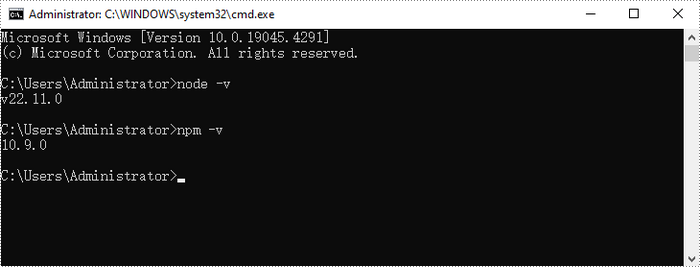
After the installation is complete, you can verify that Node.js and npm are working correctly by running the following commands in your terminal:
Step 2. Create a New React Project
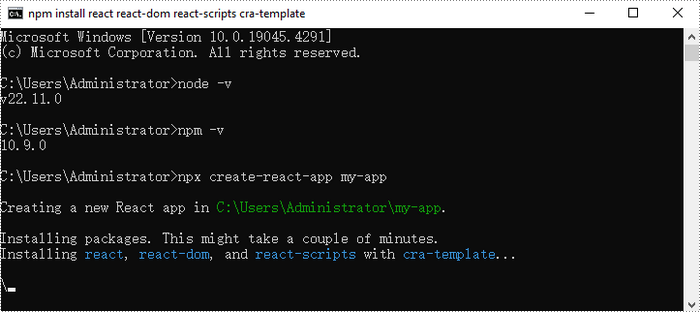
Create a new React project named my-app using Create React App from terminal:
npx create-react-app my-app
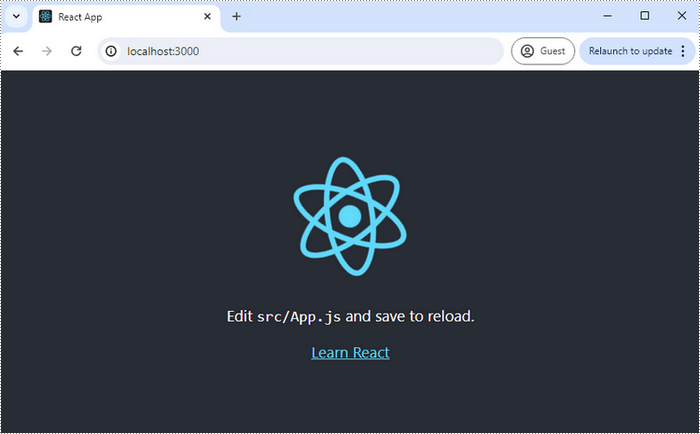
If your React project is compiled successfully, the app will be served at http://localhost:3000, allowing you to view and test your application in a browser.
To visually browse and manage the files in your project, you can open the project using VS Code.

Integrate Spire.Presentation for JavaScript in Your Project
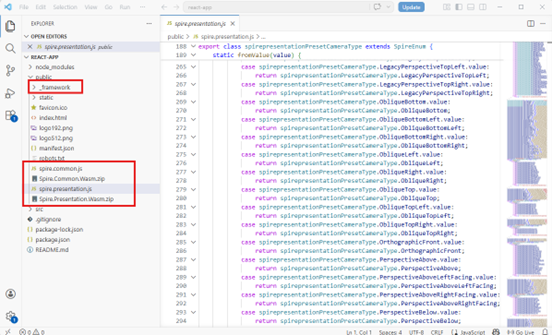
Download Spire.Presentation for JavaScript from our website and unzip it to a location on your disk. The downloaded product package integrates Spire.Doc for JavaScript, Spire.XLS for JavaScript, Spire.PDF for JavaScript, and Spire.Presentation for JavaScript. When using the features of Spire.Presentation for JavaScript, the required files are: spire.presentation.js, Spire.Presentation.Wasm.zip, spire.common.js, Spire.Common.Wasm.zip, and the _framework folder.
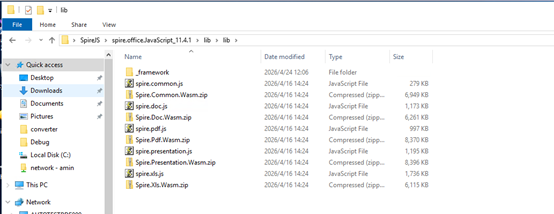
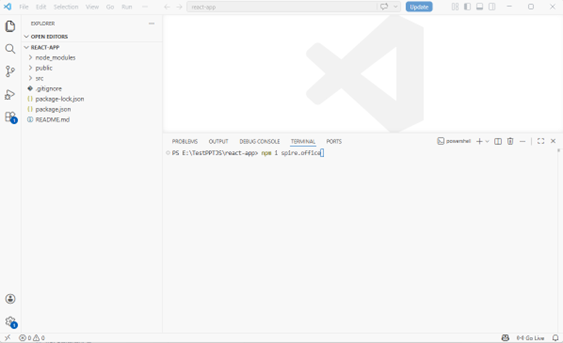
Alternatively, you can download Spire.Presentation for JavaScript using npm. In the terminal within VS Code, run the following command:
npm i spire.office
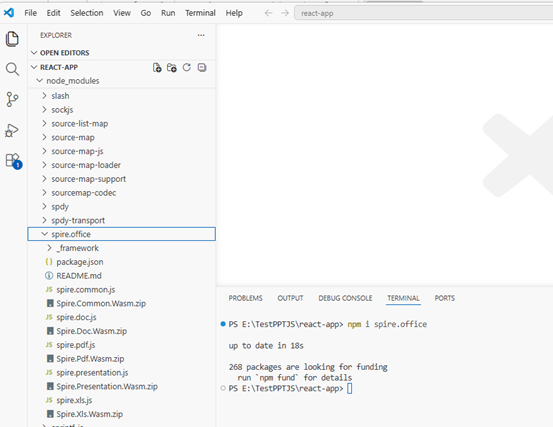
Once the installation is complete, the product packages will be saved in the node_modules/spire.office path of your project.
Copy the spire.presentation.js, Spire.Presentation.Wasm.zip, spire.common.js, Spire.Common.Wasm.zip, and the _framework folder five files into the "public" folder in your React project.
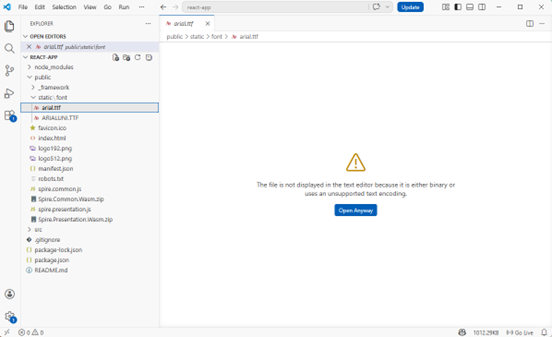
Add font files you plan to use to the "public/static/font" folder in your project. (Not always necessary)
Create and Save Presentation Files Using JavaScript
Modify the code in the "App.js" file to generate a PowerPoint file using the WebAssembly (WASM) module.
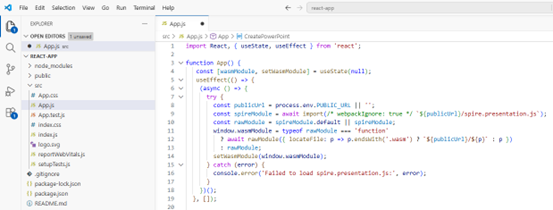
Here is the entire code:
- JavaScript
import React, { useState, useEffect } from 'react';

function App() {
   const [wasmModule, setWasmModule] = useState(null);
   useEffect(() => {
    (async () => {
      try {
        const publicUrl = process.env.PUBLIC_URL || '';
        const spireModule = await import(/* webpackIgnore: true */ `${publicUrl}/spire.presentation.js`);
        const rawModule = spireModule.default || spireModule;
        window.wasmModule = typeof rawModule === 'function'
          ? await rawModule({ locateFile: p => p.endsWith('.wasm') ? `${publicUrl}/${p}` : p })
          : rawModule;
        setWasmModule(window.wasmModule);
      } catch (error) {
        console.error('Failed to load spire.presentation.js:', error);
      }
    })();
  }, []);


  const CreatePowerPoint = async () => {
    const wasmModule = window.wasmModule.spirepresentation;

    if (wasmModule) {
       // Load the ARIALUNI.TTF font file into the virtual file system (VFS)
        await window.spire.FetchFileToVFS("ARIALUNI.TTF", "/Library/Fonts/", `${import.meta.env.BASE_URL}static/font/`);

        // Create a PPT document
        const ppt = new wasmModule.Presentation();

        // Add a new shape to the PPT document
        let rec = wasmModule.RectangleF.FromLTRB(ppt.SlideSize.Size.Width / 2 - 250,80,(500 + ppt.SlideSize.Size.Width / 2 - 250),230);
        let shape = ppt.Slides.get_Item(0).Shapes.AppendShape({shapeType:wasmModule.ShapeType.Rectangle,rectangle:rec});

        shape.ShapeStyle.LineColor.Color = wasmModule.Color.get_White();
        shape.Fill.FillType = wasmModule.FillFormatType.None;

        // Add text to the shape
        shape.AppendTextFrame("Hello World!");

        // Set the font and fill style of the text
        let textRange = shape.TextFrame.TextRange;
        textRange.Fill.FillType = wasmModule.FillFormatType.Solid;
        textRange.Fill.SolidColor.Color = wasmModule.Color.get_CadetBlue();
        textRange.FontHeight = 66;
        textRange.LatinFont = wasmModule.TextFont;

        // Define the output file name
        const outputFileName = "HelloWorld.pptx";

        // Save to file
        ppt.SaveToFile({file:outputFileName,fileFormat:wasmModule.FileFormat.Pptx2013});

        // Read the saved file and convert to a Blob object
        const modifiedFileArray = window.dotnetRuntime.Module.FS.readFile(outputFileName);
        const modifiedFile = new Blob([modifiedFileArray], { type: "application/vnd.openxmlformats-officedocument.presentationml.presentation" });

        // Clean up resources
        ppt.Dispose();

      // Create a URL for the Blob
      const url = URL.createObjectURL(modifiedFile);

      // Create an anchor element to trigger the download
      const a = document.createElement('a');
      a.href = url;
      a.download = outputFileName;
      document.body.appendChild(a);
      a.click();
      document.body.removeChild(a);
      URL.revokeObjectURL(url);
    }
  };

  return (
    <div style={{ textAlign: 'center', height: '300px' }}>
      <h1>Create a PowerPoint Document in React</h1>
      <button onClick={CreatePowerPoint} disabled={!wasmModule}>
        Generate
      </button>
    </div>
  );
}

export default App;
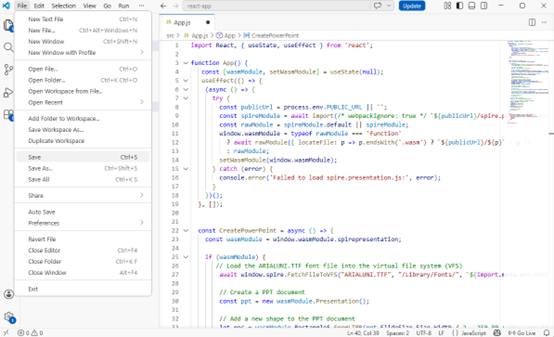
Save the changes by clicking "File" - "Save".
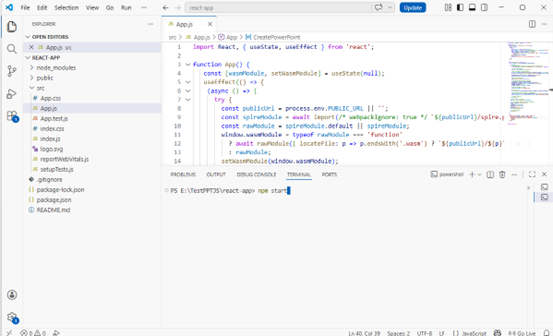
Start the development server by entering the following command in the terminal within VS
npm start
Once the React app is successfully compiled, it will open in your default web browser, typically at http://localhost:3000.
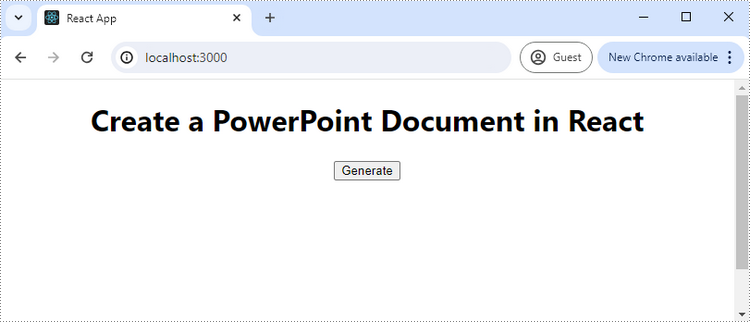
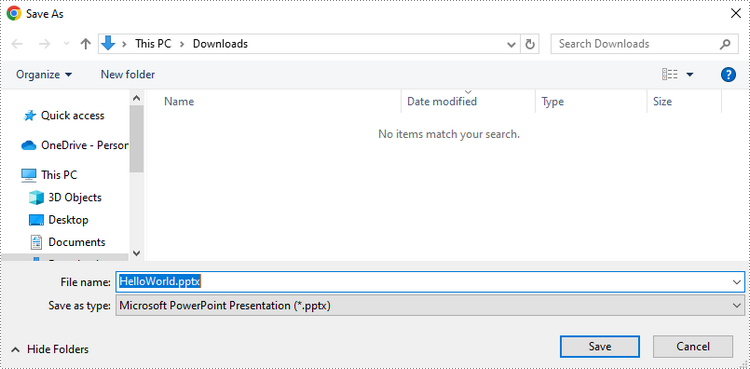
Click "Generate," and a "Save As" window will prompt you to save the output file in the designated folder.
Apply for a Temporary License
If you'd like to remove the evaluation message from the generated documents, or to get rid of the function limitations, please request a 30-day trial license for yourself.
How to Integrate Spire.PDF for JavaScript in a React Project
In the modern web development landscape, React has become the go-to framework for building dynamic and interactive user interfaces. When it comes to handling PDF documents within a React application, Spire.PDF for JavaScript stands out as a powerful tool.
This guide will walk you through how to integrate Spire.PDF for JavaScript into your React project, explore its benefits, and provide actionable insights to optimize your implementation.
- Benefits of Using Spire.PDF for JavaScript in React
- Set Up Your Environment
- Integrate Spire.PDF for JavaScript in Your Project
- Create and Save PDF Files Using JavaScript
Benefits of Using Spire.PDF for JavaScript in React
React, a widely used JavaScript library for crafting dynamic user interfaces, has become essential in modern web development. In tandem, Spire.PDF for JavaScript is a robust library tailored to enhance PDF document processing in web applications.
By incorporating Spire.PDF for JavaScript into your React project, you can introduce advanced PDF manipulation capabilities to your application. Here are some of the key advantages:
- Effortless PDF Generation: Spire.PDF for JavaScript facilitates the creation and editing of PDF documents directly within React, allowing for efficient management without the need for external applications.
- Cross-Platform Functionality: With Spire.PDF for JavaScript, you can generate PDFs that are accessible across various platforms, enabling users to view and edit documents from any location.
- Comprehensive Features: Spire.PDF for JavaScript provides a wide array of features, including text formatting, image embedding, and annotation capabilities, making it perfect for applications that require detailed PDF manipulation.
- Smooth Integration: Designed to work seamlessly with various JavaScript frameworks, including React, Spire.PDF for JavaScript integrates effortlessly into existing projects, ensuring a smooth development process.
Set Up Your Environment
Step 1. Install React and npm
Download and install Node.js from the official website. Make sure to choose the version that matches your operating system.
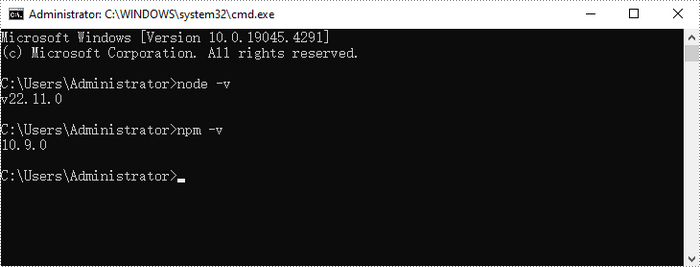
After the installation is complete, you can verify that Node.js and npm are working correctly by running the following commands in your terminal:
Step 2. Create a New React Project
Create a new React project named my-app using Create React App from terminal:
npx create-react-app my-app

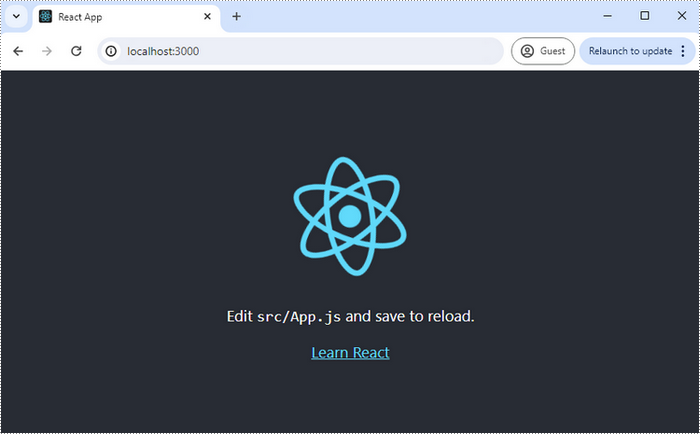
If your React project is compiled successfully, the app will be served at http://localhost:3000, allowing you to view and test your application in a browser.
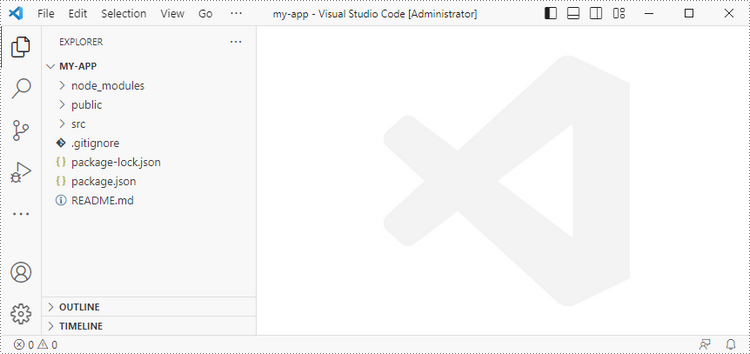
To visually browse and manage the files in your project, you can open the project using VS Code.
Integrate Spire.PDF for JavaScript in Your Project
Download Spire.PDF for JavaScript from our website and unzip it to a location on your disk. The downloaded product package integrates Spire.Doc for JavaScript, Spire.XLS for JavaScript, Spire.PDF for JavaScript, and Spire.Presentation for JavaScript. When using the features of Spire.PDF for JavaScript, the required files are: spire.pdf.js, Spire.Pdf.Wasm.zip, spire.common.js, Spire.Common.Wasm.zip, and the _framework folder.
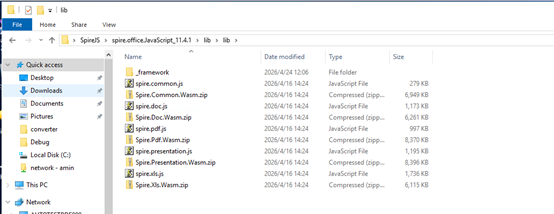
Alternatively, you can download Spire.PDF for JavaScript using npm. In the terminal within VS Code, run the following command:
npm i spire.office
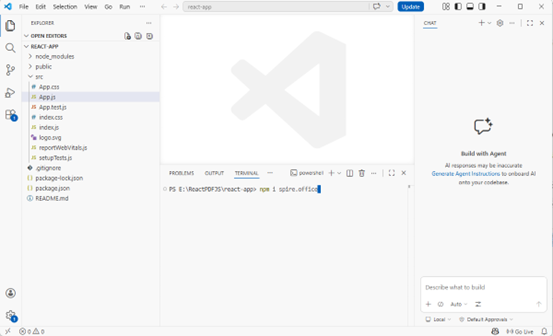
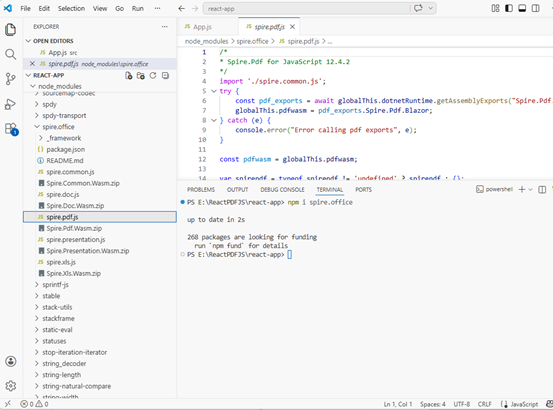
Once the installation is complete, the product packages will be saved in the node_modules/spire.office path of your project.
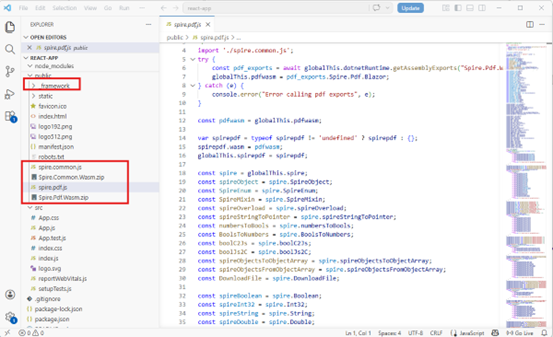
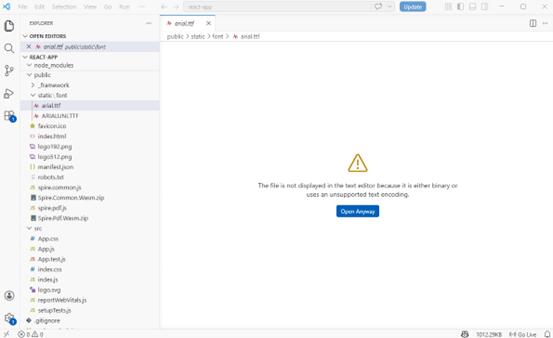
Copy the spire.pdf.js, Spire.Pdf.Wasm.zip, spire.common.js, Spire.Common.Wasm.zip, and the _framework folder five files into the "public" folder in your React project.
Add font files you plan to use to the "public/static/font" folder in your project. (Not always necessary)
Create and Save PDF Files Using JavaScript
Modify the code in the "App.js" file to generate a PDF file using the WebAssembly (WASM) module.
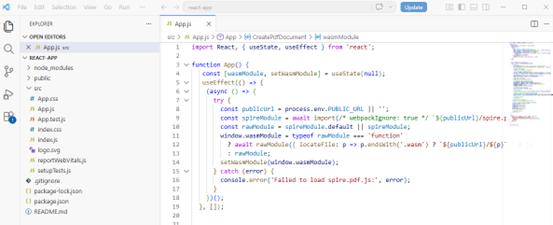
Here is the entire code:
- JavaScript
import React, { useState, useEffect } from 'react';

function App() {
   const [wasmModule, setWasmModule] = useState(null);
   useEffect(() => {
    (async () => {
      try {
        const publicUrl = process.env.PUBLIC_URL || '';
        const spireModule = await import(/* webpackIgnore: true */ `${publicUrl}/spire.pdf.js`);
        const rawModule = spireModule.default || spireModule;
        window.wasmModule = typeof rawModule === 'function'
          ? await rawModule({ locateFile: p => p.endsWith('.wasm') ? `${publicUrl}/${p}` : p })
          : rawModule;
        setWasmModule(window.wasmModule);
      } catch (error) {
        console.error('Failed to load spire.pdf.js:', error);
      }
    })();
  }, []);


  const CreatePdfDocument = async () => {
    const wasmModule = window.wasmModule.spirepdf;

    if (wasmModule) {
      // Load the ARIALUNI.TTF font file into the virtual file system (VFS)
      await window.spire.FetchFileToVFS("ARIALUNI.TTF", "/Library/Fonts/", `${import.meta.env.BASE_URL}static/font/`);

      // Create a pdf instance
      let doc = new wasmModule.PdfDocument();

      // Create one page
      let pagebase = doc.Pages.Add();

      const text = "Hello World";
      let pdffont = new wasmModule.PdfFont({fontFamily:wasmModule.PdfFontFamily.Helvetica, size:30.0});
      let pdfBrush = new wasmModule.PdfSolidBrush({pdfRGBColor: new wasmModule.PdfRGBColor({color: wasmModule.Color.get_Black()})});
      // Draw the text
      pagebase.Canvas.DrawString({s: text, font: pdffont, brush: pdfBrush, x: 10, y: 10});

      // Define the output file name
      const outputFileName = "HelloWorld_out.pdf";

      // Save the document to the specified path
      doc.SaveToFile(outputFileName);
      doc.Close();

      // Read the saved file and convert to a Blob object
      const modifiedFileArray = window.dotnetRuntime.Module.FS.readFile(outputFileName);
      const modifiedFile = new Blob([modifiedFileArray], { type: "application/pdf" });

      // Clean up resources
      doc.Dispose();

      // Create a URL for the Blob
      const url = URL.createObjectURL(modifiedFile);

      // Create an anchor element to trigger the download
      const a = document.createElement('a');
      a.href = url;
      a.download = outputFileName;
      document.body.appendChild(a);
      a.click();
      document.body.removeChild(a);
      URL.revokeObjectURL(url);

    }
  };

  return (
    <div style={{ textAlign: 'center', height: '300px' }}>
      <h1>Create a PDF Document in React</h1>
      <button onClick={CreatePdfDocument} disabled={!wasmModule}>
        Generate
      </button>
    </div>
  );
}

export default App;
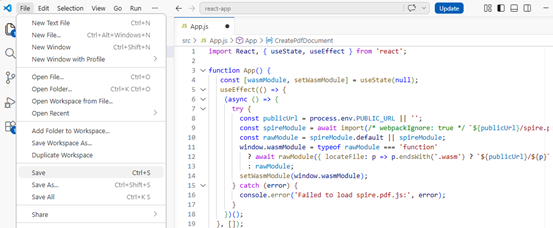
Save the changes by clicking "File" - "Save".
Start the development server by entering the following command in the terminal within VS
npm start
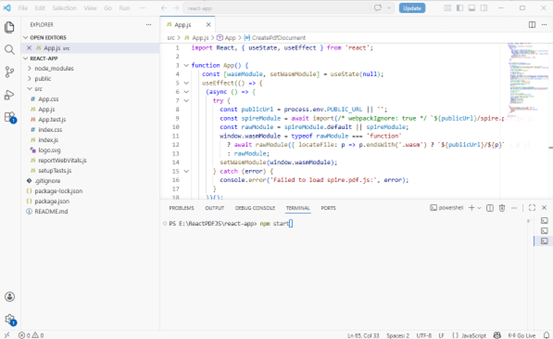
Once the React app is successfully compiled, it will open in your default web browser, typically at http://localhost:3000.

Click "Generate," and a "Save As" window will prompt you to save the output file in the designated folder.

Apply for a Temporary License
If you'd like to remove the evaluation message from the generated documents, or to get rid of the function limitations, please request a 30-day trial license for yourself.
How to Integrate Spire.Doc for JavaScript in a React Project
Integrating document processing capabilities is crucial for enhancing user experience in many web applications, allowing for efficient report generation and data handling. React, with its component-based architecture, is an excellent choice for frontend development. By integrating Spire.Doc for JavaScript, you can effortlessly create and manage Word documents within your React application.
This guide will walk you through the steps to integrate Spire.Doc for JavaScript into your React projects, covering both setup and a usage example.
- Benefits of Using Spire.Doc for JavaScript in React
- Set Up Your Environment
- Integrate Spire.Doc for JavaScript in Your Project
- Create and Save Word Files Using JavaScript
Benefits of Using Spire.Doc for JavaScript in React
React, a popular JavaScript library for building user interfaces, has become a cornerstone in modern web development. On the other hand, Spire.Doc for JavaScript is a powerful library designed to simplify document processing in web applications.
By integrating Spire.Doc for JavaScript into your React project, you can add advanced Word document processing capabilities to your application. Here are some of the key advantages:
- Seamless Document Creation: Spire.Doc for JavaScript enables document creation and editing directly in React, streamlining management without external tools.
- Cross-Platform Compatibility: Spire.Doc for JavaScript allows document creation compatible with multiple platforms, enabling users to access and edit documents from anywhere.
- Rich Features: Spire.Doc for JavaScript offers extensive capabilities like text formatting, table creation, and image insertion, ideal for applications needing document manipulation.
- Seamless Integration: Compatible with various JavaScript frameworks, including React, Spire.Doc for JavaScript integrates easily into existing projects without disrupting your workflow.
Set Up Your Environment
Step 1. Install React and npm
Download and install Node.js from the official website. Make sure to choose the version that matches your operating system.
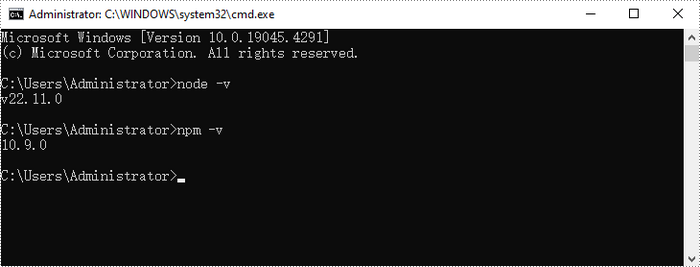
After the installation is complete, you can verify that Node.js and npm are working correctly by running the following commands in your terminal:
Step 2. Create a New React Project
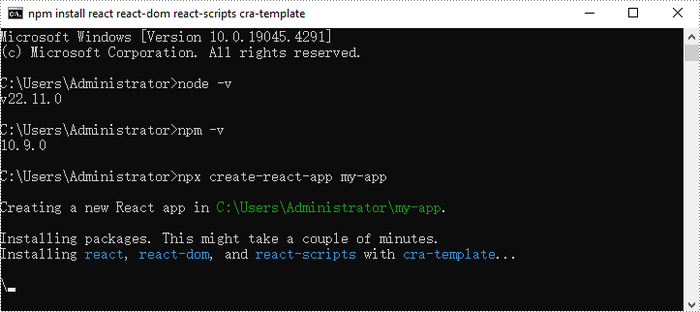
Create a new React project named my-app using Create React App from terminal:
npx create-react-app my-app
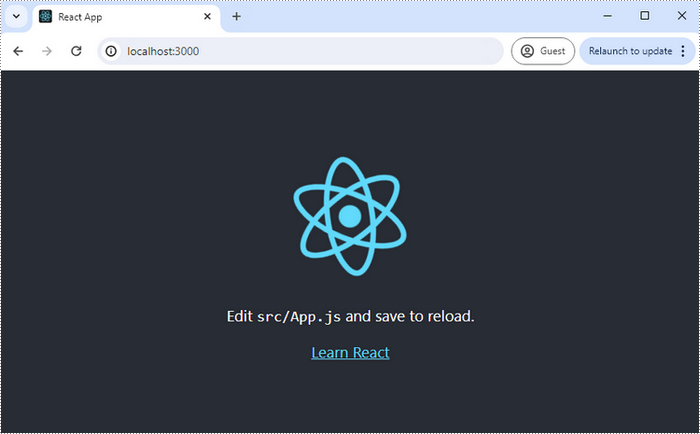
If your React project is compiled successfully, the app will be served at http://localhost:3000, allowing you to view and test your application in a browser.
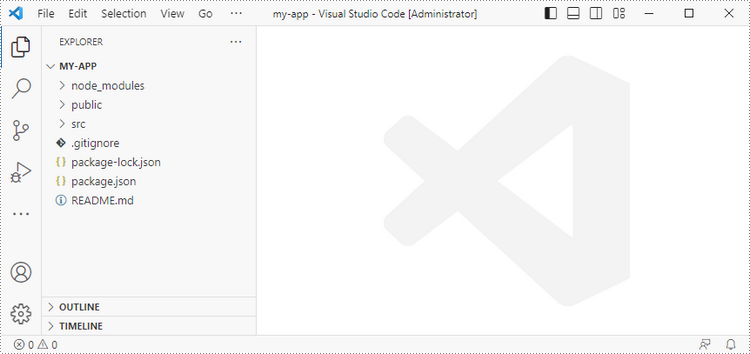
To visually browse and manage the files in your project, you can open the project using VS Code.
Integrate Spire.Doc for JavaScript in Your Project
Download Spire.Doc for JavaScript from our website and unzip it to a location on your disk. The downloaded product package integrates Spire.Doc for JavaScript, Spire.XLS for JavaScript, Spire.PDF for JavaScript, and Spire.Presentation for JavaScript. To use the features of Spire.Doc for JavaScript, you need to copy the corresponding files (spire.doc.js, Spire.Doc.Wasm.zip, spire.common.js, Spire.Common.Wasm.zip, and the _framework folder) to the public folder of your project.
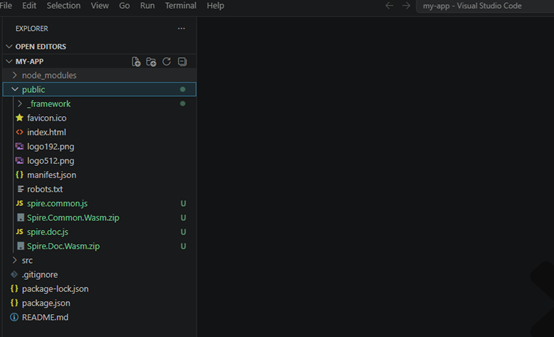
You can also install using npm. In the terminal within VS Code, run the following command:
npm i spire.officeOnce the installation is complete, the product package files will be saved in the node_modules/spire.office path of your project. Copy the 5 files mentioned above into the "public" folder in your React project.
To ensure proper text rendering, you can add relevant font files with a custom path. In the following example, the font is added to the path: public\.
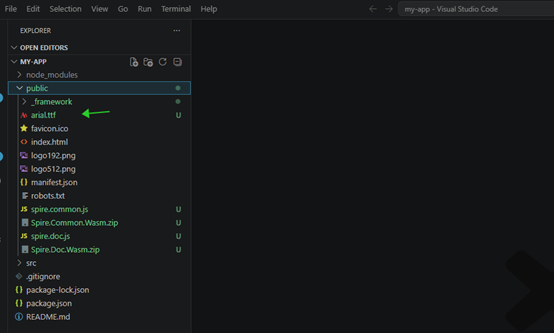
Create and Save Word Files Using JavaScript
Modify the code in the "App.js" file to generate a Word file using the WebAssembly (WASM) module. Specifically, utilize the Spire.Doc for JavaScript library for Word file manipulation.
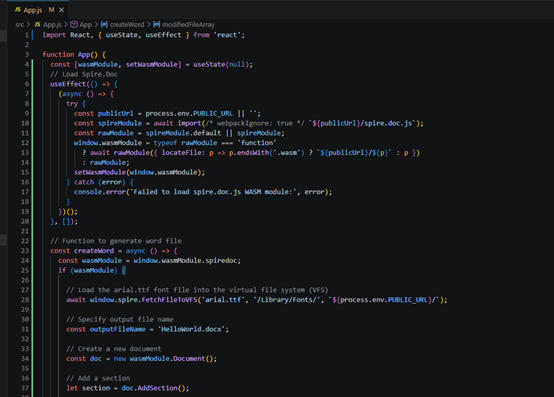
Here is the entire code:
- JavaScript
import React, { useState, useEffect } from 'react';

function App() {
  const [wasmModule, setWasmModule] = useState(null);
  // Load Spire.Doc
  useEffect(() => {
    (async () => {
      try {
        const publicUrl = process.env.PUBLIC_URL || '';
        const spireModule = await import(/* webpackIgnore: true */ `${publicUrl}/spire.doc.js`);
        const rawModule = spireModule.default || spireModule;
        window.wasmModule = typeof rawModule === 'function'
          ? await rawModule({ locateFile: p => p.endsWith('.wasm') ? `${publicUrl}/${p}` : p })
          : rawModule;
        setWasmModule(window.wasmModule);
      } catch (error) {
        console.error('Failed to load spire.doc.js WASM module:', error);
      }
    })();
  }, []);

  // Function to generate word file
  const createWord = async () => {
    const wasmModule = window.wasmModule.spiredoc;
    if (wasmModule) {

      // Load the arial.ttf font file into the virtual file system (VFS)
      await window.spire.FetchFileToVFS('arial.ttf', '/Library/Fonts/', `${process.env.PUBLIC_URL}/`);

      // Specify output file name
      const outputFileName = 'HelloWorld.docx';

      // Create a new document
      const doc = new wasmModule.Document();

      // Add a section
      let section = doc.AddSection();

      // Add a paragraph
      let paragraph = section.AddParagraph();

      // Append text to the paragraph
      paragraph.AppendText('Hello, World!');

      // Save the document to a Word file
      doc.SaveToFile({ fileName: outputFileName, fileFormat: wasmModule.FileFormat.Docx2013 });

      // Read the saved file and convert it to a Blob object
      const modifiedFileArray = window.dotnetRuntime.Module.FS.readFile(outputFileName);
      const modifiedFile = new Blob([modifiedFileArray], { type: 'application/vnd.openxmlformats-officedocument.wordprocessingml.document' });

      // Create a URL for the Blob and initiate the download
      const url = URL.createObjectURL(modifiedFile);
      const a = document.createElement('a');
      a.href = url;
      a.download = outputFileName;
      document.body.appendChild(a);
      a.click();
      document.body.removeChild(a);
      URL.revokeObjectURL(url);

      // Clean up resources
      doc.Dispose();
    }
  };

  return (
    <div style={{ textAlign: 'center', height: '300px' }}>
      <h1>Create a Word File Using JavaScript in React</h1>
      <button onClick={createWord} disabled={!wasmModule}>
        Generate
      </button>
    </div>
  );
}

export default App;
Start the development server by entering the following command in the terminal within VS Code: Once the React app is successfully compiled, it will open in your default web browser, typically at http://localhost:3000.Click "Generate" to create the 'HelloWorld.docx'. Click "Generate" and a "Save As" window will prompt you to save the output file in the designated folder. If you'd like to remove the evaluation message from the generated documents, or to get rid of the function limitations, please request a 30-day trial license for yourself.
npm start
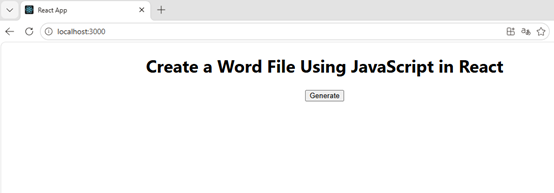

Apply for a Temporary License
How to Integrate Spire.XLS for JavaScript in a React Project
In today's data-driven landscape, efficiently handling Excel files is crucial for web applications. React, a widely-used JavaScript library for user interfaces, can significantly enhance its capabilities by integrating Spire.XLS for JavaScript. This integration allows developers to perform complex operations like reading, writing, and formatting Excel files directly within their React projects.
This article will walk you through the integration of Spire.XLS for JavaScript into your React projects, covering everything from the initial setup to a straightforward usage example.
- Benefits of Using Spire.XLS for JavaScript in React Projects
- Set Up Your Environment
- Integrate Spire.XLS for JavaScript in Your Project
- Create and Save Excel Files Using JavaScript
Benefits of Using Spire.XLS for JavaScript in React Projects
React, a popular JavaScript library for building user interfaces, has revolutionized web development by enabling developers to create interactive and dynamic user experiences. On the other hand, Spire.XLS for JavaScript is a powerful library that allows developers to manipulate Excel files directly in the browser.
By integrating Spire.XLS for JavaScript into your React project, you can add advanced Excel capabilities to your application. Here are some of the key advantages:
- Enhanced Functionality: Spire.XLS for JavaScript enables creating, modifying, and formatting Excel files directly in the browser, enhancing your React app's capabilities and user experience.
- Improved Data Management: Easily import, export, and manipulate Excel files with Spire.XLS, streamlining data management and reducing errors.
- Cross-Browser Compatibility: Designed to work seamlessly across major web browsers, Spire.XLS ensures consistent handling of Excel files in your React application.
- Seamless Integration: Compatible with various JavaScript frameworks, including React, Spire.XLS integrates easily into existing projects without disrupting your workflow.
Set Up Your Environment
Step 1. Install Node.js and npm
Download and install Node.js from the official website. Make sure to choose the version that matches your operating system.
After the installation is complete, you can verify that Node.js and npm are working correctly by running the following commands in your terminal:
node -v
npm -v

Step 2. Create a New React Project
Create a new React project named my-app using Create React App from terminal:
npx create-react-app my-app
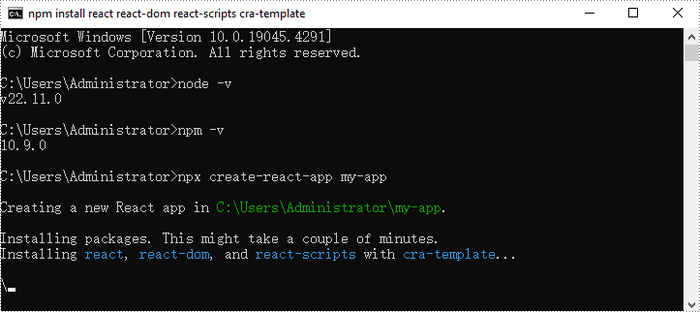
Once the project is created, you can navigate to the project directory and start the development server using the following commands:
cd my-app
npm start

If your React project is compiled successfully, the app will be served at http://localhost:3000, allowing you to view and test your application in a browser.
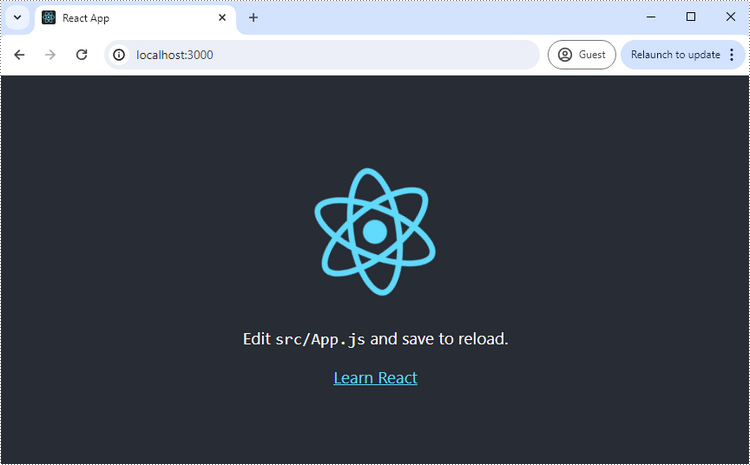
To visually browse and manage the files in your project, you can open the project using VS Code.

Integrate Spire.XLS for JavaScript in Your Project
Download Spire.XLS for JavaScript from our website and unzip it to a location on your disk. The downloaded product package has been integrated Spire.Doc for JavaScript,Spire.XLS for JavaScript,Spire.PDF for JavaScript,Spire.Presentation for JavaScript. To use the functionality of Spire.XLS for JavaScript, you need to copy the corresponding files (spire.xls.js, Spire.Xls.Wasm.zip, spire.common.js, Spire.Common.Wasm.zip, and _framework) to the project's “public” folder.
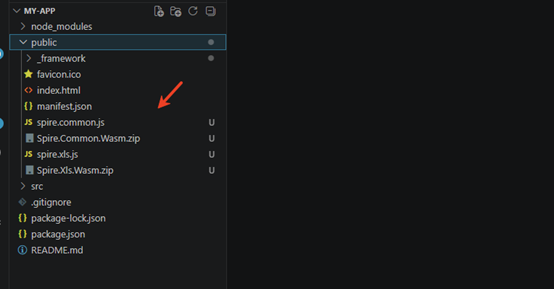
You can also install Spire.XLS for JavaScript using npm. In the terminal within VS Code, run the following command:
npm i spire.office
After downloading this command, find the corresponding file in the node_comodules/spire.office path of the project and copy it to “public” folder.
At the same time, in order to ensure text rendering, the related font files can be added with custom paths. In the following example, the font addition path is: public\font.
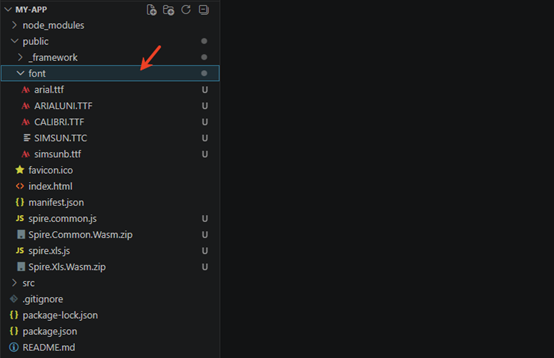
Create Excel files using JavaScript
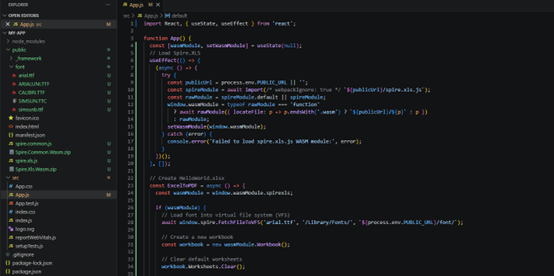
Modify the code in the "App.js" file to generate an Excel file using the WebAssembly (WASM) module. Specifically, utilize the Spire.XLS for JavaScript library for Excel file manipulation.
- JavaScript
import React, { useState, useEffect } from 'react';

function App() {
  const [wasmModule, setWasmModule] = useState(null);
  // Load Spire.XLS
  useEffect(() => {
    (async () => {
      try {
        const publicUrl = process.env.PUBLIC_URL || '';
        const spireModule = await import(/* webpackIgnore: true */ `${publicUrl}/spire.xls.js`);
        const rawModule = spireModule.default || spireModule;
        window.wasmModule = typeof rawModule === 'function'
          ? await rawModule({ locateFile: p => p.endsWith('.wasm') ? `${publicUrl}/${p}` : p })
          : rawModule;
        setWasmModule(window.wasmModule);
      } catch (error) {
        console.error('Failed to load spire.xls.js WASM module:', error);
      }
    })();
  }, []);

  // Create HelloWorld.xlsx
  const ExcelToPDF = async () => {
    const wasmModule = window.wasmModule.spirexls;

    if (wasmModule) {
      // Load font into virtual file system (VFS)
      await window.spire.FetchFileToVFS('arial.ttf', '/Library/Fonts/', `${process.env.PUBLIC_URL}/font/`);

      // Create a new workbook
      const workbook = new wasmModule.Workbook();

      // Clear default worksheets
      workbook.Worksheets.Clear();

      // Add a new worksheet named "MySheet"
      const sheet = workbook.Worksheets.Add("MySheet");

      // Set the text of cell "A1"
      sheet.Range.get("A1").Text = "Hello World";

      // Set column width to auto-fit
      sheet.Range.get("A1").AutoFitColumns();

      // Define output file name
      const outputFileName = 'HelloWorld.xlsx';

      // Save the workbook to the specified path
      workbook.SaveToFile({ fileName: outputFileName, version: wasmModule.ExcelVersion.Version2010 });

      // Read the saved file and convert to Blob object
      const modifiedFileArray = window.dotnetRuntime.Module.FS.readFile(outputFileName);
      const modifiedFile = new Blob([modifiedFileArray], { type: 'application/vnd.openxmlformats-officedocument.spreadsheetml.sheet' });

      // Create a URL for the Blob and start download
      const url = URL.createObjectURL(modifiedFile);
      const a = document.createElement('a');
      a.href = url;
      a.download = outputFileName;
      document.body.appendChild(a);
      a.click();
      document.body.removeChild(a);
      URL.revokeObjectURL(url);

      // Clean up resources used by the workbook
      workbook.Dispose();
    }
  };

  return (
    <div style={{ textAlign: 'center', height: '300px' }}>
      <h1>Create HelloWorld.xlsx</h1>
      <button onClick={ExcelToPDF} disabled={!wasmModule}>
        Generate
      </button>
    </div>
  );
}

export default App;
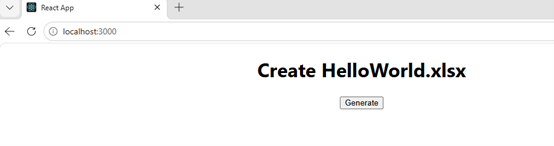
Using "npm start" to run the program, and click "Generate" to download the generated Excel file.
Apply for a Temporary License
If you'd like to remove the evaluation message from the generated documents, or to get rid of the function limitations, please request a 30-day trial license for yourself.