Convert Excel to OFD in C++ | Complete Guide
In the world of document management, the OFD (Open Fixed-layout Document) format is gaining significant traction, particularly in East Asian markets, as a domestic alternative to PDF. Whether you are developing financial reporting software or an enterprise document management system, the need to convert Excel to OFD in C++ environments is becoming increasingly common.
This guide provides a comprehensive tutorial on how to convert Excel spreadsheets (XLS/XLSX) to OFD format using Spire.XLS for C++, a robust library designed to handle Excel operations without requiring Microsoft Office to be installed.
- Why Convert Excel to OFD?
- Setting Up Spire.XLS for C++
- Basic Excel to OFD Conversion in C++
- Advanced Excel to OFD Conversion Settings
- Frequently Asked Questions (FAQs)
- Get a Free License
Why Convert Excel to OFD?
Before diving into the code, it is essential to understand the benefits of OFD conversion:
- Immutable Format: OFD preserves the layout, fonts, and images of your Excel sheets, ensuring they look the same on any device.
- Standard Compliance: As a national standard in China (GB/T 33190-2016), OFD is often required for government and archival submissions.
- Compact Size: OFD files are typically smaller than Excel files with rich images/formatting while maintaining high quality.
Setting Up Spire.XLS for C++
The first step is to integrate the library into your project. The easiest method is to use the official NuGet package or manually include the files.
Option A: Install via NuGet Package Manager
- Open your project in Visual Studio.
- Go to Tools -> NuGet Package Manager -> Manage NuGet Packages for Solution...
- Search for "Spire.XLS.Cpp".
- Click "Install".
Option B: Manual Installation
- Download the latest version of Spire.XLS for C++ from the official website.
- Unzip the package.
- Configure your Visual Studio project to include the Include directory path and link the lib directory. Ensure the DLL files are placed in the same directory as your executable or in a system path.
For detailed installation instructions, see: Integrate Spire.XLS for C++ in a C++ Application
Basic Excel to OFD Conversion in C++
Once the Excel library is set up, you can write the code to load an Excel document (.xls or .xlsx) and save it as an OFD.
Here is a complete C++ example:
#include "Spire.Xls.o.h"

using namespace Spire::Xls;
using namespace std;

int main() {

	wstring inputFile = L"Budget.xlsx";
	wstring outputFile = L"ExcelToOFD.ofd";

	// Create a new Workbook object
	intrusive_ptr<Workbook> workbook = new Workbook();

	// Load the workbook from the specified input file
	workbook->LoadFromFile(inputFile.c_str());

	// Save the workbook to the OFD format
	workbook->SaveToFile(outputFile.c_str(), FileFormat::OFD);

	// Dispose of the workbook object.
	workbook->Dispose();
}
Key Code Explanations:
- Create Workbook: The Workbook class represents the entire Excel file and handles loading/saving operations.
- Load Excel File: The LoadFromFile method reads your source Excel document.
- Save as OFD: The SaveToFile method with the FileFormat::OFD enum converts the spreadsheet data into the fixed-layout OFD format.
Excel to OFD conversion result:
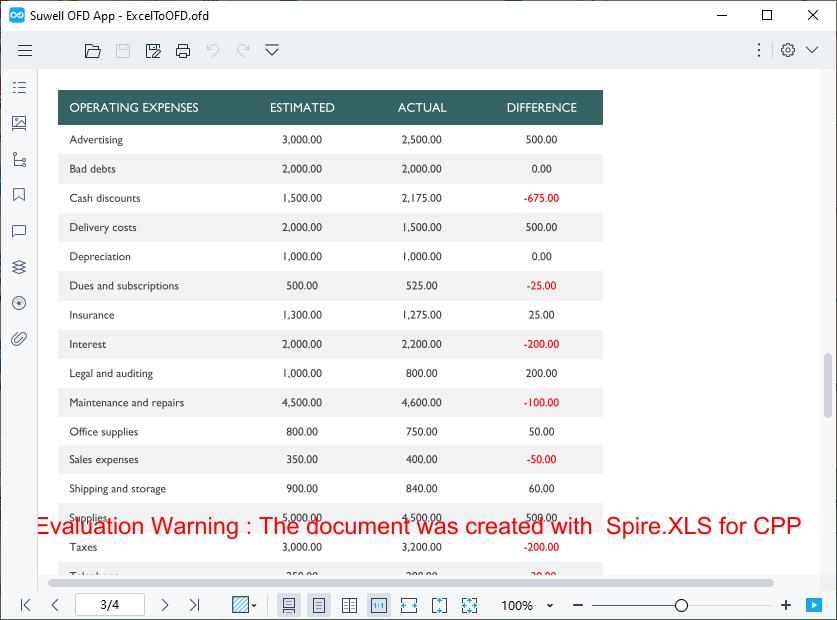
The code converts each sheet in the Excel file to a separate page in the OFD document. If you need to convert only a specific worksheet, you can copy the worksheet to a new workbook first and then use the above code for conversion.
Advanced Excel to OFD Conversion Settings
To gain finer control over how your spreadsheets appear in the final OFD document, Spire.XLS for CPP provides several options to tailor the OFD output. Below are two practical advanced configurations:
Fit Excel Sheet to One Page in OFD Output
By default, when an Excel worksheet is larger than a standard page, it may be split across multiple OFD pages. This can break the visual flow of your data. Spire.XLS for C++ provides the ConverterSetting class to customize Excel conversion, and by setting its SetSheetFitToPage method to true, you can fit each worksheet to a single OFD page.
Core implementation code:
intrusive_ptr<Workbook> workbook = new Workbook();
workbook->LoadFromFile(L"Sample.xlsx");

// Enable fit to one page
workbook->GetConverterSetting()->SetSheetFitToPage(true);

workbook->SaveToFile(L"FittedSheet.ofd", FileFormat::OFD);
workbook->Dispose();
What the code does:
- If the worksheet’s content exceeds the page dimensions, the library scales it down proportionally to fit on a single page.
- This ensures that a wide table or chart is not split awkwardly across pages.
Adjust Page Setup Before Conversion
For more precise control, you can modify the PageSetup properties of individual worksheets. This allows you to set the paper orientation, margins, paper size, and more—just as you would in Excel's Page Layout view.
Core implementation code:
intrusive_ptr<Workbook> workbook = new Workbook();
workbook->LoadFromFile(L"Sample.xlsx");

// Access the first worksheet
intrusive_ptr<Worksheet> sheet = dynamic_pointer_cast<Worksheet>(workbook->GetWorksheets()->Get(0));

// Get the PageSetup object of this worksheet
intrusive_ptr<PageSetup> pageSetup = dynamic_pointer_cast<PageSetup>(sheet->GetPageSetup());

// Set orientation to Landscape
pageSetup->SetOrientation(PageOrientationType::Landscape);

//Set the paper size to A4 paper
pageSetup->SetPaperSize(PaperSizeType::PaperA4);

// Set custom margins (in inches)
pageSetup->SetBottomMargin(2);
pageSetup->SetLeftMargin(1);
pageSetup->SetRightMargin(1);
pageSetup->SetTopMargin(2);

workbook->SaveToFile(L"CustomPageSetup.ofd", FileFormat::OFD);
What the code does:
- Orientation: Changes the page orientation to landscape (ideal for wide tables).
- Margins: Sets custom margins around the content.
- Paper Size: Sets the page size to A4 (options include PaperA4, PaperLetter, PaperLegal, etc.).
- Per‑sheet control: You can apply different settings to each worksheet before conversion.
Pro Tip: If your workflow requires broader compatibility, Spire.XLS for C++ also supports direct Excel to PDF conversion, giving you the flexibility to output to either format depending on your regional or archival requirements.
Frequently Asked Questions (FAQs)
Q1. Do I need Microsoft Excel installed on my server to use Spire.XLS for C++?
A: No. Spire.XLS for C++ is a completely independent library. It does not require Microsoft Office or Excel to be installed on the machine where the application is deployed. This makes it ideal for server-side deployments.
Q2. Does the conversion support all Excel elements (Charts, Pivot Tables, Shapes)?
A: Yes. The library is designed to preserve high-fidelity. Elements such as charts, shapes, images, formulas (as calculated values), and pivot tables are rendered accurately in the output OFD file, maintaining the visual appearance of the original spreadsheet.
Q3. Can I skip a worksheet and converts the rest to OFD?
A: Yes. You can hide unwanted worksheets before conversion (Spire.XLS for C++ skips hidden sheets):
//Hide the the first worksheet
workbook->GetWorksheets()->Get(0)->SetVisibility(WorksheetVisibility::Hidden);
Alternatively, copy the desired sheet to a new workbook as mentioned earlier.
Q4: Does Spire.XLS for CPP support batch converting multiple Excel files to OFD?
A: Yes. You can loop through all Excel files in a specified folder and convert them to OFD in batches.
Conclusion
Converting Excel to OFD in C++ is both straightforward and scalable with Spire.XLS for C++. Whether you need to convert a single spreadsheet or automate batch processing, the library delivers high‑performance results with minimal code. By using advanced settings like fit‑to‑page and custom page setup, you can ensure your OFD documents meet exacting presentation standards.
For more features such as Excel encryption, data writing, or formula calculation, explore the official documentation.
Get a Free License
To fully experience the capabilities of Spire.XLS for C++ without any watermarks or limitations, you can request a 30-day trial license here.
C++: Convert Excel to Images
Excel is a popular spreadsheet software widely used for data analysis, financial management, budgeting, etc. However, when you need to embed Excel files into other files or share them with others, Excel format may have compatibility issues, and in such a case converting Excel to image is an alternative option. In this article, you will learn how to convert an Excel worksheet or a specific cell range to an image in C++ using Spire.XLS for C++.
- Convert an Entire Excel Worksheet to an Image in C++
- Convert a Specific Cell Range to an Image in C++
- Convert a Worksheet to an Image Without White Spaces in C++
Install Spire.XLS for C++
There are two ways to integrate Spire.XLS for C++ into your application. One way is to install it through NuGet, and the other way is to download the package from our website and copy the libraries into your program. Installation via NuGet is simpler and more recommended. You can find more details by visiting the following link.
Integrate Spire.XLS for C++ in a C++ Application
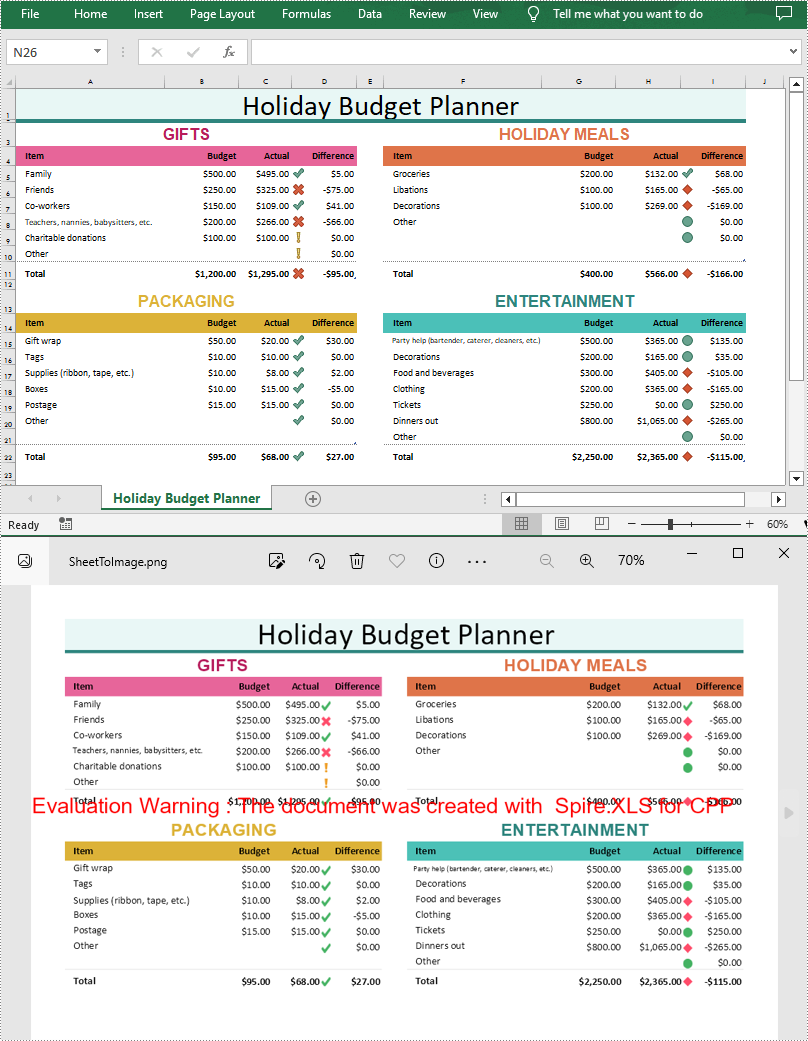
Convert an Entire Excel Worksheet to an Image in C++
Spire.XLS for C++ offers the Worksheet->ToImage() method to convert a specific worksheet to an image. The following are the detailed steps.
- Create a Workbook object.
- Load a sample Excel document using Workbook->LoadFromFile() method.
- Get a specified worksheet using Workbook->GetWorksheets()->Get() method.
- Convert the worksheet to an image using Worksheet->ToImage() method.
- C++
#include "Spire.Xls.o.h"

using namespace Spire::Xls;
using namespace std;

int main()
{
	//Specify the input and output file paths
	wstring inputFile = L"Data\\Planner.xlsx";
	wstring outputFile = L"Output\\SheetToImage";

	//Create a Workbook object
	intrusive_ptr<Workbook> workbook = new Workbook();

	//Load an Excel document from disk
	workbook->LoadFromFile(inputFile.c_str());

	//Get the first worksheet
	intrusive_ptr<Worksheet> sheet = dynamic_pointer_cast<Worksheet>(workbook->GetWorksheets()->Get(0));

	//Save the image as a PNG file
	wstring fileName = outputFile + L".png";

	//Convert the worksheet to an image
	sheet->ToImage(sheet->GetFirstRow(), sheet->GetFirstColumn(), sheet->GetLastRow(), sheet->GetLastColumn())->Save(fileName.c_str());

	workbook->Dispose();

}
Convert a Specific Cell Range to an Image in C++
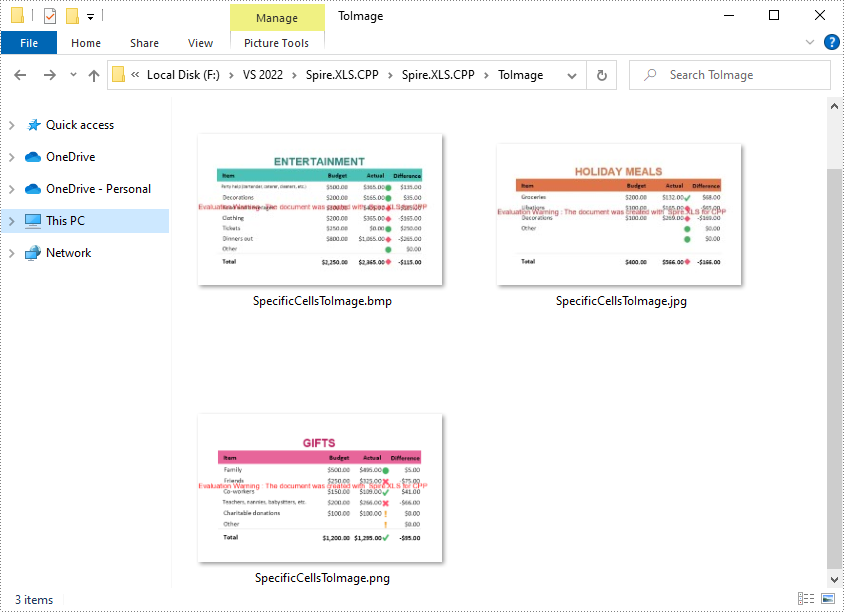
Spire.XLS for C++ also allows you to use the Worksheet->ToImage(int firstRow, int firstColumn, int lastRow, int lastColumn) method to convert a specified cell range to an image. The following are the steps convert several cell ranges to different image formats.
- Create a Workbook object.
- Load a sample Excel document using Workbook->LoadFromFile() method.
- Get a specified worksheet using Workbook->GetWorksheets()->Get() method.
- Specify a cell range and save it to a specified image format using Worksheet->ToImage()->Save(LPCWSTR_S filename) method.
- C++
#include "Spire.Xls.o.h"

using namespace Spire::Xls;
using namespace std;

int main()
{
	//Specify input file path and name
	wstring inputFile = L"Data\\Planner.xlsx";

	//Create a Workbook object
	intrusive_ptr<Workbook> workbook = new Workbook();

	//Load an Excel document from disk
	workbook->LoadFromFile(inputFile.c_str());

	//Get the first worksheet
	intrusive_ptr<Worksheet> sheet = dynamic_pointer_cast<Worksheet>(workbook->GetWorksheets()->Get(0));

	//Specify cell ranges and save them to certain image formats
	sheet->ToImage(3, 1, 11, 4)->Save(L"ToImage\\SpecificCellsToImage.png");
	sheet->ToImage(3, 6, 11, 9)->Save(L"ToImage\\SpecificCellsToImage.jpg");
	sheet->ToImage(13, 6, 22, 9)->Save(L"ToImage\\SpecificCellsToImage.bmp");
	workbook->Dispose();
}
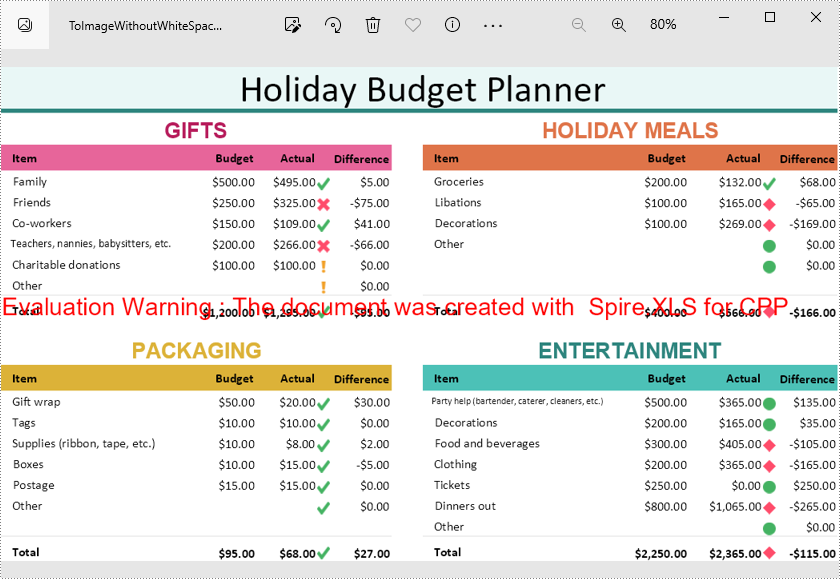
Convert a Worksheet to an Image Without White Spaces in C++
When converting a worksheet directly to an image, there are white spaces around the converted image. If you want to remove these white spaces, you can set the left, right, top and bottom margins of the worksheet to zero while conversion. The following are the detailed steps.
- Create a Workbook object.
- Load a sample Excel document using Workbook->LoadFromFile() method.
- Get a specified worksheet using Workbook->GetWorksheets()->Get() method.
- Return a page setup object using Worksheet->GetPageSetup() method, and then set the left, right, top and bottom margins of the worksheet using the methods of PageSetup class.
- Save the worksheet as an image using Worksheet->ToImage()->Save() method.
- C++
#include "Spire.Xls.o.h"

using namespace Spire::Xls;
using namespace std;

int main()
{
	//Specify output file path and name
	wstring inputFile = L"Data\\Planner.xlsx";
	wstring outputFile = L"Output\\ToImageWithoutWhiteSpace.png";

	//Create a Workbook object
	intrusive_ptr<Workbook> workbook = new Workbook();

	//Load an Excel document from disk
	workbook->LoadFromFile(inputFile.c_str());

	//Get the first worksheet
	intrusive_ptr<Worksheet> sheet = dynamic_pointer_cast<Worksheet>(workbook->GetWorksheets()->Get(0));

	//Set the margin as 0 to remove the white space around the image
	sheet->GetPageSetup()->SetLeftMargin(0);
	sheet->GetPageSetup()->SetBottomMargin(0);
	sheet->GetPageSetup()->SetTopMargin(0);
	sheet->GetPageSetup()->SetRightMargin(0);

	//Save the worksheet as an image
	intrusive_ptr<Stream> image = sheet->ToImage(sheet->GetFirstRow(), sheet->GetFirstColumn(), sheet->GetLastRow(), sheet->GetLastColumn());
	image->Save(outputFile.c_str());
	workbook->Dispose();
}
Apply for a Temporary License
If you'd like to remove the evaluation message from the generated documents, or to get rid of the function limitations, please request a 30-day trial license for yourself.
C++: Convert Excel to XPS
XPS stands for XML Paper Specification, which is a fixed layout file format developed by Microsoft. Unlike some formats that allow for dynamic content and layout changes, XPS is built to preserve the layout of documents and maintain their visual appearance across different devices. XPS files can be easily viewed using the Microsoft XPS Viewer, which is pre-installed on many Windows computers.
There are several benefits to converting Excel files to XPS format. Firstly, it provides an efficient way to share Excel data with others who lack access to Microsoft Excel or other spreadsheet software. Secondly, it ensures that the formatting of the original Excel file remains intact, making it easy to read and understand. Another advantage of converting Excel to XPS is accessibility: XPS files are built to be accessible, meaning they can be read by screen readers and assistive technology. In this article, we will explain how to convert an Excel file to XPS format in C++ using Spire.XLS for C++.
Install Spire.XLS for C++
There are two ways to integrate Spire.XLS for C++ into your application. One way is to install it through NuGet, and the other way is to download the package from our website and copy the libraries into your program. Installation via NuGet is simpler and more recommended. You can find more details by visiting the following link.
Integrate Spire.XLS for C++ in a C++ Application
Convert Excel to XPS in C++
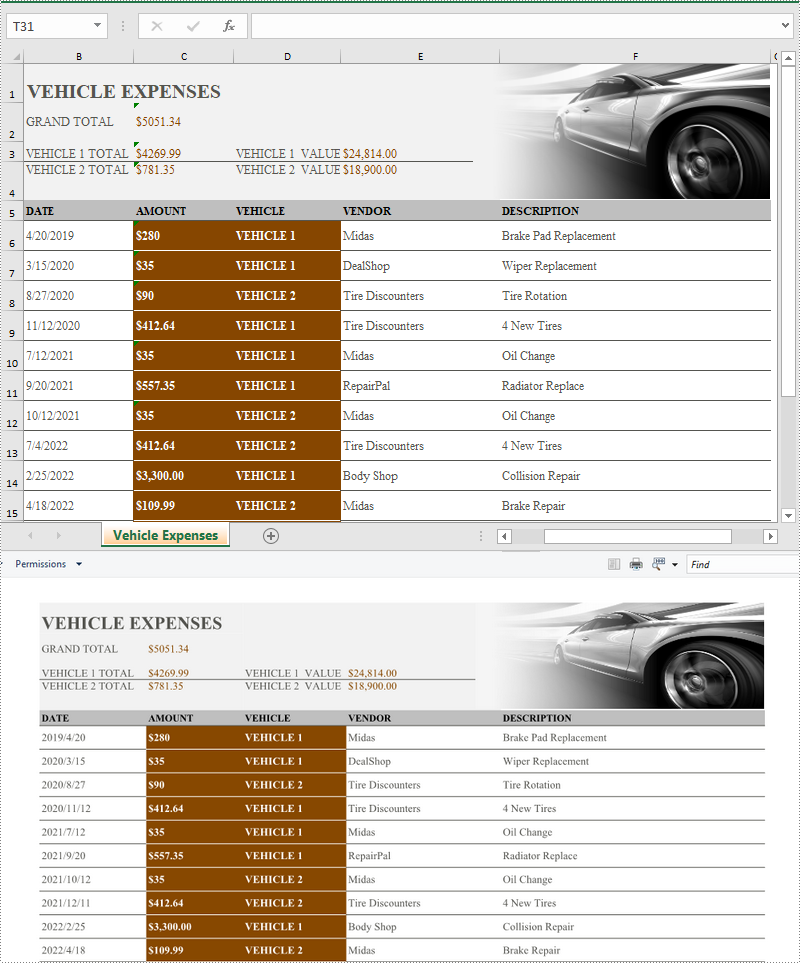
Converting an Excel file to XPS format is very straightforward using Spire.XLS for C++. You just need to load the Excel file using the Workbook->LoadFromFile(LPCWSTR_S fileName) method and then call the Workbook->SaveToFile(LPCWSTR_S fileName, FileFormat::XPS) method to save it as XPS. The detailed steps are as follows:
- Specify the input and output file paths.
- Initialize an instance of the Workbook class.
- Load the Excel file specified by the input file path using Workbook->LoadFromFile() method.
- Save the Excel file to an XPS file with the specified file path using Workbook->SaveToFile(LPCWSTR_S fileName, FileFormat::XPS) method.
- C++
#include "Spire.Xls.o.h"

using namespace Spire::Xls;
using namespace std;

int main()
{
	//Specify the input and output file paths
	wstring inputFile = L"Sample.xlsx";
	wstring outputFile = L"ExcelToXPS.xps";

	//Initialize an instance of the Workbook class
	intrusive_ptr<Workbook> workbook = new Workbook();

	//Load the Excel file specified by the input file path
	workbook->LoadFromFile(inputFile.c_str());

	//Save the Excel file to an XPS file with the specified file path
	workbook->SaveToFile(outputFile.c_str(), Spire::Xls::FileFormat::XPS);
	workbook->Dispose();
}
Apply for a Temporary License
If you'd like to remove the evaluation message from the generated documents, or to get rid of the function limitations, please request a 30-day trial license for yourself.
C++: Convert Excel to CSV or CSV to Excel
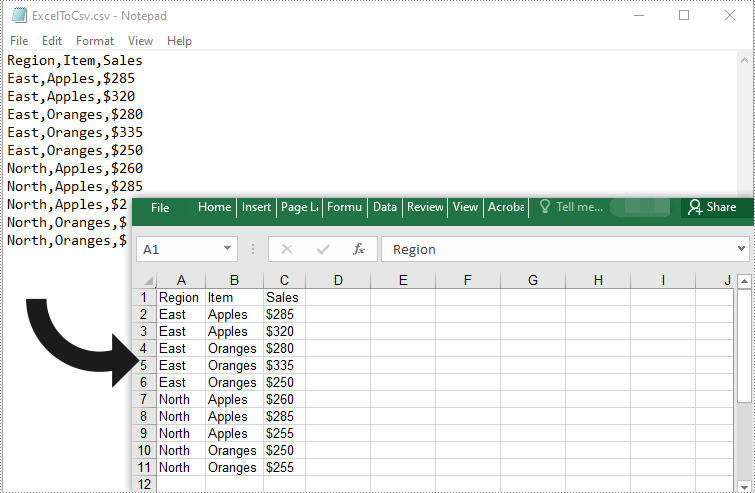
Excel and CSV (Comma-Separated Values) are two commonly used file formats for managing and storing tabular data in various industries. Excel organizes data in rows and columns and provides users with a wide range of advanced features for data manipulation, analysis and visualization, whereas CSV stores data in a plain text format that is lightweight and highly compatible with various applications. Converting Excel files to CSV format can be very helpful when users need to exchange or import Excel data in different programs. Conversely, users who require more advanced data analysis features, such as creating charts or applying formulas, may find it beneficial to convert CSV files to Excel format. In this article, we will demonstrate how to convert Excel to CSV or CSV to Excel in C++ using Spire.XLS for C++.
Install Spire.XLS for C++
There are two ways to integrate Spire.XLS for C++ into your application. One way is to install it through NuGet, and the other way is to download the package from our website and copy the libraries into your program. Installation via NuGet is simpler and more recommended. You can find more details by visiting the following link.
Integrate Spire.XLS for C++ in a C++ Application
Convert Excel to CSV in C++
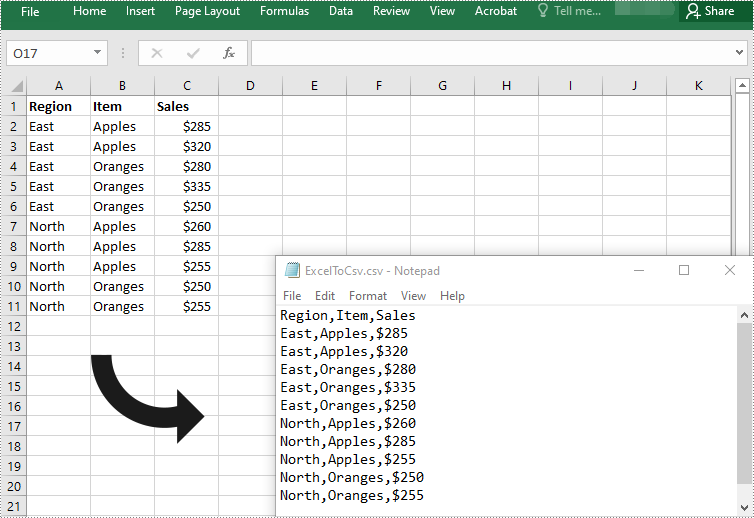
Spire.XLS for C++ offers the XlsWorksheet->SaveToFile (LPCWSTR_S fileName, LPCWSTR_S separator, Spire::Common::Encoding* encoding) method to convert a worksheet in an Excel file to CSV. The detailed steps are as follows:
- Initialize an instance of the Workbook class.
- Load an Excel file using Workbook->LoadFromFile() method.
- Get a specific worksheet in the workbook by its index using Workbook->GetWorksheets()->Get(int index) method.
- Save the worksheet to a CSV file using XlsWorksheet->SaveToFile (LPCWSTR_S fileName, LPCWSTR_S separator, Spire::Common::Encoding* encoding) method.
- C++
#include "Spire.Xls.o.h"

using namespace Spire::Xls;

int main()
{
	//Initialize an instance of the Workbook class
	intrusive_ptr<Workbook> workbook = new Workbook();

	//Load an Excel file
	workbook->LoadFromFile(L"Input.xlsx");

	//Get the first worksheet
	intrusive_ptr<Worksheet> sheet = dynamic_pointer_cast<Worksheet>(workbook->GetWorksheets()->Get(0));

	//Save the worksheet to a CSV file
	sheet->SaveToFile(L"ExcelToCsv.csv", L",", Encoding::GetUTF8());
	workbook->Dispose();
}
Convert Visible Data in Excel to CSV in C++
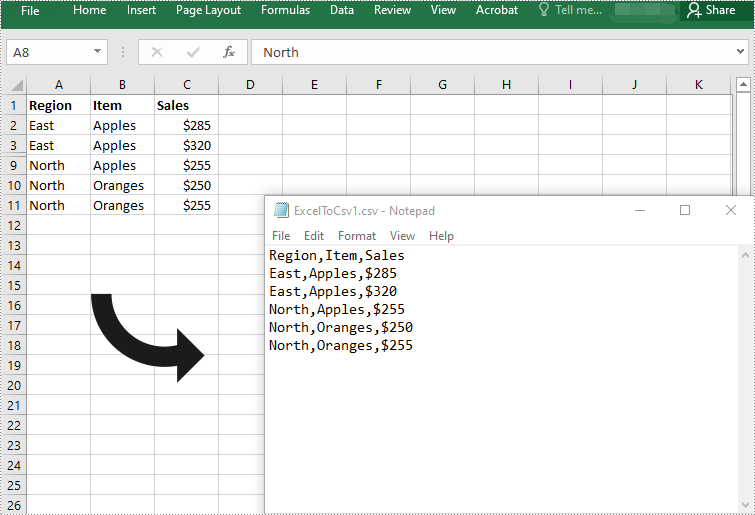
When converting an Excel worksheet to CSV using the above code, all data, including both visible and hidden data, will be saved to CSV. If you only want to save visible data in the worksheet to CSV, you can use the XlsWorksheet->SaveToFile (LPCWSTR_S fileName, LPCWSTR_S separator, bool retainHiddenData) method. The detailed steps are as follows:
- Initialize an instance of the Workbook class.
- Load an Excel file using Workbook->LoadFromFile() method.
- Get a specific worksheet in the workbook by its index using Workbook->GetWorksheets()->Get(int index) method.
- Save visible data in the worksheet to a CSV file using XlsWorksheet->SaveToFile (LPCWSTR_S fileName, LPCWSTR_S separator, bool retainHiddenData) method.
- C++
#include "Spire.Xls.o.h"

using namespace Spire::Xls;

int main()
{
	//Initialize an instance of the Workbook class
	intrusive_ptr<Workbook> workbook = new Workbook();

	//Load an Excel file
	workbook->LoadFromFile(L"Input.xlsx");

	//Get the first worksheet
	intrusive_ptr<Worksheet> sheet = dynamic_pointer_cast<Worksheet>(workbook->GetWorksheets()->Get(0));

	//Save visible data in the worksheet to a CSV file
	sheet->SaveToFile(L"ExcelToCsv1.csv", L",", false);
	workbook->Dispose();
}
Convert CSV to Excel in C++
To convert a CSV file to Excel, you need to load the CSV file using Workbook->LoadFromFile(LPCWSTR_S fileName, LPCWSTR_S separator) method, then use the Workbook->SaveToFile (LPCWSTR_S fileName, ExcelVersion version) method to save it to an Excel file. The detailed steps are as follows:
- Initialize an instance of the Workbook class.
- Load a CSV file with separator using Workbook->LoadFromFile(LPCWSTR_S fileName,LPCWSTR_S separator) method.
- Get a specific worksheet in the file by its index using Workbook->GetWorksheets()->Get(int index) method.
- Set ignore error option to ignore errors when saving numbers in a specific cell range as text using Worksheet->GetRange(LPCWSTR_S name)->SetIgnoreErrorOptions(IgnoreErrorType::NumberAsText) method.
- Auto-fit column widths using Worksheet->GetAllocatedRange()->AutoFitColumns() method.
- Save the CSV file to an Excel file using Workbook->SaveToFile (LPCWSTR_S fileName, ExcelVersion version) method.
- C++
#include "Spire.Xls.o.h"

using namespace Spire::Xls;

int main()
{
	//Initialize an instance of the Workbook class
	intrusive_ptr<Workbook> workbook = new Workbook();

	//Load a CSV file with separator
	workbook->LoadFromFile(L"ExcelToCSV.csv", L",");

	//Get the first worksheet
	intrusive_ptr<Worksheet> sheet = dynamic_pointer_cast<Worksheet>(workbook->GetWorksheets()->Get(0));

	//Set ignore error option to ignore errors when saving numbers in a specific cell range as text
	sheet->GetRange(L"C2:C11")->SetIgnoreErrorOptions(IgnoreErrorType::NumberAsText);

	//Auto-fit column widths
	sheet->GetAllocatedRange()->AutoFitColumns();

	//Save the file to an Excel XLSX file
	workbook->SaveToFile(L"CsvToExcel.xlsx", ExcelVersion::Version2013);
	workbook->Dispose();
}
Apply for a Temporary License
If you'd like to remove the evaluation message from the generated documents, or to get rid of the function limitations, please request a 30-day trial license for yourself.
C++: Convert Excel to HTML
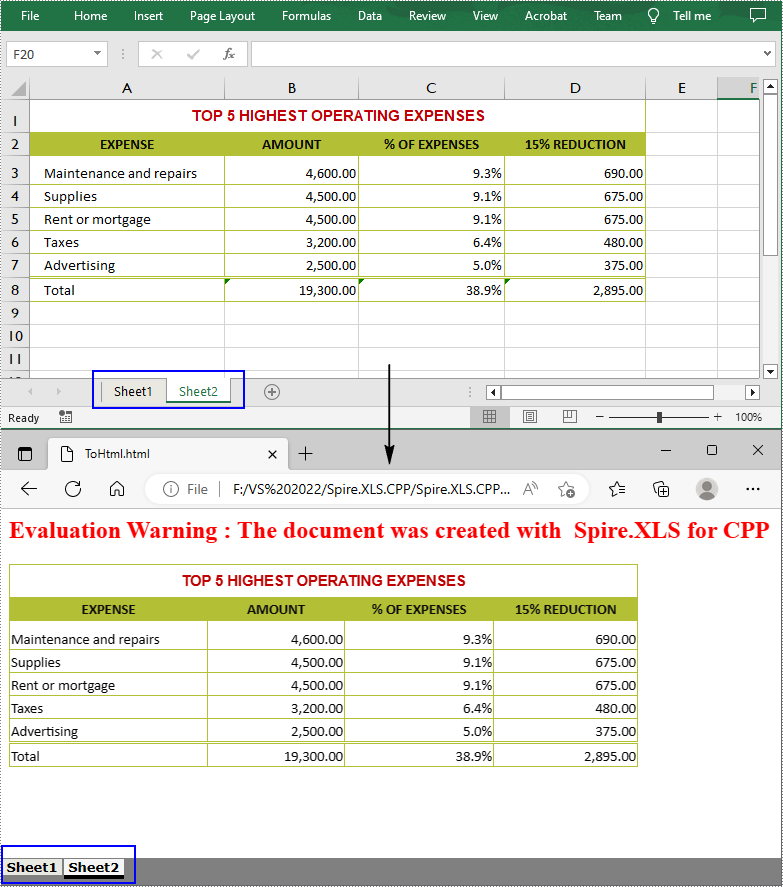
Converting Excel to HTML makes it easier to embed your spreadsheet data on a website and also ensures that other people can view the document online in their browsers without opening Excel. In this article, you will learn how to convert Excel to HTML using Spire.XLS for C++.
- Convert an Entire Excel Workbook to HTML in C++
- Convert a Specific Worksheet to HTML with Images Embedded in C++
- Convert a Specific Worksheet to HTML Stream in C++
Install Spire.XLS for C++
There are two ways to integrate Spire.XLS for C++ into your application. One way is to install it through NuGet, and the other way is to download the package from our website and copy the libraries into your program. Installation via NuGet is simpler and more recommended. You can find more details by visiting the following link.
Integrate Spire.XLS for C++ in a C++ Application
Convert an Entire Excel Workbook to HTML in C++
The Workbook->SaveToHtml() method provided by Spire.XLS for C++ allows you to convert the whole workbook to HTML. The following are the detailed steps.
- Create a Workbook object.
- Load an Excel document using Workbook->LoadFromFile() method.
- Save the entire Excel workbook as an HTML file using Workbook->SaveToHtml() method.
- C++
#include "Spire.Xls.o.h"

using namespace Spire::Xls;

int main()
{
	//Specify input file path and name
	std::wstring data_path = L"Data\\";
	std::wstring inputFile = data_path + L"input.xlsx";

	//Specify output file path and name
	std::wstring outputPath = L"Output\\";
	std::wstring outputFile = outputPath + L"ToHtml.html";

	//Create a Workbook object
	intrusive_ptr<Workbook> workbook = new Workbook();

	//Load an Excel document from disk
	workbook->LoadFromFile(inputFile.c_str());

	//Save the whole Excel workbook to Html
	workbook->SaveToHtml(outputFile.c_str());
	workbook->Dispose();
}
Convert a Specified Worksheet to HTML with Images Embedded in C++
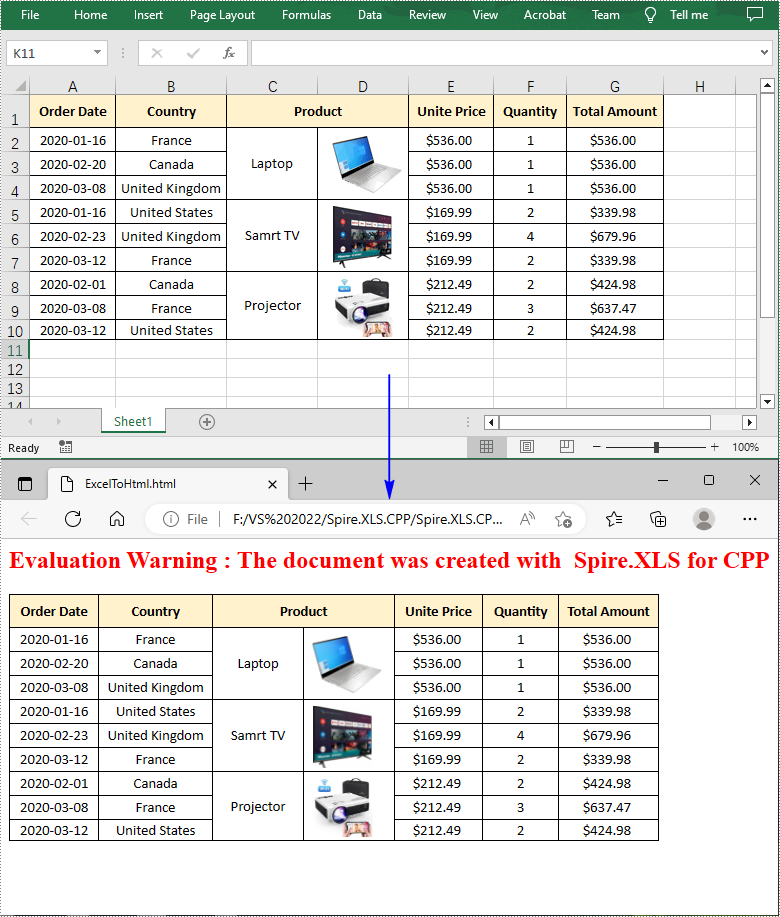
If you want the images in a worksheet to be embedded into the HTML code while conversion, you can set the parameter of HTMLOptions->SetImageEmbedded() method to true. The following are the detailed steps.
- Create a Workbook object.
- Load an Excel document using Workbook->LoadFromFile() method.
- Get a specific worksheet using Workbook->GetWorksheets()->Get() method.
- Create an HTMLOptions instance and enable image embedding using HTMLOptions->SetImageEmbedded(true) method.
- Save the worksheet to HTML with image embedded using Worksheet->SaveToHtml(LPCWSTR_S fileName, HTMLOptions* saveOption) method.
- C++
#include "Spire.Xls.o.h"

using namespace Spire::Xls;

int main()
{
	//Specify input file path and name
	std::wstring data_path = L"Data\\";
	std::wstring inputFile = data_path + L"sample.xlsx";

	//Specify output file path and name
	std::wstring outputPath = L"Output\\";
	std::wstring outputFile = outputPath + L"ExcelToHtml.html";

	//Create a Workbook object
	intrusive_ptr<Workbook> workbook = new Workbook();

	//Load an Excel document from disk
	workbook->LoadFromFile(inputFile.c_str());

	//Get the first worksheet
	intrusive_ptr<Worksheet> sheet = dynamic_pointer_cast<Worksheet>(workbook->GetWorksheets()->Get(0));

	//Set embedded image as true
	intrusive_ptr<HTMLOptions> options = new HTMLOptions();
	options->SetImageEmbedded(true);

	//Save the worksheet to HTML
	sheet->SaveToHtml(outputFile.c_str(), options);
	workbook->Dispose();
}
Convert a Specified Worksheet to HTML Stream in C++
Spire.XLS for C++ also allows you to convert a worksheet to HTML stream using Worksheet->SaveToHtml(Stream* stream, HTMLOptions* saveOption) method. The following are the detailed steps.
- Create a Workbook object.
- Load an Excel document using Workbook->LoadFromFile() method.
- Get a specific worksheet using Workbook->GetWorksheets()->Get() method.
- Create an HTMLOptions instance and enable image embedding using HTMLOptions->SetImageEmbedded(true) method.
- Create a stream and save the worksheet to HTML stream with image embedded using Worksheet->SaveToHtml(Stream* stream, HTMLOptions* saveOption) method.
- C++
#include "Spire.Xls.o.h"

using namespace Spire::Xls;

int main()
{
	//Specify input file path and name
	std::wstring data_path = L"Data\\";
	std::wstring inputFile = data_path + L"sample.xlsx";

	//Specify output file path and name
	std::wstring outputPath = L"Output\\";
	std::wstring outputFile = outputPath + L"ToHtmlStream.html";

	//Create a Workbook object
	intrusive_ptr<Workbook> workbook = new Workbook();

	//Load an Excel document from disk
	workbook->LoadFromFile(inputFile.c_str());

	//Get the first worksheet
	intrusive_ptr<Worksheet> sheet = dynamic_pointer_cast<Worksheet>(workbook->GetWorksheets()->Get(0));

	//Set embedded image as true
	intrusive_ptr<HTMLOptions> options = new HTMLOptions();
	options->SetImageEmbedded(true);

	//Create a stream
	intrusive_ptr<Stream> stream = new Stream();

	//Save worksheet to html stream
	sheet->SaveToHtml(stream, options);
	workbook->Dispose();

	stream->Save(outputFile.c_str());
}
Apply for a Temporary License
If you'd like to remove the evaluation message from the generated documents, or to get rid of the function limitations, please request a 30-day trial license for yourself.
C++: Convert Excel Workbooks or Worksheets to PDF
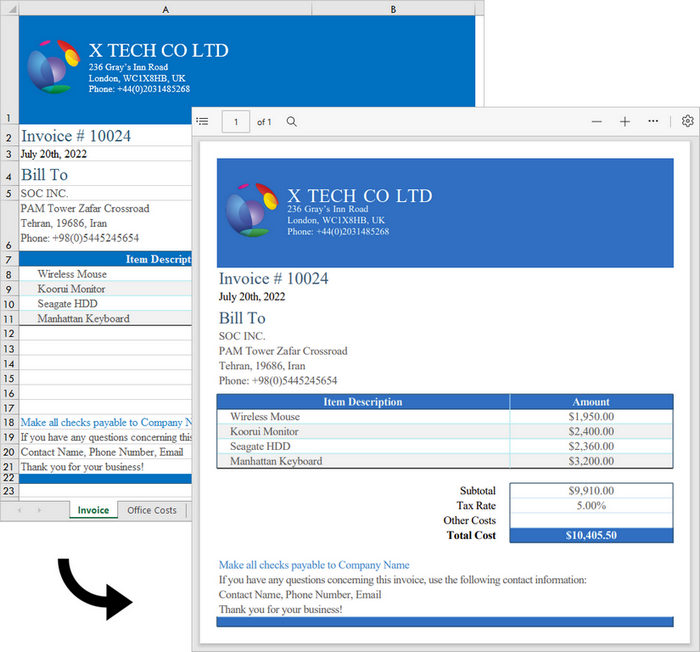
Excel is a wonderful tool for the creation and management of spreadsheets. However, when it comes to sharing these files with others, Excel may not deliver the best results. As soon as you have finalized your report, you can convert it to PDF, which keeps the formatting of your spreadsheets and allows them to be displayed perfectly on a variety of devices. Furthermore, PDFs are secure and can be encrypted to prevent unauthorized changes to the content.
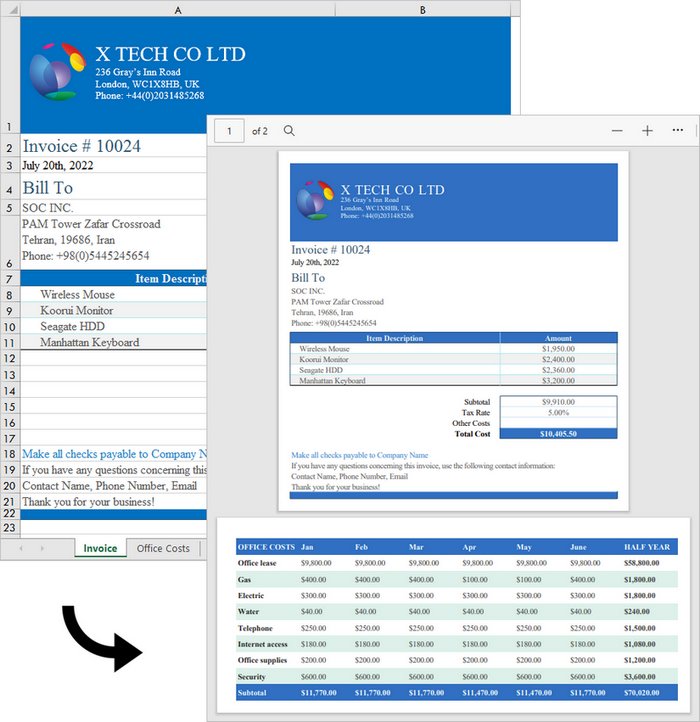
In this article, you will learn how to convert an Excel workbook to PDF and how to convert an Excel worksheet to PDF in C++ using Spire.XLS for C++.
Install Spire.XLS for C++
There are two ways to integrate Spire.XLS for C++ into your application. One way is to install it through NuGet, and the other way is to download the package from our website and copy the libraries into your program. Installation via NuGet is simpler and more recommended. You can find more details by visiting the following link.
Integrate Spire.XLS for C++ in a C++ Application
Convert an Excel Workbook to a PDF Document in C++
Spire.XLS for C++ offers the Workbook->SaveToFile(LPCWSTR_S fileName, FileFormat fileFormat) method, enabling users to convert an entire workbook to another format file, like PDF, HTML, CSV and XPS. Besides, it offers the ConverterSetting class to specify the convert options, such as whether to automatically adjust the height and width of the cells during conversion. The following are the steps to convert an Excel workbook to PDF using it.
- Create a Workbook object.
- Load a sample Excel document using Workbook->LoadFromFile() method.
- Make worksheets to fit to page when converting using Workbook->GetConverterSetting()->SetSheetFitToPage() method.
- Convert the workbook to PDF using Workbook->SaveToFile() method.
- C++
#include "Spire.Xls.o.h"

using namespace Spire::Xls;
using namespace std;

int main()
{
    //Specify input file path
    wstring inputFilePath = L"C:\\Users\\Administrator\\Desktop\\sample.xlsx";

    //Specify output file path and name
    wstring outputPath = L"Output\\";
    wstring outputFile = outputPath + L"ToPDF.pdf";

    //Create a Workbook object
    intrusive_ptr<Workbook> workbook = new Workbook();

    //Load the source Excel file
    workbook->LoadFromFile(inputFilePath.c_str());

    //Set worksheets to fit to page when converting
    workbook->GetConverterSetting()->SetSheetFitToPage(true);

    //Save to PDF
    workbook->SaveToFile(outputFile.c_str(), FileFormat::PDF);
    workbook->Dispose();
}
Convert a Specific Worksheet to a PDF Document in C++
To export a specific worksheet as a PDF, you must first use the Workbook->GetWorksheets()->Get(index) method to obtain the worksheet, and then use the Worksheet->SaveToPdf(LPCWSTR_S fileName) method to save it. The following are the detailed steps.
- Create a Workbook object.
- Load a sample Excel document using Workbook->LoadFromFile() method.
- Make worksheets to fit to page when converting using Workbook->GetConverterSetting()->SetSheetFitToPage() method.
- Get a specific worksheet using Workbook->GetWorksheets()->Get() method.
- Convert the worksheet to PDF using Worksheet->SaveToPdf() method.
- C++
#include "Spire.Xls.o.h"

using namespace Spire::Xls;
using namespace std;

int main()
{
	//Specify input file path
	wstring inputFilePath = L"C:\\Users\\Administrator\\Desktop\\sample.xlsx";

	//Specify output file path and name
	wstring outputPath = L"Output\\";
	wstring outputFile = outputPath + L"ToPDF.pdf";

	//Create a Workbook object
	intrusive_ptr<Workbook> workbook = new Workbook();

	//Load the source Excel file
	workbook->LoadFromFile(inputFilePath.c_str());

	//Set worksheets to fit to page when converting
	workbook->GetConverterSetting()->SetSheetFitToPage(true);

	//Get a specific worksheet
	intrusive_ptr<Worksheet> sheet = dynamic_pointer_cast<Worksheet>(workbook->GetWorksheets()->Get(0));

	//Save it to PDF
	sheet->SaveToPdf(outputFile.c_str());
	workbook->Dispose();
}
Apply for a Temporary License
If you'd like to remove the evaluation message from the generated documents, or to get rid of the function limitations, please request a 30-day trial license for yourself.