
Finding and replacing data is a common requirement when processing Excel files in web applications. Spire.XLS for JavaScript runs entirely in the browser via WebAssembly, using a virtual file system (VFS) to manage input and output files — no backend server required. It provides search methods such as FindAllString() and FindAllNumber() that let you locate target data across an entire worksheet or within a specified cell range, quickly replace it with new content, and optionally mark the replaced cells with a highlight color.
With Spire.XLS for JavaScript, you can batch-replace text across an entire worksheet or restrict the search to a specific cell range, giving you both efficiency and flexibility when updating partial data precisely.
This article covers two core features:
- Find and Replace Data in a Worksheet in Excel
- Find and Replace Data in a Specific Cell Range in Excel
For installation and project setup, refer to Integrating Spire.XLS for JavaScript in a React Project. The examples below assume Spire.XLS is installed and the WebAssembly module is initialized.
Find and Replace Data in a Worksheet in Excel
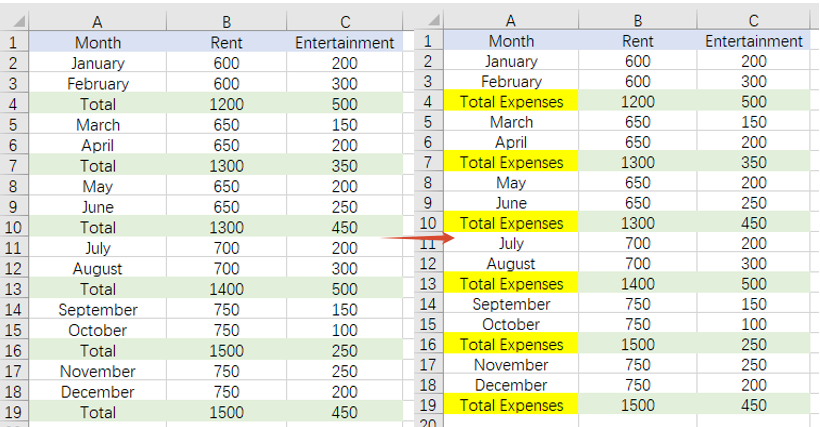
With Spire.XLS for JavaScript, you can find all cells containing a specified text in an entire worksheet and replace them with new content. The FindAllString() method returns all matching cell ranges. You can then replace the text by setting the range.Text property and highlight the replaced cells by setting the range.Style.Color property, making it easy to identify where modifications were made. The steps are as follows:
- Create a
Workbookobject and load an existing Excel file. - Get the worksheet to operate on via
workbook.Worksheets.get(). - Use
worksheet.FindAllString()to find all cell ranges containing the specified text in the worksheet. - Iterate through the search results, replacing the text via
range.Textand setting the highlight color viarange.Style.Color. - Save the workbook to an Excel file using
SaveToFile().
Below is a complete code example demonstrating how to find and replace data across an entire worksheet in React:
function App() {
  const findAndReplace = async () => {
    // Get the Spire.XLS WASM module
    const xlsModule = window.wasmModule?.spirexls;

    // Check if the module is ready
    if (!xlsModule) {
      alert('Spire.Xls is not ready yet');
      return;
    }

    let excelFileName = 'Sample.xlsx';
    await window.spire.FetchFileToVFS(excelFileName, '', `${process.env.PUBLIC_URL}static/data/`);

    // Create a new workbook and load an existing Excel file
    const workbook = new xlsModule.Workbook();
    workbook.LoadFromFile({ fileName: excelFileName });

    // Get the first worksheet
    let worksheet = workbook.Worksheets.get(0);

    // Find all cells containing the text "Total" in the worksheet
    let ranges = worksheet.FindAllString("Total", false, false);

    // Iterate through the search results, replace the text, and set the highlight color
    for (let range of ranges) {
      range.Text = "Total Expenses";
      range.Style.Color = xlsModule.Color.get_Yellow();
    }

    // Save the workbook
    const outputFileName = 'FindAndReplaceData.xlsx';
    workbook.SaveToFile({ fileName: outputFileName, version: xlsModule.ExcelVersion.Version2010 });
    workbook.Dispose();

    // Read the file from VFS and trigger download
    const fileArray = window.dotnetRuntime.Module.FS.readFile(outputFileName);
    const blob = new Blob([fileArray], { type: 'application/vnd.openxmlformats-officedocument.spreadsheetml.sheet' });
    const url = URL.createObjectURL(blob);
    const a = document.createElement('a');
    a.href = url;
    a.download = outputFileName;
    a.click();
    URL.revokeObjectURL(url);
  };

  return (
    <div style={{ textAlign: 'center', height: '300px' }}>
      <h1>Find and Replace Data in a Worksheet</h1>
      <button onClick={findAndReplace}>
        Generate
      </button>
    </div>
  );
}

export default App;
Find and replace data in a worksheet in Excel
Find and Replace Data in a Specific Cell Range in Excel
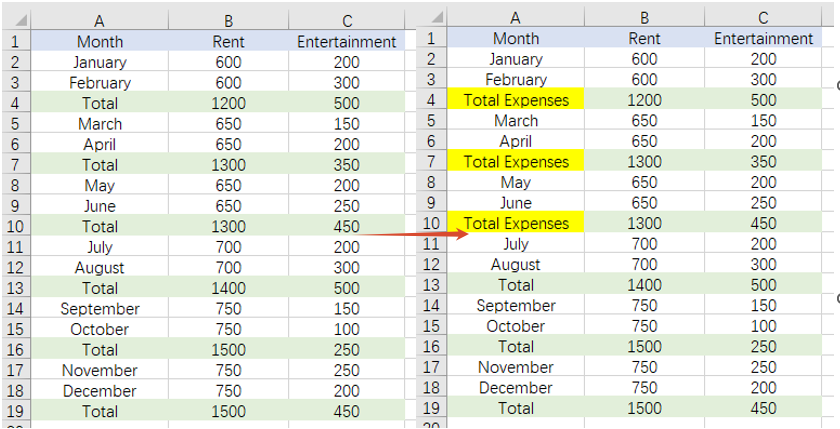
When you only need to update part of the data, you can restrict the search to a specific cell range. After specifying the target range with the sheet.Range.get() method, range.FindAllString() searches for cells containing the specified text only within that range, ensuring that data outside the range remains unaffected. The steps are as follows:
- Create a
Workbookobject and load an existing Excel file. - Get the worksheet to operate on via
workbook.Worksheets.get(). - Specify the cell range to search with
sheet.Range.get(). - Use
range.FindAllString()to find cells containing the target text within the specified range, then iterate through the results to replace the text and set the highlight color. - Save the workbook to an Excel file using
SaveToFile().
Below is a complete code example demonstrating how to find and replace data in a specific cell range in React:
function App() {
  const findAndReplaceInRange = async () => {
    // Get the Spire.XLS WASM module
    const xlsModule = window.wasmModule?.spirexls;

    // Check if the module is ready
    if (!xlsModule) {
      alert('Spire.Xls is not ready yet');
      return;
    }

    // Load the sample file into the Virtual File System (VFS)
    let excelFileName = 'FindCellsSample.xlsx';
    await window.spire.FetchFileToVFS(excelFileName, '', `${process.env.PUBLIC_URL}static/data/`);

    // Create a new workbook and load an existing Excel file
    const workbook = new xlsModule.Workbook();
    workbook.LoadFromFile({ fileName: excelFileName });

    // Get the first worksheet
    let worksheet = workbook.Worksheets.get(0);

    // Specify the cell range to search
    let range = worksheet.Range.get({
      row: 1,
      column: 1,
      lastRow: 12,
      lastColumn: 2,
    });

    // Find all cells containing the text "Total" within the specified range
    let ranges = range.FindAllString("Total", false, false);

    // Iterate through the search results, replace the text, and set the highlight color
    for (let r of ranges) {
      r.Text = "Total Expenses";
      r.Style.Color = xlsModule.Color.get_Yellow();
    }

    // Save the workbook
    const outputFileName = 'FindAndReplaceInRange.xlsx';
    workbook.SaveToFile({ fileName: outputFileName, version: xlsModule.ExcelVersion.Version2010 });
    workbook.Dispose();

    // Read the file from VFS and trigger download
    const fileArray = window.dotnetRuntime.Module.FS.readFile(outputFileName);
    const blob = new Blob([fileArray], { type: 'application/vnd.openxmlformats-officedocument.spreadsheetml.sheet' });
    const url = URL.createObjectURL(blob);
    const a = document.createElement('a');
    a.href = url;
    a.download = outputFileName;
    a.click();
    URL.revokeObjectURL(url);
  };

  return (
    <div style={{ textAlign: 'center', height: '300px' }}>
      <h1>Find and Replace Data in a Specific Cell Range</h1>
      <button onClick={findAndReplaceInRange}>
        Generate
      </button>
    </div>
  );
}

export default App;
Find and replace data in a specific cell range in Excel
FAQ
How to control whether the search is case-sensitive or matches whole words
Cause: The last two boolean parameters of the FindAllString() method control whether the search is case-sensitive and whether it must match whole words. If these parameters are set incorrectly, you may find too many or too few matching results.
Solution: Adjust the parameters of FindAllString() according to your actual needs:
// Case-insensitive, whole-word matching not required
let ranges = worksheet.FindAllString("Area", false, false);

// Case-sensitive, whole-word matching required
let ranges = worksheet.FindAllString("Total", true, true);
How to find and replace numbers in a specific range
Cause: Find and replace works not only with text but also with numbers. If you only use FindAllString() to handle text, numeric cells cannot be matched.
Solution: Use the range.FindAllNumber() method to find numbers within the specified range, then replace the values by setting the Text property:
let numberRanges = range.FindAllNumber(100, true);
for (let r of numberRanges) {
  r.Text = "200";
  r.Style.Color = xlsModule.Color.get_Yellow();
}
Get a Free License
Spire.XLS for JavaScript offers a 30-day full-featured free trial license with no functional limitations. Apply here to evaluate before purchasing.

