
In everyday Excel data processing, sorting is one of the most common operations — whether rearranging data by name, value, or date, it makes tables more organized and easier to search. Spire.XLS for JavaScript performs data sorting directly in the browser based on WebAssembly, and manages input/output files through a virtual file system (VFS), with no backend service required.
This article covers two core features:
For installation and project configuration, refer to Integrating Spire.XLS for JavaScript in a React Project. The examples below assume Spire.XLS is installed and the WebAssembly module is initialized.
Sort Data in a Cell Range in Ascending Order
Sorting a specified cell range in ascending order is the most common data arrangement requirement. Spire.XLS for JavaScript adds a sort field and specifies the sort order with the Workbook.DataSorter.SortColumns.Add() method, then sorts the specified range with the Workbook.DataSorter.Sort() method. The main steps are as follows:
- Create a
Workbookobject and use theLoadFromFile()method to load the Excel document. - Use the
Workbook.Worksheets.get()method to get a specific worksheet. - Use the
Workbook.DataSorter.SortColumns.Add()method to add a sort field, specifying the column and the sort order. - Use the
Workbook.DataSorter.Sort()method to sort the specified cell range. - Use the
Workbook.SaveToFile()method to save the document to a specified path.
Here is a complete code example showing how to sort a cell range in ascending order by a single column in React:
function App() {
  const sortAscending = async () => {
    // Get the Spire.XLS WASM module
    const xlsModule = window.wasmModule?.spirexls;

    // Check whether the module is ready
    if (!xlsModule) {
      alert('Spire.Xls is not ready yet');
      return;
    }

    // Load the font and Excel file into the VFS
    await window.spire.FetchFileToVFS('ARIAL.TTF', '/Library/Fonts/', `${process.env.PUBLIC_URL}/font/`);
    const inputFileName = 'DataSorting.xlsx';
    await window.spire.FetchFileToVFS(inputFileName, '', `${process.env.PUBLIC_URL}data/`);

    // Load the workbook
    const workbook = new xlsModule.Workbook();
    workbook.LoadFromFile({ fileName: inputFileName });

    // Get the first worksheet
    const sheet = workbook.Worksheets.get(0);

    // Add a sort field: sort by the 5th column (Population) in ascending order
    workbook.DataSorter.SortColumns.Add({ key: 4, orderBy: xlsModule.OrderBy.Ascending });

    // Sort the specified cell range A1:E19
    workbook.DataSorter.Sort(sheet.Range.get("A1:E19"));

    // Save the document
    const outputFileName = 'SortDataAscending_output.xlsx';
    workbook.SaveToFile({ fileName: outputFileName, version: xlsModule.ExcelVersion.Version2010 });

    // Release resources
    workbook.Dispose();

    // Read the converted file from the VFS and trigger a download
    const fileArray = window.dotnetRuntime.Module.FS.readFile(outputFileName);
    const blob = new Blob([fileArray], { type: 'application/vnd.openxmlformats-officedocument.spreadsheetml.sheet' });
    const url = URL.createObjectURL(blob);
    const a = document.createElement('a');
    a.href = url;
    a.download = outputFileName;
    a.click();
    URL.revokeObjectURL(url);
  };

  return (
    <div style={{ textAlign: 'center', height: '300px' }}>
      <h1>Sort Data in Ascending Order</h1>
      <button onClick={sortAscending}>
        Start
      </button>
    </div>
  );
}

export default App;
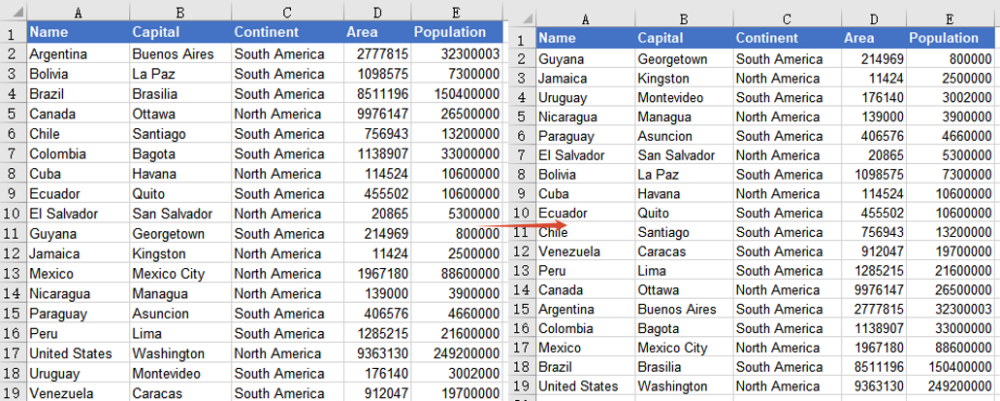
After sorting, the data is rearranged in ascending numerical order based on the 5th column (Population), from the smallest to the largest, and the other columns in the same row stay aligned with the Population column.
Sort Data by Multiple Columns
When a single-column sort is not enough, you can sort by multiple columns at the same time. Spire.XLS for JavaScript supports adding multiple sort fields by calling the SortColumns.Add() method several times. Data is sorted by the first field first, then by the subsequent fields. The main steps are as follows:
- Create a
Workbookobject and use theLoadFromFile()method to load the Excel document. - Use the
Workbook.Worksheets.get()method to get a specific worksheet. - Call the
Workbook.DataSorter.SortColumns.Add()method several times to add multiple sort fields. - Use the
Workbook.DataSorter.Sort()method to sort the specified cell range. - Use the
Workbook.SaveToFile()method to save the document to a specified path.
Here is a complete code example showing how to sort a cell range by multiple columns in React:
function App() {
  const sortMultipleColumns = async () => {
    // Get the Spire.XLS WASM module
    const xlsModule = window.wasmModule?.spirexls;

    // Check whether the module is ready
    if (!xlsModule) {
      alert('Spire.Xls is not ready yet');
      return;
    }

    // Load the font and Excel file into the VFS
    await window.spire.FetchFileToVFS('ARIAL.TTF', '/Library/Fonts/', `${process.env.PUBLIC_URL}/font/`);
    const inputFileName = 'DataSorting.xlsx';
    await window.spire.FetchFileToVFS(inputFileName, '', `${process.env.PUBLIC_URL}data/`);

    // Load the workbook
    const workbook = new xlsModule.Workbook();
    workbook.LoadFromFile({ fileName: inputFileName });

    // Get the first worksheet
    const sheet = workbook.Worksheets.get(0);

    // Add multiple sort fields: first by the 3rd column (Continent), then by the 4th column (Area), ascending
    workbook.DataSorter.SortColumns.Add({ key: 2, orderBy: xlsModule.OrderBy.Ascending });
    workbook.DataSorter.SortColumns.Add({ key: 3, orderBy: xlsModule.OrderBy.Ascending });

    // Sort the specified cell range A1:E19
    workbook.DataSorter.Sort(sheet.Range.get("A1:E19"));

    // Save the document
    const outputFileName = 'SortDataMultipleColumns_output.xlsx';
    workbook.SaveToFile({ fileName: outputFileName, version: xlsModule.ExcelVersion.Version2010 });

    // Release resources
    workbook.Dispose();

    // Read the converted file from the VFS and trigger a download
    const fileArray = window.dotnetRuntime.Module.FS.readFile(outputFileName);
    const blob = new Blob([fileArray], { type: 'application/vnd.openxmlformats-officedocument.spreadsheetml.sheet' });
    const url = URL.createObjectURL(blob);
    const a = document.createElement('a');
    a.href = url;
    a.download = outputFileName;
    a.click();
    URL.revokeObjectURL(url);
  };

  return (
    <div style={{ textAlign: 'center', height: '300px' }}>
      <h1>Sort Data by Multiple Columns</h1>
      <button onClick={sortMultipleColumns}>
        Start
      </button>
    </div>
  );
}

export default App;
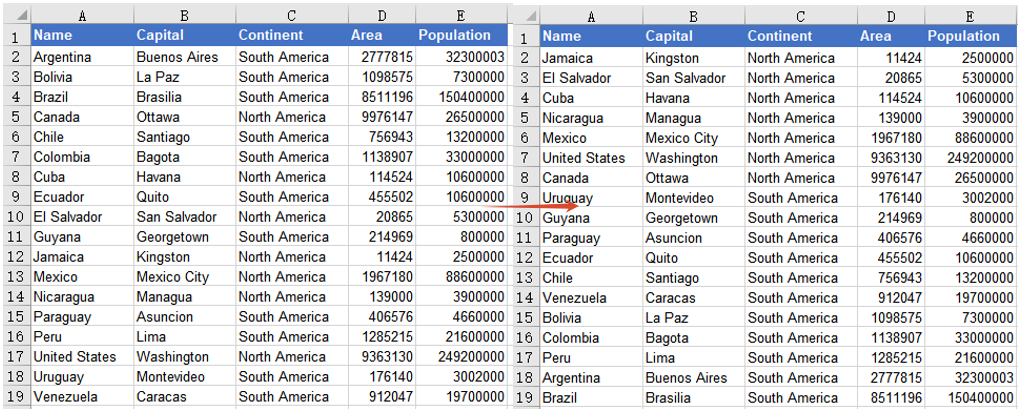
After sorting, the data is first arranged in ascending order by the 3rd column (Continent), grouping countries from the same continent together; when the continents are the same, it is then sorted in ascending order by the 4th column (Area).
FAQ
The header row is also included in the sorting
Cause: By default, the DataSorter.Sort() method treats the first row of the sort range as a title row and keeps it in place. If the header is moved into the data rows, it is usually because the starting row of the sort range is set incorrectly.
Solution: Make sure the range passed to the Sort() method includes the header row and that the header row is at the top of the range, for example sheet.Range.get("A1:E19"). You can also start the sort from the data rows, such as sheet.Range.get("A2:E19").
After a single-column sort, other columns do not change accordingly
Cause: The sort only takes effect on the cell range passed to the Sort() method. If you sort only a single column's range, the other columns will not be rearranged, causing data in the same row to become misaligned.
Solution: Make the sort range cover all related columns (for example, the complete range that includes name, capital, continent, area, and population, A1:E19), so that the entire row moves together.
Obtain a Free License
Spire.XLS for JavaScript offers a 30-day full-featured free trial license with no functional limitations. Apply here to evaluate before purchasing.

