.NET (1327)
Children categories
The sample demonstrates how to Merge PDF documents in Silverlight via Spire.XLS.
(No Screenshots)
The sample demonstrates how to create Excel group in Silverlight via Spire.XLS.

The sample demonstrates how to add Word header in Silverlight via Spire.Doc.

This section is designed to provide developers a solution to set graphic overlay in PDF file with C#, VB.NET via a .NET PDF library Spire.PDF for .NET.
Spire.PDF for .NET enables you to set graphic overlay for PDF pages in an easy way. In order to see content in both PDF files, we can set the transparency for the overlay. Now, let us see the code detail step by step.
First, we need to load two PDF documents from system which are used for creating overlay PDF document. Then, we can create the page template as one page of the first PDF file. In my project, I set the first page in the first PDF document as the template. Finally draw this template page into every page of the second PDF file by this method: PdfPageBase.Canvas.DrawTemplate(PdfTemplate template, PointF location) and set the transparency for the page: PdfPageBase.Canvas.SetTransparency(float alphaPen, float alphaBrush, PdfBlendMode blendMode).
Here you can know more about Spire.PDF for .NET. Spire.PDF for .NET is a PDF component that is applied to manipulate PDF files in .NET applications. You can download Spire.PDF for .NET. After installing it on system, you can start your project by C# or VB.NET in either Console Application or Windows Forms Application. Since we will use Spire.PDF, you need add Spire.Pdf.dll in the Bin folder, the default path is: "..\Spire.Pdf\Bin\NET4.0\Spire.Pdf.dll". Below is the whole code of the task:
using System.Drawing;
using Spire.Pdf;
using Spire.Pdf.Graphics;

namespace pdf_graphic_overlay
{
    class Program
    {
        static void Main(string[] args)
        {
            //load two documents
            PdfDocument doc1 = new PdfDocument();
            doc1.LoadFromFile(@"..\ Sample1.pdf");
            PdfDocument doc2 = new PdfDocument();
            doc2.LoadFromFile(@"..\Sample3.pdf");
            //Create page template
            PdfTemplate template = doc1.Pages[0].CreateTemplate();
            //set PDF overlay effect and set transparency mode
            foreach (PdfPageBase page in doc2.Pages)
            {
                //set transparency
                page.Canvas.SetTransparency(0.25f, 0.25f, PdfBlendMode.Overlay);
                //add the first page of doc1 to every page of doc2
                page.Canvas.DrawTemplate(template, PointF.Empty);
            }
            //Save pdf file.
            doc2.SaveToFile("Overlay.pdf");
            doc1.Close();
            doc2.Close();
            //Launching the Pdf file.
            System.Diagnostics.Process.Start("Overlay.pdf");
        }
    }
}
Imports System.Drawing
Imports Spire.Pdf
Imports Spire.Pdf.Graphics

Namespace pdf_graphic_overlay
     Class Program
	    Private Shared Sub Main(args As String())
		'load two documents
		Dim doc1 As New PdfDocument()
		doc1.LoadFromFile("..\Sample1.pdf")
		Dim doc2 As New PdfDocument()
		doc2.LoadFromFile("..\Sample3.pdf")
		'Create page template
		Dim template As PdfTemplate = doc1.Pages(0).CreateTemplate()
		'set PDF overlay effect and set transparency mode
		For Each page As PdfPageBase In doc2.Pages
			'set transparency
			page.Canvas.SetTransparency(0.25F, 0.25F, PdfBlendMode.Overlay)
			'add the first page of doc1 to every page of doc2
			page.Canvas.DrawTemplate(template, PointF.Empty)
		Next
		'Save pdf file.
		doc2.SaveToFile("Overlay.pdf")
		doc1.Close()
		doc2.Close()
		'Launching the Pdf file.
		System.Diagnostics.Process.Start("Overlay.pdf")
	    End Sub
     End Class
End Namespace
After executing above code, we can get the output file as below:

I have introduced one solution to set graphic overlay for PDF document, I wish it can give you some insights. If you have problem, feedback and suggestions, please do not hesitate to put them on E-iceblue Forum, we will give prompt reply.
Spire.PDF for .NET is a PDF application which is designed to perform processing tasks on managing PDF files. It is completely written in C# but also support VB.NET.
This section aims at providing developers a detail solution to set transparency for image in PDF file with C#, VB.NET via this PDF api Spire.PDF for .NET.
Spire.PDF for .NET enables you to set transparency for PDF image directly by utilizing one core method: Spire.Pdf.PdfPageBase.Canvas.SetTransparency(float alphaPen, float alphaBrush, PdfBlendMode blendMode); There are three parameters passed in this method. The first parameter is the alpha value for pen operations; while the second parameter is the alpha value for brush operations; and the last parameter is the blend mode. Now, let us see how to set PDF transparency step by step.
Set Transparency Images in PDF File
Step1: Prepare an image file
In my solution, I need create a new PDF file and insert an existing image file to PDF. Finally set transparency for this PDF image. So I prepare an image as below:

Step2: Download and Install Spire.PDF for .NET
Spire.PDF for .NET is a PDF component that enables developers to generate, read, edit and handle PDF files without Adobe Acrobat. Here you can download Spire.PDF for .NET and install it on system.
Step3: Start a new project and Add references
We can create a project either in Console Application or in Windows Forms Application, either in C# or in VB.NET. Here I use C# Console Application. Since we will use Spire.PDF for .NET, we need add Spire.Pdf.dll as reference. The default path is “..\Spire.PDF\Bin\NET4.0\ Spire.Pdf.dll”
Step 4: Set PDF transparency for PDF image
In this step, first, I initialize a new instance of the class Spire.Pdf.PdfDocument and add a section in the newly created PDF. Then, load the image I have already prepared to the PDF and set the PDF image size. Finally set transparency for this PDF image. When I set transparency, I add a title for the transparency and set position and format for it. After I save the image in PDF by calling this method: PdfPageBase.Canvas.DrawImage(PdfImage image, float x, float y, float width, float height).Then, by using this method: PdfPageBase.Canvas.SetTransparency(float alphaPen, float alphaBrush, PdfBlendMode blendMode); I successfully set transparency for this PDF image. Here we can see the whole code:
using Spire.Pdf;
using Spire.Pdf.Graphics;
using System;
using System.Drawing;

namespace SetTransparencyOfImage
{
    class Program
    {
        static void Main(string[] args)
        {
            //Initiate a new instance of PdfDocument
            PdfDocument doc = new PdfDocument();
            //Add one section to the PDF document
            PdfSection section = doc.Sections.Add();
            //Open Image File
            PdfImage image = PdfImage.FromFile(@"..\016.png");
            //Set the Image size in PDF file
            float imageWidth = image.PhysicalDimension.Width / 2;
            float imageHeight = image.PhysicalDimension.Height / 2;

            //Set PDF granphic transparency
            foreach (PdfBlendMode mode in Enum.GetValues(typeof(PdfBlendMode)))
            {
                PdfPageBase page = section.Pages.Add();
                float pageWidth = page.Canvas.ClientSize.Width;
                float y = 1;
                //Set transparency image title, title position and format
                y = y + 5;
                PdfBrush brush = new PdfSolidBrush(Color.Firebrick);
                PdfTrueTypeFont font = new PdfTrueTypeFont(new Font("Arial", 16f, FontStyle.Bold));
                PdfStringFormat format = new PdfStringFormat(PdfTextAlignment.Center);
                String text = String.Format("Transparency Blend Mode: {0}", mode);
                page.Canvas.DrawString(text, font, brush, pageWidth / 2, y, format);
                SizeF size = font.MeasureString(text, format);
                y = y + size.Height + 6;
                //write and save the image loaded into PDF
                page.Canvas.DrawImage(image, 0, y, imageWidth, imageHeight);
                page.Canvas.Save();
                //set left and top distance between graphic images
                float d = (page.Canvas.ClientSize.Width - imageWidth) / 5;
                float x = d;
                y = y + d / 2;
                for (int i = 0; i < 5; i++)
                {
                    float alpha = 1.0f / 6 * (5 - i);
                    //set transparency to be alpha
                    page.Canvas.SetTransparency(alpha, alpha, mode);
                    //draw transparency images for the original PDF image
                    page.Canvas.DrawImage(image, x, y, imageWidth, imageHeight);
                    x = x + d;
                    y = y + d / 2;
                }
                page.Canvas.Restore();
            }
            //Save pdf file.
            doc.SaveToFile("Transparency.pdf");
            doc.Close();
            //Launching the Pdf file.
            System.Diagnostics.Process.Start("Transparency.pdf");
        }
    }
}
Imports Spire.Pdf
Imports Spire.Pdf.Graphics
Imports System.Drawing

Namespace SetTransparencyOfImage
	Class Program
		Private Shared Sub Main(args As String())
			'Initiate a new instance of PdfDocument
			Dim doc As New PdfDocument()
			'Add one section to the PDF document
			Dim section As PdfSection = doc.Sections.Add()
			'Open Image File
			Dim image As PdfImage = PdfImage.FromFile("..\016.png")
			'Set the Image size in PDF file
			Dim imageWidth As Single = image.PhysicalDimension.Width / 2
			Dim imageHeight As Single = image.PhysicalDimension.Height / 2

			'Set PDF granphic transparency
			For Each mode As PdfBlendMode In [Enum].GetValues(GetType(PdfBlendMode))
				Dim page As PdfPageBase = section.Pages.Add()
				Dim pageWidth As Single = page.Canvas.ClientSize.Width
				Dim y As Single = 1
				'Set transparency image title, title position and format
				y = y + 5
				Dim brush As PdfBrush = New PdfSolidBrush(Color.Firebrick)
				Dim font As New PdfTrueTypeFont(New Font("Arial", 16F, FontStyle.Bold))
				Dim format As New PdfStringFormat(PdfTextAlignment.Center)
				Dim text As [String] = [String].Format("Transparency Blend Mode: {0}", mode)
				page.Canvas.DrawString(text, font, brush, pageWidth / 2, y, format)
				Dim size As SizeF = font.MeasureString(text, format)
				y = y + size.Height + 6
				'write and save the image loaded into PDF
				page.Canvas.DrawImage(image, 0, y, imageWidth, imageHeight)
				page.Canvas.Save()
				'set left and top distance between graphic images
				Dim d As Single = (page.Canvas.ClientSize.Width - imageWidth) / 5
				Dim x As Single = d
				y = y + d / 2
				For i As Integer = 0 To 4
					Dim alpha As Single = 1F / 6 * (5 - i)
					'set transparency to be alpha
					page.Canvas.SetTransparency(alpha, alpha, mode)
					'draw transparency images for the original PDF image
					page.Canvas.DrawImage(image, x, y, imageWidth, imageHeight)
					x = x + d
					y = y + d / 2
				Next
				page.Canvas.Restore()
			Next
			'Save pdf file.
			doc.SaveToFile("Transparency.pdf")
			doc.Close()
			'Launching the Pdf file.
			System.Diagnostics.Process.Start("Transparency.pdf")
		End Sub
	End Class
End Namespace
Result Task
After performing above code, we can see the result PDF document as below:
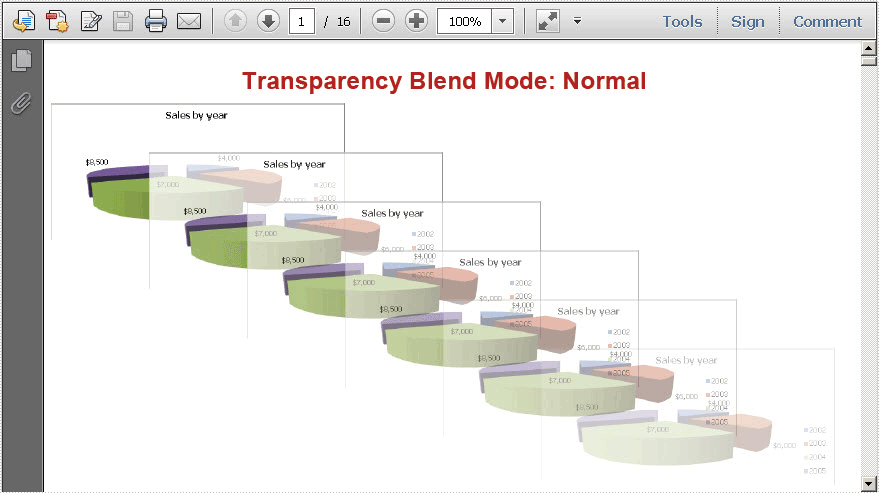
I have set transparency for PDF image by Spire.PDF for .NET. I sincerely wish it can help you. We e-iceblue team appreciate any kind of queries, comments and advice at E-iceblue Forum. Our professionals are ready to reply you as quick as possible.
Spire.PDF for .NET is a PDF library that meets customers need with fast speed and high efficiency.
The sample demonstrates how to set Excel subtotal formula via Spire.XLS.

The sample demonstrates how to replace data in Excel workbook via Spire.XLS.

The sample demonstrates how to copy cell data in Excel workbook via Spire.XLS.

The sample demonstrates how to auto fit column in Excel workbook via Spire.XLS.

The sample demonstrates how to set cell fill in Excel workbook via Spire.XLS.