
Image (7)
Spire.PDF allows extracting images from signatures using ExtractSignatureAsImages method in PdfFormWidget class. This article demonstrates how we can use Spire.PDF to implement this feature.
Code Snippet:
Step 1: Instantiate an object of PdfDocument class and load the PDF document.
PdfDocument document = new PdfDocument("sample.pdf");
Step 2: Get the existing forms of the document.
PdfFormWidget form = document.Form as PdfFormWidget;
Step 3: Extract images from signatures in the existing forms and put them into an Image Array.
Image[] images = form.ExtractSignatureAsImages();
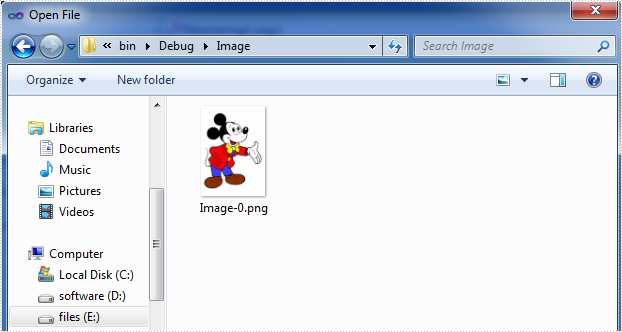
Step 4: Save the images to disk.
int i = 0;
for (int j = 0; j < images.Length; j++)
{
    images[j].Save(String.Format(@"Image/Image-{0}.png", i), ImageFormat.Png);
    i++;
}
Screenshot:
Full code:
using Spire.Pdf;
using Spire.Pdf.Widget;
using System;
using System.Drawing;
using System.Drawing.Imaging;


namespace ExtractImage
{
    class Program
    {
        static void Main(string[] args)
        {
            //Load the PDF document
            PdfDocument document = new PdfDocument("sample.pdf");

            //Get the existing forms of the document
            PdfFormWidget form = document.Form as PdfFormWidget;

            //Extract images from signatures in the existing forms
            Image[] images = form.ExtractSignatureAsImages();

            //Save the images to disk
            int i = 0;
            for (int j = 0; j < images.Length; j++)
            {
                images[j].Save(String.Format(@"Image/Image-{0}.png", i), ImageFormat.Png);
                i++;
            }

            //Close the document
            document.Close();
        }
    }
}
Imports Spire.Pdf
Imports Spire.Pdf.Widget
Imports System.Drawing
Imports System.Drawing.Imaging


Namespace ExtractImage
	Class Program
		Private Shared Sub Main(args As String())
			'Load the PDF document
			Dim document As New PdfDocument("sample.pdf")

			'Get the existing forms of the document
			Dim form As PdfFormWidget = TryCast(document.Form, PdfFormWidget)

			'Extract images from signatures in the existing forms
			Dim images As Image() = form.ExtractSignatureAsImages()

			'Save the images to disk
			Dim i As Integer = 0
			For j As Integer = 0 To images.Length - 1
				images(j).Save([String].Format("Image/Image-{0}.png", i), ImageFormat.Png)
				i += 1
			Next

			'Close the document
			document.Close()
		End Sub
	End Class
End Namespace
We have already had an article of showing how to replace the image on the existing PDF file. Starts from Spire.PDF V3.8.45, it newly supports to update the image on button field via the method of field.SetButtonImage(PdfImage.FromFile(@"")). This article will focus on demonstrate how to replace the image on the button field in C#.
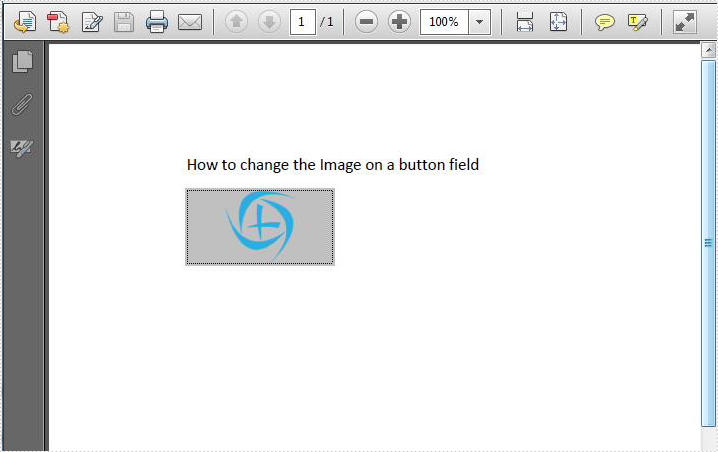
Firstly, check the original PDF file with the button field.
Step 1: Create a PDF document and load from file.
PdfDocument pdf = new PdfDocument();
pdf.LoadFromFile("Sample.PDF", FileFormat.PDF);
Step 2: Get the form from the loaded PDF document.
PdfFormWidget form = pdf.Form as PdfFormWidget;
Step 3: Find the button field named "Image" and then set a new image for this button field.
for (int i = 0; i < form.FieldsWidget.Count; i++)
{
    if (form.FieldsWidget[i] is PdfButtonWidgetFieldWidget)
    {
        PdfButtonWidgetFieldWidget field = form.FieldsWidget[i] as PdfButtonWidgetFieldWidget;
        if (field.Name == "Image")
        { field.SetButtonImage(PdfImage.FromFile("logo.png")); }
    }
}
Step 4: Save the document to file.
pdf.SaveToFile("result.pdf");
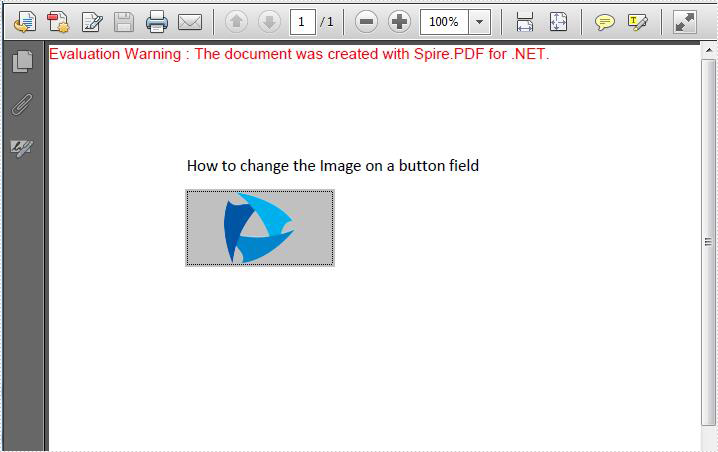
Effective screenshot after replace the image on the button field.
Full codes:
using Spire.Pdf;
using Spire.Pdf.Graphics;
using Spire.Pdf.Widget;


namespace ImageButton
{
    class Program
    {
        static void Main(string[] args)
        {
            PdfDocument pdf = new PdfDocument();
            pdf.LoadFromFile("Sample.PDF", FileFormat.PDF);

            PdfFormWidget form = pdf.Form as PdfFormWidget;

            for (int i = 0; i < form.FieldsWidget.Count; i++)
            {
                if (form.FieldsWidget[i] is PdfButtonWidgetFieldWidget)
                {
                    PdfButtonWidgetFieldWidget field = form.FieldsWidget[i] as PdfButtonWidgetFieldWidget;
                    if (field.Name == "Image")
                    { field.SetButtonImage(PdfImage.FromFile("logo.png")); }

                }
            }

            pdf.SaveToFile("result.pdf");
        }
    }
}
Embed 3D Interactive Graphics into PDF Document in C#/VB.NET
2015-09-22 08:43:39 Written by AdministratorUniversal 3D (U3D) is a compressed file format for 3D computer graphic data. 3D modules in U3D format can be inserted into PDF documents and interactively visualized by Acrobat Reader. This article presents how to embed a pre-created U3D file into a PDF document using Spire.PDF in C#, VB.NET.
Main Steps:
Step 1: Initialize a new object of PdfDocuemnt, and add a blank page to the PDF document.
PdfDocument doc = new PdfDocument();
PdfPageBase page = doc.Pages.Add();
Step 2: Draw a rectangle on the page to define the canvas area for the 3D file.
Rectangle rt = new Rectangle(0, 80, 200, 200);
Step 3: Initialize a new object of Pdf3DAnnotation, load the .u3d file as 3D annotation.
Pdf3DAnnotation annotation = new Pdf3DAnnotation(rt, "teapot.u3d");
annotation.Activation = new Pdf3DActivation();
annotation.Activation.ActivationMode = Pdf3DActivationMode.PageOpen;
Step 4: Define a 3D view mode.
Pdf3DView View= new Pdf3DView();
View.Background = new Pdf3DBackground(new PdfRGBColor(Color.Purple
));
View.ViewNodeName = "test";
View.RenderMode = new Pdf3DRendermode(Pdf3DRenderStyle.Solid);
View.InternalName = "test";
View.LightingScheme = new Pdf3DLighting();
View.LightingScheme.Style = Pdf3DLightingStyle.Day;
Step 5: Set the 3D view mode for the annotation.
annotation.Views.Add(View);
Step 6: Add the annotation to PDF.
page.Annotations.Add(annotation);
Step 7: Save the file.
doc.SaveToFile("Create3DPdf.pdf", FileFormat.PDF);
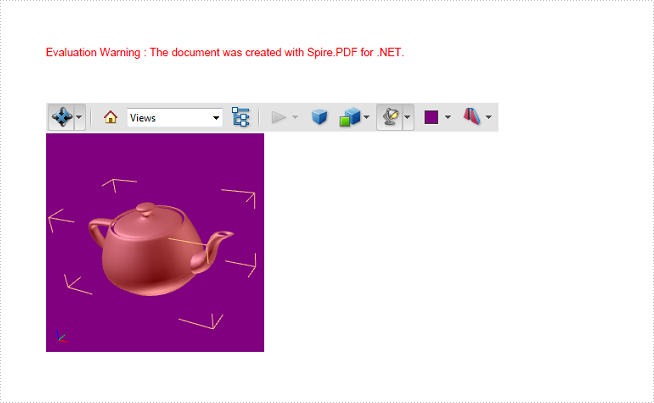
Output:
Full Code:
using Spire.Pdf;
using Spire.Pdf.Annotations;
using Spire.Pdf.Graphics;
using System.Drawing;

namespace Embed3DInteractiveGraphics
{
    class Program
    {
        static void Main(string[] args)
        {
            PdfDocument doc = new PdfDocument();
            PdfPageBase page = doc.Pages.Add();

            Rectangle rt = new Rectangle(0, 80, 200, 200);
            Pdf3DAnnotation annotation = new Pdf3DAnnotation(rt, "teapot.u3d");
            annotation.Activation = new Pdf3DActivation();
            annotation.Activation.ActivationMode = Pdf3DActivationMode.PageOpen;
            Pdf3DView View= new Pdf3DView();
            View.Background = new Pdf3DBackground(new PdfRGBColor(Color.Purple));
            View.ViewNodeName = "test";
            View.RenderMode = new Pdf3DRendermode(Pdf3DRenderStyle.Solid);
            View.InternalName = "test";
            View.LightingScheme = new Pdf3DLighting();
            View.LightingScheme.Style = Pdf3DLightingStyle.Day;
            annotation.Views.Add(View);

            page.Annotations.Add(annotation);
            doc.SaveToFile("Create3DPdf.pdf", FileFormat.PDF);
        }
    }
}
Imports Spire.Pdf
Imports Spire.Pdf.Annotations
Imports Spire.Pdf.Graphics
Imports System.Drawing

Namespace Embed3DInteractiveGraphics
	Class Program
		Private Shared Sub Main(args As String())
			Dim doc As New PdfDocument()
			Dim page As PdfPageBase = doc.Pages.Add()

			Dim rt As New Rectangle(0, 80, 200, 200)
			Dim annotation As New Pdf3DAnnotation(rt, "teapot.u3d")
			annotation.Activation = New Pdf3DActivation()
			annotation.Activation.ActivationMode = Pdf3DActivationMode.PageOpen
			Dim View As New Pdf3DView()
			View.Background = New Pdf3DBackground(New PdfRGBColor(Color.Purple))
			View.ViewNodeName = "test"
			View.RenderMode = New Pdf3DRendermode(Pdf3DRenderStyle.Solid)
			View.InternalName = "test"
			View.LightingScheme = New Pdf3DLighting()
			View.LightingScheme.Style = Pdf3DLightingStyle.Day
			annotation.Views.Add(View)

			page.AnnotationsWidget.Add(annotation)
			doc.SaveToFile("Create3DPdf.pdf", FileFormat.PDF)
		End Sub
	End Class
End Namespace
Convert TIFF to PDF in C# – Multi-Page & Batch Examples
2014-07-22 03:46:39 Written by Administrator
Converting TIFF to PDF using C# is a common requirement in .NET document processing workflows. Developers often need to transform scanned documents or multi-page TIFF files into PDF format for better compatibility, easier distribution, and standardized document management.
TIFF files are widely used in scanning and archiving systems, especially for storing multiple pages in a single file. However, they are not always ideal for sharing or cross-platform viewing, while PDF provides a more universal and consistent format.
With Spire.PDF for .NET, you can efficiently convert TIFF images to PDF using simple and reliable C# code. This article demonstrates how to perform TIFF to PDF conversion in .NET, including handling multi-page TIFF images, adjusting page layouts, and applying best practices for real-world applications.
1. Understanding the Task
TIFF (Tagged Image File Format) is a flexible image format that supports multiple pages within a single file. This makes it popular for:
- Scanned documents: Multi-page contracts, invoices, and forms
- Document archiving: Preserving document history in a single file
- Medical imaging: Storing diagnostic images with multiple views
- Fax transmissions: Traditional fax systems often use TIFF format
Converting TIFF to PDF offers several advantages:
- Universal compatibility: PDF viewers are available on all platforms
- Smaller file size: PDF compression can reduce storage requirements
- Better distribution: PDF is the standard for document sharing
- Enhanced security: PDF supports encryption and access controls
2. Convert TIFF to PDF Using Spire.PDF
This section provides step-by-step examples for converting TIFF images to PDF using Spire.PDF in C#.
Install Spire.PDF for .NET
First, install the library via NuGet Package Manager:
Install-Package FreeSpire.PDF
Or using the .NET CLI:
dotnet add package FreeSpire.PDF
You can also download the Spire.PDF for .NET package and add it to your project manually.
Convert a Single-Page TIFF to PDF
For single-page TIFF files, the simplest approach is to create a PDF page that matches the original image dimensions and draw the image directly onto it. This ensures the TIFF content fills the entire PDF page without unwanted margins or scaling issues.
using Spire.Pdf;
using Spire.Pdf.Graphics;
using System.Drawing;

// Load the TIFF image
PdfImage tiffImage = PdfImage.FromFile("Sample_Page.tiff");

// Create a new PDF document
PdfDocument pdf = new PdfDocument();

// Remove default page margins
pdf.PageSettings.Margins.All = 0;

// Get image dimensions
float width = tiffImage.PhysicalDimension.Width;
float height = tiffImage.PhysicalDimension.Height;

// Add a PDF page with the same size as the TIFF image
PdfPageBase page = pdf.Pages.Add(new SizeF(width, height));

// Draw the image to fully fill the page
page.Canvas.DrawImage(tiffImage, 0, 0, width, height);

// Save the PDF document
pdf.SaveToFile("Sample_Page.pdf");
pdf.Close();

Key API calls:
PdfImage.FromFile: Loads the TIFF image into a PDF-compatible objectPageSettings.Margins.All: Removes default margins to allow full-page renderingPages.Add(SizeF): Creates a PDF page that matches the TIFF dimensionsCanvas.DrawImage: Draws the TIFF image to completely fill the pageSaveToFile: Saves the converted PDF file
This method preserves the original TIFF dimensions and ensures the output PDF displays the image cleanly across the full page.
For more image-to-PDF scenarios, see how to convert images to PDF in C#.
Convert Multi-Page TIFF to PDF
Multi-page TIFF files contain multiple frames, with each frame representing a separate page. During conversion, you can iterate through each frame and create a PDF page that matches the dimensions of the current TIFF frame to preserve the original layout.
using Spire.Pdf;
using Spire.Pdf.Graphics;
using System.Drawing;
using System.Drawing.Imaging;

// Load the multi-page TIFF file
Image tiffImage = Image.FromFile("Sample89.tiff");

// Get frame information
FrameDimension dimension = new FrameDimension(tiffImage.FrameDimensionsList[0]);
int frameCount = tiffImage.GetFrameCount(dimension);

// Create a new PDF document
PdfDocument pdf = new PdfDocument();

// Remove default margins
pdf.PageSettings.Margins.All = 0;

// Process each TIFF frame
for (int i = 0; i < frameCount; i++)
{
    // Select current frame
    tiffImage.SelectActiveFrame(dimension, i);

    // Convert current frame to PdfImage
    PdfImage pdfImage = PdfImage.FromImage(tiffImage);

    // Get current frame dimensions
    float width = pdfImage.PhysicalDimension.Width;
    float height = pdfImage.PhysicalDimension.Height;

    // Create a PDF page matching the frame size
    PdfPageBase page = pdf.Pages.Add(new SizeF(width, height));

    // Draw the frame to fill the page
    page.Canvas.DrawImage(pdfImage, 0, 0, width, height);
}

// Save the PDF document
pdf.SaveToFile("Sample89.pdf");
pdf.Close();

// Release resources
tiffImage.Dispose();
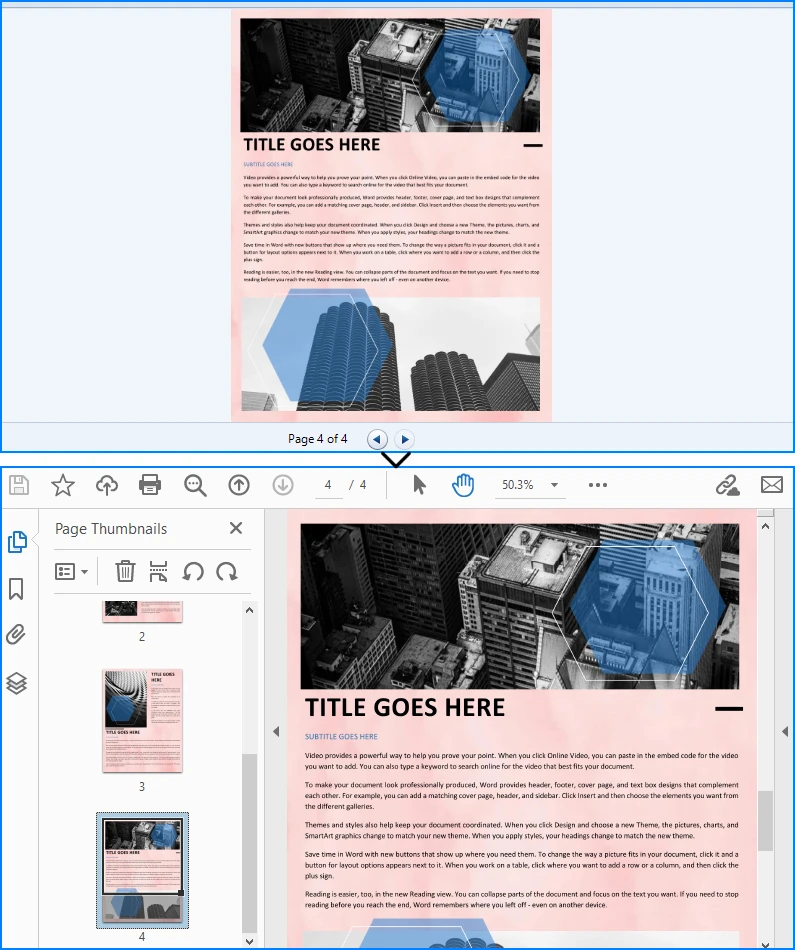
Key concepts:
FrameDimension: Identifies the frame collection in a multi-page TIFF fileGetFrameCount: Retrieves the total number of TIFF pagesSelectActiveFrame: Switches to a specific TIFF frame for processingPages.Add(SizeF): Creates a PDF page that matches each TIFF page sizeCanvas.DrawImage: Renders each TIFF frame onto the corresponding PDF page
This approach preserves all pages in the original TIFF file while ensuring each page fully occupies the PDF canvas without extra margins or scaling issues.
Fit TIFF Images into Standard PDF Pages
In some workflows, the output PDF must follow a standard page size such as A4 or Letter for printing, document sharing, or archival purposes. Instead of creating a PDF page based on the original TIFF dimensions, you can scale the image proportionally to fit within a fixed page size while keeping it horizontally centered.
using Spire.Pdf;
using Spire.Pdf.Graphics;

PdfDocument pdf = new PdfDocument();
PdfImage image = PdfImage.FromFile("Sample_Page.tiff");

// Create an A4 page with margins
PdfPageBase page = pdf.Pages.Add(PdfPageSize.A4, new PdfMargins(20));

// Calculate proportional scaling
float scale = Math.Min(
    page.Canvas.ClientSize.Width / image.PhysicalDimension.Width,
    page.Canvas.ClientSize.Height / image.PhysicalDimension.Height
);

// Calculate final image size
float width = image.PhysicalDimension.Width * scale;
float height = image.PhysicalDimension.Height * scale;

// Center horizontally and align to the top
float x = (page.Canvas.ClientSize.Width - width) / 2;

// Draw image onto the PDF page
page.Canvas.DrawImage(image, x, 0, width, height);

// Save the PDF file
pdf.SaveToFile("Sample89.pdf");
pdf.Close();
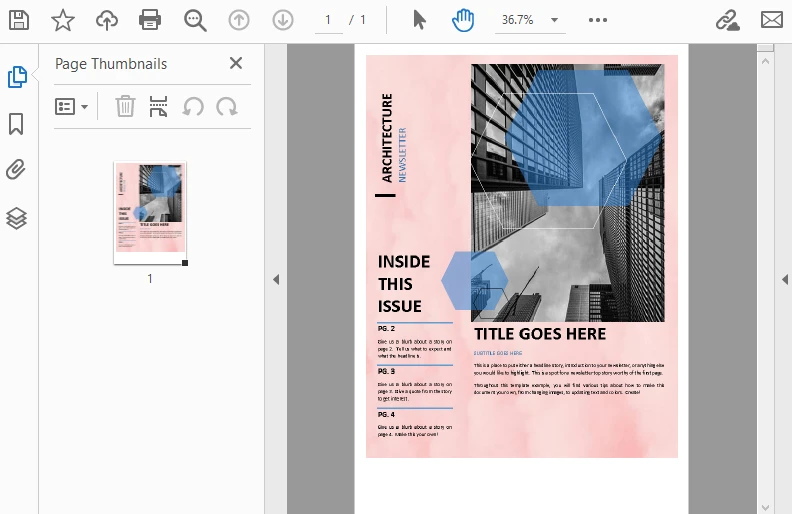
The Generated PDF will fit the standard page size while maintaining the original image dimensions.
Why use this approach?
- Standardized output: Ensures all converted PDFs use consistent page sizes such as A4 or Letter
- Better for printing: Prevents unusually sized PDF pages caused by large TIFF dimensions
- Maintains aspect ratio: Scales the image proportionally without distortion
- Cleaner document formatting: Keeps content properly aligned for business and archival workflows
This method works well when you need TIFF files to fit standardized PDF layouts rather than preserving their original dimensions.
You can also explore more PDF layout and page settings tutorials using C#.
3. Advanced TIFF to PDF Conversion Scenarios
For production applications, you often need additional control over the conversion process.
Batch Convert Multiple TIFF Files
In document management systems, scanned archives, or automated workflows, you may need to convert multiple TIFF files into PDF format at once. The following example processes all TIFF files in a folder and converts each file into a separate PDF while preserving the original image dimensions.
using Spire.Pdf;
using Spire.Pdf.Graphics;
using System.Drawing;
using System.IO;

string inputFolder = @"C:\Documents\TIFF";
string outputFolder = @"C:\Documents\PDF";

// Create the output folder if it doesn't exist
Directory.CreateDirectory(outputFolder);

// Process all TIFF files in the folder
foreach (string tiffFile in Directory.GetFiles(inputFolder, "*.tiff"))
{
    PdfImage image = PdfImage.FromFile(tiffFile);

    using (PdfDocument pdf = new PdfDocument())
    {
        // Create a PDF page matching the TIFF dimensions
        PdfPageBase page = pdf.Pages.Add(
            new SizeF(
                image.PhysicalDimension.Width,
                image.PhysicalDimension.Height
            )
        );

        // Draw the TIFF image onto the page
        page.Canvas.DrawImage(
            image,
            0,
            0,
            image.PhysicalDimension.Width,
            image.PhysicalDimension.Height
        );

        // Generate output file path
        string outputFile = Path.Combine(
            outputFolder,
            Path.GetFileNameWithoutExtension(tiffFile) + ".pdf"
        );

        // Save PDF
        pdf.SaveToFile(outputFile);
    }
}
Why use batch conversion?
- Automatically processes large numbers of TIFF files
- Reduces manual conversion work
- Preserves original image dimensions for each file
- Useful for archive migration and document automation workflows
This method works well for converting large collections of single-page TIFF files. If your folder contains multi-page TIFF documents, you can combine this approach with the multi-page conversion logic introduced earlier.
Merge Multiple TIFF Files into One PDF
If you need to combine several TIFF images into a single PDF document, you can add each TIFF file as a separate PDF page. This is useful when consolidating scanned documents, invoices, or image-based reports into one file.
using Spire.Pdf;
using Spire.Pdf.Graphics;
using System.Drawing;

string[] tiffFiles =
{
    "Page1.tiff",
    "Page2.tiff",
    "Page3.tiff"
};

PdfDocument pdf = new PdfDocument();

foreach (string file in tiffFiles)
{
    PdfImage image = PdfImage.FromFile(file);

    float width = image.PhysicalDimension.Width;
    float height = image.PhysicalDimension.Height;

    // Create page matching TIFF dimensions
    PdfPageBase page = pdf.Pages.Add(new SizeF(width, height));

    // Draw TIFF image
    page.Canvas.DrawImage(image, 0, 0, width, height);
}

// Save merged PDF
pdf.SaveToFile("CombinedDocument.pdf");
pdf.Close();
Benefits of merging TIFF files:
- Combine multiple scanned pages into one PDF
- Simplify document sharing
- Preserve original image quality
- Useful for contracts, invoices, and archived records
This method works best when each TIFF file should appear as an individual page in a single PDF document.
If you need to combine multiple converted PDF files into one document, you can also check how to merge PDF files in C#.
Handle Large TIFF Files Efficiently
Large multi-page TIFF files can consume significant memory during conversion. To improve performance, process each frame sequentially and release resources immediately after use.
using Spire.Pdf;
using Spire.Pdf.Graphics;
using System.Drawing;
using System.Drawing.Imaging;

// Process large TIFF files efficiently
using (Image tiffImage = Image.FromFile("LargeDocument.tiff"))
using (PdfDocument pdf = new PdfDocument())
{
    FrameDimension dimension =
        new FrameDimension(tiffImage.FrameDimensionsList[0]);

    int frameCount = tiffImage.GetFrameCount(dimension);

    for (int i = 0; i < frameCount; i++)
    {
        // Activate current frame
        tiffImage.SelectActiveFrame(dimension, i);

        using (PdfImage image = PdfImage.FromImage(tiffImage))
        {
            float width = image.PhysicalDimension.Width;
            float height = image.PhysicalDimension.Height;

            // Create page matching frame size
            PdfPageBase page = pdf.Pages.Add(
                new SizeF(width, height)
            );

            // Draw current frame
            page.Canvas.DrawImage(
                image,
                0,
                0,
                width,
                height
            );
        }
    }

    pdf.SaveToFile("LargeDocument.pdf");
}
Memory optimization tips:
- Use
usingstatements to automatically release resources - Process TIFF frames one at a time
- Avoid loading multiple large images simultaneously
- Improve performance when converting high-resolution scanned documents
This approach is particularly useful for large archival TIFF files, medical scans, and enterprise document migration tasks.
4. Common Issues and Solutions
When converting TIFF to PDF, developers may encounter the following issues.
Multi-Page TIFF Not Fully Converted
Symptoms: Only the first page appears in the PDF output.
Cause: Frames in the TIFF file are not properly iterated.
Solution: Use GetFrameCount and SelectActiveFrame to process each frame.
int frameCount = tiffImage.GetFrameCount(dimension);

for (int i = 0; i < frameCount; i++)
{
    tiffImage.SelectActiveFrame(dimension, i);
    // Process each frame
}
Image Distortion or Layout Issues
Symptoms: Image appears stretched or does not fit properly in the PDF page.
Cause: Incorrect scaling when fitting TIFF into a fixed-size page (e.g., A4).
Solution: Use proportional scaling while keeping aspect ratio.
float scale = Math.Min(
    page.Canvas.ClientSize.Width / image.PhysicalDimension.Width,
    page.Canvas.ClientSize.Height / image.PhysicalDimension.Height
);

float width = image.PhysicalDimension.Width * scale;
float height = image.PhysicalDimension.Height * scale;
High Memory Usage with Large Files
Symptoms: Slow performance or memory issues when processing large TIFF files.
Cause: Loading multi-page TIFF into memory without proper disposal.
Solution: Process frames sequentially and release resources promptly.
using (Image tiffImage = Image.FromFile("Large.tiff"))
using (PdfDocument pdf = new PdfDocument())
{
    // Process frames one by one
}
Unsupported TIFF Format
Symptoms: Errors occur when loading certain TIFF files.
Cause: Non-standard compression or color formats in the TIFF file.
Solution: Ensure the TIFF uses standard formats supported by the library.
Conclusion
Converting TIFF to PDF in C# is a straightforward process with Spire.PDF for .NET. The library provides efficient methods for handling both single-page and multi-page TIFF files while maintaining image quality and layout accuracy.
By following the examples and best practices demonstrated in this article, developers can implement reliable TIFF to PDF conversion for various scenarios including document archiving, batch processing, and enterprise document management systems.
If you want to evaluate the functionality of Spire.PDF for .NET, you can apply for a free trial license.
FAQ
How do I convert a multi-page TIFF to PDF in C#?
Use FrameDimension to access each frame in the TIFF file, then create a separate PDF page for each frame. The GetFrameCount method returns the total number of frames, and SelectActiveFrame allows you to process each frame individually.
What is the best approach for converting TIFF to PDF in .NET?
Using a dedicated library like Spire.PDF for .NET provides the most reliable and efficient solution. It handles image loading and PDF generation with minimal code while supporting multi-page TIFF files.
Does converting TIFF to PDF reduce file size?
PDF compression can reduce file size compared to uncompressed TIFF files. However, the actual size reduction depends on the original TIFF compression, image content, and PDF settings. High-resolution images may still result in large PDF files.
Can I convert TIFF to PDF without installing Microsoft Office or additional software?
Yes. Spire.PDF for .NET operates independently and does not require Microsoft Office, Adobe Acrobat, or any other external software. It performs all conversion operations using its own rendering engine.
How can I maintain image quality when converting TIFF to PDF?
To preserve image quality, avoid unnecessary scaling and match PDF page dimensions to the TIFF image size for best results.
This sample demo has demonstrated how to draw nested grid in PDF document and set grid row&cell format. In the following section, we are going to create a simple PDF grid and show you how to insert an image to a specific PDF grid cell in C#. Before we can follow the code snippet below to accomplish the task, we have to prepare the environment first.
Download Spire.PDF and install it on system, create or open a .NET class application in Visual Studio 2005 or above versions, add Spire.PDF.dll to your .NET project assemblies.Then let's code step by step to make a better understanding about the whole procedure.
Step 1: Create a PDF document and add a new page.
PdfDocument doc = new PdfDocument();
PdfPageBase page = doc.Pages.Add();
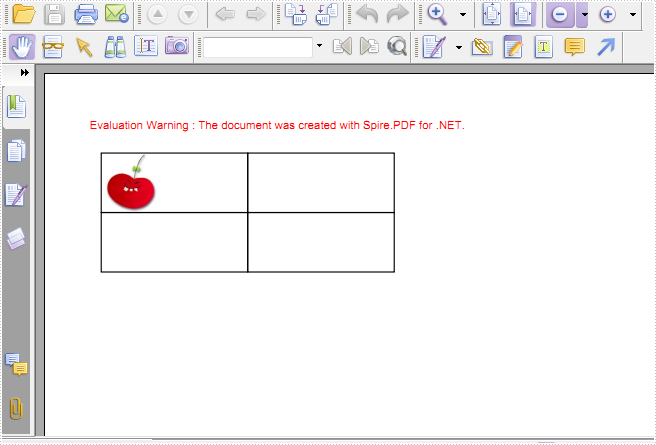
Step 2: Create a 2×2 grid to PDF.
PdfGrid grid = new PdfGrid();
PdfGridRow row = grid.Rows.Add();
           row = grid.Rows.Add();
                 grid.Columns.Add(2);
Step 3: Set the cell padding of the PDF grid.
grid.Style.CellPadding = new PdfPaddings(1, 1, 1, 1);
Step 4: Set the width of the columns.
float width = page.Canvas.ClientSize.Width - (grid.Columns.Count + 1);
      grid.Columns[0].Width = width * 0.25f;
      grid.Columns[1].Width = width * 0.25f;
Step 5: Load an image from disk.
PdfGridCellContentList lst = new PdfGridCellContentList();
PdfGridCellContent textAndStyle = new PdfGridCellContent();
textAndStyle.Image = PdfImage.FromFile("..\\..\\image1.jpg");
Step 6: Set the size of image and insert it to the first cell.
textAndStyle.ImageSize = new SizeF(50, 50);
lst.List.Add(textAndStyle);

grid.Rows[0].Cells[0].Value = lst;
grid.Rows[1].Height = grid.Rows[0].Height;
Step 7: Draw PDF grid into page at the specific location.
PdfLayoutResult result = grid.Draw(page, new PointF(10, 30));
Step 8: Save to a PDF file and launch the file.
doc.SaveToFile(outputFile, FileFormat.PDF);
System.Diagnostics.Process.Start(outputFile);
Result:
Full C# Code:
using Spire.Pdf;
using Spire.Pdf.Graphics;
using Spire.Pdf.Grid;
using System.Drawing;

namespace InsertImage
{
    class Program
    {
        static void Main(string[] args)
        {
            string outputFile = @"..\..\output.pdf";
            //Create a pdf document
            PdfDocument doc = new PdfDocument();
            //Add a page for the pdf document
            PdfPageBase page = doc.Pages.Add();
            //Create a pdf grid
            PdfGrid grid = new PdfGrid();
            //Set the cell padding of pdf grid
            grid.Style.CellPadding = new PdfPaddings(1, 1, 1, 1);
            //Add a row for pdf grid
            PdfGridRow row = grid.Rows.Add();
            //Add two columns for pdf grid
            grid.Columns.Add(2);
            float width = page.Canvas.ClientSize.Width - (grid.Columns.Count + 1);
            //Set the width of the first column
            grid.Columns[0].Width = width * 0.25f;
            grid.Columns[1].Width = width * 0.25f;
            //Add a image
            PdfGridCellContentList lst = new PdfGridCellContentList();
            PdfGridCellContent textAndStyle = new PdfGridCellContent();
            textAndStyle.Image = PdfImage.FromFile("..\\..\\image1.jpg");
            //Set the size of image
            textAndStyle.ImageSize = new SizeF(50, 50);
            lst.List.Add(textAndStyle);
            //Add a image into the first cell.
            row.Cells[0].Value = lst;
            //Draw pdf grid into page at the specific location
            PdfLayoutResult result = grid.Draw(page, new PointF(10, 30));
            //Save to a pdf file
            doc.SaveToFile(outputFile, FileFormat.PDF);
            System.Diagnostics.Process.Start(outputFile);
        }
    }
}
This section aims at providing developers a detail solution to set transparency for image in PDF file with C#, VB.NET via this PDF api Spire.PDF for .NET.
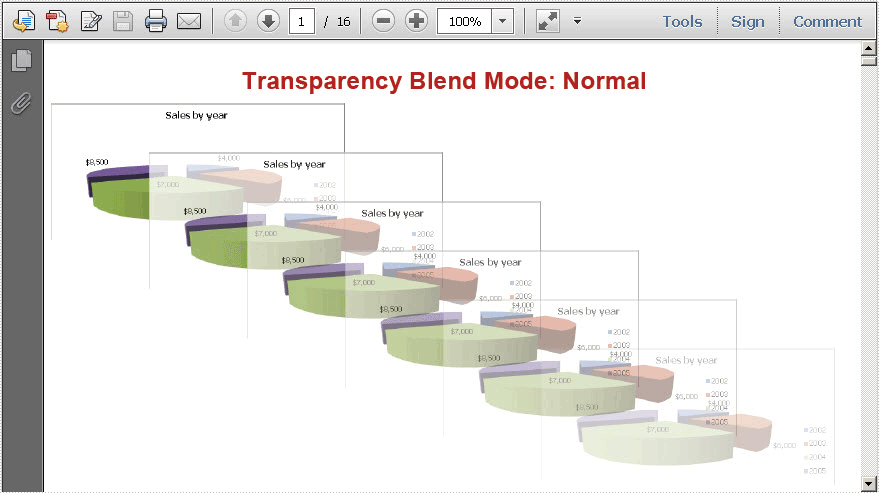
Spire.PDF for .NET enables you to set transparency for PDF image directly by utilizing one core method: Spire.Pdf.PdfPageBase.Canvas.SetTransparency(float alphaPen, float alphaBrush, PdfBlendMode blendMode); There are three parameters passed in this method. The first parameter is the alpha value for pen operations; while the second parameter is the alpha value for brush operations; and the last parameter is the blend mode. Now, let us see how to set PDF transparency step by step.
Set Transparency Images in PDF File
Step1: Prepare an image file
In my solution, I need create a new PDF file and insert an existing image file to PDF. Finally set transparency for this PDF image. So I prepare an image as below:

Step2: Download and Install Spire.PDF for .NET
Spire.PDF for .NET is a PDF component that enables developers to generate, read, edit and handle PDF files without Adobe Acrobat. Here you can download Spire.PDF for .NET and install it on system.
Step3: Start a new project and Add references
We can create a project either in Console Application or in Windows Forms Application, either in C# or in VB.NET. Here I use C# Console Application. Since we will use Spire.PDF for .NET, we need add Spire.Pdf.dll as reference. The default path is “..\Spire.PDF\Bin\NET4.0\ Spire.Pdf.dll”
Step 4: Set PDF transparency for PDF image
In this step, first, I initialize a new instance of the class Spire.Pdf.PdfDocument and add a section in the newly created PDF. Then, load the image I have already prepared to the PDF and set the PDF image size. Finally set transparency for this PDF image. When I set transparency, I add a title for the transparency and set position and format for it. After I save the image in PDF by calling this method: PdfPageBase.Canvas.DrawImage(PdfImage image, float x, float y, float width, float height).Then, by using this method: PdfPageBase.Canvas.SetTransparency(float alphaPen, float alphaBrush, PdfBlendMode blendMode); I successfully set transparency for this PDF image. Here we can see the whole code:
using Spire.Pdf;
using Spire.Pdf.Graphics;
using System;
using System.Drawing;

namespace SetTransparencyOfImage
{
    class Program
    {
        static void Main(string[] args)
        {
            //Initiate a new instance of PdfDocument
            PdfDocument doc = new PdfDocument();
            //Add one section to the PDF document
            PdfSection section = doc.Sections.Add();
            //Open Image File
            PdfImage image = PdfImage.FromFile(@"..\016.png");
            //Set the Image size in PDF file
            float imageWidth = image.PhysicalDimension.Width / 2;
            float imageHeight = image.PhysicalDimension.Height / 2;

            //Set PDF granphic transparency
            foreach (PdfBlendMode mode in Enum.GetValues(typeof(PdfBlendMode)))
            {
                PdfPageBase page = section.Pages.Add();
                float pageWidth = page.Canvas.ClientSize.Width;
                float y = 1;
                //Set transparency image title, title position and format
                y = y + 5;
                PdfBrush brush = new PdfSolidBrush(Color.Firebrick);
                PdfTrueTypeFont font = new PdfTrueTypeFont(new Font("Arial", 16f, FontStyle.Bold));
                PdfStringFormat format = new PdfStringFormat(PdfTextAlignment.Center);
                String text = String.Format("Transparency Blend Mode: {0}", mode);
                page.Canvas.DrawString(text, font, brush, pageWidth / 2, y, format);
                SizeF size = font.MeasureString(text, format);
                y = y + size.Height + 6;
                //write and save the image loaded into PDF
                page.Canvas.DrawImage(image, 0, y, imageWidth, imageHeight);
                page.Canvas.Save();
                //set left and top distance between graphic images
                float d = (page.Canvas.ClientSize.Width - imageWidth) / 5;
                float x = d;
                y = y + d / 2;
                for (int i = 0; i < 5; i++)
                {
                    float alpha = 1.0f / 6 * (5 - i);
                    //set transparency to be alpha
                    page.Canvas.SetTransparency(alpha, alpha, mode);
                    //draw transparency images for the original PDF image
                    page.Canvas.DrawImage(image, x, y, imageWidth, imageHeight);
                    x = x + d;
                    y = y + d / 2;
                }
                page.Canvas.Restore();
            }
            //Save pdf file.
            doc.SaveToFile("Transparency.pdf");
            doc.Close();
            //Launching the Pdf file.
            System.Diagnostics.Process.Start("Transparency.pdf");
        }
    }
}
Imports Spire.Pdf
Imports Spire.Pdf.Graphics
Imports System.Drawing

Namespace SetTransparencyOfImage
	Class Program
		Private Shared Sub Main(args As String())
			'Initiate a new instance of PdfDocument
			Dim doc As New PdfDocument()
			'Add one section to the PDF document
			Dim section As PdfSection = doc.Sections.Add()
			'Open Image File
			Dim image As PdfImage = PdfImage.FromFile("..\016.png")
			'Set the Image size in PDF file
			Dim imageWidth As Single = image.PhysicalDimension.Width / 2
			Dim imageHeight As Single = image.PhysicalDimension.Height / 2

			'Set PDF granphic transparency
			For Each mode As PdfBlendMode In [Enum].GetValues(GetType(PdfBlendMode))
				Dim page As PdfPageBase = section.Pages.Add()
				Dim pageWidth As Single = page.Canvas.ClientSize.Width
				Dim y As Single = 1
				'Set transparency image title, title position and format
				y = y + 5
				Dim brush As PdfBrush = New PdfSolidBrush(Color.Firebrick)
				Dim font As New PdfTrueTypeFont(New Font("Arial", 16F, FontStyle.Bold))
				Dim format As New PdfStringFormat(PdfTextAlignment.Center)
				Dim text As [String] = [String].Format("Transparency Blend Mode: {0}", mode)
				page.Canvas.DrawString(text, font, brush, pageWidth / 2, y, format)
				Dim size As SizeF = font.MeasureString(text, format)
				y = y + size.Height + 6
				'write and save the image loaded into PDF
				page.Canvas.DrawImage(image, 0, y, imageWidth, imageHeight)
				page.Canvas.Save()
				'set left and top distance between graphic images
				Dim d As Single = (page.Canvas.ClientSize.Width - imageWidth) / 5
				Dim x As Single = d
				y = y + d / 2
				For i As Integer = 0 To 4
					Dim alpha As Single = 1F / 6 * (5 - i)
					'set transparency to be alpha
					page.Canvas.SetTransparency(alpha, alpha, mode)
					'draw transparency images for the original PDF image
					page.Canvas.DrawImage(image, x, y, imageWidth, imageHeight)
					x = x + d
					y = y + d / 2
				Next
				page.Canvas.Restore()
			Next
			'Save pdf file.
			doc.SaveToFile("Transparency.pdf")
			doc.Close()
			'Launching the Pdf file.
			System.Diagnostics.Process.Start("Transparency.pdf")
		End Sub
	End Class
End Namespace
Result Task
After performing above code, we can see the result PDF document as below:
I have set transparency for PDF image by Spire.PDF for .NET. I sincerely wish it can help you. We e-iceblue team appreciate any kind of queries, comments and advice at E-iceblue Forum. Our professionals are ready to reply you as quick as possible.
Spire.PDF for .NET is a PDF library that meets customers need with fast speed and high efficiency.
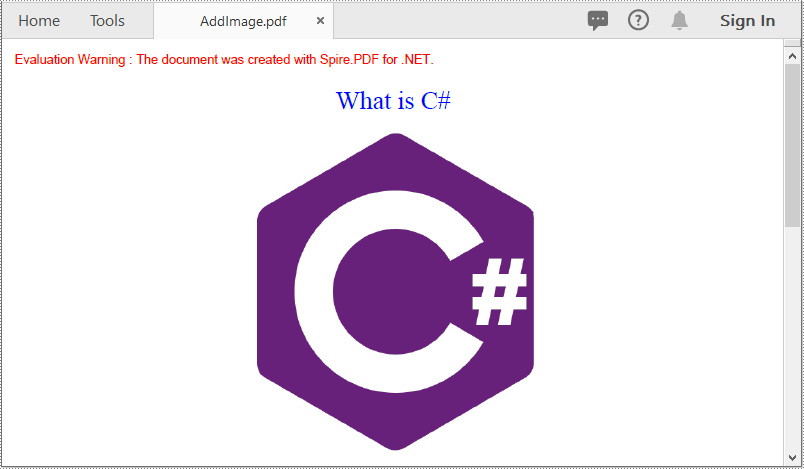
Compared with text-only documents, documents containing images are undoubtedly more vivid and engaging to readers. When generating or editing a PDF document, you may sometimes need to insert images to improve its appearance and make it more appealing. In this article, you will learn how to insert, replace or delete images in PDF documents in C# and VB.NET using Spire.PDF for .NET.
- Insert an Image into a PDF Document
- Replace an Image with Another Image in a PDF Document
- Delete a Specific Image in a PDF Document
Install Spire.PDF for .NET
To begin with, you need to add the DLL files included in the Spire.PDF for.NET package as references in your .NET project. The DLL files can be either downloaded from this link or installed via NuGet.
PM> Install-Package Spire.PDF
Insert an Image into a PDF Document in C# and VB.NET
The following steps demonstrate how to insert an image into an existing PDF document:
- Initialize an instance of the PdfDocument class.
- Load a PDF document using PdfDocument.LoadFromFile() method.
- Get the desired page in the PDF document through PdfDocument.Pages[pageIndex] property.
- Load an image using PdfImage.FromFile() method.
- Specify the width and height of the image area on the page.
- Specify the X and Y coordinates to start drawing the image.
- Draw the image on the page using PdfPageBase.Canvas.DrawImage() method.
- Save the result document using PdfDocument.SaveToFile() method.
- C#
- VB.NET
using Spire.Pdf;
using Spire.Pdf.Graphics;

namespace InsertImage
{
    class Program
    {
        static void Main(string[] args)
        {
            //Create a PdfDocument instance
            PdfDocument pdf = new PdfDocument();
            pdf.LoadFromFile("Input.pdf");

            //Get the first page in the PDF document
            PdfPageBase page = pdf.Pages[0];

            //Load an image
            PdfImage image = PdfImage.FromFile("image.jpg");

            //Specify the width and height of the image area on the page
            float width = image.Width * 0.50f;
            float height = image.Height * 0.50f;

            //Specify the X and Y coordinates to start drawing the image
            float x = 180f;
            float y = 70f;

            //Draw the image at a specified location on the page
            page.Canvas.DrawImage(image, x, y, width, height);

            //Save the result document
            pdf.SaveToFile("AddImage.pdf", FileFormat.PDF);
        }
    }
}
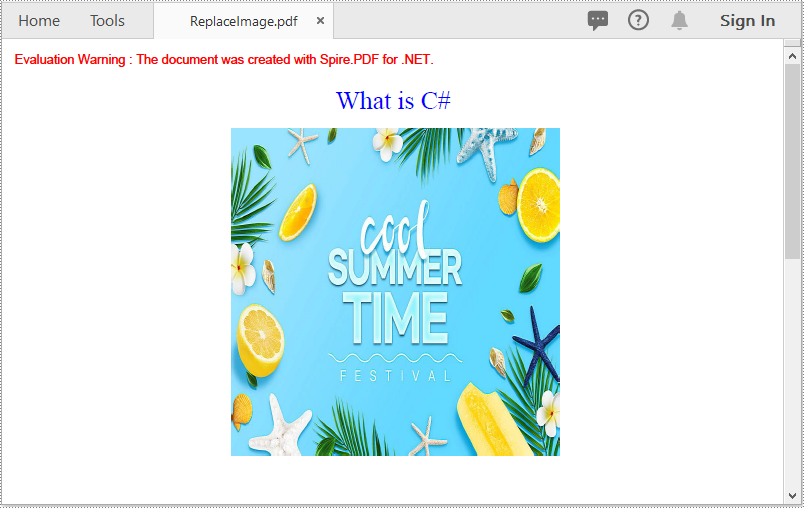
Replace an Image with Another Image in a PDF Document in C# and VB.NET
The following steps demonstrate how to replace an image with another image in a PDF document:
- Initialize an instance of the PdfDocument class.
- Load a PDF document using PdfDocument.LoadFromFile() method.
- Get the desired page in the PDF document through PdfDocument.Pages[pageIndex] property.
- Load an image using PdfImage.FromFile() method.
- Initialize an instance of the PdfImageHelper class.
- Get the image information from the page using PdfImageHelper.GetImagesInfo() method.
- Replace a specific image on the page with the loaded image using PdfImageHelper.ReplaceImage() method.
- Save the result document using PdfDocument.SaveToFile() method.
- C#
- VB.NET
using Spire.Pdf;
using Spire.Pdf.Graphics;
using Spire.Pdf.Utilities;

namespace ReplaceImage
{
    class Program
    {
        static void Main(string[] args)
        {
            //Create a PdfDocument instance
            PdfDocument doc = new PdfDocument();
            //Load a PDF document
            doc.LoadFromFile("AddImage.pdf");

            //Get the first page
            PdfPageBase page = doc.Pages[0];

            //Load an image
            PdfImage image = PdfImage.FromFile("image1.jpg");

            //Create a PdfImageHelper instance
            PdfImageHelper imageHelper = new PdfImageHelper();
            //Get the image information from the page
            PdfImageInfo[] imageInfo = imageHelper.GetImagesInfo(page);
            //Replace the first image on the page with the loaded image
            imageHelper.ReplaceImage(imageInfo[0], image);

            //Save the result document
            doc.SaveToFile("ReplaceImage.pdf", FileFormat.PDF);
        }
    }
}
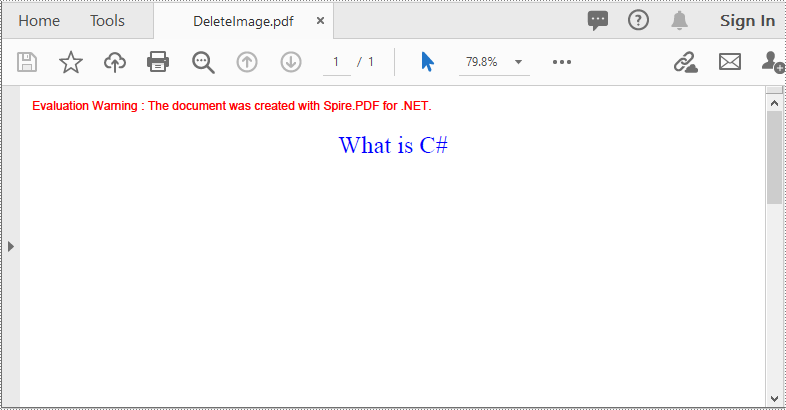
Delete a Specific Image in a PDF Document in C# and VB.NET
The following steps demonstrate how to delete an image from a PDF document:
- Initialize an instance of the PdfDocument class.
- Load a PDF document using PdfDocument.LoadFromFile() method.
- Get the desired page in the PDF document through PdfDocument.Pages[pageIndex] property.
- Delete a specific image on the page using PdfPageBase.DeleteImage() method.
- Save the result document using PdfDocument.SaveToFile() method.
- C#
- VB.NET
using Spire.Pdf;

namespace DeleteImage
{
    class Program
    {
        static void Main(string[] args)
        {
            //Create a PdfDocument instance
            PdfDocument pdf = new PdfDocument();
            //Load a PDF document
            pdf.LoadFromFile("AddImage.pdf");

            //Get the first page
            PdfPageBase page = pdf.Pages[0];

            //Delete the first image on the page
            PdfImageHelper imageHelper = new PdfImageHelper();
            PdfImageInfo[] imageInfos = imageHelper.GetImagesInfo(pdf.Pages[0]);
            for (int i = 0; i < imageInfos.Length; i++)
            { imageHelper.DeleteImage(imageInfos[i], true); }

            //Save the result document
            pdf.SaveToFile("DeleteImage.pdf", FileFormat.PDF);
        }
    }
}
Apply for a Temporary License
If you'd like to remove the evaluation message from the generated documents, or to get rid of the function limitations, please request a 30-day trial license for yourself.
