
Knowledgebase (2412)
Children categories
Mail Merge is a powerful feature in Microsoft Word that allows you to create multiple documents such as letters, labels, envelopes, and even e-mails from a single template document and a data source. It's particularly useful for tasks like sending personalized correspondence to a large number of recipients without having to write each letter individually.
In this article, you will learn how to perform a mail merge in a Word document using Spire.Doc for .NET.
- Understanding the Components of Mail Merge
- Create a Template Word Document
- Simple Mail Merge in a Word Document
- Mail Merge with a Region
- Mail Merge with Nested Regions
Install Spire.Doc for .NET
To begin with, you need to add the DLL files included in the Spire.Doc for .NET package as references in your .NET project. The DLL files can be either downloaded from this link or installed via NuGet.
PM> Install-Package Spire.Doc
Understanding the Components of Mail Merge
- Main Document: This is the template file where you design your letter, label, or other types of documents with placeholders (also known as merge fields) that will be filled in by data from the data source.
- Data Source: This is the spreadsheet or database containing the information you want to use to populate your main document. It can be an Excel sheet, Access database, CSV file, XML file or even a simple text file.
- Merge Fields: These are placeholders in the main document that will be replaced with data from the corresponding record in the data source.
Create a Template Word Document
To generate a template Word document with merge fields, it’s recommended that you use Word editors such as Microsoft Word. The visual interface of the Word editor allows you to design a unique layout, formatting, and other elements interactively for your template.
The following screenshot shows the addition of merge fields to a Word document using MS Word. Remember to use the "Image:FieldName" format if you want to merge an image into a merge field.
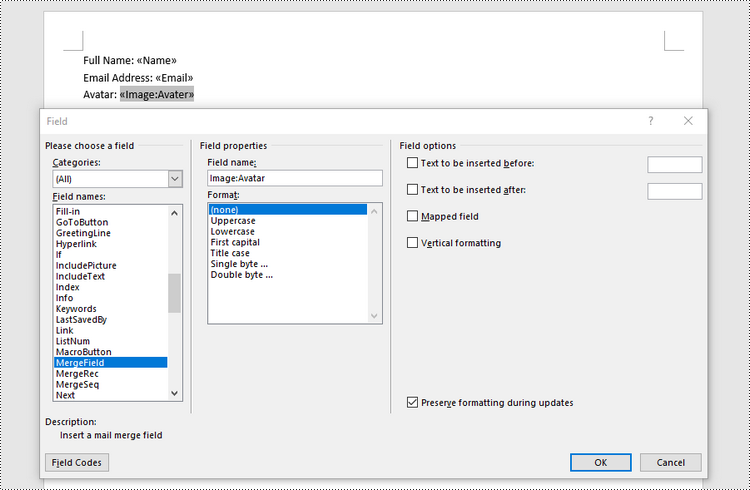
If you wish to create a template Word document using C# code, you can follow these steps.
- Create a Document object.
- Add a section.
- Add a paragraph to the section.
- Add merge fields to the paragraph using Paragraph.AppendField() method.
- Save the document to a Word file.
- C#
using Spire.Doc;
using Spire.Doc.Documents;

namespace CreateTemplate
{
    class Program
    {
        static void Main(string[] args)
        {
            // Create a Document object
            Document document = new Document();

            // Add a section
            Section section = document.AddSection();

            // Add a paragraph
            Paragraph paragraph = section.AddParagraph();

            // Add text and mail merge fields to the paragraph
            paragraph.AppendText("Full Name: ");
            paragraph.AppendField("Name", FieldType.FieldMergeField);
            paragraph.AppendBreak(BreakType.LineBreak);
            paragraph.AppendText("Email Address: ");
            paragraph.AppendField("Email", FieldType.FieldMergeField);
            paragraph.AppendBreak(BreakType.LineBreak);
            paragraph.AppendText("Avatar: ");
            paragraph.AppendField("Image:Avatar", FieldType.FieldMergeField);

            // Save the document
            document.SaveToFile("Template.docx", FileFormat.Docx2019);

            // Dispose resources
            document.Dispose();
        }
    }
}
Simple Mail Merge in a Word Document
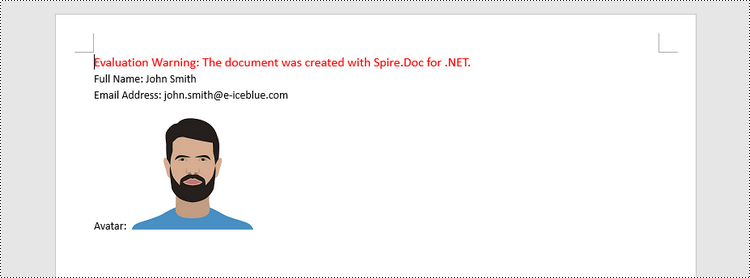
Spire.Doc offers the MailMerge.Execute() method to perform the specified mail merge operation in a Word document. This method has 6 overloads allowing users to perform a mail merge from different data sources, such as DataTable, DataView, and string arrays.
The steps to perform a mail merge using data provided in arrays are as follows.
- Create a Document object.
- Load a template Word document from a specified file path.
- Define an array to hold the field names.
- Define an array to hold the values that will be used to fill the fields
- Mail merge data into the fields using MailMerge.Execute() method.
- Save the document to a different Word file.
- C#
using Spire.Doc;
using Spire.Doc.Reporting;
using System.Drawing;

namespace MailMergeInDocument
{
    class Program
    {
        static void Main(string[] args)
        {
            // Create a Document object
            Document document = new Document();

            // Load the template Word document
            document.LoadFromFile("C:\\Users\\Administrator\\Desktop\\Template.docx");

            // Specify field names
            String[] fieldNames = {

                "Name",
                "Email",
                "Avatar"
            };

            // Specify values that'll be used to fill the fields
            String[] fieldValues = {

                "John Smith",
                "john.smith@e-iceblue.com",
                "C:\\Users\\Administrator\\Desktop\\avatar.png"
            };

            // Register an event which occurs when merging the image filed
            document.MailMerge.MergeImageField += new MergeImageFieldEventHandler(MailMerge_MergeImageField);

            // Mail merge data to the document
            document.MailMerge.Execute(fieldNames, fieldValues);

            // Save the document
            document.SaveToFile("MailMerge.docx", FileFormat.Docx2019);

            // Dispose resources
            document.Dispose();
        }

        // Fill an image field with a picture
        private static void MailMerge_MergeImageField(object sender, MergeImageFieldEventArgs field)
        {
            string filePath = field.FieldValue as string;

            if (!string.IsNullOrEmpty(filePath))
            {
                field.Image = Image.FromFile(filePath);
            }
        }
    }
}
Mail Merge with a Region
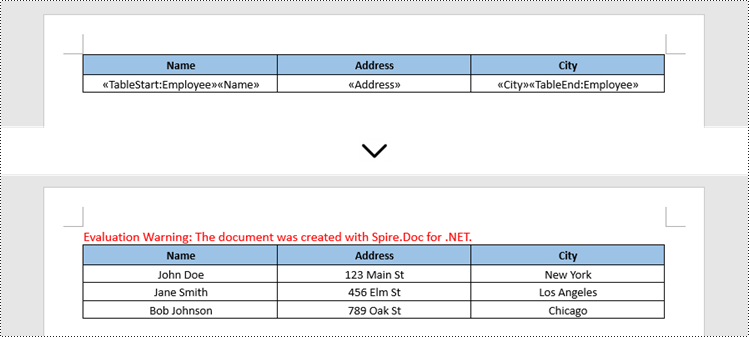
A region refers to a specific area within a document where you want to insert data from your data source. Mail Merge will repeat that region for each record in the data source. Spire.Doc offers the MailMerge.ExecuteWidthRegion() method to execute mail merge with a region.
The steps to perform a mail merge with a region using the data provided by a DataTable are as follows.
- Create a Document object.
- Load a template Word document from a specified file path.
- Create a DataTable object, which will be used as the data source.
- Execute mail merge with the region using MailMerge.ExecuteWidthRegion() method.
- Save the document to a different Word file.
- C#
using Spire.Doc;
using System.Data;

namespace MailMergeWithGroup
{
    class Program
    {
        static void Main(string[] args)
        {

            // Create a Document object
            Document document = new Document();

            // Load a template Word document
            document.LoadFromFile("C:\\Users\\Administrator\\Desktop\\Template.docx");

            // Create a datatable, specifying table name
            DataTable table = new DataTable("Employee");

            // Add sample data to table
            table.Columns.Add("Name");
            table.Columns.Add("Address");
            table.Columns.Add("City");
            table.Rows.Add("John Doe", "123 Main St", "New York");
            table.Rows.Add("Jane Smith", "456 Elm St", "Los Angeles");
            table.Rows.Add("Bob Johnson", "789 Oak St", "Chicago");

            // Mail merge within the region
            document.MailMerge.ExecuteWidthRegion(table);

            // Save the document
            document.SaveToFile("MailMergeWithRegion.docx", FileFormat.Docx2019);

            // Dispose resources
            document.Dispose();
        }
    }
}
Mail Merge with Nested Regions
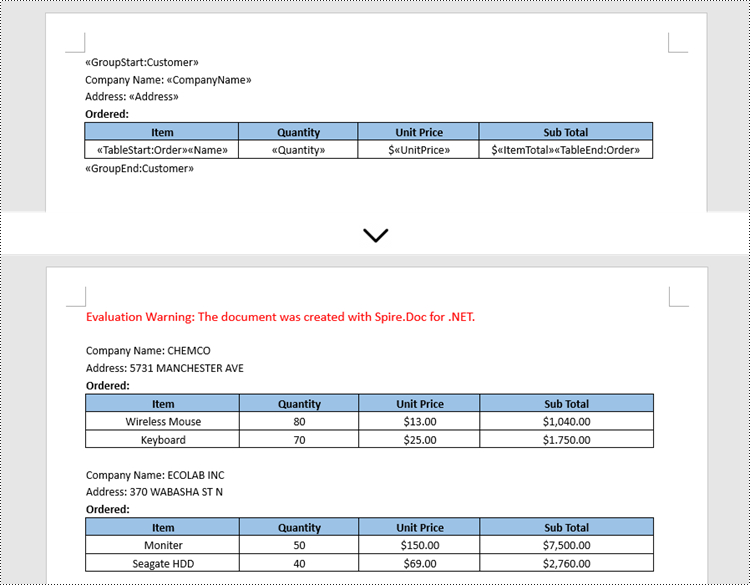
Mail merge for nested groups works by replacing merge fields within nested regions with data that is organized in a hierarchical structure. Nested regions allow you to create more complex layouts where the content of one region depends on the data in another region.
The steps to perform a mail merge with nested regions using the data from an XML file are as follows.
- Create a Document object.
- Load a template Word document from a specified file path.
- Read data from an XML file to a DataSet object.
- Create a List<DictionaryEntry> object to store the merge field information.
- Create DicitionaryEntry objects and add them to the list, which specify the merge field names and associated expressions.
- Execute mail merge with the nested regions using MailMerge.ExecuteWidthNestedRegion() method.
- Save the document to a different Word file.
- C#
using Spire.Doc;
using System.Collections;
using System.Data;

namespace MailMergeWithNestedRegions
{
    class Program
    {
        static void Main(string[] args)
        {
            // Create a Document object
            Document document = new Document();

            // Load a template Word document
            document.LoadFromFile("C:\\Users\\Administrator\\Desktop\\Template.docx");

            // Read data from an XML file to a DataSet object
            DataSet dataSet = new DataSet();
            dataSet.ReadXml("C:\\Users\\Administrator\\Desktop\\Orders.xml");

            // Create a List object to store the merge field information
            List list = new List();

            // Create two DicitionaryEntry objects and add them to the list (each object specifies the merge field name and associated expression)
            DictionaryEntry dictionaryEntry = new DictionaryEntry("Customer", string.Empty);
            list.Add(dictionaryEntry);

            dictionaryEntry = new DictionaryEntry("Order", "Customer_Id = %Customer.Customer_Id%");
            list.Add(dictionaryEntry);

            // Perform the mail merge operation with the nested region
            document.MailMerge.ExecuteWidthNestedRegion(dataSet, list);

            // Save to file
            document.SaveToFile("MailMergeWithNestedRegions.docx", FileFormat.Docx2019);

            // Dispose resources
            document.Dispose();
        }
    }
}
Apply for a Temporary License
If you'd like to remove the evaluation message from the generated documents, or to get rid of the function limitations, please request a 30-day trial license for yourself.
Test Scenario
- Time cost when Export an Word/Excel file
- Time cost when batch Export Word/Excel files
- Output File Size
Test Environment
- O/S: Microsoft Windows XP Service Pack 3
- CPU: Intel Celeron E3300
- Mainboard: ECS G31T-M9
- RAM: Geil CL5-5-5 DDR2 800 2GB
- Graphics: Intel Chipset – Integrated Graphics 0[ECS EliteGroup Computer]
- HDD: Seagate ST3500418AS
- Office: Office Automation via Office 2003 and Spire.Office for .NET
- Test Data Source Files Info:
Rows Columns File 1 20 5 File 2 55 15 File 3 43 7 File 4 60 8 File 5 5000 7
Test Result
Export Data to Word
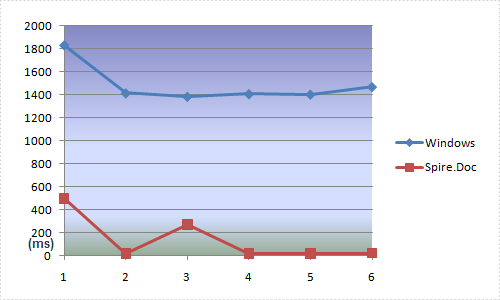
When export a single Word file document, Office OLE Automation is much slower than Spire.Doc. From the result above we can see that Spire.Doc only need about 20ms and Office need at least add 1000ms.
Batch Export Word Files
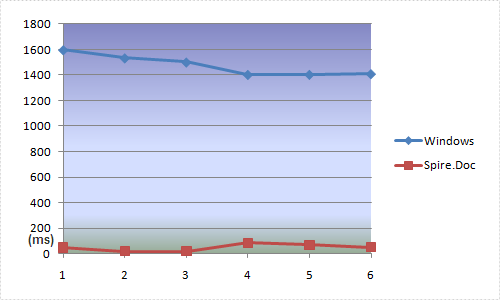
When batch export 10 Word file documents, Spire.Doc need some more time but it is still much faster.
Export Single Word File Output Size
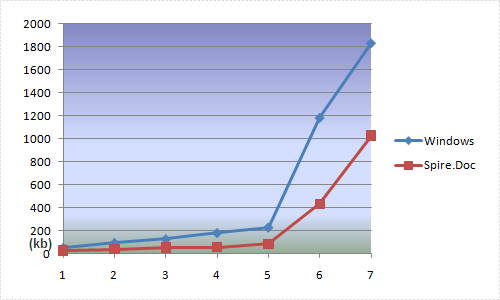
The exported output Word document file size created by Spire.Doc is much smaller than which created by Office OLE Automation.
Export Data to Excel
Export an Excel File
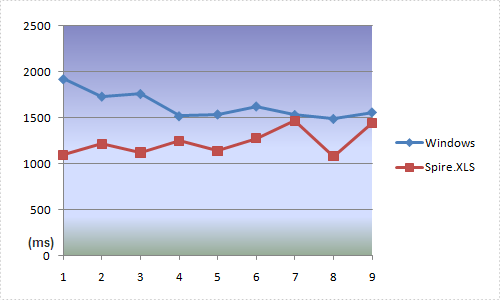
When export a single Excel file, Spire.XLS is faster than Office OLE Automation. We tested 9 times and the average time (Spire.XLS,1233ms; Office,1633ms) shows Spire.XLS is about 1/3 faster.
Batch Export Excel Files (10 Files)
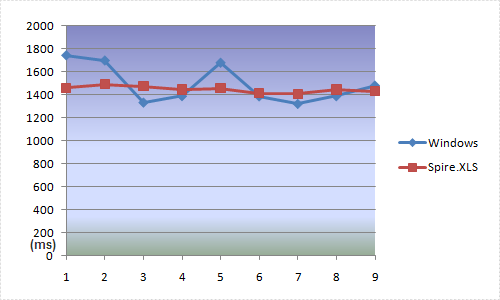
Batch export 10 Excel files and from the Chart above we can see Spire.XLS and Office OLE Automation spend almost the same time.
PS: Office OLE Automation Excel will ask you whether overlap the same name files or not, which may reduce export speed. Spire.XLS for .NET enables you set up to ignore this hint.
Export Single Excel File Output Size
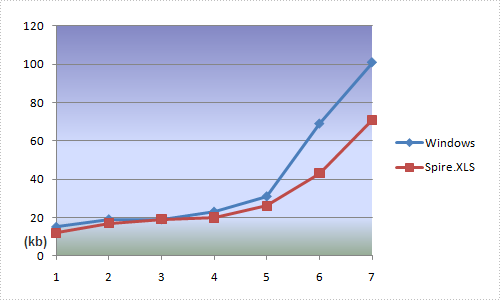
After exporting data to Excel, we can see the output file size from the above chart for both Office and Spire.XLS. The result shows it's really a small difference between them.
PS: When we test large content data on exporting through Office OLE automation, the test PC would stop working. It took all of the CPU usage and need more than 10 minutes to return normal. Furthermore, it stored the Excel/Word process in RAM which needs manual operation or program to finish. That's really a trouble for non-professional.
The sample demonstrates how to split one PDF document to multiple PDF documents.
(NO screenshot)
