
Spire.Agent.Office (13)
Bidirectional PPT Aspect Ratio Conversion with Spire.Agent.Office
2026-08-20 06:48:40 Written by Lisa LiBefore a presentation, the aspect ratio of a PPT often needs to be unified — some meeting screens are 4:3 standard while some projectors are 16:9 widescreen. This requires bidirectional layout conversion, and during the conversion the font sizes and image positions must be adjusted automatically so the content displays correctly with no text overflow or misplaced images. This article shows how to use the Spire.Agent.Office PowerPoint AI capability to batch-convert PowerPoint presentations between the 4:3 standard ratio and the 16:9 widescreen ratio.
Comparison with the Traditional SDK API
| Traditional Spire.Office for .NET API | Spire.Agent.Office Processing | |
|---|---|---|
| Driving approach | Hard-coded API calls | 1 natural-language instruction |
| Requirement changes | Requirement changes require modifying the code and redeploying | When requirements change, just modify the instruction text without recompiling the code |
For product installation and SpireToken configuration, please refer to Integrating Spire.Agent.Office in a .NET Project. The examples below assume Spire.Agent.Office is already installed and SpireToken is configured.
Convert 4:3 Standard to 16:9 Widescreen
The content structure, theme, and color scheme of every slide remain unchanged; font sizes and image positions are automatically adapted to the widescreen canvas, and multi-page PPTs are converted in one pass.
using Spire.Agent.Office.AI;
using Spire.Agent.Office.Extensions;
using Spire.Presentation;

// PowerPoint AI processing configuration
string inputPath = @"ratio_43.pptx";
string savePath = @"output.pptx";
// SpireToken Key
string key = "**************************";
string instruction = "Read the input PowerPoint presentation and batch-convert it from 4:3 standard aspect ratio to 16:9 widescreen";
AIResult result = ExecuteDemoPpt(instruction, inputPath, savePath, key);

// Execute PowerPoint document AI processing
static AIResult ExecuteDemoPpt(string instruction, string inputPath, string savePath, string key)
{
    // Create an AIOptions configuration object
    AIOptions options = new AIOptions();
    options.SpireToken = key;

    // Use the Presentation object to process the PowerPoint document
    using (Presentation ppt = new Presentation())
    {
        // Load the PPT from the file
        if (!string.IsNullOrEmpty(inputPath) && File.Exists(inputPath))
        {
            ppt.LoadFromFile(inputPath);
        }
        // Create an AI document processor
        AIDocumentProcessor processor = ppt.AI(options);

        // Execute the AI instruction
        return processor.ExecuteInstruction(ppt, instruction, savePath);
    }
}
Original 4:3 standard PPT 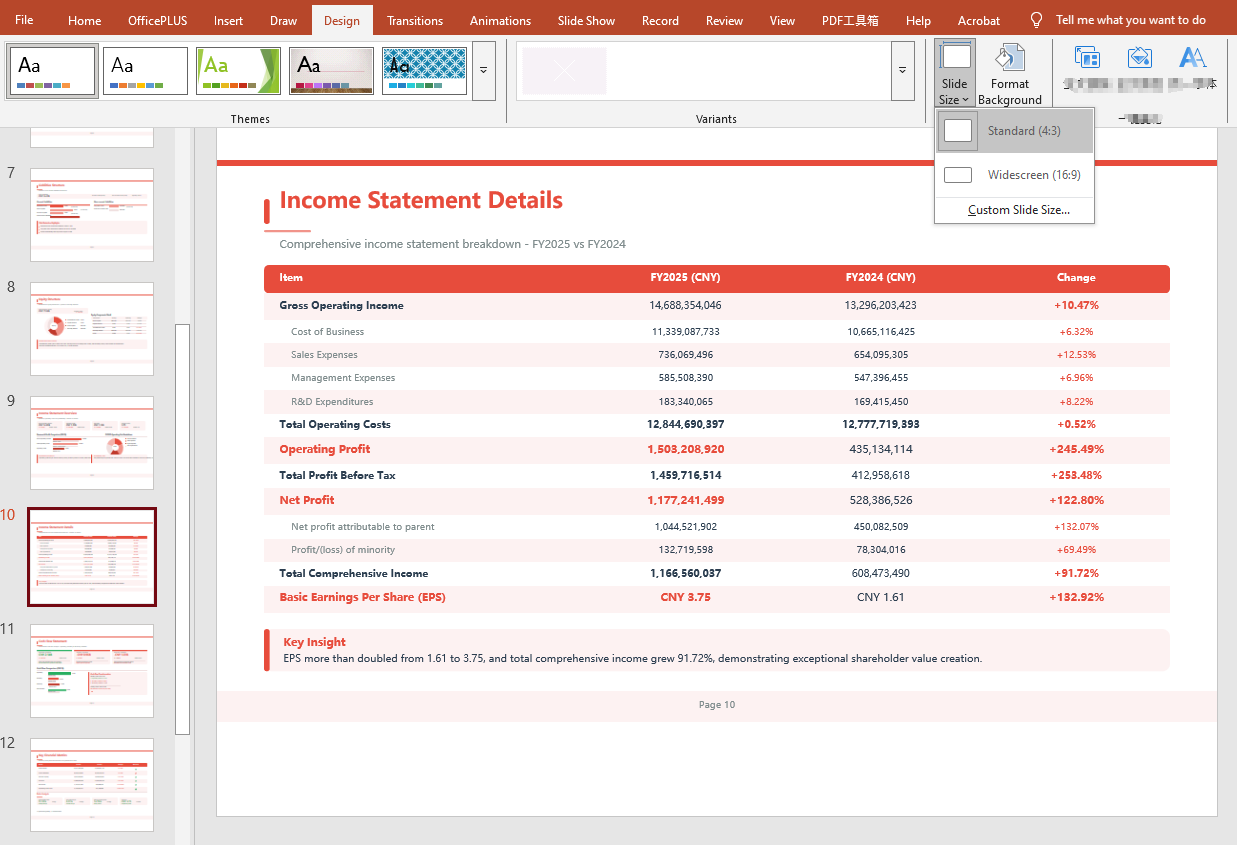 Converted 16:9 widescreen PPT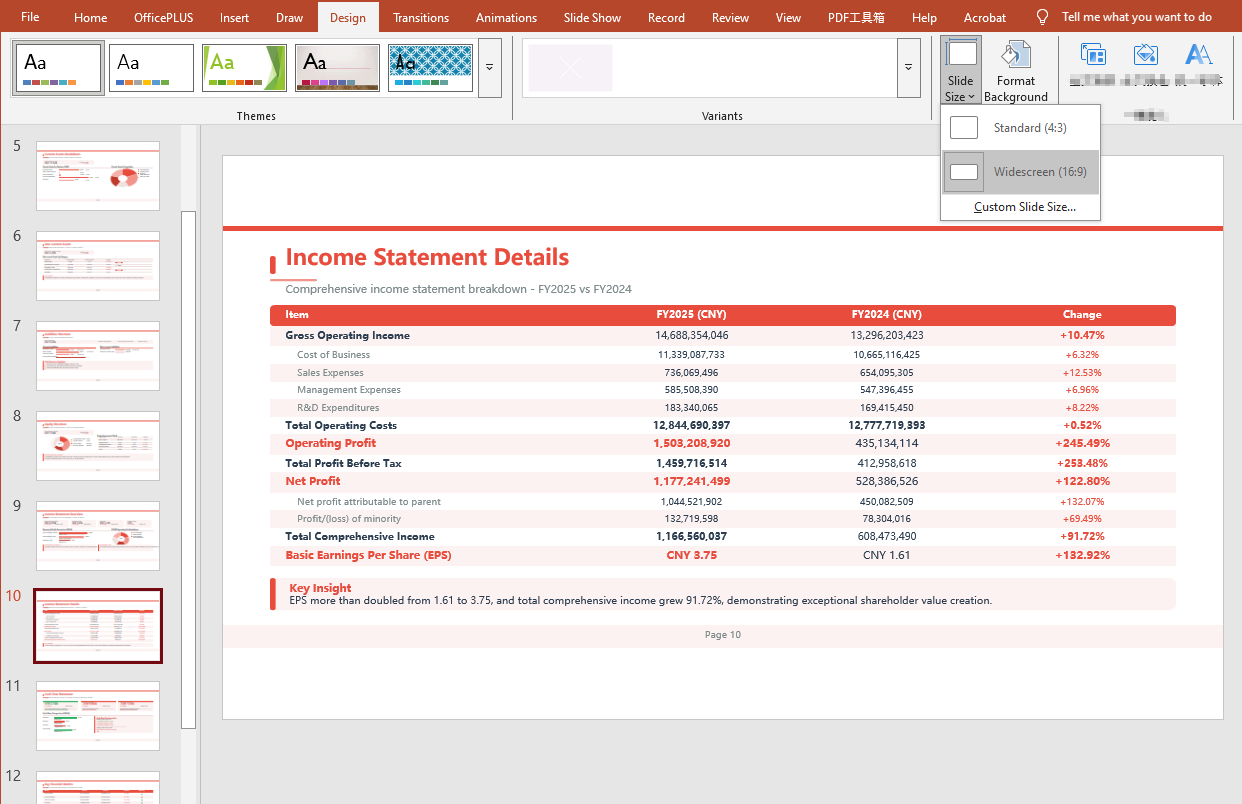
Convert 16:9 Widescreen to 4:3 Standard
using Spire.Agent.Office.AI;
using Spire.Agent.Office.Extensions;
using Spire.Presentation;

// PowerPoint AI processing configuration
string inputPath = @"ratio_169.pptx";
string savePath = @"output.pptx";
// SpireToken Key
string key = "**************************";
string instruction ="Read the input PowerPoint presentation and batch-convert it from 16:9 widescreen aspect ratio to 4:3 standard";

// Call the PowerPoint document processing function
AIResult result = ExecuteDemoPpt(instruction, inputPath, savePath, key);

// Execute PowerPoint document AI processing (the same helper function as above)
static AIResult ExecuteDemoPpt(string instruction, string inputPath, string savePath, string key)
{
    AIOptions options = new AIOptions();
    options.SpireToken = key;

    using (Presentation ppt = new Presentation())
    {
        if (!string.IsNullOrEmpty(inputPath) && File.Exists(inputPath))
        {
            ppt.LoadFromFile(inputPath);
        }
        AIDocumentProcessor processor = ppt.AI(options);
        return processor.ExecuteInstruction(ppt, instruction, savePath);
    }
}
Original 16:9 widescreen PPT 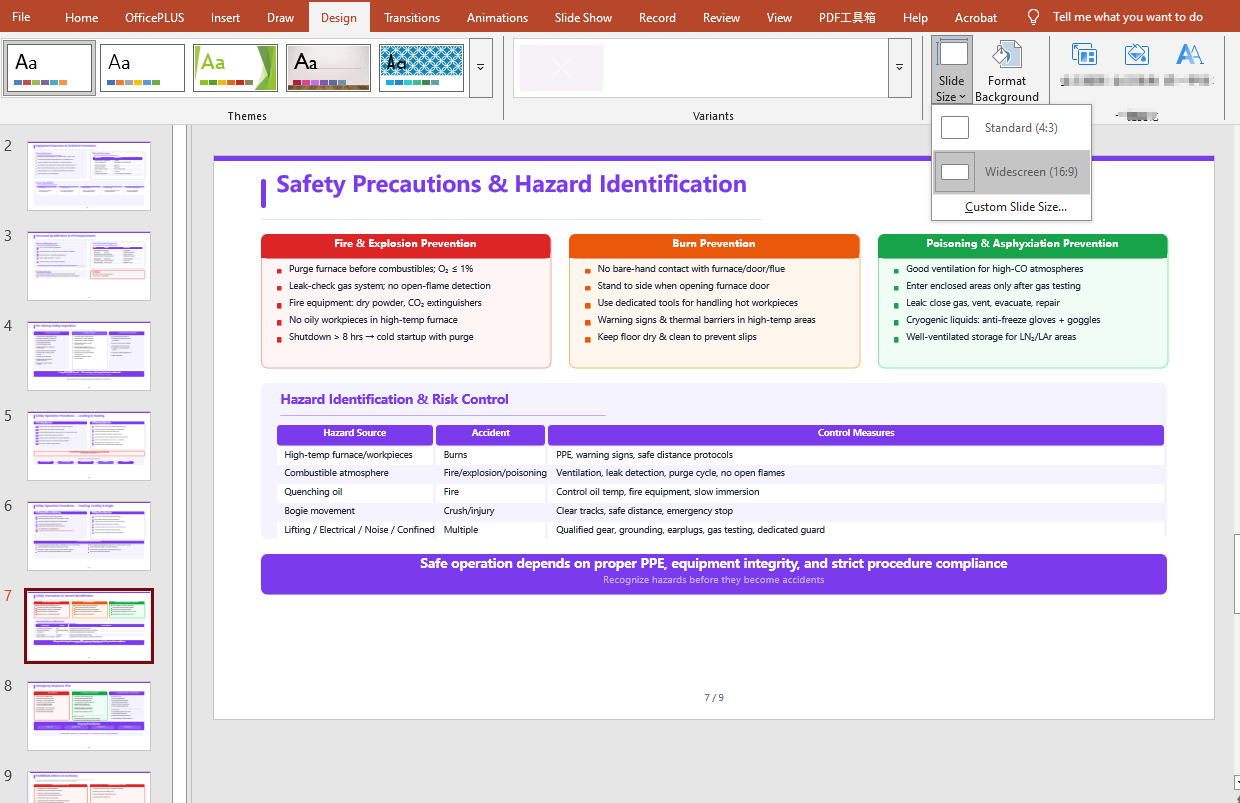 Converted 4:3 standard PPT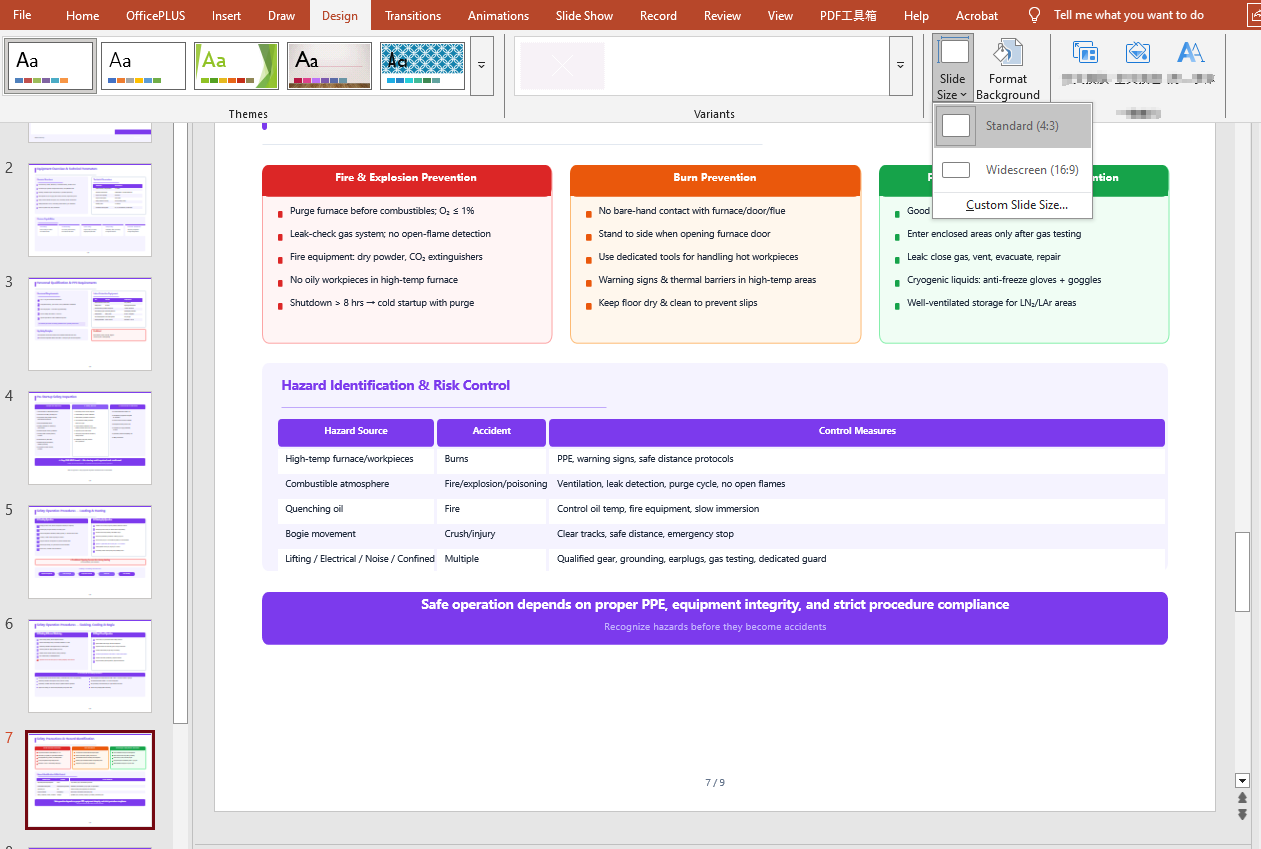
FAQ
Result document pages are missing
Cause: If the original document has many pages, the AI analysis can take a relatively long time. The default timeout setting of AIOptions.TimeoutMs is 5 minutes; if it is exceeded, the AI analysis is interrupted.
Solution: Set a sufficiently large AIOptions.TimeoutMs, for example:
 AIOptions options = new AIOptions();
    options.TimeoutMs = 1000000;
Get a SpireToken Key
- Contact sales@e-iceblue.com or visit https://www.e-iceblue.com/TemLicense.html to get a trial/commercial API key
Configure it in code:
AIOptions options = new AIOptions();
options.SpireToken = key;
Intelligent Textbook Analysis and Automated Word Lesson Plan Generation with Spire.Agent.Office
2026-08-19 09:53:52 Written by Nina TangIn teaching work, lesson preparation is the most time-consuming and skill-demanding task for every teacher. When you receive a textbook, you need to read through each chapter and section, distill core knowledge points, organize the knowledge logic, and then design teaching objectives, determine teaching key and difficult points, arrange the complete teaching process of introduction — new teaching — consolidation — summary, and finally compile it into a standardized lesson plan. A complete lesson plan often takes several hours, and different teachers vary greatly in analysis depth and lesson plan structure, making it difficult to ensure consistent quality.
Comparison with Traditional SDK API Processing
| Traditional Spire.Office for .NET API | Spire.Agent.Office | |
|---|---|---|
| Driving approach | Write code to parse the textbook paragraph by paragraph: load document → iterate paragraphs → extract keywords → manually assemble the lesson plan; every step requires code control | Describe the parsing and generation goals in natural language, and AI automatically understands the textbook and generates the lesson plan |
| Code volume | Requires a large amount of code to maintain the knowledge point library, paragraph classification rules, and lesson plan template logic | Only configuration code + 1 natural language instruction |
| Lesson plan structure | Teaching objectives, key/difficult points, and teaching process must each be hard-coded with a set of generation logic | AI automatically generates a structurally complete lesson plan according to subject standards |
| Textbook understanding | Can only match mechanically by keywords, unable to understand the relationships and hierarchy between knowledge points | AI understands the textbook based on semantics, extracting chapter themes, test points, and teaching suggestions |
| Maintainability | Different subjects and textbook versions require separate development and maintenance | The analysis scope and lesson plan style can be adjusted at any time in natural language |
This article explains how to use the Word AI capability of Spire.Agent.Office to analyze textbooks and automatically generate lesson plans. Together, they form a complete lesson preparation pipeline: first use AI to parse the textbook PDF, organize unit key points and key/difficult points, then generate a standardized, content-complete lesson plan based on the analysis results.
For product installation and SpireToken configuration, refer to Integrating Spire.Agent.Office in a .NET Project. The examples below assume Spire.Agent.Office is installed and SpireToken is configured.
Intelligent Textbook Analysis
Intelligent textbook analysis is the starting point of the entire lesson preparation workflow, suitable for quickly establishing an overall understanding of the textbook before reading the whole book. The core idea is: pass the electronic textbook PDF as an attachment, let AI parse the textbook content, organize the core knowledge, key and difficult points, learning suggestions, and the connections between chapters according to the chapters, and generate a Word unit textbook analysis document. Teachers can use it to complete unit teaching planning, and subsequent lesson plan generation is also based on it.
using Spire.Agent.Office.AI;
using Spire.Agent.Office.Extensions;
using Spire.Doc;

// Textbook PDF (multiple chapters can be passed in)
string[] attachments = new string[] {
    "E:\\Input\\Textbook-Rational_Numbers.pdf",
    "E:\\Input\\Textbook-Addition_and_Subtraction_of_Algebraic_Expressions.pdf",
    "E:\\Input\\Textbook-Linear_Equations_in_One_Variable.pdf"
};
// Save path
string savePath = "E:\\Output\\Textbook_Analysis.docx";
// SpireToken Key
string key = "**********************";
// Natural language instruction
string instruction =
    "Please analyze the textbook content in the attached PDFs, and from the perspective of a lesson-preparing teacher, help me organize a textbook analysis suitable for daily lesson preparation.\n" +
    "For each chapter, explain the chapter's core knowledge content, teaching key and difficult points, and recommended class hours.\n" +
    "Try to preserve the key concepts and typical example points of each section, and supplement the common difficulties and error-prone points students encounter when learning this chapter.\n" +
    "Also describe the connections between chapters. Please strictly analyze based on the actual content of the textbook in the PDFs and do not fabricate anything.\n" +
    "Generate a Word document with a clear structure so that I can arrange the unit teaching plan accordingly, and subsequent lesson plans will also be based on this analysis.";

// Call the Word document processing function
AIResult result = ExecuteDemoWord(instruction, savePath, key, attachments);

// Execute Word document AI processing
static AIResult ExecuteDemoWord(string instruction, string savePath, string key, string[] attachments)
{
    // Create an AIOptions configuration object
    AIOptions options = new AIOptions();
    // Set the SpireToken Key
    options.SpireToken = key;

    // Use the Document object to process the Word document
    using (Document doc = new Document())
    {
        // Create the AI document processor
        AIDocumentProcessor processor = doc.AI(options);

        // Execute the AI instruction
        return processor.ExecuteInstruction(doc, instruction, savePath, attachments);
    }
}
AI-generated Word textbook analysis document 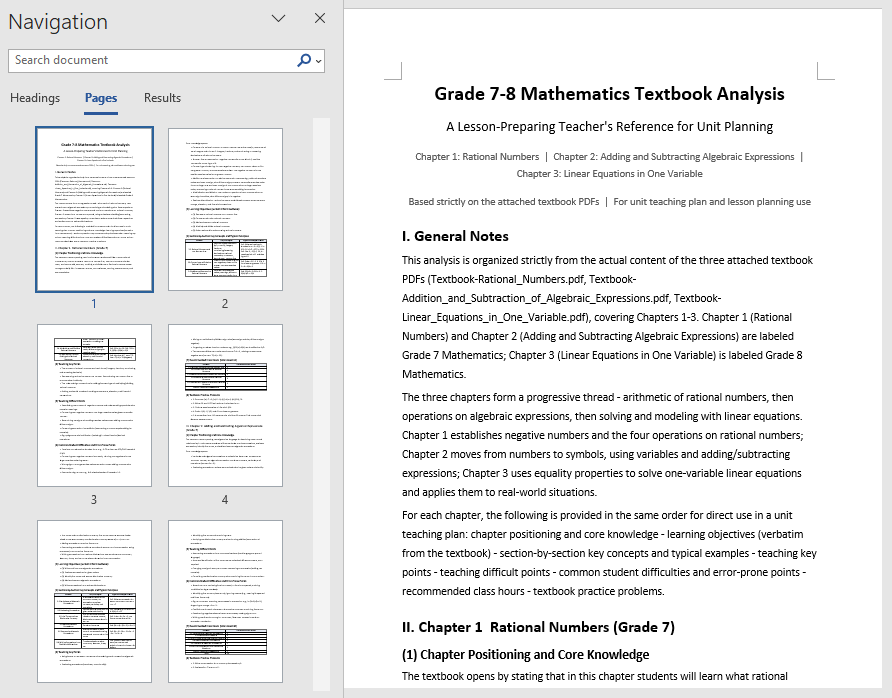
The analysis document unfolds by chapter, clearly explaining each chapter's core knowledge, key and difficult points, and recommended class hours, and also supplements students' common learning difficulties, error-prone points, and the connections between chapters. Teachers only need to provide the electronic PDF of the textbook to complete the whole-book analysis, quickly identify key chapters, and reasonably allocate class hours; this unit textbook analysis can also be directly used as background material for the subsequent lesson plan generation.
Automated Word Lesson Plan Generation
Fine-grained lesson preparation for a single class can be further advanced on the basis of the textbook analysis in the first section. The core idea is: directly use the unit textbook analysis generated in the first section as input, and let AI generate a structurally complete, ready-to-use lesson plan based on the analysis of the relevant section, including student analysis, teaching objectives, teaching key and difficult points, teaching preparation, teaching process, blackboard design, and tiered after-class assignments.
using Spire.Agent.Office.AI;
using Spire.Agent.Office.Extensions;
using Spire.Doc;

// The unit textbook analysis generated in the first section (already includes the analysis of the relevant section content)
string inputPath = "E:\\Input\\Textbook_Analysis.docx";
// Save path
string savePath = "E:\\Output\\Linear_Equations_in_One_Variable-Lesson_Plan.docx";
// SpireToken Key
string key = "**********************";
// Natural language instruction
string instruction =
    "Based on the content of the \"Linear Equations in One Variable\" section in the unit textbook analysis document, " +
    "help me write a complete lesson plan Word document. It is recommended to include: " +
    "student analysis, teaching objectives (knowledge and skills, process and methods, emotional attitude and values), teaching key and difficult points, teaching preparation, " +
    "teaching process (introduction, new teaching, consolidation practice, class summary), blackboard design, and tiered after-class assignments. " +
    "The teaching objectives and key/difficult points must closely match the textbook content, and the teaching process must be specific about how the teacher guides and how students learn in each segment. " +
    "The after-class assignments should be tiered into basic and advanced questions. Please format according to a standardized lesson plan layout, unify the heading levels and fonts, and finally save and output in DOCX format";

// Call the Word document processing function
AIResult result = ExecuteDemoWord(instruction, inputPath, savePath, key, null);

// Execute Word document AI processing
static AIResult ExecuteDemoWord(string instruction, string inputPath, string savePath, string key, string[] attachmentPaths)
{
    // Create an AIOptions configuration object
    AIOptions options = new AIOptions();
    // Set the SpireToken Key
    options.SpireToken = key;

    // Use the Document object to process the Word document
    using (Document doc = new Document())
    {
        // Load the unit textbook analysis document as the context for lesson plan generation
        if (!string.IsNullOrEmpty(inputPath) && File.Exists(inputPath))
        {
            doc.LoadFromFile(inputPath);
        }
        // Create the AI document processor
        AIDocumentProcessor processor = doc.AI(options);

        // Execute the AI instruction
        return processor.ExecuteInstruction(doc, instruction, savePath, attachmentPaths);
    }
}
AI-generated Word lesson plan document 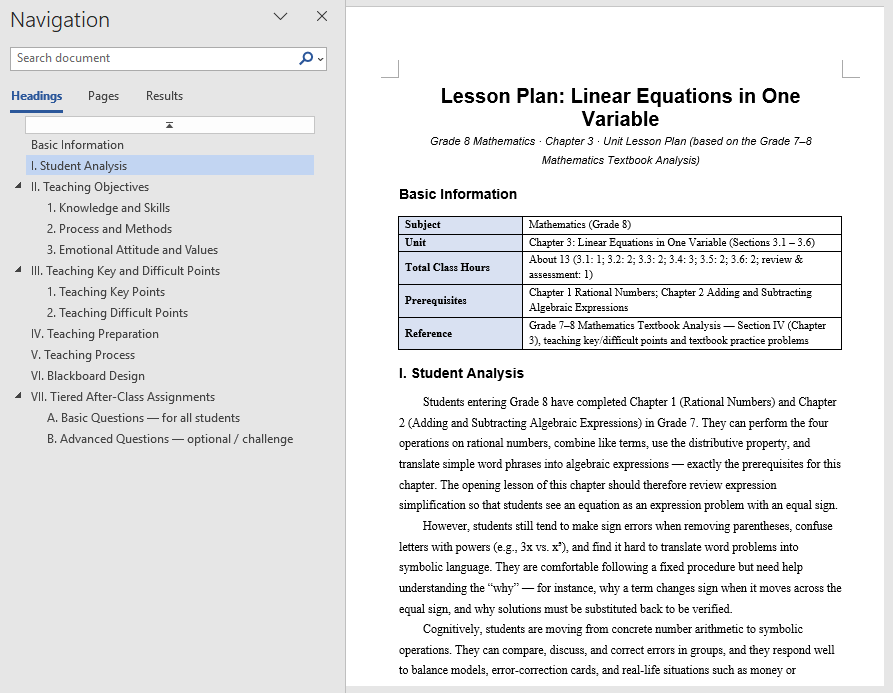
The generated lesson plan has a complete structure and content that closely matches the textbook, covering student analysis and tiered after-class assignments as well. Based directly on the unit textbook analysis, teachers can get a first draft of the lesson, then adjust and polish it, saving the time of writing from scratch. For multiple classes in the same unit, the same unit textbook analysis can be reused to generate lesson plans section by section and then proofread them uniformly, turning lesson preparation from "writing word by word" into "localized modification".
FAQ
Teaching objectives not matching the textbook content
Reason: AI's generation of teaching objectives depends on its understanding of the textbook theme. If the textbook content is too extensive or the instruction is too general, the objectives may diverge from the actual teaching content.
Solution: Limit the analysis scope in the instruction (such as specifying the chapter name), explicitly require the objectives to be developed from three dimensions, and bind the requirement "must be written based on the actual textbook content".
Lesson plan structure not standardized, missing sections
Reason: The section structure that the lesson plan should contain is not specified in the instruction, and the structure AI generates by default may not match the school template.
Solution: List the sections the lesson plan must include in order in the instruction (such as introduction, new teaching, consolidation, summary), and AI will output strictly according to this structure.
Analysis report missing test points or knowledge points
Reason: The textbook has too many chapters, or the same knowledge point is scattered across multiple chapters, making the analysis report incomplete.
Solution: Pass the complete textbook or the PDFs of relevant chapters as attachments, and specify the knowledge types to focus on in the instruction (such as "focus on frequently tested question types and examples").
Inconsistent formatting in the generated lesson plan
Reason: The layout requirements of the lesson plan are not specified in the instruction, and the heading levels, fonts, and paragraph styles output by AI may be inconsistent.
Solution: Add descriptions such as "format according to a standardized lesson plan layout and unify heading levels and fonts" to the instruction.
Get the SpireToken Key
- Contact sales@e-iceblue.com or visit https://www.e-iceblue.com/TemLicense.html to obtain a trial/commercial API key
Configure it in your code:
AIOptions options = new AIOptions();
options.SpireToken = key;
In cross-industry data processing scenarios, importing data from CSV and PDF files into Excel is one of the most common and error-prone tasks — finance teams reconcile CSV bank statements, e-commerce teams organize order files exported from multiple platforms, and administrative staff handle PDF statements from suppliers. These files come in all shapes and formats: inconsistent CSV delimiters, fields containing commas, dates appearing in various forms, phone numbers and ID numbers that start with 0 are treated as numbers and lose their leading zeros; PDF tables cannot be edited directly, and copying them into Excel misaligns rows, columns, and merged cells.
The traditional approach is to split columns manually, set formats column by column, and hunt for erroneous cells by eye. A CSV file with a few hundred rows often takes half an hour of repeated adjustment; PDF tables can only be copied and pasted row by row. Traditional methods are also prone to misaligned columns, misplaced dates, and numbers turning into text. As data volume grows, manual processing becomes nearly impossible.
Take a finance team reconciling bank statements, for example: after receiving a CSV, the usual routine is to confirm the encoding in a text editor first, split the columns in Excel, set date and amount formats column by column, and then hunt for anomalous values by eye. A field containing a comma shifts the whole row, accounts starting with 0 lose their leading zeros, and only after repeated adjustment does the table become usable. PDF statements can only be copied and pasted row by row — rows, columns, and merged cells are almost all misaligned, and reconstructing a single statement often eats up half a day.
Comparison with Traditional SDK API Processing
| Traditional Spire.Office for .NET API | Spire.Agent.Office Processing | |
|---|---|---|
| Driving Method | Write code for column splitting, type conversion, and format checking, controlling every step | Describe the goal in natural language; the AI understands and automatically orchestrates the execution path |
| Code Volume | Data import scenarios typically require 500-1000 lines of C# code (including parsers, type conversion, error detection, etc.) | About 10 lines of calling code + one natural language instruction |
| Delimiters & Quoting | Must hand-write parsing logic for edge cases such as commas inside quotes and escape characters | The AI automatically recognizes delimiters and quoted fields and splits columns intelligently |
| Type Detection | Must hard-code date/number/text recognition rules per column; changing rules requires code changes | The AI understands data type semantics and automatically recognizes dates, numbers, and text |
| Error Detection | Must write regex and conditional checks cell by cell; coverage of error types is incomplete | The AI automatically detects anomalies such as type mismatches and column count mismatches and highlights them in red |
| Requirement Changes | Adding a new CSV variant requires modifying code → compiling → deploying | Modify the description in the instruction; takes effect immediately |
This article introduces how to use the Excel AI capabilities of Spire.Agent.Office to implement CSV smart column splitting import and PDF table import, automatically completing data type detection and highlighting erroneous formats in red, with just a single natural language instruction.
For product installation and SpireToken configuration, please refer to Integrating Spire.Agent.Office in a .NET Project. The following examples assume Spire.Agent.Office is already installed and SpireToken is configured.
CSV Smart Column Splitting Import
CSV is the most common format for data exchange, yet also the least "controllable": the delimiter may be a comma, a tab, or a semicolon; fields may contain commas or line breaks wrapped in quotes; dates, numbers, and text are mixed in the same table; values starting with 0, such as phone numbers and codes, are treated as numbers by default and lose their leading zeros. Import quality directly determines the accuracy of subsequent analysis and reports.
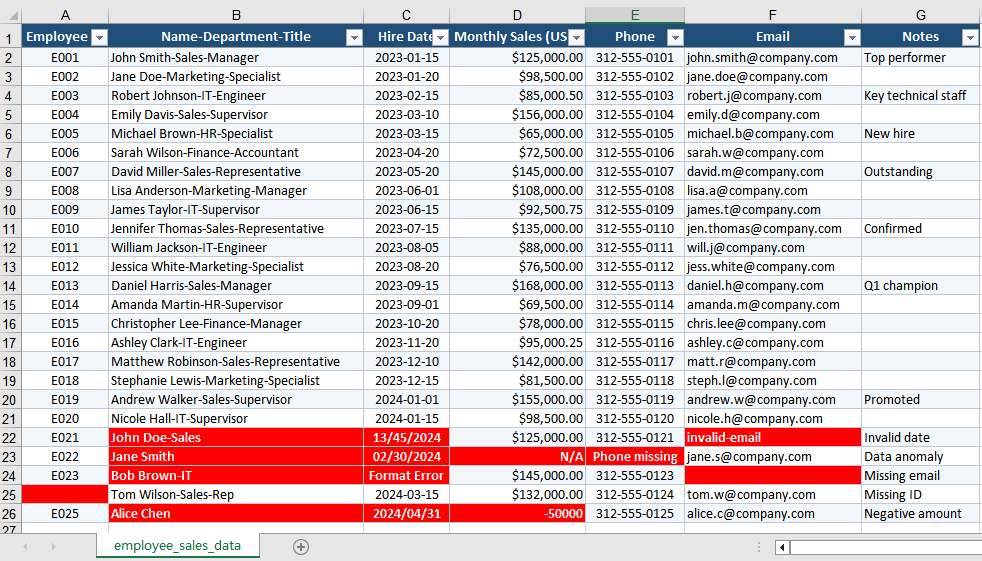
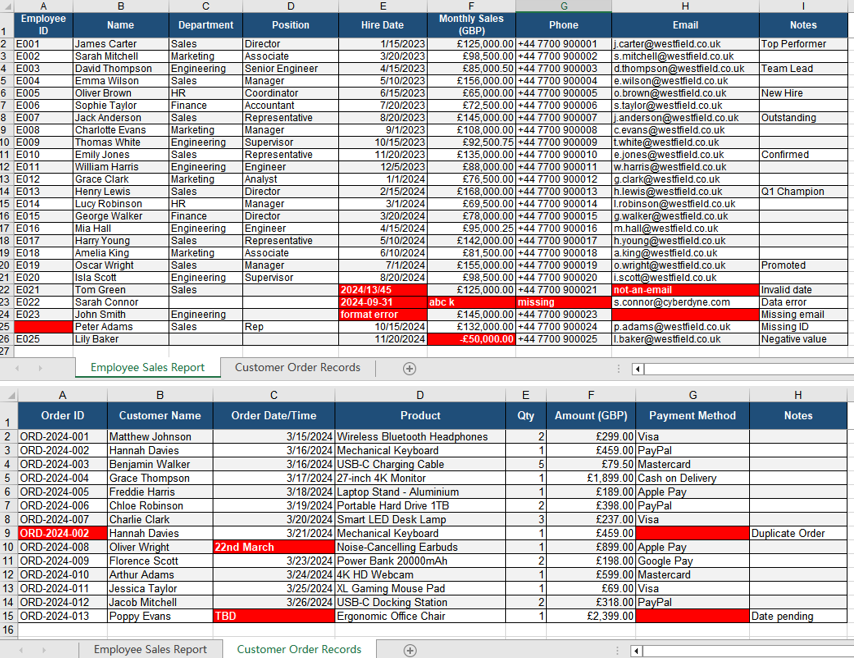
The following example uses the Spire.Agent.Office agent to automatically import a CSV through natural language instructions, completing smart column splitting, data type detection, and highlighting erroneous formats in red:
using Spire.Agent.Office.AI;
using Spire.Agent.Office.Extensions;
using Spire.Xls;

// CSV source file to be imported (passed as an attachment)
string[] attachmentPaths = new string[] { @"C:\DataImport\employee_sales_data.csv" };
// Save path of the import result document
string savePath = @"C:\DataImport\ToXLSX.xlsx";
// SpireToken Key (apply on the official website)
string key = "sk-TF***************************r";
// Natural language instruction
string instruction = "Process as follows:\n" +
    "1. Convert the attached CSV file to an Excel document and apply appropriate formatting to improve readability\n" +
    "2. Unify the formats of dates/sales amounts/phone numbers in the file\n" +
    "3. Mark erroneous and missing data with a red background";

// AI generation
AIResult result = ImportCsvData(instruction, savePath, key, attachmentPaths);

// AI-assisted CSV import
static AIResult ImportCsvData(string instruction, string savePath, string key, string[] attachmentPaths)
{
    // Configure the AI processing options
    AIOptions options = new AIOptions();
    options.SpireToken = key;

    using (Workbook wb = new Workbook())
    {
        AIDocumentProcessor processor = wb.AI(options);
        return processor.ExecuteInstruction(wb, instruction, savePath, attachmentPaths);
    }
}
Original CSV data and smart column splitting import result 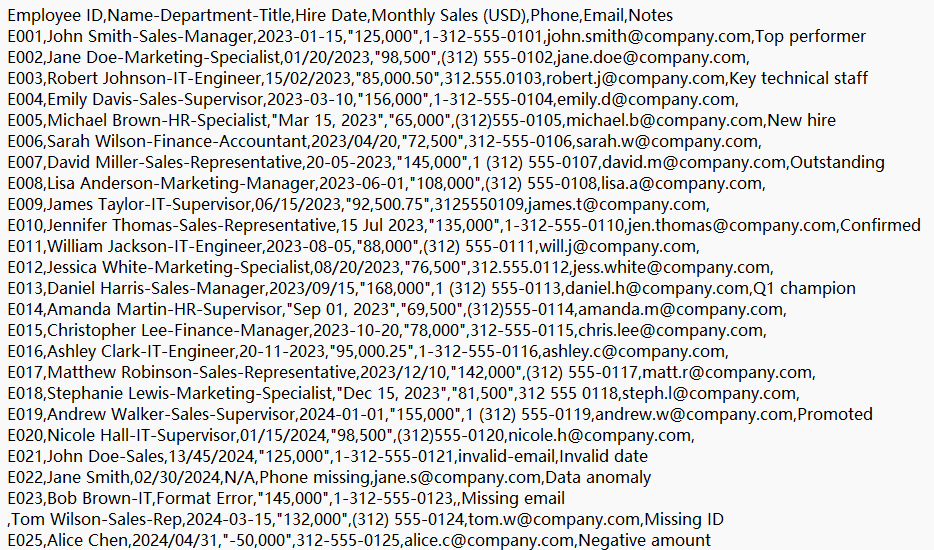
PDF Table Import to Excel
PDF is the universal format for distribution and archiving, but the table data inside it cannot be edited directly: copying it into Excel misaligns rows and columns, loses merged cells, and turns numbers and dates into text. When suppliers, banks, or government agencies deliver reports in PDF, accurately restoring the table data into editable Excel is an essential step in moving from fixed-layout documents to electronic processing.
The following example uses the Spire.Agent.Office agent to automatically extract table data from a PDF and write it into Excel through natural language instructions:
using Spire.Agent.Office.AI;
using Spire.Agent.Office.Extensions;
using Spire.Xls;

// PDF source file to be imported (passed as an attachment)
string[] attachmentPaths = new string[] { @"C:\DataImport\PurchaseOrder.pdf" };

// Save path of the import result document
string savePath = @"C:\DataImport\PurchaseOrderData.xlsx";
// SpireToken Key
string key = "sk-TF***************************r";
// Natural language instruction
string instruction =
    "Process as follows:\n" +
    "1. Convert the attached PDF file to an Excel document and apply appropriate formatting to improve readability\n" +
    "2. Unify the formats of dates/sales amounts/phone numbers in the file\n" +
    "3. Mark erroneous and missing data with a red background";
// AI generation
AIResult result = ImportPdfData(instruction, savePath, key, attachmentPaths);

// AI-assisted PDF import
static AIResult ImportPdfData(string instruction, string savePath, string key, string[] attachmentPaths)
{
    // Configure the AI processing options
    AIOptions options = new AIOptions();
    options.SpireToken = key;

    using (Workbook wb = new Workbook())
    {
        AIDocumentProcessor processor = wb.AI(options);
        return processor.ExecuteInstruction(wb, instruction, savePath, attachmentPaths);
    }
}
Original PDF data and table data extracted into Excel 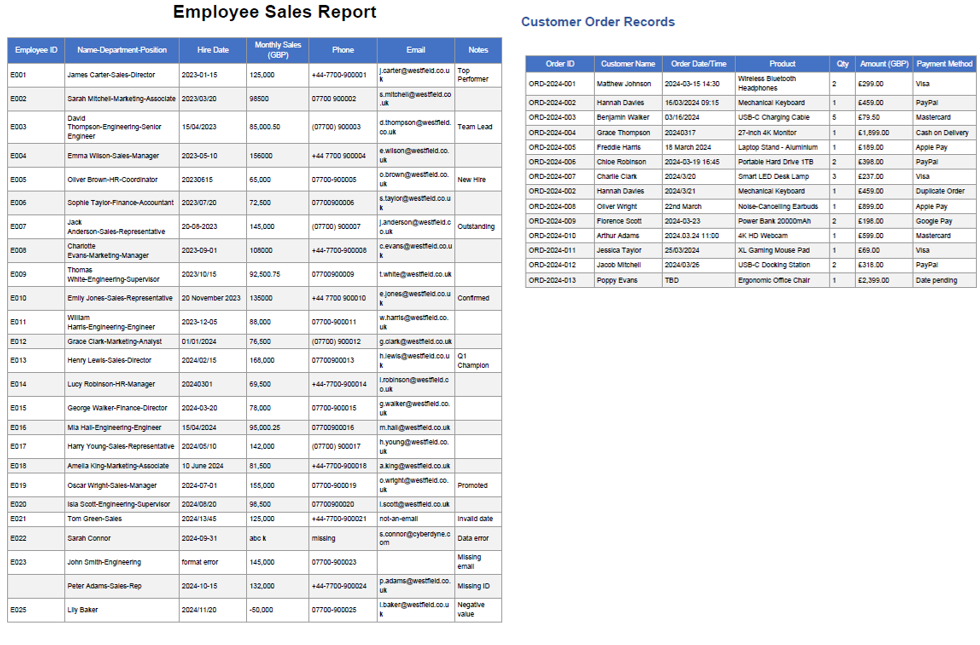
Frequently Asked Questions
Inconsistent CSV delimiters / commas within fields cause column misalignment
Cause: The CSV delimiter may be a semicolon or a tab, or a field may contain a quoted comma or newline, which causes the whole row to shift when columns are split automatically.
Solution: Specify the delimiter in the instruction, or let the AI identify it automatically and correctly handle the quoted fields.
Numbers starting with 0 lose their leading zeros
Cause: Values starting with 0, such as phone numbers, ID numbers, and account numbers, are imported as numeric values, and the leading zeros are dropped.
Solution: Specify the relevant columns as text type in the instruction, such as "set the phone number and ID number columns to text format and preserve the leading zeros".
Obtaining a SpireToken Key
- Contact sales@e-iceblue.com or visit https://www.e-iceblue.com/TemLicense.html to obtain a trial/commercial API key
Configure it in code:
AIOptions options = new AIOptions();
options.SpireToken = key;
Automatically Extract Invoice Information with Spire.Agent.Office
2026-08-18 02:59:56 Written by jie zouIn finance and tax scenarios, invoice data entry is one of the most common and time-consuming tasks. The invoice number, date, amount, tax amount and buyer on every invoice must be manually checked and entered into Excel or a financial system one by one. During mid-month reconciliation, month-end tax filing or reimbursement peak periods, the backlog of invoices often numbers in the hundreds, and manual entry speed becomes the bottleneck. The traditional approach is to open each invoice PDF page by page, find the corresponding fields, copy and paste — which is not only inefficient but also highly prone to omissions, misalignments and mistyped amounts. Any single error directly affects the accuracy of reconciliation and tax filing. Invoice layouts also vary widely, with fields in all sorts of positions, further increasing the risk of errors in manual processing. Automating the repetitive work of "reading each invoice and copying its fields" is therefore one of the pain points financial teams most urgently want to solve.
Traditional SDK API vs. Spire.Agent.Office
For "extracting fields from a PDF invoice and exporting to Excel", the traditional SDK and Spire.Agent.Office take two completely different paths. With the traditional approach, you must first figure out the field positions and page structure of every invoice, then write locating and extraction code for each field — change the layout and you must change the code. With the agent approach, you only need to describe in natural language "what to extract and what to export as"; the AI understands and orchestrates the rest:
| Traditional Spire.Office for .NET API | Spire.Agent.Office | |
|---|---|---|
| Driving approach | Write loops + conditionals + exception-handling code, controlling every step of document processing | Describe the goal in natural language; the AI understands and orchestrates the execution path |
| Code volume | Page-by-page parsing usually needs 300-600 lines of C# (page traversal, field locating, data export, etc.) | ~10 lines of calling code + 1 natural language instruction |
| Field recognition | Hard-code the page position and format of each field; layout changes require code changes | AI automatically understands the invoice layout and locates fields such as invoice number, date, amount |
| Page handling | Manually traverse every page and extract each one | AI automatically extracts page by page and aggregates |
| Data export | Manually write Excel writing logic and column layout | AI automatically generates a structured Excel with aligned fields |
| Requirement changes | Change extracted fields → change code → compile → redeploy | Modify the instruction; takes effect immediately |
From the comparison, when invoice layouts, extracted fields or export structures change frequently, the agent only needs a change of one sentence, while the traditional approach requires changing code and redeploying.
This article explains how to use the Spire.Agent.Office PDF AI capability to automatically extract the invoice number, date, amount, tax amount and buyer name from each page of a PDF invoice and export them to Excel, digitalizing your financial documents in one step.
For product installation and SpireToken configuration, please refer to Integrating Spire.Agent.Office in a .NET Project. The examples below assume Spire.Agent.Office is installed and SpireToken is configured.
Automatic Invoice Information Extraction
The core idea of automatic invoice information extraction is: pass multiple invoice PDFs to the AI agent as attachments; the agent reads each invoice, understands the layout page by page, recognizes fields such as invoice number, issue date, amount, tax ID, tax amount, buyer name and title, and aggregates them into a structured Excel. The whole process is roughly divided into three steps — first the agent reads each invoice PDF and locates the invoice fields on every page; second, it aligns the fields recognized on each page by semantics; finally, it aggregates the results into Excel and beautifies them as requested (auto-fitting column widths, adding borders, keeping numeric values with two decimal places and right-aligned). The whole "page-by-page parsing → field recognition → aggregation & beautification" process is completed automatically by the AI from a natural language instruction, without writing a separate parsing routine for each invoice or worrying about layout differences between suppliers.
For invoice PDFs with dozens or hundreds of pages, the traditional approach requires a set of locating rules for each layout, whereas with the agent approach you always maintain just one natural language instruction no matter how the invoice source or layout changes. Requirements such as the amount basis (tax-inclusive vs. tax-exclusive), column order, or whether to flag anomalies can also be written directly into the instruction and take effect immediately.
The following example uses the Spire.Agent.Office agent to automatically extract invoice information from each page of PDFs and export it to Excel through a natural language instruction:
using Spire.Agent.Office.AI;
using Spire.Agent.Office.Extensions;
using Spire.Pdf;

// PDF processing configuration
string key = "**************************";  // Apply for a SpireToken Key on the official website

string inputDir = @"E:\invoices";  // Directory containing invoice PDFs (multiple allowed)
string[] pdfFiles = Directory.GetFiles(inputDir, "*.pdf", SearchOption.TopDirectoryOnly);
string savePath = @"E:\output\merged.xlsx";  // Output file path (null -> auto-generated to the output directory)

string instruction =
    "Read the attachment files and identify the information of each invoice, extracting the invoice number, issue date, amount, tax ID, tax amount, buyer name and title.\n" +
    "Put each invoice as one row and summarize them into a single Excel table.\n" +
    "When exporting to Excel, please beautify the table appropriately:\n" +
    "auto-fit the column widths so that text is fully displayed; add borders to the whole data area to make rows and columns clear and readable;\n" +
    "keep numeric columns such as amount and tax amount with two decimal places and right-aligned. Finally save as a well-formatted, easy-to-read Excel file.";

// Call the PDF processing function (attachments are the invoice PDFs)
AIResult result = ExecuteDemoPDF(instruction, savePath, key, pdfFiles);

// Execute PDF document AI processing
static AIResult ExecuteDemoPDF(string instruction, string savePath, string key, string[] attachments)
{
    // Create an AIOptions configuration object
    AIOptions options = new AIOptions();
    options.SpireToken = key;  // Set SpireToken Key

    // Process the PDF document with a PdfDocument object
    using (PdfDocument pdf = new PdfDocument())
    {
        // Create the AI document processor; attachments are the invoice PDFs
        AIDocumentProcessor processor = pdf.AI(options);
        return processor.ExecuteInstruction(pdf, instruction, savePath, attachments);
    }
}
Original invoice PDF 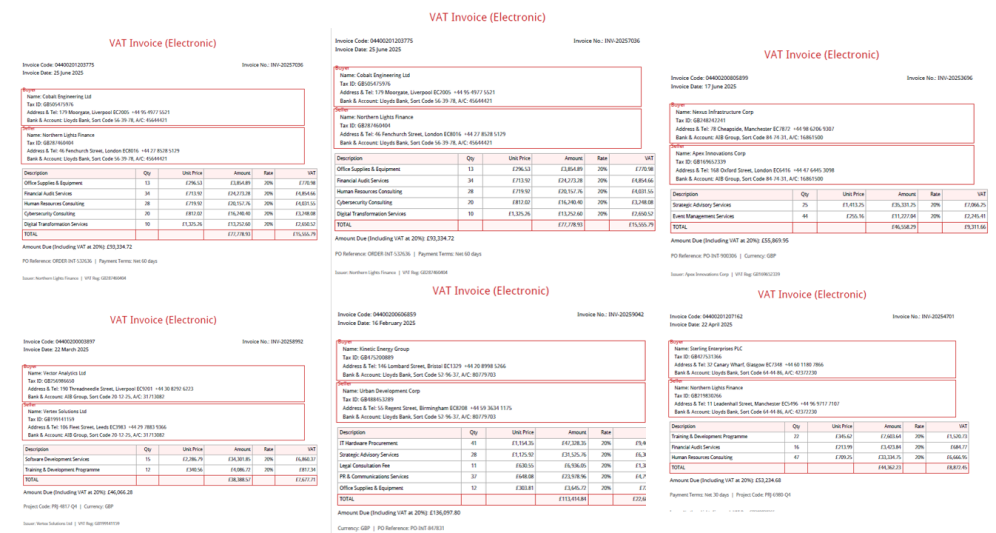 Extracted and exported Excel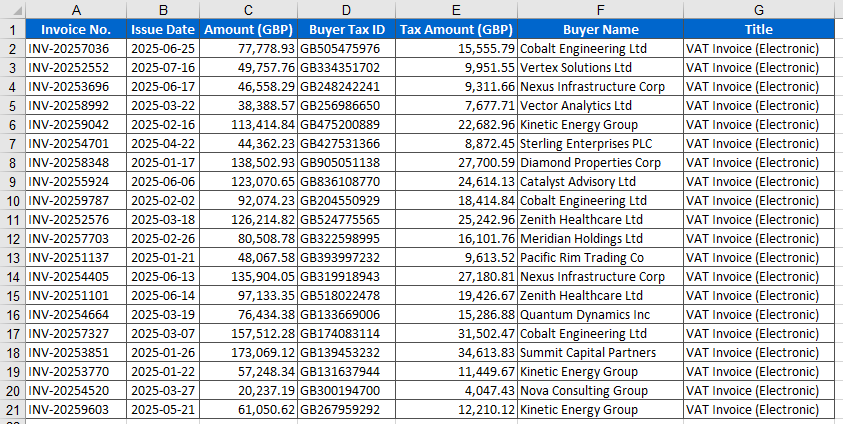
FAQ
The extracted amount or tax amount is incorrect
Reason: The invoice amount has both uppercase and lowercase forms, or the tax-inclusive/tax-exclusive basis is inconsistent.
Solution: Specify the extraction basis clearly in the instruction (e.g., "extract the total amount including tax", "extract the amount excluding tax"); the AI agent will extract according to the specified basis. If the invoice has two forms of amount, it is also recommended to state which one takes precedence to avoid ambiguity.
How are invoices with different layouts recognized?
Reason: Invoices from different suppliers have different layouts and field positions.
Solution: The AI agent can automatically understand the invoice layout and locate fields; for unusual layouts, you can add field hints in the instruction (e.g., "the invoice number is located in the upper-right corner") to help the agent locate more accurately.
The column order / field names of the result don't match expectations
Reason: By default the AI outputs fields in the order it recognizes them.
Solution: Specify the field names and order clearly in the instruction (e.g., "export in the order: invoice number, date, amount, tax amount, buyer"), and the agent will arrange the output columns as requested.
Getting a SpireToken Key
- Contact sales@e-iceblue.com or visit https://www.e-iceblue.com/TemLicense.html to obtain a trial/commercial API key
Configure it in code:
AIOptions options = new AIOptions();
options.SpireToken = key;
Legal Contract Clause Review and Annotation with Spire.Agent.Office
2026-08-17 03:29:50 Written by Nina TangIn corporate legal and compliance management scenarios, contract review is one of the most time-consuming and error-prone tasks. Every contract involves a large number of rights and obligations clauses — liquidated damages, payment terms, disclaimer clauses, breach liability, dispute resolution, and more. Any clause that is unfavorable to your side or ambiguously worded may lead to legal disputes or financial losses in the future. Traditional approaches rely on legal professionals reading and annotating each clause manually; a single contract of dozens of pages often takes hours, and review standards vary from person to person.
Comparison with Traditional SDK API Processing
| Traditional Spire.Office for .NET API | Spire.Agent.Office | |
|---|---|---|
| Driving approach | Write code to parse clauses one by one: load document → iterate paragraphs → regex match keywords → judge risk → highlight and annotate; every step requires code control | Describe the review goal in natural language, and AI automatically identifies and annotates risk clauses |
| Code volume | Requires a large amount of code to maintain the clause risk rule library, keyword matching, and annotation logic | Only configuration code + 1 natural language instruction |
| Risk rules | Risk judgment relies on hard-coded keywords; new risk types require code changes | AI understands clauses semantically and can identify new risks not covered by the rules |
| Review stance | Review logic for each contract type must be developed separately | A single phrase like "review from our side" in the instruction switches the review stance |
| Maintainability | The risk rule library requires continuous manual maintenance | Review scope and rules can be adjusted at any time in natural language |
This article explains how to use the Word AI capability of Spire.Agent.Office to review contract clauses and annotate risks. You can choose to highlight risk clauses on the original contract and add comments, or batch review and output a structured risk review report, meeting contract review needs of different scales and scenarios.
For product installation and SpireToken configuration, refer to Integrating Spire.Agent.Office in a .NET Project. The examples below assume Spire.Agent.Office is installed and SpireToken is configured.
Risk Clause Highlighting and Annotation
Risk clause highlighting and annotation suits in-depth review of important contracts. The core idea is: let AI review contract clauses one by one, identify clauses that are unfavorable to your side or carry legal risks, highlight them in yellow in place and add comments, so legal professionals can view the risk points directly on the contract.
using Spire.Agent.Office.AI;
using Spire.Agent.Office.Extensions;
using Spire.Doc;

// Path of the contract file to be reviewed
string inputPath = "E:\\Input\\Software_Contract.docx";
// Save path
string savePath = "E:\\Output\\Review.docx";
// Output directory
string OutDir = "E:\\Output";
// SpireToken Key
string key = "xxxxx";
// Natural language instruction
string instruction =
    "Review all clauses in the current contract document and identify clauses that are unfavorable to the purchaser or carry legal risks, including but not limited to: " +
    "excessively high liquidated damages, stringent payment terms, overly broad disclaimer clauses, missing breach liability provisions, unfavorable court jurisdiction agreements, unclear intellectual property ownership, etc. " +
    "For each risk clause, perform the following operations: 1. Highlight the risk clause text in yellow; 2. Add a comment in place, noting the risk point, risk level (high/medium/low), and modification suggestions. " +
    "After processing, keep the same layout, styles, and fonts as the original document, and finally save and output in DOCX format";

// Call the Word document processing function
AIResult result = ExecuteDemoWord(instruction, inputPath, savePath, key, OutDir, null);

// Execute Word document AI processing
static AIResult ExecuteDemoWord(string instruction, string inputPath, string savePath, string key, string output, string[] attachmentPaths)
{
    // Create an AIOptions configuration object
    AIOptions options = new AIOptions();
    // Set the working directory to the output directory
    options.WorkDir = output;
    // Set the SpireToken Key
    options.SpireToken = key;

    // Use the Document object to process the Word document
    using (Document doc = new Document())
    {
        // Load the contract document from file
        if (!string.IsNullOrEmpty(inputPath) && File.Exists(inputPath))
        {
            doc.LoadFromFile(inputPath);
        }
        // Create the AI document processor
        AIDocumentProcessor processor = doc.AI(options);

        // Execute the AI instruction
        return processor.ExecuteInstruction(doc, instruction, savePath, attachmentPaths);
    }
}
Contract after AI highlighting and annotation 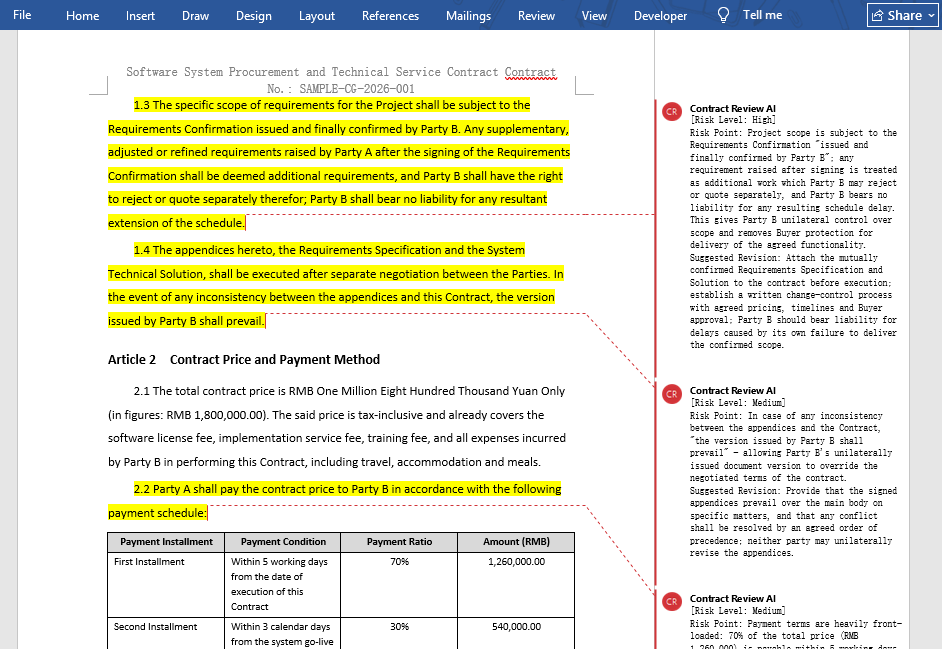
In the reviewed contract, risk clauses are highlighted in yellow, and the comments clearly state the risk points and modification suggestions. Legal professionals can quickly locate the highlighted positions without reading the original text line by line, and can directly discuss modification plans with the business side based on the comments.
Batch Review and Review Report
For quick screening of large batches of contracts (such as contract renewal or supplier qualification review), batch review with a structured review report is more suitable. The core idea is: let AI review multiple contracts one by one, consolidate the risk clauses of each contract into a risk list, and output it as an MD report for statistics, tracking, and tiered processing.
using Spire.Agent.Office.AI;
using Spire.Agent.Office.Extensions;
using Spire.Doc;

// Paths of multiple contract files to be reviewed
string[] attachments = new string[] {
    "E:\\Input\\Purchase_Contract_EN.docx",   // Purchase contract
    "E:\\Input\\Sales_Contract_EN.docx",   // Sales contract
    "E:\\Input\\Labor_Contract_EN.docx"    // Labor contract
};
// Save path (null here; the output folder path set below will be used)
string savePath = "E:\\Output\\Structural_Review_Output.md";
// Output directory
string OutDir = "E:\\Output";
// SpireToken Key
string key = "xxxxx";
// Natural language instruction
string instruction =
    "Review the contract documents in the attachments one by one, extract risk clauses, and output a Markdown review report: " +
    "The report contains a table with fixed columns: Contract Name | Clause Number | Clause Original Text | Risk Level (High/Medium/Low) | Risk Type | Risk Description | Modification Suggestion. " +
    "Sort by risk level from high to low; the clause original text must be quoted from the contract, truncated with … after 20 characters, and must not be fabricated.";

// Call the Word document processing function
AIResult result = ExecuteDemoWord(instruction, savePath, key, OutDir, attachments);

// Execute Word document AI processing
static AIResult ExecuteDemoWord(string instruction, string savePath, string key, string output, string[] attachments)
{
    // Create an AIOptions configuration object
    AIOptions options = new AIOptions();
    // Set the working directory to the output directory
    options.WorkDir = output;
    // Set the SpireToken Key
    options.SpireToken = key;

    // Use the Document object to process the Word document
    using (Document doc = new Document())
    {
        // Create the AI document processor
        AIDocumentProcessor processor = doc.AI(options);

        // Execute the AI instruction
        return processor.ExecuteInstruction(doc, instruction, savePath, attachments);
    }
}
Contract risk review report output by AI 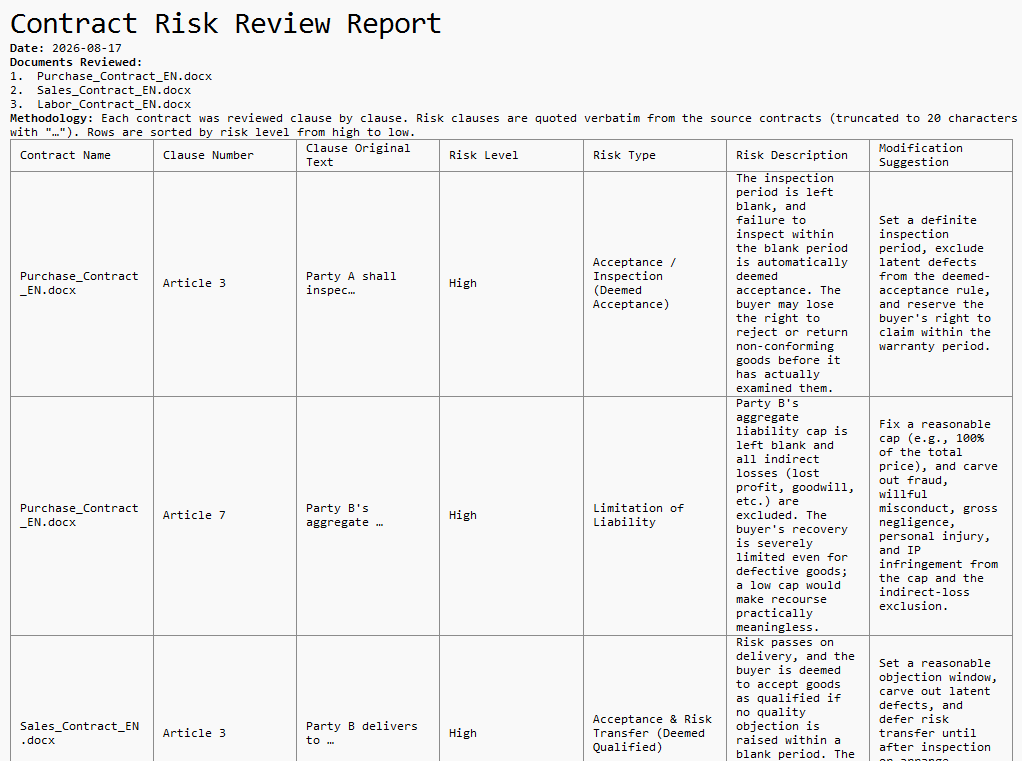
Each row in the review report corresponds to a risk clause and contains the clause original text, risk level, risk type, and modification suggestion. Legal professionals can sort by risk level to prioritize high-risk clauses, or export the report for risk ledger tracking in a contract management system.
FAQ
Risk clauses identified inaccurately
Reason: AI's judgment of "unfavorable clauses" depends on the review stance. From your side's perspective versus the counterparty's perspective, the risk judgment for the same clause may be completely opposite.
Solution: Specify the review stance clearly in the instruction, such as "review from the purchaser's perspective", and add a list of risk types to focus on. AI will strictly follow this stance and scope.
Document style changes after highlighting
Reason: The AI model automatically modified or added content during processing.
Solution: Add a description such as "keep the same layout, styles, and fonts as the original document" to the instruction.
Review report does not accurately correspond to contract clauses
Reason: Clause numbers are inconsistent, or the same clause is scattered across multiple places in the contract, causing the clause original text in the report to not match the contract.
Solution: In the instruction, require AI to quote the clause original text and note the source of the clause number, for easy manual verification and location.
Get the SpireToken Key
- Contact sales@e-iceblue.com or visit https://www.e-iceblue.com/TemLicense.html to obtain a trial/commercial API key
Configure it in your code:
AIOptions options = new AIOptions();
options.SpireToken = key;
Reconciliation is one of the most frequent and tedious tasks in corporate finance, and the source data often comes in different forms: bank statements are CSV files exported from online banking, while system transaction records may be PDF detail reports. The two tables have different column names, inconsistent date and amount formats, and even stray spaces and missing values. This article shows how to use Spire.Agent.Office Excel AI capabilities to automatically read CSV and PDF data sources, identify and map column names, clean the data, and finally generate an Excel reconciliation detail report.
For product installation and SpireToken configuration, please refer to Integrate Spire.Agent.Office in a .NET Project. The following examples assume Spire.Agent.Office is installed and SpireToken is configured.
Reconcile by Statement Number
Reconcile and analyze the CSV-format bank statement with the PDF-format system transaction records by statement number.
using Spire.Agent.Office.AI;
using Spire.Agent.Office.Extensions;
using Spire.Xls;

// Data source files: bank statement (CSV) and system transaction records (PDF)
string[] attachmentPaths = new string[]
{
    @"bank-statement.csv",
    @"system-records.pdf"
};

// Excel processing configuration
string inputPath = "";
string savePath = "out.xlsx";
// SpireToken Key
string key = "**************************";
string instruction =
    "Reconcile the bank statement (CSV) with the system transaction records (PDF) in the attachments: " +
    "1. Establish the column mapping of the two tables by semantics: transaction date, amount, counterparty account, description, statement number; " +
    "2. Cleaning: strip leading/trailing and internal extra spaces from text; write dates as yyyy-MM-dd text; convert amounts to numbers by removing currency symbols and thousands separators; mark empty description or empty counterparty as 'Unknown', mark empty amount as 'Amount missing'; " +
    "3. Match row by row using the statement number as the unique key, and mark the status: 'Matched'/'Amount mismatch'/'Bank only'/'System only'; " +
    "4. Generate a 'Reconciliation Detail' worksheet: each record with bank amount, system amount, difference, status and remark; " +
    "5. Highlight difference rows: yellow for amount mismatch, orange for bank only, blue for system only; " +
    "Finally save the output as an Excel file";

// Call the Excel document processing function
AIResult result = ExecuteDemoExcel(instruction, inputPath, savePath, key,  attachmentPaths);


// Execute Excel document AI processing
static AIResult ExecuteDemoExcel(string instruction, string inputPath, string savePath, string key, string[] attachmentPaths)
{
    // Create an AIOptions configuration object
    AIOptions options = new AIOptions();
    options.SpireToken = key;

    // Use the Workbook object to process the Excel document
    using (Workbook workbook = new Workbook())
    {
        // Load the Excel template from a file
        if (!string.IsNullOrEmpty(inputPath) && File.Exists(inputPath))
        {
            workbook.LoadFromFile(inputPath);
        }
        // Create the AI document processor
        AIWorkbookProcessor processor = workbook.AI(options);

        // Execute the AI instruction
        return processor.ExecuteInstruction(workbook, instruction, savePath, attachmentPaths);
    }
}
Original bank statement CSV 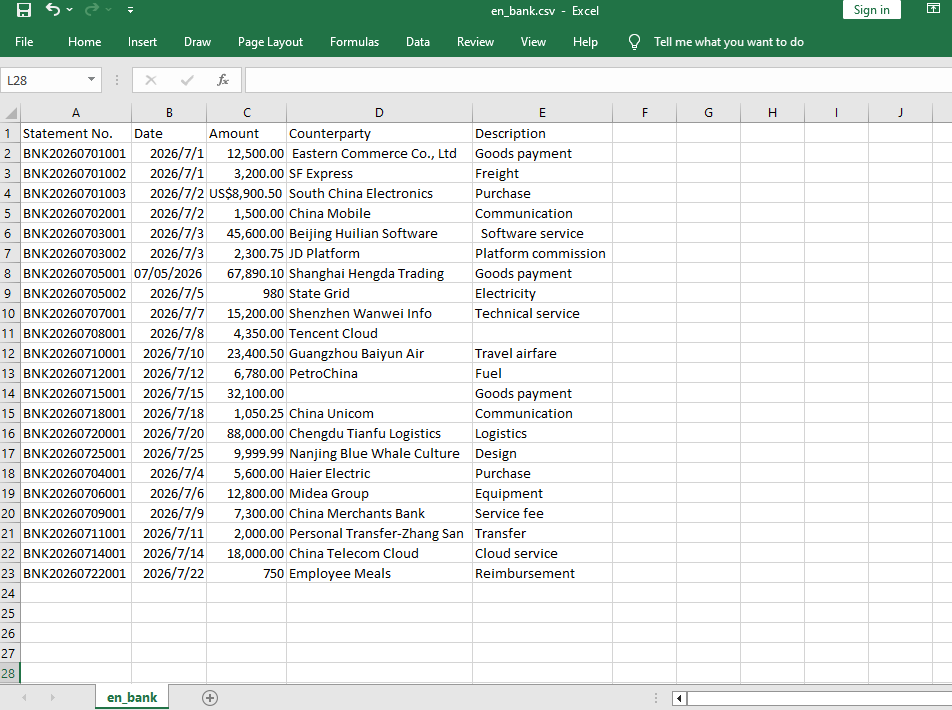 Original system transaction PDF
 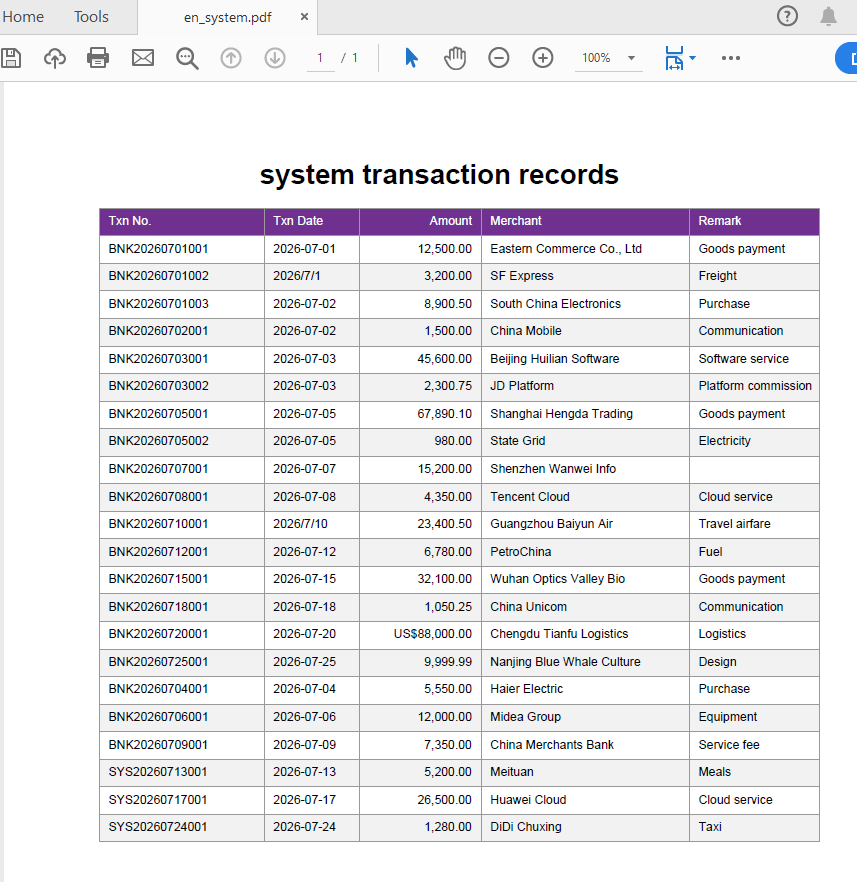 Reconciliation detail after Excel AI reconciliation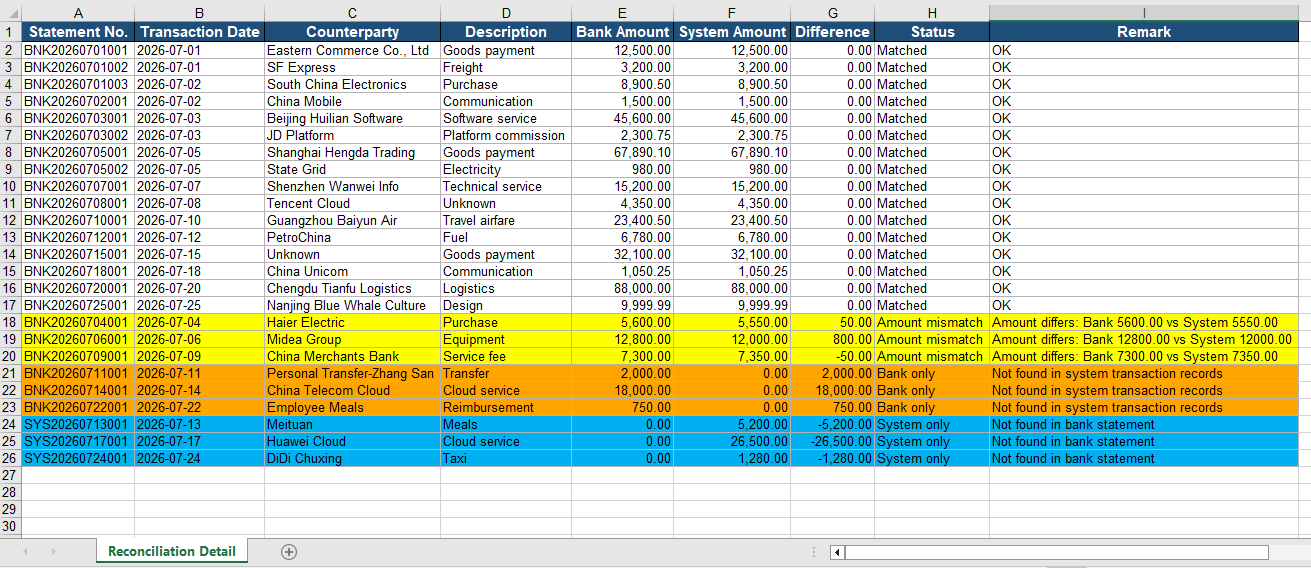
Reconcile by Date and Amount Combination
When the data source does not contain a unique statement number, you can use the "transaction date + amount" combination as the matching key for reconciliation: first group by date, then pair the records by amount within the same date.
using Spire.Agent.Office.AI;
using Spire.Agent.Office.Extensions;
using Spire.Xls;

// Data source files without statement numbers: bank statement (CSV) and system transaction records (PDF)
string[] attachmentPaths = new string[]
{
    @"bank-statement-noId.csv",
    @"system-records-noId.pdf"
};

// Excel processing configuration
string inputPath = "";
string savePath = "out.xlsx";
// SpireToken Key
string key = "**************************";
string instruction =
    "Reconcile the bank statement (CSV) with the system transaction records (PDF) in the attachments: " +
    "1. Establish the column mapping of the two tables by semantics: transaction date, amount, counterparty account, description; " +
    "2. Cleaning: strip extra spaces from text; write dates as yyyy-MM-dd text; convert amounts to numbers; mark missing values as 'Unknown' or 'Amount missing'; " +
    "3. Use the 'transaction date + amount' combination as the matching key: first group by date, then pair the records by amount within the same date, and mark the status: 'Matched'/'Amount mismatch'/'Bank only'/'System only'; " +
    "4. Generate a 'Reconciliation Detail' worksheet (bank amount, system amount, difference, status); " +
    "5. Highlight difference rows: yellow for amount mismatch, orange for bank only, blue for system only; " +
    "Finally save the output as an Excel file";

// Call the Excel document processing function
AIResult result = ExecuteDemoExcel(instruction, inputPath, savePath, key,  attachmentPaths);


// Execute Excel document AI processing
static AIResult ExecuteDemoExcel(string instruction, string inputPath, string savePath, string key, string[] attachmentPaths)
{
    // Create an AIOptions configuration object
    AIOptions options = new AIOptions();
    options.SpireToken = key;

    // Use the Workbook object to process the Excel document
    using (Workbook workbook = new Workbook())
    {
        // Load the Excel template from a file
        if (!string.IsNullOrEmpty(inputPath) && File.Exists(inputPath))
        {
            workbook.LoadFromFile(inputPath);
        }
        // Create the AI document processor
        AIWorkbookProcessor processor = workbook.AI(options);

        // Execute the AI instruction
        return processor.ExecuteInstruction(workbook, instruction, savePath, attachmentPaths);
    }
}
Original bank statement CSV 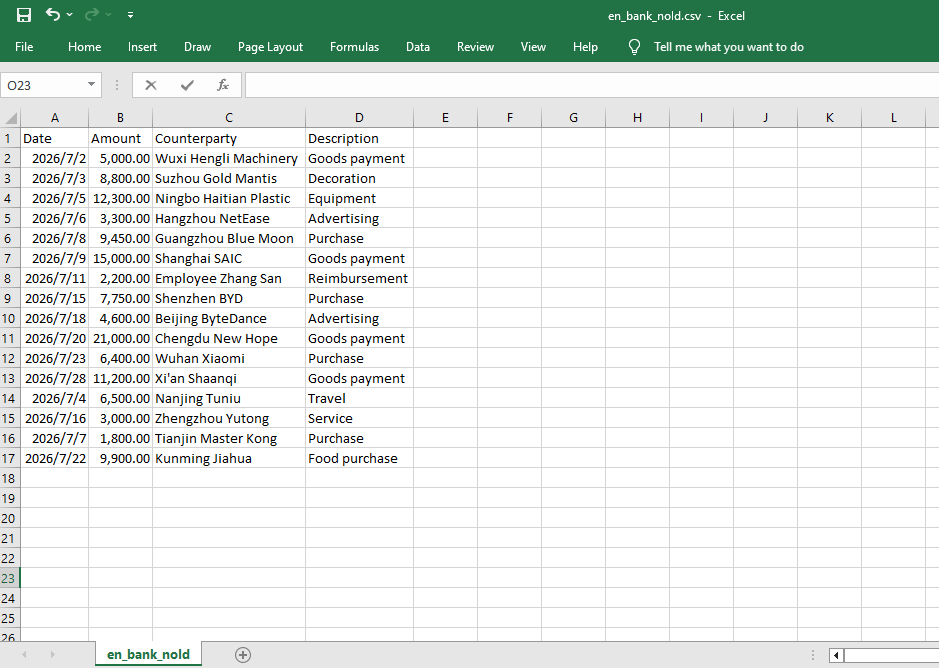 Original system transaction PDF
 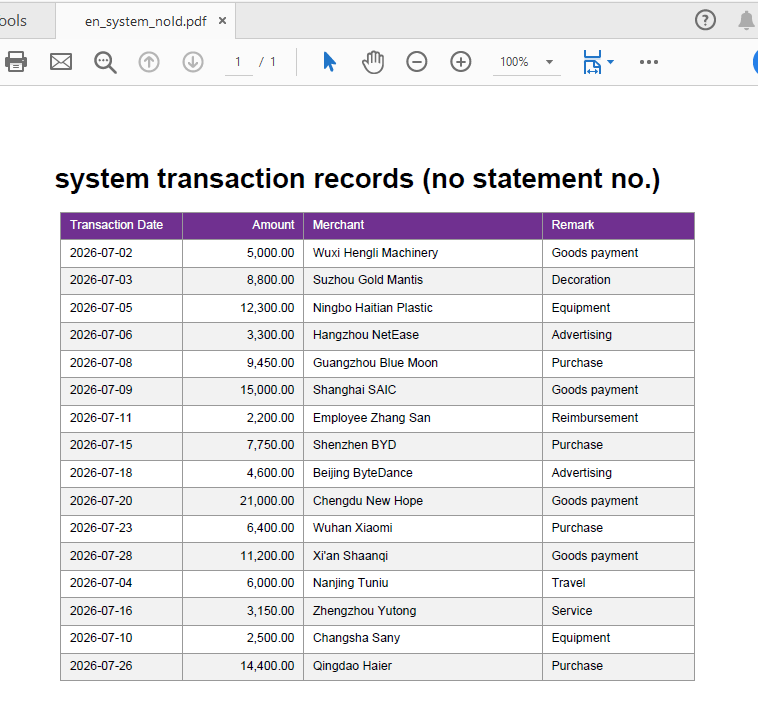 Reconciliation detail after Excel AI reconciliation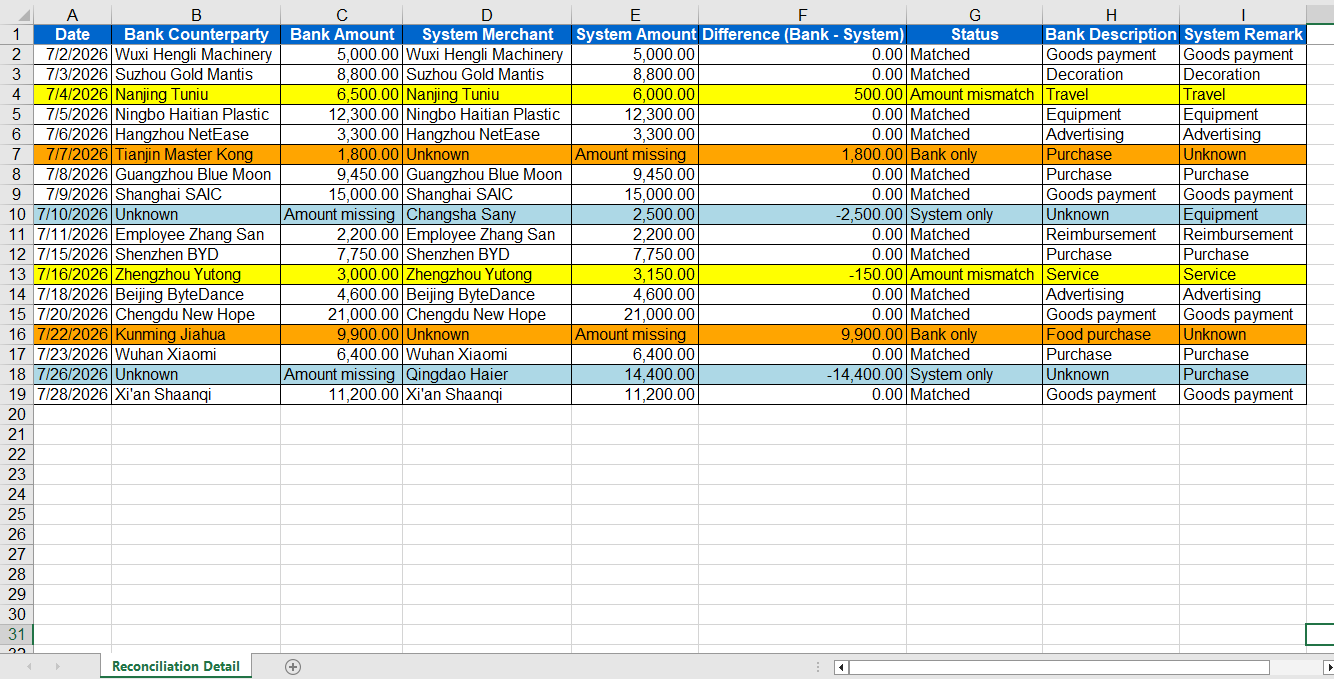
Comparison with Traditional SDK API Processing
| Traditional Spire.Office for .NET API | Spire.Agent.Office Processing | |
|---|---|---|
| Driving approach | Requires writing large amounts of code for CSV/PDF parsing, column mapping, data cleaning, matching and exception logic | Describe reconciliation rules in natural language, and AI understands and orchestrates the execution automatically |
| Data format | CSV and PDF must be parsed with different components, each with its own format | Directly attach CSV and PDF, and AI understands the content automatically |
| Field mapping | Hard-coded column name mappings; changing column names or formats requires code changes | AI maps columns automatically based on column names and content semantics |
| Exception handling | Need to hand-write difference judgment, alert text and style logic | AI automatically identifies differences and provides handling suggestions |
Frequently Asked Questions
Inconsistent date and amount formats in the bank statement CSV
Cause: In the CSV exported from online banking, dates may be written as 2026-07-01, 2026/7/1, etc., and amounts may carry ¥, thousands separators, or leading/trailing spaces, leading to misjudgment during matching.
Solution: Explicitly require in the instruction "unify dates as yyyy-MM-dd and amounts as numeric formats and remove spaces", and AI will complete the standardization automatically before reconciliation.
The system transaction PDF table spans pages or has headers/footers
Cause: PDF detail reports may have pagination, repeated headers, or footer annotations, which affect AI's reading of the table data.
Solution: Add "ignore headers/footers and repeated header rows, only read the table data rows" to the instruction.
The same amount appears multiple times on the same day, causing mismatches
Cause: When reconciling by the "date + amount" combination, there may be multiple transactions with the same amount on the same day, making the exact correspondence impossible to determine.
Solution: Prefer precise reconciliation by statement number; if there is really no statement number, you can require in the instruction to "mark records that cannot be matched one-to-one on the same day as 'Amount mismatch'".
Get a SpireToken Key
- Contact sales@e-iceblue.com or visit https://www.e-iceblue.com/TemLicense.html to obtain a trial/commercial API key
Configure it in code:
AIOptions options = new AIOptions();
options.SpireToken = key;
Automatically Comparing Multi-format Quotation Sheets with Spire.Agent.Office
2026-08-13 02:42:10 Written by Lisa LiIn procurement and sales scenarios, price comparison is one of the most critical and time-consuming steps. Procurement teams receive quotation sheets from various vendors — some organized by rows, some by columns, some containing multiple hidden costs, and some with inconsistent units. The Spire.Agent.Office Excel AI agent can understand quotation sheets in different formats, automatically align each vendor's quotations to a unified template, calculate line-item totals and grand totals, and mark the lowest prices.
This article explains how to use the Spire.Agent.Office Excel AI capability to automatically align quotation sheets from multiple different vendors to a unified template, calculate totals for comparison, and highlight the lowest price.
For product installation and SpireToken configuration, please refer to Integrating Spire.Agent.Office in a .NET Project. The following examples assume that Spire.Agent.Office is installed and SpireToken is configured.
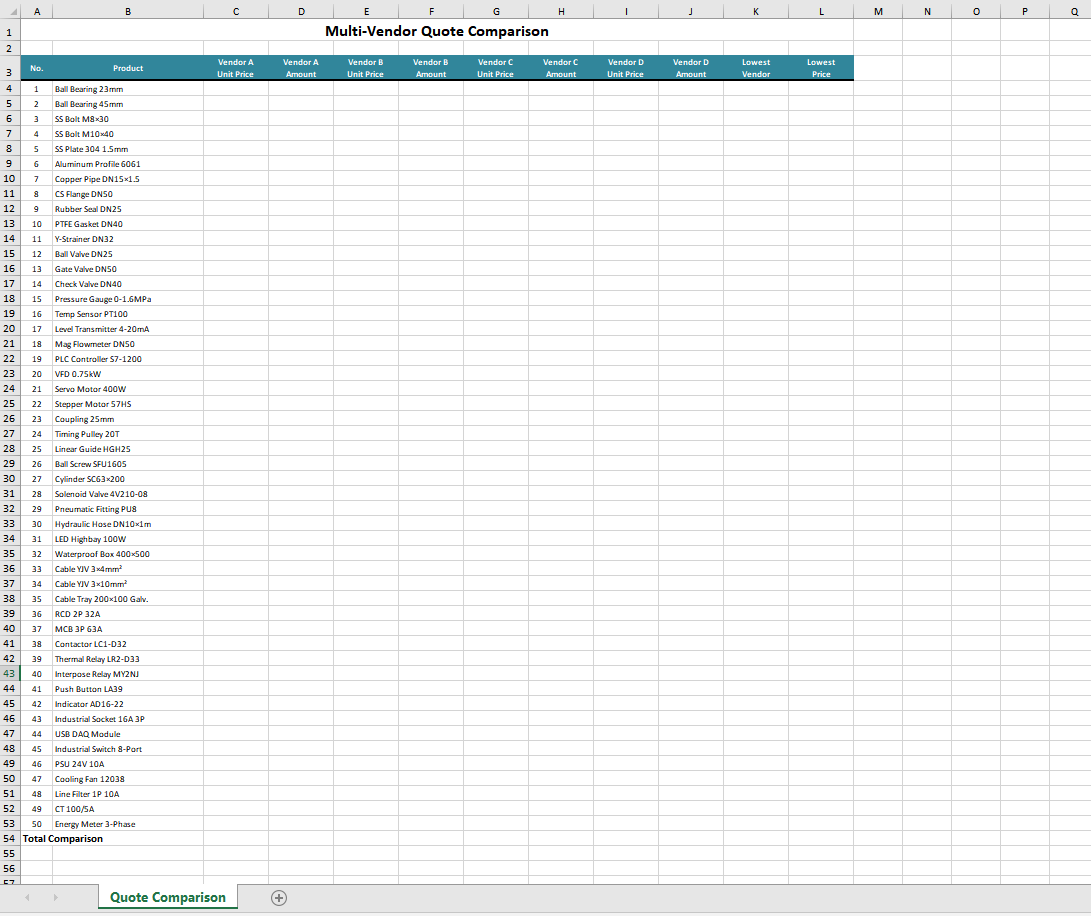
Excel Format Quote Comparison
The core challenge of comparing multi-format quotation sheets is that each vendor's quotation sheet differs.
using Spire.Agent.Office.AI;
using Spire.Agent.Office.Extensions;
using Spire.Xls;

// Quotation files from different vendors
string[] attachmentPaths = new string[]
{
    @"vendor_A.xlsx",
    @"vendor_B.xlsx",
    @"vendor_C.xlsx",
    @"vendor_D.xlsx"
};

// Output template file
string inputPath = @"template.xlsx";
// Result document
string savePath = @"quote-comparison.xlsx";
string key = "**************************";
string instruction =
    "Read the quotation sheets of the vendors in the attachments (Vendor A, Vendor B, Vendor C, Vendor D) and process them as follows:" +
    "1. Identify the item, unit price, quantity, and total price columns in each quotation sheet, and align them to the Unit Price and Amount columns of the corresponding vendor (A, B, C, D) in the template;" +
    "2. If a vendor has not quoted a product, leave the corresponding unit price and amount cells blank and mark them as 'Not quoted';" +
    "3. Calculate the amount (quantity x unit price) for each product of each quoting vendor and fill it into the corresponding columns; compute each vendor's total quotation at the bottom of the template;" +
    "4. In the total price row, fill the cell of the vendor with the lowest total quotation with a green background (RGB:198,224,180);" +
    "5. In the 'Lowest Price Vendor' column, mark the vendor that offers the lowest unit price for each product, and fill the corresponding lowest unit price into the 'Lowest Price' column;" +
    "6. Preserve the template's layout style, fonts, and column widths;" +
    "Finally save the output as an Excel file";

// Call the Excel document processing function
AIResult result = ExecuteDemoExcel(instruction, inputPath, savePath, key,  attachmentPaths);


// Execute Excel document AI processing
static AIResult ExecuteDemoExcel(string instruction, string inputPath, string savePath, string key, string[] attachmentPaths)
{
    // Create the AIOptions configuration object
    AIOptions options = new AIOptions();
    options.SpireToken = key;

    // Use the Workbook object to process the Excel document
    using (Workbook workbook = new Workbook())
    {
        // Load the Excel template from file
        if (!string.IsNullOrEmpty(inputPath) && File.Exists(inputPath))
        {
            workbook.LoadFromFile(inputPath);
        }
        // Create the AI document processor
        AIWorkbookProcessor processor = workbook.AI(options);

        // Execute the AI instruction
        return processor.ExecuteInstruction(workbook, instruction, savePath, attachmentPaths);
    }
}
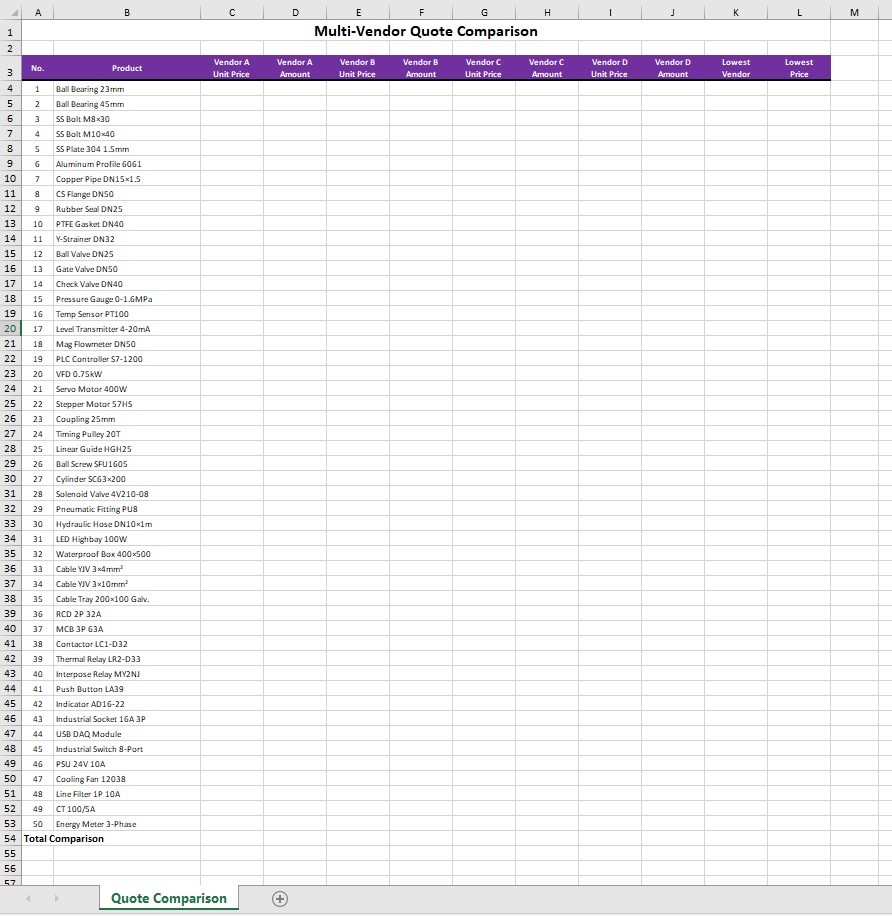
Original quotation sheets of each vendor 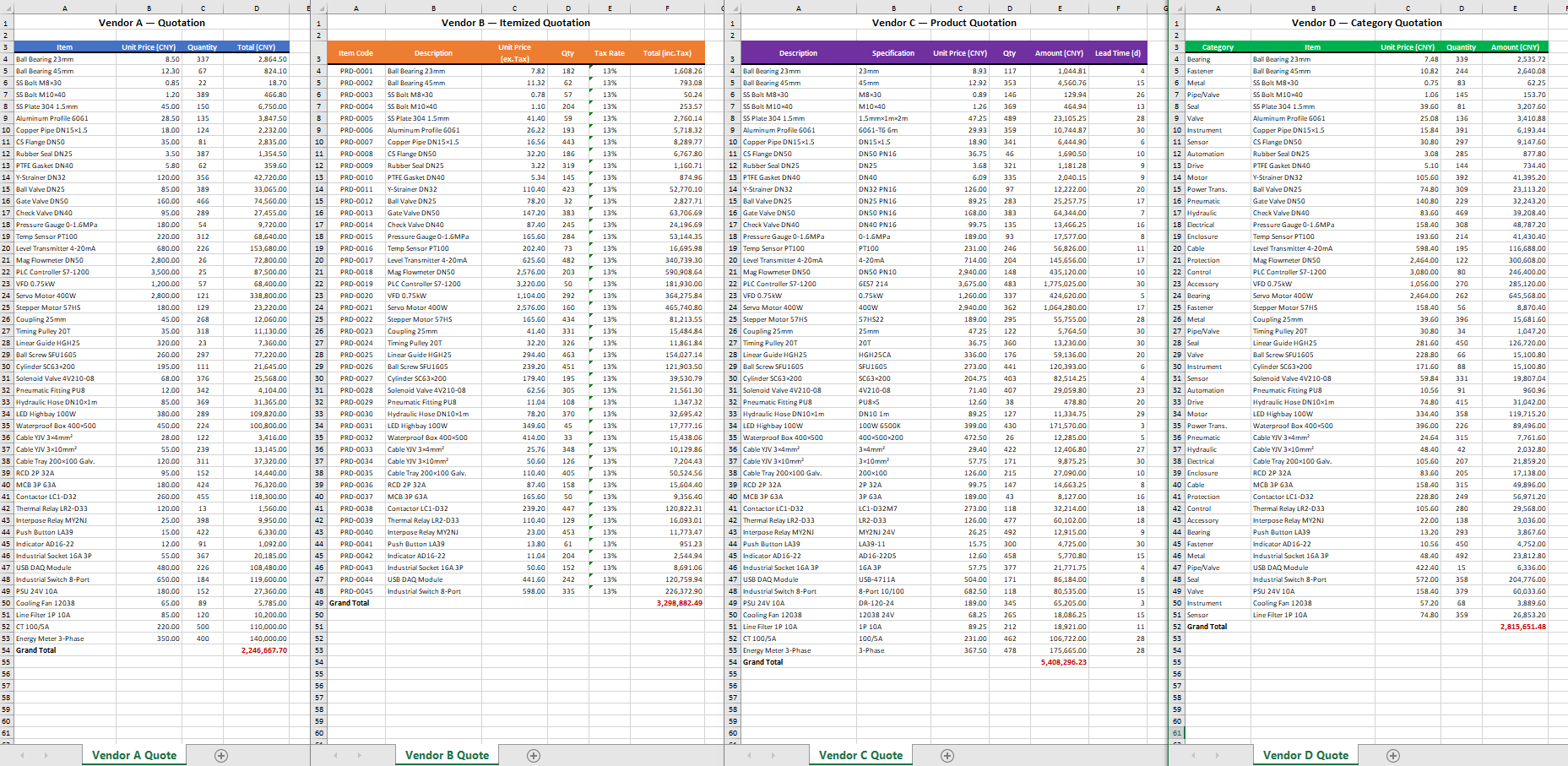 Original Excel template
  Comparison summary generated by Excel AI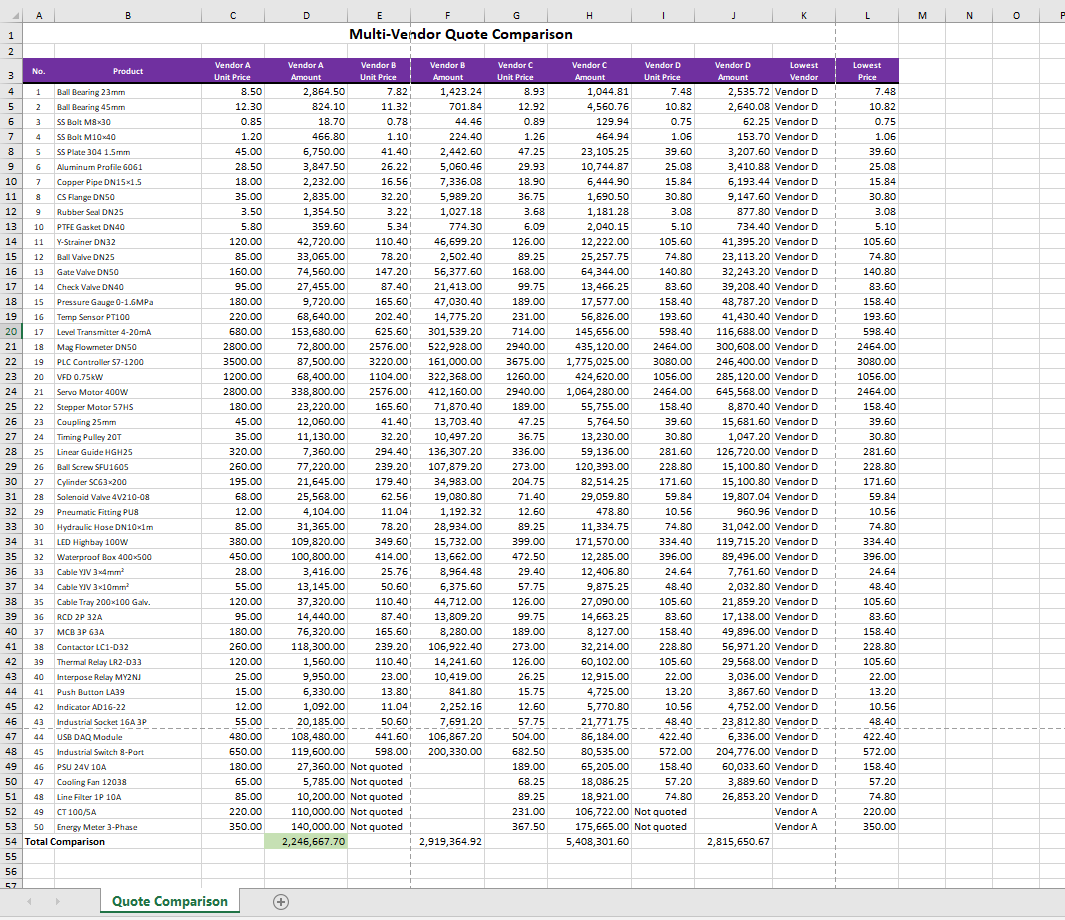
PDF Format Quote Comparison
When the original quotations are in PDF format, Spire.Agent.Office can equally extract the required data with ease and automatically complete the summary statistics. Simply add the source documents in different formats, and the AI instruction can be reused without reconfiguration, greatly improving processing efficiency.
using Spire.Agent.Office.AI;
using Spire.Agent.Office.Extensions;
using Spire.Xls;

// Quotation files from different vendors
string[] attachmentPaths = new string[]
{
    @"vendor_A.pdf",
    @"vendor_B.pdf",
    @"vendor_C.pdf",
    @"vendor_D.pdf"
};

// Output template file
string inputPath = @"template.xlsx";
// Result document
string savePath = @"quote-comparison.xlsx";
string key = "**************************";
string instruction =
    "Read the quotation sheets of the vendors in the attachments (Vendor A, Vendor B, Vendor C, Vendor D) and process them as follows:" +
    "1. Identify the item, unit price, quantity, and total price columns in each quotation sheet, and align them to the Unit Price and Amount columns of the corresponding vendor (A, B, C, D) in the template;" +
    "2. If a vendor has not quoted a product, leave the corresponding unit price and amount cells blank and mark them as 'Not quoted';" +
    "3. Calculate the amount (quantity x unit price) for each product of each quoting vendor and fill it into the corresponding columns; compute each vendor's total quotation at the bottom of the template;" +
    "4. In the total price row, fill the cell of the vendor with the lowest total quotation with a green background (RGB:198,224,180);" +
    "5. In the 'Lowest Price Vendor' column, mark the vendor that offers the lowest unit price for each product, and fill the corresponding lowest unit price into the 'Lowest Price' column;" +
    "6. Preserve the template's layout style, fonts, and column widths;" +
    "Finally save the output as an Excel file";

// Call the Excel document processing function
AIResult result = ExecuteDemoExcel(instruction, inputPath, savePath, key,  attachmentPaths);


// Execute Excel document AI processing
static AIResult ExecuteDemoExcel(string instruction, string inputPath, string savePath, string key, string[] attachmentPaths)
{
    // Create the AIOptions configuration object
    AIOptions options = new AIOptions();
    options.SpireToken = key;

    // Use the Workbook object to process the Excel document
    using (Workbook workbook = new Workbook())
    {
        // Load the Excel template from file
        if (!string.IsNullOrEmpty(inputPath) && File.Exists(inputPath))
        {
            workbook.LoadFromFile(inputPath);
        }
        // Create the AI document processor
        AIWorkbookProcessor processor = workbook.AI(options);

        // Execute the AI instruction
        return processor.ExecuteInstruction(workbook, instruction, savePath, attachmentPaths);
    }
}
Original PDF quotation of each vendor 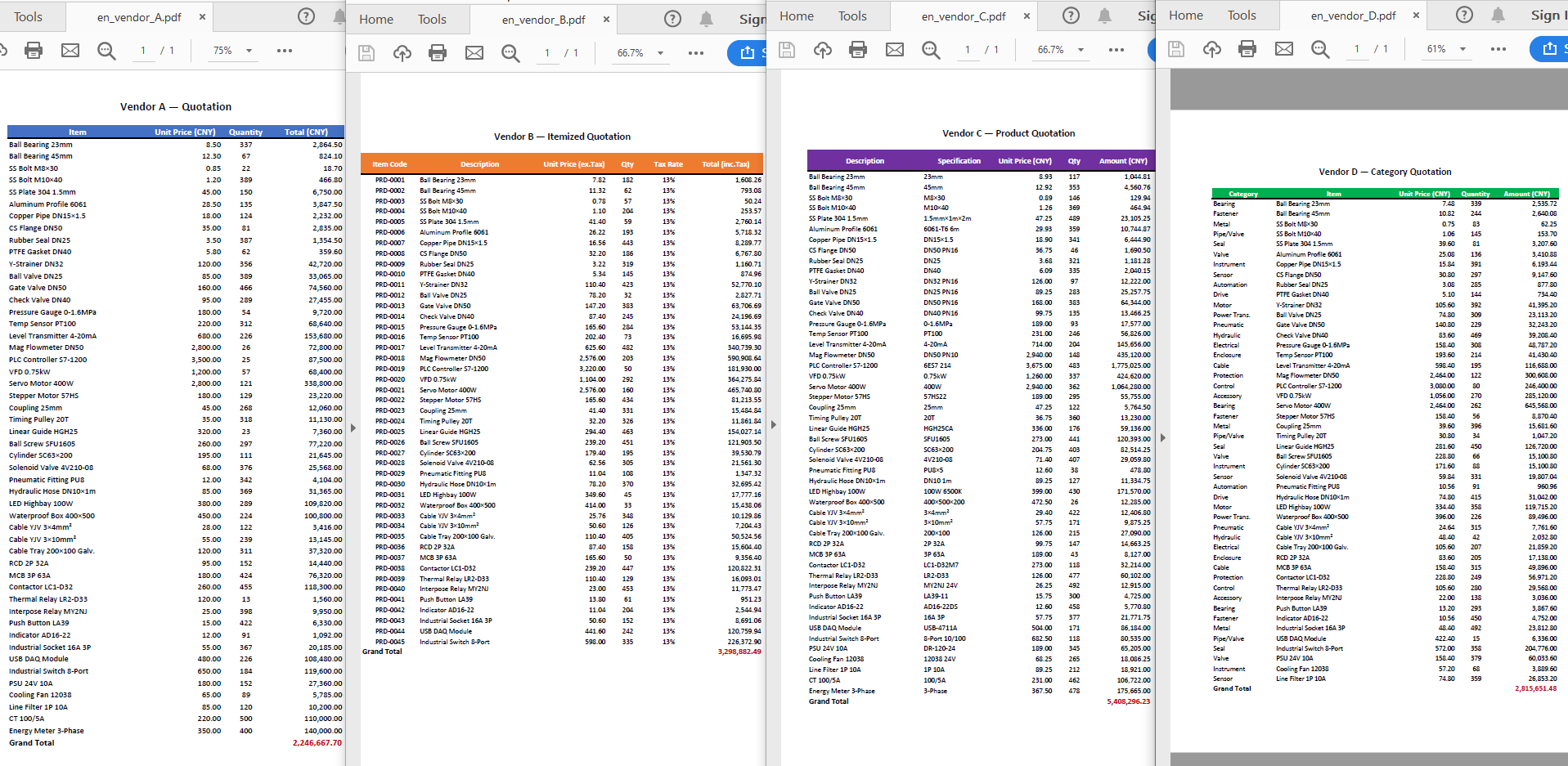 Original Excel template
  Comparison summary generated by Excel AI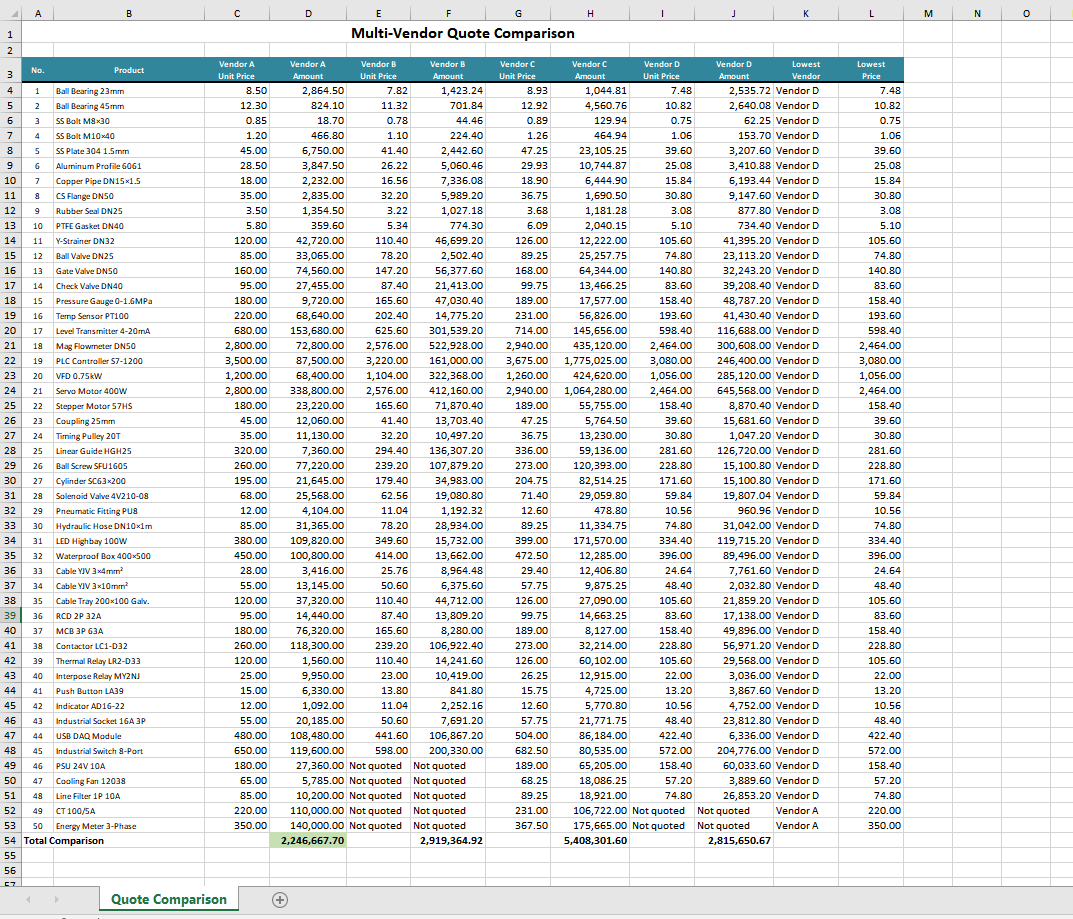
Comparison with Traditional SDK API Processing
| Spire.Office for .NET API | Spire.Agent.Office | |
|---|---|---|
| Code Volume | Reading data, mapping rows and columns, filling formulas, and applying conditional formatting require extensive code | Handled intelligently with a single natural language instruction |
| Format Adaptation | With the traditional SDK APIs, quotation sheets in different formats must be processed with different products | Just use the Excel AI to process data sources in various formats |
| Calculation Logic | Formulas and formatting must be set through APIs | AI understands and automatically completes the calculation and formatting |
| Requirement Changes | Modify the code and re-debug | Modify the instruction, effective immediately |
FAQ
Merged Cells in Quotation Sheets Cause Data Misalignment
Cause: Vendor quotation sheets may contain merged title cells or category labels merged across rows, which affect the AI's judgment of the row/column structure.
Solution: Clearly specify in the instruction "ignore the merged header rows and start reading data from row X," or provide a template file as a structural reference. If the issue persists, add the description "treat merged cells as ordinary cells and take their top-left value."
Processed Format Does Not Match Expectations
Cause: When understanding complex table layouts, the AI model may not preserve details such as column widths, row heights, and fonts precisely enough.
Solution: Add specific descriptions to the instruction, such as "preserve the existing column widths, row heights, fonts, borders, and alignment of the template."
Some Products Lack Vendor Quotations
Cause: The product lists provided by different vendors are not completely consistent, and some vendors may not have quoted certain products.
Solution: Clearly specify how to handle missing items in the instruction, such as "mark the cells without quotations as 'Not quoted' or leave them blank," and the AI will automatically identify and process them as required.
Obtaining a SpireToken Key
- Contact sales@e-iceblue.com or visit https://www.e-iceblue.com/TemLicense.html to obtain a trial/commercial API key.
Configure it in code:
AIOptions options = new AIOptions();
options.SpireToken = key;
AI Contract Review in C#: Automate Contract Processing in .NET
2026-08-12 06:46:25 Written by Allen Yang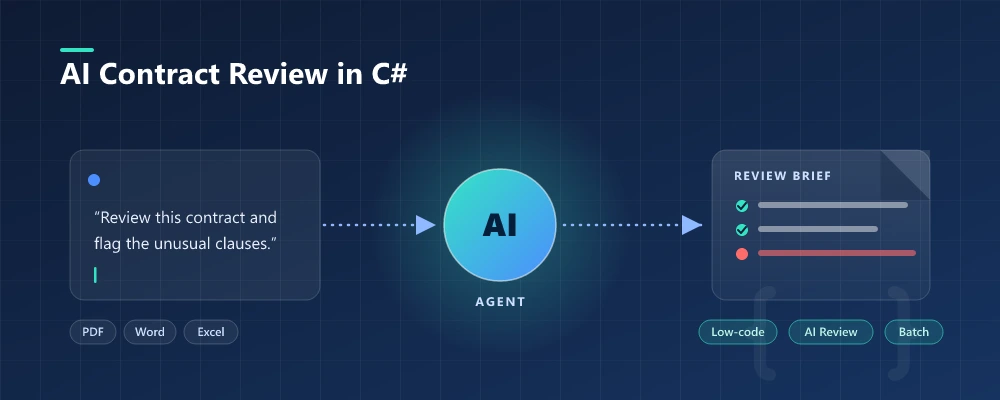
AI contract automation in C# means combining AI language understanding with document-processing capabilities inside your .NET application, so developers can review, extract, and generate contract documents by describing the task in natural language instead of writing field-mapping and layout code for every template. In practice, this is document automation in .NET where a natural-language instruction replaces the field-mapping code. Spire.Agent.Office is a document AI agent SDK that handles the language; a deterministic document layer guarantees real, well-formed Word and PDF files.
Quick Navigation
- Why Contract Review Is a Good Fit for AI
- What an AI Contract Agent Can and Cannot Do
- Common Contract Automation Scenarios
- Three Ways to Automate Contract Processing in .NET
- A Working Example: Contract Review and Generation in C#
- Why Use Spire.Agent.Office for AI Contract Automation
- FAQ
1. Why Contract Review Is a Good Fit for AI
Contract work in a developer's world is three repetitive jobs: reading (extracting parties, dates, payment terms, and obligations from agreements that arrive as PDFs and Word files), checking (spotting missing clauses or unusual language), and producing (turning a list of employees or vendors into signed-ready contracts).
For .NET developers, the challenge is not only understanding contract content; it is turning unstructured documents into structured, repeatable workflows your application can own.
Three properties make these tasks ideal for a language model rather than hand-written rules:
- The input is unstructured. Incoming contracts arrive in whatever format the other side sends. Rules that handle one layout break on the next; an LLM reads text directly.
- The output is document-shaped. The deliverable is a real
.docxor.pdfwith correct formatting, not a text blob. This is where a document layer earns its keep. - The volume changes constantly. Onboarding 50 employees or reviewing 200 vendor agreements in a month means a config-driven solution, not re-coding per template.
In practice, review and generation go together: teams want existing contracts summarized and red-flagged, and new contracts generated from a template plus structured data.
2. What an AI Contract Agent Can and Cannot Do
| Can do | Cannot do |
|---|---|
| Extract parties, effective dates, payment terms, obligations | Replace professional legal review for high-risk agreements |
| Summarize long agreements into a one-page brief | Guarantee compliance with local laws |
| Generate contracts in batches from a template + data source | Negotiate or accept terms on your behalf |
| Keep formatting, table styles, and fonts intact | Guarantee output is error-free without review |
| Run inside your own application (no cloud upload) | Interpret new or ambiguous regulations; route to counsel |
| Flag clauses that look unusual for a standard agreement | Reveal hidden risks in intentionally vague clauses |
The division of labor: the agent automates the reading, extraction, and drafting (the hours a paralegal would spend), while a human lawyer owns the final judgment. That boundary is what keeps the tool useful and the process defensible.
3. Common Contract Automation Scenarios
Contract automation spans more than hiring. The same pattern (an instruction, a template, and optional data) covers the scenarios teams search for most:
| Scenario | Example instruction |
|---|---|
| Vendor agreement review | "Review this vendor agreement and flag payment terms, liability caps, and termination conditions that differ from our standard terms." |
| Employment contract generation | "Generate one employment contract per row in 'employees.xlsx' using the template, preserving layout and styling." |
| NDA processing | "Summarize this NDA: confidentiality period, permitted disclosures, and remedies on breach." |
| Lease agreement analysis | "Extract rent, term, renewal options, and maintenance obligations from this lease, and list any unusual clauses." |
Each scenario is the same architecture: an instruction in, a real document out.
4. Three Ways to Automate Contract Processing in .NET
| Approach | Code volume | Format fidelity | Maintenance | Best for |
|---|---|---|---|---|
| Document AI agent (LLM + document layer) | One instruction + ~10 lines | High (real Word/PDF files) | Low (change behavior by editing instructions) | Teams automating contracts without building an LLM pipeline |
| Raw LLM API (OpenAI/Claude + your own code) | High (prompts, parsing, file I/O) | Low (LLMs don't natively read/write Office files) | High (you own RAG, routing, errors) | Teams that already run an LLM stack |
| Traditional SDK (Spire.Office or similar) | Dozens of lines per document type | High (deterministic) | High (every mapping is code) | Fixed, well-specified documents that rarely change |
The key point: an LLM cannot edit a contract template without a document-processing layer, and a traditional SDK cannot understand a natural-language request. A document AI agent combines both.
That is not to say the traditional route is wrong. For fixed, well-specified documents that rarely change, a deterministic SDK is often the right call, and Spire.Office still serves that need. The agent earns its place when templates, inputs, and requirements change often enough that re-coding becomes the bottleneck.
Why a Raw LLM API Is Not Enough for Contracts
Calling gpt-4 or claude directly to "generate a contract" fails in three ways that matter in production:
- It cannot reliably read or write Office files. LLMs see text, not
.docxand.pdfstructure. Reading a Word template, keeping a table intact, or producing a valid PDF usually requires a separate extraction and reconstruction pipeline you have to build yourself. - Formatting is not guaranteed. Contract templates carry clause numbering, tables, and fonts that matter to the recipient. A raw LLM returns text, and the formatting you lose is exactly what legal and HR departments care about.
- You reimplement the whole orchestration. Prompt design, field mapping, error handling, file I/O, and output validation become your code to own and maintain.
A document AI agent pairs the model's language understanding with deterministic document APIs: the model decides what to extract or fill, and the document layer guarantees the file is real and well-formed. That is the difference between a demo and a workflow a team can ship.
5. A Working Example: Contract Review and Generation in C#
Below is a task the legal and procurement teams repeat every week: reviewing newly arrived supplier agreements, then issuing contracts for the vendors that get approved. The implementation uses Spire.Agent.Office for .NET, an AI agent that processes Word, Excel, PowerPoint, and PDF documents through natural-language instructions. The example is designed around that workflow rather than copied from a tutorial; the official Getting Started and Batch Contract Generation tutorials document the API setup step by step, while this section focuses on the C# integration patterns.
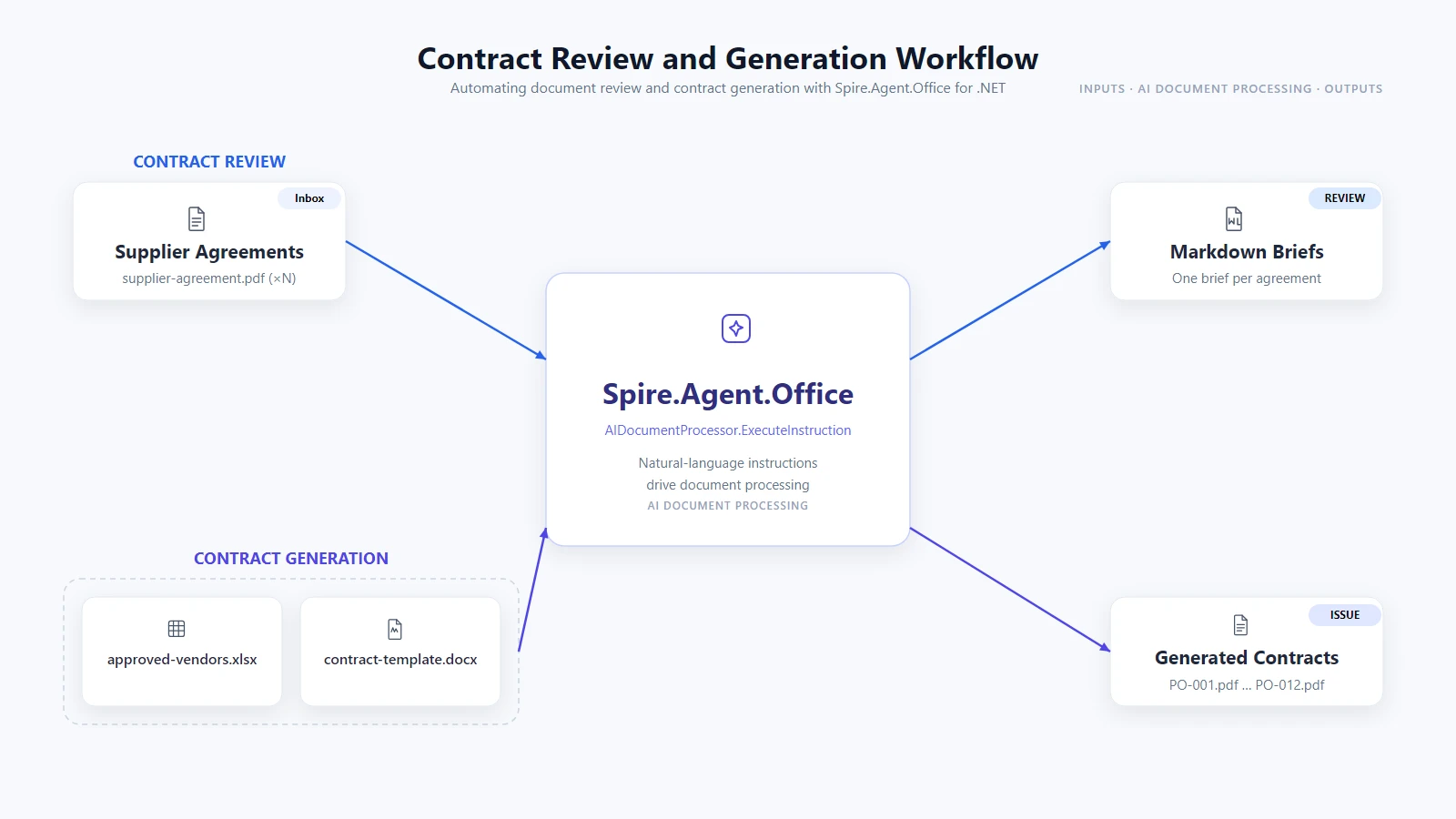
1. Review every agreement that arrived this week. Configure the agent once, then read the inbox folder and have each agreement summarized as a Markdown brief you can paste into a review tracker:
using System.IO;
using Spire.Agent.Office.AI;
using Spire.Agent.Office.Extensions;
using Spire.Doc;
using Spire.Pdf;

AIOptions agentOptions = new AIOptions();
agentOptions.WorkDir = @"C:\legal-ops\output";
agentOptions.SpireToken = spireToken;

string reviewPrompt =
    "Review this supplier agreement and write a Markdown brief: a one-row table with " +
    "the parties, effective date, payment terms, and termination clause, then a bullet " +
    "list of any clauses that look unusual for a standard supplier agreement. " +
    "Save the brief to the specified output path as Markdown.";

Directory.CreateDirectory(@"C:\legal-ops\output");

foreach (string file in Directory.GetFiles(@"C:\legal-ops\inbox", "*.pdf"))
{
    string briefPath = Path.Combine(
        @"C:\legal-ops\output", Path.GetFileNameWithoutExtension(file) + ".md");

    using (PdfDocument agreement = new PdfDocument())
    {
        agreement.LoadFromFile(file);
        AIResult result = agreement.AI(agentOptions).ExecuteInstruction(
            agreement, reviewPrompt, briefPath, new string[] { });

        if (result == null || !result.Success)
        {
            throw new InvalidOperationException(
                $"Review failed for {Path.GetFileName(file)}: {result?.ErrorMessage}");
        }
    }
}
Key API Calls
PdfDocument.LoadFromFile()-- opens the supplier agreement PDFagreement.AI(agentOptions)-- attaches the AI document processorExecuteInstruction(doc, instruction, savePath, attachments)-- runs the review and writes the Markdown briefAIResult.Success/AIResult.ErrorMessage-- verifies the result and surfaces errors
Output
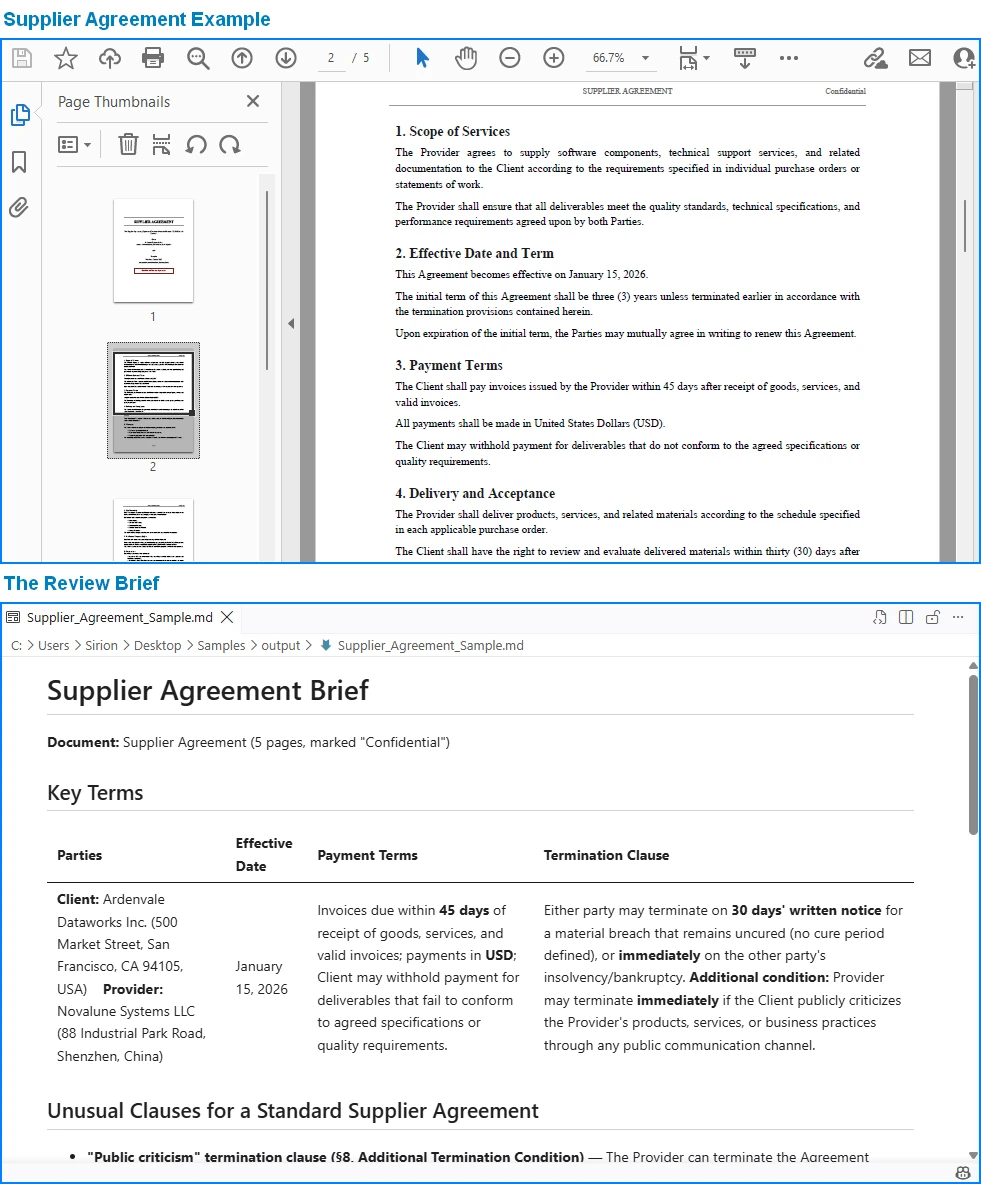
2. Issue contracts for the vendors you approved. One template plus the approval list. The template holds {{Placeholder}} markers for the vendor data; pass null as the output path so the agent writes one independent PDF per vendor into the working directory:
string[] attachments = { @"C:\legal-ops\data\approved-vendors.xlsx" };

using (Document contract = new Document())
{
    contract.LoadFromFile(@"C:\legal-ops\templates\supplier-contract.docx");
    AIResult result = contract.AI(agentOptions).ExecuteInstruction(
        contract,
        "Issue one purchase contract per approved vendor: read 'approved-vendors.xlsx' " +
        "row by row, fill the {{Placeholder}} fields in this template with each vendor's " +
        "data, preserve the template layout and styling, and save each contract as an " +
        "independent PDF in the work directory.",
        null,   // null output path -> the agent writes each contract into WorkDir
        attachments);

    if (result == null || !result.Success)
    {
        throw new InvalidOperationException(
            $"Contract issuing failed: {result?.ErrorMessage}");
    }
}
Key API Calls
Document.LoadFromFile()-- loads the contract templatecontract.AI(agentOptions)-- attaches the AI document processorExecuteInstruction(doc, instruction, savePath, attachments)-- issues one independent contract per vendor rowAIResult.Success/AIResult.ErrorMessage-- verifies the result and surfaces errors
Output
Each contract is written to a session subfolder the agent manages under WorkDir (e.g. output\.office_use_tmp\Word\<session>\output_contracts), so point WorkDir at your archive folder and collect the issued contracts from there.
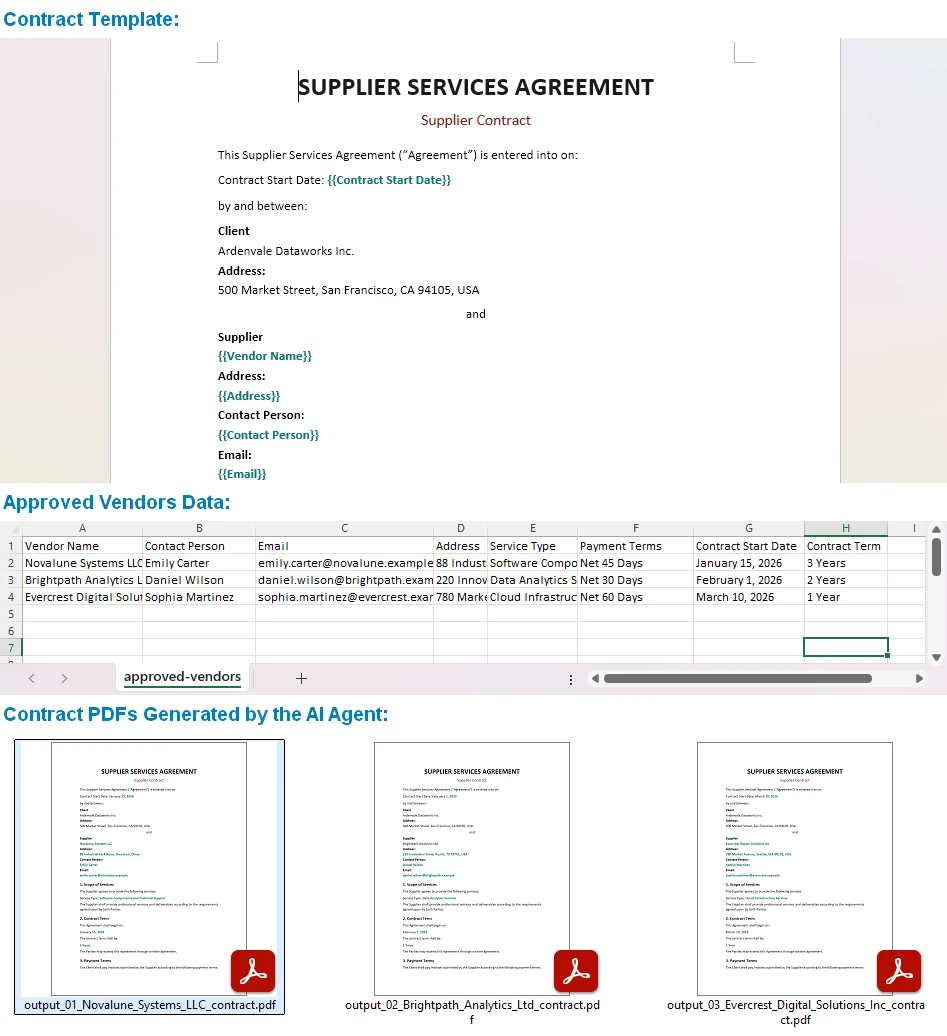
One template, one spreadsheet, and the same instruction drives every contract, each issued with its formatting intact. Output can be saved as PDF, DOCX, DOC, HTML, Markdown, or XPS to fit your archiving workflow. You can also build more complex templates than simple field filling -- the official Generate Various Word Templates tutorial covers placeholders, conditional sections, and other template patterns the agent can fill.
Why This Is Different: Traditional SDK vs. AI Agent
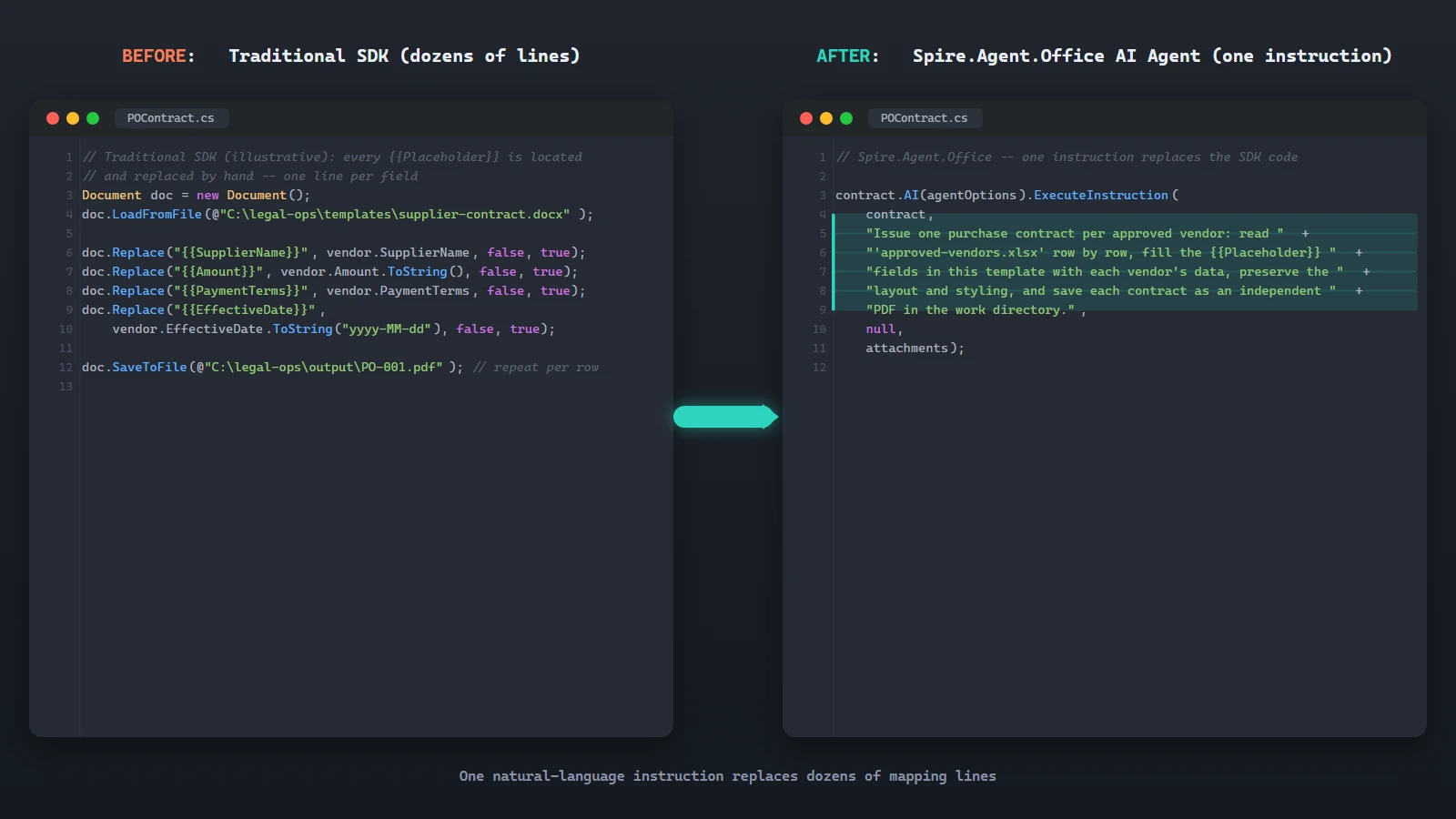
The value of the agent is clearest side by side. With the traditional SDK you locate each {{Placeholder}} and replace it by hand, one line per field, map every spreadsheet column to its placeholder, then loop the rows and export one file per row. That is dozens of lines you maintain every time the template or the data layout changes. The sketch below (simplified for illustration) shows the shape of that work:
// Traditional SDK (illustrative): every {{Placeholder}} is located and
// replaced by hand -- one line per field
Document doc = new Document();
doc.LoadFromFile(@"C:\legal-ops\templates\supplier-contract.docx");

doc.Replace("{{SupplierName}}", vendor.SupplierName, false, true);
doc.Replace("{{Amount}}", vendor.Amount.ToString(), false, true);
doc.Replace("{{PaymentTerms}}", vendor.PaymentTerms, false, true);
doc.Replace("{{EffectiveDate}}", vendor.EffectiveDate.ToString("yyyy-MM-dd"), false, true);

doc.SaveToFile(@"C:\legal-ops\output\PO-001.pdf"); // ...repeat for each vendor row
The AI agent replaces that orchestration with one instruction:
contract.AI(agentOptions).ExecuteInstruction(
    contract,
    "Issue one purchase contract per approved vendor: read 'approved-vendors.xlsx' " +
    "row by row, fill the {{Placeholder}} fields in this template with each vendor's " +
    "data, preserve the template layout and styling, and save each contract as an " +
    "independent PDF in the work directory.",
    null,
    attachments);
Both produce the same contracts. Where the SDK grows a Replace call for every placeholder and a mapping for every column, the agent absorbs the same work into one instruction. When the template or the data layout changes, you edit the instruction, not the code.
6. Why Use Spire.Agent.Office for AI Contract Automation
The three-way comparison above is deliberately product-neutral; the same pattern works with any capable LLM. Where Spire.Agent.Office earns its place for .NET teams is in three specific areas:
- Native Office document processing. Word, Excel, PowerPoint, and PDF are first-class citizens, not formats you bolt on. The agent reads and writes real files across all four.
- Formatting is preserved. Enterprise contracts carry clause numbering, tables, and fonts that must survive processing. The agent's document layer keeps them intact. Include "preserve the original document layout and styling" in your instruction and the output stays true to the template.
- Native .NET integration. It is a C# SDK that drops into an existing .NET application. No separate document-processing service to build or maintain, no cross-service plumbing. The example above is the whole integration surface.
If you already run Spire.Office for document processing, the agent is the natural next layer: the same Document object gains an AI() processor that turns instructions into executed workflows.
7. FAQ
Can AI contract review work with text-based PDFs?
Yes. The review example above loads a supplier-agreement.pdf directly, and the agent reads and analyzes the document in its native format. Support covers standard and encrypted text-based PDFs. Image-only scans have no extractable text layer, so convert them to searchable text first (for example with OCR) before running the review.
Can contract data stay inside my environment?
Yes, with one important nuance. Spire.Agent.Office runs from your own application, so the SDK, templates, and document processing stay inside your environment. Contract files are not uploaded to a third-party document service for storage or conversion. To analyze contract content, the AI needs the relevant text, and it is sent to the model for processing; that is an inherent step of any AI workflow. If you deploy your own model on your local network, the content stays entirely within your infrastructure. If you connect through a hosted model API such as OpenAI or Azure OpenAI, the relevant content is transmitted to that provider over the network per your configuration.
Can I use my own AI model with Spire.Agent.Office?
Yes. Spire.Agent.Office supports flexible AI model integration and is compatible with mainstream AI infrastructure, including hosted model APIs and privately deployed models. You can point the agent at your own endpoint. See the integration tutorial for setup details; for questions about which providers are supported in your deployment, contact your account team at sales@e-iceblue.com.
Which model does Spire.Agent.Office use for contract review?
Spire.Agent.Office connects to a large language model behind a SpireToken key. You describe the review or generation task in natural language, and the agent orchestrates the underlying document-processing tools. The model handles understanding; the document layer guarantees formatting and file fidelity.
Can it generate contracts in batches?
Yes. One contract template plus a data source such as an Excel sheet, and one instruction produces one contract per data row. Both field filling and placeholder replacement are supported. For the agent to pick up every row, keep the first row of the data source as the header, put one vendor per row, and avoid blank rows; if the number of generated contracts does not match the data rows, check the data source first.
Will the AI change my contract's formatting?
Not if you say so. Include a phrase like "preserve the original document layout, styling, and fonts" in your instruction; the official tutorial documents this exact fix.
How is this different from using a raw LLM API?
A raw LLM cannot reliably read, edit, or write Word and PDF files on its own; it needs a document-processing layer. A document AI agent pairs the LLM's language understanding with deterministic document APIs, so the output is a real, well-formed file.
Ready to Automate Your Contract Workflow?
Contract review and batch generation are the fastest places to get value: one template, one data source, one natural-language instruction, and real Word or PDF files out. Follow the Getting Started tutorial to run your first document workflow in .NET.
Further Reading
- Spire.Agent.Office product overview -- AI agent SDKs for every Office document format
- Generate Various Word Templates tutorial -- building templates the agent can fill
Automating Student Score Analysis and Ranking with Spire.Agent.Office
2026-08-07 07:50:53 Written by jie zouIn the field of education and academic affairs, processing exam scores after each test is one of the most frequent and time-consuming tasks. The same exam result often needs to be handled from two dimensions: for class students and class teachers, it needs to present the class's own score details, rankings, and subject strengths; for teachers and the academic affairs office, it needs cross-class horizontal comparison to determine which classes and subjects require focused attention.
The traditional approach usually requires manually writing formulas in Excel, sorting, drawing charts item by item, and writing analysis summaries. For different audiences, the same data must be reorganized twice, and the whole process often takes half a day to a full day. Formulas are error-prone, chart styles are inconsistent, and analysis criteria are hard to keep aligned.
Comparison with Traditional SDK API Processing
| Traditional Spire.Office for .NET API | Spire.Agent.Office Processing | |
|---|---|---|
| Driving Method | Write Excel formulas + file splitting + sorting + chart + conditional formatting code, controlling every step | Describe the goal in natural language; the AI understands and automatically orchestrates the execution path |
| Code Volume | Score analysis scenarios typically require 500-1000 lines of C# code (including per-class file splitting, formula calculation, ranking logic, chart configuration, etc.) | About 10 lines of calling code + one natural language instruction |
| Statistics Criteria | Must hard-code the calculation formulas and judgment logic for average/pass rate/excellence rate; adjusting criteria requires code changes | AI understands education statistics semantics and automatically computes by criteria such as "≥60 pass, ≥90 excellent" |
| Chart Generation | Must manually create Chart objects, configure data ranges, set chart types and styles | AI automatically selects the most appropriate chart type (radar, column, etc.) based on data semantics |
| Requirement Changes | Adding new statistics dimensions requires modifying code → compiling → deploying | Modify the description in the instruction; takes effect immediately |
This article introduces how to use the Excel AI capabilities of Spire.Agent.Office for two audiences — class students and teachers / the academic affairs office — to automate score statistics, ranking, and visual analysis with just a few natural language instructions.
For product installation and SpireToken configuration, please refer to Integrating Spire.Agent.Office in a .NET Project. The following examples assume Spire.Agent.Office is already installed and SpireToken is configured.
Class Score Statistics and Display
The score analysis for class students and class teachers focuses on the class itself: score details, in-class ranking, and subject strengths. Since there is no need for cross-class comparison, each class gets its own Excel file, which can be printed and posted, or used for parent meetings.
The following example uses the Spire.Agent.Office agent to automatically split data by class through natural language instructions and generate an independent score analysis Excel file for each class:
using Spire.Agent.Office.AI;
using Spire.Agent.Office.Extensions;
using Spire.Xls;

// Source score data (containing class, student name, and subject score columns)
string inputPath = @"C:\ScoreAnalysis\StudentScores.xlsx";
// Result document path (null uses the output folder path set below)
string savePath = null;
// Output directory (one file per class)
string OutDir = @"C:\ScoreAnalysis\ClassAnalysis";
// SpireToken Key
string key = "sk-TF***************************r";
// Natural language instruction
string instruction =
    "Process the input file as follows:\r\n" +
    "1. Read the file and generate one separate Excel analysis file per class, named 'XXClassScoreAnalysis.xlsx'\r\n" +
    "2. Each class file must contain: the class score details, class ranking by total score, per-subject average/max/min, pass rate (≥60 points), excellence rate (≥90 points), and score interval distribution\r\n" +
    "3. Choose appropriate chart types to visualize the class performance\r\n" +
    "4. Apply a unified and clean table style: highlight the top 10 by total score in green, and mark failing subject scores in red";
// AI generation
AIResult result = AnalyzeClassScores(instruction, inputPath, savePath, key, OutDir);

// AI-assisted score analysis
static AIResult AnalyzeClassScores(string instruction, string inputpath, string savePath, string key, string output)
{
    // Configure the AI processing options
    AIOptions options = new AIOptions();
    options.SpireToken = key;
    options.WorkDir = output;

    using (Workbook wb = new Workbook())
    {
        if (!string.IsNullOrEmpty(inputpath) && File.Exists(inputpath))
            wb.LoadFromFile(inputpath);
        AIDocumentProcessor processor = wb.AI(options);
        return processor.ExecuteInstruction(wb, instruction, savePath);
    }
}
Original score data and per-class score analysis files 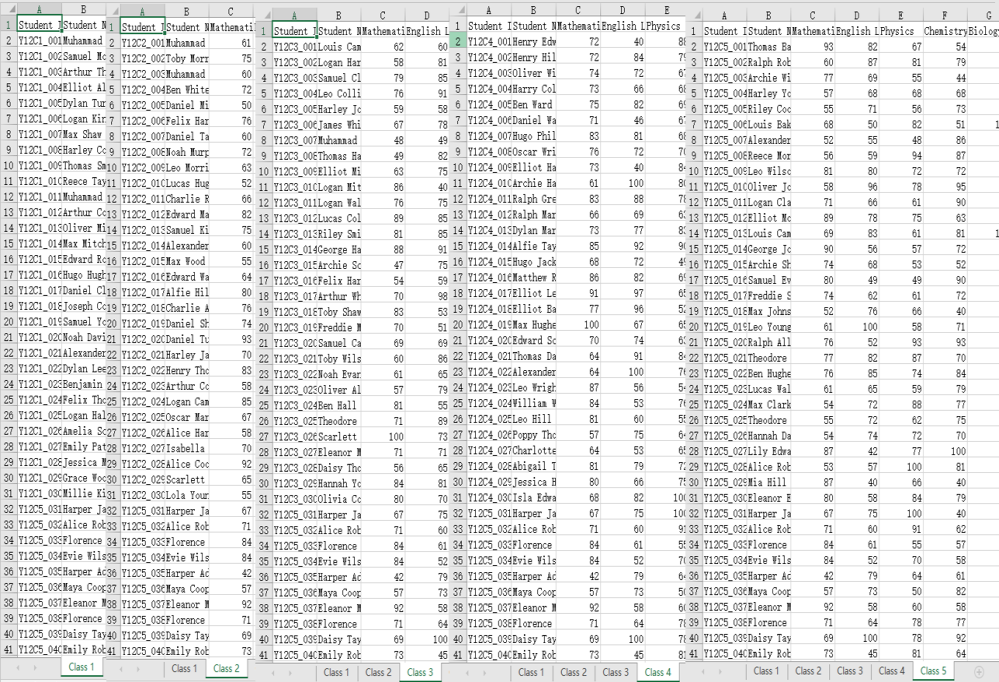
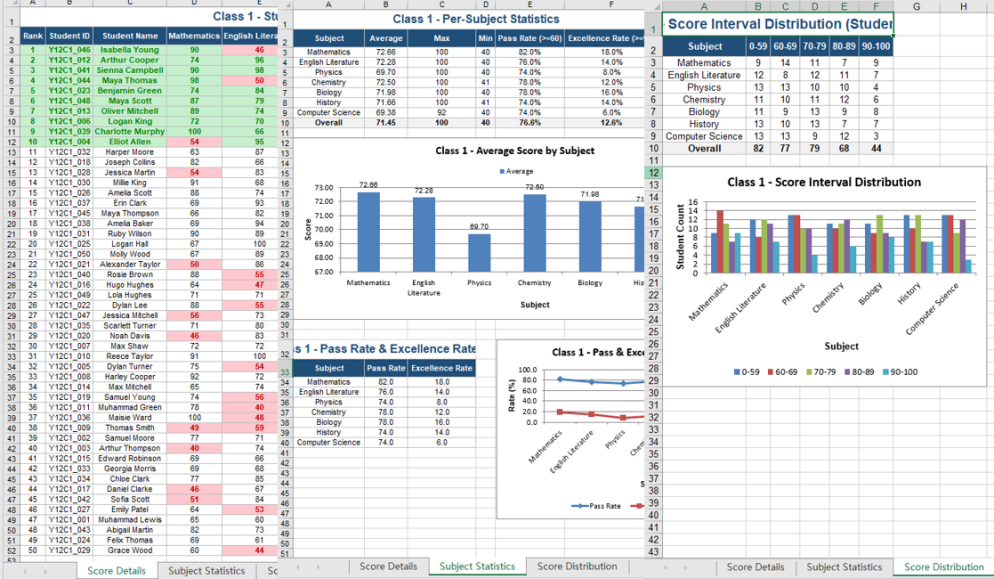
Grade Score Summary and Analysis
The score analysis for teachers and the academic affairs office focuses on the overall picture: gaps between classes, subjects that are weak across the board, and the distribution of the full-grade ranking. All classes' data must be consolidated into a single worksheet to enable horizontal comparison, unified criteria, and decision support.
The following example uses the Spire.Agent.Office agent to consolidate all classes' data into one worksheet through natural language instructions, completing class comparison and visual analysis:
using Spire.Agent.Office.AI;
using Spire.Agent.Office.Extensions;
using Spire.Xls;

// Source score data (containing class, student name, and subject score columns)
string inputPath = @"C:\ScoreAnalysis\StudentScores.xlsx";
// Save path of the grade score analysis file
string savePath = @"C:\ScoreAnalysis\GradeAnalysis.xlsx";
// SpireToken Key
string key = "sk-TF***************************r";
// Natural language instruction
string instruction =
    "Process the input file as follows:\r\n" +
    "1. Read the file, and for each class calculate the average score, pass rate (≥60 points), and excellence rate (≥90 points) for every subject; generate a \"Class Comparison\" worksheet that summarizes these metrics for all classes.\r\n" +
    "2. Generate the overall grade ranking based on total scores.\r\n" +
    "3. Create radar charts for subject averages: one radar chart per class to show each class's own subject strengths, and a single combined radar chart that overlays all classes (each class as one series) for direct comparison.\r\n" +
    "4. Based on the statistical data, analyze the overall performance of the entire grade, identify each class's strengths and weaknesses, and provide targeted improvement recommendations.";
// AI generation
AIResult result = AnalyzeGradeScores(instruction, inputPath, savePath, key);

// AI-assisted score analysis
static AIResult AnalyzeGradeScores(string instruction, string inputpath, string savePath, string key)
{
    // Configure the AI processing options
    AIOptions options = new AIOptions();
    options.SpireToken = key;

    using (Workbook wb = new Workbook())
    {
        if (!string.IsNullOrEmpty(inputpath) && File.Exists(inputpath))
            wb.LoadFromFile(inputpath);
        AIDocumentProcessor processor = wb.AI(options);
        return processor.ExecuteInstruction(wb, instruction, savePath);
    }
}
Original score data and grade score analysis result 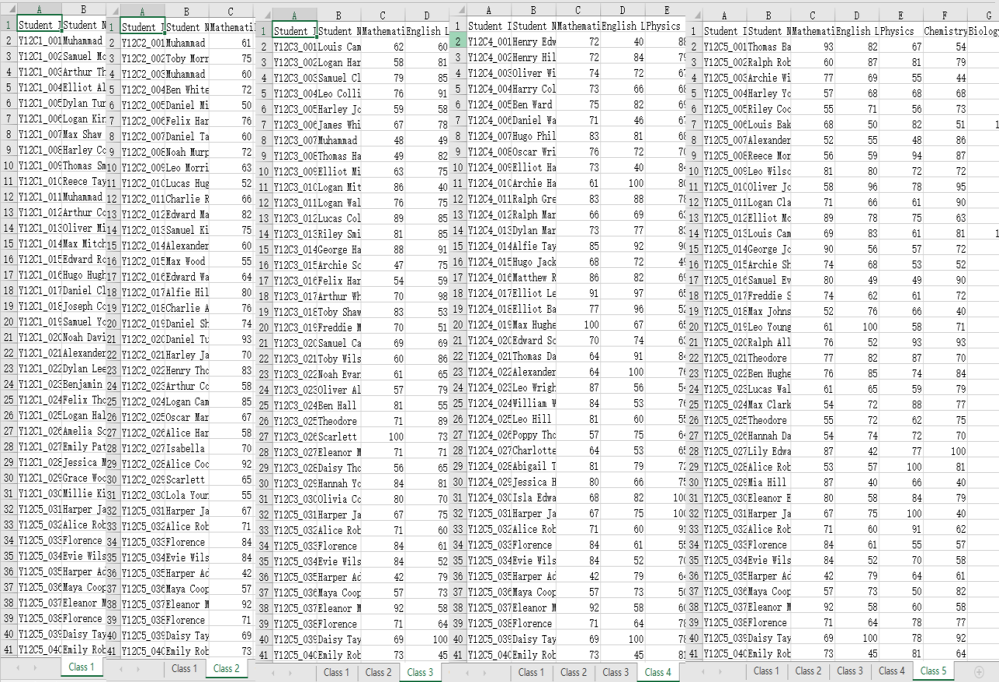
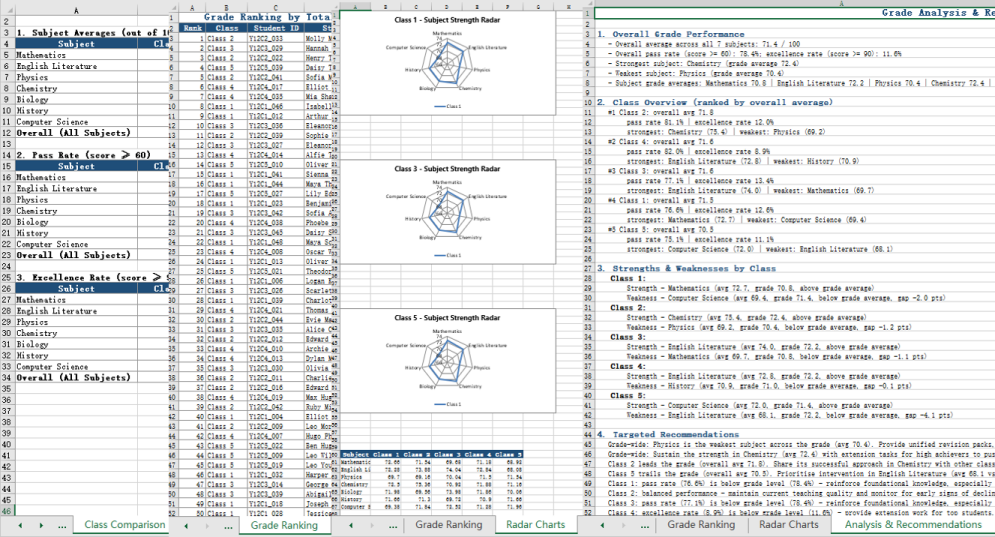
Comparison of the Two Approaches
| Class Score Statistics and Display | Grade Score Summary and Analysis | |
|---|---|---|
| Audience | Class students, class teachers | Teachers, academic affairs office |
| Output | One independent Excel file per class | All classes consolidated into one Excel file |
| Core Content | In-class score details, in-class ranking, per-subject statistics, subject strength charts | Cross-class comparison, full-grade ranking, radar charts, score analysis conclusions |
| Typical Uses | Print and post, parent meetings | Teaching research reports, teaching decisions, academic affairs statistics |
Frequently Asked Questions
The chart type is not as expected
Cause: The chart type selected by the AI may not match the user's presentation preferences.
Solution: Specify chart type preferences explicitly in the instruction, such as "use radar charts for class subject strengths, column charts for score interval distribution, and line charts for score trends across multiple tests."
How to handle tied rankings
Cause: It is normal for multiple students to have the same total score; the AI's default handling of tied ranks may not meet your requirements.
Solution: Specify the tie-breaking rule in the instruction, such as "when total scores are equal, sort by Computer Science score first."
Obtaining a SpireToken Key
- Contact sales@e-iceblue.com or visit https://www.e-iceblue.com/TemLicense.html to obtain a trial/commercial API key
Configure it in code:
AIOptions options = new AIOptions();
options.SpireToken = key;
Generate PPT from Multi-Format Documents with Spire.Agent.Office
2026-08-03 03:09:15 Written by Lisa LiEfficiently transferring technical knowledge is a core challenge for every enterprise in day-to-day business. A large number of technical specification documents — such as operation manuals, safety and maintenance guides, and supply chain standard documents — are often dozens or even hundreds of pages long. How to quickly turn the core knowledge in these dense technical specifications into easy-to-understand PPT material is a key pain point in enterprise knowledge management.
This article demonstrates how to use the Spire.Agent.Office Presentation AI capability to analyze and summarize data sources in various formats, extract the core points, and generate professional PPT presentations.
- Generate PPT from a Word Document
- Generate PPT from a PDF Document
- Generate PPT from a Markdown Document
- Generate PPT from an Excel Document
Comparing with Traditional SDK/API Processing
| Traditional Spire.Office for .NET API | Spire.Agent.Office | |
|---|---|---|
| Driving approach | Requires calling the APIs of four products — Word, Excel, PDF, PowerPoint — extracting content from each document type via code, then calling the PowerPoint API to create slides page by page, add elements, and manually calculate layouts | Directly describe the requirement in natural language, and the AI understands and generates the PPT automatically |
| Development complexity | You need to be familiar with 4 different API sets, write separate parsing code for each format (.docx/.xlsx/.pdf), and then piece together the PowerPoint generation logic — large amount of code with high coupling | One natural-language instruction completes the entire workflow |
| Document parsing | You must manually specify which data to extract from each type of document; the parsing logic is hard-coded, and any document structure change requires synchronized code modification | AI automatically analyzes the document structure in depth and accurately extracts the key information |
| Versatility & maintainability | Each document format requires its own parsing logic; format changes or new document types require extensive code changes, with poor reusability | The same set of natural-language instructions adapts to different documents |
| Processing cycle | Several days (large documents require senior engineers to spend full time writing/debugging code) | Minutes (upload document + template + one instruction) |
Regarding product installation and SpireToken configuration, please refer to Integrating Spire.Agent.Office in a .NET Project. The examples below assume that Spire.Agent.Office is installed and SpireToken is configured.
Generate PPT from a Word Document
Generate a minimalist-style PPT presentation based on the content of a Word document according to a natural-language instruction.
using Spire.Agent.Office.AI;
using Spire.Agent.Office.Extensions;
using Spire.Presentation;

// Source data document
string inputPath = @"technical_requirements.docx";
// Result document path
string savePath = @"SafetyTechnicalRequirements.pptx";
// SpireToken Key
string key = "sk-TF***************************r";
// Natural language instruction
string instruction = "Extract the core points from 'technical_requirements.docx' to generate a PPT. 1. Ensure proper layout and formatting 2. Use a minimalist style with a light yellow theme 3. Generate 20 slides";
// AI generation
PPTGenerationResult result = GeneratePPT(inputPath, instruction, savePath, key);

// AI-assisted PPT generation
static PPTGenerationResult GeneratePPT(string input, string instruction, string savePath, string key)
{
    AIOptions options = new AIOptions();
    options.SpireToken = key;
    options.TimeoutMs = 1000000;
    using (Presentation ppt = new Presentation())
    {
        AIDocumentProcessor processor = ppt.AI(options);
        return processor.GeneratePresentation(input, instruction, savePath);
    }
}
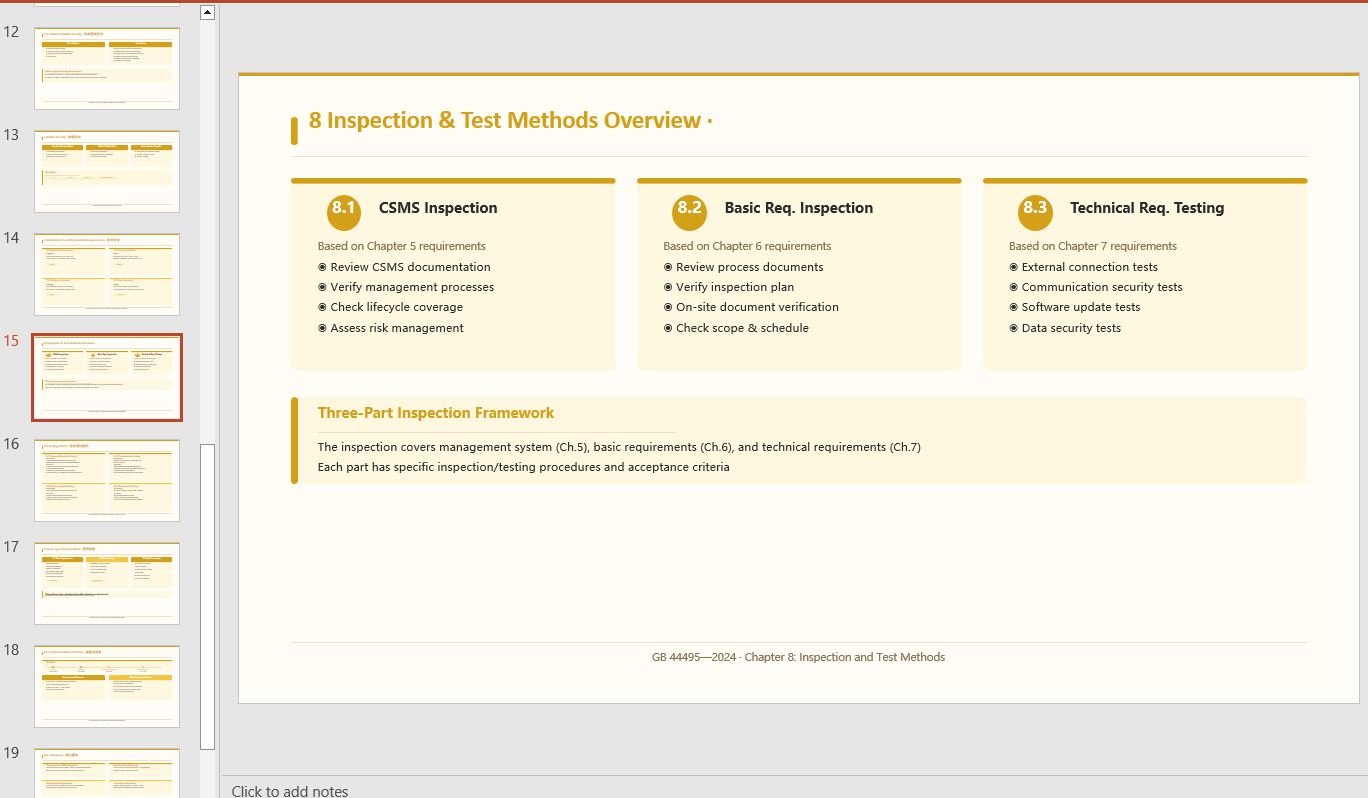
Generate PPT from a PDF Document
Automatically analyze the internal hierarchy of a PDF document, accurately extract the key information, and generate a retro-green themed PPT presentation according to the instruction.
using Spire.Agent.Office.AI;
using Spire.Agent.Office.Extensions;
using Spire.Presentation;

// Source data document
string inputPath = @"procedures.pdf";
// Result document path
string savePath = @"SafetyOperationProcedures.pptx";
// SpireToken Key
string key = "sk-TF***************************r";
// Natural language instruction
string instruction = "Extract the key points from 'procedures.pdf' and generate a PPT. " +
                     "1. Ensure a well-structured layout and visual appeal; " +
                     "2. Include relevant diagrams and charts; " +
                     "3. Use a simple purple style as the theme; "+
                     "4. 9 pages";
// AI generation
PPTGenerationResult result = GeneratePPT(inputPath, instruction, savePath, key);


// AI-assisted PPT generation
static PPTGenerationResult GeneratePPT(string input, string instruction, string savePath, string key)
{
    AIOptions options = new AIOptions();
    options.SpireToken = key;
    options.TimeoutMs = 1000000;
    using (Presentation ppt = new Presentation())
    {
        AIDocumentProcessor processor = ppt.AI(options);
        return processor.GeneratePresentation(input, instruction, savePath);
    }
}
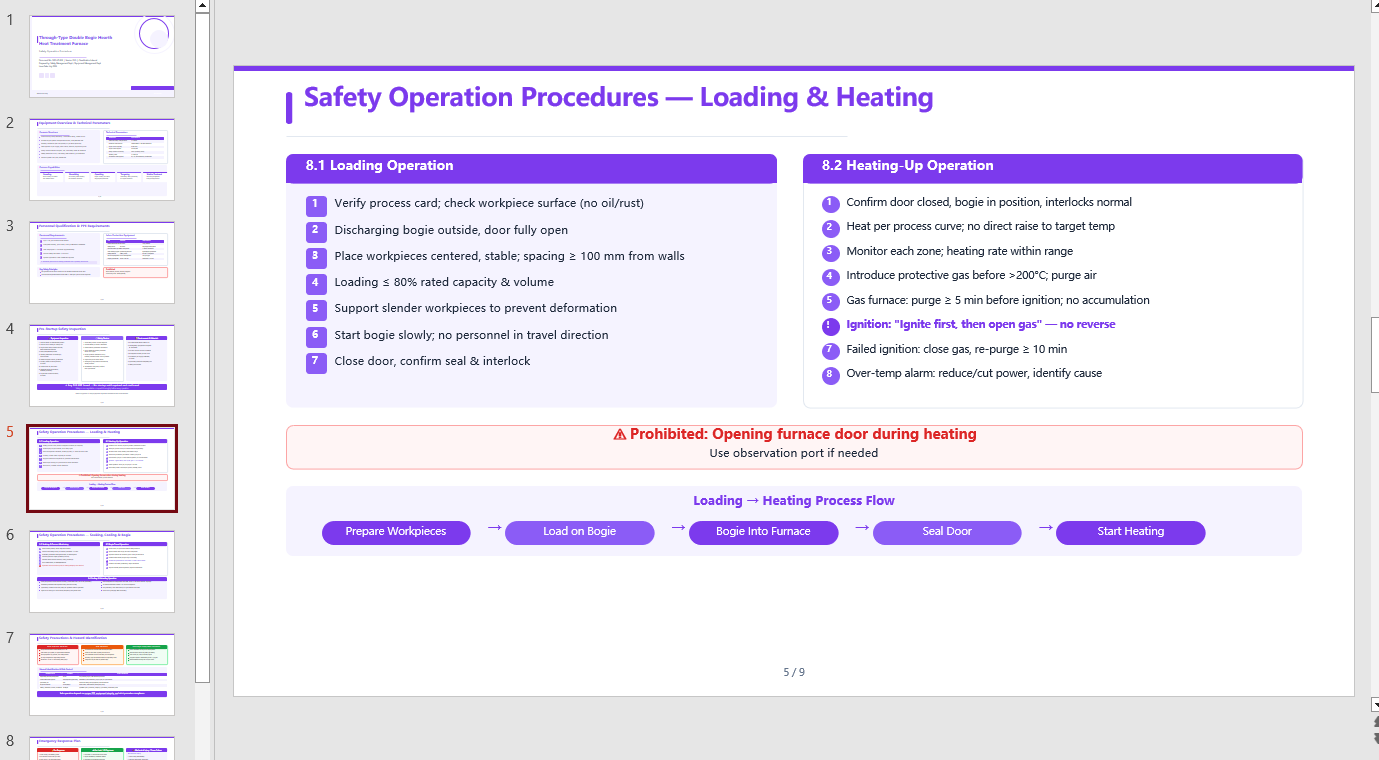
Generate PPT from a Markdown Document
Automatically summarize the content of a Markdown-format data source and generate a tech-style PPT.
using Spire.Agent.Office.AI;
using Spire.Agent.Office.Extensions;
using Spire.Presentation;

// Source data document
string inputPath = @"Management.md";
// Result document path
string savePath = @"SupplyChainManagement.pptx";
// SpireToken Key
string key = "sk-TF***************************r";
// Natural language instruction
string instruction = "Generate a PPT based on 'Management.md'. Requirements: 1. Adopt a tech/style; 2. Use light blue as the primary color scheme; 3. Ensure the core content is complete, with clear hierarchy and neat layout. Key data should be presented visually through charts and graphs.";
// AI generation
PPTGenerationResult result = GeneratePPT(inputPath, instruction, savePath, key);


// AI-assisted PPT generation
static PPTGenerationResult GeneratePPT(string input, string instruction, string savePath, string key)
{
    AIOptions options = new AIOptions();
    options.SpireToken = key;
    options.TimeoutMs = 1000000;
    using (Presentation ppt = new Presentation())
    {
        AIDocumentProcessor processor = ppt.AI(options);
        return processor.GeneratePresentation(input, instruction, savePath);
    }
}
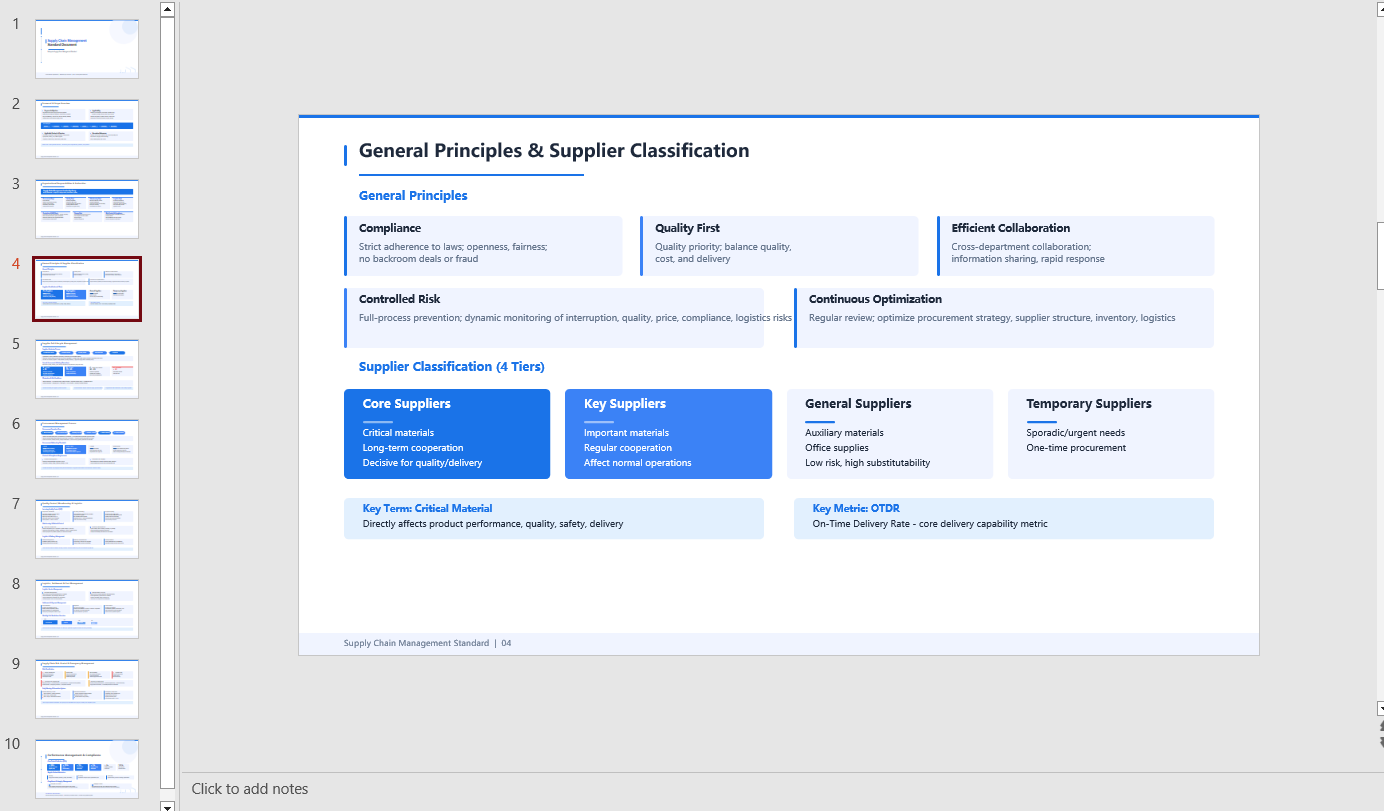
Generate PPT from an Excel Document
Automatically summarize the content of an Excel-format data source and generate a tech-style PPT.
using Spire.Agent.Office.AI;
using Spire.Agent.Office.Extensions;
using Spire.Presentation;

// Source data document
string inputPath = @"data.xlsx";
// Result document path
string savePath = @"out.pptx";
// SpireToken Key
string key = "sk-TF***************************r";
// Natural language instruction
string instruction = "Generate a PPT based on data
.xlsx, 1. Ensure proper layout and formatting 2. Use a minimalist style with a light red theme 3. Ensure chart visual effects 4.Generate 15 pages";
// AI generation
PPTGenerationResult result = GeneratePPT(inputPath, instruction, savePath, key);


// AI-assisted PPT generation
static PPTGenerationResult GeneratePPT(string input, string instruction, string savePath, string key)
{
    AIOptions options = new AIOptions();
    options.SpireToken = key;
    options.TimeoutMs = 1000000;
    using (Presentation ppt = new Presentation())
    {
        AIDocumentProcessor processor = ppt.AI(options);
        return processor.GeneratePresentation(input, instruction, savePath);
    }
}
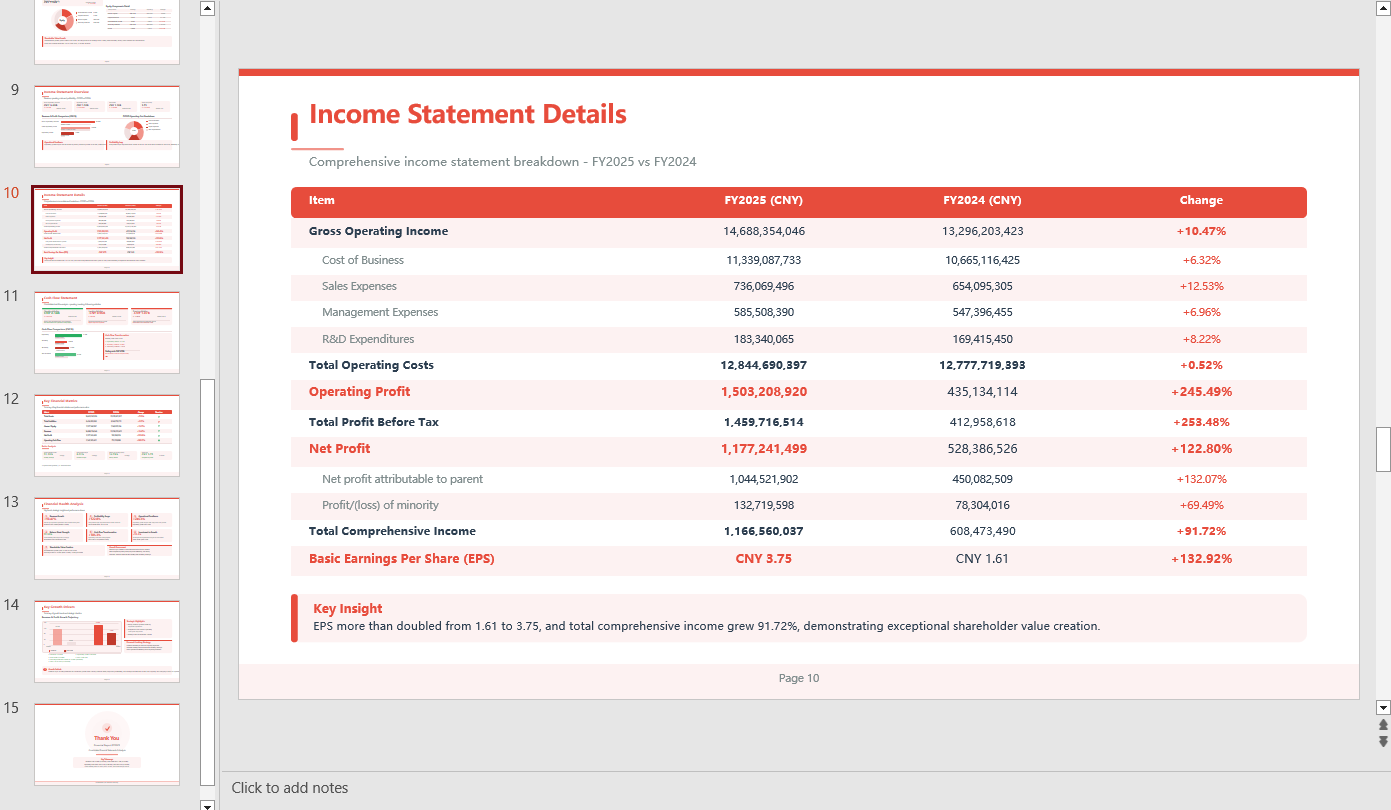
FAQ
The number of generated PPT pages does not match the expectation
Cause: If the data source contains a large amount of content, the AI analysis will take more time. The default timeout of AIOptions.TimeoutMs is 5 minutes; if the analysis exceeds it, the AI analysis is interrupted.
Solution: Set AIOptions.TimeoutMs to a sufficiently large value, and also specify a page range in the instruction, e.g. "Keep the final PPT to 8-12 pages".
The key content extracted by AI is not accurate enough
Cause: The source document has a complex structure, and the AI may not have fully understood the hierarchy.
Solution: Explicitly specify the type of content to extract in the instruction, e.g. "Focus on extracting the data from the table in Chapter 2".
Get Your SpireToken Key
- Contact sales@e-iceblue.com or visit https://www.e-iceblue.com/TemLicense.html to obtain a trial/commercial API key
Configure it in code:
AIProcessorOptions options = new AIProcessorOptions();
options.SpireToken = key;
