
Excel (6)
Batch Payslip Splitting and PDF Distribution with Spire.Agent.Office
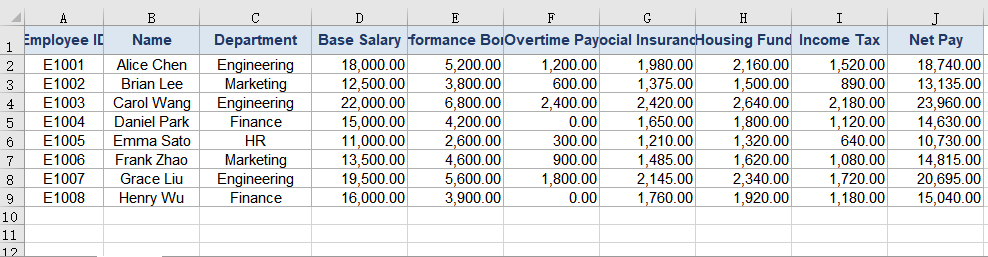
2026-09-21 02:26:59 Written by liu taliaIn HR and finance departments, distributing payslips is a monthly task that is small in substance yet remarkably tedious. A payroll sheet is usually an Excel table arranged by rows — each row is one employee, while the columns hold base salary, performance bonus, overtime pay, social insurance deduction, housing fund, individual income tax and net pay. But when the sheet reaches employees, each person should only see their own row. So "one sheet" must first be "split into N copies", and then each copy sent out one by one.
The traditional approach is copy-and-paste row by row inside the spreadsheet: create a new file, paste the header once, paste one employee's row into it, save as PDF, rename it, then loop to the next person. A team of a few dozen people means a few dozen repetitions; at a hundred people it is not only slow but highly prone to missed sends, wrong sends, or sending one person's salary to someone else — and payroll is exactly the information that must never be wrong.
The Excel AI capability of Spire.Agent.Office lets you describe the splitting rules in natural language. The AI agent understands the request and completes two kinds of work automatically: splitting one payroll sheet into individual payslip PDFs, one per employee, and applying a unified layout template to each payslip and encrypting it per person, producing files that are ready to distribute — along with a distribution ledger you can consult at any time.
Comparison with Traditional SDK API
| Traditional Spire.Office for .NET API | Spire.Agent.Office | |
|---|---|---|
| Driving style | Write complete code that loops over data rows, creates workbooks, copies headers and data and exports PDFs, controlling every step | Describe the splitting and distribution requirements in natural language; the AI understands them and orchestrates the execution path |
| Code size | Batch splitting and export usually needs 200-400 lines of C# (data reading, row loops, worksheet creation, style copying, page setup, PDF export, file naming, encryption parameters, etc.) | About 10 lines of calling code + 1 natural-language instruction |
| Layout handling | Copy header styles and set column widths and print areas by hand, or every payslip comes out misformatted | The AI recognizes and reuses the borders, alignment and column widths of the original header |
| Passwords and ledger | Generate each file's password yourself and register it separately; producing a ledger needs extra export logic | State the password rule in one sentence; the AI applies it and also outputs an Excel distribution ledger |
| Requirement change | Change a splitting rule / naming / encryption rule → change code → compile → redeploy | Modify the instruction and it takes effect immediately |
This article shows how to use Spire.Agent.Office to split an Excel payroll sheet into individual payslip PDFs. Two cases demonstrate the two typical uses — "splitting the payroll sheet directly" and "applying a template, encrypting and distributing":
- Case 1: Batch-split a payroll sheet into per-employee payslip PDFs
- Case 2: Apply a payslip template and encrypt to produce distributable files
For product installation and SpireToken configuration, please refer to Integrating Spire.Agent.Office in a .NET Project. The examples below assume that Spire.Agent.Office has been installed and SpireToken has been configured.
Case 1: Batch-split a payroll sheet into per-employee payslip PDFs
This is the most direct scenario: all you have is a raw payroll sheet, with no extra template file. The first row is the header and each following row holds one employee's pay data for the month. The task is to split the sheet by row, generate a payslip for each employee that contains only their own information, and save it named "employeeID_name" for later distribution or archiving.
The pain of doing this by hand is the repetition: the more employees there are, the more copy-and-paste cycles are needed, and the further you get the easier it is for rows to slip — leaving the previous person's net pay in the next person's file. That is a class of error that is hard to notice and serious in its consequences.
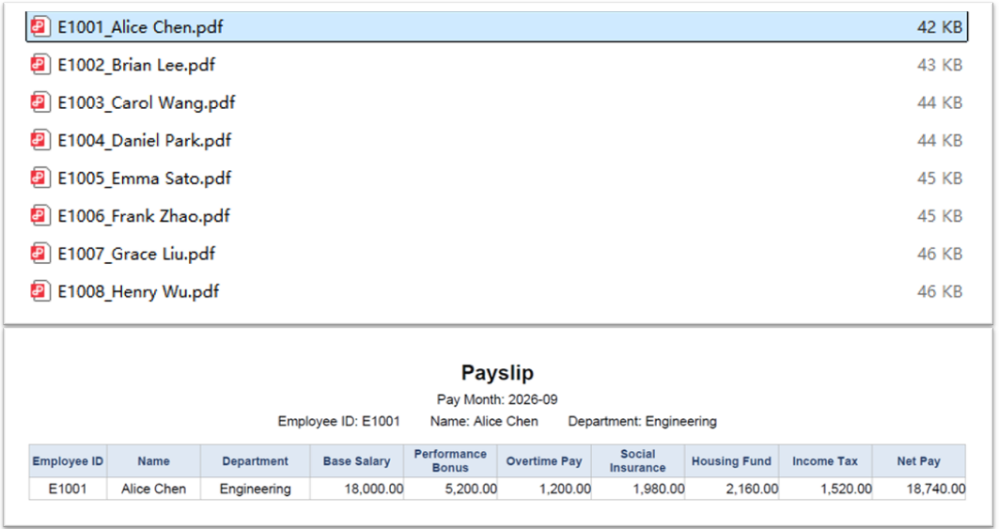
The example below uses the Spire.Agent.Office agent to read every employee record in the payroll sheet through a natural-language instruction, split it row by row into individual payslips and export them as PDFs:
using Spire.Agent.Office.AI;
using Spire.Agent.Office.Extensions;
using Spire.Xls;

// Excel-related configuration
string inputPath = @"E:\payroll.xlsx";  // path to the payroll sheet to split
string savePath = null;  // result path (null here: the output folder below will be used)
string OutDir = @"E:\output";  // output directory (the split payslip PDFs are saved here)
string key = "**************************";  // SpireToken key
string instruction =
"Read the employee payroll data in the payroll sheet and generate an individual payslip for each employee:" +
  "1. The first row is the header and each following row is one employee; extract the employee ID, name, department and each pay item row by row;" +
  "2. At the top of each payslip show the title 'Payslip' and the pay month, and list that employee's ID, name and department, then list each pay item in the source column order: base salary, performance bonus, overtime pay, social insurance deduction, housing fund, individual income tax and net pay;" +
  "3. Generate a separate PDF file for each employee, named 'employeeID_name' and saved to the output directory;" +
  "4. Keep the borders and column widths of the original header, right-align the amount columns and keep two decimal places;" +
  "5. Make the page size fit the payslip content, with tight margins and a height that adapts to the content, leaving no large blank areas;" +
  "Save the final result as a PDF file";

// Call the Excel document processing function
AIResult result = ExecuteDemoExcel(instruction, inputPath, savePath, key, OutDir);


// Execute Excel AI processing
static AIResult ExecuteDemoExcel(string instruction, string inputPath, string savePath, string key, string output)
{
    // Create the AIOptions configuration object
    AIOptions options = new AIOptions();
    options.WorkDir = output;  // set the working directory to the output directory
    options.SpireToken = key;  // set the SpireToken key

    // Process the Excel document using a Workbook object
    using (Workbook workbook = new Workbook())
    {
        // Load the Excel payroll sheet from file
        if (!string.IsNullOrEmpty(inputPath) && File.Exists(inputPath))
        {
            workbook.LoadFromFile(inputPath);
        }
        // Create the AI document processor
        AIDocumentProcessor processor = workbook.AI(options);

        // Execute the AI instruction
        return processor.ExecuteInstruction(workbook, instruction, savePath);
    }
}
The Excel payroll sheet to be split
 The individual payslip PDFs produced by the split
Case 2: Apply a payslip template and encrypt to produce distributable files
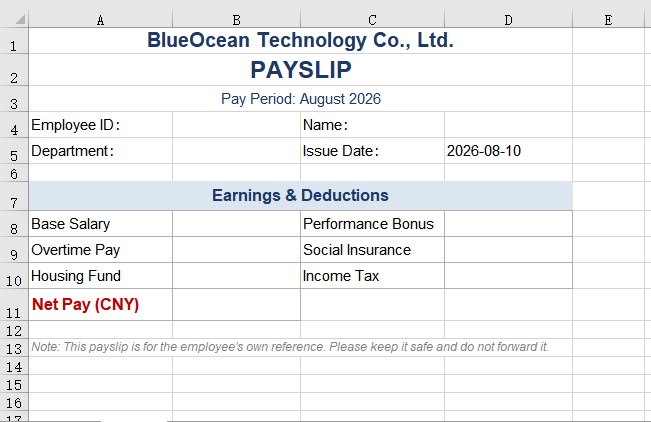
When a company distributes payslips, two more requirements usually come up: a unified layout and confidentiality. Companies normally have a fixed payslip template — with a company letterhead, the pay month, the order of pay items and explanatory text at the bottom. At the same time, salary is sensitive information: sending a plain-text PDF directly means that once it is forwarded or misdelivered, the employee's pay is exposed.
The safer approach is to apply the same template to every payslip and then set an individual open password on each employee's PDF (for example, generated from their own employee ID), so that only that person can open and view their payslip.
But once the passwords "all differ", a new management problem appears: who records them, and where do you look them up afterwards. Each password is built from "employee ID + 4 random digits", and those random digits cannot be reconstructed from the file name or any other information. After dozens or hundreds of files have gone out, if an employee reports that a file will not open, the only fallback is to dig out the original payroll sheet and try one by one. So the complete loop of encrypted distribution should also produce a distribution ledger — recording file names, employee details and open passwords in one-to-one correspondence, for later distribution, reconciliation and archive lookups.
This case takes the payslip template as the input document, while the employee payroll data is passed in as an attachment. The AI needs to fill the attachment data into the corresponding positions of the template and output that ledger alongside the encrypted PDFs.
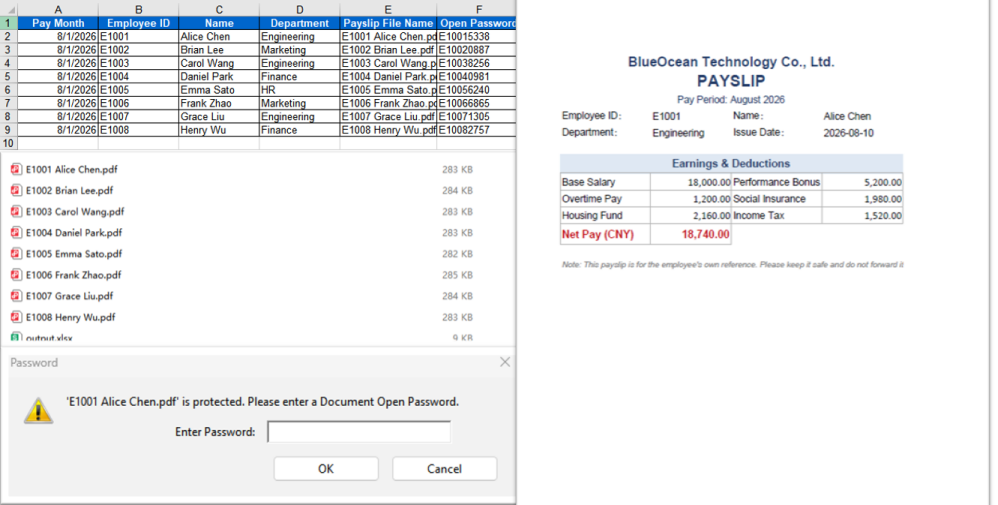
The example below uses the Spire.Agent.Office agent to read the employee data in the attached payroll sheet through a natural-language instruction, fill it into the payslip template row by row, generate a separate PDF for each employee, encrypt it with "employee ID + 4 random digits", and additionally produce an Excel-format "Payslip Distribution Ledger":
using Spire.Agent.Office.AI;
using Spire.Agent.Office.Extensions;
using Spire.Xls;

// Path to the employee payroll data file (passed in as an attachment)
string[] attachmentPaths = new string[]
{
    @"E:\payroll.xlsx"
};

// Excel-related configuration
string inputPath = @"E:\template-payslip.xlsx";  // path to the payslip template file
string savePath = null;  // result path (null here: the output folder below will be used)
string OutDir = @"E:\output-encrypted";  // output directory (encrypted payslip PDFs and the distribution ledger are saved here)
string key = "**************************";  // SpireToken key
string instruction =
    "Read the employee payroll data from the attached 'payroll.xlsx' and process it as follows:" +
    "1. The first row is the header and each following row is one employee; read the employee ID, name, department and each pay item row by row;" +
    "2. Fill each row of data into the corresponding positions of the payslip template, keeping the template's company letterhead, notes and item order unchanged;" +
    "3. Generate a separate PDF file for each employee, named 'employee ID + employee name' and saved to the output directory;" +
    "4. Set an open password on each PDF as 'employee ID + 4 random digits'; it only restricts opening the document and does not affect printing or copying;" +
    "5. Also generate an Excel-format 'Payslip Distribution Ledger' in the output directory, listing the pay month, employee ID, name, department, payslip file name and the corresponding open password in each row, for later distribution and archive lookups;" +
    "6. Keep the layout, fonts and column widths of the template;" +
    "Save the final result as a PDF file";

// Call the Excel document processing function
AIResult result = ExecuteDemoExcel(instruction, inputPath, savePath, key, OutDir, attachmentPaths);


// Execute Excel AI processing
static AIResult ExecuteDemoExcel(string instruction, string inputPath, string savePath, string key, string output, string[] attachmentPaths)
{
    // Create the AIOptions configuration object
    AIOptions options = new AIOptions();
    options.WorkDir = output;  // set the working directory to the output directory
    options.SpireToken = key;  // set the SpireToken key

    // Process the Excel document using a Workbook object
    using (Workbook workbook = new Workbook())
    {
        // Load the payslip template from file
        if (!string.IsNullOrEmpty(inputPath) && File.Exists(inputPath))
        {
            workbook.LoadFromFile(inputPath);
        }
        // Create the AI document processor
        AIDocumentProcessor processor = workbook.AI(options);

        // Execute the AI instruction
        return processor.ExecuteInstruction(workbook, instruction, savePath, attachmentPaths);
    }
}
The payslip template file
 Template-applied, encrypted payslip PDFs and the payslip distribution ledger
FAQ
The split payslips have slipped rows or misaligned data
Cause: The payroll sheet contains blank rows, merged cells or subtotal rows, so when the AI reads by row it counts non-employee rows as records and everything after them shifts.
Solution: Make sure the first row of the payroll sheet is the header and every row after it corresponds to exactly one employee, with no blank or subtotal rows in between. If the table structure is complex, state the rule in the instruction, for example "treat a row as an employee record only when the 'Employee ID' column is not empty".
An encrypted payslip will not open even for me
Cause: Each payslip's password is generated as "employee ID + 4 random digits", so it differs per person, and the random digits cannot be worked out on your own.
Solution: State the password rule explicitly in the instruction (for example, "the password is the employee ID plus 4 random digits") and make sure the generated passwords are recorded in the distribution ledger — once a random number is lost, the file can no longer be opened. Before distributing, try opening one payslip using a record from the ledger to verify.
Getting a SpireToken Key
- Contact sales@e-iceblue.com or visit https://www.e-iceblue.com/TemLicense.html to obtain a trial/commercial API key
Configure it in your code:
AIOptions options = new AIOptions();
options.SpireToken = key;
Financial Report Parsing and Valuation Modeling Automation with Spire.Agent.Office in C#
2026-09-17 03:11:54 Written by liu taliaIn the field of financial analysis and investment research, interpreting listed company financial reports is one of the most fundamental yet time-consuming tasks. A complete annual report is quite lengthy, encompassing not only core statements such as the balance sheet, income statement, cash flow statement, and statement of changes in shareholders' equity, but also a large amount of detailed data in the notes. Analysts need to extract key data from these documents and generate visual charts before forming investment judgments. The traditional approach typically requires manually flipping through PDFs, manually entering data into Excel, manually drawing charts, and writing analysis conclusions. The entire process takes 4-8 hours and is highly prone to errors caused by data entry mistakes.
But parsing is only the first step. In a real investment research and financial modeling workflow, the data ultimately has to land in the analyst's own valuation model. And the valuation model is precisely the most delicate part of the whole workflow: it is usually built up over months or years, containing a large number of custom macros (VBA), pivot tables and deeply nested formulas. The traditional approach leaves no choice but to key the data in cell by cell — the reason nobody dares to batch-write it with a script is that most third-party Excel libraries rebuild the workbook structure when reading and writing. The result is lost macros, broken pivot tables and nested formulas flattened into static values — a carefully maintained model ruined.
This article uses two connected cases and the Spire.Agent.Office Excel AI capabilities to cover the complete chain from "PDF financial report" to "valuation conclusion":
- Case One: Long-Text Financial Report Data Extraction and Analysis
- Case Two: Injecting Financial Data into a Preset Valuation Model
For product installation and SpireToken configuration, please refer to Integrating Spire.Agent.Office in a .NET Project. The following examples assume Spire.Agent.Office is already installed and SpireToken is configured.
Comparison with Traditional SDK API Processing
| Traditional Spire.Office for .NET API | Spire.Agent.Office Processing | |
|---|---|---|
| Driving Method | Write PDF parsing + cell writing + chart creation + formula calculation code | Describe the goal in natural language, AI understands and automatically orchestrates the execution path |
| Code Volume | The two cases together typically require 800-1500 lines of C# code (including PDF table positioning, row/column parsing, chart configuration, etc.) | Approximately 20 lines of calling code + two natural language instructions |
| Table Recognition | Must manually locate table positions in PDF, handle cross-page table splitting, merged cells, and other logic | AI automatically identifies table structures in the document, understands headers and hierarchical relationships |
| Chart Generation | Must manually create Chart objects, configure data ranges, set chart types and styles | AI automatically selects the most appropriate chart type based on data semantics |
| Data Injection | Must hard-code a "source row N → template row M" mapping; any change in reporting structure means changing the code | AI matches by item name semantics; row/column order changes in the source do not affect the result |
| Macros and Pivot Tables | Must handle VBA project and pivot cache preservation yourself; a single mistake corrupts them | Macros, pivot tables and charts are preserved as-is; the AI writes only to the target cells |
| Requirement Changes | Adding new analysis dimensions requires modifying code → compiling → deploying | Modify the description in the instruction, takes effect immediately |
Case One: Long-Text Financial Report Data Extraction and Analysis
AI reads a PDF financial report file, automatically identifies and extracts financial statement tables into an Excel file, while automatically generating visual charts and financial analysis from the data. The entire process requires only one piece of code and one instruction.
using Spire.Agent.Office.AI;
using Spire.Agent.Office.Extensions;
using Spire.Xls;

// PDF financial report file to be processed (passed as an attachment)
string[] attachmentPaths = new string[] { @"C:\FinancialReport\ListedCompany2025AnnualReport.pdf" };
// Save path of the result Excel document
string savePath = @"C:\FinancialReport\AnalysisResult.xlsx";
// SpireToken Key (apply on the official website)
string key = "sk-***************************";

// Natural language instruction
string instruction =
    "Process the attachment file as follows: " +
    "1. Extract all tables from the financial reporting section, placing each table in a separate worksheet named after the original table. " +
    "2. Preserve all original data without adding or modifying any values. " +
    "3. Enhance table readability with appropriate formatting. " +
    "4. Merge multi-page tables into a single worksheet. " +
    "5. Generate suitable charts to visualize the data from each table. " +
    "6. Use the extracted raw data directly for charting, without adding or modifying any values. " +
    "7. Analyze and summarize the company's financial status and trends based on the data provided.";

// AI generation
AIResult result = AnalyzeFinancialReport(instruction, savePath, key, attachmentPaths);

// AI-assisted financial report analysis
static AIResult AnalyzeFinancialReport(string instruction, string savePath, string key, string[] attachmentPaths)
{
    // Configure the AI processing options
    AIOptions options = new AIOptions();
    options.SpireToken = key;
    options.TimeoutMs = 10000000;

    using (Workbook wb = new Workbook())
    {
        AIDocumentProcessor processor = wb.AI(options);
        return processor.ExecuteInstruction(wb, instruction, savePath, attachmentPaths);
    }
}
Financial Report Data Processing and Chart Analysis Results:
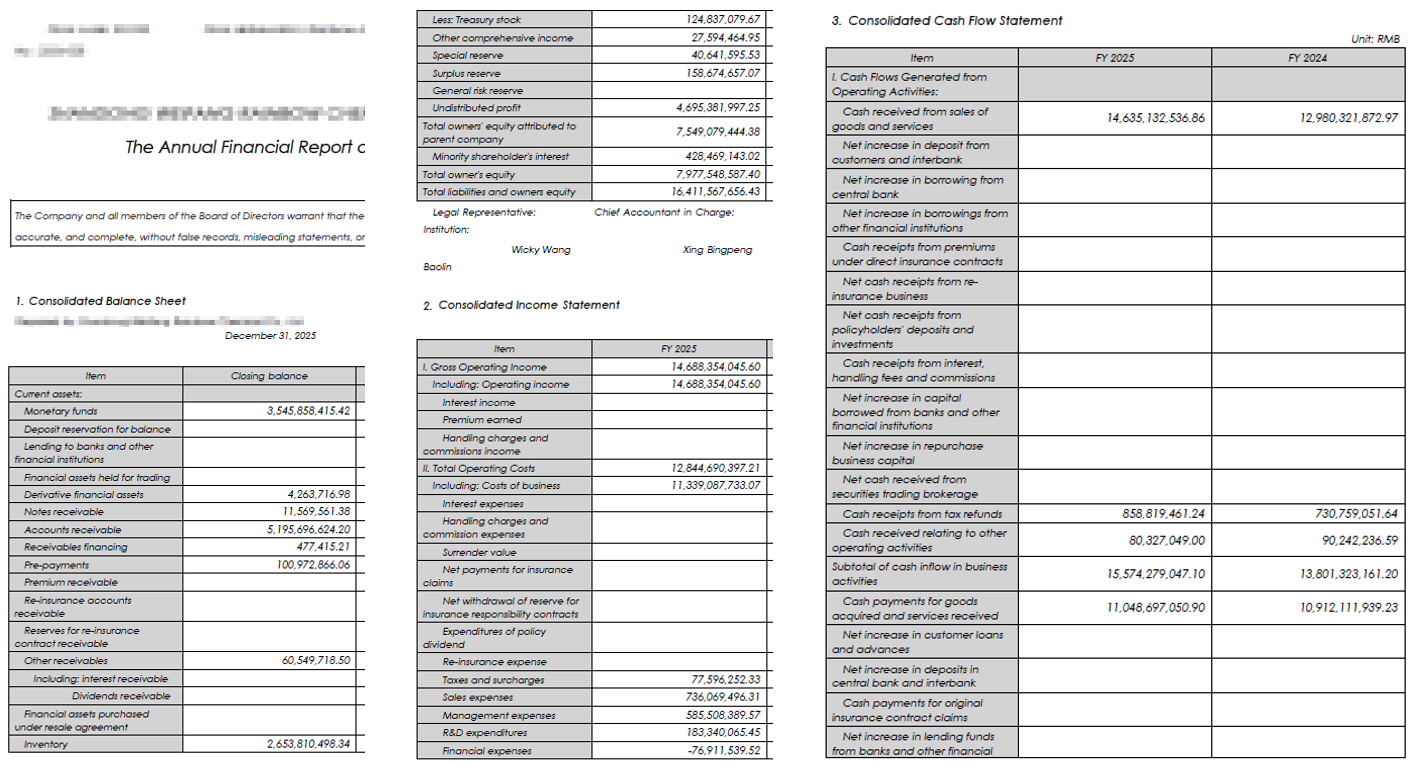 Description: The original input file
The output consists of two parts:
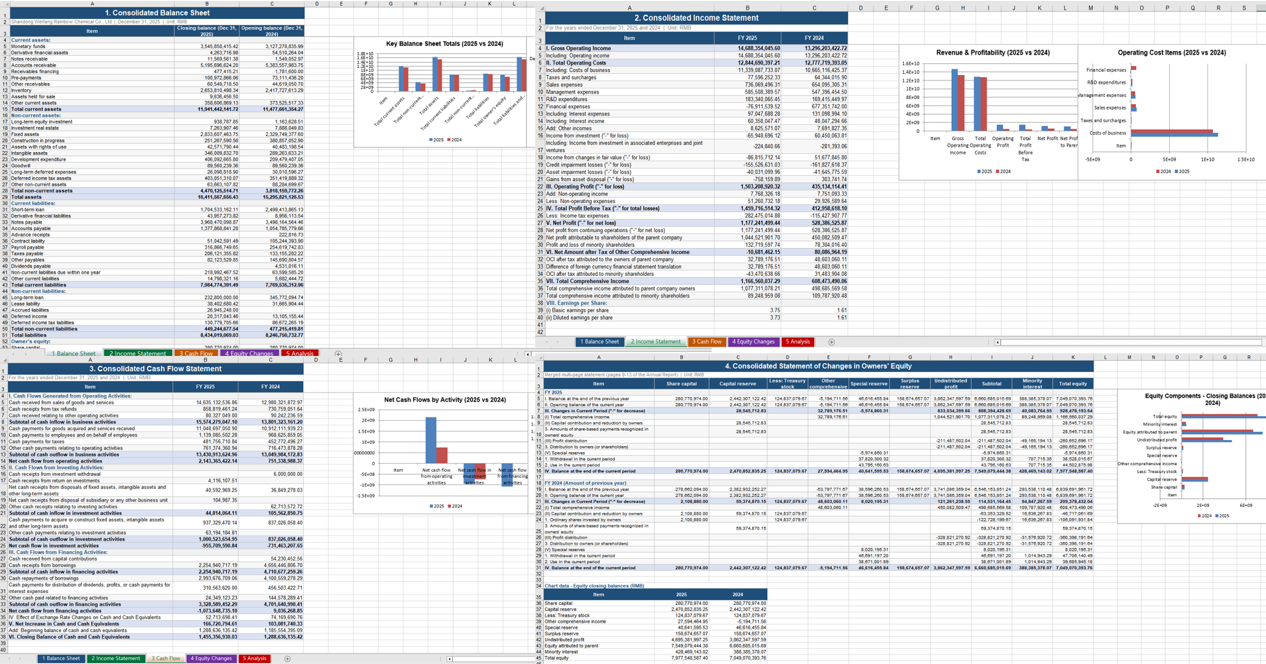 Description: Table data extracted from the PDF financial report, with corresponding visual charts.
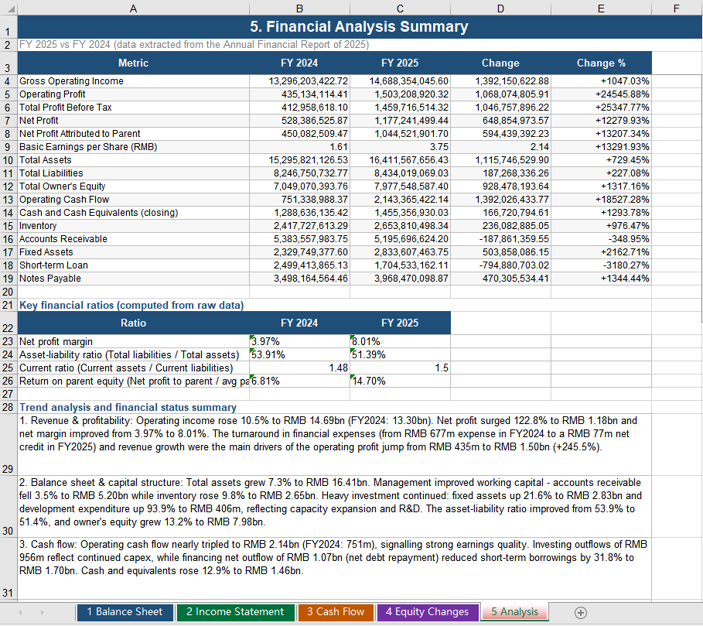 Description: Financial analysis conclusions generated from the extracted data.
Case Two: Injecting Financial Data into a Preset Valuation Model
Case one produced "data"; case two is about "modeling". The process takes two inputs: a preset valuation model template (.xlsm, containing macros, pivot tables and nested formulas) and the financial data workbook produced by case one (.xlsx). AI reads the financial data, fills it into the "Data Input" worksheet of the template by matching item names, and the formulas inside the model recalculate immediately — the valuation curve updates itself.
using Spire.Agent.Office.AI;
using Spire.Agent.Office.Extensions;
using Spire.Xls;

// Preset valuation model template (macros / pivot table / nested formulas / valuation curve chart)
string inputPath = @"C:\FinancialReport\ValuationModelTemplate.xlsm";
// Financial data workbook produced by case one (passed as an attachment)
string[] attachmentPaths = new string[] { @"C:\FinancialReport\AnalysisResult.xlsx" };
// Result document path (null here; the output folder below is used instead)
string savePath = null;
// Output directory
string OutDir = @"C:\FinancialReport\output";
// SpireToken Key (apply on the official website)
string key = "sk-***************************";

// Natural language instruction
string instruction =
    "Read the financial data in the attachment and fill it into the Data Input worksheet of the current valuation model template by matching item names, current period and prior period into the two respective columns; " +
    "fill only the shaded cells, do not modify any existing formula; " +
    "keep the existing macros, pivot table, formulas and chart in the template; " +
    "recalculate the model, refresh the pivot table and update the Valuation Curve after filling; " +
    "save the final result as a macro-enabled Excel file";

// AI generation
AIResult result = InjectDataIntoModel(instruction, inputPath, savePath, key, OutDir, attachmentPaths);

// AI-assisted data injection into the valuation model
static AIResult InjectDataIntoModel(string instruction, string inputPath, string savePath,
                                    string key, string output, string[] attachmentPaths)
{
    // Configure the AI processing options
    AIOptions options = new AIOptions();
    options.WorkDir = output;      // Set the working directory to the output folder
    options.SpireToken = key;      // Set the SpireToken Key

    using (Workbook workbook = new Workbook())
    {
        // Load the valuation model template from file
        if (!string.IsNullOrEmpty(inputPath) && File.Exists(inputPath))
        {
            workbook.LoadFromFile(inputPath);
        }

        // Create the AI document processor
        AIDocumentProcessor processor = workbook.AI(options);

        // Execute the AI instruction
        return processor.ExecuteInstruction(workbook, instruction, savePath, attachmentPaths);
    }
}
The valuation model template before injection:
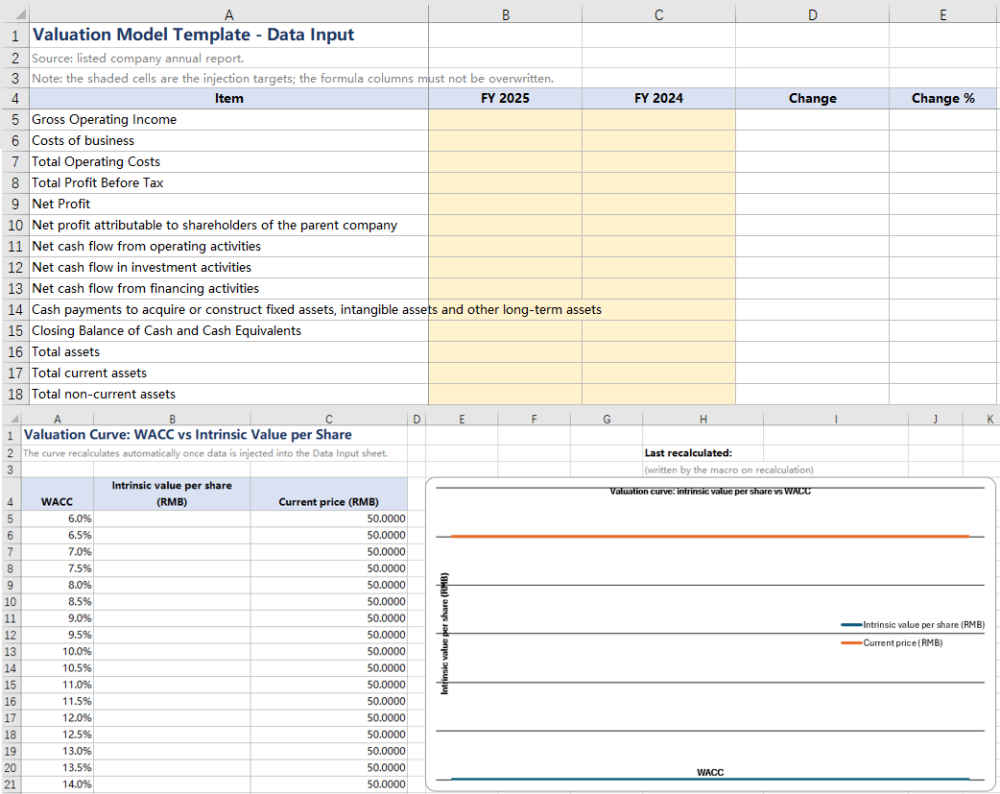 Description: The preset valuation model template; the shaded cells are the injection targets.
The financial data workbook produced by case one, used as the data source for this injection, filled into the Data Input area of the valuation template:
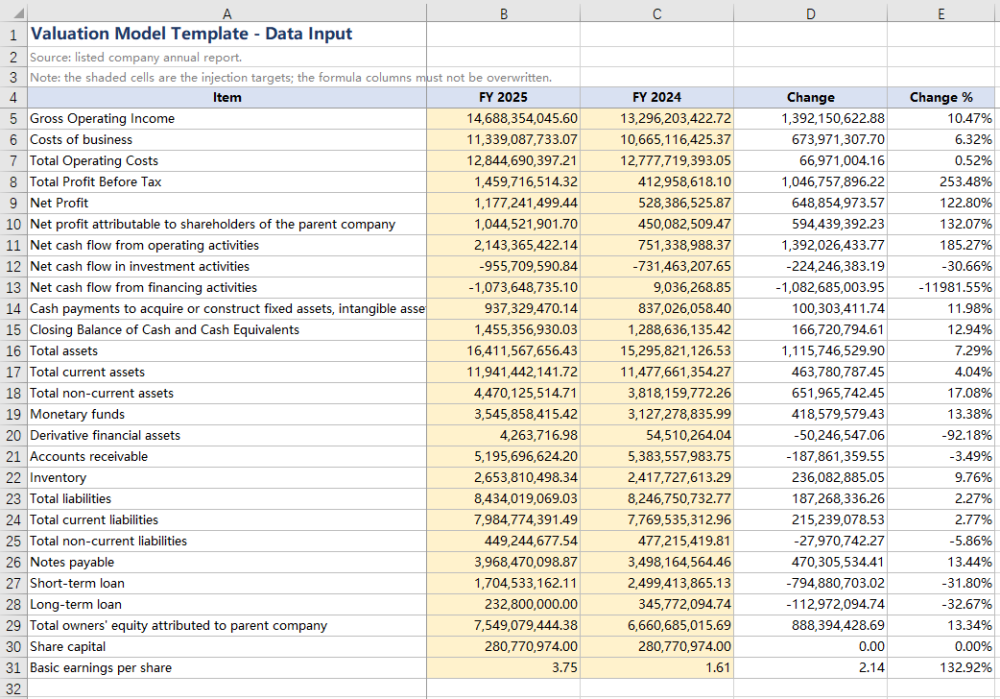 Description: The consolidated balance sheet, income statement and cash flow statement data filled in from among them.
The valuation curve recalculated automatically after injection:
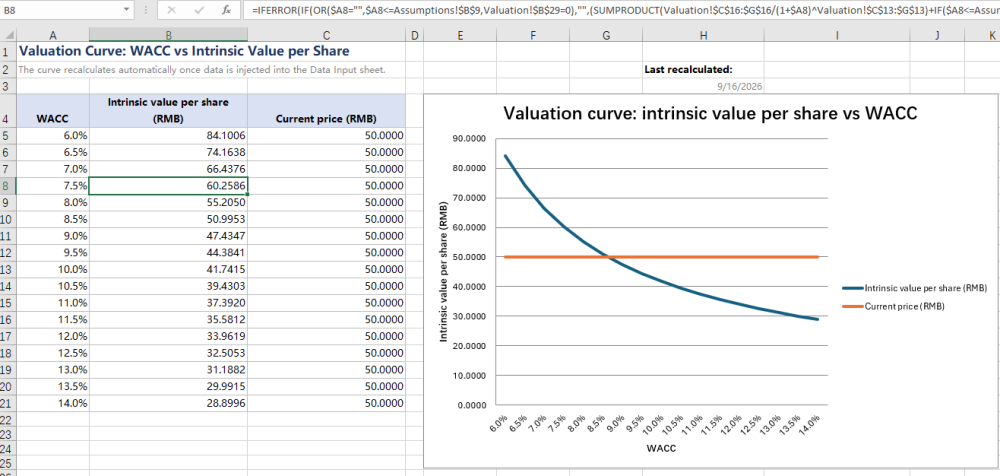 Description: The valuation curve refreshed automatically once the data injection completed.
Frequently Asked Questions
Extracted table data does not match the PDF
Cause: PDF tables may contain complex layouts such as cross-page splitting, merged cells, rotated text, etc., and AI may have deviations during recognition.
Solution: Add "carefully verify data accuracy, especially pay attention to merged cells and cross-page table joining" to the instruction; or limit specific page ranges for batch extraction and review before consolidation.
The valuation curve does not update after data injection
Cause: Model recalculation and pivot table refresh are two independent operations. Writing the data alone does not refresh the pivot cache, and some readers do not proactively recalculate the whole formula chain.
Solution: Explicitly require "recalculate the model and refresh the pivot tables after filling in the data" in the instruction. In addition, the template can be set to force recalculation on open so the curve is always up to date.
Obtaining a SpireToken Key
- Contact sales@e-iceblue.com or visit https://www.e-iceblue.com/TemLicense.html to obtain a trial/commercial API key
Configure it in code:
AIOptions options = new AIOptions();
options.SpireToken = key;
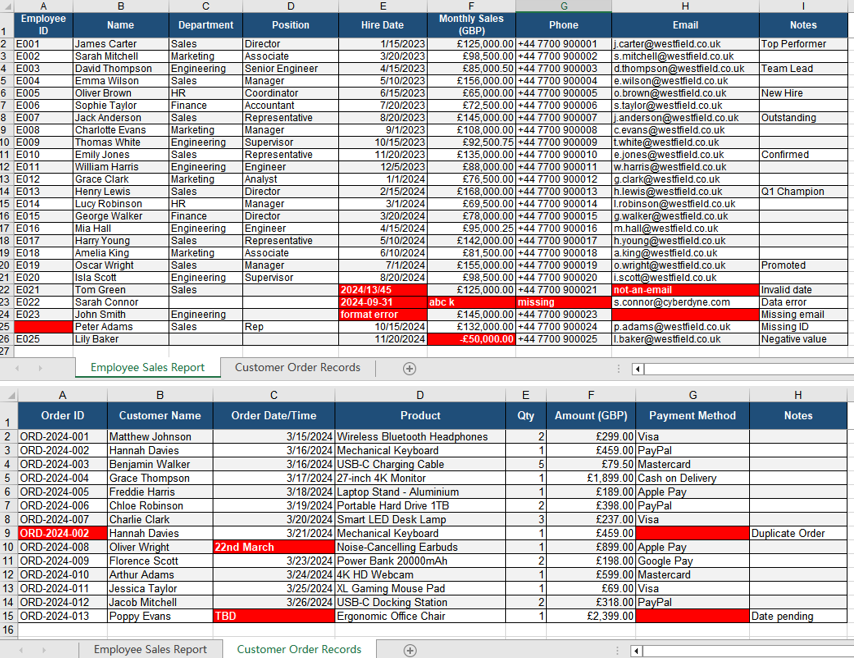
In cross-industry data processing scenarios, importing data from CSV and PDF files into Excel is one of the most common and error-prone tasks — finance teams reconcile CSV bank statements, e-commerce teams organize order files exported from multiple platforms, and administrative staff handle PDF statements from suppliers. These files come in all shapes and formats: inconsistent CSV delimiters, fields containing commas, dates appearing in various forms, phone numbers and ID numbers that start with 0 are treated as numbers and lose their leading zeros; PDF tables cannot be edited directly, and copying them into Excel misaligns rows, columns, and merged cells.
The traditional approach is to split columns manually, set formats column by column, and hunt for erroneous cells by eye. A CSV file with a few hundred rows often takes half an hour of repeated adjustment; PDF tables can only be copied and pasted row by row. Traditional methods are also prone to misaligned columns, misplaced dates, and numbers turning into text. As data volume grows, manual processing becomes nearly impossible.
Take a finance team reconciling bank statements, for example: after receiving a CSV, the usual routine is to confirm the encoding in a text editor first, split the columns in Excel, set date and amount formats column by column, and then hunt for anomalous values by eye. A field containing a comma shifts the whole row, accounts starting with 0 lose their leading zeros, and only after repeated adjustment does the table become usable. PDF statements can only be copied and pasted row by row — rows, columns, and merged cells are almost all misaligned, and reconstructing a single statement often eats up half a day.
Comparison with Traditional SDK API Processing
| Traditional Spire.Office for .NET API | Spire.Agent.Office Processing | |
|---|---|---|
| Driving Method | Write code for column splitting, type conversion, and format checking, controlling every step | Describe the goal in natural language; the AI understands and automatically orchestrates the execution path |
| Code Volume | Data import scenarios typically require 500-1000 lines of C# code (including parsers, type conversion, error detection, etc.) | About 10 lines of calling code + one natural language instruction |
| Delimiters & Quoting | Must hand-write parsing logic for edge cases such as commas inside quotes and escape characters | The AI automatically recognizes delimiters and quoted fields and splits columns intelligently |
| Type Detection | Must hard-code date/number/text recognition rules per column; changing rules requires code changes | The AI understands data type semantics and automatically recognizes dates, numbers, and text |
| Error Detection | Must write regex and conditional checks cell by cell; coverage of error types is incomplete | The AI automatically detects anomalies such as type mismatches and column count mismatches and highlights them in red |
| Requirement Changes | Adding a new CSV variant requires modifying code → compiling → deploying | Modify the description in the instruction; takes effect immediately |
This article introduces how to use the Excel AI capabilities of Spire.Agent.Office to implement CSV smart column splitting import and PDF table import, automatically completing data type detection and highlighting erroneous formats in red, with just a single natural language instruction.
For product installation and SpireToken configuration, please refer to Integrating Spire.Agent.Office in a .NET Project. The following examples assume Spire.Agent.Office is already installed and SpireToken is configured.
CSV Smart Column Splitting Import
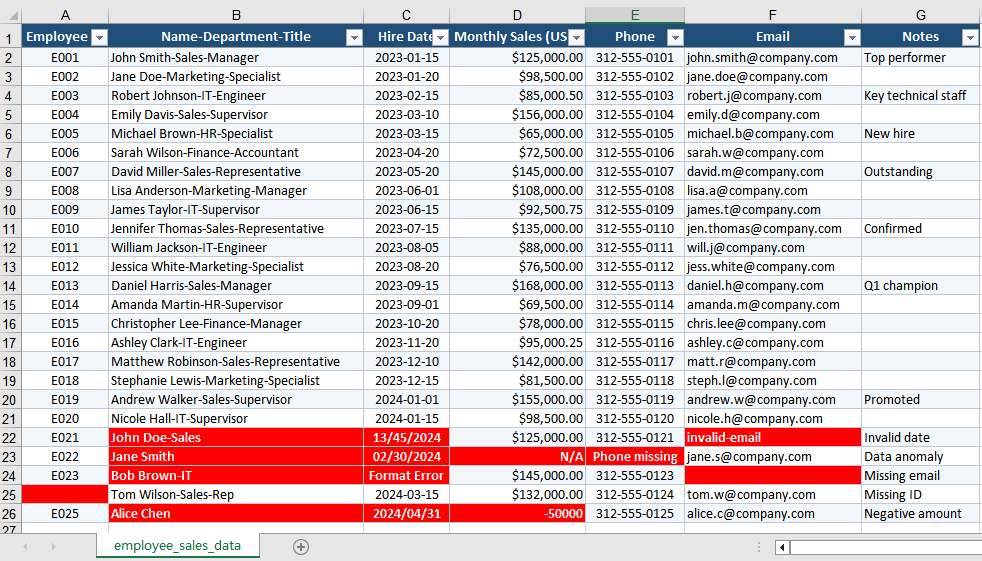
CSV is the most common format for data exchange, yet also the least "controllable": the delimiter may be a comma, a tab, or a semicolon; fields may contain commas or line breaks wrapped in quotes; dates, numbers, and text are mixed in the same table; values starting with 0, such as phone numbers and codes, are treated as numbers by default and lose their leading zeros. Import quality directly determines the accuracy of subsequent analysis and reports.
The following example uses the Spire.Agent.Office agent to automatically import a CSV through natural language instructions, completing smart column splitting, data type detection, and highlighting erroneous formats in red:
using Spire.Agent.Office.AI;
using Spire.Agent.Office.Extensions;
using Spire.Xls;

// CSV source file to be imported (passed as an attachment)
string[] attachmentPaths = new string[] { @"C:\DataImport\employee_sales_data.csv" };
// Save path of the import result document
string savePath = @"C:\DataImport\ToXLSX.xlsx";
// SpireToken Key (apply on the official website)
string key = "sk-TF***************************r";
// Natural language instruction
string instruction = "Process as follows:\n" +
    "1. Convert the attached CSV file to an Excel document and apply appropriate formatting to improve readability\n" +
    "2. Unify the formats of dates/sales amounts/phone numbers in the file\n" +
    "3. Mark erroneous and missing data with a red background";

// AI generation
AIResult result = ImportCsvData(instruction, savePath, key, attachmentPaths);

// AI-assisted CSV import
static AIResult ImportCsvData(string instruction, string savePath, string key, string[] attachmentPaths)
{
    // Configure the AI processing options
    AIOptions options = new AIOptions();
    options.SpireToken = key;

    using (Workbook wb = new Workbook())
    {
        AIDocumentProcessor processor = wb.AI(options);
        return processor.ExecuteInstruction(wb, instruction, savePath, attachmentPaths);
    }
}
Original CSV data and smart column splitting import result 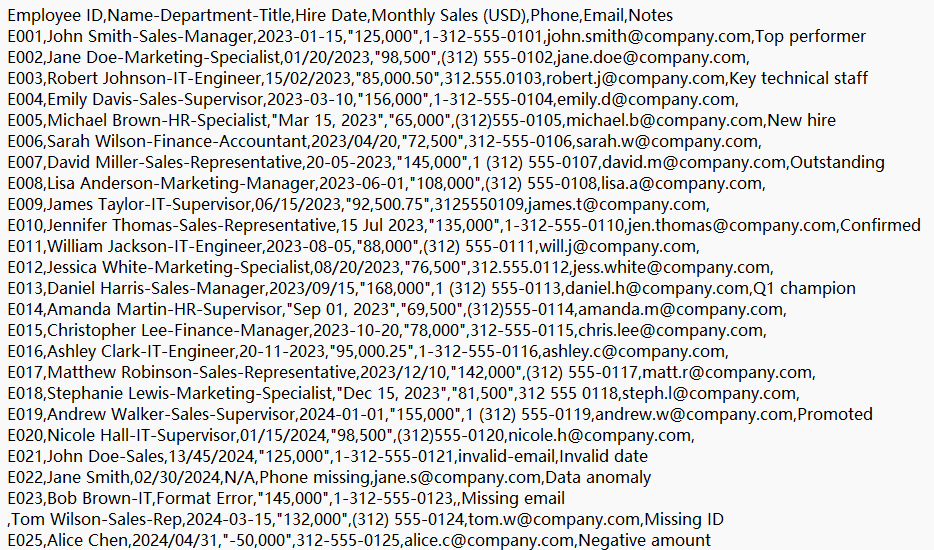
PDF Table Import to Excel
PDF is the universal format for distribution and archiving, but the table data inside it cannot be edited directly: copying it into Excel misaligns rows and columns, loses merged cells, and turns numbers and dates into text. When suppliers, banks, or government agencies deliver reports in PDF, accurately restoring the table data into editable Excel is an essential step in moving from fixed-layout documents to electronic processing.
The following example uses the Spire.Agent.Office agent to automatically extract table data from a PDF and write it into Excel through natural language instructions:
using Spire.Agent.Office.AI;
using Spire.Agent.Office.Extensions;
using Spire.Xls;

// PDF source file to be imported (passed as an attachment)
string[] attachmentPaths = new string[] { @"C:\DataImport\PurchaseOrder.pdf" };

// Save path of the import result document
string savePath = @"C:\DataImport\PurchaseOrderData.xlsx";
// SpireToken Key
string key = "sk-TF***************************r";
// Natural language instruction
string instruction =
    "Process as follows:\n" +
    "1. Convert the attached PDF file to an Excel document and apply appropriate formatting to improve readability\n" +
    "2. Unify the formats of dates/sales amounts/phone numbers in the file\n" +
    "3. Mark erroneous and missing data with a red background";
// AI generation
AIResult result = ImportPdfData(instruction, savePath, key, attachmentPaths);

// AI-assisted PDF import
static AIResult ImportPdfData(string instruction, string savePath, string key, string[] attachmentPaths)
{
    // Configure the AI processing options
    AIOptions options = new AIOptions();
    options.SpireToken = key;

    using (Workbook wb = new Workbook())
    {
        AIDocumentProcessor processor = wb.AI(options);
        return processor.ExecuteInstruction(wb, instruction, savePath, attachmentPaths);
    }
}
Original PDF data and table data extracted into Excel 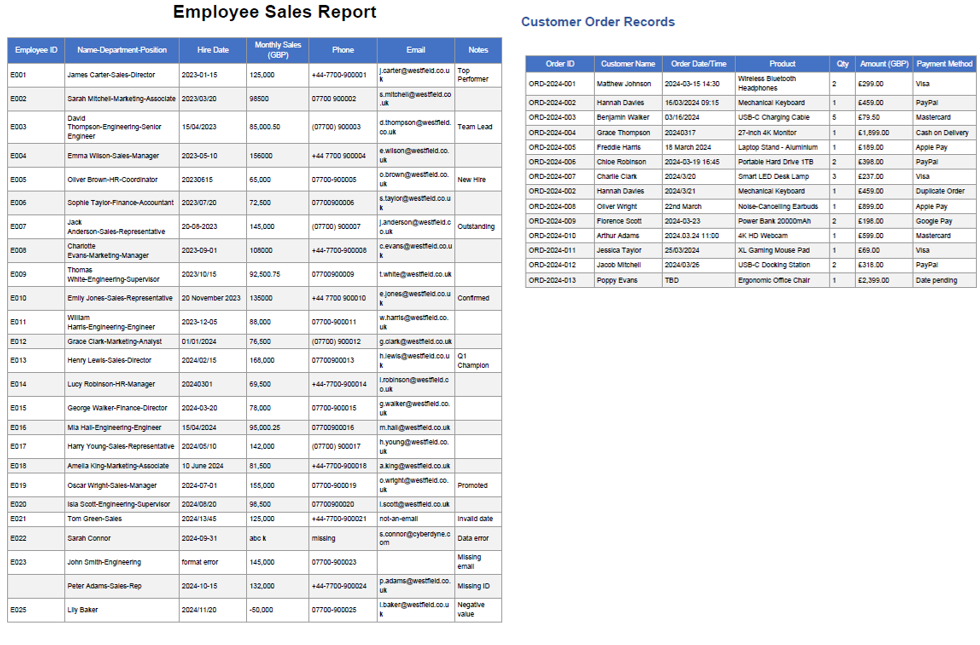
Frequently Asked Questions
Inconsistent CSV delimiters / commas within fields cause column misalignment
Cause: The CSV delimiter may be a semicolon or a tab, or a field may contain a quoted comma or newline, which causes the whole row to shift when columns are split automatically.
Solution: Specify the delimiter in the instruction, or let the AI identify it automatically and correctly handle the quoted fields.
Numbers starting with 0 lose their leading zeros
Cause: Values starting with 0, such as phone numbers, ID numbers, and account numbers, are imported as numeric values, and the leading zeros are dropped.
Solution: Specify the relevant columns as text type in the instruction, such as "set the phone number and ID number columns to text format and preserve the leading zeros".
Obtaining a SpireToken Key
- Contact sales@e-iceblue.com or visit https://www.e-iceblue.com/TemLicense.html to obtain a trial/commercial API key
Configure it in code:
AIOptions options = new AIOptions();
options.SpireToken = key;
Reconciliation is one of the most frequent and tedious tasks in corporate finance, and the source data often comes in different forms: bank statements are CSV files exported from online banking, while system transaction records may be PDF detail reports. The two tables have different column names, inconsistent date and amount formats, and even stray spaces and missing values. This article shows how to use Spire.Agent.Office Excel AI capabilities to automatically read CSV and PDF data sources, identify and map column names, clean the data, and finally generate an Excel reconciliation detail report.
For product installation and SpireToken configuration, please refer to Integrate Spire.Agent.Office in a .NET Project. The following examples assume Spire.Agent.Office is installed and SpireToken is configured.
Reconcile by Statement Number
Reconcile and analyze the CSV-format bank statement with the PDF-format system transaction records by statement number.
using Spire.Agent.Office.AI;
using Spire.Agent.Office.Extensions;
using Spire.Xls;

// Data source files: bank statement (CSV) and system transaction records (PDF)
string[] attachmentPaths = new string[]
{
    @"bank-statement.csv",
    @"system-records.pdf"
};

// Excel processing configuration
string inputPath = "";
string savePath = "out.xlsx";
// SpireToken Key
string key = "**************************";
string instruction =
    "Reconcile the bank statement (CSV) with the system transaction records (PDF) in the attachments: " +
    "1. Establish the column mapping of the two tables by semantics: transaction date, amount, counterparty account, description, statement number; " +
    "2. Cleaning: strip leading/trailing and internal extra spaces from text; write dates as yyyy-MM-dd text; convert amounts to numbers by removing currency symbols and thousands separators; mark empty description or empty counterparty as 'Unknown', mark empty amount as 'Amount missing'; " +
    "3. Match row by row using the statement number as the unique key, and mark the status: 'Matched'/'Amount mismatch'/'Bank only'/'System only'; " +
    "4. Generate a 'Reconciliation Detail' worksheet: each record with bank amount, system amount, difference, status and remark; " +
    "5. Highlight difference rows: yellow for amount mismatch, orange for bank only, blue for system only; " +
    "Finally save the output as an Excel file";

// Call the Excel document processing function
AIResult result = ExecuteDemoExcel(instruction, inputPath, savePath, key,  attachmentPaths);


// Execute Excel document AI processing
static AIResult ExecuteDemoExcel(string instruction, string inputPath, string savePath, string key, string[] attachmentPaths)
{
    // Create an AIOptions configuration object
    AIOptions options = new AIOptions();
    options.SpireToken = key;

    // Use the Workbook object to process the Excel document
    using (Workbook workbook = new Workbook())
    {
        // Load the Excel template from a file
        if (!string.IsNullOrEmpty(inputPath) && File.Exists(inputPath))
        {
            workbook.LoadFromFile(inputPath);
        }
        // Create the AI document processor
        AIWorkbookProcessor processor = workbook.AI(options);

        // Execute the AI instruction
        return processor.ExecuteInstruction(workbook, instruction, savePath, attachmentPaths);
    }
}
Original bank statement CSV 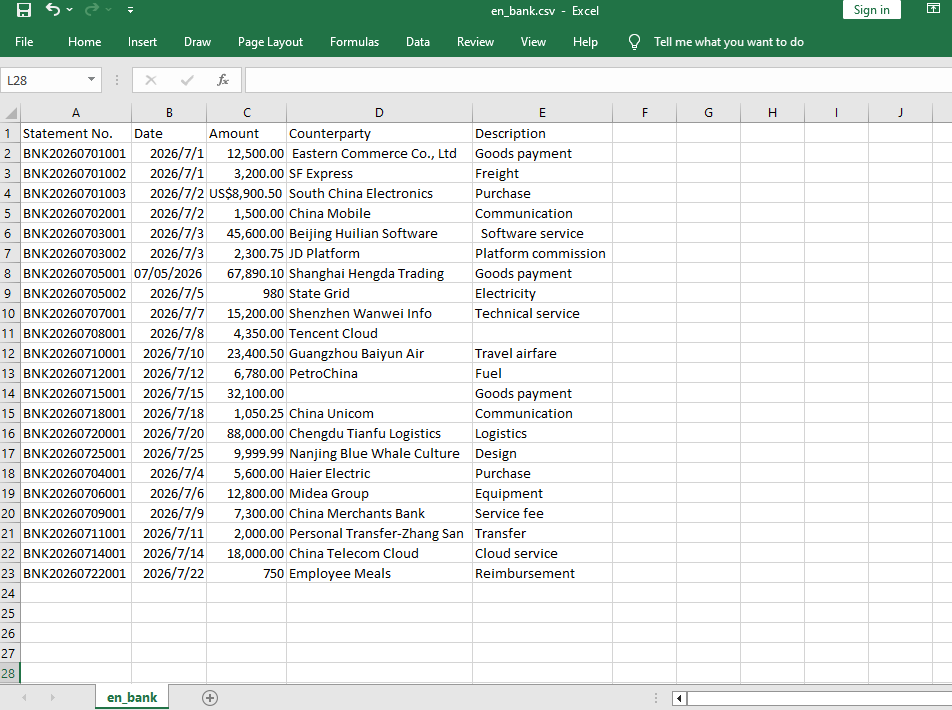 Original system transaction PDF
 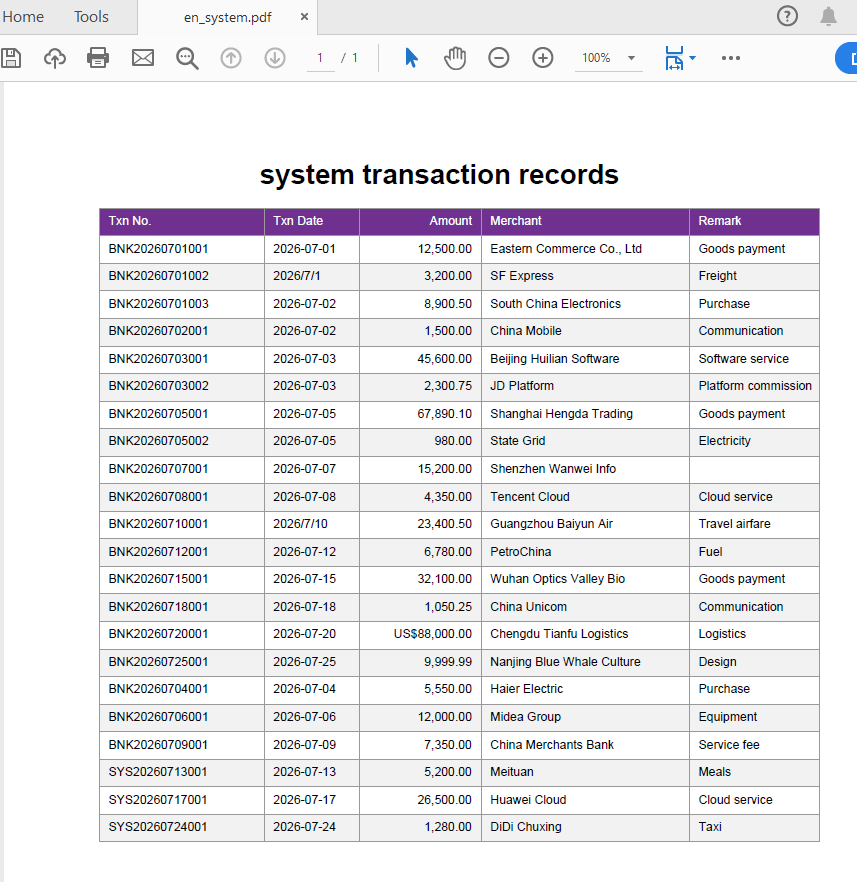 Reconciliation detail after Excel AI reconciliation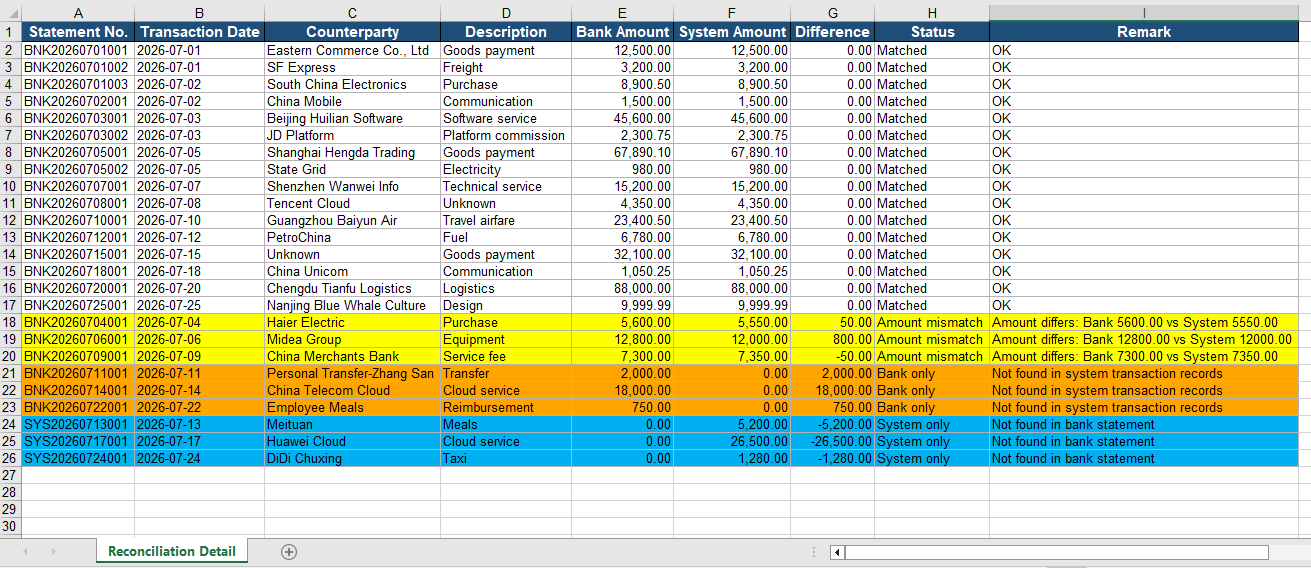
Reconcile by Date and Amount Combination
When the data source does not contain a unique statement number, you can use the "transaction date + amount" combination as the matching key for reconciliation: first group by date, then pair the records by amount within the same date.
using Spire.Agent.Office.AI;
using Spire.Agent.Office.Extensions;
using Spire.Xls;

// Data source files without statement numbers: bank statement (CSV) and system transaction records (PDF)
string[] attachmentPaths = new string[]
{
    @"bank-statement-noId.csv",
    @"system-records-noId.pdf"
};

// Excel processing configuration
string inputPath = "";
string savePath = "out.xlsx";
// SpireToken Key
string key = "**************************";
string instruction =
    "Reconcile the bank statement (CSV) with the system transaction records (PDF) in the attachments: " +
    "1. Establish the column mapping of the two tables by semantics: transaction date, amount, counterparty account, description; " +
    "2. Cleaning: strip extra spaces from text; write dates as yyyy-MM-dd text; convert amounts to numbers; mark missing values as 'Unknown' or 'Amount missing'; " +
    "3. Use the 'transaction date + amount' combination as the matching key: first group by date, then pair the records by amount within the same date, and mark the status: 'Matched'/'Amount mismatch'/'Bank only'/'System only'; " +
    "4. Generate a 'Reconciliation Detail' worksheet (bank amount, system amount, difference, status); " +
    "5. Highlight difference rows: yellow for amount mismatch, orange for bank only, blue for system only; " +
    "Finally save the output as an Excel file";

// Call the Excel document processing function
AIResult result = ExecuteDemoExcel(instruction, inputPath, savePath, key,  attachmentPaths);


// Execute Excel document AI processing
static AIResult ExecuteDemoExcel(string instruction, string inputPath, string savePath, string key, string[] attachmentPaths)
{
    // Create an AIOptions configuration object
    AIOptions options = new AIOptions();
    options.SpireToken = key;

    // Use the Workbook object to process the Excel document
    using (Workbook workbook = new Workbook())
    {
        // Load the Excel template from a file
        if (!string.IsNullOrEmpty(inputPath) && File.Exists(inputPath))
        {
            workbook.LoadFromFile(inputPath);
        }
        // Create the AI document processor
        AIWorkbookProcessor processor = workbook.AI(options);

        // Execute the AI instruction
        return processor.ExecuteInstruction(workbook, instruction, savePath, attachmentPaths);
    }
}
Original bank statement CSV 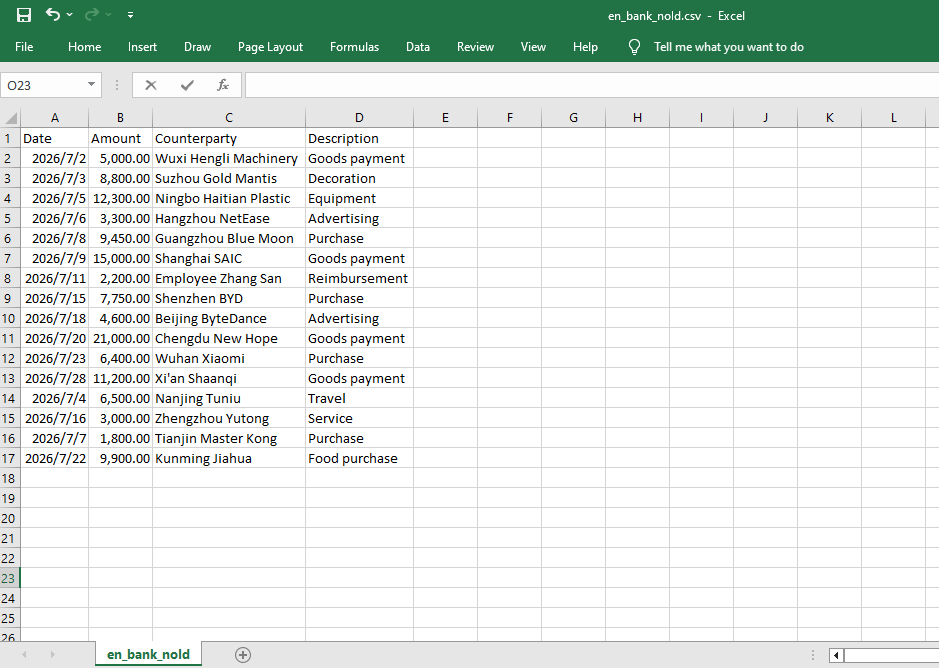 Original system transaction PDF
 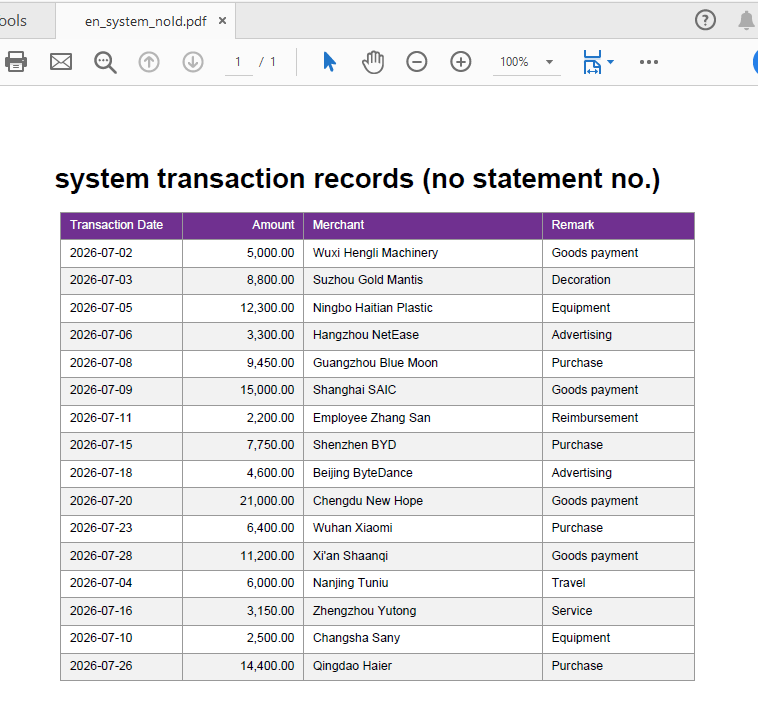 Reconciliation detail after Excel AI reconciliation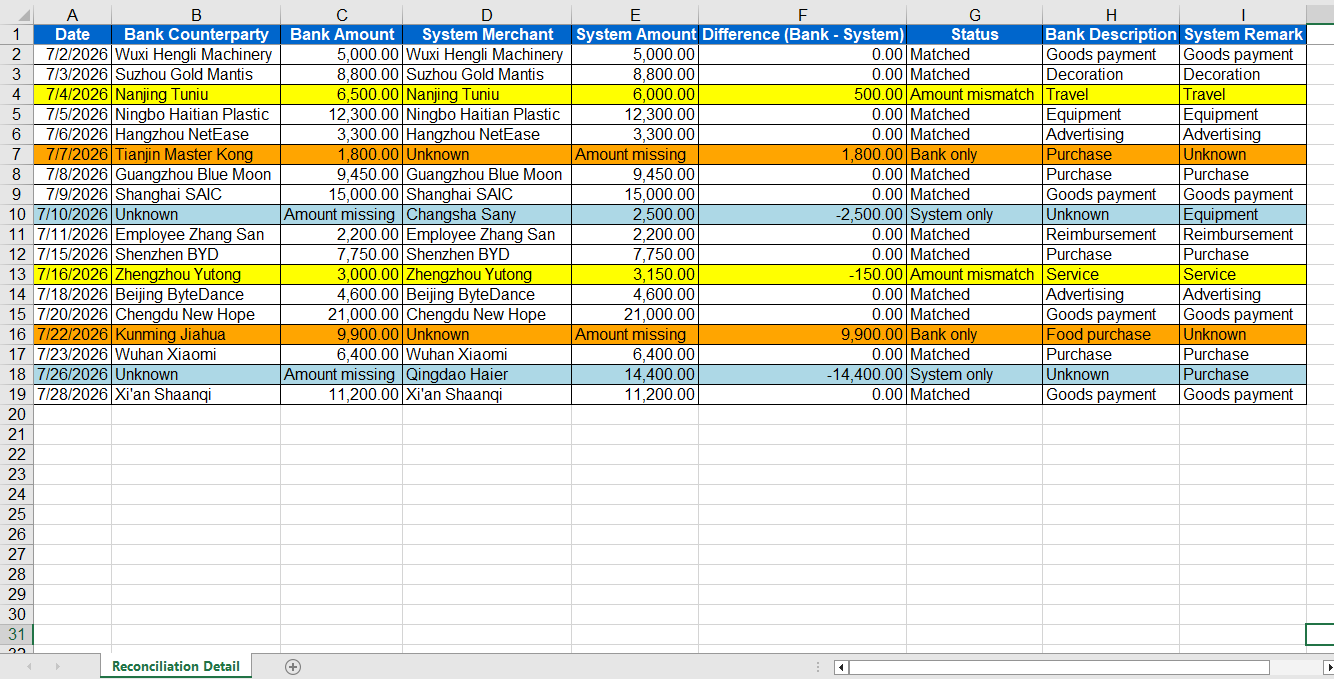
Comparison with Traditional SDK API Processing
| Traditional Spire.Office for .NET API | Spire.Agent.Office Processing | |
|---|---|---|
| Driving approach | Requires writing large amounts of code for CSV/PDF parsing, column mapping, data cleaning, matching and exception logic | Describe reconciliation rules in natural language, and AI understands and orchestrates the execution automatically |
| Data format | CSV and PDF must be parsed with different components, each with its own format | Directly attach CSV and PDF, and AI understands the content automatically |
| Field mapping | Hard-coded column name mappings; changing column names or formats requires code changes | AI maps columns automatically based on column names and content semantics |
| Exception handling | Need to hand-write difference judgment, alert text and style logic | AI automatically identifies differences and provides handling suggestions |
Frequently Asked Questions
Inconsistent date and amount formats in the bank statement CSV
Cause: In the CSV exported from online banking, dates may be written as 2026-07-01, 2026/7/1, etc., and amounts may carry ¥, thousands separators, or leading/trailing spaces, leading to misjudgment during matching.
Solution: Explicitly require in the instruction "unify dates as yyyy-MM-dd and amounts as numeric formats and remove spaces", and AI will complete the standardization automatically before reconciliation.
The system transaction PDF table spans pages or has headers/footers
Cause: PDF detail reports may have pagination, repeated headers, or footer annotations, which affect AI's reading of the table data.
Solution: Add "ignore headers/footers and repeated header rows, only read the table data rows" to the instruction.
The same amount appears multiple times on the same day, causing mismatches
Cause: When reconciling by the "date + amount" combination, there may be multiple transactions with the same amount on the same day, making the exact correspondence impossible to determine.
Solution: Prefer precise reconciliation by statement number; if there is really no statement number, you can require in the instruction to "mark records that cannot be matched one-to-one on the same day as 'Amount mismatch'".
Get a SpireToken Key
- Contact sales@e-iceblue.com or visit https://www.e-iceblue.com/TemLicense.html to obtain a trial/commercial API key
Configure it in code:
AIOptions options = new AIOptions();
options.SpireToken = key;
Automatically Comparing Multi-format Quotation Sheets with Spire.Agent.Office
2026-08-13 02:42:10 Written by Lisa LiIn procurement and sales scenarios, price comparison is one of the most critical and time-consuming steps. Procurement teams receive quotation sheets from various vendors — some organized by rows, some by columns, some containing multiple hidden costs, and some with inconsistent units. The Spire.Agent.Office Excel AI agent can understand quotation sheets in different formats, automatically align each vendor's quotations to a unified template, calculate line-item totals and grand totals, and mark the lowest prices.
This article explains how to use the Spire.Agent.Office Excel AI capability to automatically align quotation sheets from multiple different vendors to a unified template, calculate totals for comparison, and highlight the lowest price.
For product installation and SpireToken configuration, please refer to Integrating Spire.Agent.Office in a .NET Project. The following examples assume that Spire.Agent.Office is installed and SpireToken is configured.
Excel Format Quote Comparison
The core challenge of comparing multi-format quotation sheets is that each vendor's quotation sheet differs.
using Spire.Agent.Office.AI;
using Spire.Agent.Office.Extensions;
using Spire.Xls;

// Quotation files from different vendors
string[] attachmentPaths = new string[]
{
    @"vendor_A.xlsx",
    @"vendor_B.xlsx",
    @"vendor_C.xlsx",
    @"vendor_D.xlsx"
};

// Output template file
string inputPath = @"template.xlsx";
// Result document
string savePath = @"quote-comparison.xlsx";
string key = "**************************";
string instruction =
    "Read the quotation sheets of the vendors in the attachments (Vendor A, Vendor B, Vendor C, Vendor D) and process them as follows:" +
    "1. Identify the item, unit price, quantity, and total price columns in each quotation sheet, and align them to the Unit Price and Amount columns of the corresponding vendor (A, B, C, D) in the template;" +
    "2. If a vendor has not quoted a product, leave the corresponding unit price and amount cells blank and mark them as 'Not quoted';" +
    "3. Calculate the amount (quantity x unit price) for each product of each quoting vendor and fill it into the corresponding columns; compute each vendor's total quotation at the bottom of the template;" +
    "4. In the total price row, fill the cell of the vendor with the lowest total quotation with a green background (RGB:198,224,180);" +
    "5. In the 'Lowest Price Vendor' column, mark the vendor that offers the lowest unit price for each product, and fill the corresponding lowest unit price into the 'Lowest Price' column;" +
    "6. Preserve the template's layout style, fonts, and column widths;" +
    "Finally save the output as an Excel file";

// Call the Excel document processing function
AIResult result = ExecuteDemoExcel(instruction, inputPath, savePath, key,  attachmentPaths);


// Execute Excel document AI processing
static AIResult ExecuteDemoExcel(string instruction, string inputPath, string savePath, string key, string[] attachmentPaths)
{
    // Create the AIOptions configuration object
    AIOptions options = new AIOptions();
    options.SpireToken = key;

    // Use the Workbook object to process the Excel document
    using (Workbook workbook = new Workbook())
    {
        // Load the Excel template from file
        if (!string.IsNullOrEmpty(inputPath) && File.Exists(inputPath))
        {
            workbook.LoadFromFile(inputPath);
        }
        // Create the AI document processor
        AIWorkbookProcessor processor = workbook.AI(options);

        // Execute the AI instruction
        return processor.ExecuteInstruction(workbook, instruction, savePath, attachmentPaths);
    }
}
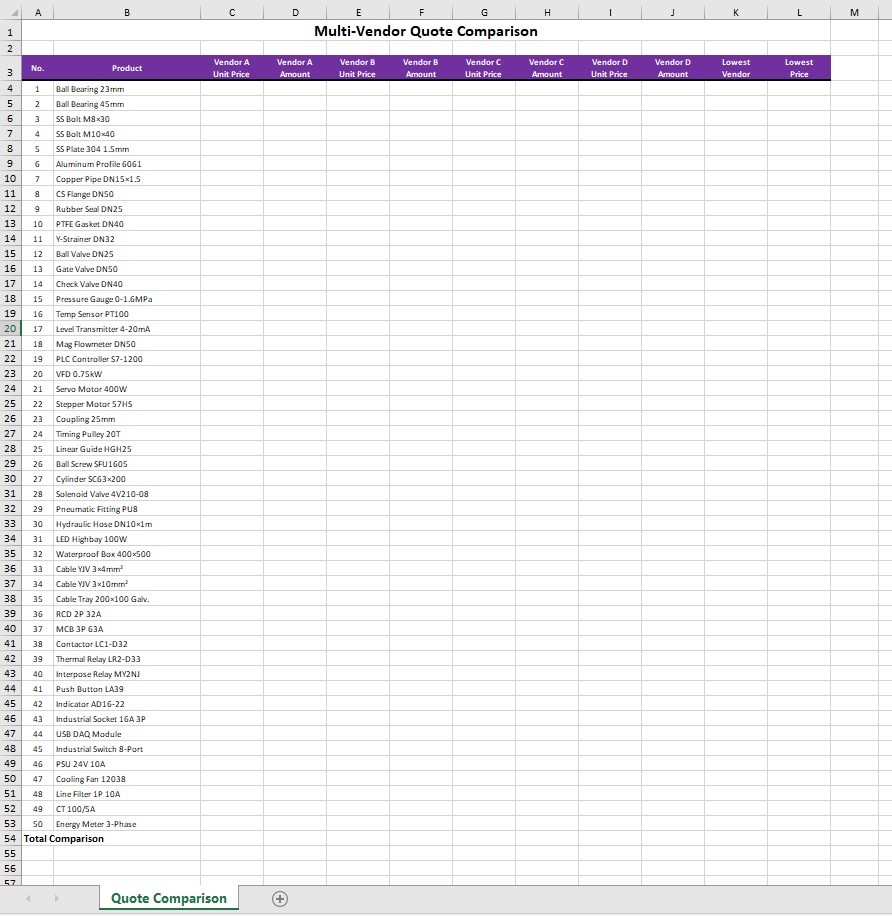
Original quotation sheets of each vendor 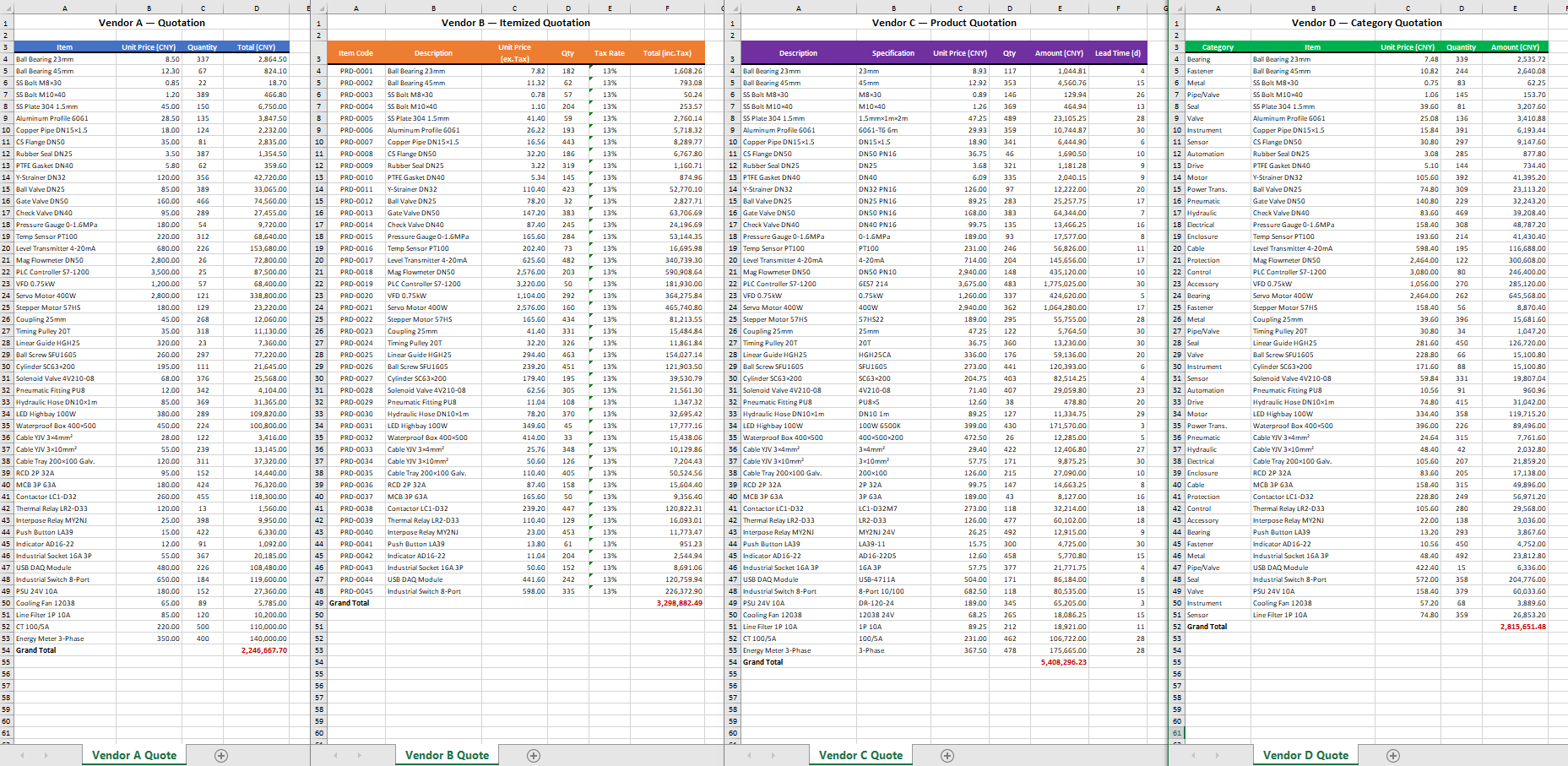 Original Excel template
  Comparison summary generated by Excel AI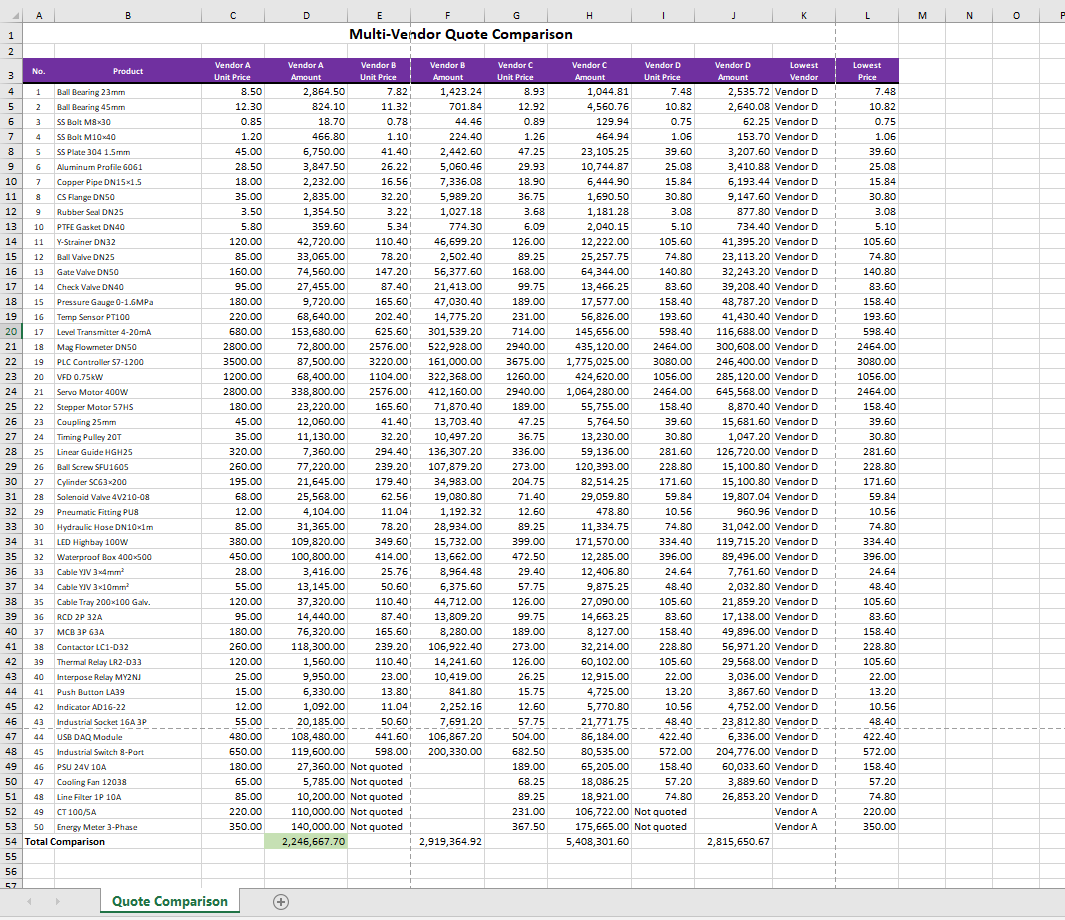
PDF Format Quote Comparison
When the original quotations are in PDF format, Spire.Agent.Office can equally extract the required data with ease and automatically complete the summary statistics. Simply add the source documents in different formats, and the AI instruction can be reused without reconfiguration, greatly improving processing efficiency.
using Spire.Agent.Office.AI;
using Spire.Agent.Office.Extensions;
using Spire.Xls;

// Quotation files from different vendors
string[] attachmentPaths = new string[]
{
    @"vendor_A.pdf",
    @"vendor_B.pdf",
    @"vendor_C.pdf",
    @"vendor_D.pdf"
};

// Output template file
string inputPath = @"template.xlsx";
// Result document
string savePath = @"quote-comparison.xlsx";
string key = "**************************";
string instruction =
    "Read the quotation sheets of the vendors in the attachments (Vendor A, Vendor B, Vendor C, Vendor D) and process them as follows:" +
    "1. Identify the item, unit price, quantity, and total price columns in each quotation sheet, and align them to the Unit Price and Amount columns of the corresponding vendor (A, B, C, D) in the template;" +
    "2. If a vendor has not quoted a product, leave the corresponding unit price and amount cells blank and mark them as 'Not quoted';" +
    "3. Calculate the amount (quantity x unit price) for each product of each quoting vendor and fill it into the corresponding columns; compute each vendor's total quotation at the bottom of the template;" +
    "4. In the total price row, fill the cell of the vendor with the lowest total quotation with a green background (RGB:198,224,180);" +
    "5. In the 'Lowest Price Vendor' column, mark the vendor that offers the lowest unit price for each product, and fill the corresponding lowest unit price into the 'Lowest Price' column;" +
    "6. Preserve the template's layout style, fonts, and column widths;" +
    "Finally save the output as an Excel file";

// Call the Excel document processing function
AIResult result = ExecuteDemoExcel(instruction, inputPath, savePath, key,  attachmentPaths);


// Execute Excel document AI processing
static AIResult ExecuteDemoExcel(string instruction, string inputPath, string savePath, string key, string[] attachmentPaths)
{
    // Create the AIOptions configuration object
    AIOptions options = new AIOptions();
    options.SpireToken = key;

    // Use the Workbook object to process the Excel document
    using (Workbook workbook = new Workbook())
    {
        // Load the Excel template from file
        if (!string.IsNullOrEmpty(inputPath) && File.Exists(inputPath))
        {
            workbook.LoadFromFile(inputPath);
        }
        // Create the AI document processor
        AIWorkbookProcessor processor = workbook.AI(options);

        // Execute the AI instruction
        return processor.ExecuteInstruction(workbook, instruction, savePath, attachmentPaths);
    }
}
Original PDF quotation of each vendor 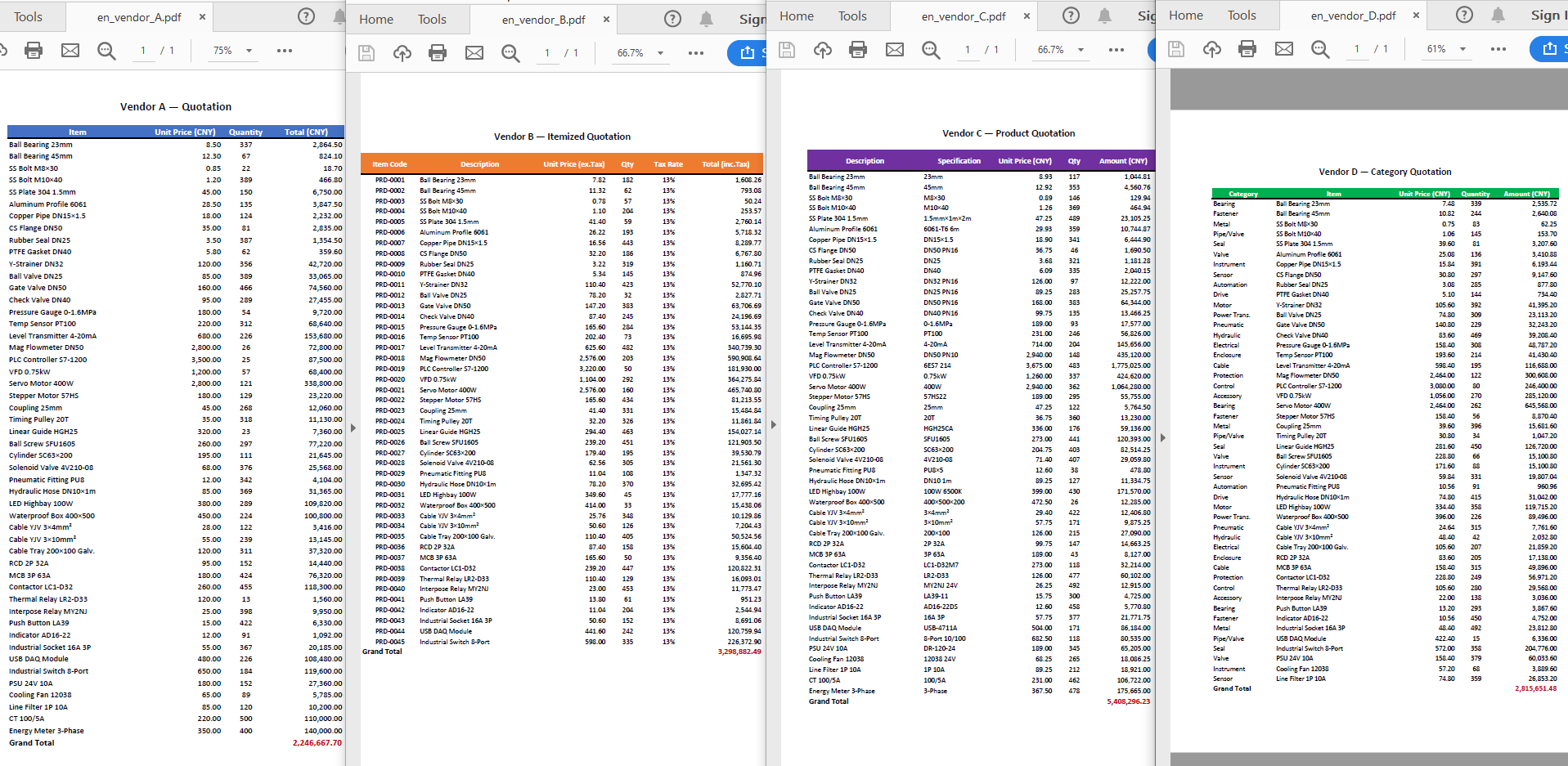 Original Excel template
 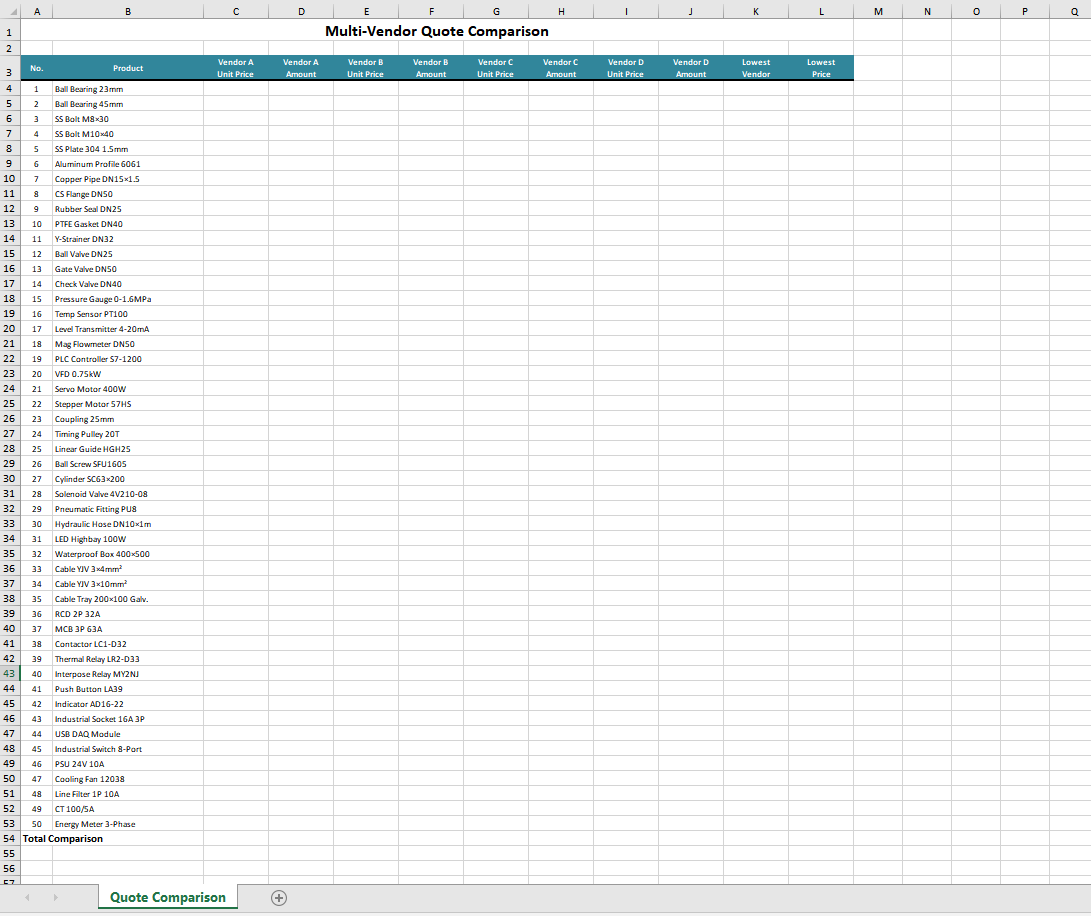 Comparison summary generated by Excel AI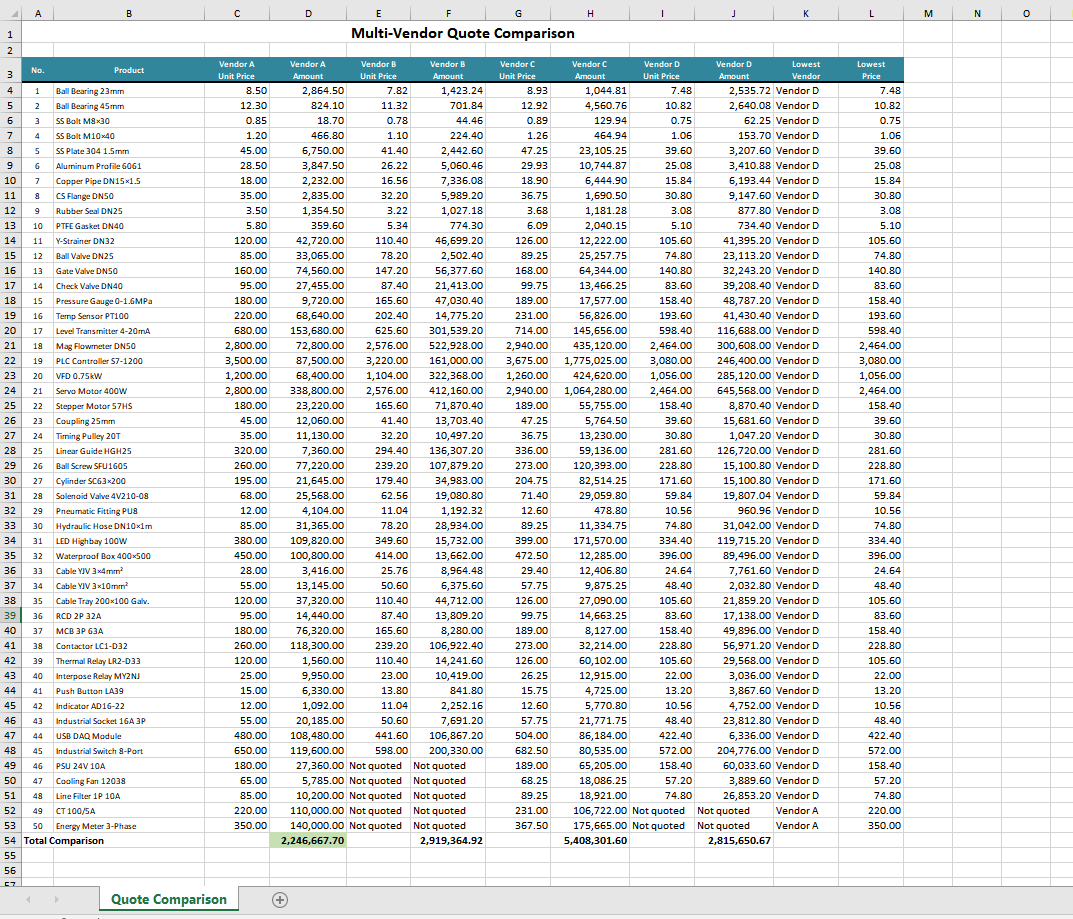
Comparison with Traditional SDK API Processing
| Spire.Office for .NET API | Spire.Agent.Office | |
|---|---|---|
| Code Volume | Reading data, mapping rows and columns, filling formulas, and applying conditional formatting require extensive code | Handled intelligently with a single natural language instruction |
| Format Adaptation | With the traditional SDK APIs, quotation sheets in different formats must be processed with different products | Just use the Excel AI to process data sources in various formats |
| Calculation Logic | Formulas and formatting must be set through APIs | AI understands and automatically completes the calculation and formatting |
| Requirement Changes | Modify the code and re-debug | Modify the instruction, effective immediately |
FAQ
Merged Cells in Quotation Sheets Cause Data Misalignment
Cause: Vendor quotation sheets may contain merged title cells or category labels merged across rows, which affect the AI's judgment of the row/column structure.
Solution: Clearly specify in the instruction "ignore the merged header rows and start reading data from row X," or provide a template file as a structural reference. If the issue persists, add the description "treat merged cells as ordinary cells and take their top-left value."
Processed Format Does Not Match Expectations
Cause: When understanding complex table layouts, the AI model may not preserve details such as column widths, row heights, and fonts precisely enough.
Solution: Add specific descriptions to the instruction, such as "preserve the existing column widths, row heights, fonts, borders, and alignment of the template."
Some Products Lack Vendor Quotations
Cause: The product lists provided by different vendors are not completely consistent, and some vendors may not have quoted certain products.
Solution: Clearly specify how to handle missing items in the instruction, such as "mark the cells without quotations as 'Not quoted' or leave them blank," and the AI will automatically identify and process them as required.
Obtaining a SpireToken Key
- Contact sales@e-iceblue.com or visit https://www.e-iceblue.com/TemLicense.html to obtain a trial/commercial API key.
Configure it in code:
AIOptions options = new AIOptions();
options.SpireToken = key;
Automating Student Score Analysis and Ranking with Spire.Agent.Office
2026-08-07 07:50:53 Written by jie zouIn the field of education and academic affairs, processing exam scores after each test is one of the most frequent and time-consuming tasks. The same exam result often needs to be handled from two dimensions: for class students and class teachers, it needs to present the class's own score details, rankings, and subject strengths; for teachers and the academic affairs office, it needs cross-class horizontal comparison to determine which classes and subjects require focused attention.
The traditional approach usually requires manually writing formulas in Excel, sorting, drawing charts item by item, and writing analysis summaries. For different audiences, the same data must be reorganized twice, and the whole process often takes half a day to a full day. Formulas are error-prone, chart styles are inconsistent, and analysis criteria are hard to keep aligned.
Comparison with Traditional SDK API Processing
| Traditional Spire.Office for .NET API | Spire.Agent.Office Processing | |
|---|---|---|
| Driving Method | Write Excel formulas + file splitting + sorting + chart + conditional formatting code, controlling every step | Describe the goal in natural language; the AI understands and automatically orchestrates the execution path |
| Code Volume | Score analysis scenarios typically require 500-1000 lines of C# code (including per-class file splitting, formula calculation, ranking logic, chart configuration, etc.) | About 10 lines of calling code + one natural language instruction |
| Statistics Criteria | Must hard-code the calculation formulas and judgment logic for average/pass rate/excellence rate; adjusting criteria requires code changes | AI understands education statistics semantics and automatically computes by criteria such as "≥60 pass, ≥90 excellent" |
| Chart Generation | Must manually create Chart objects, configure data ranges, set chart types and styles | AI automatically selects the most appropriate chart type (radar, column, etc.) based on data semantics |
| Requirement Changes | Adding new statistics dimensions requires modifying code → compiling → deploying | Modify the description in the instruction; takes effect immediately |
This article introduces how to use the Excel AI capabilities of Spire.Agent.Office for two audiences — class students and teachers / the academic affairs office — to automate score statistics, ranking, and visual analysis with just a few natural language instructions.
For product installation and SpireToken configuration, please refer to Integrating Spire.Agent.Office in a .NET Project. The following examples assume Spire.Agent.Office is already installed and SpireToken is configured.
Class Score Statistics and Display
The score analysis for class students and class teachers focuses on the class itself: score details, in-class ranking, and subject strengths. Since there is no need for cross-class comparison, each class gets its own Excel file, which can be printed and posted, or used for parent meetings.
The following example uses the Spire.Agent.Office agent to automatically split data by class through natural language instructions and generate an independent score analysis Excel file for each class:
using Spire.Agent.Office.AI;
using Spire.Agent.Office.Extensions;
using Spire.Xls;

// Source score data (containing class, student name, and subject score columns)
string inputPath = @"C:\ScoreAnalysis\StudentScores.xlsx";
// Result document path (null uses the output folder path set below)
string savePath = null;
// Output directory (one file per class)
string OutDir = @"C:\ScoreAnalysis\ClassAnalysis";
// SpireToken Key
string key = "sk-TF***************************r";
// Natural language instruction
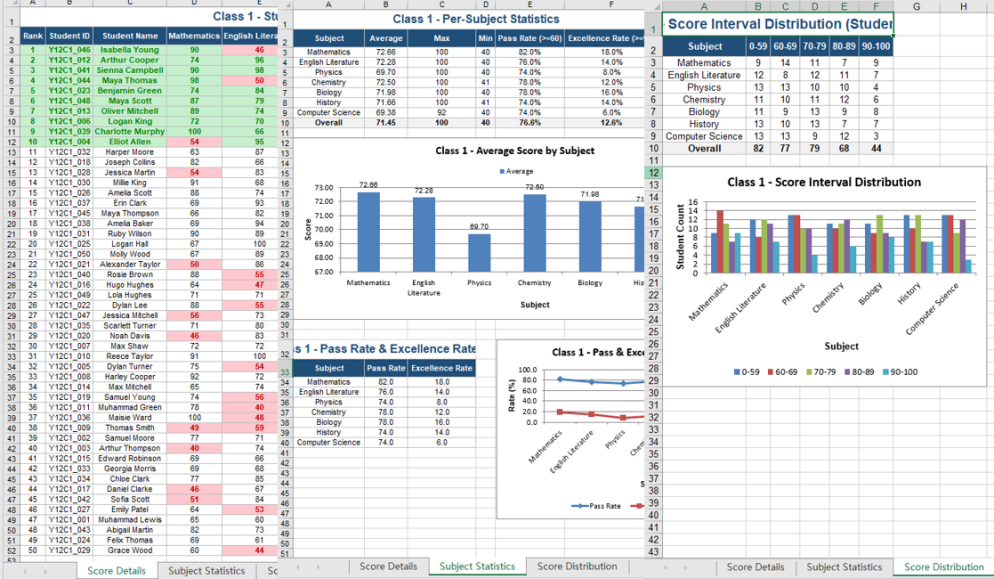
string instruction =
    "Process the input file as follows:\r\n" +
    "1. Read the file and generate one separate Excel analysis file per class, named 'XXClassScoreAnalysis.xlsx'\r\n" +
    "2. Each class file must contain: the class score details, class ranking by total score, per-subject average/max/min, pass rate (≥60 points), excellence rate (≥90 points), and score interval distribution\r\n" +
    "3. Choose appropriate chart types to visualize the class performance\r\n" +
    "4. Apply a unified and clean table style: highlight the top 10 by total score in green, and mark failing subject scores in red";
// AI generation
AIResult result = AnalyzeClassScores(instruction, inputPath, savePath, key, OutDir);

// AI-assisted score analysis
static AIResult AnalyzeClassScores(string instruction, string inputpath, string savePath, string key, string output)
{
    // Configure the AI processing options
    AIOptions options = new AIOptions();
    options.SpireToken = key;
    options.WorkDir = output;

    using (Workbook wb = new Workbook())
    {
        if (!string.IsNullOrEmpty(inputpath) && File.Exists(inputpath))
            wb.LoadFromFile(inputpath);
        AIDocumentProcessor processor = wb.AI(options);
        return processor.ExecuteInstruction(wb, instruction, savePath);
    }
}
Original score data and per-class score analysis files 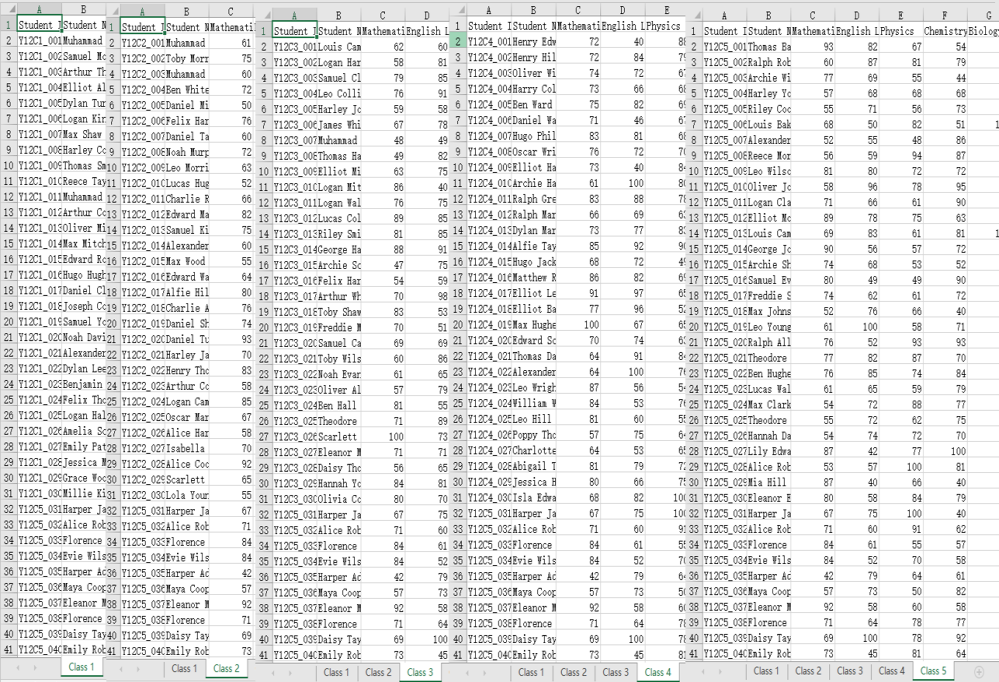
Grade Score Summary and Analysis
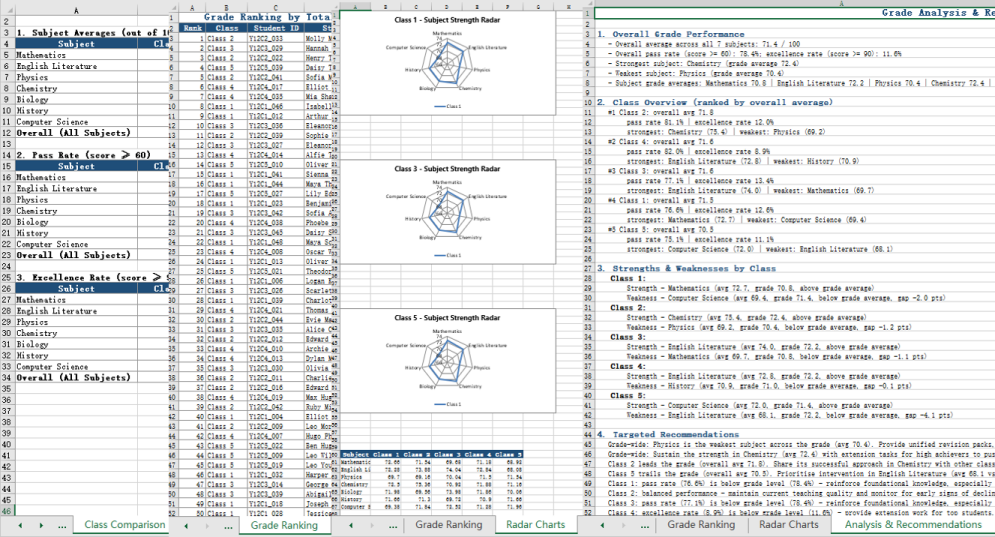
The score analysis for teachers and the academic affairs office focuses on the overall picture: gaps between classes, subjects that are weak across the board, and the distribution of the full-grade ranking. All classes' data must be consolidated into a single worksheet to enable horizontal comparison, unified criteria, and decision support.
The following example uses the Spire.Agent.Office agent to consolidate all classes' data into one worksheet through natural language instructions, completing class comparison and visual analysis:
using Spire.Agent.Office.AI;
using Spire.Agent.Office.Extensions;
using Spire.Xls;

// Source score data (containing class, student name, and subject score columns)
string inputPath = @"C:\ScoreAnalysis\StudentScores.xlsx";
// Save path of the grade score analysis file
string savePath = @"C:\ScoreAnalysis\GradeAnalysis.xlsx";
// SpireToken Key
string key = "sk-TF***************************r";
// Natural language instruction
string instruction =
    "Process the input file as follows:\r\n" +
    "1. Read the file, and for each class calculate the average score, pass rate (≥60 points), and excellence rate (≥90 points) for every subject; generate a \"Class Comparison\" worksheet that summarizes these metrics for all classes.\r\n" +
    "2. Generate the overall grade ranking based on total scores.\r\n" +
    "3. Create radar charts for subject averages: one radar chart per class to show each class's own subject strengths, and a single combined radar chart that overlays all classes (each class as one series) for direct comparison.\r\n" +
    "4. Based on the statistical data, analyze the overall performance of the entire grade, identify each class's strengths and weaknesses, and provide targeted improvement recommendations.";
// AI generation
AIResult result = AnalyzeGradeScores(instruction, inputPath, savePath, key);

// AI-assisted score analysis
static AIResult AnalyzeGradeScores(string instruction, string inputpath, string savePath, string key)
{
    // Configure the AI processing options
    AIOptions options = new AIOptions();
    options.SpireToken = key;

    using (Workbook wb = new Workbook())
    {
        if (!string.IsNullOrEmpty(inputpath) && File.Exists(inputpath))
            wb.LoadFromFile(inputpath);
        AIDocumentProcessor processor = wb.AI(options);
        return processor.ExecuteInstruction(wb, instruction, savePath);
    }
}
Original score data and grade score analysis result 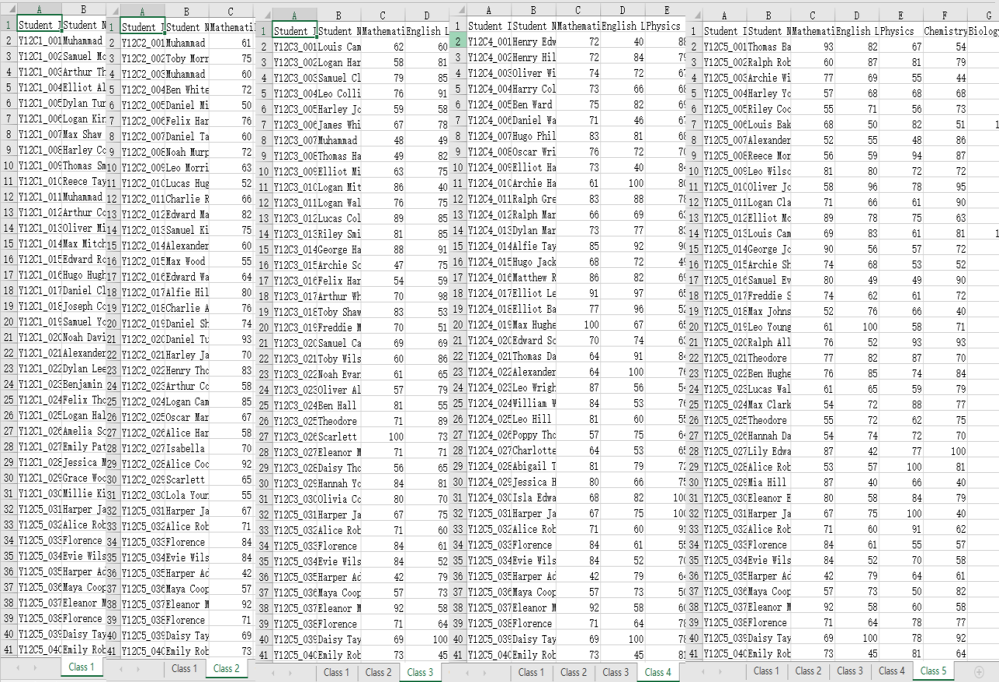
Comparison of the Two Approaches
| Class Score Statistics and Display | Grade Score Summary and Analysis | |
|---|---|---|
| Audience | Class students, class teachers | Teachers, academic affairs office |
| Output | One independent Excel file per class | All classes consolidated into one Excel file |
| Core Content | In-class score details, in-class ranking, per-subject statistics, subject strength charts | Cross-class comparison, full-grade ranking, radar charts, score analysis conclusions |
| Typical Uses | Print and post, parent meetings | Teaching research reports, teaching decisions, academic affairs statistics |
Frequently Asked Questions
The chart type is not as expected
Cause: The chart type selected by the AI may not match the user's presentation preferences.
Solution: Specify chart type preferences explicitly in the instruction, such as "use radar charts for class subject strengths, column charts for score interval distribution, and line charts for score trends across multiple tests."
How to handle tied rankings
Cause: It is normal for multiple students to have the same total score; the AI's default handling of tied ranks may not meet your requirements.
Solution: Specify the tie-breaking rule in the instruction, such as "when total scores are equal, sort by Computer Science score first."
Obtaining a SpireToken Key
- Contact sales@e-iceblue.com or visit https://www.e-iceblue.com/TemLicense.html to obtain a trial/commercial API key
Configure it in code:
AIOptions options = new AIOptions();
options.SpireToken = key;
