
Knowledgebase (2417)
Children categories
This short video gives a quick demonstration of how to find and replace text in Word documents using .NET code. Watch it first to understand the workflow clearly.
When it comes to editing documents, making changes to the text is a common task. Microsoft Word provides a robust feature called "Find and Replace" that streamlines the text editing process. With this feature, you can effortlessly locate specific words, phrases, or characters within your document and replace them in one simple action. This eliminates the need for repetitive manual searching and time-consuming edits, saving you valuable time and effort, especially when you need to make widespread changes in lengthy documents. In this article, we will explain how to find and replace text in Word documents in C# using Spire.Doc for .NET.
- Find Text and Replace All Its Instances with New Text
- Find Text and Replace Its First Instance with New Text
- Find and Replace Text with Image
- Find and Replace Text using Regular Expression
- Find and Replace Text with Content from Another Word Document
Install Spire.Doc for .NET
To begin with, you need to add the DLL files included in the Spire.Doc for .NET package as references in your .NET project. The DLL files can be either downloaded from this link or installed via NuGet.
PM> Install-Package Spire.Doc
Find Text and Replace All Its Instances with New Text
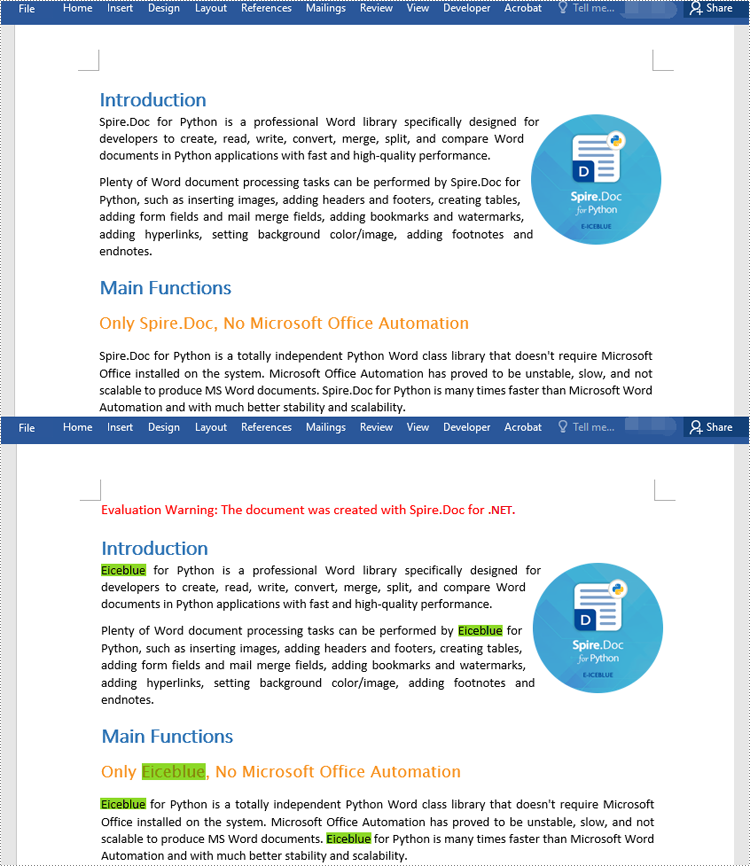
Spire.Doc for .NET provides the Document.Replace() method that enables you to find and replace specific text in a Word document. With this method, you can seamlessly replace all instances of the target text with new content. Additionally, you have the flexibility to specify whether the search should be case-sensitive and whether whole-word matching should be considered. The detailed steps are as follows.
- Instantiate an object of the Document class.
- Load a sample Word document using Document.LoadFromFile() method.
- Replace all instances of specific text with new text using Document.Replace(string matchString, string newValue, bool caseSensitive, bool wholeWord) method.
- Save the result document using Document.SaveToFile() method.
- C#
using Spire.Doc;

namespace ReplaceAllText
{
    internal class Program
    {
        static void Main(string[] args)
        {
            //Instantiate an object of the Document class
            Document document = new Document();
            //Load a sample Word document
            document.LoadFromFile("Sample.docx");

            //Replace all instances of specific text with new text
            document.Replace("Spire.Doc", "Eiceblue", false, true);

            //Save the result document
            document.SaveToFile("ReplaceAllText.docx", FileFormat.Docx2016);
            document.Close();
        }
    }
}
Find Text and Replace Its First Instance with New Text
To replace the first instance of a specific text in a Word document using Spire.Doc for .NET, you can utilize the Document.ReplaceFirst property. By setting this property to true before calling the Document.Replace() method, you can change the text replacement mode to exclusively replace the first instance. The detailed steps are as follows.
- Instantiate an object of the Document class.
- Load a sample Word document using Document.LoadFromFile() method.
- Change the text replacement mode to replace the first instance only by setting the Document.ReplaceFirst property to true.
- Call the Document.Replace(string matchString, string newValue, bool caseSensitive, bool wholeWord) method to replace text.
- Save the result document using Document.SaveToFile() method.
- C#
using Spire.Doc;

namespace ReplaceFirstText
{
    internal class Program
    {
        static void Main(string[] args)
        {
            //Instantiate an object of the Document class
            Document document = new Document();
            //Load a sample Word document
            document.LoadFromFile("Sample.docx");

            //Change the text replacement mode to replace the first instance only
            document.ReplaceFirst = true;

            //Replace the first instance of specific text with new text
            document.Replace("Spire.Doc", "Eiceblue", false, true);

            //Save the result document
            document.SaveToFile("ReplaceFirstText.docx", FileFormat.Docx2016);
            document.Close();
        }
    }
}
Find and Replace Text with Image
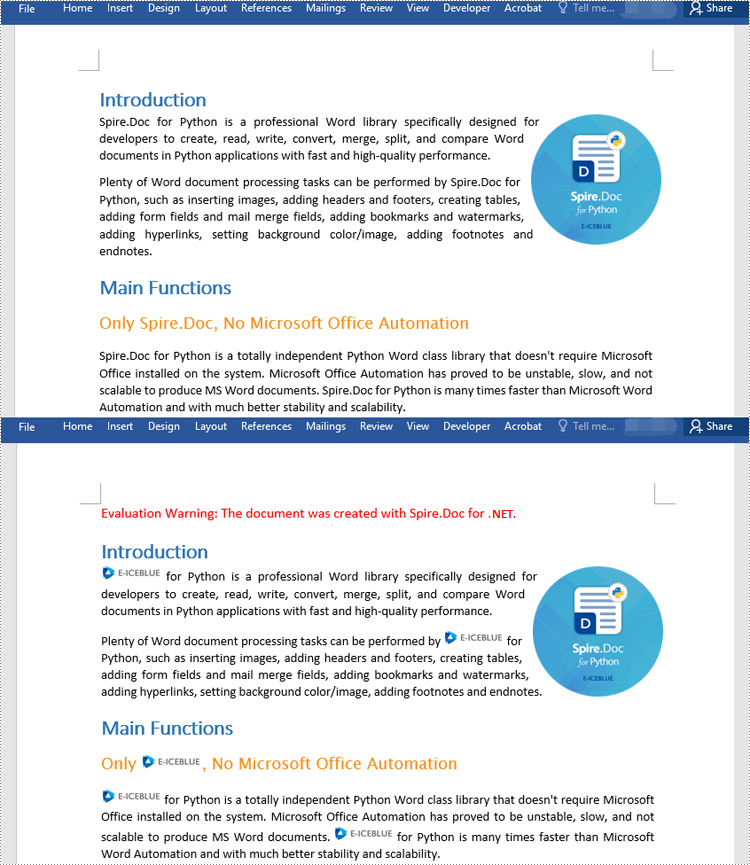
Sometimes, you may need to replace text with images for visual representation or design purposes. In Spire.Doc for .NET, replacing text with image can be achieved by inserting the image at the position of the target text and then removing the text from the document. The detailed steps are as follows.
- Instantiate an object of the Document class.
- Load a sample Word document using Document.LoadFromFile() method.
- Find specific text in the document using Document.FindAllString() method.
- Loop through the matched text.
- For each matched text, get the paragraph where it is located and get the position of the text in the paragraph.
- Instantiate an object of the DocPicture class, and then load an image using DocPicture.LoadImage() method.
- Insert the image into the paragraph at the position of the text and then remove the text from the paragraph.
- Save the result document using Document.SaveToFile() method.
- C#
using Spire.Doc;
using Spire.Doc.Documents;
using Spire.Doc.Fields;

namespace ReplaceTextWithImage
{
    internal class Program
    {
        static void Main(string[] args)
        {
            //Instantiate an object of the Document class
            Document document = new Document();
            //Load a sample Word document
            document.LoadFromFile("Sample.docx");

            //Find specific text in the document
            TextSelection[] selections = document.FindAllString("Spire.Doc", true, true);

            int index = 0;
            Paragraph ownerParagraph = null;

            //Loop through the matched text
            foreach (TextSelection selection in selections)
            {
                //Get the paragraph where the text is located
                ownerParagraph = selection.GetAsOneRange().OwnerParagraph;

                //Get the index position of the text in the paragraph
                index = ownerParagraph.ChildObjects.IndexOf(selection.GetAsOneRange());

                //Load an image
                DocPicture pic = new DocPicture(document);
                pic.LoadImage("img.png");

                //Insert the image into the paragraph at the index position of the text
                ownerParagraph.ChildObjects.Insert(index, pic);

                //Remove the text from the paragraph
                ownerParagraph.ChildObjects.Remove(selection.GetAsOneRange());
            }

            //Save the result document
            document.SaveToFile("ReplaceTextWithImage.docx", FileFormat.Docx2016);
            document.Close();
        }
    }
}
Find and Replace Text using Regular Expression
Regular expressions offer a robust toolset for performing complex search and replace operations within documents. The Document.Replace() method can leverage regular expressions to search for specific text, allowing you to perform advanced search and replace operations based on specific criteria. The detailed steps are as follows.
- Instantiate an object of the Document class.
- Load a sample Word document using Document.LoadFromFile() method.
- Instantiate an object of the Regex class to match text based on specific criteria.
- Replace the matched text with new text using Document.Replace(Regex pattern, string replace) method.
- Save the resulting document using Document.SaveToFile() method.
- C#
using Spire.Doc;
using System.Text.RegularExpressions;

namespace ReplaceTextWithRegex
{
    internal class Program
    {
        static void Main(string[] args)
        {
            //Instantiate an object of the Document class
            Document document = new Document();
            //Load a sample Word document
            document.LoadFromFile("Sample.docx");

            //Create a regex to match the text that starts with #
            Regex regex = new Regex(@"\#\w+\b");

            //Replace the matched text with new text
            document.Replace(regex, "Spire.Doc");

            //Save the result document
            document.SaveToFile("ReplaceTextWithRegex.docx", FileFormat.Docx2016);
            document.Close();
        }
    }
}
Find and Replace Text with Content from Another Word Document
In addition to replacing text with new text or image, Spire.Doc for .NET also enables you to replace text with content from another Word document. This can be beneficial when you are working on a predefined Word template and need to incorporate contents from other Word documents into it. The detailed steps are as follows.
- Instantiate an object of the Document class.
- Load a sample Word document using Document.LoadFromFile() method.
- Load another Word document into an IDocument object.
- Replace specific text in the sample document with content from another document using Document.Replace(string matchString, IDocument matchDoc, bool caseSensitive, bool wholeWord) method.
- Save the result document using Document.SaveToFile() method.
- C#
using Spire.Doc;
using Spire.Doc.Interface;

namespace ReplaceTextWithDocument
{
    internal class Program
    {
        static void Main(string[] args)
        {
            //Instantiate an object of the Document class
            Document document = new Document();
            //Load a sample Word document
            document.LoadFromFile("Template.docx");

            //Load another Word document
            IDocument document1 = new Document("Report.docx");

            //Replace specific text in the sample document with content from another document
            document.Replace("Annual Sales", document1, false, true);

            //Save the result document
            document.SaveToFile("ReplaceTextWithDocument.docx", FileFormat.Docx2016);
            document.Close();
        }
    }
}
Apply for a Temporary License
If you'd like to remove the evaluation message from the generated documents, or to get rid of the function limitations, please request a 30-day trial license for yourself.
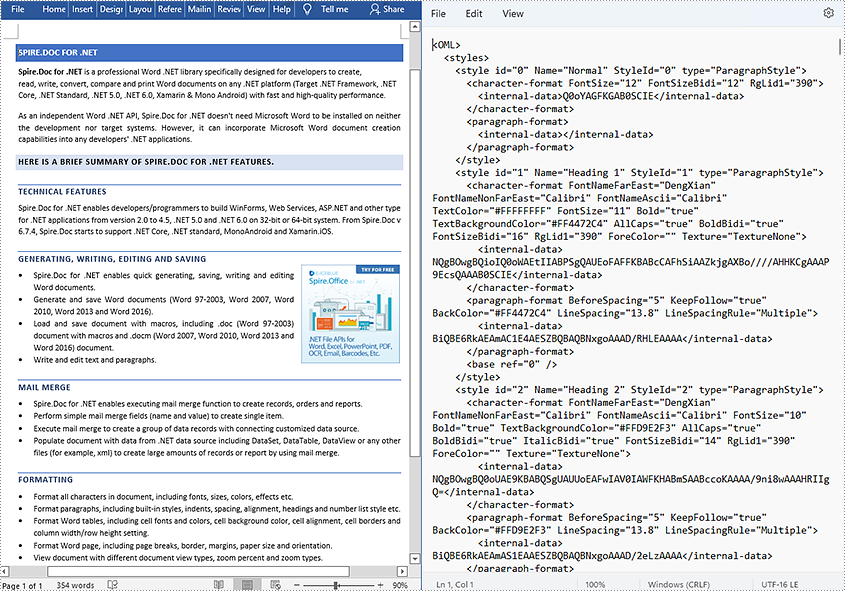
XML is a markup language and file format designed mainly to store and transmit arbitrary content. XML files have the feature of simplicity, generality, and usability, making them popular, especially among web servers. XML and HTML are two important markup languages on the web, but XML focuses on storing and transmitting data while HTML focuses on displaying webpages. This article demonstrates how to convert Word documents to XML files with the help of Spire.Doc for .NET.
Install Spire.Doc for .NET
To begin with, you need to add the DLL files included in the Spire.Doc for .NET package as references in your .NET project. The DLL files can be either downloaded from this link or installed via NuGet.
PM> Install-Package Spire.Doc
Convert a Word Document to an XML File
The detailed steps are as follows:
- Create an object of Document class.
- Load the Word document from disk using Document.LoadFromFile().
- Save the Word document as an XML file using Document.SaveToFile().
- C#
- VB.NET
using System;
using Spire.Doc;

namespace WordtoXML
{
    internal class Program
    {
        static void Main(string[] args)
        {
            //Create an object of Document class
            Document document = new Document();

            //Load a Word document from disk
            document.LoadFromFile(@"D:\testp\test.docx");

            //Save the Word document as an XML file
            document.SaveToFile("Sample.xml", FileFormat.Xml);
        }
    }
}
Apply for a Temporary License
If you'd like to remove the evaluation message from the generated documents, or to get rid of the function limitations, please request a 30-day trial license for yourself.
A hyperlink within a Word document enables readers to jump from its location to a different place within the document, or to a different file or website, or to a new email message. Hyperlinks make it quick and easy for readers to navigate to related information. This article demonstrates how to add hyperlinks to text or images in C# and VB.NET using Spire.Doc for .NET.
Install Spire.Doc for .NET
To begin with, you need to add the DLL files included in the Spire.Doc for.NET package as references in your .NET project. The DLL files can be either downloaded from this link or installed via NuGet.
PM> Install-Package Spire.Doc
Insert Hyperlinks When Adding Paragraphs to Word
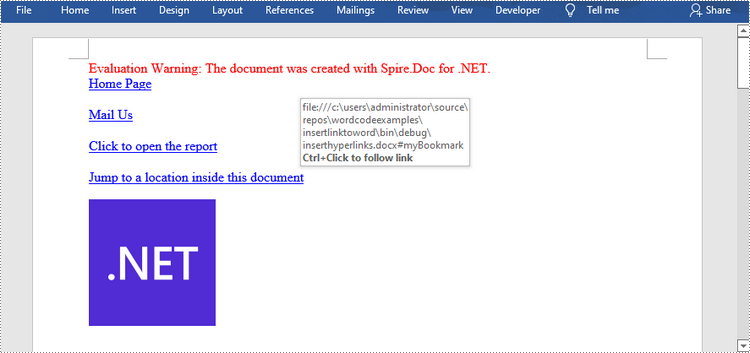
Spire.Doc offers the Paragraph.AppendHyperlink() method to add a web link, an email link, a file link, or a bookmark link to a piece of text or an image inside a paragraph. The following are the detailed steps.
- Create a Document object.
- Add a section and a paragraph to it.
- Insert a hyperlink based on text using Paragraph.AppendHyerplink(string link, string text, HyperlinkType type) method.
- Add an image to the paragraph using Paragraph.AppendPicture() method.
- Insert a hyperlink based on the image using Paragraph.AppendHyerplink(string link, Spire.Doc.Fields.DocPicture picture, HyperlinkType type) method.
- Save the document using Document.SaveToFile() method.
- C#
- VB.NET
using Spire.Doc;
using Spire.Doc.Documents;
using System.Drawing;

namespace InsertHyperlinks
{
    class Program
    {
        static void Main(string[] args)
        {
            //Create a Word document
            Document doc = new Document();

            //Add a section
            Section section = doc.AddSection();

            //Add a paragraph
            Paragraph paragraph = section.AddParagraph();
            paragraph.AppendHyperlink("https://www-iceblue.com/", "Home Page", HyperlinkType.WebLink);

            //Append line breaks
            paragraph.AppendBreak(BreakType.LineBreak);
            paragraph.AppendBreak(BreakType.LineBreak);

            //Add an email link
            paragraph.AppendHyperlink("mailto:support@e-iceblue.com", "Mail Us", HyperlinkType.EMailLink);

            //Append line breaks
            paragraph.AppendBreak(BreakType.LineBreak);
            paragraph.AppendBreak(BreakType.LineBreak);

            //Add a file link
            string filePath = @"C:\Users\Administrator\Desktop\report.xlsx";
            paragraph.AppendHyperlink(filePath, "Click to open the report", HyperlinkType.FileLink);

            //Append line breaks
            paragraph.AppendBreak(BreakType.LineBreak);
            paragraph.AppendBreak(BreakType.LineBreak);

            //Add another section and create a bookmark
            Section section2 = doc.AddSection();
            Paragraph bookmarkParagrapg = section2.AddParagraph();
            bookmarkParagrapg.AppendText("Here is a bookmark");
            BookmarkStart start = bookmarkParagrapg.AppendBookmarkStart("myBookmark");
            bookmarkParagrapg.Items.Insert(0, start);
            bookmarkParagrapg.AppendBookmarkEnd("myBookmark");

            //Link to the bookmark
            paragraph.AppendHyperlink("myBookmark", "Jump to a location inside this document", HyperlinkType.Bookmark);

            //Append line breaks
            paragraph.AppendBreak(BreakType.LineBreak);
            paragraph.AppendBreak(BreakType.LineBreak);

            //Add an image link
            Image image = Image.FromFile(@"C:\Users\Administrator\Desktop\logo.png");
            Spire.Doc.Fields.DocPicture picture = paragraph.AppendPicture(image);
            paragraph.AppendHyperlink("https://docs.microsoft.com/en-us/dotnet/", picture, HyperlinkType.WebLink);

            //Save to file
            doc.SaveToFile("InsertHyperlinks.docx", FileFormat.Docx2013);
        }
    }
}
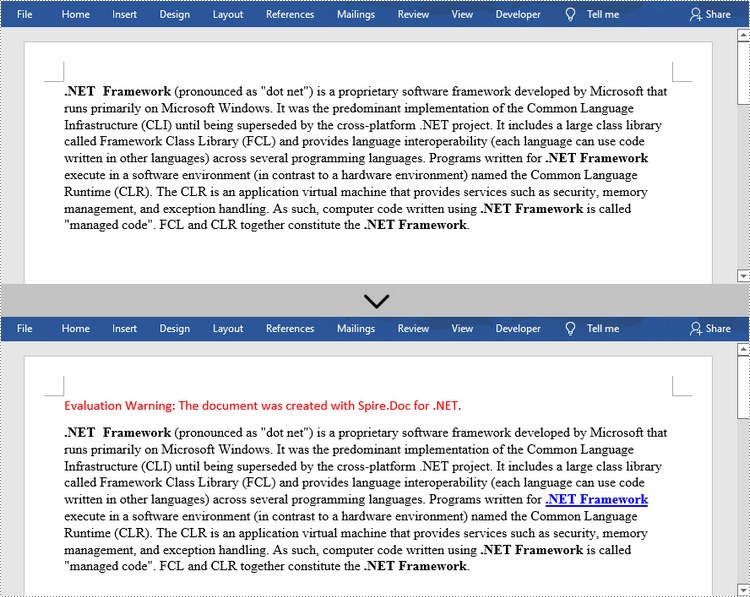
Add Hyperlinks to Existing Text in Word
Adding hyperlinks to existing text in a document is a bit more complicated. You’ll need to find the target string first, and then replace it in the paragraph with a hyperlink field. The following are the steps.
- Create a Document object.
- Load a Word file using Document.LoadFromFile() method.
- Find all the occurrences of the target string in the document using Document.FindAllString() method, and get the specific one by its index from the collection.
- Get the string’s own paragraph and its position in it.
- Remove the string from the paragraph.
- Create a hyperlink field and insert it to position where the string is located.
- Save the document to another file using Document.SaveToFle() method.
- C#
- VB.NET
using Spire.Doc;
using Spire.Doc.Documents;
using Spire.Doc.Fields;
using Spire.Doc.Interface;

namespace AddHyperlinksToExistingText
{
    class Program
    {
        static void Main(string[] args)
        {
            //Create a Document object
            Document document = new Document();

            //Load a Word file
            document.LoadFromFile(@"C:\Users\Administrator\Desktop\sample.docx");

            //Find all the occurrences of the string ".NET Framework" in the document
            TextSelection[] selections = document.FindAllString(".NET Framework", true, true);

            //Get the second occurrence
            TextRange range = selections[1].GetAsOneRange();

            //Get its owner paragraph
            Paragraph parapgraph = range.OwnerParagraph;

            //Get its position in the paragraph
            int index = parapgraph.Items.IndexOf(range);

            //Remove it from the paragraph
            parapgraph.Items.Remove(range);

            //Create a hyperlink field
            Spire.Doc.Fields.Field field = new Spire.Doc.Fields.Field(document);
            field.Type = Spire.Doc.FieldType.FieldHyperlink;
            Hyperlink hyperlink = new Hyperlink(field);
            hyperlink.Type = HyperlinkType.WebLink;
            hyperlink.Uri = "https://en.wikipedia.org/wiki/.NET_Framework";
            parapgraph.Items.Insert(index, field);

            //Insert a field mark "start" to the paragraph
            IParagraphBase start = document.CreateParagraphItem(ParagraphItemType.FieldMark);
            (start as FieldMark).Type = FieldMarkType.FieldSeparator;
            parapgraph.Items.Insert(index + 1, start);

            //Insert a text range between two field marks
            ITextRange textRange = new Spire.Doc.Fields.TextRange(document);
            textRange.Text = ".NET Framework";
            textRange.CharacterFormat.Font = range.CharacterFormat.Font;
            textRange.CharacterFormat.TextColor = System.Drawing.Color.Blue;
            textRange.CharacterFormat.UnderlineStyle = UnderlineStyle.Single;
            parapgraph.Items.Insert(index + 2, textRange);

            //Insert a field mark "end" to the paragraph
            IParagraphBase end = document.CreateParagraphItem(ParagraphItemType.FieldMark);
            (end as FieldMark).Type = FieldMarkType.FieldEnd;
            parapgraph.Items.Insert(index + 3, end);

            //Save to file
            document.SaveToFile("AddHyperlink.docx", Spire.Doc.FileFormat.Docx);
        }
    }
}
Apply for a Temporary License
If you'd like to remove the evaluation message from the generated documents, or to get rid of the function limitations, please request a 30-day trial license for yourself.
