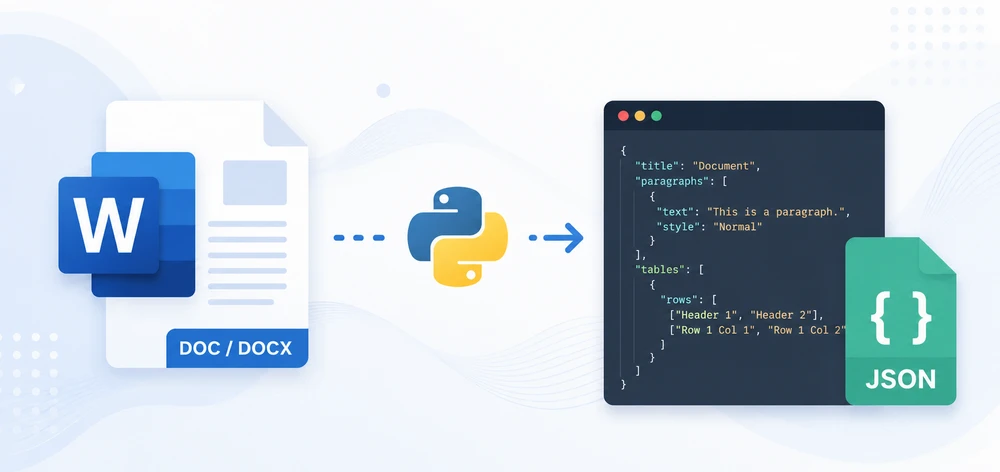
Converting Word documents to JSON is a common requirement when building automated document processing pipelines, feeding content into AI models, or migrating structured data from DOCX files into databases and APIs. Unlike CSV or XML, JSON provides a flexible, hierarchical format that can represent paragraphs, tables, and nested document structures in a single output.
However, Word files do not have a native JSON export format. A .docx file is a rich-text document composed of sections, paragraphs, styles, and tables—not a structured data source. Converting it to JSON requires deciding how to map that content into a meaningful schema.
This tutorial demonstrates how to convert Word to JSON in Python using Spire.Doc for Python. You will learn three progressively advanced methods: extracting plain paragraph text, converting Word tables to JSON arrays, and preserving the full document structure—including headings, paragraphs, and tables—in a hierarchical JSON output. The examples in this tutorial work with both DOCX and legacy DOC files supported by Spire.Doc.
Quick Navigation
- How Is Word Converted into JSON?
- Install the Required Library
- Method 1 – Convert Word Text to JSON
- Method 2 – Convert Word Tables to JSON
- Method 3 – Preserve Document Structure in JSON
- When to Use Word to JSON Conversion
- Limitations and Best Practices
- FAQ
- Conclusion
1. How Is Word Converted into JSON?
A Word document is a rich-text format organized into sections, paragraphs, and tables—not a structured data format. When you convert Word to JSON, there is no single standard for how the content should be represented. The right schema depends on how the JSON will be used:
| Goal | Recommended Schema | Key Characteristics |
|---|---|---|
| AI embedding / semantic search | Paragraph array | Flat list of text strings, one per paragraph |
| Full-text search indexing | Text blocks with metadata | Paragraphs with section index and style info |
| Database import from tables | Table row objects | Header-keyed dictionaries, one per row |
| RAG pipeline / knowledge base | Hierarchical structure | Nested sections with headings, paragraphs, and tables |
| Document archival / interchange | Full document model | Sections, styles, metadata, and all content types |
For example, a Word document containing a heading and a paragraph could be represented in JSON as:
{
  "document": [
    {"type": "heading", "level": 1, "text": "Project Overview"},
    {"type": "paragraph", "text": "This report summarizes the quarterly results."}
  ]
}
The three methods in this tutorial correspond directly to these schema choices:
- Method 1 produces a paragraph array (AI embedding, search indexing)
- Method 2 produces table row objects (database import, data extraction)
- Method 3 produces a hierarchical structure (RAG, knowledge base, document understanding)
Choose the method that matches your goal, or combine elements from multiple methods to build a custom schema.
2. Install the Required Library
This tutorial uses Spire.Doc for Python to read and parse DOC/DOCX files. Install it via pip:
pip install spire.doc
Alternatively, you can download Spire.Doc for Python and integrate it manually.
After installation, import the library in your Python script:
from spire.doc import Document, FileFormat
from spire.doc.common import *
Spire.Doc provides APIs to load Word documents, iterate through sections, paragraphs, and tables, and extract text content—everything needed to build a Word-to-JSON pipeline.
3. Method 1 – Convert Word Text to JSON
The simplest way to convert Word to JSON is to extract all paragraph text from the document and store it in a JSON array. This approach works well when you need the full text content without structural metadata—such as for full-text search, AI text embedding, or simple content export.
3.1 Read Paragraphs from a Word Document
Spire.Doc represents a Word document as a collection of Sections, each containing Paragraphs. To extract all text, you iterate through every section and every paragraph within it.
from spire.doc import Document
from spire.doc.common import *

input_file = "ProjectReport.docx"

document = Document()
document.LoadFromFile(input_file)

paragraphs = []
for i in range(document.Sections.Count):
    section = document.Sections.get_Item(i)
    for j in range(section.Paragraphs.Count):
        paragraph = section.Paragraphs.get_Item(j)
        text = paragraph.Text
        if text.strip():
            paragraphs.append(text)

document.Close()
Each paragraph's .Text property returns the plain text content, stripping away formatting. The if text.strip() check filters out empty paragraphs that exist as spacing or layout elements in Word.
3.2 Serialize the Extracted Text to JSON
Assuming the paragraph data extracted in the previous step is stored in the paragraphs list, you can serialize it to JSON and save it to a file as follows:
import json

output_file = "paragraphs.json"

result = {
    "source": input_file,
    "paragraph_count": len(paragraphs),
    "paragraphs": paragraphs
}

with open(output_file, "w", encoding="utf-8") as f:
    json.dump(result, f, indent=2, ensure_ascii=False)
Output Example
The following JSON snippet shows the structure of the generated output file:
{
  "source": "ProjectReport.docx",
  "paragraph_count": 3,
  "paragraphs": [
    "Quarterly Sales Report",
    "This document provides an overview of sales performance across all regions."
  ]
}
Conversion Result
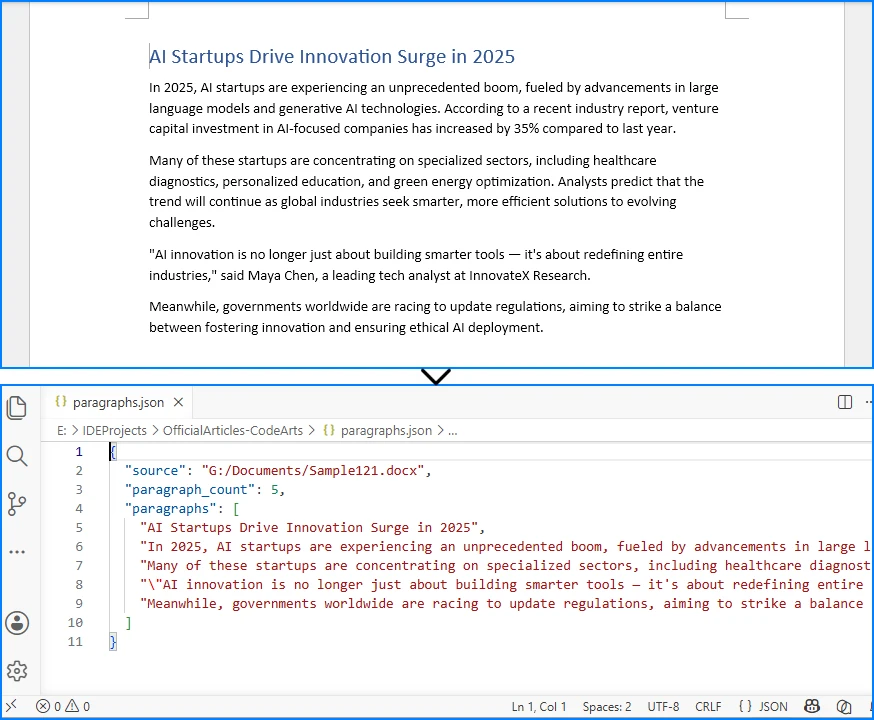
The image below shows the source Word document and the JSON file generated after extracting paragraph text.
3.3 Explanation
Why iterate through Sections and Paragraphs instead of extracting all text at once? Because Word documents are organized hierarchically. A document contains one or more sections (each with its own page layout), and each section contains paragraphs. Iterating at this level gives you control over which content to include or skip—such as filtering empty paragraphs or limiting extraction to specific sections.
Storing paragraphs as a JSON array is the most straightforward structure. Each element is a string, making the output easy to consume in downstream systems. This approach is well-suited for:
- Full-text indexing – feed paragraph text into search engines like Elasticsearch
- AI text embedding – convert paragraphs into vector representations for semantic search
- Simple content export – extract readable text from Word files without formatting
However, this method loses structural information. Headings, body text, and list items are all treated the same way. If you need to distinguish between them, see Method 3.
If your goal is simply to extract text content from Word documents without converting it to JSON, you may also be interested in our guide on extracting text from Word documents in Python.
4. Method 2 – Convert Word Tables to JSON
In many Word documents—reports, invoices, product lists, configuration tables—the most valuable content lives inside tables, not in paragraphs. Converting Word tables to JSON allows you to extract structured row-and-column data that can be directly loaded into databases, APIs, or data analysis tools.
Why Tables Need Special Handling
Tables in Word are stored as a grid of rows and cells, where each cell contains its own paragraphs. Unlike paragraph text, table data has an inherent two-dimensional structure that maps naturally to JSON objects. The first row often contains column headers, and subsequent rows contain data records.
Extracting Tables from a Word Document
The following code reads all tables from a Word document, uses the first row as column headers, and converts each subsequent row into a JSON object:
import json
from spire.doc import Document
from spire.doc.common import *

input_file = "SalesData.docx"
output_file = "tables.json"

document = Document()
document.LoadFromFile(input_file)

all_tables = []

for i in range(document.Sections.Count):
    section = document.Sections.get_Item(i)
    for t in range(section.Tables.Count):
        table = section.Tables.get_Item(t)
        rows_data = []

        if table.Rows.Count < 2:
            continue

        header_row = table.Rows[0]
        headers = []
        for c in range(header_row.Cells.Count):
            cell_text = header_row.Cells[c].Paragraphs[0].Text.strip()
            headers.append(cell_text)

        for r in range(1, table.Rows.Count):
            row = table.Rows[r]
            row_dict = {}
            for c in range(row.Cells.Count):
                cell_text = row.Cells[c].Paragraphs[0].Text.strip()
                row_dict[headers[c] if c < len(headers) else f"Column_{c}"] = cell_text
            rows_data.append(row_dict)

        all_tables.append({
            "table_index": t,
            "headers": headers,
            "row_count": len(rows_data),
            "rows": rows_data
        })

document.Close()

result = {
    "source": input_file,
    "table_count": len(all_tables),
    "tables": all_tables
}

with open(output_file, "w", encoding="utf-8") as f:
    json.dump(result, f, indent=2, ensure_ascii=False)
Output Example
The following JSON snippet shows the structure of the generated output file, with each table row mapped to a JSON object using the header row as keys:
{
  "source": "SalesData.docx",
  "table_count": 1,
  "tables": [
    {
      "table_index": 0,
      "headers": ["Region", "Product", "Units Sold", "Revenue"],
      "row_count": 3,
      "rows": [
        {"Region": "North", "Product": "Laptop", "Units Sold": "120", "Revenue": "114000"},
        {"Region": "South", "Product": "Laptop", "Units Sold": "80", "Revenue": "76000"}
      ]
    }
  ]
}
Conversion Result
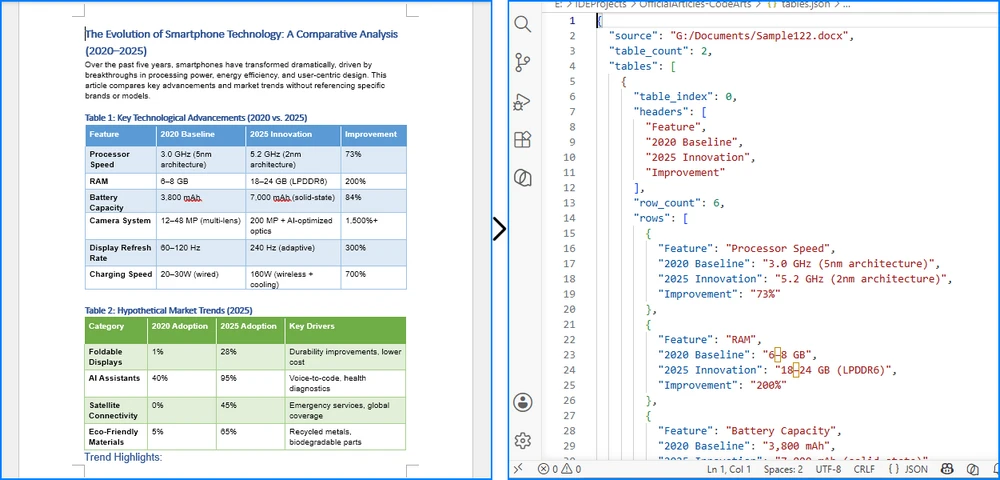
The image below demonstrates how table data from a Word document is converted into structured JSON records.
Explanation
The code treats the first row as a header row and maps each cell in subsequent rows to the corresponding header key. This produces a JSON array of objects, which is the most common and useful format for tabular data.
Key considerations:
table.Rows.Count < 2skips tables that have only a header row or are emptyrow.Cells[c].Paragraphs[0].Textextracts text from the first paragraph in each cell. For simplicity, the example reads only the first paragraph. If a cell contains multiple paragraphs, iterate through the entireParagraphscollection and concatenate the results:
cell_text = "\n".join(
    row.Cells[c].Paragraphs[p].Text.strip()
    for p in range(row.Cells[c].Paragraphs.Count)
    if row.Cells[c].Paragraphs[p].Text.strip()
)
headers[c] if c < len(headers) else f"Column_{c}"handles cases where a data row has more cells than the header row
This method is ideal for extracting structured data from reports, invoices, product catalogs, and configuration tables stored in Word documents. The resulting JSON can be directly loaded into databases, used in web APIs, or processed by data analysis tools.
If you need to generate Word documents from structured JSON data, see our tutorial on converting JSON to Word in Python, which covers creating Word content and tables directly from JSON objects and arrays.
5. Method 3 – Preserve Document Structure in JSON
Methods 1 and 2 treat paragraphs and tables as separate, isolated elements. In practice, Word documents have a meaningful hierarchy: headings introduce sections, paragraphs provide detail, and tables present structured data within a specific context.
Preserving this hierarchy in JSON produces output that is far more useful for knowledge base construction, RAG (Retrieval-Augmented Generation) pipelines, and document understanding systems. Instead of a flat list of text, you get a structured representation that maintains the logical flow of the original document.
How to Preserve Headings, Paragraphs, and Tables in a Hierarchical JSON Structure
The approach is to iterate through all child objects in each section's body, determine the type of each object (paragraph or table), and build a structured JSON representation accordingly. For paragraphs, you can detect headings by checking the StyleName property.
import json
from spire.doc import Document
from spire.doc.common import *

input_file = "ProjectReport.docx"
output_file = "structured_output.json"

HEADING_STYLES = {
    "Heading1": 1,
    "Heading2": 2,
    "Heading3": 3,
    "Heading4": 4,
}

def get_heading_level(style_name):
    return HEADING_STYLES.get(style_name, None)

def extract_table_data(table):
    rows_data = []
    if table.Rows.Count < 1:
        return {"headers": [], "rows": []}

    header_row = table.Rows[0]
    headers = []
    for c in range(header_row.Cells.Count):
        headers.append(header_row.Cells[c].Paragraphs[0].Text.strip())

    for r in range(1, table.Rows.Count):
        row = table.Rows[r]
        row_dict = {}
        for c in range(row.Cells.Count):
            cell_text = row.Cells[c].Paragraphs[0].Text.strip()
            row_dict[headers[c] if c < len(headers) else f"Column_{c}"] = cell_text
        rows_data.append(row_dict)

    return {"headers": headers, "rows": rows_data}

document = Document()
document.LoadFromFile(input_file)

sections_data = []

for i in range(document.Sections.Count):
    section = document.Sections.get_Item(i)
    content_items = []

    for j in range(section.Body.ChildObjects.Count):
        obj = section.Body.ChildObjects.get_Item(j)

        if isinstance(obj, Paragraph):
            text = obj.Text.strip()
            if not text:
                continue

            heading_level = get_heading_level(obj.StyleName)
            if heading_level:
                content_items.append({
                    "type": "heading",
                    "level": heading_level,
                    "text": text
                })
            else:
                content_items.append({
                    "type": "paragraph",
                    "text": text
                })

        elif isinstance(obj, Table):
            table_data = extract_table_data(obj)
            content_items.append({
                "type": "table",
                "row_count": len(table_data["rows"]),
                "data": table_data
            })

    sections_data.append({
        "section_index": i,
        "content": content_items
    })

document.Close()

result = {
    "source": input_file,
    "section_count": len(sections_data),
    "sections": sections_data
}

with open(output_file, "w", encoding="utf-8") as f:
    json.dump(result, f, indent=2, ensure_ascii=False)
Output Example
The following JSON snippet shows how headings, paragraphs, and tables are represented in the hierarchical output structure:
{
  "source": "ProjectReport.docx",
  "section_count": 1,
  "sections": [
    {
      "section_index": 0,
      "content": [
        {
          "type": "heading",
          "level": 1,
          "text": "Quarterly Sales Report"
        },
        {
          "type": "paragraph",
          "text": "This report provides an overview of sales performance across all regions."
        },
        {
          "type": "heading",
          "level": 2,
          "text": "Regional Breakdown"
        },
        {
          "type": "table",
          "row_count": 3,
          "data": {
            "headers": ["Region", "Product", "Units Sold", "Revenue"],
            "rows": [
              {"Region": "North", "Product": "Laptop", "Units Sold": "120", "Revenue": "114000"}
            ]
          }
        }
      ]
    }
  ]
}
Conversion Result
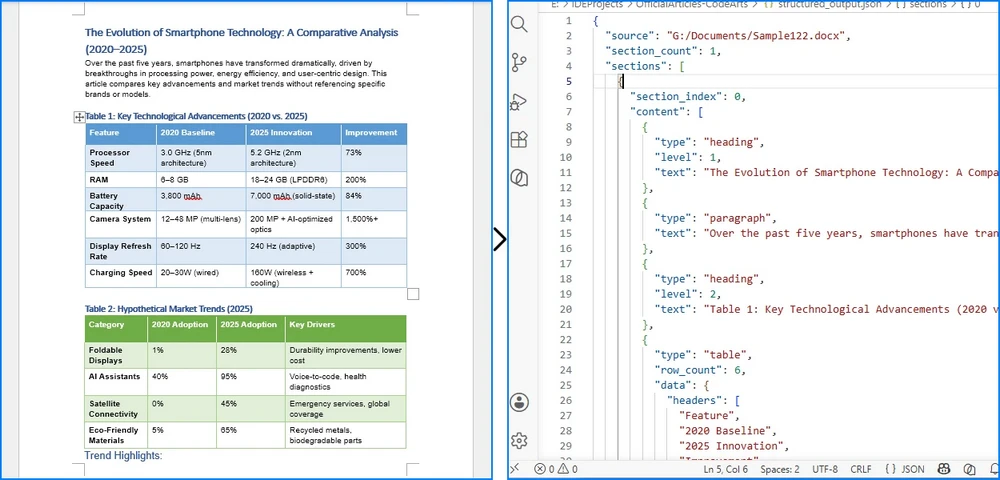
The image below illustrates how headings, paragraphs, and tables are preserved in a hierarchical JSON structure.
Explanation
This method differs from the previous two in a fundamental way: it uses section.Body.ChildObjects to iterate through all content elements in document order, rather than separately iterating paragraphs and tables. This preserves the original sequence and interleaving of headings, paragraphs, and tables.
Key design decisions:
- Heading detection via
StyleName– Word headings are paragraphs styled with "Heading1", "Heading2", etc. Checking the style name allows you to distinguish headings from body text and record the heading level. Note that the exact heading style names may vary depending on the Word template or language settings (e.g., "Heading 1" with a space, or localized names like "标题 1" in Chinese). To handle these variations, normalize the style name before lookup:
def get_heading_level(style_name):
    normalized = style_name.lower().replace(" ", "")
    heading_map = {"heading1": 1, "heading2": 2, "heading3": 3, "heading4": 4}
    return heading_map.get(normalized, None)
ChildObjectsiteration – Unlikesection.Paragraphs(which only returns paragraphs) orsection.Tables(which only returns tables),ChildObjectsreturns all elements in their original order. This is essential for preserving the document's logical structure.- Structured JSON output – Each content item includes a
typefield (heading,paragraph, ortable), making it easy for downstream systems to process different content types appropriately.
This approach is particularly valuable for:
- RAG and AI pipelines – the heading structure enables chunking documents by section, improving retrieval accuracy
- Knowledge base construction – hierarchical JSON maps directly to tree-structured knowledge graphs
- Document understanding – preserving the relationship between headings and their associated content allows semantic analysis of document sections
If you need to extract specific content types from Word documents, such as headings, paragraphs, or tables, see our tutorial on reading Word documents in Python, which covers content extraction techniques in more detail.
6. When to Use Word to JSON Conversion
Word to JSON conversion is useful in any scenario where structured data needs to be extracted from Word documents at scale. Common use cases include:
- AI and RAG document processing – Convert Word documents into JSON chunks for embedding and retrieval in LLM-based applications. The hierarchical structure from Method 3 enables section-level chunking, which produces better retrieval results than flat text splitting.
- Knowledge base construction – Build structured knowledge bases from technical documentation, policy documents, or manuals stored as .docx files.
- Batch data extraction – Extract data from hundreds of Word reports, invoices, or forms and load the results into a database or data warehouse.
- Contract and resume parsing – Convert legal contracts, HR documents, or resumes into structured JSON for automated analysis and comparison.
- API and web application data exchange – Serve Word document content through REST APIs as JSON, enabling web and mobile applications to consume document data without handling .docx files directly.
7. Limitations and Best Practices
Limitations
- No standard JSON schema for Word – Unlike CSV or XML, there is no universally accepted format for representing Word content in JSON. The structure you choose must be designed for your specific use case.
- Complex formatting is not captured – The methods in this tutorial extract text content and basic structural metadata (heading levels, table data). They do not capture fonts, colors, images, page layout, headers/footers, or footnotes. If your application requires these elements, additional extraction logic is needed.
- Merged table cells require special handling – Word tables can contain merged cells (both horizontal and vertical). The simple row-by-row extraction in Method 2 assumes a regular grid. Documents with merged cells may produce unexpected results.
- Large documents may need chunked processing – For documents with hundreds of pages or dozens of tables, consider processing sections or tables individually to manage memory usage.
Best Practices
- Design your JSON schema before writing code – Decide what you need (text only? headings? tables? full structure?) and choose the appropriate extraction method.
- Validate output against sample documents – Word documents vary widely in structure and formatting. Test your conversion logic against representative samples from your actual document set.
- Handle encoding explicitly – Always specify
encoding="utf-8"when writing JSON files to avoid character encoding issues with non-ASCII text. - Use
ensure_ascii=Falseinjson.dump– This preserves Unicode characters in the output rather than escaping them, which is important for documents containing non-English text.
8. FAQ
Can I convert DOCX to JSON in Python?
Yes. Using Spire.Doc for Python, you can load any .docx file, iterate through its sections, paragraphs, and tables, and serialize the extracted content to JSON using Python's built-in json module. This tutorial demonstrates three methods for doing so, from simple text extraction to full structural preservation.
What is the best Word to JSON converter for developers?
For developers who need batch processing, automation, or custom JSON schemas, a Python-based approach using Spire.Doc is more flexible than online converters. Online tools work for one-off conversions but cannot handle large-scale processing, custom output formats, or integration into automated pipelines.
Can I convert Word tables to JSON?
Yes. By iterating through the tables in a Word document and extracting cell text row by row, you can convert table data into a JSON array of objects. Method 2 in this tutorial demonstrates this with header-based key mapping.
Does Word have a native JSON export option?
No. Microsoft Word does not provide a built-in JSON export format. Word files can be saved as DOCX, PDF, HTML, RTF, and plain text, but converting to JSON requires a programmatic approach that reads the document structure and maps it to a JSON schema.
Can I preserve headings and structure when converting Word to JSON?
Yes. By iterating through all child objects in each section's body and checking paragraph style names, you can detect headings, body paragraphs, and tables, then build a hierarchical JSON structure that preserves the document's logical organization. Method 3 in this tutorial provides a complete implementation.
Can I convert Word to JSON online?
Yes, there are online Word to JSON converters that can handle one-off conversions. However, online tools are limited to single-file processing and do not allow customization of the JSON schema. For batch processing, automated pipelines, or custom output structures, a Python-based approach using Spire.Doc is more practical and scalable.
9. Conclusion
In this article, we demonstrated how to convert Word documents to JSON in Python using Spire.Doc for Python. We covered three methods of increasing complexity: extracting paragraph text as a flat JSON array, converting Word tables to structured JSON objects, and preserving the full document hierarchy—including headings, paragraphs, and tables—in a single JSON output.
Each method serves a different purpose. Plain text extraction works for indexing and embedding. Table extraction is ideal for data migration and report parsing. Full structural preservation enables knowledge base construction and RAG pipelines. Choose the approach that matches your requirements, and extend the JSON schema as needed for your specific use case.
Spire.Doc for Python provides comprehensive Word document processing capabilities beyond JSON conversion, including document creation, formatting, mail merge, and format conversion. You can apply for a 30-day free license to evaluate all features.