
CSV (Comma-Separated Values) is a lightweight, universally compatible format for tabular data. Word documents (DOC and DOCX), on the other hand, are rich-text documents that contain paragraphs, images, headers, formatting, and tables. Because CSV only supports rows and columns, converting Word to CSV or DOCX to CSV almost always means extracting table data from the document.
Organizations often need to convert Word or DOCX tables to CSV when moving structured data into spreadsheets, databases, CRM systems, analytics tools, or automated workflows.
This guide covers two practical methods to convert Word tables to CSV, plus important context on why Word cannot export CSV directly and when online converters are appropriate.
Quick Navigation
- Why Word Cannot Be Saved Directly as CSV
- Method 1 – Convert Word Tables to CSV Using Spreadsheet Software
- Can You Use an Online Word to CSV Converter?
- Method 2 – Convert Word Tables to CSV Automatically with Python
- FAQ
Which Method Should You Choose?
| Method | Ease of Use | Batch Processing | Privacy | Best For |
|---|---|---|---|---|
| Spreadsheet Software | High | No | High | Occasional conversions, manual review |
| Python (Spire.Doc) | Medium | Yes | High | Automation, batch processing, recurring tasks |
1. Why Word Cannot Be Saved Directly as CSV
Microsoft Word does not offer a "Save as CSV" option. This is not an oversight — it reflects a fundamental format mismatch:
- Word documents contain mixed content: paragraphs, images, headers, footers, styled text, and tables. A single document can have multiple sections, columns, and nested elements.
- CSV files contain only flat tabular data: rows and columns of plain text separated by commas.
Word cannot automatically determine how to flatten a rich-text document into a tabular layout. A document with three paragraphs, an image, and a table does not map cleanly to rows and columns. The only part of a Word document that has a natural CSV representation is structured table data.
This is why every practical approach to convert Word to CSV focuses on extracting tables from the document — whether through spreadsheet software, online tools, or programmatic methods.
2. Method 1 – Convert Word Tables to CSV Using Spreadsheet Software
The most straightforward way to convert Word tables to CSV is to copy the table into a spreadsheet application and export it. Both Microsoft Excel and Google Sheets support this workflow.
The Workflow
- Copy the Word table into a spreadsheet — Select the table in Word, copy it, and paste it into a new spreadsheet
- Verify the imported data — Check that rows, columns, and cell values are correctly separated. Watch for merged cells, which may cause misalignment
- Export as CSV — Save or download the spreadsheet in CSV format
Option A – Microsoft Office
- Open the Word document and copy the table you want to export.
- Paste the table into an Excel worksheet and verify that rows and columns are imported correctly.
- Review merged cells, line breaks, or other formatting issues that could affect the CSV structure.
- Choose File > Save As and save the worksheet as a CSV file.
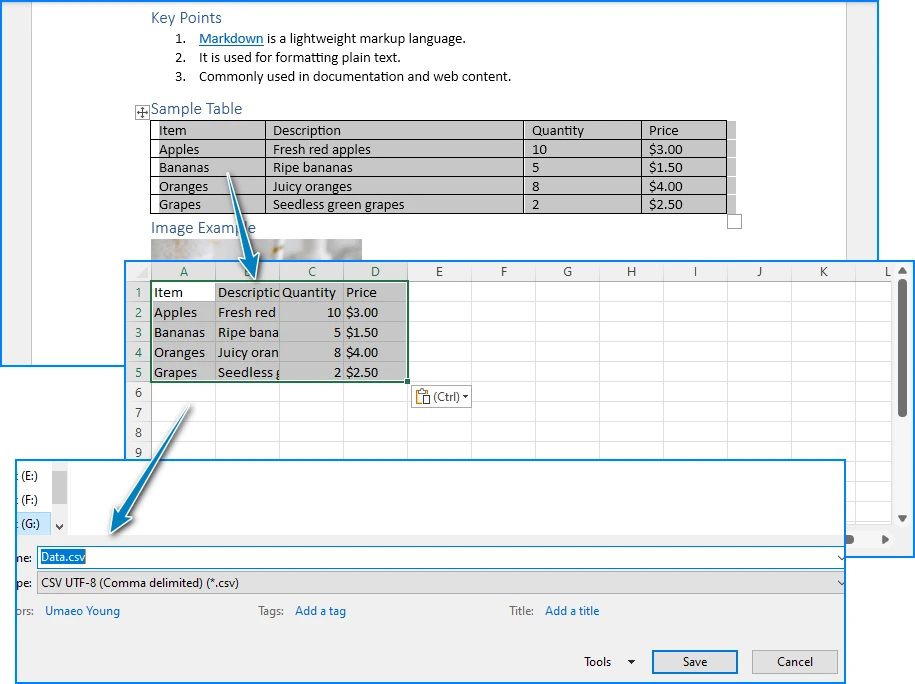
Excel preserves Word table structure well — rows and columns map correctly in most cases. If your document contains multiple tables, you can paste each one onto a separate worksheet and save each as an individual CSV file.
Considerations:
- Merged cells in the Word table may cause misalignment after pasting
- Excel runs locally, so your data stays on your machine
- The process is manual and not practical for frequent or large-scale conversions
Option B – Google Sheets
- Copy the table from the Word document (in Google Docs or other documet viewers).
- Paste it into a new Google Sheets spreadsheet.
- Verify the imported table structure and adjust any misaligned data.
- Download the spreadsheet as a CSV file using File > Download > Comma Separated Values (.csv).
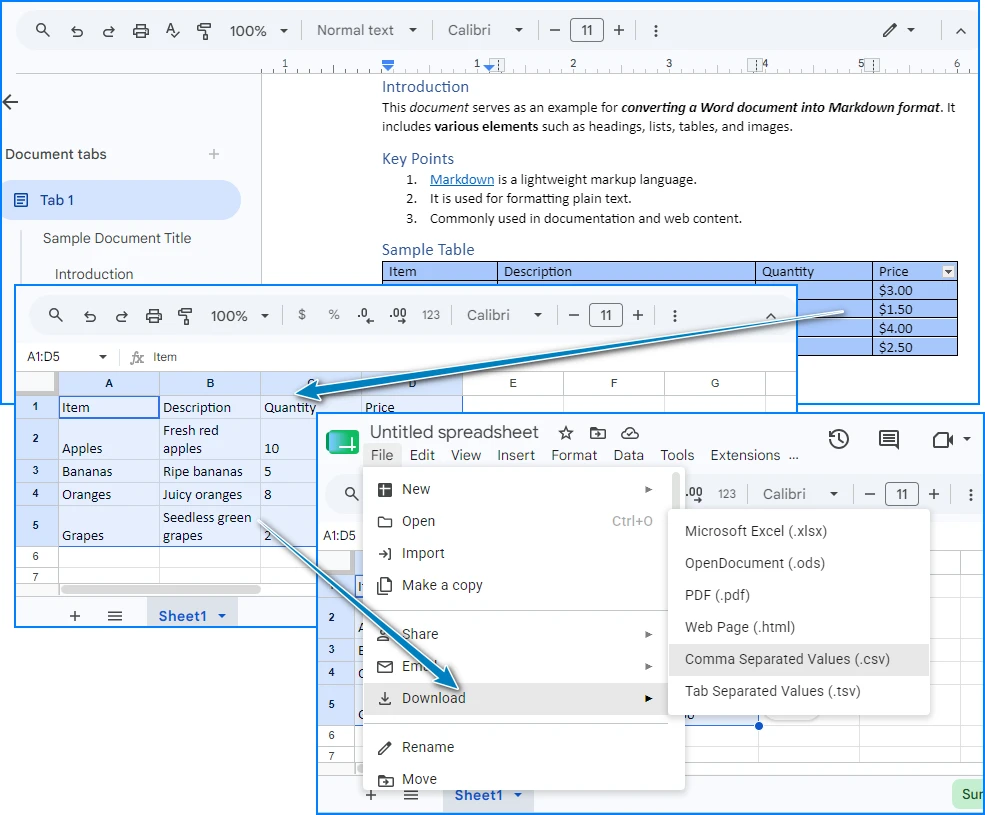
Google Sheets is free and requires only a Google account. It also makes it easy to share and review data with collaborators before exporting to CSV.
Considerations:
- Data is stored on Google's servers during editing — consider this for sensitive information
- No software installation required
- Like Excel, this is a manual process with no automation support
When to Use This Method
Spreadsheet-based conversion works well when you occasionally need to export Word table data to CSV and want to review the data before saving. For recurring conversions, multiple documents, or automated workflows, the Python method below is more efficient.
If you also need to convert DOCX (Word documents) to XLSX, you can refer to our Docx to XLSX conversion guide for a structured spreadsheet workflow.
3. Can You Use an Online Word to CSV Converter?
Yes. Several websites offer Word to CSV converter tools that let you upload a DOC or DOCX file and download a CSV file. These are suitable for quick, one-time conversions when you don't want to install any software.
However, online converters have notable limitations:
- Privacy — Your document is uploaded to a third-party server, which may not be acceptable for sensitive or proprietary data
- File size limits — Most free tools restrict uploads to 5–10 MB
- Table recognition — Some converters extract only the first table; others may misinterpret document structure
- No batch processing — You can convert only one file at a time
For sensitive data, recurring conversions, or batch processing, local methods (spreadsheet software or Python) are preferable.
4. Method 2 – Convert Word Tables to CSV Automatically with Python
If you need to convert Word files to CSV regularly, automate document processing, or handle large numbers of files, Python provides a more efficient solution. With Spire.Doc for Python, you can read Word documents, extract table data, and export it directly to CSV format — all without Microsoft Word installed.
Install Spire.Doc for Python
Install the library via pip:
pip install spire.doc
Import the required classes in your Python script:
from spire.doc import *
from spire.doc.common import *
Alternatively, you can download Spire.Doc for Python and integrate it manually.
Convert a Word Table to CSV
The following example loads a Word document, extracts the first table, reads its rows and cells, and writes the data to a CSV file.
import csv
from spire.doc import *
from spire.doc.common import *

document = Document()
document.LoadFromFile("Sample.docx")

section = document.Sections.get_Item(0)

for t in range(section.Tables.Count):

    table = section.Tables.get_Item(t)
    csv_data = []

    for r in range(table.Rows.Count):

        row = table.Rows.get_Item(r)
        row_data = []

        for c in range(row.Cells.Count):

            cell = row.Cells.get_Item(c)

            paragraphs = []

            for p in range(cell.Paragraphs.Count):

                text = cell.Paragraphs.get_Item(p).Text.strip()

                if text:
                    paragraphs.append(text)

            row_data.append(" ".join(paragraphs))

        csv_data.append(row_data)

    csv_path = f"table_{t + 1}.csv"

    with open(csv_path, "w", newline="", encoding="utf-8-sig") as f:
        csv.writer(f).writerows(csv_data)

document.Close()
How It Works
-
Document.LoadFromFile()loads the Word document into memory. -
section.Tables.get_Item(table_index)selects the table to export. - The script loops through every row and cell in the table using the Rows and Cells collections.
- Each table cell may contain one or more paragraphs. The script reads all paragraphs using
cell.Paragraphsand extracts their text content. - The extracted paragraph text is cleaned with
.strip()and combined into a single string for the CSV cell value. -
csv.writer()exports the collected table data to a standard CSV file that can be opened in Excel, Google Sheets, databases, or other data-processing tools.
Output Result
Below is a preview of the Word table and the generated CSV file:
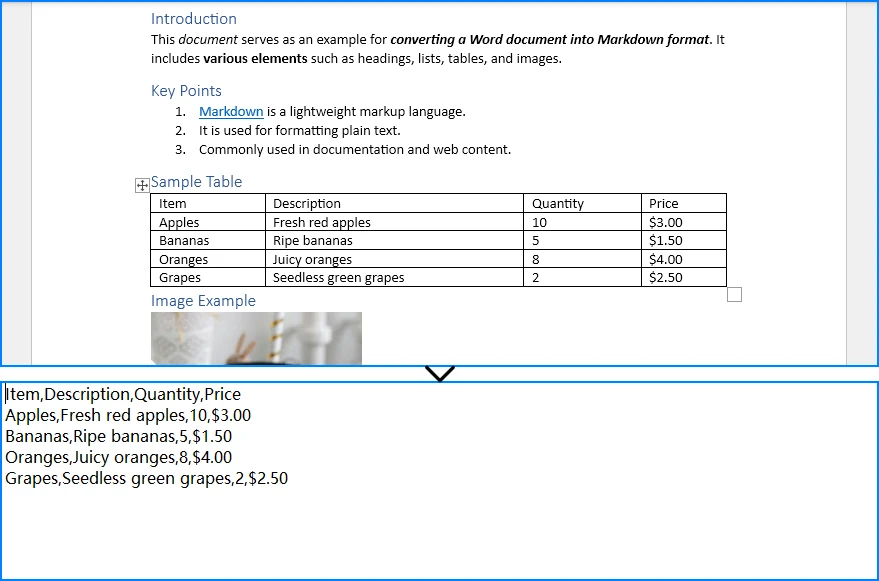
The output is a properly formatted .csv file containing the Word table data, ready for import into Excel, databases, or any system that accepts CSV input.
Extract Multiple Tables from a Word Document
If your Word document contains multiple tables, iterate through section.Tables and save each one as a separate CSV file:
for t in range(section.Tables.Count):
    word_table_to_csv(
        word_path,
        f"table_{t + 1}.csv",
        table_index=t
    )
Batch Convert Multiple Word Files
To process an entire folder of Word documents, loop through the files and extract the first table from each:
for filename in os.listdir(input_folder):
    if filename.lower().endswith((".doc", ".docx")):
        word_table_to_csv(
            os.path.join(input_folder, filename),
            os.path.join(
                output_folder,
                os.path.splitext(filename)[0] + ".csv"
            )
        )
Why Use Python for Word to CSV Conversion?
Python automation with Spire.Doc for Python offers clear advantages when you need to convert Word tables to CSV at scale:
| Advantage | Details |
|---|---|
| Batch conversion | Process dozens or hundreds of Word files in a single script |
| Automation | Schedule conversions to run automatically — daily, weekly, or on demand |
| Large datasets | Handle Word documents with large tables that are impractical to convert manually |
| Workflow integration | Integrate Word-to-CSV conversion into data pipelines, ETL processes, or CI/CD workflows |
| No Microsoft Word dependency | Spire.Doc for Python works without Microsoft Word installed |
| Data accuracy | Programmatic extraction eliminates copy-paste errors and ensures consistent results |
For more advanced usage, you can also check our guide on extracting tables from Word documents using Python.
5. FAQ
Can I convert Word to CSV directly?
No. Microsoft Word does not have a built-in option to save or export documents as CSV. Word's "Save As" dialog supports formats like DOCX, PDF, RTF, HTML, and plain text — but not CSV. To convert Word to CSV, you need to extract table data from the document and write it to a CSV file using spreadsheet software or Python automation.
Why can't Word save directly as CSV?
Word is a rich-text document format that supports paragraphs, images, headers, styles, and mixed content. CSV is a flat tabular format that stores only rows and columns of text separated by commas. Word cannot automatically determine how to flatten a complex document structure into a tabular layout, so it does not offer CSV as an export option. Only structured data — typically data in Word tables — can be meaningfully converted to CSV.
How do I convert a Word table to CSV?
You have two main options: (1) Spreadsheet software — Copy the Word table into Excel or Google Sheets, verify the data, and save or download as CSV. This is the most common approach for occasional use. (2) Python — Use Spire.Doc for Python to read the Word document, access the table programmatically, extract cell values, and write them to a CSV file. This is ideal for automation, batch processing, and recurring conversions.
Can I convert DOCX to CSV without Excel?
Yes. You can convert DOCX to CSV without Excel using: (1) Google Sheets — Paste the Word table data into a Google Sheets spreadsheet and download as CSV. (2) Online tools — Upload your DOCX file to a Word-to-CSV converter website and download the result. (3) Python — Use Spire.Doc for Python to read the DOCX file, extract table data, and write it to CSV. This works without any Microsoft Office software installed.
Is there a free Word to CSV converter?
Yes. There are free options in two categories: (1) Online converters — Many websites offer free Word-to-CSV conversion, though they typically have file size limits and raise privacy concerns since your data is uploaded to a third-party server. (2) Python scripts — You can write a free, local conversion script using Spire.Doc for Python (which offers a free version) and Python's built-in csv module. This keeps your data private and has no file size restrictions.
How do I extract data from a Word document to CSV in Python?
Use Spire.Doc for Python to load the Word document, access the table through the Sections and Tables collections, iterate through rows and cells to read each cell's text, and write the data to a CSV file using Python's standard csv.writer. The complete code example is provided in Method 2 above.
Does Spire.Doc for Python require Microsoft Word to be installed?
No. Spire.Doc for Python is a standalone library that creates, reads, and manipulates Word documents independently. It does not require Microsoft Word or any Office component to be installed on your system. This makes it suitable for server environments, automated workflows, and machines where Office is not available.
Conclusion
Converting Word to CSV means extracting structured table data from DOC or DOCX documents and saving it in a tabular format. Spreadsheet software (Excel or Google Sheets) provides a simple manual approach — copy the Word table, verify the data, and export as CSV. This works well for occasional conversions but does not scale to batch processing or recurring workflows.
Python automation with Spire.Doc for Python provides a reliable solution for converting Word tables to CSV programmatically. It reads DOC and DOCX files, extracts table data accurately, and writes CSV output — all without requiring Microsoft Word. For developers and organizations that regularly convert DOC or DOCX files to CSV, Spire.Doc for Python offers a reliable way to automate the entire process while preserving table data accurately.
You can apply for a 30-day free license to evaluate all features of Spire.Doc for Python.