
Conversion (18)
SVG (Scalable Vector Graphics) is an XML-based vector image format that describes two-dimensional graphics using geometric shapes, text, and other graphical elements. SVG files can be easily scaled without losing image quality, which makes them ideal for various purposes such as web design, illustrations, and animations. In certain situations, you may encounter the need to convert PDF files to SVG format. In this article, we will explain how to convert PDF to SVG in Python using Spire.PDF for Python.
- Convert a PDF File to SVG in Python
- Convert a PDF File to SVG with Custom Width and Height in Python
- Convert Specific Pages of a PDF File to SVG in Python
Install Spire.PDF for Python
This scenario requires Spire.PDF for Python and plum-dispatch v1.7.4. They can be easily installed in your Windows through the following pip command.
pip install Spire.PDF
If you are unsure how to install, please refer to this tutorial: How to Install Spire.PDF for Python on Windows
Convert a PDF File to SVG in Python
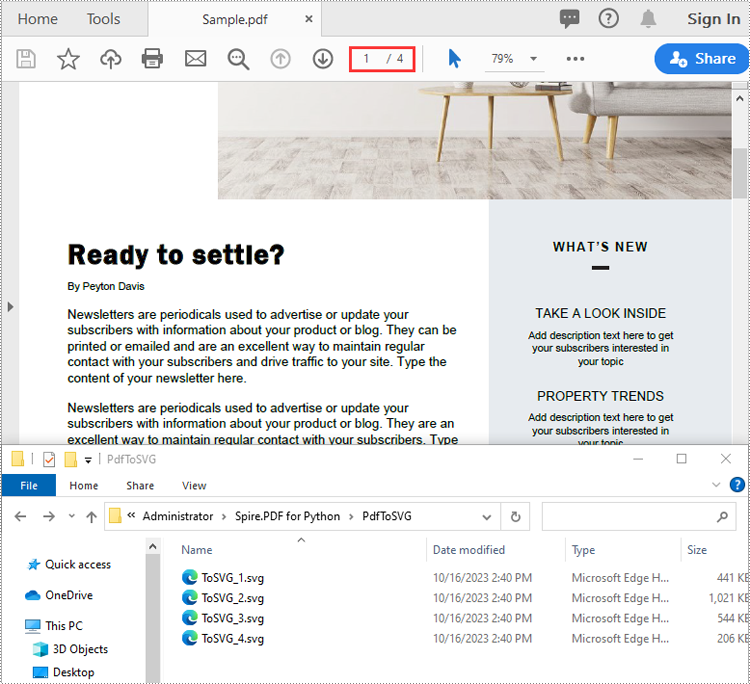
Spire.PDF for Python provides the PdfDocument.SaveToFile(filename:str, fileFormat:FileFormat) method to convert each page of a PDF file to a separate SVG file. The detailed steps are as follows.
- Create an object of the PdfDocument class.
- Load a sample PDF file using PdfDocument.LoadFromFile() method.
- Convert each page of the PDF file to SVG using PdfDocument.SaveToFile(filename:str, fileFormat:FileFormat) method.
- Python
from spire.pdf.common import *
from spire.pdf import *

# Create an object of the PdfDocument class
doc = PdfDocument()
# Load a PDF file
doc.LoadFromFile("Sample.pdf")

# Save each page of the file to a separate SVG file
doc.SaveToFile("PdfToSVG/ToSVG.svg", FileFormat.SVG)

# Close the PdfDocument object
doc.Close()
Convert a PDF File to SVG with Custom Width and Height in Python
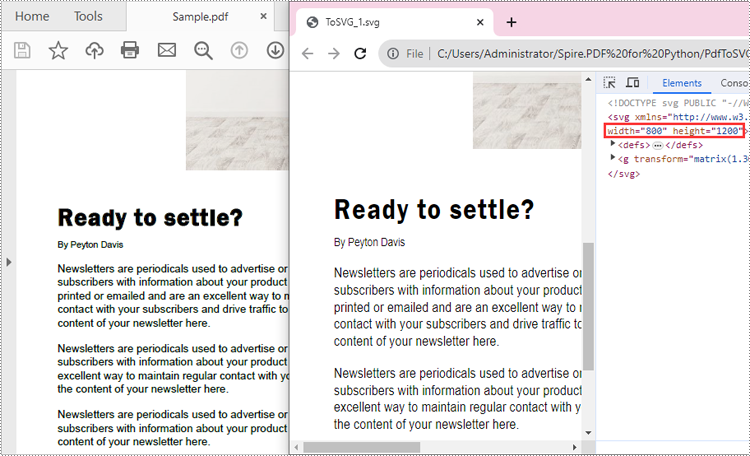
The PdfDocument.PdfConvertOptions.SetPdfToSvgOptions(wPixel:float, hPixel:float) method provided by Spire.PDF for Python allows you to specify the width and height of the SVG files converted from PDF. The detailed steps are as follows.
- Create an object of the PdfDocument class.
- Load a sample PDF file using PdfDocument.LoadFromFile() method.
- Specify the width and height of the output SVG files using PdfDocument.PdfConvertOptions.SetPdfToSvgOptions(wPixel:float, hPixel:float) method.
- Convert each page of the PDF file to SVG using PdfDocument.SaveToFile(filename:str, fileFormat:FileFormat) method.
- Python
from spire.pdf.common import *
from spire.pdf import *

# Create an object of the PdfDocument class
doc = PdfDocument()
# Load a PDF file
doc.LoadFromFile("Sample.pdf")

# Specify the width and height of output SVG files
doc.ConvertOptions.SetPdfToSvgOptions(800.0, 1200.0)

# Save each page of the file to a separate SVG file
doc.SaveToFile("PdfToSVGWithCustomWidthAndHeight/ToSVG.svg", FileFormat.SVG)

# Close the PdfDocument object
doc.Close()
Convert Specific Pages of a PDF File to SVG in Python
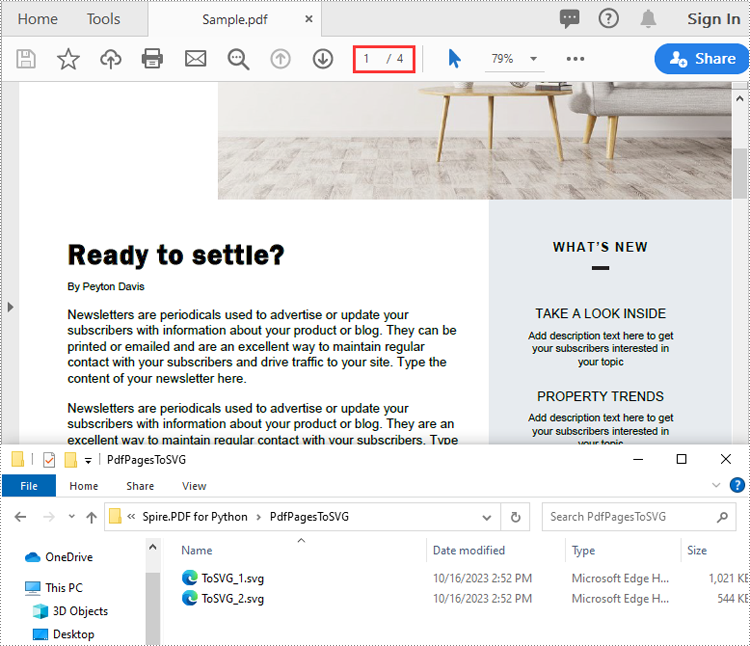
The PdfDocument.SaveToFile(filename:str, startIndex:int, endIndex:int, fileFormat:FileFormat) method provided by Spire.PDF for Python allows you to convert specific pages of a PDF file to SVG files. The detailed steps are as follows.
- Create an object of the PdfDocument class.
- Load a sample PDF file using PdfDocument.LoadFromFile() method.
- Convert specific pages of the PDF file to SVG using PdfDocument.SaveToFile(filename:str, startIndex:int, endIndex:int, fileFormat:FileFormat) method.
- Python
from spire.pdf.common import *
from spire.pdf import *

# Create an object of the PdfDocument class
doc = PdfDocument()
# Load a PDF file
doc.LoadFromFile("Sample.pdf")

# Save specific pages of the file to SVG files
doc.SaveToFile("PdfPagesToSVG/ToSVG.svg", 1, 2, FileFormat.SVG)

# Close the PdfDocument object
doc.Close()
Apply for a Temporary License
If you'd like to remove the evaluation message from the generated documents, or to get rid of the function limitations, please request a 30-day trial license for yourself.
Python Image to PDF Conversion: Best Practices and Code Examples
2023-09-27 01:15:52 Written by Administrator
Converting images to PDF programmatically is a common task in document management, as it enhances organization, facilitates sharing, and ensures efficient archiving. By consolidating various image formats into a single PDF document, users can easily manage and distribute their visual content.
In this article, we will explore how to convert a variety of image formats —including PNG , JPEG , TIFF , and SVG —into PDF files using Spire.PDF for Python. We’ll provide detailed instructions and code examples to guide you through the conversion process, highlighting the flexibility and power of this library for handling different image types.
Table of Contents:
- Why Convert Image to PDF?
- Introducing Spire.PDF: Python Image-to-PDF Library
- Convert PNG or JPEG to PDF
- Convert Multi-Page TIFF to PDF
- Convert Scalable SVG to PDF
- Merge Multiple Images into One PDF
- Conclusion
- FAQs
1. Why Convert Image to PDF?
PDFs are preferred for their portability, security, and consistent formatting across devices. Converting images to PDF offers several benefits:
- Preservation of Quality: PDFs retain image resolution, ensuring no loss in clarity.
- Easier Sharing: A single PDF can combine multiple images, simplifying distribution.
- Document Standardization: Converting images to PDF ensures compatibility with most document management systems.
Whether you're archiving scanned documents or preparing a portfolio, converting images to PDF enhances usability.
2. Introducing Spire.PDF: Python Image-to-PDF Library
Spire.PDF for Python is a robust library that enables PDF creation, manipulation, and conversion. Key features include:
- Support for multiple image formats (PNG, JPEG, BMP, SVG, and more).
- Flexible page customization (size, margins, orientation).
- Batch processing and multi-image merging.
- Advanced options like watermarking and encryption (beyond basic conversion).
To install the library, use:
pip install Spire.PDF
3. Convert PNG or JPEG to PDF in Python
3.1 Generate PDF Matching Image Dimensions
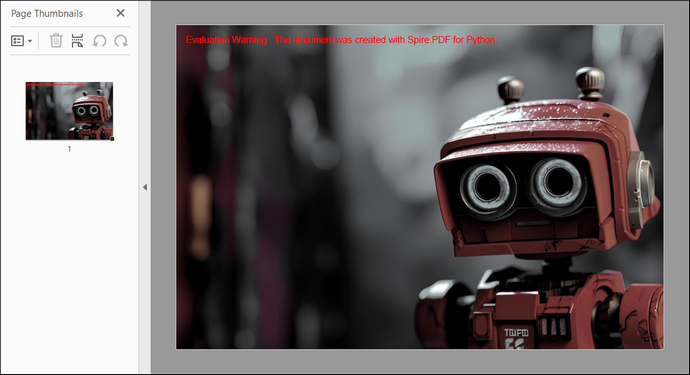
To convert a PNG or JPEG image to PDF while preserving its original size, we start by creating a PdfDocument object, which serves as the container for our PDF. We set the page margins to zero, ensuring that the image will fill the entire page.
After loading the image, we obtain its dimensions to create a new page that matches these dimensions. Finally, we draw the image on the page and save the document to a PDF file. This approach guarantees pixel-perfect conversion without resizing or distortion.
The following code demonstrates how to generate a PDF that perfectly matches your image’s size:
from spire.pdf.common import *
from spire.pdf import *

# Create a PdfDocument object
document = PdfDocument()

# Set the page margins to 0
document.PageSettings.SetMargins(0.0)

# Load an image file
image = PdfImage.FromFile("C:\\Users\\Administrator\\Desktop\\robot.jpg")

# Get the image width and height
imageWidth = image.PhysicalDimension.Width
imageHeight = image.PhysicalDimension.Height

# Add a page that has the same size as the image
page = document.Pages.Add(SizeF(imageWidth, imageHeight))

# Draw image at (0, 0) of the page
page.Canvas.DrawImage(image, 0.0, 0.0)

# Save to file
document.SaveToFile("output/ImageToPdf.pdf")

# Dispose resources
document.Dispose()
Output:
3.2 Custom PDF Layouts and Image Position
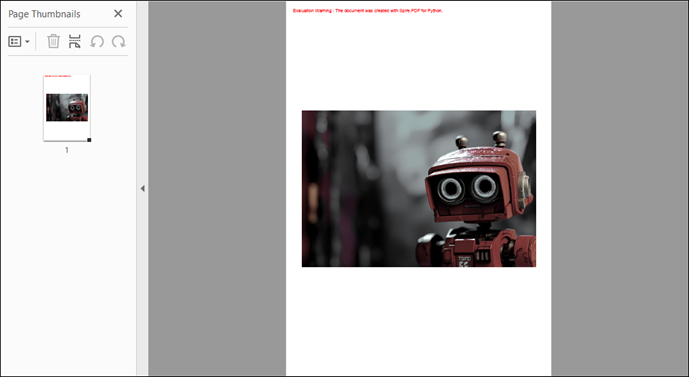
To customize the PDF page size and margins, a few modifications to the code are needed. In this example, we set the page size to A4, adjusting the margins accordingly. The image is centered on the page by calculating its position based on the page dimensions. This method creates a more polished layout for the PDF.
The code below shows how to customize PDF settings and position images during conversion:
from spire.pdf.common import *
from spire.pdf import *

# Create a PdfDocument object
document = PdfDocument()

# Set the page margins to 5
document.PageSettings.SetMargins(5.0)

# Define page size (A4 or custom)
document.PageSettings.Size = PdfPageSize.A4()

# Add a new page to the document
page = document.Pages.Add()

# Load the image from file
image = PdfImage.FromFile("C:\\Users\\Administrator\\Desktop\\robot.jpg")

# Get the image dimensions
imageWidth = image.PhysicalDimension.Width
imageHeight = image.PhysicalDimension.Height

# Calculate centered position for the image
x = (page.GetClientSize().Width - imageWidth) / 2
y = (page.GetClientSize().Height - imageHeight) / 2

# Draw the image at the calculated position
page.Canvas.DrawImage(image, x, y, imageWidth, imageHeight)

# Save to a PDF file
document.SaveToFile("output/ImageToPdf.pdf")

# Release resources
document.Dispose()
Output:
4. Convert Multi-Page TIFF to PDF in Python
TIFF files are widely used for high-resolution images, making them suitable for applications such as document scanning and medical imaging. However, Spire.PDF does not support TIFF images natively. To handle TIFF files, we can use the Python Imaging Library (PIL) , which can be installed with the following command:
pip install Pillow
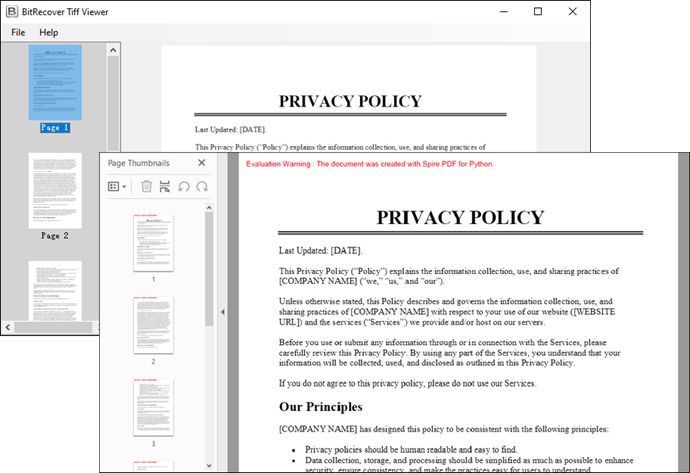
Using PIL, we can access each frame of a TIFF file, temporarily save it as a PNG, and then draw each PNG onto a PDF. This method ensures that each frame is added as a separate page in the PDF, preserving the original quality and layout.
Here is the code snippet for converting a multi-page TIFF to PDF in Python:
from spire.pdf.common import *
from spire.pdf import *
from PIL import Image
import io

# Create a PdfDocument object
document = PdfDocument()

# Set the page margins to 0
document.PageSettings.SetMargins(0.0)

# Load a TIFF image
tiff_image = Image.open("C:\\Users\\Administrator\\Desktop\\TIFF.tiff")

# Iterate through the frames in it
for i in range(getattr(tiff_image, 'n_frames', 1)):

    # Go to the current frame
    tiff_image.seek(i)

    # Extract the image of the current frame
    frame_image = tiff_image.copy()

    # Save the image to a PNG file
    frame_image.save(f"temp/output_frame_{i}.png")

    # Load the image file to PdfImage
    image = PdfImage.FromFile(f"temp/output_frame_{i}.png")

    # Get image width and height
    imageWidth = image.PhysicalDimension.Width
    imageHeight = image.PhysicalDimension.Height

    # Add a page to the document
    page = document.Pages.Add(SizeF(imageWidth, imageHeight))

    # Draw image at (0, 0) of the page
    page.Canvas.DrawImage(image, 0.0, 0.0)

# Save the document to a PDF file
document.SaveToFile("Output/TiffToPdf.pdf",FileFormat.PDF)

# Dispose resources
document.Dispose()
Output:
5. Convert Scalable SVG to PDF in Python
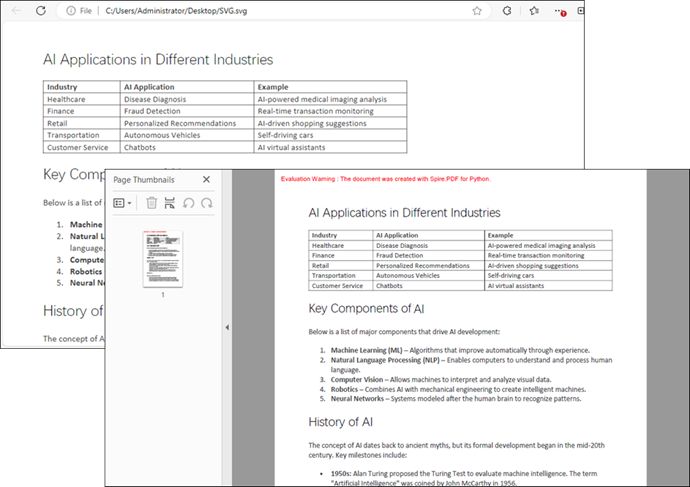
SVG files are vector graphics that provide scalability without loss of quality, making them ideal for web graphics and print media. In this example, we create a PdfDocument object and load an SVG file directly into it. Spire.PDF library efficiently handles the conversion, allowing for quick and straightforward saving of the SVG as a PDF with minimal code.
Below is the code snippet for converting an SVG file to a PDF:
from spire.pdf.common import *
from spire.pdf import *

# Create a PdfDocument object
document = PdfDocument()

# Load an SVG file
document.LoadFromSvg("C:\\Users\\Administrator\\Desktop\\SVG.svg")

# Save the SVG file to PDF
document.SaveToFile("output/SvgToPdf.pdf", FileFormat.PDF)

# Dispose resources
document.Dispose()
Tip : To combine multiple SVG files into a single PDF, convert them separately and then merge the resulting PDFs. For guidance, check out this article: How to Merge PDF Documents in Python.
Output:
6. Merge Multiple Images into One PDF
This process involves iterating through images in a specified directory, loading each one, and creating corresponding pages in the PDF document. Each page is formatted to match the image dimensions, preventing any loss or distortion. Finally, each image is drawn onto its respective page.
Code example for combining a folder of images into a single PDF:
from spire.pdf.common import *
from spire.pdf import *
import os

# Create a PdfDocument object
doc = PdfDocument()

# Set the page margins to 0
doc.PageSettings.SetMargins(0.0)

# Get the folder where the images are stored
path = "C:\\Users\\Administrator\\Desktop\\Images\\"
files = os.listdir(path)

# Iterate through the files in the folder
for root, dirs, files in os.walk(path):
    for file in files:

        # Load a particular image
        image = PdfImage.FromFile(os.path.join(root, file))

        # Get the image width and height
        width = image.PhysicalDimension.Width
        height = image.PhysicalDimension.Height

        # Add a page that has the same size as the image
        page = doc.Pages.Add(SizeF(width, height))

        # Draw image at (0, 0) of the page
        page.Canvas.DrawImage(image, 0.0, 0.0, width, height)

# Save to file
doc.SaveToFile("output/CombineImages.pdf")
doc.Dispose()
Output:

7. Conclusion
Converting images to PDF in Python using the Spire.PDF library is a straightforward task that can be accomplished through various methods for different image formats. Whether you need to convert single images, customize layouts, or merge multiple images, Spire.PDF provides the necessary tools to achieve your goals efficiently. With just a few lines of code, you can create high-quality PDFs from images, enhancing your document management capabilities.
8. FAQs
Q1: Can I convert images in bulk using Spire.PDF?
Yes, Spire.PDF allows you to iterate through directories and convert multiple images to a single PDF or individual PDFs, making bulk conversions easy.
Q2: What image formats does Spire.PDF support?
Spire.PDF supports various image formats, including PNG, JPEG, BMP, and SVG, providing versatility for different use cases.
Q3: Can I customize the PDF layout?
Absolutely. You can set margins, page sizes, and positions of images within the PDF for a tailored layout that meets your requirements.
Q4: Does converting an image to PDF reduce its quality?
No - when using Spire.PDF with default settings, the original image data is embedded without compression.
Get a Free License
To fully experience the capabilities of Spire.PDF for Python without any evaluation limitations, you can request a free 30-day trial license.
Convert PDF to Images in Python (PNG, JPG, BMP, SVG, TIFF)
2023-09-18 01:16:01 Written by Administrator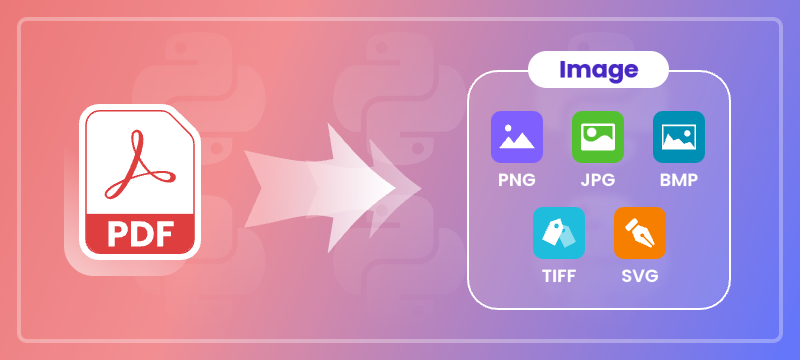
Converting PDF files to images in Python is a common need for developers and professionals working with digital documents. Whether you want to generate thumbnails, create previews, extract specific content areas, or prepare files for printing, transforming a PDF into image formats gives you flexibility and compatibility across platforms.
This comprehensive guide demonstrates how to convert PDF files into popular image formats—such as PNG, JPG, BMP, SVG, and TIFF—in Python, using practical, easy-to-follow code examples.
Table of Contents
- Why Convert PDF to Image
- Python PDF-to-Image Converter Library
- Simple PDF to PNG, JPG, and BMP Conversion
- Advanced Conversion Options
- Generate Multi-Page TIFF from PDF
- Export PDF as SVG
- Conclusion
- FAQs
Why Convert PDF to Image?
Converting PDF to image formats offers several benefits:
- Cross-platform compatibility: Images are easier to embed in web pages, mobile apps, or presentations.
- Preview and thumbnail generation: Quickly create page snapshots without rendering the full PDF.
- Selective content extraction: Save specific areas of a PDF as images for focused analysis or reuse.
- Simplified sharing: Images can be easily emailed, uploaded, or displayed without special PDF readers.
Python PDF-to-Image Converter Library
Spire.PDF for Python is a powerful and easy-to-use library designed for handling PDF files. It enables developers to convert PDF pages into multiple image formats like PNG, JPG, BMP, SVG, and TIFF with excellent quality and performance.
Installation
You can easily install the library using pip. Simply open your terminal and run the following command:
pip install Spire.PDF
Simple PDF to PNG, JPG, and BMP Conversion
The SaveAsImage method of the PdfDocument class allows you to render each page of a PDF into an image format of your choice.
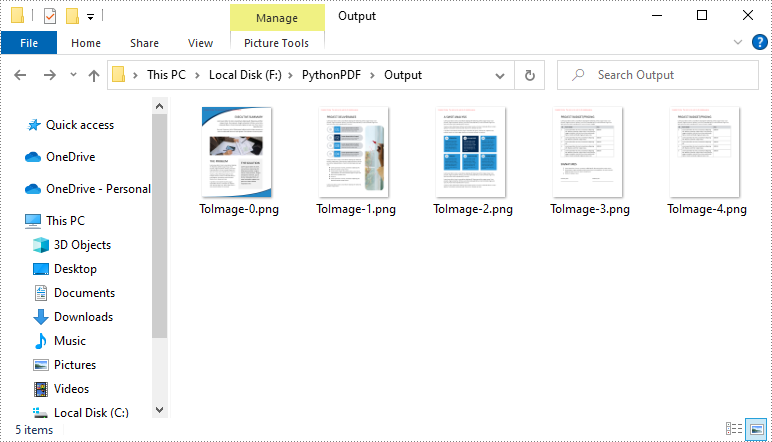
The code example below demonstrates how to load a PDF file, iterate through its pages, and save each one as a PNG image. You can easily adjust the file format to JPG or BMP by changing the file extension.
from spire.pdf import *

# Load the PDF file
pdf = PdfDocument()
pdf.LoadFromFile("template.pdf")

# Loop through pages and save as images
for i in range(pdf.Pages.Count):
    # Convert each page to image
    with pdf.SaveAsImage(i) as image:

        # Save in different formats as needed
        image.Save(f"Output/ToImage_{i}.png")
        # image.Save(f"Output/ToImage_{i}.jpg")
        # image.Save(f"Output/ToImage_{i}.bmp")

# Close the PDF document
pdf.Close()
Advanced Conversion Options
Enable Transparent Image Background
Transparent backgrounds help integrate images seamlessly into designs, avoiding unwanted borders or background colors.
To enable a transparent background during PDF-to-image conversion in Python, use the SetPdfToImageOptions() method with an alpha value of 0. This setting ensures that the background of the output image is fully transparent.
The following example demonstrates how to export each PDF page as a transparent PNG image.
from spire.pdf import *

# Load PDF document from file
pdf = PdfDocument()
pdf.LoadFromFile("template.pdf")

# Set the transparent value of the image's background to 0
pdf.ConvertOptions.SetPdfToImageOptions(0)

# Loop through all pages and save each as an image
for i in range(pdf.Pages.Count):
    # Convert each page to an image
    with pdf.SaveAsImage(i) as image:
        # Save the image to the output directory
        image.Save(f"Output/ToImage_{i}_transparent.png")

# Close the PDF document
pdf.Close()
Note: Transparency is supported in PNG but not in JPG or BMP formats.
Crop Specific PDF Areas to Image
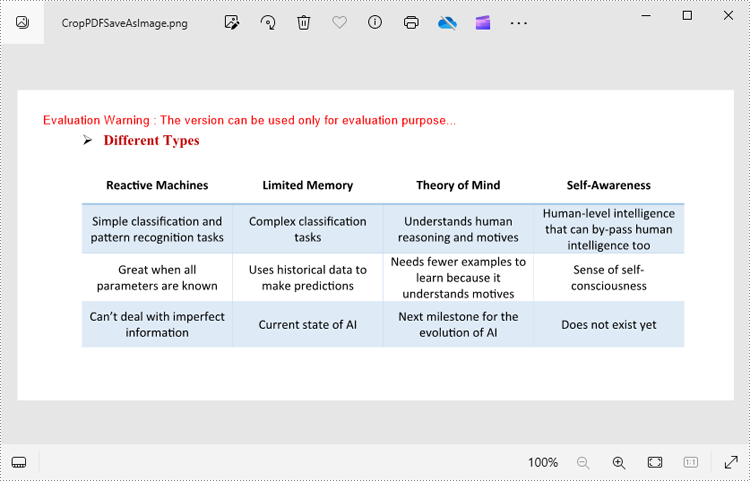
In some cases, you may only need to export a specific area of a PDF page—such as a chart, table, or block of text. This can be done by adjusting the page’s CropBox before rendering.
The CropBox property defines the visible region of the page used for display and printing. By setting it to a specific RectangleF(x, y, width, height) value, you can isolate and export only the desired portion of the content.
The example below demonstrates how to crop a rectangular area on the first page of a PDF and save that section as a PNG image.
from spire.pdf import *

# Load the PDF document from file
pdf = PdfDocument()
pdf.LoadFromFile("Sample.pdf")

# Access the first page of the PDF
page = doc.Pages.get_Item(0)

# Define the crop area of the page using a rectangle (x, y, width, height)
page.CropBox = RectangleF(0.0, 300.0, 600.0, 260.0)

# Convert the cropped page to an image
with pdf.SaveAsImage(0) as image:
    # Save the image to a PNG file
    image.Save("Output/CropPDFSaveAsImage.png")

# Close the PDF document
pdf.Close()
Note: You need to adjust the coordinates based on the location of your target content. Coordinates start from the top-left corner of the page.
Generate Multi-Page TIFF from PDF
The TIFF format supports multi-page documents, making it a popular choice for archival and printing purposes. Although Spire.PDF for Python doesn't natively create multi-page TIFFs, you can render individual pages as images and then use the Pillow library to merge them into one .tiff file.
Before proceeding, ensure Pillow is installed by running:
pip install Pillow
The following example illustrates how to:
- Load a PDF
- Convert each page to an image
- Combine all images into a single multi-page TIFF
from spire.pdf import *

from PIL import Image
from io import BytesIO

# Load the PDF document from file
pdf = PdfDocument()
pdf.LoadFromFile("Input.pdf")

# Create an empty list to store PIL Images
images = []

# Iterate through all pages in the document
for i in range(pdf.Pages.Count):

    # Convert a specific page to an image stream
    with pdf.SaveAsImage(i) as imageData:

        # Open the image stream as a PIL image
        img = Image.open(BytesIO(imageData.ToArray()))

        # Append the PIL image to list
        images.append(img)

# Save the PIL Images as a multi-page TIFF file
images[0].save("Output/ToTIFF.tiff", save_all=True, append_images=images[1:])

# Dispose resources
pdf.Dispose()
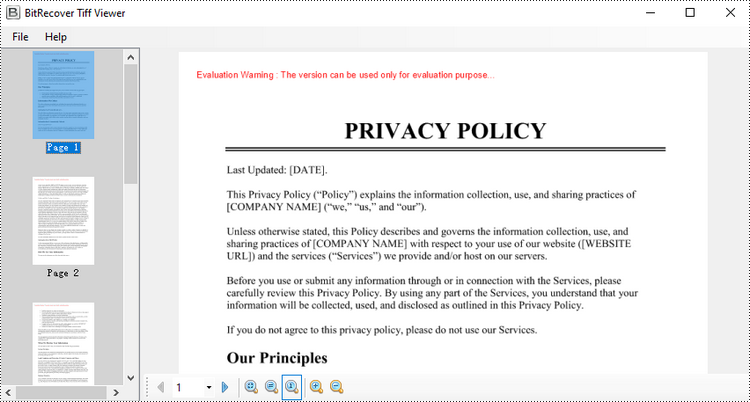
It’s also possible to convert TIFF files back to PDF. For detailed instructions on it, please refer to the tutorial: Python: Convert PDF to TIFF and TIFF to PDF.
Export PDF as SVG
SVG (Scalable Vector Graphics) is an ideal format for content that requires scaling without quality loss, such as charts, vector illustrations, and technical diagrams.
By using the SaveToFile() method with the FileFormat.SVG option, you can export PDF pages as SVG files. This conversion preserves the vector characteristics of the content, making it well-suited for web embedding, responsive design, and further editing in vector graphic tools.
The following example demonstrates how to export an entire PDF document to SVG format.
from spire.pdf import *

# Load the PDF document from file
pdf = PdfDocument()
pdf.LoadFromFile("Example.pdf")

# Save each page of the file to a separate SVG file
pdf.SaveToFile("PdfToSVG/ToSVG.svg", FileFormat.SVG)

# Close the PdfDocument object
pdf.Close()
Note: Each page in the PDF will be saved as a separate SVG file named ToSVG_i.svg, where i is the page number (1-based).
To export specific pages or customize the SVG output size, please refer to our detailed guide: Python: Convert PDF to SVG.
Conclusion
Converting PDF to images in formats like PNG, JPG, BMP, SVG, and TIFF provides flexibility for sharing, displaying, and processing digital documents. With Spire.PDF for Python, you can:
- Export high-quality images from PDFs in various formats
- Crop specific regions for focused content extraction
- Generate multi-page TIFF files for archival purposes
- Create scalable SVG vector graphics for diagrams and charts
By automating PDF to image conversion in Python, you can seamlessly integrate image export into your applications and workflows.
FAQs
Q1: Can I convert a range of pages from a PDF to images?
A1: Yes. You can convert specific pages by specifying their indices in a loop. For example, to export pages 1 to 3:
# Convert only pages 1-3
for i in range(0, 3):  # 0-based index
    with pdf.SaveAsImage(i) as img:
        img.Save(f"page_{i}.png")
Q2: Can I batch convert multiple PDF files to images?
A2: Yes, batch conversion is supported. You can iterate through a list of PDF file paths and convert each one within a loop.
pdf_files = ["a.pdf", "b.pdf", "c.pdf"]
for file in pdf_files:
    pdf = PdfDocument()
    pdf.LoadFromFile(file)
    for i in range(pdf.Pages.Count):
        with pdf.SaveAsImage(i) as img:
            img.Save(f"{file}_page_{i}.png")
Q3: Is it possible to convert password-protected PDFs to images?
A3: Yes, you can convert secured PDFs to images as long as you provide the correct password when loading the PDF document.
pdf = PdfDocument()
pdf.LoadFromFile("protected.pdf", "password")
Q4: Is it possible to extract embedded images from a PDF instead of rendering pages?
A4: Yes. Aside from rendering entire pages, the library also supports extracting images directly from the PDF.
Get a Free License
To fully experience the capabilities of Spire.PDF for Python without any evaluation limitations, you can request a free 30-day trial license.
How to Convert PDF to Excel with Formatting in Python (Step-by-Step Guide)
2023-09-07 01:11:29 Written by Koohji
Converting PDF files to Excel spreadsheets in Python is an effective way to extract structured data for analysis, reporting, and automation. While PDFs are excellent for preserving layout across platforms, their static format often makes data extraction challenging.
Excel, on the other hand, provides robust features for sorting, filtering, calculating, and visualizing data. By using Python along with the Spire.PDF for Python library, you can automate the entire PDF to Excel conversion process — from basic one-page documents to complex, multi-page PDFs.
Whether you're automating data extraction from PDFs or integrating PDF content into Excel workflows, this tutorial will walk you through both quick-start and advanced methods for reliable Python PDF to Excel conversion.
Table of Contents
- Why Convert PDF to Excel Programmatically in Python
- Setting Up Your Development Environment
- Quick Start: Convert PDF to Excel in Python
- Advanced PDF to Excel Conversion with Layout Control and Formatting Options
- Conclusion
Why Convert PDF to Excel Programmatically in Python
PDFs are ideal for sharing documents with consistent formatting, but their fixed structure makes them difficult to analyze or reuse, especially if they contain tables.
Converting PDF to Excel allows you to:
- Extract tabular data for analysis or visualization
- Automate monthly or recurring report extraction
- Enable downstream processing in Excel
- Save hours of manual copy-pasting
Using Python for this task adds automation, flexibility, and scalability — ideal for integration into data pipelines or backend services.
Setting Up Your Development Environment
Before you start converting PDF files to Excel using Python, it’s essential to set up your development environment properly. This ensures you have all the necessary tools and libraries installed to follow the tutorial smoothly.
Install Python
If you haven’t already installed Python on your system, download and install the latest version from the official website.
Make sure to add Python to your system PATH during installation to run Python commands from the terminal or command prompt easily.
Install Spire.PDF for Python
Spire.PDF for Python is the core library used in this tutorial to load, manipulate, and convert PDF documents.
To install it, open your terminal and run:
pip install Spire.PDF
This command downloads and installs Spire.PDF along with any required dependencies.
If you encounter any issues or need detailed installation help, please refer to our step-by-step guide: How to Install Spire.PDF for Python on Windows
Quick Start: Convert PDF to Excel in Python
If your PDF has a clean and simple layout without complex formatting or multiple page structures, you can convert it directly to Excel with just 3 lines of code using Spire.PDF for Python.
Steps to Quickly Export PDF to Excel
Follow these straightforward steps to export your PDF file to an Excel spreadsheet in Python:
- Import the required classes.
- Create a PdfDocument object.
- Load your PDF file with the LoadFromFile method.
- Export the PDF to Excel (.xlsx) format using the SaveToFile method and specify FileFormat.XLSX as the output format.
Code Example
from spire.pdf import *

# Create a PdfDocument object
pdf = PdfDocument()

# Load your PDF file
pdf.LoadFromFile("Sample.pdf")

# Convert and save the PDF to Excel
pdf.SaveToFile("output.xlsx", FileFormat.XLSX)

# Close the document
pdf.Close()
Advanced PDF to Excel Conversion with Layout Control and Formatting Options
For more complex PDF documents—such as those containing multiple pages, rotated text, table cells with multiple lines of text, or overlapping content - you can use the XlsxLineLayoutOptions class to gain precise control over the conversion process.
This allows you to preserve the original structure and formatting of your PDF more accurately when exporting to Excel.
Layout Options You Can Configure
The XlsxLineLayoutOptions class in Spire.PDF provides several properties that give you granular control over how PDF content is exported to Excel. Below is a breakdown of each option and its behavior:
| Option | Description |
|---|---|
| convertToMultipleSheet | Determines whether to convert each PDF page into a separate worksheet. The default value is true. |
| rotatedText | Specifies whether to preserve the original rotation of angled text. The default value is true. |
| splitCell | Determines whether to split a PDF table cell with multiple lines of text into separate rows in the Excel output. The default value is true. |
| wrapText | Determines whether to enable word wrap inside Excel cells. The default value is true. |
| overlapText | Specifies whether text overlapping in the original PDF should be preserved in the Excel output. The default value is false. |
Code Example
from spire.pdf import *

# Create a PdfDocument object
pdf = PdfDocument()

# Load your PDF file
pdf.LoadFromFile("Sample.pdf")

# Define layout options
# Parameters: convertToMultipleSheet, rotatedText, splitCell, wrapText, overlapText
layout_options = XlsxLineLayoutOptions(True, True, False, True, False)

# Apply layout options
pdf.ConvertOptions.SetPdfToXlsxOptions(layout_options)

# Convert and save the PDF to Excel
pdf.SaveToFile("advanced_output.xlsx", FileFormat.XLSX)

# Close the document
pdf.Close()
Conclusion
Converting PDF files to Excel in Python is an efficient way to automate data extraction and processing tasks. Whether you need a quick conversion or fine-grained layout control, Spire.PDF for Python offers flexible options that scale from simple to complex scenarios.
Ready to automate your PDF to Excel conversions?
Get a free trial license for Spire.PDF for Python and explore the full Spire.PDF Documentation to get started today!
FAQs
Q1: Can I convert each PDF page into a separate Excel worksheet?
A1: Yes. Use the convertToMultipleSheet=True option in the XlsxLineLayoutOptions class to export each page to its own sheet.
Q2. What Excel format does Spire.PDF export to?
A2: Spire.PDF converts PDFs to .xlsx, the modern Excel format supported by Excel 2007 and later.
Q3: Can I convert a PDF to Excel in Python without losing formatting?
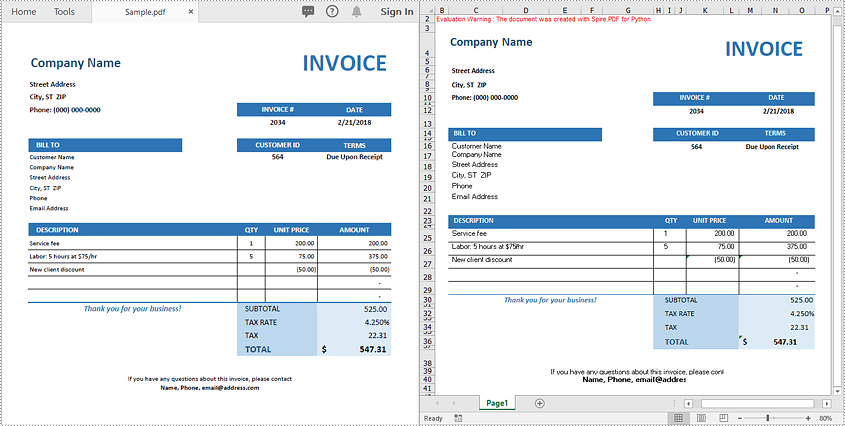
A3: Yes. Using Spire.PDF for Python, you can retain the original formatting, including merged cells, cell background colors, and other format settings when saving PDFs to Excel.
Q4: Can I extract only a specific table from a PDF to Excel instead of converting the whole document?
A4: Yes, Spire.PDF for Python supports extracting specific tables from PDF files. You can then write the extracted table data to Excel using our Excel processing library - Spire.XLS for Python.
