
Conversion (18)
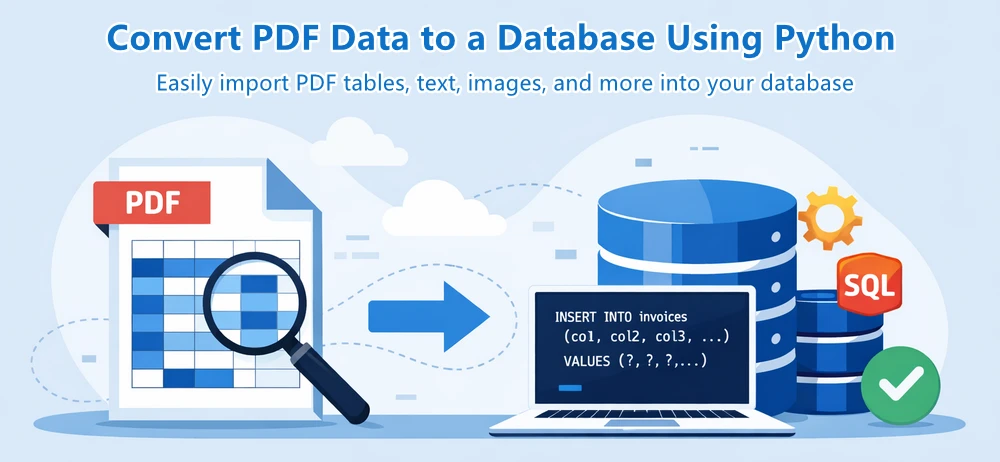
Converting PDF to database is a common requirement in data-driven applications. Many business documents—such as invoices, reports, and financial records—store structured information in PDF format, but this data is not directly usable for querying or analysis.
To make this data accessible, developers often need to convert PDF to SQL by extracting structured content and inserting it into relational databases like SQL Server, MySQL, or PostgreSQL. Manually handling this process is inefficient and error-prone, especially at scale.
In this guide, we focus on extracting table data from PDFs and building a complete pipeline to transform and insert it into an SQL database in Python with Spire.PDF for Python. This approach reflects the most practical and scalable solution for real-world PDF to database workflows.
Quick Navigation
- Understanding the Workflow
- Prerequisites
- Step 1: Extract Table Data from PDF
- Step 2: Transform and Insert Data into Database
- Complete Pipeline: From PDF Extraction to SQL Storage
- Adapting to Other SQL Databases
- Handling Other Types of PDF Data
- Common Pitfalls When Converting PDF Data to a Database
- Conclusion
- FAQ
Understanding the Workflow
Before diving into the implementation, it's important to understand the overall process of converting PDF data into a database.
Instead of treating each operation as completely separate, this workflow can be viewed as two main stages:
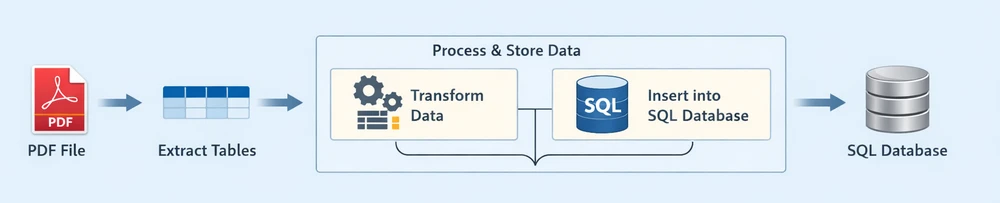
Each stage plays a distinct role in the pipeline:
-
Extract Tables: Retrieve structured table data from the PDF document
-
Process & Store Data: Clean, structure, and insert the extracted data into a relational database
- Transform Data: Convert raw rows into structured, database-ready records
- Insert into SQL Database: Persist the processed data into an SQL database
This end-to-end pipeline reflects how most real-world systems handle PDF to database workflows—by first extracting usable data, then processing and storing it in a database for querying and analysis.
Prerequisites
Before getting started, make sure you have the following:
-
Python 3.x installed
-
Spire.PDF for Python installed:
pip install Spire.PDFYou can also download Spire.PDF for Python and add it to your project manually.
-
A relational database system (e.g., SQLite, SQL Server, MySQL, or PostgreSQL)
This guide demonstrates the workflow using SQLite for simplicity, while also showing how the same approach can be applied to other SQL databases.
Step 1: Extract Table Data from PDF
In most business documents, such as invoices or reports, data is organized in tables. These tables already follow a row-and-column structure, making them ideal for direct insertion into an SQL database.
Table data in PDFs is typically already structured in rows and columns, making it the most suitable format for database storage.
Extract Tables Using Python
Below is an example of how to extract table data from a PDF file using Spire.PDF:
from spire.pdf import *
from spire.pdf.common import *

# Load PDF document
pdf = PdfDocument()
pdf.LoadFromFile("Quarterly Sales.pdf")

# Method for ligature normalization
def normalize_text(text: str) -> str:
    if not text:
        return text
    ligature_map = {
        '\ue000': 'ff', '\ue001': 'ft', '\ue002': 'ffi', '\ue003': 'ffl', '\ue004': 'ti', '\ue005': 'fi',
    }
    for k, v in ligature_map.items():
        text = text.replace(k, v)
    return text.strip()

table_data = []

# Iterate through pages
for i in range(pdf.Pages.Count):
    # Extract tables from pages
    extractor = PdfTableExtractor(pdf)
    tables = extractor.ExtractTable(i)

    if tables:
        print(f"Page {i} has {len(tables)} tables.")
        for table in tables:
            rows = []
            for row in range(table.GetRowCount()):
                row_data = []
                for col in range(table.GetColumnCount()):
                    text = table.GetText(row, col)
                    text = normalize_text(text)
                    row_data.append(text.strip() if text else "")
                rows.append(row_data)
            table_data.extend(rows)

pdf.Close()

# Print extracted data
for row in table_data:
    print(row)
Below is a preview of the extracting result:
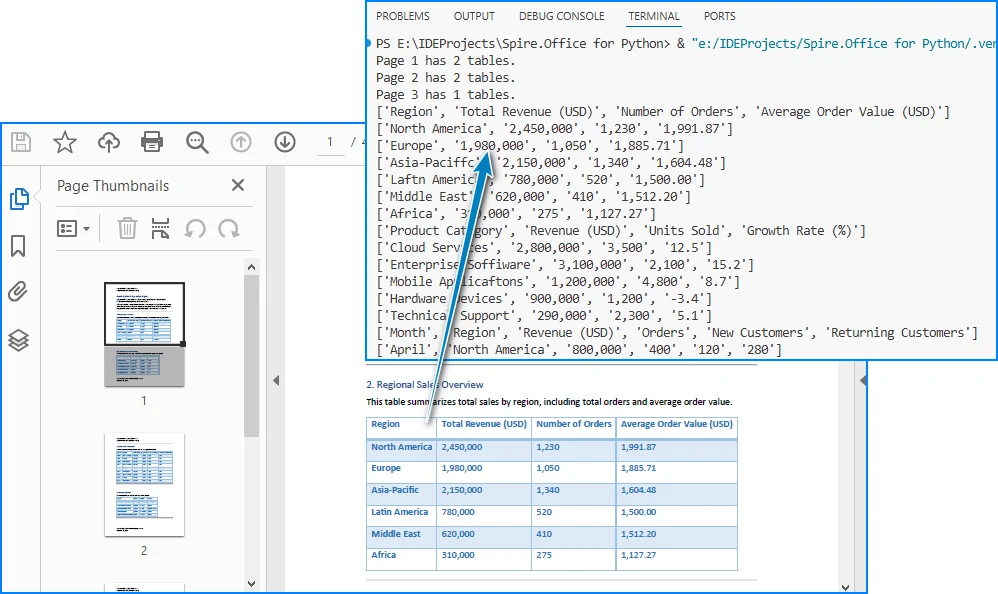
Code Explanation
- LoadFromFile: Loads the PDF document
- PdfTableExtractor: Identifies tables within each page
- GetText(row, col): Retrieves cell content
- table_data: Stores extracted rows as a list of lists
At this stage, the data is extracted but still unstructured in terms of database usage. Once the table data is extracted, we need to convert it into a structured format for SQL insertion.
Alternatively, you can export the extracted data to a CSV file for validation or batch import. See: Convert PDF Tables to CSV in Python
Step 2: Transform and Insert Data into Database
Raw table data extracted from PDFs often requires cleaning and structuring before it can be inserted into an SQL database.
For simplicity, the following examples demonstrate how to process a single extracted table. In real-world scenarios, PDFs may contain multiple tables, which can be handled using the same logic in a loop.
Transform Data (Single Table Example)
structured_data = []

# Assume first row is header
headers = table_data[0]

for row in table_data[1:]:
    if not any(row):
        continue

    record = {}
    for i in range(len(headers)):
        value = row[i] if i < len(row) else ""
        record[headers[i]] = value

    structured_data.append(record)

# Preview structured data
for item in structured_data:
    print(item)
What This Step Does
- Converts rows into dictionary-based records
- Maps column headers to values
- Filters out empty rows
- Prepares structured data for database insertion
You can also:
- Normalize column names for SQL compatibility
- Convert numeric fields
- Standardize date formats
Transforming raw PDF data into a structured format ensures it can be reliably inserted into a relational database. After transformation, the data is immediately ready for database insertion, which completes the pipeline.
Insert Data into SQLite (Single Table Example)
Using the structured data from a single table, we can dynamically create a database schema and insert records without hardcoding column names.
import sqlite3

# Connect to SQLite database
conn = sqlite3.connect("sales_data.db")
cursor = conn.cursor()

# Create table dynamically based on headers
columns_def = ", ".join([f'"{h}" TEXT' for h in headers])

cursor.execute(f"""
CREATE TABLE IF NOT EXISTS invoices (
    id INTEGER PRIMARY KEY AUTOINCREMENT,
    {columns_def}
)
""")

# Prepare insert statement
placeholders = ", ".join(["?" for _ in headers])
column_names = ", ".join([f'"{h}"' for h in headers])

# Insert data
for record in structured_data:
    values = [record.get(h, "") for h in headers]
    cursor.execute(f"""
    INSERT INTO invoices ({column_names})
    VALUES ({placeholders})
    """, values)

# Commit and close
conn.commit()
conn.close()
Key Points
- Dynamically creates database tables based on extracted headers
- Uses parameterized queries (
?) to prevent SQL injection - Keeps the schema flexible without hardcoding column names
- Column names can be normalized to ensure SQL compatibility
- Batch inserts can improve performance for large datasets
This section demonstrates the core workflow for converting PDF table data into a relational database using a single table example. In the next section, we extend this approach to handle multiple tables automatically.
Complete Pipeline: From PDF Extraction to SQL Storage
Here's a complete runnable example that demonstrates the entire workflow from PDF to database:
from spire.pdf import *
from spire.pdf.common import *
import sqlite3
import re

# ---------------------------
# Utility Functions
# ---------------------------

def normalize_text(text: str) -> str:
    if not text:
        return ""
    ligature_map = {
        '\ue000': 'ff', '\ue001': 'ft', '\ue002': 'ffi',
        '\ue003': 'ffl', '\ue004': 'ti', '\ue005': 'fi',
    }
    for k, v in ligature_map.items():
        text = text.replace(k, v)
    return text.strip()


def normalize_column_name(name: str, index: int) -> str:
    if not name:
        return f"column_{index}"
    name = name.lower()
    name = re.sub(r'[^a-z0-9]+', '_', name).strip('_')
    return name or f"column_{index}"


def deduplicate_columns(columns):
    seen = set()
    result = []
    for col in columns:
        base = col
        count = 1
        while col in seen:
            col = f"{base}_{count}"
            count += 1
        seen.add(col)
        result.append(col)
    return result


# ---------------------------
# Step 1: Extract Tables (STRUCTURED)
# ---------------------------

pdf = PdfDocument()
pdf.LoadFromFile("Quarterly Sales.pdf")

extractor = PdfTableExtractor(pdf)

all_tables = []

for i in range(pdf.Pages.Count):
    tables = extractor.ExtractTable(i)

    if tables:
        for table in tables:
            table_rows = []

            for row in range(table.GetRowCount()):
                row_data = []
                for col in range(table.GetColumnCount()):
                    text = table.GetText(row, col)
                    row_data.append(normalize_text(text))
                table_rows.append(row_data)

            if table_rows:
                all_tables.append(table_rows)

pdf.Close()

if not all_tables:
    raise ValueError("No tables found in PDF.")

# ---------------------------
# Step 2 & 3: Process + Insert Each Table
# ---------------------------

conn = sqlite3.connect("sales_data.db")
cursor = conn.cursor()

for table_index, table in enumerate(all_tables):

    if len(table) < 2:
        continue  # skip invalid tables

    raw_headers = table[0]

    # Normalize headers
    normalized_headers = [
        normalize_column_name(h, i)
        for i, h in enumerate(raw_headers)
    ]
    normalized_headers = deduplicate_columns(normalized_headers)

    # Generate table name
    table_name = f"table_{table_index+1}"

    # Create table
    columns_def = ", ".join([f'"{col}" TEXT' for col in normalized_headers])

    cursor.execute(f"""
    CREATE TABLE IF NOT EXISTS "{table_name}" (
        id INTEGER PRIMARY KEY AUTOINCREMENT,
        {columns_def}
    )
    """)

    # Prepare insert
    placeholders = ", ".join(["?" for _ in normalized_headers])
    column_names = ", ".join([f'"{col}"' for col in normalized_headers])

    insert_sql = f"""
    INSERT INTO "{table_name}" ({column_names})
    VALUES ({placeholders})
    """

    # Insert data
    batch = []
    for row in table[1:]:
        if not any(row):
            continue

        values = [
            row[i] if i < len(row) else ""
            for i in range(len(normalized_headers))
        ]
        batch.append(values)

    if batch:
        cursor.executemany(insert_sql, batch)

    print(f"Inserted {len(batch)} rows into {table_name}")

conn.commit()
conn.close()

print(f"Processed {len(all_tables)} tables from PDF.")
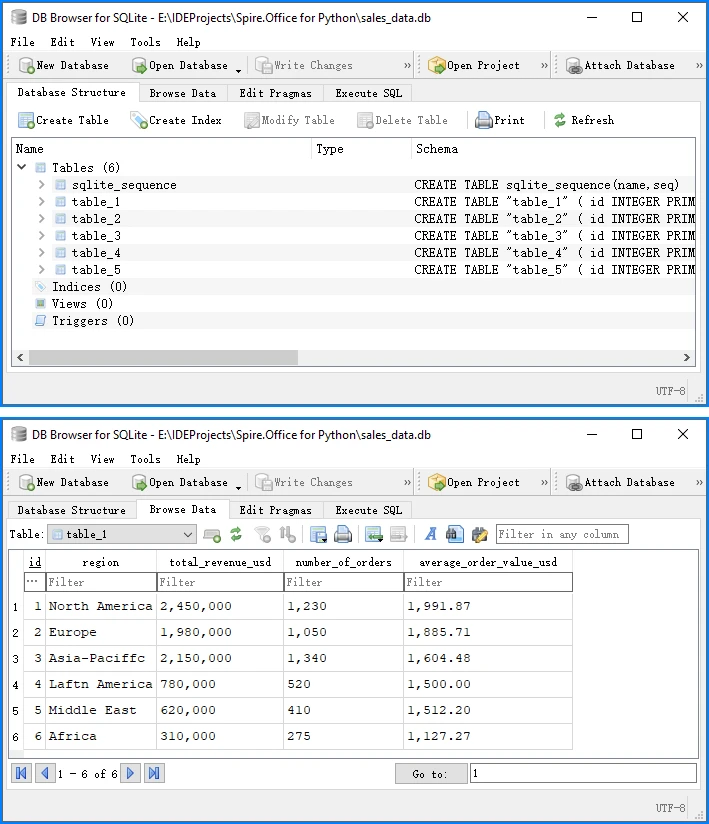
Below is a preview of the insertion result in the database:
This complete example demonstrates the full PDF to database pipeline:
- Load and extract table data from PDF using Spire.PDF
- Transform raw data into structured records
- Insert into SQLite database with proper schema
SQLite automatically creates a system table called sqlite_sequence when using AUTOINCREMENT to track the current maximum ID. This is expected behavior and does not affect your data. You can run this code directly to convert PDF table data into a database.
Adapting to Other SQL Databases
While this guide uses SQLite for simplicity, the same approach works for other SQL databases. The extraction and transformation steps remain identical—only the database connection and insertion syntax vary slightly.
The following examples assume you are using the normalized column names (headers) generated in the previous step.
SQL Server Example
import pyodbc

# Connect to SQL Server
conn_str = (
    "DRIVER={SQL Server};"
    "SERVER=your_server_name;"
    "DATABASE=your_database_name;"
    "UID=your_username;"
    "PWD=your_password"
)
conn = pyodbc.connect(conn_str)
cursor = conn.cursor()

# Generate dynamic column definitions using normalized headers
columns_def = ", ".join([f"[{h}] NVARCHAR(MAX)" for h in headers])

# Create table dynamically
cursor.execute(f"""
IF NOT EXISTS (SELECT * FROM sys.tables WHERE name = 'invoices')
BEGIN
    CREATE TABLE invoices (
        id INT IDENTITY(1,1) PRIMARY KEY,
        {columns_def}
    )
END
""")

# Prepare insert statement
placeholders = ", ".join(["?" for _ in headers])
column_names = ", ".join([f"[{h}]" for h in headers])

# Insert data
for record in structured_data:
    values = [record.get(h, "") for h in headers]
    cursor.execute(f"""
    INSERT INTO invoices ({column_names})
    VALUES ({placeholders})
    """, values)

# Commit and close
conn.commit()
conn.close()
MySQL Example
import mysql.connector

conn = mysql.connector.connect(
    host="localhost",
    user="your_username",
    password="your_password",
    database="your_database"
)
cursor = conn.cursor()

# Use the same dynamic table creation and insert logic as shown earlier,
# with minor syntax adjustments if needed
PostgreSQL Example
import psycopg2

conn = psycopg2.connect(
    host="localhost",
    database="your_database",
    user="your_username",
    password="your_password"
)
cursor = conn.cursor()

# Use the same dynamic table creation and insert logic as shown earlier,
# with minor syntax adjustments if needed
The core extraction and transformation steps remain the same across different SQL databases, especially when using normalized column names for compatibility.
Handling Other Types of PDF Data
While this guide focuses on table extraction, PDFs often contain other types of data that can also be integrated into a database, depending on your use case.
Text Data (Unstructured → Structured)
In many documents, important information such as invoice numbers, customer names, or dates is embedded in plain text rather than tables.
You can extract raw text using:
from spire.pdf import *

pdf = PdfDocument()
pdf.LoadFromFile("Quarterly Sales.pdf")

for i in range(pdf.Pages.Count):
    page = pdf.Pages.get_Item(i)
    extractor = PdfTextExtractor(page)
    options = PdfTextExtractOptions()
    options.IsExtractAllText = True
    text = extractor.ExtractText(options)
    print(text)
However, raw text cannot be directly inserted into a database. It typically requires parsing into structured fields, for example:
- Using regular expressions to extract key-value pairs
- Identifying patterns such as dates, IDs, or totals
- Converting text into dictionaries or structured records
Once structured, the data can be inserted into a database as part of the same transformation and insertion pipeline described earlier.
For more advanced techniques, you can learn more in the detailed Python PDF text extraction guide.
Images (OCR or File Reference)
Images in PDFs are usually not directly usable as structured data, but they can still be integrated into database workflows in two ways:
Option 1: OCR (Recommended for data extraction) Convert images to text using OCR tools, then process and store the extracted content.
Option 2: File Storage (Recommended for document systems) Store images as:
- File paths in the database
- Binary (BLOB) data if needed
Below is an example of extracting images:
from spire.pdf import *

pdf = PdfDocument()
pdf.LoadFromFile("Quarterly Sales.pdf")

helper = PdfImageHelper()

for i in range(pdf.Pages.Count):
    page = pdf.Pages.get_Item(i)
    images = helper.GetImagesInfo(page)
    for j, img in enumerate(images):
        img.Image.Save(f"image_{i}_{j}.png")
To further process image-based content, you can use OCR to extract text from images with Spire.OCR for Python.
Full PDF Storage (BLOB or File Reference)
In some scenarios, the goal is not to extract structured data, but to store the entire PDF file in a database.
This is commonly used in:
- Document management systems
- Archival systems
- Compliance and auditing workflows
You can store PDFs as:
- BLOB data in the database
- File paths referencing external storage
This approach represents another meaning of "PDF in database", but it is different from structured data extraction.
Key Takeaway
While PDFs can contain multiple types of content, table data remains the most efficient and scalable format for database integration. Other data types typically require additional processing before they can be stored or queried effectively.
Common Pitfalls When Converting PDF Data to a Database
While the process of converting PDF to a database may seem straightforward, several practical challenges can arise.
1. Inconsistent Table Structures
Not all PDFs follow a consistent table format:
- Missing columns
- Merged cells
- Irregular layouts
Solution:
- Validate row lengths
- Normalize structure
- Handle missing values
2. Poor Table Detection
Some PDFs do not define tables properly internally, such as no grid structure or irregular cell sizes.
Solution:
- Test with multiple files
- Use fallback parsing logic
- Preprocess PDFs if needed
3. Data Cleaning Issues
Extracted data may contain:
- Extra spaces
- Line breaks
- Formatting issues
Solution:
- Strip whitespace
- Normalize values
- Validate types
4. Character Encoding Issues (Ligatures & Fonts)
PDF table extraction can introduce unexpected characters due to font encoding and ligatures. For example, common letter combinations such as:
fi,ff,ffi,ffl,ft,ti
may be stored as single glyphs in the PDF. When extracted, they may appear as:
di\ue000erence   → difference
o\ue002ce        → office
\ue005le         → file
These are typically private Unicode characters (e.g., \ue000–\uf8ff) caused by custom font mappings.
Solution:
-
Detect private Unicode characters (
\ue000–\uf8ff) -
Build a mapping table for ligatures, such as:
\ue000 → ff\ue001 → ft\ue002 → ffi\ue003 → ffl\ue004 → ti\ue005 → fi
-
Normalize text before inserting into the database
-
Optionally log unknown characters for further analysis
Handling encoding issues properly ensures data accuracy and prevents subtle corruption in downstream processing.
5. Cross-Page Table Fragmentation
Large tables in PDFs are often split across multiple pages. When extracted, each page may be treated as a separate table, leading to:
- Broken datasets
- Repeated headers
- Incomplete records
Solution:
- Compare column counts between consecutive tables
- Check header consistency or data type patterns in the first row
- Merge tables when structure and schema match
- Skip duplicated header rows when concatenating data
In practice, combining column structure and value pattern detection provides a reliable way to reconstruct full tables across pages.
6. Database Schema Mismatch
Incorrect mapping between extracted data and database columns can cause errors.
Solution:
- Align headers with schema
- Use explicit field mapping
7. Performance Issues with Large Files
Processing large PDFs can be slow.
Solution:
- Use batch processing
- Optimize insert operations
By anticipating these issues, you can build a more reliable PDF to database workflow.
Conclusion
Converting PDF to a database is not a one-step operation, but a structured process involving extracting data and processing it for database storage (including transformation and insertion)
By focusing on table data and using Python, you can efficiently implement a complete PDF to database pipeline, making it easier to automate data integration tasks.
This approach is especially useful for handling invoices, reports, and other structured business documents that need to be stored in SQL Server or other relational databases.
If you want to evaluate the performance of Spire.PDF for Python and remove any limitations, you can apply for a 30-day free trial.
FAQ
What does "PDF to database" mean?
It refers to the process of extracting structured data from PDF files and storing it in a database. This typically involves parsing PDF content, transforming it into structured formats, and inserting it into SQL databases for further querying and analysis.
Can Python convert PDF directly to a database?
No. Python cannot directly convert a PDF into a database in one step. The process usually involves extracting data from the PDF first, transforming it into structured records, and then inserting it into a database using SQL connectors.
How do I convert PDF to SQL using Python?
The typical workflow includes:
- Extracting table or text data from the PDF
- Converting it into structured records (rows and columns)
- Inserting the processed data into an SQL database such as SQLite, MySQL, or SQL Server using Python database libraries
Can I store PDF files directly in a database?
Yes. PDF files can be stored as binary (BLOB) data in a database. However, this approach is mainly used for document storage systems, while structured extraction is preferred for data analysis and querying.
What SQL databases can I use for PDF data integration?
You can use almost any SQL database, including SQLite, SQL Server, MySQL, and PostgreSQL. The overall extraction and transformation process remains the same, while only the database connection and insertion syntax differ slightly.
Convert PDF to Markdown in Python – Single & Batch Conversion
2025-07-17 02:36:46 Written by zaki zou
PDFs are ubiquitous in digital document management, but their rigid formatting often makes them less than ideal for content that needs to be easily edited, updated, or integrated into modern workflows. Markdown (.md), on the other hand, offers a lightweight, human-readable syntax perfect for web publishing, documentation, and version control. In this guide, we'll explore how to leverage the Spire.PDF for Python library to perform single or batch conversions from PDF to Markdown in Python efficiently.
- Why Convert PDFs to Markdown?
- Python PDF Converter Library – Installation
- Convert PDF to Markdown in Python
- Batch Convert Multiple PDFs to Markdown in Python
- Frequently Asked Questions
- Conclusion
Why Convert PDFs to Markdown?
Markdown offers several advantages over PDF for content creation and management:
- Version control friendly: Easily track changes in Git
- Lightweight and readable: Plain text format with simple syntax
- Editability: Simple to modify without specialized software
- Web integration: Natively supported by platforms like GitHub, GitLab, and static site generators (e.g., Jekyll, Hugo).
Spire.PDF for Python provides a robust solution for extracting text and structure from PDFs while preserving essential formatting elements like tables, lists, and basic styling.
Python PDF Converter Library - Installation
To use Spire.PDF for Python in your projects, you need to install the library via PyPI (Python Package Index) using pip. Open your terminal/command prompt and run:
pip install Spire.PDF
To upgrade an existing installation to the latest version:
pip install --upgrade spire.pdf
Convert PDF to Markdown in Python
Here’s a basic example demonstrates how to use Python to convert a PDF file to a Markdown (.md) file.
from spire.pdf.common import *
from spire.pdf import *

# Create an instance of PdfDocument class
pdf = PdfDocument()

# Load a PDF document
pdf.LoadFromFile("TestFile.pdf")

# Convert the PDF to a Markdown file
pdf.SaveToFile("PDFToMarkdown.md", FileFormat.Markdown)
pdf.Close()
This Python script loads a PDF file and then uses the SaveToFile() method to convert it to Markdown format. The FileFormat.Markdown parameter specifies the output format.
How Conversion Works
The library extracts text, images, tables, and basic formatting from the PDF and converts them into Markdown syntax.
- Text: Preserved with paragraphs/line breaks.
- Images: Images in the PDF are converted to base64-encoded PNG format and embedded directly in the Markdown.
- Tables: Tabular data is converted to Markdown table syntax (rows/columns with pipes |).
- Styling: Basic formatting (bold, italic) is retained using Markdown syntax.
Output: 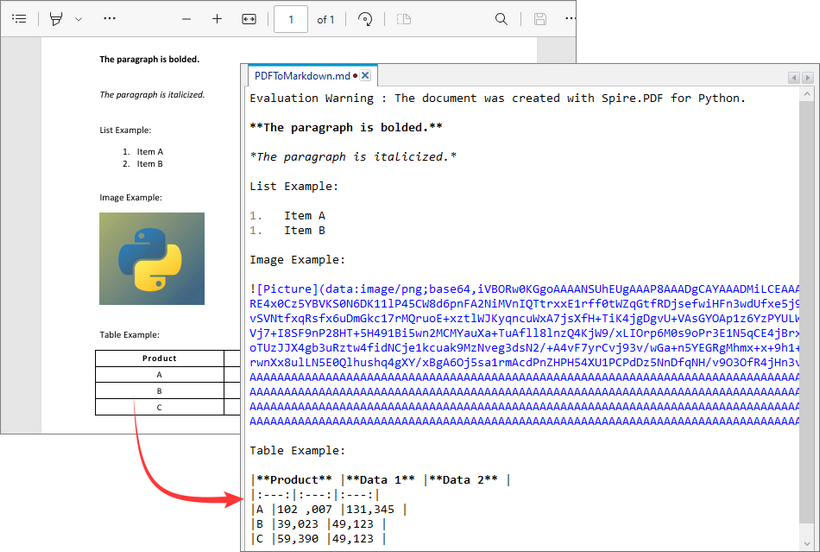
Batch Convert Multiple PDFs to Markdown in Python
This Python script uses a loop to convert all PDF files in a specified directory to Markdown format.
import os
from spire.pdf import *

# Configure paths
input_folder = "pdf_folder/"
output_folder = "markdown_output/"

# Create output directory
os.makedirs(output_folder, exist_ok=True)

# Process all PDFs in folder
for file_name in os.listdir(input_folder):
    if file_name.endswith(".pdf"):
        # Initialize document
        pdf = PdfDocument()
        pdf.LoadFromFile(os.path.join(input_folder, file_name))

        # Generate output path
        md_name = os.path.splitext(file_name)[0] + ".md"
        output_path = os.path.join(output_folder, md_name)

        # Convert to Markdown
        pdf.SaveToFile(output_path, FileFormat.Markdown)
        pdf.Close()
Key Characteristics
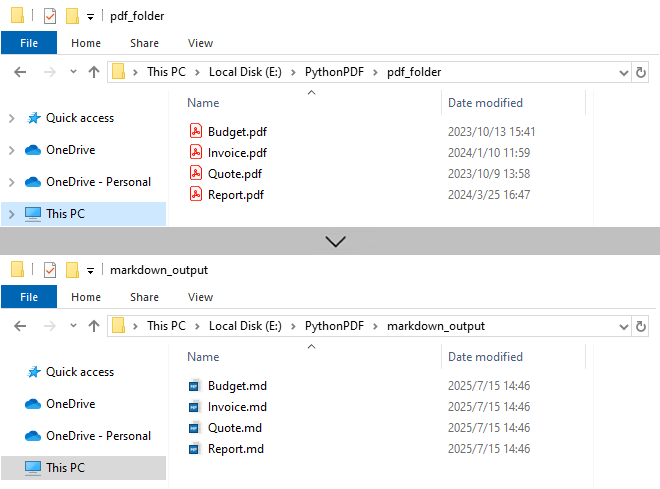
- Batch Processing: Automatically processes all PDFs in input folder, improving efficiency for bulk operations.
- 1:1 Conversion: Each PDF generates corresponding Markdown file.
- Sequential Execution: Files processed in alphabetical order.
- Resource Management: Each PDF is closed immediately after conversion.
Output:
Need to convert Markdown to PDF? Refer to: Convert Markdown to PDF in Python
Frequently Asked Questions (FAQs)
Q1: Is Spire.PDF for Python free?
A: Spire.PDF offers a free version with limitations (e.g., maximum 3 pages per conversion). For unlimited use, request a 30-day free trial for evaluation.
Q2: Can I convert password-protected PDFs to Markdown?
A: Yes. Use the LoadFromFile method with the password as a second parameter:
pdf.LoadFromFile("ProtectedFile.pdf", "your_password")
Q3: Can Spire.PDF convert scanned/image-based PDFs to Markdown?
A: No. The library extracts text-based content only. For scanned PDFs, use OCR tools (like Spire.OCR for Python) to create searchable PDFs first.
Conclusion
Spire.PDF for Python simplifies PDF to Markdown conversion for both single file and batch processing.
Its advantages include:
- Simple API with minimal code
- Preservation of document structure
- Batch processing capabilities
- Cross-platform compatibility
Whether you're migrating documentation, processing research papers, or building content pipelines, by following the examples in this guide, you can efficiently transform static PDF documents into flexible, editable Markdown content, streamlining workflows and improving collaboration.
How to Convert PDF to CSV in Python (Fast & Accurate Table Extraction)
2025-05-19 03:43:16 Written by Administrator
Working with PDFs that contain tables, reports, or invoice data? Manually copying that information into spreadsheets is slow, error-prone, and just plain frustrating. Fortunately, there's a smarter way: you can convert PDF to CSV in Python automatically — making your data easy to analyze, import, or automate.
In this guide, you’ll learn how to use Python for PDF to CSV conversion by directly extracting tables with Spire.PDF for Python — a pure Python library that doesn’t require any external tools.
✅ No Adobe or third-party tools required
✅ High-accuracy table recognition
✅ Ideal for structured data workflows
In this guide, we’ll cover:
- Convert PDF to CSV in Python Using Table Extraction
- Related Use Cases
- Why Use Spire.PDF for PDF to CSV Conversion in Python?
- Frequently Asked Questions
Convert PDF to CSV in Python Using Table Extraction
The best way to convert PDF to CSV using Python is by extracting tables directly — no need for intermediate formats like Excel. This method is fast, clean, and highly effective for documents with structured data such as invoices, bank statements, or reports. It gives you usable CSV output with minimal code and high accuracy, making it ideal for automation and data analysis workflows.
Step 1: Install Spire.PDF for Python
Before writing code, make sure to install the required library. You can install Spire.PDF for Python via pip:
pip install spire.pdfYou can also install Free Spire.PDF for Python if you're working on smaller tasks:
pip install spire.pdf.freeStep 2: Python Code — Extract Table from PDF and Save as CSV
- Python
from spire.pdf import PdfDocument, PdfTableExtractor
import csv
import os

# Load the PDF document
pdf = PdfDocument()
pdf.LoadFromFile("Sample.pdf")

# Create a table extractor
extractor = PdfTableExtractor(pdf)

# Ensure output directory exists
os.makedirs("output/Tables", exist_ok=True)

# Loop through each page in the PDF
for page_index in range(pdf.Pages.Count):
    # Extract tables on the current page
    tables = extractor.ExtractTable(page_index)
    for table_index, table in enumerate(tables):
        table_data = []

        # Extract all rows and columns
        for row in range(table.GetRowCount()):
            row_data = []
            for col in range(table.GetColumnCount()):
                # Get cleaned cell text
                cell_text = table.GetText(row, col).replace("\n", "").strip()
                row_data.append(cell_text)
            table_data.append(row_data)

        # Write the table to a CSV file
        output_path = os.path.join("output", "Tables", f"Page{page_index + 1}-Table{table_index + 1}.csv")
        with open(output_path, "w", newline="", encoding="utf-8") as csvfile:
            writer = csv.writer(csvfile)
            writer.writerows(table_data)

# Release PDF resources
pdf.Dispose()
The conversion result:
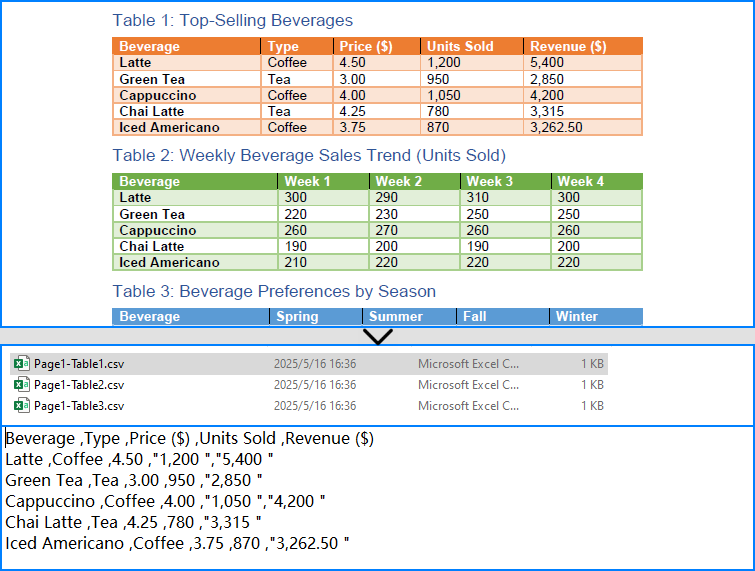
What is PdfTableExtractor?
PdfTableExtractor is a utility class provided by Spire.PDF for Python that detects and extracts table structures from PDF pages. Unlike plain text extraction, it maintains the row-column alignment of tabular data, making it ideal for converting PDF tables to CSV with clean structure.
Best for:
- PDFs with structured tabular data
- Automated Python PDF to CSV conversion
- Fast Python-based data workflows
Relate Article: How to Convert PDFs to Excel XLSX Files with Python
Related Use Cases
If your PDF doesn't contain traditional tables — such as when it's formatted as paragraphs, key-value pairs, or scanned as an image — the following approaches can help you convert such PDFs to CSV using Python effectively:
Useful when data is in paragraph or report form — format it into table-like CSV using Python logic.
Perfect for image-based PDFs — use OCR to detect and export tables to CSV.
Why Choose Spire.PDF for Python?
Spire.PDF for Python is a robust PDF SDK tailored for developers. Whether you're building automated reports, analytics tools, or ETL pipelines — it just works.
Key Benefits:
- Accurate Table Recognition
Smartly extracts structured data from tables
- Pure Python, No Adobe Needed
Lightweight and dependency-free
- Multi-Format Support
Also supports conversion to text, images, Excel, and more
Frequently Asked Questions
Can I convert PDF to CSV using Python?
Yes, you can convert PDF to CSV in Python using Spire.PDF. It supports both direct table extraction to CSV and an optional workflow that converts PDFs to Excel first. No Adobe Acrobat or third-party tools are required.
What's the best way to extract tables from PDFs in Python?
The most efficient way is using Spire.PDF’s PdfTableExtractor class. It automatically detects tables on each page and lets you export structured data to CSV with just a few lines of Python code — ideal for invoices, reports, and automated processing.
Why would I convert PDF to Excel before CSV?
You might convert PDF to Excel first if the layout is complex or needs manual review. This gives you more control over formatting and cleanup before saving as CSV, but it's slower than direct extraction and not recommended for automation workflows.
Does Spire.PDF work without Adobe Acrobat?
Yes. Spire.PDF for Python is a 100% standalone library that doesn’t rely on Adobe Acrobat or any external software. It's a pure Python solution for converting, extracting, and manipulating PDF content programmatically.
Conclusion
Converting PDF to CSV in Python doesn’t have to be a hassle. With Spire.PDF for Python, you can:
- Automatically extract structured tables to CSV
- Build seamless, automated workflows in Python
- Handle both native PDFs and scanned ones (with OCR)
Get a Free License
Spire.PDF for Python offers a free edition suitable for basic tasks. If you need access to more features, you can also apply for a free license for evaluation use. Simply submit a request, and a license key will be sent to your email after approval.
PostScript, developed by Adobe, is a page description language known for its high-quality graphics and text rendering capabilities. By converting PDF to PostScript, you can have a precise control over complex graphics, fonts and colors when printing brochures, magazines, advertisements, or other materials.
PCL, on the other hand, is a printer control language developed by Hewlett-Packard. It is designed to be efficient and easy for the printers to interpret. Converting PDF to PCL ensures compatibility with a large number of printers and also optimizes the printing speed for text-heavy documents such as academic reports, letters, or contracts.
This article will demonstrate how to convert PDF to PS or PDF to PCL in Python using Spire.PDF for Python.
Install Spire.PDF for Python
This scenario requires Spire.PDF for Python. It can be easily installed in your Windows through the following pip command.
pip install Spire.PDF
If you are unsure how to install, please refer to this tutorial: How to Install Spire.PDF for Python on Windows
Convert PDF to PostScript in Python
Converting PDF to PS can improve the quality of the printed output. Spire.PDF for .NET allows you to load a PDF file and then converting it to PS format using PdfDocument.SaveToFile(filename: string, FileFormat.POSTSCRIPT) method. The following are the detailed steps.
- Create a PdfDocument instance.
- Load a PDF file using PdfDocument.LoadFromFile() method.
- Save the PDF file to PostScript format using PdfDocument.SaveToFile(filename: string, FileFormat.POSTSCRIPT) method.
- Python
from spire.pdf.common import *
from spire.pdf import *

# Specify the input and output file paths
inputFile = "input1.pdf"
outputFile = "PdfToPostScript.ps"

# Create a PdfDocument instance
pdf = PdfDocument()

# Load a PDF document
pdf.LoadFromFile(inputFile)

# Convert the PDF to a PostScript file
pdf.SaveToFile(outputFile, FileFormat.POSTSCRIPT)
pdf.Close()

Convert PDF to PCL in Python
Converting PDF to PCL can ensure faster printing speed. By using the PdfDocument.SaveToFile(filename: string, FileFormat.PCL) method, you can save a loaded PDF file as a PCL file. The following are the detailed steps.
- Create a PdfDocument instance.
- Load a PDF file using PdfDocument.LoadFromFile() method.
- Save the PDF file to PCL format using PdfDocument.SaveToFile(filename: string, FileFormat.PCL) method.
- Python
from spire.pdf.common import *
from spire.pdf import *

# Specify the input and output file paths
inputFile = "input1.pdf"
outputFile = "ToPCL\\PdfToPcl.pcl"

# Create a PdfDocument instance
pdf = PdfDocument()

# Load a PDF document
pdf.LoadFromFile(inputFile)

# Convert the PDF to a PCL file
pdf.SaveToFile(outputFile, FileFormat.PCL)
pdf.Close()

Get a Free License
To fully experience the capabilities of Spire.PDF for Python without any evaluation limitations, you can request a free 30-day trial license.
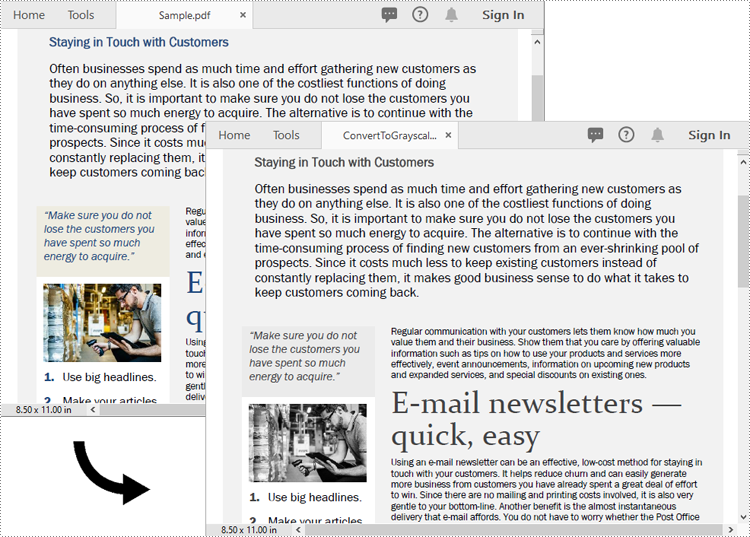
Converting a PDF to grayscale reduces file size by removing unnecessary color data, turning the content into shades of gray. This is especially useful for documents where color isn’t critical, such as text-heavy reports or forms, resulting in more efficient storage and faster transmission. On the other hand, linearization optimizes the PDF’s internal structure for web use. It enables users to start viewing the first page while the rest of the file is still loading, providing a faster and smoother experience, particularly for online viewing. In this article, we will demonstrate how to convert PDF files to grayscale or linearized PDFs in Python using Spire.PDF for Python.
Install Spire.PDF for Python
This scenario requires Spire.PDF for Python and plum-dispatch v1.7.4. They can be easily installed in your Windows through the following pip command.
pip install Spire.PDF
If you are unsure how to install, please refer to this tutorial: How to Install Spire.PDF for Python on Windows
Convert PDF to Grayscale in Python
Converting a PDF document to grayscale can be achieved by using the PdfGrayConverter.ToGrayPdf() method. The detailed steps are as follows.
- Load a PDF document using the PdfGrayConverter class.
- Convert the PDF document to grayscale using the PdfGrayConverter.ToGrayPdf() method.
- Python
from spire.pdf.common import *
from spire.pdf import *

# Specify the input and output PDF file paths
inputFile = "Sample.pdf"
outputFile = "Output/ConvertToGrayscale.pdf"

# Load a PDF document using the PdfGrayConverter class
converter = PdfGrayConverter(inputFile)
# Convert the PDF document to grayscale
converter.ToGrayPdf(outputFile)
Convert PDF to Linearized in Python
To convert a PDF to linearized, you can use the PdfToLinearizedPdfConverter.ToLinearizedPdf() method. The detailed steps are as follows.
- Load a PDF document using the PdfToLinearizedPdfConverter class.
- Convert the PDF document to linearized using the PdfToLinearizedPdfConverter.ToLinearizedPdf() method.
- Python
from spire.pdf.common import *
from spire.pdf import *

# Specify the input and output PDF file paths
inputFile = "Sample.pdf"
outputFile = "Output/ConvertToLinearizedPdf.pdf"

# Load a PDF document using the PdfToLinearizedPdfConverter class
converter = PdfToLinearizedPdfConverter(inputFile)
# Convert the PDF document to a linearized PDF
converter.ToLinearizedPdf(outputFile)
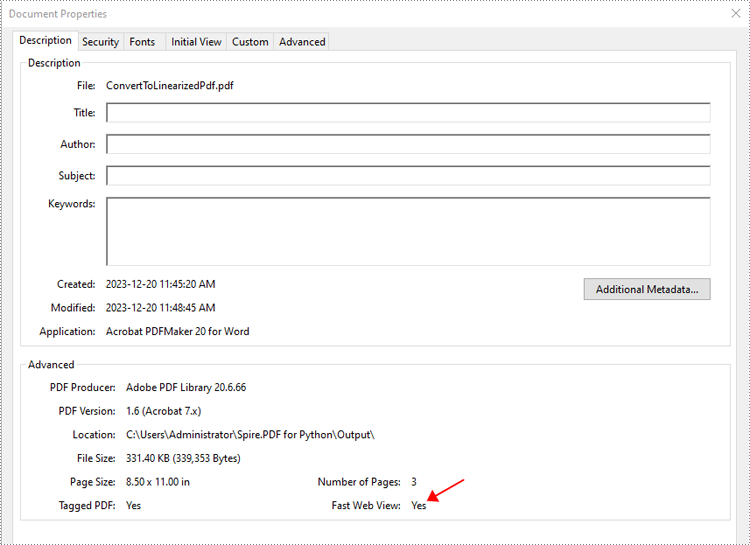
Open the result file in Adobe Acrobat and check the document properties. You will see that the value for "Fast Web View" is set to "Yes", indicating that the file has been linearized.
Apply for a Temporary License
If you'd like to remove the evaluation message from the generated documents, or to get rid of the function limitations, please request a 30-day trial license for yourself.
Handling PDF documents using bytes and bytearray provides an efficient and flexible approach within applications. By processing PDFs directly as byte streams, developers can manage documents in memory or transfer them over networks without the need for temporary file storage, optimizing space and improving overall application performance. This method also facilitates seamless integration with web services and APIs. Additionally, using bytearray allows developers to make precise byte-level modifications to PDF documents.
This article will demonstrate how to save PDFs as bytes and bytearray and load PDFs from bytes and bytearray using Spire.PDF for Python, offering practical examples for Python developers.
Install Spire.PDF for Python
This scenario requires Spire.PDF for Python and plum-dispatch v1.7.4. They can be easily installed in your Windows through the following pip command.
pip install Spire.PDF
If you are unsure how to install, please refer to: How to Install Spire.PDF for Python on Windows
Create a PDF Document and Save It to Bytes and Bytearray
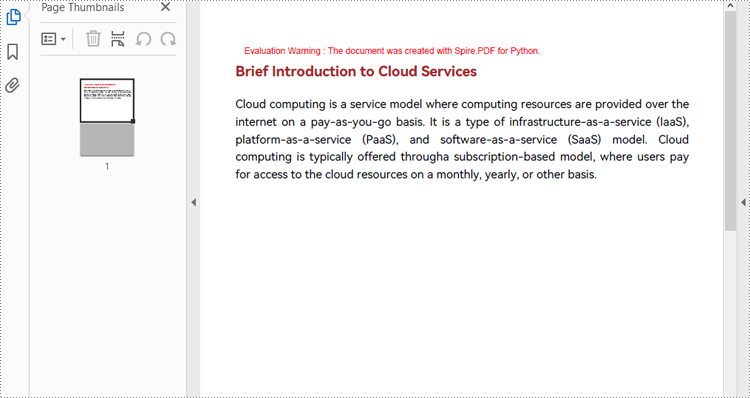
Developers can create PDF documents using the classes and methods provided by Spire.PDF for Python, save them to a Stream object, and then convert it to an immutable bytes object or a mutable bytearray object. The Stream object can also be used to perform byte-level operations.
The detailed steps are as follows:
- Create an object of PdfDocument class to create a PDF document.
- Add a page to the document and draw text on the page.
- Save the document to a Stream object using PdfDocument.SaveToStream() method.
- Convert the Stream object to a bytes object using Stream.ToArray() method.
- The bytes object can be directly converted to a bytearray object.
- Afterward, the byte streams can be used for further operations, such as writing them to a file using the BinaryIO.write() method.
- Python
from spire.pdf import *

# Create an instance of PdfDocument class
pdf = PdfDocument()

# Set the page size and margins of the document
pageSettings = pdf.PageSettings
pageSettings.Size = PdfPageSize.A4()
pageSettings.Margins.Top = 50
pageSettings.Margins.Bottom = 50
pageSettings.Margins.Left = 40
pageSettings.Margins.Right = 40

# Add a new page to the document
page = pdf.Pages.Add()

# Create fonts and brushes for the document content
titleFont = PdfTrueTypeFont("HarmonyOS Sans SC", 16.0, PdfFontStyle.Bold, True)
titleBrush = PdfBrushes.get_Brown()
contentFont = PdfTrueTypeFont("HarmonyOS Sans SC", 13.0, PdfFontStyle.Regular, True)
contentBrush = PdfBrushes.get_Black()

# Draw the title on the page
titleText = "Brief Introduction to Cloud Services"
titleSize = titleFont.MeasureString(titleText)
page.Canvas.DrawString(titleText, titleFont, titleBrush, PointF(0.0, 30.0))

# Draw the body text on the page
contentText = ("Cloud computing is a service model where computing resources are provided over the internet on a pay-as-you-go basis. "
               "It is a type of infrastructure-as-a-service (IaaS), platform-as-a-service (PaaS), and software-as-a-service (SaaS) model. "
               "Cloud computing is typically offered througha subscription-based model, where users pay for access to the cloud resources on a monthly, yearly, or other basis.")
# Set the string format of the body text
contentFormat = PdfStringFormat()
contentFormat.Alignment = PdfTextAlignment.Justify
contentFormat.LineSpacing = 20.0
# Create a TextWidget object with the body text and apply the string format
textWidget = PdfTextWidget(contentText, contentFont, contentBrush)
textWidget.StringFormat = contentFormat
# Create a TextLayout object and set the layout options
textLayout = PdfTextLayout()
textLayout.Layout = PdfLayoutType.Paginate
textLayout.Break = PdfLayoutBreakType.FitPage
# Draw the TextWidget on the page
rect = RectangleF(PointF(0.0, titleSize.Height + 50.0), page.Canvas.ClientSize)
textWidget.Draw(page, rect, textLayout)

# Save the PDF document to a Stream object
pdfStream = Stream()
pdf.SaveToStream(pdfStream)

# Convert the Stream object to a bytes object
pdfBytes = pdfStream.ToArray()

# Convert the Stream object to a bytearray object
pdfBytearray = bytearray(pdfStream.ToArray())

# Write the byte stream to a file
with open("output/PDFBytearray.pdf", "wb") as f:
    f.write(pdfBytearray)
Load a PDF Document from Byte Streams
Developers can use a bytes object of a PDF file to create a stream and load it using the PdfDocument.LoadFromStream() method. Once the PDF document is loaded, various operations such as reading, modifying, and converting the PDF can be performed. The following is an example of the steps:
- Create a bytes object with a PDF file.
- Create a Stream object using the bytes object.
- Load the Stream object as a PDF document using PdfDocument.LoadFromStream() method.
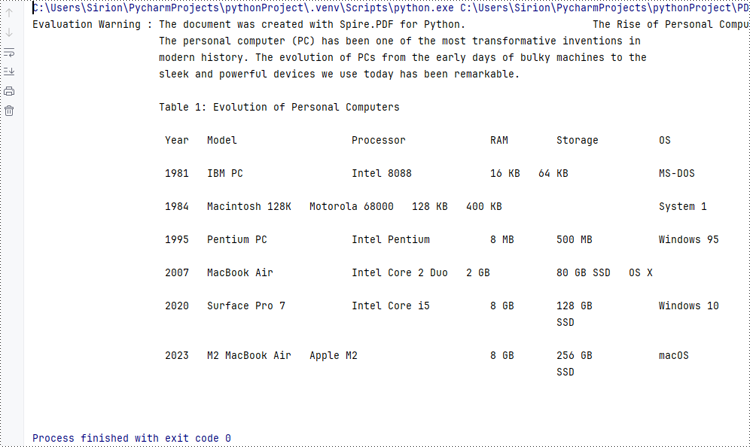
- Extract the text from the first page of the document and print the text.
- Python
from spire.pdf import *

# Create a byte array from a PDF file
with open("Sample.pdf", "rb") as f:
    byteData = f.read()

# Create a Stream object from the byte array
stream = Stream(byteData)

# Load the Stream object as a PDF document
pdf = PdfDocument(stream)

# Get the text from the first page
page = pdf.Pages.get_Item(0)
textExtractor = PdfTextExtractor(page)
extractOptions = PdfTextExtractOptions()
extractOptions.IsExtractAllText = True
text = textExtractor.ExtractText(extractOptions)

# Print the text
print(text)
Apply for a Temporary License
If you'd like to remove the evaluation message from the generated documents, or to get rid of the function limitations, please request a 30-day trial license for yourself.
PDF (Portable Document Format) files are widely used for sharing and distributing documents due to their consistent formatting and broad compatibility. However, when it comes to presentations, PowerPoint remains the preferred format for many users. PowerPoint offers a wide range of features and tools that enable the creation of dynamic, interactive, and visually appealing slideshows. Unlike static PDF documents, PowerPoint presentations allow for the incorporation of animations, transitions, multimedia elements, and other interactive components, making them more engaging and effective for delivering information to the audience.
By converting PDF to PowerPoint, you can transform a static document into a captivating and impactful presentation that resonates with your audience and helps to achieve your communication goals. In this article, we will explain how to convert PDF files to PowerPoint format in Python using Spire.PDF for Python.
Install Spire.PDF for Python
This scenario requires Spire.PDF for Python and plum-dispatch v1.7.4. They can be easily installed in your Windows through the following pip command.
pip install Spire.PDF
If you are unsure how to install, please refer to this tutorial: How to Install Spire.PDF for Python on Windows
Convert PDF to PowerPoint in Python
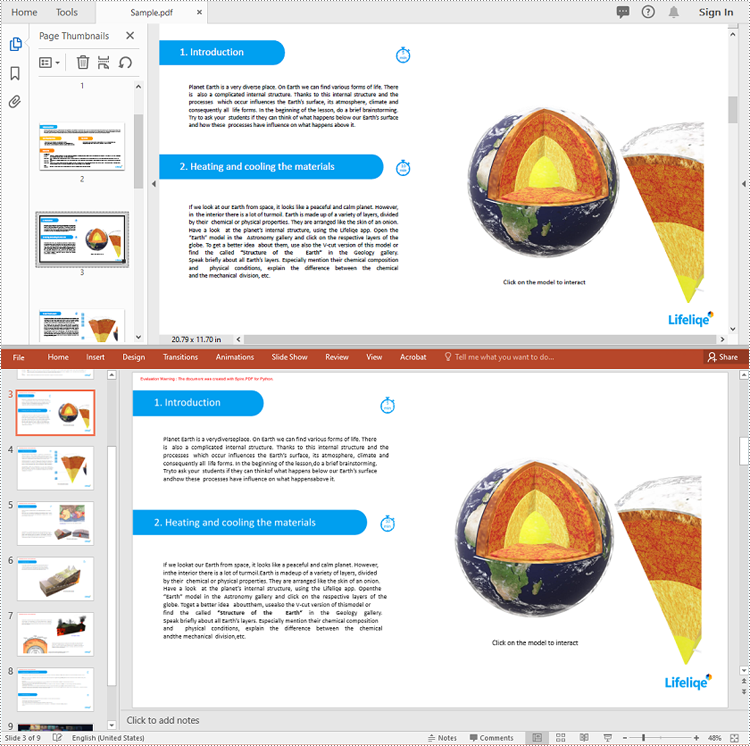
Spire.PDF for Python provides the PdfDocument.SaveToFile(filename:str, FileFormat.PPTX) method to convert a PDF document into a PowerPoint presentation. With this method, each page of the original PDF document will be converted into a single slide in the output PPTX presentation.
The detailed steps to convert a PDF document to PowerPoint format are as follows:
- Create an object of the PdfDocument class.
- Load a sample PDF document using the PdfDocument.LoadFromFile() method.
- Save the PDF document as a PowerPoint PPTX file using the PdfDocument.SaveToFile(filename:str, FileFormat.PPTX) method.
- Python
from spire.pdf.common import *
from spire.pdf import *

# Create an object of the PdfDocument class
pdf = PdfDocument()
# Load a sample PDF document
pdf.LoadFromFile("Sample.pdf")

# Save the PDF document as a PowerPoint PPTX file
pdf.SaveToFile("PdfToPowerPoint.pptx", FileFormat.PPTX)
pdf.Close()
Apply for a Temporary License
If you'd like to remove the evaluation message from the generated documents, or to get rid of the function limitations, please request a 30-day trial license for yourself.
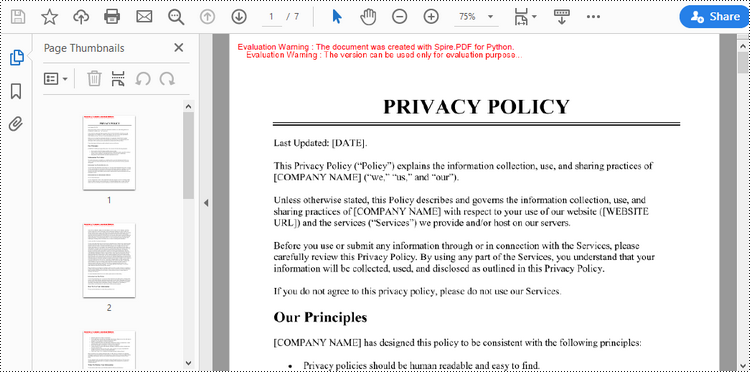
TIFF is a popular image format used in scanning and archiving due to its high quality and support for a wide range of color spaces. On the other hand, PDFs are widely used for document exchange because they preserve the layout and formatting of a document while compressing the file size. Conversion between these formats can be useful for various purposes such as archival, editing, or sharing documents.
In this article, you will learn how to convert PDF to TIFF and TIFF to PDF using the Spire.PDF for Python and Pillow libraries.
Install Spire.PDF for Python
This situation relies on the combination of Spire.PDF for Python and Pillow (PIL). Spire.PDF is used to read, create and convert PDF documents, while the PIL library is used for handling TIFF files and accessing their frames.
The libraries can be easily installed on your device through the following pip command.
pip install Spire.PDF
pip install pillow
Convert PDF to TIFF in Python
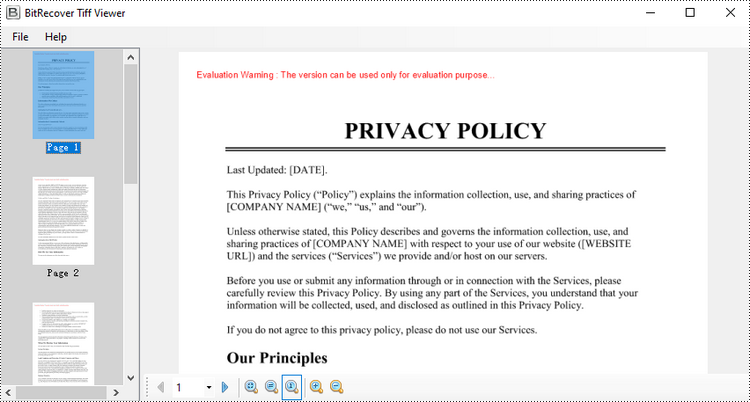
To complete the PDF to TIFF conversion, you first need to load the PDF document and convert the individual pages into image streams using Spire.PDF. Subsequently, these image streams are then merged together using the functionality of the PIL library, resulting in a consolidated TIFF image.
The following are the steps to convert PDF to TIFF using Python.
- Create a PdfDocument object.
- Load a PDF document from a specified file path.
- Iterate through the pages in the document.
- Convert each page into an image stream using PdfDocument.SaveAsImage() method.
- Convert the image stream into a PIL image.
- Combine these PIL images into a single TIFF image.
- Python
from spire.pdf.common import *
from spire.pdf import *

from PIL import Image
from io import BytesIO

# Create a PdfDocument object
doc = PdfDocument()

# Load a PDF document
doc.LoadFromFile("C:\\Users\\Administrator\\Desktop\\Input.pdf")

# Create an empty list to store PIL Images
images = []

# Iterate through all pages in the document
for i in range(doc.Pages.Count):

    # Convert a specific page to an image stream
    with doc.SaveAsImage(i) as imageData:

        # Open the image stream as a PIL image
        img = Image.open(BytesIO(imageData.ToArray()))

        # Append the PIL image to list
        images.append(img)

# Save the PIL Images as a multi-page TIFF file
images[0].save("Output/ToTIFF.tiff", save_all=True, append_images=images[1:])

# Dispose resources
doc.Dispose()
Convert TIFF to PDF in Python
With the assistance of the PIL library, you can load a TIFF file and transform each frame into distinct PNG files. Afterwards, you can utilize Spire.PDF to draw these PNG files onto pages within a PDF document.
To convert a TIFF image to a PDF document using Python, follow these steps.
- Create a PdfDocument object.
- Load a TIFF image.
- Iterate though the frames in the TIFF image.
- Get a specific frame, and save it as a PNG file.
- Add a page to the PDF document.
- Draw the image on the page at the specified location using PdfPageBase.Canvas.DrawImage() method.
- Save the document to a PDF file.
- Python
from spire.pdf.common import *
from spire.pdf import *

from PIL import Image
import io

# Create a PdfDocument object
doc = PdfDocument()

# Set the page margins to 0
doc.PageSettings.SetMargins(0.0)

# Load a TIFF image
tiff_image = Image.open("C:\\Users\\Administrator\\Desktop\\TIFF.tiff")

    # Go to the current frame
    tiff_image.seek(i)

    # Extract the image of the current frame
    frame_image = tiff_image.copy()

    # Save the image to a PNG file
    frame_image.save(f"temp/output_frame_{i}.png")

    # Load the image file to PdfImage
    image = PdfImage.FromFile(f"temp/output_frame_{i}.png")

    # Get image width and height
    width = image.PhysicalDimension.Width
    height = image.PhysicalDimension.Height

    # Add a page to the document
    page = doc.Pages.Add(SizeF(width, height))

    # Draw image at (0, 0) of the page
    page.Canvas.DrawImage(image, 0.0, 0.0, width, height)

# Save the document to a PDF file
doc.SaveToFile("Output/TiffToPdf.pdf",FileFormat.PDF)

# Dispose resources
doc.Dispose()
Apply for a Temporary License
If you'd like to remove the evaluation message from the generated documents, or to get rid of the function limitations, please request a 30-day trial license for yourself.
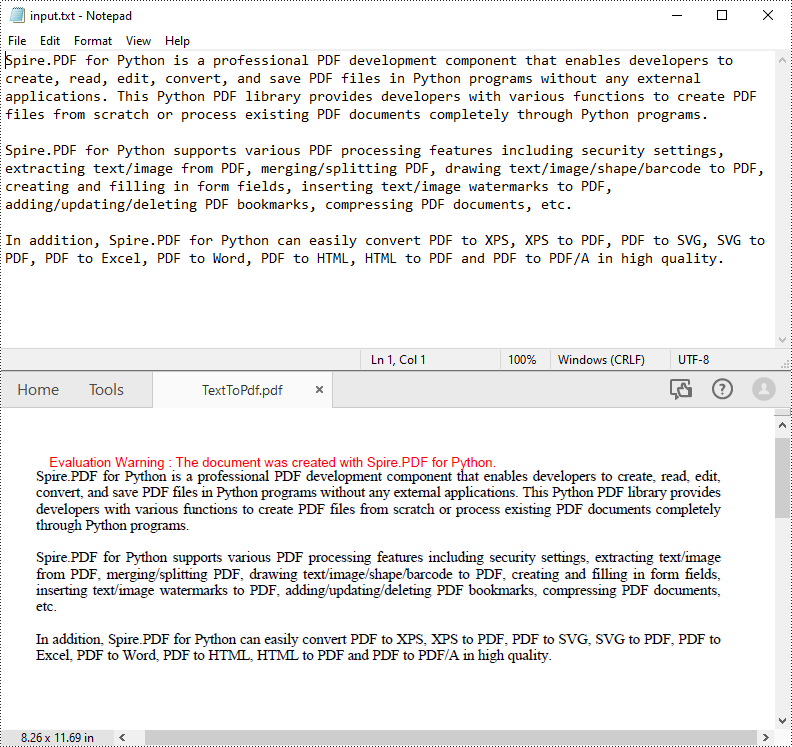
PDF is an ideal file format for sharing and archiving. If you are working with text files, you may find it beneficial to convert them to PDF files for enhanced portability, security and format preservation. In this article, you will learn how to convert TXT files to PDF in Python using Spire.PDF for Python.
Install Spire.PDF for Python
This scenario requires Spire.PDF for Python and plum-dispatch v1.7.4. They can be easily installed in your Windows through the following pip command.
pip install Spire.PDF
If you are unsure how to install, please refer to this tutorial: How to Install Spire.PDF for Python on Windows
Convert TXT to PDF with Python
Spire.PDF for Python allows to convert text files to PDF by reading the text content from the input TXT file, and then drawing it onto the pages of a PDF document. Some of the core classes and methods used are listed below:
- PdfDocument class: Represents a PDF document model.
- PdfTextWidget class: Represents the text area with the ability to span several pages.
- File.ReadAllText() method: Reads the text in the text file into a string object.
- PdfDocument.Pages.Add() method: Adds a page to a PDF document.
- PdfTextWidget.Draw() method: Draws the text widget at a specified location on the page.
The following are the detailed steps to convert TXT to PDF in Python:
- Read text from the TXT file using File.ReadAllText() method.
- Create a PdfDocument instance and add a page to the PDF file.
- Create a PDF font and brush objects.
- Set the text format and layout.
- Create a PdfTextWidget object to hold the text content.
- Draw the text widget at a specified location on the PDF page using PdfTextWidget.Draw() method.
- Save the PDF file using PdfDocument.SaveToFile() method.
- Python
from spire.pdf.common import *
from spire.pdf import *

def ReadFromTxt(fname: str) -> str:
    with open(fname, 'r') as f:
        text = f.read()
    return text

inputFile = "input.txt"
outputFile = "TextToPdf.pdf"

# Get text from the txt file
text = ReadFromTxt(inputFile)

# Create a PdfDocument instance
pdf = PdfDocument()

# Add a page
page = pdf.Pages.Add()

# Create a PDF font and PDF brush
font = PdfFont(PdfFontFamily.TimesRoman, 11.0)
brush = PdfBrushes.get_Black()

# Set the text alignment and line spacing
strformat = PdfStringFormat()
strformat.LineSpacing = 10.0
strformat.Alignment = PdfTextAlignment.Justify

# Set the text layout
textLayout = PdfTextLayout()
textLayout.Break = PdfLayoutBreakType.FitPage
textLayout.Layout = PdfLayoutType.Paginate

# Create a PdfTextWidget instance to hold the text content
textWidget = PdfTextWidget(text, font, brush)

# Set the text format
textWidget.StringFormat = strformat

# Draw the text at the specified location on the page
bounds = RectangleF(PointF(0.0, 20.0), page.Canvas.ClientSize)
textWidget.Draw(page, bounds, textLayout)

# Save the result file
pdf.SaveToFile(outputFile, FileFormat.PDF)
pdf.Close()
Apply for a Temporary License
If you'd like to remove the evaluation message from the generated documents, or to get rid of the function limitations, please request a 30-day trial license for yourself.
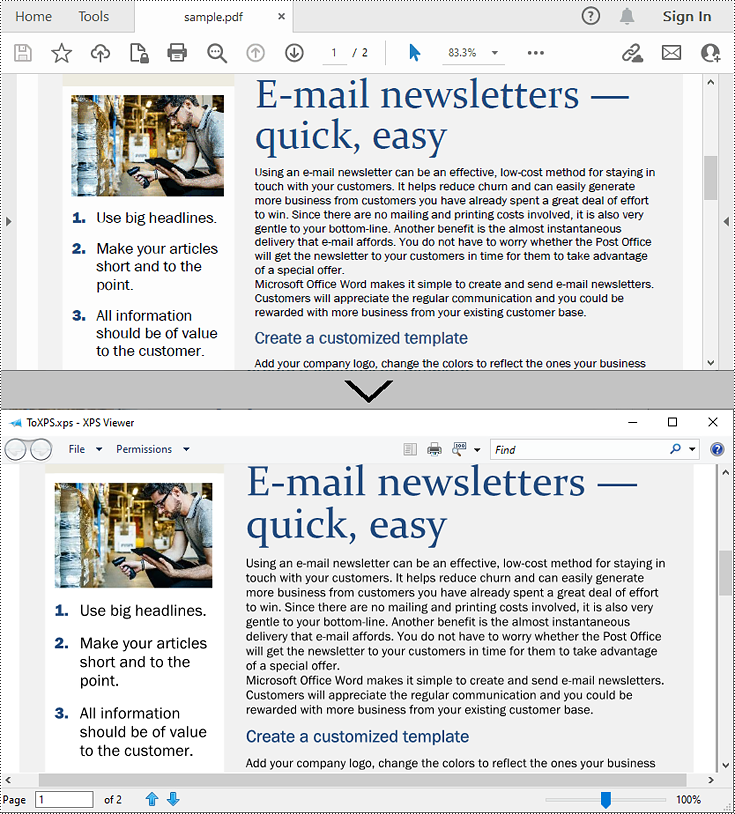
XPS, or XML Paper Specification, is a file format developed by Microsoft as an alternative to PDF (Portable Document Format). Similar to PDF, XPS is specifically designed to preserve the visual appearance and layout of documents across different platforms and devices, ensuring consistent viewing regardless of the software or hardware being used.
Converting PDF files to XPS format offers several notable benefits. Firstly, XPS files are fully supported within the Windows ecosystem. If you work in a Microsoft-centric environment that heavily relies on Windows operating systems and Microsoft applications, converting PDF files to XPS guarantees smooth compatibility and an optimized viewing experience tailored to the Windows platform.
Secondly, XPS files are optimized for printing, ensuring precise reproduction of the document on paper. This makes XPS the preferred format when high-quality printed copies of the document are required.
Lastly, XPS files are based on XML, a widely adopted standard for structured data representation. This XML foundation enables easy extraction and manipulation of content within the files, as well as seamless integration of file content with other XML-based workflows or systems.
In this article, we will demonstrate how to convert PDF files to XPS format in Python using Spire.PDF for Python.
Install Spire.PDF for Python
This scenario requires Spire.PDF for Python and plum-dispatch v1.7.4. They can be easily installed in your Windows through the following pip command.
pip install Spire.PDF
If you are unsure how to install, please refer to this tutorial: How to Install Spire.PDF for Python on Windows
Convert PDF to XPS in Python
Converting a PDF file to the XPS file format is very easy with Spire.PDF for Python. Simply load the PDF file using the PdfDocument.LoadFromFile() method, and then save the PDF file to the XPS file format using the PdfDocument.SaveToFile(filename:str, fileFormat:FileFormat) method. The detailed steps are as follows:
- Create an object of the PdfDocument class.
- Load the sample PDF file using the PdfDocument.LoadFromFile() method.
- Save the PDF file to the XPS file format using the PdfDocument.SaveToFile (filename:str, fileFormat:FileFormat) method.
- Python
from spire.pdf.common import *
from spire.pdf import *

# Specify the input and output file paths
inputFile = "sample.pdf"
outputFile = "ToXPS.xps"

# Create an object of the PdfDocument class
pdf = PdfDocument()
# Load the sample PDF file
pdf.LoadFromFile(inputFile)

# Save the PDF file to the XPS file format
pdf.SaveToFile(outputFile, FileFormat.XPS)
# Close the PdfDocument object
pdf.Close()
Apply for a Temporary License
If you'd like to remove the evaluation message from the generated documents, or to get rid of the function limitations, please request a 30-day trial license for yourself.
