
Text (19)
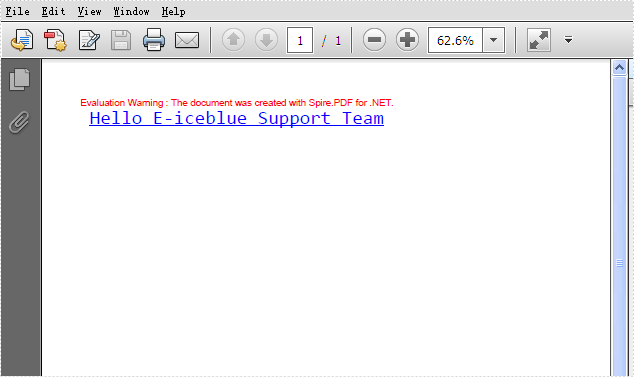
Adding text into the PDF files is one of the most important requirements for developers. With the help of Spire.PDF, developer can draw transform text, alignment text and rotate text in PDF files easily. This tutorial will show you how to add underline text in C#.
By using the method canvas.drawstring offered by Spire.PDF, developers can set the position, font, brush and style for the adding texts. With the PdfFontStyle, developers can set the style to underline, bold, italic, regular and strikeout. Here comes to the code snippet of how to add underline text in PDF.
Step 1: Create a new PDF document.
PdfDocument pdf = new PdfDocument();
Step 2: Add a new page to the PDF file.
PdfPageBase page = pdf.Pages.Add();
Step 3: Create a true type font with size 20f, underline style.
PdfTrueTypeFont font = new PdfTrueTypeFont(@"C:\WINDOWS\Fonts\CONSOLA.TTF", 20f, PdfFontStyle.Underline);
Step 4: Create a blue brush.
PdfSolidBrush brush = new PdfSolidBrush(Color.Blue);
Step 5: Draw the text string at the specified location with the specified Brush and Font objects.
page.Canvas.DrawString("Hello E-iceblue Support Team", font, brush, new PointF(10, 10));
Step 6: Save the PDF file.
pdf.SaveToFile("Result.pdf", FileFormat.PDF);
Effective screenshot:
Full codes:
using Spire.Pdf;
using Spire.Pdf.Graphics;
using System.Drawing;


namespace AddUnderlinetext
{
    class Program
    {
        static void Main(string[] args)
        {
            PdfDocument pdf = new PdfDocument();
            PdfPageBase page = pdf.Pages.Add();
            PdfTrueTypeFont font = new PdfTrueTypeFont(@"C:\WINDOWS\Fonts\CONSOLA.TTF", 20f, PdfFontStyle.Underline);
            PdfSolidBrush brush = new PdfSolidBrush(Color.Blue);
            page.Canvas.DrawString("Hello E-iceblue Support Team", font, brush, new PointF(10, 10));
            pdf.SaveToFile("Result.pdf", FileFormat.PDF);
        }
    }
}
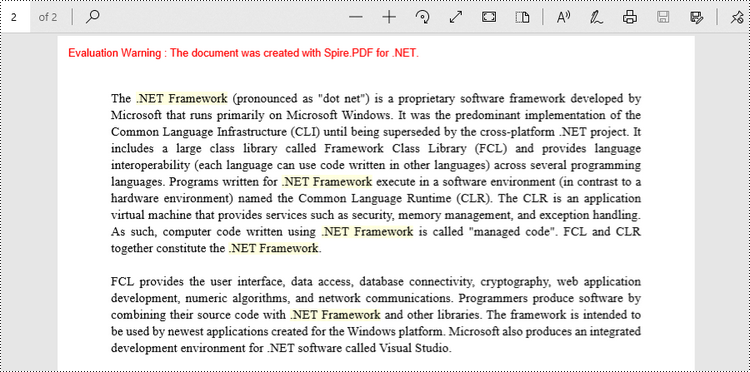
The task of searching for specific text within a PDF document and highlighting it serves as a valuable function across various situations. Whether you aim to find critical information, make annotations on significant details, or extract specific content, the capability to locate and highlight text within a PDF significantly enhances productivity and understanding.
This article provides guidance on how to effectively find and highlight text in a PDF document in C# using Spire.PDF for .NET.
- Find and Highlight Text in a Specific PDF Page in C#
- Find and Highlight Text in a Rectangular Area in C#
- Find and Highlight Text in an Entire PDF Document in C#
- Find and Highlight Text in PDF Using a Regular Expression in C#
Install Spire.PDF for .NET
To begin with, you need to add the DLL files included in the Spire.PDF for.NET package as references in your .NET project. The DLL files can be either downloaded from this link or installed via NuGet.
PM> Install-Package Spire.PDF
Find and Highlight Text in a Specific PDF Page in C#
Spire.PDF provides the PdfTextFinder class, which allows users to search for specific text within a page. By utilizing the Options property of this class, users have the ability to define search options such as WholeWord, IgnoreCase, and Regex. When utilizing the Find method of the class, users can locate all occurrences of the searched text within a page.
The following are the steps to find and highlight text in a specific PDF page in C#.
- Create a PdfDocument object.
- Load a PDF file from a given path.
- Get a specific page from the document.
- Create a PdfTextFinder object based on the page.
- Specify search options using PdfTextFinder.Options property.
- Find all instance of searched text using PdfTextFinder.Find() method.
- Iterate through the find results, and highlight each instance using PdfTextFragment.Highlight() method.
- Save the document to a different PDF file.
- C#
using Spire.Pdf;
using Spire.Pdf.Texts;
using System.Drawing;

namespace FindAndHighlightTextInPage
{
    class Program
    {
        static void Main(string[] args)
        {
            // Create a PdfDocument object
            PdfDocument doc = new PdfDocument();

            // Load a PDF file
            doc.LoadFromFile("C:\\Users\\Administrator\\Desktop\\Input.pdf");

            // Get a specific page
            PdfPageBase page = doc.Pages[1];

            // Create a PdfTextFinder object based on the page
            PdfTextFinder finder = new PdfTextFinder(page);

            // Specify the find options
            finder.Options.Parameter = TextFindParameter.WholeWord;
            finder.Options.Parameter = TextFindParameter.IgnoreCase;

            // Find the instances of the specified text
            List<PdfTextFragment> finds = finder.Find(".NET Framework");

            // Iterate through the find results
            foreach (PdfTextFragment fragment in finds)
            {
                // Highlight text
                fragment.HighLight(Color.LightYellow);
            }

            // Save to a different PDF file
            doc.SaveToFile("HighlightTextInPage.pdf", FileFormat.PDF);

            // Dispose resources
            doc.Dispose();
        }
    }
}
Find and Highlight Text in a Rectangular Area in C#
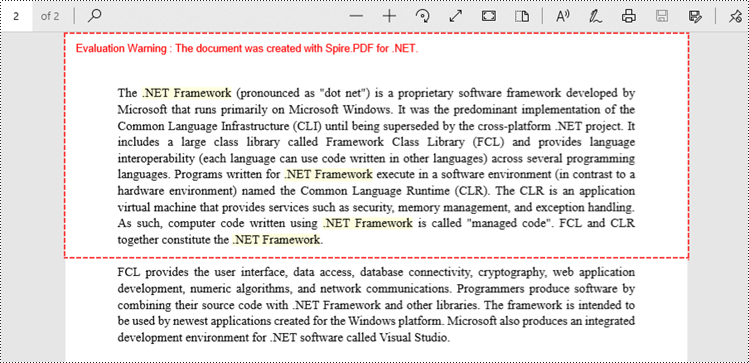
By highlighting text within a rectangular area of a page, users can draw attention to a specific section or piece of information within the document. To specify a rectangular area, you can use the Options.Area property.
The following are the steps to find and highlight text in a rectangular area in C#.
- Create a PdfDocument object.
- Load a PDF file from a given path.
- Get a specific page from the document.
- Create a PdfTextFinder object based on the page.
- Specify a rectangular area to search text using PdfTextFinder.Options.Area property.
- Find all instance of searched text within the rectangular area using PdfTextFinder.Find() method.
- Iterate through the find results, and highlight each instance using PdfTextFragment.Highlight() method.
- Save the document to a different PDF file.
- C#
using Spire.Pdf;
using Spire.Pdf.Texts;
using System.Drawing;

namespace FindAndHighlightTextInRectangularArea
{
    class Program
    {
        static void Main(string[] args)
        {
            // Create a PdfDocument object
            PdfDocument doc = new PdfDocument();

            // Load a PDF file
            doc.LoadFromFile("C:\\Users\\Administrator\\Desktop\\Input.pdf");

            // Get a specific page
            PdfPageBase page = doc.Pages[1];

            // Create a PdfTextFinder object based on the page
            PdfTextFinder finder = new PdfTextFinder(page);

            // Specify a rectangular area for searching text
            finder.Options.Area = new RectangleF(0, 0, 841, 200);

            // Specify other options
            finder.Options.Parameter = TextFindParameter.WholeWord;
            finder.Options.Parameter = TextFindParameter.IgnoreCase;

            // Find the instances of the specified text
            List<PdfTextFragment> finds = finder.Find(".NET Framework");

            // Iterate through the find results
            foreach (PdfTextFragment fragment in finds)
            {
                // Highlight text
                fragment.HighLight(Color.LightYellow);
            }

            // Save to a different PDF file
            doc.SaveToFile("HighlightTextInRectangularArea.pdf", FileFormat.PDF);

            // Dispose resources
            doc.Dispose();
        }
    }
}
Find and Highlight Text in an Entire PDF Document in C#
The initial code example illustrates how to highlight text in a specific page. To extend this functionality and find and highlight text throughout the entire document, you can iterate through each page of the document and sequentially apply the highlighting to the searched text.
The steps to find and highlight text in an entire PDF document using C# are as follows.
- Create a PdfDocument object.
- Load a PDF file from a given path.
- Iterate through each page in the document.
- Create a PdfTextFinder object based on a certain page.
- Specify search options using PdfTextFinder.Options property.
- Find all instance of searched text using PdfTextFinder.Find() method.
- Iterate through the find results, and highlight each instance using PdfTextFragment.Highlight() method.
- Save the document to a different PDF file.
- C#
using Spire.Pdf;
using Spire.Pdf.Texts;
using System.Drawing;

namespace FindAndHighlightTextInDocument
{
    class Program
    {
        static void Main(string[] args)
        {
            // Create a PdfDocument object
            PdfDocument doc = new PdfDocument();

            // Load a PDF file
            doc.LoadFromFile("C:\\Users\\Administrator\\Desktop\\Input.pdf");

            // Iterate through each page of the document
            foreach(PdfPageBase page in doc.Pages){

                // Create a PdfTextFinder object for the current page
                PdfTextFinder finder = new PdfTextFinder(page);

                // Specify the find options
                finder.Options.Parameter = TextFindParameter.WholeWord;
                finder.Options.Parameter = TextFindParameter.IgnoreCase;

                // Find the instances of the specified text
                List<PdfTextFragment> finds = finder.Find(".NET Framework");

                // Iterate through the find results
                foreach (PdfTextFragment fragment in finds)
                {
                    // Highlight text
                    fragment.HighLight(Color.LightYellow);
                }
            }

            // Save to a different PDF file
            doc.SaveToFile("HighlightAll.pdf", FileFormat.PDF);

            // Dispose resources
            doc.Dispose();
        }
    }
}
Find and Highlight Text in PDF Using a Regular Expression in C#
When searching for text in a document, using regular expressions can provide more flexibility and control over the search criteria. To utilize a regular expression, you need to configure the PdfTextFinder.Options.Parameter property to TextFindParameter.Regex, and provide the regular expression pattern as an input to the Find() method.
Here are the steps to find and highlight text in PDF using a regular expression in C#.
- Create a PdfDocument object.
- Load a PDF file from a given path.
- Iterate through each page in the document.
- Create a PdfTextFinder object based on a certain page.
- Set the PdfTextFinder.Options.Parameter property to TextFindParameter.Regex.
- Create a regular expression pattern that matches the specific text patterns you are seeking.
- Find all instance of the searched text using PdfTextFinder.Find() method.
- Iterate through the find results, and highlight each instance using PdfTextFragment.Highlight() method.
- Save the document to a different PDF file.
- C#
using Spire.Pdf;
using Spire.Pdf.Texts;
using System.Drawing;

namespace FindAndHighlightUsingRegularExpression
{
    class Program
    {
        static void Main(string[] args)
        {
            // Create a PdfDocument object
            PdfDocument doc = new PdfDocument();

            // Load a PDF file
            doc.LoadFromFile("C:\\Users\\Administrator\\Desktop\\Input.pdf");

            // Iterate through each page of the document
            foreach (PdfPageBase page in doc.Pages)
            {
                // Create a PdfTextFinder object based on the page
                PdfTextFinder finder = new PdfTextFinder(page);

                // Specify the search model as Regex
                finder.Options.Parameter = TextFindParameter.Regex;

                // Find the text that conforms to a regular expression
                string pattern = @"\bM\w*t\b";
                List<PdfTextFragment> finds = finder.Find(pattern);

                // Iterate through the find results
                foreach (PdfTextFragment fragment in finds)
                {
                    // Highlight text
                    fragment.HighLight(Color.LightYellow);
                }
            }

            // Save to a different PDF file
            doc.SaveToFile("HighlightTextUsingRegex.pdf", FileFormat.PDF);

            // Dispose resources
            doc.Dispose();
        }
    }
}
Apply for a Temporary License
If you'd like to remove the evaluation message from the generated documents, or to get rid of the function limitations, please request a 30-day trial license for yourself.
Draw text in PDF document is an important part and it is not easy to finish. With the help of Spire.PDF, a PDF component, you can not only draw text in PDF document easily for .NET and WPF, you can do this job easily for Silverlight.
We have introduced how to draw text for PDF .NET and PDF WPF. This article will give clear information of how to draw text with C# code for Silverlight.
Make sure Spire.PDF (or Spire.Office) has been installed correctly. Add Spire.PDF.dll as reference in the downloaded Bin folder though the below path: "..\Spire.PDF\Bin\Silverlight4\ Spire.PDF.dll".
Here comes to the steps:
Step 1: Create a PDF document and a page
//create a pdf document
PdfDocument document = new PdfDocument();
//create one page
PdfPageBase page = document.Pages.Add();
Step 2: Draw Text
//Draw Text - alignment
PdfFont font = new PdfFont(PdfFontFamily.Helvetica, 20f);
PdfSolidBrush brush = new PdfSolidBrush(Color.FromArgb(10, 0, 255, 0));

PdfStringFormat leftAlignment = new PdfStringFormat(PdfTextAlignment.Left, PdfVerticalAlignment.Middle);
page.Canvas.DrawString("Left!", font, brush, 0, 20, leftAlignment);
page.Canvas.DrawString("Left!", font, brush, 0, 50, leftAlignment);

PdfStringFormat rightAlignment = new PdfStringFormat(PdfTextAlignment.Right, PdfVerticalAlignment.Middle);
page.Canvas.DrawString("Right!", font, brush, page.Canvas.ClientSize.Width, 30, rightAlignment);
page.Canvas.DrawString("Right!", font, brush, page.Canvas.ClientSize.Width, 60, rightAlignment);

PdfStringFormat centerAlignment = new PdfStringFormat(PdfTextAlignment.Center, PdfVerticalAlignment.Middle);
page.Canvas.DrawString("Go! Turn Around! Go! Go! Go!", font, brush, page.Canvas.ClientSize.Width / 2, 40, centerAlignment);

//Draw the text - align in rectangle
PdfFont font = new PdfFont(PdfFontFamily.Helvetica, 10f);
PdfSolidBrush brush = new PdfSolidBrush(Color.FromArgb(10, 0, 0, 255));
RectangleF rctg1 = new RectangleF(0, 70, page.Canvas.ClientSize.Width / 2, 100);
RectangleF rctg2 = new RectangleF(page.Canvas.ClientSize.Width / 2, 70, page.Canvas.ClientSize.Width / 2, 100);
page.Canvas.DrawRectangle(new PdfSolidBrush(Color.FromArgb(1, 0, 0, 100)), rctg1);
page.Canvas.DrawRectangle(new PdfSolidBrush(Color.FromArgb(1, 0, 0, 150)), rctg2);

PdfStringFormat leftAlignment = new PdfStringFormat(PdfTextAlignment.Left, PdfVerticalAlignment.Top);
page.Canvas.DrawString("Left! Left!", font, brush, rctg1, leftAlignment);
page.Canvas.DrawString("Left! Left!", font, brush, rctg2, leftAlignment);

PdfStringFormat rightAlignment = new PdfStringFormat(PdfTextAlignment.Right, PdfVerticalAlignment.Middle);
page.Canvas.DrawString("Right! Right!", font, brush, rctg1, rightAlignment);
page.Canvas.DrawString("Right! Right!", font, brush, rctg2, rightAlignment);

PdfStringFormat centerAlignment = new PdfStringFormat(PdfTextAlignment.Center, PdfVerticalAlignment.Bottom);
page.Canvas.DrawString("Go! Turn Around! Go! Go! Go!", font, brush, rctg1, centerAlignment);
page.Canvas.DrawString("Go! Turn Around! Go! Go! Go!", font, brush, rctg2, centerAlignment);

//Draw text - brush
String text = "Go! Turn Around! Go! Go! Go!";
PdfPen pen = PdfPens.DeepSkyBlue;
PdfSolidBrush brush = new PdfSolidBrush(Color.FromArgb(10, 0, 0, 0));
PdfStringFormat format = new PdfStringFormat();
PdfFont font = new PdfFont(PdfFontFamily.Helvetica, 18f, PdfFontStyle.Italic);
SizeF size = font.MeasureString(text, format);
RectangleF rctg= new RectangleF(page.Canvas.ClientSize.Width / 2 + 10, 180,
size.Width / 3 * 2, size.Height * 2);
page.Canvas.DrawString(text, font, pen, brush, rctg, format);
Step 3: Save the document to stream
using (Stream ms = saveFiledialog.OpenFile())
{
    document.SaveToStream(ms);

}
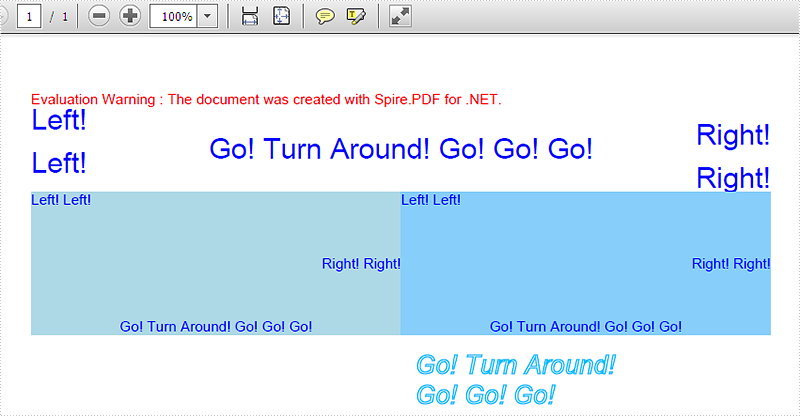
Now check the effective screenshot:
Barcodes provide a quick and efficient way to identify and track items, making them indispensable in a variety of industries. By adding barcodes to PDFs, companies can enhance their document management processes, allowing for a more streamlined way to handle and track PDF files. Additionally, this operation also enables the creation of dynamic, interactive PDF documents that not only contain traditional text and images, but also integrate the functionality of barcodes. In this article, you will learn how to add barcodes to PDF in C# using Spire.PDF for .NET and Spire.Barcode for .NET.
Install Spire.PDF for .NET
To begin with, you need to download Spire.PDF for.NET and Spire.Barcode for .NET libraries, then add the DLL files included in both product packages as references in your .NET project. Or you can install them via NuGet.
PM> Install-Package Spire.PDF
PM> Install-Package Spire.Barcode
Add Barcodes to PDF in C#
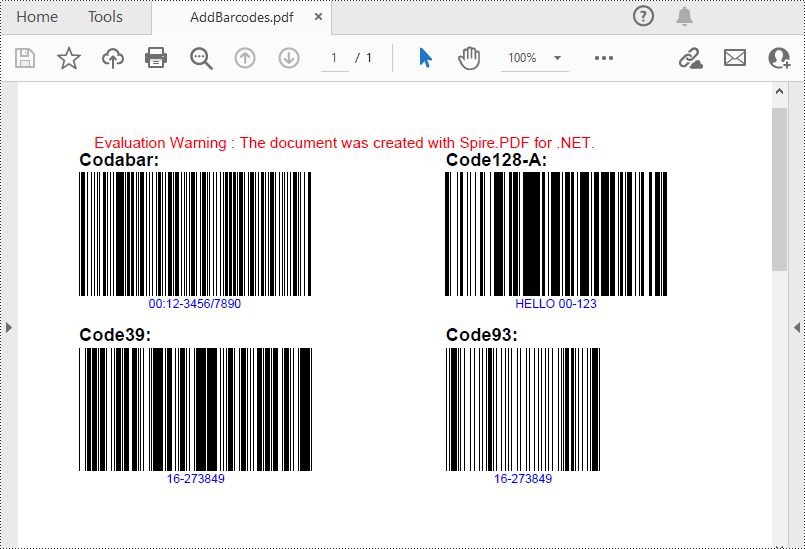
Spire.PDF for .NET support several 1D barcode types represented by different classes, such as PdfCodabarBarcode, PdfCode128ABarcode, PdfCode32Barcode, PdfCode39Barcode, PdfCode93Barcode.
Each class provides corresponding properties for setting the barcode text, size, color, etc. The following are the steps to draw the common Codabar, Code128, Code39 and Code93 barcodes at the specified locations on a PDF page.
- Create a PdfDocument object.
- Add a PDF page using PdfDocument.Pages.Add() method.
- Create a PdfTextWidget object and draw text on the page using PdfTextWidget.Draw( PdfPageBase page, float x, float y) method.
- Create PdfCodabarBarcode, PdfCode128ABarcode, PdfCode39Barcode, PdfCode93Barcode objects.
- Set the gap between the barcode and the displayed text through the BarcodeToTextGapHeight property of the corresponding classes.
- Sets the barcode text display location through the TextDisplayLocation property of the corresponding classes.
- Set the barcode text color through the TextColor property of the corresponding classes.
- Draw the barcodes at specified locations on the PDF page using the Draw(PdfPageBase page, PointF location) method of the corresponding classes.
- Save the result PDF file using PdfDocument.SaveToFile() method.
- C#
using Spire.Pdf;
using Spire.Pdf.Barcode;
using Spire.Pdf.Graphics;
using System.Drawing;

namespace PDFBarcode
{
    class Program
    {
        static void Main(string[] args)
        {
            //Create a PDF document
            PdfDocument pdf = new PdfDocument();

            //Add a page
            PdfPageBase page = pdf.Pages.Add(PdfPageSize.A4);

            //Initialize y-coordinate
            float y = 20;

            //Create a true type font
            PdfTrueTypeFont font = new PdfTrueTypeFont(new Font("Arial", 12f, FontStyle.Bold), true);

            //Draw text on the page
            PdfTextWidget text = new PdfTextWidget();
            text.Font = font;
            text.Text = "Codabar:";
            PdfLayoutResult result = text.Draw(page, 0, y);
            page = result.Page;
            y = result.Bounds.Bottom + 2;

            //Draw Codabar barcode on the page
            PdfCodabarBarcode Codabar = new PdfCodabarBarcode("00:12-3456/7890");
            Codabar.BarcodeToTextGapHeight = 1f;
            Codabar.TextDisplayLocation = TextLocation.Bottom;
            Codabar.TextColor = Color.Blue;
            Codabar.Draw(page, new PointF(0, y));

            //Draw text on the page
            text.Text = "Code128-A:";
            result = text.Draw(page, 240, 20);
            page = result.Page;
            y = result.Bounds.Bottom + 2;

            //Draw Code128-A barcode on the page
            PdfCode128ABarcode Code128 = new PdfCode128ABarcode("HELLO 00-123");
            Code128.BarcodeToTextGapHeight = 1f;
            Code128.TextDisplayLocation = TextLocation.Bottom;
            Code128.TextColor = Color.Blue;
            Code128.Draw(page, new PointF(240, y));

            //Draw text on the page
            text.Text = "Code39:";
            result = text.Draw(page, 0, Codabar.Bounds.Bottom + 8);
            page = result.Page;
            y = result.Bounds.Bottom + 2;

            //Draw Code39 barcode on the page
            PdfCode39Barcode Code39 = new PdfCode39Barcode("16-273849");
            Code39.BarcodeToTextGapHeight = 1f;
            Code39.TextDisplayLocation = TextLocation.Bottom;
            Code39.TextColor = Color.Blue;
            Code39.Draw(page, new PointF(0, y));

            //Draw text on the page
            text.Text = "Code93:";
            result = text.Draw(page, 240, Code128.Bounds.Bottom + 8);
            page = result.Page;
            y = result.Bounds.Bottom + 2;

            //Draw Code93 barcode on the page
            PdfCode93Barcode Code93 = new PdfCode93Barcode("16-273849");
            Code93.BarcodeToTextGapHeight = 1f;
            Code93.TextDisplayLocation = TextLocation.Bottom;
            Code93.TextColor = Color.Blue;
            Code93.QuietZone.Bottom = 5;
            Code93.Draw(page, new PointF(240, y));

            //Save the document
            pdf.SaveToFile("AddBarcodes.pdf");
            pdf.Close();
        }
    }
}
Add QR Codes to PDF in C#
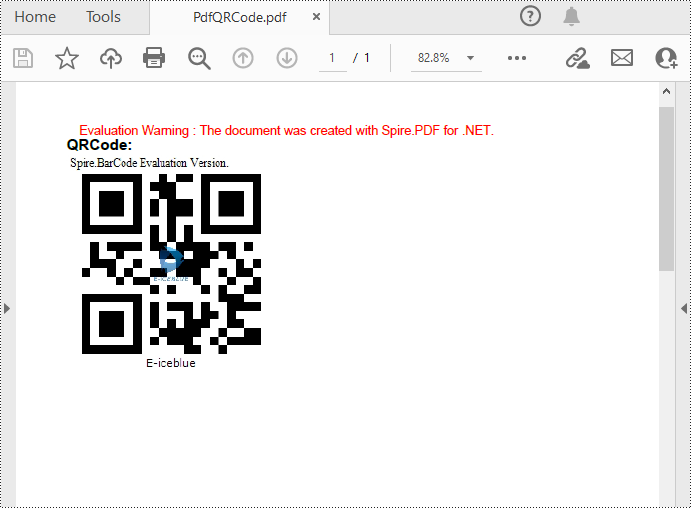
To add 2D barcodes to a PDF file, the Spire.Barcode for .NET library is required to generate QR code first, and then you can add the QR code image to the PDF file with the Spire.PDF for .NET library. The following are the detailed steps.
- Create a PdfDocument object.
- Add a PDF page using PdfDocument.Pages.Add() method.
- Create a BarcodeSettings object.
- Call the corresponding properties of the BarcodeSettings class to set the barcode type, data, error correction level and width, etc.
- Create a BarCodeGenerator object based on the settings.
- Generate QR code image using BarCodeGenerator.GenerateImage() method.
- Draw the QR code image at a specified location on the PDF page using PdfPageBase.Canvas.DrawImage(PdfImage image, float x, float y) method.
- Save the result PDF file using PdfDocument.SaveToFile() method.
- C#
using System.Drawing;
using Spire.Barcode;
using Spire.Pdf;
using Spire.Pdf.Graphics;

namespace PDFQRcode
{
    class Program
    {
        static void Main(string[] args)
        {
            //Create a PDF document
            PdfDocument pdf = new PdfDocument();
            //Add a page
            PdfPageBase page = pdf.Pages.Add();

            //Create a BarcodeSettings object
            BarcodeSettings settings = new BarcodeSettings();

            //Set the barcode type to QR Code
            settings.Type = BarCodeType.QRCode;
            //Set the data of the QR code
            settings.Data = "E-iceblue";
            settings.Data2D = "E-iceblue";
            //Set the width of the QR code
            settings.X = 2.5f;
            //Set the error correction level of the QR code
            settings.QRCodeECL = QRCodeECL.Q;
            //Set to show QR code text at the bottom
            settings.ShowTextOnBottom = true;

            //Generate QR code image based on the settings
            BarCodeGenerator generator = new BarCodeGenerator(settings);
            Image QRimage = generator.GenerateImage();

            //Initialize y-coordinate
            float y = 20;

            //Create a true type font
            PdfTrueTypeFont font = new PdfTrueTypeFont(new Font("Arial", 12f, FontStyle.Bold), true);

            //Draw text on the PDF page
            PdfTextWidget text = new PdfTextWidget();
            text.Font = font;
            text.Text = "QRCode:";
            PdfLayoutResult result = text.Draw(page, 0, y);
            y = result.Bounds.Bottom + 2;

            //Draw QR code image on the PDF page
            PdfImage pdfImage = PdfImage.FromImage(QRimage);
            page.Canvas.DrawImage(pdfImage, 0, y);

            //Save the document
            pdf.SaveToFile("PdfQRCode.pdf");
        }
    }
}
Apply for a Temporary License
If you'd like to remove the evaluation message from the generated documents, or to get rid of the function limitations, please request a 30-day trial license for yourself.
In the realm of PDF creation and editing, the ability to draw different styles of text within a PDF can greatly enhance the visual appeal and functionality of the documents. For example, you can draw transformed text to add a unique touch to the document design, or draw rotated text to create angled headings. In this article, you will learn how to draw text in PDF with different styles in C# using Spire.PDF for .NET.
Install Spire.PDF for .NET
To begin with, you need to add the DLL files included in the Spire.PDF for.NET package as references in your .NET project. The DLL files can be either downloaded from this link or installed via NuGet.
PM> Install-Package Spire.PDF
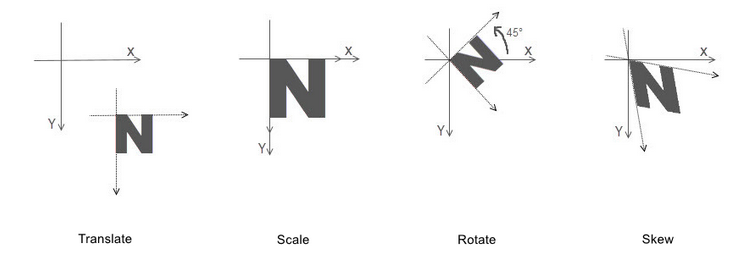
Coordinate System in Spire.PDF
The text drawn in PDF is based on the page coordinate system. When adding a new page in a PDF, the page usually consists of the content area and margins all around.
In this case, the origin of the coordinate system is located at the top left corner of the content area, with the x-axis extending horizontally to the right and the y-axis extending vertically down.

Transformation of the Coordinate System
When transforming text in PDF, you are actually transforming the coordinate system where the text is located. Spire.PDF allows to translate, scale, skew, and rotate the page coordinate. The specific methods are introduced below:
- TranslateTransform(5, 5): Translate the coordinate system 5 units to the right and 5 units downward.
- ScaleTransform(2, 2): Scale the unit lengths on both the X-axis and the Y-axis by a factor of 2.
- RotateTransform(-45): Rotate the coordinate system 45 degrees counterclockwise.
- SkewTransform(10, 10): Tilt the X-axis 10 degrees down and the Y-axis 10 degrees to the right
By mastering this background knowledge about the page coordinate system, you can use Spire.PDF more accurately to draw different styles of text in PDFs to achieve complex typography.
Draw Transformed Text in PDF in C#
To accomplish the task, you can scale or skew the coordinate system of a PDF page through the PdfPageBase.Canvas.ScaleTransform() or PdfPageBase.Canvas.SkewTransform() method, and then draw text on the transformed coordinate system. The following are the detailed steps.
- Create a PdfDocument instance.
- Add a page using PdfDocument.Pages.Add() method.
- Save the current drawing state using PdfPageBase.Canvas.Save() method.
- Specify the PDF font and brush.
- Translate the page coordinate system to the specified position using PdfPageBase.Canvas.TranslateTransform() method .
- Scale the current coordinate system using PdfPageBase.Canvas.ScaleTransform() method .
- Skew the current coordinate system using PdfPageBase.Canvas.SkewTransform() method.
- Draw text on the page based on the transformed coordinate system using PdfPageBase.Canvas.DrawString() method.
- Restore the previous drawing state using PdfPageBase.Canvas.Restore(state) method.
- Save the result file using PdfDocument.SaveToFile() method.
- C#
using Spire.Pdf;
using Spire.Pdf.Graphics;
using System.Drawing;

namespace PDFText
{
    class Program
    {
        static void Main(string[] args)
        {
            // Create a PdfDocument instance
            PdfDocument pdf = new PdfDocument();

            // Add a page
            PdfPageBase page = pdf.Pages.Add();

            // Save the current graphics state
            PdfGraphicsState state = page.Canvas.Save();

            // Specify the PDF font and brush
            PdfFont font = new PdfFont(PdfFontFamily.Helvetica, 18f);
            PdfSolidBrush brush1 = new PdfSolidBrush(Color.Green);
            PdfSolidBrush brush2 = new PdfSolidBrush(Color.Blue);
            PdfSolidBrush brush3 = new PdfSolidBrush(Color.Magenta);

            // Translate the coordinate system by specified coordinates
            page.Canvas.TranslateTransform(20, 280);

            // Scale the coordinate system by specified coordinates
            page.Canvas.ScaleTransform(1f, 0.6f);
            // Skew the coordinate system axes
            page.Canvas.SkewTransform(-10, 0);
            // Draw transformed text on the page
            page.Canvas.DrawString("A Powerful PDF Processing Library", font, brush1, 0, -30);

            // Skew the coordinate system axes
            page.Canvas.SkewTransform(10, 0);
            // Draw transformed text on the page
            page.Canvas.DrawString("A Powerful PDF Processing Library", font, brush2, 0, 0);

            //Scale the coordinate system by specified coordinates
            page.Canvas.ScaleTransform(1f, -1f);
            // Draw transformed text on the page
            page.Canvas.DrawString("A Powerful PDF Processing Library", font, brush3, 0, 0);

            // Restor graphics state
            page.Canvas.Restore(state);

            // Save the result document
            pdf.SaveToFile("TransformText.pdf");
            pdf.Close();

        }
    }
}

Draw Rotated Text in PDF in C#
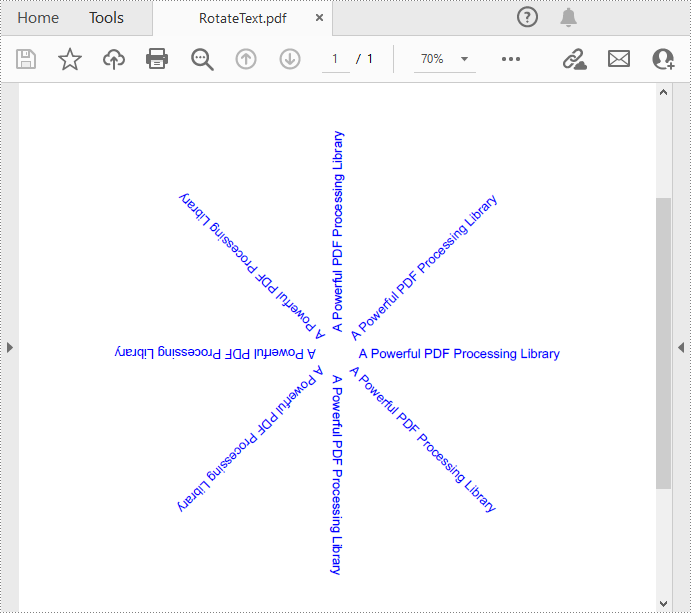
The PdfPageBase.Canvas.RotateTransform(float angle) method provided by Spire.PDF allows to rotate the page coordinate system to specified angle, and then the text drawn on the page will be presented as rotated text. The following are the detailed steps.
- Create a PdfDocument instance.
- Add a page using PdfDocument.Pages.Add() method.
- Save the current drawing state using PdfPageBase.Canvas.Save() method.
- Specify the PDF font and brush, and set PDF text alignment.
- Translate the page coordinate system to the specified position using PdfPageBase.Canvas.TranslateTransform() method.
- Rotate the coordinate system by specified degree using PdfPageBase.Canvas.RotateTransform() method.
- Draw text on the page based on the rotated coordinate system using PdfPageBase.Canvas.DrawString() method.
- Restore the previous drawing state using PdfPageBase.Canvas.Restore(state) method.
- Save the result file using PdfDocument.SaveToFile() method.
- C#
using Spire.Pdf;
using Spire.Pdf.Graphics;
using System.Drawing;

namespace PDFText
{
    class Program
    {
        static void Main(string[] args)
        {
            // Create a PdfDocument instance
            PdfDocument pdf = new PdfDocument();

            // Add a page
            PdfPageBase page = pdf.Pages.Add();

            // Save the current graphics state
            PdfGraphicsState state = page.Canvas.Save();

            // Specify the PDF font and brush
            PdfFont font = new PdfFont(PdfFontFamily.Helvetica, 12f);
            PdfSolidBrush brush = new PdfSolidBrush(Color.Blue);

            // Set PDF text alignment
            PdfStringFormat centerAlignment = new PdfStringFormat(PdfTextAlignment.Left, PdfVerticalAlignment.Middle);

            // Translate the coordinate system by specified coordinates
            page.Canvas.TranslateTransform(page.Canvas.ClientSize.Width / 2, 380);

            // Draw rotated text on the PDF page
            for (int i = 0; i < 8; i++)
            {
                page.Canvas.RotateTransform(45);
                page.Canvas.DrawString("A Powerful PDF Processing Library", font, brush, 20, 0, centerAlignment);
            }

            // Restor graphics state
            page.Canvas.Restore(state);

            // Save the result document
            pdf.SaveToFile("RotateText.pdf");
            pdf.Close();

        }
    }
}
Draw Aligned Text in PDF in C#
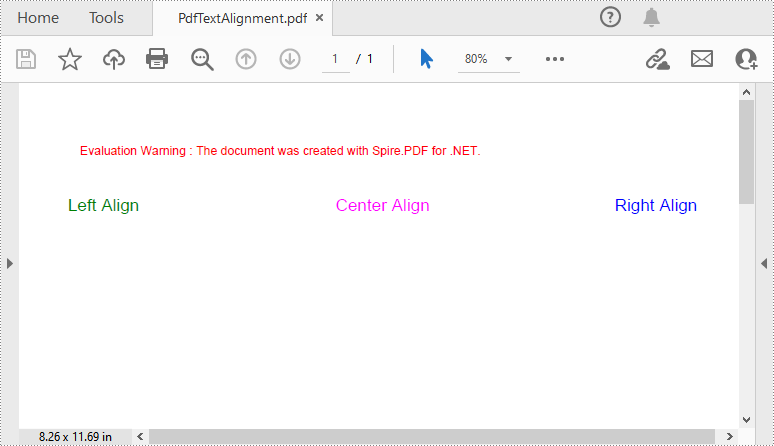
Spire.PDF for .NET provides the PdfStringFormat class to represent the text layout information. You can initialize an instance of the PdfStringFormat class and pass in two parameters PdfTextAlignment and PdfVerticalAlignment to specify a text alignment style, then draw text with the alignment style. The following are the detailed steps.
- Create a PdfDocument instance.
- Add a page using PdfDocument.Pages.Add() method.
- Save the current drawing state using PdfPageBase.Canvas.Save() method.
- Specify the PDF font and brush.
- Create a PdfStringFormat instance and pass in the PdfTextAlignment and PdfVerticalAlignment parameters to specify the text alignment style.
- Draw text with the specified alignment style on the PDF page using PdfPageBase.Canvas.DrawString() method.
- Save the result file using PdfDocument.SaveToFile() method.
- C#
using Spire.Pdf;
using Spire.Pdf.Graphics;
using System.Drawing;

namespace PDFText
{
    class Program
    {
        static void Main(string[] args)
        {
            // Create a PdfDocument instance
            PdfDocument pdf = new PdfDocument();

            // Add a page
            PdfPageBase page = pdf.Pages.Add();

            // Specify the PDF font and brush
            PdfFont font = new PdfFont(PdfFontFamily.Helvetica, 14f);
            PdfSolidBrush brush1 = new PdfSolidBrush(Color.Green);
            PdfSolidBrush brush2 = new PdfSolidBrush(Color.Blue);
            PdfSolidBrush brush3 = new PdfSolidBrush(Color.Magenta);

            // Draw left-aligned text on the PDF page
            PdfStringFormat leftAlignment = new PdfStringFormat(PdfTextAlignment.Left, PdfVerticalAlignment.Middle);
            page.Canvas.DrawString("Left Align", font, brush1, 0, 60, leftAlignment);

            // Draw right-aligned text on the PDF page
            PdfStringFormat rightAlignment = new PdfStringFormat(PdfTextAlignment.Right, PdfVerticalAlignment.Middle);
            page.Canvas.DrawString("Right Align", font, brush2, page.Canvas.ClientSize.Width, 60, rightAlignment);

            // Draw center-aligned text on the PDF page
            PdfStringFormat centerAlignment = new PdfStringFormat(PdfTextAlignment.Center, PdfVerticalAlignment.Middle);
            page.Canvas.DrawString("Center Align", font, brush3, page.Canvas.ClientSize.Width / 2, 60, centerAlignment);

            // Save the result document
            pdf.SaveToFile("PdfTextAlignment.pdf");
            pdf.Close();

        }
    }
}
Apply for a Temporary License
If you'd like to remove the evaluation message from the generated documents, or to get rid of the function limitations, please request a 30-day trial license for yourself.
