For PDF documents that contain confidential or sensitive information, you may want to password protect these documents to ensure that only the designated person can access the information. This article will demonstrate how to programmatically encrypt a PDF document and decrypt a password-protected document using Spire.PDF for Java.
Install Spire.PDF for Java
First of all, you're required to add the Spire.Pdf.jar file as a dependency in your Java program. The JAR file can be downloaded from this link. If you use Maven, you can easily import the JAR file in your application by adding the following code to your project's pom.xml file.
<repositories>
    <repository>
        <id>com.e-iceblue</id>
        <name>e-iceblue</name>
        <url>https://repo.e-iceblue.com/nexus/content/groups/public/</url>
    </repository>
</repositories>
<dependencies>
    <dependency>
        <groupId>e-iceblue</groupId>
        <artifactId>spire.pdf</artifactId>
        <version>12.3.9</version>
    </dependency>
</dependencies>
Encrypt a PDF File with Password
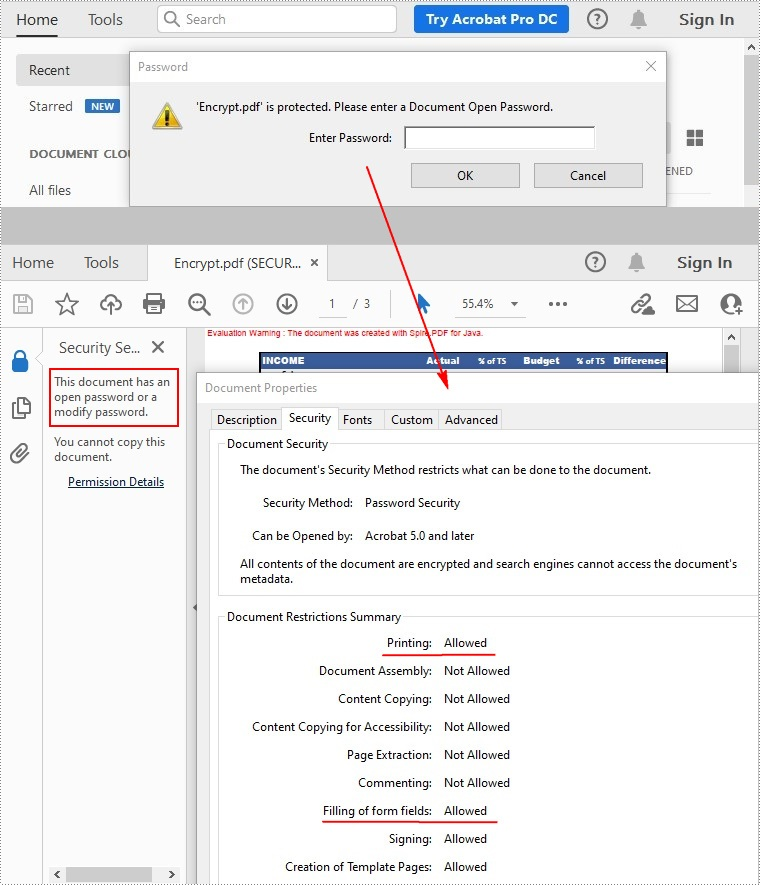
There are two kinds of passwords for encrypting a PDF file - open password and permission password. The former is set to open the PDF file, while the latter is set to restrict printing, contents copying, commenting, etc. If a PDF file is secured with both types of passwords, it can be opened with either password.
The PdfDocument.getSecurity().encrypt(java.lang.String openPassword, java.lang.String permissionPassword, java.util.EnumSet<PdfPermissionsFlags> permissions, PdfEncryptionKeySize keySize) method offered by Spire.PDF for Java allows you to set both open password and permission password to encrypt PDF files. The detailed steps are as follows.
- Create a PdfDocument instance.
- Load a sample PDF file using PdfDocument.loadFromFile() method.
- Set open password, permission password, encryption key size and permissions.
- Encrypt the PDF file using PdfDocument.getSecurity().encrypt(java.lang.String openPassword, java.lang.String permissionPassword, java.util.EnumSet<PdfPermissionsFlags> permissions, PdfEncryptionKeySize keySize) method.
- Save the result file using PdfDocument.saveToFile () method.
- Java
import java.util.EnumSet;

import com.spire.pdf.PdfDocument;
import com.spire.pdf.security.PdfEncryptionKeySize;
import com.spire.pdf.security.PdfPermissionsFlags;

public class EncryptPDF {

    public static void main(String[] args) {

        // Input file path
        String input = "data/encryption.pdf";

        // Output file path
        String output = "output/encryption_output.pdf";

        // Create a new PDF document object
        PdfDocument doc = new PdfDocument();

        // Load the PDF document from the input file path
        doc.loadFromFile(input);

        // Create a password-based security policy with open and permission passwords
        PdfSecurityPolicy securityPolicy = new PdfPasswordSecurityPolicy("openPwd", "permissionPwd");

        // Set the encryption algorithm to AES 256-bit
        securityPolicy.setEncryptionAlgorithm(PdfEncryptionAlgorithm.AES_256);

        // Set document privilege to forbid all actions
        securityPolicy.setDocumentPrivilege(PdfDocumentPrivilege.getForbidAll());

        // Allow degraded printing
        securityPolicy.getDocumentPrivilege().setAllowDegradedPrinting(true);

        // Allow modification of annotations
        securityPolicy.getDocumentPrivilege().setAllowModifyAnnotations(true);

        // Allow document assembly
        securityPolicy.getDocumentPrivilege().setAllowAssembly(true);

        // Allow modification of document contents
        securityPolicy.getDocumentPrivilege().setAllowModifyContents(true);

        // Allow filling form fields
        securityPolicy.getDocumentPrivilege().setAllowFillFormFields(true);

        // Allow printing
        securityPolicy.getDocumentPrivilege().setAllowPrint(true);

        // Allow printing
        doc.encrypt(securityPolicy);

        // Save the encrypted document to the output file path
        doc.saveToFile(output, FileFormat.PDF);

        // Dispose of the document resources
        doc.dispose();

    }

}
Remove Password to Decrypt a PDF File
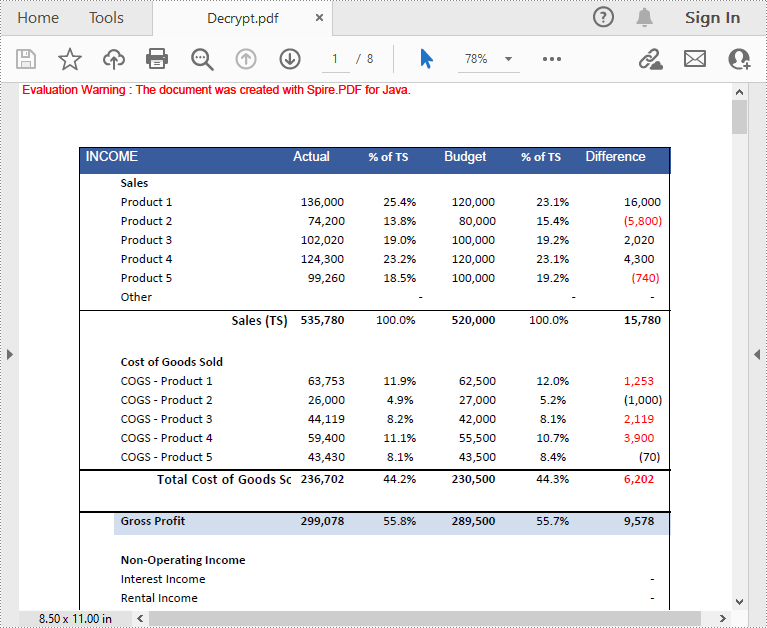
When you need to remove the password from a PDF file, you can set the open password and permission password to empty while calling the PdfDocument.getSecurity().encrypt(java.lang.String openPassword, java.lang.String permissionPassword, java.util.EnumSet<PdfPermissionsFlags> permissions, PdfEncryptionKeySize keySize, java.lang.String originalPermissionPassword) method. The detailed steps are as follows.
- Create a PdfDocument object.
- Load the encrypted PDF file with password using PdfDocument.loadFromFile(java.lang.String filename, java.lang.String password) method.
- Decrypt the PDF file by setting the open password and permission password to empty using PdfDocument.getSecurity().encrypt(java.lang.String openPassword, java.lang.String permissionPassword, java.util.EnumSet<PdfPermissionsFlags> permissions, PdfEncryptionKeySize keySize, java.lang.String originalPermissionPassword) method.
- Save the result file using PdfDocument.saveToFile() method.
- Java
import com.spire.pdf.PdfDocument;
import com.spire.pdf.security.PdfEncryptionKeySize;
import com.spire.pdf.security.PdfPermissionsFlags;

public class DecryptPDF {

    public static void main(String[] args) throws Exception {

        // Specify the input and output file paths
        String input = "data/decryption.pdf";
        String output = "output/decryption_result.pdf";

        //load the pdf document.
        PdfDocument doc = new PdfDocument();
        doc.loadFromFile(input, "test");

        //decrypt the document
        doc.decrypt();

        //save the file
        doc.saveToFile(output, FileFormat.PDF);

        // Close the PDF document to release resources
        doc.close();

        // Dispose of the PDF document to free up system resources
        doc.dispose();

    }
}
Apply for a Temporary License
If you'd like to remove the evaluation message from the generated documents, or to get rid of the function limitations, please request a 30-day trial license for yourself.
