Tables are a common element for carrying structured content in a presentation, and where a table sits on the slide directly affects the balance of the layout: pinned to a page edge, centered, or lined up with other elements, each reads differently. Dragging a table into place by hand is rarely precise, and it is hard to land it exactly on the layout's center line.
This article uses Spire.Presentation for JavaScript to adjust where a PowerPoint table sits on a slide in the browser. The whole process runs locally on the user's device through WebAssembly, requires no Office installation and no back-end service, and keeps the presentation from leaving the browser.
The two core features covered are:
For installation and project configuration, see Integrating Spire.Presentation for JavaScript in a React Project. The examples below assume that Spire.Presentation for JavaScript is installed and the WebAssembly module has been initialized.
Set the horizontal alignment of a PowerPoint table
Horizontal alignment decides whether a table is pinned to the left of the slide, centered, or pinned to the right. When a table on a page must line up with the layout's center line, or sit consistently on one side, dragging it rarely gives a precise position; specifying it once with SetShapeAlignment sends the table to the matching horizontal position on the slide. The three values correspond to flush left, horizontal center, and flush right.
| Code | Result |
|---|---|
table.SetShapeAlignment(ShapeAlignment.AlignLeft) |
The table's left edge aligns with the slide's left edge |
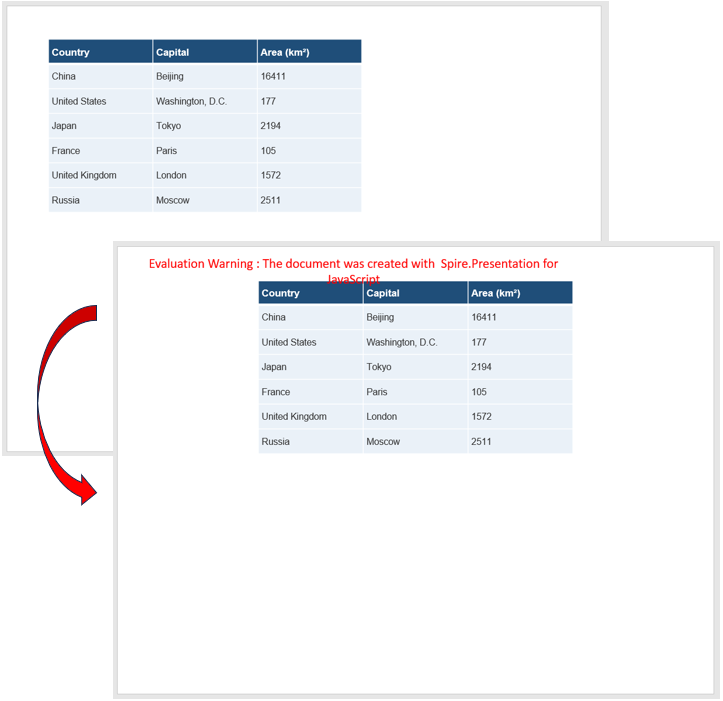
table.SetShapeAlignment(ShapeAlignment.AlignCenter) |
The table is centered horizontally on the slide |
table.SetShapeAlignment(ShapeAlignment.AlignRight) |
The table's right edge aligns with the slide's right edge |
The steps are:
- Get the Spire.Presentation WASM module and confirm it is ready, load the presentation into the VFS, then open it with
LoadFromFile()and get the first slide. - Iterate over
slide.Shapes, test whether a shape is a table withshape instanceof pptModule.ITable, and get the table object. - Call
SetShapeAlignment()withShapeAlignment.AlignCenterto center the table horizontally on the slide; useAlignLeftorAlignRightfor the left or right edge. - Call
Presentation.SaveToFile()to save the result file, release the presentation withDispose(), then read the file from the VFS and trigger the download.
The code for setting the horizontal alignment of a PowerPoint table is shown below:
function App() {
  // set the horizontal alignment of a PowerPoint table
  const alignHorizontally = async () => {
    // get the Spire.Presentation WASM module
    const pptModule = window.wasmModule?.spirepresentation;

    // check whether the module is ready
    if (!pptModule) {
      alert('Spire.Presentation is not ready yet');
      return;
    }

    // load the presentation into the VFS
    const inputFileName = 'en_TableAlignment.pptx';
    await window.spire.FetchFileToVFS(inputFileName, '', `${process.env.PUBLIC_URL}/data/`);

    // open the presentation and get the first slide
    const ppt = new pptModule.Presentation();
    ppt.LoadFromFile(inputFileName);
    const slide = ppt.Slides.get_Item(0);

    // iterate over the shapes and find the table by type
    let table = null;
    for (let i = 0; i < slide.Shapes.Count; i++) {
      const shape = slide.Shapes.get_Item(i);
      if (shape instanceof pptModule.ITable) {
        table = shape;
        break;
      }
    }

    // center the table horizontally on the slide (or use AlignLeft / AlignRight for the left / right edge)
    table.SetShapeAlignment(pptModule.ShapeAlignment.AlignCenter);

    // save the result file
    const outputFileName = 'HorizontalAlignment_result.pptx';
    ppt.SaveToFile({ file: outputFileName, fileFormat: pptModule.FileFormat.Pptx2013 });
    ppt.Dispose();

    // read the generated file from the VFS and trigger the download
    downloadFile(outputFileName);
  };

  // read the generated file from the VFS and trigger the download
  const downloadFile = (outputFileName) => {
    const fileArray = window.dotnetRuntime.Module.FS.readFile(outputFileName);
    const blob = new Blob([fileArray], { type: 'application/vnd.openxmlformats-officedocument.presentationml.presentation' });
    const url = URL.createObjectURL(blob);
    const a = document.createElement('a');
    a.href = url;
    a.download = outputFileName;
    a.click();
    URL.revokeObjectURL(url);
  };

  return (
    <div style={{ textAlign: 'center', height: '300px' }}>
      <h1>Align PowerPoint Tables</h1>
      <button onClick={alignHorizontally}>Horizontal</button>
    </div>
  );
}

export default App;
The presentation after centering the table horizontally:
Set the vertical alignment of a PowerPoint table
Vertical alignment decides whether a table is pinned to the top of the slide, centered, or pinned to the bottom. When a table is shorter than the page and there is plenty of whitespace above and below, this difference is the most visible: a top-aligned table hugs the upper edge, a centered one falls in the middle, and a bottom-aligned one sits near the lower edge. It only adjusts the vertical position and leaves the table's horizontal placement untouched.
| Code | Result |
|---|---|
table.SetShapeAlignment(ShapeAlignment.AlignTop) |
The table's top edge aligns with the slide's top edge |
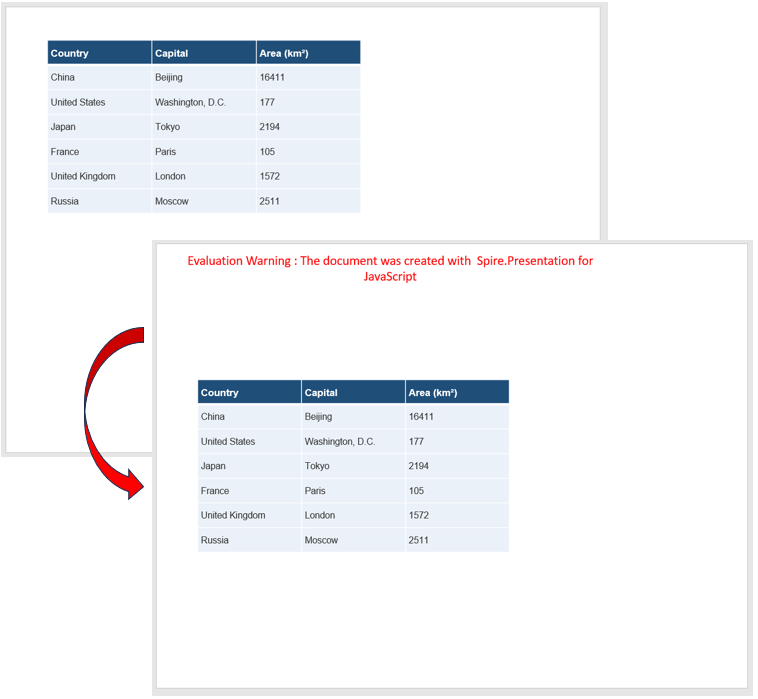
table.SetShapeAlignment(ShapeAlignment.AlignMiddle) |
The table is centered vertically on the slide |
table.SetShapeAlignment(ShapeAlignment.AlignBottom) |
The table's bottom edge aligns with the slide's bottom edge |
The steps are:
- Get the Spire.Presentation WASM module and confirm it is ready, load the presentation into the VFS, then open it with
LoadFromFile()and get the first slide. - Iterate over
slide.Shapes, test whether a shape is a table withshape instanceof pptModule.ITable, and get the table object. - Call
SetShapeAlignment()withShapeAlignment.AlignMiddleto center the table vertically on the slide; useAlignToporAlignBottomfor the top or bottom edge. - Call
Presentation.SaveToFile()to save the result file, release the presentation withDispose(), then read the file from the VFS and trigger the download.
The code for setting the vertical alignment of a PowerPoint table is shown below:
function App() {
  // set the vertical alignment of a PowerPoint table
  const alignVertically = async () => {
    // get the Spire.Presentation WASM module
    const pptModule = window.wasmModule?.spirepresentation;

    // check whether the module is ready
    if (!pptModule) {
      alert('Spire.Presentation is not ready yet');
      return;
    }

    // load the presentation into the VFS
    const inputFileName = 'en_TableAlignment.pptx';
    await window.spire.FetchFileToVFS(inputFileName, '', `${process.env.PUBLIC_URL}/data/`);

    // open the presentation and get the first slide
    const ppt = new pptModule.Presentation();
    ppt.LoadFromFile(inputFileName);
    const slide = ppt.Slides.get_Item(0);

    // iterate over the shapes and find the table by type
    let table = null;
    for (let i = 0; i < slide.Shapes.Count; i++) {
      const shape = slide.Shapes.get_Item(i);
      if (shape instanceof pptModule.ITable) {
        table = shape;
        break;
      }
    }

    // center the table vertically on the slide (or use AlignTop / AlignBottom for the top / bottom edge)
    table.SetShapeAlignment(pptModule.ShapeAlignment.AlignMiddle);

    // save the result file
    const outputFileName = 'VerticalAlignment_result.pptx';
    ppt.SaveToFile({ file: outputFileName, fileFormat: pptModule.FileFormat.Pptx2013 });
    ppt.Dispose();

    // read the generated file from the VFS and trigger the download
    downloadFile(outputFileName);
  };

  // read the generated file from the VFS and trigger the download
  const downloadFile = (outputFileName) => {
    const fileArray = window.dotnetRuntime.Module.FS.readFile(outputFileName);
    const blob = new Blob([fileArray], { type: 'application/vnd.openxmlformats-officedocument.presentationml.presentation' });
    const url = URL.createObjectURL(blob);
    const a = document.createElement('a');
    a.href = url;
    a.download = outputFileName;
    a.click();
    URL.revokeObjectURL(url);
  };

  return (
    <div style={{ textAlign: 'center', height: '300px' }}>
      <h1>Align PowerPoint Tables</h1>
      <button onClick={alignVertically}>Vertical</button>
    </div>
  );
}

export default App;
The presentation after centering the table vertically:
FAQ
How to center a table both horizontally and vertically on the slide
Cause: SetShapeAlignment adjusts only one direction per call — AlignCenter handles horizontal centering and AlignMiddle handles vertical centering — so a single call cannot do both at once.
Resolution: Call AlignCenter and then AlignMiddle on the same table; the two settings stack and the table lands in the center of the slide:
table.SetShapeAlignment(pptModule.ShapeAlignment.AlignCenter);
table.SetShapeAlignment(pptModule.ShapeAlignment.AlignMiddle);
How to place a table at an arbitrary coordinate
Cause: SetShapeAlignment only offers relative positions such as edge and center, and cannot target an arbitrary precise coordinate.
Resolution: Assign point values directly to table.Left and table.Top to place the table at a specified position on the slide, for example:
table.Left = 200;
table.Top = 120;
Does alignment, which only changes position, affect the text and style inside the table
Cause: SetShapeAlignment adjusts the position of the table as a whole on the slide, and acts on the shape itself.
Resolution: A table's cell text, fonts, fills and borders are not affected by the alignment operation, and the cell text stays the same before and after; to adjust the content or formatting as well, set the cell properties separately.
Get a Free License
If you wish to delete the evaluation message from the resulting documents, or to get rid of function limitations, please contact sales to obtain a valid 30-day temporary license.
