By default, Excel displays the same header and footer at the top and bottom of every page. However, when printing formal reports, manuals, or theses, it is often necessary for different pages to show different headers and footers — for example, odd and even pages can use different headers, or the first page can have no header/footer while only the body pages show the page number. Spire.XLS for JavaScript completes this directly in the browser based on WebAssembly, managing input/output files through a virtual file system (VFS), with no backend service required.
This article introduces two core features:
- Set Different Headers and Footers for Odd and Even Pages
- Set a Different Header and Footer on the First Page
For installation and project configuration, refer to Integrating Spire.XLS for JavaScript in a React Project. The examples below assume Spire.XLS is installed and the WebAssembly module is initialized.
Set Different Headers and Footers for Odd and Even Pages
In books, papers or reports printed on both sides of the page, odd and even pages usually use different headers and footers, for example the header of odd pages shows the chapter name and the header of even pages shows the book title. To set different headers and footers for odd and even pages with Spire.XLS for JavaScript, follow these steps:
- Create a
Workbookobject and use theLoadFromFile()method to load the Excel file. - Use the
Workbook.Worksheets.get()method to get the specified worksheet. - Set the
PageSetup.DifferentOddEvenproperty to1to enable different headers and footers for odd and even pages. - Use the
PageSetup.OddHeaderStringandPageSetup.OddFooterStringproperties to set the header and footer of odd pages. - Use the
PageSetup.EvenHeaderStringandPageSetup.EvenFooterStringproperties to set the header and footer of even pages. - Use the
Workbook.SaveToFile()method to save the workbook.
Here is a complete code example showing how to set different headers and footers for the odd and even pages of a worksheet in React (the sample input file contains data that spans multiple pages, making it easy to observe the effect on different pages):
function App() {
  const setOddEvenHeaderFooter = async () => {
    // Get the Spire.XLS WASM module
    const xlsModule = window.wasmModule?.spirexls;

    // Check whether the module is ready
    if (!xlsModule) {
      alert('Spire.Xls is not ready yet');
      return;
    }

    // Load the font and Excel file into the VFS
    await window.spire.FetchFileToVFS('ARIAL.TTF', '/Library/Fonts/', `${process.env.PUBLIC_URL}/font/`);
    const inputFileName = 'DifferentHeaderFooter.xlsx';
    await window.spire.FetchFileToVFS(inputFileName, '', `${process.env.PUBLIC_URL}data/`);

    // Load the workbook
    const workbook = new xlsModule.Workbook();
    workbook.LoadFromFile({ fileName: inputFileName });

    // Get the first worksheet
    const sheet = workbook.Worksheets.get(0);

    // Enable different headers and footers for odd and even pages
    sheet.PageSetup.DifferentOddEven = 1;

    // Set the header and footer for odd pages (orange, bold)
    sheet.PageSetup.OddHeaderString = "&\"Arial\"&12&B&KFFC000Odd Page Header";
    sheet.PageSetup.OddFooterString = "&\"Arial\"&12&B&KFFC000Odd Page Footer";

    // Set the header and footer for even pages (red, bold)
    sheet.PageSetup.EvenHeaderString = "&\"Arial\"&12&B&KFF0000Even Page Header";
    sheet.PageSetup.EvenFooterString = "&\"Arial\"&12&B&KFF0000Even Page Footer";

    // Switch to Page Layout view to preview the header and footer
    sheet.ViewMode = xlsModule.ViewMode.Layout;

    // Save the document
    const outputFileName = 'DifferentHeaderFooterOddEven_output.xlsx';
    workbook.SaveToFile({ fileName: outputFileName, version: xlsModule.ExcelVersion.Version2010 });

    // Release resources
    workbook.Dispose();

    // Read the converted file from the VFS and trigger a download
    const fileArray = window.dotnetRuntime.Module.FS.readFile(outputFileName);
    const blob = new Blob([fileArray], { type: 'application/vnd.openxmlformats-officedocument.spreadsheetml.sheet' });
    const url = URL.createObjectURL(blob);
    const a = document.createElement('a');
    a.href = url;
    a.download = outputFileName;
    a.click();
    URL.revokeObjectURL(url);
  };

  return (
    <div style={{ textAlign: 'center', height: '300px' }}>
      <h1>Set Different Header and Footer for Odd and Even Pages</h1>
      <button onClick={setOddEvenHeaderFooter}>
        Start
      </button>
    </div>
  );
}

export default App;
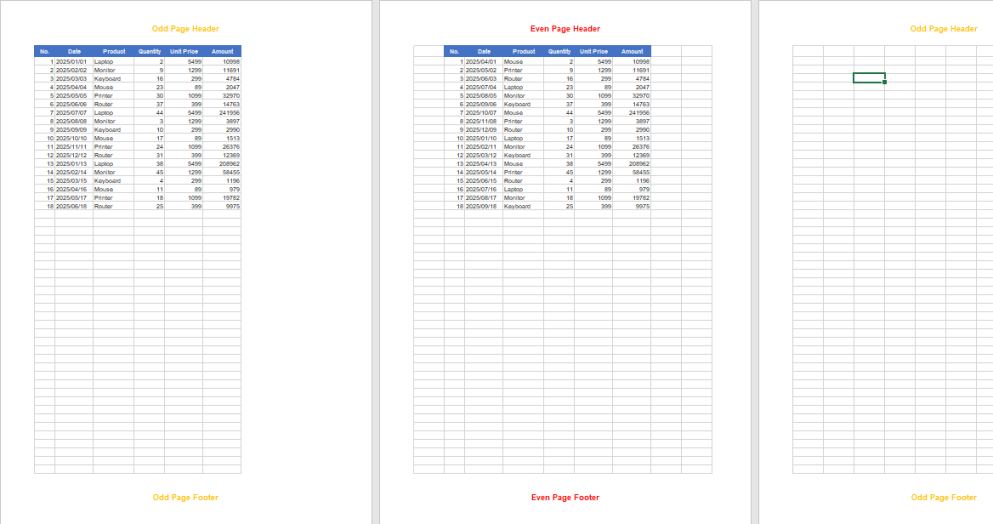
After this setting, different headers and footers are applied to odd and even pages.
Set a Different Header and Footer on the First Page
Many formal documents require the first page (cover page) to display no header/footer or a dedicated header/footer, while the body pages display a header and footer carrying document information. In this case, you can enable "different first page" and set the header and footer of the first page separately. The steps are as follows:
- Create a
Workbookobject and use theLoadFromFile()method to load the Excel file. - Use the
Workbook.Worksheets.get()method to get the specified worksheet. - Set the
PageSetup.DifferentFirstproperty to1to enable a header and footer on the first page that differ from those on the other pages. - Use the
PageSetup.FirstHeaderStringandPageSetup.FirstFooterStringproperties to set the header and footer of the first page. - Use properties such as
PageSetup.LeftHeaderandPageSetup.CenterFooterto set the header and footer of the other pages. - Use the
Workbook.SaveToFile()method to save the workbook.
Here is a complete code example showing how to set a different header and footer on the first page of a worksheet in React:
function App() {
  const setFirstPageHeaderFooter = async () => {
    // Get the Spire.XLS WASM module
    const xlsModule = window.wasmModule?.spirexls;

    // Check whether the module is ready
    if (!xlsModule) {
      alert('Spire.Xls is not ready yet');
      return;
    }

    // Load the font and Excel file into the VFS
    await window.spire.FetchFileToVFS('ARIAL.TTF', '/Library/Fonts/', `${process.env.PUBLIC_URL}/font/`);
    const inputFileName = 'DifferentHeaderFooter.xlsx';
    await window.spire.FetchFileToVFS(inputFileName, '', `${process.env.PUBLIC_URL}data/`);

    // Load the workbook
    const workbook = new xlsModule.Workbook();
    workbook.LoadFromFile({ fileName: inputFileName });

    // Get the first worksheet
    const sheet = workbook.Worksheets.get(0);

    // Enable a different header and footer on the first page
    sheet.PageSetup.DifferentFirst = 1;

    // Set the header and footer for the first page (blue, bold)
    sheet.PageSetup.FirstHeaderString = "&\"Arial\"&16&B&K4253E2First Page Header";
    sheet.PageSetup.FirstFooterString = "&\"Arial\"&16&B&K4253E2First Page Footer";

    // Set the header and footer for the other pages (gray, bold)
    sheet.PageSetup.LeftHeader = "&\"Arial\"&12&B&K808080Other Pages Header";
    sheet.PageSetup.CenterFooter = "&\"Arial\"&12&B&K808080Other Pages Footer";

    // Switch to Page Layout view to preview the header and footer
    sheet.ViewMode = xlsModule.ViewMode.Layout;

    // Save the document
    const outputFileName = 'DifferentHeaderFooterFirstPage_output.xlsx';
    workbook.SaveToFile({ fileName: outputFileName, version: xlsModule.ExcelVersion.Version2010 });

    // Release resources
    workbook.Dispose();

    // Read the converted file from the VFS and trigger a download
    const fileArray = window.dotnetRuntime.Module.FS.readFile(outputFileName);
    const blob = new Blob([fileArray], { type: 'application/vnd.openxmlformats-officedocument.spreadsheetml.sheet' });
    const url = URL.createObjectURL(blob);
    const a = document.createElement('a');
    a.href = url;
    a.download = outputFileName;
    a.click();
    URL.revokeObjectURL(url);
  };

  return (
    <div style={{ textAlign: 'center', height: '300px' }}>
      <h1>Set Different Header and Footer on the First Page</h1>
      <button onClick={setFirstPageHeaderFooter}>
        Start
      </button>
    </div>
  );
}

export default App;
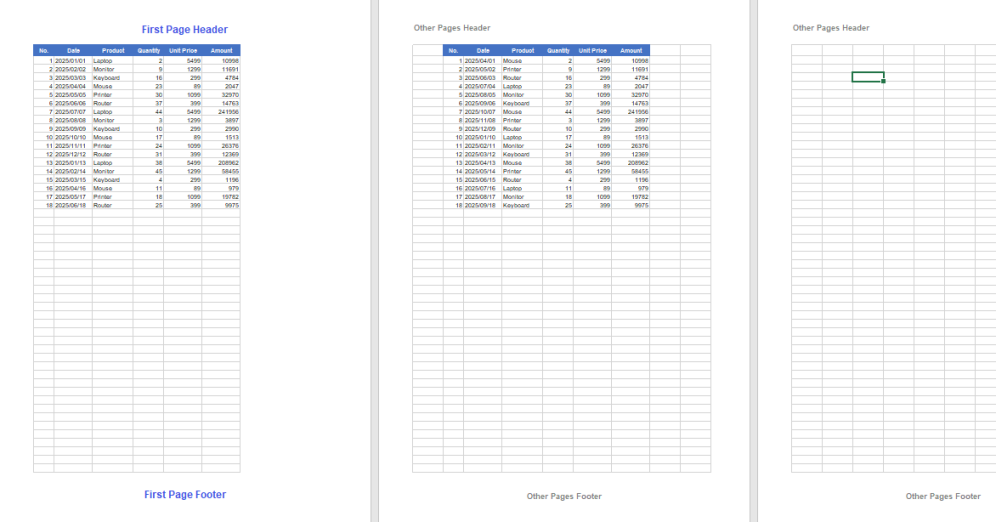
After this setting, the first page uses a different header and footer from the other pages.
FAQ
The header and footer on the first page is not applied
Cause: The "different first page" option was not enabled. If only FirstHeaderString/FirstFooterString are set without setting PageSetup.DifferentFirst to 1, Excel ignores the first-page header and footer.
Solution: Enable sheet.PageSetup.DifferentFirst = 1; before setting the header and footer of the first page.
Header/footer text shows as garbled characters or boxes
Cause: Browser-side Excel processing depends on font files. If the font used by the text (such as ARIAL.TTF) has not been loaded into the virtual file system (VFS), the text may not render correctly.
Solution: Load the font into the VFS with FetchFileToVFS() before calling Workbook.LoadFromFile(), for example:
await window.spire.FetchFileToVFS(
  'ARIAL.TTF', '/Library/Fonts/', `${process.env.PUBLIC_URL}/font/`
);
Obtain a Free License
Spire.XLS for JavaScript offers a 30-day full-featured free trial license with no functional limitations. Apply here to evaluate before purchasing.
