Converting PDF to database is a common requirement in data-driven applications. Many business documents—such as invoices, reports, and financial records—store structured information in PDF format, but this data is not directly usable for querying or analysis.
To make this data accessible, developers often need to convert PDF to SQL by extracting structured content and inserting it into relational databases like SQL Server, MySQL, or PostgreSQL. Manually handling this process is inefficient and error-prone, especially at scale.
In this guide, we focus on extracting table data from PDFs and building a complete pipeline to transform and insert it into an SQL database in Python with Spire.PDF for Python. This approach reflects the most practical and scalable solution for real-world PDF to database workflows.
Quick Navigation
- Understanding the Workflow
- Prerequisites
- Step 1: Extract Table Data from PDF
- Step 2: Transform and Insert Data into Database
- Complete Pipeline: From PDF Extraction to SQL Storage
- Adapting to Other SQL Databases
- Handling Other Types of PDF Data
- Common Pitfalls When Converting PDF Data to a Database
- Conclusion
- FAQ
Understanding the Workflow
Before diving into the implementation, it's important to understand the overall process of converting PDF data into a database.
Instead of treating each operation as completely separate, this workflow can be viewed as two main stages:
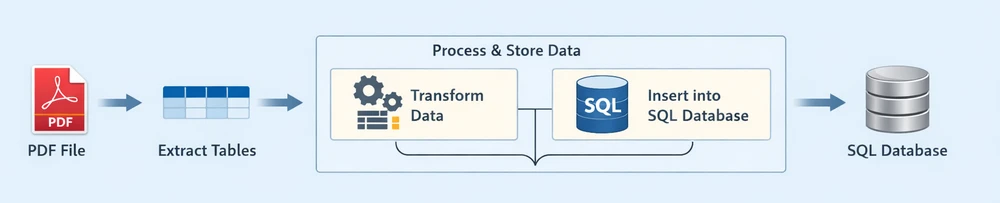
Each stage plays a distinct role in the pipeline:
-
Extract Tables: Retrieve structured table data from the PDF document
-
Process & Store Data: Clean, structure, and insert the extracted data into a relational database
- Transform Data: Convert raw rows into structured, database-ready records
- Insert into SQL Database: Persist the processed data into an SQL database
This end-to-end pipeline reflects how most real-world systems handle PDF to database workflows—by first extracting usable data, then processing and storing it in a database for querying and analysis.
Prerequisites
Before getting started, make sure you have the following:
-
Python 3.x installed
-
Spire.PDF for Python installed:
pip install Spire.PDFYou can also download Spire.PDF for Python and add it to your project manually.
-
A relational database system (e.g., SQLite, SQL Server, MySQL, or PostgreSQL)
This guide demonstrates the workflow using SQLite for simplicity, while also showing how the same approach can be applied to other SQL databases.
Step 1: Extract Table Data from PDF
In most business documents, such as invoices or reports, data is organized in tables. These tables already follow a row-and-column structure, making them ideal for direct insertion into an SQL database.
Table data in PDFs is typically already structured in rows and columns, making it the most suitable format for database storage.
Extract Tables Using Python
Below is an example of how to extract table data from a PDF file using Spire.PDF:
from spire.pdf import *
from spire.pdf.common import *

# Load PDF document
pdf = PdfDocument()
pdf.LoadFromFile("Quarterly Sales.pdf")

# Method for ligature normalization
def normalize_text(text: str) -> str:
    if not text:
        return text
    ligature_map = {
        '\ue000': 'ff', '\ue001': 'ft', '\ue002': 'ffi', '\ue003': 'ffl', '\ue004': 'ti', '\ue005': 'fi',
    }
    for k, v in ligature_map.items():
        text = text.replace(k, v)
    return text.strip()

table_data = []

# Iterate through pages
for i in range(pdf.Pages.Count):
    # Extract tables from pages
    extractor = PdfTableExtractor(pdf)
    tables = extractor.ExtractTable(i)

    if tables:
        print(f"Page {i} has {len(tables)} tables.")
        for table in tables:
            rows = []
            for row in range(table.GetRowCount()):
                row_data = []
                for col in range(table.GetColumnCount()):
                    text = table.GetText(row, col)
                    text = normalize_text(text)
                    row_data.append(text.strip() if text else "")
                rows.append(row_data)
            table_data.extend(rows)

pdf.Close()

# Print extracted data
for row in table_data:
    print(row)
Below is a preview of the extracting result:
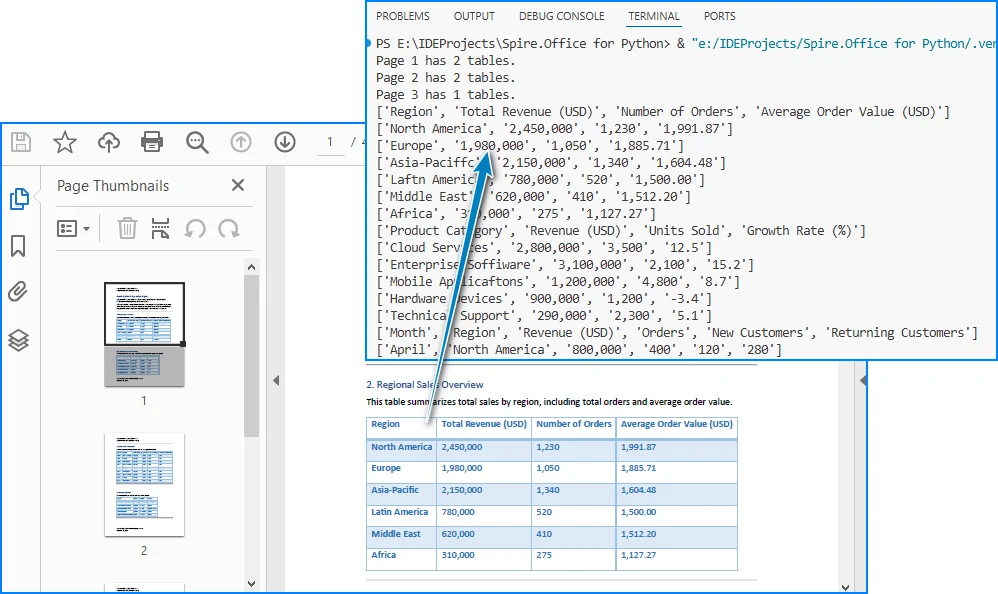
Code Explanation
- LoadFromFile: Loads the PDF document
- PdfTableExtractor: Identifies tables within each page
- GetText(row, col): Retrieves cell content
- table_data: Stores extracted rows as a list of lists
At this stage, the data is extracted but still unstructured in terms of database usage. Once the table data is extracted, we need to convert it into a structured format for SQL insertion.
Alternatively, you can export the extracted data to a CSV file for validation or batch import. See: Convert PDF Tables to CSV in Python
Step 2: Transform and Insert Data into Database
Raw table data extracted from PDFs often requires cleaning and structuring before it can be inserted into an SQL database.
For simplicity, the following examples demonstrate how to process a single extracted table. In real-world scenarios, PDFs may contain multiple tables, which can be handled using the same logic in a loop.
Transform Data (Single Table Example)
structured_data = []

# Assume first row is header
headers = table_data[0]

for row in table_data[1:]:
    if not any(row):
        continue

    record = {}
    for i in range(len(headers)):
        value = row[i] if i < len(row) else ""
        record[headers[i]] = value

    structured_data.append(record)

# Preview structured data
for item in structured_data:
    print(item)
What This Step Does
- Converts rows into dictionary-based records
- Maps column headers to values
- Filters out empty rows
- Prepares structured data for database insertion
You can also:
- Normalize column names for SQL compatibility
- Convert numeric fields
- Standardize date formats
Transforming raw PDF data into a structured format ensures it can be reliably inserted into a relational database. After transformation, the data is immediately ready for database insertion, which completes the pipeline.
Insert Data into SQLite (Single Table Example)
Using the structured data from a single table, we can dynamically create a database schema and insert records without hardcoding column names.
import sqlite3

# Connect to SQLite database
conn = sqlite3.connect("sales_data.db")
cursor = conn.cursor()

# Create table dynamically based on headers
columns_def = ", ".join([f'"{h}" TEXT' for h in headers])

cursor.execute(f"""
CREATE TABLE IF NOT EXISTS invoices (
    id INTEGER PRIMARY KEY AUTOINCREMENT,
    {columns_def}
)
""")

# Prepare insert statement
placeholders = ", ".join(["?" for _ in headers])
column_names = ", ".join([f'"{h}"' for h in headers])

# Insert data
for record in structured_data:
    values = [record.get(h, "") for h in headers]
    cursor.execute(f"""
    INSERT INTO invoices ({column_names})
    VALUES ({placeholders})
    """, values)

# Commit and close
conn.commit()
conn.close()
Key Points
- Dynamically creates database tables based on extracted headers
- Uses parameterized queries (
?) to prevent SQL injection - Keeps the schema flexible without hardcoding column names
- Column names can be normalized to ensure SQL compatibility
- Batch inserts can improve performance for large datasets
This section demonstrates the core workflow for converting PDF table data into a relational database using a single table example. In the next section, we extend this approach to handle multiple tables automatically.
Complete Pipeline: From PDF Extraction to SQL Storage
Here's a complete runnable example that demonstrates the entire workflow from PDF to database:
from spire.pdf import *
from spire.pdf.common import *
import sqlite3
import re

# ---------------------------
# Utility Functions
# ---------------------------

def normalize_text(text: str) -> str:
    if not text:
        return ""
    ligature_map = {
        '\ue000': 'ff', '\ue001': 'ft', '\ue002': 'ffi',
        '\ue003': 'ffl', '\ue004': 'ti', '\ue005': 'fi',
    }
    for k, v in ligature_map.items():
        text = text.replace(k, v)
    return text.strip()


def normalize_column_name(name: str, index: int) -> str:
    if not name:
        return f"column_{index}"
    name = name.lower()
    name = re.sub(r'[^a-z0-9]+', '_', name).strip('_')
    return name or f"column_{index}"


def deduplicate_columns(columns):
    seen = set()
    result = []
    for col in columns:
        base = col
        count = 1
        while col in seen:
            col = f"{base}_{count}"
            count += 1
        seen.add(col)
        result.append(col)
    return result


# ---------------------------
# Step 1: Extract Tables (STRUCTURED)
# ---------------------------

pdf = PdfDocument()
pdf.LoadFromFile("Quarterly Sales.pdf")

extractor = PdfTableExtractor(pdf)

all_tables = []

for i in range(pdf.Pages.Count):
    tables = extractor.ExtractTable(i)

    if tables:
        for table in tables:
            table_rows = []

            for row in range(table.GetRowCount()):
                row_data = []
                for col in range(table.GetColumnCount()):
                    text = table.GetText(row, col)
                    row_data.append(normalize_text(text))
                table_rows.append(row_data)

            if table_rows:
                all_tables.append(table_rows)

pdf.Close()

if not all_tables:
    raise ValueError("No tables found in PDF.")

# ---------------------------
# Step 2 & 3: Process + Insert Each Table
# ---------------------------

conn = sqlite3.connect("sales_data.db")
cursor = conn.cursor()

for table_index, table in enumerate(all_tables):

    if len(table) < 2:
        continue  # skip invalid tables

    raw_headers = table[0]

    # Normalize headers
    normalized_headers = [
        normalize_column_name(h, i)
        for i, h in enumerate(raw_headers)
    ]
    normalized_headers = deduplicate_columns(normalized_headers)

    # Generate table name
    table_name = f"table_{table_index+1}"

    # Create table
    columns_def = ", ".join([f'"{col}" TEXT' for col in normalized_headers])

    cursor.execute(f"""
    CREATE TABLE IF NOT EXISTS "{table_name}" (
        id INTEGER PRIMARY KEY AUTOINCREMENT,
        {columns_def}
    )
    """)

    # Prepare insert
    placeholders = ", ".join(["?" for _ in normalized_headers])
    column_names = ", ".join([f'"{col}"' for col in normalized_headers])

    insert_sql = f"""
    INSERT INTO "{table_name}" ({column_names})
    VALUES ({placeholders})
    """

    # Insert data
    batch = []
    for row in table[1:]:
        if not any(row):
            continue

        values = [
            row[i] if i < len(row) else ""
            for i in range(len(normalized_headers))
        ]
        batch.append(values)

    if batch:
        cursor.executemany(insert_sql, batch)

    print(f"Inserted {len(batch)} rows into {table_name}")

conn.commit()
conn.close()

print(f"Processed {len(all_tables)} tables from PDF.")
Below is a preview of the insertion result in the database:
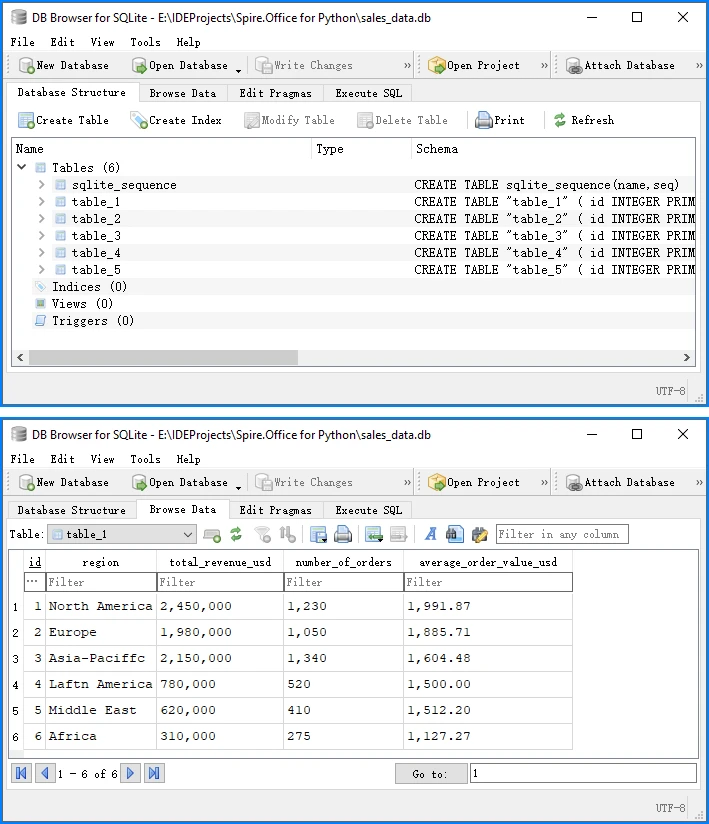
This complete example demonstrates the full PDF to database pipeline:
- Load and extract table data from PDF using Spire.PDF
- Transform raw data into structured records
- Insert into SQLite database with proper schema
SQLite automatically creates a system table called sqlite_sequence when using AUTOINCREMENT to track the current maximum ID. This is expected behavior and does not affect your data. You can run this code directly to convert PDF table data into a database.
Adapting to Other SQL Databases
While this guide uses SQLite for simplicity, the same approach works for other SQL databases. The extraction and transformation steps remain identical—only the database connection and insertion syntax vary slightly.
The following examples assume you are using the normalized column names (headers) generated in the previous step.
SQL Server Example
import pyodbc

# Connect to SQL Server
conn_str = (
    "DRIVER={SQL Server};"
    "SERVER=your_server_name;"
    "DATABASE=your_database_name;"
    "UID=your_username;"
    "PWD=your_password"
)
conn = pyodbc.connect(conn_str)
cursor = conn.cursor()

# Generate dynamic column definitions using normalized headers
columns_def = ", ".join([f"[{h}] NVARCHAR(MAX)" for h in headers])

# Create table dynamically
cursor.execute(f"""
IF NOT EXISTS (SELECT * FROM sys.tables WHERE name = 'invoices')
BEGIN
    CREATE TABLE invoices (
        id INT IDENTITY(1,1) PRIMARY KEY,
        {columns_def}
    )
END
""")

# Prepare insert statement
placeholders = ", ".join(["?" for _ in headers])
column_names = ", ".join([f"[{h}]" for h in headers])

# Insert data
for record in structured_data:
    values = [record.get(h, "") for h in headers]
    cursor.execute(f"""
    INSERT INTO invoices ({column_names})
    VALUES ({placeholders})
    """, values)

# Commit and close
conn.commit()
conn.close()
MySQL Example
import mysql.connector

conn = mysql.connector.connect(
    host="localhost",
    user="your_username",
    password="your_password",
    database="your_database"
)
cursor = conn.cursor()

# Use the same dynamic table creation and insert logic as shown earlier,
# with minor syntax adjustments if needed
PostgreSQL Example
import psycopg2

conn = psycopg2.connect(
    host="localhost",
    database="your_database",
    user="your_username",
    password="your_password"
)
cursor = conn.cursor()

# Use the same dynamic table creation and insert logic as shown earlier,
# with minor syntax adjustments if needed
The core extraction and transformation steps remain the same across different SQL databases, especially when using normalized column names for compatibility.
Handling Other Types of PDF Data
While this guide focuses on table extraction, PDFs often contain other types of data that can also be integrated into a database, depending on your use case.
Text Data (Unstructured → Structured)
In many documents, important information such as invoice numbers, customer names, or dates is embedded in plain text rather than tables.
You can extract raw text using:
from spire.pdf import *

pdf = PdfDocument()
pdf.LoadFromFile("Quarterly Sales.pdf")

for i in range(pdf.Pages.Count):
    page = pdf.Pages.get_Item(i)
    extractor = PdfTextExtractor(page)
    options = PdfTextExtractOptions()
    options.IsExtractAllText = True
    text = extractor.ExtractText(options)
    print(text)
However, raw text cannot be directly inserted into a database. It typically requires parsing into structured fields, for example:
- Using regular expressions to extract key-value pairs
- Identifying patterns such as dates, IDs, or totals
- Converting text into dictionaries or structured records
Once structured, the data can be inserted into a database as part of the same transformation and insertion pipeline described earlier.
For more advanced techniques, you can learn more in the detailed Python PDF text extraction guide.
Images (OCR or File Reference)
Images in PDFs are usually not directly usable as structured data, but they can still be integrated into database workflows in two ways:
Option 1: OCR (Recommended for data extraction) Convert images to text using OCR tools, then process and store the extracted content.
Option 2: File Storage (Recommended for document systems) Store images as:
- File paths in the database
- Binary (BLOB) data if needed
Below is an example of extracting images:
from spire.pdf import *

pdf = PdfDocument()
pdf.LoadFromFile("Quarterly Sales.pdf")

helper = PdfImageHelper()

for i in range(pdf.Pages.Count):
    page = pdf.Pages.get_Item(i)
    images = helper.GetImagesInfo(page)
    for j, img in enumerate(images):
        img.Image.Save(f"image_{i}_{j}.png")
To further process image-based content, you can use OCR to extract text from images with Spire.OCR for Python.
Full PDF Storage (BLOB or File Reference)
In some scenarios, the goal is not to extract structured data, but to store the entire PDF file in a database.
This is commonly used in:
- Document management systems
- Archival systems
- Compliance and auditing workflows
You can store PDFs as:
- BLOB data in the database
- File paths referencing external storage
This approach represents another meaning of "PDF in database", but it is different from structured data extraction.
Key Takeaway
While PDFs can contain multiple types of content, table data remains the most efficient and scalable format for database integration. Other data types typically require additional processing before they can be stored or queried effectively.
Common Pitfalls When Converting PDF Data to a Database
While the process of converting PDF to a database may seem straightforward, several practical challenges can arise.
1. Inconsistent Table Structures
Not all PDFs follow a consistent table format:
- Missing columns
- Merged cells
- Irregular layouts
Solution:
- Validate row lengths
- Normalize structure
- Handle missing values
2. Poor Table Detection
Some PDFs do not define tables properly internally, such as no grid structure or irregular cell sizes.
Solution:
- Test with multiple files
- Use fallback parsing logic
- Preprocess PDFs if needed
3. Data Cleaning Issues
Extracted data may contain:
- Extra spaces
- Line breaks
- Formatting issues
Solution:
- Strip whitespace
- Normalize values
- Validate types
4. Character Encoding Issues (Ligatures & Fonts)
PDF table extraction can introduce unexpected characters due to font encoding and ligatures. For example, common letter combinations such as:
fi,ff,ffi,ffl,ft,ti
may be stored as single glyphs in the PDF. When extracted, they may appear as:
di\ue000erence   → difference
o\ue002ce        → office
\ue005le         → file
These are typically private Unicode characters (e.g., \ue000–\uf8ff) caused by custom font mappings.
Solution:
-
Detect private Unicode characters (
\ue000–\uf8ff) -
Build a mapping table for ligatures, such as:
\ue000 → ff\ue001 → ft\ue002 → ffi\ue003 → ffl\ue004 → ti\ue005 → fi
-
Normalize text before inserting into the database
-
Optionally log unknown characters for further analysis
Handling encoding issues properly ensures data accuracy and prevents subtle corruption in downstream processing.
5. Cross-Page Table Fragmentation
Large tables in PDFs are often split across multiple pages. When extracted, each page may be treated as a separate table, leading to:
- Broken datasets
- Repeated headers
- Incomplete records
Solution:
- Compare column counts between consecutive tables
- Check header consistency or data type patterns in the first row
- Merge tables when structure and schema match
- Skip duplicated header rows when concatenating data
In practice, combining column structure and value pattern detection provides a reliable way to reconstruct full tables across pages.
6. Database Schema Mismatch
Incorrect mapping between extracted data and database columns can cause errors.
Solution:
- Align headers with schema
- Use explicit field mapping
7. Performance Issues with Large Files
Processing large PDFs can be slow.
Solution:
- Use batch processing
- Optimize insert operations
By anticipating these issues, you can build a more reliable PDF to database workflow.
Conclusion
Converting PDF to a database is not a one-step operation, but a structured process involving extracting data and processing it for database storage (including transformation and insertion)
By focusing on table data and using Python, you can efficiently implement a complete PDF to database pipeline, making it easier to automate data integration tasks.
This approach is especially useful for handling invoices, reports, and other structured business documents that need to be stored in SQL Server or other relational databases.
If you want to evaluate the performance of Spire.PDF for Python and remove any limitations, you can apply for a 30-day free trial.
FAQ
What does "PDF to database" mean?
It refers to the process of extracting structured data from PDF files and storing it in a database. This typically involves parsing PDF content, transforming it into structured formats, and inserting it into SQL databases for further querying and analysis.
Can Python convert PDF directly to a database?
No. Python cannot directly convert a PDF into a database in one step. The process usually involves extracting data from the PDF first, transforming it into structured records, and then inserting it into a database using SQL connectors.
How do I convert PDF to SQL using Python?
The typical workflow includes:
- Extracting table or text data from the PDF
- Converting it into structured records (rows and columns)
- Inserting the processed data into an SQL database such as SQLite, MySQL, or SQL Server using Python database libraries
Can I store PDF files directly in a database?
Yes. PDF files can be stored as binary (BLOB) data in a database. However, this approach is mainly used for document storage systems, while structured extraction is preferred for data analysis and querying.
What SQL databases can I use for PDF data integration?
You can use almost any SQL database, including SQLite, SQL Server, MySQL, and PostgreSQL. The overall extraction and transformation process remains the same, while only the database connection and insertion syntax differ slightly.
