In cross-industry data processing scenarios, importing data from CSV and PDF files into Excel is one of the most common and error-prone tasks — finance teams reconcile CSV bank statements, e-commerce teams organize order files exported from multiple platforms, and administrative staff handle PDF statements from suppliers. These files come in all shapes and formats: inconsistent CSV delimiters, fields containing commas, dates appearing in various forms, phone numbers and ID numbers that start with 0 are treated as numbers and lose their leading zeros; PDF tables cannot be edited directly, and copying them into Excel misaligns rows, columns, and merged cells.
The traditional approach is to split columns manually, set formats column by column, and hunt for erroneous cells by eye. A CSV file with a few hundred rows often takes half an hour of repeated adjustment; PDF tables can only be copied and pasted row by row. Traditional methods are also prone to misaligned columns, misplaced dates, and numbers turning into text. As data volume grows, manual processing becomes nearly impossible.
Take a finance team reconciling bank statements, for example: after receiving a CSV, the usual routine is to confirm the encoding in a text editor first, split the columns in Excel, set date and amount formats column by column, and then hunt for anomalous values by eye. A field containing a comma shifts the whole row, accounts starting with 0 lose their leading zeros, and only after repeated adjustment does the table become usable. PDF statements can only be copied and pasted row by row — rows, columns, and merged cells are almost all misaligned, and reconstructing a single statement often eats up half a day.
Comparison with Traditional SDK API Processing
| Traditional Spire.Office for .NET API | Spire.Agent.Office Processing | |
|---|---|---|
| Driving Method | Write code for column splitting, type conversion, and format checking, controlling every step | Describe the goal in natural language; the AI understands and automatically orchestrates the execution path |
| Code Volume | Data import scenarios typically require 500-1000 lines of C# code (including parsers, type conversion, error detection, etc.) | About 10 lines of calling code + one natural language instruction |
| Delimiters & Quoting | Must hand-write parsing logic for edge cases such as commas inside quotes and escape characters | The AI automatically recognizes delimiters and quoted fields and splits columns intelligently |
| Type Detection | Must hard-code date/number/text recognition rules per column; changing rules requires code changes | The AI understands data type semantics and automatically recognizes dates, numbers, and text |
| Error Detection | Must write regex and conditional checks cell by cell; coverage of error types is incomplete | The AI automatically detects anomalies such as type mismatches and column count mismatches and highlights them in red |
| Requirement Changes | Adding a new CSV variant requires modifying code → compiling → deploying | Modify the description in the instruction; takes effect immediately |
This article introduces how to use the Excel AI capabilities of Spire.Agent.Office to implement CSV smart column splitting import and PDF table import, automatically completing data type detection and highlighting erroneous formats in red, with just a single natural language instruction.
For product installation and SpireToken configuration, please refer to Integrating Spire.Agent.Office in a .NET Project. The following examples assume Spire.Agent.Office is already installed and SpireToken is configured.
CSV Smart Column Splitting Import
CSV is the most common format for data exchange, yet also the least "controllable": the delimiter may be a comma, a tab, or a semicolon; fields may contain commas or line breaks wrapped in quotes; dates, numbers, and text are mixed in the same table; values starting with 0, such as phone numbers and codes, are treated as numbers by default and lose their leading zeros. Import quality directly determines the accuracy of subsequent analysis and reports.
The following example uses the Spire.Agent.Office agent to automatically import a CSV through natural language instructions, completing smart column splitting, data type detection, and highlighting erroneous formats in red:
using Spire.Agent.Office.AI;
using Spire.Agent.Office.Extensions;
using Spire.Xls;

// CSV source file to be imported (passed as an attachment)
string[] attachmentPaths = new string[] { @"C:\DataImport\employee_sales_data.csv" };
// Save path of the import result document
string savePath = @"C:\DataImport\ToXLSX.xlsx";
// SpireToken Key (apply on the official website)
string key = "sk-TF***************************r";
// Natural language instruction
string instruction = "Process as follows:\n" +
    "1. Convert the attached CSV file to an Excel document and apply appropriate formatting to improve readability\n" +
    "2. Unify the formats of dates/sales amounts/phone numbers in the file\n" +
    "3. Mark erroneous and missing data with a red background";

// AI generation
AIResult result = ImportCsvData(instruction, savePath, key, attachmentPaths);

// AI-assisted CSV import
static AIResult ImportCsvData(string instruction, string savePath, string key, string[] attachmentPaths)
{
    // Configure the AI processing options
    AIOptions options = new AIOptions();
    options.SpireToken = key;

    using (Workbook wb = new Workbook())
    {
        AIDocumentProcessor processor = wb.AI(options);
        return processor.ExecuteInstruction(wb, instruction, savePath, attachmentPaths);
    }
}
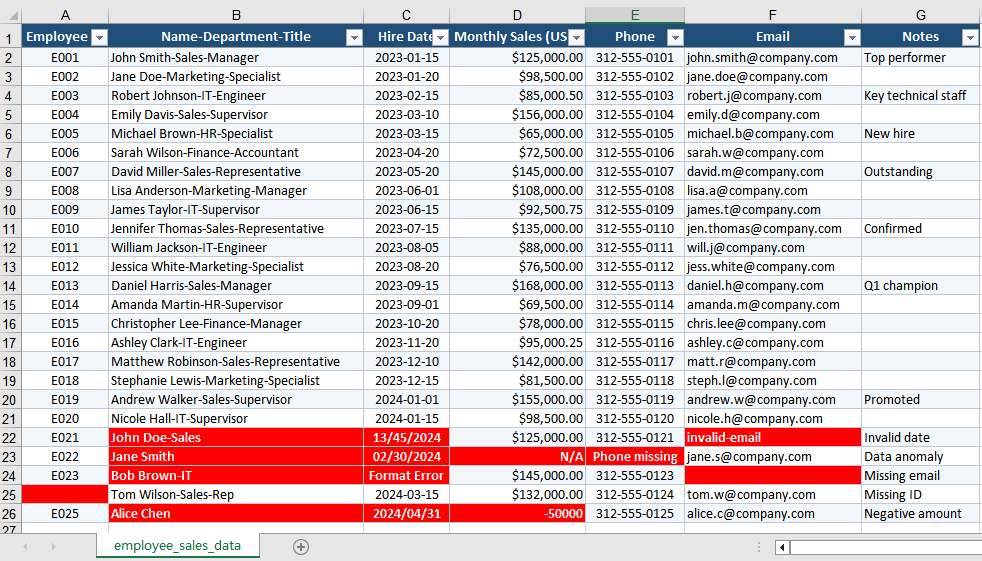
Original CSV data and smart column splitting import result 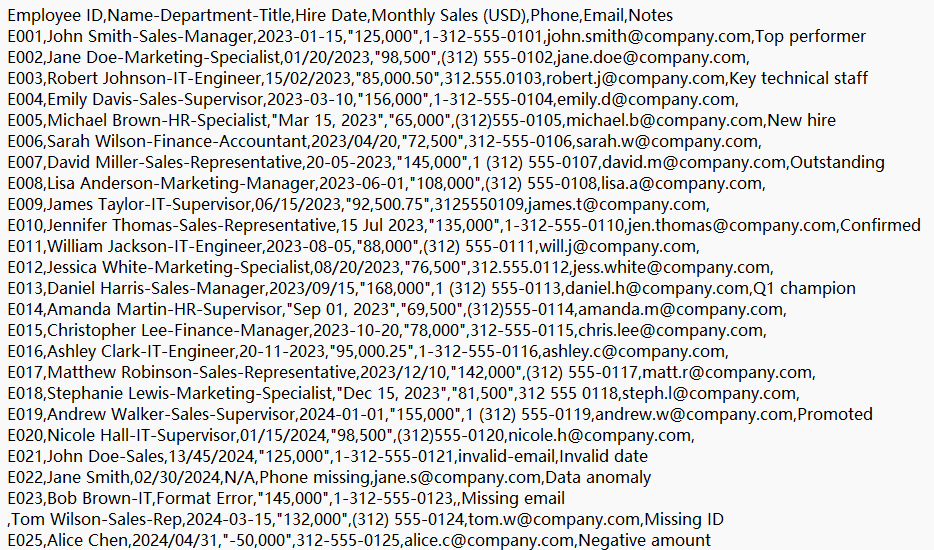
PDF Table Import to Excel
PDF is the universal format for distribution and archiving, but the table data inside it cannot be edited directly: copying it into Excel misaligns rows and columns, loses merged cells, and turns numbers and dates into text. When suppliers, banks, or government agencies deliver reports in PDF, accurately restoring the table data into editable Excel is an essential step in moving from fixed-layout documents to electronic processing.
The following example uses the Spire.Agent.Office agent to automatically extract table data from a PDF and write it into Excel through natural language instructions:
using Spire.Agent.Office.AI;
using Spire.Agent.Office.Extensions;
using Spire.Xls;

// PDF source file to be imported (passed as an attachment)
string[] attachmentPaths = new string[] { @"C:\DataImport\PurchaseOrder.pdf" };

// Save path of the import result document
string savePath = @"C:\DataImport\PurchaseOrderData.xlsx";
// SpireToken Key
string key = "sk-TF***************************r";
// Natural language instruction
string instruction =
    "Process as follows:\n" +
    "1. Convert the attached PDF file to an Excel document and apply appropriate formatting to improve readability\n" +
    "2. Unify the formats of dates/sales amounts/phone numbers in the file\n" +
    "3. Mark erroneous and missing data with a red background";
// AI generation
AIResult result = ImportPdfData(instruction, savePath, key, attachmentPaths);

// AI-assisted PDF import
static AIResult ImportPdfData(string instruction, string savePath, string key, string[] attachmentPaths)
{
    // Configure the AI processing options
    AIOptions options = new AIOptions();
    options.SpireToken = key;

    using (Workbook wb = new Workbook())
    {
        AIDocumentProcessor processor = wb.AI(options);
        return processor.ExecuteInstruction(wb, instruction, savePath, attachmentPaths);
    }
}
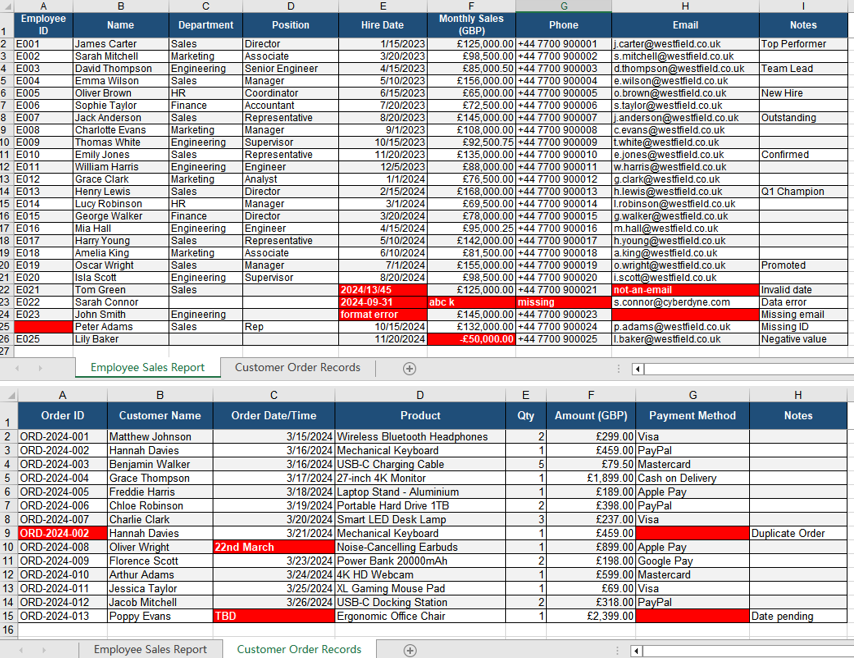
Original PDF data and table data extracted into Excel 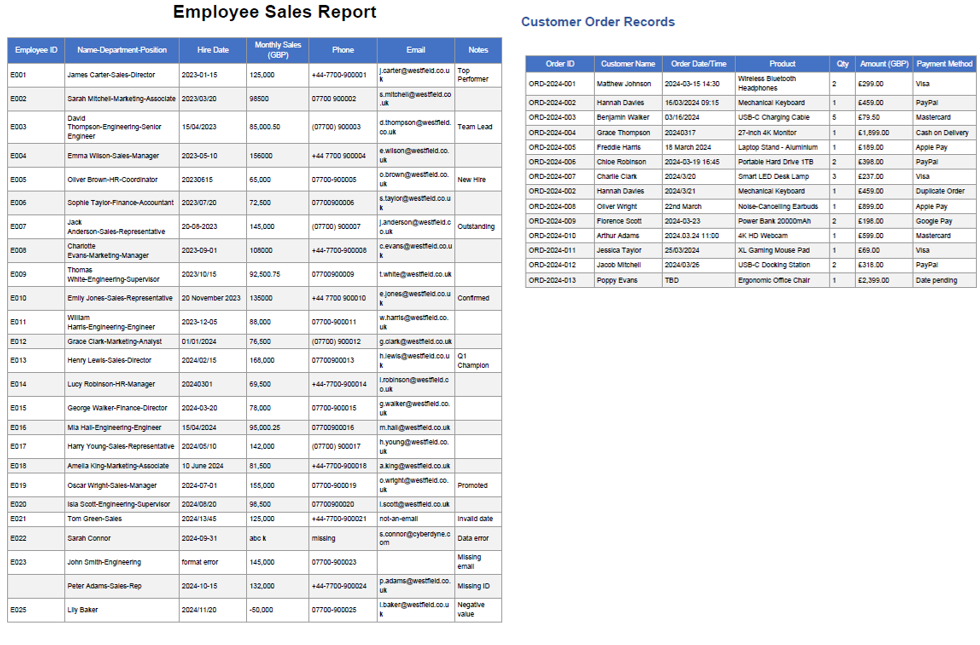
Frequently Asked Questions
Inconsistent CSV delimiters / commas within fields cause column misalignment
Cause: The CSV delimiter may be a semicolon or a tab, or a field may contain a quoted comma or newline, which causes the whole row to shift when columns are split automatically.
Solution: Specify the delimiter in the instruction, or let the AI identify it automatically and correctly handle the quoted fields.
Numbers starting with 0 lose their leading zeros
Cause: Values starting with 0, such as phone numbers, ID numbers, and account numbers, are imported as numeric values, and the leading zeros are dropped.
Solution: Specify the relevant columns as text type in the instruction, such as "set the phone number and ID number columns to text format and preserve the leading zeros".
Obtaining a SpireToken Key
- Contact sales@e-iceblue.com or visit https://www.e-iceblue.com/TemLicense.html to obtain a trial/commercial API key
Configure it in code:
AIOptions options = new AIOptions();
options.SpireToken = key;
