How to Attach a File to a PDF (Adobe Acrobat & Python Guide)
Imagine sending an invoice PDF to a client but forgetting to include the Excel itemization sheet. Or worse, emailing a technical report without the source code. Merging everything into one place can prevent such mistakes. Knowing how to attach a file to a PDF ensures your readers get all the data they need in a single document. In this guide, you will learn how to add attachments to PDF files with Adobe and how to automate it using Python.
- Understanding the 2 Ways to Attach Files to a PDF
- Comparison Table
- Attach a File to a PDF Manually using Adobe Acrobat
- Attach Documents to PDF using Free Spire.PDF
- Best Practices & Troubleshooting
Understanding the 2 Ways to Attach Files to a PDF
Before diving into the steps, it's important to understand how PDFs handle embedded files. Depending on your goal, you can choose between a clean, hidden approach or a highly visual one.
- Document-Level Attachments: Document-level attachments work much like email attachments. The external file is embedded into the PDF document and stays hidden inside the viewer's sidebar panel. This method is ideal for bundling large datasets, source code packages, or supporting documents.
Tip: If you need to package multiple related files into a single PDF container, you may also consider creating a PDF Portfolio, which provides a more structured way to organize attachments.
- File Attachment Annotations: These are page-level attachments. They display a visual icon (like a paperclip or a pin) at a specific coordinate on the page. Readers can double-click the icon to open the file immediately. It is ideal for linking a source document right next to text or a paragraph.
Quick Comparison
Choosing the right method to attach files saves time and improves your reader's experience. Use this quick breakdown to decide which approach fits your project:
| Feature | Document-Level Attachment | File Attachment Annotation |
|---|---|---|
| Visibility | Completely hidden on the page. Only visible in the attachments sidebar. | Displays a clickable icon on a specific page coordinate. |
| User Action | User must open the sidebar panel and scroll through a file list. | User reads a paragraph and double-clicks the icon directly on the page. |
| Primary Use | Archiving raw data, attaching project source code or full Excel sheets. | Contextual references, detailed chart explanations, legal proofs. |
| Recommendation | Best for automated data archiving | Best for interactive reading |
All in all, if you want to bundle raw data without messing up your PDF layout, go with Document-Level. If you want your readers to check a specific source file right after reading a paragraph, annotation is better.
Method 1: How to Attach a File to a PDF Manually using Adobe Acrobat
If you only have a few files to process and prefer an intuitive interface, attaching a file to a PDF manually via Adobe Acrobat is perfect. As one of the most popular PDF editors, Adobe Acrobat makes it easy to add attachments to PDF documents, allowing you to seamlessly embed external files either at the document level or as visual annotations.
Adding a Document-Level Attachment to PDF
- Step 1. Open your target PDF file in Adobe Acrobat.
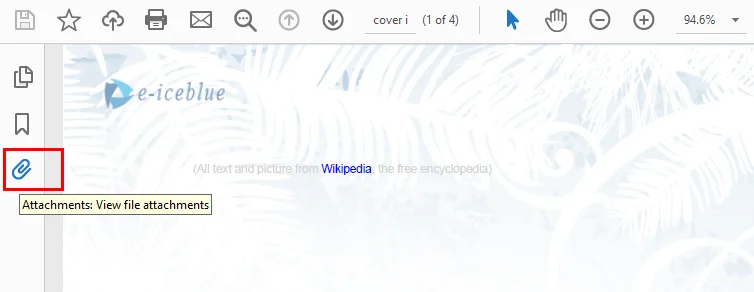
- Step 2. Expand the left navigation pane and click the Attachments icon (it looks like a paperclip).
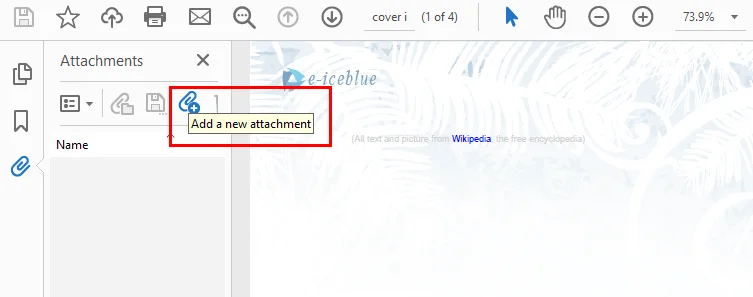
- Step 3. Click the Add files button at the top of the panel, select a file from your computer, and save the PDF.
Adding a File Attachment Annotation in PDF
- Step 1: Click Comment in the right sidebar to open the comment toolbar.
- Step 2: Click the Attach File tool on the toolbar.
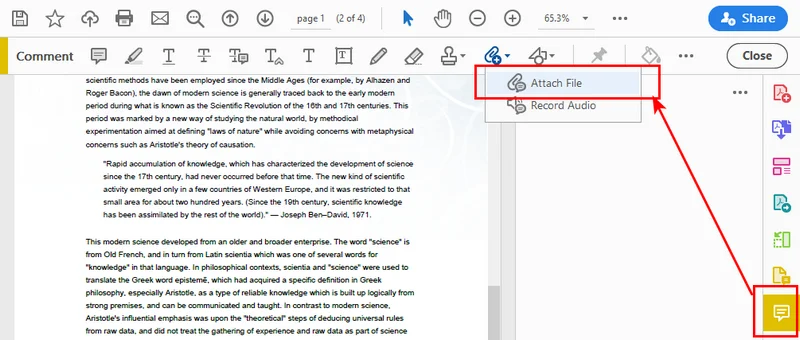
- Step 3: Click anywhere on the PDF page where you want to place the visual attachment icon.
- Step 4: Select the target file from your device, choose your preferred icon style in the pop-up properties window, and save the document.
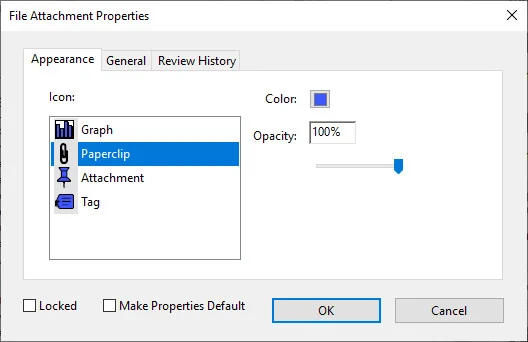
Method 2: How to Attach Documents to a PDF Programmatically using Free Spire.PDF
Attaching a few files manually is manageable, but the process quickly becomes inefficient when dealing with dozens or hundreds of documents. If you need to integrate file bundling into an automated enterprise workflow, like linking raw data sheets to invoices or source files to technical reports, doing it by hand is exhausting. To scale your document pipelines, automating file attaching becomes the most efficient and scalable solution. By leveraging Free Spire.PDF for Python, you can achieve this with just a few lines of code.
As a standalone and free community component, Free Spire.PDF for Python requires no Adobe Acrobat installation on your servers. It allows you to manipulate PDF structures seamlessly, supporting both document-level and annotation-style file attaching.
Attach a File to a PDF Directly
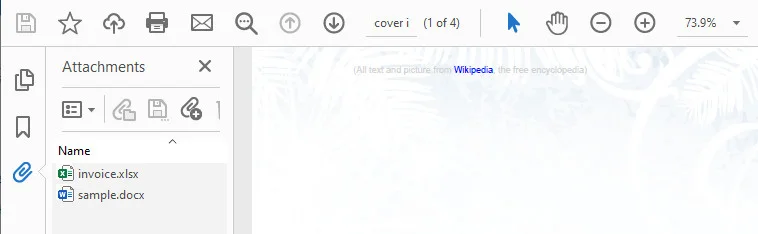
This script demonstrates how to inject files directly into the global attachment collection of a PDF. The core idea is to create a PdfAttachment object based on a local file and then use the PdfDocument.Attachments.Add() method to attach it to the source PDF file.
from spire.pdf import *
from spire.pdf.common import *

# Initialize the document object
doc = PdfDocument()

# Load your existing PDF file
doc.LoadFromFile("/input/Booklet.pdf")

# Create document-level attachments by passing the file path
attachment_1 = PdfAttachment("/sample.docx")
attachment_2 = PdfAttachment("/invoice.xlsx")

# Add the attachments to the global attachments collection
doc.Attachments.Add(attachment_1)
doc.Attachments.Add(attachment_2)

# Save the finalized PDF document
doc.SaveToFile("/output/global_attachment.pdf")
doc.Close()
Adding Attachments to a PDF as an Annotation
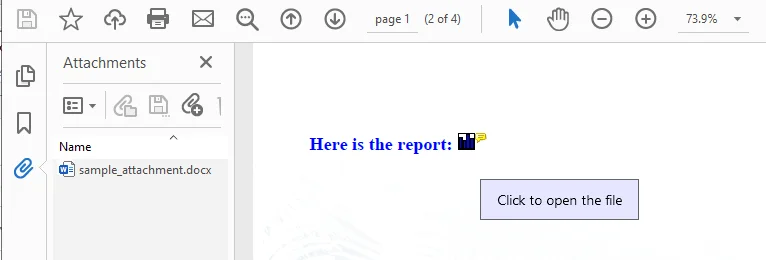
This code sample adds an external file to the PDF as an annotation attachment, which is ultimately displayed as a clickable graph icon on the first page.
The core idea is to retrieve a target page via doc.Pages.get_Item(), define the exact page coordinates using RectangleF, and initialize a PdfAttachmentAnnotation object tied to your external file. After customizing properties like the icon style, color, and hover text, you simply append it to the page's interactive layer using the page.AnnotationsWidget.Add() method.
from spire.pdf import *
from spire.pdf.common import *

# Initialize the document object and load the source PDF file
doc = PdfDocument()
doc.LoadFromFile("/input/new.pdf")

# Get the first page
page = doc.Pages.get_Item(0)

# Draw a text prompt on the PDF page canvas
text_str = "Here is the report:"
font = PdfTrueTypeFont("Times New Roman", 16.0, PdfFontStyle.Bold, True)
x = 50.0
# Calculate the Y coordinate dynamically based on the actual page height
y = doc.Pages.get_Item(0).ActualSize.Height - 300.0
page.Canvas.DrawString(text_str, font, PdfBrushes.get_Blue(), x, y)

# Read the local file into a data stream as the attachment content
data_stream = Stream("/input/sample.docx")

# Calculate position: place the icon 5.0 pixels to the right of the text prompt
text_size = font.MeasureString(text_str)
bounds = RectangleF((x + text_size.Width + 5.0), y, 15.0, 15.0)

# Create the file attachment annotation object
annotation = PdfAttachmentAnnotation(bounds, "sample_attachment.docx", data_stream)

# Customize the appearance and tooltip behavior of the annotation
annotation.Color = PdfRGBColor(Color.get_Blue())
annotation.Flags = PdfAnnotationFlags.Default
annotation.Icon = PdfAttachmentIcon.Graph
annotation.Text = "Click to open the file"

# Add the interactive annotation layer to the page widget collection
page.AnnotationsWidget.Add(annotation)

# Save the PDF document
doc.SaveToFile("/output/AnnotationAttachment1.pdf")
doc.Close()
Note: If you are working on a collaborative review layout, these annotations sync perfectly with standard PDF revision tracking fields.
Best Practices & Troubleshooting when Attaching Files to PDFs
Before you hit send on your newly updated documents, you should keep a few notes in mind to avoid common errors.
- File Size Management: When you attach a file to PDF structures, for example, embedding a 50MB video will make your PDF too large to email. Compress your files first, or use secure cloud URLs for large files.
- Security & Blocked Formats: Modern PDF readers are highly sensitive to malware. It is recommended to attach files in safe formats like
.txt,.docx, or.xlsx. - How to Extract Attachments: What goes in must come out. If you are building an automated pipeline, you can use
PdfAttachment.DataorPdfAttachmentAnnotation.Datato read and extract these files back out into your database later.
Conclusion
In this post, we explored how to attach a file to a PDF using two main approaches: document-level file attachments and page-level annotation attachments. We also explained both manual operations via Adobe Acrobat and code-based automation using Free Spire.PDF for Python.
Whether you need a quick manual fix for a few documents or want to integrate file bundling into an automated workflow, both approaches can help streamline the way you distribute supporting files alongside PDF documents. Choose the method that best fits your business scenario, and start optimizing your PDF pipelines today!
Also Read:
5 Ways to Insert a Page in Word (Manual & Python Automation)
Table of Contents
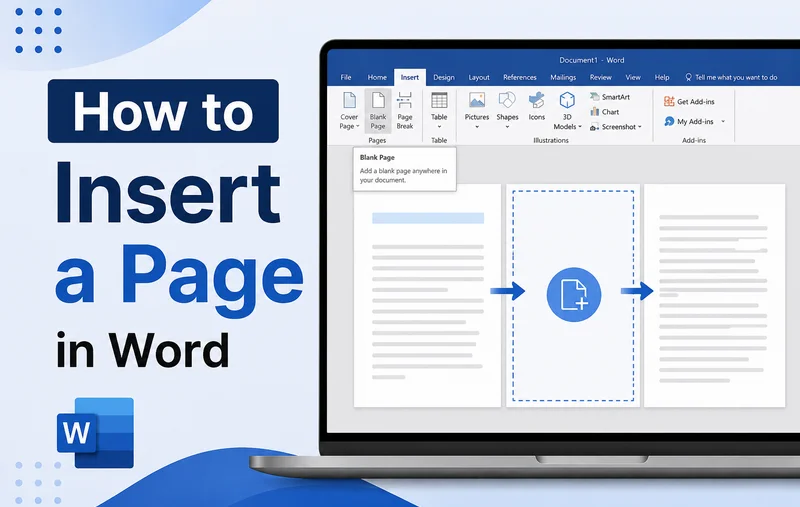
When writing or editing a Word document, we often find ourselves needing to start a fresh page—whether it is right between two existing paragraphs or at the very end of a section. But repeatedly pressing the Enter key is only a temporary workaround; once you edit the content above, the layout can easily shift.
To prevent this layout disorder, you need to know how to insert a page in Word the right way. In this guide, we will walk you through every professional method to seamlessly add a page to your document, including quick shortcuts, automated layout rules, and developers' coding tricks, ensuring your pages split exactly where you intend without unexpected formatting changes.
- Insert a Blank Page in Word Using Toolbar
- Insert a Page in Word Instantly Using Page Break
- Insert a Cover Page in Word Documents
- Automated Page Insertion Using Page Break Before
- Insert a Page in Word Programmatically via Free Spire.Doc
- FAQs
How to Insert a Blank Page in Word Using the Toolbar
If you prefer editing documents using the main menu, the Ribbon is the best method to add a page to a Word file. This approach allows you to split your text exactly where you want, ensuring a smooth and seamless transition to the next page.
Use this option when you want to insert a blank page in Word documents right in the middle of existing content, like creating a fresh, empty canvas for a new section or an upcoming gallery.
- Step 1. Place your cursor exactly where you want the new, empty space to appear.
- Step 2. Go to the Insert tab on the top Ribbon.
- Step 3. Click the Blank Page button in the Pages group.
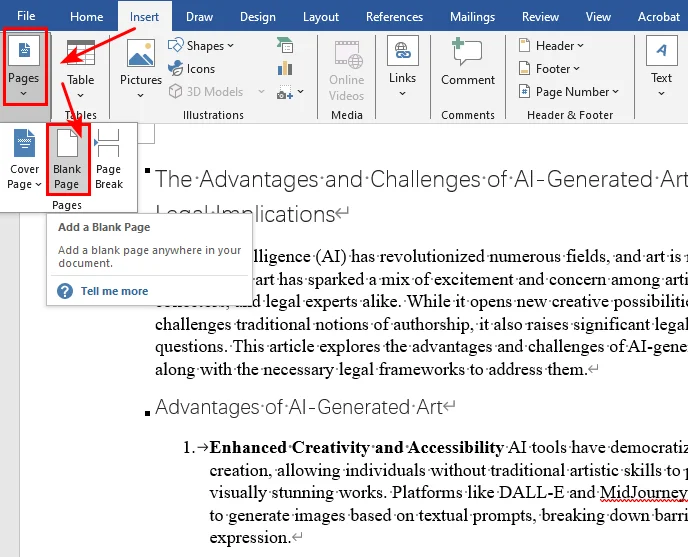
Microsoft Word will instantly insert a clean and empty page into your document at that exact spot, pushing existing text down to the following page.
How to Insert a Page in Word Instantly Using Page Break
Generally speaking, a single page break is used to split your content and push a specific heading or paragraph to the top of the next page. Two consecutive page breaks typically create an empty page between content sections. Whether you prefer using the toolbar or keyboard shortcuts, mastering this method helps you quickly generate blank pages in Word.
Method 1: Shortcut to Insert Page Break
When you are on a tight deadline, using a keyboard shortcut is the fastest way to add a page break to a Word document.
- Step 1. Click to place your cursor right before the text you want to push down.
- Step 2. Press Ctrl + Enter (Windows) or Cmd + Return (Mac) once to push text down, or press it twice if you want to insert a blank page right there.
Method 2: Inserting a Page Break via the Ribbon
If you prefer visual menus, you can achieve the exact same result using Microsoft Word's main navigation bar to add page breaks in Word documents:
- Step 1. Place your cursor right before the text or heading that needs to move.
- Step 2. Navigate to the Insert tab on the Ribbon.
- Step 3. Click Page Break in the Pages group (click it twice if you want to create a full blank page).
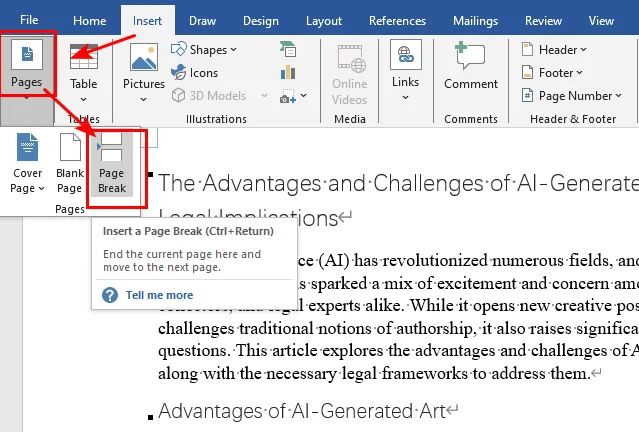
You may like: How to Remove Page Breaks in Word (4 Easy Methods)
How to Insert a Cover Page in Word Documents
Every professional report, business proposal, or academic essay needs a strong front page. Instead of manual formatting, you should let Word handle the design and structural heavy lifting.
If you are looking for how to insert a cover page in Word, the software provides a built-in feature that sets up an introductory layout for you.
- Step 1. Click anywhere inside your document.
- Step 2. Go to the Insert tab on the Ribbon.
- Step 3. Click Cover Page and select your favorite layout from the built-in gallery.
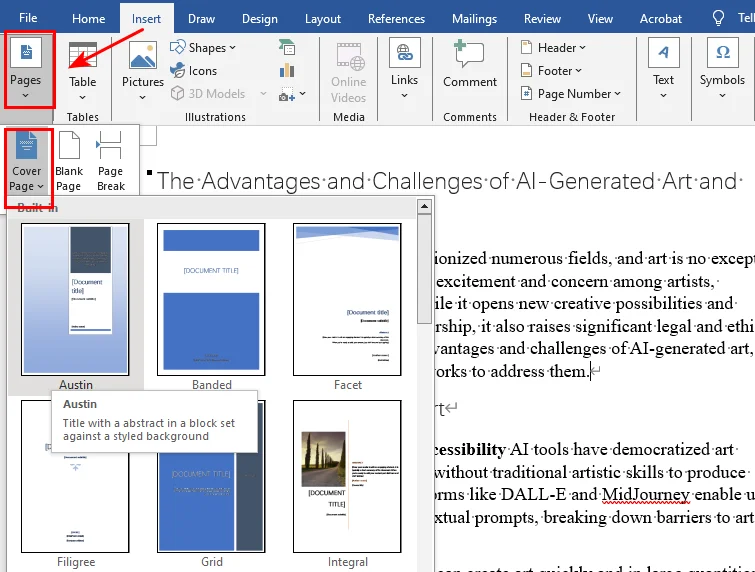
Word handles cover pages differently from regular document content. When you insert a built-in cover page, Word automatically places it at the beginning of the document and can keep page numbering from appearing on the title page.
Automated Page Insertion Using Page Break Before
This feature is especially useful in long reports, manuals, and books where each chapter should start on a new page. Instead of inserting page breaks manually, you can use Word's Page Break Before setting to ensure specific headings always begin on a new page.
- Step 1. Right-click on the specific heading or the Heading 1 style in your Home tab, then select Paragraph.
- Step 2. Go to the Line and Page Breaks tab in the dialogue window.
- Step 3. Check the box next to Page break before, then click OK.
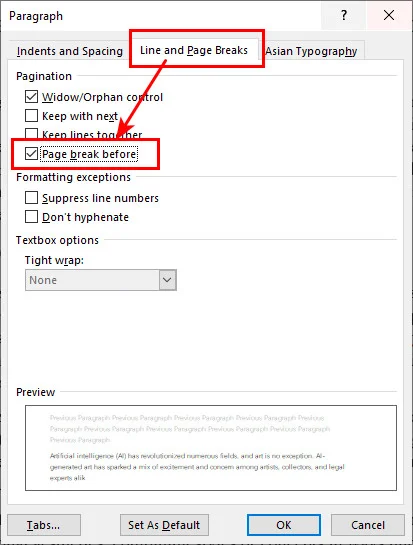
Now, every time you apply that heading style, Word will automatically create a new page for it. Even if you delete paragraphs in earlier sections, your chapters will never crowd together or misalign.
How to Insert a Page in Word Programmatically via Free Spire.Doc
When generating invoices, bundling monthly client statements, or assembling dynamic contracts, it is highly recommended to automate inserting pages in Word documents to save time and effort. Using Free Spire.Doc for Python makes it easy to streamline this entire process. Mirroring the double-break technique we learned in the previous section, this library allows you to add page breaks using the AppendBreak method. By injecting two back-to-back page break objects right into a paragraph or text range, you can effortlessly add an empty page in your output file without opening Microsoft Word.
Here's the code example showing how to insert a new page after the first paragraph:
from spire.doc import *
from spire.doc.common import *

# Create an object of Document class
document = Document()

# Load a sample file from disk
document.LoadFromFile("/input/sample.docx")

# Get the first section of the document
section = document.Sections[0]

# Get the first paragraph
paragraph = section.Paragraphs[0]

# Append the first page break to end the current page
paragraph.AppendBreak(BreakType.PageBreak)

# Append the second page break to create an empty page
paragraph.AppendBreak(BreakType.PageBreak)

# Save the result file
document.SaveToFile("/output/InsertBlankPage.docx", FileFormat.Docx2013)
document.Close()
Below is a preview of the result document, you can see that there's a new page after the first paragraph: 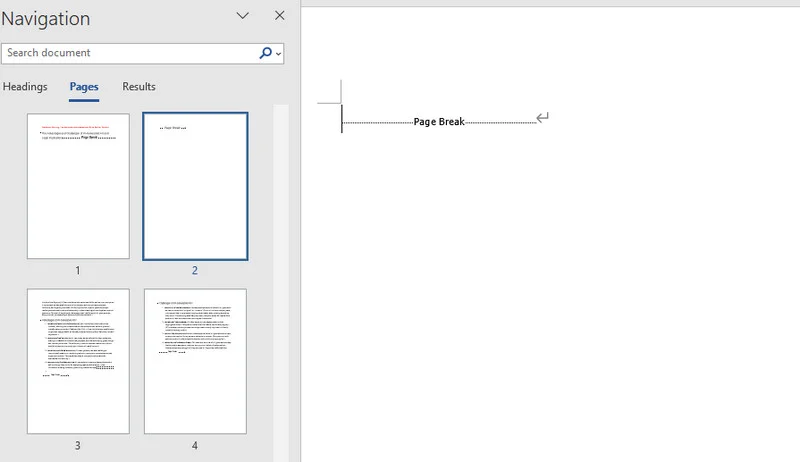
Conclusion
This guide covers five efficient ways to insert a page in Word documents, ranging from quick manual fixes in Microsoft Word to programmatic automation using Free Spire.Doc for Python. Each method shines in different scenarios: manual options like blank pages or page breaks are perfect for one-off edits, while the Free Spire.Doc is the ideal choice for integrating workflows and high-volume file processing. By choosing the appropriate method for your scenario, you can insert pages efficiently while maintaining a consistent document layout.
FAQs about Inserting Pages in Word
Q1: How do I insert a landscape page in Word?
To insert a landscape page in Word, you simply need to isolate that specific section using a section break and change its orientation.
First, place your cursor right before the content you want to flip, go to Layout > Breaks > Next Page, and then navigate to Layout > Orientation > Landscape. This allows you to directly rotate a page in Word from portrait to landscape without changing the formatting of the rest of your document.
Q2: What is the difference between inserting a blank page and a page break?
A blank page drops an untouched empty page between sections. A page break does not create empty space; it is simply an invisible formatting boundary that cuts the current line short and pushes any following text directly to the top of the next page, but inserting two page breaks can also insert a blank page in Word.
Q3: Why does my page numbering mess up after I insert a cover page?
Word's built-in layouts are programmed to hide numbering on title pages, but if numbers still show up on your cover, double-click the header or footer area to reveal the layout options. In the Header & Footer tab on the Ribbon, check the box for Different First Page to start your visible numbering cleanly from page two.
Also Read
How to Count Words in a PDF (The Ultimate Guide for 2026)
Table of Contents
In our daily work and life, we often find ourselves needing to count the words in a PDF document. Unlike Microsoft Word, PDF files do not provide a native word count feature, and most PDF readers offer only limited support for word counting. This is because PDF files treat text as fixed visual elements rather than a continuous flow of words. If you are wondering how to count words in PDF documents easily, you are in the right place. This guide will introduce 3 highly effective solutions to solve this problem, covering everything from simple, direct online tools to automated scripts that can handle hundreds of documents at once.
- Count Words with Online Tools
- Count Words Using Adobe Acrobat and MS Word
- Word Count in PDF with Python
- Methods Comparison
Count Words in PDF with Online Word Counter
When it comes to getting a PDF word count, online counters are usually the first solution that comes to mind. They are incredibly lightweight, require zero installation, and work perfectly across all your devices. Instead of cluttering your computer with heavy software, you can get a quick answer directly inside your web browser and move on to other tasks.
How to do it:
- Step 1. Open your web browser and search for a trusted free online PDF word count tool.
- Step 2. Drag and drop your PDF file directly into the upload box.
- Step 3. After the file is uploaded and processed, the website will display the total word count.
Word count result using an online PDF tool: 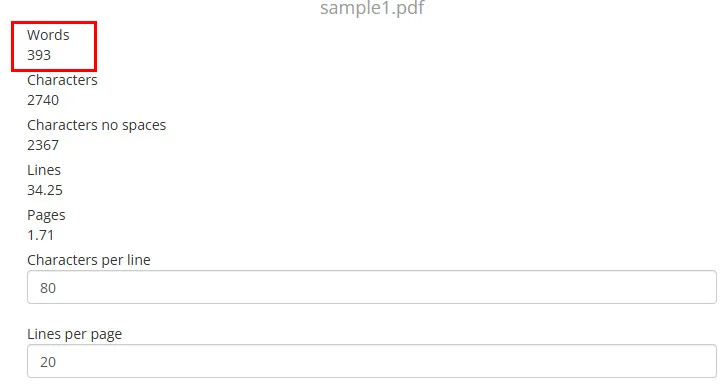
Privacy & Security Warning: It is not recommended to upload sensitive PDFs to free online websites. If your document contains business secrets, personal IDs, or financial data, skip this method entirely. Free tools are only safe for public, non-sensitive articles.
Count Words in a PDF Using Adobe Acrobat and MS Word
If you are working with legal documents, translation projects, or academic papers, accuracy is often more important than speed. In these cases, a desktop-based workflow can be a safer and more reliable choice than relying on online tools.
Unlike Microsoft Word, Adobe Acrobat does not provide a dedicated word count feature in all editions. A common workaround is to convert the PDF to Word and then use Word's built-in feature to check the word count.
Step-by-Step Guide:
- Step 1. Open your PDF file in Adobe Acrobat (or use the official Adobe Acrobat online converter).
- Step 2. Click Export PDF in the right pane and select Microsoft Word (.docx) as your output format.
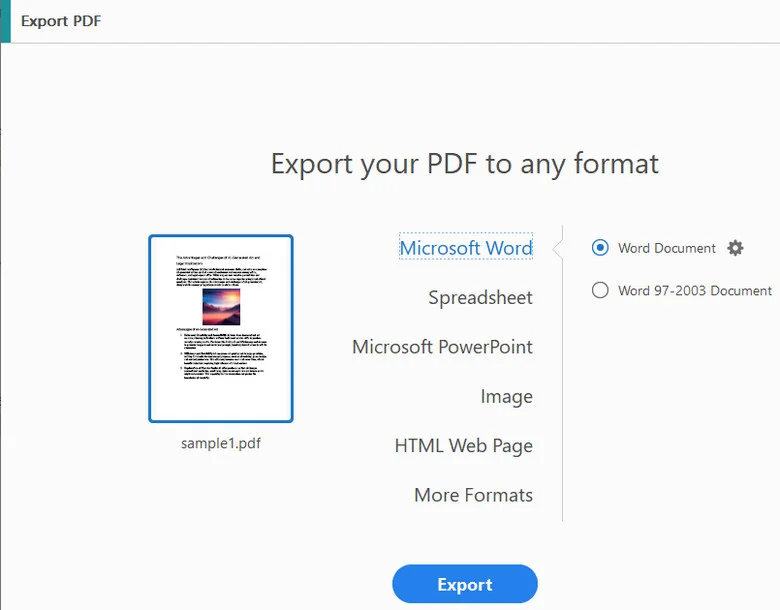
- Step 3. Save the newly generated file to your local computer.
- Step 4. Open the document in Microsoft Word, navigate to the Review tab, and click Word Count.
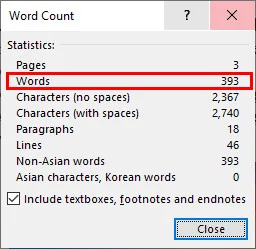
Note: Don't worry about your original file, this process simply creates a brand-new Word document, leaving your original PDF untouched.
How to Do Word Count in PDF with Python Automatically
Manually converting files works fine for one or two documents. But what if you are a developer or a data analyst with a folder full of 500 reports? Manually processing a large number of files can be time-consuming, making automation a more practical solution.
For developers, extracting text programmatically is often the most efficient way to count words in PDF files. You can automate PDF word counting with a short Python script. With the help of Free Spire.PDF for Python, you can extract the raw text programmatically and use regular expressions to count the words instantly.
Python Code Example
The code below shows how to count words of multiple PDF documents in one go:
import os
import re
from spire.pdf.common import *
from spire.pdf import *

# 1. Define the input folder directory
folder_path = "/input/pdfs/"

# 2. Configure text extraction options once
extractOptions = PdfTextExtractOptions()
extractOptions.IsExtractAllText = True

print("--- Word Count Report ---")

# 3. Loop through all files in the directory
for file_name in os.listdir(folder_path):
    # Process only PDF files
    if file_name.lower().endswith('.pdf'):
        file_path = os.path.join(folder_path, file_name)

        # Initialize Document object and load the current PDF
        doc = PdfDocument()
        doc.LoadFromFile(file_path)

        # Extract text from all pages of the current file
        total_text = ""
        for i in range(doc.Pages.Count):
            page = doc.Pages.get_Item(i)
            textExtractor = PdfTextExtractor(page)
            text = textExtractor.ExtractText(extractOptions)
            if text:
                total_text += text + "\n"
        doc.Close()

        # Count English words in the extracted text
        word_count = len(re.findall(r"\b[a-zA-Z]+(?:['-][a-zA-Z]+)*\b", total_text))

        # Print the file name and its corresponding word count
        print(f"File: {file_name} | Word Count: {word_count}")
Below is a preview of the batch word count results printed by the script:

Note: The word count is calculated using regular-expression matching on the extracted text. As different applications use different rules for handling numbers, hyphenated words, punctuation, headers, footers, and other special content, the result may differ slightly from the word count reported by Microsoft Word, Adobe Acrobat, or online PDF word counters.
Why use this?
This method is both fast and secure because your data never leaves your computer. If you are dealing with large-scale projects, utilizing Free Spire.PDF for Python brings several technical advantages over standard open-source tools:
- High-Fidelity Text Extraction: Unlike basic PDF parsers that often scramble text orders or mix up multi-column layouts, it accurately captures text streams based on the visual layout, ensuring your final count is as close to real human reading as possible.
- Excellent Performance on Large Files: It handles massive, multi-page documents smoothly without spending much system memory, thanks to its optimized internal memory release mechanisms.
- All-in-One Extensibility: If your PDF processing workflow grows in the future, you won't need to change tools. It fully supports advanced features like adding annotations, signing documents, or converting file formats under a single, unified codebase.
Just note that if your PDF contains scanned images instead of text, you will need to add an OCR (Optical Character Recognition) step to read the text first.
Which PDF Word Counter Should You Choose?
Choosing the right method depends on your current situation and the type of document you have. Here is a quick breakdown to help you pick the best tool for the job:
| Method | Accuracy | Speed | Privacy Safety | Best For |
|---|---|---|---|---|
| Online Tools | Medium | Fast | Low | Quick, public, and non-sensitive articles |
| Adobe to Word | High | Medium | High (100% Local) | Official docs, legal papers, and highly confidential files |
| Python Script | High | Fast (Bulk) | High (100% Local) | Developers, data analysts, and automated batch processing |
Conclusion
Counting words in PDF files doesn't have to be complicated. Whether you need a quick answer from an online tool, a reliable count through Word conversion, or an automated Python solution for batch processing, there is an option for every scenario. Choose the approach that matches your needs and start analyzing your PDF documents more efficiently.
Also Read
Add Table of Contents to PDF: Adobe, Online Tools & Python
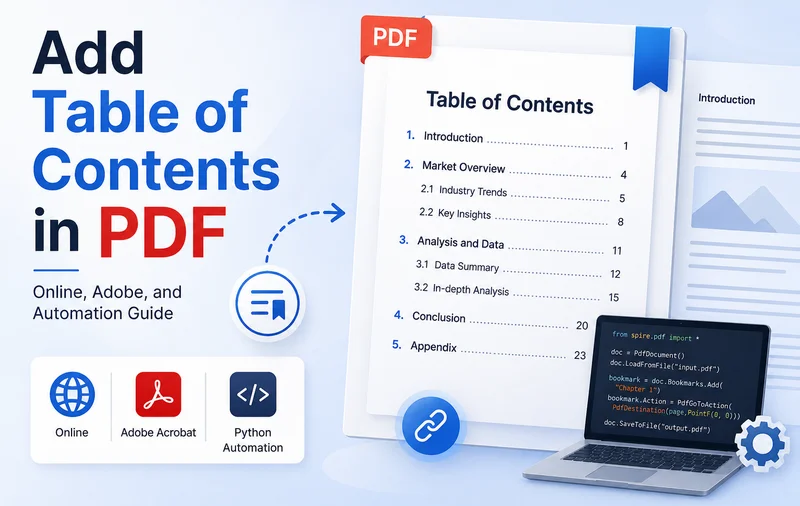
Reading a 100-page PDF document without any navigation can be frustrating and inefficient. Whether it is a business report, e-book, or technical manual, a well-structured table of contents significantly improves navigation. It also helps readers quickly understand the document structure.
However, because PDF is a fixed-layout format, modifying its pages after generation is tricky. This guide introduces the three popular methods to help you add a table of contents to PDF files efficiently with online editors, Adobe Acrobat, and Python.
- Methodology Comparison: Choose Your Approach
- Add a Clickable Table of Contents in PDF Online
- Create a Table of Contents in Adobe PDF
- Add Table of Contents in PDF Automatically via Python
- Tips for Designing a TOC
Methodology Comparison: Choose Your Approach
Before digging into the step-by-step tutorials, you can first get a general overview of the methods introduced in this article. Depending on your current document status and technical background, there is always a solution that fits your needs.
| Method | Best For | Technical Logic | Pros | Cons |
|---|---|---|---|---|
| Online Editors | Completed PDFs, tight deadlines | Reverse Generation: Auto-scans text to create bookmarks, then prints a TOC page. | Incredibly fast; No installation required. | Free tiers have size limits; AI layout errors. |
| Adobe Acrobat Pro | Publisher-grade accuracy, print layouts | Visual Layering: Manual text layout or back-to-source conversion. | Industry standard; Flawless cross-platform links. | Expensive license; High manual labor for long files. |
| Spire.PDF (Code) | Developers, batch server automation | Programmatic Bookmark Generation: Renders fonts via exact X/Y coordinates. | Infinite scaling; 100% automated workflows. | Requires basic programming baseline. |
How to Add a Table of Contents to PDF Online
If you are dealing with a PDF document and need a quick turnaround, web-based tools can be the top choice. Online editors like PDFelement are lightweight and easy to use, allowing you to easily perform various edits directly in your browser simply by uploading your document.
Next, we will demonstrate how to create a clickable table of contents in a PDF using online tools, taking PDFelement as an example.
- Step 1. Go to PDFelement and upload your PDF document.
- Step 2. Navigate to the navigation panel tools and select Auto-Bookmark. The web engine will scan font sizes and line breaks to map out your document's hierarchy.
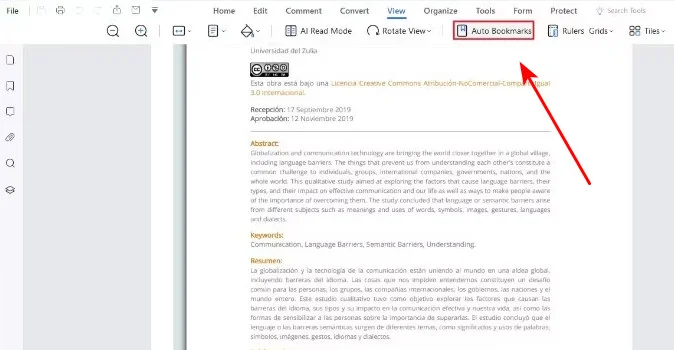
- Step 3. Click on the bookmark options dropdown menu and choose Create Contents Page. The tool will generate a new table of contents page at the beginning of the document.
Note: While online tools are excellent for quick fixes, always review your document after downloading. Complex layouts with floating images can sometimes confuse the auto-detection algorithms, requiring a few manual text tweaks.
How to Create a Clickable Table of Contents in Adobe PDF
Adobe Acrobat is one of the most widely used PDF editors and is commonly used in professional publishing environments. Unlike lightweight web-based tools, it provides advanced editing, compatibility, and document management features. Adobe Acrobat supports both direct PDF editing and document conversion workflows. You can either manually create navigation links inside the PDF or convert the file back to Word to generate a dynamic TOC automatically.
Let’s take a look at how to add a table of contents to a PDF using Adobe Acrobat Pro through these two approaches.
Create a PDF Table of Content in Adobe
Adobe helps you map the content links directly on the PDF canvas using invisible touch targets. Here are the step-by-step instructions.
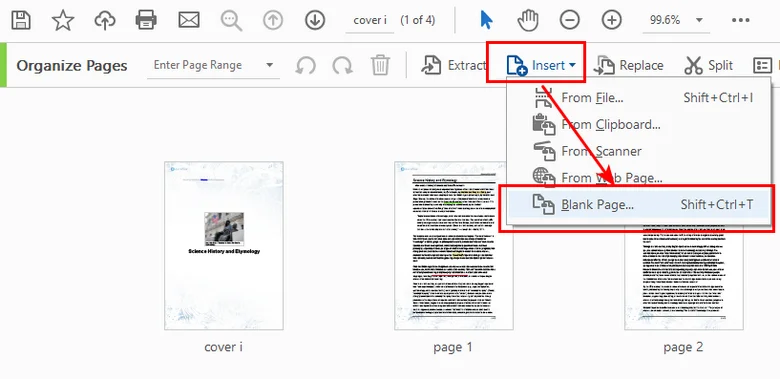
- Step 1. Open the Organize Pages tool. Click Insert > Blank Page and position it right after your cover sheet to create room for your new index.
- Step 2. Switch to the Edit PDF tool. Draw a text box on your new blank page and type out your chapter index layout (e.g., Chapter 1: Market Trends .......... Page 4).
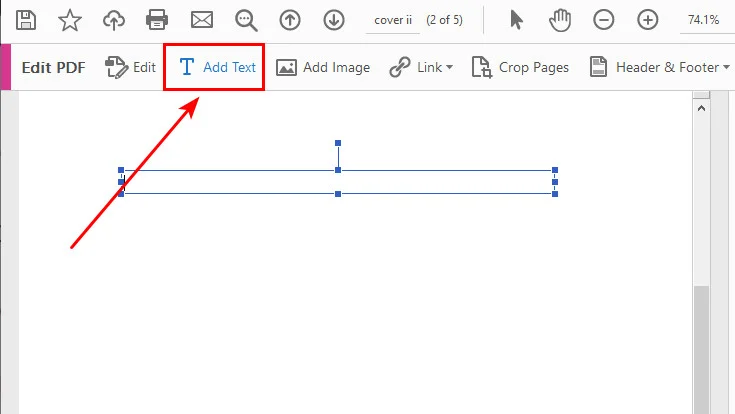
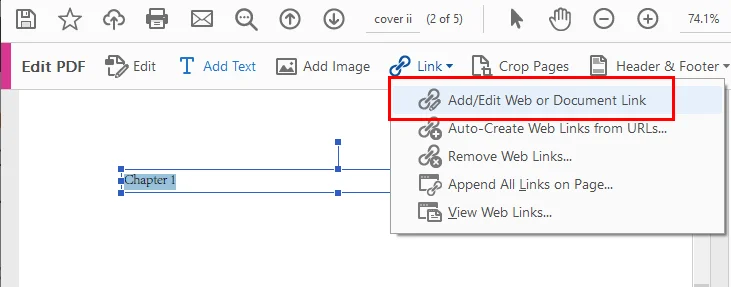
- Step 3. Select the Link tool from the top toolbar, click Add/Edit Web or Document Link, and drag an invisible rectangular box directly over your typed "Chapter 1" text layer.
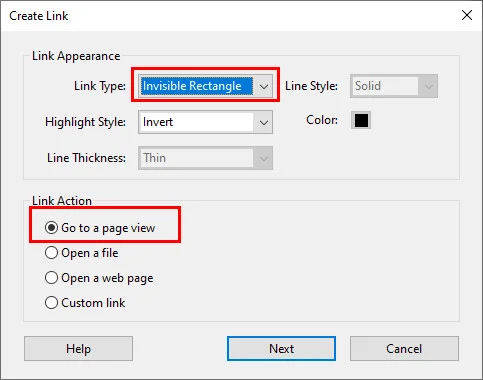
- Step 4. In the pop-up link configuration window, set the link action to Go to a page view. Scroll through your document in the background until Chapter 1 fills your screen nicely, then click Set Link. Repeat this process for the remaining chapters.
Convert back to Word and Add TOC
In addition to building a table of contents directly inside the PDF, you can also convert the file back to a Word document and generate an index. Compared to the former method, this approach requires less manual effort, especially when dealing with long documents.
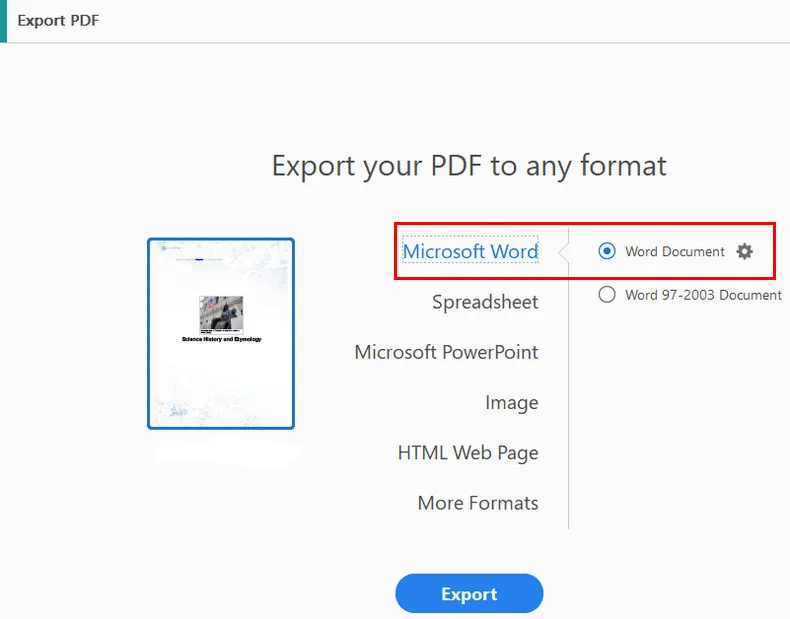
- Step 1: Open your document in Acrobat, navigate to the Export PDF pane, and select Microsoft Word Document.
- Step 2: Open the newly generated Word file, select your section headers, and apply standard Heading 1 / Heading 2 styles from the Home ribbon.
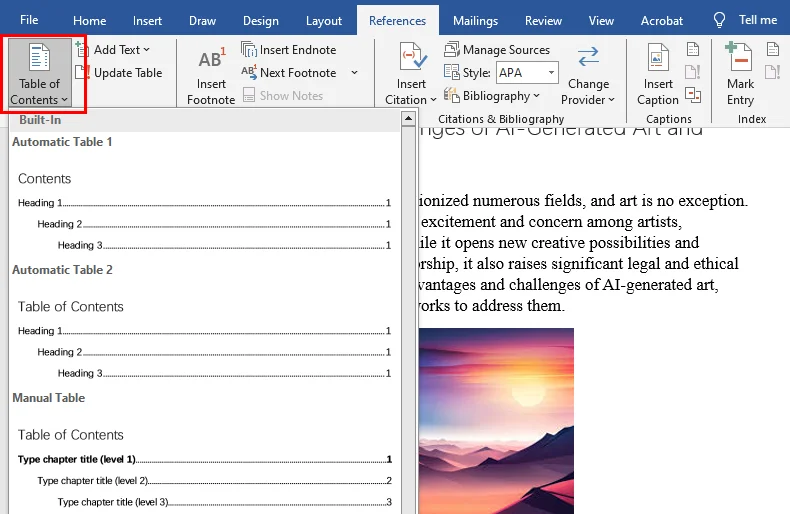
- Step 3: Move your cursor to the first page, go to References > Table of Contents, and drop in a dynamic, native index page.
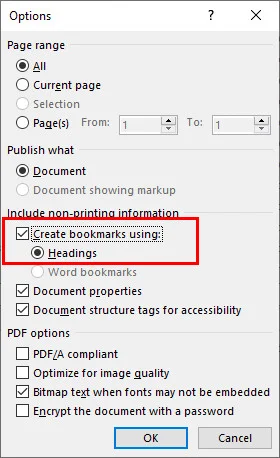
- Step 4: Choose Save As and select PDF. In the save window options, make sure to verify that Create bookmarks using headings is checked to automatically seal your multi-layered navigation.
Also Read: How to Change PDF Page Size: Online, Adobe & With Code
How to Add PDF Navigation Bookmarks Automatically via Python
If you need to process large volumes of reports, invoices, or technical documents automatically, manual methods are often time-consuming. Unlike online tools or Adobe Acrobat workflows, Python libraries can generate bookmarks and navigation structures programmatically, making them ideal for large-scale automation.
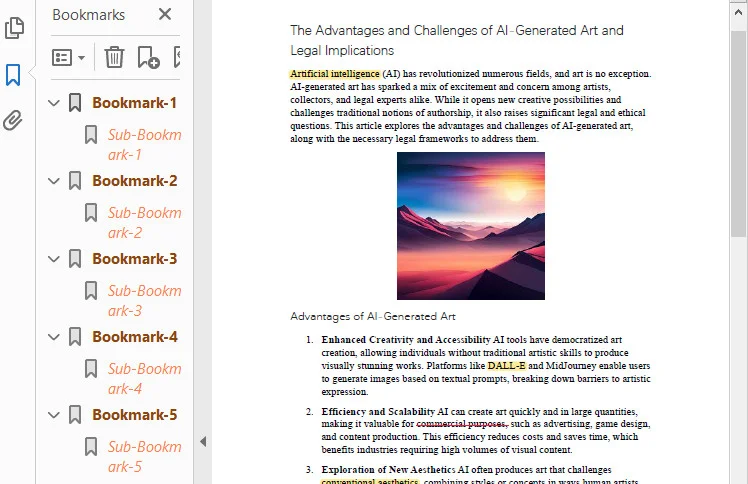
This method creates PDF bookmarks programmatically rather than generating a visible table of contents page inside the document. The bookmarks appear in the PDF reader's navigation panel and allow users to jump to specific sections quickly.
Using Free Spire.PDF for Python, developers can create bookmark structures through its simple APIs and link them to specific pages or coordinates inside the document.
Below is the complete code example:
from spire.pdf.common import *
from spire.pdf import *

# Create a PdfDocument object
doc = PdfDocument()

# Load a PDF file
doc.LoadFromFile("/input/sample.pdf")

# Loop through the pages in the PDF file
for i in range(doc.Pages.Count):
    page = doc.Pages.get_Item(i)

    # Set the title and destination for the bookmark
    bookmarkTitle = "Bookmark-{0}".format(i+1)
    bookmarkDest = PdfDestination(page, PointF(0.0, 0.0))

    # Create and configure the bookmark
    bookmark = doc.Bookmarks.Add(bookmarkTitle)
    bookmark.Color = PdfRGBColor(Color.get_SaddleBrown())
    bookmark.DisplayStyle = PdfTextStyle.Bold
    bookmark.Action = PdfGoToAction(bookmarkDest)

    # Create a collection to hold child bookmarks
    bookmarkCollection = PdfBookmarkCollection(bookmark)

    # Set the title and destination for the child bookmark
    childBookmarkTitle = "Sub-Bookmark-{0}".format(i+1)
    childBookmarkDest = PdfDestination(page, PointF(0.0, 100.0))

    # Create and configure the child bookmark
    childBookmark = bookmarkCollection.Add(childBookmarkTitle)
    childBookmark.Color = PdfRGBColor(Color.get_Coral())
    childBookmark.DisplayStyle = PdfTextStyle.Italic
    childBookmark.Action = PdfGoToAction(childBookmarkDest)

# Save the PDF file
doc.SaveToFile("/output/Bookmark.pdf")

# Close the document
doc.Close()
Below is a preview of the PDF table of contents created using Free Spire.PDF:
Tips for Creating a User-Friendly PDF Table of Contents
- Don't Forget Dot Leaders: Always add a string of period marks (
. . . . .) between your chapter title and the page number. On wide monitors, your reader's eyes will struggle to connect text on the left with numbers on the far right without a visual guide rail. - Keep Bookmarks and Page TOC Synced: Ensure your visual index page matches your left sidebar bookmark panel exactly. When a user clicks a bookmark, it should drop them off at the exact same coordinate as clicking the text link on page one.
- Padding the Clickable Target Box: When mapping link annotations with code or the Acrobat link tool, make your bounding boxes slightly taller and wider than the actual words. This extra padding makes hitting the touch targets significantly easier for readers browsing on mobile screens.
Conclusion
Adding a clear table of contents to PDFs transforms a messy file into a professional document. Among the methods introduced, online tools are best for quick tasks, while Adobe Acrobat suits those who prefer desktop software with strict file compatibility and security. For processing massive files or integrating navigation into automated workflows, Free Spire.PDF for Python is the ultimate choice. Choose the right tool for your workload and start organizing your PDFs today!
Also Read
How to Make a Hanging Indent in Word: 3 Easy & Useful Ways
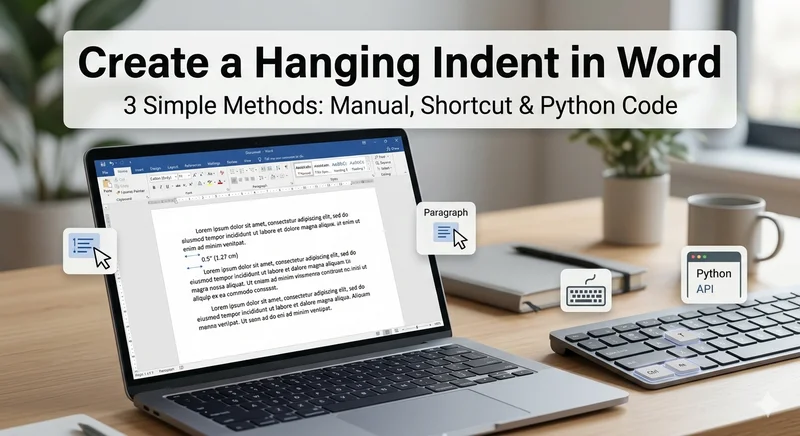
If you're formatting an academic paper, bibliography, or APA/MLA reference list, you may need to create a hanging indent in Word. Although Microsoft Word includes built-in formatting tools for this, many users still struggle to find the correct button, especially in newer versions of Word. In this guide, you'll learn how to make a hanging indent in Word using three simple methods: manual formatting, keyboard shortcuts, and Python automation for batch document processing.
- Make a Hanging Indent in Microsoft Word Manually
- Create a Hanging Indent in Word Using Shortcut
- Automating Make Hanging Indent in Word with Python
- Troubleshooting & FAQs
- Method Comparison
Make a Hanging Indent in Microsoft Word Manually
If you are wondering how to do a hanging indent on Word for a single document, the Paragraph settings menu is your most reliable approach. This method works in most versions of Microsoft Word and allows you to customize the indent size precisely.
How to set it up:
- Step 1. Highlight the specific paragraphs or the entire bibliography you want to format.
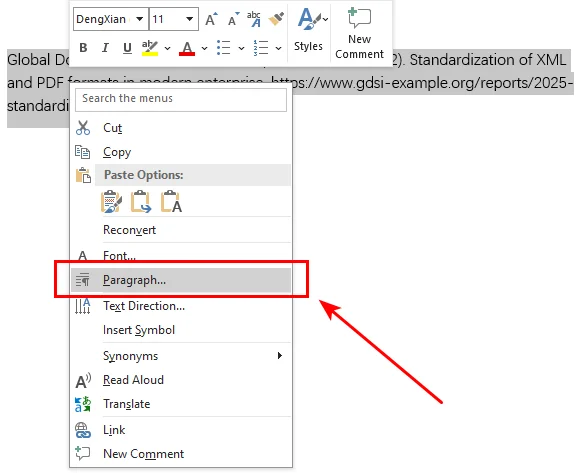
- Step 2. Right-click the highlighted text and select Paragraph... from the context menu. This will instantly open the Indents and Spacing tab.
- Step 3. In the Indentation section, find the Special drop-down menu and select Hanging.
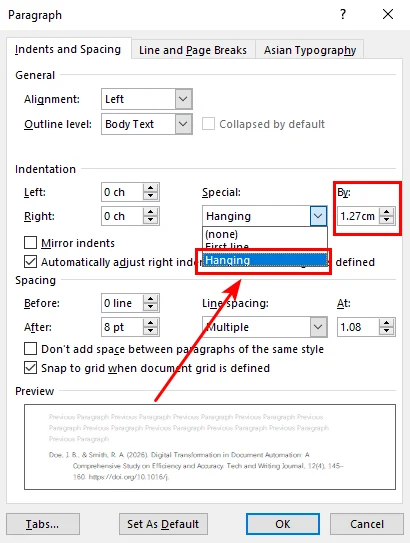
- Step 4. The standard offset for APA or MLA styles is 0.5" (1.27 cm). Hit OK, and your text will snap into place.
Create a Hanging Indent in Word Using Shortcut
While adding a hanging indent in Word using the menu offers precise control, repeatedly opening the Paragraph dialog can become inefficient when working with long citation lists. If you have a long list of citations and want to speed things up, using a keyboard shortcut is more efficient for power users.
Hanging indent shortcut for Windows and Mac:
- On Windows: Press Ctrl + T. Each press increases the indent. To undo it or move it back, press Ctrl + Shift + T.
- On Mac: Press Command + T. macOS does not have a default shortcut to decrease the indent; you can use Command + Z to undo the action immediately, or press Option + Command + Q to reset all paragraph formatting.
These shortcuts are especially useful when editing long documents and applying formatting repeatedly.
Tip: While adjusting your layout, you might encounter stubborn blank lines that disrupt the flow. To tidy up your document efficiently, you can follow this guide to remove blank lines in Word quickly.
Automating Make Hanging Indent in Word with Python
While the manual and shortcut methods are sufficient for casual users, they lose efficiency when you need to handle hundreds of documents or paragraphs scattered across different pages. For large-scale document processing, automation helps maintain consistent formatting while reducing manual work.
In this section, we will demonstrate how to add a hanging indent in Word documents using Free Spire.Doc for Python. This is a free professional library designed for creating, editing, and converting Word documents. It features the ParagraphFormat.SetFirstLineIndent() method, which allows you to shift between first-line and hanging indents simply by adjusting a single parameter.
Install Free Spire.Doc for Python
Before running the code, install the library using pip:
pip install Spire.Doc.Free
Python Code Example (using Free Spire.Doc)
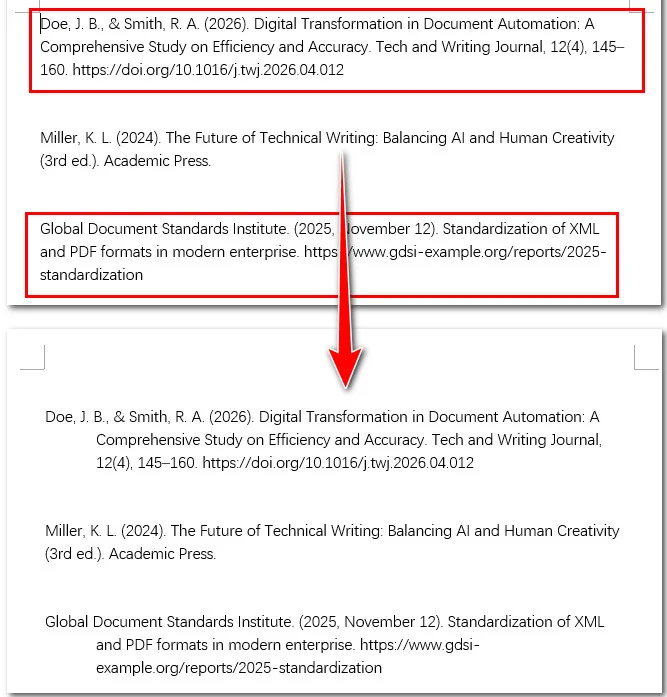
The following Python code shows how to target the first and third paragraphs within an existing Word document and set a hanging indent on these paragraphs.
from spire.doc import *
from spire.doc.common import *

# Load an existing Word document
doc = Document()
doc.LoadFromFile("/input/apa style.docx")

# Access the first section of the document
section = doc.Sections.get_Item(0)

# Format the first paragraph
para1 = section.Paragraphs.get_Item(0)
para1.Format.SetLeftIndent(36.0)
para1.Format.SetFirstLineIndent(-36.0)

# Format the fifth paragraph
para3 = section.Paragraphs.get_Item(4)
para3.Format.SetLeftIndent(36.0)
para3.Format.SetFirstLineIndent(-36.0)

# Save the updated document
doc.SaveToFile("/output/Hanging_Indent.docx", FileFormat.Docx2013)
doc.Close()
In the code above, we use get_Item(4) to target what appears to be the third paragraph. This is because empty lines between text blocks are often counted as individual paragraph objects by the library. If your document has no empty lines, you may need to adjust the index to 2 instead.
Here's the preview of the resulting file and the original Word document:
Tip: Once you've perfected your layout, you can also use Free Spire.Doc to convert the Word documents to PDF. This ensures your hanging indents and overall formatting remain perfectly intact across all platforms and devices.
Troubleshooting & FAQs
Q1: Why is Ctrl + T not working in my Word?
This usually happens if another background app has the same shortcut. Check if you have any specialized translation or screen-recording software running. If all else fails, use the manual method above.
Q2: How do I set a hanging indent in Word Online?
The web version is slightly different. Go to the Home tab, click the three dots (...) for more options, select Paragraph Options, and find Special Indent.
Q3: What is the standard size for APA or MLA?
The standard is 0.5 inches (1.27 cm). Most Word versions set this by default as soon as you select "Hanging."
Hanging Indent Method Comparison
Now that we've covered both manual and automated approaches, let's briefly compare when each method works best.
| Method | Best For | Advantages | Limitations |
|---|---|---|---|
| Manual Formatting | One-time edits | Simple and built into Word | Slower for repeated tasks |
| Keyboard Shortcut | Fast document editing | Quick and convenient | Limited customization |
| Python Automation | Batch document processing | Efficient and consistent | Requires coding knowledge |
Conclusion
In summary, manual clicks and shortcuts within Microsoft Word offer a quick, convenient solution for occasional edits and one-off tasks. However, for those looking to bypass the office suite and automate formatting workflows, Free Spire.Doc for Python delivers speed and precision. Choose the tool that aligns with your project goals and start building professional, perfectly formatted documents today!
Also Read:
How to Rotate Page in Word: Manual, VBA & Python Methods
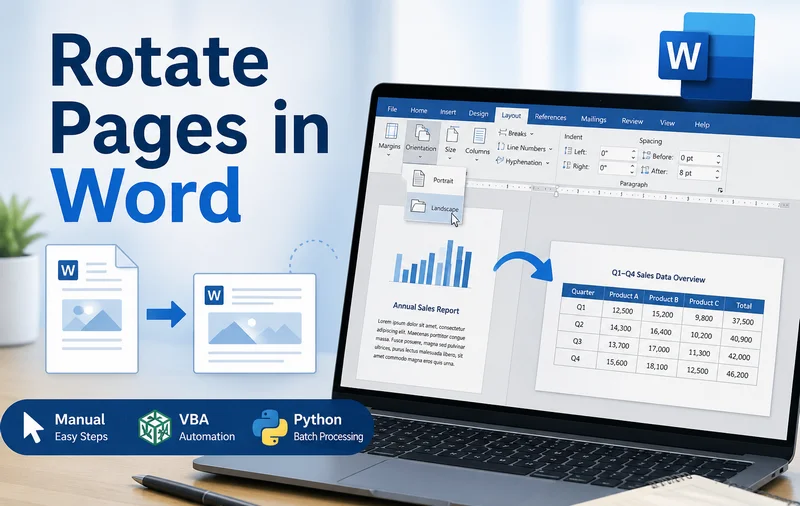
Have you ever tried to insert a wide Excel table into a Word document, only to see the content spill outside the page margins? This usually happens when the default portrait layout isn't wide enough to display large tables or images properly.
At this point, you need to rotate the page in Word by switching it from portrait to landscape. This simple adjustment gives you more horizontal space and immediately fixes layout issues. In this guide, we’ll walk through practical ways to rotate pages in Word, from manually adjusting a single page to automating the process with VBA and Python.
- Rotate One Page in Microsoft Word
- Rotate Pages in Word Documents with VBA
- Rotating Pages in Word Documents via Python
- Tips for Rotating a Page in Word
- Method Comparison
How to Rotate One Page in Microsoft Word
When rotating pages in a Word document, the most common headache is figuring out how to rotate one page without flipping the entire document. If you change the orientation normally, every single page follows suit. The key to fixing this is using Section Breaks.
Section breaks allow you to divide a continuous document into independent sections. Since Word’s page orientation settings operate on a per-section basis, creating these divisions is exactly what allows you to rotate a single page while leaving the rest of the document untouched.
Steps to Make One Page Landscape:
- Step 1. Place your cursor at the very beginning of the page you want to rotate.
- Step 2. Go to the Layout tab, click Breaks, and select Next Page under Section Breaks.
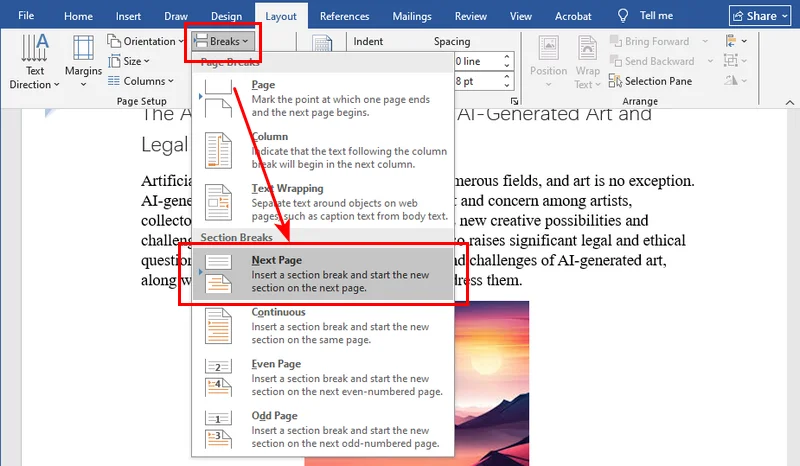
- Step 3. Move your cursor to the end of that same page and repeat the process (insert another Next Page break).
- Step 4. Now, click anywhere on that isolated page. Go to Layout > Orientation and select Landscape.
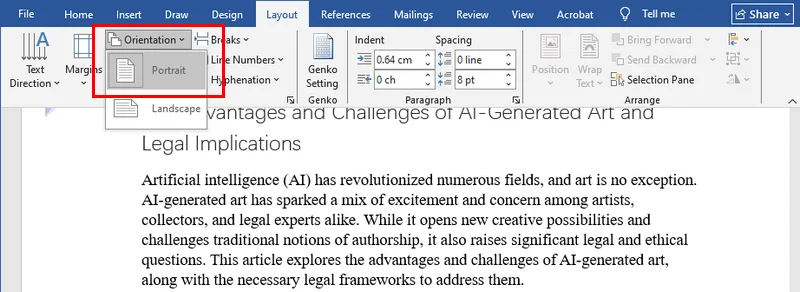
For most users, this is the most straightforward and intuitive solution. Since Microsoft Word is already a standard tool on almost every computer, you don't need to install any extra software. It’s the perfect quick fix when you only have one or two specific pages that need to be landscape.
Note: Page breaks and section breaks are often confused. If you accidentally insert a page break, you can follow this guide to quickly fix it: How to Remove Page Breaks in Word (4 Easy Methods).
How to Rotate Pages in Word Documents with VBA
If you're working with a large document and need to adjust multiple sections, manually repeating the same steps can quickly become inefficient. This is where VBA (Visual Basic for Applications) becomes useful.
By recording or writing a macro, you can apply orientation changes to specific sections with a single action. Since VBA is built directly into Microsoft Word, it’s a convenient option for automating repetitive formatting tasks without relying on external tools.
VBA Code Snippet:
To rotate the current section to landscape, you can use the following macro:
Sub RotateSectionToLandscape()
    ' Target the setup of the current selection's section
    With Selection.PageSetup
        .Orientation = wdOrientLandscape
        ' Optional: Adjust width/height for older Word versions
        .PageWidth = InchesToPoints(11.69)
        .PageHeight = InchesToPoints(8.27)
    End With
    MsgBox "Section rotated successfully!"
End Sub
Note: While VBA is great for quick internal tasks, it has its limits. If you need to process thousands of documents on a server or integrate this logic into workflow, you’ll find that VBA requires MS Word to be open and running. For behind-the-scenes scaling, you’ll want to look at the Python solution in the next section.
Rotating Pages in Word Documents via Python
For those managing thousands of files or building document processing apps, manual clicking isn't an option. You need a programmatic way to control page orientation in Word. We can achieve this using Free Spire.Doc for Python.
Free Spire.Doc provides a simple API for handling advanced Word document operations. It allows you to perform complex tasks, like section-based orientation changes, with just a few lines of code, all while ensuring that your headers, footers, and margins remain intact.
Python Code Example:
The following code demonstrates a simple four-step workflow to rotate pages: loading the Word document, accessing the specific section, setting that section to a landscape orientation via PageOrientation.Landscape, and finally saving the modified file.
from spire.doc import *
from spire.doc.common import *

# Create a Document object and load a Word file
doc = Document()
doc.LoadFromFile("/input/sample.docx")

# Access the first section
section = doc.Sections.get_Item(0)

# Set page orientation to landscape
section.PageSetup.Orientation = PageOrientation.Landscape

# Save the modified document
doc.SaveToFile("/output/rotated.docx", FileFormat.Docx2019)
doc.Close()
Here's the preview of the original file and the rotated Word documents:
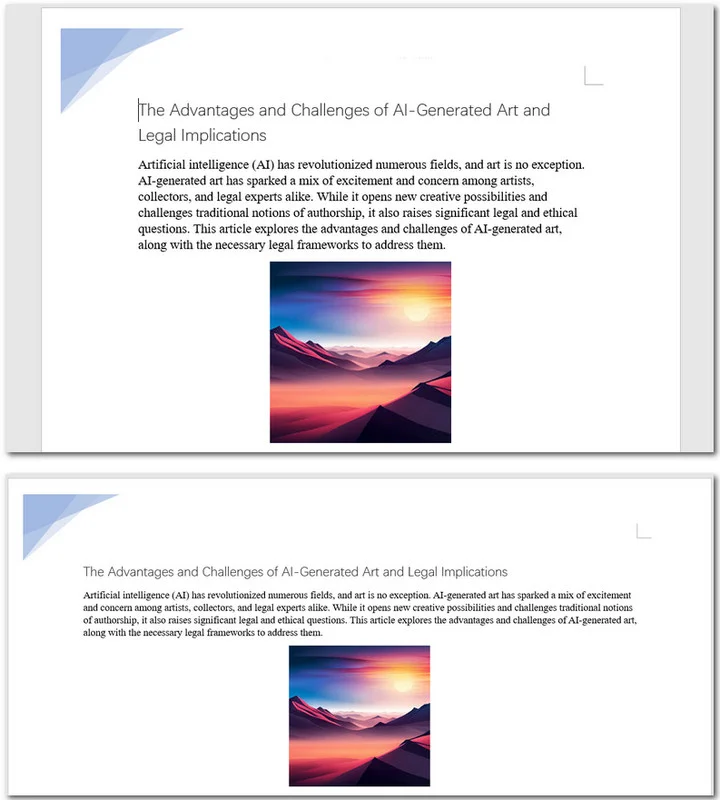
You can also iterate through multiple sections and apply changes conditionally:
for i in range(doc.Sections.Count):
    section = doc.Sections.get_Item(i)
    if i % 2 == 0:  # Example condition
        section.PageSetup.Orientation = PageOrientation.Landscape
Advanced Tips for Rotating a Page in Word
When you rotate Word document sections, you may encounter some problems. Here are a few practical tips to maintain a clean layout after changing page orientation:
- Continuous Page Numbering: Sometimes, inserting a section break restarts your page numbers at "1". To fix this, double-click your footer, go to Page Number > Format Page Numbers, and select Continue from previous section.
- Header Alignment: A header that looks great in Portrait might look too short in Landscape. You may need to uncheck "Link to Previous" in the Header & Footer settings to give your horizontal pages a unique look.
Tip: After adjusting page orientation, you can refine the page layout further, such as adding borders to specific pages for a more polished look.
Method Comparison: Which Way Should You Choose?
Before wrapping up, here’s a quick comparison of the three methods to help you decide which one best fits your needs:
| Method | Difficulty | Best For | Automation Level | Flexibility | Requires Word Installed |
|---|---|---|---|---|---|
| Manual (Word) | Easy | One or a few pages | None | Medium | Yes |
| VBA | Medium | Repetitive tasks within one doc | Partial | High | Yes |
| Python | Advanced | Batch processing / multiple docs | Full | Very High | No |
Conclusion
This guide covers three popular methods to rotate a page in Word documents. If you are a casual user, leveraging Microsoft Word’s built-in orientation settings combined with section breaks is the most straightforward approach. If you need to handle repetitive tasks across a large document, then a VBA macro can save you significant time and effort. Finally, for developers who need to automate the processing of massive file batches on a server, Free Spire.Doc for Python stands out as the ultimate professional solution.
Also Read:
5 Best EPUB to TXT Converters (Online & Programming Ways)
Table of Contents
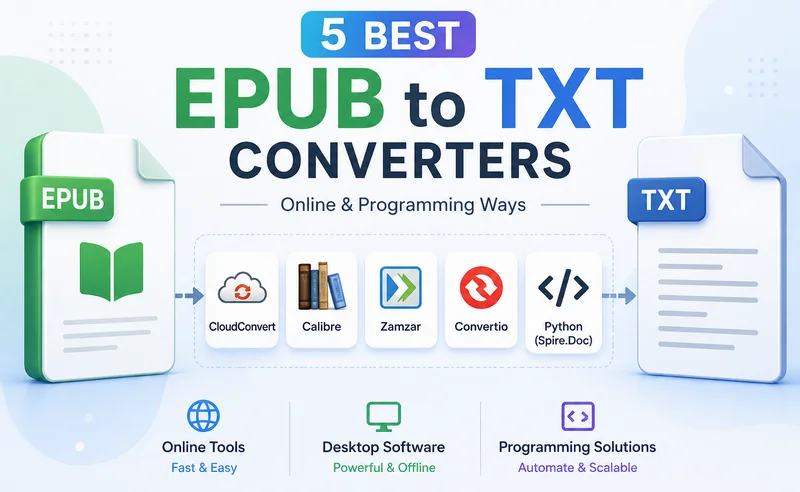
While EPUB is widely used for e-books, it can become inconvenient when you need raw text for tasks like content analysis or AI processing or use on lightweight devices that do not support complex formatting. In these cases, using a reliable EPUB to TXT converter allows you to extract clean, readable content without effort. This guide explores the most efficient tools available in 2026 to help you convert EPUB to a text file with ease.
- Best Online EPUB to TXT Converters
- Desktop & Programming EPUB to TXT Converters
- Quick Comparison
- FAQs
Best Online EPUB to TXT Converters (No Installation)
Online EPUB to TXT converters are the quickest solution when you have a few files and need immediate results without software overhead. Since these tools run directly in your browser, they work across almost any device with no hardware restrictions. Most tools follow a simple upload–convert–download workflow, making them ideal for quick conversions.
In this section, we will introduce three widely used online converters: CloudConvert, Zamzar, and Convertio, each offering unique features to help you handle EPUB-to-text conversion effortlessly.
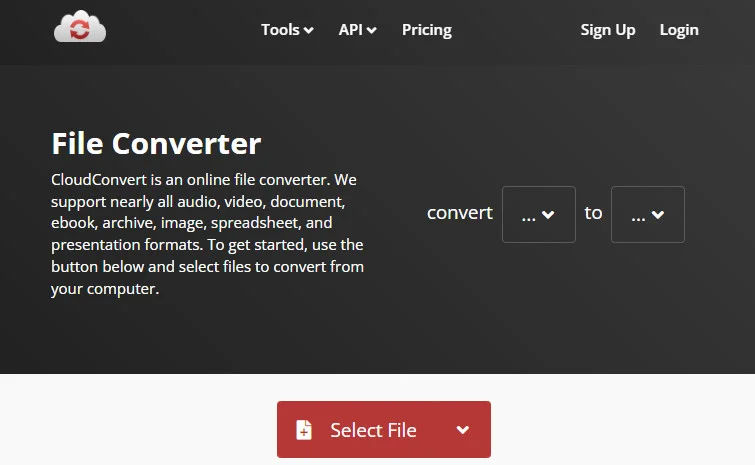
CloudConvert — The Versatile Toolkit
CloudConvert has built a reputation as a highly secure cloud platform that handles over 200 formats. It integrates perfectly with professional workflows by allowing direct imports from Google Drive, Dropbox, and OneDrive. Moreover, the engine's ability to preserve the original flow of the book is better than basic tools.
Advantages:
- Offers advanced security with ISO 27001 certification.
- Allows users to customize text encoding and line endings.
- Provides a clean, ad-free interface that is easy to navigate.
Disadvantages:
- The free tier limits you to 25 conversion minutes per day.
- Performance can throttle during peak hours for non-premium users.
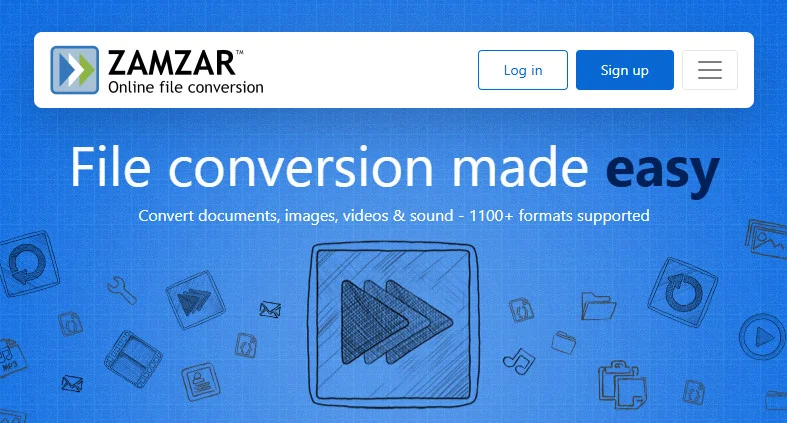
Zamzar — The One-Click Converter
Zamzar is the go-to EPUB to TXT file converter for users who value simplicity above all else. It is designed for simplicity and efficiency, removing complex settings that might confuse users. It is commonly used by many people who need to change an EPUB to a .txt document quickly.
Advantages:
- No account registration is required for basic use.
- The "email when done" feature is great for larger files.
- Supports an incredibly wide range of traditional file formats.
Disadvantages:
- Free users cannot perform bulk conversions simultaneously.
- Conversion speed is slower compared to other cloud competitors.
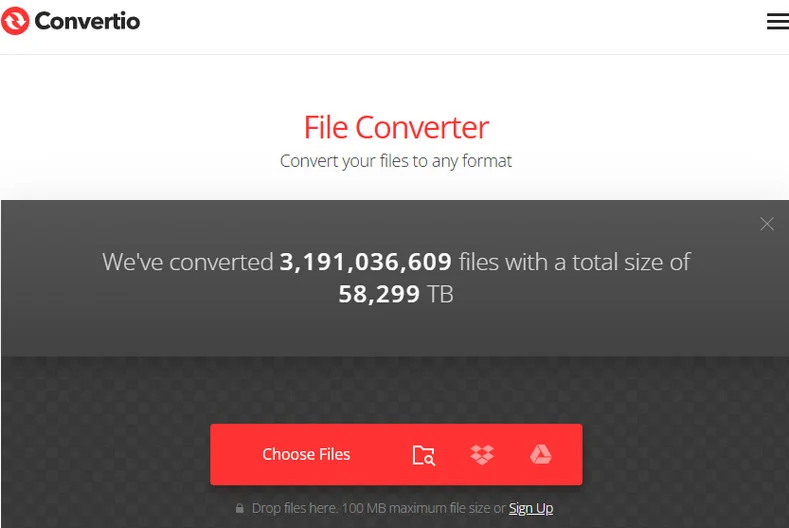
Convertio — Best for Mobile Users
If you are using a mobile device, Convertio provides the most responsive experience as an online EPUB-to-TXT converter. It utilizes a distributed conversion architecture, which ensures that your browser doesn't hang while waiting for a file. It also features powerful OCR capabilities for scanned documents.
Advantages:
- Highly optimized for mobile browsers and touch interfaces.
- Offers a batch upload feature for multiple small files.
- Integrated Chrome extension for even faster access.
Disadvantages:
- Strict 100MB file size limit for free accounts.
- The OCR feature is pay-to-use.
Note: Converting EPUB to TXT removes formatting such as headings, styles, and images, leaving only plain text content. If you need to preserve this formatting, you may want to convert EPUB to PDF instead. See this guide: How to Convert EPUB to PDF (Fast & Easy Guide)
Desktop & Programming EPUB to TXT Converters
For those handling hundreds of files or sensitive data, offline and automated methods are better. Unlike online tools, these solutions allow you to convert EPUB to TXT format locally, ensuring your documents are safe while offering superior batch-processing capabilities.
Calibre — The Professional E-books Tool
Calibre is considered the world's most popular open-source e-book manager. It is a desktop application that lets you manage your entire library while providing a robust engine to convert EPUB to TXT format locally.
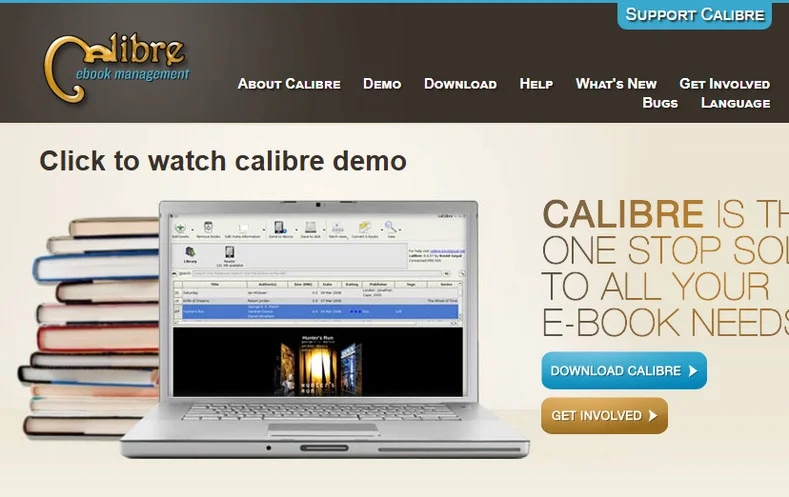
How to convert with Calibre:
- Step 1. Click Add books to import your EPUB files into the library.
- Step 2. Select your book and click the Convert books icon in the top menu.
- Step 3. Change the output format in the top right corner to TXT.
- Step 4. Click OK and wait for the Jobs counter to finish.
Advantages:
- Completely free and works offline.
- Supports advanced search & replace during the conversion process.
Disadvantages:
- The interface is quite cluttered.
- It is heavy on system resources compared to lightweight scripts and online EPUB to TXT converters.
Free Spire.Doc — Batch Conversion for Developers
For developers, Free Spire.Doc for Python library is a great choice. While it is primarily designed for Word document processing, it also supports loading EPUB files and exporting them as plain text.
How the code works:
Converting formats with Free Spire.Doc is straightforward. First, you create a Document object, then load your EPUB file, and finally use the SaveToFile() method to transform and save it as a new text file. If you also need to handle other document conversions, such as converting Word documents to text, this library is also helpful.
from spire.doc import *
from spire.doc.common import *

# Specify the input and output file path
inputFile = "/input/sample.epub"
outputFile = "/output/ToText.txt"

# Create a Document object
doc = Document()

# Load an EPUB file
doc.LoadFromFile(inputFile)

# Save the document as Text
doc.SaveToFile(outputFile, FileFormat.Txt)
doc.Close()
Advantages:
- Can be easily integrated into automated server-side pipelines.
- No data leakage issues, ensuring 100% privacy.
Disadvantages:
- Requires a Python environment to be set up on your computer.
- Basic coding skills are required.
Also Read: Convert TXT to Word: 4 Easy & Free Methods
Quick Comparison: Which Converter Should You Choose?
| Method | Speed | Privacy | Bulk Processing | Best For |
|---|---|---|---|---|
| Online Tools | Instant | Medium | Limited | One-off, small files |
| Desktop (Calibre) | Fast | High | Strong | Personal book collections |
| Programming | Script-based | Highest | Unlimited | Developers & Automation |
Summary
Choosing the perfect EPUB to TXT converter depends on your current needs. If you have a single file and need it converted in seconds, CloudConvert or Convertio are your best choices for a hassle-free experience. For readers who want to convert a personal library while maintaining privacy, Calibre is better for offline management. Finally, for businesses or developers looking for a scalable, secure way to convert EPUB to a text file, Free Spire.Doc offers the most professional and customizable solution.
FAQs about EPUB to TXT Converters
Q1: How can I convert EPUB to TXT for free?
A: You can use free online tools like CloudConvert or Convertio for quick conversions. For offline use, Calibre is a reliable free option that supports batch processing.
Q2: Can I convert EPUB to TXT on mobile or Android?
A: Yes. Online converters work directly in mobile browsers, making them the easiest option on Android or iOS.
Q3: Will I lose formatting when converting EPUB to TXT?
A: Yes. TXT files only contain plain text, so formatting such as images, headings, and styles will be removed. If you need to preserve layout, consider converting EPUB to PDF or Word instead.
Also Read:
Convert Text File to XML: Online Tools, Word & Python Methods

Plain text files (.txt) are widely used in professional environments due to their simplicity. Their lack of formatting makes them lightweight and universally compatible. However, this simplicity becomes a weakness when data integration is required. For example, when importing an employee list into an ERP system or syncing technical documents with a search engine, raw text quickly becomes insufficient. It lacks the structure modern systems require.
In contrast, XML provides a structured machine-readable format. This makes finding a reliable way to convert text files to XML essential. Whether for a quick task or for a massive database, this guide offers three efficient solutions.
- Using an Online Text to XML Converter
- Save a Text File as XML Using Microsoft Word
- Convert TXT Files to XML with Free Spire Series
- Choosing the Best Way to Convert Text Files to XML
- FAQs
Option 1: Using an Online Text to XML Converter
If you have a single, small file and you are in a rush, an online text-to-XML converter like FreeFileConvert is often the first choice that comes to mind. These web-based tools allow you to upload a file and download the result in seconds.
Steps to Convert Text to XML Online:
- Step 1. Go to the FreeFileConvert's TXT to XML page.
- Step 2. Select and upload a
.txtdocument from your local drive. - Step 3. Click the Convert Files button to start the text-to-XML conversion.
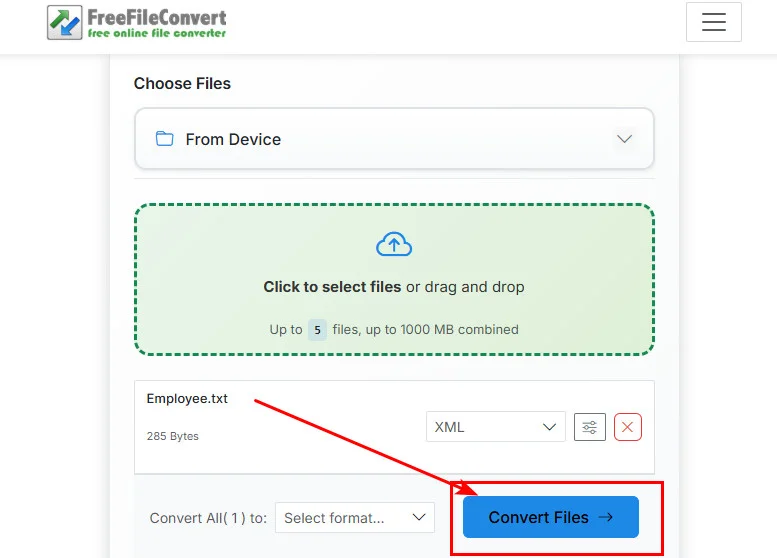
- Step 4. Wait for the processing to finish, then click the download button to save your new XML file.
Pros:
- No installation required.
- Works directly in your browser.
Cons:
- Uploading sensitive files to a third-party server can be dangerous.
- These tools often struggle to convert text documents to XML if the data has complex hierarchies.
- Limited number and size of text files.
Best For: Non-sensitive, small personal files that don't require specific formatting.
Option 2: Save a Text File as XML Using Microsoft Word
If you are looking for a quick, offline way to save a text file as XML without installing additional tools, Microsoft Word provides a simple built-in option. This method is especially useful for basic document conversion when strict XML structure is not required.
Steps to Save a Text File as XML in Word:
- Step 1. Open Microsoft Word and load your
.txtfile. - Step 2. Click File > Save As.
- Step 3. Choose a location, then select XML Document (*.xml) from the file format dropdown.
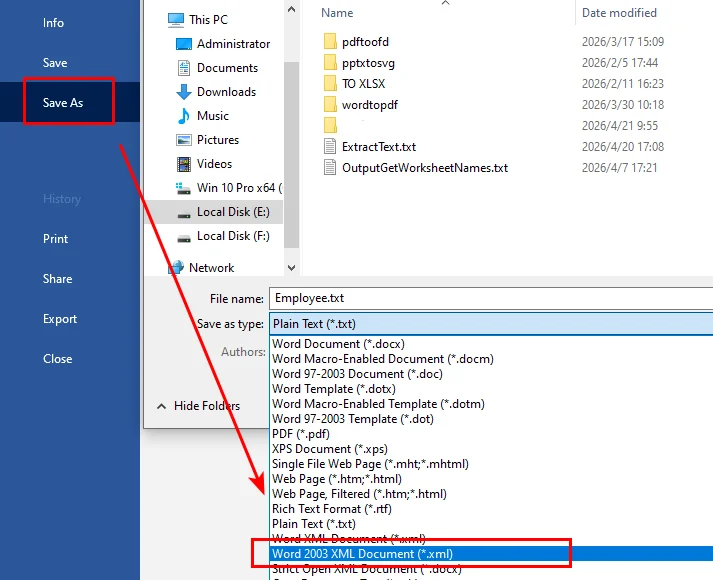
- Step 4. Click Save to export the file.
Pros:
- No additional tools are required if Word is already installed.
- Fully offline and secure.
- Very easy to use for beginners.
Cons:
- Generates Word-specific XML (WordML) with extra tags and metadata.
- Not suitable for structured data processing or system integration.
- Limited control over the XML structure.
Best For: Quick, one-time conversions where structure and data cleanliness are not critical.
Option 3: Convert TXT Files to XML with Free Spire Series
While the previous methods work well for small tasks, they become inefficient for large-scale conversions. In such cases, automation is the better choice.
By using a dedicated Python library like Free Spire.XLS, you can easily turn a messy pile of TXT files into structured XML data. This same logic allows you to convert TXT to Excel in Python if your project requires a spreadsheet instead of a markup language.
Scenario A: Structured Data Conversion (Table-like TXT)
This method is the best way to convert TXT to XML for structured datasets like sales reports or employee lists. It treats each line of your text file as a structured data record.
from spire.xls import *
from spire.xls.common import *

# Create a Workbook instance
workbook = Workbook()

# Load a text file
workbook.LoadFromFile("/input/Employee.txt", ",", 1, 1)

# Save the document as an XML document
workbook.SaveAsXml("/output/data_style.xml")
workbook.Dispose()
Here's the preview of the original text file and the output XML document:
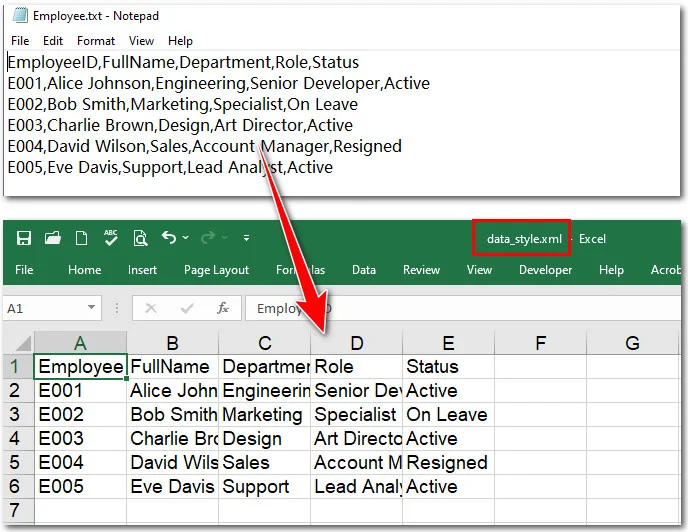
Understanding the Parameters of LoadFromFile:
To correctly map raw text data into a structured XML format, it is important to understand how each parameter works:
workbook.LoadFromFile("E:/Input/Employee.txt", ",", 1, 1)
- File Path (
"E:/.../Employee.txt"): Specifies the location of your source text file. - Delimiter (
","): Defines how the text content is split into columns. Common options include:","for CSV-style data"\t"for tab-separated values" "(space) or";"depending on your data format
- Start Row (
1): Indicates the line number where data import begins. Use1if you want to include headers. - Start Column (
1): Sets the starting column position in the worksheet (e.g.,1= Column A).
These parameters give you precise control over how raw text is parsed and structured during the conversion process.
Note: The delimiter determines how columns are separated. This flexibility also makes it easy to convert TXT to CSV in Python when working with common data exchange formats.
Scenario B: Text Content Conversion (Paragraph-based TXT)
If your text file consists of paragraphs, headings, and lists, rather than raw data columns, Free Spire.Doc is the better tool. It allows you to convert a text document to XML while preserving the logical flow and paragraph structure of the original content.
from spire.doc import *
from spire.doc.common import *


# Create a Document instance
doc = Document()
# Load a text file
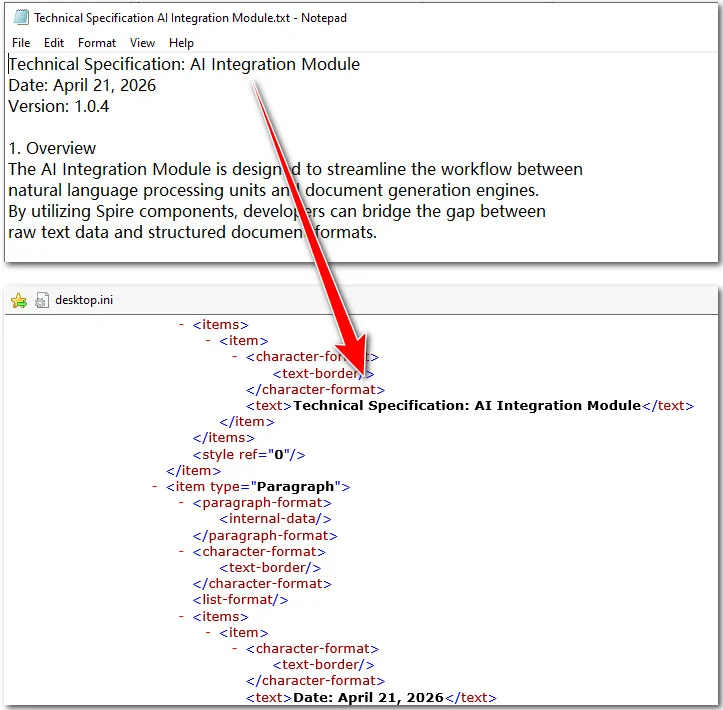
doc.LoadFromFile("/input/Technical Specification AI Integration Module.txt")

# Save the text file as a new XML document
doc.SaveToFile("/output/texttoxml.xml", FileFormat.Xml)
doc.Close()
Here's the preview of the original text file and the converted XML document:
Pros:
- No Microsoft Office required.
- Document security.
- High efficiency.
- Clean data output.
Cons:
- Learning Curve.
- Environment Setup.
Best For: Developers, enterprise-level projects, and anyone needing to convert TXT to XML for large, sensitive datasets.
Choosing the Best Way to Convert Text Files to XML
| Method | Best For | Security | Batch Processing |
|---|---|---|---|
| Online Converter | One-time users | Low | Poor |
| Microsoft Word | Basic export | High | None |
| Free Spire Components | Developers & SEOs | Maximum | Excellent |
FAQs
Q1: Can I use Microsoft Word to save a text file as XML?
Yes, you can open a .txt file in Word and select Save As > XML Document. However, this creates a WordML file filled with complex styling code. For clean, data-ready nodes, using a tool like Free Spire.XLS is much more effective.
Q2: Is it safe to use free online converters for sensitive company data?
Generally, no. Most online tools upload your data to a third-party server. For sensitive information, it is safer to save a text file as XML locally using an offline editor or Python code to ensure privacy.
Q3: How can I convert TXT to XML for 1000+ files?
You can use a Python loop with the Free Spire library to batch process entire folders in seconds. If you later need to view or audit this structured data in a spreadsheet, you can also convert XML data to Excel using the same professional suite.
Conclusion
This guide explains three ways to convert text files to XML. Online tools are ideal for quick, non-sensitive tasks, while Microsoft Word offers a simple offline option for basic document export. For professional environments, the Free Spire series excels by automating batch conversions to save time. Ultimately, there is no best method; the right choice is simply the one that most efficiently fits your current workflow.
Also Read:
How to Remove Images from PDF (A Complete Guide for 2026)
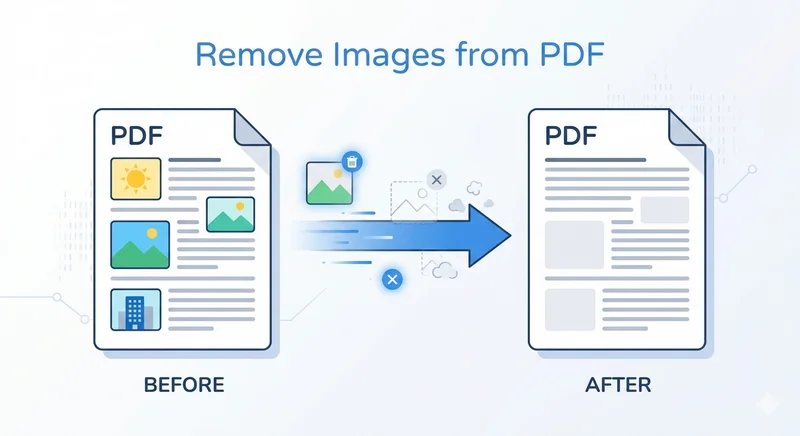
Sometimes a PDF that looks perfectly fine becomes difficult to share because of large embedded images. You might face email attachment limits, slow uploads, or unnecessary file bloat when working with reports or scanned documents. In these cases, knowing how to remove images from PDF documents can help you quickly reduce file size and simplify content.
In this guide, we’ll walk you through practical ways to delete images from PDF files, from manual tools to automated Python solutions.
- Remove Images from PDF Files with Adobe Acrobat
- Delete Images from PDF with Online PDF Tools
- Remove All Images from PDF Automatically with Python
- Troubleshooting & FAQs
- Conclusion
Method 1: Remove Images from PDF Files with Adobe Acrobat
When it comes to removing images from PDF documents, the first tool that may come to your mind is Adobe Acrobat. As a professional PDF editor, it offers an authoritative and secure environment, meaning you don't have to trust your sensitive data to third-party installations or unknown web servers. Adobe Acrobat provides precise control over PDF elements, ensuring that when you remove images from PDF files, the original text and layout stay perfectly intact.
Here are the steps to remove an image from a PDF using Adobe Acrobat:
- Step 1. Open your file and navigate to the Edit PDF tool in the right-hand pane.
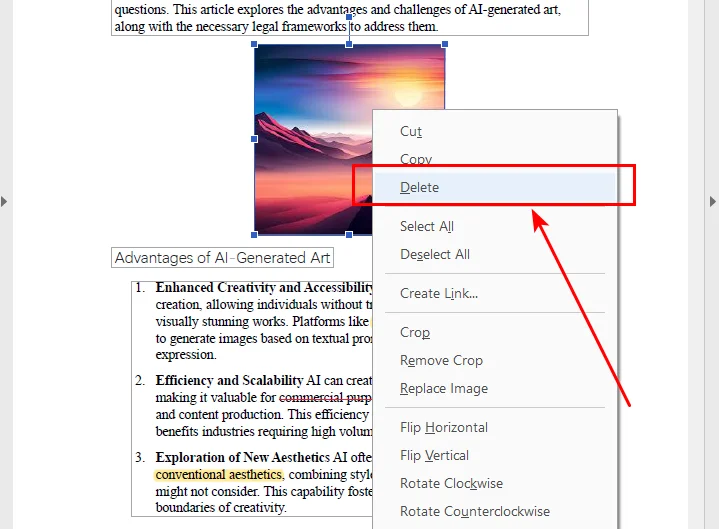
- Step 2. Click on the image you want to get rid of. A bounding box will appear.
- Step 3. Hit the Delete key on your keyboard.
- Step 4. Save your document.
While Adobe Acrobat is the most trusted tool for PDF processing, it requires a premium subscription, which might not be ideal for a one-time fix. If you're looking for professional results without the Adobe ecosystem, tools like Nitro PDF or Foxit Editor offer similar edit modes that are perfect for manual inspection. But if you're looking for a more cost-effective or automated way to delete images from PDF files, the online tools and Python solutions discussed below may be a more suitable option.
Method 2: Delete Images from PDF with Online PDF Tools
If you only need to process a file occasionally, there’s no need to subscribe to Adobe Acrobat for a single task. Instead, free online PDF editors offer a much more convenient alternative. Platforms like Sejda provide powerful editing features right in your browser without installation. Simply upload your document, and you can remove images from PDF files instantly while on the go.
Here is how to remove an image from a PDF online using Sejda as an example:
- Step 1. Upload your document to the Sejda online editor.
- Step 2. Click the dropdown arrow next to the Images button in the top toolbar.
- Step 3. Select the Delete existing image option from the list.
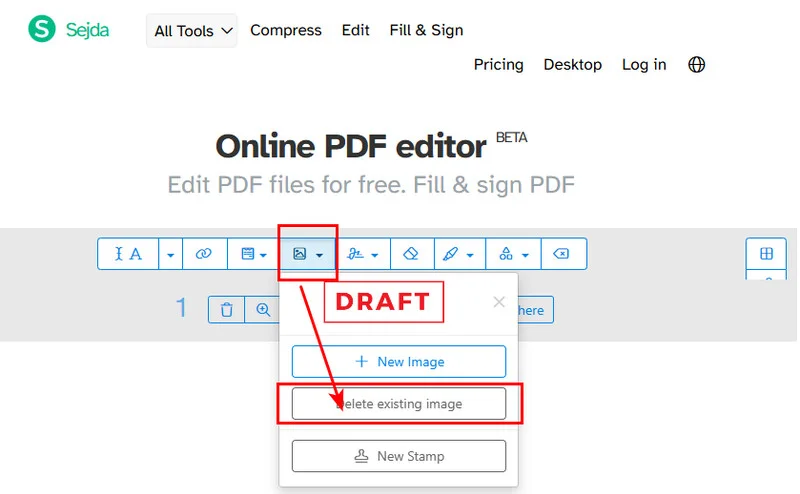
- Step 4. Locate the image you want to remove and click the Delete icon that appears in its top-left corner.
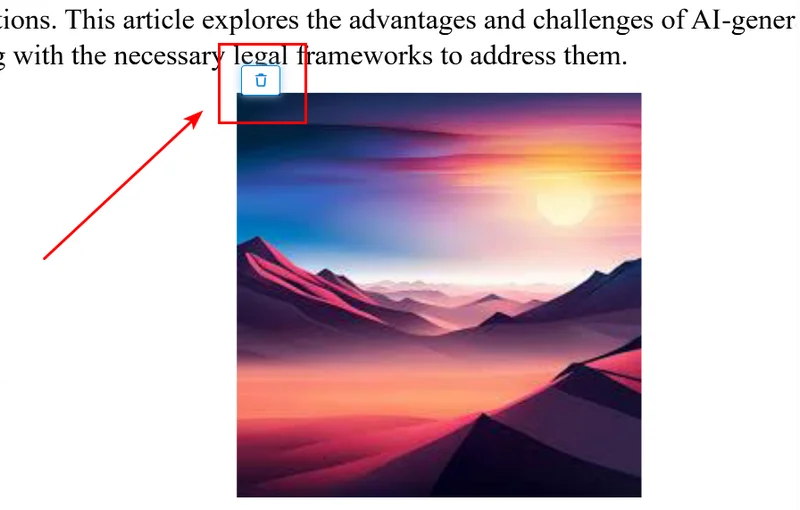
While Sejda is powerful, it does have its limitations. The free version restricts you to three tasks per day and has limits on file size and page counts. For users handling high volumes of documents or highly confidential data, these online constraints and privacy risks might make the automated Python solution below a better fit.
Tip: If your goal isn't to get rid of these images but to save them for other projects, check out our guide on how to extract PDF images using the best free tools available.
Method 3: Remove All Images from PDF Automatically with Python
If you are dealing with hundreds of files, manual clicking is a waste of time. You can learn how to remove all images from PDF documents programmatically using Python. We will use the Free Spire.PDF for Python library because it is powerful and handles complex PDF resources efficiently without Adobe Acrobat.
Environment Setup
First, install the library using pip:
pip install Spire.Pdf.Free
How the Script Works
The Python script removes images from PDF files by calling the PdfImageHelper class to scan the internal resource dictionary of every page. This method identifies image objects and removes them completely from the document. We delete these objects in reverse order to ensure the document's internal indexing remains stable until the page is completely cleared.
The Python Code
from spire.pdf.common import *
from spire.pdf import *

# Create a PdfDocument instance
doc = PdfDocument()

# Load the PDF document
doc.LoadFromFile("/input/Sample.pdf")

# Initialize the Image Helper
image_helper = PdfImageHelper()

# Iterate through each page in the document
for i in range(doc.Pages.Count):
    page = doc.Pages.get_Item(i)

    # Get all image information from the current page
    image_infos = image_helper.GetImagesInfo(page)

    # If images are found, delete them in reverse order
    if image_infos:
        for j in range(len(image_infos) - 1, -1, -1):
            image_helper.DeleteImage(image_infos[j])

# Save the result to a new file
doc.SaveToFile("/output/no images.pdf", FileFormat.PDF)
doc.Dispose()
Here's the preview of the original file and the output PDF file:
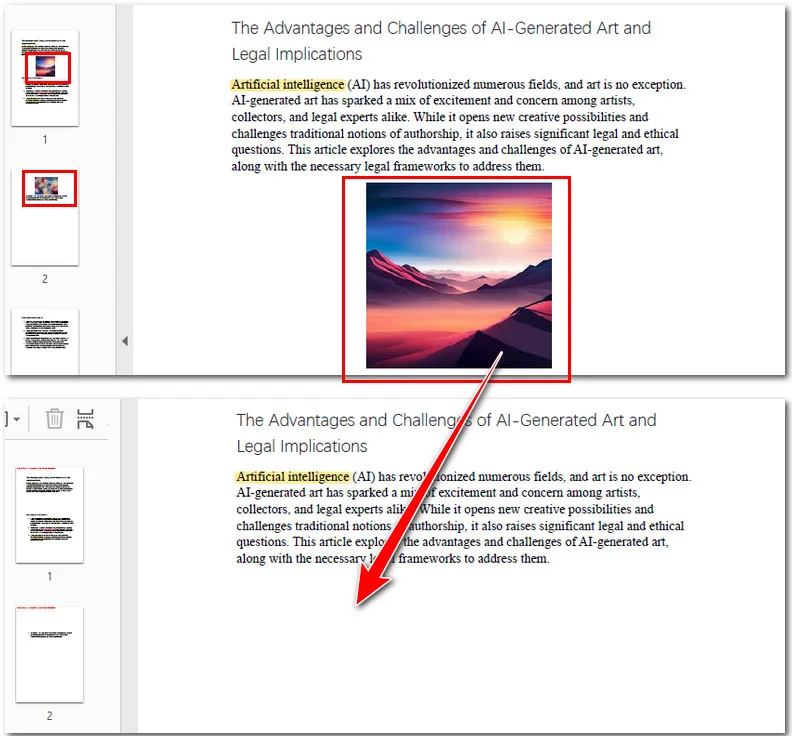
This programmatic approach is ideal for enterprise-level workflows where you need to process massive volumes of files with high speed and consistency. By integrating this into your work, you can automate the generation of text-only document versions in just a few seconds.
You may like: Python: Set the Transparency of PDF Images
Troubleshooting & FAQs
Q: Why is there a blank white space where the image was?
A: PDFs are built in layers. When you delete an image, you are removing the object, but the text doesn't automatically "flow" upward to fill the gap like it does in a Word doc.
Q: Why can't I select the image?
A: If you can't click it, the "image" might actually be part of a scanned page (the whole page is one big picture) or a vector graphic made of thousands of tiny paths.
Q: Will removing images affect the text formatting?
A: Generally, no. As long as you use a proper PDF editor or the Python method above, the text coordinates remain fixed.
Conclusion
Choosing the right tool to remove images from PDF files ultimately depends on your specific needs for precision, speed, and volume. For one-off tasks requiring accuracy, Adobe Acrobat remains the professional choice, while Sejda offers a convenient, no-install alternative for quick edits on the go. However, for tasks involving massive file batches, Python automation via Free Spire.PDF provides unmatched speed and data privacy. By selecting the method that fits your workflow, you can efficiently shrink file sizes and protect sensitive information in seconds.
Also Read:
Remove Comments in Word (Delete All or Individual Comments)
Table of Contents
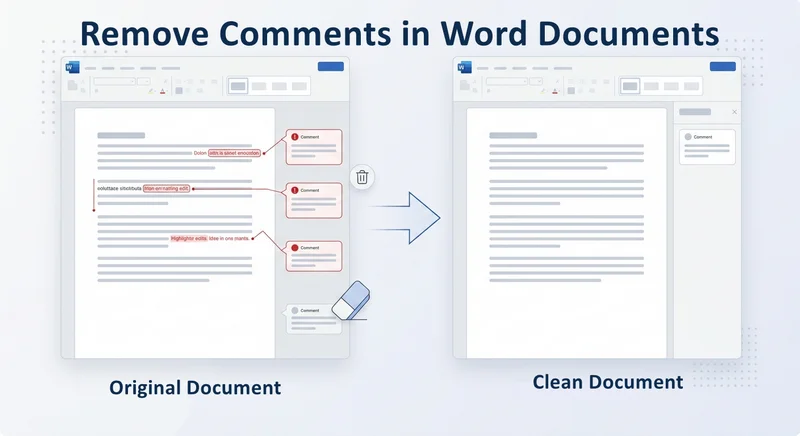
Before sharing a Word document, have you ever worried about leaving comments or tracked changes visible? Before you send it, you must ensure that your internal discussions and edit history are not visible to the recipient. Leaving unresolved remarks can look unprofessional and may even leak sensitive information. If you are looking for how to remove comments in Word to finalize your file, the process is simple, but a few details can easily be overlooked. Whether you need to delete a single note or clear an entire document, the following methods will ensure documents remain polished and professional.
- Remove Comments Using Review Tab
- Document Inspector for Deep Cleaning
- Dealing with Tracked Changes
- Remove All Comments Automatically
- FAQs
Remove Comments in Word Using the Review Tab
The Review tab is the central hub for document collaboration, making it the most efficient place to manage comments. It helps users to add or delete comments efficiently with an intuitive interface.
Method 1: Remove a Comment via Right-Click
This is the fastest approach when you only need to address specific points while leaving other comments intact for further discussion.
- Step 1. Locate the comment in your document.
- Step 2. Right-click directly on the comment box.
- Step 3. Select Delete Comment from the context menu.
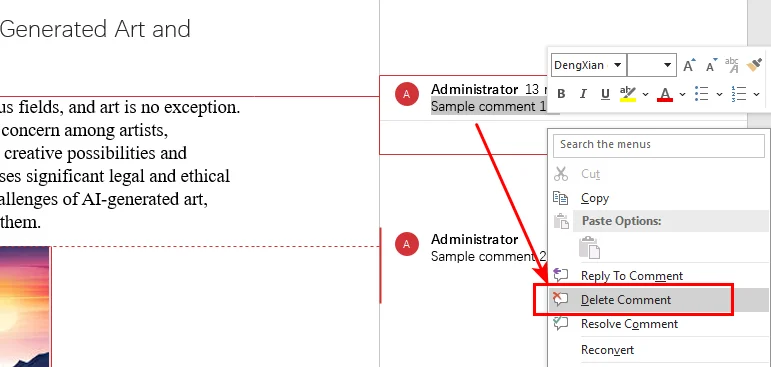
Note: Pressing Backspace or Delete typically removes text inside the comment, not the comment itself.
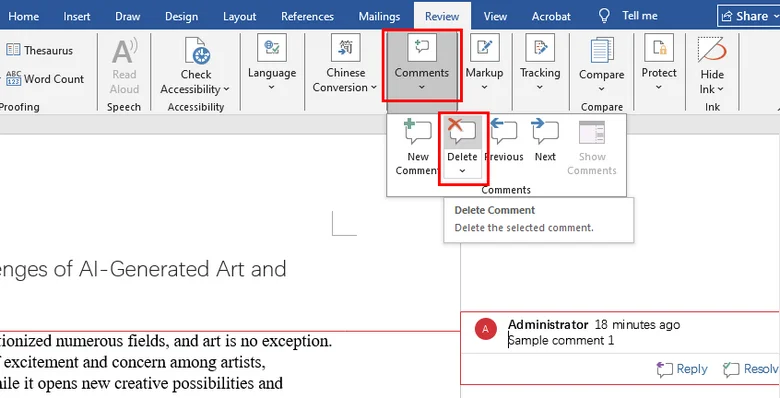
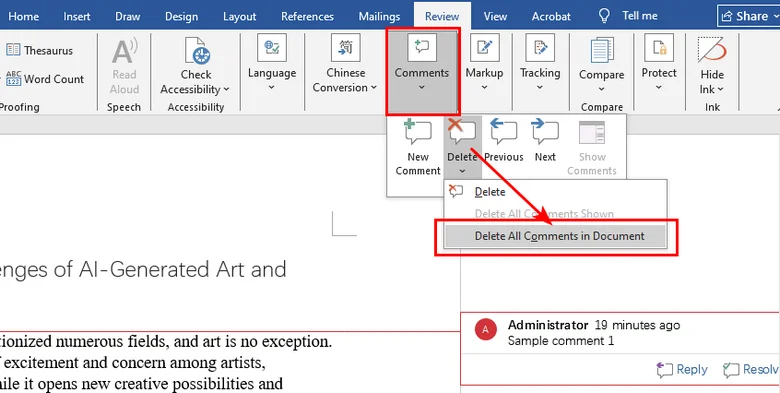
Method 2: Use the Review Ribbon for Single or Bulk Deletion
For more control, or when you need to know how to remove all comments in Word instantly, use the specialized tools in the navigation ribbon.
- To remove a specific comment:
- Step 1. Click inside the comment box.
- Step 2. Go to the Review tab and click the Delete icon.
- To remove all comments at once:
- Step 1. Navigate to the Review tab at the top of Word.
- Step 2. Find the Comments group.
- Step 3. Click the drop-down arrow beneath the Delete button.
- Step 4. Select Delete All Comments in Document.
The Document Inspector Method for Deep Cleaning
If you are preparing a high-stakes contract or a public report, you need an extra step of security. The Document Inspector is an advanced tool that scans for hidden metadata that manual deletion might miss.
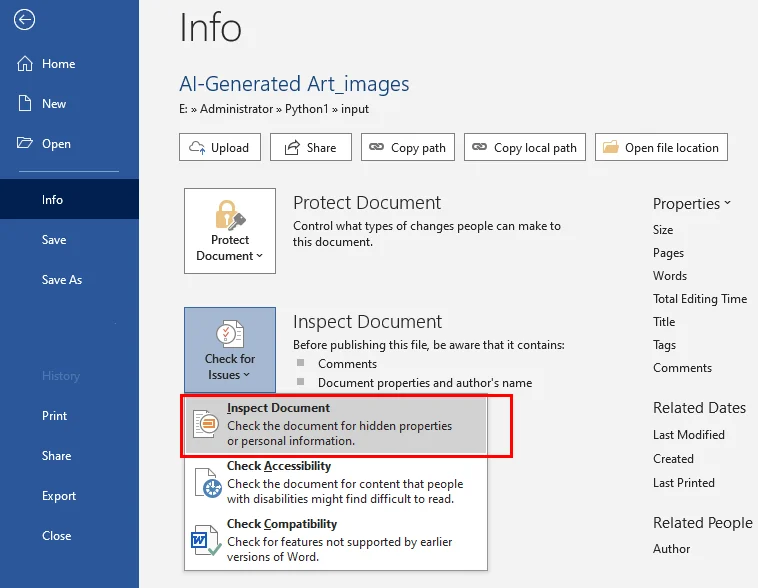
To delete all comments in a Word document and remove personal properties using the Document Inspector:
- Step 1. Click File > Info.
- Step 2. Select Check for Issues and then click Inspect Document.
- Step 3. Ensure Comments, Revisions, and Versions is checked.
- Step 4. Click Inspect, then click Remove All next to the found items.
Tip: Besides removing comments, you might also need to eliminate headers in Word to create a completely clean layout for your final report.
Dealing with Tracked Changes in Word Documents
A common mistake when removing comments in a Word document is forgetting about the red lines or tracked edits. If you delete comments but leave Tracked Changes active, your recipient will still see every deletion and insertion unless you accept or reject the changes before sharing.
Here's the process to stop tracking changes in a Word document:
- Step 1. On the Review tab, go to the Tracking section.
- Step 2. Click the arrow under Accept.
- Step 3. Choose Accept All Changes and Stop Tracking.
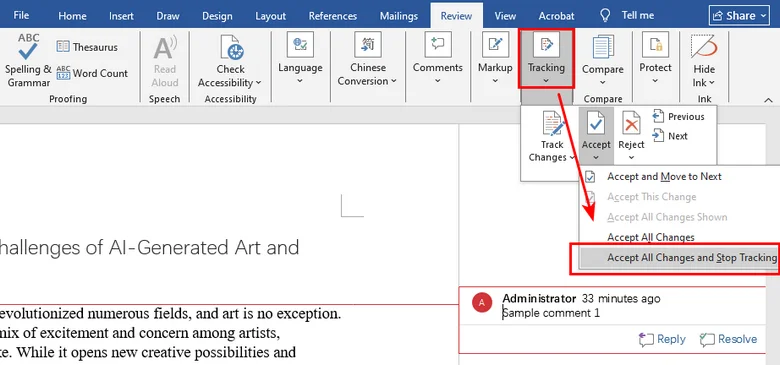
Once this is done, your document will reflect the final version of the text without any visible history of the modifications.
Remove All Comments in Word Documents Automatically
For developers or technical teams managing large-scale document workflows, manual operations are not practical. You can automate removing comments in Word using Python or VBA to ensure consistency across files.
Option A: Delete All Comments Using Python
Python libraries like Free Spire.Doc for Python allow you to clear comments with a few lines of code. This library provides a comprehensive set of APIs for creating, reading, and editing Word documents without requiring Microsoft Word installation.
Below is a Python code example to remove all comments in a Word document:
from spire.doc import *
from spire.doc.common import *

# Create an object of Document class and load a Word document
doc = Document()
doc.LoadFromFile("Sample.docx")

# Remove all comments
doc.Comments.Clear()

# Save the document
doc.SaveToFile("output/RemoveComments.docx")
doc.Close()
Option B: Remove Comments in Word Files Using a VBA Macro
If you prefer staying within the Microsoft Office environment, you can use a simple VBA script to clear the current document instantly.
Sub ClearAllMarkup()
    ' Remove all comments
    If ActiveDocument.Comments.Count > 0 Then
        ActiveDocument.DeleteAllComments
    End If
    ' Accept all changes
    ActiveDocument.Revisions.AcceptAll
End Sub
FAQs
- How do I eliminate comments and hidden metadata from a Word document?
- How do I remove the comment section in Word after deleting the notes?
- Is there a shortcut key to remove comments in Word?
Use the Document Inspector via File > Info > Check for Issues. It scans and removes comments, revisions, and personal properties in one go, ensuring no sensitive data remains when converting to PDF or sharing externally.
If a blank sidebar remains, it is likely because Tracked Changes are still active. Go to the Review tab and select Accept > Accept All Changes and Stop Tracking to collapse the markup area and return the layout to normal.
To delete a comment in Word quickly, select it and press Shift + F10 then D. To delete all at once via the ribbon, press Alt + R, then D, then A in sequence.
Conclusion
Learning how to delete comments in Word is a vital skill for maintaining professional standards. You can use the Review tab for a quick fix, the Document Inspector for a final security check, or automation tools like Free Spire.Doc for Python for bulk processing. By following the four effective methods, you can share your work with total confidence, knowing your internal notes stay private.