How to Create a Pie Chart in Word
Table of Contents
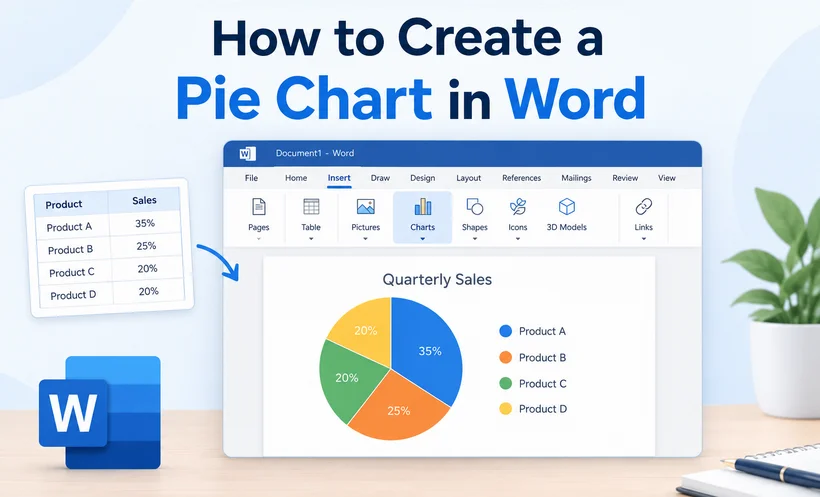
A pie chart transforms rows of data into an instant snapshot, making proportions, market share, and survey results far easier to understand. Microsoft Word may be known primarily as a word processor, but it also includes capable charting tools that let you create polished, professional pie charts without leaving your document.
Whether you are a student preparing a presentation, a business professional writing a report, or a developer automating document generation, knowing how to create a pie chart in Word can save time and make your message clearer.
This guide covers three practical methods:
- Using Word's built-in chart tools – for quick, manual creation
- Generating charts with C# – for automation and batch processing
- Copying a pie chart from Excel – for reusing existing work
Why Use a Pie Chart in Word?
Here are the key benefits of creating pie charts directly in Word:
- No extra software needed: Design charts entirely within your Word document without switching to third-party tools.
- Seamless document integration: Charts align seamlessly with existing text, formatting, and page layout for consistent, clean output.
- Fully customizable: Adjust colors, labels, styles, and layout to match your brand or document theme.
- Easy data updates: Edit your chart data anytime without recreating the entire graphic.
Pro Tip: For readability, limit your pie chart to 3–7 data categories. Too many slices will make the chart cluttered and hard to interpret.
How to Create a Pie Chart in Microsoft Word
Microsoft Word remains the most popular word processor. Here is the quickest way to make a pie chart in Word:
- Open your document and place your cursor where you want the chart.
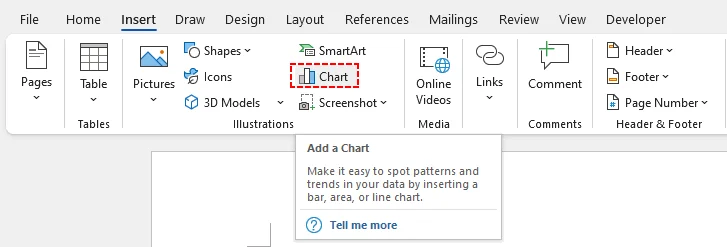
- Navigate to the Insert tab in the top ribbon.
- Click on the Chart icon located within the "Illustrations" group.
A pop‑up “Insert Chart” dialog box will open. Select Pie from the list on the left panel. Word provides multiple pie‑chart variants for different use cases:
- Pie: The standard 2D version.
- 3D Pie: Adds depth for a modern look.
- Doughnut: A pie chart with a hole in the middle (great for a "hollow" aesthetic).
- Bar of Pie: Combines a pie chart with a bar graph for complex data.
Double-click your preferred pie chart style or select it and click OK. A sample default pie chart will be embedded into your document.
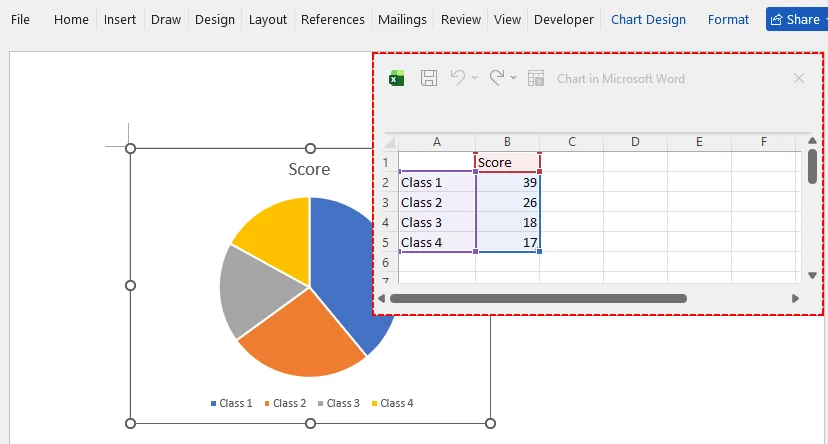
A mini Excel spreadsheet will open. Replace the placeholder category names and numerical values with your own dataset. The chart updates in real-time.
Pro Tip for MS Word
Use the Chart Design tab that appears after clicking the chart. Here, you can:
- Change Colors to match your brand or report theme.
- Add Data Labels to show percentages or values directly on the slices.
- Switch Chart Type to a "Pie of Pie" chart for better readability of small slices.
After finalizing your visuals and report content, you can add an extra layer of protection by setting your Word document to read‑only before sharing it with others.
How to Insert a Pie Chart in Word Using C# Code
For software developers automating document generation, manually creating a pie graph in Word is impractical for batch workflows. You can use the Free Spire.Doc for .NET library to dynamically build Word documents with pie charts.
This method is perfect for automated monthly reports, bulk document generation, or integrating document output into web and desktop applications.
Prerequisites
First, install the Free Spire.Doc library via NuGet Package Manager:
Install-Package FreeSpire.Doc
The Complete C# Code Example
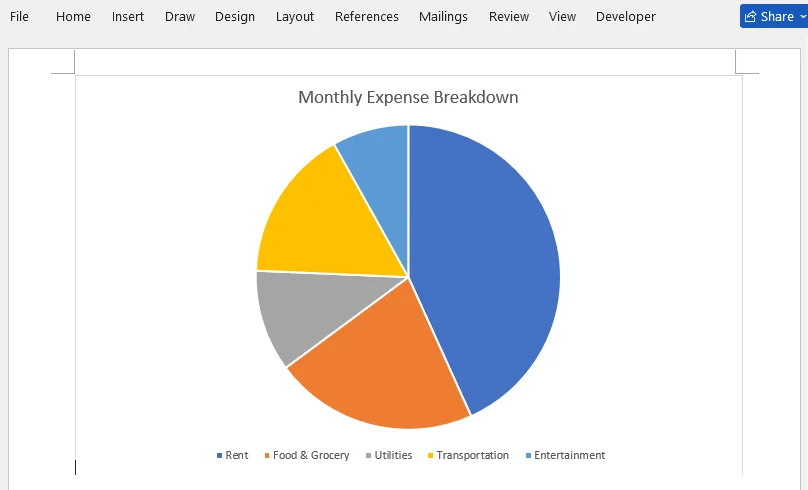
The sample below creates a Word document containing a pie chart showing monthly household expense breakdowns.
using Spire.Doc;
using Spire.Doc.Documents;
using Spire.Doc.Fields.Shapes.Charts;
using Spire.Doc.Fields;

namespace CreatePieChart
{
    class Program
    {
        static void Main(string[] args)
        {
            // Create a new Word document
            Document document = new Document();

            // Add a section
            Section section = document.AddSection();

            // Add a paragraph to hold the chart
            Paragraph paragraph = section.AddParagraph();

            // Append a pie chart (single series)
            ShapeObject shape = paragraph.AppendChart(ChartType.Pie, 500, 300);

            // Get the chart object
            Chart chart = shape.Chart;

            // Clear any default sample data
            chart.Series.Clear();

            // Add the expense data as one series
            // Categories: Rent, Food & Grocery, Utilities, Transportation, Entertainment
            // Values: 1200, 600, 300, 450, 225
            chart.Series.Add("Monthly Expenses",
                new[] { "Rent", "Food & Grocery", "Utilities", "Transportation", "Entertainment" },
                new double[] { 1200, 600, 300, 450, 225 });

            // Set the chart title
            chart.Title.Text = "Monthly Expense Breakdown";

            // Place the legend at the bottom
            chart.Legend.Position = LegendPosition.Bottom;

            // Save the document
            document.SaveToFile("PieChart.docx", FileFormat.Docx2019);
        }
    }
}
How This Code Works:
- Initialization: It creates a blank Word document and adds a new section/paragraph to host the visual element.
- Chart Creation: AppendChart() generates a pie chart with defined dimensions.
- Data Binding: The Series.Add method takes three parameters—the series display name, category label array, and numeric value array.
- Formatting: Sets the chart title and moves the legend to the bottom to maximize usable chart space.
- Export: Saves output as a modern .docx file.
Result preview:
Pro Tip for Developers
You can easily modify the arrays to pull data from a database or an external CSV file. Free Spire.Doc also supports other chart types (like column charts) by changing the ChartType parameter and providing the appropriate data series.
How to Copy an Existing Pie Chart from Excel to Word
If you have already built and formatted a pie chart within Excel, there is no need to recreate it from scratch in Word. Copy‑and‑paste preserves your existing work.
- Open your Excel file and locate the pie chart.
- Click on the pie chart to select it.
- Press Ctrl+C (or right-click and select Copy).
- Go to your Word document and place your cursor where you want the chart.
- Press Ctrl+V (or right-click and select Paste).
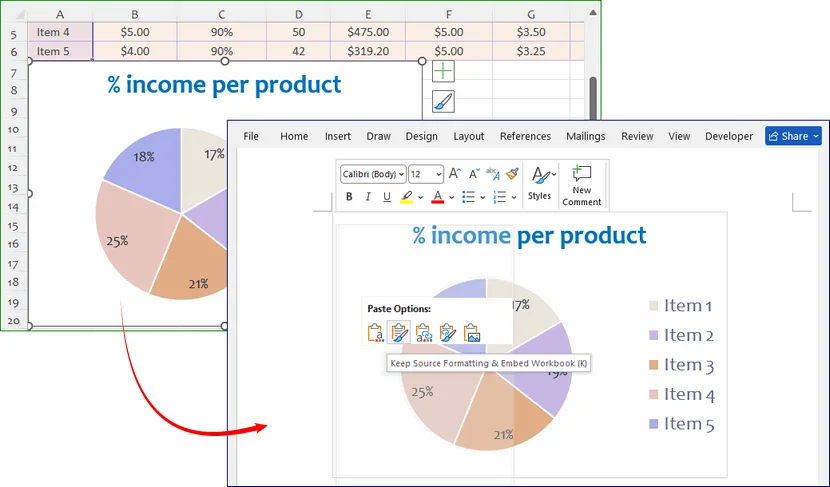
A small clipboard icon will appear at the bottom corner of the chart. You can choose to paste it as:
- Destination Theme: The chart matches your Word theme.
- Keep Source Formatting: The chart retains its Excel look.
- Picture: The chart becomes a static image (great for ensuring it doesn't change by accident).
How to Edit & Update Pie Chart Data Later
One of the best features of Word's pie charts is that the data remains editable. You do not need to rebuild your chart from scratch when source numbers change. Follow these steps to refresh your chart:
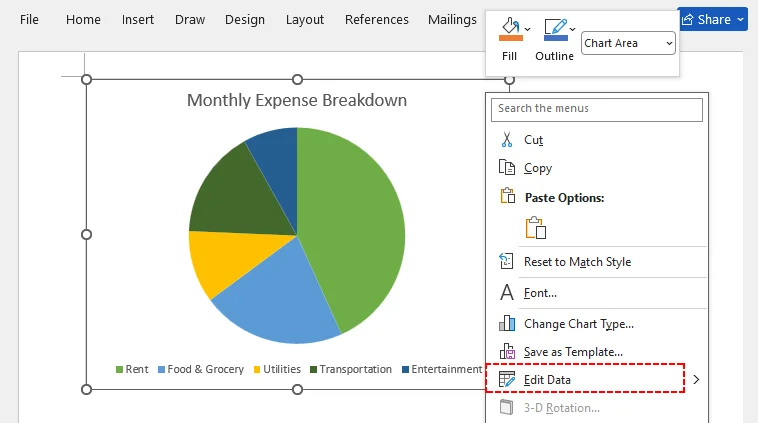
- Right-click anywhere on your existing pie chart.
- Select Edit Data from the drop-down menu.
- The embedded mini‑Excel spreadsheet will reopen. You can edit existing labels and values, or add brand‑new categories.
- Close the spreadsheet window. Your pie chart will automatically recalculate and refresh.
All custom formatting (colors, labels, layout settings) will remain unchanged during data updates.
Note: For charts generated via the Free Spire.Doc for .NET library, modify your source data arrays and re‑run your code to produce an updated Word output file.
Pie Chart Best Practices for Word Documents
To ensure your pie chart is clear, accurate, and professional, follow these expert tips:
- Stick to proportional data only: Pie charts only work for parts of a whole. Avoid using them for comparing independent data sets (use bar charts instead).
- Avoid too many categories: More than 7 slices create tiny, unreadable segments. Group small values into an “Other” category.
- Use percentage labels: Always label slices with percentages or values to eliminate guesswork for readers.
- Skip overly complex 3D styles: 3D effects can distort visual proportions. Use 2D pie charts for formal reports and official documents.
Conclusion
Adding a pie chart to a Word document can significantly enhance the impact of your data. Whether you prefer the manual, interactive approach of Microsoft Word's built-in tools, the power of copy-pasting from Excel, or the automation capabilities of programming libraries like Free Spire.Doc, you now have a complete toolkit at your disposal.
The best choice depends on your goals: interactivity, reuse, or automation. Whichever path you take, the result is the same—a polished pie chart that makes your data easier to understand and your document more persuasive.
Frequently Asked Questions (FAQs)
Q: How do I save a Word pie chart as an image?
Right-click your pie chart and select Save as Picture. You can save it as a PNG, JPG, or SVG file for use in presentations, social media, or other documents.
Q: Can I import Excel data into a Word pie chart?
Yes! When editing chart data, copy your pre-made Excel data and paste it directly into the Word embedded spreadsheet. The chart will update instantly with your imported data.
Q: My pie chart will not update after I change numbers. What is wrong?
First, confirm you are editing the live embedded dataset via Edit Data, not just text boxes overlaid on top of the chart. If you pasted it as a static picture, no updates will occur. For embedded charts, close and reopen the edit‑data window, or restart Word to resolve rare refresh glitches.
Q: Can Free Spire.Doc for .NET generate Pie of Pie and 3D Pie charts programmatically?
Yes. Free Spire.Doc for .NET supports both Pie of Pie and 3D Pie charts through the ChartType enumeration. You can generate them programmatically by passing the appropriate enum value to the AppendChart method:
// Pie of Pie chart
ShapeObject shape = paragraph.AppendChart(ChartType.PieOfPie, 500, 300);

// 3D Pie chart
ShapeObject shape = paragraph.AppendChart(ChartType.Pie3D, 500, 300);
See Also
Export Images from Excel: Manual, Batch & Python Guide
Table of Contents
While Excel is primarily built for numbers and tables, it's also a surprisingly common container for images, charts, logos, and product photos. Whether you've inherited a workbook packed with embedded graphics or you've built a dashboard filled with charts, knowing how to export images from Excel is an essential skill.
In this guide, we walk you through practical ways to extract images from Excel. You will learn quick manual tricks for one-off exports, no-code batch workflows for bulk extraction, and automated Python solutions for large‑scale processing. Whether you only need a single chart snapshot or want to unpack every graphic from an entire workbook, there is a solution for you.
- 1. Export Single Images/Charts Directly (Quickest Method)
- 2. Export Cell Ranges as Images (Copy as Picture)
- 3. Export All Images via "Save as HTML" (Batch, No Code)
- 4. Extract Images from Excel Using Python (Fully Automated)
- 5. Online Image Extractors (No Installation Required)
Why Proper Image Export Matters
Taking screenshots is the easiest way to capture an image from Excel, but it often leads to fuzzy resolution, distorted proportions, and unwanted background elements. Proper Excel image export gives you original-quality images with correct dimensions, crisp edges, and standard file formats such as PNG, JPG, and EMF.
Typical real‑world scenarios include:
- Saving Excel charts for presentations, blogs, or social media posts
- Extracting product images from inventory spreadsheets
- Exporting table previews for client reports
- Archiving embedded diagrams and logos from legacy Excel files
- Creating high-resolution print-ready visuals
1. Export Single Images/Charts Directly (Quickest Method)
Use this method if you only need to export one or a few individual images or charts from your Excel worksheet. It works for all embedded pictures, shapes, and charts and takes less than 10 seconds per asset.
Step-by-step instructions:
- Open your Excel spreadsheet and click to select the image, chart, or shape you want to export.
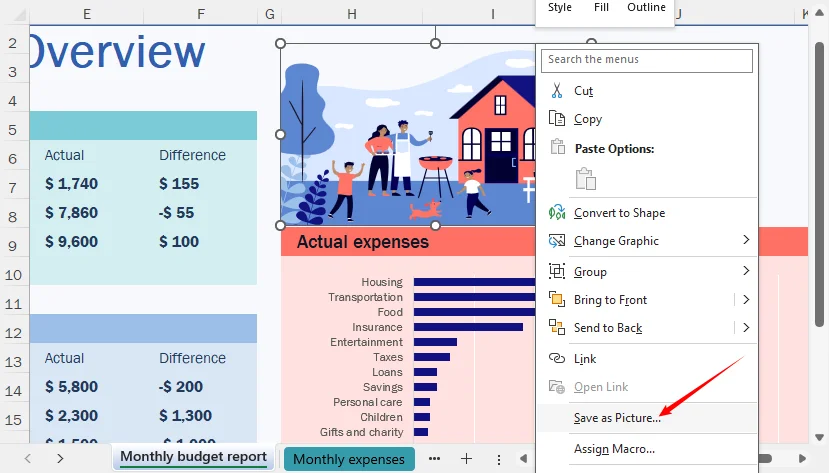
- Right-click the selected graphic object.
- Choose Save as Picture from the drop-down menu.
- In the save window, select your preferred file format (PNG, JPEG, BMP, GIF).
- Name the image file, choose a save folder, and click Save.
Limitation: You can only export one object at a time, and the exported image captures only the selected object, not surrounding cells.
ALSO READ: Convert Excel to PNG: 4 Easy Methods (Free & Batch Solutions)
2. Export Cell Ranges as Images (Copy as Picture)
Many users want to save an entire table, data range, or custom cell selection as an image rather than just standalone pictures. Excel’s built-in Copy as Picture function addresses this exact requirement.
How to use Copy as Picture:
- Click and drag to select the exact cell range you want to convert into an image.
- Navigate to the Home tab on the top ribbon.
- Click the small drop-down arrow under the Copy button.
- Select Copy as Picture.

- A configuration pop-up window will appear:
- Select As shown on screen for digital‑use previews
- Select As shown when printed for print‑optimized layout rendering
- Set format to Picture
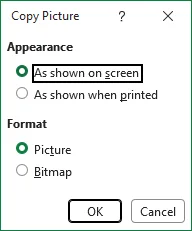
- Click OK, then paste (Ctrl+V) the image into Paint, Word, or PowerPoint.
- Right-click the pasted image and select Save as Picture to export it as PNG, JPG, or another format.
Alternative: If you don’t see “Copy as Picture,” copy the range normally, then use Paste Special > Picture/Picture (Enhanced Metafile) in Word or PowerPoint.
3. Export All Images via "Save as HTML" (Batch, No Code)
When you have multiple images embedded in an Excel file, saving each one manually is impractical. A clever workaround is to save the workbook as an HTML file. Excel automatically extracts all embedded images into a companion folder.
Steps:
- Open your source Excel file and go to File > Save As.
- In the "Save as type" dropdown, select Web Page (.htm; .html).
- Choose a location and click Save.
- Navigate to the saved folder. You will see an HTML file and a companion folder named “
_[FileName]_files”. - Open the folder. All embedded Excel images will be exported as individual PNG/JPG files. You may also see supporting files such as “filelist.xml”, “stylesheet.css”, “tabstrip.htm”, and “sheet001.htm”.
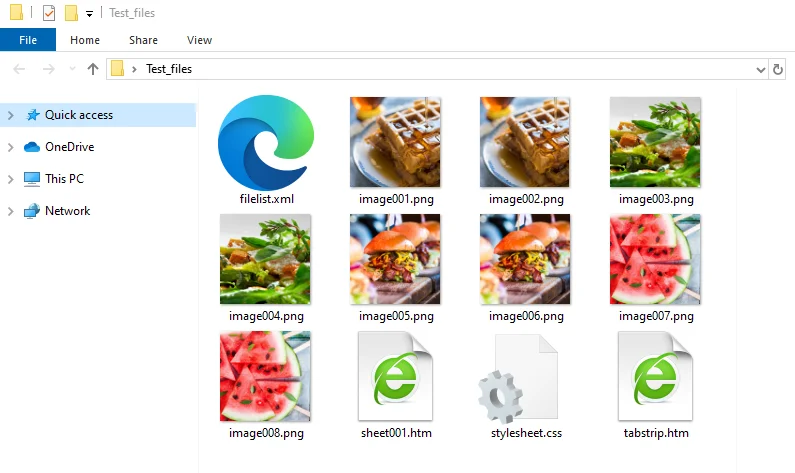
Important caveats: Images inserted as objects (e.g., embedded OLE objects or certain linked images) may not be extracted this way. If some images are missing after the HTML export, they were likely embedded as objects rather than as pictures.
4. Extract Images from Excel Using Python (Fully Automated)
If you need to extract images without opening Excel — for example, in a server-side automation pipeline — Python is an excellent choice. The Free Spire.XLS for Python library can read both .xls/.xlsx files and access embedded images.
Python Code to Extract All Images from a Worksheet
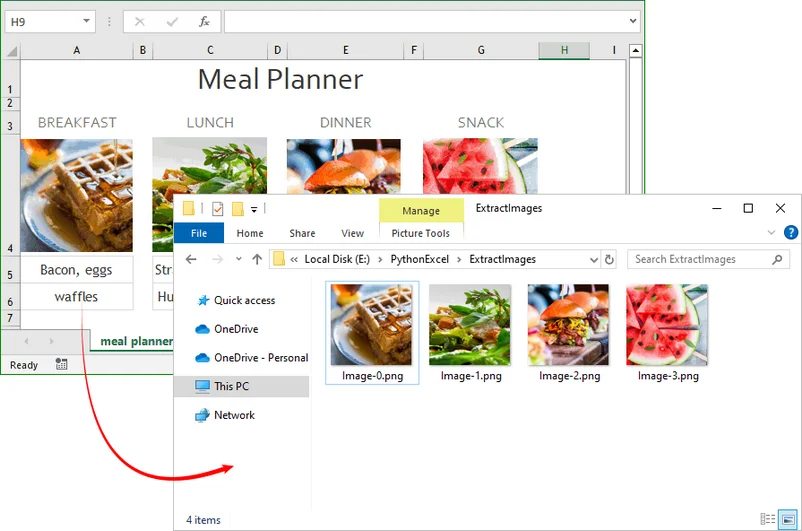
This script loops through every picture object and saves each image as a PNG file automatically.
from spire.xls import *
from spire.xls.common import *

# Create a Workbook instance
workbook = Workbook()

# Load an Excel file
workbook.LoadFromFile("Test.xlsx")

# Get the first worksheet
sheet = workbook.Worksheets[0]

os.makedirs("ExtractImages", exist_ok=True)

# Get all images in the worksheet
for i in range(sheet.Pictures.Count):
    pic = sheet.Pictures[i]
    pic.Picture.Save(os.path.join("ExtractImages", f"Image-{i}.png"))

workbook.Dispose()
How it works
sheet.Picturesgets a collection of all pictures in the worksheet.pic.Picture.Save()writes the image to disk.- The output format is determined by the file extension in the save path. To save in another format, change the extension to
.jpg,.bmp, etc.
Result:
Key benefits of this Python approach
- Fully automated, no manual clicking
- Works for bulk processing dozens or hundreds of Excel files
- Integrates into Python scripts, data pipelines, and backend workflows
- Preserves original image quality when exporting
Pro Tip: Instead of extracting pictures from Excel, Free Spire.XLS also allows you to export a specific cell range to an image in Python.
5. Online Image Extractors (No Installation Required)
If you prefer not to install software or write code, several free online tools can extract images from Excel files. They require zero setup and work in any browser.
General steps:
- Search for and select a reputable online Excel image extractor in your browser.
- Upload your Excel file (.xlsx, .xls, etc.).
- The service parses the workbook and extracts embedded images.
- Download the results as a ZIP file.
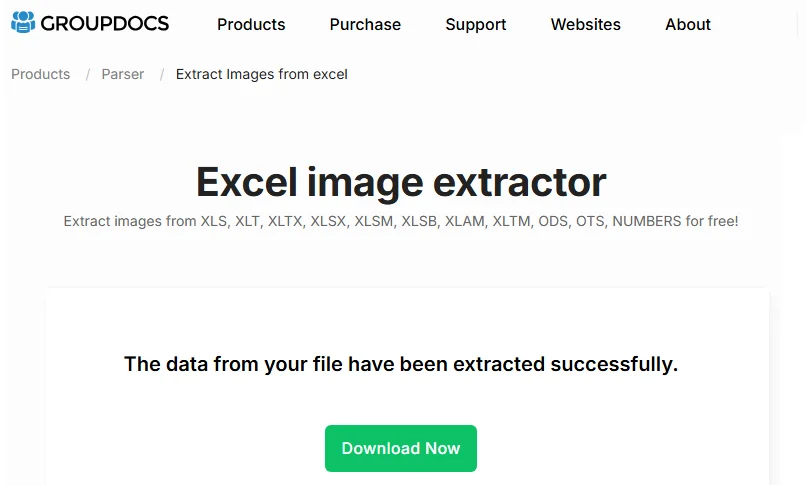
An example of using GroupDocs:
Security Consideration: You're uploading your file to a third-party server, which may be a concern for sensitive or proprietary data.
Best File Formats for Exported Excel Images
Choosing the right format ensures optimal quality and file size for your use case.
| Format | Best For | Key Features | When to Avoid |
|---|---|---|---|
| PNG | Charts, logos, diagrams | Supports transparency, crisp edges, no quality loss | Large photos where file size matters |
| JPG | Photos, large image galleries | Small file size, perfect for web sharing | Images needing transparency or sharp text |
| EMF | Professional printing, resizing | Vector format, no pixelation when scaled | Web use where compatibility matters |
| BMP | Uncompressed editing | High quality, no compression artifacts | Web sharing due to large file size |
| GIF | Simple graphics, animations | Small size, supports transparency | Photos or gradients |
Final Thoughts
Exporting images from Excel is more about matching the method to your workload. For a quick one-off export, Save as Picture or Copy as Picture is fastest. For bulk extraction without code, Save as HTML is a reliable workaround. For automation, server-side processing, or large batches, Python with Free Spire.XLS offers the most scalable and repeatable solution. Online extractors can be convenient, but they should only be used when data privacy is not a concern.
Whichever approach you choose, avoid screenshots if quality matters. Native export methods preserve the original resolution, dimensions, and transparency of embedded visuals. Pair that with the right file format—PNG for charts and logos, JPG for photos, EMF for print-ready resizing—and you can turn any Excel workbook into a clean, reusable source of high-quality images.
Frequently Asked Questions (FAQs)
Q: Can I export all images from Excel at once?
A: Yes. Use the Save as Web Page method for quick manual bulk export, or use the Python Spire.XLS script if you need to automate the task for many files. For a no-installation option, try a reputable online extractor.
Q: Does Excel have a built-in "Export All Images" button?
A: No. Excel does not provide a one-click batch export feature. The closest built-in option is saving as HTML, which extracts embedded pictures.
Q: How do I export an image with a transparent background?
A: For charts, set the chart area fill to No Fill. For shapes, remove the fill. Then save as PNG. For embedded pictures, transparency is preserved if the original image had it.
Q: Will exported images lose quality when I save them from Excel?
A: If you use native export methods instead of screenshots, the original embedded image resolution is preserved. Screenshots will degrade quality. For resizing after export, choose vector EMF format to avoid pixelation.
See Also
Automatize Cálculos no Excel com um Agente de IA .NET
Índice
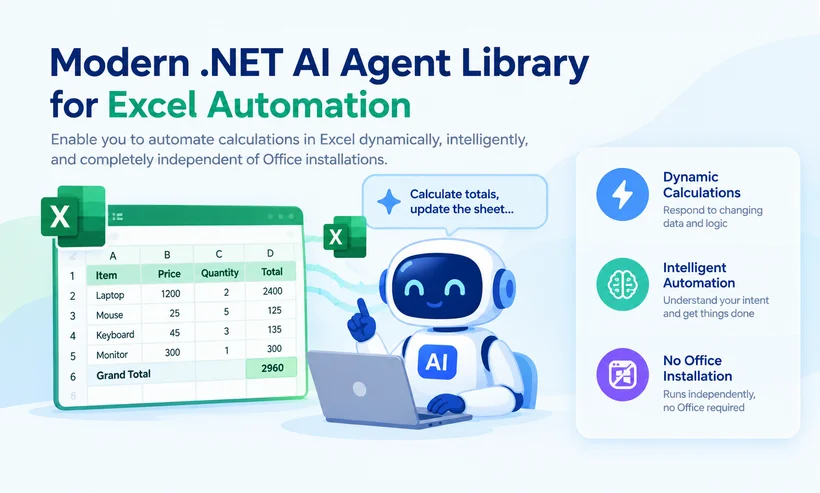
Os cálculos manuais no Excel são lentos, propensos a erros e impossíveis de escalar para fluxos de trabalho de dados corporativos. Seja para criar ferramentas de relatórios financeiros, painéis de análise de negócios ou sistemas de processamento de dados em lote, automatizar cálculos no Excel com .NET elimina o erro humano, acelera os fluxos de trabalho e padroniza a lógica das planilhas em todos os seus aplicativos.
Os métodos tradicionais de automação do Excel, como VBA, Interop ou bibliotecas legadas, apresentam limitações significativas: dependência do Microsoft Office instalado, suporte multiplataforma limitado, script de fórmulas rígido e baixo desempenho com grandes conjuntos de dados.
Este guia apresenta o Spire.Agent.Office — a moderna biblioteca de agentes de IA para .NET que permite automatizar cálculos no Excel de forma dinâmica, inteligente e totalmente independente da instalação do Office.
- Por que a Automação Tradicional do Excel é Insuficiente
- Apresentando o Spire.Agent.Office – A Solução de IA
- Pré-requisitos e Instalação
- Passo a Passo: Automatize Cálculos no Excel com o Spire.Agent.Office
- Automação Avançada: Processamento em Lote de Centenas de Arquivos
- Perguntas Frequentes (FAQs)
Por que a Automação Tradicional do Excel é Insuficiente
Os métodos tradicionais apresentam limitações críticas para implantações corporativas modernas.
| Método | Desvantagens |
|---|---|
| VBA | Somente Windows, exige instalação do Office, lento com grandes conjuntos de dados, sem IA. |
| Interop | Propenso a vazamentos de memória, não é seguro para servidores, licenciamento caro. |
| Open XML SDK | De baixo nível, complexo, sem geração de fórmulas, sem IA. |
| Spire.XLS | Excelente para criação de fórmulas, mas carece de inferência de IA. Você precisa codificar manualmente cada string IF ou VLOOKUP. |
A solução? Um SDK moderno de agente de IA para .NET que entende suas regras de negócio em linguagem natural e as executa em escala.
Apresentando o Spire.Agent.Office – A Solução de IA
Spire.Agent.Office é uma biblioteca avançada de automação de documentos orientada por IA para .NET, projetada para simplificar o processamento de Excel, Word, PowerPoint e PDF. Seu módulo dedicado Spire.Agent.XLS é especializado em automação inteligente do Excel, incluindo geração de fórmulas, cálculo automático, análise de dados e transformação de planilhas.
Diferentemente das bibliotecas estáticas, o Spire.Agent.Office adiciona capacidades de cálculo dinâmico – você descreve o que deseja e a IA traduz isso em fórmulas precisas do Excel e as executa.

Como Funciona?
A biblioteca opera com um fluxo de trabalho aprimorado por LLM (Large Language Model) moderno. Veja o pipeline técnico:
Developer Input (Workbook + Plain-Text Prompt)
         ↓
Spire.Agent.Office (AI Translation Layer)
         ↓
Structured Computation Plan
         ↓
Spire.Office (Execution Engine)
         ↓
Updated Excel File or Data Output
- Camada de Entrada: O desenvolvedor fornece um arquivo .xls ou .xlsx, um prompt em texto simples e um SpireToken para autenticação de IA.
- Análise Semântica: A IA do Spire.Agent.Office examina os metadados da pasta de trabalho e os envia, junto com o prompt, ao LLM.
- Planejamento Estruturado: A IA gera um plano de cálculo determinístico — um conjunto ordenado de operações do mecanismo — em vez de texto bruto de fórmulas.
- Mecanismo de Execução: O Spire.Office executa o plano, grava as fórmulas diretamente nas células sem abrir o Excel e força um recálculo completo da cadeia de dependências.
- Saída: A pasta de trabalho atualizada é salva em disco ou retornada como um MemoryStream para respostas diretas de API.
Principais Recursos de Cálculo do Excel
- Gerar e adicionar fórmulas automaticamente no Excel (funções SUM, AVERAGE, VLOOKUP, IF) por meio de código ou prompts em linguagem natural
- Forçar o recálculo completo da pasta de trabalho/planilha de forma programática
- Automatizar o cálculo em lote de vários arquivos do Excel e grandes conjuntos de dados
- Limpeza de dados com IA antes do cálculo para garantir resultados precisos
- Ajuste dinâmico de fórmulas com base em alterações no conjunto de dados
- Exportar arquivos do Excel calculados para PDF, CSV e outros formatos de forma integrada
Pré-requisitos e Instalação
Para começar a automatizar planilhas com o Spire.Agent.Office no seu projeto .NET, prepare a seguinte configuração:
- Um projeto .NET (Console, ASP.NET, WinForms ou .NET Core)
- Instale os pacotes NuGet necessários: Spire.Agent.Office
- Solicite um Spire Token temporário para ativar os recursos do agente de IA
Comandos de Instalação do NuGet:
Install‑Package Spire.Agent.Office
Para instruções completas de configuração, consulte: Integre o Spire.Agent.Office ao Seu Projeto .NET
Passo a Passo: Automatize Cálculos no Excel com o Spire.Agent.Office
Aqui está um fluxo de trabalho voltado ao desenvolvedor para automatizar dinamicamente o cálculo de comissão de vendas usando este SDK de Agente de IA para .NET.
Passo 1: Inicialize o Agente de IA e Carregue o Documento
No seu código, você irá instanciar o Spire.Agent e carregar a pasta de trabalho do Excel desejada. O agente usa o mecanismo Spire.Office subjacente para examinar os metadados da pasta de trabalho.
using Spire.Agent.Office.AI;
using Spire.Agent.Office.Extensions;
using Spire.Xls;


AIOptions options = new AIOptions();
options.SpireToken = "your_spire_token";

Workbook workbook = new Workbook();

workbook.LoadFromFile("SalesData.xlsx");
AIDocumentProcessor processor = workbook.AI(options);
Passo 2: Defina a Lógica de Cálculo em Linguagem Natural
É aqui que a mágica da IA acontece. Em vez de escrever manualmente uma instrução IF complexa para cada linha, você envia um prompt ao Agente:
string instruction = @"
In this input sales dataset. Column A is 'Sales Rep', Column B is 'Revenue', Column C is 'Target'.
Add a Column D with the same style and set its header as 'Commission' in D1
Create a calculation rule for Column D (Commission):
If Revenue exceeds Target, calculate 15% of Revenue. Otherwise, calculate 5%.
Apply this formula to the entire data range dynamically.
";
Passo 3: Execute o Plano
O agente produz um plano de cálculo estruturado em vez de texto estático de fórmulas. O Spire.Office aplica os campos calculados diretamente nas células da planilha.
AIResult result = processor.ExecuteInstruction(
    workbook,
    instruction,
    "Calculated_data.xlsx"
);
Exemplo Completo de Código em C#:
using Spire.Agent.Office.AI;
using Spire.Agent.Office.Extensions;
using Spire.Xls;


AIOptions options = new AIOptions();
options.SpireToken = "spireToken";

using (Workbook workbook = new Workbook())
{
    workbook.LoadFromFile("SalesData.xlsx");
    AIDocumentProcessor processor = workbook.AI(options);

    string instruction = @"
    In this input sales dataset. Column A is 'Sales Rep', Column B is 'Revenue', Column C is 'Target'.
    Add a Column D with the same style and add a header 'Commission' in D1
    Create a calculation rule for Column D (Commission):
    If Revenue exceeds Target, calculate 15% of Revenue. Otherwise, calculate 5%.
    Apply this formula to the entire data range dynamically.
";

    AIResult result = processor.ExecuteInstruction(
        workbook,
        instruction,
        "Calculated_data.xlsx"
    );
}
Visão Geral das Principais APIs
- AIOptions: Contêiner de configuração do agente de IA. Use-o para definir o
SpireToken(obrigatório para autenticação), ajustar oTimeoutMs(opcional) e especificar umWorkDirpara arquivos temporários. - AIDocumentProcessor: A instância do agente de IA que lida com o processamento de documentos. Obtenha-a chamando o método de extensão
.AI()em qualquer objeto de documento compatível (Workbook,Document,PresentationouPdfDocument). - AIResult: O objeto retornado por
ExecuteInstruction. Ele contém o status da execução e o caminho de saída, permitindo verificar o sucesso ou tratar erros de forma programática.
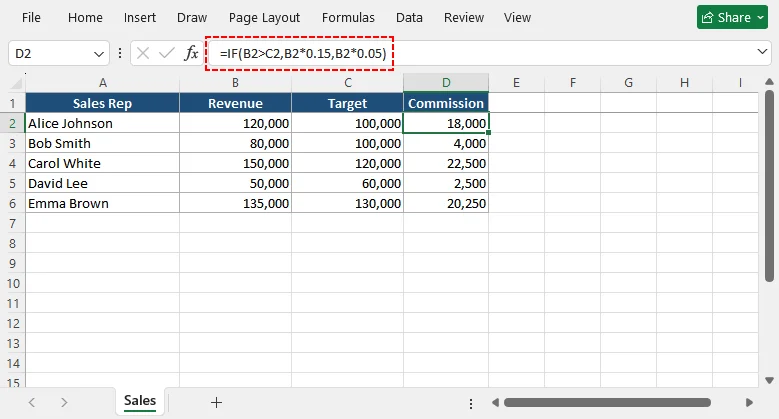
Resultado:
No arquivo de saída, a coluna D será preenchida com a fórmula correta do Excel: =IF(B2>C2, B2*0.15, B2*0.05)
Automação Avançada: Processamento em Lote de Centenas de Arquivos
Para relatórios mensais recorrentes, envolva a lógica em um loop para processar uma pasta inteira:
using System.IO;
using Spire.Agent.Office.AI;
using Spire.Agent.Office.Extensions;
using Spire.Xls;

// 1. Configuration
string inputFolder = @"C:\reports\inbox";
string outputFolder = @"C:\reports\output";
string spireToken = "your_spire_token";

// Ensure the output directory exists
Directory.CreateDirectory(outputFolder);

// 2. Setup AI Options
AIOptions agentOptions = new AIOptions();
agentOptions.WorkDir = outputFolder; // Sets the working/temp directory
agentOptions.SpireToken = spireToken;

// 3. Define your calculation logic (Natural Language Prompt)
string calculationPrompt = @"Input your calculation logic";

// 4. Loop through all Excel files
foreach (string file in Directory.GetFiles(inputFolder, "*.xlsx"))
{
    // Define the output path (keeps the same filename)
    string outputPath = Path.Combine(outputFolder, Path.GetFileName(file));

    // Dispose the workbook after each file to free memory
    using (Workbook workbook = new Workbook())
    {
        // Load the source Excel file
        workbook.LoadFromFile(file);

        // Execute the AI instruction
        AIResult result = workbook.AI(agentOptions).ExecuteInstruction(
            workbook,              // Pass the document instance
            calculationPrompt,     // The prompt
            outputPath,            // Full path to save the processed file
            new string[] { }       // Additional options (empty array)
        );
    }
}
✅ Principais Vantagens para a Automação Corporativa
- 100% do Lado do Servidor: Processe milhares de arquivos .xlsx em tarefas em lote durante a noite. Sem pop-ups de interface, sem atrasos de renderização.
- Sem Instalação do Office: Elimine o licenciamento do Office em pipelines de CI/CD ou servidores web.
- Tradução de Lógica com IA: Descreva regras complexas em linguagem natural para o Agente; ele gera a fórmula ou a lógica em C# subjacente para o Spire.Office aplicar.
- Alto Desempenho: Construído sobre .NET Core/.NET 6+, lida com processamento massivo de dados com gerenciamento de memória otimizado.
Considerações Finais
Automatizar cálculos no Excel não se trata mais de gravar teclas; trata-se de integrar lógica inteligente à sua infraestrutura de software. O Spire.Agent.Office preenche a lacuna entre os requisitos de negócio humanos (linguagem natural) e a execução pela máquina (API .NET robusta do Spire.Office).
Ao adotar essa arquitetura, você elimina a dependência da área de trabalho, reduz significativamente os erros humanos e transforma seus relatórios do Excel em um pipeline totalmente automatizado e do lado do servidor.
Pronto para construir a próxima geração de automação de planilhas? Adicione o pacote NuGet, solicite seu SpireToken e escreva seu primeiro prompt em minutos para remodelar seus pipelines de dados de ponta a ponta.
Perguntas Frequentes (FAQs)
P: Posso automatizar fórmulas complexas do Excel como INDEX/MATCH ou XLOOKUP?
R: Sim. O Spire.Agent.Office oferece suporte à maioria das funções modernas do Excel. Você pode solicitar: "Use XLOOKUP para encontrar o preço na Sheet2 com base no Product ID", e a biblioteca gerará a sintaxe aninhada precisa.
P: Posso automatizar cálculos no Excel em .NET sem instalar o Microsoft Excel?
R: Sim. O Spire.Agent.Office é uma biblioteca totalmente autônoma que oferece suporte à automação de cálculos no Excel sem qualquer instalação do Microsoft Office.
P: Quão precisa é a interpretação do prompt pela IA?
R: O Spire.Agent.Office usa modelos de linguagem avançados otimizados para fluxos de trabalho de automação de planilhas. Ele lida com lógica complexa, referências entre planilhas e intervalos dinâmicos com alta precisão. No entanto, recomendamos testar os prompts com dados de amostra antes da implantação em produção.
P: O Spire.Agent.Office oferece suporte ao processamento em lote?
R: Sim. Você pode percorrer uma pasta inteira de arquivos do Excel e aplicar a mesma instrução de IA a cada um deles, o que o torna ideal para relatórios mensais recorrentes e pipelines de processamento de dados em massa.
Leia Também
.NET AI 에이전트로 Excel 계산 자동화
수동 Excel 계산은 느리고 오류가 발생하기 쉬우며, 엔터프라이즈 데이터 워크플로로 확장하는 것이 불가능합니다. 재무 보고 도구, 비즈니스 분석 대시보드 또는 일괄 데이터 처리 시스템을 구축하든, .NET으로 Excel에서 계산 자동화하기는 인적 오류를 제거하고 워크플로 속도를 높이며 애플리케이션 전반에서 스프레드시트 로직을 표준화합니다.
VBA, Interop 또는 레거시 라이브러리와 같은 기존 Excel 자동화 방법에는 설치된 Microsoft Office에 대한 의존성, 제한적인 크로스 플랫폼 지원, 경직된 수식 스크립팅, 대용량 데이터셋에 대한 낮은 성능 등 상당한 한계가 있습니다.
이 가이드에서는 Spire.Agent.Office를 소개합니다. 이는 Office 설치와 완전히 독립적으로, 동적이고 지능적으로 Excel에서 계산을 자동화할 수 있게 해 주는 최신 .NET AI 에이전트 라이브러리입니다.
- 기존 Excel 자동화가 부족한 이유
- Spire.Agent.Office 소개 – AI 솔루션
- 전제 조건 및 설치
- 단계별: Spire.Agent.Office로 Excel에서 계산 자동화하기
- 고급 자동화: 수백 개 파일 일괄 처리
- 자주 묻는 질문(FAQ)
기존 Excel 자동화가 부족한 이유
기존 방식은 현대 엔터프라이즈 배포에 치명적인 한계가 있습니다.
| 방법 | 단점 |
|---|---|
| VBA | Windows 전용, Office 설치 필요, 대용량 데이터셋에서 느림, AI 없음. |
| Interop | 메모리 누수 발생 가능, 서버 안전하지 않음, 비싼 라이선스. |
| Open XML SDK | 저수준, 복잡함, 수식 생성 없음, AI 없음. |
| Spire.XLS | 수식 생성에는 탁월하지만 AI 추론 기능이 없습니다. 모든 IF 또는 VLOOKUP 문자열을 하드코딩해야 합니다. |
해결책은? 비즈니스 규칙을 일반 영어로 이해하고 대규모로 실행하는 최신 .NET AI 에이전트 SDK입니다.
Spire.Agent.Office 소개 – AI 솔루션
Spire.Agent.Office는 .NET용 고급 AI 기반 문서 자동화 라이브러리로, Excel, Word, PowerPoint 및 PDF 처리를 간소화하도록 설계되었습니다. 전용 Spire.Agent.XLS 모듈은 수식 생성, 자동 계산, 데이터 분석 및 스프레드시트 변환을 포함한 지능형 Excel 자동화를 전문으로 합니다.
정적 라이브러리와 달리 Spire.Agent.Office는 동적 계산 기능을 추가합니다. 원하는 내용을 설명하면 AI가 이를 정확한 Excel 수식으로 변환하고 실행합니다.
어떻게 작동하나요?
이 라이브러리는 최신 LLM(대규모 언어 모델) 강화 워크플로에서 작동합니다. 기술 파이프라인은 다음과 같습니다:
Developer Input (Workbook + Plain-Text Prompt)
         ↓
Spire.Agent.Office (AI Translation Layer)
         ↓
Structured Computation Plan
         ↓
Spire.Office (Execution Engine)
         ↓
Updated Excel File or Data Output
- 입력 계층: 개발자는 .xls 또는 .xlsx 파일, 일반 텍스트 프롬프트, AI 인증용 SpireToken을 제공합니다.
- 의미 분석: Spire.Agent.Office AI가 통합 문서 메타데이터를 스캔하고 프롬프트와 함께 LLM으로 전송합니다.
- 구조화된 계획: AI는 원시 수식 텍스트가 아닌 결정적 계산 계획, 즉 순서가 지정된 엔진 작업 집합을 생성합니다.
- 실행 엔진: Spire.Office가 계획을 실행하고, Excel을 실행하지 않고 셀에 수식을 직접 작성하며, 종속성 체인의 전체 재계산을 강제합니다.
- 출력: 업데이트된 통합 문서가 디스크에 저장되거나 직접 API 응답용 MemoryStream으로 반환됩니다.
핵심 Excel 계산 기능
- 코드 또는 자연어 프롬프트를 통해 Excel에서 수식(SUM, AVERAGE, VLOOKUP, IF 함수) 자동 생성 및 추가
- 프로그래밍 방식으로 전체 통합 문서/워크시트 재계산 강제
- 여러 Excel 파일 및 대용량 데이터셋에 대한 일괄 계산 자동화
- 정확한 결과를 보장하기 위한 계산 전 AI 기반 데이터 정리
- 데이터셋 변경에 따른 동적 수식 조정
- 계산된 Excel 파일을 PDF, CSV 및 기타 형식으로 원활하게 내보내기
전제 조건 및 설치
.NET 프로젝트에서 Spire.Agent.Office로 스프레드시트 자동화를 시작하려면 다음 설정을 준비하세요:
- .NET 프로젝트(Console, ASP.NET, WinForms 또는 .NET Core)
- 필수 NuGet 패키지 설치: Spire.Agent.Office
- AI 에이전트 기능 활성화를 위한 임시 Spire Token 요청
NuGet 설치 명령:
Install‑Package Spire.Agent.Office
전체 설정 지침은 .NET 프로젝트에 Spire.Agent.Office 통합하기를 참조하세요.
단계별: Spire.Agent.Office로 Excel에서 계산 자동화하기
다음은 이 .NET AI Agent SDK를 사용하여 영업 수수료 계산을 동적으로 자동화하는 개발자 중심 워크플로입니다.
1단계: AI 에이전트 초기화 및 문서 로드
코드에서 Spire.Agent를 인스턴스화하고 대상 Excel 통합 문서를 로드합니다. 에이전트는 기본 Spire.Office 엔진을 사용하여 통합 문서의 메타데이터를 스캔합니다.
using Spire.Agent.Office.AI;
using Spire.Agent.Office.Extensions;
using Spire.Xls;


AIOptions options = new AIOptions();
options.SpireToken = "your_spire_token";

Workbook workbook = new Workbook();

workbook.LoadFromFile("SalesData.xlsx");
AIDocumentProcessor processor = workbook.AI(options);
2단계: 자연어로 계산 로직 정의
여기에서 AI의 마법이 일어납니다. 모든 행에 대해 복잡한 IF 문을 수동으로 작성하는 대신, 에이전트에 프롬프트를 보냅니다:
string instruction = @"
In this input sales dataset. Column A is 'Sales Rep', Column B is 'Revenue', Column C is 'Target'.
Add a Column D with the same style and set its header as 'Commission' in D1
Create a calculation rule for Column D (Commission):
If Revenue exceeds Target, calculate 15% of Revenue. Otherwise, calculate 5%.
Apply this formula to the entire data range dynamically.
";
3단계: 계획 실행
에이전트는 정적 수식 텍스트가 아닌 구조화된 계산 계획을 생성합니다. Spire.Office는 계산된 필드를 워크시트 셀에 직접 적용합니다.
AIResult result = processor.ExecuteInstruction(
    workbook,
    instruction,
    "Calculated_data.xlsx"
);
전체 C# 코드 예제:
using Spire.Agent.Office.AI;
using Spire.Agent.Office.Extensions;
using Spire.Xls;


AIOptions options = new AIOptions();
options.SpireToken = "spireToken";

using (Workbook workbook = new Workbook())
{
    workbook.LoadFromFile("SalesData.xlsx");
    AIDocumentProcessor processor = workbook.AI(options);

    string instruction = @"
    In this input sales dataset. Column A is 'Sales Rep', Column B is 'Revenue', Column C is 'Target'.
    Add a Column D with the same style and add a header 'Commission' in D1
    Create a calculation rule for Column D (Commission):
    If Revenue exceeds Target, calculate 15% of Revenue. Otherwise, calculate 5%.
    Apply this formula to the entire data range dynamically.
";

    AIResult result = processor.ExecuteInstruction(
        workbook,
        instruction,
        "Calculated_data.xlsx"
    );
}
핵심 API 개요
- AIOptions: AI 에이전트의 구성 컨테이너입니다.
SpireToken(인증에 필요)을 설정하고,TimeoutMs(선택 사항)를 조정하며, 임시 파일용WorkDir를 지정하는 데 사용합니다. - AIDocumentProcessor: 문서 처리를 담당하는 AI 에이전트 인스턴스입니다. 지원되는 모든 문서 객체(
Workbook,Document,Presentation또는PdfDocument)에서.AI()확장 메서드를 호출하여 얻습니다. - AIResult:
ExecuteInstruction의 반환 객체입니다. 실행 상태와 출력 경로를 포함하므로 성공 여부를 확인하거나 프로그래밍 방식으로 오류를 처리할 수 있습니다.
결과:
출력 파일에서 D열은 올바른 Excel 수식으로 채워집니다: =IF(B2>C2, B2*0.15, B2*0.05)
고급 자동화: 수백 개 파일 일괄 처리
월별 반복 보고서의 경우, 로직을 루프로 감싸 전체 폴더를 처리하세요:
using System.IO;
using Spire.Agent.Office.AI;
using Spire.Agent.Office.Extensions;
using Spire.Xls;

// 1. Configuration
string inputFolder = @"C:\reports\inbox";
string outputFolder = @"C:\reports\output";
string spireToken = "your_spire_token";

// Ensure the output directory exists
Directory.CreateDirectory(outputFolder);

// 2. Setup AI Options
AIOptions agentOptions = new AIOptions();
agentOptions.WorkDir = outputFolder; // Sets the working/temp directory
agentOptions.SpireToken = spireToken;

// 3. Define your calculation logic (Natural Language Prompt)
string calculationPrompt = @"Input your calculation logic";

// 4. Loop through all Excel files
foreach (string file in Directory.GetFiles(inputFolder, "*.xlsx"))
{
    // Define the output path (keeps the same filename)
    string outputPath = Path.Combine(outputFolder, Path.GetFileName(file));

    // Dispose the workbook after each file to free memory
    using (Workbook workbook = new Workbook())
    {
        // Load the source Excel file
        workbook.LoadFromFile(file);

        // Execute the AI instruction
        AIResult result = workbook.AI(agentOptions).ExecuteInstruction(
            workbook,              // Pass the document instance
            calculationPrompt,     // The prompt
            outputPath,            // Full path to save the processed file
            new string[] { }       // Additional options (empty array)
        );
    }
}
✅ 엔터프라이즈 자동화의 주요 이점
- 100% 서버 측: 야간 일괄 작업으로 수천 개의 .xlsx 파일을 처리합니다. UI 팝업도, 렌더링 지연도 없습니다.
- Office 설치 불필요: CI/CD 파이프라인 또는 웹 서버에서 Office 라이선스를 제거합니다.
- AI 기반 로직 변환: 복잡한 규칙을 에이전트에게 일반 영어로 설명하면, 에이전트가 Spire.Office가 적용할 기본 수식 또는 C# 로직을 생성합니다.
- 고성능: .NET Core/.NET 6+ 기반으로 구축되어 최적화된 메모리 관리로 대규모 데이터 처리를 처리합니다.
마무리 생각
Excel에서 계산 자동화는 더 이상 키 입력을 기록하는 것이 아니라 소프트웨어 인프라에 지능형 로직을 통합하는 것입니다. Spire.Agent.Office는 인간의 비즈니스 요구 사항(자연어)과 기계 실행(Spire.Office의 강력한 .NET API) 사이의 간극을 연결합니다.
이 아키텍처를 채택하면 데스크톱에 대한 의존성을 제거하고, 인적 오류를 크게 줄이며, Excel 보고를 완전 자동화된 서버 측 파이프라인으로 전환할 수 있습니다.
차세대 스프레드시트 자동화를 구축할 준비가 되셨나요? NuGet 패키지를 추가하고, SpireToken을 요청한 다음, 몇 분 안에 첫 프롬프트를 작성하여 엔드투엔드 데이터 파이프라인을 재구성하세요.
자주 묻는 질문(FAQ)
질문: INDEX/MATCH 또는 XLOOKUP 같은 복잡한 Excel 수식을 자동화할 수 있나요?
답변: 예. Spire.Agent.Office는 대부분의 최신 Excel 함수를 지원합니다. "Product ID를 기준으로 Sheet2에서 가격을 찾으려면 XLOOKUP을 사용하세요"와 같이 프롬프트할 수 있으며, 라이브러리가 정확한 중첩 구문을 생성합니다.
질문: Microsoft Excel을 설치하지 않고 .NET에서 Excel 계산을 자동화할 수 있나요?
답변: 예. Spire.Agent.Office는 Microsoft Office 설치 없이 Excel 계산 자동화를 지원하는 완전 독립 실행형 라이브러리입니다.
질문: AI 프롬프트 해석은 얼마나 정확한가요?
답변: Spire.Agent.Office는 스프레드시트 자동화 워크플로에 최적화된 고급 언어 모델을 사용합니다. 복잡한 로직, 시트 간 참조, 동적 범위를 높은 정확도로 처리합니다. 그러나 프로덕션 배포 전에 샘플 데이터로 프롬프트를 테스트하는 것이 좋습니다.
질문: Spire.Agent.Office는 일괄 처리를 지원하나요?
답변: 예. Excel 파일이 있는 전체 폴더를 반복하면서 각 파일에 동일한 AI 지침을 적용할 수 있으므로, 월별 반복 보고서 및 대량 데이터 처리 파이프라인에 이상적입니다.
함께 읽기
Automatizza i calcoli in Excel con un agente AI .NET
Indice
- Perché l'automazione tradizionale di Excel non è all'altezza
- Presentazione di Spire.Agent.Office – La soluzione AI
- Prerequisiti e installazione
- Passo dopo passo: automatizzare i calcoli in Excel con Spire.Agent.Office
- Automazione avanzata: elaborazione in batch di centinaia di file
- Domande frequenti (FAQ)
I calcoli manuali in Excel sono lenti, soggetti a errori e impossibili da scalare per i flussi di lavoro dei dati aziendali. Che tu stia creando strumenti di reportistica finanziaria, dashboard di analisi aziendale o sistemi di elaborazione dati in batch, automatizzare i calcoli in Excel con .NET elimina l'errore umano, accelera i flussi di lavoro e standardizza la logica dei fogli di calcolo in tutte le tue applicazioni.
I metodi tradizionali di automazione di Excel come VBA, Interop o librerie legacy presentano limiti significativi: dipendenza da Microsoft Office installato, supporto multipiattaforma limitato, scripting rigido delle formule e prestazioni scarse con grandi set di dati.
Questa guida presenta Spire.Agent.Office—la moderna libreria di agenti AI .NET che consente di automatizzare i calcoli in Excel in modo dinamico, intelligente e completamente indipendente dalle installazioni di Office.
- Perché l'automazione tradizionale di Excel non è all'altezza
- Presentazione di Spire.Agent.Office – La soluzione AI
- Prerequisiti e installazione
- Passo dopo passo: automatizzare i calcoli in Excel con Spire.Agent.Office
- Automazione avanzata: elaborazione in batch di centinaia di file
- Domande frequenti (FAQ)
Perché l'automazione tradizionale di Excel non è all'altezza
I metodi tradizionali presentano limiti critici per le implementazioni aziendali moderne.
| Metodo | Svantaggi |
|---|---|
| VBA | Solo Windows, richiede l'installazione di Office, lento con grandi set di dati, nessuna AI. |
| Interop | Soggetto a perdite di memoria, non sicuro per i server, licenze costose. |
| Open XML SDK | Di basso livello, complesso, nessuna generazione di formule, nessuna AI. |
| Spire.XLS | Eccellente per la creazione di formule, ma manca di inferenza AI. Devi codificare manualmente ogni stringa IF o VLOOKUP. |
La soluzione? Un moderno SDK per agenti AI .NET che comprende le tue regole aziendali in linguaggio naturale e le esegue su larga scala.
Presentazione di Spire.Agent.Office – La soluzione AI
Spire.Agent.Office è una libreria avanzata di automazione documentale basata su AI per .NET, progettata per semplificare l'elaborazione di Excel, Word, PowerPoint e PDF. Il suo modulo dedicato Spire.Agent.XLS è specializzato nell'automazione intelligente di Excel, inclusa la generazione di formule, il calcolo automatico, l'analisi dei dati e la trasformazione dei fogli di calcolo.
A differenza delle librerie statiche, Spire.Agent.Office aggiunge capacità di calcolo dinamico – descrivi ciò che vuoi e l'AI lo traduce in formule Excel precise e le esegue.
Come funziona?
La libreria si basa su un moderno flusso di lavoro potenziato da LLM (Large Language Model). Ecco la pipeline tecnica:
Developer Input (Workbook + Plain-Text Prompt)
         ↓
Spire.Agent.Office (AI Translation Layer)
         ↓
Structured Computation Plan
         ↓
Spire.Office (Execution Engine)
         ↓
Updated Excel File or Data Output
- Livello di input: lo sviluppatore fornisce un file .xls o .xlsx, un prompt in testo semplice e un SpireToken per l'autenticazione AI.
- Analisi semantica: l'AI di Spire.Agent.Office analizza i metadati della cartella di lavoro e li invia al LLM insieme al prompt.
- Pianificazione strutturata: l'AI genera un piano di calcolo deterministico—un insieme ordinato di operazioni del motore—anziché testo grezzo di formule.
- Motore di esecuzione: Spire.Office esegue il piano, scrive le formule direttamente nelle celle senza avviare Excel e forza un ricalcolo completo della catena di dipendenze.
- Output: la cartella di lavoro aggiornata viene salvata su disco o restituita come MemoryStream per risposte API dirette.
Funzionalità principali di calcolo Excel
- Genera automaticamente e aggiungi formule in Excel (funzioni SUM, AVERAGE, VLOOKUP, IF) tramite codice o prompt in linguaggio naturale
- Forza il ricalcolo completo della cartella di lavoro/foglio di lavoro a livello di codice
- Automatizza il calcolo in batch per più file Excel e grandi set di dati
- Pulizia dei dati basata su AI prima del calcolo per garantire risultati accurati
- Adattamento dinamico delle formule in base alle modifiche del set di dati
- Esporta senza problemi i file Excel calcolati in PDF, CSV e altri formati
Prerequisiti e installazione
Per iniziare l'automazione dei fogli di calcolo con Spire.Agent.Office nel tuo progetto .NET, prepara la seguente configurazione:
- Un progetto .NET (Console, ASP.NET, WinForms o .NET Core)
- Installa i pacchetti NuGet richiesti: Spire.Agent.Office
- Richiedi un Spire Token temporaneo per attivare le funzionalità dell'agente AI
Comandi di installazione NuGet:
Install‑Package Spire.Agent.Office
Per le istruzioni di configurazione complete, consulta: Integra Spire.Agent.Office nel tuo progetto .NET
Passo dopo passo: automatizza i calcoli in Excel con Spire.Agent.Office
Ecco un flusso di lavoro orientato allo sviluppatore per automatizzare dinamicamente il calcolo delle commissioni di vendita utilizzando questo SDK .NET per agenti AI.
Passaggio 1: inizializza l'agente AI e carica il documento
Nel tuo codice, istanzierai Spire.Agent e caricherai la cartella di lavoro Excel di destinazione. L'agente utilizza il motore Spire.Office sottostante per analizzare i metadati della cartella di lavoro.
using Spire.Agent.Office.AI;
using Spire.Agent.Office.Extensions;
using Spire.Xls;


AIOptions options = new AIOptions();
options.SpireToken = "your_spire_token";

Workbook workbook = new Workbook();

workbook.LoadFromFile("SalesData.xlsx");
AIDocumentProcessor processor = workbook.AI(options);
Passaggio 2: definisci la logica di calcolo tramite linguaggio naturale
Qui avviene la magia dell'AI. Invece di scrivere manualmente un'istruzione IF complessa per ogni riga, invii un prompt all'agente:
string instruction = @"
In this input sales dataset. Column A is 'Sales Rep', Column B is 'Revenue', Column C is 'Target'.
Add a Column D with the same style and set its header as 'Commission' in D1
Create a calculation rule for Column D (Commission):
If Revenue exceeds Target, calculate 15% of Revenue. Otherwise, calculate 5%.
Apply this formula to the entire data range dynamically.
";
Passaggio 3: esegui il piano
L'agente produce un piano di calcolo strutturato anziché testo statico di formule. Spire.Office applica i campi calcolati direttamente alle celle del foglio di lavoro.
AIResult result = processor.ExecuteInstruction(
    workbook,
    instruction,
    "Calculated_data.xlsx"
);
Esempio completo di codice C#:
using Spire.Agent.Office.AI;
using Spire.Agent.Office.Extensions;
using Spire.Xls;


AIOptions options = new AIOptions();
options.SpireToken = "spireToken";

using (Workbook workbook = new Workbook())
{
    workbook.LoadFromFile("SalesData.xlsx");
    AIDocumentProcessor processor = workbook.AI(options);

    string instruction = @"
    In this input sales dataset. Column A is 'Sales Rep', Column B is 'Revenue', Column C is 'Target'.
    Add a Column D with the same style and add a header 'Commission' in D1
    Create a calculation rule for Column D (Commission):
    If Revenue exceeds Target, calculate 15% of Revenue. Otherwise, calculate 5%.
    Apply this formula to the entire data range dynamically.
";

    AIResult result = processor.ExecuteInstruction(
        workbook,
        instruction,
        "Calculated_data.xlsx"
    );
}
Panoramica delle API principali
- AIOptions: contenitore di configurazione per l'agente AI. Usalo per impostare
SpireToken(richiesto per l'autenticazione), regolareTimeoutMs(opzionale) e specificare unWorkDirper i file temporanei. - AIDocumentProcessor: l'istanza dell'agente AI che gestisce l'elaborazione dei documenti. Ottienila chiamando il metodo di estensione
.AI()su qualsiasi oggetto documento supportato (Workbook,Document,PresentationoPdfDocument). - AIResult: l'oggetto restituito da
ExecuteInstruction. Contiene lo stato di esecuzione e il percorso di output, consentendoti di verificare il successo o gestire gli errori a livello di codice.
Risultato:
Nel file di output, la colonna D verrà popolata con la formula Excel corretta: =IF(B2>C2, B2*0.15, B2*0.05)
Automazione avanzata: elaborazione in batch di centinaia di file
Per report mensili ricorrenti, racchiudi la logica in un ciclo per elaborare un'intera cartella:
using System.IO;
using Spire.Agent.Office.AI;
using Spire.Agent.Office.Extensions;
using Spire.Xls;

// 1. Configuration
string inputFolder = @"C:\reports\inbox";
string outputFolder = @"C:\reports\output";
string spireToken = "your_spire_token";

// Ensure the output directory exists
Directory.CreateDirectory(outputFolder);

// 2. Setup AI Options
AIOptions agentOptions = new AIOptions();
agentOptions.WorkDir = outputFolder; // Sets the working/temp directory
agentOptions.SpireToken = spireToken;

// 3. Define your calculation logic (Natural Language Prompt)
string calculationPrompt = @"Input your calculation logic";

// 4. Loop through all Excel files
foreach (string file in Directory.GetFiles(inputFolder, "*.xlsx"))
{
    // Define the output path (keeps the same filename)
    string outputPath = Path.Combine(outputFolder, Path.GetFileName(file));

    // Dispose the workbook after each file to free memory
    using (Workbook workbook = new Workbook())
    {
        // Load the source Excel file
        workbook.LoadFromFile(file);

        // Execute the AI instruction
        AIResult result = workbook.AI(agentOptions).ExecuteInstruction(
            workbook,              // Pass the document instance
            calculationPrompt,     // The prompt
            outputPath,            // Full path to save the processed file
            new string[] { }       // Additional options (empty array)
        );
    }
}
✅ Vantaggi principali per l'automazione aziendale
- 100% lato server: elabora migliaia di file .xlsx in processi batch durante la notte. Nessun pop-up dell'interfaccia utente, nessun ritardo di rendering.
- Nessuna installazione di Office: elimina le licenze Office nelle pipeline CI/CD o nei server web.
- Traduzione logica basata su AI: descrivi regole complesse in linguaggio naturale all'agente; genera la formula sottostante o la logica C# che Spire.Office deve applicare.
- Alte prestazioni: basato su .NET Core/.NET 6+, gestisce l'elaborazione di dati massivi con gestione ottimizzata della memoria.
Considerazioni finali
Automatizzare i calcoli in Excel non significa più registrare sequenze di tasti; significa integrare una logica intelligente nella tua infrastruttura software. Spire.Agent.Office colma il divario tra i requisiti aziendali umani (linguaggio naturale) e l'esecuzione automatica (la solida API .NET di Spire.Office).
Adottando questa architettura, elimini la dipendenza dal desktop, riduci significativamente gli errori umani e trasformi la tua reportistica Excel in una pipeline completamente automatizzata lato server.
Pronto a costruire la prossima generazione di automazione dei fogli di calcolo? Aggiungi il pacchetto NuGet, richiedi il tuo SpireToken e scrivi il tuo primo prompt in pochi minuti per rimodellare le tue pipeline di dati end-to-end.
Domande frequenti (FAQ)
D: Posso automatizzare formule Excel complesse come INDEX/MATCH o XLOOKUP?
R: Sì. Spire.Agent.Office supporta la maggior parte delle funzioni moderne di Excel. Puoi inviare il prompt: "Usa XLOOKUP per trovare il prezzo nel Foglio2 in base all'ID prodotto", e la libreria genererà la sintassi annidata precisa.
D: Posso automatizzare i calcoli di Excel in .NET senza installare Microsoft Excel?
R: Sì. Spire.Agent.Office è una libreria completamente autonoma che supporta l'automazione dei calcoli di Excel senza alcuna installazione di Microsoft Office.
D: Quanto è accurata l'interpretazione dei prompt AI?
R: Spire.Agent.Office utilizza modelli linguistici avanzati ottimizzati per i flussi di lavoro di automazione dei fogli di calcolo. Gestisce logica complessa, riferimenti tra fogli e intervalli dinamici con elevata accuratezza. Tuttavia, consigliamo di testare i prompt con dati di esempio prima della distribuzione in produzione.
D: Spire.Agent.Office supporta l'elaborazione in batch?
R: Sì. Puoi scorrere un'intera cartella di file Excel e applicare la stessa istruzione AI a ciascuno, rendendolo ideale per report mensili ricorrenti e pipeline di elaborazione dati in blocco.
Leggi anche
Automatisez les calculs dans Excel avec un agent IA .NET
Table des matières
- Pourquoi l'automatisation Excel traditionnelle est insuffisante
- Présentation de Spire.Agent.Office – La solution IA
- Prérequis & installation
- Étape par étape : automatiser les calculs dans Excel avec Spire.Agent.Office
- Automatisation avancée : traitement par lots de centaines de fichiers
- Foire aux questions (FAQ)
Les calculs Excel manuels sont lents, sujets aux erreurs et impossibles à mettre à l'échelle pour les flux de données d'entreprise. Que vous construisiez des outils de reporting financier, des tableaux de bord d'analyse métier ou des systèmes de traitement par lots de données, automatiser les calculs dans Excel avec .NET élimine les erreurs humaines, accélère les flux de travail et normalise la logique des feuilles de calcul dans vos applications.
Les méthodes traditionnelles d'automatisation Excel comme VBA, Interop ou les bibliothèques héritées présentent des limites importantes : dépendance à Microsoft Office installé, prise en charge multiplateforme limitée, script de formules rigide et performances médiocres pour les grands ensembles de données.
Ce guide présente Spire.Agent.Office—la bibliothèque moderne d'agents IA .NET qui vous permet d'automatiser les calculs dans Excel de manière dynamique, intelligente et totalement indépendante des installations d'Office.
- Pourquoi l'automatisation Excel traditionnelle est insuffisante
- Présentation de Spire.Agent.Office – La solution IA
- Prérequis & installation
- Étape par étape : automatiser les calculs dans Excel avec Spire.Agent.Office
- Automatisation avancée : traitement par lots de centaines de fichiers
- Foire aux questions (FAQ)
Pourquoi l'automatisation Excel traditionnelle est insuffisante
Les méthodes traditionnelles présentent des limites critiques pour les déploiements d'entreprise modernes.
| Méthode | Inconvénients |
|---|---|
| VBA | Windows uniquement, nécessite l'installation d'Office, lent avec de grands ensembles de données, pas d'IA. |
| Interop | Sujet aux fuites de mémoire, non sécurisé pour les serveurs, licences coûteuses. |
| Open XML SDK | Bas niveau, complexe, aucune génération de formules, pas d'IA. |
| Spire.XLS | Excellent pour la création de formules, mais manque d'inférence IA. Vous devez coder en dur chaque chaîne IF ou VLOOKUP. |
La solution ? Un SDK moderne d'agent IA .NET qui comprend vos règles métier en langage naturel et les exécute à grande échelle.
Présentation de Spire.Agent.Office – La solution IA
Spire.Agent.Office est une bibliothèque avancée d'automatisation documentaire pilotée par l'IA pour .NET, conçue pour rationaliser le traitement Excel, Word, PowerPoint et PDF. Son module dédié Spire.Agent.XLS est spécialisé dans l'automatisation intelligente d'Excel, notamment la génération de formules, le calcul automatique, l'analyse de données et la transformation de feuilles de calcul.
Contrairement aux bibliothèques statiques, Spire.Agent.Office ajoute des capacités de calcul dynamique – vous décrivez ce que vous voulez, et l'IA le traduit en formules Excel précises et les exécute.
Comment ça marche ?
La bibliothèque fonctionne selon un flux de travail amélioré par LLM (grand modèle de langage) moderne. Voici le pipeline technique :
Developer Input (Workbook + Plain-Text Prompt)
         ↓
Spire.Agent.Office (AI Translation Layer)
         ↓
Structured Computation Plan
         ↓
Spire.Office (Execution Engine)
         ↓
Updated Excel File or Data Output
- Couche d'entrée : le développeur fournit un fichier .xls ou .xlsx, une invite en texte brut et un SpireToken pour l'authentification IA.
- Analyse sémantique : l'IA Spire.Agent.Office analyse les métadonnées du classeur et les envoie avec l'invite au LLM.
- Planification structurée : l'IA génère un plan de calcul déterministe — un ensemble ordonné d'opérations du moteur — plutôt que du texte de formule brut.
- Moteur d'exécution : Spire.Office exécute le plan, écrit les formules directement dans les cellules sans lancer Excel et force un recalcul complet de la chaîne de dépendances.
- Sortie : le classeur mis à jour est enregistré sur le disque ou renvoyé sous forme de MemoryStream pour des réponses API directes.
Fonctionnalités clés de calcul Excel
- Générer et ajouter automatiquement des formules dans Excel (fonctions SUM, AVERAGE, VLOOKUP, IF) via du code ou des invites en langage naturel
- Forcer le recalcul complet d'un classeur/d'une feuille de calcul par programmation
- Automatiser le calcul par lots pour plusieurs fichiers Excel et de grands ensembles de données
- Nettoyage des données alimenté par l'IA avant le calcul pour garantir des résultats précis
- Ajustement dynamique des formules en fonction des modifications de l'ensemble de données
- Exporter de manière transparente les fichiers Excel calculés vers PDF, CSV et autres formats
Prérequis & installation
Pour commencer l'automatisation des feuilles de calcul avec Spire.Agent.Office dans votre projet .NET, préparez la configuration suivante :
- Un projet .NET (Console, ASP.NET, WinForms ou .NET Core)
- Installez les packages NuGet requis : Spire.Agent.Office
- Demandez un jeton Spire temporaire pour activer les fonctionnalités d'agent IA
Commandes d'installation NuGet :
Install‑Package Spire.Agent.Office
Pour obtenir les instructions d'installation complètes, consultez : Intégrer Spire.Agent.Office à votre projet .NET
Étape par étape : automatiser les calculs dans Excel avec Spire.Agent.Office
Voici un flux de travail orienté développeur pour automatiser dynamiquement un calcul de commission sur les ventes à l'aide de ce SDK .NET AI Agent.
Étape 1 : initialiser l'agent IA et charger le document
Dans votre code, vous instancierez Spire.Agent et chargerez votre classeur Excel cible. L'agent utilise le moteur Spire.Office sous-jacent pour analyser les métadonnées du classeur.
using Spire.Agent.Office.AI;
using Spire.Agent.Office.Extensions;
using Spire.Xls;


AIOptions options = new AIOptions();
options.SpireToken = "your_spire_token";

Workbook workbook = new Workbook();

workbook.LoadFromFile("SalesData.xlsx");
AIDocumentProcessor processor = workbook.AI(options);
Étape 2 : définir la logique de calcul via le langage naturel
C'est ici que la magie de l'IA opère. Au lieu d'écrire manuellement une instruction IF complexe pour chaque ligne, vous envoyez une invite à l'Agent :
string instruction = @"
In this input sales dataset. Column A is 'Sales Rep', Column B is 'Revenue', Column C is 'Target'.
Add a Column D with the same style and set its header as 'Commission' in D1
Create a calculation rule for Column D (Commission):
If Revenue exceeds Target, calculate 15% of Revenue. Otherwise, calculate 5%.
Apply this formula to the entire data range dynamically.
";
Étape 3 : exécuter le plan
L'agent produit un plan de calcul structuré plutôt qu'un texte de formule statique. Spire.Office applique les champs calculés directement sur les cellules de la feuille de calcul.
AIResult result = processor.ExecuteInstruction(
    workbook,
    instruction,
    "Calculated_data.xlsx"
);
Exemple de code C# complet :
using Spire.Agent.Office.AI;
using Spire.Agent.Office.Extensions;
using Spire.Xls;


AIOptions options = new AIOptions();
options.SpireToken = "spireToken";

using (Workbook workbook = new Workbook())
{
    workbook.LoadFromFile("SalesData.xlsx");
    AIDocumentProcessor processor = workbook.AI(options);

    string instruction = @"
    In this input sales dataset. Column A is 'Sales Rep', Column B is 'Revenue', Column C is 'Target'.
    Add a Column D with the same style and add a header 'Commission' in D1
    Create a calculation rule for Column D (Commission):
    If Revenue exceeds Target, calculate 15% of Revenue. Otherwise, calculate 5%.
    Apply this formula to the entire data range dynamically.
";

    AIResult result = processor.ExecuteInstruction(
        workbook,
        instruction,
        "Calculated_data.xlsx"
    );
}
Aperçu des API principales
- AIOptions : conteneur de configuration pour l'agent IA. Utilisez-le pour définir le
SpireToken(requis pour l'authentification), ajuster leTimeoutMs(facultatif) et spécifier unWorkDirpour les fichiers temporaires. - AIDocumentProcessor : l'instance de l'agent IA qui gère le traitement des documents. Obtenez-la en appelant la méthode d'extension
.AI()sur tout objet document pris en charge (Workbook,Document,PresentationouPdfDocument). - AIResult : l'objet de retour de
ExecuteInstruction. Il contient l'état d'exécution et le chemin de sortie, ce qui vous permet de vérifier le succès ou de gérer les erreurs par programmation.
Résultat :
Dans le fichier de sortie, la colonne D sera remplie avec la formule Excel correcte : =IF(B2>C2, B2*0.15, B2*0.05)
Automatisation avancée : traitement par lots de centaines de fichiers
Pour les rapports mensuels récurrents, encapsulez la logique dans une boucle pour traiter un dossier entier :
using System.IO;
using Spire.Agent.Office.AI;
using Spire.Agent.Office.Extensions;
using Spire.Xls;

// 1. Configuration
string inputFolder = @"C:\reports\inbox";
string outputFolder = @"C:\reports\output";
string spireToken = "your_spire_token";

// Ensure the output directory exists
Directory.CreateDirectory(outputFolder);

// 2. Setup AI Options
AIOptions agentOptions = new AIOptions();
agentOptions.WorkDir = outputFolder; // Sets the working/temp directory
agentOptions.SpireToken = spireToken;

// 3. Define your calculation logic (Natural Language Prompt)
string calculationPrompt = @"Input your calculation logic";

// 4. Loop through all Excel files
foreach (string file in Directory.GetFiles(inputFolder, "*.xlsx"))
{
    // Define the output path (keeps the same filename)
    string outputPath = Path.Combine(outputFolder, Path.GetFileName(file));

    // Dispose the workbook after each file to free memory
    using (Workbook workbook = new Workbook())
    {
        // Load the source Excel file
        workbook.LoadFromFile(file);

        // Execute the AI instruction
        AIResult result = workbook.AI(agentOptions).ExecuteInstruction(
            workbook,              // Pass the document instance
            calculationPrompt,     // The prompt
            outputPath,            // Full path to save the processed file
            new string[] { }       // Additional options (empty array)
        );
    }
}
✅ Principaux avantages pour l'automatisation d'entreprise
- 100 % côté serveur : traitez des milliers de fichiers .xlsx dans des tâches par lots pendant la nuit. Aucune fenêtre contextuelle d'interface utilisateur, aucun délai de rendu.
- Aucune installation d'Office : éliminez les licences Office sur les pipelines CI/CD ou les serveurs web.
- Traduction de logique alimentée par l'IA : décrivez des règles complexes en langage naturel à l'Agent ; il génère la formule sous-jacente ou la logique C# que Spire.Office doit appliquer.
- Hautes performances : construit sur .NET Core/.NET 6+, il gère le traitement massif de données avec une gestion optimisée de la mémoire.
Réflexions finales
Automatiser les calculs dans Excel ne consiste plus à enregistrer des frappes clavier ; il s'agit d'intégrer une logique intelligente dans votre infrastructure logicielle. Spire.Agent.Office comble le fossé entre les exigences métier humaines (langage naturel) et l'exécution machine (l'API .NET robuste de Spire.Office).
En adoptant cette architecture, vous éliminez la dépendance au poste de travail, réduisez considérablement les erreurs humaines et transformez votre reporting Excel en un pipeline entièrement automatisé côté serveur.
Prêt à construire la prochaine génération d'automatisation des feuilles de calcul ? Ajoutez le package NuGet, demandez votre SpireToken et écrivez votre première invite en quelques minutes pour remodeler vos pipelines de données de bout en bout.
Foire aux questions (FAQ)
Q : Puis-je automatiser des formules Excel complexes comme INDEX/MATCH ou XLOOKUP ?
R : Oui. Spire.Agent.Office prend en charge la plupart des fonctions Excel modernes. Vous pouvez demander : "Utilisez XLOOKUP pour trouver le prix dans Sheet2 en fonction de l'ID produit", et la bibliothèque générera la syntaxe imbriquée précise.
Q : Puis-je automatiser les calculs Excel dans .NET sans installer Microsoft Excel ?
R : Oui. Spire.Agent.Office est une bibliothèque entièrement autonome qui prend en charge l'automatisation des calculs Excel sans aucune installation de Microsoft Office.
Q : Quelle est la précision de l'interprétation des invites par l'IA ?
R : Spire.Agent.Office utilise des modèles de langage avancés optimisés pour les flux de travail d'automatisation des feuilles de calcul. Il gère une logique complexe, des références inter-feuilles et des plages dynamiques avec une grande précision. Toutefois, nous recommandons de tester les invites avec des données d'exemple avant le déploiement en production.
Q : Spire.Agent.Office prend-il en charge le traitement par lots ?
R : Oui. Vous pouvez parcourir un dossier entier de fichiers Excel et appliquer la même instruction IA à chacun, ce qui le rend idéal pour les rapports mensuels récurrents et les pipelines de traitement de données en masse.
À lire aussi
Automatice cálculos en Excel con un agente de IA de .NET
Índice de contenidos
- Por qué la automatización tradicional de Excel se queda corta
- Presentamos Spire.Agent.Office – La solución de IA
- Requisitos previos e instalación
- Paso a paso: Automatizar cálculos en Excel con Spire.Agent.Office
- Automatización avanzada: Procesamiento por lotes de cientos de archivos
- Preguntas frecuentes (FAQs)
Los cálculos manuales en Excel son lentos, propensos a errores e imposibles de escalar para flujos de trabajo de datos empresariales. Ya sea que estés creando herramientas de informes financieros, paneles de análisis de negocio o sistemas de procesamiento de datos por lotes, automatizar cálculos en Excel con .NET elimina el error humano, acelera los flujos de trabajo y estandariza la lógica de las hojas de cálculo en todas tus aplicaciones.
Los métodos tradicionales de automatización de Excel como VBA, Interop o bibliotecas heredadas vienen con limitaciones significativas: dependencia de Microsoft Office instalado, soporte multiplataforma limitado, scripting de fórmulas rígido y un rendimiento deficiente para grandes conjuntos de datos.
Esta guía presenta Spire.Agent.Office: la moderna biblioteca de agentes de IA para .NET que te permite automatizar cálculos en Excel de forma dinámica, inteligente y completamente independiente de instalaciones de Office.
- Por qué la automatización tradicional de Excel se queda corta
- Presentamos Spire.Agent.Office – La solución de IA
- Requisitos previos e instalación
- Paso a paso: Automatizar cálculos en Excel con Spire.Agent.Office
- Automatización avanzada: Procesamiento por lotes de cientos de archivos
- Preguntas frecuentes (FAQs)
Por qué la automatización tradicional de Excel se queda corta
Los métodos tradicionales vienen con limitaciones críticas para los despliegues empresariales modernos.
| Método | Desventajas |
|---|---|
| VBA | Solo para Windows, requiere instalación de Office, lento con grandes conjuntos de datos, sin IA. |
| Interop | Propenso a fugas de memoria, no es seguro para servidores, licencias costosas. |
| Open XML SDK | De bajo nivel, complejo, sin generación de fórmulas, sin IA. |
| Spire.XLS | Excelente para la creación de fórmulas, pero carece de inferencia de IA. Debes codificar manualmente cada cadena IF o VLOOKUP. |
¿La solución? Un SDK moderno de agentes de IA para .NET que entiende tus reglas de negocio en lenguaje natural y las ejecuta a escala.
Presentamos Spire.Agent.Office – La solución de IA
Spire.Agent.Office es una biblioteca avanzada de automatización de documentos impulsada por IA para .NET, diseñada para optimizar el procesamiento de Excel, Word, PowerPoint y PDF. Su módulo dedicado Spire.Agent.XLS se especializa en la automatización inteligente de Excel, incluyendo la generación de fórmulas, el cálculo automático, el análisis de datos y la transformación de hojas de cálculo.
A diferencia de las bibliotecas estáticas, Spire.Agent.Office añade capacidades de cálculo dinámico: describes lo que quieres y la IA lo traduce en fórmulas precisas de Excel y las ejecuta.
¿Cómo funciona?
La biblioteca opera en un moderno flujo de trabajo mejorado con LLM (modelo de lenguaje grande). Aquí está el pipeline técnico:
Developer Input (Workbook + Plain-Text Prompt)
         ↓
Spire.Agent.Office (AI Translation Layer)
         ↓
Structured Computation Plan
         ↓
Spire.Office (Execution Engine)
         ↓
Updated Excel File or Data Output
- Capa de entrada: El desarrollador proporciona un archivo .xls o .xlsx, un prompt en texto plano y un SpireToken para la autenticación de IA.
- Análisis semántico: La IA de Spire.Agent.Office escanea los metadatos del libro de trabajo y los envía junto con el prompt al LLM.
- Planificación estructurada: La IA genera un plan de cálculo determinista (un conjunto ordenado de operaciones del motor) en lugar de texto de fórmula sin procesar.
- Motor de ejecución: Spire.Office ejecuta el plan, escribe las fórmulas directamente en las celdas sin iniciar Excel y fuerza un recálculo completo de la cadena de dependencias.
- Salida: El libro de trabajo actualizado se guarda en disco o se devuelve como MemoryStream para respuestas directas de la API.
Características principales de cálculo en Excel
- Generar y añadir fórmulas en Excel automáticamente (funciones SUM, AVERAGE, VLOOKUP, IF) mediante código o prompts en lenguaje natural
- Forzar el recálculo completo del libro de trabajo u hoja de cálculo mediante programación
- Automatizar el cálculo por lotes para múltiples archivos de Excel y grandes conjuntos de datos
- Limpieza de datos impulsada por IA antes del cálculo para garantizar resultados precisos
- Ajuste dinámico de fórmulas en función de los cambios en el conjunto de datos
- Exportar archivos de Excel calculados a PDF, CSV y otros formatos sin problemas
Requisitos previos e instalación
Para comenzar la automatización de hojas de cálculo con Spire.Agent.Office en tu proyecto .NET, prepara la siguiente configuración:
- Un proyecto .NET (Console, ASP.NET, WinForms o .NET Core)
- Instalar los paquetes NuGet requeridos: Spire.Agent.Office
- Solicitar un Spire Token temporal para activar las funciones del agente de IA
Comandos de instalación de NuGet:
Install‑Package Spire.Agent.Office
Para obtener instrucciones completas de configuración, consulta: Integrar Spire.Agent.Office en tu proyecto .NET
Paso a paso: Automatizar cálculos en Excel con Spire.Agent.Office
A continuación se presenta un flujo de trabajo centrado en el desarrollador para automatizar dinámicamente el cálculo de comisiones de ventas utilizando este SDK de agentes de IA para .NET.
Paso 1: Inicializar el agente de IA y cargar el documento
En tu código, instanciarás el Spire.Agent y cargarás tu libro de trabajo de Excel objetivo. El agente utiliza el motor subyacente de Spire.Office para escanear los metadatos del libro de trabajo.
using Spire.Agent.Office.AI;
using Spire.Agent.Office.Extensions;
using Spire.Xls;


AIOptions options = new AIOptions();
options.SpireToken = "your_spire_token";

Workbook workbook = new Workbook();

workbook.LoadFromFile("SalesData.xlsx");
AIDocumentProcessor processor = workbook.AI(options);
Paso 2: Definir la lógica de cálculo mediante lenguaje natural
Aquí es donde ocurre la magia de la IA. En lugar de escribir manualmente una declaración IF compleja para cada fila, envías un prompt al Agente:
string instruction = @"
In this input sales dataset. Column A is 'Sales Rep', Column B is 'Revenue', Column C is 'Target'.
Add a Column D with the same style and set its header as 'Commission' in D1
Create a calculation rule for Column D (Commission):
If Revenue exceeds Target, calculate 15% of Revenue. Otherwise, calculate 5%.
Apply this formula to the entire data range dynamically.
";
Paso 3: Ejecutar el plan
El agente produce un plan de cálculo estructurado en lugar de texto de fórmula estático. Spire.Office aplica los campos calculados directamente en las celdas de la hoja de cálculo.
AIResult result = processor.ExecuteInstruction(
    workbook,
    instruction,
    "Calculated_data.xlsx"
);
Ejemplo completo de código C#:
using Spire.Agent.Office.AI;
using Spire.Agent.Office.Extensions;
using Spire.Xls;


AIOptions options = new AIOptions();
options.SpireToken = "spireToken";

using (Workbook workbook = new Workbook())
{
    workbook.LoadFromFile("SalesData.xlsx");
    AIDocumentProcessor processor = workbook.AI(options);

    string instruction = @"
    In this input sales dataset. Column A is 'Sales Rep', Column B is 'Revenue', Column C is 'Target'.
    Add a Column D with the same style and add a header 'Commission' in D1
    Create a calculation rule for Column D (Commission):
    If Revenue exceeds Target, calculate 15% of Revenue. Otherwise, calculate 5%.
    Apply this formula to the entire data range dynamically.
";

    AIResult result = processor.ExecuteInstruction(
        workbook,
        instruction,
        "Calculated_data.xlsx"
    );
}
Descripción general de las API principales
- AIOptions: Contenedor de configuración para el agente de IA. Úsalo para establecer el
SpireToken(requerido para la autenticación), ajustar elTimeoutMs(opcional) y especificar unWorkDirpara archivos temporales. - AIDocumentProcessor: La instancia del agente de IA que gestiona el procesamiento de documentos. Obténla llamando al método de extensión
.AI()en cualquier objeto de documento compatible (Workbook,Document,PresentationoPdfDocument). - AIResult: El objeto devuelto por
ExecuteInstruction. Contiene el estado de ejecución y la ruta de salida, lo que te permite verificar el éxito o gestionar errores mediante programación.
Resultado:
En el archivo de salida, la columna D se rellenará con la fórmula correcta de Excel: =IF(B2>C2, B2*0.15, B2*0.05)
Automatización avanzada: Procesamiento por lotes de cientos de archivos
Para informes mensuales recurrentes, envuelve la lógica en un bucle para procesar una carpeta completa:
using System.IO;
using Spire.Agent.Office.AI;
using Spire.Agent.Office.Extensions;
using Spire.Xls;

// 1. Configuration
string inputFolder = @"C:\reports\inbox";
string outputFolder = @"C:\reports\output";
string spireToken = "your_spire_token";

// Ensure the output directory exists
Directory.CreateDirectory(outputFolder);

// 2. Setup AI Options
AIOptions agentOptions = new AIOptions();
agentOptions.WorkDir = outputFolder; // Sets the working/temp directory
agentOptions.SpireToken = spireToken;

// 3. Define your calculation logic (Natural Language Prompt)
string calculationPrompt = @"Input your calculation logic";

// 4. Loop through all Excel files
foreach (string file in Directory.GetFiles(inputFolder, "*.xlsx"))
{
    // Define the output path (keeps the same filename)
    string outputPath = Path.Combine(outputFolder, Path.GetFileName(file));

    // Dispose the workbook after each file to free memory
    using (Workbook workbook = new Workbook())
    {
        // Load the source Excel file
        workbook.LoadFromFile(file);

        // Execute the AI instruction
        AIResult result = workbook.AI(agentOptions).ExecuteInstruction(
            workbook,              // Pass the document instance
            calculationPrompt,     // The prompt
            outputPath,            // Full path to save the processed file
            new string[] { }       // Additional options (empty array)
        );
    }
}
✅ Ventajas clave para la automatización empresarial
- 100% del lado del servidor: Procesa miles de archivos .xlsx en trabajos por lotes durante la noche. Sin ventanas emergentes de interfaz, sin retrasos de representación.
- Sin instalación de Office: Elimina las licencias de Office en los pipelines de CI/CD o servidores web.
- Traducción de lógica impulsada por IA: Describe reglas complejas en lenguaje natural al Agente; este genera la fórmula subyacente o la lógica de C# para que Spire.Office las aplique.
- Alto rendimiento: Construido sobre .NET Core/.NET 6+, maneja el procesamiento masivo de datos con una gestión de memoria optimizada.
Reflexiones finales
Automatizar cálculos en Excel ya no se trata de grabar pulsaciones de teclas; se trata de integrar lógica inteligente en tu infraestructura de software. Spire.Agent.Office tiende un puente entre los requisitos de negocio humanos (lenguaje natural) y la ejecución de la máquina (la robusta API de .NET de Spire.Office).
Al adoptar esta arquitectura, eliminas la dependencia del escritorio, reduces significativamente los errores humanos y conviertes tus informes de Excel en un pipeline totalmente automatizado del lado del servidor.
¿Listo para construir la próxima generación de automatización de hojas de cálculo? Añade el paquete NuGet, solicita tu SpireToken y escribe tu primer prompt en minutos para reconfigurar tus pipelines de datos de extremo a extremo.
Preguntas frecuentes (FAQs)
P: ¿Puedo automatizar fórmulas complejas de Excel como INDEX/MATCH o XLOOKUP?
R: Sí. Spire.Agent.Office admite la mayoría de las funciones modernas de Excel. Puedes indicar: "Usa XLOOKUP para encontrar el precio en Sheet2 según el ID del producto", y la biblioteca generará la sintaxis anidada precisa.
P: ¿Puedo automatizar cálculos de Excel en .NET sin instalar Microsoft Excel?
R: Sí. Spire.Agent.Office es una biblioteca totalmente independiente que admite la automatización de cálculos de Excel sin ninguna instalación de Microsoft Office.
P: ¿Qué tan precisa es la interpretación del prompt por parte de la IA?
R: Spire.Agent.Office utiliza modelos de lenguaje avanzados optimizados para flujos de trabajo de automatización de hojas de cálculo. Maneja lógica compleja, referencias entre hojas y rangos dinámicos con alta precisión. Sin embargo, recomendamos probar los prompts con datos de muestra antes del despliegue en producción.
P: ¿Spire.Agent.Office admite el procesamiento por lotes?
R: Sí. Puedes recorrer una carpeta completa de archivos de Excel y aplicar la misma instrucción de IA a cada uno, lo que lo hace ideal para informes mensuales recurrentes y pipelines de procesamiento masivo de datos.
Lee también
- Automatizar el procesamiento de facturas con un agente de IA en .NET
- Cómo automatizar documentos de Office con un SDK de agentes de IA para .NET
- Formato, resumen e indexación de Word impulsados por IA en C#
- Automatizar el análisis y la clasificación de calificaciones de estudiantes con Spire.Agent.Office
Automatisieren Sie Berechnungen in Excel mit einem .NET-KI-Agenten
Inhaltsverzeichnis
- Warum herkömmliche Excel-Automatisierung nicht ausreicht
- Einführung in Spire.Agent.Office – Die KI-Lösung
- Voraussetzungen & Installation
- Schritt für Schritt: Berechnungen in Excel mit Spire.Agent.Office automatisieren
- Erweiterte Automatisierung: Stapelverarbeitung von Hunderten von Dateien
- Häufig gestellte Fragen (FAQs)
Manuelle Excel-Berechnungen sind langsam, fehleranfällig und lassen sich für unternehmensweite Datenworkflows nicht skalieren. Ob Sie Finanzberichterstattungstools, Business-Analytics-Dashboards oder Batch-Datenverarbeitungssysteme erstellen – die Automatisierung von Berechnungen in Excel mit .NET beseitigt menschliche Fehler, beschleunigt Workflows und standardisiert Tabellenkalkulationslogik über Ihre Anwendungen hinweg.
Herkömmliche Excel-Automatisierungsmethoden wie VBA, Interop oder Legacy-Bibliotheken bringen erhebliche Einschränkungen mit sich: Abhängigkeit von installiertem Microsoft Office, begrenzte plattformübergreifende Unterstützung, starre Formelskripting und schlechte Leistung bei großen Datensätzen.
Dieser Leitfaden stellt Spire.Agent.Office vor – die moderne .NET-KI-Agent-Bibliothek, mit der Sie Berechnungen in Excel dynamisch, intelligent und völlig unabhängig von Office-Installationen automatisieren können.
- Warum herkömmliche Excel-Automatisierung nicht ausreicht
- Einführung in Spire.Agent.Office – Die KI-Lösung
- Voraussetzungen & Installation
- Schritt für Schritt: Berechnungen in Excel mit Spire.Agent.Office automatisieren
- Erweiterte Automatisierung: Stapelverarbeitung von Hunderten von Dateien
- Häufig gestellte Fragen (FAQs)
Warum herkömmliche Excel-Automatisierung nicht ausreicht
Herkömmliche Methoden bringen kritische Einschränkungen für moderne Unternehmensbereitstellungen mit sich.
| Methode | Nachteile |
|---|---|
| VBA | Nur Windows, erfordert Office-Installation, langsam bei großen Datensätzen, keine KI. |
| Interop | Anfällig für Speicherlecks, nicht serverseitig sicher, teure Lizenzierung. |
| Open XML SDK | Low-Level, komplex, keine Formelgenerierung, keine KI. |
| Spire.XLS | Hervorragend für Formelerstellung, aber es fehlt KI-Inferenz. Sie müssen jede IF- oder VLOOKUP-Zeichenfolge fest codieren. |
Die Lösung? Ein modernes .NET-KI-Agent-SDK, das Ihre Geschäftsregeln in einfachem Englisch versteht und sie im großen Maßstab ausführt.
Einführung in Spire.Agent.Office – Die KI-Lösung
Spire.Agent.Office ist eine fortschrittliche KI-gesteuerte Dokumentenautomatisierungsbibliothek für .NET, die die Verarbeitung von Excel, Word, PowerPoint und PDF optimiert. Ihr spezielles Modul Spire.Agent.XLS ist auf intelligente Excel-Automatisierung spezialisiert, einschließlich Formelgenerierung, automatischer Berechnung, Datenanalyse und Tabellenkalkulationstransformation.
Im Gegensatz zu statischen Bibliotheken bietet Spire.Agent.Office dynamische Berechnungsfunktionen – Sie beschreiben, was Sie möchten, und die KI übersetzt es in präzise Excel-Formeln und führt sie aus.
Wie es funktioniert
Die Bibliothek arbeitet mit einem modernen LLM (Large Language Model)-erweiterten Workflow. Hier ist die technische Pipeline:
Developer Input (Workbook + Plain-Text Prompt)
         ↓
Spire.Agent.Office (AI Translation Layer)
         ↓
Structured Computation Plan
         ↓
Spire.Office (Execution Engine)
         ↓
Updated Excel File or Data Output
- Eingabeebene: Der Entwickler stellt eine .xls- oder .xlsx-Datei, einen Klartext-Prompt und ein SpireToken für die KI-Authentifizierung bereit.
- Semantische Analyse: Die Spire.Agent.Office-KI scannt die Arbeitsmappenmetadaten und sendet sie zusammen mit dem Prompt an das LLM.
- Strukturierte Planung: Die KI generiert einen deterministischen Berechnungsplan – eine geordnete Menge von Engine-Operationen – anstelle von rohem Formeltext.
- Ausführungs-Engine: Spire.Office führt den Plan aus, schreibt Formeln direkt in Zellen, ohne Excel zu starten, und erzwingt eine vollständige Neuberechnung der Abhängigkeitskette.
- Ausgabe: Die aktualisierte Arbeitsmappe wird auf der Festplatte gespeichert oder als MemoryStream für direkte API-Antworten zurückgegeben.
Kernfunktionen für Excel-Berechnungen
- Automatisches Generieren und Hinzufügen von Formeln in Excel (SUM-, AVERAGE-, VLOOKUP-, IF-Funktionen) über Code oder natürlichsprachliche Prompts
- Vollständige Neuberechnung der Arbeitsmappe/des Arbeitsblatts programmgesteuert erzwingen
- Batch-Berechnung für mehrere Excel-Dateien und große Datensätze automatisieren
- KI-gestützte Datenbereinigung vor der Berechnung, um genaue Ergebnisse zu gewährleisten
- Dynamische Formelanpassung basierend auf Datensatzänderungen
- Berechnete Excel-Dateien nahtlos in PDF, CSV und andere Formate exportieren
Voraussetzungen & Installation
Um mit der Tabellenkalkulationsautomatisierung mit Spire.Agent.Office in Ihrem .NET-Projekt zu beginnen, bereiten Sie das folgende Setup vor:
- Ein .NET-Projekt (Konsole, ASP.NET, WinForms oder .NET Core)
- Installieren Sie die erforderlichen NuGet-Pakete: Spire.Agent.Office
- Fordern Sie ein temporäres Spire-Token an zur Aktivierung der KI-Agent-Funktionen
NuGet-Installationsbefehle:
Install‑Package Spire.Agent.Office
Vollständige Einrichtungsanweisungen finden Sie unter: Spire.Agent.Office in Ihr .NET-Projekt integrieren
Schritt für Schritt: Berechnungen in Excel mit Spire.Agent.Office automatisieren
Hier ist ein entwicklerzentrierter Workflow zur dynamischen Automatisierung einer Vertriebsprovisionsberechnung mit diesem .NET-KI-Agent-SDK.
Schritt 1: KI-Agent initialisieren und Dokument laden
In Ihrem Code instanziieren Sie den Spire.Agent und laden Ihre Ziel-Excel-Arbeitsmappe. Der Agent verwendet die zugrunde liegende Spire.Office-Engine, um die Metadaten der Arbeitsmappe zu scannen.
using Spire.Agent.Office.AI;
using Spire.Agent.Office.Extensions;
using Spire.Xls;

AIOptions options = new AIOptions();
options.SpireToken = "your_spire_token";

Workbook workbook = new Workbook();

workbook.LoadFromFile("SalesData.xlsx");
AIDocumentProcessor processor = workbook.AI(options);
Schritt 2: Berechnungslogik über natürliche Sprache definieren
Hier geschieht die KI-Magie. Anstatt für jede Zeile manuell eine komplexe IF-Anweisung zu schreiben, senden Sie einen Prompt an den Agenten:
string instruction = @"
In this input sales dataset. Column A is 'Sales Rep', Column B is 'Revenue', Column C is 'Target'.
Add a Column D with the same style and set its header as 'Commission' in D1
Create a calculation rule for Column D (Commission):
If Revenue exceeds Target, calculate 15% of Revenue. Otherwise, calculate 5%.
Apply this formula to the entire data range dynamically.
";
Schritt 3: Plan ausführen
Der Agent erzeugt einen strukturierten Berechnungsplan anstelle von statischem Formeltext. Spire.Office wendet die berechneten Felder direkt auf Arbeitsblattzellen an.
AIResult result = processor.ExecuteInstruction(
    workbook,
    instruction,
    "Calculated_data.xlsx"
);
Vollständiges C#-Codebeispiel:
using Spire.Agent.Office.AI;
using Spire.Agent.Office.Extensions;
using Spire.Xls;

AIOptions options = new AIOptions();
options.SpireToken = "spireToken";

using (Workbook workbook = new Workbook())
{
    workbook.LoadFromFile("SalesData.xlsx");
    AIDocumentProcessor processor = workbook.AI(options);

    string instruction = @"
    In this input sales dataset. Column A is 'Sales Rep', Column B is 'Revenue', Column C is 'Target'.
    Add a Column D with the same style and add a header 'Commission' in D1
    Create a calculation rule for Column D (Commission):
    If Revenue exceeds Target, calculate 15% of Revenue. Otherwise, calculate 5%.
    Apply this formula to the entire data range dynamically.
";

    AIResult result = processor.ExecuteInstruction(
        workbook,
        instruction,
        "Calculated_data.xlsx"
    );
}
Übersicht über die Kern-APIs
- AIOptions: Konfigurationscontainer für den KI-Agenten. Verwenden Sie ihn, um das
SpireToken(erforderlich für die Authentifizierung) festzulegen, dieTimeoutMs(optional) anzupassen und einWorkDirfür temporäre Dateien anzugeben. - AIDocumentProcessor: Die KI-Agent-Instanz, die die Dokumentverarbeitung übernimmt. Erhalten Sie sie, indem Sie die
.AI()-Erweiterungsmethode für jedes unterstützte Dokumentobjekt (Workbook,Document,PresentationoderPdfDocument) aufrufen. - AIResult: Das Rückgabeobjekt von
ExecuteInstruction. Es enthält den Ausführungsstatus und den Ausgabepfad, sodass Sie den Erfolg überprüfen oder Fehler programmgesteuert behandeln können.
Ergebnis:
In der Ausgabedatei wird Spalte D mit der korrekten Excel-Formel gefüllt: =IF(B2>C2, B2*0.15, B2*0.05)
Erweiterte Automatisierung: Stapelverarbeitung von Hunderten von Dateien
Für wiederkehrende monatliche Berichte packen Sie die Logik in eine Schleife, um einen ganzen Ordner zu verarbeiten:
using System.IO;
using Spire.Agent.Office.AI;
using Spire.Agent.Office.Extensions;
using Spire.Xls;

// 1. Configuration
string inputFolder = @"C:\reports\inbox";
string outputFolder = @"C:\reports\output";
string spireToken = "your_spire_token";

// Ensure the output directory exists
Directory.CreateDirectory(outputFolder);

// 2. Setup AI Options
AIOptions agentOptions = new AIOptions();
agentOptions.WorkDir = outputFolder; // Sets the working/temp directory
agentOptions.SpireToken = spireToken;

// 3. Define your calculation logic (Natural Language Prompt)
string calculationPrompt = @"Input your calculation logic";

// 4. Loop through all Excel files
foreach (string file in Directory.GetFiles(inputFolder, "*.xlsx"))
{
    // Define the output path (keeps the same filename)
    string outputPath = Path.Combine(outputFolder, Path.GetFileName(file));

    // Dispose the workbook after each file to free memory
    using (Workbook workbook = new Workbook())
    {
        // Load the source Excel file
        workbook.LoadFromFile(file);

        // Execute the AI instruction
        AIResult result = workbook.AI(agentOptions).ExecuteInstruction(
            workbook,              // Pass the document instance
            calculationPrompt,     // The prompt
            outputPath,            // Full path to save the processed file
            new string[] { }       // Additional options (empty array)
        );
    }
}
✅ Hauptvorteile für Unternehmensautomatisierung
- 100 % serverseitig: Verarbeiten Sie Tausende von .xlsx-Dateien über Nacht in Batch-Jobs. Keine UI-Pop-ups, keine Rendering-Verzögerungen.
- Keine Office-Installation: Eliminieren Sie Office-Lizenzierung auf CI/CD-Pipelines oder Webservern.
- KI-gestützte Logikübersetzung: Beschreiben Sie komplexe Regeln in einfachem Englisch für den Agenten; er generiert die zugrunde liegende Formel oder C#-Logik, die Spire.Office anwenden soll.
- Hohe Leistung: Auf .NET Core/.NET 6+ aufgebaut, bewältigt es massive Datenverarbeitung mit optimierter Speicherverwaltung.
Abschließende Gedanken
Die Automatisierung von Berechnungen in Excel dreht sich nicht mehr um das Aufzeichnen von Tastenanschlägen; es geht darum, intelligente Logik in Ihre Softwareinfrastruktur zu integrieren. Spire.Agent.Office schließt die Lücke zwischen menschlichen Geschäftsanforderungen (natürliche Sprache) und maschineller Ausführung (robuste .NET-API von Spire.Office).
Durch die Übernahme dieser Architektur eliminieren Sie die Abhängigkeit vom Desktop, reduzieren menschliche Fehler erheblich und verwandeln Ihr Excel-Reporting in eine vollständig automatisierte serverseitige Pipeline.
Bereit, die nächste Generation der Tabellenkalkulationsautomatisierung zu entwickeln? Fügen Sie das NuGet-Paket hinzu, fordern Sie Ihr SpireToken an und schreiben Sie Ihren ersten Prompt in Minuten, um Ihre End-to-End-Datenpipelines neu zu gestalten.
Häufig gestellte Fragen (FAQs)
F: Kann ich komplexe Excel-Formeln wie INDEX/MATCH oder XLOOKUP automatisieren?
A: Ja. Spire.Agent.Office unterstützt die meisten modernen Excel-Funktionen. Sie können folgenden Prompt verwenden: „Verwenden Sie XLOOKUP, um den Preis in Sheet2 basierend auf der Produkt-ID zu finden“, und die Bibliothek generiert die präzise verschachtelte Syntax.
F: Kann ich Excel-Berechnungen in .NET automatisieren, ohne Microsoft Excel zu installieren?
A: Ja. Spire.Agent.Office ist eine vollständig eigenständige Bibliothek, die Excel-Berechnungsautomatisierung ohne jegliche Microsoft Office-Installation unterstützt.
F: Wie genau ist die Interpretation von KI-Prompts?
A: Spire.Agent.Office verwendet fortschrittliche Sprachmodelle, die für Tabellenkalkulations-Automatisierungsworkflows optimiert sind. Es verarbeitet komplexe Logik, blattübergreifende Verweise und dynamische Bereiche mit hoher Genauigkeit. Wir empfehlen jedoch, Prompts vor dem Produktionseinsatz mit Beispieldaten zu testen.
F: Unterstützt Spire.Agent.Office die Stapelverarbeitung?
A: Ja. Sie können einen ganzen Ordner mit Excel-Dateien durchlaufen und dieselbe KI-Anweisung auf jede anwenden, was es ideal für wiederkehrende monatliche Berichte und Massendatenverarbeitungspipelines macht.
Lesen Sie auch
Автоматизируйте вычисления в Excel с помощью .NET AI-агента
Содержание
- Почему традиционная автоматизация Excel не справляется
- Представляем Spire.Agent.Office – решение на основе ИИ
- Предварительные требования и установка
- Пошаговое руководство: автоматизация вычислений в Excel с помощью Spire.Agent.Office
- Продвинутая автоматизация: пакетная обработка сотен файлов
- Часто задаваемые вопросы (FAQ)
Ручные вычисления в Excel медленны, подвержены ошибкам и не поддаются масштабированию для корпоративных рабочих процессов с данными. Создаёте ли вы инструменты финансовой отчётности, панели бизнес-аналитики или системы пакетной обработки данных, автоматизация вычислений в Excel с помощью .NET устраняет человеческие ошибки, ускоряет рабочие процессы и стандартизирует логику электронных таблиц во всех ваших приложениях.
Традиционные методы автоматизации Excel, такие как VBA, Interop или устаревшие библиотеки, имеют существенные ограничения: зависимость от установленного Microsoft Office, ограниченная кроссплатформенная поддержка, жёсткое написание формул и низкая производительность при больших наборах данных.
В этом руководстве представлена Spire.Agent.Office — современная библиотека ИИ-агентов для .NET, которая позволяет автоматизировать вычисления в Excel динамически, интеллектуально и полностью независимо от установки Office.
- Почему традиционная автоматизация Excel не справляется
- Представляем Spire.Agent.Office – решение на основе ИИ
- Предварительные требования и установка
- Пошаговое руководство: автоматизация вычислений в Excel с помощью Spire.Agent.Office
- Продвинутая автоматизация: пакетная обработка сотен файлов
- Часто задаваемые вопросы (FAQ)
Почему традиционная автоматизация Excel не справляется
Традиционные методы имеют критические ограничения для современных корпоративных развёртываний.
| Метод | Недостатки |
|---|---|
| VBA | Только для Windows, требует установки Office, медленно работает с большими наборами данных, нет ИИ. |
| Interop | Подвержен утечкам памяти, небезопасен для серверов, дорогое лицензирование. |
| Open XML SDK | Низкоуровневый, сложный, не генерирует формулы, нет ИИ. |
| Spire.XLS | Отлично подходит для создания формул, но не поддерживает ИИ-вывод. Вам приходится вручную прописывать каждую строку IF или VLOOKUP. |
Решение? Современный SDK ИИ-агента для .NET, который понимает ваши бизнес-правила на простом английском языке и выполняет их в масштабе.
Представляем Spire.Agent.Office – решение на основе ИИ
Spire.Agent.Office — это продвинутая библиотека автоматизации документов на основе ИИ для .NET, предназначенная для оптимизации обработки Excel, Word, PowerPoint и PDF. Её специализированный модуль Spire.Agent.XLS специализируется на интеллектуальной автоматизации Excel, включая генерацию формул, автоматические вычисления, анализ данных и преобразование электронных таблиц.
В отличие от статических библиотек, Spire.Agent.Office добавляет возможности динамических вычислений — вы описываете, что хотите, а ИИ переводит это в точные формулы Excel и выполняет их.
Как это работает?
Библиотека работает на современном рабочем процессе с поддержкой LLM (большой языковой модели). Вот технический конвейер:
Developer Input (Workbook + Plain-Text Prompt)
         ↓
Spire.Agent.Office (AI Translation Layer)
         ↓
Structured Computation Plan
         ↓
Spire.Office (Execution Engine)
         ↓
Updated Excel File or Data Output
- Входной слой: Разработчик предоставляет файл .xls или .xlsx, текстовый запрос и SpireToken для аутентификации ИИ.
- Семантический анализ: ИИ Spire.Agent.Office сканирует метаданные книги и отправляет их вместе с запросом в LLM.
- Структурированное планирование: ИИ создаёт детерминированный план вычислений — упорядоченный набор операций движка, а не необработанный текст формул.
- Движок выполнения: Spire.Office выполняет план, записывает формулы непосредственно в ячейки без запуска Excel и принудительно запускает полный пересчёт цепочки зависимостей.
- Вывод: Обновлённая книга сохраняется на диск или возвращается как MemoryStream для прямых ответов API.
Основные возможности вычислений в Excel
- Автоматически генерировать и добавлять формулы в Excel (функции SUM, AVERAGE, VLOOKUP, IF) с помощью кода или запросов на естественном языке
- Программно запускать полный пересчёт книги/листа
- Автоматизировать пакетные вычисления для нескольких файлов Excel и больших наборов данных
- Очистка данных с помощью ИИ перед вычислениями для обеспечения точных результатов
- Динамическая корректировка формул на основе изменений набора данных
- Экспорт вычисленных файлов Excel в PDF, CSV и другие форматы без проблем
Предварительные требования и установка
Чтобы начать автоматизацию электронных таблиц с помощью Spire.Agent.Office в вашем проекте .NET, подготовьте следующую настройку:
- Проект .NET (Console, ASP.NET, WinForms или .NET Core)
- Установите необходимые пакеты NuGet: Spire.Agent.Office
- Запросите временный Spire Token для активации функций ИИ-агента
Команды установки NuGet:
Install‑Package Spire.Agent.Office
Полные инструкции по настройке см. в разделе: Интеграция Spire.Agent.Office в ваш проект .NET
Пошаговое руководство: автоматизация вычислений в Excel с помощью Spire.Agent.Office
Вот ориентированный на разработчика рабочий процесс для динамической автоматизации расчёта комиссии с продаж с использованием этого SDK ИИ-агента для .NET.
Шаг 1: Инициализация ИИ-агента и загрузка документа
В вашем коде вы создадите экземпляр Spire.Agent и загрузите целевую книгу Excel. Агент использует базовый движок Spire.Office для сканирования метаданных книги.
using Spire.Agent.Office.AI;
using Spire.Agent.Office.Extensions;
using Spire.Xls;


AIOptions options = new AIOptions();
options.SpireToken = "your_spire_token";

Workbook workbook = new Workbook();

workbook.LoadFromFile("SalesData.xlsx");
AIDocumentProcessor processor = workbook.AI(options);
Шаг 2: Определение логики вычислений на естественном языке
Здесь происходит магия ИИ. Вместо того чтобы вручную писать сложный оператор IF для каждой строки, вы отправляете запрос агенту:
string instruction = @"
In this input sales dataset. Column A is 'Sales Rep', Column B is 'Revenue', Column C is 'Target'.
Add a Column D with the same style and set its header as 'Commission' in D1
Create a calculation rule for Column D (Commission):
If Revenue exceeds Target, calculate 15% of Revenue. Otherwise, calculate 5%.
Apply this formula to the entire data range dynamically.
";
Шаг 3: Выполнение плана
Агент создаёт структурированный план вычислений, а не статический текст формул. Spire.Office применяет вычисленные поля непосредственно к ячейкам листа.
AIResult result = processor.ExecuteInstruction(
    workbook,
    instruction,
    "Calculated_data.xlsx"
);
Полный пример кода на C#:
using Spire.Agent.Office.AI;
using Spire.Agent.Office.Extensions;
using Spire.Xls;


AIOptions options = new AIOptions();
options.SpireToken = "spireToken";

using (Workbook workbook = new Workbook())
{
    workbook.LoadFromFile("SalesData.xlsx");
    AIDocumentProcessor processor = workbook.AI(options);

    string instruction = @"
    In this input sales dataset. Column A is 'Sales Rep', Column B is 'Revenue', Column C is 'Target'.
    Add a Column D with the same style and add a header 'Commission' in D1
    Create a calculation rule for Column D (Commission):
    If Revenue exceeds Target, calculate 15% of Revenue. Otherwise, calculate 5%.
    Apply this formula to the entire data range dynamically.
";

    AIResult result = processor.ExecuteInstruction(
        workbook,
        instruction,
        "Calculated_data.xlsx"
    );
}
Обзор основных API
- AIOptions: Контейнер конфигурации для ИИ-агента. Используйте его, чтобы задать
SpireToken(требуется для аутентификации), настроитьTimeoutMs(необязательно) и указатьWorkDirдля временных файлов. - AIDocumentProcessor: Экземпляр ИИ-агента, который обрабатывает документы. Получите его, вызвав метод расширения
.AI()для любого поддерживаемого объекта документа (Workbook,Document,PresentationилиPdfDocument). - AIResult: Возвращаемый объект из
ExecuteInstruction. Он содержит статус выполнения и путь вывода, что позволяет программно проверять успех или обрабатывать ошибки.
Результат:
В выходном файле столбец D будет заполнен правильной формулой Excel: =IF(B2>C2, B2*0.15, B2*0.05)
Продвинутая автоматизация: пакетная обработка сотен файлов
Для повторяющихся ежемесячных отчётов оберните логику в цикл, чтобы обработать целую папку:
using System.IO;
using Spire.Agent.Office.AI;
using Spire.Agent.Office.Extensions;
using Spire.Xls;

// 1. Configuration
string inputFolder = @"C:\reports\inbox";
string outputFolder = @"C:\reports\output";
string spireToken = "your_spire_token";

// Ensure the output directory exists
Directory.CreateDirectory(outputFolder);

// 2. Setup AI Options
AIOptions agentOptions = new AIOptions();
agentOptions.WorkDir = outputFolder; // Sets the working/temp directory
agentOptions.SpireToken = spireToken;

// 3. Define your calculation logic (Natural Language Prompt)
string calculationPrompt = @"Input your calculation logic";

// 4. Loop through all Excel files
foreach (string file in Directory.GetFiles(inputFolder, "*.xlsx"))
{
    // Define the output path (keeps the same filename)
    string outputPath = Path.Combine(outputFolder, Path.GetFileName(file));

    // Dispose the workbook after each file to free memory
    using (Workbook workbook = new Workbook())
    {
        // Load the source Excel file
        workbook.LoadFromFile(file);

        // Execute the AI instruction
        AIResult result = workbook.AI(agentOptions).ExecuteInstruction(
            workbook,              // Pass the document instance
            calculationPrompt,     // The prompt
            outputPath,            // Full path to save the processed file
            new string[] { }       // Additional options (empty array)
        );
    }
}
✅ Ключевые преимущества для корпоративной автоматизации
- 100% на стороне сервера: Обрабатывайте тысячи файлов .xlsx в пакетных заданиях за ночь. Никаких всплывающих окон интерфейса, никаких задержек отрисовки.
- Без установки Office: Устраните лицензирование Office на конвейерах CI/CD или веб-серверах.
- Перевод логики с помощью ИИ: Опишите сложные правила простым языком агенту; он сгенерирует базовую формулу или логику C# для применения Spire.Office.
- Высокая производительность: Работает на .NET Core/.NET 6+ и обрабатывает огромные объёмы данных с оптимизированным управлением памятью.
Заключительные мысли
Автоматизация вычислений в Excel — это больше не запись нажатий клавиш; это интеграция интеллектуальной логики в вашу программную инфраструктуру. Spire.Agent.Office сокращает разрыв между бизнес-требованиями человека (естественный язык) и машинным выполнением (надёжный .NET API Spire.Office).
Приняв эту архитектуру, вы устраняете зависимость от настольных приложений, значительно сокращаете человеческие ошибки и превращаете отчётность Excel в полностью автоматизированный серверный конвейер.
Готовы создать следующее поколение автоматизации электронных таблиц? Добавьте пакет NuGet, запросите свой SpireToken и напишите свой первый запрос за считанные минуты, чтобы преобразовать сквозные конвейеры данных.
Часто задаваемые вопросы (FAQ)
В: Могу ли я автоматизировать сложные формулы Excel, такие как INDEX/MATCH или XLOOKUP?
О: Да. Spire.Agent.Office поддерживает большинство современных функций Excel. Вы можете задать запрос: «Использовать XLOOKUP для поиска цены на Sheet2 по Product ID», и библиотека сгенерирует точный вложенный синтаксис.
В: Могу ли я автоматизировать вычисления в Excel в .NET без установки Microsoft Excel?
О: Да. Spire.Agent.Office — это полностью автономная библиотека, поддерживающая автоматизацию вычислений в Excel без установки Microsoft Office.
В: Насколько точно интерпретируются запросы ИИ?
О: Spire.Agent.Office использует передовые языковые модели, оптимизированные для рабочих процессов автоматизации электронных таблиц. Он с высокой точностью обрабатывает сложную логику, межлистовые ссылки и динамические диапазоны. Однако мы рекомендуем тестировать запросы на образцах данных перед развёртыванием в продакшене.
В: Поддерживает ли Spire.Agent.Office пакетную обработку?
О: Да. Вы можете пройти циклом по всей папке с файлами Excel и применить одну и ту же инструкцию ИИ к каждому из них, что идеально подходит для повторяющихся ежемесячных отчётов и конвейеров массовой обработки данных.
Читайте также
Automate Calculations in Excel with a .NET AI Agent
Table of Contents
Manual Excel calculations are slow, error‑prone, and impossible to scale for enterprise data workflows. Whether you’re building financial reporting tools, business analytics dashboards, or batch data processing systems, automating calculations in Excel with .NET eliminates human error, speeds up workflows, and standardizes spreadsheet logic across your applications.
Traditional Excel automation methods like VBA, Interop, or legacy libraries come with significant limitations: dependency on installed Microsoft Office, limited cross‑platform support, rigid formula scripting, and poor performance for large datasets.
This guide introduces Spire.Agent.Office—the modern .NET AI agent library that enables you to automate calculations in Excel dynamically, intelligently, and completely independent of Office installations.
- Why Traditional Excel Automation Falls Short
- Introducing Spire.Agent.Office – The AI Solution
- Prerequisites & Installation
- Step by Step: Automate Calculations in Excel with Spire.Agent.Office
- Advanced Automation: Batch Processing Hundreds of Files
- Frequently Asked Questions (FAQs)
Why Traditional Excel Automation Falls Short
Traditional methods come with critical limitations for modern enterprise deployments.
| Method | Drawbacks |
|---|---|
| VBA | Windows-only, requires Office installation, slow with large datasets, no AI. |
| Interop | Prone to memory leaks, not server-safe, expensive licensing. |
| Open XML SDK | Low-level, complex, no formula generation, no AI. |
| Spire.XLS | Excellent for formula creation, but lacks AI inference. You must hardcode every IF or VLOOKUP string. |
The solution? A modern .NET AI agent SDK that understands your business rules in plain English and executes them at scale.
Introducing Spire.Agent.Office – The AI Solution
Spire.Agent.Office is an advanced AI‑driven document automation library for .NET, designed to streamline Excel, Word, PowerPoint, and PDF processing. Its dedicated Spire.Agent.XLS module specializes in intelligent Excel automation, including formula generation, automatic calculation, data analysis, and spreadsheet transformation.
Unlike static libraries, Spire.Agent.Office adds dynamic calculation capabilities – you describe what you want, and the AI translates it into precise Excel formulas and executes them.
How It Works?
The library operates on a modern LLM (Large Language Model) enhanced workflow. Here’s the technical pipeline:
Developer Input (Workbook + Plain-Text Prompt)
         ↓
Spire.Agent.Office (AI Translation Layer)
         ↓
Structured Computation Plan
         ↓
Spire.Office (Execution Engine)
         ↓
Updated Excel File or Data Output
- Input Layer: The developer supplies a .xls or .xlsx file, a plain-text prompt, and a SpireToken for AI authentication.
- Semantic Analysis: The Spire.Agent.Office AI scans the workbook metadata and sends it with the prompt to the LLM.
- Structured Planning: The AI generates a deterministic computation plan—an ordered set of engine operations—rather than raw formula text.
- Execution Engine: Spire.Office executes the plan, writes formulas directly to cells without launching Excel, and forces a full recalculation of the dependency chain.
- Output: The updated workbook is saved to disk or returned as a MemoryStream for direct API responses.
Core Excel Calculation Features
- Auto‑generate and add formulas in Excel (SUM, AVERAGE, VLOOKUP, IF functions) via code or natural language prompts
- Force full workbook/worksheet recalculation programmatically
- Automate batch calculation for multiple Excel files and large datasets
- AI‑powered data cleaning before calculation to ensure accurate results
- Dynamic formula adjustment based on dataset changes
- Export calculated Excel files to PDF, CSV, and other formats seamlessly
Prerequisites & Installation
To start spreadsheet automation with Spire.Agent.Office in your .NET project, prepare the following setup:
- A .NET project (Console, ASP.NET, WinForms, or .NET Core)
- Install required NuGet packages: Spire.Agent.Office
- Request a temporary Spire Token for activating AI agent features
NuGet Installation Commands:
Install‑Package Spire.Agent.Office
For complete setup instructions, see: Integrate Spire.Agent.Office in Your .NET Project
Step‑by‑Step: Automate Calculations in Excel with Spire.Agent.Office
Here is a developer-centric workflow to automate a sales commission calculation dynamically using this .NET AI Agent SDK.
Step 1: Initialize the AI Agent and Load the Document
In your code, you will instantiate the Spire.Agent and load your target Excel workbook. The agent uses the underlying Spire.Office engine to scan the workbook's metadata.
using Spire.Agent.Office.AI;
using Spire.Agent.Office.Extensions;
using Spire.Xls;


AIOptions options = new AIOptions();
options.SpireToken = "your_spire_token";

Workbook workbook = new Workbook();

workbook.LoadFromFile("SalesData.xlsx");
AIDocumentProcessor processor = workbook.AI(options);
Step 2: Define Calculation Logic via Natural Language
Here is where the AI magic happens. Instead of manually writing a complex IF statement for every row, you send a prompt to the Agent:
string instruction = @"
In this input sales dataset. Column A is 'Sales Rep', Column B is 'Revenue', Column C is 'Target'.
Add a Column D with the same style and set its header as 'Commission' in D1
Create a calculation rule for Column D (Commission):
If Revenue exceeds Target, calculate 15% of Revenue. Otherwise, calculate 5%.
Apply this formula to the entire data range dynamically.
";
Step 3: Execute the Plan
The agent produces a structured computation plan rather than static formula text. Spire.Office applies the computed fields directly onto worksheet cells.
AIResult result = processor.ExecuteInstruction(
    workbook,
    instruction,
    "Calculated_data.xlsx"
);
Complete C# Code Example:
using Spire.Agent.Office.AI;
using Spire.Agent.Office.Extensions;
using Spire.Xls;


AIOptions options = new AIOptions();
options.SpireToken = "spireToken";

using (Workbook workbook = new Workbook())
{
    workbook.LoadFromFile("SalesData.xlsx");
    AIDocumentProcessor processor = workbook.AI(options);

    string instruction = @"
    In this input sales dataset. Column A is 'Sales Rep', Column B is 'Revenue', Column C is 'Target'.
    Add a Column D with the same style and add a header 'Commission' in D1
    Create a calculation rule for Column D (Commission):
    If Revenue exceeds Target, calculate 15% of Revenue. Otherwise, calculate 5%.
    Apply this formula to the entire data range dynamically.
";

    AIResult result = processor.ExecuteInstruction(
        workbook,
        instruction,
        "Calculated_data.xlsx"
    );
}
Core APIs Overview
- AIOptions: Configuration container for the AI agent. Use it to set the
SpireToken(required for authentication), adjust theTimeoutMs(optional), and specify aWorkDirfor temporary files. - AIDocumentProcessor: The AI agent instance that handles document processing. Obtain it by calling the
.AI()extension method on any supported document object (Workbook,Document,Presentation, orPdfDocument). - AIResult: The return object from
ExecuteInstruction. It contains the execution status and output path, allowing you to verify success or handle errors programmatically.
Result:
In the output file, column D will populate with the correct Excel formula: =IF(B2>C2, B2*0.15, B2*0.05)
Advanced Automation: Batch Processing Hundreds of Files
For recurring monthly reports, wrap the logic in a loop to process an entire folder:
using System.IO;
using Spire.Agent.Office.AI;
using Spire.Agent.Office.Extensions;
using Spire.Xls;

// 1. Configuration
string inputFolder = @"C:\reports\inbox";
string outputFolder = @"C:\reports\output";
string spireToken = "your_spire_token";

// Ensure the output directory exists
Directory.CreateDirectory(outputFolder);

// 2. Setup AI Options
AIOptions agentOptions = new AIOptions();
agentOptions.WorkDir = outputFolder; // Sets the working/temp directory
agentOptions.SpireToken = spireToken;

// 3. Define your calculation logic (Natural Language Prompt)
string calculationPrompt = @"Input your calculation logic";

// 4. Loop through all Excel files
foreach (string file in Directory.GetFiles(inputFolder, "*.xlsx"))
{
    // Define the output path (keeps the same filename)
    string outputPath = Path.Combine(outputFolder, Path.GetFileName(file));

    // Dispose the workbook after each file to free memory
    using (Workbook workbook = new Workbook())
    {
        // Load the source Excel file
        workbook.LoadFromFile(file);

        // Execute the AI instruction
        AIResult result = workbook.AI(agentOptions).ExecuteInstruction(
            workbook,              // Pass the document instance
            calculationPrompt,     // The prompt
            outputPath,            // Full path to save the processed file
            new string[] { }       // Additional options (empty array)
        );
    }
}
✅ Key Advantages for Enterprise Automation
- 100% Server-Side: Process thousands of .xlsx files in batch jobs overnight. No UI pop-ups, no rendering delays.
- No Office Installation: Eliminate Office licensing on CI/CD pipelines or web servers.
- AI-Powered Logic Translation: Describe complex rules in plain English to the Agent; it generates the underlying formula or C# logic for Spire.Office to apply.
- High Performance: Built on .NET Core/.NET 6+, it handles massive data processing with optimized memory management.
Final Thoughts
Automating calculations in Excel is no longer about recording keystrokes; it is about integrating intelligent logic into your software infrastructure. Spire.Agent.Office bridges the gap between human business requirements (natural language) and machine execution (Spire.Office's robust .NET API).
By adopting this architecture, you eliminate dependency on the desktop, reduce significantly reduce human errors, and turn your Excel reporting into a fully automated, server-side pipeline.
Ready to build the next generation of spreadsheet automation? Add the NuGet package, request your SpireToken, and write your first prompt in minutes to reshape your end‑to‑end data pipelines.
Frequently Asked Questions (FAQs)
Q: Can I automate complex Excel formulas like INDEX/MATCH or XLOOKUP?
A: Yes. Spire.Agent.Office supports most of the modern Excel functions. You can prompt: "Use XLOOKUP to find the price in Sheet2 based on Product ID", and the library will generate the precise nested syntax.
Q: Can I automate Excel calculations in .NET without installing Microsoft Excel?
A: Yes. Spire.Agent.Office is a fully standalone library that support Excel calculation automation without any Microsoft Office installation.
Q: How accurate is the AI prompt interpretation?
A: Spire.Agent.Office uses advanced language models optimized for spreadsheet automation workflows. It handles complex logic, cross-sheet references, and dynamic ranges with high accuracy. However, we recommend testing prompts with sample data before production deployment.
Q: Does Spire.Agent.Office support batch processing?
A: Yes. You can loop through an entire folder of Excel files and apply the same AI instruction to each one, making it ideal for recurring monthly reports and bulk data processing pipelines.