White margins on a scanned contract. A stubborn header band across 40 pages. A screenshot saved as PDF that you just want trimmed to the content. Cropping a PDF is one of those tasks that sounds simple and then eats your afternoon.
We compared the free options that actually show up when you search "crop pdf" — online tools, desktop apps, and one AI agent that lets you describe the crop in plain language. Below are the 6 best PDF croppers in 2026, each named best for a specific job, plus step-by-step methods for Windows, Mac, and phone.
Quick answer: For a quick online trim, tools like Smallpdf or iLovePDF crop in the browser in a few clicks. Prefer to describe the crop in plain language instead of dragging a box? CloudXDocs Agent handles that — you type the crop, it does the work. Want zero install and zero account? Use PDF24 (Best free offline) or Preview on Mac. The full category breakdown is below.
How we tested
To keep this a real comparison rather than a list, we scored each tool on:
- Crop accuracy — can it hit an exact margin or measurement?
- Batch processing — does it handle many pages at once?
- Free limits — what can you actually do without paying?
- Signup requirement — does it work with no account?
- Privacy — are files processed in your browser/device or uploaded?
- Supported platforms — web, desktop, mobile.
Comparison: 6 PDF croppers at a glance
| # | Tool | Best for | How it works | Free? | Account needed? | Precision control |
|---|---|---|---|---|---|---|
| 1 | CloudXDocs Agent | AI-assisted cropping | Natural-language commands | Free (credits) | Yes (free account) | Measurement-based instructions |
| 2 | PDF24 | Best free offline | Crop box + margin settings | Free desktop, no account | No | Numeric margins |
| 3 | Smallpdf | Best for beginners | Visual crop editor | Free (daily cap) | For extra features | Crop-box adjustment |
| 4 | iLovePDF | Best for quick online workflows | Visual crop tool | Free | No | Crop-area adjustment |
| 5 | Sejda | Best for flexible crop settings | Crop box + presets | Free (hourly cap) | No | Multiple page modes |
| 6 | Adobe Acrobat Online | Best for trusted PDF workflows | Online crop tool | Free basic | Adobe account | Standard crop controls |
Note: Most tools here crop via a draggable crop box and/or numeric margin/measurement entry. When a crop is easier to describe in words — or needs to be applied across many pages by description — CloudXDocs Agent lets you do it by typing the instruction instead of working inside an editor.
1. CloudXDocs Agent — Best AI-powered PDF cropper
CloudXDocs Agent takes a different approach from traditional PDF croppers: instead of manually adjusting a crop box in an editor, you describe the result you want in natural language, and it applies precise, measurement-based cropping consistently across your document. It handles a wide range of PDF types, including text-based, scanned, and image-heavy files. [VERIFY: match wording to actual CloudXDocs promotion]
Where AI cropping earns its keep:
- Repeating one crop across many pages (e.g. "crop pages 2–50 to content area + 5 mm padding").
- Hitting an exact measurement you'd struggle to eyeball ("trim 2.54 cm / 1 inch off the left margin").
- Cropping as one step in a larger document task.
How to crop a PDF with CloudXDocs Agent:
- Open the CloudXDocs Agent and sign in with a free account.
- Upload your PDF (or paste a link).
- Type a command, for example:
- "Crop 1.5 cm from the bottom margin of every page."
- "Remove the top 1 inch (72 pt) header band from all pages."
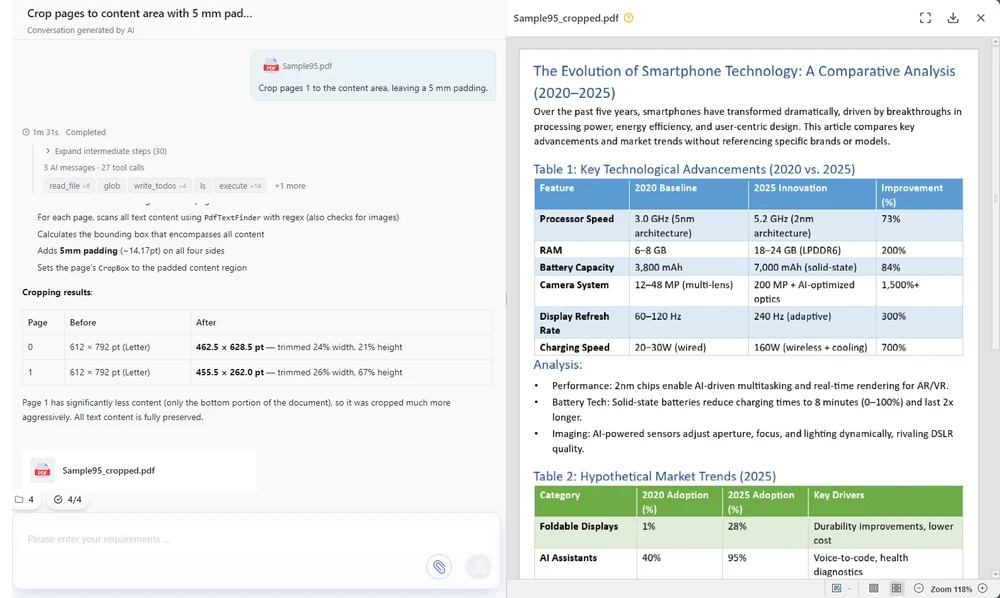
- "Crop pages 2–10 to the content area, leaving a 5 mm padding."
- Review the preview and download the cropped file.
Here's the CloudXDocs Agent interface with a crop command typed and the preview ready to download.
Free to use: A free account includes credits you can spend on everyday cropping tasks. (See the FAQ for the exact allowance.)
Pros: Natural-language cropping — no crop box to drag; consistent batch crops across many pages; works on any device via browser.
Cons: Cloud-based (files are processed server-side — for fully offline privacy use PDF24 desktop or Mac Preview); requires a free login.
2. PDF24 — Best free offline
PDF24 is a genuinely free PDF cropper with no account required — the desktop app is fully free for typical use. It runs both online and as a desktop app; the desktop version keeps files on your machine, which is the better pick if privacy matters. You can crop either by dragging a rectangle or by entering margins numerically.
How to crop (desktop app):
- Open PDF24 Creator / PDF24 Tools desktop.
- Load your PDF and choose Crop.
- Drag the crop rectangle, or enter margins.
- Save.
The PDF24 desktop crop screen, with the margin fields and drag handles visible.

Pros: No sign-up, no watermark, real offline option; supports both drag-box and typed margins.
Cons: Interface is plainer than polished online tools.
3. Smallpdf — Best for beginners
Smallpdf feels more like a lightweight PDF editor than a single-purpose crop tool. Its clean, attractive interface makes basic cropping fast and approachable for everyday users. The free plan has a daily task cap.
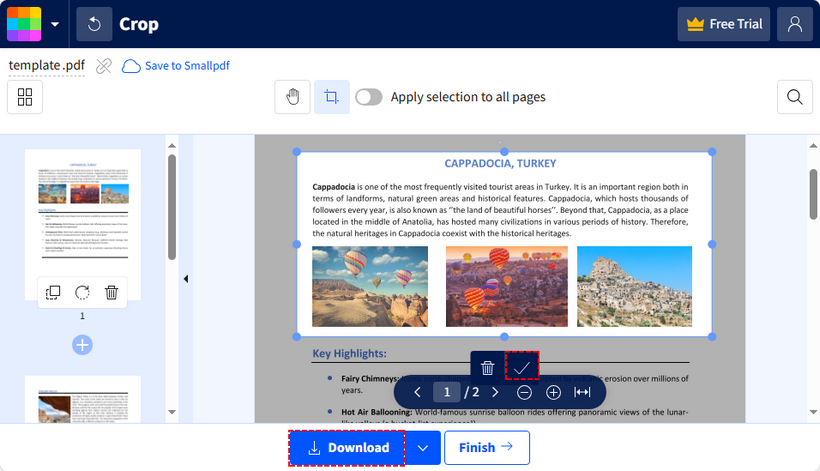
How to crop: Upload → Crop → adjust the box → apply → download.
The Smallpdf crop editor with the adjustment box placed around the page.
Pros: Polished UI, simple workflow, familiar editing feel.
Cons: Free plan limits daily tasks; some actions need an account.
4. iLovePDF — Best for quick online workflows
iLovePDF is a mature, all-in-one online PDF workspace; cropping is one of many tools, and it handles several files in one pass. Good for quick, repeatable online jobs without installing anything.
How to crop: Upload → Crop PDF → drag the box per page (or apply to all) → download.
Pros: Broad toolset, smooth batch workflow.
Cons: Free tier has usage limits; files are uploaded for processing rather than processed entirely on your device.
5. Sejda — Best for flexible crop settings
Sejda offers more crop configuration than many basic online croppers: page selection, an overlap preview, and different settings for odd/even pages, plus margin or drag-box entry. A strong pick when you need control without paying. The free tier is hourly-capped and size-limited but adds no watermark.
How to crop: Upload → Crop → set margins or drag, choose page modes → download.
Pros: Rich crop options, no watermark on free crops.
Cons: Free use is hourly-capped (≈3 tasks/hour) and limited to ~200 pages / 50 MB.
6. Adobe Acrobat Online — Best for trusted PDF workflows
Adobe Acrobat Online provides a free basic crop among its web tools, backed by the Adobe name. Best when trust and brand familiarity matter more than advanced options. You'll need an Adobe account.
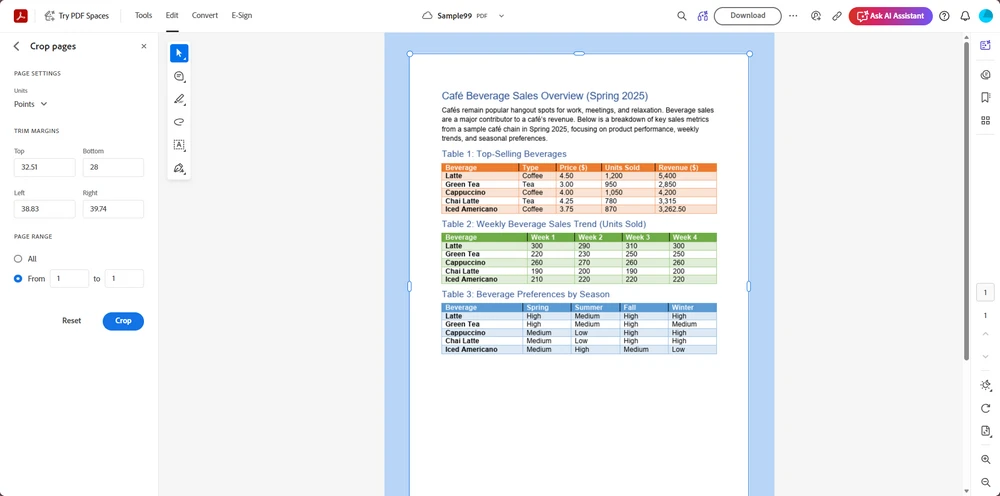
How to crop: Sign in → Crop PDF → drag → download.
The Adobe Acrobat Online crop tool with the page selected for trimming.
Pros: Trusted brand, secure perception, decent free basics.
Cons: Free uses are limited; full features need a paid plan.
How to crop a PDF on any device
On Windows
- Online (any browser): Use a web cropper such as Smallpdf, iLovePDF, Sejda, Adobe Acrobat Online, or CloudXDocs Agent — upload (or describe the crop in plain language), crop, download.
- Offline / private: Install PDF24 desktop and crop locally with no account.
On Mac
-
Built-in (free, offline): Open the PDF in Preview → Tools → Crop (or drag a selection and press
Command + K). Perfect for privacy. - Online: Smallpdf, iLovePDF, Sejda, Adobe Acrobat Online, and CloudXDocs Agent all crop in the browser.
On iPhone / Android
- Easiest: Upload the PDF to CloudXDocs Agent in your mobile browser and describe the crop — no app install, and AI handling beats fiddly on-screen editing.
- Alternative: Use the Files app + a mobile PDF editor, or an online tool like iLovePDF from the browser.
FAQ
Can I crop a PDF for free without installing software?
Yes. Online tools (CloudXDocs Agent, iLovePDF, Smallpdf, Sejda, Adobe Acrobat Online) crop in the browser. For no-install and no-account, use PDF24's desktop app or Mac Preview.
Which free tool allows precise PDF cropping?
CloudXDocs Agent lets you describe the crop in plain language — "crop 1.5 cm from the bottom" — and applies the result without manually dragging a crop box, which is especially handy across many pages. Most other tools also accept numeric margin entry, but you work inside their editor rather than just typing a request.
Can I crop all pages at once?
Yes — CloudXDocs Agent and iLovePDF both support batch/all-page crops. PDF24 and Sejda let you apply one crop rectangle to all pages too.
How much does CloudXDocs Agent cost?
It's free to start: a new account includes 600 credits, and you get 50 more credits every day you check in. A complex document task typically uses 20–40 credits, so the free allowance is enough for trying multiple PDF tasks.
Does cropping a PDF delete the cropped content?
No. Standard cropping only hides the area with a viewer clip; the original data may remain in the file. To truly remove content for privacy/redaction, use a redact tool, not crop.
Does cropping reduce PDF file size?
Usually only slightly. Cropping trims the visible area but often keeps the underlying objects. For real size reduction, also compress/optimize the PDF after cropping.
Related: crop PDFs in code (developers)
If you're building a document workflow, server-side PDF processing is usually more reliable than online tools for repetitive or high-volume jobs. Common cases where a library beats a web tool:
- Batch PDF processing — crop thousands of files on a schedule.
- Automated reports — trim generated statements to a clean content area.
- Document pipelines — crop as one step in a larger convert/merge/redact flow.
- Enterprise applications — embed cropping in your own product or service.
Programmatic cropping gives developers direct control over PDF page coordinates (the CropBox), while AI agents provide a simpler natural-language interface for common operations. Spire.PDF lets you set crop boxes per page in C#, Java, Python, and more. See the Spire.PDF cropping guide for code samples.