Scanned a document upside down. Got a landscape PDF mixed with portrait pages. Your phone saved a receipt sideways. Fixing it should take about 10 seconds — but picking the wrong tool can eat your afternoon.
We compared 7 free PDF rotate tools — online rotators, an AI agent, your browser, desktop apps, and a Python library — so you can pick the right one in under a minute. Below is the full comparison table, followed by detailed reviews organized by what you actually need to do.
Quick answer: Need it done in 10 seconds? → Free online tools. Don't want to learn a UI? → CloudXDocs Agent. File is confidential? → Your browser or Adobe Reader. Rotating 100+ files? → Spire.PDF for Python.
Comparison: 7 PDF rotator tools at a glance
| # | Tool | Best for | Single-page | Batch | Stays local | Account needed | Platform |
|---|---|---|---|---|---|---|---|
| 1 | Free online tools (PDF24, iLovePDF, Smallpdf) | Quickest one-off fix | Yes | Yes | No | Varies | Web |
| 2 | CloudXDocs Agent | AI-assisted rotation | Yes | Yes | No | Yes (free) | Web |
| 3 | Edge / Chrome | Zero-install offline | No | No | Yes | No | Built-in |
| 4 | macOS Preview | Mac built-in | Yes | No | Yes | No | Mac only |
| 5 | Adobe Acrobat Reader | Enterprise trust | No | No | Yes | No | Windows, Mac |
| 6 | PDF-XChange Editor | Single-page control (Windows) | Yes | Yes | Yes | No | Windows |
| 7 | Spire.PDF for Python | Developers, batch | Yes | Yes | Yes | No | Python |
Note: Most tools here rotate by clicking buttons or using a UI. When you'd rather describe the rotation in plain language — or apply it across many files — CloudXDocs Agent lets you type the instruction instead of clicking through an editor.
What we looked at
Not every "free" PDF rotator is equally free. Before diving in, here's what separates a good rotation tool from a frustrating one:
- Does it save permanently? In many free PDF viewers, including Chrome and free Adobe Reader workflows, rotation may only affect the view unless you save a new PDF copy.
- Single-page or all-pages? Most free tools rotate the whole document. If only page 3 is sideways, you need one that handles individual pages.
- Upload or local? Online tools send your file to a server. Fine for a receipt, risky for a contract.
- Free limits. "Free" can mean 2 tasks/day, a 100 MB file cap, or genuinely unlimited. We call out each one.
For a quick one-off fix
You have 1–2 PDFs, they're not sensitive, and you want this over with.
This is where free online PDF rotators shine. No install, no account (usually), upload and go. Three solid options:
| PDF24 | iLovePDF | Smallpdf | |
|---|---|---|---|
| Free limit | Unlimited usage | Limited free tasks | 2 tasks/day |
| Single-page rotate | Yes | Yes | Yes |
| Batch rotate | Yes | Yes | Yes |
| Max file size | No stated limit | 100 MB (free) | ~100 MB (free) |
| Account needed | No | No | No for basic use |
How it works (same flow for all three):
- Open the tool in your browser.
- Upload your PDF.
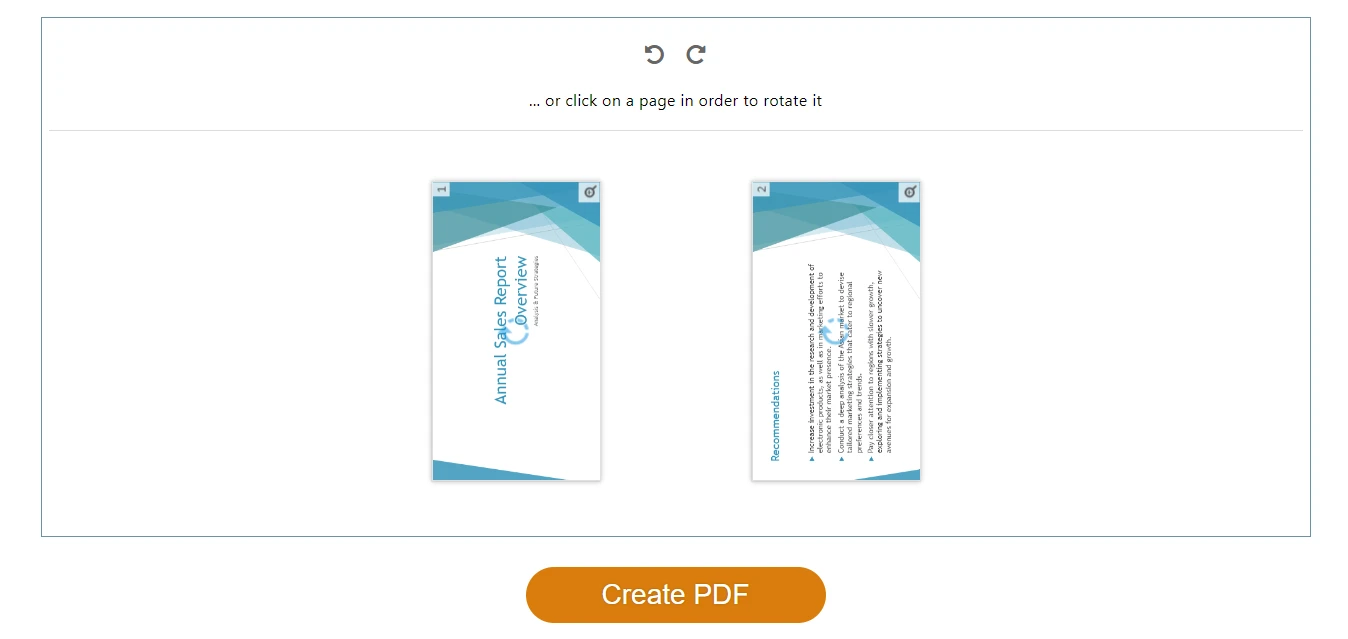
- Click Rotate — 90° clockwise or counterclockwise — on individual pages or all pages at once.
- Download the rotated file. Done.
The general workflow of rotating a PDF using a free online tool — upload, rotate, and download.
Our pick: PDF24 if you want truly unlimited free use. iLovePDF if you're on mobile (their app is better). Smallpdf if you only need to rotate one file today and appreciate the cleanest interface.
For hands-off AI rotation
You'd rather describe what you want than click through a UI.
CloudXDocs Agent takes a different approach from traditional PDF rotators: instead of clicking through a rotation UI, you describe what you want in natural language and the AI agent applies it. It handles text-based, scanned, and image-heavy PDFs.
Where AI rotation earns its keep:
- Rotating many pages by description (e.g. "rotate all landscape pages to portrait").
- Rotation as one step in a larger task (e.g. "rotate page 3, then merge with another PDF").
- When you don't want to learn a tool's UI — just type what you need.
How it works:
- Open CloudXDocs Agent and sign in with a free account.
- Upload your PDF (or paste a link).
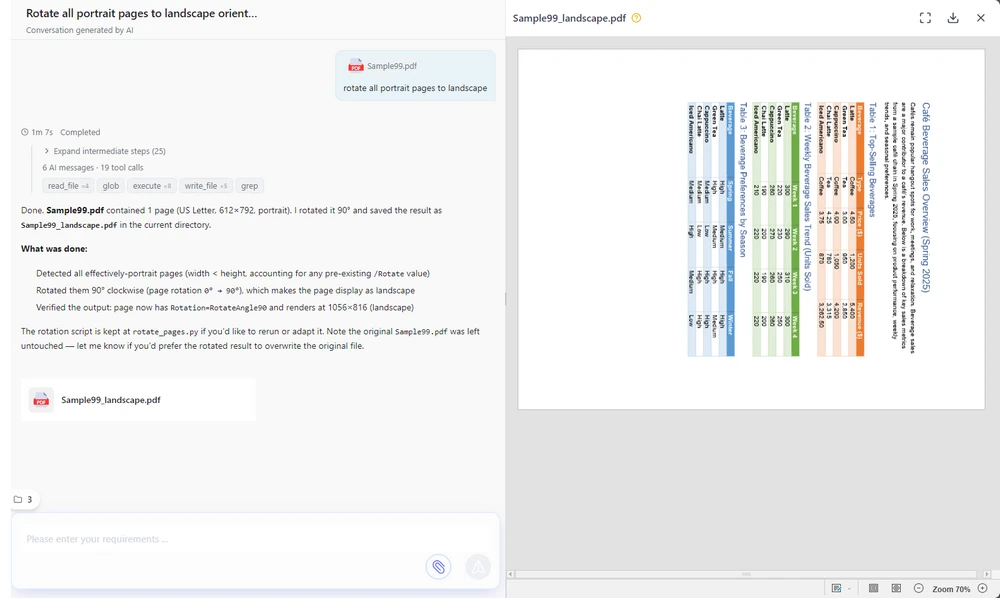
- Type your rotation command.
- Review the preview and download.
Here's the CloudXDocs Agent interface with a rotate command typed and the preview ready to download.
Free to use: A free account includes 600 credits, with 50 more every day you check in. A typical PDF rotation uses about 15 credits, so the free allowance covers plenty of everyday tasks.
Pros: Natural-language rotation — no UI to learn; single-page or batch via description; handles multi-step document tasks; browser-based. Cons: Cloud-based (files processed server-side — for fully offline privacy use Edge/Chrome or Adobe Reader); requires a free login.
For sensitive files: stay local
Contracts, medical records, financial statements — anything you wouldn't upload to a random website.
Online PDF rotators upload your file to their server. For a sideways receipt, no big deal. For an NDA or tax return, you want the file to stay on your machine. Two good options:
Your browser (zero install, zero account)
Your computer already has a PDF viewer with rotation built in — the absolute lowest-friction offline option.
Microsoft Edge:
- Right-click your PDF → Open with → Microsoft Edge.
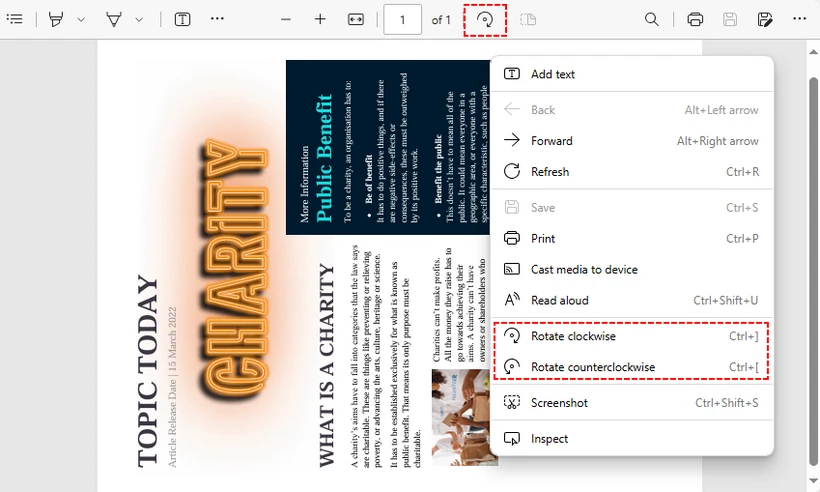
- Click the Rotate button (circular arrow) in the toolbar.
- Click Save as to save the rotated PDF.
Rotating a PDF using Microsoft Edge's built-in PDF viewer — zero install required.
Chrome / Firefox: These rotate the view only. To save permanently: rotate → Ctrl + P → choose "Save as PDF" as the printer → Print.
Adobe Acrobat Reader (the enterprise default)
If your company already has Adobe Reader on every machine, rotation is built in:
- Open your PDF in Adobe Acrobat Reader DC (free).
- View → Rotate View → Clockwise / Counterclockwise.
- File → Print → select "Microsoft Print to PDF" → Print to save the rotated version.
⚠️ Common mistake: Both Chrome and the free Adobe Reader rotate the view temporarily. If you just close the file without saving, the rotation disappears. The Print → Save as PDF workaround is how you make it permanent for free.
Pros: Both keep files on your machine; Adobe is pre-installed on many work machines. Cons: Both rotate all pages at once in their free versions; the "save permanently" step is a workaround, not a one-click save. For single-page rotation on Windows, see PDF-XChange Editor below.
For single-page rotation on Windows
You need to rotate specific pages, not the whole document.
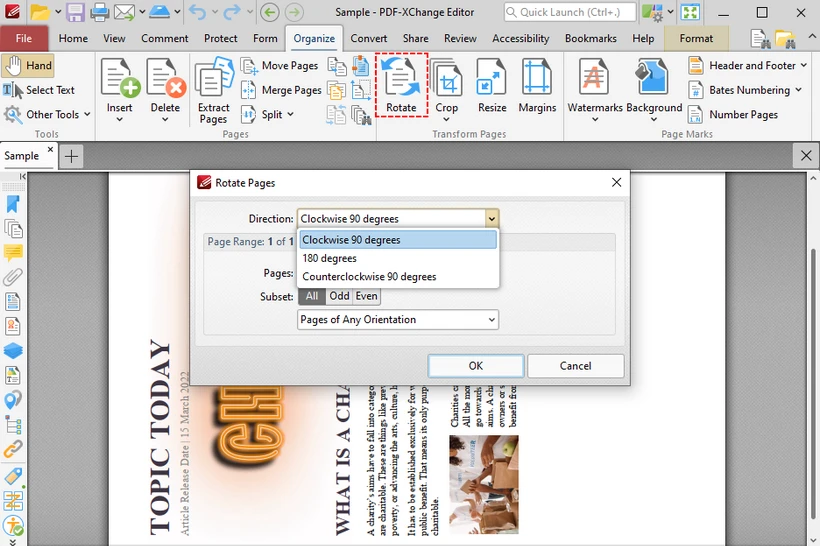
PDF-XChange Editor (free version) is one of the few free desktop tools that lets you rotate individual pages or a custom page range — a feature most free rotators lack.
- Download and install PDF-XChange Editor (select the "Free Version" during setup).
- Open your PDF → Organize tab → Rotate.
- In the dialog: choose direction, then select Current page, All pages, or a custom range (e.g.
1,3,5-8). - Click OK → File → Save As.
Rotating specific PDF pages using the free PDF-XChange Editor — the Rotate Pages dialog with page range selection.
Pros: Free; page-specific rotation (rare in free tools); fully offline; saves permanently. Cons: Windows only; requires installation.
Mac users: Preview has you
If you're on macOS, you don't need any of the above. Preview handles rotation natively and — unlike Chrome or free Adobe Reader — saves permanently when you close the file.
- Double-click the PDF (opens in Preview by default).
- View → Thumbnails → select the page(s) to rotate.
-
Tools → Rotate Left or Rotate Right (
Cmd + L/Cmd + R). - Close the file — done. Preview auto-saves.
Heads up: Because Preview auto-saves, duplicate the file first (File → Duplicate) if you want to keep the original orientation.
Pros: Built into macOS; offline; saves permanently; supports single-page rotation. Cons: Mac only.
Common mistakes when rotating PDFs
Three things that trip people up:
1. "I rotated it but it went back to normal." You rotated the view, not the file. In many free PDF viewers, including Chrome, Firefox, and free Adobe Reader workflows, rotation only changes the display. Use "Save as" (Edge), Print → Save as PDF, or a tool that saves permanently (CloudXDocs Agent, PDF24, Preview, PDF-XChange Editor).
2. "I can't rotate just one page." Most free tools rotate all pages at once. For single-page rotation, use CloudXDocs Agent (type "rotate page 3"), iLovePDF (click individual thumbnails), macOS Preview (select pages in sidebar), PDF-XChange Editor (custom page range), or Spire.PDF (code).
3. "The rotated file is blurry." Rotation itself never reduces quality — it's a metadata change. If your output looks blurry, you likely re-printed through a lossy PDF printer. Use "Save as" instead of "Print" when possible, or download directly from the online tool.
For batch rotation and developers
You need to rotate 50, 500, or 5,000 PDFs. Online tools won't cut it.
Spire.PDF for Python is a free library that rotates PDFs programmatically — no upload, no browser, no clicking.
Install:
pip install Spire.Pdf.Free
Rotate a single page:
from spire.pdf.common import *
from spire.pdf import *

# Create a PdfDocument object
pdf = PdfDocument()

# Load a PDF document
pdf.LoadFromFile("Sample.pdf")

# Get the first page
page = pdf.Pages.get_Item(0)

# Get the original rotation angle
rotation = int(page.Rotation.value)

# Rotate 90 degrees clockwise
rotation += int(PdfPageRotateAngle.RotateAngle90.value)
page.Rotation = PdfPageRotateAngle(rotation)

# Save the result
pdf.SaveToFile("RotatePDFPage.pdf")
pdf.Close()
To rotate all pages in a batch, loop through each page:
for i in range(pdf.Pages.Count):
    page = pdf.Pages.get_Item(i)
    rotation = int(page.Rotation.value)
    rotation += int(PdfPageRotateAngle.RotateAngle90.value)
    page.Rotation = PdfPageRotateAngle(rotation)
See the full Spire.PDF Python rotation tutorial for more examples, including rotating all pages, specific ranges, and combining rotation with other PDF operations.
You may also be interested in: Converting PDF to HTML or Extracting text from PDF after rotation.
Pros: Rotate specific or all pages; batch any number of PDFs with a loop; no upload (fully local); free for commercial use. Cons: Requires basic Python knowledge; free version limited to 10 pages per PDF.
How to rotate a PDF on any device
On Windows
- Quickest: Free online PDF rotators (PDF24, iLovePDF) — upload, rotate, download.
- No upload: Edge built-in viewer — right-click → Open with Edge → Rotate → Save as.
- Single-page control: PDF-XChange Editor (free install).
- Enterprise: Adobe Acrobat Reader.
On Mac
- Built-in: Preview → Tools → Rotate. Auto-saves. No install needed.
- Online: Same web tools as Windows, or CloudXDocs Agent for AI-assisted rotation.
On iPhone / Android
- Easiest: Upload to CloudXDocs Agent in your mobile browser and describe the rotation — no app install, and AI handling beats fiddly touch controls.
- Alternative: iLovePDF mobile app or Smallpdf from the browser.
FAQ
Can I rotate a PDF for free? Yes. Every tool in this guide is free: PDF24, iLovePDF, Smallpdf (online); Edge/Chrome (built-in); macOS Preview; Adobe Reader (offline); PDF-XChange Editor (Windows); CloudXDocs Agent (AI, free credits); Spire.PDF (Python library).
Can I rotate a PDF without Adobe? Absolutely. Online tools, browser viewers, macOS Preview, CloudXDocs Agent, PDF-XChange Editor, and Python scripts all rotate PDFs without any Adobe software.
How do I rotate a PDF permanently? Tools that save permanently: CloudXDocs Agent, PDF24, iLovePDF, macOS Preview, Edge ("Save as"), PDF-XChange Editor. Chrome and Firefox need Print → Save as PDF. Adobe Reader free version only rotates the view — use the Print workaround for a permanent file.
What's the best way to rotate multiple PDF pages? For a handful: CloudXDocs Agent (describe in words) or iLovePDF. For hundreds or thousands: Spire.PDF for Python with a batch loop.
Will rotating a PDF reduce its quality? No. Rotation is a metadata-only change — text, images, and formatting stay exactly the same.
Which free PDF rotator is best in 2026? PDF24 for unlimited online use; CloudXDocs Agent for AI-assisted rotation without manual clicking; Edge/Chrome for zero-install convenience; macOS Preview for Mac users.
Can I rotate just one page of a PDF? Yes. CloudXDocs Agent, iLovePDF, macOS Preview, PDF-XChange Editor, and Spire.PDF all support single-page rotation. Adobe Reader and Edge/Chrome rotate all pages at once only.
Related: rotate PDFs in code (developers)
If you're building a document workflow, server-side PDF processing is more reliable than online tools for repetitive or high-volume jobs:
- Batch PDF processing — rotate thousands of files on a schedule.
- Automated reports — fix orientation of auto-generated statements.
- Document pipelines — rotate as one step in a larger convert/merge/extract flow.
- Enterprise applications — embed rotation in your own product or service.
Spire.PDF supports programmatic rotation in C#, Java, Python, and more. See the Spire.PDF rotation guide for code samples.