Como converter Word para EPUB (3 maneiras fáceis)
Na era digital de hoje, os eBooks se tornaram uma das formas mais populares de compartilhar informações, histórias e conteúdo profissional. Embora os documentos do Word sejam perfeitos para redigir e editar texto, eles não são ideais para leitura digital em eReaders e dispositivos móveis. Para tornar seu conteúdo acessível, legível e visualmente atraente, converter arquivos do Word para o formato EPUB é um passo necessário para autores, editores e criadores de conteúdo.
Neste guia, abordaremos três maneiras práticas de converter Word para EPUB, juntamente com dicas para otimizar seu eBook para máxima legibilidade e compatibilidade.
O que você vai aprender
- O que é EPUB
- Por que converter Word para EPUB
- Como converter Word para EPUB
- Melhores práticas para conversão de Word para EPUB
- Conclusão
- Perguntas frequentes sobre Word para EPUB
O que é EPUB
EPUB, abreviação de Publicação Eletrônica, é um formato de livro digital de padrão aberto amplamente utilizado na publicação de eBooks. Diferente dos arquivos do Word, o EPUB é projetado especificamente para eBooks de qualidade profissional, oferecendo uma estrutura flexível que permite que o conteúdo seja organizado e apresentado de forma consistente em todos os dispositivos.
Como padrão da indústria para publicação digital, o EPUB é amplamente adotado por autores, editores e instituições de ensino para criar livros digitais fáceis de distribuir, manter e gerenciar. Seu formato estruturado garante que os eBooks atendam aos requisitos de publicação profissional, permanecendo versáteis para uma variedade de dispositivos e plataformas.
Por que converter Word para EPUB
Embora os arquivos do Word sejam comumente usados para criar conteúdo, eles não são estruturados para distribuição profissional de eBooks em vários dispositivos. A conversão de Word para EPUB oferece múltiplos benefícios:
- Legibilidade aprimorada em todos os dispositivos: O EPUB ajusta o fluxo do texto, tornando seu conteúdo legível em telas pequenas, como smartphones.
- Apresentação profissional: Títulos, listas, tabelas, imagens e hiperlinks são preservados e formatados para eReaders.
- Compatibilidade mais ampla: O EPUB funciona no Kindle, Nook, Kobo, Apple Books e outros eReaders populares.
- Tamanho de arquivo menor: Os arquivos EPUB são leves e mais fáceis de distribuir online.
- Acessibilidade: Suporta recursos como conversão de texto em fala e redimensionamento de fonte para leitores com deficiência visual.
Resumindo, converter Word para EPUB transforma um documento básico em um eBook de qualidade profissional, amigável ao leitor e pronto para publicação ou distribuição.
Como converter Word para EPUB
Existem vários métodos que você pode usar para converter Word para EPUB, desde conversores online rápidos até software de desktop e soluções automatizadas em Python. Abaixo, exploraremos cada método em detalhes.
Método 1: Converter Word para EPUB usando ferramentas online
As ferramentas de conversão online são a maneira mais rápida e fácil de transformar documentos do Word em EPUB. Elas são perfeitas para conversões únicas, arquivos pequenos ou usuários que preferem não instalar software.
Sites como Zamzar, Convertio e Online-Convert oferecem serviços gratuitos para converter Word para EPUB. Aqui, usaremos o Convertio para demonstração.
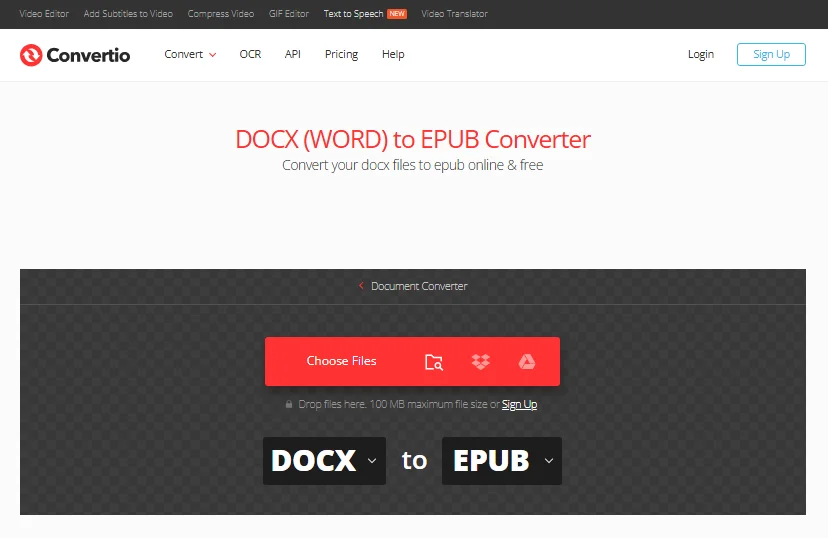
Passos para converter Word para EPUB online:
- Acesse o Convertio: Abra o Conversor Online de Word para EPUB do Convertio.
- Carregue seu documento do Word: Clique no botão "Escolher arquivos" e selecione o arquivo do Word (DOCX ou DOC) que deseja converter.
- Selecione EPUB como formato de saída: Escolha EPUB na lista de formatos de saída disponíveis.
- Converter e baixar: Clique em "Converter" e espere a ferramenta processar seu arquivo. Assim que a conversão estiver concluída, você pode baixar o arquivo EPUB.
Prós:
- Gratuito e fácil de usar.
- Nenhuma instalação de software necessária.
- Acessível de qualquer dispositivo (laptops, celulares e mais) com conexão à internet.
Contras:
- Controle limitado sobre formatação e metadados.
- A maioria das ferramentas de conversão gratuitas geralmente tem restrições de tamanho de arquivo.
- Não é ideal para conteúdo sensível devido a preocupações com a privacidade.
Você também pode gostar: Converter Word para ODT: 4 métodos fáceis e confiáveis
Método 2: Converter Word para EPUB usando software de desktop gratuito (Calibre)
Para maior controle sobre a formatação e conversão offline, o software de desktop é a escolha ideal. Calibre, uma ferramenta de gerenciamento de eBooks gratuita e de código aberto, é uma das opções mais populares para converter documentos do Word para EPUB. Ele oferece uma ampla gama de opções de personalização, tornando-o uma solução versátil para usuários que precisam ajustar formatação, metadados e muito mais durante o processo de conversão.
Passos para converter Word para EPUB com o Calibre:
-
Baixe e instale o Calibre: Visite o site do Calibre para baixar e instalar o software.
-
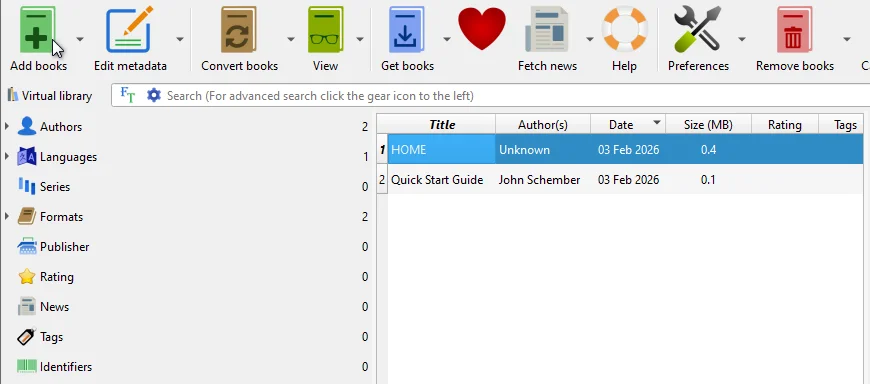
Adicione seu documento do Word: Inicie o Calibre e clique em "Adicionar livros" para importar seu arquivo do Word.
-
Converta o arquivo: Depois que seu arquivo for adicionado, selecione-o, clique em "Converter livros" e escolha EPUB como formato de saída.
-
Ajustar configurações de conversão (opcional): O Calibre permite que você ajuste configurações como fontes, margens e metadados. Se você está procurando mais controle sobre a aparência do seu eBook, este é um ótimo lugar para personalizar.
-
Salve o arquivo EPUB: Clique em "OK" para iniciar a conversão. Quando terminar, o arquivo EPUB convertido será salvo no mesmo diretório do seu arquivo original do Word.
Prós:
- Gratuito e de código aberto.
- Funciona offline, sem necessidade de conexão com a internet.
- Fornece controle total sobre a aparência e os metadados do eBook.
Contras:
- Leve curva de aprendizado para iniciantes.
- A interface do usuário pode parecer esmagadora no início.
Método 3: Converter em lote Word para EPUB automaticamente com Python
Se você precisa converter frequentemente vários documentos do Word para EPUB, a automação com Python é uma solução eficiente. Com as bibliotecas Python, você pode automatizar facilmente as conversões em lote sem a necessidade de intervenção manual.
Spire.Doc for Python é uma biblioteca popular para esta tarefa. Permite aos usuários criar, manipular e converter documentos do Word em vários formatos, incluindo EPUB. Oferece recursos robustos como:
- Retenção de formatação: Garante que a estrutura do seu documento permaneça intacta.
- Edição de metadados: Personalize autor, título e outras propriedades.
- Processamento em lote: Converta vários arquivos de uma vez, economizando tempo e esforço.
Isso torna o Spire.Doc uma escolha ideal para automatizar a conversão de Word para EPUB, especialmente para empresas ou editores de conteúdo que lidam com grandes volumes de documentos.
Passos para converter em lote Word para EPUB com Python:
-
Instale o Spire.Doc for Python:
Para começar, primeiro instale a biblioteca Spire.Doc for Python usando pip. Execute o seguinte comando:
pip install spire.doc -
Escreva o script Python:
Depois que a biblioteca estiver instalada, crie um script Python para automatizar o processo de conversão. Aqui está o script básico para converter todos os arquivos Word DOC ou DOCX em uma pasta para EPUB:
from spire.doc import * import os # Defina os diretórios de entrada e saída input_dir = 'caminho_para_arquivos_de_entrada' output_dir = 'caminho_para_arquivos_de_saida' # Obtenha uma lista de todos os arquivos do Word no diretório de entrada word_files = [f for f in os.listdir(input_dir) if f.endswith('.docx') or f.endswith('.doc')] # Processe cada arquivo do Word for word_file in word_files: input_file = os.path.join(input_dir, word_file) output_file = os.path.join(output_dir, os.path.splitext(word_file)[0] + '.epub') # Crie um objeto Document doc = Document() # Carregue o documento do Word doc.LoadFromFile(input_file) # Salve o documento do Word como EPUB doc.SaveToFile(output_file, FileFormat.EPub) # Feche o objeto Document doc.Close() print("Conversão em lote concluída com sucesso!") -
Execute o script Python:
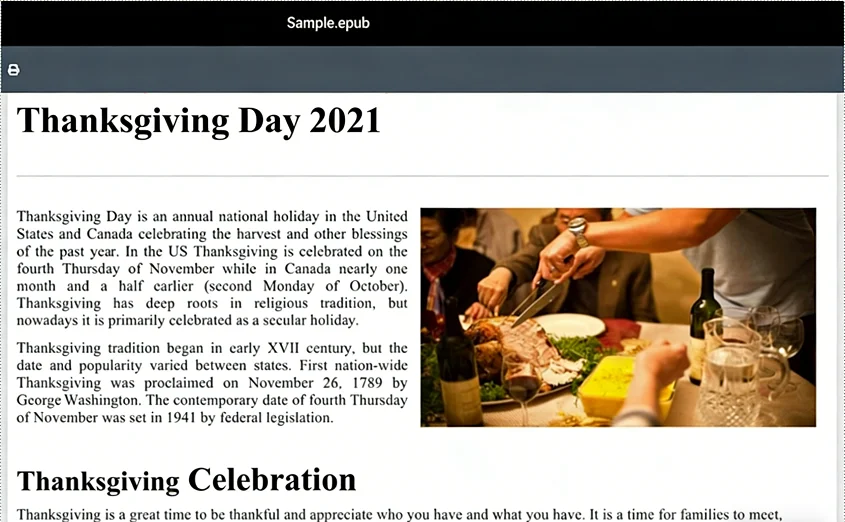
Depois de salvar o script, execute-o a partir do seu terminal ou IDE. O script processará automaticamente todos os arquivos do Word na pasta de entrada e os salvará como arquivos EPUB na pasta de saída.
Notas:
- Você precisa modificar as variáveis input_dir e output_dir neste exemplo para apontar para as pastas apropriadas em seu sistema.
- Você pode personalizar a aparência do arquivo EPUB durante a conversão, como adicionar uma imagem de capa para ele. Consulte o guia oficial: Python: Converter Word para EPUB
Prós:
- Ideal para lidar com grandes volumes de documentos.
- Totalmente automatizado uma vez que o script é configurado, economizando tempo e esforço.
- Pode ser facilmente integrado em fluxos de trabalho existentes ou sistemas de publicação automatizados.
Contras:
- Requer algum conhecimento de programação para configurar o script.
- Não é tão amigável quanto os conversores online ou software de desktop para usuários não técnicos.
- A configuração inicial pode levar tempo para configurar e testar o processo de automação.
Melhores práticas para conversão de Word para EPUB
Para criar eBooks EPUB de alta qualidade a partir de documentos do Word, siga estas melhores práticas essenciais:
- Use estilos do Word de forma consistente: Aplique estilos de título, listas e parágrafos para preservar a formatação no arquivo EPUB.
- Otimize imagens: Redimensione e comprima imagens para reduzir o tamanho do arquivo sem sacrificar a qualidade.
- Inclua metadados: Adicione informações importantes como autor, título, idioma e imagem de capa para melhorar a apresentação e a descoberta.
- Valide arquivos EPUB: Use o EPUBCheck para garantir que seu arquivo atenda aos padrões EPUB e funcione em todos os dispositivos.
- Visualize em vários dispositivos: Verifique a legibilidade e o layout em vários eReaders, tablets e smartphones.
- Mantenha a formatação simples: Evite layouts complexos do Word que podem não ser bem convertidos para EPUB.
Seguindo estas melhores práticas, você garantirá que a conversão de Word para EPUB resulte em um eBook polido e profissional, pronto para qualquer dispositivo.
Conclusão
A conversão de Word para EPUB é um passo crucial na criação de eBooks profissionais, amigáveis ao leitor e amplamente compatíveis. Dependendo de suas necessidades e conhecimentos técnicos, você pode escolher o método que melhor se adapta ao seu fluxo de trabalho.
- Conversores online: Ideais para conversões rápidas de um único arquivo com o mínimo de esforço. Essas ferramentas são perfeitas para projetos pessoais ou uso ocasional.
- Software de desktop (por exemplo, Calibre): Mais adequado para usuários que precisam de controle preciso sobre formatação e metadados. O Calibre é uma ferramenta poderosa que permite personalizar a aparência e a estrutura do seu eBook.
- Automação com Python: A melhor opção para fluxos de trabalho repetíveis em grande escala. O Python é perfeito para editores de conteúdo ou equipes que precisam automatizar conversões em massa de forma eficiente.
O método certo depende de seus requisitos específicos, habilidades técnicas e do volume de documentos que você precisa processar. Ao escolher a ferramenta de conversão apropriada e seguir as melhores práticas, você pode garantir que seus eBooks sejam polidos, profissionais e prontos para distribuição.
Procurando por mais tutoriais de Word de alta qualidade? Confira nossos recursos gratuitos de Word.
Perguntas frequentes sobre Word para EPUB
P1: Qual é a maneira mais fácil de converter documentos do Word para EPUB?
R1: A maneira mais fácil de converter Word para EPUB é usando um conversor online, como Convertio ou Zamzar. No entanto, evite usá-los para documentos sensíveis ou grandes.
P2: Posso converter Word para EPUB gratuitamente?
R2: Sim, você pode converter Word para EPUB gratuitamente usando conversores online ou software de desktop gratuito como o Calibre. Embora as ferramentas online sejam convenientes para conversões rápidas, o Calibre oferece mais controle sobre a formatação e os metadados para uso offline.
P3: Como preservo a formatação ao converter Word para EPUB?
R3: Para preservar a formatação, use ferramentas como o Calibre, que mantêm a estrutura do documento, títulos, tabelas e imagens durante a conversão.
P4: O EPUB é o melhor formato para eBooks?
R4: Sim, o EPUB é o melhor formato para eBooks devido ao seu conteúdo refluxível, ampla compatibilidade com eReaders e suporte para multimídia e recursos interativos.
P5: Como converto em lote vários arquivos do Word para EPUB?
R5: Você pode converter em lote vários arquivos do Word para EPUB usando Python e a biblioteca Spire.Doc for Python. Este método permite processar com eficiência grandes volumes de documentos, economizando tempo e garantindo resultados de conversão consistentes.
Veja também
Word를 EPUB로 변환하는 방법 (3가지 쉬운 방법)
오늘날 디지털 시대에 eBook은 정보, 이야기 및 전문 콘텐츠를 공유하는 가장 인기 있는 방법 중 하나가 되었습니다. Word 문서는 텍스트 초안 작성 및 편집에 적합하지만 e-리더 및 모바일 장치에서 디지털로 읽기에는 이상적이지 않습니다. 콘텐츠에 접근하고, 읽기 쉽고, 시각적으로 매력적으로 만들려면 Word 파일을 EPUB 형식으로 변환하는 것이 작가, 출판사 및 콘텐츠 제작자에게 필수적인 단계입니다.
이 가이드에서는 최대의 가독성과 호환성을 위해 eBook을 최적화하는 팁과 함께 Word를 EPUB으로 변환하는 세 가지 실용적인 방법을 다룹니다.
학습 내용
- EPUB이란 무엇인가
- Word를 EPUB으로 변환해야 하는 이유
- Word를 EPUB으로 변환하는 방법
- Word를 EPUB으로 변환하기 위한 모범 사례
- 결론
- Word를 EPUB으로 변환하는 것에 대한 자주 묻는 질문
EPUB이란 무엇인가
EPUB(전자 출판)은 eBook 출판에 널리 사용되는 개방형 표준 디지털 책 형식입니다. Word 파일과 달리 EPUB은 전문가 수준의 eBook을 위해 특별히 설계되었으며, 콘텐츠를 여러 장치에서 일관되게 구성하고 표시할 수 있는 유연한 구조를 제공합니다.
디지털 출판의 업계 표준인 EPUB은 작가, 출판사 및 교육 기관에서 배포, 유지 관리 및 관리가 쉬운 디지털 책을 만들기 위해 널리 채택되었습니다. 구조화된 형식은 eBook이 전문 출판 요구 사항을 충족하면서 다양한 장치 및 플랫폼에 대해 다용도로 유지되도록 보장합니다.
Word를 EPUB으로 변환해야 하는 이유
Word 파일은 콘텐츠를 만드는 데 일반적으로 사용되지만 여러 장치에 걸쳐 전문적인 eBook 배포를 위해 구조화되어 있지는 않습니다. Word를 EPUB으로 변환하면 다음과 같은 여러 이점이 있습니다.
- 여러 장치에서의 가독성 향상: EPUB은 텍스트 흐름을 조정하여 스마트폰과 같은 작은 화면에서도 콘텐츠를 읽을 수 있도록 합니다.
- 전문적인 프레젠테이션: 제목, 목록, 표, 이미지 및 하이퍼링크가 보존되고 e-리더용으로 형식이 지정됩니다.
- 더 넓은 호환성: EPUB은 Kindle, Nook, Kobo, Apple Books 및 기타 인기 있는 e-리더에서 작동합니다.
- 더 작은 파일 크기: EPUB 파일은 가볍고 온라인으로 배포하기 쉽습니다.
- 접근성: 시각 장애가 있는 독자를 위해 텍스트 음성 변환 및 글꼴 크기 조정과 같은 기능을 지원합니다.
요컨대, Word를 EPUB으로 변환하면 기본 문서가 출판 또는 배포 준비가 된 독자 친화적이고 전문가 수준의 eBook으로 바뀝니다.
Word를 EPUB으로 변환하는 방법
빠른 온라인 변환기에서 데스크톱 소프트웨어 및 자동화된 Python 솔루션에 이르기까지 Word를 EPUB으로 변환하는 데 사용할 수 있는 몇 가지 방법이 있습니다. 아래에서는 각 방법을 자세히 살펴보겠습니다.
방법 1: 온라인 도구를 사용하여 Word를 EPUB으로 변환
온라인 변환 도구는 Word 문서를 EPUB으로 바꾸는 가장 빠르고 쉬운 방법입니다. 일회성 변환, 작은 파일 또는 소프트웨어를 설치하지 않으려는 사용자에게 적합합니다.
Zamzar, Convertio 및 Online-Convert와 같은 웹사이트는 Word를 EPUB으로 변환하는 무료 서비스를 제공합니다. 여기서는 시연을 위해 Convertio를 사용하겠습니다.
온라인에서 Word를 EPUB으로 변환하는 단계:
- Convertio로 이동: Convertio 온라인 Word를 EPUB으로 변환기를 엽니다.
- Word 문서 업로드: "파일 선택" 버튼을 클릭하고 변환하려는 Word 파일(DOCX 또는 DOC)을 선택합니다.
- 출력 형식으로 EPUB 선택: 사용 가능한 출력 형식 목록에서 EPUB을 선택합니다.
- 변환 및 다운로드: "변환"을 클릭하고 도구가 파일을 처리할 때까지 기다립니다. 변환이 완료되면 EPUB 파일을 다운로드할 수 있습니다.
장점:
- 무료이며 사용하기 쉽습니다.
- 소프트웨어 설치가 필요 없습니다.
- 인터넷에 연결된 모든 장치(노트북, 모바일 등)에서 액세스할 수 있습니다.
단점:
- 서식 및 메타데이터에 대한 제한된 제어.
- 대부분의 무료 변환 도구에는 종종 파일 크기 제한이 있습니다.
- 개인 정보 보호 문제로 인해 민감한 콘텐츠에는 적합하지 않습니다.
관심 있을 만한 다른 글: Word를 ODT로 변환: 4가지 쉽고 신뢰할 수 있는 방법
방법 2: 무료 데스크톱 소프트웨어(Calibre)를 사용하여 Word를 EPUB으로 변환
서식 및 오프라인 변환에 대한 더 큰 제어를 위해 데스크톱 소프트웨어가 이상적인 선택입니다. Calibre는 무료 오픈 소스 eBook 관리 도구로, Word 문서를 EPUB으로 변환하는 가장 인기 있는 옵션 중 하나입니다. 다양한 사용자 지정 옵션을 제공하므로 변환 과정에서 서식, 메타데이터 등을 조정해야 하는 사용자에게 다용도 솔루션입니다.
Calibre로 Word를 EPUB으로 변환하는 단계:
-
Calibre 다운로드 및 설치: Calibre 웹사이트를 방문하여 소프트웨어를 다운로드하고 설치합니다.
-
Word 문서 추가: Calibre를 실행하고 "책 추가"를 클릭하여 Word 파일을 가져옵니다.
-
파일 변환: 파일이 추가되면 파일을 선택한 다음 "책 변환"을 클릭하고 출력 형식으로 EPUB을 선택합니다.
-
변환 설정 조정(선택 사항): Calibre를 사용하면 글꼴, 여백 및 메타데이터와 같은 설정을 조정할 수 있습니다. eBook의 모양을 더 많이 제어하고 싶다면 이곳에서 사용자 지정할 수 있습니다.
-
EPUB 파일 저장: "확인"을 클릭하여 변환을 시작합니다. 변환이 끝나면 변환된 EPUB 파일이 원본 Word 파일과 동일한 디렉토리에 저장됩니다.
장점:
- 무료이며 오픈 소스입니다.
- 오프라인으로 작동하며 인터넷 연결이 필요 없습니다.
- eBook 모양 및 메타데이터에 대한 전체 제어를 제공합니다.
단점:
- 초보자를 위한 약간의 학습 곡선.
- 사용자 인터페이스가 처음에는 부담스러워 보일 수 있습니다.
방법 3: Python을 사용하여 Word를 EPUB으로 자동 일괄 변환
여러 Word 문서를 EPUB으로 자주 변환해야 하는 경우 Python 자동화가 효율적인 솔루션입니다. Python 라이브러리를 사용하면 수동 개입 없이 일괄 변환을 쉽게 자동화할 수 있습니다.
Spire.Doc for Python은 이 작업을 위한 인기 있는 라이브러리입니다. 사용자가 Word 문서를 생성, 조작 및 변환하여 EPUB을 포함한 다양한 형식으로 변환할 수 있도록 합니다. 다음과 같은 강력한 기능을 제공합니다.
- 서식 유지: 문서 구조가 그대로 유지되도록 합니다.
- 메타데이터 편집: 작성자, 제목 및 기타 속성을 사용자 지정합니다.
- 일괄 처리: 한 번에 여러 파일을 변환하여 시간과 노력을 절약합니다.
따라서 Spire.Doc은 특히 대량의 문서를 처리하는 기업이나 콘텐츠 게시자에게 Word를 EPUB으로 변환하는 자동화를 위한 이상적인 선택입니다.
Python으로 Word를 EPUB으로 일괄 변환하는 단계:
-
Spire.Doc for Python 설치:
시작하려면 먼저 pip를 사용하여 Spire.Doc for Python 라이브러리를 설치합니다. 다음 명령을 실행합니다:
pip install spire.doc -
Python 스크립트 작성:
라이브러리가 설치되면 변환 프로세스를 자동화하는 Python 스크립트를 만듭니다. 다음은 폴더의 모든 Word DOC 또는 DOCX 파일을 EPUB으로 변환하는 기본 스크립트입니다.
from spire.doc import * import os # 입력 및 출력 디렉토리 정의 input_dir = 'path_to_input_files' output_dir = 'path_to_output_files' # 입력 디렉토리의 모든 Word 파일 목록 가져오기 word_files = [f for f in os.listdir(input_dir) if f.endswith('.docx') or f.endswith('.doc')] # 각 Word 파일 처리 for word_file in word_files: input_file = os.path.join(input_dir, word_file) output_file = os.path.join(output_dir, os.path.splitext(word_file)[0] + '.epub') # Document 객체 생성 doc = Document() # Word 문서 로드 doc.LoadFromFile(input_file) # Word 문서를 EPUB으로 저장 doc.SaveToFile(output_file, FileFormat.EPub) # Document 객체 닫기 doc.Close() print("일괄 변환이 성공적으로 완료되었습니다!") -
Python 스크립트 실행:
스크립트를 저장한 후 터미널 또는 IDE에서 실행합니다. 스크립트는 입력 폴더의 모든 Word 파일을 자동으로 처리하고 출력 폴더에 EPUB 파일로 저장합니다.
참고:
- 이 예제의 input_dir 및 output_dir 변수를 시스템의 적절한 폴더를 가리키도록 수정해야 합니다.
- 변환 중에 표지 이미지를 추가하는 등 EPUB 파일의 모양을 사용자 지정할 수 있습니다. 공식 가이드 참조: Python: Word를 EPUB으로 변환
장점:
- 대량의 문서를 처리하는 데 이상적입니다.
- 스크립트가 설정되면 완전히 자동화되어 시간과 노력을 절약합니다.
- 기존 워크플로 또는 자동화된 게시 시스템에 쉽게 통합할 수 있습니다.
단점:
- 스크립트를 설정하려면 약간의 프로그래밍 지식이 필요합니다.
- 비기술적 사용자를 위한 온라인 변환기나 데스크톱 소프트웨어만큼 사용자 친화적이지 않습니다.
- 초기 설정은 자동화 프로세스를 구성하고 테스트하는 데 시간이 걸릴 수 있습니다.
Word를 EPUB으로 변환하기 위한 모범 사례
Word 문서에서 고품질 EPUB eBook을 만들려면 다음과 같은 필수 모범 사례를 따르십시오.
- Word 스타일 일관성 있게 사용: 제목 스타일, 목록 및 단락을 적용하여 EPUB 파일의 서식을 유지합니다.
- 이미지 최적화: 품질 저하 없이 파일 크기를 줄이기 위해 이미지 크기를 조정하고 압축합니다.
- 메타데이터 포함: 프레젠테이션 및 검색 가능성을 향상시키기 위해 저자, 제목, 언어 및 표지 이미지와 같은 주요 정보를 추가합니다.
- EPUB 파일 유효성 검사: EPUBCheck를 사용하여 파일이 EPUB 표준을 충족하고 여러 장치에서 작동하는지 확인합니다.
- 여러 장치에서 미리보기: 다양한 e-리더, 태블릿 및 스마트폰에서 가독성 및 레이아웃을 확인합니다.
- 서식 단순화: EPUB으로 잘 변환되지 않을 수 있는 복잡한 Word 레이아웃을 피합니다.
이러한 모범 사례를 따르면 Word를 EPUB으로 변환한 결과 모든 장치에 적합한 세련되고 전문적인 eBook이 만들어집니다.
결론
Word를 EPUB으로 변환하는 것은 전문적이고 독자 친화적이며 널리 호환되는 eBook을 만드는 데 중요한 단계입니다. 필요와 기술 전문 지식에 따라 워크플로에 가장 적합한 방법을 선택할 수 있습니다.
- 온라인 변환기: 최소한의 노력으로 빠른 단일 파일 변환에 이상적입니다. 이러한 도구는 개인 프로젝트나 가끔 사용하는 데 적합합니다.
- 데스크톱 소프트웨어(예: Calibre): 서식 및 메타데이터에 대한 정밀한 제어가 필요한 사용자에게 가장 적합합니다. Calibre는 eBook의 모양과 구조를 사용자 지정할 수 있는 강력한 도구입니다.
- Python 자동화: 대규모의 반복 가능한 워크플로를 위한 최상의 옵션입니다. Python은 대량 변환을 효율적으로 자동화해야 하는 콘텐츠 게시자나 팀에 적합합니다.
올바른 방법은 특정 요구 사항, 기술 능력 및 처리해야 하는 문서의 양에 따라 다릅니다. 적절한 변환 도구를 선택하고 모범 사례를 따르면 eBook이 세련되고 전문적이며 배포 준비가 되었는지 확인할 수 있습니다.
더 많은 고품질 Word 튜토리얼을 찾고 계십니까? 무료 Word 리소스를 확인하십시오.
Word를 EPUB으로 변환하는 것에 대한 자주 묻는 질문
Q1: Word 문서를 EPUB으로 변환하는 가장 쉬운 방법은 무엇입니까?
A1: Word를 EPUB으로 변환하는 가장 쉬운 방법은 Convertio 또는 Zamzar와 같은 온라인 변환기를 사용하는 것입니다. 그러나 민감하거나 큰 문서에는 사용하지 마십시오.
Q2: Word를 EPUB으로 무료로 변환할 수 있습니까?
A2: 예, 온라인 변환기나 Calibre와 같은 무료 데스크톱 소프트웨어를 사용하여 Word를 EPUB으로 무료로 변환할 수 있습니다. 온라인 도구는 빠른 변환에 편리하지만 Calibre는 오프라인 사용을 위해 서식 및 메타데이터에 대한 더 많은 제어를 제공합니다.
Q3: Word를 EPUB으로 변환할 때 서식을 어떻게 유지합니까?
A3: 서식을 유지하려면 변환 중에 문서 구조, 제목, 표 및 이미지를 유지하는 Calibre와 같은 도구를 사용하십시오.
Q4: EPUB이 eBook에 가장 적합한 형식입니까?
A4: 예, EPUB은 리플로우 가능한 콘텐츠, e-리더와의 폭넓은 호환성, 멀티미디어 및 대화형 기능 지원으로 인해 eBook에 가장 적합한 형식입니다.
Q5: 여러 Word 파일을 EPUB으로 일괄 변환하려면 어떻게 해야 합니까?
A5: Python 및 Spire.Doc for Python 라이브러리를 사용하여 여러 Word 파일을 EPUB으로 일괄 변환할 수 있습니다. 이 방법을 사용하면 대량의 문서를 효율적으로 처리하여 시간을 절약하고 일관된 변환 결과를 보장할 수 있습니다.
참고 항목
Come convertire Word in EPUB (3 modi semplici)
Nell'era digitale di oggi, gli eBook sono diventati uno dei modi più popolari per condividere informazioni, storie e contenuti professionali. Sebbene i documenti Word siano perfetti per la stesura e la modifica del testo, non sono ideali per la lettura digitale su eReader e dispositivi mobili. Per rendere i tuoi contenuti accessibili, leggibili e visivamente accattivanti, la conversione dei file Word in formato EPUB è un passo necessario per autori, editori e creatori di contenuti.
In questa guida, tratteremo tre modi pratici per convertire da Word a EPUB, insieme a suggerimenti per ottimizzare il tuo eBook per la massima leggibilità e compatibilità.
Cosa imparerai
- Cos'è l'EPUB
- Perché convertire da Word a EPUB
- Come convertire da Word a EPUB
- Migliori pratiche per la conversione da Word a EPUB
- Conclusione
- Domande frequenti sulla conversione da Word a EPUB
Cos'è l'EPUB
EPUB, abbreviazione di Electronic Publication, è un formato di libro digitale open-standard ampiamente utilizzato nell'editoria di eBook. A differenza dei file Word, l'EPUB è progettato specificamente per eBook di qualità professionale, offrendo una struttura flessibile che consente di organizzare e presentare i contenuti in modo coerente su tutti i dispositivi.
Essendo lo standard del settore per l'editoria digitale, l'EPUB è ampiamente adottato da autori, editori e istituzioni educative per creare libri digitali facili da distribuire, mantenere e gestire. Il suo formato strutturato garantisce che gli eBook soddisfino i requisiti di pubblicazione professionali pur rimanendo versatili per una vasta gamma di dispositivi e piattaforme.
Perché convertire da Word a EPUB
Sebbene i file Word siano comunemente usati per creare contenuti, non sono strutturati per la distribuzione professionale di eBook su più dispositivi. La conversione da Word a EPUB offre molteplici vantaggi:
- Migliore leggibilità su tutti i dispositivi: l'EPUB regola il flusso del testo, rendendo i tuoi contenuti leggibili su schermi piccoli come quelli degli smartphone.
- Presentazione professionale: intestazioni, elenchi, tabelle, immagini e collegamenti ipertestuali vengono conservati e formattati per gli eReader.
- Compatibilità più ampia: l'EPUB funziona su Kindle, Nook, Kobo, Apple Books e altri eReader popolari.
- Dimensioni del file più piccole: i file EPUB sono leggeri e più facili da distribuire online.
- Accessibilità: supporta funzionalità come la sintesi vocale e il ridimensionamento dei caratteri per i lettori con disabilità visive.
In breve, la conversione da Word a EPUB trasforma un documento di base in un eBook di qualità professionale e di facile lettura, pronto per la pubblicazione o la distribuzione.
Come convertire da Word a EPUB
Esistono diversi metodi che puoi utilizzare per convertire da Word a EPUB, che vanno dai convertitori online veloci al software desktop e alle soluzioni Python automatizzate. Di seguito, esploreremo ogni metodo in dettaglio.
Metodo 1: Convertire da Word a EPUB utilizzando strumenti online
Gli strumenti di conversione online sono il modo più veloce e semplice per trasformare i documenti Word in EPUB. Sono perfetti per conversioni una tantum, file di piccole dimensioni o utenti che preferiscono non installare software.
Siti web come Zamzar, Convertio e Online-Convert offrono servizi gratuiti per convertire da Word a EPUB. Qui, useremo Convertio per la dimostrazione.
Passaggi per convertire da Word a EPUB online:
- Vai su Convertio: apri il convertitore online da Word a EPUB di Convertio.
- Carica il tuo documento Word: fai clic sul pulsante "Scegli file" e seleziona il file Word (DOCX o DOC) che desideri convertire.
- Seleziona EPUB come formato di output: scegli EPUB dall'elenco dei formati di output disponibili.
- Converti e scarica: fai clic su "Converti" e attendi che lo strumento elabori il tuo file. Una volta completata la conversione, puoi scaricare il file EPUB.
Pro:
- Gratuito e facile da usare.
- Nessuna installazione di software richiesta.
- Accessibile da qualsiasi dispositivo (laptop, cellulari e altro) con una connessione Internet.
Contro:
- Controllo limitato sulla formattazione e sui metadati.
- La maggior parte degli strumenti di conversione gratuiti ha spesso restrizioni sulle dimensioni dei file.
- Non ideale per contenuti sensibili a causa di problemi di privacy.
Potrebbe piacerti anche: Convertire da Word a ODT: 4 metodi facili e affidabili
Metodo 2: Convertire da Word a EPUB utilizzando software desktop gratuito (Calibre)
Per un maggiore controllo sulla formattazione e la conversione offline, il software desktop è la scelta ideale. Calibre, uno strumento di gestione di eBook gratuito e open source, è una delle opzioni più popolari per la conversione di documenti Word in EPUB. Offre una vasta gamma di opzioni di personalizzazione, rendendolo una soluzione versatile per gli utenti che necessitano di regolare la formattazione, i metadati e altro durante il processo di conversione.
Passaggi per convertire da Word a EPUB con Calibre:
-
Scarica e installa Calibre: visita il sito web di Calibre per scaricare e installare il software.
-
Aggiungi il tuo documento Word: avvia Calibre e fai clic su "Aggiungi libri" per importare il tuo file Word.
-
Converti il file: una volta aggiunto il file, selezionalo, quindi fai clic su "Converti libri" e scegli EPUB come formato di output.
-
Regola le impostazioni di conversione (opzionale): Calibre ti consente di modificare impostazioni come caratteri, margini e metadati. Se stai cercando un maggiore controllo sull'aspetto del tuo eBook, questo è un ottimo posto per personalizzare.
-
Salva il file EPUB: fai clic su "OK" per avviare la conversione. Una volta terminato, il file EPUB convertito verrà salvato nella stessa directory del file Word originale.
Pro:
- Gratuito e open-source.
- Funziona offline, non è richiesta alcuna connessione a Internet.
- Fornisce il pieno controllo sull'aspetto e sui metadati dell'eBook.
Contro:
- Leggera curva di apprendimento per i principianti.
- L'interfaccia utente potrebbe sembrare opprimente all'inizio.
Metodo 3: Conversione batch automatica da Word a EPUB con Python
Se hai bisogno di convertire frequentemente più documenti Word in EPUB, l'automazione Python è una soluzione efficiente. Con le librerie Python, puoi facilmente automatizzare le conversioni batch senza la necessità di un intervento manuale.
Spire.Doc for Python è una libreria popolare per questo compito. Consente agli utenti di creare, manipolare e convertire documenti Word in vari formati, incluso EPUB. Offre funzionalità robuste come:
- Mantenimento della formattazione: assicura che la struttura del documento rimanga intatta.
- Modifica dei metadati: personalizza autore, titolo e altre proprietà.
- Elaborazione batch: converti più file contemporaneamente, risparmiando tempo e fatica.
Questo rende Spire.Doc una scelta ideale per automatizzare la conversione da Word a EPUB, specialmente per le aziende o gli editori di contenuti che gestiscono grandi volumi di documenti.
Passaggi per la conversione batch da Word a EPUB con Python:
-
Installa Spire.Doc for Python:
Per iniziare, installa prima la libreria Spire.Doc for Python usando pip. Esegui il seguente comando:
pip install spire.doc -
Scrivi lo script Python:
Una volta installata la libreria, crea uno script Python per automatizzare il processo di conversione. Ecco lo script di base per convertire tutti i file Word DOC o DOCX in una cartella in EPUB:
from spire.doc import * import os # Definisci le directory di input e output input_dir = 'percorso_dei_file_di_input' output_dir = 'percorso_dei_file_di_output' # Ottieni un elenco di tutti i file Word nella directory di input word_files = [f for f in os.listdir(input_dir) if f.endswith('.docx') or f.endswith('.doc')] # Elabora ogni file Word for word_file in word_files: input_file = os.path.join(input_dir, word_file) output_file = os.path.join(output_dir, os.path.splitext(word_file)[0] + '.epub') # Crea un oggetto Document doc = Document() # Carica il documento Word doc.LoadFromFile(input_file) # Salva il documento Word come EPUB doc.SaveToFile(output_file, FileFormat.EPub) # Chiudi l'oggetto Document doc.Close() print("Conversione batch completata con successo!") -
Esegui lo script Python:
Dopo aver salvato lo script, eseguilo dal tuo terminale o IDE. Lo script elaborerà automaticamente tutti i file Word nella cartella di input e li salverà come file EPUB nella cartella di output.
Note:
- È necessario modificare le variabili input_dir e output_dir in questo esempio per puntare alle cartelle appropriate sul proprio sistema.
- È possibile personalizzare l'aspetto del file EPUB durante la conversione, ad esempio aggiungendo un'immagine di copertina. Fare riferimento alla guida ufficiale: Python: Convertire da Word a EPUB
Pro:
- Ideale per la gestione di grandi volumi di documenti.
- Completamente automatizzato una volta impostato lo script, risparmiando tempo e fatica.
- Può essere facilmente integrato nei flussi di lavoro esistenti o nei sistemi di pubblicazione automatizzati.
Contro:
- Richiede alcune conoscenze di programmazione per impostare lo script.
- Non è facile da usare come i convertitori online o il software desktop per gli utenti non tecnici.
- La configurazione iniziale potrebbe richiedere tempo per configurare e testare il processo di automazione.
Migliori pratiche per la conversione da Word a EPUB
Per creare eBook EPUB di alta qualità da documenti Word, segui queste pratiche essenziali:
- Usa gli stili di Word in modo coerente: applica stili di intestazione, elenchi e paragrafi per preservare la formattazione nel file EPUB.
- Ottimizza le immagini: ridimensiona e comprimi le immagini per ridurre le dimensioni del file senza sacrificare la qualità.
- Includi metadati: aggiungi informazioni chiave come autore, titolo, lingua e immagine di copertina per migliorare la presentazione e la reperibilità.
- Convalida i file EPUB: usa EPUBCheck per assicurarti che il tuo file soddisfi gli standard EPUB e funzioni su tutti i dispositivi.
- Anteprima su più dispositivi: controlla la leggibilità e il layout su vari eReader, tablet e smartphone.
- Mantieni la formattazione semplice: evita layout di Word complessi che potrebbero non convertirsi bene in EPUB.
Seguendo queste migliori pratiche, ti assicurerai che la tua conversione da Word a EPUB si traduca in un eBook raffinato e professionale pronto per qualsiasi dispositivo.
Conclusione
La conversione da Word a EPUB è un passo cruciale nella creazione di eBook professionali, di facile lettura e ampiamente compatibili. A seconda delle tue esigenze e competenze tecniche, puoi scegliere il metodo che meglio si adatta al tuo flusso di lavoro.
- Convertitori online: ideali per conversioni rapide di singoli file con il minimo sforzo. Questi strumenti sono perfetti per progetti personali o per un uso occasionale.
- Software desktop (ad es. Calibre): più adatto per gli utenti che necessitano di un controllo preciso sulla formattazione e sui metadati. Calibre è un potente strumento che ti consente di personalizzare l'aspetto e la struttura del tuo eBook.
- Automazione Python: l'opzione migliore per flussi di lavoro su larga scala e ripetibili. Python è perfetto per editori di contenuti o team che necessitano di automatizzare in modo efficiente le conversioni di massa.
Il metodo giusto dipende dalle tue esigenze specifiche, dalle tue competenze tecniche e dal volume di documenti che devi elaborare. Scegliendo lo strumento di conversione appropriato e seguendo le migliori pratiche, puoi assicurarti che i tuoi eBook siano raffinati, professionali e pronti per la distribuzione.
Cerchi altri tutorial di Word di alta qualità? Dai un'occhiata alle nostre risorse gratuite su Word.
Domande frequenti sulla conversione da Word a EPUB
D1: Qual è il modo più semplice per convertire documenti Word in EPUB?
R1: Il modo più semplice per convertire da Word a EPUB è utilizzare un convertitore online, come Convertio o Zamzar. Tuttavia, evita di usarli per documenti sensibili o di grandi dimensioni.
D2: Posso convertire da Word a EPUB gratuitamente?
R2: Sì, puoi convertire da Word a EPUB gratuitamente utilizzando convertitori online o software desktop gratuito come Calibre. Sebbene gli strumenti online siano convenienti per conversioni rapide, Calibre offre un maggiore controllo sulla formattazione e sui metadati per l'uso offline.
D3: Come posso preservare la formattazione durante la conversione da Word a EPUB?
R3: Per preservare la formattazione, utilizza strumenti come Calibre, che mantengono la struttura del documento, le intestazioni, le tabelle e le immagini durante la conversione.
D4: L'EPUB è il formato migliore per gli eBook?
R4: Sì, l'EPUB è il formato migliore per gli eBook grazie al suo contenuto ridisponibile, all'ampia compatibilità con gli eReader e al supporto per funzionalità multimediali e interattive.
D5: Come posso convertire in batch più file Word in EPUB?
R5: Puoi convertire in batch più file Word in EPUB usando Python e la libreria Spire.Doc for Python. Questo metodo ti consente di elaborare in modo efficiente grandi volumi di documenti, risparmiando tempo e garantendo risultati di conversione coerenti.
Vedi anche
Comment convertir Word en EPUB (3 méthodes faciles)
À l'ère numérique d'aujourd'hui, les livres électroniques sont devenus l'un des moyens les plus populaires de partager des informations, des histoires et du contenu professionnel. Bien que les documents Word soient parfaits pour la rédaction et l'édition de texte, ils ne sont pas idéaux pour la lecture numérique sur les liseuses et les appareils mobiles. Pour rendre votre contenu accessible, lisible et visuellement attrayant, la conversion de fichiers Word au format EPUB est une étape nécessaire pour les auteurs, les éditeurs et les créateurs de contenu.
Dans ce guide, nous aborderons trois manières pratiques de convertir Word en EPUB, ainsi que des conseils pour optimiser votre livre électronique pour une lisibilité et une compatibilité maximales.
Ce que vous apprendrez
- Qu'est-ce que l'EPUB
- Pourquoi convertir Word en EPUB
- Comment convertir Word en EPUB
- Meilleures pratiques pour la conversion de Word en EPUB
- Conclusion
- Foire aux questions sur Word en EPUB
Qu'est-ce que l'EPUB
EPUB, abréviation de Publication Électronique, est un format de livre numérique standard ouvert largement utilisé dans l'édition de livres électroniques. Contrairement aux fichiers Word, l'EPUB est conçu spécifiquement pour les livres électroniques de qualité professionnelle, offrant une structure flexible qui permet d'organiser et de présenter le contenu de manière cohérente sur tous les appareils.
En tant que norme de l'industrie pour l'édition numérique, l'EPUB est largement adopté par les auteurs, les éditeurs et les établissements d'enseignement pour créer des livres numériques faciles à distribuer, à entretenir et à gérer. Son format structuré garantit que les livres électroniques répondent aux exigences de l'édition professionnelle tout en restant polyvalents pour une gamme d'appareils et de plateformes.
Pourquoi convertir Word en EPUB
Bien que les fichiers Word soient couramment utilisés pour créer du contenu, ils ne sont pas structurés pour une distribution professionnelle de livres électroniques sur plusieurs appareils. La conversion de Word en EPUB offre de multiples avantages :
- Lisibilité améliorée sur tous les appareils : L'EPUB ajuste le flux de texte, rendant votre contenu lisible sur de petits écrans comme les smartphones.
- Présentation professionnelle : Les titres, listes, tableaux, images et hyperliens sont conservés et formatés pour les liseuses.
- Compatibilité plus large : L'EPUB fonctionne sur Kindle, Nook, Kobo, Apple Books et d'autres liseuses populaires.
- Taille de fichier plus petite : Les fichiers EPUB sont légers et plus faciles à distribuer en ligne.
- Accessibilité : Prend en charge des fonctionnalités telles que la synthèse vocale et le redimensionnement de la police pour les lecteurs malvoyants.
En bref, la conversion de Word en EPUB transforme un document de base en un livre électronique convivial et de qualité professionnelle, prêt à être publié ou distribué.
Comment convertir Word en EPUB
Il existe plusieurs méthodes que vous pouvez utiliser pour convertir Word en EPUB, allant des convertisseurs en ligne rapides aux logiciels de bureau et aux solutions Python automatisées. Ci-dessous, nous explorerons chaque méthode en détail.
Méthode 1 : Convertir Word en EPUB à l'aide d'outils en ligne
Les outils de conversion en ligne sont le moyen le plus rapide et le plus simple de transformer des documents Word en EPUB. Ils sont parfaits pour les conversions uniques, les petits fichiers ou les utilisateurs qui préfèrent ne pas installer de logiciel.
Des sites Web comme Zamzar, Convertio et Online-Convert offrent des services gratuits pour convertir Word en EPUB. Ici, nous utiliserons Convertio pour la démonstration.
Étapes pour convertir Word en EPUB en ligne :
- Allez sur Convertio : Ouvrez le convertisseur en ligne Word vers EPUB de Convertio.
- Téléchargez votre document Word : Cliquez sur le bouton "Choisir les fichiers" et sélectionnez le fichier Word (DOCX ou DOC) que vous souhaitez convertir.
- Sélectionnez EPUB comme format de sortie : Choisissez EPUB dans la liste des formats de sortie disponibles.
- Convertir et télécharger : Cliquez sur "Convertir" et attendez que l'outil traite votre fichier. Une fois la conversion terminée, vous pouvez télécharger le fichier EPUB.
Avantages :
- Gratuit et facile à utiliser.
- Aucune installation de logiciel requise.
- Accessible depuis n'importe quel appareil (ordinateurs portables, mobiles et plus) avec une connexion Internet.
Inconvénients :
- Contrôle limité sur le formatage et les métadonnées.
- La plupart des outils de conversion gratuits ont souvent des restrictions de taille de fichier.
- Non idéal pour le contenu sensible en raison de problèmes de confidentialité.
Vous aimerez peut-être aussi : Convertir Word en ODT : 4 méthodes simples et fiables
Méthode 2 : Convertir Word en EPUB à l'aide d'un logiciel de bureau gratuit (Calibre)
Pour un meilleur contrôle sur le formatage et la conversion hors ligne, un logiciel de bureau est le choix idéal. Calibre, un outil de gestion de livres électroniques gratuit et open-source, est l'une des options les plus populaires pour convertir des documents Word en EPUB. Il offre un large éventail d'options de personnalisation, ce qui en fait une solution polyvalente pour les utilisateurs qui ont besoin d'ajuster le formatage, les métadonnées, etc. pendant le processus de conversion.
Étapes pour convertir Word en EPUB avec Calibre :
-
Téléchargez et installez Calibre : Visitez le site Web de Calibre pour télécharger et installer le logiciel.
-
Ajoutez votre document Word : Lancez Calibre et cliquez sur "Ajouter des livres" pour importer votre fichier Word.
-
Convertir le fichier : Une fois votre fichier ajouté, sélectionnez-le, puis cliquez sur "Convertir des livres" et choisissez EPUB comme format de sortie.
-
Ajuster les paramètres de conversion (facultatif) : Calibre vous permet de modifier des paramètres tels que les polices, les marges et les métadonnées. Si vous recherchez plus de contrôle sur l'apparence de votre livre électronique, c'est un excellent endroit pour personnaliser.
-
Enregistrez le fichier EPUB : Cliquez sur "OK" pour démarrer la conversion. Une fois terminée, le fichier EPUB converti sera enregistré dans le même répertoire que votre fichier Word d'origine.
Avantages :
- Gratuit et open-source.
- Fonctionne hors ligne, aucune connexion Internet requise.
- Fournit un contrôle total sur l'apparence et les métadonnées du livre électronique.
Inconvénients :
- Légère courbe d'apprentissage pour les débutants.
- L'interface utilisateur peut sembler écrasante au début.
Méthode 3 : Convertir par lots Word en EPUB automatiquement avec Python
Si vous avez besoin de convertir fréquemment plusieurs documents Word en EPUB, l'automatisation Python est une solution efficace. Avec les bibliothèques Python, vous pouvez facilement automatiser les conversions par lots sans avoir besoin d'une intervention manuelle.
Spire.Doc for Python est une bibliothèque populaire pour cette tâche. Elle permet aux utilisateurs de créer, manipuler et convertir des documents Word dans divers formats, y compris EPUB. Elle offre des fonctionnalités robustes telles que :
- Conservation du formatage : garantit que la structure de votre document reste intacte.
- Édition des métadonnées : personnalisez l'auteur, le titre et d'autres propriétés.
- Traitement par lots : convertissez plusieurs fichiers à la fois, ce qui vous fait gagner du temps et des efforts.
Cela fait de Spire.Doc un choix idéal pour automatiser la conversion de Word en EPUB, en particulier pour les entreprises ou les éditeurs de contenu qui gèrent de gros volumes de documents.
Étapes pour convertir par lots Word en EPUB avec Python :
-
Installez Spire.Doc for Python :
Pour commencer, installez d'abord la bibliothèque Spire.Doc for Python à l'aide de pip. Exécutez la commande suivante :
pip install spire.doc -
Écrivez le script Python :
Une fois la bibliothèque installée, créez un script Python pour automatiser le processus de conversion. Voici le script de base pour convertir tous les fichiers Word DOC ou DOCX d'un dossier en EPUB :
from spire.doc import * import os # Define the input and output directories input_dir = 'path_to_input_files' output_dir = 'path_to_output_files' # Get a list of all Word files in the input directory word_files = [f for f in os.listdir(input_dir) if f.endswith('.docx') or f.endswith('.doc')] # Process each Word file for word_file in word_files: input_file = os.path.join(input_dir, word_file) output_file = os.path.join(output_dir, os.path.splitext(word_file)[0] + '.epub') # Create a Document object doc = Document() # Load the Word document doc.LoadFromFile(input_file) # Save the Word document as EPUB doc.SaveToFile(output_file, FileFormat.EPub) # Close the Document object doc.Close() print("Batch conversion completed successfully!") -
Exécutez le script Python :
Après avoir enregistré le script, exécutez-le depuis votre terminal ou votre IDE. Le script traitera automatiquement tous les fichiers Word du dossier d'entrée et les enregistrera en tant que fichiers EPUB dans le dossier de sortie.
Remarques :
- Vous devez modifier les variables input_dir et output_dir dans cet exemple pour qu'elles pointent vers les dossiers appropriés sur votre système.
- Vous pouvez personnaliser l'apparence du fichier EPUB pendant la conversion, par exemple en y ajoutant une image de couverture. Reportez-vous au guide officiel : Python : Convertir Word en EPUB
Avantages :
- Idéal pour gérer de gros volumes de documents.
- Entièrement automatisé une fois le script configuré, ce qui permet d'économiser du temps et des efforts.
- Peut être facilement intégré dans les flux de travail existants ou les systèmes de publication automatisés.
Inconvénients :
- Nécessite quelques connaissances en programmation pour configurer le script.
- Pas aussi convivial que les convertisseurs en ligne ou les logiciels de bureau pour les utilisateurs non techniques.
- La configuration initiale peut prendre du temps pour configurer et tester le processus d'automatisation.
Meilleures pratiques pour la conversion de Word en EPUB
Pour créer des livres électroniques EPUB de haute qualité à partir de documents Word, suivez ces meilleures pratiques essentielles :
- Utilisez les styles Word de manière cohérente : appliquez des styles de titre, des listes et des paragraphes pour préserver le formatage dans le fichier EPUB.
- Optimisez les images : redimensionnez et compressez les images pour réduire la taille du fichier sans sacrifier la qualité.
- Incluez des métadonnées : ajoutez des informations clés telles que l'auteur, le titre, la langue et l'image de couverture pour améliorer la présentation et la découvrabilité.
- Validez les fichiers EPUB : utilisez EPUBCheck pour vous assurer que votre fichier respecte les normes EPUB et fonctionne sur tous les appareils.
- Prévisualisez sur plusieurs appareils : vérifiez la lisibilité et la mise en page sur diverses liseuses, tablettes et smartphones.
- Gardez un formatage simple : évitez les mises en page Word complexes qui pourraient ne pas bien se convertir en EPUB.
En suivant ces meilleures pratiques, vous vous assurerez que votre conversion de Word en EPUB aboutit à un livre électronique soigné et professionnel, prêt pour n'importe quel appareil.
Conclusion
La conversion de Word en EPUB est une étape cruciale dans la création de livres électroniques professionnels, conviviaux et largement compatibles. En fonction de vos besoins et de votre expertise technique, vous pouvez choisir la méthode qui convient le mieux à votre flux de travail.
- Convertisseurs en ligne : Idéal pour les conversions rapides de fichiers uniques avec un minimum d'effort. Ces outils sont parfaits pour les projets personnels ou une utilisation occasionnelle.
- Logiciels de bureau (par exemple, Calibre) : Idéal pour les utilisateurs qui ont besoin d'un contrôle précis sur le formatage et les métadonnées. Calibre est un outil puissant qui vous permet de personnaliser l'apparence et la structure de votre livre électronique.
- Automatisation Python : La meilleure option pour les flux de travail répétables à grande échelle. Python est parfait pour les éditeurs de contenu ou les équipes qui ont besoin d'automatiser efficacement les conversions en masse.
La bonne méthode dépend de vos besoins spécifiques, de vos compétences techniques et du volume de documents que vous devez traiter. En choisissant l'outil de conversion approprié et en suivant les meilleures pratiques, vous pouvez vous assurer que vos livres électroniques sont soignés, professionnels et prêts à être distribués.
Vous cherchez d'autres tutoriels Word de haute qualité ? Consultez nos ressources Word gratuites.
Foire aux questions sur Word en EPUB
Q1 : Quel est le moyen le plus simple de convertir des documents Word en EPUB ?
R1 : Le moyen le plus simple de convertir Word en EPUB est d'utiliser un convertisseur en ligne, tel que Convertio ou Zamzar. Cependant, évitez de les utiliser pour des documents sensibles ou volumineux.
Q2 : Puis-je convertir Word en EPUB gratuitement ?
R2 : Oui, vous pouvez convertir Word en EPUB gratuitement à l'aide de convertisseurs en ligne ou de logiciels de bureau gratuits comme Calibre. Bien que les outils en ligne soient pratiques pour des conversions rapides, Calibre offre plus de contrôle sur le formatage et les métadonnées pour une utilisation hors ligne.
Q3 : Comment préserver le formatage lors de la conversion de Word en EPUB ?
R3 : Pour préserver le formatage, utilisez des outils comme Calibre, qui conservent la structure du document, les titres, les tableaux et les images pendant la conversion.
Q4 : L'EPUB est-il le meilleur format pour les livres électroniques ?
R4 : Oui, l'EPUB est le meilleur format pour les livres électroniques en raison de son contenu redistribuable, de sa large compatibilité avec les liseuses et de sa prise en charge des fonctionnalités multimédias et interactives.
Q5 : Comment convertir par lots plusieurs fichiers Word en EPUB ?
R5 : Vous pouvez convertir par lots plusieurs fichiers Word en EPUB à l'aide de Python et de la bibliothèque Spire.Doc for Python. Cette méthode vous permet de traiter efficacement de gros volumes de documents, ce qui vous fait gagner du temps et garantit des résultats de conversion cohérents.
Voir aussi
Cómo convertir Word a EPUB (3 formas fáciles)
Tabla de Contenidos
En la era digital actual, los eBooks se han convertido en una de las formas más populares de compartir información, historias y contenido profesional. Aunque los documentos de Word son perfectos para redactar y editar texto, no son ideales para la lectura digital en eReaders y dispositivos móviles. Para que su contenido sea accesible, legible y visualmente atractivo, convertir archivos de Word al formato EPUB es un paso necesario para autores, editores y creadores de contenido.
En esta guía, cubriremos tres formas prácticas de convertir de Word a EPUB, junto con consejos para optimizar su eBook para una máxima legibilidad y compatibilidad.
Lo que aprenderá
- Qué es EPUB
- Por qué convertir de Word a EPUB
- Cómo convertir de Word a EPUB
- Mejores prácticas para la conversión de Word a EPUB
- Conclusión
- Preguntas frecuentes sobre Word a EPUB
Qué es EPUB
EPUB, abreviatura de Publicación Electrónica, es un formato de libro digital de estándar abierto ampliamente utilizado en la publicación de eBooks. A diferencia de los archivos de Word, EPUB está diseñado específicamente para eBooks de calidad profesional, ofreciendo una estructura flexible que permite que el contenido se organice y presente de manera consistente en todos los dispositivos.
Como el estándar de la industria para la publicación digital, EPUB es ampliamente adoptado por autores, editores e instituciones educativas para crear libros digitales que son fáciles de distribuir, mantener y gestionar. Su formato estructurado asegura que los eBooks cumplan con los requisitos de publicación profesional mientras se mantienen versátiles para una variedad de dispositivos y plataformas.
Por qué convertir de Word a EPUB
Aunque los archivos de Word se usan comúnmente para crear contenido, no están estructurados para la distribución profesional de eBooks en múltiples dispositivos. Convertir de Word a EPUB ofrece múltiples beneficios:
- Legibilidad mejorada en todos los dispositivos: EPUB ajusta el flujo del texto, haciendo que su contenido sea legible en pantallas pequeñas como las de los teléfonos inteligentes.
- Presentación profesional: Los encabezados, listas, tablas, imágenes e hipervínculos se conservan y formatean para los eReaders.
- Compatibilidad más amplia: EPUB funciona en Kindle, Nook, Kobo, Apple Books y otros eReaders populares.
- Tamaño de archivo más pequeño: Los archivos EPUB son ligeros y más fáciles de distribuir en línea.
- Accesibilidad: Admite funciones como texto a voz y ajuste del tamaño de la fuente para lectores con discapacidades visuales.
En resumen, convertir de Word a EPUB transforma un documento básico en un eBook fácil de leer y de calidad profesional, listo para su publicación o distribución.
Cómo convertir de Word a EPUB
Existen varios métodos que puede utilizar para convertir de Word a EPUB, desde convertidores en línea rápidos hasta software de escritorio y soluciones automatizadas con Python. A continuación, exploraremos cada método en detalle.
Método 1: Convertir de Word a EPUB usando herramientas en línea
Las herramientas de conversión en línea son la forma más rápida y sencilla de convertir documentos de Word a EPUB. Son perfectas para conversiones únicas, archivos pequeños o usuarios que prefieren no instalar software.
Sitios web como Zamzar, Convertio y Online-Convert ofrecen servicios gratuitos para convertir de Word a EPUB. Aquí, usaremos Convertio para la demostración.
Pasos para convertir de Word a EPUB en línea:
- Vaya a Convertio: Abra el Convertidor en línea de Word a EPUB de Convertio.
- Suba su documento de Word: Haga clic en el botón "Elegir archivos" y seleccione el archivo de Word (DOCX o DOC) que desea convertir.
- Seleccione EPUB como formato de salida: Elija EPUB de la lista de formatos de salida disponibles.
- Convertir y descargar: Haga clic en "Convertir" y espere a que la herramienta procese su archivo. Una vez que la conversión esté completa, puede descargar el archivo EPUB.
Ventajas:
- Gratis y fácil de usar.
- No requiere instalación de software.
- Accesible desde cualquier dispositivo (portátiles, móviles y más) con conexión a internet.
Desventajas:
- Control limitado sobre el formato y los metadatos.
- La mayoría de las herramientas de conversión gratuitas suelen tener restricciones de tamaño de archivo.
- No es ideal para contenido sensible debido a preocupaciones de privacidad.
También le puede interesar: Convertir de Word a ODT: 4 métodos fáciles y fiables
Método 2: Convertir de Word a EPUB usando software de escritorio gratuito (Calibre)
Para un mayor control sobre el formato y la conversión sin conexión, el software de escritorio es la opción ideal. Calibre, una herramienta de gestión de eBooks gratuita y de código abierto, es una de las opciones más populares para convertir documentos de Word a EPUB. Ofrece una amplia gama de opciones de personalización, lo que la convierte en una solución versátil para los usuarios que necesitan ajustar el formato, los metadatos y más durante el proceso de conversión.
Pasos para convertir de Word a EPUB con Calibre:
-
Descargue e instale Calibre: Visite el sitio web de Calibre para descargar e instalar el software.
-
Añada su documento de Word: Inicie Calibre y haga clic en "Añadir libros" para importar su archivo de Word.
-
Convierta el archivo: Una vez que se haya añadido su archivo, selecciónelo, luego haga clic en "Convertir libros" y elija EPUB como formato de salida.
-
Ajuste la configuración de conversión (Opcional): Calibre le permite ajustar configuraciones como fuentes, márgenes y metadatos. Si busca más control sobre la apariencia de su eBook, este es un excelente lugar para personalizar.
-
Guarde el archivo EPUB: Haga clic en "Aceptar" para iniciar la conversión. Una vez que haya terminado, el archivo EPUB convertido se guardará en el mismo directorio que su archivo de Word original.
Ventajas:
- Gratuito y de código abierto.
- Funciona sin conexión, no se requiere conexión a internet.
- Proporciona control total sobre la apariencia y los metadatos del eBook.
Desventajas:
- Ligera curva de aprendizaje para principiantes.
- La interfaz de usuario puede parecer abrumadora al principio.
Método 3: Convertir por lotes de Word a EPUB automáticamente con Python
Si necesita convertir con frecuencia múltiples documentos de Word a EPUB, la automatización con Python es una solución eficiente. Con las bibliotecas de Python, puede automatizar fácilmente las conversiones por lotes sin necesidad de intervención manual.
Spire.Doc for Python es una biblioteca popular para esta tarea. Permite a los usuarios crear, manipular y convertir documentos de Word a varios formatos, incluido EPUB. Ofrece características robustas como:
- Retención de formato: Asegura que la estructura de su documento permanezca intacta.
- Edición de metadatos: Personalice el autor, el título y otras propiedades.
- Procesamiento por lotes: Convierta múltiples archivos a la vez, ahorrando tiempo y esfuerzo.
Esto convierte a Spire.Doc en una opción ideal para automatizar la conversión de Word a EPUB, especialmente para empresas o editores de contenido que manejan grandes volúmenes de documentos.
Pasos para convertir por lotes de Word a EPUB con Python:
-
Instale Spire.Doc for Python:
Para comenzar, primero instale la biblioteca Spire.Doc for Python usando pip. Ejecute el siguiente comando:
pip install spire.doc -
Escriba el script de Python:
Una vez instalada la biblioteca, cree un script de Python para automatizar el proceso de conversión. Aquí está el script básico para convertir todos los archivos DOC o DOCX de Word en una carpeta a EPUB:
from spire.doc import * import os # Define las directorios de entrada y salida input_dir = 'ruta_a_los_archivos_de_entrada' output_dir = 'ruta_a_los_archivos_de_salida' # Obtiene una lista de todos los archivos de Word en el directorio de entrada word_files = [f for f in os.listdir(input_dir) if f.endswith('.docx') or f.endswith('.doc')] # Procesa cada archivo de Word for word_file in word_files: input_file = os.path.join(input_dir, word_file) output_file = os.path.join(output_dir, os.path.splitext(word_file)[0] + '.epub') # Crea un objeto Document doc = Document() # Carga el documento de Word doc.LoadFromFile(input_file) # Guarda el documento de Word como EPUB doc.SaveToFile(output_file, FileFormat.EPub) # Cierra el objeto Document doc.Close() print("¡La conversión por lotes se completó con éxito!") -
Ejecute el script de Python:
Después de guardar el script, ejecútelo desde su terminal o IDE. El script procesará automáticamente todos los archivos de Word en la carpeta de entrada y los guardará como archivos EPUB en la carpeta de salida.
Notas:
- Debe modificar las variables input_dir y output_dir en este ejemplo para que apunten a las carpetas apropiadas en su sistema.
- Puede personalizar la apariencia del archivo EPUB durante la conversión, como agregarle una imagen de portada. Consulte la guía oficial: Python: Convertir de Word a EPUB
Ventajas:
- Ideal para manejar grandes volúmenes de documentos.
- Totalmente automatizado una vez que se configura el script, ahorrando tiempo y esfuerzo.
- Se puede integrar fácilmente en flujos de trabajo existentes o sistemas de publicación automatizados.
Desventajas:
- Requiere algunos conocimientos de programación para configurar el script.
- No es tan fácil de usar como los convertidores en línea o el software de escritorio para usuarios no técnicos.
- La configuración inicial puede llevar tiempo para configurar y probar el proceso de automatización.
Mejores prácticas para la conversión de Word a EPUB
Para crear eBooks EPUB de alta calidad a partir de documentos de Word, siga estas mejores prácticas esenciales:
- Use los estilos de Word de manera consistente: Aplique estilos de encabezado, listas y párrafos para preservar el formato en el archivo EPUB.
- Optimice las imágenes: Redimensione y comprima las imágenes para reducir el tamaño del archivo sin sacrificar la calidad.
- Incluya metadatos: Agregue información clave como autor, título, idioma e imagen de portada para mejorar la presentación y la visibilidad.
- Valide los archivos EPUB: Use EPUBCheck para asegurarse de que su archivo cumpla con los estándares EPUB y funcione en todos los dispositivos.
- Previsualice en múltiples dispositivos: Verifique la legibilidad y el diseño en varios eReaders, tabletas y teléfonos inteligentes.
- Mantenga el formato simple: Evite diseños complejos de Word que pueden no convertirse bien a EPUB.
Al seguir estas mejores prácticas, se asegurará de que la conversión de Word a EPUB resulte en un eBook pulido y profesional, listo para cualquier dispositivo.
Conclusión
Convertir de Word a EPUB es un paso crucial para crear eBooks profesionales, fáciles de leer y ampliamente compatibles. Dependiendo de sus necesidades y experiencia técnica, puede elegir el método que mejor se adapte a su flujo de trabajo.
- Convertidores en línea: Ideales para conversiones rápidas de un solo archivo con un esfuerzo mínimo. Estas herramientas son perfectas para proyectos personales o uso ocasional.
- Software de escritorio (p. ej., Calibre): Más adecuado para usuarios que necesitan un control preciso sobre el formato y los metadatos. Calibre es una herramienta poderosa que le permite personalizar la apariencia y estructura de su eBook.
- Automatización con Python: La mejor opción para flujos de trabajo repetibles a gran escala. Python es perfecto para editores de contenido o equipos que necesitan automatizar conversiones masivas de manera eficiente.
El método correcto depende de sus requisitos específicos, habilidades técnicas y el volumen de documentos que necesita procesar. Al elegir la herramienta de conversión adecuada y seguir las mejores prácticas, puede asegurarse de que sus eBooks estén pulidos, sean profesionales y estén listos para su distribución.
¿Busca más tutoriales de Word de alta calidad? Consulte nuestros recursos gratuitos de Word.
Preguntas frecuentes sobre Word a EPUB
P1: ¿Cuál es la forma más fácil de convertir documentos de Word a EPUB?
R1: La forma más fácil de convertir de Word a EPUB es usando un convertidor en línea, como Convertio o Zamzar. Sin embargo, evite usarlos para documentos sensibles o grandes.
P2: ¿Puedo convertir de Word a EPUB gratis?
R2: Sí, puede convertir de Word a EPUB de forma gratuita utilizando convertidores en línea o software de escritorio gratuito como Calibre. Si bien las herramientas en línea son convenientes para conversiones rápidas, Calibre ofrece más control sobre el formato y los metadatos para uso sin conexión.
P3: ¿Cómo conservo el formato al convertir de Word a EPUB?
R3: Para preservar el formato, use herramientas como Calibre, que mantienen la estructura del documento, los encabezados, las tablas y las imágenes durante la conversión.
P4: ¿Es EPUB el mejor formato para eBooks?
R4: Sí, EPUB es el mejor formato para eBooks debido a su contenido redistribuible, amplia compatibilidad con eReaders y soporte para funciones multimedia e interactivas.
P5: ¿Cómo convierto por lotes múltiples archivos de Word a EPUB?
R5: Puede convertir por lotes múltiples archivos de Word a EPUB usando Python y la biblioteca Spire.Doc for Python. Este método le permite procesar eficientemente grandes volúmenes de documentos, ahorrando tiempo y asegurando resultados de conversión consistentes.
Ver también
Wie man Word in EPUB umwandelt (3 einfache Wege)
Im heutigen digitalen Zeitalter sind E-Books zu einer der beliebtesten Möglichkeiten geworden, Informationen, Geschichten und professionelle Inhalte zu teilen. Während Word-Dokumente perfekt zum Entwerfen und Bearbeiten von Text sind, sind sie nicht ideal für das digitale Lesen auf E-Readern und mobilen Geräten. Um Ihre Inhalte zugänglich, lesbar und visuell ansprechend zu machen, ist die Konvertierung von Word-Dateien in das EPUB-Format ein notwendiger Schritt für Autoren, Verleger und Inhaltsersteller.
In diesem Leitfaden werden wir drei praktische Möglichkeiten zur Konvertierung von Word in EPUB behandeln, zusammen mit Tipps zur Optimierung Ihres E-Books für maximale Lesbarkeit und Kompatibilität.
Was Sie lernen werden
- Was ist EPUB
- Warum Word in EPUB konvertieren
- Wie man Word in EPUB konvertiert
- Beste Praktiken für die Konvertierung von Word in EPUB
- Fazit
- Häufig gestellte Fragen zur Konvertierung von Word in EPUB
Was ist EPUB
EPUB, kurz für Electronic Publication, ist ein offenes Standard-Digitalbuchformat, das im E-Book-Publishing weit verbreitet ist. Im Gegensatz zu Word-Dateien ist EPUB speziell für E-Books in professioneller Qualität konzipiert und bietet eine flexible Struktur, die es ermöglicht, Inhalte geräteübergreifend konsistent zu organisieren und darzustellen.
Als Branchenstandard für das digitale Publizieren wird EPUB von Autoren, Verlagen und Bildungseinrichtungen weitgehend übernommen, um digitale Bücher zu erstellen, die einfach zu verteilen, zu pflegen und zu verwalten sind. Sein strukturiertes Format stellt sicher, dass E-Books professionellen Veröffentlichungsanforderungen entsprechen und gleichzeitig für eine Reihe von Geräten und Plattformen vielseitig bleiben.
Warum Word in EPUB konvertieren
Obwohl Word-Dateien häufig zum Erstellen von Inhalten verwendet werden, sind sie nicht für die professionelle E-Book-Verteilung auf mehreren Geräten strukturiert. Die Konvertierung von Word in EPUB bietet mehrere Vorteile:
- Verbesserte Lesbarkeit auf allen Geräten: EPUB passt den Textfluss an, sodass Ihre Inhalte auch auf kleinen Bildschirmen wie Smartphones lesbar sind.
- Professionelle Präsentation: Überschriften, Listen, Tabellen, Bilder und Hyperlinks bleiben erhalten und werden für E-Reader formatiert.
- Breitere Kompatibilität: EPUB funktioniert auf Kindle, Nook, Kobo, Apple Books und anderen beliebten E-Readern.
- Kleinere Dateigröße: EPUB-Dateien sind leicht und einfacher online zu verteilen.
- Barrierefreiheit: Unterstützt Funktionen wie Text-to-Speech und Schriftgrößenanpassung für Leser mit Sehbehinderungen.
Kurz gesagt, die Konvertierung von Word in EPUB verwandelt ein einfaches Dokument in ein leserfreundliches E-Book in professioneller Qualität, das zur Veröffentlichung oder Verteilung bereit ist.
Wie man Word in EPUB konvertiert
Es gibt verschiedene Methoden, mit denen Sie Word in EPUB konvertieren können, von schnellen Online-Konvertern über Desktop-Software bis hin zu automatisierten Python-Lösungen. Im Folgenden werden wir jede Methode im Detail untersuchen.
Methode 1: Word mit Online-Tools in EPUB konvertieren
Online-Konvertierungstools sind der schnellste und einfachste Weg, Word-Dokumente in EPUB umzuwandeln. Sie sind perfekt für einmalige Konvertierungen, kleine Dateien oder Benutzer, die keine Software installieren möchten.
Websites wie Zamzar, Convertio und Online-Convert bieten kostenlose Dienste zur Konvertierung von Word in EPUB an. Hier verwenden wir Convertio zur Demonstration.
Schritte zur Online-Konvertierung von Word in EPUB:
- Gehen Sie zu Convertio: Öffnen Sie den Convertio Online Word to EPUB Converter.
- Laden Sie Ihr Word-Dokument hoch: Klicken Sie auf die Schaltfläche "Dateien auswählen" und wählen Sie die Word-Datei (DOCX oder DOC) aus, die Sie konvertieren möchten.
- Wählen Sie EPUB als Ausgabeformat: Wählen Sie EPUB aus der Liste der verfügbaren Ausgabeformate.
- Konvertieren und Herunterladen: Klicken Sie auf "Konvertieren" und warten Sie, bis das Tool Ihre Datei verarbeitet hat. Sobald die Konvertierung abgeschlossen ist, können Sie die EPUB-Datei herunterladen.
Vorteile:
- Kostenlos und einfach zu bedienen.
- Keine Softwareinstallation erforderlich.
- Von jedem Gerät (Laptops, Handys & mehr) mit Internetverbindung aus zugänglich.
Nachteile:
- Begrenzte Kontrolle über Formatierung und Metadaten.
- Die meisten kostenlosen Konvertierungstools haben oft Dateigrößenbeschränkungen.
- Aufgrund von Datenschutzbedenken nicht ideal für sensible Inhalte.
Das könnte Ihnen auch gefallen: Word in ODT konvertieren: 4 einfache & zuverlässige Methoden
Methode 2: Word mit kostenloser Desktop-Software (Calibre) in EPUB konvertieren
Für eine bessere Kontrolle über die Formatierung und die Offline-Konvertierung ist Desktop-Software die ideale Wahl. Calibre, ein kostenloses und quelloffenes E-Book-Verwaltungstool, ist eine der beliebtesten Optionen zum Konvertieren von Word-Dokumenten in EPUB. Es bietet eine breite Palette von Anpassungsoptionen und ist damit eine vielseitige Lösung für Benutzer, die während des Konvertierungsprozesses Formatierung, Metadaten und mehr anpassen müssen.
Schritte zur Konvertierung von Word in EPUB mit Calibre:
-
Calibre herunterladen und installieren: Besuchen Sie die Website von Calibre, um die Software herunterzuladen und zu installieren.
-
Fügen Sie Ihr Word-Dokument hinzu: Starten Sie Calibre und klicken Sie auf "Bücher hinzufügen", um Ihre Word-Datei zu importieren.
-
Konvertieren Sie die Datei: Sobald Ihre Datei hinzugefügt wurde, wählen Sie sie aus, klicken Sie dann auf "Bücher konvertieren" und wählen Sie EPUB als Ausgabeformat.
-
Konvertierungseinstellungen anpassen (optional): Mit Calibre können Sie Einstellungen wie Schriftarten, Ränder und Metadaten anpassen. Wenn Sie mehr Kontrolle über das Erscheinungsbild Ihres E-Books wünschen, ist dies ein großartiger Ort zum Anpassen.
-
Speichern Sie die EPUB-Datei: Klicken Sie auf "OK", um die Konvertierung zu starten. Sobald sie abgeschlossen ist, wird die konvertierte EPUB-Datei im selben Verzeichnis wie Ihre ursprüngliche Word-Datei gespeichert.
Vorteile:
- Kostenlos und Open-Source.
- Funktioniert offline, keine Internetverbindung erforderlich.
- Bietet volle Kontrolle über das Erscheinungsbild und die Metadaten des E-Books.
Nachteile:
- Leichte Lernkurve für Anfänger.
- Die Benutzeroberfläche mag auf den ersten Blick überwältigend erscheinen.
Methode 3: Word-Dateien stapelweise automatisch mit Python in EPUB konvertieren
Wenn Sie häufig mehrere Word-Dokumente in EPUB konvertieren müssen, ist die Python-Automatisierung eine effiziente Lösung. Mit Python-Bibliotheken können Sie Stapelkonvertierungen einfach automatisieren, ohne dass ein manueller Eingriff erforderlich ist.
Spire.Doc for Python ist eine beliebte Bibliothek für diese Aufgabe. Es ermöglicht Benutzern, Word-Dokumente zu erstellen, zu bearbeiten und in verschiedene Formate, einschließlich EPUB, zu konvertieren. Es bietet robuste Funktionen wie:
- Beibehaltung der Formatierung: Stellt sicher, dass die Struktur Ihres Dokuments erhalten bleibt.
- Metadatenbearbeitung: Passen Sie Autor, Titel und andere Eigenschaften an.
- Stapelverarbeitung: Konvertieren Sie mehrere Dateien gleichzeitig und sparen Sie Zeit und Mühe.
Dies macht Spire.Doc zu einer idealen Wahl für die Automatisierung der Konvertierung von Word in EPUB, insbesondere für Unternehmen oder Inhaltsverleger, die große Mengen von Dokumenten verarbeiten.
Schritte zur Stapelkonvertierung von Word in EPUB mit Python:
-
Installieren Sie Spire.Doc for Python:
Um zu beginnen, installieren Sie zuerst die Bibliothek Spire.Doc for Python mit pip. Führen Sie den folgenden Befehl aus:
pip install spire.doc -
Schreiben Sie das Python-Skript:
Sobald die Bibliothek installiert ist, erstellen Sie ein Python-Skript, um den Konvertierungsprozess zu automatisieren. Hier ist das grundlegende Skript, um alle Word-DOC- oder DOCX-Dateien in einem Ordner in EPUB zu konvertieren:
from spire.doc import * import os # Define the input and output directories input_dir = 'path_to_input_files' output_dir = 'path_to_output_files' # Get a list of all Word files in the input directory word_files = [f for f in os.listdir(input_dir) if f.endswith('.docx') or f.endswith('.doc')] # Process each Word file for word_file in word_files: input_file = os.path.join(input_dir, word_file) output_file = os.path.join(output_dir, os.path.splitext(word_file)[0] + '.epub') # Create a Document object doc = Document() # Load the Word document doc.LoadFromFile(input_file) # Save the Word document as EPUB doc.SaveToFile(output_file, FileFormat.EPub) # Close the Document object doc.Close() print("Batch conversion completed successfully!") -
Führen Sie das Python-Skript aus:
Nachdem Sie das Skript gespeichert haben, führen Sie es von Ihrem Terminal oder Ihrer IDE aus. Das Skript verarbeitet automatisch alle Word-Dateien im Eingabeordner und speichert sie als EPUB-Dateien im Ausgabeordner.
Anmerkungen:
- Sie müssen die Variablen input_dir und output_dir in diesem Beispiel ändern, damit sie auf die entsprechenden Ordner auf Ihrem System verweisen.
- Sie können das Erscheinungsbild der EPUB-Datei während der Konvertierung anpassen, z. B. ein Titelbild hinzufügen. Beachten Sie die offizielle Anleitung: Python: Word in EPUB konvertieren
Vorteile:
- Ideal für die Verarbeitung großer Dokumentenmengen.
- Vollautomatisch nach der Einrichtung des Skripts, was Zeit und Mühe spart.
- Kann einfach in bestehende Arbeitsabläufe oder automatisierte Veröffentlichungssysteme integriert werden.
Nachteile:
- Erfordert einige Programmierkenntnisse, um das Skript einzurichten.
- Nicht so benutzerfreundlich wie Online-Konverter oder Desktop-Software für nicht-technische Benutzer.
- Die Ersteinrichtung kann Zeit in Anspruch nehmen, um den Automatisierungsprozess zu konfigurieren und zu testen.
Beste Praktiken für die Konvertierung von Word in EPUB
Um hochwertige EPUB-E-Books aus Word-Dokumenten zu erstellen, befolgen Sie diese wesentlichen Best Practices:
- Verwenden Sie Word-Stile konsistent: Wenden Sie Überschriftenstile, Listen und Absätze an, um die Formatierung in der EPUB-Datei beizubehalten.
- Bilder optimieren: Ändern Sie die Größe und komprimieren Sie Bilder, um die Dateigröße zu reduzieren, ohne die Qualität zu beeinträchtigen.
- Metadaten einschließen: Fügen Sie wichtige Informationen wie Autor, Titel, Sprache und Titelbild hinzu, um die Präsentation und Auffindbarkeit zu verbessern.
- EPUB-Dateien validieren: Verwenden Sie EPUBCheck, um sicherzustellen, dass Ihre Datei den EPUB-Standards entspricht und auf allen Geräten funktioniert.
- Vorschau auf mehreren Geräten: Überprüfen Sie die Lesbarkeit und das Layout auf verschiedenen E-Readern, Tablets und Smartphones.
- Halten Sie die Formatierung einfach: Vermeiden Sie komplexe Word-Layouts, die sich möglicherweise nicht gut in EPUB konvertieren lassen.
Indem Sie diese Best Practices befolgen, stellen Sie sicher, dass Ihre Konvertierung von Word in EPUB zu einem ausgefeilten, professionellen E-Book führt, das für jedes Gerät bereit ist.
Fazit
Die Konvertierung von Word in EPUB ist ein entscheidender Schritt bei der Erstellung professioneller, leserfreundlicher und weithin kompatibler E-Books. Abhängig von Ihren Bedürfnissen und Ihrer technischen Expertise können Sie die Methode wählen, die am besten zu Ihrem Arbeitsablauf passt.
- Online-Konverter: Ideal für schnelle Konvertierungen einzelner Dateien mit minimalem Aufwand. Diese Tools sind perfekt für persönliche Projekte oder den gelegentlichen Gebrauch.
- Desktop-Software (z. B. Calibre): Am besten geeignet für Benutzer, die eine präzise Kontrolle über Formatierung und Metadaten benötigen. Calibre ist ein leistungsstarkes Werkzeug, mit dem Sie das Erscheinungsbild und die Struktur Ihres E-Books anpassen können.
- Python-Automatisierung: Die beste Option für große, wiederholbare Arbeitsabläufe. Python ist perfekt für Inhaltsverleger oder Teams, die Massenkonvertierungen effizient automatisieren müssen.
Die richtige Methode hängt von Ihren spezifischen Anforderungen, technischen Fähigkeiten und dem Volumen der zu verarbeitenden Dokumente ab. Durch die Wahl des geeigneten Konvertierungstools und die Befolgung von Best Practices können Sie sicherstellen, dass Ihre E-Books ausgefeilt, professionell und zur Verteilung bereit sind.
Suchen Sie nach weiteren hochwertigen Word-Tutorials? Schauen Sie sich unsere kostenlosen Word-Ressourcen an.
Häufig gestellte Fragen zur Konvertierung von Word in EPUB
F1: Was ist der einfachste Weg, Word-Dokumente in EPUB zu konvertieren?
A1: Der einfachste Weg, Word in EPUB zu konvertieren, ist die Verwendung eines Online-Konverters wie Convertio oder Zamzar. Vermeiden Sie jedoch deren Verwendung für sensible oder große Dokumente.
F2: Kann ich Word kostenlos in EPUB konvertieren?
A2: Ja, Sie können Word kostenlos in EPUB konvertieren, indem Sie Online-Konverter oder kostenlose Desktop-Software wie Calibre verwenden. Während Online-Tools für schnelle Konvertierungen praktisch sind, bietet Calibre mehr Kontrolle über Formatierung und Metadaten für die Offline-Nutzung.
F3: Wie erhalte ich die Formatierung bei der Konvertierung von Word in EPUB?
A3: Um die Formatierung beizubehalten, verwenden Sie Tools wie Calibre, die die Dokumentstruktur, Überschriften, Tabellen und Bilder während der Konvertierung beizubehalten.
F4: Ist EPUB das beste Format für E-Books?
A4: Ja, EPUB ist das beste Format für E-Books aufgrund seines umfließbaren Inhalts, seiner breiten Kompatibilität mit E-Readern und seiner Unterstützung für Multimedia- und interaktive Funktionen.
F5: Wie konvertiere ich mehrere Word-Dateien stapelweise in EPUB?
A5: Sie können mehrere Word-Dateien stapelweise mit Python und der Bibliothek Spire.Doc for Python in EPUB konvertieren. Mit dieser Methode können Sie große Dokumentenmengen effizient verarbeiten, Zeit sparen und konsistente Konvertierungsergebnisse sicherstellen.
Siehe auch
Как конвертировать Word в EPUB (3 простых способа)
В наш цифровой век электронные книги стали одним из самых популярных способов обмена информацией, историями и профессиональным контентом. Хотя документы Word идеально подходят для черновиков и редактирования текста, они не идеальны для чтения на электронных книгах и мобильных устройствах. Чтобы сделать ваш контент доступным, читаемым и визуально привлекательным, преобразование файлов Word в формат EPUB является необходимым шагом для авторов, издателей и создателей контента.
В этом руководстве мы рассмотрим три практических способа конвертации Word в EPUB, а также советы по оптимизации вашей электронной книги для максимальной читаемости и совместимости.
Что вы узнаете
- Что такое EPUB
- Зачем конвертировать Word в EPUB
- Как конвертировать Word в EPUB
- Лучшие практики по конвертации Word в EPUB
- Заключение
- Часто задаваемые вопросы о конвертации Word в EPUB
Что такое EPUB
EPUB, сокращение от Electronic Publication, — это открытый стандартный формат цифровых книг, широко используемый в издании электронных книг. В отличие от файлов Word, EPUB разработан специально для электронных книг профессионального качества и предлагает гибкую структуру, которая позволяет организовывать и представлять контент последовательно на разных устройствах.
Будучи отраслевым стандартом для цифрового издательства, EPUB широко используется авторами, издателями и образовательными учреждениями для создания цифровых книг, которые легко распространять, поддерживать и управлять. Его структурированный формат гарантирует, что электронные книги соответствуют профессиональным издательским требованиям, оставаясь при этом универсальными для различных устройств и платформ.
Зачем конвертировать Word в EPUB
Хотя файлы Word часто используются для создания контента, они не структурированы для профессионального распространения электронных книг на нескольких устройствах. Преобразование Word в EPUB дает множество преимуществ:
- Улучшенная читаемость на разных устройствах: EPUB регулирует поток текста, делая ваш контент читаемым на маленьких экранах, таких как смартфоны.
- Профессиональное представление: Заголовки, списки, таблицы, изображения и гиперссылки сохраняются и форматируются для электронных книг.
- Широкая совместимость: EPUB работает на Kindle, Nook, Kobo, Apple Books и других популярных электронных книгах.
- Меньший размер файла: Файлы EPUB легкие и их проще распространять в Интернете.
- Доступность: Поддерживает такие функции, как преобразование текста в речь и изменение размера шрифта для читателей с нарушениями зрения.
Короче говоря, преобразование Word в EPUB превращает обычный документ в удобную для чтения электронную книгу профессионального качества, готовую к публикации или распространению.
Как конвертировать Word в EPUB
Существует несколько методов, которые вы можете использовать для преобразования Word в EPUB, от быстрых онлайн-конвертеров до настольного программного обеспечения и автоматизированных решений на Python. Ниже мы подробно рассмотрим каждый метод.
Способ 1: Конвертация Word в EPUB с помощью онлайн-инструментов
Инструменты онлайн-конвертации — это самый быстрый и простой способ превратить документы Word в EPUB. Они идеально подходят для разовых преобразований, небольших файлов или пользователей, которые предпочитают не устанавливать программное обеспечение.
Веб-сайты, такие как Zamzar, Convertio и Online-Convert, предлагают бесплатные услуги по преобразованию Word в EPUB. Здесь мы будем использовать Convertio для демонстрации.
Шаги по конвертации Word в EPUB онлайн:
- Перейдите в Convertio: Откройте онлайн-конвертер Word в EPUB от Convertio.
- Загрузите ваш документ Word: Нажмите на кнопку "Выбрать файлы" и выберите файл Word (DOCX или DOC), который вы хотите конвертировать.
- Выберите EPUB в качестве выходного формата: Выберите EPUB из списка доступных выходных форматов.
- Конвертировать и скачать: Нажмите "Конвертировать" и подождите, пока инструмент обработает ваш файл. После завершения преобразования вы можете скачать файл EPUB.
Плюсы:
- Бесплатно и просто в использовании.
- Не требуется установка программного обеспечения.
- Доступно с любого устройства (ноутбуки, мобильные телефоны и т. д.) с подключением к Интернету.
Минусы:
- Ограниченный контроль над форматированием и метаданными.
- Большинство бесплатных инструментов конвертации часто имеют ограничения на размер файла.
- Не идеально для конфиденциального контента из-за проблем с конфиденциальностью.
Вам также может понравиться: Конвертировать Word в ODT: 4 простых и надежных способа
Способ 2: Конвертация Word в EPUB с помощью бесплатного программного обеспечения для настольных компьютеров (Calibre)
Для большего контроля над форматированием и офлайн-конвертацией настольное программное обеспечение является идеальным выбором. Calibre, бесплатный инструмент для управления электронными книгами с открытым исходным кодом, является одним из самых популярных вариантов для преобразования документов Word в EPUB. Он предлагает широкий спектр возможностей настройки, что делает его универсальным решением для пользователей, которым необходимо настраивать форматирование, метаданные и многое другое в процессе преобразования.
Шаги по конвертации Word в EPUB с помощью Calibre:
-
Скачайте и установите Calibre: Посетите веб-сайт Calibre, чтобы скачать и установить программное обеспечение.
-
Добавьте ваш документ Word: Запустите Calibre и нажмите "Добавить книги", чтобы импортировать ваш файл Word.
-
Конвертировать файл: После добавления файла выберите его, затем нажмите "Конвертировать книги" и выберите EPUB в качестве выходного формата.
-
Настроить параметры конвертации (необязательно): Calibre позволяет настраивать такие параметры, как шрифты, поля и метаданные. Если вы ищете больше контроля над внешним видом вашей электронной книги, это отличное место для настройки.
-
Сохранить файл EPUB: Нажмите "ОК", чтобы начать преобразование. После его завершения преобразованный файл EPUB будет сохранен в том же каталоге, что и ваш исходный файл Word.
Плюсы:
- Бесплатный и с открытым исходным кодом.
- Работает в автономном режиме, не требуется подключение к Интернету.
- Обеспечивает полный контроль над внешним видом и метаданными электронной книги.
Минусы:
- Небольшая кривая обучения для начинающих.
- Пользовательский интерфейс может показаться поначалу ошеломляющим.
Способ 3: Пакетная конвертация Word в EPUB автоматически с помощью Python
Если вам нужно часто конвертировать несколько документов Word в EPUB, автоматизация на Python — эффективное решение. С помощью библиотек Python вы можете легко автоматизировать пакетные преобразования без необходимости ручного вмешательства.
Spire.Doc for Python — популярная библиотека для этой задачи. Она позволяет пользователям создавать, управлять и конвертировать документы Word в различные форматы, включая EPUB. Она предлагает надежные функции, такие как:
- Сохранение форматирования: Гарантирует, что структура вашего документа останется неизменной.
- Редактирование метаданных: Настройте автора, заголовок и другие свойства.
- Пакетная обработка: Конвертируйте несколько файлов одновременно, экономя время и усилия.
Это делает Spire.Doc идеальным выбором для автоматизации преобразования Word в EPUB, особенно для предприятий или издателей контента, работающих с большими объемами документов.
Шаги по пакетной конвертации Word в EPUB с помощью Python:
-
Установите Spire.Doc for Python:
Для начала установите библиотеку Spire.Doc for Python с помощью pip. Выполните следующую команду:
pip install spire.doc -
Напишите скрипт на Python:
После установки библиотеки создайте скрипт на Python для автоматизации процесса преобразования. Вот базовый скрипт для преобразования всех файлов Word DOC или DOCX в папке в EPUB:
from spire.doc import * import os # Определите входной и выходной каталоги input_dir = 'path_to_input_files' output_dir = 'path_to_output_files' # Получите список всех файлов Word во входном каталоге word_files = [f for f in os.listdir(input_dir) if f.endswith('.docx') or f.endswith('.doc')] # Обработайте каждый файл Word for word_file in word_files: input_file = os.path.join(input_dir, word_file) output_file = os.path.join(output_dir, os.path.splitext(word_file)[0] + '.epub') # Создайте объект Document doc = Document() # Загрузите документ Word doc.LoadFromFile(input_file) # Сохраните документ Word как EPUB doc.SaveToFile(output_file, FileFormat.EPub) # Закройте объект Document doc.Close() print("Пакетное преобразование успешно завершено!") -
Запустите скрипт на Python:
После сохранения скрипта запустите его из терминала или IDE. Скрипт автоматически обработает все файлы Word во входной папке и сохранит их как файлы EPUB в выходной папке.
Примечания:
- Вам необходимо изменить переменные input_dir и output_dir в этом примере, чтобы они указывали на соответствующие папки в вашей системе.
- Вы можете настроить внешний вид файла EPUB во время преобразования, например, добавив для него обложку. Обратитесь к официальному руководству: Python: Конвертировать Word в EPUB
Плюсы:
- Идеально подходит для обработки больших объемов документов.
- Полностью автоматизирован после настройки скрипта, что экономит время и усилия.
- Может быть легко интегрирован в существующие рабочие процессы или автоматизированные издательские системы.
Минусы:
- Требуются некоторые знания в программировании для настройки скрипта.
- Не так удобен для нетехнических пользователей, как онлайн-конвертеры или настольное программное обеспечение.
- Первоначальная настройка может занять время на конфигурирование и тестирование процесса автоматизации.
Лучшие практики по конвертации Word в EPUB
Чтобы создавать высококачественные электронные книги EPUB из документов Word, следуйте этим основным рекомендациям:
- Используйте стили Word последовательно: Применяйте стили заголовков, списков и абзацев для сохранения форматирования в файле EPUB.
- Оптимизируйте изображения: Изменяйте размер и сжимайте изображения, чтобы уменьшить размер файла без потери качества.
- Включайте метаданные: Добавляйте ключевую информацию, такую как автор, заголовок, язык и обложка, чтобы улучшить представление и обнаруживаемость.
- Проверяйте файлы EPUB: Используйте EPUBCheck, чтобы убедиться, что ваш файл соответствует стандартам EPUB и работает на разных устройствах.
- Предварительный просмотр на нескольких устройствах: Проверяйте читаемость и макет на различных электронных книгах, планшетах и смартфонах.
- Сохраняйте простое форматирование: Избегайте сложных макетов Word, которые могут плохо конвертироваться в EPUB.
Следуя этим рекомендациям, вы обеспечите, что ваша конвертация Word в EPUB приведет к созданию отполированной, профессиональной электронной книги, готовой для любого устройства.
Заключение
Преобразование Word в EPUB — это решающий шаг в создании профессиональных, удобных для чтения и широко совместимых электронных книг. В зависимости от ваших потребностей и технических знаний вы можете выбрать метод, который лучше всего подходит для вашего рабочего процесса.
- Онлайн-конвертеры: Идеально подходят для быстрых преобразований одного файла с минимальными усилиями. Эти инструменты идеально подходят для личных проектов или периодического использования.
- Настольное программное обеспечение (например, Calibre): Лучше всего подходит для пользователей, которым нужен точный контроль над форматированием и метаданными. Calibre — это мощный инструмент, который позволяет настраивать внешний вид и структуру вашей электронной книги.
- Автоматизация на Python: Лучший вариант для крупномасштабных, повторяемых рабочих процессов. Python идеально подходит для издателей контента или команд, которым необходимо эффективно автоматизировать массовые преобразования.
Правильный метод зависит от ваших конкретных требований, технических навыков и объема документов, которые вам необходимо обработать. Выбрав подходящий инструмент для преобразования и следуя лучшим практикам, вы можете быть уверены, что ваши электронные книги будут отполированными, профессиональными и готовыми к распространению.
Ищете больше качественных руководств по Word? Ознакомьтесь с нашими бесплатными ресурсами по Word.
Часто задаваемые вопросы о конвертации Word в EPUB
В1: Какой самый простой способ конвертировать документы Word в EPUB?
О1: Самый простой способ конвертировать Word в EPUB — использовать онлайн-конвертер, такой как Convertio или Zamzar. Однако избегайте их использования для конфиденциальных или больших документов.
В2: Могу ли я бесплатно конвертировать Word в EPUB?
О2: Да, вы можете бесплатно конвертировать Word в EPUB с помощью онлайн-конвертеров или бесплатного настольного программного обеспечения, такого как Calibre. Хотя онлайн-инструменты удобны для быстрых преобразований, Calibre предлагает больше контроля над форматированием и метаданными для использования в автономном режиме.
В3: Как сохранить форматирование при конвертации Word в EPUB?
О3: Чтобы сохранить форматирование, используйте такие инструменты, как Calibre, которые поддерживают структуру документа, заголовки, таблицы и изображения во время преобразования.
В4: Является ли EPUB лучшим форматом для электронных книг?
О4: Да, EPUB — лучший формат для электронных книг благодаря его перетекаемому контенту, широкой совместимости с электронными книгами и поддержке мультимедиа и интерактивных функций.
В5: Как мне пакетно конвертировать несколько файлов Word в EPUB?
О5: Вы можете пакетно конвертировать несколько файлов Word в EPUB с помощью Python и библиотеки Spire.Doc for Python. Этот метод позволяет эффективно обрабатывать большие объемы документов, экономя время и обеспечивая согласованные результаты преобразования.
Смотрите также
Converter HEIC para PDF: Online, Desktop e Automação Python
Índice
- O que é um arquivo HEIC e por que converter HEIC para PDF?
- Método 1: Converter HEIC para PDF usando ferramentas online
- Método 2: Converter HEIC para PDF usando software de desktop
- Método 3: Converter HEIC para PDF usando Python
- Como escolher o método certo de conversão de HEIC para PDF
- Perguntas Frequentes
HEIC (High Efficiency Image Container) é o formato de imagem padrão usado por dispositivos Apple, como iPhone e iPad. Embora o HEIC ofereça alta qualidade de imagem com tamanhos de arquivo menores, ele não é universalmente suportado em todas as plataformas e aplicativos. Isso geralmente leva a problemas de compatibilidade ao compartilhar, imprimir ou arquivar imagens.
Converter arquivos HEIC para PDF é uma solução comum e eficaz. O PDF é um formato amplamente aceito que garante uma exibição consistente em todos os dispositivos e sistemas operacionais. Neste artigo, exploraremos várias maneiras de converter HEIC para PDF, incluindo métodos gratuitos e uma abordagem automatizada usando código Python.
Navegação Rápida
- O que é um arquivo HEIC e por que converter HEIC para PDF?
- Método 1: Converter HEIC para PDF usando ferramentas online
- Método 2: Converter HEIC para PDF usando software de desktop
- Método 3: Converter HEIC para PDF usando Python
- Como escolher o método certo de conversão de HEIC para PDF
- Perguntas Frequentes
O que é um arquivo HEIC e por que converter HEIC para PDF?
HEIC é um formato de contêiner de imagem baseado em HEVC (High Efficiency Video Coding). Ele permite que dispositivos Apple armazenem fotos com melhor compressão e alta qualidade visual. No entanto, os arquivos HEIC não são suportados nativamente por muitos aplicativos do Windows, navegadores da web ou sistemas de gerenciamento de documentos, o que pode criar atrito ao tentar abri-los ou compartilhá-los.
Situações típicas em que a conversão de HEIC para PDF se torna útil incluem:
- Melhorar a compatibilidade entre plataformas
- Combinar várias imagens HEIC em um único documento
- Preparar imagens para impressão ou envio
- Arquivar imagens em um formato estável e não editável
Devido a essas limitações, a conversão de HEIC para PDF geralmente é menos sobre preferência e mais sobre garantir acessibilidade e consistência em diferentes ambientes.
Método 1: Converter HEIC para PDF usando ferramentas online (gratuito)
Os conversores online costumam ser a maneira mais rápida de converter HEIC para PDF, especialmente quando você precisa de um resultado rápido sem instalar software adicional.
Passos:
-
Abra um conversor online de HEIC para PDF (como o CloudConvert).
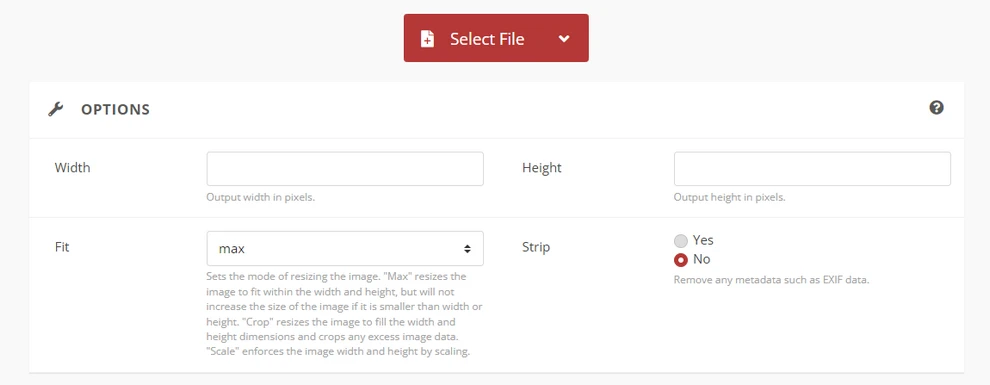
-
Carregue seu arquivo HEIC.
-
Selecione PDF como o formato de saída.
-
Baixe o arquivo PDF convertido.
Prós:
- Gratuito e fácil de usar
- Nenhuma instalação necessária
Contras:
- Limites de tamanho de arquivo e de lote
- Possíveis preocupações com privacidade e segurança de dados
- Controle limitado sobre a qualidade da saída
Este método é adequado para conversões únicas ou ocasionais.
Para converter outros formatos de imagem para PDF, você pode consultar Como converter imagens para PDF em várias plataformas.
Método 2: Converter HEIC para PDF usando software de desktop
O software de desktop oferece uma maneira mais estável e privada de converter HEIC para PDF, especialmente se você trabalha frequentemente com arquivos locais ou prefere não enviar imagens para plataformas de terceiros. Muitos sistemas operacionais modernos já incluem ferramentas integradas que podem lidar com essa tarefa sem exigir downloads adicionais.
Por exemplo, o Microsoft Photos no Windows e o Preview no macOS permitem que você abra arquivos HEIC e os exporte ou imprima como documentos PDF. Em comparação com as ferramentas online, as soluções de desktop geralmente oferecem melhor confiabilidade e menos restrições de tamanho de arquivo.
Passos:
-
Abra o arquivo HEIC usando um visualizador de imagens compatível (por exemplo, Microsoft Photos).
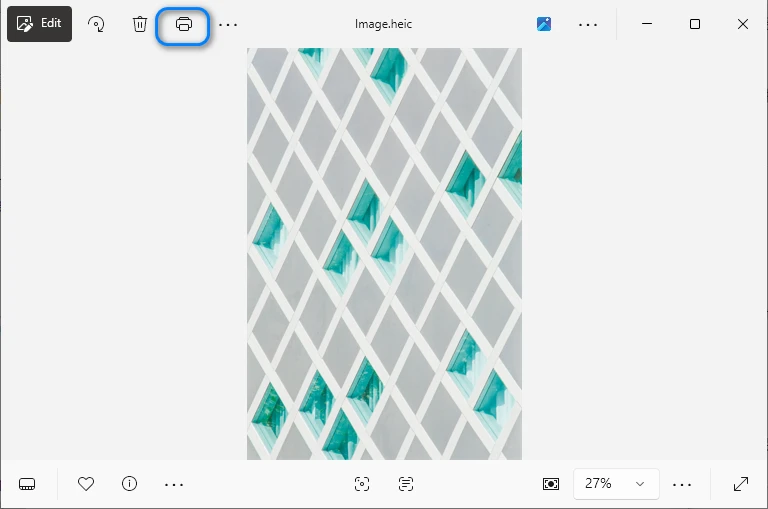
-
Escolha a opção de exportar ou imprimir.
-
Selecione PDF como o formato de saída.
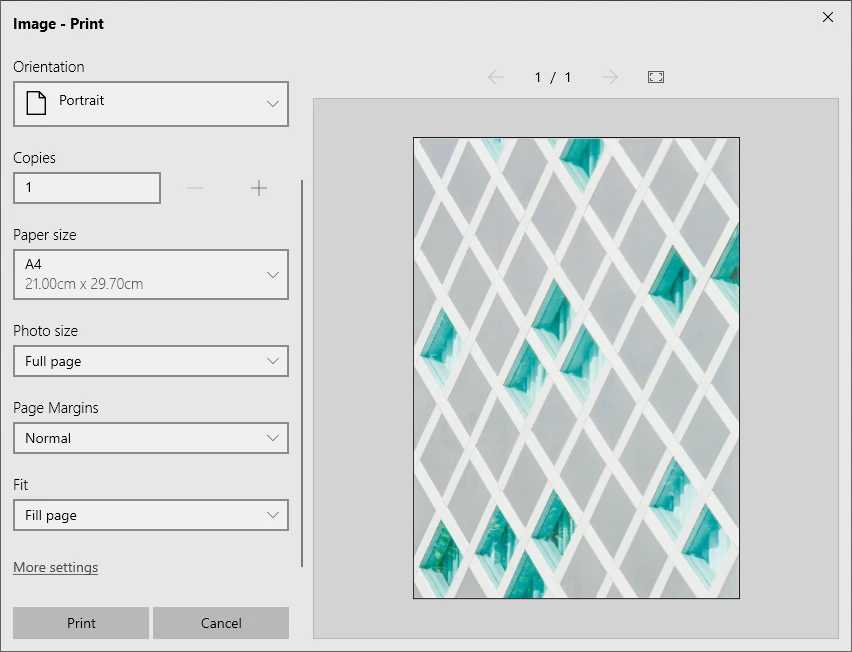
-
Salve o arquivo PDF.
Prós:
- Melhor privacidade do que as ferramentas online
- Nenhuma codificação necessária
Contras:
- Operação manual
- Ineficiente para processamento em lote
Essa abordagem funciona bem para usuários que precisam de conversão básica com o mínimo de esforço técnico.
Se o arquivo PDF resultante for muito grande, você pode tentar comprimir o arquivo PDF para evitar problemas de transmissão e compartilhamento.
Método 3: Converter HEIC para PDF usando Python (recomendado para automação)
Se você precisa converter arquivos HEIC para PDF regularmente, lidar com grandes coleções de imagens ou integrar a conversão a um fluxo de trabalho existente, as ferramentas manuais podem se tornar rapidamente ineficientes. Nesses cenários, a automação oferece uma vantagem significativa.
O Python permite que você crie um processo de conversão repetível que é executado com intervenção humana mínima. Em vez de converter imagens uma por uma, você pode processar pastas inteiras, padronizar as configurações de saída e integrar o fluxo de trabalho a serviços de back-end ou pipelines de dados.
Bibliotecas necessárias
Para implementar esta solução, você precisará de:
- pillow – para processamento de imagem
- pillow-heif – para habilitar o suporte a imagens HEIC
- Spire.PDF for Python – para criar e gerenciar documentos PDF
Você pode instalar essas bibliotecas usando pip:
pip install pillow pillow-heif spire.pdf
Essa combinação permite ler imagens HEIC, processá-las e gerar arquivos PDF de alta qualidade programaticamente.
Passo a passo: Converter HEIC para PDF com Python
Abaixo está um fluxo de trabalho geral para converter um arquivo HEIC em PDF usando Python:
- Registre o suporte a HEIC e abra a imagem HEIC com o Pillow.
- Converta a imagem para RGB e salve-a como JPEG ou PNG na memória.
- Crie um documento PDF e carregue a imagem de um fluxo de bytes.
- Renderize a imagem em uma página PDF e salve o arquivo PDF.
Exemplo de Python: Converter HEIC para PDF
from spire.pdf import PdfDocument, PdfImage, PointF, Stream, SizeF, PdfMargins
from PIL import Image
import pillow_heif
import io

# Register the HEIF support
pillow_heif.register_heif_opener()

# Open the HEIC image and convert to RGB (HEIC images may be RGBA)
img = Image.open("Image.heic")
img = img.convert("RGB")

# Save the image to JPEG or PNG bytes (for Spire.PDF support)
buffer = io.BytesIO()
img.save(buffer, format="JPEG")  # Or "PNG"
image_bytes = buffer.getvalue()

# Load the image from bytes
stream = Stream(image_bytes)
image = PdfImage.FromStream(stream)

# Create a PDF document
pdf = PdfDocument()

# Set the page size to the image size and margins to 0
# This will make the image fill the page
pdf.PageSettings.Size.Width = image.Width
pdf.PageSettings.Size.Height = image.Height
pdf.PageSettings.Margins.All = 0

# Add a page to the document
page = pdf.AppendPage()

# Draw the image on the page
page.Canvas.DrawImage(image, PointF(0.0, 0.0))

# Save the PDF document
pdf.SaveToFile("output/HEICToPDF.pdf")
pdf.Close()
Abaixo está uma prévia do arquivo PDF gerado:
Essa abordagem suporta o processamento em lote e pode ser estendida para mesclar várias imagens em um único PDF. Para conversões mais avançadas de imagem para PDF, incluindo outros formatos e opções como tamanho da página, margens e qualidade da imagem, você pode consultar nosso guia Python sobre como converter imagens para PDF.
Como escolher o método certo de conversão de HEIC para PDF
O melhor método depende menos da preferência técnica e mais do seu cenário de uso real. Em vez de supor que uma abordagem se encaixa em todas as situações, considere com que frequência você realiza conversões e quanto controle precisa sobre a saída.
Escolha uma ferramenta online se:
- Você só precisa converter alguns arquivos ocasionalmente
- Você quer a solução mais rápida possível
- Instalar software não é conveniente
Os conversores online são ideais para tarefas rápidas e de baixo esforço. No entanto, eles podem não ser adequados para imagens confidenciais ou grandes lotes.
Escolha o software de desktop se:
- Você prefere trabalhar offline
- A privacidade é importante
- Você quer uma experiência simples e sem código
As ferramentas de desktop estabelecem um equilíbrio entre facilidade de uso e confiabilidade. Elas costumam ser a escolha mais prática para os fluxos de trabalho diários do escritório.
Escolha Python se:
- Você converte regularmente um grande número de arquivos HEIC
- O processo precisa ser automatizado
- Você deseja controle preciso sobre layout, resolução ou estrutura do documento
- A conversão faz parte de um sistema ou aplicativo maior
Embora essa abordagem exija algum conhecimento técnico, ela se torna significativamente mais eficiente em escala.
No geral, as ferramentas online são adequadas para tarefas rápidas, o software de desktop oferece suporte a fluxos de trabalho diários e o Python é ideal para conversões automatizadas ou em grande escala.
Conclusão
A conversão de arquivos HEIC para PDF é uma solução prática para melhorar a compatibilidade e a usabilidade. Embora as ferramentas online gratuitas e o software de desktop sejam adequados para tarefas simples, eles geralmente ficam aquém quando a automação, a privacidade ou o processamento em lote são necessários.
Para desenvolvedores e usuários avançados, a conversão de HEIC para PDF usando Python oferece a maior flexibilidade. Com bibliotecas como pillow-heif e Spire.PDF for Python, você pode criar um fluxo de trabalho de conversão eficiente e profissional adaptado às suas necessidades.
FAQ: Conversão de HEIC para PDF
Quais são as maneiras gratuitas de converter HEIC para PDF?
Sim, muitas ferramentas online oferecem conversão gratuita de HEIC para PDF, mas podem ter limitações de tamanho de arquivo ou uso.
A conversão de HEIC para PDF afetará a qualidade da imagem?
A qualidade da imagem depende do método de conversão. As soluções programáticas permitem um melhor controle sobre a resolução e a compressão.
Como posso mesclar vários arquivos HEIC em um PDF?
Sim. Usando uma abordagem de programação, várias imagens HEIC podem ser mescladas em um único documento PDF.
É possível converter HEIC para PDF gratuitamente com o Spire.PDF?
Sim, o Free Spire.PDF for Python permite que você converta arquivos HEIC para PDF sem nenhum custo.
HEIC PDF 변환: 온라인, 데스크톱 및 Python 자동화
HEIC(고효율 이미지 컨테이너)는 iPhone 및 iPad와 같은 Apple 장치에서 사용되는 기본 이미지 형식입니다. HEIC는 더 작은 파일 크기로 높은 이미지 품질을 제공하지만 모든 플랫폼과 응용 프로그램에서 보편적으로 지원되는 것은 아닙니다. 이로 인해 이미지를 공유, 인쇄 또는 보관할 때 호환성 문제가 발생하는 경우가 많습니다.
HEIC 파일을 PDF로 변환하는 것은 일반적이고 효과적인 솔루션입니다. PDF는 장치와 운영 체제에서 일관된 표시를 보장하는 널리 사용되는 형식입니다. 이 기사에서는 무료 방법과 Python 코드를 사용한 자동화된 접근 방식을 포함하여 HEIC를 PDF로 변환하는 여러 가지 방법을 살펴보겠습니다.
빠른 탐색
- HEIC 파일이란 무엇이며 HEIC를 PDF로 변환하는 이유는 무엇입니까?
- 방법 1: 온라인 도구를 사용하여 HEIC를 PDF로 변환
- 방법 2: 데스크톱 소프트웨어를 사용하여 HEIC를 PDF로 변환
- 방법 3: Python을 사용하여 HEIC를 PDF로 변환
- 올바른 HEIC to PDF 변환 방법을 선택하는 방법
- 자주 묻는 질문
HEIC 파일이란 무엇이며 HEIC를 PDF로 변환하는 이유는 무엇입니까?
HEIC는 HEVC(고효율 비디오 코딩)를 기반으로 하는 이미지 컨테이너 형식입니다. 이를 통해 Apple 장치는 더 나은 압축과 높은 시각적 품질로 사진을 저장할 수 있습니다. 그러나 HEIC 파일은 많은 Windows 응용 프로그램, 웹 브라우저 또는 문서 관리 시스템에서 기본적으로 지원되지 않으므로 파일을 열거나 공유하려고 할 때 마찰이 발생할 수 있습니다.
HEIC를 PDF로 변환하는 것이 유용한 일반적인 상황은 다음과 같습니다.
- 플랫폼 간 호환성 향상
- 여러 HEIC 이미지를 단일 문서로 결합
- 인쇄 또는 제출용 이미지 준비
- 안정적이고 편집 불가능한 형식으로 이미지 보관
이러한 제한 때문에 HEIC를 PDF로 변환하는 것은 선호도에 관한 것이라기보다는 다양한 환경에서 접근성과 일관성을 보장하는 것에 가깝습니다.
방법 1: 온라인 도구를 사용하여 HEIC를 PDF로 변환(무료)
온라인 변환기는 특히 추가 소프트웨어를 설치하지 않고 빠른 결과가 필요할 때 HEIC를 PDF로 변환하는 가장 빠른 방법인 경우가 많습니다.
단계:
-
온라인 HEIC to PDF 변환기(예: CloudConvert)를 엽니다.
-
HEIC 파일을 업로드하세요.
-
출력 형식으로 PDF를 선택하세요.
-
변환된 PDF 파일을 다운로드하세요.
장점:
- 무료이며 사용하기 쉬움
- 설치 필요 없음
단점:
- 파일 크기 및 일괄 처리 제한
- 잠재적인 개인 정보 보호 및 데이터 보안 문제
- 출력 품질에 대한 제한된 제어
이 방법은 일회성 또는 가끔 변환에 적합합니다.
다른 이미지 형식을 PDF로 변환하려면 다양한 플랫폼에서 이미지를 PDF로 변환하는 방법을 확인하세요.
방법 2: 데스크톱 소프트웨어를 사용하여 HEIC를 PDF로 변환
데스크톱 소프트웨어는 특히 로컬 파일로 자주 작업하거나 타사 플랫폼에 이미지를 업로드하지 않으려는 경우 HEIC를 PDF로 변환하는 보다 안정적이고 비공개적인 방법을 제공합니다. 많은 최신 운영 체제에는 추가 다운로드 없이 이 작업을 처리할 수 있는 기본 제공 도구가 이미 포함되어 있습니다.
예를 들어 Windows의 Microsoft 사진 및 macOS 미리보기를 사용하면 HEIC 파일을 열고 PDF 문서로 내보내거나 인쇄할 수 있습니다. 온라인 도구에 비해 데스크톱 솔루션은 일반적으로 더 나은 안정성과 더 적은 파일 크기 제한을 제공합니다.
단계:
-
호환되는 이미지 뷰어(예: Microsoft 사진)를 사용하여 HEIC 파일을 엽니다.
-
내보내기 또는 인쇄 옵션을 선택합니다.
-
출력 형식으로 PDF를 선택합니다.
-
PDF 파일을 저장합니다.
장점:
- 온라인 도구보다 나은 개인 정보 보호
- 코딩 필요 없음
단점:
- 수동 조작
- 일괄 처리에 비효율적
이 접근 방식은 최소한의 기술적 노력으로 기본 변환이 필요한 사용자에게 적합합니다.
결과 PDF 파일이 너무 크면 PDF 파일을 압축하여 전송 및 공유 문제를 방지할 수 있습니다.
방법 3: Python을 사용하여 HEIC를 PDF로 변환(자동화에 권장)
HEIC 파일을 정기적으로 PDF로 변환하거나, 대규모 이미지 컬렉션을 처리하거나, 변환을 기존 워크플로에 통합해야 하는 경우 수동 도구는 빠르게 비효율적이 될 수 있습니다. 이러한 시나리오에서 자동화는 상당한 이점을 제공합니다.
Python을 사용하면 최소한의 사람의 개입으로 실행되는 반복 가능한 변환 프로세스를 구축할 수 있습니다. 이미지를 하나씩 변환하는 대신 전체 폴더를 처리하고, 출력 설정을 표준화하고, 워크플로를 백엔드 서비스 또는 데이터 파이프라인에 통합할 수 있습니다.
필수 라이브러리
이 솔루션을 구현하려면 다음이 필요합니다.
- pillow – 이미지 처리용
- pillow-heif – HEIC 이미지 지원 활성화
- Spire.PDF for Python – PDF 문서 생성 및 관리
pip를 사용하여 이러한 라이브러리를 설치할 수 있습니다.
pip install pillow pillow-heif spire.pdf
이 조합을 사용하면 HEIC 이미지를 읽고 처리하며 프로그래밍 방식으로 고품질 PDF 파일을 생성할 수 있습니다.
단계별: Python으로 HEIC를 PDF로 변환
다음은 Python을 사용하여 HEIC 파일을 PDF로 변환하는 일반적인 워크플로입니다.
- HEIC 지원을 등록하고 Pillow로 HEIC 이미지를 엽니다.
- 이미지를 RGB로 변환하고 메모리에 JPEG 또는 PNG로 저장합니다.
- PDF 문서를 만들고 바이트 스트림에서 이미지를 로드합니다.
- 이미지를 PDF 페이지에 렌더링하고 PDF 파일을 저장합니다.
Python 예제: HEIC를 PDF로 변환
from spire.pdf import PdfDocument, PdfImage, PointF, Stream, SizeF, PdfMargins
from PIL import Image
import pillow_heif
import io

# HEIF 지원 등록
pillow_heif.register_heif_opener()

# HEIC 이미지를 열고 RGB로 변환 (HEIC 이미지는 RGBA일 수 있음)
img = Image.open("Image.heic")
img = img.convert("RGB")

# 이미지를 JPEG 또는 PNG 바이트로 저장 (Spire.PDF 지원용)
buffer = io.BytesIO()
img.save(buffer, format="JPEG")  # 또는 "PNG"
image_bytes = buffer.getvalue()

# 바이트에서 이미지 로드
stream = Stream(image_bytes)
image = PdfImage.FromStream(stream)

# PDF 문서 생성
pdf = PdfDocument()

# 페이지 크기를 이미지 크기로 설정하고 여백을 0으로 설정
# 이렇게 하면 이미지가 페이지를 채웁니다
pdf.PageSettings.Size.Width = image.Width
pdf.PageSettings.Size.Height = image.Height
pdf.PageSettings.Margins.All = 0

# 문서에 페이지 추가
page = pdf.AppendPage()

# 페이지에 이미지 그리기
page.Canvas.DrawImage(image, PointF(0.0, 0.0))

# PDF 문서 저장
pdf.SaveToFile("output/HEICToPDF.pdf")
pdf.Close()
다음은 생성된 PDF 파일의 미리보기입니다.
이 접근 방식은 일괄 처리를 지원하며 여러 이미지를 단일 PDF로 병합하도록 확장할 수 있습니다. 페이지 크기, 여백 및 이미지 품질과 같은 다른 형식 및 옵션을 포함한 고급 이미지-PDF 변환에 대해서는 이미지를 PDF로 변환하는 Python 가이드를 확인하십시오.
올바른 HEIC to PDF 변환 방법을 선택하는 방법
최상의 방법은 기술적 선호도보다는 실제 사용 시나리오에 따라 달라집니다. 하나의 접근 방식이 모든 상황에 적합하다고 가정하는 대신 변환을 얼마나 자주 수행하고 출력에 대해 얼마나 많은 제어가 필요한지 고려하십시오.
다음과 같은 경우 온라인 도구를 선택하십시오.
- 가끔 몇 개의 파일만 변환하면 됩니다.
- 가장 빠른 솔루션을 원합니다.
- 소프트웨어 설치가 편리하지 않습니다.
온라인 변환기는 빠르고 노력이 적은 작업에 이상적입니다. 그러나 민감한 이미지나 대규모 배치에는 적합하지 않을 수 있습니다.
다음과 같은 경우 데스크톱 소프트웨어를 선택하십시오.
- 오프라인 작업을 선호합니다.
- 개인 정보 보호가 중요합니다.
- 간단하고 코드 없는 경험을 원합니다.
데스크톱 도구는 사용 편의성과 안정성 사이의 균형을 유지합니다. 일상적인 사무 워크플로에 가장 실용적인 선택인 경우가 많습니다.
다음과 같은 경우 Python을 선택하십시오.
- 정기적으로 많은 수의 HEIC 파일을 변환합니다.
- 프로세스를 자동화해야 합니다.
- 레이아웃, 해상도 또는 문서 구조를 정밀하게 제어하고 싶습니다.
- 변환은 더 큰 시스템 또는 응용 프로그램의 일부입니다.
이 접근 방식에는 약간의 기술 지식이 필요하지만 대규모로 훨씬 더 효율적이 됩니다.
전반적으로 온라인 도구는 빠른 작업에 적합하고 데스크톱 소프트웨어는 일상적인 워크플로를 지원하며 Python은 자동화되거나 대규모 변환에 이상적입니다.
결론
HEIC 파일을 PDF로 변환하는 것은 호환성과 유용성을 향상시키는 실용적인 솔루션입니다. 무료 온라인 도구와 데스크톱 소프트웨어는 간단한 작업에 적합하지만 자동화, 개인 정보 보호 또는 일괄 처리가 필요한 경우에는 종종 부족합니다.
개발자와 고급 사용자의 경우 Python을 사용하여 HEIC를 PDF로 변환하면 가장 큰 유연성을 얻을 수 있습니다. pillow-heif 및 Spire.PDF for Python과 같은 라이브러리를 사용하면 필요에 맞는 효율적이고 전문적인 변환 워크플로를 구축할 수 있습니다.
FAQ: HEIC to PDF 변환
HEIC를 PDF로 변환하는 무료 방법은 무엇입니까?
예, 많은 온라인 도구에서 무료 HEIC to PDF 변환을 제공하지만 파일 크기나 사용량에 제한이 있을 수 있습니다.
HEIC를 PDF로 변환하면 이미지 품질에 영향을 줍니까?
이미지 품질은 변환 방법에 따라 다릅니다. 프로그래밍 방식 솔루션을 사용하면 해상도와 압축을 더 잘 제어할 수 있습니다.
여러 HEIC 파일을 하나의 PDF로 병합하려면 어떻게 해야 합니까?
예. 프로그래밍 방식을 사용하면 여러 HEIC 이미지를 단일 PDF 문서로 병합할 수 있습니다.
Spire.PDF를 사용하여 HEIC를 PDF로 무료로 변환할 수 있습니까?
예, Free Spire.PDF for Python을 사용하면 HEIC 파일을 PDF로 무료로 변환할 수 있습니다.
Convertire HEIC in PDF: Online, Desktop e Automazione Python
Indice
- Cos'è un file HEIC e perché convertirlo in PDF?
- Metodo 1: Convertire HEIC in PDF utilizzando strumenti online
- Metodo 2: Convertire HEIC in PDF utilizzando software desktop
- Metodo 3: Convertire HEIC in PDF utilizzando Python
- Come scegliere il metodo di conversione da HEIC a PDF corretto
- Domande frequenti
HEIC (High Efficiency Image Container) è il formato di immagine predefinito utilizzato dai dispositivi Apple come iPhone e iPad. Sebbene HEIC offra un'alta qualità dell'immagine con dimensioni di file più piccole, non è universalmente supportato su tutte le piattaforme e applicazioni. Ciò porta spesso a problemi di compatibilità durante la condivisione, la stampa o l'archiviazione delle immagini.
La conversione di file HEIC in PDF è una soluzione comune ed efficace. Il PDF è un formato ampiamente accettato che garantisce una visualizzazione coerente su tutti i dispositivi e sistemi operativi. In questo articolo, esploreremo diversi modi per convertire HEIC in PDF, inclusi metodi gratuiti e un approccio automatizzato utilizzando il codice Python.
Navigazione Rapida
- Cos'è un file HEIC e perché convertirlo in PDF?
- Metodo 1: Convertire HEIC in PDF utilizzando strumenti online
- Metodo 2: Convertire HEIC in PDF utilizzando software desktop
- Metodo 3: Convertire HEIC in PDF utilizzando Python
- Come scegliere il metodo di conversione da HEIC a PDF corretto
- Domande frequenti
Cos'è un file HEIC e perché convertirlo in PDF?
HEIC è un formato contenitore di immagini basato su HEVC (High Efficiency Video Coding). Consente ai dispositivi Apple di archiviare foto con una migliore compressione e un'alta qualità visiva. Tuttavia, i file HEIC non sono supportati nativamente da molte applicazioni Windows, browser Web o sistemi di gestione dei documenti, il che può creare attrito quando si tenta di aprirli o condividerli.
Le situazioni tipiche in cui la conversione da HEIC a PDF diventa utile includono:
- Migliorare la compatibilità tra piattaforme
- Combinare più immagini HEIC in un unico documento
- Preparare le immagini per la stampa o l'invio
- Archiviare le immagini in un formato stabile e non modificabile
A causa di queste limitazioni, la conversione da HEIC a PDF è spesso meno una questione di preferenza e più una questione di garantire l'accessibilità e la coerenza tra i diversi ambienti.
Metodo 1: Convertire HEIC in PDF utilizzando strumenti online (gratuiti)
I convertitori online sono spesso il modo più veloce per convertire HEIC in PDF, specialmente quando hai bisogno di un risultato rapido senza installare software aggiuntivo.
Passaggi:
-
Apri un convertitore online da HEIC a PDF (come CloudConvert).
-
Carica il tuo file HEIC.
-
Seleziona PDF come formato di output.
-
Scarica il file PDF convertito.
Pro:
- Gratuito e facile da usare
- Nessuna installazione richiesta
Contro:
- Limiti di dimensione del file e di elaborazione batch
- Potenziali problemi di privacy e sicurezza dei dati
- Controllo limitato sulla qualità dell'output
Questo metodo è adatto per conversioni una tantum o occasionali.
Per convertire altri formati di immagini in PDF, puoi consultare Come convertire immagini in PDF su varie piattaforme.
Metodo 2: Convertire HEIC in PDF utilizzando software desktop
Il software desktop offre un modo più stabile e privato per convertire HEIC in PDF, specialmente se lavori frequentemente con file locali o preferisci non caricare immagini su piattaforme di terze parti. Molti sistemi operativi moderni includono già strumenti integrati in grado di gestire questa attività senza richiedere download aggiuntivi.
Ad esempio, Microsoft Foto su Windows e Anteprima di macOS ti consentono di aprire file HEIC ed esportarli o stamparli come documenti PDF. Rispetto agli strumenti online, le soluzioni desktop offrono in genere una maggiore affidabilità e meno restrizioni sulle dimensioni dei file.
Passaggi:
-
Apri il file HEIC utilizzando un visualizzatore di immagini compatibile (ad es. Microsoft Foto).
-
Scegli l'opzione di esportazione o stampa.
-
Seleziona PDF come formato di output.
-
Salva il file PDF.
Pro:
- Migliore privacy rispetto agli strumenti online
- Nessuna codifica richiesta
Contro:
- Operazione manuale
- Inefficiente per l'elaborazione batch
Questo approccio funziona bene per gli utenti che necessitano di una conversione di base con il minimo sforzo tecnico.
Se il file PDF risultante è troppo grande, puoi provare a comprimere il file PDF per evitare problemi di trasmissione e condivisione.
Metodo 3: Convertire HEIC in PDF utilizzando Python (consigliato per l'automazione)
Se hai bisogno di convertire regolarmente file HEIC in PDF, gestire grandi raccolte di immagini o integrare la conversione in un flusso di lavoro esistente, gli strumenti manuali possono diventare rapidamente inefficienti. In questi scenari, l'automazione offre un vantaggio significativo.
Python ti consente di creare un processo di conversione ripetibile che viene eseguito con un intervento umano minimo. Invece di convertire le immagini una per una, puoi elaborare intere cartelle, standardizzare le impostazioni di output e integrare il flusso di lavoro in servizi di backend o pipeline di dati.
Librerie richieste
Per implementare questa soluzione, avrai bisogno di:
- pillow – per l'elaborazione delle immagini
- pillow-heif – per abilitare il supporto delle immagini HEIC
- Spire.PDF for Python – per creare e gestire documenti PDF
Puoi installare queste librerie usando pip:
pip install pillow pillow-heif spire.pdf
Questa combinazione ti consente di leggere immagini HEIC, elaborarle e generare file PDF di alta qualità in modo programmatico.
Passo dopo passo: convertire HEIC in PDF con Python
Di seguito è riportato un flusso di lavoro generale per la conversione di un file HEIC in PDF utilizzando Python:
- Registra il supporto HEIC e apri l'immagine HEIC con Pillow.
- Converti l'immagine in RGB e salvala come JPEG o PNG in memoria.
- Crea un documento PDF e carica l'immagine da un flusso di byte.
- Renderizza l'immagine su una pagina PDF e salva il file PDF.
Esempio Python: Convertire HEIC in PDF
from spire.pdf import PdfDocument, PdfImage, PointF, Stream, SizeF, PdfMargins
from PIL import Image
import pillow_heif
import io

# Register the HEIF support
pillow_heif.register_heif_opener()

# Open the HEIC image and convert to RGB (HEIC images may be RGBA)
img = Image.open("Image.heic")
img = img.convert("RGB")

# Save the image to JPEG or PNG bytes (for Spire.PDF support)
buffer = io.BytesIO()
img.save(buffer, format="JPEG")  # Or "PNG"
image_bytes = buffer.getvalue()

# Load the image from bytes
stream = Stream(image_bytes)
image = PdfImage.FromStream(stream)

# Create a PDF document
pdf = PdfDocument()

# Set the page size to the image size and margins to 0
# This will make the image fill the page
pdf.PageSettings.Size.Width = image.Width
pdf.PageSettings.Size.Height = image.Height
pdf.PageSettings.Margins.All = 0

# Add a page to the document
page = pdf.AppendPage()

# Draw the image on the page
page.Canvas.DrawImage(image, PointF(0.0, 0.0))

# Save the PDF document
pdf.SaveToFile("output/HEICToPDF.pdf")
pdf.Close()
Di seguito è riportata un'anteprima del file PDF generato:
Questo approccio supporta l'elaborazione batch e può essere esteso per unire più immagini in un unico PDF. Per conversioni più avanzate da immagine a PDF, inclusi altri formati e opzioni come dimensioni della pagina, margini e qualità dell'immagine, puoi consultare la nostra guida Python sulla conversione di immagini in PDF.
Come scegliere il metodo di conversione da HEIC a PDF corretto
Il metodo migliore dipende meno dalle preferenze tecniche e più dal tuo scenario di utilizzo effettivo. Invece di presumere che un approccio si adatti a tutte le situazioni, considera la frequenza con cui esegui le conversioni e quanto controllo hai bisogno sull'output.
Scegli uno strumento online se:
- Devi convertire solo pochi file occasionalmente
- Vuoi la soluzione più veloce possibile
- L'installazione del software non è conveniente
I convertitori online sono ideali per attività rapide e a basso sforzo. Tuttavia, potrebbero non essere adatti per immagini sensibili o grandi lotti.
Scegli il software desktop se:
- Preferisci lavorare offline
- La privacy è importante
- Vuoi un'esperienza semplice e senza codice
Gli strumenti desktop raggiungono un equilibrio tra facilità d'uso e affidabilità. Sono spesso la scelta più pratica per i flussi di lavoro quotidiani in ufficio.
Scegli Python se:
- Converti regolarmente un gran numero di file HEIC
- Il processo deve essere automatizzato
- Vuoi un controllo preciso su layout, risoluzione o struttura del documento
- La conversione fa parte di un sistema o un'applicazione più grande
Sebbene questo approccio richieda alcune conoscenze tecniche, diventa significativamente più efficiente su larga scala.
Nel complesso, gli strumenti online sono adatti per attività rapide, il software desktop supporta i flussi di lavoro quotidiani e Python è ideale per conversioni automatizzate o su larga scala.
Conclusione
La conversione di file HEIC in PDF è una soluzione pratica per migliorare la compatibilità e l'usabilità. Sebbene gli strumenti online gratuiti e il software desktop siano adatti per compiti semplici, spesso non sono all'altezza quando sono richieste automazione, privacy o elaborazione batch.
Per sviluppatori e utenti avanzati, la conversione da HEIC a PDF tramite Python offre la massima flessibilità. Con librerie come pillow-heif e Spire.PDF per Python, puoi creare un flusso di lavoro di conversione efficiente e professionale su misura per le tue esigenze.
FAQ: Conversione da HEIC a PDF
Quali sono i modi gratuiti per convertire HEIC in PDF?
Sì, molti strumenti online offrono la conversione gratuita da HEIC a PDF, ma potrebbero avere limitazioni sulla dimensione o sull'utilizzo del file.
La conversione da HEIC a PDF influirà sulla qualità dell'immagine?
La qualità dell'immagine dipende dal metodo di conversione. Le soluzioni programmatiche consentono un migliore controllo sulla risoluzione e sulla compressione.
Come posso unire più file HEIC in un unico PDF?
Sì. Utilizzando un approccio di programmazione, più immagini HEIC possono essere unite in un unico documento PDF.
È possibile convertire HEIC in PDF gratuitamente con Spire.PDF?
Sì, Free Spire.PDF for Python ti consente di convertire gratuitamente i file HEIC in PDF.