Table of Contents
- Understanding RTF vs. TXT Formats
- What You Lose When Converting
- Method 1: Using Built-in Windows Tools (WordPad)
- Method 2: Converting with Microsoft Word or LibreOffice
- Method 3: Free Online RTF to TXT Converters
- Method 4: Python Programming for Automated Workflows
- Common RTF to TXT Conversion Problems & Fixes
- Frequently Asked Questions (FAQ)
If you’ve ever worked with text files, you’ve likely encountered both RTF (Rich Text Format) and TXT (Plain Text) files. While RTF is great for preserving formatting like bold, italics, font styles, tables, and basic images across word processors, TXT stands out for its universal compatibility, minimal file size, and simplicity. Converting RTF to TXT is essential for data processing, document archiving, code integration, cross-device sharing, and storage optimization.
In this guide, we’ll cover everything you need to know about RTF to TXT conversion—from the key differences between the two formats to step-by-step methods for every user.
- Understanding RTF vs. TXT Formats
- What You Lose When Converting
- Method 1: Using Built-in Windows Tools (WordPad)
- Method 2: Converting with Microsoft Word or LibreOffice
- Method 3: Free Online RTF to TXT Converters
- Method 4: Python Programming for Automated Workflows
- Common RTF to TXT Conversion Problems & Fixes
- Frequently Asked Questions (FAQ)
Understanding RTF vs. TXT Formats
RTF and TXT serve distinct purposes, and understanding their differences helps you choose the right format for your task.
| Feature | RTF (Rich Text Format) | TXT (Plain Text) |
|---|---|---|
| Format Support | Rich formatting (fonts, colors, tables, images) | No formatting, pure text only |
| File extension | .rtf | .txt |
| Compatibility | Works with most word processors (Microsoft Word, LibreOffice, WordPad) | Universally compatible – can be opened by any text editor on any device |
| File size | Larger due to embedded formatting codes | Very small |
| Use cases | Document exchange with basic formatting, resumes, and reports | Configuration files, logs, source code, data exchange, note‑taking |
What You Lose When Converting
Learn exactly what gets removed when converting RTF to TXT:
- All formatting - bold, italics, fonts, colors, alignment
- Tables - they become plain text with spaces or tabs, or lose structure entirely
- Images - completely removed; some converters insert placeholders like [Image]
- Hyperlinks - the link text remains, but the URL disappears
- Headers and footers - they become part of the main text or vanish
Important: This loss is not a bug – it is inherent to the TXT format. If you need to preserve structure or images, consider converting RTF to PDF, HTML, or CSV instead.
Method 1: Using Built-in Windows Tools (WordPad)
For Windows users, WordPad is the quickest and most accessible method, requiring no additional software installation.
Using WordPad:
- Right-click on your RTF file, select "Open With," and choose WordPad.
- Once the file is open, review the content for accuracy.
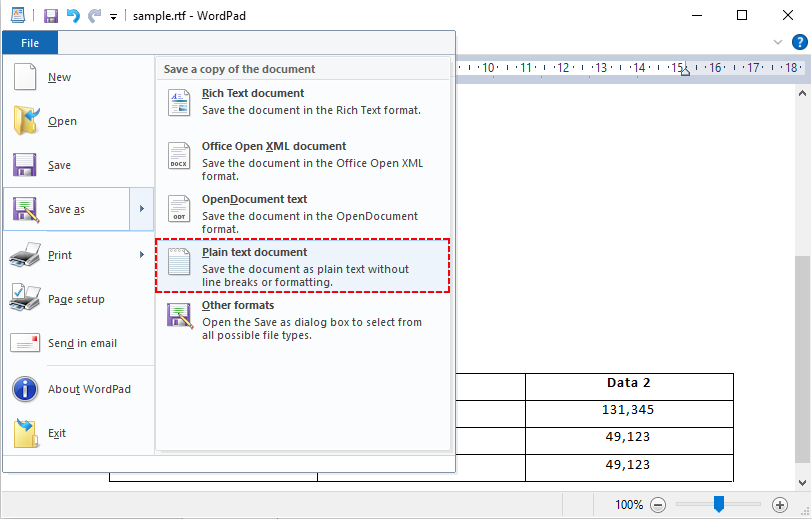
- Go to “File > Save As” and select "Plain text document" from the list of options.
- Choose your destination, name the file, and click “Save”.
Pro tip: WordPad may strip some advanced RTF features (like nested tables) even before saving. For complex RTFs, use Microsoft Word or LibreOffice instead.
Method 2: Converting with Microsoft Word or LibreOffice
If you have a full‑featured word processor, you gain precise control over encoding, layout preservation, and handling of complex elements.
Using MS Word or LibreOffice to convert RTF to text:
- Open your RTF file in Microsoft Word or LibreOffice Writer.
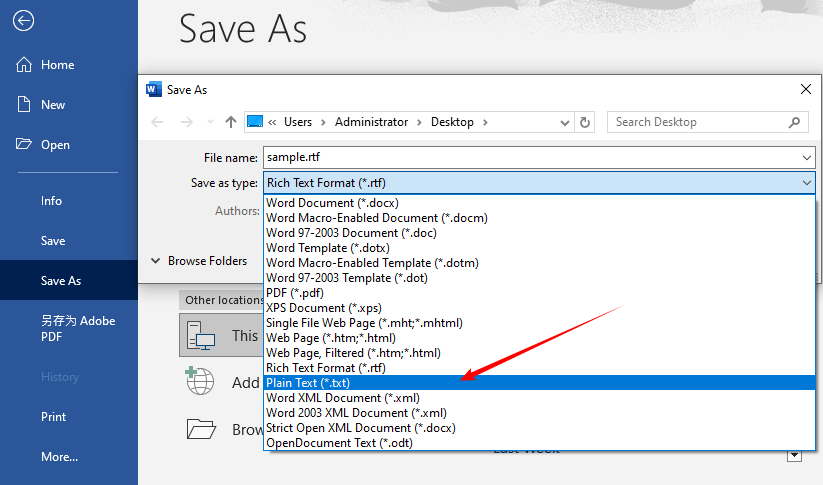
- Go to “File > Save As” (or “Export As”).
- Select “Plain Text (.txt)” from the dropdown menu.
- Choose your save location and click “Save.”
- If prompted, select an encoding (UTF-8 is recommended for universal compatibility) and click “OK.”
Best for: Complex RTF files, offline conversion, encoding customization
Beyond converting RTF to plain text, word processors also provide a reliable RTF to Word (DOC/DOCX) conversion feature that fully preserves rich formatting, tables, and images for further editing.
Method 3: Free Online RTF to TXT Converters
Online converters are ideal when you don’t have access to your computer, need a quick conversion, or want to avoid installing software. However, never upload sensitive or confidential documents to an online service unless it explicitly guarantees file deletion and uses encryption.
Here’s how to convert RTF to TXT online:
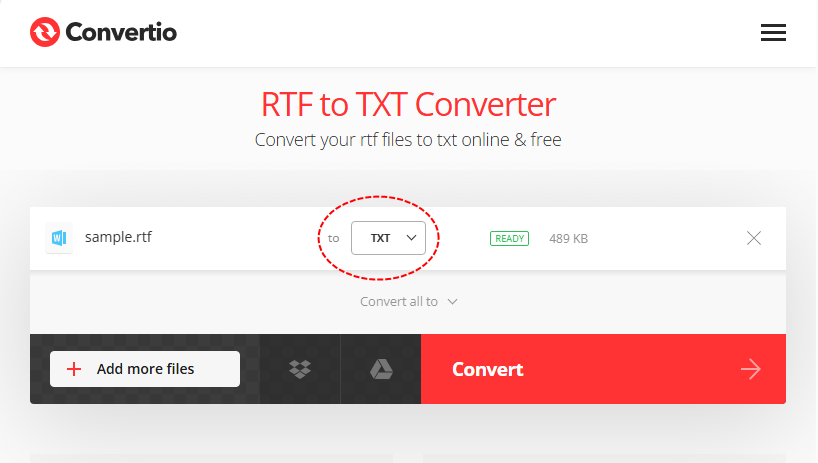
- Choose a reputable online converter (e.g., Convertio RTF to TXT Converter).
- Upload your RTF file(s) by dragging and dropping or selecting from your computer.
- Ensure the output format is “TXT” and click “Convert”.
- Wait for the process to finish.
- Download your converted TXT file(s).
Limitations of Online Converters
- Internet connection required.
- Most free tiers have file size limits. Larger files require a paid plan.
- Files are temporarily stored on third‑party servers.
- Free tiers often restrict batch size to 2‑5 files.
Method 4: Python Programming for Automated Workflows
If you need to batch convert RTF to TXT, or integrate the conversion into your code (e.g., for a web app or data pipeline), Python is the most popular choice.
Python with Free Spire.Doc (Easiest for Beginners)
Free Spire.Doc for Python is a free and lightweight library that supports converting RTF to plain text with high accuracy. It handles complex RTF content and is ideal for both simple and advanced conversion workflows. Below is the pip command to install it:
pip install Spire.Doc.Free
Basic RTF to TXT Python conversion code:
from spire.doc import *
from spire.doc.common import *

# Initialize a Document object
doc = Document()

# Load the RTF file
doc.LoadFromFile("sample.rtf")

# Convert RTF to TXT and save the result
# FileFormat.Txt specifies the output format as plain text
doc.SaveToFile("output.txt", FileFormat.Txt)

# Close the document to free up resources
doc.Close()

print("RTF to TXT conversion completed successfully!")
RTF to plain text conversion result:
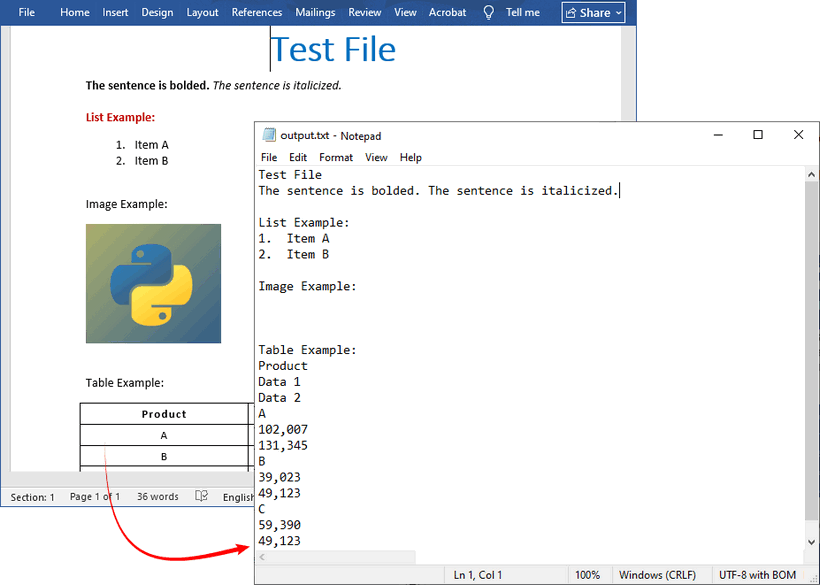
Batch conversion example (loop through a folder):
This script converts every RTF file in a given folder to TXT, preserving the original filenames.
import os
from spire.doc import *
from spire.doc.common import *

folder = "C:/rtf_files/"
for file in os.listdir(folder):
    if file.endswith(".rtf"):
        doc = Document()
        doc.LoadFromFile(os.path.join(folder, file))
        txt_name = file.replace(".rtf", ".txt")
        doc.SaveToFile(os.path.join(folder, txt_name), FileFormat.Txt)
        doc.Close()
By calling the SaveToFile() method with the FileFormat.Txt parameter, Free Spire.Doc exports the loaded RTF document to plain text format. To convert RTF to HTML, you only need to update the parameter to FileFormat.Html.
Common RTF to TXT Conversion Problems & Fixes
Even with the right tools, you might run into problems. Here are the most common issues and their solutions:
1. Formatting Loss (Bold, Italics, Tables)
- Why? TXT doesn’t support any formatting – this is normal.
- Solution: If you need table structure, convert RTF to CSV first, then open the CSV as plain text. Or use a script to replace table cells with tabs.
2. Garbled Text/Encoding Errors
- Why? Encoding mismatch. The RTF may use an unsupported encoding.
- Solution: Use UTF-8 encoding when saving TXT files (most tools let you select this).
3. Line Breaks Disappear or Multiply
- Why? Different operating systems use different line ending characters (Windows: CR+LF, Linux/macOS: LF). Some converters strip them.
- Solution: When saving from a word processor, look for options like "Insert line breaks" or "Preserve wrapping". For Python solution, Free Spire.Doc preserves line breaks well.
4. Empty TXT File After Conversion
- Why? Corrupted RTF file, tool failed to read content.
- Solution: Open RTF in WordPad/Word to confirm it’s not corrupted; re-save RTF first, then convert.
Conclusion
Converting RTF to TXT is straightforward, but the right approach depends on your needs. For occasional users, online converters offer a quick, no‑setup solution. If you’re working with sensitive documents or prefer offline processing, desktop applications like Microsoft Word and LibreOffice provide secure, local control. For large‑scale or automated workflows, programming libraries such as Free Spire.Doc deliver customizable, scriptable conversion.
By converting RTF to TXT, you gain the simplicity and universal compatibility of plain text, making your content more accessible, storage‑efficient, and compatible with any tool. Whether you’re archiving legacy documents, processing data, or writing a script, this guide equips you to convert rich text to plain text seamlessly.
Frequently Asked Questions (FAQ)
Q: Is RTF to TXT conversion free?
A: Yes. All built-in tools (WordPad), LibreOffice, free online converters, and Free Spire.Doc for Python are completely free with no hidden costs.
Q: Can I convert TXT back to RTF?
A: Yes, but all formatting is lost. You’ll need to re-add bold, italics, etc., in a word processor before saving as RTF.
Q: Does converting RTF to TXT reduce file size?
A: Yes. TXT removes all formatting markup, and the file size is usually 1/5 to 1/10 of the original RTF, saving massive storage space for archiving.
Q: Can I convert RTF to TXT on a Mac?
A: Yes. macOS includes TextEdit, which can open RTF files. In TextEdit, go to Format → Make Plain Text, then save as .txt.