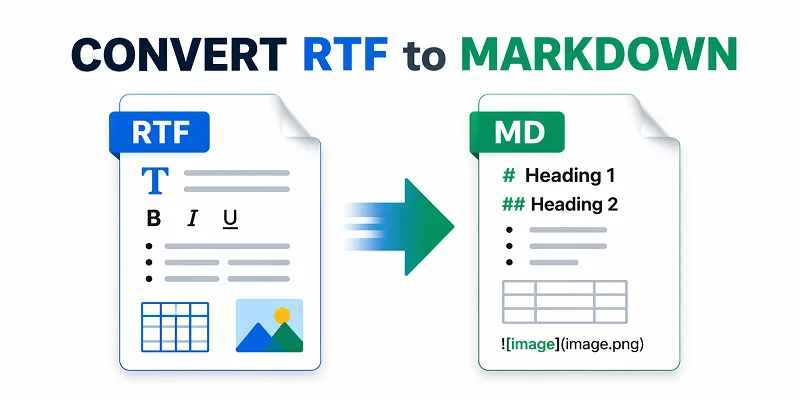
RTF (Rich Text Format) files are great for storing formatted text, but when it comes to documentation, blogging, or version-controlled writing, Markdown (MD) is often the preferred choice. Converting RTF to Markdown makes your content lightweight, portable, and easier to integrate with modern tools like Git, static site generators, or Markdown-based editors.
In this article, we'll explore 4 practical methods to convert RTF to Markdown, ranging from simple copy-and-paste techniques to automated batch conversion with C#. Whether you're a beginner working with a single file or a developer looking to process multiple documents efficiently, you'll find the method that best suits your workflow.
Contents Overview
- What's the Difference between RTF and Markdown
- Use Cases: When You Should Convert RTF to Markdown
- Method 1: Copy RTF Content and Paste into a Markdown Editor
- Method 2: Convert RTF to Markdown Online
- Method 3: Use Pandoc for High-Fidelity RTF to Markdown Conversion
- Method 4: Batch Convert RTF Files to Markdown with C#
- Comparison: Which RTF to Markdown Method Should You Choose
- Troubleshooting Common Conversion Issues
What's the Difference between RTF and Markdown?
Before diving into the conversion methods, it's helpful to understand how RTF and Markdown differ. The table below summarizes their main characteristics and typical use cases.
| Feature | RTF (Rich Text Format) | Markdown (MD) |
|---|---|---|
| File Extension | .rtf | .md / .markdown |
| Content Type | Rich Text: Binary-like plain text supporting font sizes, colors, tables, and inline images | Plain Text: Human-readable text using simple Markdown syntax (symbols like # or *) to define headers and lists |
| Primary Use | Cross-platform document exchange and word processing | Documentation, technical blogging, version-controlled content (GitHub) |
| Origin | Developed by Microsoft (1987) | Created by John Gruber (2004) |
| MIME Type | application/rtf | text/markdown |
| Resources | Rich Text Format on Wikipedia | Markdown on Wikipedia |
Use Cases: When You Should Convert RTF to Markdown?
Converting RTF to MD is useful in many scenarios:
- Documentation: Markdown is widely used for technical documentation, READMEs, and knowledge bases, making your RTF content easier to maintain.
- Content Publishing: Bloggers and writers benefit from Markdown's simplicity and compatibility with static site generators or CMS platforms.
- Version Control: Plain-text Markdown works seamlessly with Git, unlike RTF, which is a binary file.
- Collaboration: Markdown files are easier to share, edit, and merge across teams without losing formatting.
- Automation: Converting multiple RTF files to Markdown allows batch processing for reporting, note-taking, or migrating content.
With these use cases in mind, let's look at how you can convert RTF files to .md format.
Method 1: Copy RTF Content and Paste into a Markdown Editor
When you only need to convert specific sections of an RTF file to Markdown, manually copying and pasting content into a Markdown editor is a simple and effective approach. Many modern Markdown editors (like Typora, Obsidian, or Joplin) automatically translate Rich Text Formatting into clean Markdown syntax when pasting.
Quick Conversion Guide:
-
Open your RTF file in a word processor like Microsoft Word or macOS TextEdit.
-
Select the content you want to convert, then copy it (Windows: Ctrl+C, Mac: Cmd+C).
-
Open your preferred Markdown editor, then paste the content (Windows: Ctrl+V, Mac: Cmd+V).
- Pro Tip: To remove all formatting and start with plain text, use Ctrl+Shift+V (Windows) or Cmd+Shift+V (Mac) when pasting.
-
Preview the output and adjust formatting if needed.
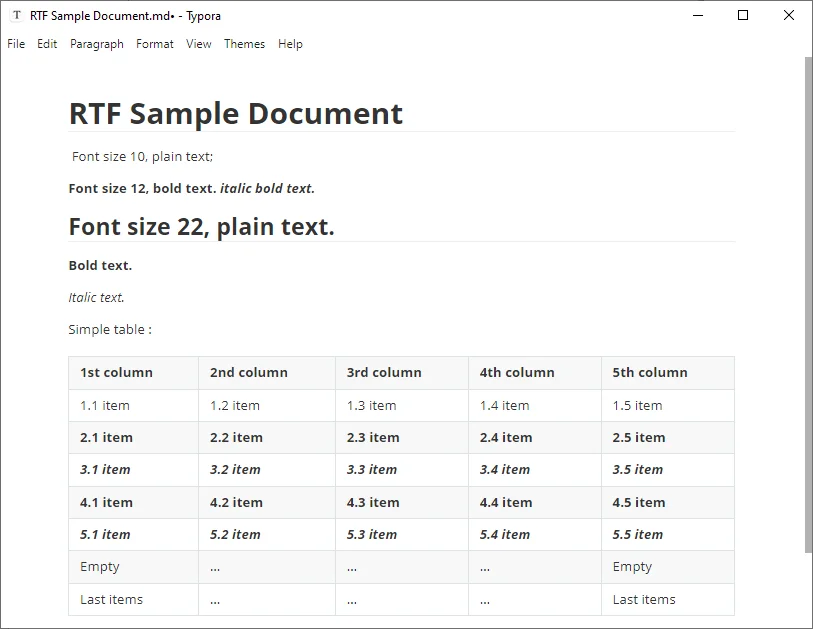
Here is the screenshot of the output Markdown file:
Pros & Cons:
✅ Pros: Allows selective conversion; quick for small files; full control over formatting.
❌ Cons: Inefficient for large documents; some complex RTF styling may be lost.
Method 2: Convert RTF to Markdown Online
For users who want a convenient, no-software solution, online converters provide a fast way to transform RTF content to MD. These tools are ideal for quick, one-off tasks.
Top Online Free RTF to Markdown Converters:
- Zamzar: A reliable file-upload service that converts .rtf files into downloadable .md files.
- Rich Text to Markdown: Allows you to paste or type rich text directly and copy or download the result Markdown.
How to Convert RTF to Markdown Online:
-
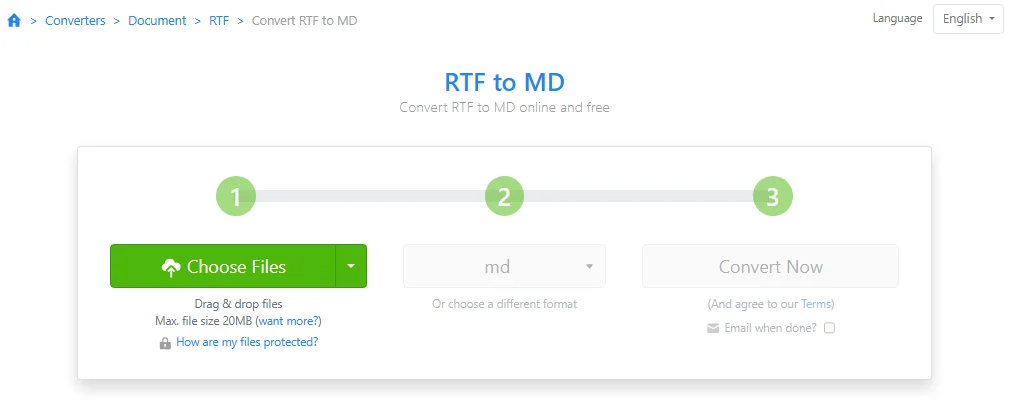
Upload your RTF file to a trusted online converter like Zamzar.
-
Select md as the output format.
-
Click Convert Now, then download your Markdown file.
Pros & Cons:
✅ Pros: Zero setup; easy for beginners;
❌ Cons: Privacy concerns; requires an internet connection.
Security Warning:
Avoid using online converters for sensitive company data or private legal documents, as files are processed on external servers - consider using offline methods instead.
You may also be interested in: Convert RTF to Word: 3 Easy Methods
Method 3: Use Pandoc for High-Fidelity RTF to Markdown Conversion
For users comfortable with basic scripting and seeking high-fidelity RTF to MD conversion, Pandoc is the industry-standard tool. Widely recommended by technical writers, it ensures accurate handling of images, tables, nested lists, and complex formatting.
Step-by-Step Guide:
-
Download and install Pandoc from the official website.
-
Open your Terminal (macOS/Linux) or Command Prompt (Windows).
-
Run the conversion command:
pandoc input.rtf -f rtf -t markdown -o output.md --extract-media=./mediaTip: To output GitHub Flavored Markdown (standard for GitHub/GitLab), change -t markdown to -t gfm.
Key Parameters Explained:
- input.rtf: Your source file name.
- --extract-media=./media: extracts all images from the RTF into a media folder and updates Markdown links automatically.
- output.md: The name of your new Markdown file.
Pros & Cons:
- ✅ Pros: Most accurate conversion; handles complex tables; free and open-source.
- ❌ Cons: Requires command-line knowledge.
Method 4: Batch Convert RTF Files to Markdown with C#
For developers or power users handling large volumes of documents, a C# script offers the most scalable solution. By automating the RTF to Markdown conversion, you can migrate entire archives in seconds, ensuring consistency across all files. This method is ideal for integrating into content pipelines or CI/CD workflows.
Prerequisites
Before starting, ensure you have the following:
- A C# IDE like Microsoft Visual Studio
- .NET Framework or .NET Core
- Spire.Doc for .NET - a document processing library that supports .rtf, .docx, .doc, and more.
You can install the library via NuGet through the command below:
PM> Install-Package Spire.Doc
C# Example: Batch Convert RTF Files to Markdown
The following code snippet demonstrates how to iterate through a directory and transform all .rtf files into clean .md documents:
using Spire.Doc;
using System.IO;

class Program
{
    static void Main(string[] args)
    {
        // Define source and destination paths
        string[] files = Directory.GetFiles(@"C:\Documents\RTF_Source\", "*.rtf");

        foreach (string file in files)
        {
            // Initialize Document instance
            Document document = new Document();
            document.LoadFromFile(file);

            // Save the RTF as Markdown
            string fileName = Path.GetFileNameWithoutExtension(file);
            document.SaveToFile(@"C:\Documents\MD_Output\" + fileName + ".md", FileFormat.Markdown);

            System.Console.WriteLine($"{fileName} converted successfully.");
        }
    }
}
Output:
Below is one example of the Markdown output after conversion:
**Bold Text** and *Italic Text*.

Here is a ***combination of bold and italic***.

- List item 1
- List item 2

Table:

| Header 1     | Header 2     | Header 3     |
|--------------|-------------|-------------|
| Row 1 Col 1  | Row 1 Col 2 | Row 1 Col 3 |
Tip: In addition to RTF to Markdown, this library can also be used for Word .docx or .doc to Markdown, as well as Markdown to Word/PDF.
Pros & Cons:
- ✅ Pros: Fastest method for bulk files; highly customizable; easily integrated into larger workflows.
- ❌ Cons: Requires C# environment setup; requires basic coding knowledge.
Comparison: Which RTF to Markdown Method Should You Choose
To help you decide, here is a quick comparison of all the RTF to Markdown methods discussed above:
| Method | Best For | Accuracy | Difficulty | Key Advantage |
|---|---|---|---|---|
| Copy & Paste | Short snippets | Medium | ⭐ | No installation required |
| Online Converters | One-off, simple files | Medium | ⭐ | Fast & browser-based |
| Pandoc | Complex docs & technical users | Highest | ⭐⭐⭐ | Handles images & tables perfectly |
| C# Script | Enterprise-grade batch processing | Highest | ⭐⭐⭐⭐ | Fully automatable for 100+ files |
Summary:
For simple files, copy & paste or online tools work fine. For complex or bulk conversions, Pandoc or automated C# scripts are the most reliable choice.
Troubleshooting Common Conversion Issues
- Broken Tables: Markdown only supports basic tables. RTF tables with merged cells or nested rows often break or lose formatting during conversion.
- Missing Images: Some web converters may strip images. Use Pandoc with the --extract-media flag if you need to preserve pictures from your original document.
- Unsupported Formatting & Styles: Markdown does not natively support font colors, highlights, or custom font families. Simplify your RTF to standard bold/italics before converting. If colors are essential, consider using HTML tags like <span style="color:red">text</span> if your target Markdown viewer supports HTML rendering.
- Encoding Errors: If you see strange characters (like Â), ensure your Markdown editor is set to UTF-8 encoding.
Pro Tip: Always review your Markdown after conversion to ensure formatting, tables, images, and special elements appear correctly. Even automated tools can miss subtle details.
Frequently Asked Questions: RTF to MD
Q1: What is the easiest way to convert RTF to Markdown?
A1: For most users, using an online RTF to Markdown converter like Zamzar is the fastest and easiest path.
Q2: Can I convert only part of an RTF file?
A2: Yes. The Copy & Paste method is best for this. Simply highlight the section you need and paste it into a Markdown-aware editor.
Q3: Which method preserves images and tables best?
A3: Pandoc is the most reliable option for maintaining tables, lists, and images with high fidelity.
Q4: Can I convert multiple RTF files to Markdown at once?
A4: Yes. Using C# with libraries like Spire.Doc, you can batch convert hundreds of RTF files into Markdown, fully automating the process.