Have you ever pressed Backspace or Delete several times, only to find that a blank page still refuses to disappear in Microsoft Word?
In Word, a blank page is rarely truly empty. It usually remains because of hidden formatting elements, such as extra paragraph marks, manual page breaks, section breaks, or the required paragraph after a table.
The safest way to fix the problem is to reveal what Word is hiding, identify the cause, and then remove the right element. This guide shows 5 practical ways to delete a blank page in Word, including a Python automation method for batch document cleanup.
Reveal What's Causing the Blank Page
Before trying any fix, turn on formatting marks so you can see the hidden elements that are creating the blank page.
-
Go to the Home tab.
-
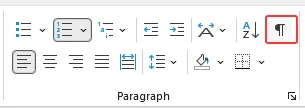
In the Paragraph group, click the Show/Hide ¶ button.
-
Or use the shortcut:
- Windows: Ctrl + Shift + 8
- Mac: Command + 8
Once the hidden marks are visible, check what appears on the blank page and choose the matching method below.
| What You See on the Blank Page | Best Method to Use |
|---|---|
| Extra ¶ paragraph marks | Delete extra paragraph marks |
| A ------- Page Break ------- line | Remove the manual page break |
| A ======= Section Break ======= line | Delete or adjust the section break |
| A ¶ paragraph mark right after a table at the page end | Shrink the paragraph after a table |
| Blank pages across dozens of files | Use Python to remove blank pages in batch |
5 Practical Ways to Delete a Blank Page in Word
Method 1: Delete Extra Paragraph Marks
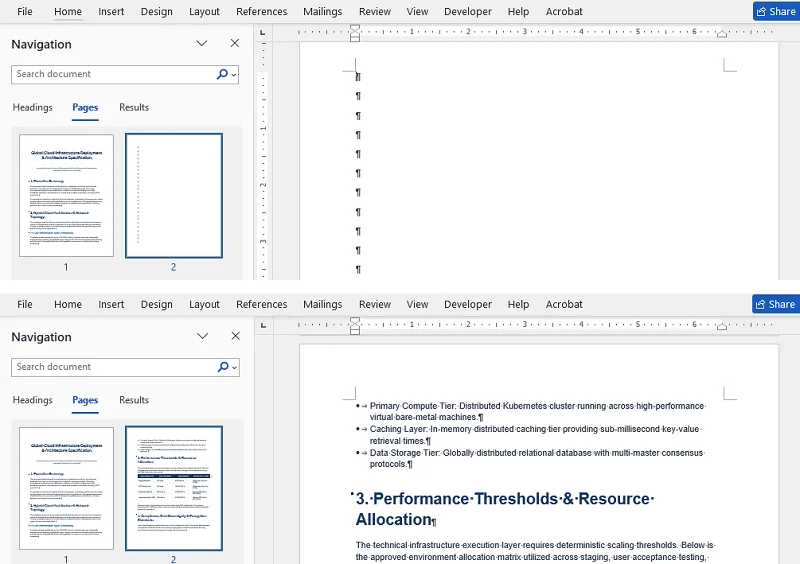
If your blank page contains one or more ¶ symbols, it is usually caused by pressing the Enter key too many times.
How to Fix It
- Click and drag your mouse to highlight all the extra ¶ marks on the blank page.
- Press Backspace or Delete on your keyboard.
Result
The extra paragraph marks are removed, and the blank page disappears.
⚠️ Important Note
Do not delete paragraph marks blindly throughout a formatted document. Some ¶ marks carry specific spacing, styles, or layout formatting. Only delete the marks that are actively creating the unwanted blank page.
Method 2: Remove the Manual Page Break
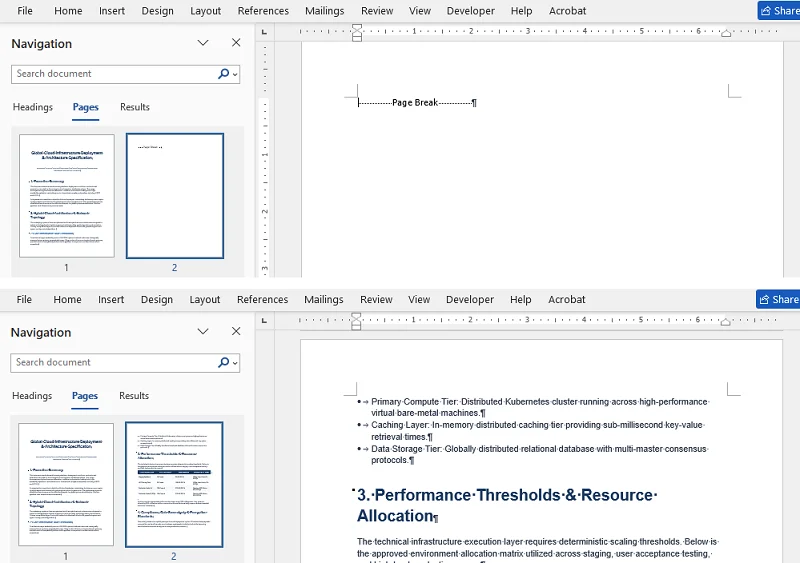
If you see a dotted line that explicitly says ------- Page Break -------, this is a manual break forcing the content after it to start on a fresh page.
How to Fix It
- Double click the ------- Page Break ------- line to select it.
- Press Delete on your keyboard.
Result
The manual page break is removed, and the content after it moves up.
Extra Tip
A manual page break is different from an automatic page break. Word creates automatic page breaks based on page size, margins, and content flow. Automatic page breaks cannot be deleted directly.
Method 3: Delete or Adjust a Section Break
If you see a ======= Section Break (Next Page) ======= line, Word may be starting the next section on a new page, which can leave a blank page in between.
To fix this, you have two options depending on whether you want to completely remove the break or keep its formatting benefits:
Option 1: Delete the Section Break Completely
- Place your cursor right before the ======= Section Break (Next Page) ======= line.
- Press Delete.
Option 2: Convert to a Continuous Section Break
-
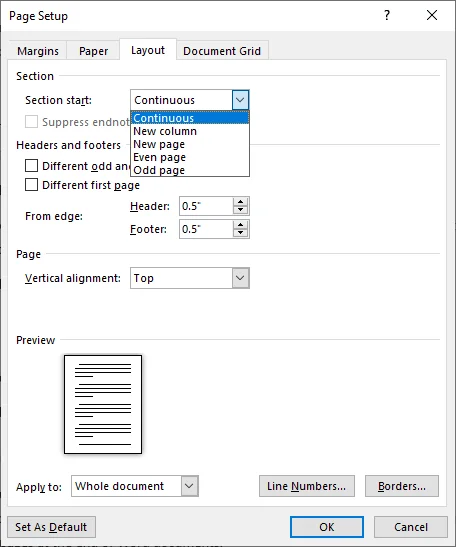
Double-click the ======= Section Break (Next Page) ======= line to open the Page Setup menu.
-
Switch to the Layout tab.
-
Change the Section start dropdown selection to Continuous, then click OK.
⚠️ Important Note
Deleting a section break can sometimes alter the headers, footers, or margins of the surrounding text because the content merges into the next section's formatting. If your layout breaks unexpectedly, press Ctrl + Z immediately to undo and use Option 2 instead.
Advanced Tip: Check Paragraph Pagination Settings
If you cannot find any manual page breaks or section breaks, but a blank page still appears, a hidden paragraph setting might be the cause.
- Look for a paragraph mark with a small square next to it on the blank page or at the top of the next page.
- Select that paragraph.
- Right-click and choose Paragraph.
- Open the Line and Page Breaks tab.
- Uncheck Page break before.
- Click OK.
This allows the paragraph to flow normally instead of forcing a new page.
Method 4: Shrink the Paragraph After a Table
According to Microsoft Support documentation, Word includes a non-deletable end paragraph, which can sometimes be pushed to a new blank page. This often happens when a table ends at the very bottom of a page.
How to Remove a Blank Page After a Table in Word
-
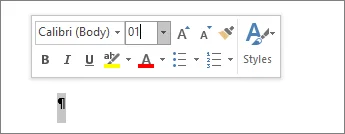
Select the paragraph mark (¶) right after the table.
-
Go to the Font Size box.
-
Type 1 and press Enter.
Extra Tip
If shrinking the font size to 1 doesn't work, try one of the following:
- Select the paragraph mark after the table, press Ctrl + D to open the Font dialog box, check Hidden under the Effects section, and click OK.
- Slightly reduce the bottom margin from Layout > Margins > Custom Margins. Use this carefully, because changing margins may affect the page layout.
Method 5: Use Python to Remove Blank Pages in Batch
If you are dealing with dozens or hundreds of Word documents cluttered with accidental blank pages, doing this manually is highly inefficient. You can use Python and the Spire.Doc for Python library to batch remove blank pages automatically without opening Microsoft Word.
Prerequisites
First, ensure you have Python 3.7 or above installed, then install Spire.Doc for Python via pip:
pip install spire.doc
For a step-by-step setup guide, check how to install Spire.Doc for Python.
Batch Remove Blank Pages from Word Documents with Python and Spire.Doc
This script automatically scans a folder, opens each Word .docx file, removes blank pages using the RemoveBlankPages() method, and saves the cleaned file.
import os
from spire.doc import Document, FileFormat

input_folder = "./input_docs/"
output_folder = "./cleaned_docs/"

# Create output directory if it doesn't exist
if not os.path.exists(output_folder):
    os.makedirs(output_folder)

# Loop through all files in the input folder
for filename in os.listdir(input_folder):
    if filename.endswith(".docx") and not filename.startswith("~$"):
        doc = Document()
        doc.LoadFromFile(os.path.join(input_folder, filename))

        # Remove blank pages automatically
        doc.RemoveBlankPages()

        # Save to the output folder
        doc.SaveToFile(os.path.join(output_folder, "cleaned_" + filename), FileFormat.Docx2016)
        doc.Close()
Pro Tip
- Always back up your original Word files before running any automation scripts on them.
- Test on a small number of files first and review the output documents before processing the entire folder.
Want to export the cleaned document to PDF? See our guide on converting Word to PDF in Python.
Conclusion
Most blank pages in Word are caused by hidden formatting elements, such as extra paragraph marks, page breaks, section breaks, or the required paragraph after a table. Once you reveal these marks, you can remove the blank page without damaging the document layout.
For one document, Word's built-in tools are usually enough. For repeated cleanup across many files, Python automation can make the process faster and more consistent.
Frequently Asked Questions
Q1: Why can't I remove a blank page in Word?
A: Blank pages are often caused by hidden elements such as extra paragraph marks, manual page breaks, or section breaks. Turn on formatting marks (¶) to identify and delete them.
Q2: Will removing a blank page affect my document's formatting?
A: It depends on the type of blank page. Deleting extra paragraphs or manual page breaks usually has minimal impact. However, removing section breaks can alter headers, footers, or margins, so be careful and use "Undo" if needed.
Q3: Can I delete blank pages in Word Online?
A: Yes, but with limitations. In Word Online, you can show formatting marks, then delete extra paragraph marks. However, some advanced formatting like section breaks may be harder to manage in Word Online.
Q4: How can I remove blank pages from multiple Word documents at once?
A: For bulk removal, you can use Python scripts with libraries like Spire.Doc to automatically detect and delete blank pages across multiple documents, saving time on repetitive manual edits.
Q5: Can I export a Word document without the last blank page?
A: Yes. If you only need a PDF or printed copy, you can exclude the last blank page by using a custom page range. For example, if page 5 is blank, go to File > Print and enter 1-4, or go to File > Export > Create PDF/XPS > Options and specify the pages you want to include. This does not delete the blank page from the Word document itself.