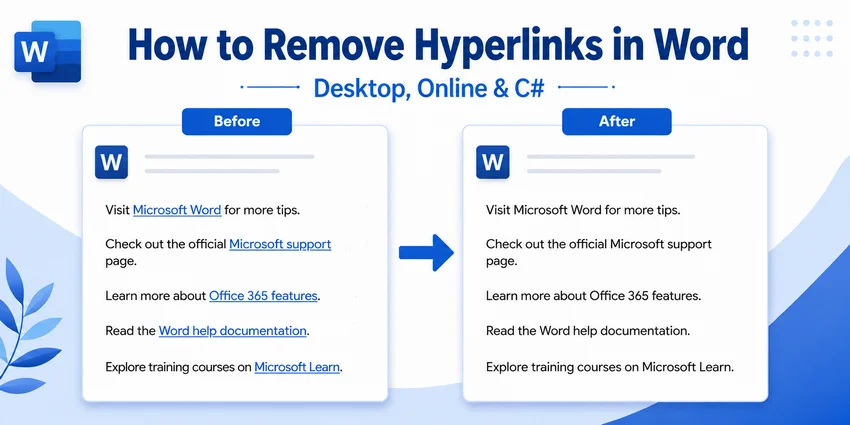
Quick Summary (TL;DR):
-
One or a few hyperlinks: Right-click the linked text and select Remove Hyperlink.
-
All hyperlinks in one document:
-
Windows: Press Ctrl + A, then Ctrl + Shift + F9.
-
Mac: Press Cmd + A, then Cmd + Shift + F9. If F9 is assigned to a macOS system function, use Cmd + Fn + Shift + F9 or press Cmd + 6.
-
-
No Word installed: Use Word for the web to remove hyperlinks in a browser.
-
Multiple Word files: Use C# batch processing to remove hyperlinks automatically.
Hyperlinks are useful for sharing websites, references, and other resources in a Word document. But when you’re preparing a document for printing, publishing, or reuse, those links can become unnecessary—or leave behind formatting you no longer want.
This guide shows how to remove hyperlinks in Word, from removing individual and all links in Microsoft Word to automating cleanup across multiple DOCX files with C#.
What you will learn:
- Remove a Hyperlink in Microsoft Word
- Remove All Hyperlinks in a Word Document at Once
- Remove Hyperlinks from Word Online
- Batch Delete Hyperlinks from Word Documents with C#
- Bonus: Prevent Word from Creating Hyperlinks Automatically
- Things to Check After Removing Word Hyperlinks
- Frequently Asked Questions
Remove a Hyperlink in Microsoft Word
Best for: Removing one or a few hyperlinks without affecting other document content.
If only a small number of links need to be removed, Word's built-in Remove Hyperlink command is the safest and most straightforward option. It removes the clickable destination while keeping the displayed text in place.
This method is especially useful in documents containing tables of contents, citations, cross-references, or other dynamic fields because only the selected hyperlink is affected.
Step-by-Step Instructions
-
Open the document in Microsoft Word.
-
Locate the hyperlink you want to remove.
-
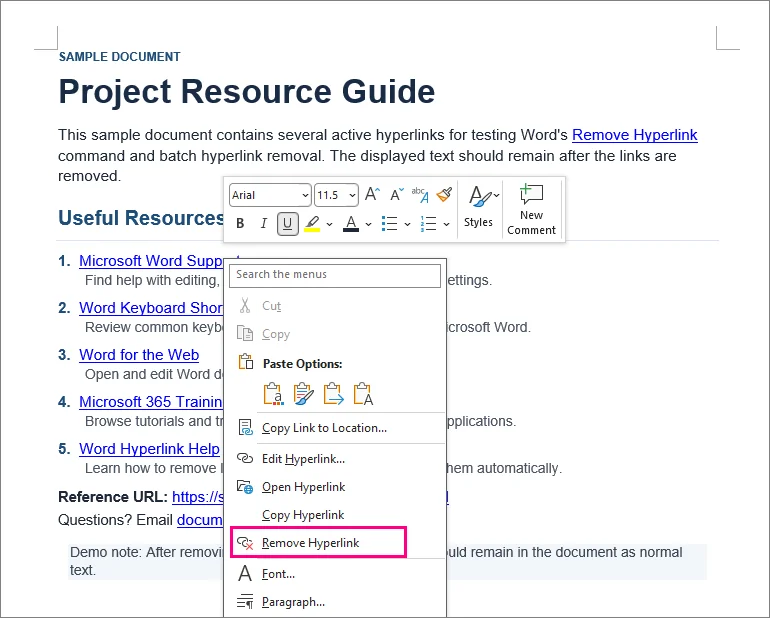
Right-click the linked text.
-
Select Remove Hyperlink.
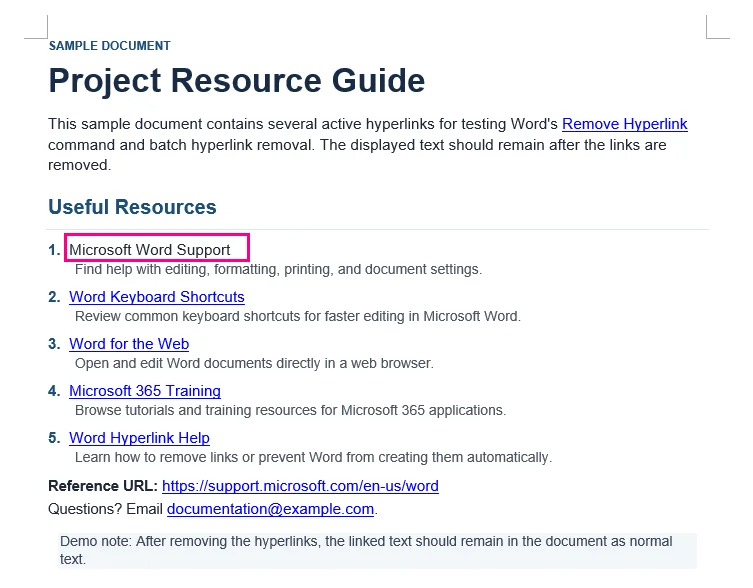
Result: The selected text remains in the document, but it is no longer clickable.
⚡ Tip: If you want to delete both the hyperlink and its displayed text, select the text and press Delete or Backspace instead.
Remove All Hyperlinks in a Word Document at Once
Best for: Quickly removing many hyperlinks from a relatively simple Word document.
Removing dozens of links one by one is time-consuming. Word provides a keyboard shortcut that can strip hyperlinks from the selected content in a single operation.
Remove All Hyperlinks on Windows
-
Press Ctrl + A to select all content in the document. You can also manually select only the section you want to process.
-
Press Ctrl + Shift + F9.
Remove All Hyperlinks on Mac
-
Press Cmd + A to select the document content.
-
Press Cmd + Shift + F9.
⚡ Tip: If your Mac uses F9 for a system or media function, use Cmd + Fn + Shift + F9 instead, or press Cmd + 6 to run Word's UnlinkFields command without relying on the F9 key.
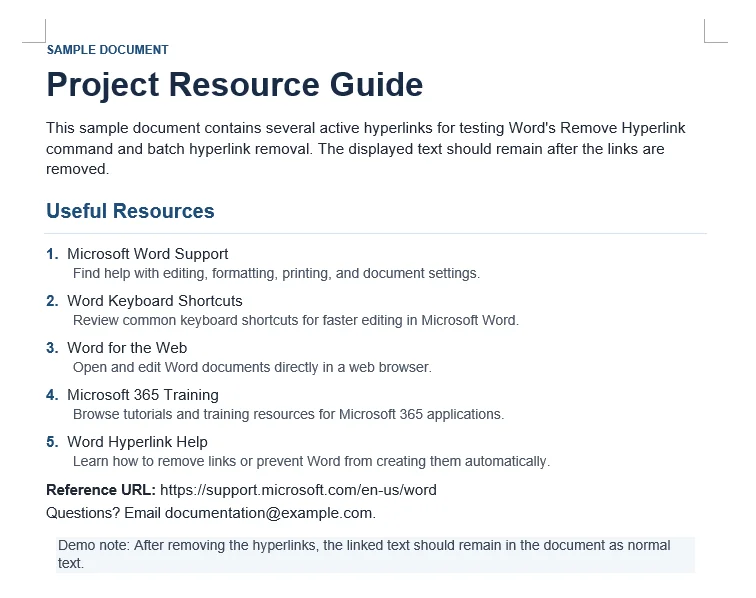
Result: All selected hyperlinks are converted into plain text while preserving the original wording.
⚠️ Important: Check Dynamic Fields Before Using This Shortcut
Ctrl + Shift + F9 is not a hyperlink-specific command. It is Word's general Unlink Field command.
That means other fields included in the selection can also be converted to static text. These may include:
-
Automatically generated tables of contents
-
Cross-references
-
Citation fields
-
Other dynamic Word fields
For reports, theses, manuals, or other documents that rely on dynamic fields, save a backup before using the shortcut. Also note that Ctrl + A normally selects the main document text. Hyperlinks in headers and footers may need to be handled separately.
Remove Hyperlinks from Word Online
Best for: Occasional hyperlink removal when the desktop version of Microsoft Word is unavailable.
If you don't have Word installed, you can open your document in Word for the Web to edit hyperlinks directly in a browser. This is convenient for a small number of links and requires zero software installation.
Option A: The Pop-up Toolbar (Fastest)
-
Click on the hyperlinked text.
-
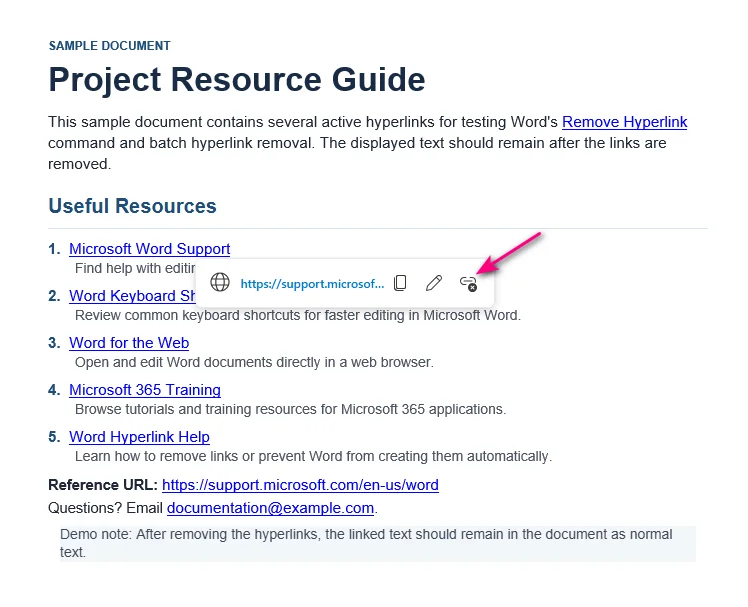
Click the Unlink icon (a chain link with a small "X") on the right side of the pop-up toolbar.
Option B: The Right-Click Menu
-
Right-click on the hyperlinked text.
-
Select Remove Hyperlink from the context menu.
Can't Remove a Hyperlink in Word for the Web?
Some links in Word for the Web may appear gray or be non-editable. Common causes include:
-
Track Changes: The link was created or edited while Track Changes was enabled.
-
Multi-paragraph links: The link spans multiple paragraphs and was created in the desktop version of Word.
Solution: Click Open in Desktop App (located in the Editing drop-down menu on the top ribbon) and remove the links in desktop Word.
Batch Delete Hyperlinks from Word Documents with C#
Best for: Developers automating backend document processing, cleaning up imported files, or processing large collections of Word documents.
Manual methods become inefficient when the same cleanup needs to be applied across many Word files. This is common when processing imported documents, preparing reports for publishing or archiving, or cleaning files generated by another system.
In these cases, hyperlink removal can be incorporated into a C# workflow. The following example uses Spire.Doc for .NET to batch remove hyperlinks from multiple DOCX files without requiring Microsoft Word to be installed.
Step 1: Install the .NET Word Library
Install Spire.Doc for .NET through NuGet using either the Package Manager Console or the .NET CLI.
NuGet Package Manager Console:
Install-Package Spire.Doc
.NET CLI:
dotnet add package Spire.Doc
After installation, the required namespaces can be referenced directly in your C# project.
Step 2: Write C# Code to Batch Remove Hyperlinks from DOCX Files
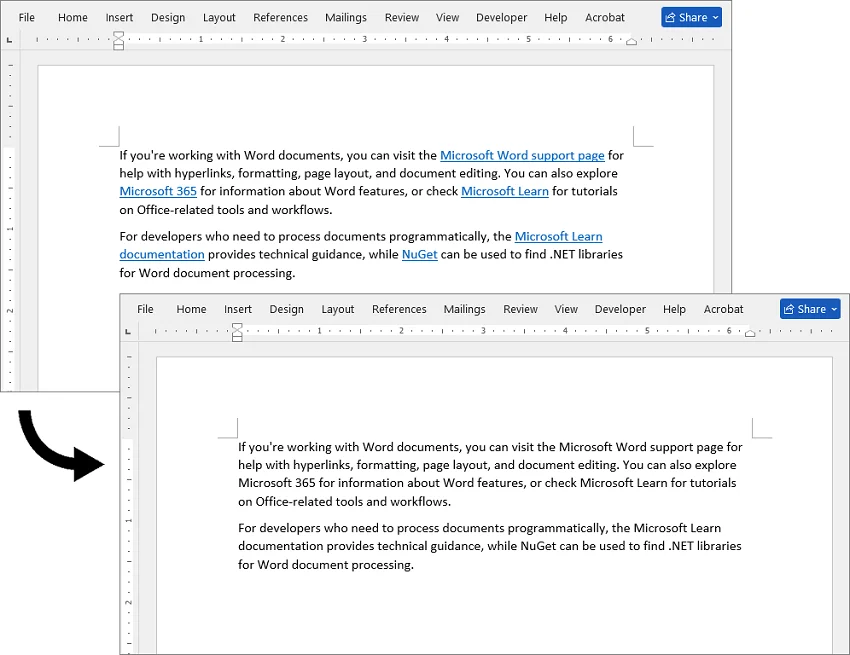
The following example scans an input folder for .docx files, identifies hyperlink fields in each document, removes the hyperlink fields while preserving the displayed text, and saves the processed files to a separate output folder.
using Spire.Doc;
using Spire.Doc.Documents;
using Spire.Doc.Fields;
using System;
using System.Collections.Generic;
using System.Drawing;
using System.IO;

namespace Remove_Hyperlinks
{
    class Program
    {
        static void Main(string[] args)
        {
            string inputFolder = @"C:\WordFiles\Input";
            string outputFolder = @"C:\WordFiles\Output";

            // Create the output folder if it does not exist
            Directory.CreateDirectory(outputFolder);

            // Process all DOCX files in the input folder
            foreach (string inputFile in Directory.GetFiles(inputFolder, "*.docx"))
            {
                // Skip temporary Word files
                if (Path.GetFileName(inputFile).StartsWith("~$"))
                    continue;

                // Create a Document instance
                Document doc = new Document();

                // Load a Word document
                doc.LoadFromFile(inputFile);

                // Find all hyperlinks
                List<Field> hyperlinks = FindAllHyperlinks(doc);

                // Flatten all hyperlinks
                for (int i = hyperlinks.Count - 1; i >= 0; i--)
                {
                    FlattenHyperlinks(hyperlinks[i]);
                }

                // Save the processed document
                string outputFile = Path.Combine(
                    outputFolder,
                    Path.GetFileName(inputFile));

                doc.SaveToFile(outputFile, FileFormat.Docx);
                doc.Close();

                Console.WriteLine(
                    $"Processed: {Path.GetFileName(inputFile)}");
            }
        }

        // Get all hyperlinks from the document body
        private static List<Field> FindAllHyperlinks(Document document)
        {
            List<Field> hyperlinks = new List<Field>();

            foreach (Section section in document.Sections)
            {
                foreach (DocumentObject sec in section.Body.ChildObjects)
                {
                    if (sec.DocumentObjectType == DocumentObjectType.Paragraph)
                    {
                        foreach (DocumentObject para
                                 in (sec as Paragraph).ChildObjects)
                        {
                            if (para.DocumentObjectType ==
                                DocumentObjectType.Field)
                            {
                                Field field = para as Field;

                                if (field.Type == FieldType.FieldHyperlink)
                                {
                                    hyperlinks.Add(field);
                                }
                            }
                        }
                    }
                }
            }

            return hyperlinks;
        }

        // Flatten a hyperlink field while retaining its displayed text
        private static void FlattenHyperlinks(Field field)
        {
            int ownerParaIndex =
                field.OwnerParagraph.OwnerTextBody.ChildObjects
                    .IndexOf(field.OwnerParagraph);

            int fieldIndex =
                field.OwnerParagraph.ChildObjects.IndexOf(field);

            Paragraph sepOwnerPara =
                field.Separator.OwnerParagraph;

            int sepOwnerParaIndex =
                field.Separator.OwnerParagraph.OwnerTextBody.ChildObjects
                    .IndexOf(field.Separator.OwnerParagraph);

            int sepIndex =
                field.Separator.OwnerParagraph.ChildObjects
                    .IndexOf(field.Separator);

            int endIndex =
                field.End.OwnerParagraph.ChildObjects
                    .IndexOf(field.End);

            int endOwnerParaIndex =
                field.End.OwnerParagraph.OwnerTextBody.ChildObjects
                    .IndexOf(field.End.OwnerParagraph);

            FormatFieldResultText(
                field.Separator.OwnerParagraph.OwnerTextBody,
                sepOwnerParaIndex,
                endOwnerParaIndex,
                sepIndex,
                endIndex);

            // Remove the field end marker
            field.End.OwnerParagraph.ChildObjects.RemoveAt(endIndex);

            // Remove the field code and separator
            for (int i = sepOwnerParaIndex; i >= ownerParaIndex; i--)
            {
                if (i == sepOwnerParaIndex && i == ownerParaIndex)
                {
                    for (int j = sepIndex; j >= fieldIndex; j--)
                    {
                        field.OwnerParagraph.ChildObjects.RemoveAt(j);
                    }
                }
                else if (i == ownerParaIndex)
                {
                    for (int j =
                            field.OwnerParagraph.ChildObjects.Count - 1;
                         j >= fieldIndex;
                         j--)
                    {
                        field.OwnerParagraph.ChildObjects.RemoveAt(j);
                    }
                }
                else if (i == sepOwnerParaIndex)
                {
                    for (int j = sepIndex; j >= 0; j--)
                    {
                        sepOwnerPara.ChildObjects.RemoveAt(j);
                    }
                }
                else
                {
                    field.OwnerParagraph.OwnerTextBody.ChildObjects
                        .RemoveAt(i);
                }
            }
        }

        // Set the retained hyperlink text to black and remove the underline
        private static void FormatFieldResultText(
            Body ownerBody,
            int sepOwnerParaIndex,
            int endOwnerParaIndex,
            int sepIndex,
            int endIndex)
        {
            for (int i = sepOwnerParaIndex;
                 i <= endOwnerParaIndex;
                 i++)
            {
                Paragraph para =
                    ownerBody.ChildObjects[i] as Paragraph;

                if (i == sepOwnerParaIndex &&
                    i == endOwnerParaIndex)
                {
                    for (int j = sepIndex + 1; j < endIndex; j++)
                    {
                        FormatText(para.ChildObjects[j] as TextRange);
                    }
                }
                else if (i == sepOwnerParaIndex)
                {
                    for (int j = sepIndex + 1;
                         j < para.ChildObjects.Count;
                         j++)
                    {
                        FormatText(para.ChildObjects[j] as TextRange);
                    }
                }
                else if (i == endOwnerParaIndex)
                {
                    for (int j = 0; j < endIndex; j++)
                    {
                        FormatText(para.ChildObjects[j] as TextRange);
                    }
                }
                else
                {
                    for (int j = 0;
                         j < para.ChildObjects.Count;
                         j++)
                    {
                        FormatText(para.ChildObjects[j] as TextRange);
                    }
                }
            }
        }

        // Set retained hyperlink text to black with no underline
        private static void FormatText(TextRange textRange)
        {
            if (textRange == null)
                return;

            textRange.CharacterFormat.TextColor = Color.Black;
            textRange.CharacterFormat.UnderlineStyle =
                UnderlineStyle.None;
        }
    }
}
Step 3: Run the Program
Update the input and output folder paths, place the DOCX files in the input folder, and run the application. The cleaned copies will be saved to the output folder with their original file names.
For a large batch, test the program on a few representative documents first.
Output:
⚠️ Technical Note: This C# snippet targets top-level body paragraphs. If your documents contain hyperlinks nested within tables, text boxes, or headers/footers, the traversal logic should be extended to scan those child elements recursively.
The code also resets the retained hyperlink text to black and removes its underline. If you only need to change the color or remove the underline from hyperlinks without removing the links, you can modify the hyperlink formatting separately.
Bonus: Prevent Word from Creating Hyperlinks Automatically
If the real problem is that Word keeps turning URLs and email addresses into links as you type, you can disable automatic hyperlink creation instead of repeatedly removing them afterward.
In Word for Windows
-
Click File in the top-left corner, then choose Options at the bottom of the sidebar.
-
Select the Proofing category from the left pane.
-
Click the AutoCorrect Options... button near the top.
-
Switch to the AutoFormat As You Type tab.
-
Uncheck the box next to Internet and network paths with hyperlinks.
-
Click OK to apply.
In Word for Mac
-
Click Word in the top Apple menu bar and select Preferences.
-
Open the AutoCorrect tool under the Authoring section.
-
Switch over to the AutoFormat As You Type tab.
-
Uncheck Internet and network paths with hyperlinks.
Changing this setting stops Word from formatting future links as you type. It will not touch or clean up hyperlinks that are already saved inside your current document.
Things to Check After Removing Word Hyperlinks
Removing hyperlinks is usually straightforward, but a few details are worth checking afterward, especially formatting, dynamic fields, and links in separate document areas.
-
Check Text Color and Underlines: If the text remains blue or underlined, set the font color to Automatic or match the surrounding text, then remove the underline if needed.
-
Verify Dynamic Fields: If you used the Ctrl + Shift + F9 shortcut, check your Table of Contents, cross-references, and citations. Ensure they weren't accidentally converted into un-updatable plain text.
-
Check Headers and Footers: Ctrl + A does not select text inside headers and footers. Double-click inside these specific areas manually to clear remaining hidden links.
Frequently Asked Questions
Q: Does removing a hyperlink delete the display text?
A: No. The Remove Hyperlink command removes the link while keeping the displayed text in place.
Q: How can I remove the blue underline without breaking the link?
A: Highlight the hyperlink, go to the Home tab, set the font color to Automatic or match the surrounding text, and then click the Underline button (or press Ctrl + U) to turn off the underline.
Q: How do I remove a hyperlink from an image in Word?
A: Right-click the hyperlinked image and select Remove Hyperlink. In automated document workflows, image hyperlinks can also be managed programmatically.
Q: Can I remove hyperlinks from Word without installing Word?
A: Yes. You can open and edit the file in a browser using Word for the web. For multiple files, you can also use C# with a software library like Spire.Doc to automate the removal.
Final Thoughts
Choosing the best way to remove hyperlinks depends on your editing context. For quick manual edits, Word's built-in commands and keyboard shortcuts are ideal. For automated document workflows or large DOCX file collections, C# script automation provides a reliable and scalable solution.