PDFs are great for preserving document layouts, but extracting tabular data from them can be frustrating. The main reason is that PDFs are designed for consistent visual rendering across devices, not for structured data extraction. As a result, tables may exist as selectable text in digital PDFs or as images in scanned files, with structures varying widely.
Fortunately, there are several practical ways to extract tables from PDFs, depending on your needs and technical comfort level. In this guide, we’ll walk through four effective methods, from simple no-code tools like Excel and Google Docs to a powerful Python-based solution for full control and automation.
Method overview:
- Method 1: Microsoft Excel (Built-in PDF Import)
- Method 2: Google Docs (Free & Simple)
- Method 3: Adobe Acrobat Pro (Export Feature)
- Method 4: Python (Full Control & Automation)
Method 1: Microsoft Excel (Built-in PDF Import)
Best for: Windows users with Microsoft Office 365 or Excel 2016+ (Windows only).
Microsoft Excel has a native PDF import feature that works surprisingly well for digital PDFs. It connects directly to the file and attempts to detect and convert tables.
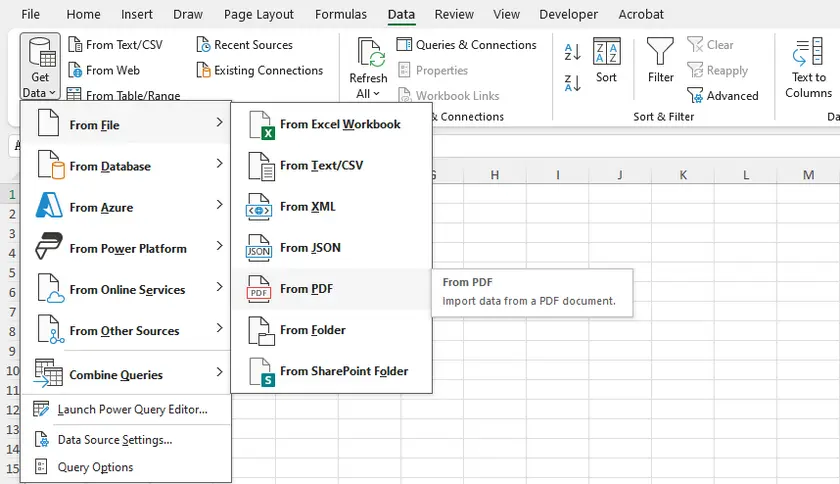
Step-by-Step Instructions
- Open Microsoft Excel.
- Go to Data → Get Data → From File → From PDF.
- Browse and select your PDF file.
- A navigator window will appear showing all detected tables and pages.
- Select the table(s) you want and click Load (to import directly) or Transform Data (to clean up before loading).
- Excel will import the table into a worksheet, preserving row/column structure reasonably well.
Pros & Cons
| Pros | Cons |
|---|---|
| No extra software needed (with Office) | Windows-only |
| Preserves numeric formats | Struggles with merged cells |
| Good for digital, text-based PDFs | No OCR for scanned PDFs |
| Can refresh data if PDF updates | Can be slow on large PDFs |
Method 2: Google Docs (Free & Simple)
Best for: Quick, one-off extractions when you don't have Excel or paid tools.
Google Docs offers a hidden but free method to extract tables from PDFs. It works by converting the entire PDF into an editable Google Doc, where tables become text-based grids.
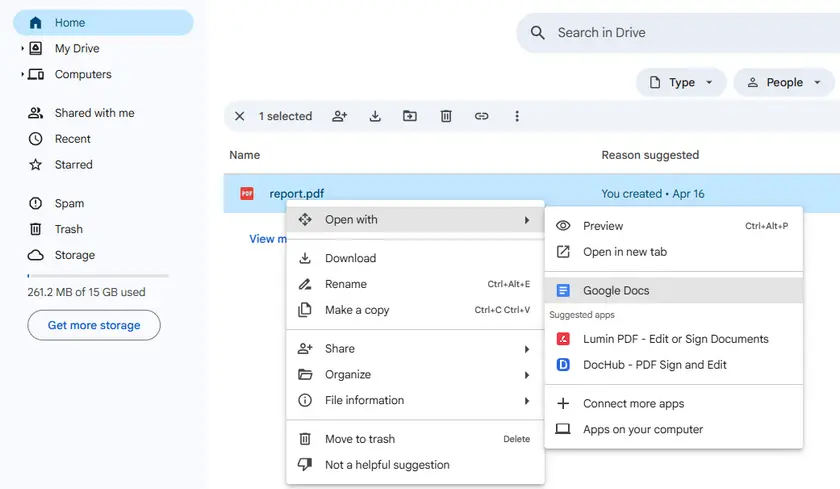
Step-by-Step Instructions
- Upload the PDF to Google Drive.
- Right-click the PDF → Open with → Google Docs.
- Wait for Google Docs to process the file.
- Scroll to find the table. It will appear as a text-based grid (rows and columns separated by spaces or tabs).
- Copy the table area and paste it into Google Sheets or Microsoft Excel.
Pros & Cons
| Pros | Cons |
|---|---|
| Completely free | No true table detection (just text alignment) |
| No software installation | Messy results with complex tables |
| Works on any OS with a browser | Poor handling of merged cells or multi-line cells |
| Handles simple tables reliably | No OCR (scanned PDFs appear as images) |
Method 3: Adobe Acrobat Pro (Export Feature)
Best for: Professionals who already have Acrobat Pro and need reliable exports from digital PDFs.
Adobe Acrobat Pro (not the free Reader) has a built-in export function that converts PDF tables directly to Excel or CSV. It preserves more formatting than free tools.
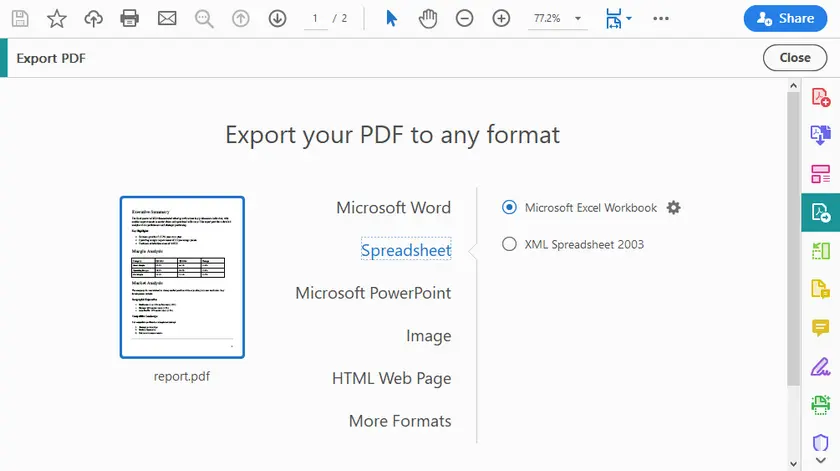
Step-by-Step Instructions
- Open the PDF in Adobe Acrobat Pro.
- Click Export PDF (right-hand toolbar).
- Select Spreadsheet → Microsoft Excel Workbook (or CSV).
- Click Export.
- Choose a location and save.
- Open the generated Excel file and verify the tables.
Additional Tips
- Use the Recognize Text (OCR) option first if dealing with scanned PDFs.
- For multi-page tables, Acrobat often concatenates them intelligently.
- You can export selected pages only to save time.
Pros & Cons
| Pros | Cons |
|---|---|
| High accuracy for digital PDFs | Expensive (subscription required) |
| Handles multi-page tables well | No fine-grained control over extraction |
| Preserves formulas and numbers | Still struggles with highly complex nested tables |
| Batch processing available | Windows/macOS only (no web version) |
Method 4: Python (Full Control & Automation)
Best for: Developers, data scientists, and advanced users who need maximum flexibility, handle scanned PDFs, or process batch files.
Python gives you complete control over the extraction process. You can handle digital PDFs with libraries like pdfplumber, camelot, or Spire.PDF for Python (a commercial library with a free version available). Below is a practical example using Spire.PDF to extract tables and save them as clean text files.
Installation
pip install spire.pdf
Complete Code Example (Extract Tables to TXT Files)
The following code extracts all tables from a specific PDF page and saves each table as a separate text file in CSV-like format:
from spire.pdf.common import *
from spire.pdf import *

# Create a PdfDocument object
doc = PdfDocument()

# Load a PDF file
doc.LoadFromFile("report.pdf")

# Create a PdfTableExtractor object
extractor = PdfTableExtractor(doc)

# Extract tables from a specific page (page index starts from 0)
tableList = extractor.ExtractTable(0)

# Determine if the table list is not empty
if tableList is not None:

    # Loop through the tables on the page
    for i in range(len(tableList)):

        # Create a new list to store data for this table
        builder = []

        # Get a specific table
        table = tableList[i]

        # Get row number and column number
        row = table.GetRowCount()
        column = table.GetColumnCount()

        # Loop through each row and column
        for m in range(row):
            for n in range(column):

                # Get text from the specific cell
                text = table.GetText(m, n)

                # Add the text followed by a comma (CSV-style)
                builder.append(text + ",")
            builder.append("\n")  # End of row
        builder.append("\n")      # Blank line between tables

        # Write the content into a text file
        with open(f"output/Table-{i + 1}.txt", "w", encoding="utf-8") as file:
            file.write("".join(builder))

# Close the document
doc.Close()
Output:
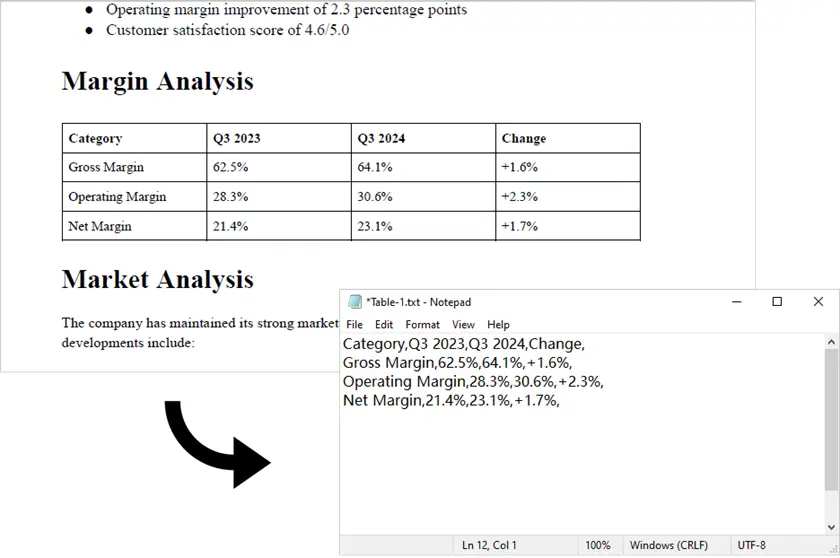
Note: This script works only with digitally generated PDFs (text-based). For scanned PDFs, Spire.PDF alone is not sufficient. In such cases, you can first convert the PDF to images using Spire.PDF, then apply an OCR engine like pytesseract along with additional processing logic to detect and extract table data.
Why Python?
- Handles both digital and scanned PDFs (with OCR integration)
- Batch processing of hundreds of files
- Customizable post-processing (cleaning, merging, validating)
- Can be integrated into web apps, APIs, or ETL pipelines
- You control exactly how tables are formatted and saved
As a comprehensive PDF library, Spire.PDF for Python not only extracts tables from PDFs but also supports extracting images, metadata, and attachments. In addition, it can export entire documents to formats such as Word, Excel, and TXT.
Pros & Cons
| Pros | Cons |
|---|---|
| Full control over extraction logic | Requires programming knowledge |
| Handles complex and multi-page tables | Steeper learning curve |
| Batch processing of thousands of files | Spire.PDF requires a license for commercial use (free for personal) |
| Clean, reproducible results | Table detection isn't perfect on all PDFs |
| Easy to integrate with pandas, Excel, or databases |
Comparison Table: Choosing the Right Method
| Method | Ease of Use | Handles Scanned PDFs | Batch Processing | Cost | Best For |
|---|---|---|---|---|---|
| Excel | Medium | x | x | Requires Office | Quick, one-off digital tables |
| Google Docs | High | x | x | Free | Simple tables, no software |
| Adobe Acrobat Pro | High | √ | x | Paid | Professional, non-technical users |
| Python | Low | √ | √ | Free / Paid | Maximum flexibility, large-scale, scanned PDFs |
Conclusion
Extracting tables from PDFs doesn't have to be a headache. The right method depends entirely on your specific situation:
- For a one-time, simple table → Try Google Docs or an online tool first.
- For professional, polished results → Use Excel or Adobe Acrobat Pro if you have access.
- For maximum control, complex tables, or scanned documents → Python is your best bet.
Start with the simplest method that meets your needs. As your requirements grow (more files, scanned documents, custom cleaning), you can always graduate to more powerful tools like Python. The key is to recognize that table extraction is not a one-size-fits-all problem—and now you have four ways to solve it.
FAQs
Q1. Why is it hard to extract tables from PDFs?
Because PDFs store content as positioned text rather than structured data tables, making extraction less straightforward.
Q2. Which method gives the most accurate results?
Adobe Acrobat Pro generally provides the best accuracy for complex tables.
Q3. Can I extract tables from scanned PDFs?
Yes, but it requires OCR (Optical Character Recognition). Tools like Adobe Acrobat or Spire.PDF (with an OCR component) can convert scanned images into machine-readable text, after which table data can be detected and extracted.
Q4. Is Python better than other methods?
It depends. Python is best for automation and large-scale processing, but overkill for one-time tasks.
Q5. Can I convert extracted tables directly to Excel?
Yes. Most tools (Excel, Acrobat) support direct export to .xlsx, while Python can be extended to do the same.