ODP (OpenDocument Presentation) files are widely used in open-source environments for creating and collaborating on presentations. However, sharing ODP files can be tricky, as not everyone has the software required to view them. Converting ODP to PDF ensures your slides are viewable everywhere and ready for sharing, printing, or archiving.
In this guide, we will walk you through 5 proven and reliable methods to convert ODP to PDF while preserving formatting, ranging from desktop applications and online tools to automated batch processing using C#.
ODP to PDF Methods Overview
- Method 1 - LibreOffice / OpenOffice (High-Accuracy Desktop Conversion)
- Method 2 - Microsoft PowerPoint (Office-Based Conversion)
- Method 3 - Online Tools (No Installation Required)
- Method 4 - Command-Line Tools (Automation & Scripting)
- Method 5 - C# Batch Processing (Developer Solution)
What Is an ODP File?
An ODP file is an editable presentation format that belongs to the OpenDocument standard. It is mainly created and edited using open office suites like:
- LibreOffice Impress
- Apache OpenOffice Impress
Unlike the universal PDF format, which freezes content for distribution, ODP files are built for ongoing modification and require a compatible viewer or editor to open.
Why Convert ODP to PDF?
Converting ODP to PDF helps solve several practical issues in real use:
- Ensure your slides look consistent on Windows, macOS, Linux, and mobile devices.
- Open presentations without installing LibreOffice or OpenOffice.
- Prevent layout shifts when opened on different devices.
- Create professional, print-ready presentations with consistent formatting.
- Store presentations in a stable, non-editable format for archiving or documentation.
With these benefits in mind, let's explore the most reliable methods for achieving this conversion.
Method 1 - Convert ODP to PDF via LibreOffice / OpenOffice (High-Accuracy Desktop Conversion)
If you want to convert ODP to PDF without formatting issues, using LibreOffice or OpenOffice is the most reliable approach. These applications natively support the OpenDocument format, which means they can render your slides exactly as designed-avoiding the layout shifts or font errors often found in third-party converters.
Step-by-Step Guide (Using LibreOffice Impress as an example):
-
Open your ODP file in LibreOffice Impress.
-
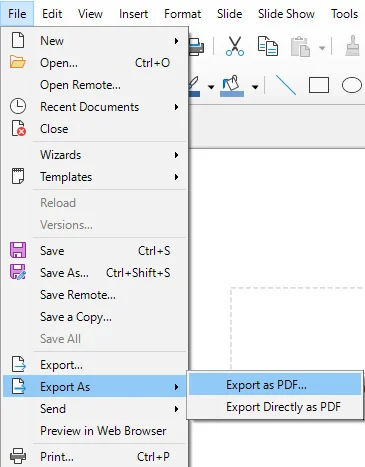
Navigate to the top menu and select File > Export As > Export as PDF.
-
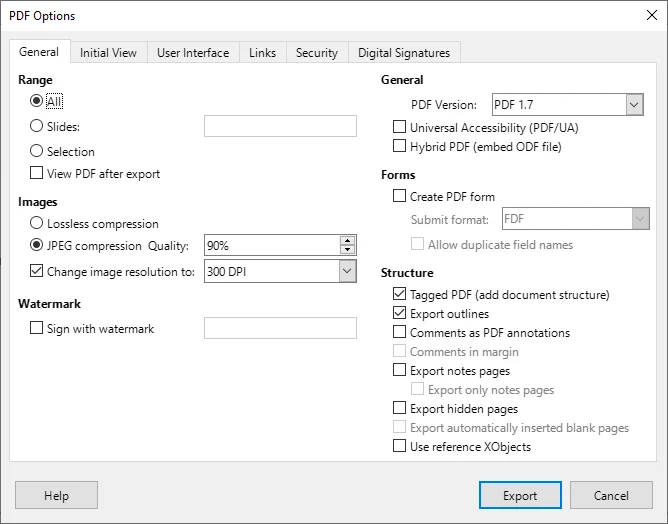
In the pop-up dialog, customize PDF settings like image compression, watermarks, and page range.
-
Click Export, choose a destination folder, and hit Save.
Pro Tips:
- Use File > Export As > Export Directly as PDF for faster conversion if no customization is needed.
- This method works identically on Windows, macOS, and Linux.
When to Use:
Best for cases where layout accuracy is critical, such as business presentations, reports, or client-facing documents.
Method 2 - Export ODP as PDF with Microsoft PowerPoint (Office-Based Conversion)
If you're an Office user, Microsoft PowerPoint provides an easy solution to export ODP files to PDFs. This method is available in PowerPoint 2010 and newer versions, as well as Microsoft PowerPoint 365. It’s a great choice for those who frequently use PowerPoint and want to convert ODP files without external tools.
Steps:
-
Launch Microsoft PowerPoint, go to File > Open, and select your .odp file.
- Pro Tip: If the file is not visible, toggle the file type filter to All Files.
-
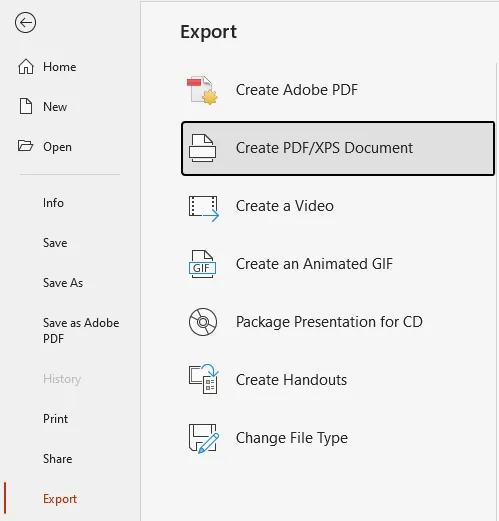
Go to File > Export > Create PDF/XPS Document.
- Alternative: Press F12, then select PDF (*.pdf) for a faster save.
-
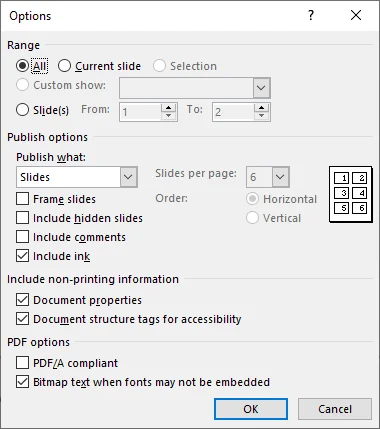
Click the Options... button to configure settings like:
- Include non-printing information (preserve document properties or structure tags)
- Bitmap text when fonts may not be embedded (this ensures the PDF looks consistent on all devices).
-
Choose the destination folder and click Publish to export your presentation as a PDF.
Tips and Notes:
- Advanced styles or specific ODF-only shapes might require minor manual adjustment after opening in PowerPoint.
- PowerPoint 2024 and Microsoft 365 support ODF 1.4, while PowerPoint 2013–2019 supports ODF 1.2. Older versions such as PowerPoint 2010 only support ODF 1.1, which offers limited compatibility with newer ODP files.
When to Use:
When you prefer the PowerPoint interface for conversion and don't need perfect layout accuracy.
Want to convert ODP to PPTX? Read our conversion guide.
Method 3 - Convert ODP to PDF Using Online Tools (No Installation Required)
For users who want a software-free solution, online ODP-to-PDF converters are a quick and convenient option. They work across devices and require no setup.
Recommended Online Converters:
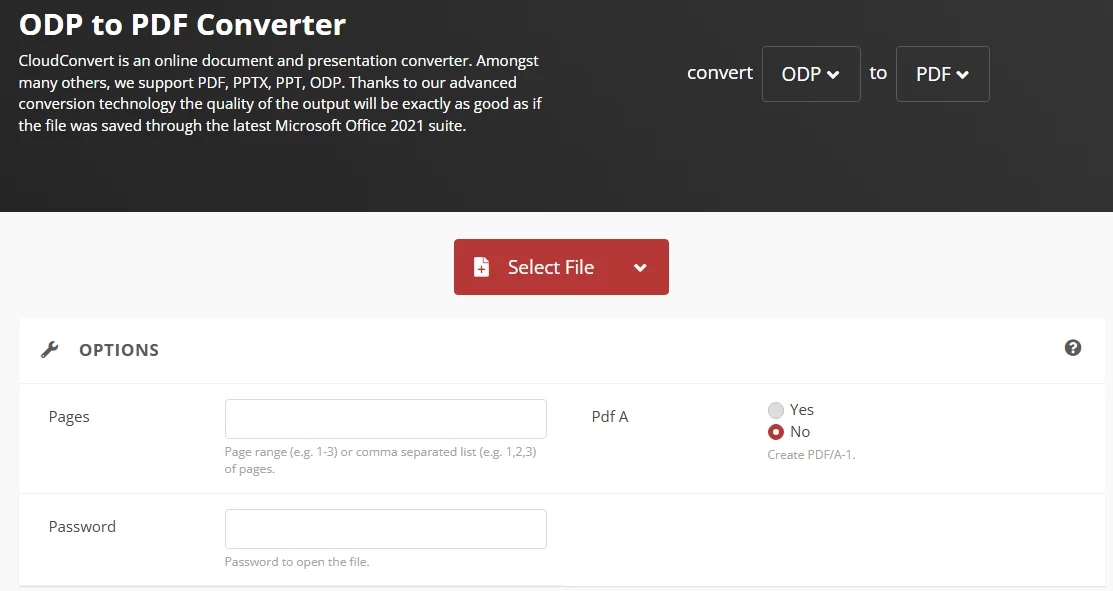
- CloudConvert - Supports ODP to PDF conversion along with a wide range of other file formats. Offers customization options like page range and password encryption.
- Google Slides - A cloud-based platform that can open ODP files and export them as PDFs, maintaining most layout and font formatting.
- Zamzar - A user-friendly online converter that easily converts presentations, including ODP files, into PDFs. No installation required.
Steps to Convert ODP to PDF Online:
-
Go to the website of your chosen online converter (e.g., CloudConvert).
-
Upload your ODP file.
-
Select PDF as the output format.
-
Click Convert and wait for the process to complete.
-
Download your converted PDF once the process finishes.
Security Warning and Tips:
- While convenient, online tools are not ideal for sensitive or proprietary content. Always verify the privacy policies of the platform before uploading your files.
- Some online converters have file size limits (usually 50-100M). If necessary, split large PowerPoint presentations before uploading.
When to Use:
Ideal for quick, occasional conversions, especially when you're on the go and need to convert files from any device.
Method 4 - Automate ODP File to PDF Conversion with Command-Line Tools
For users who want to automate ODP to PDF conversion in scripts or scheduled workflows, LibreOffice provides a command-line interface that runs in headless mode. This allows the conversion process to run in the background without opening the application, making it suitable for integration into automated systems and scheduled tasks.
Steps:
-
Install LibreOffice:
Ensure LibreOffice is installed and accessible from the command line.
-
Open Terminal / Command Prompt:
Navigate to the folder where your ODP file is located.
-
Run the conversion command:
Use LibreOffice in headless mode to convert your ODP file:
soffice --headless --convert-to pdf "yourfile.odp" -
Integrate into automation scripts:
You can include this command in Bash scripts, PowerShell scripts, or scheduled tasks to trigger conversion automatically based on time or system events. -
Verify the PDF output:
After execution, check the generated PDF to ensure formatting and layout are preserved correctly.
When to Use:
Ideal for developers and IT professionals who need automated conversion in script-based or scheduled environments.
Method 5 - Batch Convert ODP to PDF Using C# (Developer Solution)
For developers and technical teams managing large volumes of ODP files, manual conversion is inefficient. Using C# with an independent presentation library like Spire.Presentation for .NET, you can handle bulk ODP to PDF conversions quickly and seamlessly without installing LibreOffice or PowerPoint.
Steps:
-
Install Spire.Presentation for .NET:
Install Spire.Presentation from NuGet via the following command, or download it from the official website.
Install-Package Spire.Presentation -
Write C# Code for Batch Conversion:
Below is an example of how to batch convert multiple ODP files to PDFs in one go:
using Spire.Presentation;
using System.IO;

class Program
{
    static void Main()
    {
        string[] files = Directory.GetFiles(@"C:\Path\To\ODP_Folder", "*.odp"); // Replace the path with your folder path
        foreach (string file in files)
        {
            Presentation presentation = new Presentation();
            presentation.LoadFromFile(file);
            string pdfOutput = Path.ChangeExtension(file, ".pdf");
            presentation.SaveToFile(pdfOutput, FileFormat.PDF);
        }
    }
}
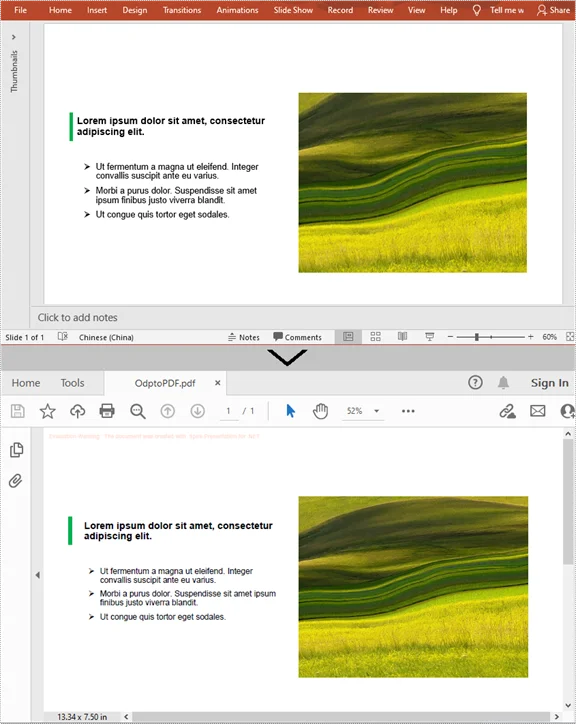
This script processes all ODP files in the specified folder and save them as PDFs under the same folder. Just place your ODP files in one directory, and the program will handle the conversion.
Output:
Tip:
You can further customize the script to include error handling, logging, or additional file processing as needed.
When to Use:
Ideal for developers or teams needing to perform bulk ODP-to-PDF conversions, especially when handling large volumes of files on a server.
Comparison of All ODP to PDF Methods
| Method | Best For | Ease of Use | Accuracy | Automation |
|---|---|---|---|---|
| LibreOffice/OpenOffice | High-quality conversion | Easy | ★★★★★ | Low |
| PowerPoint | Office users | Easy | ★★★☆ | Low |
| Online Tools | Quick conversion | Very easy | ★★★ | None |
| Command Line Tools | Power users | Medium | ★★★★ | High |
| C# Automation | Developers / batch processing | Advanced | ★★★★ | Very High |
Which method should you choose?
Choose the right ODP to PDF method according to your needs and workflow:
- For accuracy, desktop applications like LibreOffice are ideal.
- For quick usage, online tools are sufficient.
- For automation or bulk processing, command-line and C# solutions provide the most flexibility.
Tips for Better ODP to PDF Conversion
- Test the output on different devices to ensure layout integrity.
- Avoid overly complex animations if aiming for universal compatibility.
- For automation, validate input files to prevent crashes during batch processing.
- Delete uploaded files from online services after download to maintain security.
Common Conversion Issues & Solutions
- Fonts Not Displaying Correctly: Embed or outline fonts in LibreOffice/OpenOffice. In PowerPoint, enable "Bitmap text when fonts may not be embedded."
- Large File Sizes After Conversion: Use image compression during export or configure compression settings in online converters.
- PDF Layout Shifts: Use native ODP converters (LibreOffice/OpenOffice) and avoid advanced animations or ODF-only shapes in PowerPoint.
- Unable to Open ODP File in PowerPoint: Ensure your PowerPoint version supports ODP 1.4+. Otherwise, save as PPTX in LibreOffice/OpenOffice first.
- Batch Conversion Fails or Skips Files: Check file paths and extensions. Include error handling in scripts.
- Online Converter Upload Fails: Split large files or use a desktop tool. Ensure stable internet connection.
Frequently Asked Questions
Q1: Can I convert ODP to PDF for free?
A1: Yes, online converters like CloudConvert, Zamzar, and Online2PDF offer free services to convert ODP files to PDF. However, some free tools may have file size limitations.
Q2: Will animations or transitions be preserved when converting ODP to PDF?
A2: No. PDF format doesn't support animations. Use notes or video exports if animations are important.
Q3: Can I convert multiple ODP files to PDF at once?
A3: Yes. For bulk conversion, use C# automation. Online converters generally only support one file at a time or limit batch sizes.
Q4: Why do some ODP elements look different in PowerPoint?
A4: PowerPoint does not fully support all OpenDocument-specific features, such as custom shapes or advanced styles. Use LibreOffice/OpenOffice for the most accurate conversion.
Q5: How can I reduce PDF size during conversion?
A5: Reduce image resolution, remove unnecessary objects, or enable compression options in the PDF export dialog. Some online converters also provide PDF optimization settings.