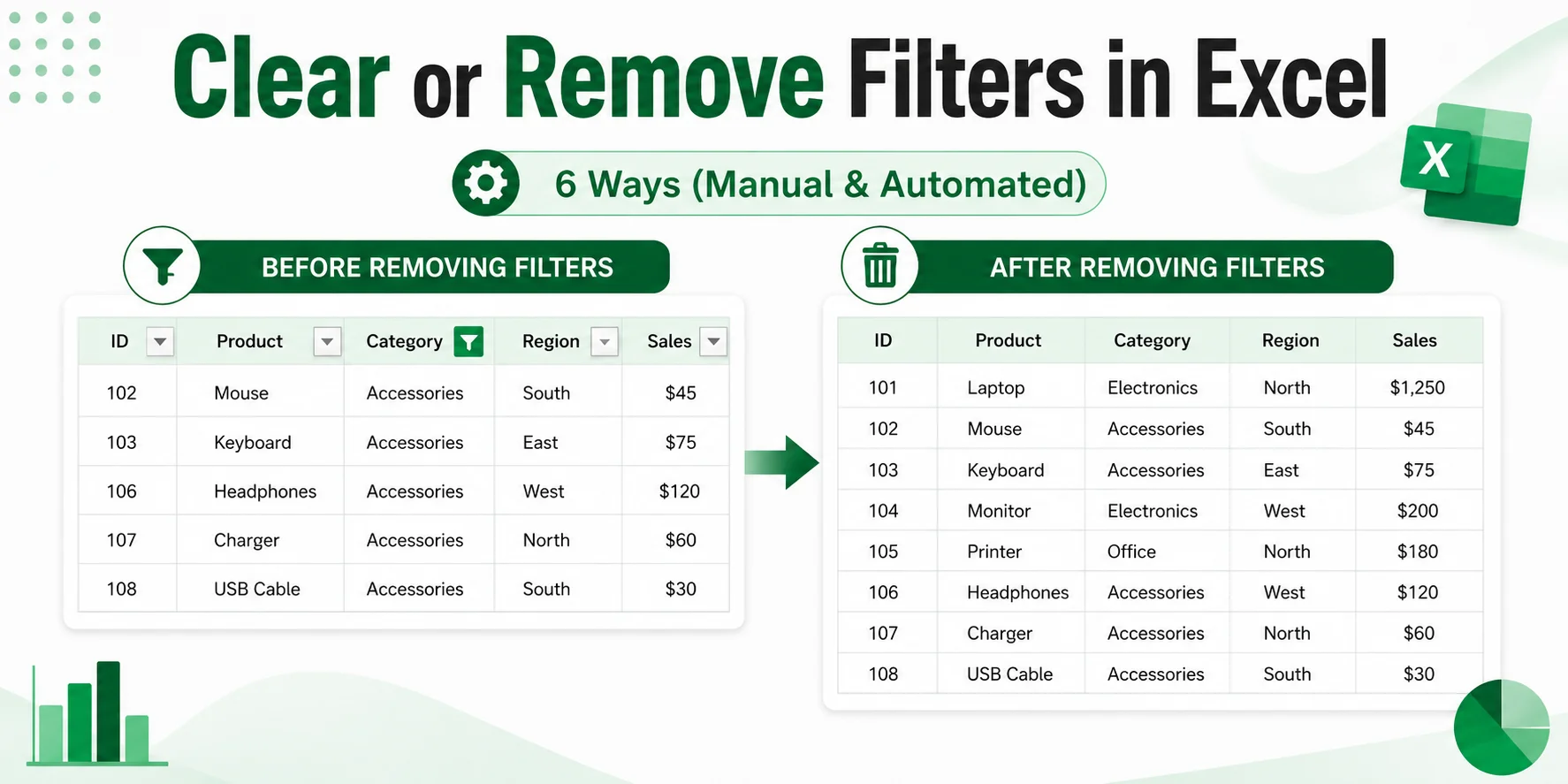
- Clear vs. Remove Filters in Excel
- Part 1: Quick Solutions for Daily Excel Users (Desktop & Web)
- Part 2: Automation Solutions for Power Users & Developers
- Summary: Which Method Should You Choose?
- FAQs
Filters in Excel make it easier to focus on specific records in a large worksheet. But when a report is ready to share, a filtered workbook is reused, or you need to review the complete dataset, active filters can hide important rows or leave unnecessary filter arrows in place.
Clearing or removing filters in Excel is straightforward, but the right method depends on what you want to keep. You may only need to reset one column, clear all active filters while keeping the filter controls, remove the filter arrows completely, or clean filters from multiple workbooks at once. This guide covers six practical methods to achieve these using desktop Excel, Excel for the web, VBA, and C#.
Clear vs. Remove Filters in Excel
Clearing filters and removing filters in Excel are not the same action. Understanding the difference helps you reset your data views efficiently without disrupting your workflow:
| Action | What It Does | Filter Arrows |
|---|---|---|
| Clear Filter | Removes active filter criteria and shows the data hidden by those filters | Remain |
| Remove Filter | Turns filtering off and removes the filter controls completely | Removed |
When to Use Which
- Use Clear when you want to reset your current view and continue filtering.
- Use Remove when you no longer need filtering on the range and want a clean presentation view.
Part 1: Quick Solutions for Daily Excel Users (Desktop & Web)
If you are currently working inside the desktop or web version of Excel, use the manual methods below to clear or remove filters.
Important Note: The operations described below apply to standard cell ranges and Tables.
Method 1: Clear a Filter from a Single Column
Use this method when you have active filters across multiple columns (e.g., Country and Year) but only want to reset the criteria for one column without changing the filters applied to the others.
Step-by-Step Instructions
- Click the filter icon in the header of the filtered column.
- Select Clear Filter From "[Column Name]".
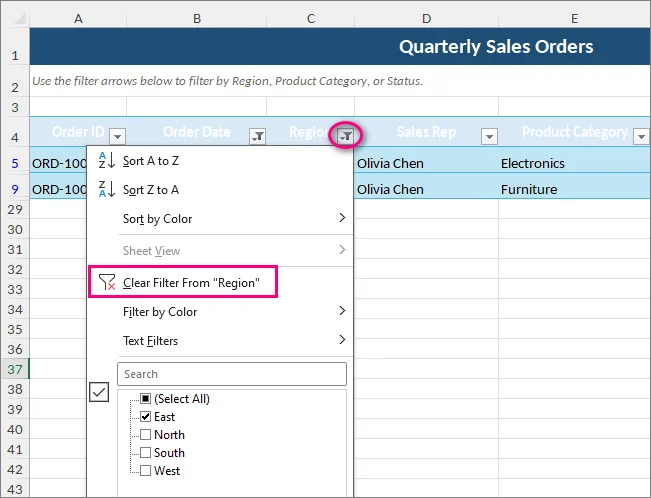
Keyboard Shortcuts
- Windows: Click the header cell of the filtered column, press Alt + Down Arrow to open the filter menu, then press C.
- Mac: Select the header cell, press Option + Down Arrow to open the filter menu, then select Clear Filter.
Result: Excel redisplays rows hidden by that column’s filter, while filters on other columns remain active.
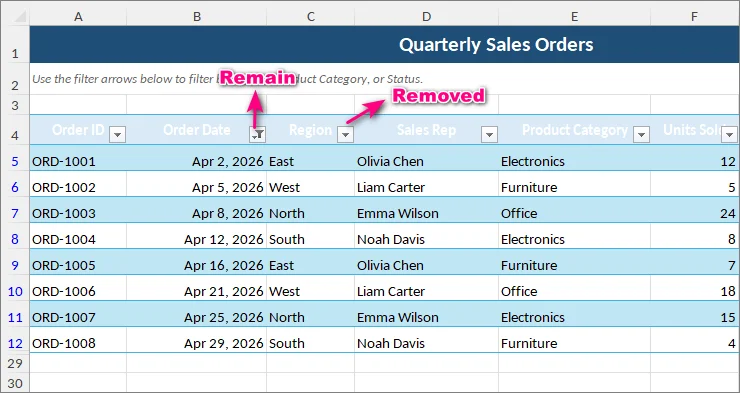
Tip: If you cannot select the filter icon, check whether your worksheet is protected. Sheet protection can block filter-reset actions.
Method 2: Clear All Filters within a Worksheet
Use this method when multiple columns are filtered, and you need to restore the full dataset at once, without turning off the filtering feature.
Step-by-Step Instructions
- Go to the Data tab on the Excel Ribbon.
- In the Sort & Filter group, click the Clear button.
(Alternatively, go to the Home tab > Sort & Filter (in the Editing group) > Clear).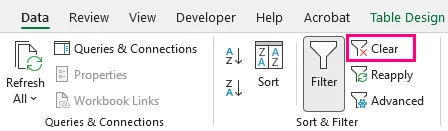
Keyboard Shortcuts
- Windows: Press Alt + A + C in sequence.
- Mac: Excel for Mac does not have a native shortcut for clearing filters. Use the ribbon method above.
Result: Excel redisplays rows hidden by active filters across the worksheet while keeping the filter dropdown arrows on the header row.
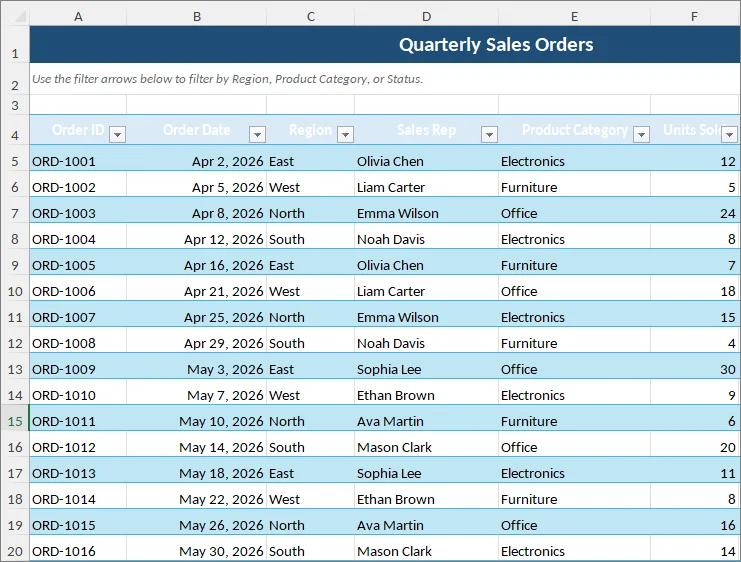
Method 3: Remove Filters and Filter Arrows Completely
If you want to turn off the filtering feature entirely and remove the dropdown arrows from your dataset headers, this is the method for you.
Step-by-Step Instructions
- Click any cell inside your data range.
- Go to the Data tab on the Excel Ribbon.
- In the Sort & Filter group, click the Filter button (the large funnel icon) to toggle it off.
(Alternatively, go to the Home tab > Sort & Filter > Filter).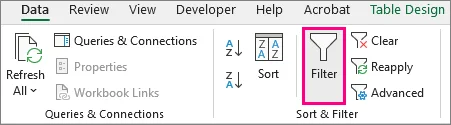
Keyboard Shortcuts
- Windows: Press Ctrl + Shift + L (or Alt + A + T) in sequence.
- Mac: Press Cmd + Shift + F.
Result: Excel removes all active filter criteria, redisplays rows hidden by those filters, and removes the filter dropdown arrows from the header row.
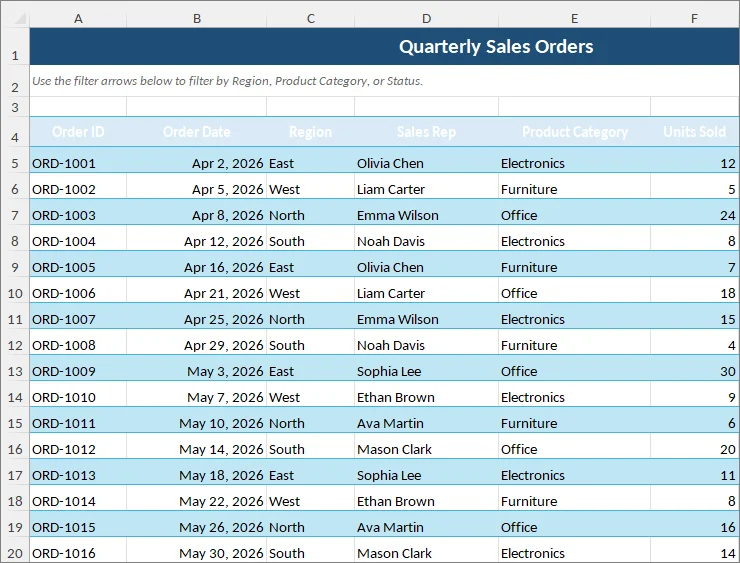
Notes:
- Removing filters only affects the filtering setup; it does not remove cell formatting or conditional formatting. If you also want to clean up visual rules in the worksheet, see how to remove conditional formatting in Excel.
- Removing filters only toggles the AutoFilter feature. It will not delete, hide, or modify your source cell data. Hidden rows created manually (not by filters) will stay hidden.
Method 4: Clear or Remove Filters in Excel for the Web
If you don’t have the Excel application installed or are working in a web browser, you can clear filter criteria or turn filtering off using Excel for the Web.
Step-by-Step Instructions
- Click any cell inside your filtered dataset.
- Go to the Data tab on the ribbon.
- Choose your action:
- To clear criteria: Click Clear.
- To remove filters entirely: Click the Filter button to toggle the feature off.
Collaboration Note:
If you are working on a shared workbook stored in OneDrive or SharePoint, Excel may ask whether you want the filtering change to apply just to you or to everyone. Select "See Just Mine" to work in a separate Sheet View without changing what other users see.
Part 2: Automation Solutions for Power Users & Developers
Manual methods work well for individual workbooks. If you need to clear filters repeatedly across multiple worksheets or files, the automated VBA and C# solutions below can drastically reduce your repetitive work.
Method 5: Clear Filters Across All Worksheets (VBA Macro)
This VBA macro checks each worksheet in the workbook and clears active filter criteria from cell ranges and tables while keeping the existing AutoFilter controls in place:
Sub ClearFiltersFromAllWorksheets()
    Dim ws As Worksheet
    Dim tbl As ListObject

    For Each ws In ThisWorkbook.Worksheets
        ' Clear filters from a standard cell range
        If ws.FilterMode Then
            ws.ShowAllData
        End If

        ' Clear filters from Excel Tables
        For Each tbl In ws.ListObjects
            If Not tbl.AutoFilter Is Nothing Then
                tbl.AutoFilter.ShowAllData
            End If
        Next tbl
    Next ws
End Sub
How to Implement It
- Press Alt + F11 (Windows) or Option + F11 (Mac) to open the VBA Editor.
- Click Insert > Module from the top menu.
- Paste the macro code above into the window.
- Press F5 to execute, or close the editor and press Alt + F8 (Windows) / Option + F8 (Mac) to run it directly from Excel.
⚠️ Important Warning
Running a VBA macro clears Excel's Undo history, so changes made by the macro generally cannot be reversed with Ctrl + Z. Always test the macro on a backup copy of your data first. If you want to keep the VBA code in the workbook, save it as an Excel Macro-Enabled Workbook (.xlsm).
If you no longer need the VBA code after running the macro, you can also remove macros from the Excel workbook before sharing it.
Method 6: Batch Remove Filters from Multiple Excel Files with C#
VBA is useful when you are already working in Excel, but it still requires an Excel desktop environment and manual execution.
For batch processing or server-side workflows, opening each workbook manually is impractical. The following C# example uses Spire.XLS for .NET to remove AutoFilters from every worksheet in multiple Excel files without launching Microsoft Excel or using Office Interop.
Step 1: Install the Excel Library
Integrate the package into your project via the NuGet Package Manager:
Install-Package Spire.XLS
Or via the .NET CLI:
dotnet add package Spire.XLS
Step 2: C# Code to Batch Remove Filters Automatically
The following C# program reads all Excel files from an input directory, iterates through each worksheet, removes AutoFilters and filter arrows from both standard cell ranges and Excel Tables, and saves the processed workbooks to a target folder.
using System;
using System.IO;
using Spire.Xls;

class Program
{
    static void Main(string[] args)
    {
        // Define input and output directory paths
        string inputFolder = @"C:\ExcelFiles\Input";
        string outputFolder = @"C:\ExcelFiles\Output";

        // Ensure the output directory exists
        if (!Directory.Exists(outputFolder))
        {
            Directory.CreateDirectory(outputFolder);
        }

        // Get Excel files from the input folder
        string[] excelFiles = Directory.GetFiles(inputFolder, "*.xl*");

        Console.WriteLine($"Found {excelFiles.Length} files to process.");

        foreach (string file in excelFiles)
        {
            Workbook workbook = new Workbook();

            try
            {
                // Load the Excel file
                workbook.LoadFromFile(file);

                // Iterate through each worksheet
                foreach (Worksheet sheet in workbook.Worksheets)
                {
                    // Remove AutoFilters from standard cell ranges
                    sheet.AutoFilters.Clear();

                    // Remove AutoFilters from Excel Tables
                    for (int i = 0; i < sheet.ListObjects.Count; i++)
                    {
                        var table = sheet.ListObjects[i];
                        table.AutoFilters.Clear();
                    }
                }

                // Construct the output path and save the file
                string fileName = Path.GetFileName(file);
                string outputPath = Path.Combine(outputFolder, fileName);

                workbook.SaveToFile(outputPath);

                Console.WriteLine(
                    $"Successfully removed filters from: {fileName}");
            }
            catch (Exception ex)
            {
                Console.WriteLine(
                    $"Error processing file {Path.GetFileName(file)}: {ex.Message}");
            }
            finally
            {
                workbook.Dispose();
            }
        }

        Console.WriteLine("Batch processing completed.");
    }
}
Troubleshooting:
- Password-protected / encrypted Excel files will throw loading exceptions; you need to supply workbook passwords during
LoadFromFile.
License Note: The trial version of the library may add an Evaluation Warning sheet to generated workbooks. You can get a temporary license to remove it.
Summary: Which Method Should You Choose?
The right method depends on what you need to clear, whether you want to keep the filtering controls, and how many worksheets or files you need to process.
| Method | Best Used For | Keeps Dropdown Arrows? | Skill Level |
|---|---|---|---|
| 1. Clear a Single Column Filter | Column-specific adjustments without disturbing other filters | ✅ Yes | Beginner |
| 2. Clear All Filters | Returning the worksheet to a complete data view | ✅ Yes | Beginner |
| 3. Remove Filters Completely | Preparing a clean report without filter controls | ❌ No | Beginner |
| 4. Excel for the Web | Working in a browser or collaborating on shared workbooks | Depends on action | Beginner |
| 5. VBA Macro | Repetitive filter cleanup within an active workbook | ✅ Yes | Intermediate |
| 6. C# Batch Processing | Batch or server-side Excel processing | ❌ No | Advanced |
For most everyday Excel tasks, Methods 1–4 are usually enough. VBA and C# are better suited to repetitive operations across multiple worksheets or files, especially when manual processing becomes inefficient.
FAQs
Q: Why is my "Data > Clear" button greyed out?
A: The Data > Clear command is unavailable when no active filter criteria need to be cleared. Filter arrows may still be visible because filtering itself is still enabled.
Q: Can I hide filter arrows in an Excel Table?
A: Yes. Click inside the table, go to the Table Design tab at the top, and uncheck Filter Button. This only hides the dropdown arrow. Existing filter criteria remain active, and filtered-out rows stay hidden. Use Data > Clear beforehand if you need to show all table rows.
Q: Will clearing a filter delete my hidden rows?
A: No. Filtering hides rows that do not match the active criteria; it does not delete them. Clearing or removing filters redisplays those rows. Manually hidden rows remain hidden.
Q: Can I remove filtering from only one column in Excel?
A: No. You can clear the filter criteria from an individual column, but you cannot turn off filtering for just one column within a filtered range. Filters are applied to the entire range. If you do not want a particular column to be available for filtering, you can consider hiding it.