
Table (3)
Merging and splitting table cells is one of the most common table editing operations in Word document development — whether creating report headers with cross-column titles or grouping products across rows, cell merging makes table structures clearer and more organized. Spire.Doc for JavaScript runs entirely in the browser via WebAssembly, using a virtual file system (VFS) to manage fonts and file resources — no backend server required.
This article covers three core features:
For installation and project setup, refer to Integrating Spire.Doc for JavaScript in a React Project. The examples below assume Spire.Doc is installed and the WebAssembly module is initialized.
Merge and Split Cells
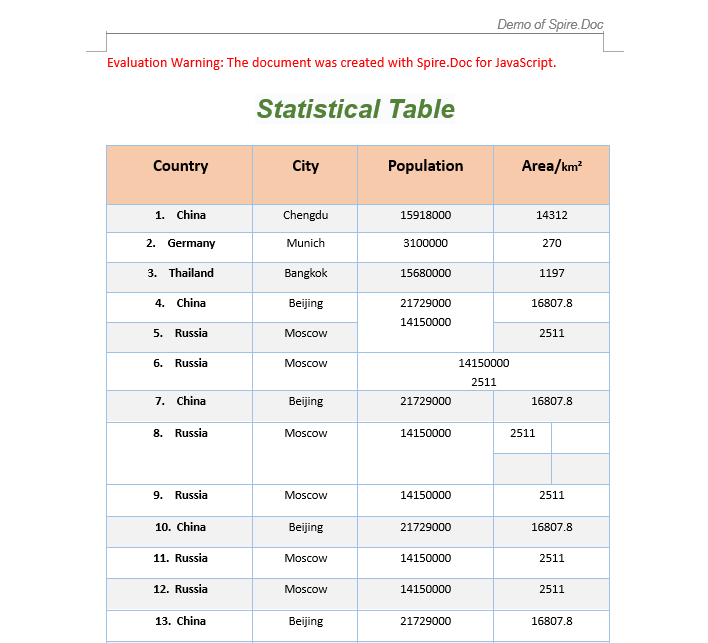
A common task in real-world development is adjusting the structure of an existing table: merging adjacent cells into one, or splitting a single cell into multiple rows and columns. Spire.Doc provides ApplyHorizontalMerge, ApplyVerticalMerge, and SplitCell methods for horizontal merging, vertical merging, and splitting respectively. The workflow involves three steps: first, load font files and the target Word file into the WASM virtual file system via FetchFileToVFS; then instantiate a Document, load the file, retrieve the target table, and call the merge or split methods; finally, save the document, read the generated file from VFS, wrap it as a Blob, and trigger a browser download.
function App() {
  const MergeAndSplitTableCell = async () => {
    // Get the Spire.Doc WASM module
    const wasmModule = window.wasmModule?.spiredoc;

    // Check if the module is ready
    if (!wasmModule) {
      alert('Spire.Doc is not ready yet');
      return;
    }

    // Load the sample Word file into VFS
    let inputFileName = "TableSample.docx";
    await window.spire.FetchFileToVFS(inputFileName, "", `${process.env.PUBLIC_URL}/data/`);

    // Load the document
    let doc = new wasmModule.Document();
    doc.LoadFromFile(inputFileName);
    let section = doc.Sections.get_Item(0);
    let table = section.Tables.get_Item(0);

    // Horizontal merge: merge columns 2 and 3 in row 6
    table.ApplyHorizontalMerge(6, 2, 3);
    // Vertical merge: merge rows 4 and 5 in column 2
    table.ApplyVerticalMerge(2, 4, 5);
    // Split cell: split the cell at row 8, column 3 into 2 rows and 2 columns
    table.Rows.get_Item(8).Cells.get_Item(3).SplitCell(2, 2);

    // Define the output file name
    const outputFileName = "MergeAndSplitTableCell_output.docx";

    // Save the document
    doc.SaveToFile({ fileName: outputFileName, fileFormat: wasmModule.FileFormat.Docx2013 });

    // Release resources
    doc.Dispose();

    // Read the generated file from VFS and trigger download
    const modifiedFileArray = window.dotnetRuntime.Module.FS.readFile(outputFileName);
    const blob = new Blob([modifiedFileArray], { type: 'application/vnd.openxmlformats-officedocument.wordprocessingml.document' });
    const url = URL.createObjectURL(blob);
    const a = document.createElement('a');
    a.href = url;
    a.download = outputFileName;
    a.click();
    URL.revokeObjectURL(url);
  };

  return (
    <div style={{ textAlign: 'center', height: '300px' }}>
      <h1>Merge and Split Table Cells</h1>
      <button onClick={MergeAndSplitTableCell}>
        Generate
      </button>
    </div>
  );
}

export default App;
Format Merged Cells
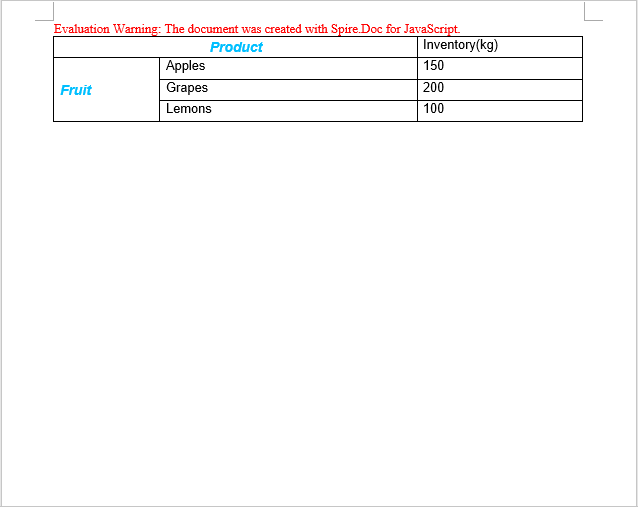
After merging cells, you typically need to format the merged area — setting font styles, alignment, and background colors — to improve table readability and visual appeal. The following example demonstrates how to create a product price table, merge the "Product" header cell and the version category cells on the left, and apply custom styling.
function AddTable(section) {
  let wasmModule = window.wasmModule.spiredoc;
  let table = section.AddTable({ showBorder: true });
  table.ResetCells(4, 3);
  // Table data
  let dt = [["Product", "", "Inventory(kg)"],
  ["Fruit", "Apples", "150"],
  ["", "Grapes", "200"],
  ["", "Lemons", "100"]];

  for (let r = 0; r < dt.length; r++) {
    let dataRow = table.Rows.get_Item(r);
    dataRow.Height = 20;
    dataRow.HeightType = wasmModule.TableRowHeightType.Exactly;
    for (let i = 0; i < dataRow.Cells.Count; i++) {
      dataRow.Cells.get_Item(i).CellFormat.Shading.BackgroundPatternColor = wasmModule.Color.Empty;
    }
    for (let c = 0; c < dataRow.Cells.Count; c++) {
      if (dt[r][c] !== "") {
        let range = dataRow.Cells.get_Item(c).AddParagraph().AppendText(dt[r][c]);
        range.CharacterFormat.FontName = "Arial";
      }
    }
  }
  return table;
}

function App() {
  const FormatMergedCells = async () => {
    // Get the Spire.Doc WASM module
    const wasmModule = window.wasmModule?.spiredoc;

    // Check if the module is ready
    if (!wasmModule) {
      alert('Spire.Doc is not ready yet');
      return;
    }

    // Create a Word document
    let doc = new wasmModule.Document();
    let section = doc.AddSection();

    // Add a table
    let table = AddTable(section);

    // Create a custom style
    let style = new wasmModule.ParagraphStyle(doc);
    style.Name = "Style";
    style.CharacterFormat.TextColor = wasmModule.Color.get_DeepSkyBlue();
    style.CharacterFormat.Italic = true;
    style.CharacterFormat.Bold = true;
    style.CharacterFormat.FontSize = 13;
    doc.Styles.Add(style);

    // Horizontal merge: merge columns 0 and 1 in row 0
    table.ApplyHorizontalMerge(0, 0, 1);
    // Apply the style
    table.Rows.get_Item(0).Cells.get_Item(0).Paragraphs.get_Item(0).ApplyStyle(style.Name);
    // Set vertical and horizontal alignment
    table.Rows.get_Item(0).Cells.get_Item(0).CellFormat.VerticalAlignment = wasmModule.VerticalAlignment.Middle;
    table.Rows.get_Item(0).Cells.get_Item(0).Paragraphs.get_Item(0).Format.HorizontalAlignment = wasmModule.HorizontalAlignment.Center;

    // Vertical merge: merge rows 1, 2, and 3 in column 0
    table.ApplyVerticalMerge(0, 1, 3);
    // Apply the style
    table.Rows.get_Item(1).Cells.get_Item(0).Paragraphs.get_Item(0).ApplyStyle(style.Name);
    // Set vertical and horizontal alignment
    table.Rows.get_Item(1).Cells.get_Item(0).CellFormat.VerticalAlignment = wasmModule.VerticalAlignment.Middle;
    table.Rows.get_Item(1).Cells.get_Item(0).Paragraphs.get_Item(0).Format.HorizontalAlignment = wasmModule.HorizontalAlignment.Left;
    // Set column width
    table.Rows.get_Item(1).Cells.get_Item(0).SetCellWidth(20, wasmModule.CellWidthType.Percentage);

    // Define the output file name
    const outputFileName = "FormatMergedCells_output.docx";

    // Save the document
    doc.SaveToFile({ fileName: outputFileName, fileFormat: wasmModule.FileFormat.Docx2013 });

    // Release resources
    doc.Dispose();

    // Read the generated file from VFS and trigger download
    const modifiedFileArray = window.dotnetRuntime.Module.FS.readFile(outputFileName);
    const blob = new Blob([modifiedFileArray], { type: 'application/vnd.openxmlformats-officedocument.wordprocessingml.document' });
    const url = URL.createObjectURL(blob);
    const a = document.createElement('a');
    a.href = url;
    a.download = outputFileName;
    a.click();
    URL.revokeObjectURL(url);
  };

  return (
    <div style={{ textAlign: 'center', height: '300px' }}>
      <h1>Format Merged Cells</h1>
      <button onClick={FormatMergedCells}>
        Generate
      </button>
    </div>
  );
}

export default App;
Check Cell Merge Status
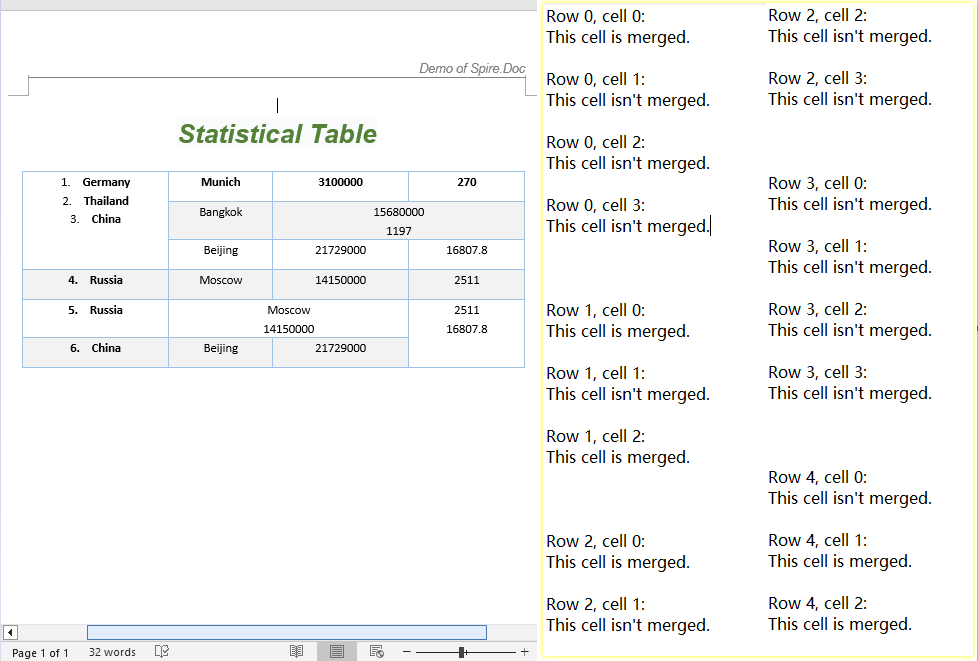
When working with tables created by others or generated by automated processes, you often need to identify which cells have been merged to avoid index-out-of-bounds errors. Spire.Doc provides two properties — CellFormat.VerticalMerge and Cell.GridSpan — to detect cell merge status: VerticalMerge indicates vertical merging, and GridSpan indicates the number of columns a cell spans horizontally.
function App() {
  const CellMergeStatus = async () => {
    // Get the Spire.Doc WASM module
    const wasmModule = window.wasmModule?.spiredoc;

    // Check if the module is ready
    if (!wasmModule) {
      alert('Spire.Doc is not ready yet');
      return;
    }

    // Load the sample file into VFS
    let inputFileName = "CellMergeStatus.docx";
    await window.spire.FetchFileToVFS(inputFileName, "", `${process.env.PUBLIC_URL}/data/`);

    // Load the document
    let doc = new wasmModule.Document();
    doc.LoadFromFile(inputFileName);

    // Get the first section and first table
    let section = doc.Sections.get_Item(0);
    let table = section.Tables.get_Item(0);

    // Iterate through all cells to detect merge status
    let stringBuidler = [];
    for (let i = 0; i < table.Rows.Count; i++) {
      let tableRow = table.Rows.get_Item(i);
      for (let j = 0; j < tableRow.Cells.Count; j++) {
    let tableCell = tableRow.Cells.get_Item(j);
    let verticalMerge = tableCell.CellFormat.VerticalMerge;
    let horizontalMerge = tableCell.GridSpan;
    if (verticalMerge === wasmModule.CellMerge.None && horizontalMerge === 1) {
      stringBuidler.push("Row " + i + ", cell " + j + ": ");
      stringBuidler.push("This cell isn't merged.\n");
    } else {
      stringBuidler.push("Row " + i + ", cell " + j + ": ");
      stringBuidler.push("This cell is merged.\n");
    }
      }
      stringBuidler.push("\n");
    }

    // Define the output file name
    const outputFileName = "CellMergeStatus_output.txt";

    // Write the detection result to a text file
    window.dotnetRuntime.Module.FS.writeFile(outputFileName, stringBuidler.join('\n'));

    // Read the generated file from VFS and trigger download
    const modifiedFileArray = window.dotnetRuntime.Module.FS.readFile(outputFileName);
    const blob = new Blob([modifiedFileArray], { type: "text/plain" });
    const url = URL.createObjectURL(blob);
    const a = document.createElement('a');
    a.href = url;
    a.download = outputFileName;
    a.click();
    URL.revokeObjectURL(url);
  };

  return (
    <div style={{ textAlign: 'center', height: '300px' }}>
      <h1>Check Cell Merge Status</h1>
      <button onClick={CellMergeStatus}>
        Generate
      </button>
    </div>
  );
}

export default App;
FAQ
How to verify if a cell merge was successful
Cause: Merge operations do not return a status value — you need to read cell properties to confirm.
Solution: Use CellFormat.VerticalMerge to check the vertical merge type (CellMerge.None means not merged), and Cell.GridSpan to check the number of columns spanned horizontally (a value of 1 means not merged):
let verticalMerge = tableCell.CellFormat.VerticalMerge;
let horizontalMerge = tableCell.GridSpan;
if (verticalMerge === wasmModule.CellMerge.None && horizontalMerge === 1) {
  // Not merged
} else {
  // Merged
}
Content lost after splitting a cell
Cause: When SplitCell splits a cell into multiple sub-cells, the original content remains in the first sub-cell by default.
Solution: Manually iterate through the sub-cells to redistribute content after splitting, or back up the cell text via the Paragraphs collection beforehand:
// Back up the content
let cell = table.Rows.get_Item(row).Cells.get_Item(col);
let text = cell.Paragraphs.get_Item(0).Text;

// Split into 2 rows and 2 columns
cell.SplitCell(2, 2);

// Write the content to the new cell
table.Rows.get_Item(row).Cells.get_Item(col).Paragraphs.get_Item(0).AppendText(text);
Index out of range when merging cells
Cause: ApplyHorizontalMerge(row, startCol, endCol) and ApplyVerticalMerge(col, startRow, endRow) use zero-based indexing. Passing indices that exceed the table's actual row or column count will throw an error.
Solution: Check the table dimensions before merging to ensure the end index does not exceed Rows.Count - 1 and Cells.Count - 1:
if (endCol < table.Rows.get_Item(row).Cells.Count && endRow < table.Rows.Count) {
  table.ApplyHorizontalMerge(row, startCol, endCol);
}
Get a Free License
Spire.Doc for JavaScript offers a 30-day full-featured free trial license with no functional limitations. Apply here to evaluate before purchasing.
Add or Delete Rows and Columns in Word Table with JavaScript in React
2026-07-06 08:30:30 Written by Amy ZhaoIn real-world document development, table structures often need to be adjusted dynamically — adding rows when report data counts are uncertain, inserting or removing columns when fields change, or deleting redundant data rows with a single click. Spire.Doc for JavaScript leverages WebAssembly to edit Word documents directly in the browser, managing fonts and file resources through a virtual file system (VFS) with no backend server required.
This article covers two core features:
For installation and project setup, refer to Integrating Spire.Doc for JavaScript in a React Project. The examples below assume Spire.Doc is installed and the WebAssembly module is initialized.
Add and Delete Rows
In report generation and data display scenarios, the number of table rows is often dynamic. Spire.Doc provides the Rows.RemoveAt method to delete a specific row, the Rows.Insert method to insert a new row at a specified position, and the AddRow method to append a row at the end of the table. The core workflow has three phases: first, load font files and the target Word document into the WASM virtual file system via FetchFileToVFS; then instantiate a Document, load the file, retrieve the target table, and call row/column manipulation methods; finally, save the document, read the generated file from VFS, wrap it as a Blob, and trigger a browser download.
function App() {
  const AddOrDeleteRow = async () => {
    // Get the Spire.Doc WASM module
    const wasmModule = window.wasmModule?.spiredoc;

    // Check if the module is ready
    if (!wasmModule) {
      alert('Spire.Doc is not ready yet');
      return;
    }

    // Load fonts and the document file into VFS
    await window.spire.FetchFileToVFS('ARIALUNI.TTF', '/Library/Fonts/', `${process.env.PUBLIC_URL}/font/`);

    // Load the sample Word file into VFS
    let inputFileName = "TableSample.docx";
    await window.spire.FetchFileToVFS(inputFileName, "", `${process.env.PUBLIC_URL}/data/`);

    // Load the document
    let doc = new wasmModule.Document();
    doc.LoadFromFile(inputFileName);
    let section = doc.Sections.get_Item(0);
    let table = section.Tables.get_Item(0);

    // Delete row 8
    table.Rows.RemoveAt(7);

    // Create a new row and insert it at a specified position (after row 2)
    let row = new wasmModule.TableRow(doc);
    for (let i = 0; i < table.Rows.get_Item(0).Cells.Count; i++) {
      let tc = row.AddCell();
      let paragraph = tc.AddParagraph();
      paragraph.Format.HorizontalAlignment = wasmModule.HorizontalAlignment.Center;
      paragraph.AppendText("Added");
    }
    table.Rows.Insert(2, row);

    // Append a row at the end of the table
    table.AddRow();

    // Define the output file name
    const outputFileName = "AddOrDeleteRow_output.docx";

    // Save the document
    doc.SaveToFile({ fileName: outputFileName, fileFormat: wasmModule.FileFormat.Docx2013 });

    // Release resources
    doc.Close();
    doc.Dispose();

    // Read the generated file from VFS and trigger download
    const modifiedFileArray = window.dotnetRuntime.Module.FS.readFile(outputFileName);
    const blob = new Blob([modifiedFileArray], { type: 'application/vnd.openxmlformats-officedocument.wordprocessingml.document'});
    const url = URL.createObjectURL(blob);
    const a = document.createElement('a');
    a.href = url;
    a.download = outputFileName;
    a.click();
    URL.revokeObjectURL(url);
  };

  return (
    <div style={{ textAlign: 'center', height: '300px' }}>
      <h1>Add And Delete Rows In Word Table</h1>
      <button onClick={AddOrDeleteRow}>
        Generate
      </button>
    </div>
  );
}

export default App;
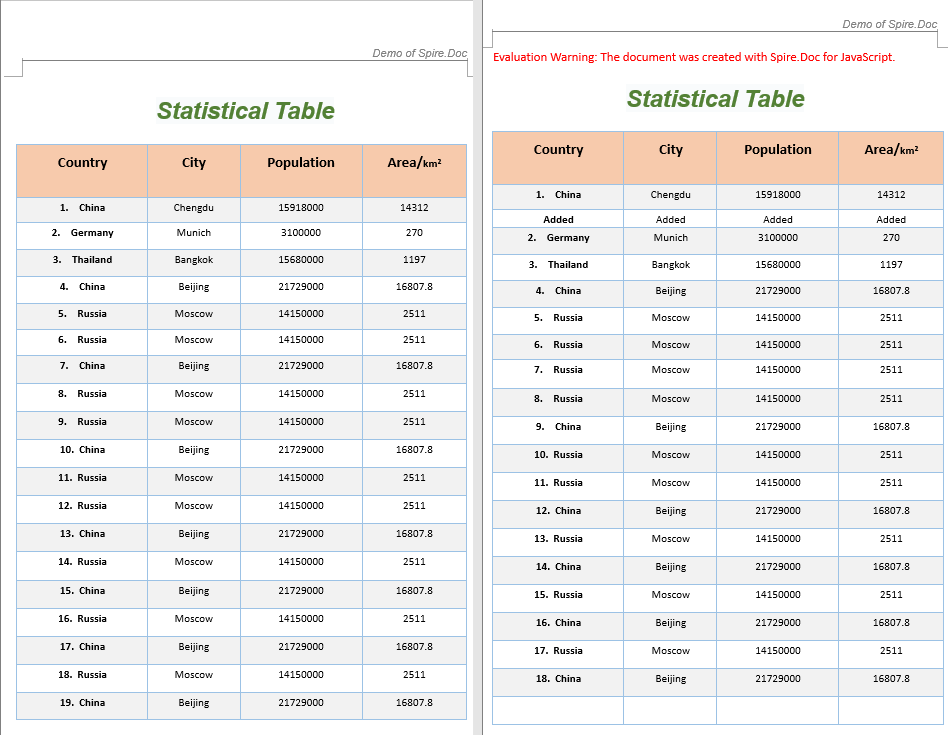
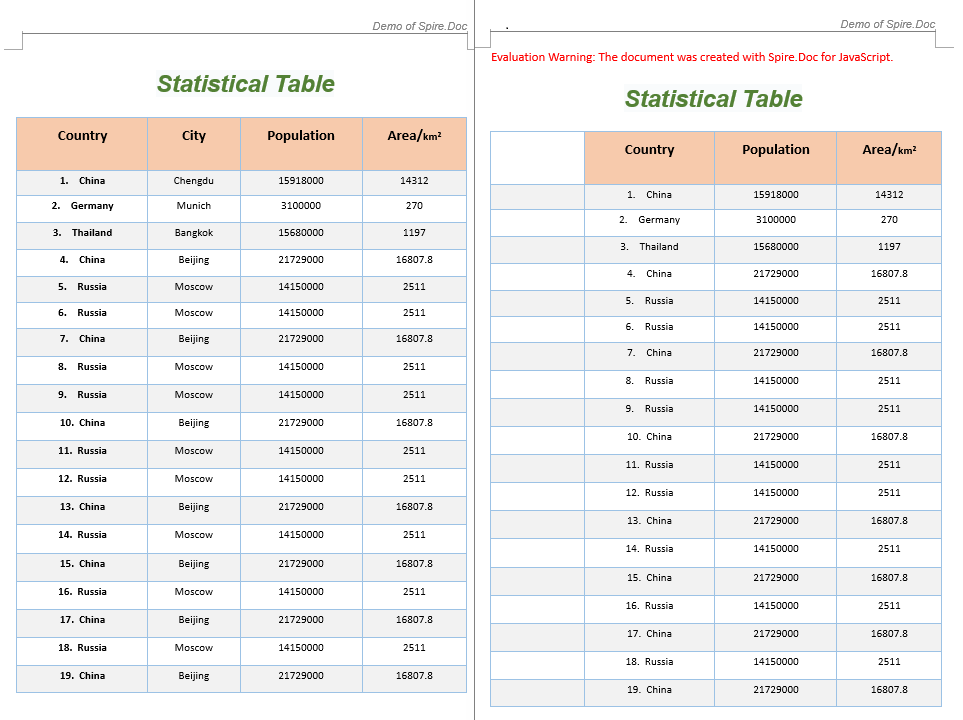
The code above performs three row operations on an existing table: deleting row 8, inserting a new row containing "Added" text after row 2, and appending an empty row at the end of the table.
Add and Remove Columns
In table structure adjustment scenarios, it is often necessary to add new field columns or remove redundant ones. Since Spire.Doc's table column operations are implemented by manipulating cells row by row, custom AddColumn and RemoveColumn helper functions are needed: to add a column, iterate through each row and insert a new blank cell at the specified index; to remove a column, iterate through each row and delete the cell at the specified index.
function AddColumn(table, columnIndex) {
  let wasmModule = window.wasmModule.spiredoc;
  for (let r = 0; r < table.Rows.Count; r++) {
    let addCell = new wasmModule.TableCell(table.Document);
    table.Rows.get_Item(r).Cells.Insert(columnIndex, addCell);
  }
}

function RemoveColumn(table, columnIndex) {
  for (let r = 0; r < table.Rows.Count; r++) {
    table.Rows.get_Item(r).Cells.RemoveAt(columnIndex);
  }
}

function App() {
  const AddOrRemoveColumn = async () => {
    // Get the Spire.Doc WASM module
    const wasmModule = window.wasmModule?.spiredoc;

    // Check if the module is ready
    if (!wasmModule) {
      alert('Spire.Doc is not ready yet');
      return;
    }

    // Load fonts and the document file into VFS
    await window.spire.FetchFileToVFS('ARIALUNI.TTF', '/Library/Fonts/', `${process.env.PUBLIC_URL}/font/`);

    // Load the sample file into VFS
    let inputFileName = "TableSample.docx";
    await window.spire.FetchFileToVFS(inputFileName, "", `${process.env.PUBLIC_URL}/data/`);

    // Load the document
    let doc = new wasmModule.Document();
    doc.LoadFromFile(inputFileName);

    // Get the first section and first table
    let section = doc.Sections.get_Item(0);
    let table = section.Tables.get_Item(0);

    // Insert a blank column before column 0
    let columnIndex1 = 0;
    AddColumn(table, columnIndex1);

    // Delete column 2
    let columnIndex2 = 2;
    RemoveColumn(table, columnIndex2);

    // Define the output file name
    const outputFileName = "AddOrRemoveColumn_output.docx";

    // Save the document
    doc.SaveToFile({ fileName: outputFileName, fileFormat: wasmModule.FileFormat.Docx2013 });

    // Release resources
    doc.Close();
    doc.Dispose();

    // Read the generated file from VFS and trigger download
    const modifiedFileArray = window.dotnetRuntime.Module.FS.readFile(outputFileName);
    const blob = new Blob([modifiedFileArray], { type: 'application/vnd.openxmlformats-officedocument.wordprocessingml.document'});
    const url = URL.createObjectURL(blob);
    const a = document.createElement('a');
    a.href = url;
    a.download = outputFileName;
    a.click();
    URL.revokeObjectURL(url);
  };

  return (
    <div style={{ textAlign: 'center', height: '300px' }}>
      <h1>Add And Remove Columns In Word Table</h1>
      <button onClick={AddOrRemoveColumn}>
        Generate
      </button>
    </div>
  );
}

export default App;
The code above inserts a blank column at column index 0 and removes column 2.
FAQ
Table data is garbled after deleting a row
Cause: When the table contains merged cells, deleting a row by index can cause subsequent row indices to shift, breaking the merged cell structure.
Solution: Before deleting, check whether the target row participates in a merge. If the row contains merged cells, unmerge them first before performing the deletion:
// Check the cell's merge state before deleting
let cell = table.Rows.get_Item(rowIndex).Cells.get_Item(0);
let verticalMerge = cell.CellFormat.VerticalMerge;
if (verticalMerge === wasmModule.CellMerge.None) {
  table.Rows.RemoveAt(rowIndex);
} else {
  console.warn("This row contains merged cells; consider handling the merge state first");
}
Newly added column appears blank in the document
Cause: The AddColumn function only inserts blank TableCell objects without adding paragraphs and text content to the new cells.
Solution: After inserting cells, iterate through the new column and add paragraphs with text:
function AddColumn(table, columnIndex) {
  let wasmModule = window.wasmModule.spiredoc;
  for (let r = 0; r < table.Rows.Count; r++) {
    let addCell = new wasmModule.TableCell(table.Document);
    let paragraph = addCell.AddParagraph();
    paragraph.AppendText("New Column");
    table.Rows.get_Item(r).Cells.Insert(columnIndex, addCell);
  }
}
Index out of bounds when deleting a column
Cause: The column index passed exceeds the maximum column count of the current table, or the row column counts are inconsistent.
Solution: Before deleting, get the column count from the first row as a reference and ensure the index is within range:
let maxColIndex = table.Rows.get_Item(0).Cells.Count - 1;
if (columnIndex <= maxColIndex) {
  RemoveColumn(table, columnIndex);
}
Get a Free License
If you wish to remove the evaluation message from the resulting document, or to eliminate functional limitations, please contact our sales team to request a 30-day temporary license.
Creating tables in Word documents is one of the most common requirements in daily office development — whether for data reports, product catalogs, or statistical analysis, tables present information clearly in a structured format. Spire.Doc for JavaScript runs entirely in the browser via WebAssembly, using a virtual file system (VFS) to manage font and file resources — no backend server required.
This article covers three core features:
For installation and project setup, refer to Integrating Spire.Doc for JavaScript in a React Project. The examples below assume Spire.Doc is installed and the WebAssembly module is initialized.
Create a Formatted Data Table
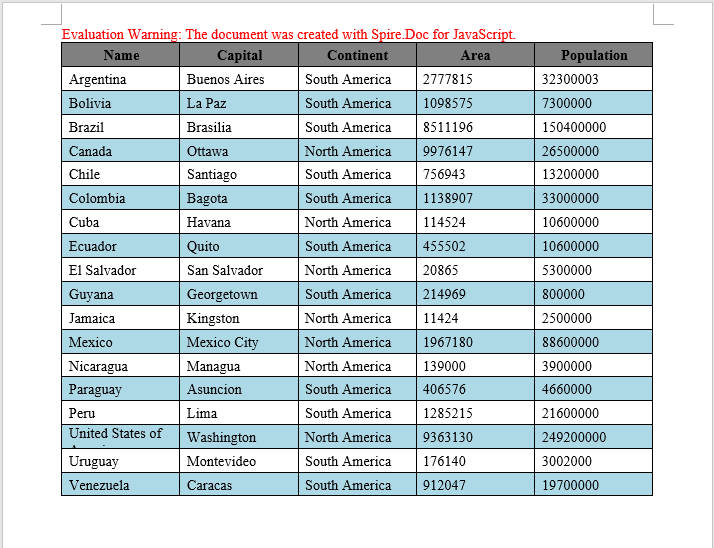
In real-world development, the most common scenario is writing data returned from a backend into a Word document as a table. The core workflow involves three steps: first, load font files into the WASM virtual file system via FetchFileToVFS; then instantiate a Document to create the document, add a table via AddTable, populate it with data, and configure header rows, alignment, and alternating row colors; finally, save the document, read the generated file from VFS, wrap it as a Blob, and trigger a browser download.
function addTable(section) {
  let docModule = window.wasmModule.spiredoc;
  let header = ["Name", "Capital", "Continent", "Area", "Population"];
  let data =
    [
      ["Argentina", "Buenos Aires", "South America", "2777815", "32300003"],
      ["Bolivia", "La Paz", "South America", "1098575", "7300000"],
      ["Brazil", "Brasilia", "South America", "8511196", "150400000"],
      ["Canada", "Ottawa", "North America", "9976147", "26500000"],
      ["Chile", "Santiago", "South America", "756943", "13200000"],
      ["Colombia", "Bagota", "South America", "1138907", "33000000"],
      ["Cuba", "Havana", "North America", "114524", "10600000"],
      ["Ecuador", "Quito", "South America", "455502", "10600000"],
      ["El Salvador", "San Salvador", "North America", "20865", "5300000"],
      ["Guyana", "Georgetown", "South America", "214969", "800000"],
      ["Jamaica", "Kingston", "North America", "11424", "2500000"],
      ["Mexico", "Mexico City", "North America", "1967180", "88600000"],
      ["Nicaragua", "Managua", "North America", "139000", "3900000"],
      ["Paraguay", "Asuncion", "South America", "406576", "4660000"],
      ["Peru", "Lima", "South America", "1285215", "21600000"],
      ["United States of America", "Washington", "North America", "9363130", "249200000"],
      ["Uruguay", "Montevideo", "South America", "176140", "3002000"],
      ["Venezuela", "Caracas", "South America", "912047", "19700000"]
    ];
  let table = section.AddTable({ showBorder: true });
  table.ResetCells(data.length + 1, header.length);

  // Set up the header row
  let row = table.Rows.get_Item(0);
  row.IsHeader = true;
  row.Height = 20;
  row.HeightType = docModule.TableRowHeightType.Exactly;
  for (let i = 0; i < row.Cells.Count; i++) {
    row.Cells.get_Item(i).CellFormat.Shading.BackgroundPatternColor = docModule.Color.get_Gray();
  }

  for (let i = 0; i < header.length; i++) {
    row.Cells.get_Item(i).CellFormat.VerticalAlignment = docModule.VerticalAlignment.Middle;
    let p = row.Cells.get_Item(i).AddParagraph();
    p.Format.HorizontalAlignment = docModule.HorizontalAlignment.Center;
    let txtRange = p.AppendText(header[i]);
    txtRange.CharacterFormat.Bold = true;
  }

  // Populate data rows with alternating row colors
  for (let r = 0; r < data.length; r++) {
    let dataRow = table.Rows.get_Item(r + 1);
    dataRow.Height = 20;
    dataRow.HeightType = docModule.TableRowHeightType.Exactly;
    for (let i = 0; i < dataRow.Cells.Count; i++) {
      dataRow.Cells.get_Item(i).CellFormat.Shading.BackgroundPatternColor = docModule.Color.Empty();
    }
    for (let c = 0; c < data[r].length; c++) {
      dataRow.Cells.get_Item(c).CellFormat.VerticalAlignment = docModule.VerticalAlignment.Middle;
      dataRow.Cells.get_Item(c).AddParagraph().AppendText(data[r][c]);
    }
  }

  // Apply light blue background to even rows
  for (let j = 1; j < table.Rows.Count; j++) {
    if (j % 2 == 0) {
      let row2 = table.Rows.get_Item(j);
      for (let f = 0; f < row2.Cells.Count; f++) {
        row2.Cells.get_Item(f).CellFormat.Shading.BackgroundPatternColor = docModule.Color.get_LightBlue();
      }
    }
  }
}

function App() {
  const CreateTable = async () => {
    // Get the Spire.Doc WASM module
    const docModule = window.wasmModule?.spiredoc;

    // Check if the module is ready
    if (!docModule) {
      alert('Spire.Doc is not ready yet');
      return;
    }

    // Load font files into VFS
    await window.spire.FetchFileToVFS('ARIALUNI.TTF', '/Library/Fonts/', `${process.env.PUBLIC_URL}/font/`);

    // Create a blank document
    let doc = new docModule.Document();
    let section = doc.AddSection();

    // Add the table
    addTable(section);

    // Define the output file name
    const outputFileName = "CreateTable_output.docx";

    // Save the document
    doc.SaveToFile({ fileName: outputFileName, fileFormat: docModule.FileFormat.Docx2013 });

    // Release resources
    doc.Dispose();

    // Read the generated file from VFS and trigger download
    const modifiedFileArray = window.dotnetRuntime.Module.FS.readFile(outputFileName);
    const blob = new Blob([modifiedFileArray], { type: 'application/vnd.openxmlformats-officedocument.wordprocessingml.document' });
    const url = URL.createObjectURL(blob);
    const a = document.createElement('a');
    a.href = url;
    a.download = outputFileName;
    a.click();
    URL.revokeObjectURL(url);
  };

  return (
    <div style={{ textAlign: 'center', height: '300px' }}>
      <h1>Click the button below to create a table in a Word document.</h1>
      <button onClick={CreateTable}>
        Generate
      </button>
    </div>
  );
}

export default App;
Word output generated from a formatted data table
Create a Table from HTML
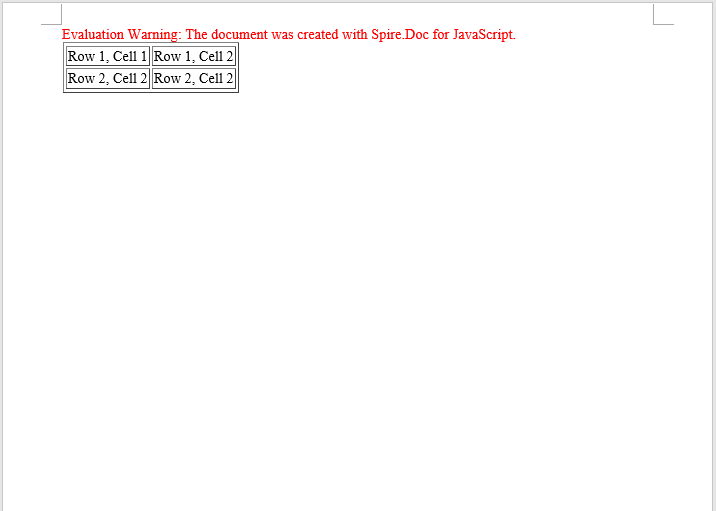
In web development, HTML tables are a universal format for displaying data. Spire.Doc provides the AppendHTML method, which can parse an HTML string directly into a Word document table, greatly simplifying the conversion from web content to Word documents. This is particularly useful for scenarios where you need to export table data from a web page to a Word document.
function App() {
  const CreateTableFromHTML = async () => {
    // Get the Spire.Doc WASM module
    const docModule = window.wasmModule?.spiredoc;

    // Check if the module is ready
    if (!docModule) {
      alert('Spire.Doc is not ready yet');
      return;
    }

    // Load font files into VFS
    await window.spire.FetchFileToVFS('ARIALUNI.TTF', '/Library/Fonts/', `${process.env.PUBLIC_URL}/font/`);

    // HTML string
    let HTML = "<table border='2px'>" +
      "<tr>" +
      "<td>Row 1, Cell 1</td>" +
      "<td>Row 1, Cell 2</td>" +
      "</tr>" +
      "<tr>" +
      "<td>Row 2, Cell 2</td>" +
      "<td>Row 2, Cell 2</td>" +
      "</tr>" +
      "</table>";

    // Create a Word document
    let doc = new docModule.Document();

    // Add a section
    let section = doc.AddSection();

    // Add a paragraph and append the HTML string
    section.AddParagraph().AppendHTML(HTML);

    // Define the output file name
    const outputFileName = "CreateTableFromHTML_output.docx";

    // Save the document
    doc.SaveToFile({ fileName: outputFileName, fileFormat: docModule.FileFormat.Docx2013 });

    // Release resources
    doc.Dispose();

    // Read the generated file from VFS and trigger download
    const modifiedFileArray = window.dotnetRuntime.Module.FS.readFile(outputFileName);
    const blob = new Blob([modifiedFileArray], { type: 'application/vnd.openxmlformats-officedocument.wordprocessingml.document' });
    const url = URL.createObjectURL(blob);
    const a = document.createElement('a');
    a.href = url;
    a.download = outputFileName;
    a.click();
    URL.revokeObjectURL(url);
  };

  return (
    <div style={{ textAlign: 'center', height: '300px' }}>
      <h1>Click the button below to create a table from HTML in a Word document.</h1>
      <button onClick={CreateTableFromHTML}>
        Generate
      </button>
    </div>
  );
}

export default App;
Word table created from HTML
Create a Nested Table
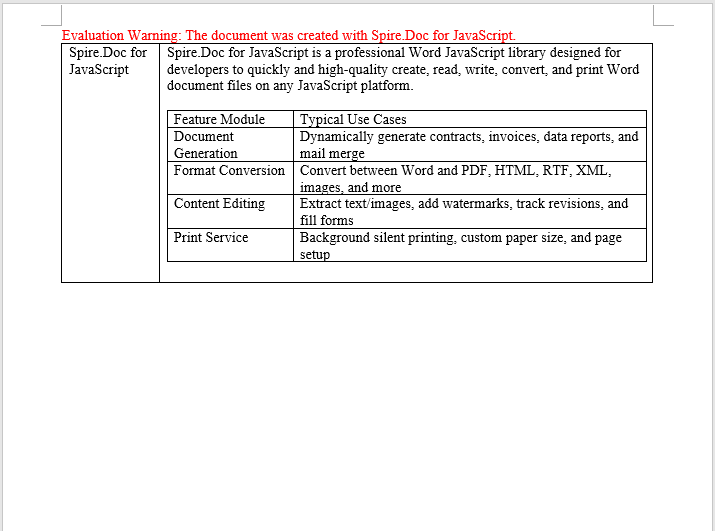
A nested table is a table inserted within a cell of another table. This is commonly used for complex document layouts — for example, in a product catalog, the main table displays product names and descriptions, while a sub-table containing specification parameters (number, item, price) is embedded inside the description cell. Spire.Doc makes nested table creation easy with the Cell.AddTable method.
function App() {
  const CreateNestedTable = async () => {
    // Get the Spire.Doc WASM module
    const docModule = window.wasmModule?.spiredoc;

    // Check if the module is ready
    if (!docModule) {
      alert('Spire.Doc is not ready yet');
      return;
    }

   // Load font and document files into VFS
    await window.spire.FetchFileToVFS('ARIALUNI.TTF', '/Library/Fonts/', `${process.env.PUBLIC_URL}/font/`);

    // Create a new document
    let doc = new docModule.Document();
    let section = doc.AddSection();

    // Add main table (2 rows, 2 columns)
    let table = section.AddTable({ showBorder: true });
    table.ResetCells(1, 2);

    // Set column widths
    table.Rows.get_Item(0).Cells.get_Item(0).SetCellWidth(70, docModule.CellWidthType.Point);
    table.Rows.get_Item(0).Cells.get_Item(1).SetCellWidth(150, docModule.CellWidthType.Point);
    table.Rows.get_Item(0).Height=200;
    table.AutoFit(docModule.AutoFitBehaviorType.AutoFitToWindow);

    // Insert content into cells
    table.Rows.get_Item(0).Cells.get_Item(0).AddParagraph().AppendText("Spire.Doc for JavaScript");
    let text = "Spire.Doc for JavaScript is a professional Word " +
      "JavaScript library designed for developers to quickly and " +
      "high-quality create, read, write, convert, and print Word " +
      "document files on any JavaScript platform.";
    table.Rows.get_Item(0).Cells.get_Item(1).AddParagraph().AppendText(text);

    table.Rows.get_Item(0).Cells.get_Item(1).AddParagraph();

    // Add a nested table in the cell (first row, second column)
    let nestedTable = table.Rows.get_Item(0).Cells.get_Item(1).AddTable({ showBorder: true });
    nestedTable.ResetCells(5, 2);
    nestedTable.AutoFit(docModule.AutoFitBehaviorType.AutoFitToContents);

    // Fill nested table content
    nestedTable.Rows.get_Item(0).Cells.get_Item(0).AddParagraph().AppendText("Feature Module");
    nestedTable.Rows.get_Item(0).Cells.get_Item(1).AddParagraph().AppendText("Typical Use Cases");

    nestedTable.Rows.get_Item(1).Cells.get_Item(0).AddParagraph().AppendText("Document Generation");
    nestedTable.Rows.get_Item(2).Cells.get_Item(0).AddParagraph().AppendText("Format Conversion");
    nestedTable.Rows.get_Item(3).Cells.get_Item(0).AddParagraph().AppendText("Content Editing");
    nestedTable.Rows.get_Item(4).Cells.get_Item(0).AddParagraph().AppendText("Print Service");

    nestedTable.Rows.get_Item(1).Cells.get_Item(1).AddParagraph().AppendText("Dynamically generate contracts, invoices, data reports, and mail merge");
    nestedTable.Rows.get_Item(2).Cells.get_Item(1).AddParagraph().AppendText("Convert between Word and PDF, HTML, RTF, XML, images, and more");
    nestedTable.Rows.get_Item(3).Cells.get_Item(1).AddParagraph().AppendText("Extract text/images, add watermarks, track revisions, and fill forms");
    nestedTable.Rows.get_Item(4).Cells.get_Item(1).AddParagraph().AppendText("Background silent printing, custom paper size, and page setup");

    // Define the output file name
    const outputFileName = "CreateNestedTable_output-en.docx";

    // Save the document
    doc.SaveToFile({ fileName: outputFileName, fileFormat: docModule.FileFormat.Docx2013 });

    // Release resources
    doc.Dispose();

    // Read the generated file from VFS and trigger download
    const modifiedFileArray = window.dotnetRuntime.Module.FS.readFile(outputFileName);
    const blob = new Blob([modifiedFileArray], { type: 'application/vnd.openxmlformats-officedocument.wordprocessingml.document' });
    const url = URL.createObjectURL(blob);
    const a = document.createElement('a');
    a.href = url;
    a.download = outputFileName;
    a.click();
    URL.revokeObjectURL(url);
  };

  return (
    <div style={{ textAlign: 'center', height: '300px' }}>
      <h1>Click the button below to create a nested table in a Word document.</h1>
      <button onClick={CreateNestedTable}>
        Generate
      </button>
    </div>
  );
}

export default App;
Nested table output in Word
FAQ
The downloaded file cannot be opened or appears corrupted
Cause: The MIME type is incorrect when creating the Blob, so the browser cannot properly identify the file format.
Solution: Use the correct Word document MIME type:
const modifiedFile = new Blob([fileArray], {
  type: "application/vnd.openxmlformats-officedocument.wordprocessingml.document"
});
Table borders are missing or inconsistent
Cause: When adding a table with AddTable({ showBorder: true }), borders are enabled by default, but tables created directly via the Table constructor need borders set manually.
Solution: When creating a table via the constructor, explicitly set the border type:
let table = new wasmModule.Table(doc, false);
table.Format.Borders.BorderType = wasmModule.BorderStyle.Single;
Get a Free License
If you want to remove the evaluation message from the result document, or eliminate functional limitations, contact our sales team to request a 30-day temporary license.
