
Knowledgebase (2412)
Children categories
Converting PDF to database is a common requirement in data-driven applications. Many business documents—such as invoices, reports, and financial records—store structured information in PDF format, but this data is not directly usable for querying or analysis.
To make this data accessible, developers often need to convert PDF to SQL by extracting structured content and inserting it into relational databases like SQL Server, MySQL, or PostgreSQL. Manually handling this process is inefficient and error-prone, especially at scale.
In this guide, we focus on extracting table data from PDFs and building a complete pipeline to transform and insert it into an SQL database in Python with Spire.PDF for Python. This approach reflects the most practical and scalable solution for real-world PDF to database workflows.
Quick Navigation
- Understanding the Workflow
- Prerequisites
- Step 1: Extract Table Data from PDF
- Step 2: Transform and Insert Data into Database
- Complete Pipeline: From PDF Extraction to SQL Storage
- Adapting to Other SQL Databases
- Handling Other Types of PDF Data
- Common Pitfalls When Converting PDF Data to a Database
- Conclusion
- FAQ
Understanding the Workflow
Before diving into the implementation, it's important to understand the overall process of converting PDF data into a database.
Instead of treating each operation as completely separate, this workflow can be viewed as two main stages:
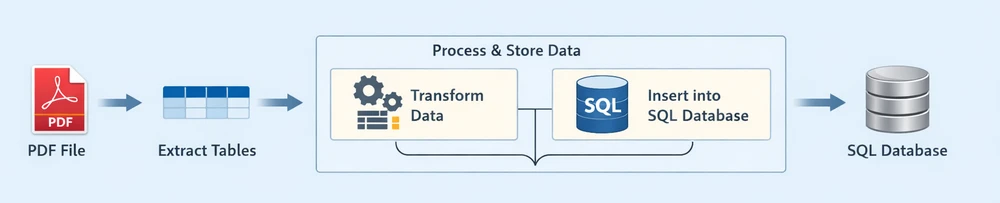
Each stage plays a distinct role in the pipeline:
-
Extract Tables: Retrieve structured table data from the PDF document
-
Process & Store Data: Clean, structure, and insert the extracted data into a relational database
- Transform Data: Convert raw rows into structured, database-ready records
- Insert into SQL Database: Persist the processed data into an SQL database
This end-to-end pipeline reflects how most real-world systems handle PDF to database workflows—by first extracting usable data, then processing and storing it in a database for querying and analysis.
Prerequisites
Before getting started, make sure you have the following:
-
Python 3.x installed
-
Spire.PDF for Python installed:
pip install Spire.PDFYou can also download Spire.PDF for Python and add it to your project manually.
-
A relational database system (e.g., SQLite, SQL Server, MySQL, or PostgreSQL)
This guide demonstrates the workflow using SQLite for simplicity, while also showing how the same approach can be applied to other SQL databases.
Step 1: Extract Table Data from PDF
In most business documents, such as invoices or reports, data is organized in tables. These tables already follow a row-and-column structure, making them ideal for direct insertion into an SQL database.
Table data in PDFs is typically already structured in rows and columns, making it the most suitable format for database storage.
Extract Tables Using Python
Below is an example of how to extract table data from a PDF file using Spire.PDF:
from spire.pdf import *
from spire.pdf.common import *

# Load PDF document
pdf = PdfDocument()
pdf.LoadFromFile("Quarterly Sales.pdf")

# Method for ligature normalization
def normalize_text(text: str) -> str:
    if not text:
        return text
    ligature_map = {
        '\ue000': 'ff', '\ue001': 'ft', '\ue002': 'ffi', '\ue003': 'ffl', '\ue004': 'ti', '\ue005': 'fi',
    }
    for k, v in ligature_map.items():
        text = text.replace(k, v)
    return text.strip()

table_data = []

# Iterate through pages
for i in range(pdf.Pages.Count):
    # Extract tables from pages
    extractor = PdfTableExtractor(pdf)
    tables = extractor.ExtractTable(i)

    if tables:
        print(f"Page {i} has {len(tables)} tables.")
        for table in tables:
            rows = []
            for row in range(table.GetRowCount()):
                row_data = []
                for col in range(table.GetColumnCount()):
                    text = table.GetText(row, col)
                    text = normalize_text(text)
                    row_data.append(text.strip() if text else "")
                rows.append(row_data)
            table_data.extend(rows)

pdf.Close()

# Print extracted data
for row in table_data:
    print(row)
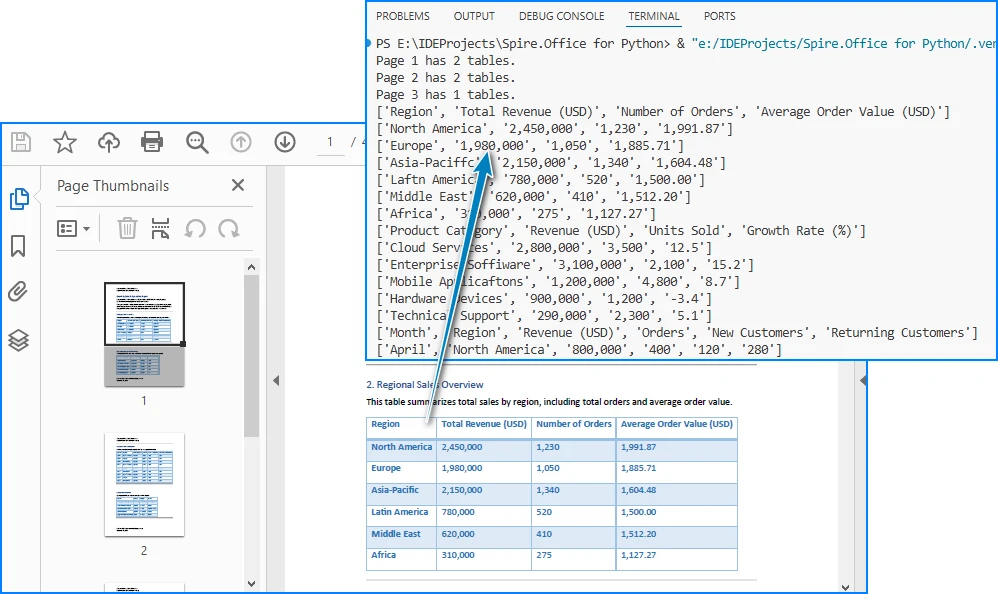
Below is a preview of the extracting result:
Code Explanation
- LoadFromFile: Loads the PDF document
- PdfTableExtractor: Identifies tables within each page
- GetText(row, col): Retrieves cell content
- table_data: Stores extracted rows as a list of lists
At this stage, the data is extracted but still unstructured in terms of database usage. Once the table data is extracted, we need to convert it into a structured format for SQL insertion.
Alternatively, you can export the extracted data to a CSV file for validation or batch import. See: Convert PDF Tables to CSV in Python
Step 2: Transform and Insert Data into Database
Raw table data extracted from PDFs often requires cleaning and structuring before it can be inserted into an SQL database.
For simplicity, the following examples demonstrate how to process a single extracted table. In real-world scenarios, PDFs may contain multiple tables, which can be handled using the same logic in a loop.
Transform Data (Single Table Example)
structured_data = []

# Assume first row is header
headers = table_data[0]

for row in table_data[1:]:
    if not any(row):
        continue

    record = {}
    for i in range(len(headers)):
        value = row[i] if i < len(row) else ""
        record[headers[i]] = value

    structured_data.append(record)

# Preview structured data
for item in structured_data:
    print(item)
What This Step Does
- Converts rows into dictionary-based records
- Maps column headers to values
- Filters out empty rows
- Prepares structured data for database insertion
You can also:
- Normalize column names for SQL compatibility
- Convert numeric fields
- Standardize date formats
Transforming raw PDF data into a structured format ensures it can be reliably inserted into a relational database. After transformation, the data is immediately ready for database insertion, which completes the pipeline.
Insert Data into SQLite (Single Table Example)
Using the structured data from a single table, we can dynamically create a database schema and insert records without hardcoding column names.
import sqlite3

# Connect to SQLite database
conn = sqlite3.connect("sales_data.db")
cursor = conn.cursor()

# Create table dynamically based on headers
columns_def = ", ".join([f'"{h}" TEXT' for h in headers])

cursor.execute(f"""
CREATE TABLE IF NOT EXISTS invoices (
    id INTEGER PRIMARY KEY AUTOINCREMENT,
    {columns_def}
)
""")

# Prepare insert statement
placeholders = ", ".join(["?" for _ in headers])
column_names = ", ".join([f'"{h}"' for h in headers])

# Insert data
for record in structured_data:
    values = [record.get(h, "") for h in headers]
    cursor.execute(f"""
    INSERT INTO invoices ({column_names})
    VALUES ({placeholders})
    """, values)

# Commit and close
conn.commit()
conn.close()
Key Points
- Dynamically creates database tables based on extracted headers
- Uses parameterized queries (
?) to prevent SQL injection - Keeps the schema flexible without hardcoding column names
- Column names can be normalized to ensure SQL compatibility
- Batch inserts can improve performance for large datasets
This section demonstrates the core workflow for converting PDF table data into a relational database using a single table example. In the next section, we extend this approach to handle multiple tables automatically.
Complete Pipeline: From PDF Extraction to SQL Storage
Here's a complete runnable example that demonstrates the entire workflow from PDF to database:
from spire.pdf import *
from spire.pdf.common import *
import sqlite3
import re

# ---------------------------
# Utility Functions
# ---------------------------

def normalize_text(text: str) -> str:
    if not text:
        return ""
    ligature_map = {
        '\ue000': 'ff', '\ue001': 'ft', '\ue002': 'ffi',
        '\ue003': 'ffl', '\ue004': 'ti', '\ue005': 'fi',
    }
    for k, v in ligature_map.items():
        text = text.replace(k, v)
    return text.strip()


def normalize_column_name(name: str, index: int) -> str:
    if not name:
        return f"column_{index}"
    name = name.lower()
    name = re.sub(r'[^a-z0-9]+', '_', name).strip('_')
    return name or f"column_{index}"


def deduplicate_columns(columns):
    seen = set()
    result = []
    for col in columns:
        base = col
        count = 1
        while col in seen:
            col = f"{base}_{count}"
            count += 1
        seen.add(col)
        result.append(col)
    return result


# ---------------------------
# Step 1: Extract Tables (STRUCTURED)
# ---------------------------

pdf = PdfDocument()
pdf.LoadFromFile("Quarterly Sales.pdf")

extractor = PdfTableExtractor(pdf)

all_tables = []

for i in range(pdf.Pages.Count):
    tables = extractor.ExtractTable(i)

    if tables:
        for table in tables:
            table_rows = []

            for row in range(table.GetRowCount()):
                row_data = []
                for col in range(table.GetColumnCount()):
                    text = table.GetText(row, col)
                    row_data.append(normalize_text(text))
                table_rows.append(row_data)

            if table_rows:
                all_tables.append(table_rows)

pdf.Close()

if not all_tables:
    raise ValueError("No tables found in PDF.")

# ---------------------------
# Step 2 & 3: Process + Insert Each Table
# ---------------------------

conn = sqlite3.connect("sales_data.db")
cursor = conn.cursor()

for table_index, table in enumerate(all_tables):

    if len(table) < 2:
        continue  # skip invalid tables

    raw_headers = table[0]

    # Normalize headers
    normalized_headers = [
        normalize_column_name(h, i)
        for i, h in enumerate(raw_headers)
    ]
    normalized_headers = deduplicate_columns(normalized_headers)

    # Generate table name
    table_name = f"table_{table_index+1}"

    # Create table
    columns_def = ", ".join([f'"{col}" TEXT' for col in normalized_headers])

    cursor.execute(f"""
    CREATE TABLE IF NOT EXISTS "{table_name}" (
        id INTEGER PRIMARY KEY AUTOINCREMENT,
        {columns_def}
    )
    """)

    # Prepare insert
    placeholders = ", ".join(["?" for _ in normalized_headers])
    column_names = ", ".join([f'"{col}"' for col in normalized_headers])

    insert_sql = f"""
    INSERT INTO "{table_name}" ({column_names})
    VALUES ({placeholders})
    """

    # Insert data
    batch = []
    for row in table[1:]:
        if not any(row):
            continue

        values = [
            row[i] if i < len(row) else ""
            for i in range(len(normalized_headers))
        ]
        batch.append(values)

    if batch:
        cursor.executemany(insert_sql, batch)

    print(f"Inserted {len(batch)} rows into {table_name}")

conn.commit()
conn.close()

print(f"Processed {len(all_tables)} tables from PDF.")
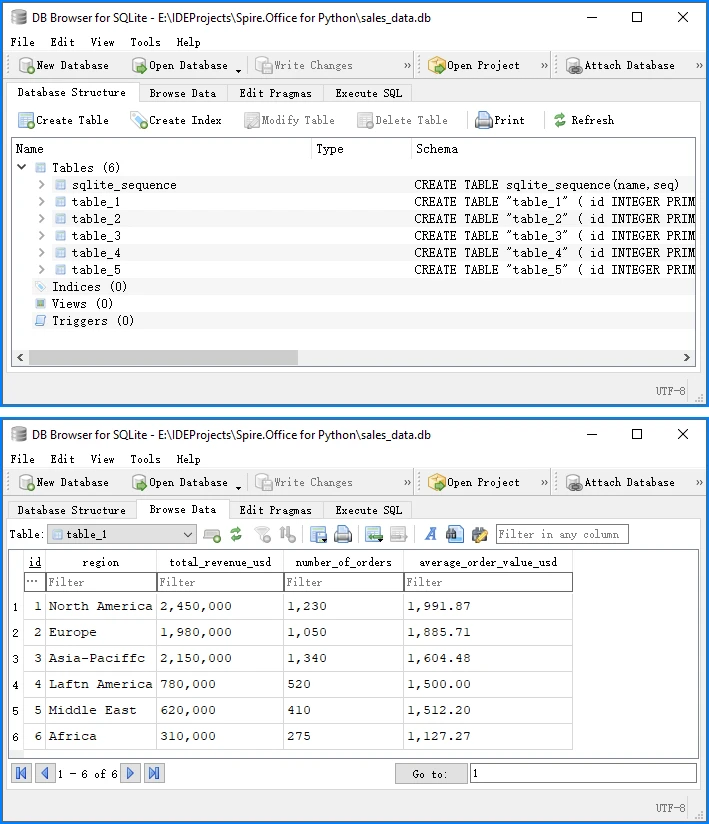
Below is a preview of the insertion result in the database:
This complete example demonstrates the full PDF to database pipeline:
- Load and extract table data from PDF using Spire.PDF
- Transform raw data into structured records
- Insert into SQLite database with proper schema
SQLite automatically creates a system table called sqlite_sequence when using AUTOINCREMENT to track the current maximum ID. This is expected behavior and does not affect your data. You can run this code directly to convert PDF table data into a database.
Adapting to Other SQL Databases
While this guide uses SQLite for simplicity, the same approach works for other SQL databases. The extraction and transformation steps remain identical—only the database connection and insertion syntax vary slightly.
The following examples assume you are using the normalized column names (headers) generated in the previous step.
SQL Server Example
import pyodbc

# Connect to SQL Server
conn_str = (
    "DRIVER={SQL Server};"
    "SERVER=your_server_name;"
    "DATABASE=your_database_name;"
    "UID=your_username;"
    "PWD=your_password"
)
conn = pyodbc.connect(conn_str)
cursor = conn.cursor()

# Generate dynamic column definitions using normalized headers
columns_def = ", ".join([f"[{h}] NVARCHAR(MAX)" for h in headers])

# Create table dynamically
cursor.execute(f"""
IF NOT EXISTS (SELECT * FROM sys.tables WHERE name = 'invoices')
BEGIN
    CREATE TABLE invoices (
        id INT IDENTITY(1,1) PRIMARY KEY,
        {columns_def}
    )
END
""")

# Prepare insert statement
placeholders = ", ".join(["?" for _ in headers])
column_names = ", ".join([f"[{h}]" for h in headers])

# Insert data
for record in structured_data:
    values = [record.get(h, "") for h in headers]
    cursor.execute(f"""
    INSERT INTO invoices ({column_names})
    VALUES ({placeholders})
    """, values)

# Commit and close
conn.commit()
conn.close()
MySQL Example
import mysql.connector

conn = mysql.connector.connect(
    host="localhost",
    user="your_username",
    password="your_password",
    database="your_database"
)
cursor = conn.cursor()

# Use the same dynamic table creation and insert logic as shown earlier,
# with minor syntax adjustments if needed
PostgreSQL Example
import psycopg2

conn = psycopg2.connect(
    host="localhost",
    database="your_database",
    user="your_username",
    password="your_password"
)
cursor = conn.cursor()

# Use the same dynamic table creation and insert logic as shown earlier,
# with minor syntax adjustments if needed
The core extraction and transformation steps remain the same across different SQL databases, especially when using normalized column names for compatibility.
Handling Other Types of PDF Data
While this guide focuses on table extraction, PDFs often contain other types of data that can also be integrated into a database, depending on your use case.
Text Data (Unstructured → Structured)
In many documents, important information such as invoice numbers, customer names, or dates is embedded in plain text rather than tables.
You can extract raw text using:
from spire.pdf import *

pdf = PdfDocument()
pdf.LoadFromFile("Quarterly Sales.pdf")

for i in range(pdf.Pages.Count):
    page = pdf.Pages.get_Item(i)
    extractor = PdfTextExtractor(page)
    options = PdfTextExtractOptions()
    options.IsExtractAllText = True
    text = extractor.ExtractText(options)
    print(text)
However, raw text cannot be directly inserted into a database. It typically requires parsing into structured fields, for example:
- Using regular expressions to extract key-value pairs
- Identifying patterns such as dates, IDs, or totals
- Converting text into dictionaries or structured records
Once structured, the data can be inserted into a database as part of the same transformation and insertion pipeline described earlier.
For more advanced techniques, you can learn more in the detailed Python PDF text extraction guide.
Images (OCR or File Reference)
Images in PDFs are usually not directly usable as structured data, but they can still be integrated into database workflows in two ways:
Option 1: OCR (Recommended for data extraction) Convert images to text using OCR tools, then process and store the extracted content.
Option 2: File Storage (Recommended for document systems) Store images as:
- File paths in the database
- Binary (BLOB) data if needed
Below is an example of extracting images:
from spire.pdf import *

pdf = PdfDocument()
pdf.LoadFromFile("Quarterly Sales.pdf")

helper = PdfImageHelper()

for i in range(pdf.Pages.Count):
    page = pdf.Pages.get_Item(i)
    images = helper.GetImagesInfo(page)
    for j, img in enumerate(images):
        img.Image.Save(f"image_{i}_{j}.png")
To further process image-based content, you can use OCR to extract text from images with Spire.OCR for Python.
Full PDF Storage (BLOB or File Reference)
In some scenarios, the goal is not to extract structured data, but to store the entire PDF file in a database.
This is commonly used in:
- Document management systems
- Archival systems
- Compliance and auditing workflows
You can store PDFs as:
- BLOB data in the database
- File paths referencing external storage
This approach represents another meaning of "PDF in database", but it is different from structured data extraction.
Key Takeaway
While PDFs can contain multiple types of content, table data remains the most efficient and scalable format for database integration. Other data types typically require additional processing before they can be stored or queried effectively.
Common Pitfalls When Converting PDF Data to a Database
While the process of converting PDF to a database may seem straightforward, several practical challenges can arise.
1. Inconsistent Table Structures
Not all PDFs follow a consistent table format:
- Missing columns
- Merged cells
- Irregular layouts
Solution:
- Validate row lengths
- Normalize structure
- Handle missing values
2. Poor Table Detection
Some PDFs do not define tables properly internally, such as no grid structure or irregular cell sizes.
Solution:
- Test with multiple files
- Use fallback parsing logic
- Preprocess PDFs if needed
3. Data Cleaning Issues
Extracted data may contain:
- Extra spaces
- Line breaks
- Formatting issues
Solution:
- Strip whitespace
- Normalize values
- Validate types
4. Character Encoding Issues (Ligatures & Fonts)
PDF table extraction can introduce unexpected characters due to font encoding and ligatures. For example, common letter combinations such as:
fi,ff,ffi,ffl,ft,ti
may be stored as single glyphs in the PDF. When extracted, they may appear as:
di\ue000erence   → difference
o\ue002ce        → office
\ue005le         → file
These are typically private Unicode characters (e.g., \ue000–\uf8ff) caused by custom font mappings.
Solution:
-
Detect private Unicode characters (
\ue000–\uf8ff) -
Build a mapping table for ligatures, such as:
\ue000 → ff\ue001 → ft\ue002 → ffi\ue003 → ffl\ue004 → ti\ue005 → fi
-
Normalize text before inserting into the database
-
Optionally log unknown characters for further analysis
Handling encoding issues properly ensures data accuracy and prevents subtle corruption in downstream processing.
5. Cross-Page Table Fragmentation
Large tables in PDFs are often split across multiple pages. When extracted, each page may be treated as a separate table, leading to:
- Broken datasets
- Repeated headers
- Incomplete records
Solution:
- Compare column counts between consecutive tables
- Check header consistency or data type patterns in the first row
- Merge tables when structure and schema match
- Skip duplicated header rows when concatenating data
In practice, combining column structure and value pattern detection provides a reliable way to reconstruct full tables across pages.
6. Database Schema Mismatch
Incorrect mapping between extracted data and database columns can cause errors.
Solution:
- Align headers with schema
- Use explicit field mapping
7. Performance Issues with Large Files
Processing large PDFs can be slow.
Solution:
- Use batch processing
- Optimize insert operations
By anticipating these issues, you can build a more reliable PDF to database workflow.
Conclusion
Converting PDF to a database is not a one-step operation, but a structured process involving extracting data and processing it for database storage (including transformation and insertion)
By focusing on table data and using Python, you can efficiently implement a complete PDF to database pipeline, making it easier to automate data integration tasks.
This approach is especially useful for handling invoices, reports, and other structured business documents that need to be stored in SQL Server or other relational databases.
If you want to evaluate the performance of Spire.PDF for Python and remove any limitations, you can apply for a 30-day free trial.
FAQ
What does "PDF to database" mean?
It refers to the process of extracting structured data from PDF files and storing it in a database. This typically involves parsing PDF content, transforming it into structured formats, and inserting it into SQL databases for further querying and analysis.
Can Python convert PDF directly to a database?
No. Python cannot directly convert a PDF into a database in one step. The process usually involves extracting data from the PDF first, transforming it into structured records, and then inserting it into a database using SQL connectors.
How do I convert PDF to SQL using Python?
The typical workflow includes:
- Extracting table or text data from the PDF
- Converting it into structured records (rows and columns)
- Inserting the processed data into an SQL database such as SQLite, MySQL, or SQL Server using Python database libraries
Can I store PDF files directly in a database?
Yes. PDF files can be stored as binary (BLOB) data in a database. However, this approach is mainly used for document storage systems, while structured extraction is preferred for data analysis and querying.
What SQL databases can I use for PDF data integration?
You can use almost any SQL database, including SQLite, SQL Server, MySQL, and PostgreSQL. The overall extraction and transformation process remains the same, while only the database connection and insertion syntax differ slightly.
Exporting database query results to PDF is a common requirement in applications such as reporting, data archiving, and document generation. In these scenarios, SQL query results need to be transformed into structured, readable documents that can be easily shared or printed.
Because database data is inherently tabular, preserving its structure during the export process is essential for maintaining clarity and usability. Without proper layout control, the resulting document can quickly become difficult to read, especially when dealing with large datasets.
This article demonstrates how to convert databases to PDF in C# using Spire.XLS for .NET, including examples on retrieving query results, organizing them into a structured table, and exporting them as a formatted PDF document.
Table of Contents
- Understanding the Task
- Convert Database to PDF Using C# (Step-by-Step)
- Complete C# Example for Database to PDF Conversion
- Advanced Scenarios
- Common Pitfalls
- Conclusion
- FAQ
1. Understanding the Task
Converting database content to PDF typically involves several key steps:
- Data retrieval: Execute SQL queries and load results into memory
- Data structuring: Organize query results into a consistent tabular format
- PDF export: Generate a document that preserves layout and readability
In practice, this workflow is commonly used for generating reports, creating invoices, or archiving query results, where maintaining a clear and structured presentation of data is essential.
2. Convert Database to PDF Using C# (Step-by-Step)
This section provides a complete workflow for converting database query results into a PDF document, including data retrieval, table structuring, formatting, and export.
2.1 Environment Setup
Before implementing the solution, make sure your development environment is ready:
-
.NET environment
Install Visual Studio or use the .NET CLI with a compatible .NET version (e.g., .NET 6 or later). -
Database access
Prepare a SQL Server database (or any relational database) and ensure you have a valid connection string. For modern .NET applications, use the recommended SQL client library:dotnet add package Microsoft.Data.SqlClientThis package provides the ADO.NET implementation for SQL Server and replaces the legacy
System.Data.SqlClient. -
Spire.XLS for .NET Install Spire.XLS via NuGet to handle table formatting and PDF export:
dotnet add package Spire.XLSYou can also download the Spire.XLS for .NET package and add it to your project manually.
Once configured, you can retrieve data from the database and use Spire.XLS to generate and export PDF documents.
2.2 Read Data from Database
The first step is to execute a SQL query and load the results into a DataTable. This structure preserves the schema and data types of the query result, making it suitable for further transformation.
using System.Data;
using Microsoft.Data.SqlClient;

string connectionString = "Server=localhost\\SQLEXPRESS;Database=SalesDB;User ID=demouser;Password=YourPassword;Encrypt=true;TrustServerCertificate=true;";
string query = @"
    SELECT o.OrderID, c.CustomerName, o.OrderDate, o.TotalAmount
    FROM Orders o
    JOIN Customers c ON o.CustomerID = c.CustomerID
    WHERE YEAR(o.OrderDate) = 2026;
";

DataTable dataTable = new DataTable();

using (SqlConnection conn = new SqlConnection(connectionString))
{
    SqlDataAdapter adapter = new SqlDataAdapter(query, conn);
    adapter.Fill(dataTable);
}
This example uses Microsoft.Data.SqlClient, the modern SQL client library for .NET, which is recommended over the legacy System.Data.SqlClient.
The SqlDataAdapter acts as a bridge between the database and in-memory data. It executes the query and fills the DataTable without requiring explicit connection management for reading operations.
In practical scenarios, this step can be extended to include:
- Parameterized queries to avoid SQL injection
- Stored procedures for complex data retrieval
- Data filtering and aggregation directly in SQL
By preparing clean and structured data at this stage, you reduce the complexity of downstream formatting and improve overall performance.
For a similar scenario involving exporting database query results to Excel instead of PDF, you can also refer to this guide: Export Database to Excel in C#.
2.3 Import Data and Export to PDF with Formatting
After retrieving the data, the next step is to map it into a worksheet, apply formatting, and export it as a PDF document. This approach leverages worksheet-based layout control to ensure the output remains structured and readable.
using Spire.Xls;
using System.Drawing;

// Create workbook and worksheet
Workbook workbook = new Workbook();
Worksheet sheet = workbook.Worksheets[0];

// Import DataTable with headers
sheet.InsertDataTable(dataTable, true, 1, 1);

// Format header row
CellRange headerRange = sheet.Range[1, 1, 1, dataTable.Columns.Count];
headerRange.Style.Font.IsBold = true;
headerRange.Style.Font.Size = 11;
headerRange.Style.Color = Color.LightGray;

// Apply borders to enhance table structure
CellRange dataRange = sheet.AllocatedRange;
dataRange.BorderAround(LineStyleType.Thin);
dataRange.BorderInside(LineStyleType.Thin);

// Align content for consistency
dataRange.Style.HorizontalAlignment = HorizontalAlignType.Center;
dataRange.Style.VerticalAlignment = VerticalAlignType.Center;

// Auto-fit columns for better layout
sheet.AllocatedRange.AutoFitColumns();

// Center the content horizontally in the page
sheet.PageSetup.CenterHorizontally = true;

// Export to PDF
workbook.SaveToFile("SalesReport_2026.pdf", FileFormat.PDF);
This step combines layout control and PDF generation into a single workflow.
Key points to note:
-
Worksheet as layout engine The worksheet acts as a structured canvas where database data is arranged into rows and columns. This ensures the original tabular structure is preserved in the final document.
-
Formatting directly impacts PDF output Adjustments such as column width, font style, and borders are not just visual improvements—they determine how the content is rendered in the PDF. Poor formatting can lead to truncated text or unreadable layouts.
-
Automatic pagination When exporting, the worksheet content is automatically split across pages based on layout and paper size, which is particularly useful for large datasets.
For further layout optimization, you can enhance the table formatting by:
- Enabling text wrapping for long fields
- Applying number/date formats for better readability
If your project requires more flexible PDF structure control, you can also explore converting DataTable to PDF in C# directly using Spire.PDF for .NET, which provides more advanced document-level layout capabilities for complex reporting needs.
3. Complete C# Example for Converting Databases to PDF
Below is the complete implementation that combines database retrieval, data formatting, and PDF export into a single workflow.
using System;
using System.Data;
using Microsoft.Data.SqlClient;
using Spire.Xls;
using System.Drawing;

class Program
{
    static void Main()
    {
        // Step 1: Retrieve data from database
        string connectionString = "Server=localhost\\SQLEXPRESS;Database=SalesDB;User ID=demouser;Password=YourPassword;Encrypt=true;TrustServerCertificate=true;";
        string query = @"
            SELECT o.OrderID, c.CustomerName, o.OrderDate, o.TotalAmount
            FROM Orders o
            JOIN Customers c ON o.CustomerID = c.CustomerID
            WHERE YEAR(o.OrderDate) = 2026;
        ";

        DataTable dataTable = new DataTable();

        using (SqlConnection conn = new SqlConnection(connectionString))
        {
            SqlDataAdapter adapter = new SqlDataAdapter(query, conn);
            adapter.Fill(dataTable);
        }

        // Step 2: Create workbook and import data
        Workbook workbook = new Workbook();
        Worksheet sheet = workbook.Worksheets[0];
        sheet.InsertDataTable(dataTable, true, 1, 1);

        // Step 3: Apply professional formatting
        // Format header row
        CellRange headerRange = sheet.Range[1, 1, 1, dataTable.Columns.Count];
        headerRange.Style.Font.IsBold = true;
        headerRange.Style.Font.Size = 11;
        headerRange.Style.Color = Color.LightGray;

        // Apply borders
        CellRange dataRange = sheet.AllocatedRange;
        dataRange.BorderAround(LineStyleType.Thin);
        dataRange.BorderInside(LineStyleType.Thin);

        // Set alignment
        dataRange.Style.HorizontalAlignment = HorizontalAlignType.Center;
        dataRange.Style.VerticalAlignment = VerticalAlignType.Center;

        // Auto-fit columns
        sheet.AllocatedRange.AutoFitColumns();

        // Center the content horizontally in the pages
        sheet.PageSetup.CenterHorizontally = true;

        // Step 4: Export to PDF
        workbook.SaveToFile("SalesReport_2026.pdf", FileFormat.PDF);

        Console.WriteLine("Database query results successfully exported to PDF.");
    }
}
Below is a preview of the generated PDF:
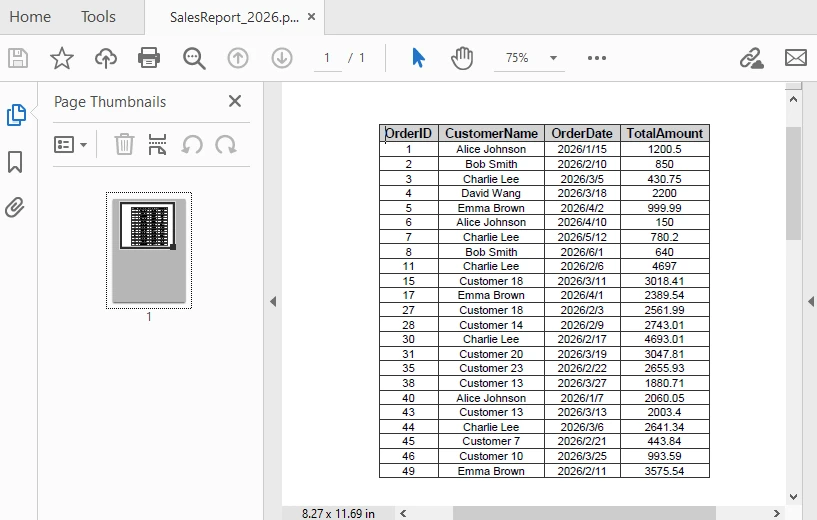
This example demonstrates an end-to-end workflow from SQL query execution to PDF generation.
4. Advanced Scenarios
In real-world applications, exporting database data to PDF often requires more than just basic conversion. You may need to handle batch exports, improve document readability, or adjust layout settings for better presentation. The following examples demonstrate common enhancements for real-world usage.
Export Multiple Query Results
For scenarios such as batch report generation or scheduled tasks, you may need to execute multiple queries and export each result as a separate PDF document:
string[] queries = {
    "SELECT * FROM Orders WHERE Status = 'Pending'",
    "SELECT * FROM Customers WHERE Region = 'North'"
};

for (int i = 0; i < queries.Length; i++)
{
    DataTable dt = ExecuteQuery(queries[i]);
    Workbook wb = new Workbook();
    Worksheet ws = wb.Worksheets[0];
    ws.InsertDataTable(dt, true, 1, 1);
    ws.AllocatedRange.AutoFitColumns();
    wb.SaveToFile($"Report_{i + 1}.pdf", FileFormat.PDF);
}
This approach is useful for automating report generation where multiple datasets need to be exported independently.
Add Title and Metadata
To improve readability and provide context, you can add a title row above the data before exporting to PDF:
// Insert title row
sheet.InsertRow(1);
sheet.Range[1, 1].Text = "Sales Report - 2026";
sheet.Range[1, 1].Style.Font.IsBold = true;
sheet.Range[1, 1].Style.Font.Size = 14;

// Merge title cells
sheet.Range[1, 1, 1, dataTable.Columns.Count].Merge();

// Auto-fit the title row
sheet.AutoFitRow(1);
The following image shows the generated PDF with the title row applied:
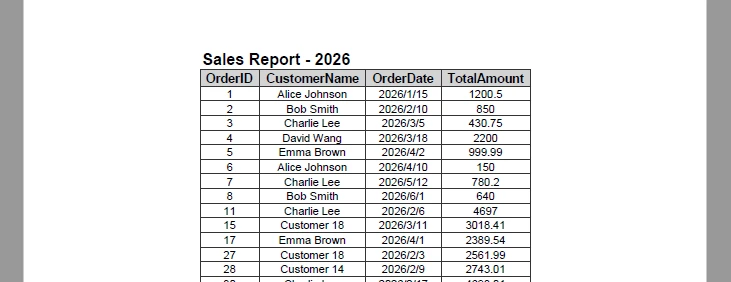
Adding a title helps users quickly understand the context of the document, especially when sharing or printing reports.
Set Page Size, Orientation, and Margins
To ensure the PDF layout fits your data properly, you can configure page size, orientation, and margins before exporting:
// Set the page size and orientation
sheet.PageSetup.PaperSize = PaperSizeType.PaperA4;
sheet.PageSetup.Orientation = PageOrientationType.Portrait;

// Set the page margins
sheet.PageSetup.TopMargin = 0.5f;
sheet.PageSetup.BottomMargin = 0.2f;
sheet.PageSetup.LeftMargin = 0.2f;
sheet.PageSetup.RightMargin = 0.2f;
Adjusting these settings helps prevent content overflow and ensures consistent layout across different reports.
Control Page Layout and Scaling
When working with large tables, you may need to control how content is distributed across pages. By default, content is split automatically, but you can adjust scaling behavior to fit more data within a page.
// Fit content to page width
workbook.ConverterSetting.SheetFitToWidth = true;

// Fit entire sheet into a single page (may reduce readability)
workbook.ConverterSetting.SheetFitToPage = true;
SheetFitToWidthensures the table fits within the page width while allowing vertical paginationSheetFitToPagescales the entire worksheet to fit into a single page
These settings are useful when generating compact reports, but should be used carefully to avoid making text too small.
Add Headers and Footers
Headers and footers are useful for adding contextual information such as report titles, timestamps, or page numbers:
sheet.PageSetup.LeftHeader = "&\"Arial,Bold\"&16 Sales Report - 2026";
sheet.PageSetup.RightHeader = "&\"Arial,Italic\"&10 Generated on &D";
sheet.PageSetup.CenterFooter = "&\"Arial,Regular\"&16 Page &P of &N";
The following image shows the generated PDF with headers and footers applied:
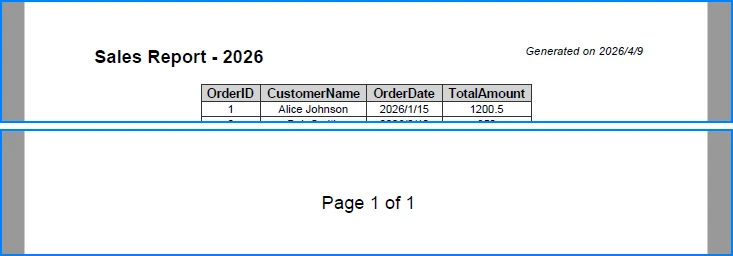
These elements improve document navigation and are especially valuable for multi-page reports.
Encrypt PDFs
To protect sensitive data, you can apply encryption to the exported PDF:
workbook.ConverterSetting.PdfSecurity.Encrypt("openpsd");
Encryption ensures that only authorized users can access the document, which is important for reports containing confidential or business-critical data.
For more related scenarios involving document export and PDF customization, you can also explore Excel to PDF conversion in C#.
5. Common Pitfalls
Database Connection Issues
Ensure the connection string is correct and the database server is accessible. Verify authentication settings (e.g., SQL authentication or integrated security) and confirm that encryption-related parameters match your environment configuration.
Empty Query Results
Check whether the DataTable contains data before proceeding. Empty result sets may lead to blank PDFs or unexpected formatting behavior.
if (dataTable.Rows.Count == 0)
{
    Console.WriteLine("No data found for the specified query.");
    return;
}
In production scenarios, you may also choose to generate a placeholder PDF or log the issue instead of exiting the process.
Column Width Overflow
When working with long text fields, AutoFitColumns() may produce excessively wide columns, which can negatively affect PDF layout.
To improve readability, consider:
- Setting a maximum column width
- Enabling text wrapping for long content
- Manually adjusting key columns based on data type
This is especially important when exporting large datasets with variable-length text.
Missing Font Support
If the exported PDF contains special characters (e.g., non-Latin text) or custom fonts, ensure the required fonts are installed and accessible at runtime.
Missing fonts may cause text rendering issues or fallback substitutions, which can affect document appearance and readability.
Unexpected PDF Layout
If the exported PDF layout appears compressed or improperly scaled, check page setup and scaling options such as SheetFitToWidth or SheetFitToPage.
Improper scaling may cause content to appear too small or distort the original table structure.
Conclusion
This article demonstrated a practical approach to converting database query results to PDF in C#. By combining structured data retrieval with worksheet-based formatting, you can generate clear and professional documents directly from SQL data.
This method is particularly effective for report generation and data presentation scenarios where maintaining table structure and readability is essential.
If you are evaluating Spire.XLS, you can request a free temporary license to remove evaluation limitations during development.
FAQ
Can Spire.XLS export database data to PDF without third-party tools?
Yes. Spire.XLS performs all operations independently and does not require Microsoft Office or any other external tools.
How do I handle large datasets when exporting to PDF?
For large datasets, consider paginating the results or filtering the query to retrieve only necessary data. You can also adjust PDF page settings to optimize output size.
Can I customize the PDF page layout?
Yes. Spire.XLS allows you to configure page settings including orientation, margins, and paper size before exporting to PDF.
Does this method work with databases other than SQL Server?
Yes. The approach works with any database that supports ADO.NET data providers, including MySQL, PostgreSQL, and Oracle. Simply use the appropriate connection class and data adapter.
Should I use Microsoft.Data.SqlClient or System.Data.SqlClient?
For modern .NET applications, it is recommended to use Microsoft.Data.SqlClient. It is actively maintained and provides better support for newer SQL Server features, while System.Data.SqlClient is considered legacy and no longer receives major updates.
VBA macros provide a convenient way to automate data processing, formatting, and business logic within Excel, especially for repetitive or rule-based tasks. However, managing macros manually inside Excel becomes inefficient when you need to generate, update, or maintain files at scale.
For .NET developers, a more scalable approach is to programmatically add macros to Excel using C#. By working with Excel VBA in C#, you can write Excel macros, read existing macro code, and modify VBA logic across multiple files without opening Excel and manually editing the VBA code.
In this article, you'll learn how to add, read, and edit Excel VBA macros in C# for automated workflows. Using Spire.XLS for .NET, you can directly manipulate VBA projects embedded in Excel files without requiring Microsoft Excel installation.
Quick Navigation
- How C# Works with Excel Macros
- Environment Setup
- How to Add a Macro to Excel in C#
- Read, Edit, and Remove Macros from Excel in C#
- Common Pitfalls When Working with Excel Macros
- Conclusion
- Frequently Asked Questions
Understanding Excel Macros and How C# Works with Them
An Excel macro is essentially VBA (Visual Basic for Applications) code stored inside a workbook. In macro-enabled files (such as .xlsm), this code is organized within a VBA project, which contains modules and procedures.
In practice, most programmatic macro operations focus on standard modules, which are simple containers for VBA procedures (Sub or Function). When working with C#, you typically do not interact with Excel UI elements like buttons or events. Instead, you directly create modules and inject VBA code.
From a technical perspective, macros are not just executable scripts—they are part of the file structure. This means they can be accessed and modified programmatically, provided that your tool supports VBA project manipulation.
In C#, there are two main approaches to working with Excel macros:
- Using Microsoft Excel Interop to automate Excel
- Using standalone libraries such as Spire.XLS for .NET to manipulate the file directly
The first approach depends on Excel being installed and is typically used to execute macros. The second approach allows you to create, read, edit, and delete VBA code directly inside Excel files, making it more suitable for backend services and automated workflows.
In the following sections, we'll focus on the second approach and demonstrate how to manage Excel macros entirely in C#.
Environment Setup: Install Spire.XLS for .NET
Before working with Excel macros in C#, you need to install Spire.XLS for .NET, which allows you to manage Excel files and manipulate VBA projects without requiring Microsoft Excel.
Install via NuGet
You can install Spire.XLS for .NET using NuGet Package Manager:
Install-Package Spire.XLS
Or via the .NET CLI:
dotnet add package Spire.XLS
You can also download the Spire.XLS for .NET package and add it to your project manually.
Project Requirements
- .NET Framework, .NET Core, .NET Standard, or .NET 5+
- No Microsoft Excel installation required
- Supports Windows, Linux, and macOS environments
The library is runtime-agnostic and can be used in any .NET-supported environment, including web, desktop, and cross-platform applications.
Namespace to Import
After installation, include the following namespaces in your project:
using Spire.Xls;
Once the setup is complete, you can start creating, reading, and modifying Excel VBA macros programmatically.
How to Add a Macro to Excel in C# (Complete Example)
Before writing macro code, it's important to understand how Spire.XLS exposes the VBA structure in Excel:
- Workbook.VbaProject represents the VBA project embedded in the workbook
- IVbaProject.Modules provides access to all VBA modules
- IVbaModule represents an individual module that stores macro code
In addition to modules, the VBA project also supports project-level configuration, such as name, description, password protection, and conditional compilation settings.
The following example shows how to create a VBA project, configure its properties, add a module, and write a macro into an Excel file programmatically.
using Spire.Xls;

Workbook workbook = new Workbook();

// Create VBA project
IVbaProject vbaProject = workbook.VbaProject;

// Configure project-level properties (optional but important in real scenarios)
vbaProject.Name = "ReportGenerator";
vbaProject.Description = "VBA project for generating quarterly reports";
vbaProject.Password = "securepassword";
vbaProject.LockProjectView = false;
vbaProject.HelpFileName = "ReportGeneratorHelp.chm";
vbaProject.ConditionalCompilation = "DEBUG_MODE=1"; // External compile-time flag

// Add a VBA module
IVbaModule vbaModule = vbaProject.Modules.Add("ReportModule", VbaModuleType.Module);

// Write VBA macro code
vbaModule.SourceCode = @"
Sub GenerateQuarterlyReport()
    Dim ws As Worksheet
    Dim i As Integer
    Dim quarter As String

    Set ws = ActiveSheet
    ws.Cells.Clear

    ' Prompt user input
    quarter = InputBox(""Enter quarter (e.g., Q1 2026):"", ""Report Generation"")

    With ws
        .Range(""A1:E1"").Value = Array(""Date"", ""Product"", ""Region"", ""Sales"", ""Status"")

        For i = 1 To 50
            .Cells(i + 1, 1).Value = DateSerial(2026, 1 + Int((i - 1) / 17), 1 + ((i - 1) Mod 17))
            .Cells(i + 1, 2).Value = ""Product "" & (1 + Int((i - 1) / 10))
            .Cells(i + 1, 3).Value = Choose((i Mod 5) + 1, ""North"", ""South"", ""East"", ""West"", ""Central"")
            .Cells(i + 1, 4).Value = Round(Rnd() * 10000, 2)
            .Cells(i + 1, 5).Value = IIf(.Cells(i + 1, 4).Value > 5000, ""Target Met"", ""Below Target"")
        Next i

        .Columns(""A:E"").AutoFit

        ' Conditional compilation example
        #If DEBUG_MODE = 1 Then
            MsgBox ""DEBUG: Report generated (50 rows)"", vbInformation, ""Debug Info""
        #End If
    End With

    MsgBox ""Quarterly report for "" & quarter & "" generated successfully!"", vbInformation, ""Report Status""
End Sub";

// Save as macro-enabled Excel file
workbook.SaveToFile("QuarterlyReportGenerator.xlsm", FileFormat.Version2016);
workbook.Dispose();
Below is a preview of the generated Macro in Excel:
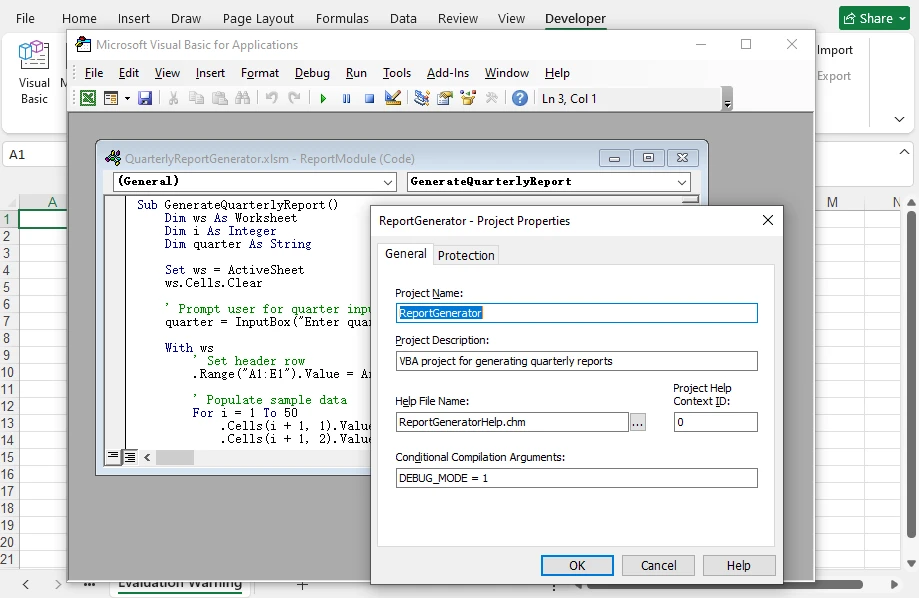
In this workflow, Spire.XLS allows you to construct the full VBA structure—not only modules and macro code, but also project-level metadata and compilation behavior—directly in code. This is conceptually similar to configuring a VBA project in the editor, but fully automated and independent of Excel.
Key API Breakdown
-
workbook.VbaProject
Initializes or retrieves the VBA project within the workbook.
-
vbaProject.Modules.Add(name, type)
Adds a new module to the project as a container for macro code.
-
vbaModule.SourceCode
Defines the full VBA script inside the module.
-
vbaProject.Description
Adds a description to the VBA project.
-
vbaProject.CodePage
Defines the character encoding used in the VBA project.
-
vbaProject.Password / LockProjectView
Controls access and visibility of the VBA project.
-
vbaProject.ConditionalCompilation
Enables compile-time flags (e.g., debug logic) inside VBA using #If.
Workbooks containing macros must be saved in macro-enabled formats such as .xls, .xlsm, .xltm, or .xlsb, as other formats (e.g., .xlsx) do not support VBA. Refer to the FileFormat enumeration to correctly set the output format when saving.
Reading, Editing, and Removing Excel Macros in C#
Once a VBA project exists, you can use Spire.XLS to inspect and modify its contents programmatically, including both module code and project-level metadata.
In real-world scenarios, this allows you to analyze existing macros, update business logic, enforce security settings, or remove legacy VBA code without opening Excel. Whether you're maintaining automated reporting systems or processing third-party Excel files, having full control over VBA projects in code is essential.
Read Macro Code and Project-Level Metadata
To read macros from an Excel file, load the workbook and iterate through all modules in the VBA project.
using Spire.Xls;

Workbook workbook = new Workbook();
workbook.LoadFromFile("QuarterlyReportGenerator.xlsm");

IVbaProject vbaProject = workbook.VbaProject;

string macroInfo = "VBA Project Name: " + vbaProject.Name + Environment.NewLine;
macroInfo += "Code Page: " + vbaProject.CodePage + Environment.NewLine;
macroInfo += "Is Protected: " + vbaProject.IsProtected + Environment.NewLine;

foreach (IVbaModule module in vbaProject.Modules)
{
    macroInfo += Environment.NewLine + "Module: " + module.Name + Environment.NewLine;
    macroInfo += "Source Code:" + Environment.NewLine;
    macroInfo += module.SourceCode + Environment.NewLine;
}

Console.WriteLine(macroInfo);

System.IO.File.WriteAllText("MacroAnalysis.txt", macroInfo);
workbook.Dispose();
Below is a preview of the console output:
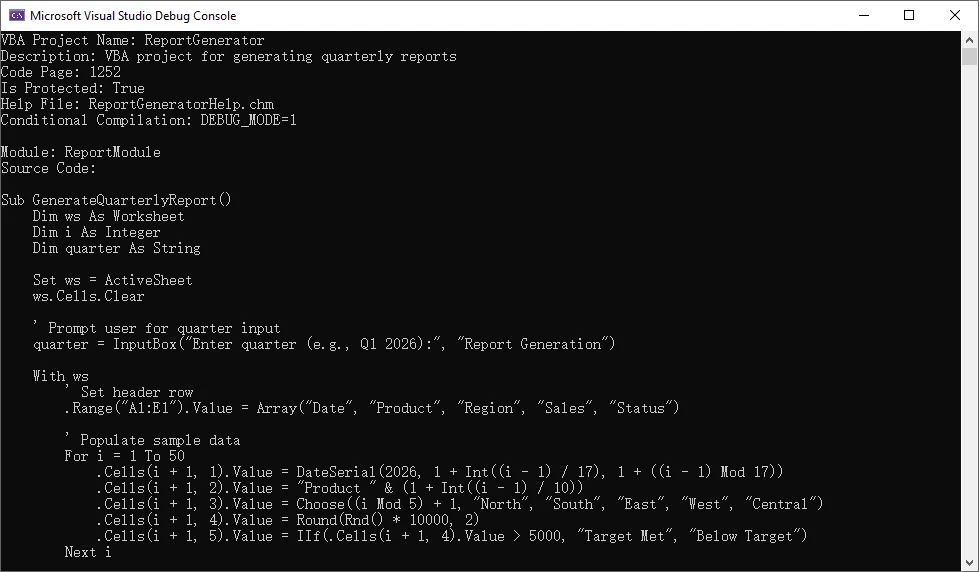
Here, each module exposes its VBA code through the SourceCode property, while the VBA project itself provides metadata such as name, encoding, and protection status.
The property vbaProject.IsProtected in this example indicates whether the VBA project is protected (locked for viewing or editing).
Edit Macro Code and Project-Level Metadata
To edit a macro, access a specific module and update its SourceCode. You can also modify project-level properties if needed. If the VBA project is protected, the correct password must be provided through vbaProject.Password before making such changes.
using Spire.Xls;

Workbook workbook = new Workbook();
workbook.LoadFromFile("QuarterlyReportGenerator.xlsm");

IVbaProject vbaProject = workbook.VbaProject;

// Update macro logic
IVbaModule module = vbaProject.Modules["ReportModule"];  // Or use index if name is unknown
module.SourceCode = module.SourceCode.Replace(
    "\"North\", \"South\", \"East\", \"West\", \"Central\"",
    "\"North America\", \"Europe\", \"Asia Pacific\", \"Latin America\", \"Middle East\"");

// Update project metadata
// For protected VBA projects, passwords are required to modify the project-level metadata
vbaProject.Password = "securepassword";
vbaProject.Description = "Updated report logic with global regions";
vbaProject.Name = "UpdatedReportGenerator";

workbook.SaveToFile("UpdatedReportGenerator.xlsm", FileFormat.Version2016);
workbook.Dispose();
Below is a preview of the updated macro code:

Spire.XLS treats macro code as editable text within a module, so updates are typically done by modifying the existing source and saving the workbook.
If you need to convert legacy .xls files to .xlsm format while preserving macros, see How to Convert XLS to XLSM and Maintain Macros Using C#.
Remove Macros
To remove macros, delete modules from the VBA project. This effectively removes all macro logic from the workbook.
using Spire.Xls;
using Spire.Xls.Core.Spreadsheet;

Workbook workbook = new Workbook();
workbook.LoadFromFile("LegacyReport.xlsm");

IVbaProject vbaProject = workbook.VbaProject;

// Remove specific module by its name
vbaProject.Modules.Remove("ReportModule");

// Or remove a module by its index
vbaProject.Modules.RemoveAt(0);

// Remove all modules
vbaProject.Modules.Clear();

workbook.SaveToFile("CleanReport.xlsm", FileFormat.Version2016);
workbook.Dispose();
After removing all modules, the workbook no longer contains executable VBA code, making it equivalent to a macro-free Excel file.
Alternatively, converting a macro-enabled Excel file to .xlsx will remove all macros, since the .xlsx format does not support VBA code.
Common Pitfalls When Working with Excel Macros
File Format Requirements
Macros require macro-enabled formats such as .xlsm, .xls, or .xlsb. The .xlsx format does not support VBA code. Always save files with the appropriate extension.
Encoding Issues
VBA code uses specific encoding (typically CodePage 1252 for Western languages). When working with international characters, ensure the CodePage is set correctly before writing macro code.
Common CodePage values include:
- 1252 – English / Western European (default in many environments)
- 936 – Simplified Chinese (GBK)
- 950 – Traditional Chinese (Big5)
- 932 – Japanese (Shift-JIS)
- 65001 – UTF-8 (⚠️ limited support in VBA, may cause compatibility issues)
Macro Security Settings
Excel macro security settings may prevent macros from running. When distributing macro-enabled files, consider adding instructions for enabling macros or digitally signing the VBA project.
Excel Version Compatibility
VBA code written for newer Excel versions may not work correctly in older versions. Test macros across target Excel versions to ensure compatibility.
Conclusion
C# provides robust capabilities for managing Excel macros programmatically. By using Spire.XLS for .NET, developers can add, read, edit, and remove VBA code directly inside Excel files without requiring Excel installation.
This approach focuses on managing macro code rather than executing it, making it ideal for automated workflows, backend services, and large-scale document processing.
To test these features without limitations, you can apply for a free temporary license of Spire.XLS for .NET.
Frequently Asked Questions (FAQ)
Can C# add VBA macros without Microsoft Excel?
Yes. Libraries such as Spire.XLS for .NET allow you to manipulate VBA projects directly without requiring Excel installation.
What format is required for Excel macros?
Macros require macro-enabled formats such as .xlsm, .xls, .xlsb, or .xltm (for templates). The .xlsx format does not support VBA code.
Can I edit existing macros in Excel using C#?
Yes. You can access VBA modules and modify their source code programmatically to update business logic or fix issues across multiple files.
Is this approach suitable for server environments?
Yes. Since it does not rely on Microsoft Excel, this approach is ideal for backend services, automated systems, and cloud-based applications.
Can I read macro code from password-protected Excel files?
It depends on the type of protection applied to the Excel file.
- Workbook protection (file password): You must provide the password (e.g., via Workbook.OpenPassword) when loading the file before accessing its contents.
- VBA project protection: Reading macro code is generally allowed, but modifying project-level properties (such as name or description) requires the VBA project password.
Additionally, if the Excel file is digitally signed, any modification to the document (including macros or metadata) will invalidate the signature.
