
Knowledgebase (2412)
Children categories
PDF (Portable Document Format) is widely used for sharing, distributing, and preserving documents because it maintains a consistent layout and formatting across platforms. Developers often need to edit PDF files in C#, whether it's to replace text, insert images, add watermarks, or extract pages.
In this step-by-step tutorial, you will learn how to programmatically edit PDFs in C# with the Spire.PDF for .NET library.
Table of Contents
- Why Edit PDFs Programmatically in C#
- C# Library to Edit PDFs
- Step-by-Step Guide: Editing PDF in C#
- Tips for Efficient PDF Editing in C#
- Conclusion
- FAQs
Why Edit PDFs Programmatically in C
While tools like Adobe Acrobat provide manual PDF editing, programmatically editing PDFs has significant advantages:
- Automation: Batch process hundreds of documents without human intervention.
- Integration: Edit PDFs as part of a workflow, such as generating reports, invoices, or certificates dynamically.
- Consistency: Apply uniform styling, stamps, or watermarks across multiple PDFs.
- Flexibility: Extract or replace content programmatically to integrate with databases or external data sources.
C# Library to Edit PDFs
Spire.PDF for .NET is a robust .NET PDF library that enables developers to generate, read, edit, and convert PDF files in .NET applications. It's compatible with both .NET Framework and .NET Core applications.
This library provides a rich set of features for developers working with PDFs:
- PDF Creation: Generate new PDFs from scratch or from existing documents.
- Text Editing: Add, replace, or delete text on any page.
- Image Editing: Insert images, resize, or remove them.
- Page Operations: Insert, remove, extract, or reorder pages.
- Annotations: Add stamps, comments, and shapes for marking content.
- Watermarking: Add text or image watermarks for branding or security.
- Form Handling: Create and fill PDF forms programmatically.
- Digital Signatures: Add and validate signatures for authenticity.
- Encryption: Apply password protection and user permissions.
Step-by-Step Guide: Editing PDF in C
Modifying a PDF file in C# involves several steps: setting up a C# project, installing the library, loading the PDF file, making necessary changes, and saving the document. Let's break down each step in detail.
Step 1: Set Up Your C# Project
Before you start editing PDFs, you need to create a new C# project by following the steps below:
- Open Visual Studio.
- Create a new project. You can choose a Console App or a Windows Forms App depending on your use case.
- Name your project (e.g., PdfEditorDemo) and click Create.
Step 2: Install Spire.PDF
Next, you need to install the Spire.PDF library, which provides all the functionality required to read, edit, and save PDF files programmatically.
You can simply install it via the NuGet Package Manager Console with the following command:
Install-Package Spire.PDF
Alternatively, you can use the NuGet Package Manager GUI to search for Spire.PDF and click Install.
Step 3: Load an Existing PDF
Before you can modify an existing PDF file, you need to load it into a PdfDocument object. This gives you access to its pages, text, images, and structure.
using Spire.Pdf;
PdfDocument pdf = new PdfDocument();
pdf.LoadFromFile("example.pdf");
Step 4: Edit PDF Content
Text editing, image insertion, page management, and watermarking are common operations when working with PDFs. This step covers all these editing tasks.
4.1 Edit Text
Text editing is one of the most common operations when working with PDFs. Depending on your needs, you might want to replace existing text or add new text to specific pages.
Replace existing text:
Replacing text in PDF allows you to update content across a single page or an entire PDF while maintaining formatting consistency. Using the PdfTextReplacer class, you can quickly find and replace text programmatically:
// Get the first page
PdfPageBase page = pdf.Pages[0];
// Create a PdfTextReplacer
PdfTextReplacer textReplacer = new PdfTextReplacer(page);

// Replace all occurrences of target text with new text
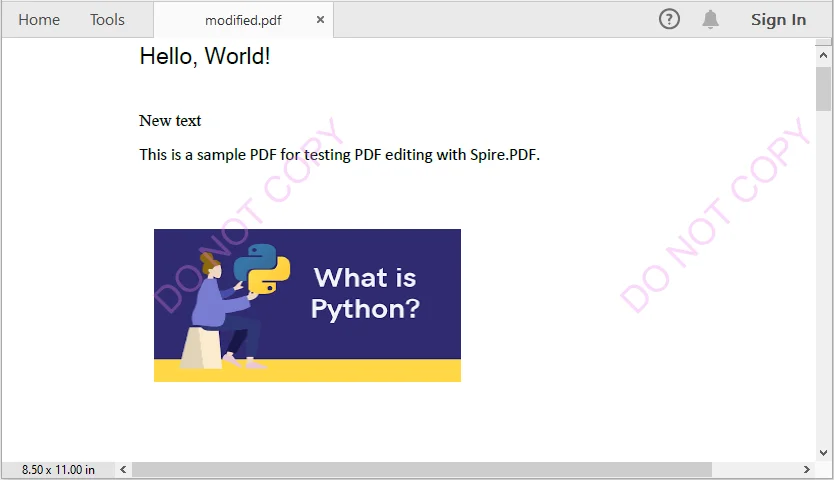
textReplacer.ReplaceAllText("Old text", "New text");
Add new text:
In addition to replacing existing content, you may need to insert new text into a PDF. With just one line of code, you can add text to any location on a PDF page:
page.Canvas.DrawString(
    "Hello, World!",
    new PdfTrueTypeFont(new Font("Arial Unicode MS", 15f, FontStyle.Bold), true),
    new PdfSolidBrush(Color.Black),
    90, 30
);
4.2 Insert and Update Images
PDFs often contain visual elements such as logos, charts, or illustrations. You can insert new images or update outdated graphics to enhance the document's visual appeal.
Insert an Image:
// Load an image
PdfImage image = PdfImage.FromFile("logo.png");
// Draw the image at a specific location with defined size
page.Canvas.DrawImage(image, 100, 150, 200, 100);
Update an image:
// Load the new image
PdfImage newImage = PdfImage.FromFile("image1.jpg");
// Create a PdfImageHelper instance
PdfImageHelper imageHelper = new PdfImageHelper();
// Get the image information from the page
PdfImageInfo[] imageInfo = imageHelper.GetImagesInfo(page);
// Replace the first image on the page with the new image
imageHelper.ReplaceImage(imageInfo[0], newImage);
4.3 Add, Remove, or Extract Pages
Managing page structure is another important aspect of PDF editing, such as adding new pages, removing unwanted pages, and extracting particular pages to a new document.
Add a new page:
// Add a new page
PdfPageBase newPage = pdf.Pages.Add();
Remove a page:
// Remove the last page
pdf.Pages.RemoveAt(pdf.Pages.Count - 1);
Extract a page to a new document:
// Create a new PDF document
PdfDocument newPdf = new PdfDocument();
// Extract the third page to a new PDF document
newPdf.InsertPage(pdf, pdf.Pages[2]);
// Save the new PDF document
newPdf.SaveToFile("extracted_page.pdf");
4.4 Add Watermarks
Adding Watermarks to PDFs can help indicate confidentiality, add branding, or protect intellectual property. You can easily add them programmatically to any page:
// Iterate through each page in the PDF document
foreach (PdfPageBase page in pdf.Pages)
{
    // Create a tiling brush for the watermark
    // The brush size is set to half the page width and one-third of the page height
    PdfTilingBrush brush = new PdfTilingBrush(
        new SizeF(page.Canvas.ClientSize.Width / 2, page.Canvas.ClientSize.Height / 3));

    // Set the brush transparency to 0.3 for a semi-transparent watermark
    brush.Graphics.SetTransparency(0.3f);

    // Save the current graphics state for later restoration
    brush.Graphics.Save();

    // Move the origin of the brush to its center to prepare for rotation
    brush.Graphics.TranslateTransform(brush.Size.Width / 2, brush.Size.Height / 2);

    // Rotate the coordinate system by -45 degrees to angle the watermark
    brush.Graphics.RotateTransform(-45);

    // Draw the watermark text on the brush
    // Using Helvetica font, size 24, violet color, centered alignment
    brush.Graphics.DrawString(
        "DO NOT COPY",
        new PdfFont(PdfFontFamily.Helvetica, 24),
        PdfBrushes.Violet,
        0, 0,
        new PdfStringFormat(PdfTextAlignment.Center));

    // Restore the previously saved graphics state, undoing rotation and translation
    brush.Graphics.Restore();

    // Reset the transparency to fully opaque
    brush.Graphics.SetTransparency(1);

    // Draw the brush over the entire page area to apply the watermark
    page.Canvas.DrawRectangle(brush, new RectangleF(new PointF(0, 0), page.Canvas.ClientSize));
}
Step 5: Save the Modified PDF
After making all the necessary edits, the final step is to save your changes.
// Save the Modified PDF and release resources
pdf.SaveToFile("modified.pdf");
pdf.Close();
Output PDF
The output modified.pdf looks like this:
Tips for Efficient PDF Editing in C
When editing PDFs programmatically, it's important to keep a few best practices in mind to ensure the output remains accurate, readable, and efficient.
- Batch Processing: For repetitive tasks, process multiple PDF files in a loop rather than handling them individually. This approach improves efficiency and reduces manual effort.
- Text Placement: Use coordinates carefully when inserting new text. Proper positioning prevents content from overlapping with existing elements and maintains a clean layout.
- Fonts and Encoding: Choose fonts that support the characters you need. This is especially critical for languages such as Chinese, Arabic, or other scripts that require extended font support.
- Memory Management: Always release resources by disposing of PdfDocument objects after use. Proper memory management helps avoid performance issues in larger applications.
Conclusion
This tutorial demonstrates how to edit PDF in C# using Spire.PDF. From replacing text, inserting images, and managing pages, to adding watermarks, each step includes practical code examples. Developers can now automate PDF editing, enhance document presentation, and handle PDFs efficiently within professional applications.
FAQs
Q1: How can I programmatically edit text in a PDF using C#?
A1: You can use a C# PDF library like Spire.PDF to replace existing text or add new text to a PDF. Classes such as PdfTextReplacer and page.Canvas.DrawString() provide precise control over text editing while preserving formatting.
Q2: How do I replace or add text in a PDF using C#?
A2: With C#, libraries like Spire.PDF let you search and replace existing text using PdfTextReplacer or add new text anywhere on a page using page.Canvas.DrawString().
Q3: Can I insert or update images in a PDF programmatically?
A3: Yes. You can load images into your project and use classes like PdfImage and PdfImageHelper to draw or replace images on a PDF page.
Q4: Is it possible to add watermarks to a PDF using code?
A4: Absolutely. You can add text or image watermarks programmatically, control transparency, rotation, and position, and apply them to one or all pages of a PDF.
Q5: How can I extract specific pages from a PDF?
A5: You can create a new PDF document and insert selected pages from the original PDF, enabling you to extract single pages or ranges for separate use.
In today's data-driven world, Python developers frequently need to convert lists (a fundamental Python data structure) into Excel spreadsheets. Excel remains the standard for data presentation, reporting, and sharing across industries. Whether you're generating reports, preparing data for analysis, or sharing information with non-technical stakeholders, the ability to efficiently export Python lists to Excel is a valuable skill.
While lightweight libraries like pandas can handle basic exports, Spire.XLS for Python gives you full control over Excel formatting, styles, and file generation – all without requiring Microsoft Excel. In this comprehensive guide, we'll explore how to use the library to convert diverse list structures into Excel in Python, complete with detailed examples and best practices.
- Why Convert Python Lists to Excel?
- Installation Guide
- Basic – Convert a Simple Python List to Excel
- Convert Nested Lists to Excel in Python
- Convert a List of Dictionaries to Excel
- 4 Tips to Optimize Your Excel Outputs
- Conclusion
- FAQs
Why Convert Python Lists to Excel?
Lists in Python are versatile for storing structured or unstructured data, but Excel offers advantages in:
- Collaboration: Excel is universally used, and stakeholders can edit, sort, or filter data without Python knowledge.
- Reporting: Add charts, pivot tables, or summaries to Excel after export.
- Compliance: Many industries require data in Excel for audits or record-keeping.
- Visualization: Excel’s formatting tools (colors, borders, headers) make data easier to read than raw Python lists.
Whether you’re working with sales data, user records, or survey results, writing lists to Excel in Python ensures your data is accessible and professional.
Installation Guide
To get started with Spire.XLS for Python, install it using pip:
pip install Spire.XLS
The Python Excel library supports Excel formats like .xls or .xlsx and lets you customize formatting (bold headers, column widths, colors), perfect for production-ready files.
To fully experience the capabilities of Spire.XLS for Python, you can request a free 30-day trial license here.
Basic – Convert a Simple Python List to Excel
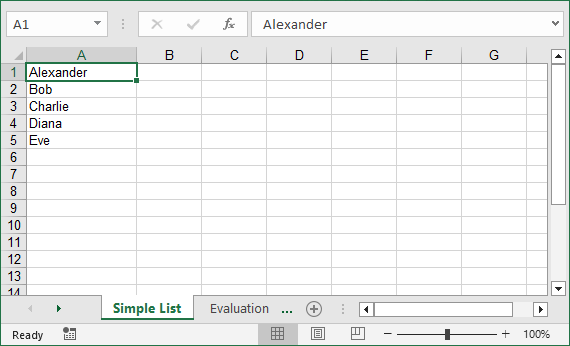
For a basic one-dimensional list, iterate through the items and write them to consecutive cells in a single column.
This code example converts a list of text strings into a single column. If you need to convert a list of numeric values, you can set their number format before saving.
from spire.xls import *
from spire.xls.common import *

# Create a Workbook object
workbook = Workbook()

# Clear the default sheets
workbook.Worksheets.Clear()

# Add a new worksheet
worksheet = workbook.Worksheets.Add("Simple List")

# Sample list
data_list = ["Alexander", "Bob", "Charlie", "Diana", "Eve"]

# Write list data to Excel cells (starting from row 1, column 1)
for index, value in enumerate(data_list):
    worksheet.Range[index + 1, 1].Value = value

# Set column width for better readability
worksheet.Range[1, 1].ColumnWidth = 15

# Save the workbook
workbook.SaveToFile("SimpleListToExcel.xlsx", ExcelVersion.Version2016)
workbook.Dispose()
If you need to write the list in a single row, use the following:
for index, value in enumerate(data_list):
    worksheet.Range[1, index + 1].Value = value
Output: A clean Excel file with one column of names, properly spaced.
Convert Nested Lists to Excel in Python
Nested lists (2D Lists) represent tabular data with rows and columns, making them perfect for direct conversion to Excel tables. Let’s convert a nested list of employee data (name, age, department) to an Excel table.
from spire.xls import *
from spire.xls.common import *

# Create a Workbook object
workbook = Workbook()

# Clear the default sheets
workbook.Worksheets.Clear()

# Add a new worksheet
worksheet = workbook.Worksheets.Add("Employee Data")

# Nested list (rows: [Name, Age, Department])
employee_data = [
    ["Name", "Age", "Department"],  # Header row
    ["Alexander", 30, "HR"],
    ["Bob", 28, "Engineering"],
    ["Charlie", 35, "Marketing"],
    ["Diana", 29, "Finance"]
]

# Write nested list to Excel
for row_idx, row_data in enumerate(employee_data):
    for col_idx, value in enumerate(row_data):
        if isinstance(value, int):
            worksheet.Range[row_idx + 1, col_idx + 1].NumberValue = value
        else:
            worksheet.Range[row_idx + 1, col_idx + 1].Value = value

# Format header row
worksheet.Range["A1:C1"].Style.Font.IsBold = True
worksheet.Range["A1:C1"].Style.Color = Color.get_Yellow()

# Set column widths
worksheet.Range[1, 1].ColumnWidth = 10
worksheet.Range[1, 2].ColumnWidth = 6
worksheet.Range[1, 3].ColumnWidth = 15

# Save the workbook
workbook.SaveToFile("NestedListToExcel.xlsx", ExcelVersion.Version2016)
workbook.Dispose()
Explanation:
- Nested List Structure: The first sub-list acts as headers, and subsequent sub-lists are data rows.
- 2D Loop: We use nested loops to write each row and column to Excel cells.
Output: An Excel table with bold yellow headers and correctly typed data.
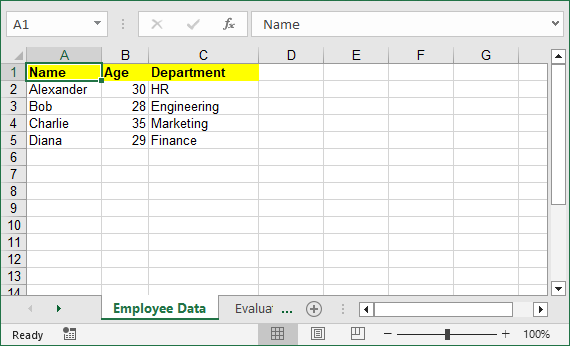
To make your Excel files more professional, you can add cell borders, set conditional formatting, or apply other formatting options with Spire.XLS for Python.
Convert a List of Dictionaries to Excel
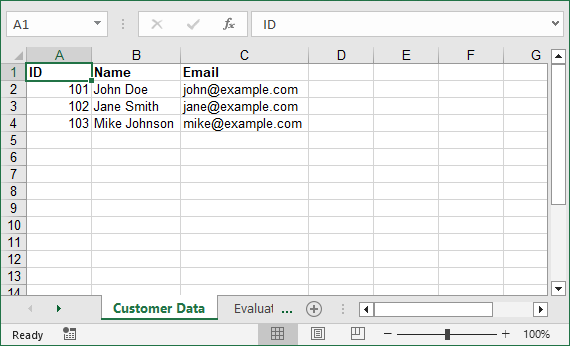
Lists of dictionaries are common in Python for storing structured data with labeled fields. This example converts a list of dictionaries (e.g., customer records) to Excel and auto-extracts headers from dictionary keys.
from spire.xls import *
from spire.xls.common import *

# Create a Workbook object
workbook = Workbook()

# Clear the default sheets
workbook.Worksheets.Clear()

# Add a new worksheet
worksheet = workbook.Worksheets.Add("Customer Data")

# List of dictionaries
customers = [
    {"ID": 101, "Name": "John Doe", "Email": "john@example.com"},
    {"ID": 102, "Name": "Jane Smith", "Email": "jane@example.com"},
    {"ID": 103, "Name": "Mike Johnson", "Email": "mike@example.com"}
]

# Extract headers from dictionary keys
headers = list(customers[0].keys())

# Write headers to row 1
for col, header in enumerate(headers):
    worksheet.Range[1, col + 1].Value = header
    worksheet.Range[1, col + 1].Style.Font.IsBold = True  # Bold headers

# Write data rows
for row, customer in enumerate(customers, start=2):  # Start from row 2
    for col, key in enumerate(headers):
        value = customer[key]
        if isinstance(value, (int, float)):
            worksheet.Range[row, col + 1].NumberValue = value
        else:
            worksheet.Range[row, col + 1].Value = value

# Adjust column widths
worksheet.AutoFitColumn(2)
worksheet.AutoFitColumn(3)

# Save the file
workbook.SaveToFile("CustomerDataToExcel.xlsx", ExcelVersion.Version2016)
workbook.Dispose()
Why This Is Useful:
- Auto-Extracted Headers: Saves time. No need to retype headers like “ID” or “Email”.
- Auto-Fit Columns: Excel automatically adjusts column width to fit the longest text.
- Scalable: Works for large lists of dictionaries (e.g., 1000+ customers).
Output: Excel file with headers auto-created, data types preserved, and columns automatically sized.
4 Tips to Optimize Your Excel Outputs
- Preserve Data Types: Always use NumberValue for numbers (avoids issues with Excel calculations later).
- Auto-Fit Columns: Use worksheet.AutoFitColumn() to skip manual width adjustments.
- Name Worksheets Clearly: Instead of “Sheet1”, use names like “Q3 Sales” to make files user-friendly.
- Dispose of Workbooks: Always call workbook.Dispose() to free memory (critical for large datasets).
Conclusion
Converting lists to Excel in Python is a critical skill for data professionals, and Spire.XLS makes it easy to create polished, production-ready files. Whether you’re working with simple lists, nested data, or dictionaries, the examples above can be adapted to your needs.
For even more flexibility (e.g., adding charts or formulas), explore Spire.XLS’s documentation.
FAQs for List to Excel Conversion
Q1: How is Spire.XLS different from pandas for converting lists to Excel?
A: Pandas is great for quick, basic exports, but it lacks fine-grained control over Excel formatting. Spire.XLS is better when you need:
- Custom styles (colors, fonts, borders).
- Advanced Excel features (freeze panes, conditional formatting, charts).
- Standalone functionality (no Excel installation required).
Q2: How do I save my Excel file in different formats?
A: Use the ExcelVersion parameter in SaveToFile:
workbook.SaveToFile("output.xlsx", ExcelVersion.Version2016)
workbook.SaveToFile("output.xls", ExcelVersion.Version97to2003)
Q3: How does Spire.XLS handle different data types?
A: Spire.XLS provides specific properties for different data types:
- Use .Text for strings
- Use .NumberValue for numerical data
- Use .DateTimeValue for dates
- Use .BooleanValue for True/False values
Q4: Why clear default worksheets before adding new ones?
A: Spire.XLS for Python creates default sheets when you create a Workbook. Therefore, if you don't clear it with the Workbook.Worksheets.Clear(), your file will have extra empty sheets.
Q5: My data isn't showing correctly in Excel. What's wrong?
A: Check that you're using 1-based indexing and that your data types match the expected format. Also, verify that you're saving the file before disposing of the workbook.
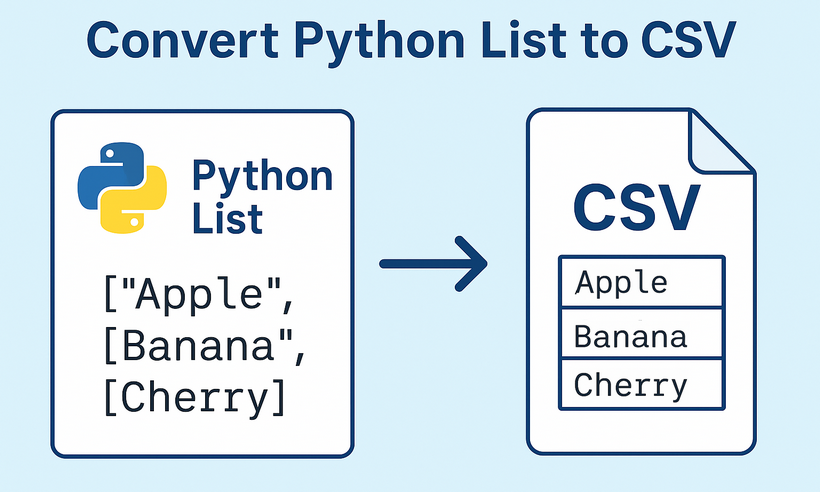
CSV (Comma-Separated Values) is one of the most widely used formats for data exchange between applications, databases, and programming languages. For Python developers, the need to convert Python lists to CSV format arises constantly - whether exporting application data, generating reports, or preparing datasets for analysis. Spire.XLS for Python streamlines this critical process with an intuitive, reliable approach that eliminates common conversion pitfalls.
This comprehensive guide will explore how to write lists to CSV in Python. You'll discover how to handle everything from simple one-dimensional lists to complex nested dictionaries, while maintaining data integrity and achieving professional-grade output.
Table of Contents:
- Getting Started with Spire.XLS for Python
- Convert 1D List to CSV in Python
- Convert 2D List to CSV in Python
- Convert List of Dictionaries to CSV in Python
- Advanced: Custom Delimiters and Encoding
- Conclusion
- FAQs
Getting Started with Spire.XLS for Python
Why Use Spire.XLS for List-to-CSV Conversion?
While Python's built-in csv module is excellent for simple CSV operations, Spire.XLS offers additional benefits:
- Handles various data types seamlessly
- Lets you customize CSV output (e.g., semicolon delimiters for European locales).
- Can save in multiple file formats (CSV, XLSX, XLS, etc.)
- Works well with both simple and complex data structures
Install via pip
The Spire.XLS for Python lets you create, modify, and save Excel/CSV files programmatically. To use it, run this command in your terminal or command prompt:
pip install Spire.XLS
This command downloads and installs the latest version, enabling you to start coding immediately.
Convert 1D List to CSV in Python
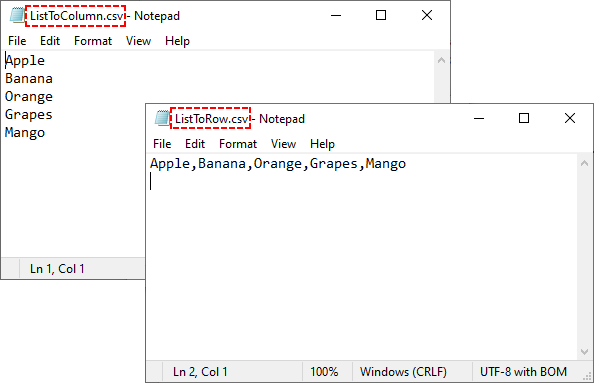
A 1D (one-dimensional) list is a simple sequence of values (e.g., ["Apple", "Banana", "Cherry"]). The following are the steps to write these values to a single row or column in a CSV.
Step 1: Import Spire.XLS Modules
First, import the necessary classes from Spire.XLS:
from spire.xls import *
from spire.xls.common import *
Step 2: Create a Workbook and Worksheet
Spire.XLS uses workbooks and worksheets to organize data. We’ll create a new workbook and add a new worksheet:
# Create a workbook instance
workbook = Workbook()

# Remove the default worksheet and add a new one
workbook.Worksheets.Clear()
worksheet = workbook.Worksheets.Add()
Step 3: Write 1D List Data to the Worksheet
Choose to write the list to a single row (horizontal) or a single column (vertical).
Example 1: Write 1D List to a Single Row
# Sample 1D list
data_list = ["Apple", "Banana", "Orange", "Grapes", "Mango"]

# Write list to row 1
for i, item in enumerate(data_list):
    worksheet.Range[1, i+1].Value = item
Example 2: Write 1D List to a Single Column
# Sample 1D list
data_list = ["Apple", "Banana", "Orange", "Grapes", "Mango"]

# Write list to column 1
for i, item in enumerate(data_list):
    worksheet.Range[i + 1, 1].Value = item
Step 4: Save the Worksheet as CSV
Use SaveToFile() to export the workbook to a CSV file. Specify FileFormat.CSV to ensure proper formatting:
# Save as CSV file
workbook.SaveToFile("ListToCSV.csv", FileFormat.CSV)

# Close the workbook to free resources
workbook.Dispose()
Output:
Convert 2D List to CSV in Python
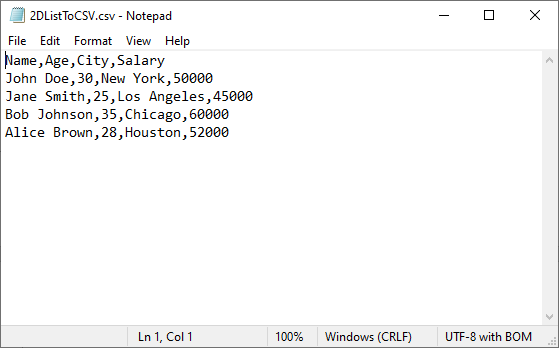
A 2D (two-dimensional) list is a list of lists that represents tabular data. More commonly, you'll work with this type of list, where each inner list represents a row in the CSV file.
Python Code for 2D List to CSV:
from spire.xls import *
from spire.xls.common import *

# Create a workbook instance
workbook = Workbook()

# Remove the default worksheet and add a new one
workbook.Worksheets.Clear()
worksheet = workbook.Worksheets.Add()

# Sample 2D list (headers + data)
data = [
    ["Name", "Age", "City", "Salary"],
    ["John Doe", 30, "New York", 50000],
    ["Jane Smith", 25, "Los Angeles", 45000],
    ["Bob Johnson", 35, "Chicago", 60000],
    ["Alice Brown", 28, "Houston", 52000]
]

# Write 2D list to worksheet
for row_index, row_data in enumerate(data):
    for col_index, cell_data in enumerate(row_data):
        worksheet.Range[row_index + 1, col_index + 1].Value = str(cell_data)

# Save as a CSV file
workbook.SaveToFile("2DListToCSV.csv", FileFormat.CSV)
workbook.Dispose()
Key points:
- Ideal for structured tabular data with headers
- Nested loops handle both rows and columns
- Converting all values to strings ensures compatibility
Output:
The generated CSV can be converted to PDF for secure presentation, or converted to JSON for web/API data exchange.
Convert List of Dictionaries to CSV in Python
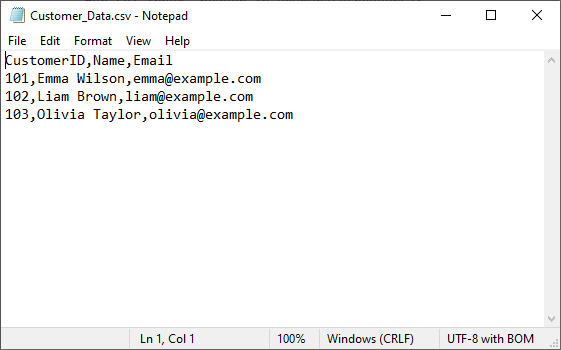
Lists of dictionaries are ideal when data has named fields (e.g., [{"Name": "Alice", "Age": 30}, {"Name": "Bob", "Age": 25}]). The dictionary keys become CSV headers, and values become rows.
Python Code for List of Dictionaries to CSV
from spire.xls import *
from spire.xls.common import *

# Create a workbook instance
workbook = Workbook()

# Remove the default worksheet and add a new one
workbook.Worksheets.Clear()
worksheet = workbook.Worksheets.Add()

# Sample 2D list (headers + data)
customer_list = [
    {"CustomerID": 101, "Name": "Emma Wilson", "Email": "emma@example.com"},
    {"CustomerID": 102, "Name": "Liam Brown", "Email": "liam@example.com"},
    {"CustomerID": 103, "Name": "Olivia Taylor", "Email": "olivia@example.com"}
]

# Extract headers (dictionary keys) and write to row 1
if customer_list:  # Ensure the list is not empty
    headers = list(customer_list[0].keys())
    # Write headers
    for col_index, header in enumerate(headers):
        worksheet.Range[1, col_index + 1].Value = str(header)

    # Write dictionary values to rows 2 onwards
    for row_index, record in enumerate(customer_list):
        for col_index, header in enumerate(headers):
            # Safely get value, use empty string if key doesn't exist
            value = record.get(header, "")
            worksheet.Range[row_index + 2, col_index + 1].Value = str(value)

# Save as CSV file
workbook.SaveToFile("Customer_Data.csv", FileFormat.CSV)
workbook.Dispose()
Key points:
- Extracts headers from the first dictionary's keys
- Uses .get() method to safely handle missing keys
- Maintains column order based on the header row
Output:
Advanced: Custom Delimiters and Encoding
One of the biggest advantages of using Spire.XLS for Python is its flexibility in saving CSV files with custom delimiters and encodings. This allows you to tailor your CSV output for different regions, applications, and data requirements.
To specify the delimiters and encoding, simply change the corresponding parameter in the SaveToFile() method of the Worksheet class. Example:
# Save with different delimiters and encodings
worksheet.SaveToFile("semicolon_delimited.csv", ";", Encoding.get_UTF8())
worksheet.SaveToFile("tab_delimited.csv", "\t", Encoding.get_UTF8())
worksheet.SaveToFile("unicode_encoded.csv", ",", Encoding.get_Unicode())
Conclusion
Converting Python lists to CSV is straightforward with the right approach. Whether you're working with simple 1D lists, structured 2D arrays, or more complex lists of dictionaries, Spire.XLS provides a robust solution. By choosing the appropriate method for your data structure, you can ensure efficient and accurate CSV generation in any application.
For more advanced features and detailed documentation, you can visit the official Spire.XLS for Python documentation.
Frequently Asked Questions (FAQs)
Q1: What are the best practices for list to CSV conversion?
- Validate input data before processing
- Handle exceptions with try-catch blocks
- Test with sample data before processing large datasets
- Clean up resources using Dispose()
Q2: Can I export multiple lists into separate CSV files in one go?
Yes. Loop through your lists and save each as a separate CSV:
lists = {
    "fruits": ["Apple", "Banana", "Cherry"],
    "scores": [85, 92, 78]
}

for name, data in lists.items():
    wb = Workbook()
    wb.Worksheets.Clear()
    ws = wb.Worksheets.Add(name)
    for i, val in enumerate(data):
        ws.Range[i + 1, 1].Value = str(val)
    wb.SaveToFile(f"{name}.csv", FileFormat.CSV)
    wb.Dispose()
Q3: How to format numbers (e.g., currency, decimals) in CSV?
CSV stores numbers as plain text, so formatting must be applied before saving:
ws.Range["A1:A10"].NumberFormat = "$#,##0.00"
This ensures numbers appear as $1,234.56 in the CSV. For more number formatting options, refer to: Set the Number Format in Python
Q4: Does Spire.XLS for Python work on all operating systems?
Yes! Spire.XLS for Python is cross-platform and supports Windows, macOS, and Linux systems.
