Contract, quotation and acceptance templates often follow the same convention: the body says "the details are shown in the table below", and a bookmark below serves as the insertion point where the data table is filled in at generation time. A bookmark is more stable than "after paragraph N": adding or removing body text does not change the bookmark name, so the insertion position never has to be recalculated.
This article uses Spire.Doc for JavaScript to insert tables in the browser. The document is read through the virtual file system (VFS), the table is written, saved and downloaded directly, and the whole process runs on WebAssembly in the browser, with no Office installation and no backend service.
This article covers four features:
- Find a Bookmark by Name and Locate the Insertion Point
- Insert a Table at the Bookmark Position
- Insert Tables at Several Bookmarks in a Batch
- Clear the Placeholder Text and Style the Tables
For installation and project setup, refer to Integrating Spire.Doc for JavaScript in a React Project. The examples below assume that Spire.Doc is installed and the WebAssembly module is initialized.
Find a Bookmark by Name and Locate the Insertion Point
A bookmark consists of a start marker and an end marker, and both are objects inside a paragraph. The paragraph that holds the start marker decides the insertion position, and the text between the two markers is the bookmark content. Finding a bookmark by name and locating the insertion point uses the following objects:
| Object | Access | Purpose |
|---|---|---|
| Bookmark collection | doc.Bookmarks |
All bookmarks in the document |
| Find by name | doc.Bookmarks.FindByName(name) |
Returns the bookmark object |
| Start marker | bookmark.BookmarkStart |
Locates the insertion point |
| Owner paragraph | bookmark.BookmarkStart.OwnerParagraph |
The paragraph's position in the body |
The sample in this article uses the quotation template Quotation.docx. The template contains a title block, a customer information table, a service scope table, and two bookmark placeholders for the cost breakdown and the payment schedule, named ItemTable and PaymentTable:
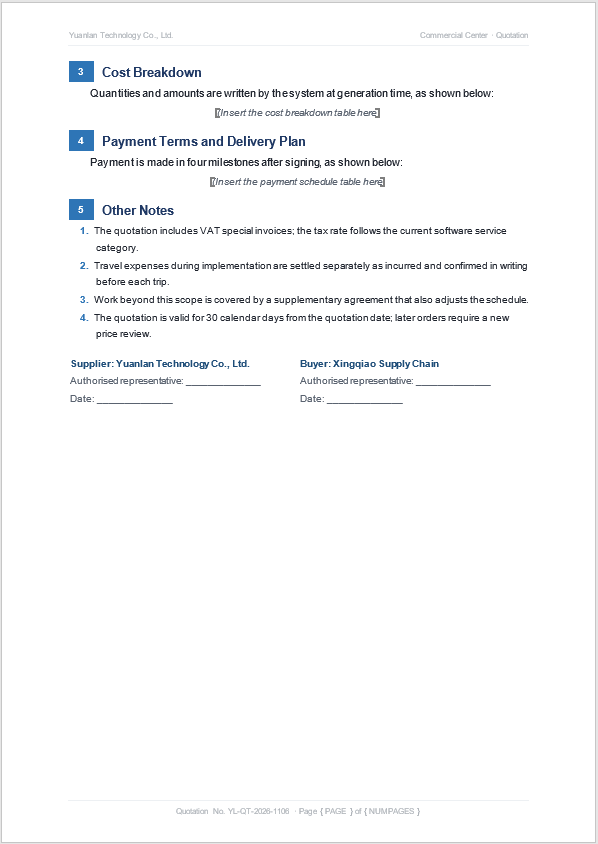
The specific steps are as follows:
- Get the Spire.Doc WASM module and confirm that it is ready.
- Load the quotation template
Quotation.docxinto the VFS. - Create a
Documentobject and load the template. - Find the bookmark by name with the
Document.Bookmarks.FindByName()method, and check whether the return value is empty. - Read
BookmarkStart.OwnerParagraph.Textto confirm the text of the paragraph that holds the bookmark.
The code for finding a bookmark by name is as follows:
function App() {
  const findBookmark = async () => {
    // Get the Spire.Doc WASM module
    const docModule = window.wasmModule?.spiredoc;

    if (!docModule) {
      alert('Spire.Doc is not ready yet');
      return;
    }

    // Load the quotation template
    await window.spire.FetchFileToVFS('Quotation.docx', '', `${process.env.PUBLIC_URL}/data/`);

    const doc = new docModule.Document();
    doc.LoadFromFile('Quotation.docx');

    // Find the bookmark by name; returns null when nothing matches
    const bookmark = doc.Bookmarks.FindByName('ItemTable');

    if (!bookmark) {
      alert('Bookmark ItemTable was not found in the template');
      doc.Dispose();
      return;
    }

    // The paragraph that holds the bookmark start marker
    const anchorParagraph = bookmark.BookmarkStart.OwnerParagraph;
    console.log('Paragraph holding the bookmark:', anchorParagraph.Text);

    doc.Dispose();
  };

  return (
    <div style={{ textAlign: 'center', height: '300px' }}>
      <h1>Find a Bookmark</h1>
      <button onClick={findBookmark}>Find</button>
    </div>
  );
}

export default App;
After the run the console prints Paragraph holding the bookmark: (Insert the cost breakdown table here), which confirms that the insertion point landed on the cost breakdown placeholder paragraph.
Bookmark Names Are Case-Sensitive
FindByName() matches the name exactly, so a different case finds nothing. Bookmarks in a template are best kept to English letters and underscores, which avoids the matching problems that spaces and punctuation bring. When several bookmarks share a name, the first match in the collection is returned.
How to Locate a Bookmark That Spans Several Paragraphs
When a bookmark crosses paragraphs, the start marker and the end marker are not in the same paragraph, and OwnerParagraph points only to the starting paragraph. To replace the content of the whole bookmark range, handle the paragraph that holds the end marker as well; working on the starting paragraph alone is not enough.
How to Loop Over All Bookmarks in a Document
Bookmarks is a collection object; use Count and get_Item(index) to access it by index:
// Print every bookmark name and its paragraph in turn
for (let i = 0; i < doc.Bookmarks.Count; i++) {
  const bookmark = doc.Bookmarks.get_Item(i);
  console.log(bookmark.Name, bookmark.BookmarkStart.OwnerParagraph.Text);
}
When a template is filled in a batch, this loop can confirm that all the bookmarks are present before the tables are inserted one by one.
Insert a Table at the Bookmark Position
A table is a body-level object and cannot be put inside a paragraph directly. Inserting a table at a bookmark position works like this: create a new table, set its rows and columns, fill in the data, and then insert the table after the bookmark paragraph by using that paragraph's index in the body.
The specific steps are as follows:
- Load the template
Quotation.docxand find the bookmarkItemTableby name. - Read
BookmarkStart.OwnerParagraphto get the paragraph that holds the bookmark. - Create a bordered table with
new Table(doc, true)and set its rows and columns withResetCells(5, 3). - Fill the header and the data rows through
Rows,Cells,AddParagraph()andAppendText(). - Take the paragraph index with
ChildObjects.IndexOf()and insert the table withChildObjects.Insert(index + 1, table). - Save the result as
QuotationWithFeeTable.docx, read the file from the VFS and trigger a browser download.
The code for inserting a table at a bookmark position is as follows:
function App() {
  const insertTableAtBookmark = async () => {
    // Get the Spire.Doc WASM module
    const docModule = window.wasmModule?.spiredoc;

    if (!docModule) {
      alert('Spire.Doc is not ready yet');
      return;
    }

    // Load the quotation template
    await window.spire.FetchFileToVFS('Quotation.docx', '', `${process.env.PUBLIC_URL}/data/`);

    const doc = new docModule.Document();
    doc.LoadFromFile('Quotation.docx');

    const bookmark = doc.Bookmarks.FindByName('ItemTable');
    if (!bookmark) {
      alert('Bookmark ItemTable was not found in the template');
      doc.Dispose();
      return;
    }

    // The paragraph that holds the bookmark start marker
    const anchorParagraph = bookmark.BookmarkStart.OwnerParagraph;
    const body = doc.Sections.get_Item(0).Body;

    // Create a bordered table with 5 rows and 3 columns
    const table = new docModule.Table(doc, true);
    table.ResetCells(5, 3);

    const rowsData = [
      ['Service Item', 'Qty', 'Amount (CNY)'],
      ['System deployment and API integration', '1', '120,000'],
      ['AGV scheduling and integration testing', '1', '96,000'],
      ['Bin mapping and workflow configuration', '1', '74,400'],
      ['Go-live support and operator training', '1', '76,800'],
    ];

    for (let r = 0; r < rowsData.length; r++) {
      for (let c = 0; c < rowsData[r].length; c++) {
        table.Rows.get_Item(r).Cells.get_Item(c)
          .AddParagraph().AppendText(rowsData[r][c]);
      }
    }

    // Index of the paragraph in the body; insert the table after it
    const index = body.ChildObjects.IndexOf(anchorParagraph);
    body.ChildObjects.Insert(index + 1, table);

    const outputFileName = 'QuotationWithFeeTable.docx';
    doc.SaveToFile({ fileName: outputFileName, fileFormat: docModule.FileFormat.Docx2013 });
    doc.Dispose();

    // Read the generated file from the VFS and trigger the download
    const fileArray = window.dotnetRuntime.Module.FS.readFile(outputFileName);
    const blob = new Blob([fileArray], {
      type: 'application/vnd.openxmlformats-officedocument.wordprocessingml.document',
    });
    const url = URL.createObjectURL(blob);
    const a = document.createElement('a');
    a.href = url;
    a.download = outputFileName;
    a.click();
    URL.revokeObjectURL(url);
  };

  return (
    <div style={{ textAlign: 'center', height: '300px' }}>
      <h1>Insert a Table at a Bookmark</h1>
      <button onClick={insertTableAtBookmark}>Insert Table</button>
    </div>
  );
}

export default App;
The cost breakdown table now sits after the paragraph that holds the ItemTable bookmark:
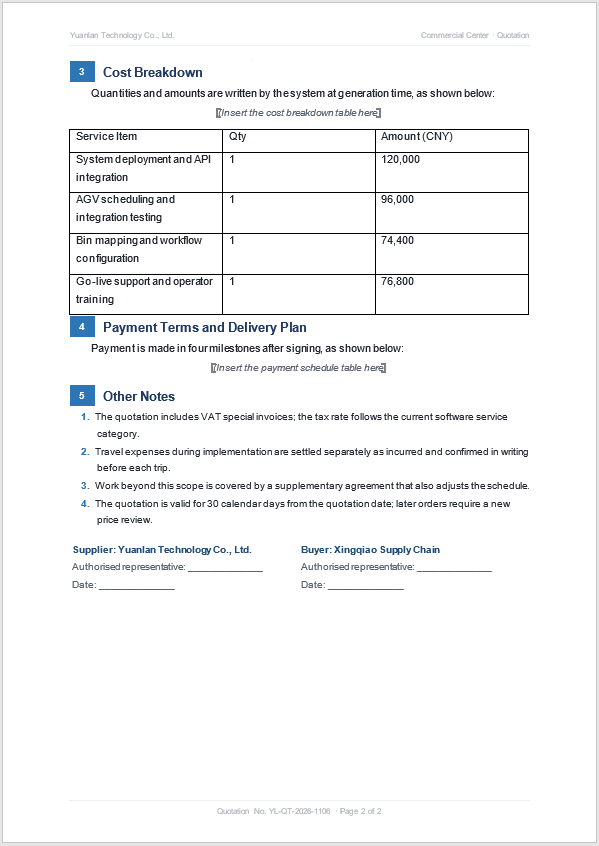
Why the Table Landed Before the Paragraph
ChildObjects.Insert(index, table) places the table before the object at that index, and after the insertion the table itself takes that index. To put it after the paragraph, the index has to be one higher. When empty paragraphs follow the bookmark paragraph, the table lands before them and still looks attached to the bookmark; for an exact position, remove the empty paragraphs first.
How the Borders of a New Table Are Controlled
The second argument of new Table(doc, true) says whether the table shows borders. With true the table gets a full set of grid lines; with false no border is drawn, which suits layouts decorated by cell shading or outer rules. A new table uses the document's normal table style, and the column widths are split evenly.
Why the Placeholder Text Is Still There After the Table Is Inserted
Inserting a table only changes the order of objects in the body; it does not rewrite the text of the bookmark paragraph. The template's "(Insert the cost breakdown table here)" still sits above the table and has to be cleared separately, as shown in the next section.
Insert Tables at Several Bookmarks in a Batch
A template usually has more than one insertion point. To insert tables at several bookmarks in a batch, wrap "find the bookmark, build the table, fill in the data, insert by index" into a function and call it in a loop over a list of bookmarks. Each bookmark computes its own paragraph index, so a table inserted earlier does not affect the positioning of a later one.
The specific steps are as follows:
- Load the template
Quotation.docxand prepare the data arrays for the two bookmarks. - Wrap the insertion logic in
insertTableAtBookmark(): find the bookmark, build the table, fill it in, insert by index. - Call the function to insert a table at
ItemTableand atPaymentTable. - Save the result as
QuotationWithTables.docx. - Read the result from the VFS and download it.
The code for inserting tables in a batch is as follows (the module check, font loading and download code shared with the previous section are omitted):
// Insert a table by bookmark name: place the table after the bookmark paragraph
const insertTableAtBookmark = (doc, docModule, bookmarkName, rowsData) => {
  const bookmark = doc.Bookmarks.FindByName(bookmarkName);
  if (!bookmark) return null;

  const table = new docModule.Table(doc, true);
  table.ResetCells(rowsData.length, rowsData[0].length);

  for (let r = 0; r < rowsData.length; r++) {
    for (let c = 0; c < rowsData[r].length; c++) {
      table.Rows.get_Item(r).Cells.get_Item(c)
        .AddParagraph().AppendText(rowsData[r][c]);
    }
  }

  const body = doc.Sections.get_Item(0).Body;
  const index = body.ChildObjects.IndexOf(bookmark.BookmarkStart.OwnerParagraph);
  body.ChildObjects.Insert(index + 1, table);

  return table;
};

const feeRows = [
  ['Service Item', 'Qty', 'Amount (CNY)'],
  ['System deployment and API integration', '1', '120,000'],
  ['AGV scheduling and integration testing', '1', '96,000'],
  ['Bin mapping and workflow configuration', '1', '74,400'],
  ['Go-live support and operator training', '1', '76,800'],
];

const paymentRows = [
  ['Payment Milestone', 'Ratio', 'Amount (CNY)', 'Planned Date'],
  ['Contract signing', '30%', '110,160', '2026-11-15'],
  ['System deployment complete', '30%', '110,160', '2026-12-10'],
  ['Integration acceptance passed', '30%', '110,160', '2027-01-09'],
  ['Warranty expiry', '10%', '36,720', '2027-12-31'],
];

const feeTable = insertTableAtBookmark(doc, docModule, 'ItemTable', feeRows);
const paymentTable = insertTableAtBookmark(doc, docModule, 'PaymentTable', paymentRows);
The quotation after tables are inserted at both bookmark positions:
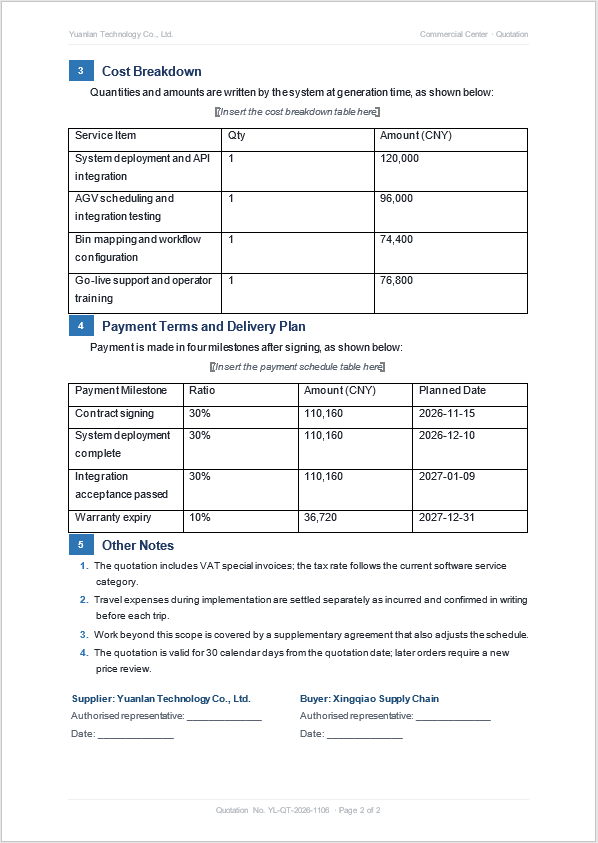
How to Skip a Bookmark That Does Not Exist
The function returns null as soon as FindByName() finds nothing, so the caller can check the result before going on. When a template is revised, a bookmark is renamed or a name is misspelled, this step keeps the table from landing in an unexpected place:
const feeTable = insertTableAtBookmark(doc, docModule, 'ItemTable', feeRows);
if (!feeTable) {
  console.warn('Bookmark ItemTable was not found in the template; the cost breakdown table was skipped');
}
Do the Indices Have to Be Recomputed When Several Tables Are Inserted in a Row
They do. ChildObjects.IndexOf() reads the object's position in the current body, and every insertion shifts the index of the objects behind it. The function recomputes the index on each call, so inserting bookmark by bookmark needs no manual offset bookkeeping.
Clear the Placeholder Text and Style the Tables
The bookmarks in a template usually hold placeholder text such as "(Insert the details table here)". It has to be cleared after the table is inserted, or a prompt line stays above the table. Clearing the placeholder and styling the table works like this: clear the text of the placeholder paragraphs, shade the header row and set its text to bold white, allocate the column widths by content, and repeat the header row across pages.
The specific steps are as follows:
- Loop over the bookmark collection first and collect the paragraphs that contain "Insert the".
- Clear the placeholder text with
paragraph.Text = ''and set the space after the paragraph. - Loop over the two tables and set
IsHeaderof the header row totrue. - Shade the header cells, set their text to bold white, and set the column widths with
SetColumnWidth(). - Save the result as
QuotationFinal.docxand download it.
The code for clearing the placeholder text and styling the tables is as follows (the loading, insertion and download code shared with the previous sections is omitted):
// Collect the placeholder paragraphs first: rewriting a paragraph's text removes its bookmarks too
const placeholders = [];
for (let i = 0; i < doc.Bookmarks.Count; i++) {
  const paragraph = doc.Bookmarks.get_Item(i).BookmarkStart.OwnerParagraph;
  if (paragraph.Text.includes('Insert the')) {
    placeholders.push(paragraph);
  }
}

for (const paragraph of placeholders) {
  paragraph.Text = '';
  paragraph.Format.AfterSpacing = 6;
}

// Header row: dark shading, bold white text, repeated across pages
for (const table of [feeTable, paymentTable]) {
  table.Format.HorizontalAlignment = docModule.HorizontalAlignment.Center;
  table.Rows.get_Item(0).IsHeader = true;

  const header = table.Rows.get_Item(0);
  for (let c = 0; c < header.Cells.Count; c++) {
    const cell = header.Cells.get_Item(c);
    cell.CellFormat.BackColor = docModule.Color.FromArgb(31, 78, 121);
    cell.CellFormat.VerticalAlignment = docModule.VerticalAlignment.Middle;

    // Write the text back before bold and the text colour can be applied
    const paragraph = cell.Paragraphs.get_Item(0);
    const text = paragraph.Text;
    paragraph.Text = '';
    const run = paragraph.AppendText(text);
    run.CharacterFormat.Bold = true;
    run.CharacterFormat.TextColor = docModule.Color.FromArgb(255, 255, 255);
  }
}

// Column widths: allocated in points, the third argument is CellWidthType.Point
const feeWidths = [250, 60, 149];
for (let c = 0; c < feeWidths.length; c++) {
  feeTable.SetColumnWidth(c, feeWidths[c], docModule.CellWidthType.Point);
}

const payWidths = [155, 65, 120, 119];
for (let c = 0; c < payWidths.length; c++) {
  paymentTable.SetColumnWidth(c, payWidths[c], docModule.CellWidthType.Point);
}
The quotation after the placeholder text is cleared and the tables are styled:
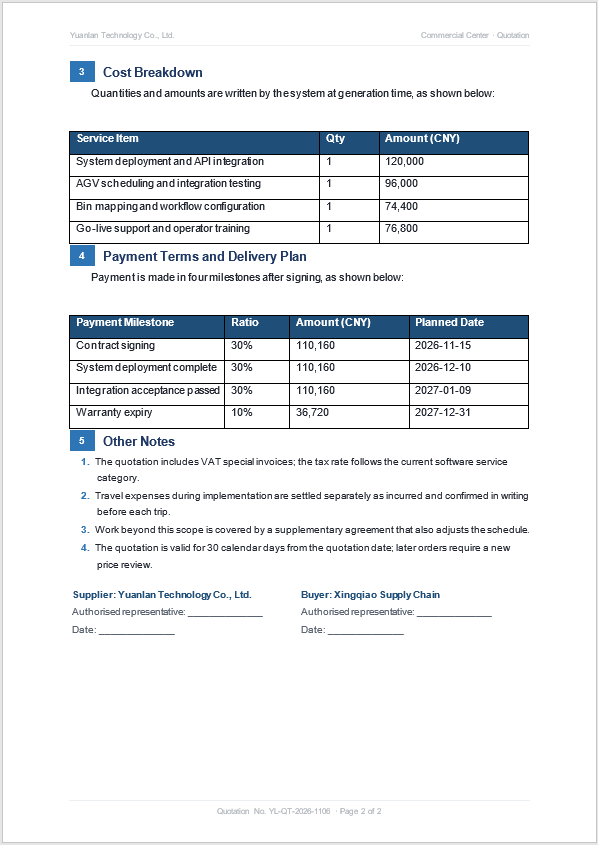
Why the Bookmarks Disappear After the Placeholder Text Is Cleared
paragraph.Text assigns the whole text of the paragraph, and writing new content rebuilds the paragraph contents, so the bookmark markers inside the paragraph disappear with it. In the run, Bookmarks.Count drops from 2 to 0 after the placeholders are cleared. If the same bookmark is needed for a later location, clear the placeholders after the last fill, or add the bookmarks again after the rewrite.
How to Repeat the Header Row Across Pages
When the table has many data rows and breaks across pages, the header row appears only on the first page by default. With IsHeader of the first row set to true, the row repeats at the top of every page:
// The first row acts as the header and repeats across pages
table.Rows.get_Item(0).IsHeader = true;
Why the Column Widths Did Not Take Effect
SetColumnWidth() takes three arguments: the column index, the width value and the width unit. The unit comes from CellWidthType, whose values are Auto, Percentage and Point, with Point meaning points. A call with only two arguments throws, so the unit has to be supplied in the three-argument form.
Can a Table Reuse the Style of an Existing Table in the Template
new Table(doc, true) only decides whether the table shows borders; it does not inherit the style of other tables in the template. To match the template, set the header shading, text colour, alignment and column widths item by item as above; wrap the settings in a function and call it once for each new table.
FAQ
Should the Placeholder Text Be Deleted First, or the Table Inserted First
Both orders produce a table, but deleting the text first changes the state of the bookmark. Clearing the placeholder with paragraph.Text removes the bookmark in the paragraph as well, and a later FindByName() then finds nothing. The safer order is to insert the table first and clear all the placeholder text at the end.
The Table Did Not Appear at the Bookmark Position — What Could Be Wrong
There are three common causes: the insertion index was not raised by one, so the table landed before the paragraph; the bookmark sits in a header, a footer or a text box and is not in the body's Body; the bookmark name differs from the string in the code, case included. Printing the names in Bookmarks and their paragraph text first confirms whether the location is right.
Can Several Tables Be Inserted at One Bookmark
They can; insert repeatedly at the same bookmark. Mind the order: inserting after the bookmark paragraph every time puts a later table before the earlier one. To keep the call order, insert after the previous table instead:
// The first table goes after the bookmark paragraph
const first = insertTableAtBookmark(doc, docModule, 'ItemTable', feeRows);

// The second table goes after the first, keeping the call order
const secondTable = new docModule.Table(doc, true);
secondTable.ResetCells(2, 3);
// …fill in the content
const docBody = doc.Sections.get_Item(0).Body;
docBody.ChildObjects.Insert(docBody.ChildObjects.IndexOf(first) + 1, secondTable);
The Header Row Does Not Repeat When the Table Breaks Across Pages
Set IsHeader of the table's first row to true, and the row appears at the top of every page. If the first row was originally an ordinary data row, it then repeats at the top of each page, so confirm that the header and the data really sit in different rows.
Do These Operations Upload the Document to a Server
No upload is needed for the usage in this article. Spire.Doc for JavaScript runs in the browser on WebAssembly and reads and writes the document locally through the virtual file system (VFS); finding bookmarks, inserting tables and saving the result all happen locally, and the library does not send the file to a server. Whether the file leaves the device at all depends on other code added to the page.
Get a Free License
Spire.Doc for JavaScript offers a 30-day full-featured free trial license with no functional limitations. Apply here to evaluate before purchasing.
