In system integration, XML is often used as an intermediate format for documents: exported by an upstream system, parsed by a downstream one, or kept for archiving. In the Word ecosystem, however, "XML" is not a single file type but several: some mean the WordprocessingML of Word 2003, some mean the flat OPC package introduced in Word 2007, and others mean a component's own native XML. Pick the wrong enumeration value and the resulting file either fails to open in Word or opens as page after page of tags.
This article uses Spire.Doc for JavaScript to perform conversions in three directions in the browser. The whole process runs on WebAssembly on the client side, requires no Office installation and depends on no backend service; the document stays on the user's device throughout.
This article covers three features:
For installation and project setup, refer to Integrating Spire.Doc for JavaScript in a React Project. The examples below assume that Spire.Doc is installed and the WebAssembly module is initialized.
The Three XML Formats Compared
FileFormat has three XML-related enumeration values, and they produce three different files. The difference is not in how the markup is written but in who can read it:
| Enumeration | Actual output | Opens in Word as a document |
|---|---|---|
FileFormat.Xml |
Spire.Doc's own XML, with OML as the root element, UTF-16 encoding and images embedded as Base64 |
No; Word expands it as generic XML into tag text |
FileFormat.WordML |
Word 2003 XML, with w:wordDocument as the root element |
Yes, in Word 2003 and later |
FileFormat.WordXml |
Flat OPC from Word 2007 onward, with pkg:package as the root element |
Yes, in Word 2007 and later |
All three pack the entire document into a single file: no side folder for attachments is produced, and images travel inside the file. When choosing, consider the downstream consumer first. For round trips that stay inside Spire.Doc, or for an archival backup, FileFormat.Xml is the safest choice because it preserves the most properties. When the file has to be opened by Word or another system, use FileFormat.WordML or FileFormat.WordXml.
The three are close in size. Measured on the same two-page product specification: the original docx is about 58 KB, FileFormat.Xml about 407 KB, FileFormat.WordML about 383 KB and FileFormat.WordXml about 450 KB.
Convert a Word Document to XML
Exporting a Word document to XML is usually done so that another system can read the content structure rather than keep laying the document out. The XML records styles, paragraph properties, tables and images paragraph by paragraph; it is more complete than plain text and easier for other programs to parse than the zipped binary of a docx.
SaveToFile() decides the output format: pass FileFormat.Xml as fileFormat and the result is Spire.Doc's own XML.
The specific steps are as follows:
- Get the Spire.Doc WASM module and confirm that it is ready.
- Load the fonts and the
ProductSpec.docxto be converted into the VFS. - Create a
Documentinstance and load the document. - Save it as
ProductSpec.xmlwithFileFormat.Xml. - Read the result file from the VFS and trigger a browser download.
The code for converting a Word document to XML is as follows:
function App() {
  const wordToXml = async () => {
    // Get the Spire.Doc WASM module
    const docModule = window.wasmModule?.spiredoc;

    if (!docModule) {
      alert('Spire.Doc is not ready yet');
      return;
    }

    // Load the fonts and the source document
    await window.spire.FetchFileToVFS('arial.ttf', '/Library/Fonts/', `${process.env.PUBLIC_URL}/font/`);
    await window.spire.FetchFileToVFS('arialbd.ttf', '/Library/Fonts/', `${process.env.PUBLIC_URL}/font/`);
    await window.spire.FetchFileToVFS('ProductSpec.docx', '', `${process.env.PUBLIC_URL}/data/`);

    // Load the document
    const doc = new docModule.Document();
    doc.LoadFromFile('ProductSpec.docx');

    // Save in Spire.Doc's own XML format
    const outputFileName = 'ProductSpec.xml';
    doc.SaveToFile({ fileName: outputFileName, fileFormat: docModule.FileFormat.Xml });

    // Read the generated file from the VFS and trigger the download
    const fileArray = window.dotnetRuntime.Module.FS.readFile(outputFileName);
    const blob = new Blob([fileArray], { type: 'application/xml' });
    const url = URL.createObjectURL(blob);
    const a = document.createElement('a');
    a.href = url;
    a.download = outputFileName;
    a.click();
    URL.revokeObjectURL(url);

    doc.Dispose();
  };

  return (
    <div style={{ textAlign: 'center', height: '300px' }}>
      <h1>Word to XML</h1>
      <button onClick={wordToXml}>Generate</button>
    </div>
  );
}

export default App;
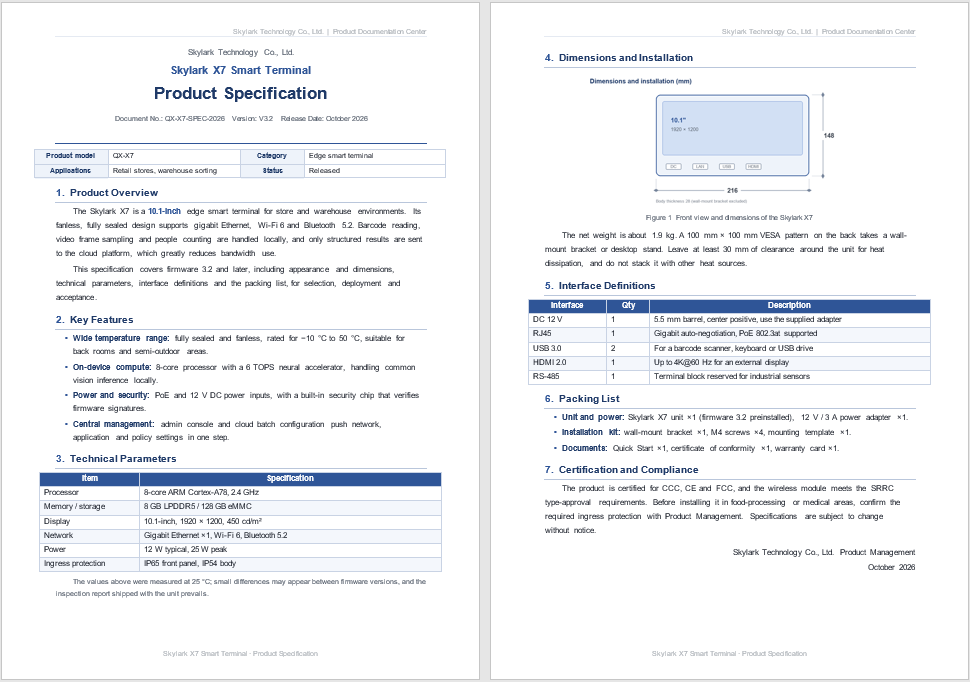
The product specification used for the conversion runs to two pages and contains an information table, a dimension drawing and three data tables:
Export in Word 2003 or 2007 XML Format
If the XML is to be opened by Word or another system, change the enumeration value; the rest of the code stays the same:
// Word 2003 XML, opens directly in Word 2003 and later
doc.SaveToFile({ fileName: 'ProductSpec-2003.xml', fileFormat: docModule.FileFormat.WordML });

// Flat OPC from Word 2007, opens directly in Word 2007 and later
doc.SaveToFile({ fileName: 'ProductSpec-2007.xml', fileFormat: docModule.FileFormat.WordXml });
Opened in Word, these two formats show a normal laid-out page, with the same page count, tables and images as the original. The price is that they carry only Word's own markup system, so Spire.Doc can read fewer properties from them than from FileFormat.Xml.
What the Exported XML Contains
The output of FileFormat.Xml is straightforward text: styles are collected under <styles>, and the body opens out layer by layer as <sections> → <body> → <paragraphs>, with each paragraph and each text fragment occupying its own <item>. An excerpt follows (most attributes omitted):
<OML>
  <styles>
    <style id="0" Name="Normal" StyleId="0" type="ParagraphStyle">
      <character-format>...</character-format>
      <paragraph-format>...</paragraph-format>
    </style>
  </styles>
  <sections>
    <section BreakCode="NewPage">
      <body>
        <paragraphs>
          <item type="Paragraph">
            <items>
              <item>
                <character-format FontSize="10.5" TextColor="#FF1F242E">...</character-format>
                <text>The Skylark X7 is built for store and warehouse</text>
              </item>
            </items>
            <style ref="0" />
          </item>
          <item type="Picture" width="..." height="...">
            <image>iVBORw0KGgoAAAANSUhEUg...</image>
          </item>
        </paragraphs>
      </body>
    </section>
  </sections>
</OML>
The file is UTF-16 encoded and carries no XML declaration; if a text editor shows garbled characters, switch the encoding manually. Images are not file references but complete Base64 data, which is why the whole document is a single file.
Why the XML Is Much Larger
A docx holds a set of compressed XML parts, whereas the exported XML writes every run of text and every formatting property out as plain text with no compression; images are also Base64 encoded, which comes to about 4/3 of the original size. A 58 KB docx reaching about 400 KB is therefore normal. If the downstream consumer only needs the text, switch to FileFormat.Txt or delete the images first to reduce the size considerably.
Convert HTML to XML
Content saved by web scrapers, online help and rich-text editors is HTML. Parsing HTML directly means dealing with unclosed tags and inconsistent attribute styles; converting it to uniform XML first, then walking the nodes or applying XSLT, is far more stable.
When Spire.Doc loads HTML it parses the page into the document model, and writes it back out as Word XML on save. The output therefore uses Word's element organization rather than the div and span hierarchy of the original page.
The specific steps are as follows:
- Get the Spire.Doc WASM module and confirm that it is ready.
- Load the fonts and
Article.htmlinto the VFS. - Load it as HTML and set the validation level to the permissive mode.
- Save it as
Article.xmlwithFileFormat.Xml. - Read the result file from the VFS and trigger a browser download.
The code for converting HTML to XML is as follows:
// Load as HTML; validationType controls how strictly tags are checked
const doc = new docModule.Document();
doc.LoadFromFile({
  fileName: 'Article.html',
  fileFormat: docModule.FileFormat.Html,
  validationType: docModule.XHTMLValidationType.None,
});

// If the page references resources by relative path, point the base URL at them
doc.HtmlBaseUrl = '/';

const outputFileName = 'Article.xml';
doc.SaveToFile({ fileName: outputFileName, fileFormat: docModule.FileFormat.Xml });
The topology diagram in the sample page is drawn with a CSS background, so the code above runs as it is. Images in the HTML (<img> or CSS background images) are never written into FileFormat.Xml; if the page brings in an image through <img>, the current version also throws Arg_NullReferenceException when saving straight after LoadFromFile, and calling doc.GetText() once before saving avoids it.
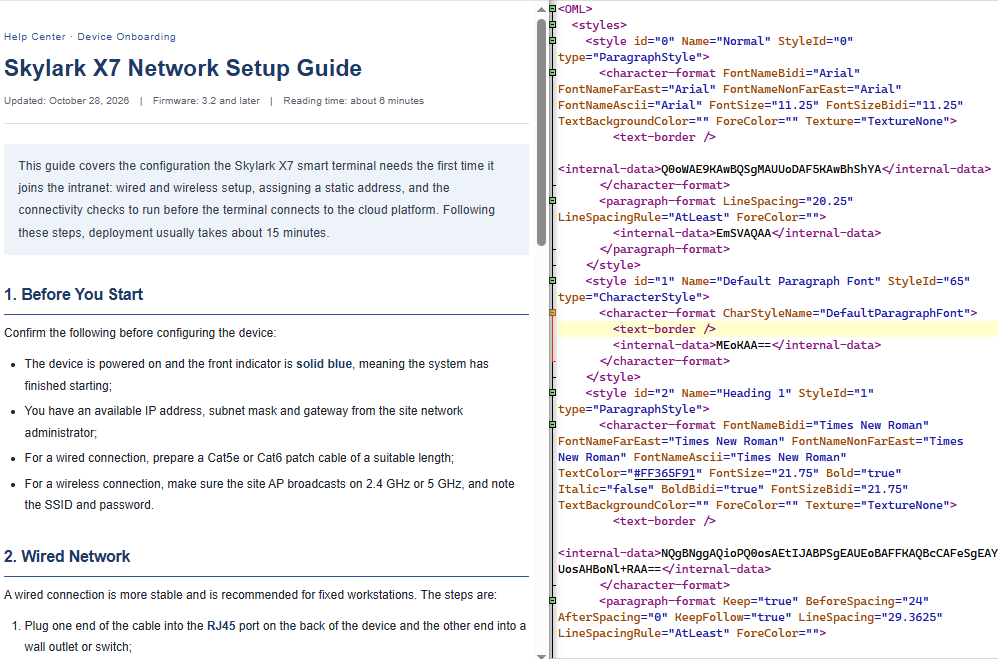
The help-centre page used for the conversion likewise consists of headings, a step list, a parameter table and an illustration:
Choosing the Validation Level
XHTMLValidationType offers three levels: Strict requires closed tags and quoted attributes; Transitional allows older markup; None does almost no checking. Scraped pages often carry unclosed tags, and None keeps parsing from stopping, at the price of malformed structure being silently corrected, which makes errors hard to spot. For pages you control, Transitional exposes problems more easily.
How Much of the HTML Styling Survives
HTML is first parsed into the document model and then written out as XML, so only part of what CSS produces makes it into the model. Headings, paragraphs, ordered lists and table structure are kept; decorative styling such as table borders, cell backgrounds and heading text colour, as well as page-level layout, usually survives only partially, and the bullets of unordered lists may be lost. Images do not enter the FileFormat.Xml output either: images in a Word document are embedded as Base64 on conversion to XML, while an HTML conversion keeps none of them. When the document has to carry images, save the HTML as docx first (FileFormat.Docx2013) so the pictures are written along with the file; when the web page has to be reproduced faithfully, use browser printing or HTML-to-PDF instead.
Convert XML Back to Word
Converting XML back to Word is mostly used in two situations: an archived file has to be edited again, or content generated by an external system has to be rendered as a printable document. The premise is that the XML is in a format Spire.Doc recognizes — the ProductSpec.xml exported in the previous section can be read back directly.
The specific steps are as follows:
- Get the Spire.Doc WASM module and confirm that it is ready.
- Load the fonts and
ProductSpec.xmlinto the VFS. - Load the XML with
FileFormat.Xml. - Save it as a docx with
FileFormat.Docx2013. - Read the result file from the VFS and trigger a browser download.
The code for converting XML back to Word is as follows:
const doc = new docModule.Document();
doc.LoadFromFile({ fileName: 'ProductSpec.xml', fileFormat: docModule.FileFormat.Xml });

const outputFileName = 'ProductSpecRestored.docx';
doc.SaveToFile({ fileName: outputFileName, fileFormat: docModule.FileFormat.Docx2013 });
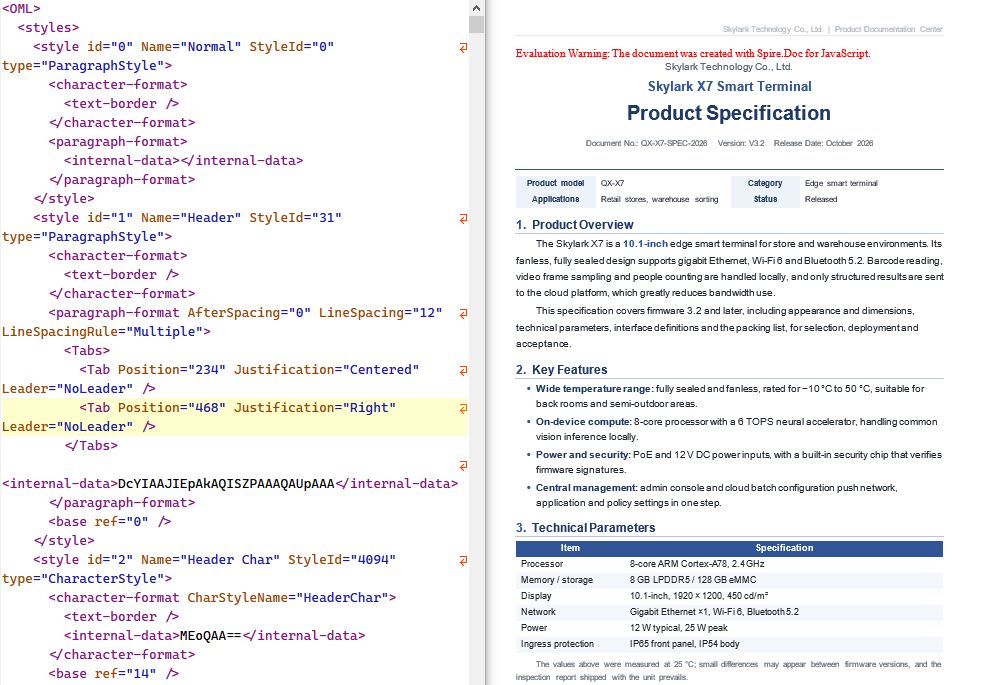
The document read back is essentially the same as the original: the body paragraphs, the three data tables, the header and the footer are all kept.
Confirm the Source When Loading Fails
When LoadFromFile is given FileFormat.Xml, it expects the XML exported by Spire.Doc. Ordinary configuration files, message payloads or RSS feeds lack the corresponding structure, and the test throws an exception outright (reported as Arg_NullReferenceException) rather than returning a readable explanation. For such files, convert them to HTML with a script first and then load that, or build the document paragraph by paragraph in code; do not expect a general XML file to be parsed as Word XML.
What Changes After a Round Trip
Word → XML → Word is dependable for the text content: after the sample is read back, all 28 body paragraphs, the three tables, the header and the footer compare identical item by item. At the layout level, however, a few things change and are worth checking before going live:
- Image size: pictures are inserted at their native pixel size on the way back, and the display width set before export no longer applies. A 600-pixel-wide image unfolds to about 15.9 cm at 96 dpi, which can run into the page margin. If the layout is sensitive, size the image's pixels to the target width when the source document is made.
- How images are written: inline pictures are rewritten from DrawingML to VML; Word displays them normally, but downstream tools that only read pictures from
w:drawingmay not see them. - Table column width: cell widths are recalculated from the content, and a table with uneven columns such as the information table may come back with proportions slightly different from the original.
For documents that will be edited repeatedly over time, the docx should therefore remain the master copy, with XML treated as a one-way exchange format.
The Three Directions Side by Side
| Direction | Load | Save |
|---|---|---|
| Word → XML | LoadFromFile('a.docx') |
SaveToFile({ fileName, fileFormat: FileFormat.Xml }) |
| HTML → XML | LoadFromFile({ fileName, fileFormat: FileFormat.Html, validationType }) |
SaveToFile({ fileName, fileFormat: FileFormat.Xml }) |
| XML → Word | LoadFromFile({ fileName, fileFormat: FileFormat.Xml }) |
SaveToFile({ fileName, fileFormat: FileFormat.Docx2013 }) |
All three directions share the same structure: load, save, read out, download, and finally release the instance. For batch processing, create a separate Document for each file and call Dispose() as soon as it is done, so that several instances do not hold WASM memory at the same time.
FAQ
Can the exported XML be opened and edited in Word directly
It depends on which enumeration value was used. FileFormat.Xml outputs Spire.Doc's own XML, and Word shows it as generic XML with tag text (in the test a two-page document opened as 76 pages of markup) with no layout in sight; FileFormat.WordML and FileFormat.WordXml are the formats Word can open as documents.
Why is the exported XML several times larger than the original docx
XML describes every element as text: style definitions and paragraph properties are written out item by item without compression, and images are converted to Base64, which comes to about 4/3 of the original size. A 58 KB docx reaching about 400 KB is normal. When only the text is needed, consider exporting to plain text instead.
Why does loading XML from our own system fail
When LoadFromFile is given FileFormat.Xml, it expects XML that carries the Spire.Doc structure. Ordinary configuration or message XML lacks the corresponding nodes, and the test throws an exception such as Arg_NullReferenceException. In that case, convert the content to HTML and load that, or build the document paragraph by paragraph in code; either is usually less trouble than forcing the file through the Word XML parser.
Why do images get larger after converting to XML and back
Images are stored as Base64 in the XML, and are inserted at their native pixel size when the docx is read back, so the display width set before export stops applying. At 96 dpi one centimetre is about 38 pixels, and a 600-pixel-wide image unfolds to roughly 15.9 cm. Size the pixels to the target width when the source document is made, and no adjustment is needed after the round trip.
The XML converted from HTML does not match the web page styling
The HTML conversion goes through the document model: the page is first parsed into headings, paragraphs, lists and tables, and then written out by Word's rules. Effects produced by CSS such as table borders, background colours and page layout do not fully enter the model, while heading levels, paragraph order and table data are kept. Images are not written into the XML output either, including both <img> and CSS background images. When a pixel-perfect copy of the web page is needed, use HTML-to-PDF or browser printing instead.
Saving XML fails when the HTML contains an <img>
In the current version, when the HTML brings in an image through <img>, calling SaveToFile({ fileName, fileFormat: FileFormat.Xml }) straight after LoadFromFile throws Arg_NullReferenceException. Call doc.GetText() once before saving so that images and other objects finish parsing, and the output is produced normally:
doc.LoadFromFile({
  fileName: 'Article.html',
  fileFormat: docModule.FileFormat.Html,
  validationType: docModule.XHTMLValidationType.None,
});
doc.HtmlBaseUrl = '/';
doc.GetText(); // Trigger image parsing so saving the XML does not throw
doc.SaveToFile({ fileName: 'Article.xml', fileFormat: docModule.FileFormat.Xml });
Note that even when the save succeeds, images in the HTML do not appear in the XML. To keep the images, save the HTML as docx first and then convert the docx to XML.
Get a Free License
Spire.Doc for JavaScript offers a 30-day full-featured free trial license with no functional limitations. Apply here to evaluate before purchasing.
