Formal reports usually leave the cover without a header or footer, while the body shows different header text on odd and even pages; a document that is bound into a booklet also alternates page numbers and chapter information between the left and right pages. These layouts rely on two independent switches: different first page, and different odd and even pages. Once a switch is turned on, the single shared header and footer are split apart, and each part has to be written separately.
This article uses Spire.Doc for JavaScript to process the header and footer of a Word document directly in the browser. The whole process runs on WebAssembly in the browser, with no Office installation and no backend service, so the document stays on the user's device the entire time.
This article covers three features:
- Set a Different First-Page Header and Footer
- Set Different Odd- and Even-Page Headers and Footers
- Adjust the Height of the Header and Footer
Headers and footers fall into the following kinds by purpose, and all of them are reached through the section's HeadersFooters:
| Header/footer | Access | When it applies |
|---|---|---|
| General header/footer | HeadersFooters.Header / Footer |
Shared by all pages while the switches are off; used for the odd pages after odd/even is turned on |
| First-page header/footer | HeadersFooters.FirstPageHeader / FirstPageFooter |
After different first page is turned on |
| Odd-page header/footer | HeadersFooters.OddHeader / OddFooter |
After odd/even is turned on |
| Even-page header/footer | HeadersFooters.EvenHeader / EvenFooter |
After odd/even is turned on |
For installation and project setup, refer to Integrating Spire.Doc for JavaScript in a React Project. The examples below assume that Spire.Doc is installed and the WebAssembly module is initialized.
Set a Different First-Page Header and Footer
A cover usually shows no header or footer. After different first page is turned on, the first page of the first section gets its own header and footer set; leave the paragraph text of that set empty, and the remaining body pages keep using the general header and footer, so the body keeps its header while the cover stays clean.
The switch lives on the section's page setup, that is section.PageSetup.DifferentFirstPageHeaderFooter.
The specific steps are as follows:
- Get the Spire.Doc WASM module and confirm that it is ready.
- Load the sample document, create a
Documentobject and take the first section. - Set
DifferentFirstPageHeaderFootertotrue. - Write the body header text into the general header, and clear the paragraph content of the first-page header and the first-page footer.
- Save the result with
SaveToFile(), read the file from the VFS and trigger a browser download.
The code for setting a different first-page header and footer is as follows:
function App() {
  const setFirstPageHeaderFooter = async () => {
    // Get the Spire.Doc WASM module
    const docModule = window.wasmModule?.spiredoc;

    if (!docModule) {
      alert('Spire.Doc is not ready yet');
      return;
    }
    await window.spire.FetchFileToVFS('AnnualReport.docx', '', `${process.env.PUBLIC_URL}/data/`);

    const doc = new docModule.Document();
    doc.LoadFromFile('AnnualReport.docx');

    const section = doc.Sections.get_Item(0);

    // The first page uses its own header and footer
    section.PageSetup.DifferentFirstPageHeaderFooter = true;

    const headersFooters = section.HeadersFooters;

    // General header: shared by the body pages
    const headerParagraph = headersFooters.Header.Paragraphs.get_Item(0);
    headerParagraph.Text = 'Mingyuan Technology Co., Ltd. · Annual Report';
    headerParagraph.Format.HorizontalAlignment = docModule.HorizontalAlignment.Right;

    // Leave the first-page header and footer empty to keep the cover clean
    const clearParagraphs = (body) => {
      for (let i = 0; i < body.Paragraphs.Count; i++) {
        body.Paragraphs.get_Item(i).Text = '';
      }
    };
    clearParagraphs(headersFooters.FirstPageHeader);
    clearParagraphs(headersFooters.FirstPageFooter);

    const outputFileName = 'ReportFirstPage.docx';
    doc.SaveToFile({ fileName: outputFileName, fileFormat: docModule.FileFormat.Docx2013 });
    doc.Dispose();

    const fileArray = window.dotnetRuntime.Module.FS.readFile(outputFileName);
    const blob = new Blob([fileArray], {
      type: 'application/vnd.openxmlformats-officedocument.wordprocessingml.document',
    });
    const url = URL.createObjectURL(blob);
    const a = document.createElement('a');
    a.href = url;
    a.download = outputFileName;
    a.click();
    URL.revokeObjectURL(url);
  };

  return (
    <div style={{ textAlign: 'center', height: '300px' }}>
      <h1>Different First Page</h1>
      <button onClick={setFirstPageHeaderFooter}>Apply</button>
    </div>
  );
}

export default App;
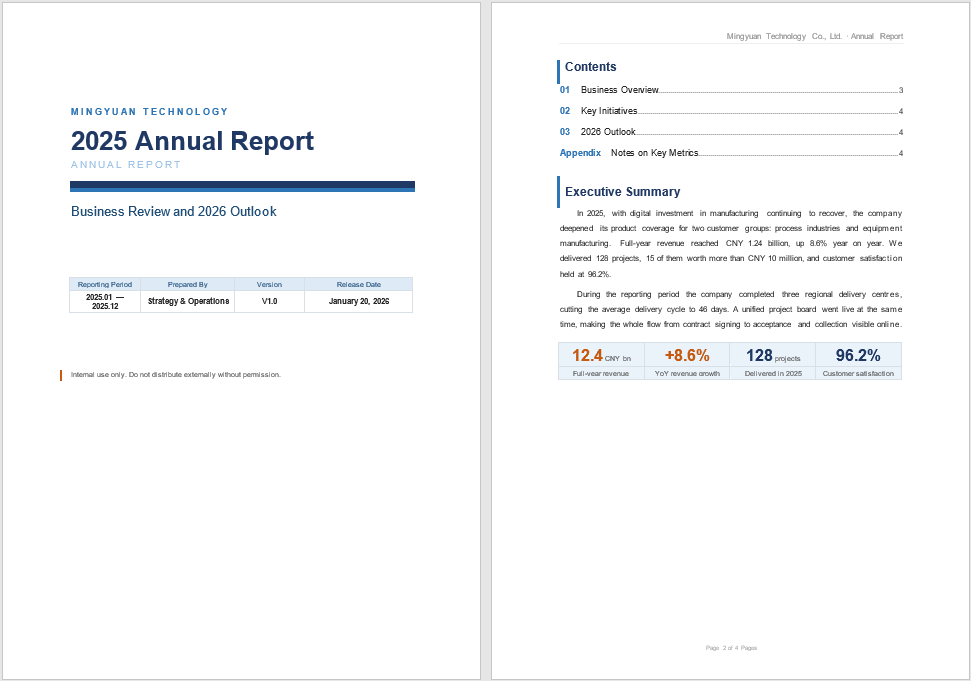
After different first page is turned on, the cover shows no header or footer, and from page 2 the header is right-aligned:
The First-Page Header Does Not Change After It Is Cleared
While the switch is off, the first page uses the general header, and anything in FirstPageHeader does not take part in layout; the first-page header and footer only take effect after the switch is turned on. Turn on DifferentFirstPageHeaderFooter first, then write the general header and the first-page header separately. If the order is right and the cover still shows a header, check whether the section inherits the previous section's content through LinkToPrevious, and whether the paragraph collection of the first-page header has been cleared paragraph by paragraph.
Which Page Counts as the First Page in a Multi-Section Document
"The first page" means the first page of each section, not the first page of the whole document. In a multi-section document, once a section turns on different first page, the first page of that section gets its own header and footer. If only the very first page of the whole document should have no header, turn the switch on for the first section alone and leave the other sections off.
Set Different Odd- and Even-Page Headers and Footers
Books, bid documents and double-sided handouts usually put the odd-page header on the right and the even-page header on the left, or show the document title on one side and the chapter title on the other. After odd/even is turned on, OddHeader and EvenHeader become two independent sets of content, and the footer is likewise split into OddFooter and EvenFooter.
The switch lives on the section's page setup, that is section.PageSetup.DifferentOddAndEvenPagesHeaderFooter.
The specific steps are as follows:
- Get the Spire.Doc WASM module and confirm that it is ready.
- Load the sample document, create a
Documentobject and take the first section. - Set
DifferentOddAndEvenPagesHeaderFootertotrue. - Write the odd-page and even-page headers separately, and insert page numbers into both footers.
- Save the result with
SaveToFile(), read the file from the VFS and trigger a browser download.
The code for setting different odd- and even-page headers and footers is as follows:
function App() {
  const setOddEvenHeaderFooter = async () => {
    // Get the Spire.Doc WASM module
    const docModule = window.wasmModule?.spiredoc;

    if (!docModule) {
      alert('Spire.Doc is not ready yet');
      return;
    }

    await window.spire.FetchFileToVFS('AnnualReport.docx', '', `${process.env.PUBLIC_URL}/data/`);

    const doc = new docModule.Document();
    doc.LoadFromFile('AnnualReport.docx');

    const section = doc.Sections.get_Item(0);

    // Odd and even pages each use their own header and footer
    section.PageSetup.DifferentOddAndEvenPagesHeaderFooter = true;

    const headersFooters = section.HeadersFooters;

    // Right after the switch is on, the even-page header may have no paragraph yet, so check before creating one
    const firstParagraph = (body) => body.Paragraphs.Count > 0
      ? body.Paragraphs.get_Item(0)
      : body.AddParagraph();

    // Odd-page header aligned right
    const oddHeader = firstParagraph(headersFooters.OddHeader);
    oddHeader.Text = 'Annual Report';
    oddHeader.Format.HorizontalAlignment = docModule.HorizontalAlignment.Right;

    // Even-page header aligned left
    const evenHeader = firstParagraph(headersFooters.EvenHeader);
    evenHeader.Text = 'Mingyuan Technology Co., Ltd.';
    evenHeader.Format.HorizontalAlignment = docModule.HorizontalAlignment.Left;

    // Odd-page page number aligned right
    const oddFooter = firstParagraph(headersFooters.OddFooter);
    oddFooter.Text = '';
    oddFooter.AppendField('PAGE', docModule.FieldType.FieldPage);
    oddFooter.Format.HorizontalAlignment = docModule.HorizontalAlignment.Right;

    // Even-page page number aligned left
    const evenFooter = firstParagraph(headersFooters.EvenFooter);
    evenFooter.Text = '';
    evenFooter.AppendField('PAGE', docModule.FieldType.FieldPage);
    evenFooter.Format.HorizontalAlignment = docModule.HorizontalAlignment.Left;

    const outputFileName = 'ReportOddEven.docx';
    doc.SaveToFile({ fileName: outputFileName, fileFormat: docModule.FileFormat.Docx2013 });
    doc.Dispose();

    const fileArray = window.dotnetRuntime.Module.FS.readFile(outputFileName);
    const blob = new Blob([fileArray], {
      type: 'application/vnd.openxmlformats-officedocument.wordprocessingml.document',
    });
    const url = URL.createObjectURL(blob);
    const a = document.createElement('a');
    a.href = url;
    a.download = outputFileName;
    a.click();
    URL.revokeObjectURL(url);
  };

  return (
    <div style={{ textAlign: 'center', height: '300px' }}>
      <h1>Different Odd and Even Pages</h1>
      <button onClick={setOddEvenHeaderFooter}>Apply</button>
    </div>
  );
}

export default App;
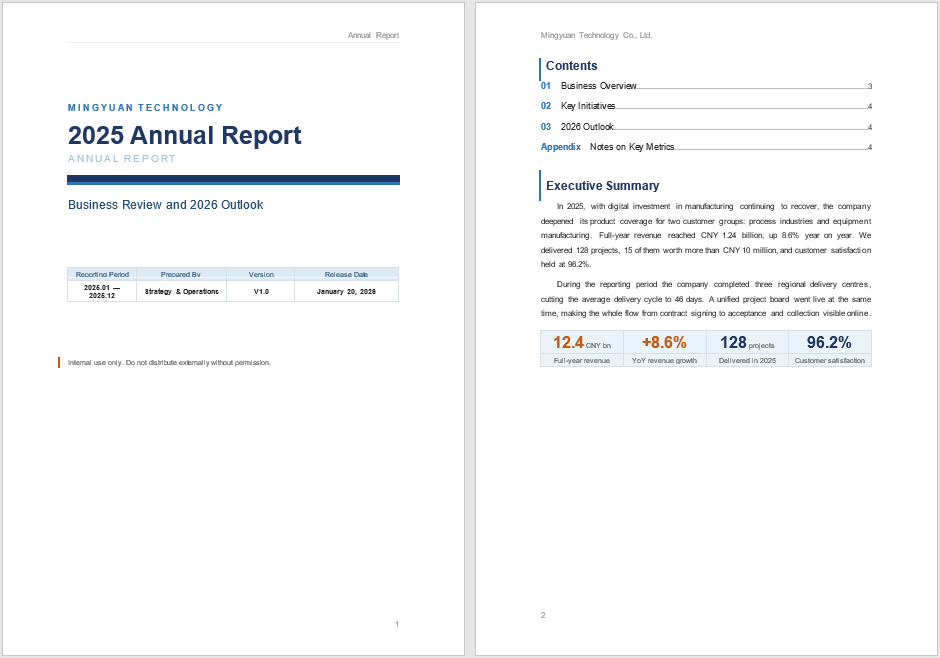
After odd/even is turned on, the odd page keeps its header and page number on the right and the even page keeps them on the left:
The Even-Page Header Has No Content
Right after odd/even is turned on, the even-page header and footer may not have a paragraph yet: Paragraphs.Count is 0, and an access by index reports an out-of-range argument. Check whether the paragraph collection is empty first, call AddParagraph() when it is, and then write the text:
// When the even-page header has no paragraph yet, create one before writing
const evenHeader = section.HeadersFooters.EvenHeader;
const evenParagraph = evenHeader.Paragraphs.Count > 0
  ? evenHeader.Paragraphs.get_Item(0)
  : evenHeader.AddParagraph();

evenParagraph.Text = 'Mingyuan Technology Co., Ltd.';
Working with Page Numbers
Odd/even is often used together with page numbers: the odd-page number sits on the right and the even-page number on the left, forming a symmetrical layout. The page number is inserted as a PAGE field in the footer with Paragraph.AppendField('PAGE', FieldType.FieldPage). The two footers have to be written separately; if only one of them is set, the other footer does not gain a page number automatically.
How Odd and Even Pages Are Decided When Different First Page Is Also On
Both switches can be on at the same time: page 1 uses the first-page header and footer, and from page 2 the headers alternate by physical page number — page 2 takes the even-page header and page 3 the odd-page header. A one-page document cannot show the difference, so check the effect page by page in a document of two pages or more.
Adjust the Height of the Header and Footer
The distance between the header and footer and the page edge is controlled by HeaderDistance and FooterDistance, in points. These two properties decide the position of the header and footer themselves; the height of their content further squeezes the body area, so adjusting the distances usually means checking the page margins at the same time.
| Property | Meaning | Default (for reference) |
|---|---|---|
PageSetup.HeaderDistance |
Distance from the top edge of the page to the header (pt) | about 36 pt |
PageSetup.FooterDistance |
Distance from the bottom edge of the page to the footer (pt) | about 36 pt |
The specific steps are as follows:
- Get the Spire.Doc WASM module and confirm that it is ready.
- Load the sample document, and take the page setup
PageSetupof the first section. - Set
HeaderDistanceandFooterDistance. - Adjust the top and bottom margins at the same time to leave room for the header and footer content.
- Save the result with
SaveToFile(), read the file from the VFS and trigger a browser download.
The following code adjusts the height of the header and footer:
function App() {
  const setHeaderFooterDistance = async () => {
    // Get the Spire.Doc WASM module
    const docModule = window.wasmModule?.spiredoc;

    if (!docModule) {
      alert('Spire.Doc is not ready yet');
      return;
    }

    await window.spire.FetchFileToVFS('AnnualReport.docx', '', `${process.env.PUBLIC_URL}/data/`);

    const doc = new docModule.Document();
    doc.LoadFromFile('AnnualReport.docx');

    const pageSetup = doc.Sections.get_Item(0).PageSetup;

    // Header 48 pt from the top edge, footer 42 pt from the bottom edge
    pageSetup.HeaderDistance = 48;
    pageSetup.FooterDistance = 42;

    // Top margin larger than the header distance, leaving room for the header content
    pageSetup.Margins.Top = 96;
    pageSetup.Margins.Bottom = 84;

    const outputFileName = 'ReportDistance.docx';
    doc.SaveToFile({ fileName: outputFileName, fileFormat: docModule.FileFormat.Docx2013 });
    doc.Dispose();

    const fileArray = window.dotnetRuntime.Module.FS.readFile(outputFileName);
    const blob = new Blob([fileArray], {
      type: 'application/vnd.openxmlformats-officedocument.wordprocessingml.document',
    });
    const url = URL.createObjectURL(blob);
    const a = document.createElement('a');
    a.href = url;
    a.download = outputFileName;
    a.click();
    URL.revokeObjectURL(url);
  };

  return (
    <div style={{ textAlign: 'center', height: '300px' }}>
      <h1>Adjust Header and Footer Height</h1>
      <button onClick={setHeaderFooterDistance}>Apply</button>
    </div>
  );
}

export default App;
The comparison before and after the adjustment is as follows: the header moves from 36 pt to 48 pt from the top edge, and the body top margin from 72 pt to 96 pt:

The Body Overlaps the Header
HeaderDistance only controls the position of the header itself and does not push the body. When the header distance plus the height of the header content exceeds the top margin, the first line of the body overlaps the header. The example sets the top margin to 96 pt and the header distance to 48 pt, leaving room for the header content. The footer sits at the bottom of the page, so what needs checking there is the relationship between the bottom margin and FooterDistance.
The Header Content Is Too Tall
When the header has many paragraphs or a large font size, the header area expands downward and takes up the body's usable height. For a multi-line header, reduce the font size and the space before and after the paragraphs, or move part of the information into the footer, instead of increasing the top margin further.
FAQ
Why Does the Cover Still Show a Header After Different First Page Is Turned On
Cause: while the switch is off, the first page still uses the general header and the content in the first-page header does not take part in layout; another common case is a new section inheriting the previous section's header.
Fix: set section.PageSetup.DifferentFirstPageHeaderFooter = true first, then clear the first-page header and footer; in a multi-section document, also check HeadersFooters.LinkToPrevious for that section.
Only One Odd/Even Header Is Visible — How Do I Confirm the Setting Took Effect
A one-page document cannot show the odd-page and even-page headers together, and it is easy to mistake that for only one set being configured. Open a document of two pages or more and look at page 1 and page 2 separately. When different first page is also on, page 1 shows the first-page header and the odd/even alternation starts from page 2. A newly created even-page header is empty at first and has to be written to.
The Body Still Overlaps the Header After the Header Distance Is Adjusted
Cause: HeaderDistance only moves the header itself; where the body starts is decided by the top margin.
Fix: set the top margin larger than the header distance plus the height of the header content; the same applies at the footer, where the bottom margin and FooterDistance have to be checked. Reducing the font size and the space before and after the header paragraphs first also helps.
In a Multi-Section Document, the New Section Takes the Previous Section's Header — How Do I Set It Separately
Cause: by default the header and footer of a new section inherit the previous section through LinkToPrevious, so the content read back comes from the previous section.
Fix: break the inheritance first, then write this section's content:
const section2 = doc.Sections.get_Item(1);
const hf2 = section2.HeadersFooters;

// After breaking the link to the previous section, this section has its own header and footer
hf2.LinkToPrevious = false;

const header2 = hf2.Header;
const paragraph2 = header2.Paragraphs.Count > 0
  ? header2.Paragraphs.get_Item(0)
  : header2.AddParagraph();
paragraph2.Text = 'Section 2 Header';
Get a Free License
Spire.Doc for JavaScript offers a 30-day full-featured free trial license with no functional limitations. Apply here to evaluate before purchasing.
