Clicking a product picture in a product manual to open its detail page, or clicking a box in an organization chart to open the description of that department, both rely on picture and shape hyperlinks. When documents are generated in batches, the links often have to follow the data, and the stale links left in a template have to be found, rewritten or removed.
This article uses Spire.Doc for JavaScript to perform all three operations in the browser. The whole process runs on WebAssembly in the browser, with no Office installation and no backend service, so the document stays on the user's device the entire time.
This article covers three features:
For installation and project setup, refer to Integrating Spire.Doc for JavaScript in a React Project. The examples below assume that Spire.Doc is installed and the WebAssembly module is initialized.
Add a Hyperlink to a Picture
A picture hyperlink is stored in the HRef property of the picture object itself, which is different from a text hyperlink, where the paragraph inserts the link. HRef takes a string, and the picture becomes a clickable object once the value is written; in Word, hold Ctrl and click the picture (or simply click it in Reading view) to open the target address.
The sample used in this article is a product manual, Manual.docx. The manual has 2 pages: page 1 carries one product picture and three feature cards, and page 2 holds the installation steps and the specification table:
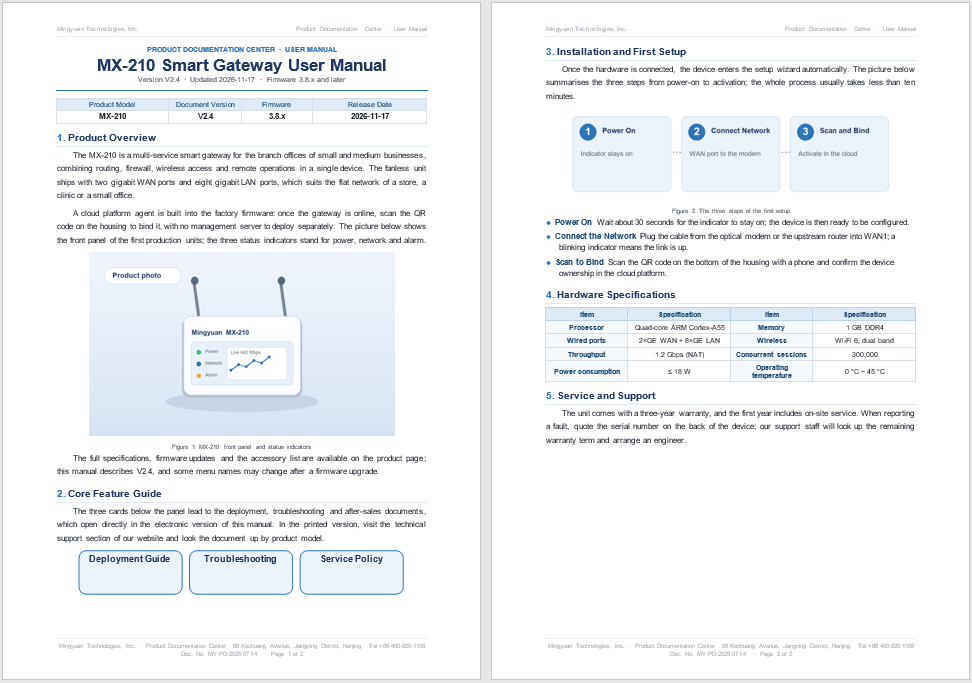
The specific steps are as follows:
- Get the Spire.Doc WASM module and confirm that it is ready.
- Load the sample document
Manual.docxand the new product pictureNewProduct.pnginto the VFS. - Create a
Documentobject and load the manual, take the first section, and add a paragraph at the end of the body with centre alignment. - Insert the picture with
AppendPicture, set its width and height, then setHRefto the address of the new product page. - Save the result as
ManualWithLinkedPicture.docx, read the file from the VFS and trigger a browser download.
The code for adding a hyperlink to a picture is as follows:
function App() {
  const linkPicture = async () => {
    // Get the Spire.Doc WASM module
    const docModule = window.wasmModule?.spiredoc;

    if (!docModule) {
      alert('Spire.Doc is not ready yet');
      return;
    }

    // Load the sample document and the new product picture
    await window.spire.FetchFileToVFS('Manual.docx', '', `${process.env.PUBLIC_URL}/data/`);
    await window.spire.FetchFileToVFS('NewProduct.png', '', `${process.env.PUBLIC_URL}/data/`);

    const doc = new docModule.Document();
    doc.LoadFromFile('Manual.docx');

    // Append a paragraph at the end of the body for the new product picture
    const body = doc.Sections.get_Item(0).Body;
    const paragraph = body.AddParagraph();
    paragraph.Format.HorizontalAlignment = docModule.HorizontalAlignment.Center;

    const picture = paragraph.AppendPicture('NewProduct.png');
    picture.Width = 240;
    picture.Height = 147;

    // Clicking the picture opens the new product page
    picture.HRef = 'https://www.example.com/products/mx260';

    const outputFileName = 'ManualWithLinkedPicture.docx';
    doc.SaveToFile({ fileName: outputFileName, fileFormat: docModule.FileFormat.Docx2013 });
    doc.Dispose();

    // Read the generated file from the VFS and trigger the download
    const fileArray = window.dotnetRuntime.Module.FS.readFile(outputFileName);
    const blob = new Blob([fileArray], {
      type: 'application/vnd.openxmlformats-officedocument.wordprocessingml.document',
    });
    const url = URL.createObjectURL(blob);
    const a = document.createElement('a');
    a.href = url;
    a.download = outputFileName;
    a.click();
    URL.revokeObjectURL(url);
  };

  return (
    <div style={{ textAlign: 'center', height: '300px' }}>
      <h1>Picture Hyperlink</h1>
      <button onClick={linkPicture}>Add Link</button>
    </div>
  );
}

export default App;
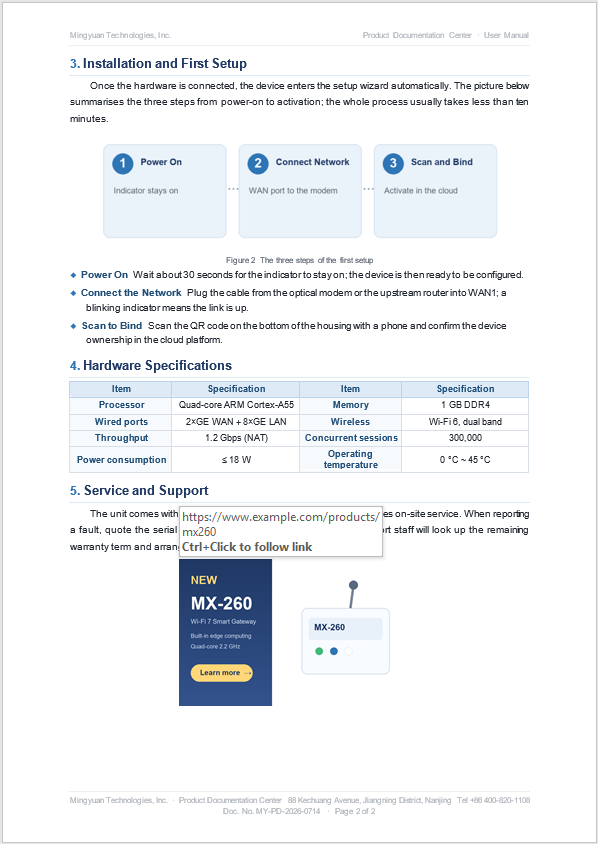
The new product picture sits at the end of page 2, and the blue frame in the figure marks the linked area of the picture:
Nothing Happens When the Picture Link Is Clicked
In the editing view of Word, a picture hyperlink needs Ctrl and a click; a plain click only selects the picture. Switch to Reading view and a plain click opens the target. Whether the link is written at all can be checked with picture.HasHyperlink: when the property is true the link already exists, and the click behaviour is decided by the view state of Word.
Relative Paths and Absolute Addresses
HRef stores the string as it is and does not validate the address. When only a file name is written, Word resolves it against the location of the document, and the link stops working once the document is moved or distributed to another machine. For distribution across devices, use a full URL; a link to an internal file should likewise carry a path that can be resolved.
Add a Hyperlink to a Shape
A shape hyperlink is stored in the HRef property of the shape object as well, in the same way as a picture. The difference is that a shape usually carries no text, so the clickable area is the fill of the shape, and the reader has to be able to see where to click: give the shape a fill colour and a border, or use a text box and write the caption inside the shape.
The sample appends a "View Deployment Guide" card to the end of the manual. The card is a text box shape with its text centred, and clicking the card opens the deployment document:
The specific steps are as follows:
- Load the sample document
Manual.docx. - Add a paragraph at the end of the body and set it to centre alignment.
- Call
AppendTextBox(210, 46)to create the text box shape and set its fill colour and border colour. - Take the paragraph inside the text box with
card.Body.AddParagraph(), write the text and centre it. - Set
card.HRefto the address of the deployment document and save the result asManualWithLinkedShape.docx.
The code for adding a hyperlink to a shape is as follows (the module check, font loading and download code from the previous section are omitted):
const doc = new docModule.Document();
doc.LoadFromFile('Manual.docx');

const body = doc.Sections.get_Item(0).Body;
const paragraph = body.AddParagraph();
paragraph.Format.HorizontalAlignment = docModule.HorizontalAlignment.Center;

// Create a text box shape as the card
const card = paragraph.AppendTextBox(210, 46);
card.FillColor = docModule.Color.FromArgb(255, 234, 242, 250);
card.StrokeColor = docModule.Color.FromArgb(255, 46, 117, 182);

// The text inside the shape goes in the text box's own paragraph
const line = card.Body.AddParagraph();
line.Format.HorizontalAlignment = docModule.HorizontalAlignment.Center;
const label = line.AppendText('View Deployment Guide');
label.CharacterFormat.FontName = 'Arial';
label.CharacterFormat.FontSize = 12;
label.CharacterFormat.Bold = true;

// Clicking the card opens the deployment document
card.HRef = 'https://www.example.com/docs/deploy';

const outputFileName = 'ManualWithLinkedShape.docx';
doc.SaveToFile({ fileName: outputFileName, fileFormat: docModule.FileFormat.Docx2013 });
doc.Dispose();
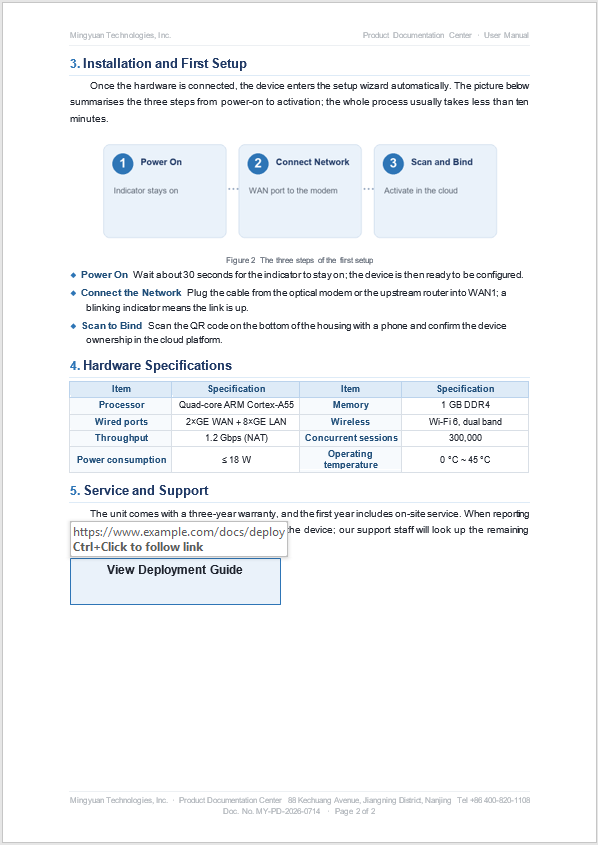
The new card sits at the end of page 2, and the link on the card points to https://www.example.com/docs/deploy:
Text and Links Inside a Shape
The shape created by AppendTextBox has a text area of its own; the text is written through Body.AddParagraph() and the link is set through HRef, and neither affects the other. When an ordinary shape such as a rounded rectangle is created with AppendShape, the shape has no ready-made paragraph inside, and WordArt.Text only takes effect on WordArt-type shapes (for example ShapeType.TextPlainText); assigning it on an ordinary rectangle does not write any visible text. For a card that is clickable as a whole and carries text, a text box is the more direct choice.
Why Several Shapes Pile Up at the Same Position
The shapes created by AppendShape and AppendTextBox are floating objects anchored to the paragraph position, and both the horizontal and the vertical position default to 0, so several shapes added in a row overlap. Set HorizontalPosition and VerticalPosition to place them one by one, or set the coordinate base first with HorizontalOrigin and VerticalOrigin (the page or the paragraph) and then give the concrete values.
// Anchor both shapes on the page and place them on the left and the right
shape1.HorizontalOrigin = docModule.HorizontalOrigin.Page;
shape1.VerticalOrigin = docModule.VerticalOrigin.Page;
shape1.HorizontalPosition = 60;
shape1.VerticalPosition = 560;

shape2.HorizontalOrigin = docModule.HorizontalOrigin.Page;
shape2.VerticalOrigin = docModule.VerticalOrigin.Page;
shape2.HorizontalPosition = 220;
shape2.VerticalPosition = 560;
Modify and Remove Hyperlinks
Replacing a domain in batches, correcting a broken link or dropping the links that point to an internal test environment all come down to reading and writing HRef. HasHyperlink tells whether an object already carries a link and keeps ordinary pictures out of the way; setting HRef to an empty string removes the link from the object.
The body of the sample manual holds four links: the product picture and two of the three feature cards point to the old domain, and the third card points to a test path. The code below moves them all to the new domain and removes the test link:
| Object | Handling | Address after the change |
|---|---|---|
| Product picture | Replace the domain | https://www.example.com/products/mx210 |
| Deployment Guide | Replace the domain | https://www.example.com/docs/deploy |
| Troubleshooting | Keep unchanged | https://www.example.com/support/troubleshoot |
| Service Policy | Remove the link | none |
The specific steps are as follows:
- Load the sample document
Manual.docx. - Walk
Body.ChildObjectsof every section in turn and skip the objects that are not paragraphs. - Inside each paragraph, walk
ChildObjectsand pick out the pictures, shapes and text boxes. - Use
HasHyperlinkto check whether a link exists; empty the address when it contains/test/, and replace the domain on the others. - Save the result as
ManualLinksUpdated.docxand download it.
The code for modifying and removing the hyperlinks is as follows:
const doc = new docModule.Document();
doc.LoadFromFile('Manual.docx');

const replaceDomain = (href) =>
  href ? href.replace('https://old.example.com', 'https://www.example.com') : href;

for (let s = 0; s < doc.Sections.Count; s++) {
  const section = doc.Sections.get_Item(s);

  for (let i = 0; i < section.Body.ChildObjects.Count; i++) {
    const obj = section.Body.ChildObjects.get_Item(i);
    if (obj.DocumentObjectType !== docModule.DocumentObjectType.Paragraph) continue;

    for (let k = 0; k < obj.ChildObjects.Count; k++) {
      const child = obj.ChildObjects.get_Item(k);
      const isLinkable =
        child.DocumentObjectType === docModule.DocumentObjectType.Picture ||
        child.DocumentObjectType === docModule.DocumentObjectType.Shape ||
        child.DocumentObjectType === docModule.DocumentObjectType.TextBox;

      if (!isLinkable || !child.HasHyperlink) continue;

      const href = child.HRef;
      if (href.includes('/test/')) {
        // Remove the link that points to the test environment
        child.HRef = '';
      } else {
        child.HRef = replaceDomain(href);
      }
    }
  }
}

const outputFileName = 'ManualLinksUpdated.docx';
doc.SaveToFile({ fileName: outputFileName, fileFormat: docModule.FileFormat.Docx2013 });
doc.Dispose();
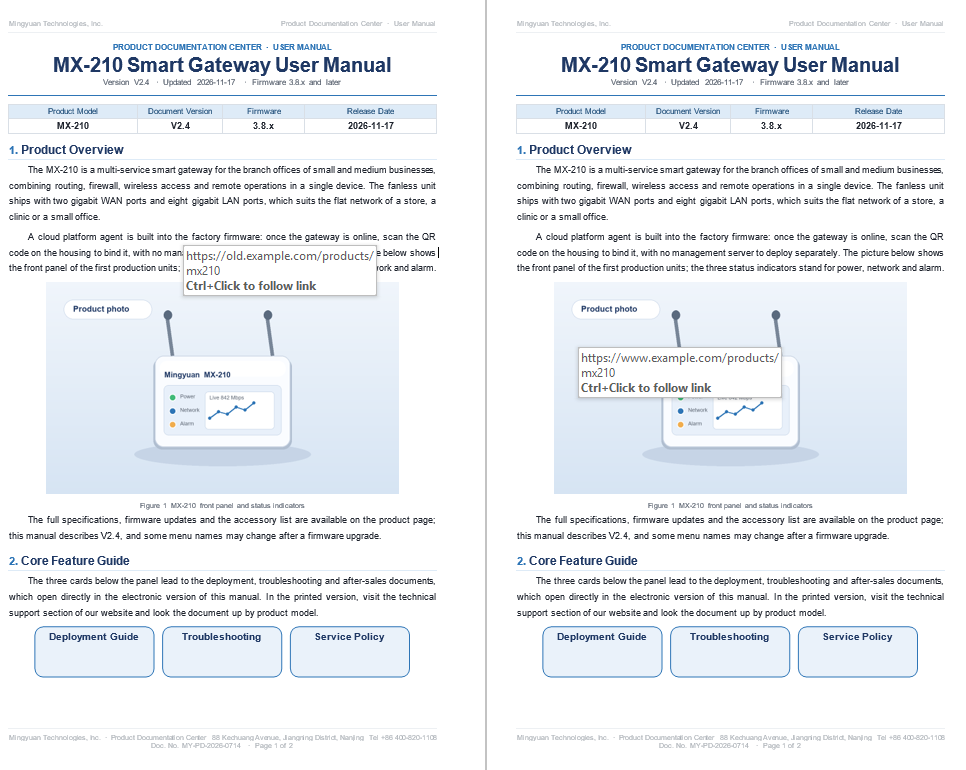
After the run the document holds three links instead of four: the domains of the product picture and the deployment guide are updated, and the link on the service policy card is gone:
How to Modify a Text Hyperlink
A text hyperlink is inserted with paragraph.AppendHyperlink(link, text, type), which returns a Field object; the child objects of the paragraph are then a Field, a FieldMark, a TextRange and a FieldMark in turn. Such a link has no HRef property, so the loop over pictures and shapes never reaches it. To change one, locate the Field by its paragraph and rewrite its arguments, or delete the original text and insert a new run of text with the new link.
FAQ
Why Does Clicking an Object Do Nothing After a Link Is Set on a Picture or a Shape
Cause: in the editing view, a link on a picture or a shape needs Ctrl and a click, and a plain click only selects the object.
Fix: switch to Reading view and a plain click opens the target. If Ctrl and a click still does nothing, check that HasHyperlink is true and that the address is written as a full URL.
Why Does WordArt.Text Write No Text on an Ordinary Rounded Rectangle
WordArt.Text targets WordArt-type shapes, for example ShapeType.TextPlainText. The ordinary rectangle created by AppendShape has no text area, so the assignment writes no visible text. When text has to be shown inside the shape, use AppendTextBox and write it through card.Body.AddParagraph().
Can These Links Still Be Clicked in an Exported PDF
When a document is saved as PDF, a link on a picture is usually kept as a clickable area, while the links on shapes and text boxes do not always survive the export. In the Word version used for this sample, the picture link was exported with the PDF, whereas the link on the card did not appear among the link annotations of the PDF. If a link has to be distributed together with the PDF, click it in the exported PDF to confirm, or turn the key entry into a text hyperlink.
Is Setting HRef to an Empty String a Complete Removal of the Link
As far as the document structure goes, the object no longer carries a link: HasHyperlink becomes false, reading HRef again gives an empty string, and the hyperlink count of the document drops accordingly. The appearance of the object is not affected; the picture and the shape keep their look and their position. Other traces, such as alternative text or a screen tip, are separate properties and are cleared on their own.
Why Are Pictures and Shapes Inside a Table Missed
The loop shown in this article only handles the top-level paragraphs of the body. Pictures and shapes inside a table sit in the paragraphs of a cell, so Table.Rows and Row.Cells have to be walked first and the same ChildObjects handling then applied to the paragraphs of each cell. The link belongs to the object and has nothing to do with where that object sits.
Get a Free License
Spire.Doc for JavaScript offers a 30-day full-featured free trial license with no functional limitations. Apply here to evaluate before purchasing.
