A gutter is the extra white space a page sets aside for binding, so that the body text is not hidden by the staples or the glued spine once the document is printed and bound. Because it is part of the page setup, it has to be fixed when the document is generated and cannot be added later at the printing stage. Spire.Doc for JavaScript performs page setup directly in the browser via WebAssembly, using a virtual file system (VFS) to manage input and output files — no backend server required.
This article covers two core features:
For installation and project setup, refer to Integrating Spire.Doc for JavaScript in a React Project. The examples below assume Spire.Doc is installed and the WebAssembly module is initialized.
Add a Gutter
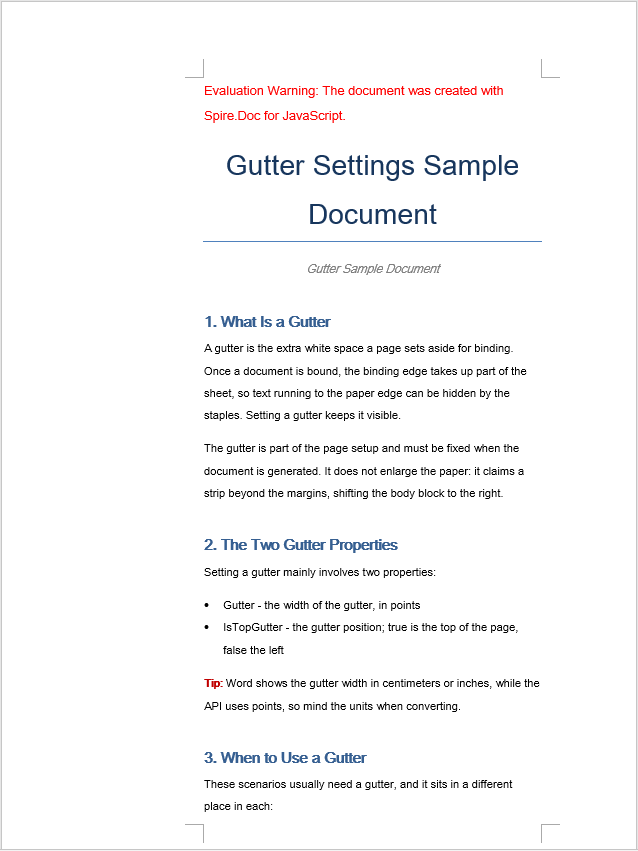
Adding a gutter involves three steps: first, load the font files and the target Word document into the WASM virtual file system via FetchFileToVFS; then instantiate a Document, load the document, get the target section and set the gutter width through PageSetup.Gutter — the value is in points and applies to the left side of the page by default; finally, read the saved file from VFS, wrap it as a Blob and trigger a browser download.
function App() {
  const AddGutter = async () => {
    const docModule = window.wasmModule?.spiredoc;
    if (!docModule) {
      alert('Spire.Doc is not ready yet');
      return;
    }

    // Load the target Word document into VFS
    const inputFileName = "GutterSample.docx";
    await window.spire.FetchFileToVFS(inputFileName, "", `${process.env.PUBLIC_URL}static/data/`);

    // Create a Document instance and load the document
    const doc = new docModule.Document();
    doc.LoadFromFile(inputFileName);

    // Get the first section
    const section = doc.Sections.get_Item(0);

    // Set the gutter width in points; it applies to the left side of the page by default
    section.PageSetup.Gutter = 100;

    // Define the output file name
    const outputFileName = "AddGutter_out.docx";

    // Save the document to VFS
    doc.SaveToFile({ fileName: outputFileName, fileFormat: docModule.FileFormat.Docx2013 });

    // Release resources
    doc.Dispose();

    const modifiedFileArray = window.dotnetRuntime.Module.FS.readFile(outputFileName);
    const blob = new Blob([modifiedFileArray], { type: 'application/vnd.openxmlformats-officedocument.wordprocessingml.document' });
    const url = URL.createObjectURL(blob);
    const a = document.createElement('a');
    a.href = url;
    a.download = outputFileName;
    a.click();
    URL.revokeObjectURL(url);
  };

 return (
    <div style={{ textAlign: 'center', height: '300px' }}>
      <h1>Add a Gutter to a Word Document</h1>
      <button onClick={AddGutter}>Generate</button>
    </div>
  );
}
export default App;
The document after a gutter has been added
Set the Gutter Position
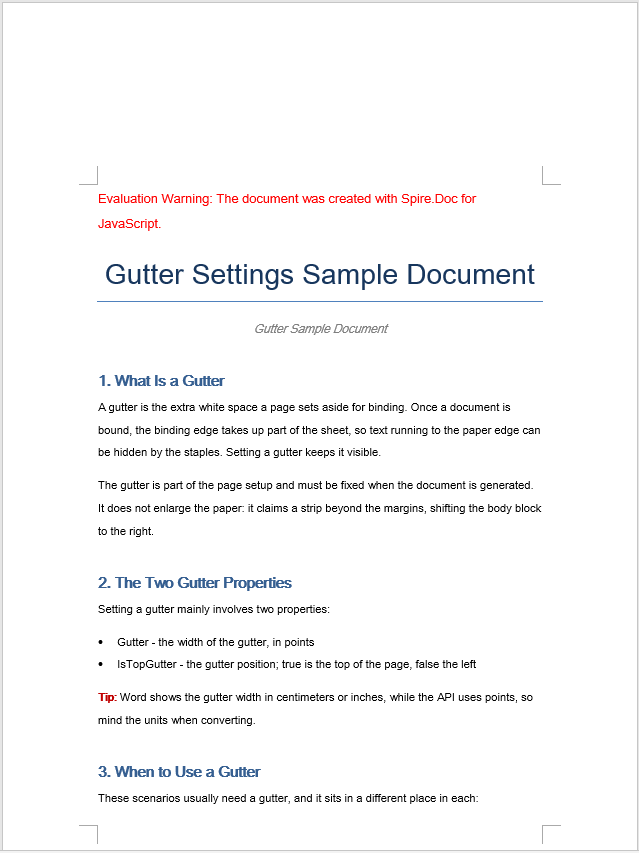
The gutter position decides which side of the page the strip of white space is added to: PageSetup.IsTopGutter set to true means a top gutter, and false (the default) means a left gutter. The steps are the same three as before: first, load the font files and the target Word document into the WASM virtual file system via FetchFileToVFS; then instantiate a Document, load the document, get the target section and set PageSetup.IsTopGutter to true to turn on the top gutter, then set the gutter width through PageSetup.Gutter; finally, read the saved file from VFS, wrap it as a Blob and trigger a browser download.
function App() {
  const SetGutterPosition = async () => {
    const docModule = window.wasmModule?.spiredoc;
    if (!docModule) {
      alert('Spire.Doc is not ready yet');
      return;
    }

    // Load the target Word document into VFS
    const inputFileName = "GutterSample.docx";
    await window.spire.FetchFileToVFS(inputFileName, "", `${process.env.PUBLIC_URL}static/data/`);

    // Create a Document instance and load the document
    const doc = new docModule.Document();
    doc.LoadFromFile(inputFileName);

    // Get the first section
    const section = doc.Sections.get_Item(0);

    // Set the gutter position to the top
    section.PageSetup.IsTopGutter = true;

    // Set the gutter width in points
    section.PageSetup.Gutter = 100;

    // Define the output file name
    const outputFileName = "SetGutterPosition_out.docx";

    // Save the document to VFS
    doc.SaveToFile({ fileName: outputFileName, fileFormat: docModule.FileFormat.Docx2013 });

    // Release resources
    doc.Dispose();

    const modifiedFileArray = window.dotnetRuntime.Module.FS.readFile(outputFileName);
    const blob = new Blob([modifiedFileArray], { type: 'application/vnd.openxmlformats-officedocument.wordprocessingml.document' });
    const url = URL.createObjectURL(blob);
    const a = document.createElement('a');
    a.href = url;
    a.download = outputFileName;
    a.click();
    URL.revokeObjectURL(url);
  };

 return (
    <div style={{ textAlign: 'center', height: '300px' }}>
      <h1>Set the Gutter Position in a Word Document</h1>
      <button onClick={SetGutterPosition}>Generate</button>
    </div>
  );
}
export default App;
The document after the top gutter has been set
FAQ
The gutter width does not match the value shown in the Word interface
Cause: PageSetup.Gutter is measured in points, while the Word Page Setup dialog box displays centimeters or inches by default. Passing 100 directly, as the examples do, means 100 points — about 3.53 centimeters — which is noticeably wide on an A4 page.
Solution: Convert the unit before passing the value in. One point is 1/72 inch and one inch is 2.54 centimeters, so the formula for converting centimeters to points is points = centimeters ÷ 2.54 × 72:
// Convert a 1.5-centimeter gutter width to points
const gutterInPoints = (1.5 / 2.54) * 72;
section.PageSetup.Gutter = gutterInPoints;
The text area becomes too narrow after a gutter is set
Cause: The gutter claims space in addition to the margins; it does not enlarge the page but squeezes the text area inwards. If the existing margins were already generous, adding a gutter narrows the usable width further, leaving too few characters per line and making paragraphs wrap far more often.
Solution: Reduce the margin on the same side at the same time as the gutter is set, so that the usable text width is preserved:
const pageSetup = section.PageSetup;

// Set a 1.5-centimeter gutter (centimeters converted to points)
pageSetup.Gutter = (1.5 / 2.54) * 72;

// The gutter takes up space on the left, so reduce the left margin accordingly
pageSetup.Margins.Left = 60;
Get a Free License
Spire.Doc for JavaScript offers a 30-day full-featured free trial license with no functional limitations. Apply here to evaluate before purchasing.
