Generating a table of contents, reviewing content, and splitting a long document into chapters all require a clear picture of the document's hierarchy first. Plain text extraction only produces a continuous run of characters and gives no clue about where a chapter or a section begins; extraction by style, by contrast, preserves the relationship of "which body text belongs under which heading level", which later processing can build on.
This article uses Spire.Doc for JavaScript to read the full text of a Word document in the browser and extract the text of each section by heading style. The sample uses a two-page report, the October 2026 Product Quality Statistics Report (QualityReport.docx), which contains four level-1 headings, two level-2 headings, one metrics table and one trend chart, enough to cover both plain text extraction and structured extraction. The whole process runs on WebAssembly in the browser, with no Office installation and no backend service, and the document is read locally and is not uploaded to a server through the use of this library.
This article covers two features:
The full text comes from joining paragraph text; the structure comes from the style properties of the paragraphs. The two serve different purposes: the former suits searching and statistics, the latter suits splitting and rebuilding the hierarchy.
| Reading Target | Main Member | Result |
|---|---|---|
| Full text | document.GetText() |
Plain text joined in object order |
| Paragraph text | paragraph.Text |
The text of a single paragraph |
| Style name | paragraph.StyleName |
Such as Heading1 and Normal |
| Outline level | paragraph.Format.OutlineLevel |
Level1 to Level9, and Body |
For installation and project setup, refer to Integrating Spire.Doc for JavaScript in a React Project. The examples below assume that Spire.Doc is installed and the WebAssembly module is initialized.
Read the Full Text of the Document
GetText() joins the body text into a single string in object order and is the fastest way to read the full text. It does not distinguish paragraph styles and does not keep layout information, so it suits keyword searches, word counts and corpus export. The sample exports the full text while walking the body objects and counting the paragraph objects among them.
The specific steps are as follows:
- Get the Spire.Doc WASM module and confirm that it is ready.
- Load the
QualityReport.docxto be read into the VFS. - Call
GetText()to take out the full text. - Walk the body objects and count the paragraphs.
- Write the statistics and the full text into the VFS and trigger a download.
The code for reading the full text of the document is as follows:
function App() {
  const readFullText = async () => {
    // Get the Spire.Doc WASM module
    const docModule = window.wasmModule?.spiredoc;

    // Check if the module is ready
    if (!docModule) {
      alert('Spire.Doc is not ready yet');
      return;
    }

    await window.spire.FetchFileToVFS('QualityReport.docx', '', `${process.env.PUBLIC_URL}/data/`);

    const doc = new docModule.Document();
    doc.LoadFromFile('QualityReport.docx');

    // Full text: line breaks are kept between paragraphs
    const text = doc.GetText();

    // Count the paragraphs and the characters
    let paragraphCount = 0;
    for (let s = 0; s < doc.Sections.Count; s++) {
      const section = doc.Sections.get_Item(s);
      for (let i = 0; i < section.Body.ChildObjects.Count; i++) {
        const obj = section.Body.ChildObjects.get_Item(i);
        if (obj.DocumentObjectType === docModule.DocumentObjectType.Paragraph) {
          paragraphCount++;
        }
      }
    }

    const report = `Characters: ${text.length}\r\nBody paragraphs: ${paragraphCount}\r\n\r\n${text}`;
    window.dotnetRuntime.Module.FS.writeFile('FullText.txt', report);
    doc.Dispose();

    const fileArray = window.dotnetRuntime.Module.FS.readFile('FullText.txt');
    const blob = new Blob([fileArray], { type: 'text/plain;charset=utf-8' });
    const url = URL.createObjectURL(blob);
    const a = document.createElement('a');
    a.href = url;
    a.download = 'FullText.txt';
    a.click();
    URL.revokeObjectURL(url);
  };

  return (
    <div style={{ textAlign: 'center', height: '300px' }}>
      <h1>Read Full Text</h1>
      <button onClick={readFullText}>Start Reading</button>
    </div>
  );
}

export default App;
The exported full text and statistics are shown below; the report document on the left is the input:
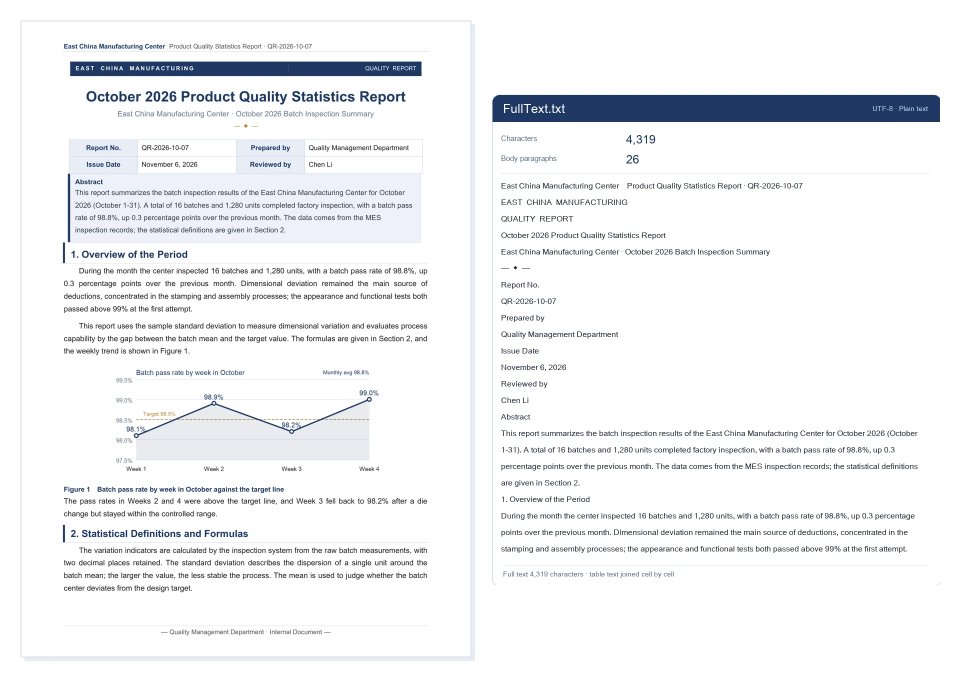
The statistics lines give the character count and the number of body paragraphs, 4,319 and 26 in the example. Text in the table enters the full text row by row in cell order, so cells such as the report number and the department each occupy one line and there is no separator between columns; empty paragraphs and paragraphs that hold only a picture leave a blank line. When the content has to be reorganised by paragraph or by cell, rely on the result of walking the objects, not on splitting this text directly.
Field Results versus Field Codes
GetText() returns the display result of a field, not the field code. A date field shows the date text and a page-number field shows the page number; if the fields have not been updated since the document was opened, the value taken may be placeholder text or the result of the last save. When an accurate value is required, update the fields in Word first, or refresh them through the field-related interfaces.
Text in Tables and Text Boxes
Text in table cells enters the full text in cell order, but there is no separator between columns, so the content of several columns runs together. Headers, footers and text boxes are separate content containers, and whether their text enters the result depends on the document structure; in the document tested for this article, the header text appears at the start of the full text. When complete coverage is required, walk these containers separately rather than relying on GetText() alone.
Extract the Text of Each Section by Heading Style
Heading styles are the explicit markers of document structure. As long as paragraphs use the built-in heading styles such as Heading1 and Heading2, sections can be split on that basis: a heading of a higher level ends the previous chapter, and a heading of a lower level belongs to the current chapter.
StyleName returns the style name. Built-in heading styles are stored in the document under their English names without spaces, for example Heading1 and Heading2; Format.OutlineLevel gives the outline level directly, so the two can check each other. The sample uses only level-1 headings as chapter boundaries, and the text of level-2 headings joins the body of the chapter as ordinary paragraphs.
The specific steps are as follows:
- Get the Spire.Doc WASM module and confirm that it is ready.
- Load the
QualityReport.docxto be read into the VFS. - Walk the body paragraphs and read
StyleNameandFormat.OutlineLevel. - Use level-1 headings as boundaries and assign the following content to the current chapter.
- Output the chapter titles and body text, write them into the VFS and trigger a download.
The code for extracting the text of each section by heading style is as follows:
function App() {
  const readByHeadingStyle = async () => {
    // Get the Spire.Doc WASM module
    const docModule = window.wasmModule?.spiredoc;

    // Check if the module is ready
    if (!docModule) {
      alert('Spire.Doc is not ready yet');
      return;
    }

    await window.spire.FetchFileToVFS('QualityReport.docx', '', `${process.env.PUBLIC_URL}/data/`);

    const doc = new docModule.Document();
    doc.LoadFromFile('QualityReport.docx');

    const chapters = [];
    let current = null;

    for (let s = 0; s < doc.Sections.Count; s++) {
      const section = doc.Sections.get_Item(s);
      for (let i = 0; i < section.Body.ChildObjects.Count; i++) {
        const obj = section.Body.ChildObjects.get_Item(i);
        if (obj.DocumentObjectType !== docModule.DocumentObjectType.Paragraph) continue;

        const isHeading1 =
          obj.StyleName === 'Heading1' ||
          obj.Format.OutlineLevel === docModule.OutlineLevel.Level1;

        if (isHeading1) {
          // A new chapter
          current = { title: obj.Text, body: [] };
          chapters.push(current);
        } else if (current) {
          current.body.push(obj.Text);
        }
      }
    }

    let output = '';
    for (const chapter of chapters) {
      output += `## ${chapter.title}\r\n`;
      output += chapter.body.join('\r\n') + '\r\n\r\n';
    }

    window.dotnetRuntime.Module.FS.writeFile('Chapters.txt', output);
    doc.Dispose();

    const fileArray = window.dotnetRuntime.Module.FS.readFile('Chapters.txt');
    const blob = new Blob([fileArray], { type: 'text/plain;charset=utf-8' });
    const url = URL.createObjectURL(blob);
    const a = document.createElement('a');
    a.href = url;
    a.download = 'Chapters.txt';
    a.click();
    URL.revokeObjectURL(url);
  };

  return (
    <div style={{ textAlign: 'center', height: '300px' }}>
      <h1>Read by Heading Style</h1>
      <button onClick={readByHeadingStyle}>Start Extracting</button>
    </div>
  );
}

export default App;
The extracted chapters are shown below; the second page of the input is on the left and the exported Chapters.txt is on the right:
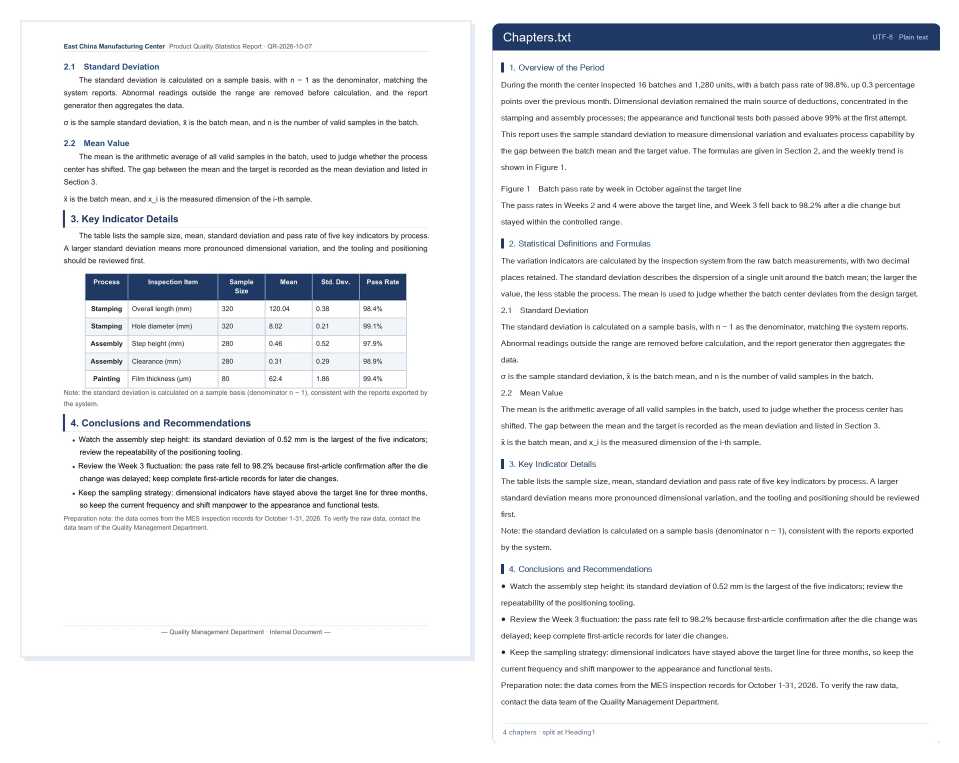
The four level-1 headings of the sample document are split into four chapters, and the chapter titles are taken directly from the paragraph text. The level-2 headings (2.1 Standard Deviation and 2.2 Mean Value) do not start a new chapter but join the body of chapter 2 as ordinary paragraphs; if the level-2 headings also have to be kept, set the hierarchy by outline level in the loop instead of testing only for level-1 headings.
When the Style Name Is Empty or Shows a Localised Name
If the paragraph was produced by another program, StyleName may be empty or carry a localised name (such as "Heading 1"). Name comparisons alone then miss it, so Format.OutlineLevel should be checked as well: paragraphs whose outline level is Level1 to Level9 are all headings, and only Body is body text. Taking the union of the two conditions is more reliable than using either one alone.
"Pseudo-headings" That Are Merely Bolded by Hand
Many documents do not use heading styles at all but simply make a line bold and larger by hand. Such paragraphs are still body text in terms of outline level, and extraction by style assigns them entirely to the previous chapter. Before processing, check whether the document's navigation pane is empty; if it is, there is no real heading structure.
Choosing Between the Two Features
| Need | Reading Method | Points to Note |
|---|---|---|
| Search, statistics, corpus export | GetText() |
No structure; table columns run together |
| Chapter splitting, table of contents, structural review | Walk paragraphs + StyleName / OutlineLevel |
Depends on heading styles; pseudo-headings must be excluded |
The accuracy of structured extraction depends on whether the source document uses styles properly. For documents from external sources, it is advisable to output a style list first and confirm that the number of paragraphs hit as headings matches expectations before carrying out any splitting or rebuilding.
FAQ
When Reading the Full Text, Is Text in Tables and Headers Included
Tables usually are: cell text enters the full text row by row in cell order, but there is no separator between columns. Headers, footers and text boxes are separate content containers, and whether their text enters the result depends on the document structure; in the document tested for this article, the header text appears at the start of the full text. When complete coverage is required, walk these containers separately rather than relying on GetText() alone.
Why Are Some Sections Not Recognised When Extracting by Heading Style
There are two common causes: the paragraphs were produced by another program, so StyleName is empty or carries a localised name and the name comparison cannot hit; or the document does not use heading styles at all, and the so-called "headings" are merely bolded and enlarged by hand, with an outline level that is still body text. In the first case, check Format.OutlineLevel as well; in the second, add the heading styles to the source document first and then run the extraction.
Does StyleName Return Heading1 or "Heading 1"
In documents that use the built-in heading styles, the style is usually stored in the file under its English name without spaces, for example Heading1 and Heading2; the localised name shown in the interface generally does not replace this stored value. If the document was edited in a multilingual environment or uses custom styles, it is advisable to walk the first few paragraphs and print StyleName and Format.OutlineLevel to confirm the actual values before writing the conditions.
Are the Line Breaks Between Paragraphs Kept After Reading the Full Text
GetText() joins the text in object order and keeps line breaks between objects: ordinary paragraphs each occupy a line, empty paragraphs and paragraphs that hold only a picture leave a blank line, and table cells each become a line. It does not keep layout information such as indents, tab stops and fonts. When content has to be handled by paragraph or by cell, rely on the text obtained by walking the objects rather than splitting this full text directly.
Do These Operations Upload the Document to a Server
Not as used in this article. Spire.Doc for JavaScript runs in the browser on WebAssembly, and the document is read and written locally through the virtual file system (VFS): loading, reading and exporting all happen locally, and the library itself does not send the file to a server. Whether the file eventually leaves the device depends on the other code you add to the page.
Get a Free License
Spire.Doc for JavaScript offers a 30-day full-featured free trial license with no functional limitations. Apply here to evaluate before purchasing.
