Markdown is commonly used for README files, technical documentation, release notes, and application-generated reports. Converting Markdown to PDF makes this content easier to share, print, and distribute to readers without a Markdown viewer.
Starting with version 12.11.11, Spire.PDF for .NET supports direct Markdown-to-PDF conversion. This tutorial shows how to convert Markdown files and strings to PDF in C#, customize page size and margins during conversion, and modify the generated PDF before saving it.
Table of Contents
- Install Spire.PDF for .NET
- Convert a Markdown File to PDF in C#
- Convert a Markdown String to PDF in C#
- Customize Page Size and Margins When Converting Markdown to PDF
- Modify the Generated PDF Before Saving
- Markdown-to-PDF Conversion Considerations
- Frequently Asked Questions
- Get a Free License
Install Spire.PDF for .NET
To convert Markdown to PDF in C#, install Spire.PDF for .NET via NuGet or download the DLL files and add the appropriate references to your project.
Package Manager Console:
Install-Package Spire.PDF
.NET CLI:
dotnet add package Spire.PDF
Note: Markdown-to-PDF conversion was introduced in Spire.PDF for .NET 12.11.11. Make sure your project references this version or later.
The MarkdownToPdfConverter class in the Spire.Additions.Markdown namespace provides the following conversion methods. Choose a method based on the source of your Markdown content and whether you need a PDF file or a document object for further processing.
| Method | Input | Output |
|---|---|---|
ConvertToFile(string, string) |
Markdown file path | PDF file |
ConvertToFileFromText(string, string) |
Markdown string | PDF file |
Convert(string) |
Markdown file path | PdfDocument object |
Convert(byte[]) |
Markdown byte array | PdfDocument object |
ConvertFromText(string) |
Markdown string | PdfDocument object |
All five methods also provide overloads that accept an MdLoadOptions object, allowing you to configure the PDF page dimensions and margins during conversion.
Convert a Markdown File to PDF in C#
To convert a local Markdown (.md) file to PDF, use the MarkdownToPdfConverter.ConvertToFile() method. It accepts the source Markdown file path and the output PDF file path, converting and saving the document in a single call.
Sample Markdown File
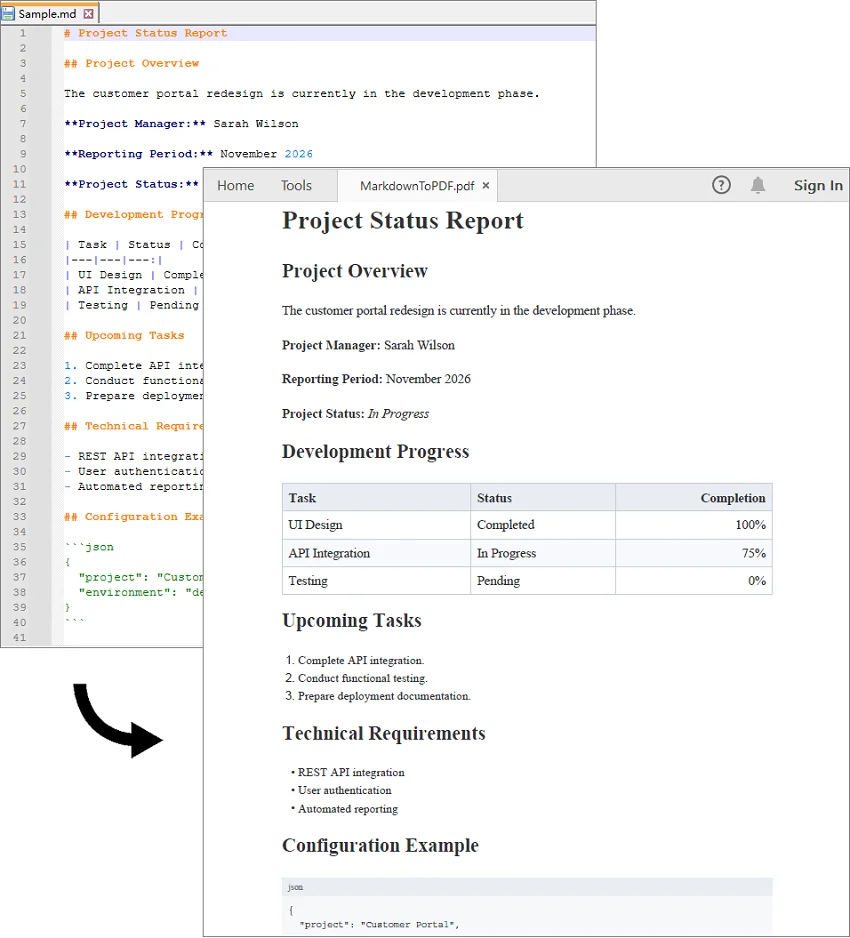
For this example, create a file named Sample.md with the following content. It includes headings, formatted text, a table, lists, a code block, a hyperlink, and a blockquote.
# Project Status Report

## Project Overview

The customer portal redesign is currently in the development phase.

**Project Manager:** Sarah Wilson

**Reporting Period:** November 2026

**Project Status:** *In Progress*

## Development Progress

| Task | Status | Completion |
|---|---|---:|
| UI Design | Completed | 100% |
| API Integration | In Progress | 75% |
| Testing | Pending | 0% |

## Upcoming Tasks

1. Complete API integration.
2. Conduct functional testing.
3. Prepare deployment documentation.

## Technical Requirements

- REST API integration
- User authentication
- Automated reporting

## Configuration Example

```json
{
  "project": "Customer Portal",
  "environment": "development"
}
```

## References

[Project Documentation](https://example.com)

> The project remains on schedule.
C# Code Example
The following example converts the Markdown file to a PDF document.
using Spire.Additions.Markdown;

namespace ConvertMarkdownFileToPdf
{
    class Program
    {
        static void Main(string[] args)
        {
            // Specify the input Markdown file
            string inputFile = "Sample.md";

            // Specify the output PDF file
            string outputFile = "MarkdownToPDF.pdf";

            // Convert the Markdown file to PDF
            MarkdownToPdfConverter.ConvertToFile(
                inputFile, outputFile);
        }
    }
}
If you use relative paths as shown in this example, make sure that Sample.md is available in the application's working directory. Alternatively, you can specify absolute paths for both the input and output files.
Conversion Result:
Convert a Markdown String to PDF in C#
Markdown content does not always originate from a file. Your application may generate it dynamically from database records, API responses, user input, or AI-generated content.
The MarkdownToPdfConverter.ConvertToFileFromText() method allows you to convert a Markdown string directly to a PDF file without first writing the content to a temporary .md file.
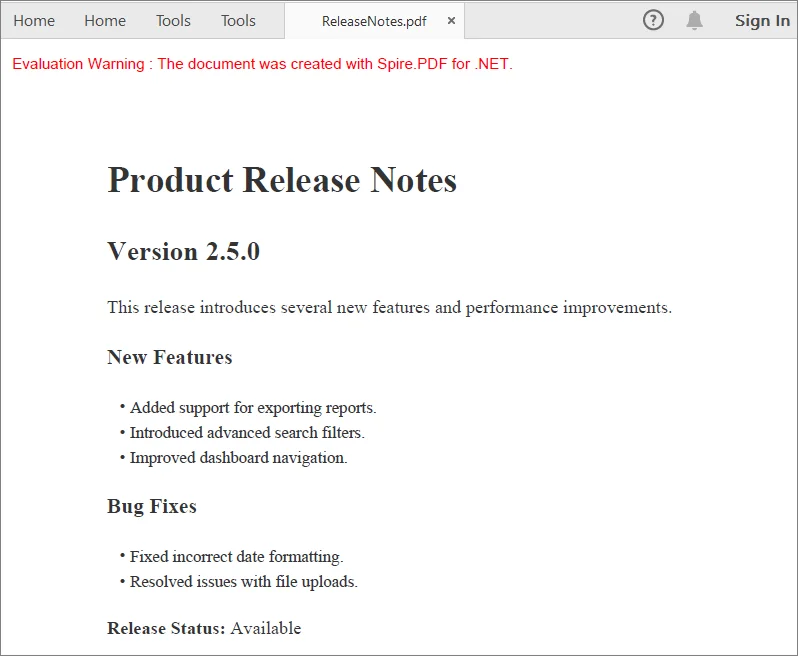
The following example converts a Markdown string containing product release notes to PDF.
using Spire.Additions.Markdown;

namespace ConvertMarkdownStringToPdf
{
    class Program
    {
        static void Main(string[] args)
        {
            // Define the Markdown content
            string mdString = @"# Product Release Notes

## Version 2.5.0

This release introduces several new features and performance improvements.

### New Features

- Added support for exporting reports.
- Introduced advanced search filters.
- Improved dashboard navigation.

### Bug Fixes

- Fixed incorrect date formatting.
- Resolved issues with file uploads.

**Release Status:** Available";

            // Convert the Markdown string to PDF
            MarkdownToPdfConverter.ConvertToFileFromText(
                mdString, "ReleaseNotes.pdf");
        }
    }
}
Conversion Result:
Customize Page Size and Margins When Converting Markdown to PDF
By default, Spire.PDF converts Markdown content to an A4 PDF document with one-inch margins on all sides. For documents containing wide tables, long code blocks, or content intended for printing, you may need to adjust the page size, orientation, or margins.
The MdLoadOptions class allows you to configure the PDF page layout before converting Markdown. It provides the following properties:
| Property | Description | Default Value |
|---|---|---|
Width |
Sets the page width in points. | 595.276 pt |
Height |
Sets the page height in points. | 841.89 pt |
Margin |
Sets the page margins through a MarginInfo object. |
72 pt on each side |
All measurements are specified in points (1 inch = 72 points). You can use the dimensions of a standard paper size or specify custom values.
| Page Size | Width (pt) | Height (pt) |
|---|---|---|
| A4 Portrait | 595.276 | 841.89 |
| A4 Landscape | 841.89 | 595.276 |
| A5 Portrait | 419.528 | 595.276 |
| US Letter Portrait | 612 | 792 |
| US Letter Landscape | 792 | 612 |
| US Legal Portrait | 612 | 1008 |
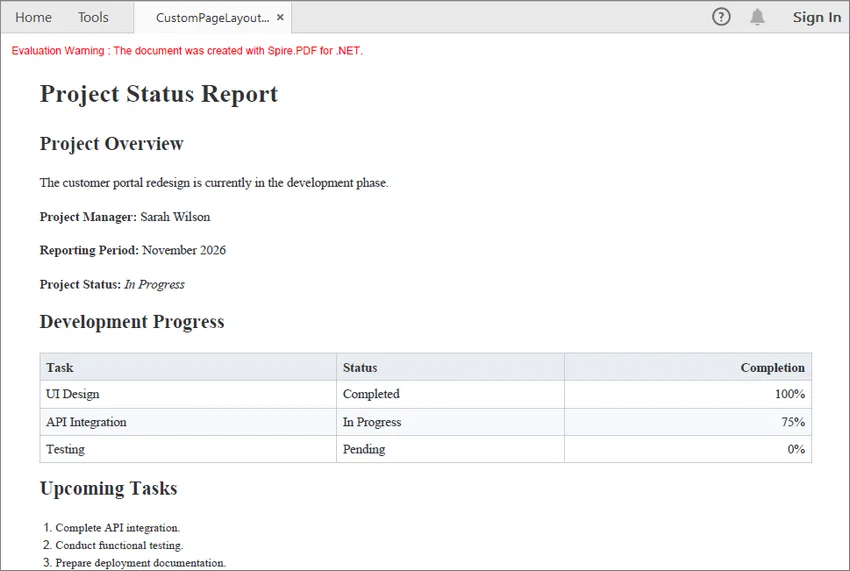
The following example converts a Markdown file to a US Letter PDF in landscape orientation with half-inch margins on all sides.
using Spire.Additions.Markdown;

namespace MarkdownToPdfWithCustomLayout
{
    class Program
    {
        static void Main(string[] args)
        {
            // Create Markdown load options
            MdLoadOptions options = new MdLoadOptions();

            // Set the page size to US Letter landscape
            options.Width = 792f;
            options.Height = 612f;

            // Set half-inch margins (left, top, right, bottom)
            options.Margin = new MarginInfo(36f, 36f, 36f, 36f);

            // Convert Markdown to PDF with the custom page layout
            MarkdownToPdfConverter.ConvertToFile(
                "Sample.md", "CustomPageLayout.pdf", options);
        }
    }
}
The MarginInfo constructor accepts four values in the order of left, top, right, and bottom, allowing you to set each margin independently. Using landscape orientation and narrower margins provides more horizontal space for wide tables and other content.
The same MdLoadOptions settings can be applied when converting Markdown strings or byte arrays by passing the options object to the corresponding conversion method. For longer documents, check page breaks and table placement to ensure that content fits within the selected page dimensions.
Note: Creating a MarginInfo object with its parameterless constructor sets all margins to zero. Assigning null to MdLoadOptions.Margin restores the default one-inch margins.
Conversion Result:
Modify the Generated PDF Before Saving
If you need to set document properties, add watermarks, or perform other PDF operations after converting Markdown, you can work directly with the generated PdfDocument object instead of saving and reopening an intermediate PDF file.
The MarkdownToPdfConverter class provides the following methods for obtaining a PdfDocument object:
Convert()– converts a Markdown file or byte array to a PDF document.ConvertFromText()– converts a Markdown string to a PDF document.
The following example uses ConvertFromText() to convert Markdown content, set the PDF title, author, subject, and keywords, and save the modified document.
using Spire.Pdf;
using Spire.Additions.Markdown;

namespace ConvertMarkdownToPdfWithMetadata
{
    class Program
    {
        static void Main(string[] args)
        {
            // Define the Markdown content
            string mdString = @"# Monthly Sales Report

## Sales Summary

| Region | Revenue |
|---|---:|
| North America | $25,000 |
| Europe | $18,500 |
| Asia Pacific | $21,000 |

**Total Revenue:** $64,500

## Remarks

Sales performance remained stable throughout the reporting period.";

            // Convert Markdown to a PDF document object
            PdfDocument doc =
                MarkdownToPdfConverter.ConvertFromText(mdString);

            try
            {
                // Set PDF document properties
                doc.DocumentInformation.Title = "Monthly Sales Report";
                doc.DocumentInformation.Author = "Sales Department";
                doc.DocumentInformation.Subject = "Monthly Revenue Summary";
                doc.DocumentInformation.Keywords = "Sales, Revenue, Monthly Report";

                // Save the modified PDF
                doc.SaveToFile("MonthlySalesReport.pdf");
            }
            finally
            {
                // Release document resources
                doc.Dispose();
            }
        }
    }
}
The metadata set through the DocumentInformation property can be viewed in a PDF reader's document properties dialog. These properties are stored in the PDF document and do not change its visible page content.
If your source content is stored in a Markdown file, use Convert() instead:
PdfDocument doc =
    MarkdownToPdfConverter.Convert("Sample.md");

try
{
    doc.DocumentInformation.Title = "Project Status Report";
    doc.SaveToFile("ProjectStatusReport.pdf");
}
finally
{
    doc.Dispose();
}
You can extend the same workflow to perform other PDF operations, such as adding watermarks to a PDF in C#, before saving the document.
Markdown-to-PDF Conversion Considerations
Supported Markdown Elements
Spire.PDF supports rendering a range of commonly used Markdown elements, including:
- Headings and paragraphs
- Bold and italic text
- Tables
- Ordered and unordered lists
- Fenced code blocks
- Hyperlinks
- Blockquotes
Markdown dialects, such as GitHub Flavored Markdown (GFM), differ in the syntax they support. If your source documents contain task lists, mathematical expressions, embedded HTML, or other elements not listed above, test their rendering before integrating the conversion into your application.
Images and External Resources
Markdown documents can reference images using relative paths, absolute paths, or URLs. For example:

Image rendering depends on how the referenced resources are resolved and whether they are accessible during conversion. When converting Markdown strings, pay particular attention to relative image paths, as the string itself does not retain the source file's directory.
For applications that convert user-uploaded or other untrusted Markdown content, restrict access to local files and remote resources according to your application's security requirements.
Text Encoding and Font Support
Use UTF-8 encoding for Markdown files to help preserve multilingual text and special characters. The appearance of these characters in the generated PDF also depends on font availability and glyph coverage.
When converting Markdown containing Chinese, Japanese, or other non-Latin scripts, ensure that appropriate fonts are available in the conversion environment and check the output for missing or incorrectly rendered characters.
Frequently Asked Questions
Can I convert Markdown stored in a byte array to PDF in C#?
Yes. The MarkdownToPdfConverter.Convert(byte[]) overload allows you to convert Markdown content stored as a byte array to a PdfDocument object. This is useful when working with file uploads, binary data retrieved from databases, or documents received from web services.
If the Markdown content is already available as a byte array named markdownBytes, you can convert and save it as follows:
PdfDocument doc =
    MarkdownToPdfConverter.Convert(markdownBytes);

try
{
    doc.SaveToFile("MarkdownToPDF.pdf");
}
finally
{
    doc.Dispose();
}
Can I convert Markdown to PDF without creating an intermediate Word document?
Yes. Spire.PDF for .NET provides a dedicated Markdown-to-PDF conversion API. You can convert Markdown files or strings directly to PDF without first converting them to DOCX or creating an intermediate Word document yourself.
Can I convert PDF back to Markdown in C#?
Yes. Spire.PDF for .NET also supports converting PDF to Markdown in C#.
However, Markdown and PDF represent document content differently. Converting a generated PDF back to Markdown may not reproduce the original Markdown syntax or document structure exactly.
Get a Free License
You can request a free 30-day temporary license to evaluate the Markdown-to-PDF conversion and other PDF processing features of Spire.PDF for .NET without evaluation limitations.
