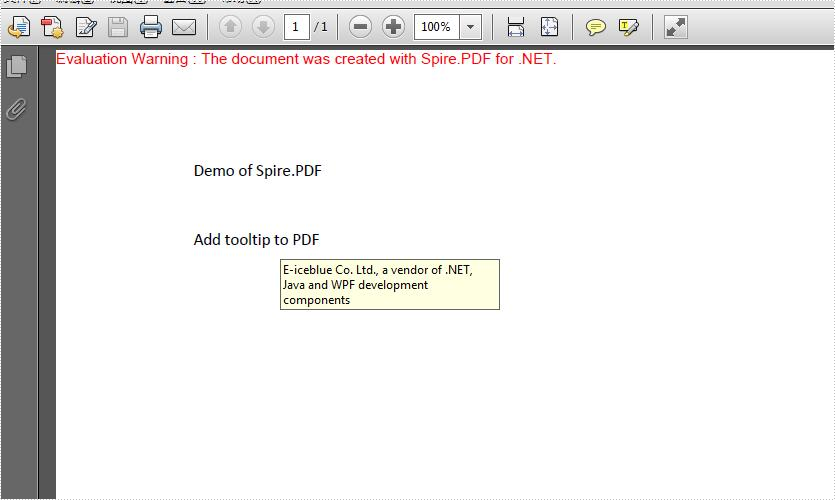
This article demonstrates how to add tooltip to the text on an existing PDF document in C#. Spire.PDF for .NET supports to create tooltips by adding invisible button over the searched text from the PDF file.
Step 1: Load the sample document file.
PdfDocument doc = new PdfDocument();
doc.LoadFromFile("Sample.pdf");
Step 2: Searched the text “Add tooltip to PDF” from the first page of the sample document and get the position of it.
PdfPageBase page = doc.Pages[0];
PdfTextFinder finder = new PdfTextFinder(page);
finder.Options.Parameter =TextFindParameter.WholeWord;
List<PdfTextFragment> result = finder.Find("Add tooltip to PDF");
RectangleF rec = result[0].Bounds[0];
Step 3: Create invisible button on text position
PdfButtonField field1 = new PdfButtonField(page, "field1");
field1.Bounds = rec;

field1.ToolTip = "E-iceblue Co. Ltd., a vendor of .NET, Java and WPF development components";
field1.BorderWidth = 0;
field1.BackColor = Color.Transparent;
field1.ForeColor = Color.Transparent;
field1.LayoutMode = PdfButtonLayoutMode.IconOnly;
field1.IconLayout.IsFitBounds = true;
Step 4: Set the content and format for the tooltip field.
field1.ToolTip = "E-iceblue Co. Ltd., a vendor of .NET, Java and WPF development components";
field1.BorderWidth = 0;
field1.BackColor = Color.Transparent;
field1.ForeColor = Color.Transparent;
field1.LayoutMode = PdfButtonLayoutMode.IconOnly;
field1.IconLayout.IsFitBounds = true;
Step 5: Save the document to file.
doc.SaveToFile("Addtooltip.pdf", FileFormat.PDF);
Effective screenshot after adding the tooltip to PDF:
using Spire.Pdf;
using Spire.Pdf.Fields;
using Spire.Pdf.Texts;
using System.Collections.Generic;
using System.Drawing;

namespace TooltipPDF
{
    class Program
    {
        static void Main(string[] args)
        {
            PdfDocument doc = new PdfDocument();
            doc.LoadFromFile("Sample.pdf");

            PdfPageBase page = doc.Pages[0];

            PdfTextFinder finder = new PdfTextFinder(page);
            finder.Options.Parameter =TextFindParameter.WholeWord;

            // Find the occurrences of the specified text
            List<PdfTextFragment> result = finder.Find("Add tooltip to PDF");
            RectangleF rec = result[0].Bounds[0];

            //Create invisible button on text position
            PdfButtonField field1 = new PdfButtonField(page, "field1");
            field1.Bounds = rec;

            field1.ToolTip = "E-iceblue Co. Ltd., a vendor of .NET, Java and WPF development components";
            field1.BorderWidth = 0;
            field1.BackColor = Color.Transparent;
            field1.ForeColor = Color.Transparent;
            field1.LayoutMode = PdfButtonLayoutMode.IconOnly;
            field1.IconLayout.IsFitBounds = true;

            doc.SaveToFile("Addtooltip.pdf", FileFormat.PDF);

        }
    }
}
