Java: Find and Extract Hyperlinks in Word Documents
Hyperlinks in Word documents can lead readers to a webpage, an external file, an email address, and a specific place of the document being read. They are commonly used in Word documents for their convenience. This article will teach you how to use Spire.Doc for Java to find and extract hyperlinks in Word documents, including hypertexts and links.
- Find and Extract a Specified Hyperlink in a Word Document
- Find and Extract All the Hyperlinks in a Word Document
Install Spire.Doc for Java
First, you're required to add the Spire.Doc.jar file as a dependency in your Java program. The JAR file can be downloaded from this link. If you use Maven, you can easily import the JAR file in your application by adding the following code to your project's pom.xml file.
<repositories>
    <repository>
        <id>com.e-iceblue</id>
        <name>e-iceblue</name>
        <url>https://repo.e-iceblue.com/nexus/content/groups/public/</url>
    </repository>
</repositories>
<dependencies>
    <dependency>
        <groupId>e-iceblue</groupId>
        <artifactId>spire.doc</artifactId>
        <version>14.8.4</version>
    </dependency>
</dependencies>
Find and Extract a Specified Hyperlink in a Word Document
The detailed steps are as follows:
- Create a Document instance and load a Word document from disk using Document.loadFromFile() method.
- Create an object of ArrayList<Field>.
- Iterate through the items in the sections to find all hyperlinks.
- Get the text of the first hyperlink using Field.get().getFieldText() method and get its link using Field.get().getValue() method.
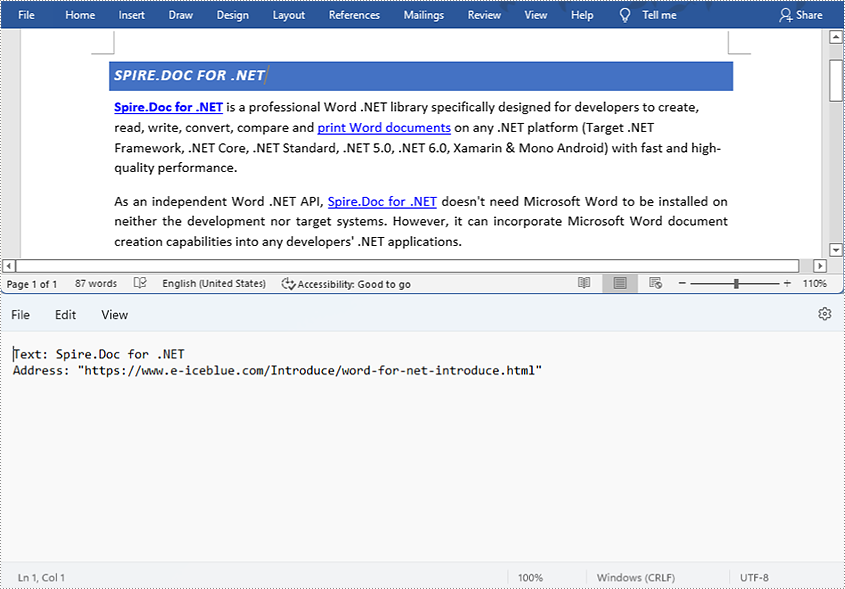
- Save the text and the link of the first hyperlink to a TXT file using custom method writeStringToText().
- Java
import com.spire.doc.*;
import com.spire.doc.documents.*;
import com.spire.doc.fields.Field;
import java.io.*;
import java.util.ArrayList;
public class findHyperlinks {
public static void main(String[] args) throws IOException {
//Create a Document instance and load a Word document from file
String input = "D:/testp/test.docx";
Document doc = new Document();
doc.loadFromFile(input);
//Create an object of ArrayList
ArrayListField> hyperlinks = new ArrayList();
//Iterate through the items in the sections to find all hyperlinks
for (Section section : (IterableSection>) doc.getSections()) {
for (DocumentObject object : (IterableDocumentObject>) section.getBody().getChildObjects()) {
if (object.getDocumentObjectType().equals(DocumentObjectType.Paragraph)) {
Paragraph paragraph = (Paragraph) object;
for (DocumentObject cObject : (IterableDocumentObject>) paragraph.getChildObjects()) {
if (cObject.getDocumentObjectType().equals(DocumentObjectType.Field)) {
Field field = (Field) cObject;
if (field.getType().equals(FieldType.Field_Hyperlink)) {
hyperlinks.add(field);
}
}
}
}
}
}
//Get the text and the address of the first hyperlink
String hyperlinksText = hyperlinks.get(0).getFieldText();
String hyperlinkAddress = hyperlinks.get(0).getValue();
//Save the text and the link of the first hyperlink to a TXT file
String output = "D:/javaOutput/HyperlinkTextAndLink.txt";
writeStringToText("Text:\r\n" + hyperlinksText+ "\r\n" + "Link:\r\n" + hyperlinkAddress, output);
}
//Create a method to write the text and link of hyperlinks to a TXT file
public static void writeStringToText(String content, String textFileName) throws IOException {
File file = new File(textFileName);
if (file.exists())
{
file.delete();
}
FileWriter fWriter = new FileWriter(textFileName, true);
try {
fWriter.write(content);
} catch (IOException ex) {
ex.printStackTrace();
} finally {
try {
fWriter.flush();
fWriter.close();
} catch (IOException ex) {
ex.printStackTrace();
}
}
}
}
Find and Extract All the Hyperlinks in a Word Document
The detailed steps are as follows:
- Create a Document instance and load a Word document from disk using Document.loadFromFile() method.
- Create an object of ArrayList<Field>.
- Iterate through the items in the sections to find all hyperlinks.
- Get the texts of the hyperlinks using Field.get().getFieldText() method and get their links using Field.get().getValue() method.
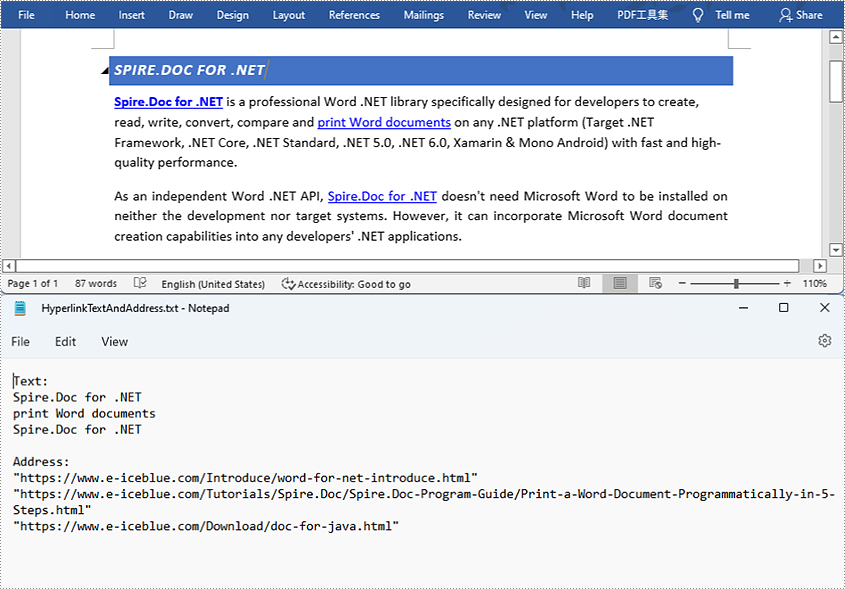
- Save the text and the links of the hyperlinks to a TXT file using custom method writeStringToText().
- Java
import com.spire.doc.*;
import com.spire.doc.documents.*;
import com.spire.doc.fields.Field;
import java.io.*;
import java.util.ArrayList;
public class findHyperlinks {
public static void main(String[] args) throws IOException {
//Create a Document instance and load a Word document from file
String input = "D:/testp/test.docx";
Document doc = new Document();
doc.loadFromFile(input);
//Create an object of ArrayList
ArrayListField> hyperlinks = new ArrayList();
String hyperlinkText = "";
String hyperlinkAddress = "";
//Iterate through the items in the sections to find all hyperlinks
for (Section section : (IterableSection>) doc.getSections()) {
for (DocumentObject object : (IterableDocumentObject>) section.getBody().getChildObjects()) {
if (object.getDocumentObjectType().equals(DocumentObjectType.Paragraph)) {
Paragraph paragraph = (Paragraph) object;
for (DocumentObject cObject : (IterableDocumentObject>) paragraph.getChildObjects()) {
if (cObject.getDocumentObjectType().equals(DocumentObjectType.Field)) {
Field field = (Field) cObject;
if (field.getType().equals(FieldType.Field_Hyperlink)) {
hyperlinks.add(field);
}
}
}
}
}
}
//Save the texts and the links of the hyperlinks to a TXT file
String output = "D:/javaOutput/HyperlinksTextsAndLinks.txt";
writeStringToText("Text:\r\n " + hyperlinkText + "\r\n" + "Link:\r\n" + hyperlinkAddress + "\r\n", output);
}
//Create a method to write the text and link of hyperlinks to a TXT file
public static void writeStringToText(String content, String textFileName) throws IOException {
File file = new File(textFileName);
if (file.exists())
{
file.delete();
}
FileWriter fWriter = new FileWriter(textFileName, true);
try {
fWriter.write(content);
} catch (IOException ex) {
ex.printStackTrace();
} finally {
try {
fWriter.flush();
fWriter.close();
} catch (IOException ex) {
ex.printStackTrace();
}
}
}
}
Apply for a Temporary License
If you'd like to remove the evaluation message from the generated documents, or to get rid of the function limitations, please request a 30-day trial license for yourself.
Java: Remove Hyperlinks in Word Documents
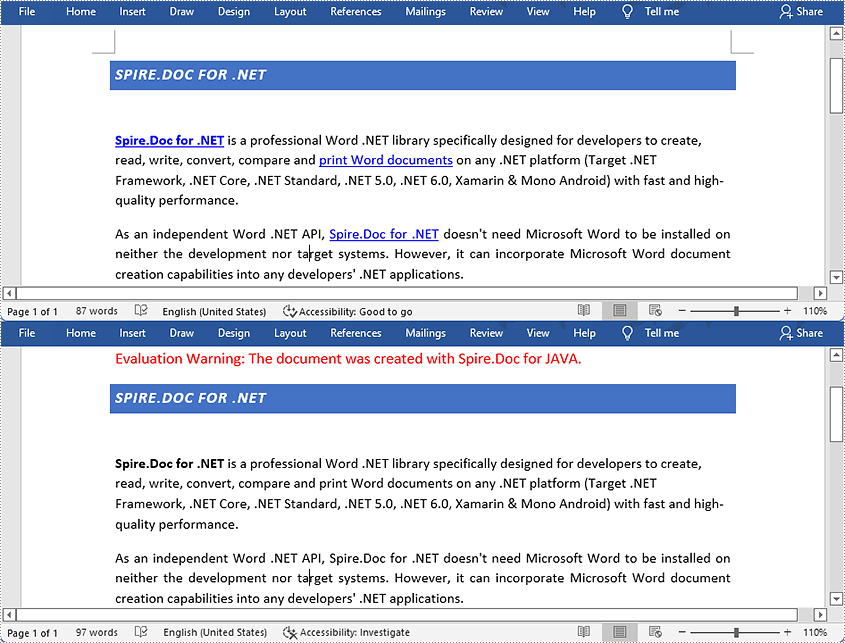
Hyperlinks usually appear on texts. By clicking on a hyperlink, we can access a website, a document, an email address, or other elements. Some Word documents, especially those that are generated from web content, may contain irritating hyperlinks, such as advertisements. This article shows you how to programmatically remove one hyperlink or all hyperlinks in a Word document using Spire.Doc for Java.
Install Spire.Doc for Java
First, you're required to add the Spire.Doc.jar file as a dependency in your Java program. The JAR file can be downloaded from this link. If you use Maven, you can easily import the JAR file in your application by adding the following code to your project's pom.xml file.
<repositories>
    <repository>
        <id>com.e-iceblue</id>
        <name>e-iceblue</name>
        <url>https://repo.e-iceblue.com/nexus/content/groups/public/</url>
    </repository>
</repositories>
<dependencies>
    <dependency>
        <groupId>e-iceblue</groupId>
        <artifactId>spire.doc</artifactId>
        <version>14.8.4</version>
    </dependency>
</dependencies>
Remove a Specified Hyperlink in a Word Document
The detailed steps to remove a specified hyperlink in a Word file are as follows:
- Create a Document object and load a Word document from disk using Document.loadFromFile() method.
- Find all the hyperlinks using custom method FindAllHyperlinks().
- Flatten the first hyperlink using custom method FlattenHyperlinks().
- Save the document using Document.saveToFile() method.
- Java
import com.spire.doc.*;
import com.spire.doc.documents.DocumentObjectType;
import com.spire.doc.documents.Paragraph;
import com.spire.doc.documents.UnderlineStyle;
import com.spire.doc.fields.Field;
import com.spire.doc.fields.TextRange;

import java.awt.*;
import java.util.ArrayList;

public class removeHyperlink {
    public static void main(String[] args) {
        //Create a Document object and load a Word document from disk
        String input = "D:/testp/test.docx";
        Document doc = new Document();
        doc.loadFromFile(input);

        //Find all hyperlinks
        ArrayList<Field> hyperlinks = FindAllHyperlinks(doc);

        //Flatten the first hyperlink
        FlattenHyperlinks(hyperlinks.get(0));

        //Save the document to file
        String output = "D:/javaOutput/RemoveHyperlinks.docx";
        doc.saveToFile(output, FileFormat.Docx);
    }

     //Iterate through the items in the sections to find all hyperlinks
        for (Section section : (Iterable<Section>)document.getSections())
        {
            for (DocumentObject object : (Iterable<DocumentObject>)section.getBody().getChildObjects())
            {
                if (object.getDocumentObjectType().equals(DocumentObjectType.Paragraph))
                {
                    Paragraph paragraph = (Paragraph) object;
                    for (DocumentObject cObject : (Iterable<DocumentObject>)paragraph.getChildObjects())
                    {
                    Paragraph paragraph = (Paragraph) object;
                    for (DocumentObject cObject : (Iterable)paragraph.getChildObjects())
                    {
                        if (cObject.getDocumentObjectType().equals(DocumentObjectType.Field))
                        {
                            Field field = (Field) cObject;
                            if (field.getType().equals(FieldType.Field_Hyperlink))
                            {
                                hyperlinks.add(field);
                            }
                        }
                    }
                }
            }
        }
        return hyperlinks;
    }

    //Create a method FlattenHyperlinks() to flatten the hyperlink field
    public static void FlattenHyperlinks(Field field)
    {
        int ownerParaIndex = field.getOwnerParagraph().getOwnerTextBody().getChildObjects().indexOf(field.getOwnerParagraph());
        int fieldIndex = field.getOwnerParagraph().getChildObjects().indexOf(field);
        Paragraph sepOwnerPara = field.getSeparator().getOwnerParagraph();
        int sepOwnerParaIndex = field.getSeparator().getOwnerParagraph().getOwnerTextBody().getChildObjects().indexOf(field.getSeparator().getOwnerParagraph());
        int sepIndex = field.getSeparator().getOwnerParagraph().getChildObjects().indexOf(field.getSeparator());
        int endIndex = field.getEnd().getOwnerParagraph().getChildObjects().indexOf(field.getEnd());
        int endOwnerParaIndex = field.getEnd().getOwnerParagraph().getOwnerTextBody().getChildObjects().indexOf(field.getEnd().getOwnerParagraph());
        FormatFieldResultText(field.getSeparator().getOwnerParagraph().getOwnerTextBody(), sepOwnerParaIndex, endOwnerParaIndex, sepIndex, endIndex);
        field.getEnd().getOwnerParagraph().getChildObjects().removeAt(endIndex);"
        for (int i = sepOwnerParaIndex; i >= ownerParaIndex; i--)
        {
            if (i == sepOwnerParaIndex && i == ownerParaIndex)
            {
                for (int j = sepIndex; j >= fieldIndex; j--)
                {
                    field.getOwnerParagraph().getChildObjects().removeAt(j);
                }
            }
            else if (i == ownerParaIndex)
            {
                for (int j = field.getOwnerParagraph().getChildObjects().getCount() - 1; j >= fieldIndex; j--)
                {
                    field.getOwnerParagraph().getChildObjects().removeAt(j);
                }
            }
            else if (i == sepOwnerParaIndex)
            {
                for (int j = sepIndex; j >= 0; j--)
                {
                    sepOwnerPara.getChildObjects().removeAt(j);
                }
            }
            else
            {
                field.getOwnerParagraph().ownerTextBody().getChildObjects().removeAt(i);
            }
        }
    }

    //Create a method FormatFieldResultText() to remove the font color and underline format of the hyperlinks
    private static void FormatFieldResultText(Body ownerBody, int sepOwnerParaIndex, int endOwnerParaIndex, int sepIndex, int endIndex)
    {
        for (int i = sepOwnerParaIndex; i <= endOwnerParaIndex; i++)
        {
            Paragraph para = (Paragraph) ownerBody.getChildObjects().get(i);
            if (i == sepOwnerParaIndex && i == endOwnerParaIndex)
            {
                for (int j = sepIndex + 1; j < endIndex; j++)
                {
                    FormatText((TextRange)para.getChildObjects().get(j));
                }
            }
            else if (i == sepOwnerParaIndex)
            {
                for (int j = sepIndex + 1; j < para.getChildObjects().getCount(); j++)
                {
                    FormatText((TextRange)para.getChildObjects().get(j));
                }
            }
            else if (i == endOwnerParaIndex)
            {
                for (int j = 0; j < endIndex; j++)
                {
                    FormatText((TextRange)para.getChildObjects().get(j));
                }
            }
            else
            {
                for (int j = 0; j < para.getChildObjects().getCount(); j++)
                {
                    FormatText((TextRange)para.getChildObjects().get(j));
                }
            }
        }
    }

    //Create a method FormatText() to change the color of the text to black and remove the underline
    private static void FormatText(TextRange tr)
    {
        //Set the text color to black
        tr.getCharacterFormat().setTextColor(Color.black);

        //Set the text underline style to none
        tr.getCharacterFormat().setUnderlineStyle(UnderlineStyle.None);
    }
}
Remove All the Hyperlinks in a Word Document
The detailed steps to remove all the hyperlinks in a Word file are as follows:
- Create a Document object and load a Word document from disk using Document.loadFromFile() method.
- Find all the hyperlinks using custom method FindAllHyperlinks().
- Loop through the hyperlinks, and invoke the custom method FlattenHyperlinks() to flatten the specific hyperlink.
- Save the document using Document.saveToFile() method.
- Java
import com.spire.doc.*;
import com.spire.doc.documents.DocumentObjectType;
import com.spire.doc.documents.Paragraph;
import com.spire.doc.documents.UnderlineStyle;
import com.spire.doc.fields.Field;
import com.spire.doc.fields.TextRange;
import java.awt.*;
import java.util.ArrayList;
public class removeHyperlink {
public static void main(String[] args) {
//Create a Document object and load a Word document from disk
String input = "D:/testp/test.docx";
Document doc = new Document();
doc.loadFromFile(input);
//Find all the hyperlinks
ArrayList<Field> hyperlinks = FindAllHyperlinks(doc);
//Loop through the hyperlinks, and flatten the specific hyperlink.
for (int i = hyperlinks.size() -1; i >= 0; i--)
{
FlattenHyperlinks(hyperlinks.get(i));
}
//Save the document to file
String output = "D:/javaOutput/RemoveHyperlinks.docx";
doc.saveToFile(output, FileFormat.Docx);
}
//Create a method FindAllHyperlinks() to get all the hyperlinks from the sample document
private static ArrayList FindAllHyperlinks(Document document)
{
ArrayListField> hyperlinks = new ArrayList();
//Iterate through the items in the sections to find all hyperlinks
for (Section section : (Iterable<Section>)document.getSections())
{
for (DocumentObject object : (Iterable<DocumentObject>)section.getBody().getChildObjects())
{
if (object.getDocumentObjectType().equals(DocumentObjectType.Paragraph))
{
Paragraph paragraph = (Paragraph) object;
for (DocumentObject cObject : (Iterable<DocumentObject>)paragraph.getChildObjects())
{
if (cObject.getDocumentObjectType().equals(DocumentObjectType.Field))
{
Field field = (Field) cObject;
if (field.getType().equals(FieldType.Field_Hyperlink))
{
hyperlinks.add(field);
}
}
}
}
}
}
return hyperlinks;
}
//Create a method FlattenHyperlinks() to flatten the hyperlink field
public static void FlattenHyperlinks(Field field)
{
int ownerParaIndex = field.getOwnerParagraph().getOwnerTextBody().getChildObjects().indexOf(field.getOwnerParagraph());
int fieldIndex = field.getOwnerParagraph().getChildObjects().indexOf(field);
Paragraph sepOwnerPara = field.getSeparator().getOwnerParagraph();
int sepOwnerParaIndex = field.getSeparator().getOwnerParagraph().getOwnerTextBody().getChildObjects().indexOf(field.getSeparator().getOwnerParagraph());
int sepIndex = field.getSeparator().getOwnerParagraph().getChildObjects().indexOf(field.getSeparator());
int endIndex = field.getEnd().getOwnerParagraph().getChildObjects().indexOf(field.getEnd());
int endOwnerParaIndex = field.getEnd().getOwnerParagraph().getOwnerTextBody().getChildObjects().indexOf(field.getEnd().getOwnerParagraph());
FormatFieldResultText(field.getSeparator().getOwnerParagraph().getOwnerTextBody(), sepOwnerParaIndex, endOwnerParaIndex, sepIndex, endIndex);
field.getEnd().getOwnerParagraph().getChildObjects().removeAt(endIndex);"
for (int i = sepOwnerParaIndex; i >= ownerParaIndex; i--)
{
if (i == sepOwnerParaIndex && i == ownerParaIndex)
{
for (int j = sepIndex; j >= fieldIndex; j--)
{
field.getOwnerParagraph().getChildObjects().removeAt(j);
}
}
else if (i == ownerParaIndex)
{
for (int j = field.getOwnerParagraph().getChildObjects().getCount() - 1; j >= fieldIndex; j--)
{
field.getOwnerParagraph().getChildObjects().removeAt(j);
}
}
else if (i == sepOwnerParaIndex)
{
for (int j = sepIndex; j >= 0; j--)
{
sepOwnerPara.getChildObjects().removeAt(j);
}
}
else
{
field.getOwnerParagraph().ownerTextBody().getChildObjects().removeAt(i);
}
}
}
//Create a method FormatFieldResultText() to format the texts
private static void FormatFieldResultText(Body ownerBody, int sepOwnerParaIndex, int endOwnerParaIndex, int sepIndex, int endIndex)
{
for (int i = sepOwnerParaIndex; i <= endOwnerParaIndex; i++)
{
Paragraph para = (Paragraph) ownerBody.getChildObjects().get(i);
if (i == sepOwnerParaIndex && i == endOwnerParaIndex)
{
for (int j = sepIndex + 1; j < endIndex; j++)
{
FormatText((TextRange)para.getChildObjects().get(j));
}
}
else if (i == sepOwnerParaIndex)
{
for (int j = sepIndex + 1; j < para.getChildObjects().getCount(); j++)
{
FormatText((TextRange)para.getChildObjects().get(j));
}
}
else if (i == endOwnerParaIndex)
{
for (int j = 0; j < endIndex; j++)
{
FormatText((TextRange)para.getChildObjects().get(j));
}
}
else
{
for (int j = 0; j < para.getChildObjects().getCount(); j++)
{
FormatText((TextRange)para.getChildObjects().get(j));
}
}
}
}
//Create a method FormatText() to change the color of the text to black and remove the underline
private static void FormatText(TextRange tr)
{
//Set the text color to black
tr.getCharacterFormat().setTextColor(Color.black);
//Set the text underline style to none
tr.getCharacterFormat().setUnderlineStyle(UnderlineStyle.None);
}
}
Apply for a Temporary License
If you'd like to remove the evaluation message from the generated documents, or to get rid of the function limitations, please request a 30-day trial license for yourself.
Embed Spire.Cloud.Office in Your Web Application
Spire.Cloud.Office is a JavaScript document editor which you can use to create, edit, convert, print, view and save MS Word and Excel documents in a browser on Windows, Linux and Mac. This article demonstrates how to incorporate Spire.Cloud.Office online editor (JavaScript) into a HTML document, so you can run the editor directly in your web application or cloud application.
Step 1. Install Spire.Cloud.Office
Before you can embed the document editor in your HTML file, you’ll need to install Spire.Cloud.Office on your system.
After installation, you can visit our sample file management system and editor on port 3000, and connect to our service via port 8000. In this tutorial, Spire.Cloud.Office is installed on our local server 192.168.0.111.
Step 2. Embed Editor in Your HTML Document
Below is a sample HTML in which our document editor is embedded. You can download it and modify some key parameters in it to run our editor in a HTML page.
    <html xmlns="http://www.w3.org/1999/xhtml">
<head><meta http-equiv="Content-Type" content="text/html; charset=utf-8" /><link rel="icon" href="https://cdn.e-iceblue.com/favicon.ico" type="image/x-icon" /><title>
	Spire.Office
</title>

    <style>
        html {
            height: 100%;
            width: 100%;
        }

        body {
            background: #fff;
            color: #333;
            font-family: Arial, Tahoma,sans-serif;
            font-size: 12px;
            font-weight: normal;
            height: 100%;
            margin: 0;
            overflow-y: hidden;
            padding: 0;
            text-decoration: none;
        }

        form {
            height: 100%;
        }

        div {
            margin: 0;
            padding: 0;
        }
    </style>

    <script language="javascript" type="text/javascript" src="http://192.168.4.77:8000/web/editors/spireapi/SpireCloudEditor.js"></script>

    <script type="text/javascript" language="javascript">

        var docEditor;
        var fileName = "";
        var lang = "zh";
        var fileType = "";
        var token = null;
        var appid = null;
        var appkey = null;

        var innerAlert = function (message) {
            if (console && console.log)
                console.log(message);
        };

        var onStart = function () {
            innerAlert("Document editor ready");

        };

        var onDocumentStateChange = function (event) {
            var title = document.title.replace(/\*$/g, "");
            document.title = title + (event.data ? "*" : "");
        };

        var onRequestEditRights = function () {
            location.href = location.href.replace(RegExp("action=view\&?", "i"), "");
        };

        var onError = function (event) {
            if (event)
                innerAlert(event.data);
        };

        var onOutdatedVersion = function (event) {
            location.reload(true);
        };
        function ajax(options) {
            options = options || {};
            var method = (options.type || "GET").toUpperCase(),
                url = options.url,
                queryString = null;
            if (!url)
                return;
            if (options.data) {
                queryString = [];
                for (var attr in options.data) {
                    queryString.push(attr + "=" + options.data[attr]);
                }
                queryString = queryString.join("&");
            }
            if (method === "GET" && queryString) {
                url += "?" + queryString;
                queryString = "";
            }
            var xhr = new XMLHttpRequest();
            xhr.open(method, url, true);
            if (method === "POST")
                xhr.setRequestHeader("Content-Type", "application/x-www-form-urlencoded");
            xhr.send(queryString);
            xhr.onreadystatechange = function () {
                if (xhr.readyState === 4) {
                    if (xhr.status === 200) {
                        var data = xhr.responseText;
                        if (options.dataType === "json")
                            data = JSON.parse(data);
                        options.success && options.success(data);
                    } else {
                        options.error && options.error(xhr.status);
                    }
                }
            }
        }
        var callbackfn = function (result) {
            if (result && result.data) {
                var data = result.data,
                    fileName = data[0],
                    url = data[1];
                if (fileName.indexOf('=') > -1)
                    fileName = fileName.split('=')[1];
                var host1 = location.hostname;
                var host ='http://192.168.4.77:8000';
                ajax({
                    url: 'http://' + host + '/webeditor.ashx?type=save',
                    type: 'post',
                    data: { 'filename': fileName, 'fileuri': url },
                    dataType: 'json',
                    async: false,
                    success: function (json) {
                        if (json.code == 200 || json.code == '200') {
                            alert('Successfully saved');
                        } else {
                            this.error(json, 'Failed to save');
                        }
                    },
                    error: function (json, msg) {
                        alert(+msg);
                    }
                });
            }
        };
        var connectEditor = function () {
            var type = 'desktop';
            if (type == "desktop") {
                var app = navigator.appVersion;
                if (app.toLowerCase().indexOf('window') != -1) {
                    type = "desktop";
                } else {
                    type = "mobile";
                }
            };
            var urlString ="https://cloud.e-iceblue.cn/demo/demo.docx";
            var arrfn = urlString.split(".");
            var strp= arrfn[arrfn.length - 1];
            var documentTypeValue=null;
            switch(strp){
                case "xls":
                case "xlsx":
                case "xlsm":
                case "xlt":
                case "xltx":
                case "xltm":
                case "ods":
                case "fods":
                case "ots":
                case "csv":
                    documentTypeValue="spreadsheet";
                    break;
                case "pps":
                case "ppsx":
                case "ppsm":
                case "ppt":
                case "pptx":
                case "pptm":
                case "pot":
                case "potx":
                case "potm":
                case "odp":
                case "fodp":
                case "otp":
                    documentTypeValue="presentation";
                    break;
                default:
                    documentTypeValue="document";
                    break;
            }

            docEditor = new SpireCloudEditor.OpenApi("iframeEditor",
                {
                    fileAttrs: {
                        fileInfo: {
                            name: '',
                            ext: '',
                            primary: '',
                            creator: '',
                            createTime: new Date('20210505')
                        },
                        sourceUrl: urlString,
                        createUrl: '',
                        callbackUrl: 'http://192.168.4.77:3000/save?filename=demo.docx&useraddress=__ffff_192.168.3.121',////This item can be empty, but only if the 'onSave' callback function must be defined in events. If the callback function is undefined and this item is empty, Cloud Editor will not provide save function.
                        verification: null,//If the user file system requires validation of token-like data when downloading files, it can be implemented here.
                        canEdit: true,
                        canDownload: false
                    },
                    user: {
                        primary: '',
                        name: '',
                        canSave: true,
                        customization: {
                            public: {
                                common: {
                                    whiteLabel: false,
                                    defaultZoom: 1,
                                    openReviewChanges: false,
                                    permGroups: ['everyone'],//Restrict Group Editing
                                    viewVersion: false,
                                    canForcesave: false,
                                    header: {
                                        hideTitle: false,
                                        defToolbar: 'full'
                                    }
                                },
                                document: null,
                                powerpoint: null,
                                excel: null
                            }
                        }
                    },
                    editorAttrs: { // Editor configuration
                        editorWidth: '100%',
                        editorHeight: '100%',
                        editorType: 'document', // Editor type (optional). The program will determine based on file type. Possible values: document, presentation, spreadsheet
                        platform: 'desktop', // Editor platform type. Options: desktop, mobile, embedded
                        viewLanguage: 'en', // UI display language. Options: en (English), zh (Chinese)
                        canChat: true, // Whether chat feature is enabled
                        canComment: true, // Whether commenting feature is enabled
                        canReview: true, // Whether review feature is enabled
                        events: {
                            'onStart': onStart,
                            'onDocumentStateChange': onDocumentStateChange,
                            'onError': onError,
                            'onSave': ''
                        }
                    }
                }
            );
        };
        if (window.addEventListener) {
            window.addEventListener("load", connectEditor);
        } else if (window.attachEvent) {
            window.attachEvent("load", connectEditor);
        }

    </script>
</head>
<body>
    <form name="form1" method="post" action="./docEditor.aspx?fileID=demo+(2).docx&lang=zh" id="form1">
<div>
<input type="hidden" name="__VIEWSTATE" id="__VIEWSTATE" value="/wEPDwUKMTkyMjc5MTU4M2RkBQQQBsVcOHQbzTlwYapiES2Trc9Z/U4CC+r9rluZubc=" />
</div>
<div>
	<input type="hidden" name="__VIEWSTATEGENERATOR" id="__VIEWSTATEGENERATOR" value="C2EAC0DE" />
</div>
        <div id="iframeEditor">
        </div>
    </form>
</body>
</html>
Key Parameters
| Configuration Parameters | Example Value Explanation | Set Value | |||||
| fileAttrs | File configuration object | ||||||
| fileInfo | File information object | ||||||
| name | File name | Can be empty | |||||
| ext | Document name | docx, xlsx, pptx | |||||
| primary | Document unique identifier | Can be empty | |||||
| creator | Document creator | Can be empty | |||||
| createTime | Document creation time | Can be empty | |||||
| sourceUrl | Document URL | Cannot be empty, must have access permissions | |||||
| createUrl | Template document URL when creating a new document | Can be empty | |||||
| callbackUrl | Callback URL | Can be empty. If online editing save functionality is required, either callback URL or callback event must be defined | |||||
| verification | Verification information | Can be empty. When downloading files from user file system requires verification data like token, it can be written here | |||||
| templates | Document templates | Can be empty | |||||
| canEdit | Whether the document can be edited | Default is true. When set to false, saving is not allowed | |||||
| canDownload | Whether the document can be downloaded | Default is true. When set to false, downloading is not allowed | |||||
| user | User configuration object | ||||||
| primary | User ID | Can be empty | |||||
| name | Username | Can be empty | |||||
| canSave | Whether the user can save the document | Default is true. When set to false, saving is not allowed | |||||
| canSaveByShortcut | Whether the user can save the document via shortcut | Default is true. When set to false, saving via shortcut is not allowed | |||||
| customization | Custom parameters object | ||||||
| public | Public parameters | ||||||
| common | Common parameters object | ||||||
| whiteLabel | White label | Default is false. When set to true, the E-iceblue Logo icon will not be displayed | |||||
| defaultZoom | Zoom value | Can be empty. Set range is 0.5-5 | |||||
| openReviewChagnes | Whether to open revisions | Default is false. When set to true, revisions are opened | |||||
| openNavigation | Open navigation bar | Default is false. When set to true, the navigation bar is displayed | |||||
| openAllComments | Open comments list | Default is false. When set to true, the comments list is displayed | |||||
| collaborationModeIsFast | Set editing mode | Whether collaborative editing mode is fast. When true, mode is fast; when false, mode is strict. When this parameter is not set, the last value from editor cache is used. If no cache, it's set to fast | |||||
| CollaborationModeOnlyFast | Disable strict mode | Whether mode is fast only. Default is false. When true, sets to fast mode and disables strict mode | |||||
| viewVersion | View mode | Default is false. When true, saving is not allowed | |||||
| canDownloadInView | Whether download is allowed in view mode | Default is false. When true, download is allowed in view mode | |||||
| canPrintInView | Whether printing is allowed in view mode | Default is false. When true, printing is allowed in view mode | |||||
| openReviewPanel | Open revisions list | Default is false. When true, shows revisions list | |||||
| hideRuler | Hide ruler | Default gets value from browser cache. When true, hides ruler; when false, shows ruler | |||||
| hideStatusBar | Hide status bar | Default is false. When true, hides status bar | |||||
| showBookmarks | Show bookmarks indicator | Default is true. When false, hides bookmarks indicator | |||||
| keepTextOnly | Paste text only by default | Default is false. When true, only pastes text | |||||
| permGroups | Current user's group membership (this is an array) | Default is all users, can input custom groups | |||||
| socket_url | Custom socket_url, mainly to solve port mismatch issues when using Nginx as reverse proxy after private deployment | Can be empty | |||||
| header | |||||||
| hideTitle | Hide title | Default is false. When true, hides title | |||||
| defToolbar | Toolbar view | Default is "full", can be set to "full" or "short" | |||||
| goback | Back navigation object | ||||||
| url | Back navigation URL | Can be empty | |||||
| btnPermissions | Button permission control | View button permission control table | |||||
| previewShowCursor | Show cursor in preview mode | Default is true. When false, hides cursor | |||||
| showCursor | Show cursor | Default is true. When false, hides cursor | |||||
| cusWaterMarkJs | Custom watermark JS | Should be a URL address | |||||
| canChangeProduct | Whether product can be switched | Default is false. When true, switching is allowed | |||||
| showTableline | Whether to show dotted lines for borderless tables | Default is true. When false, hides dotted lines | |||||
| document | Word customization | View corresponding customer's customization documentation | |||||
| excel | Excel customization | View corresponding customer's customization documentation | |||||
| powerpoint | PPT customization | View corresponding customer's customization documentation | |||||
| aiCommon | Public cloud id, key, and TokenUrl required for AI functionality | View corresponding AI configuration documentation | |||||
| aiAttars_WordAI | Appkey and productType required for Word's AI functionality | View corresponding AI configuration documentation | |||||
| aiAttars_ExcelAI | Appkey and productType required for Excel's AI functionality | View corresponding AI configuration documentation | |||||
| aiAttars_PowerPointAI | Appkey and productType required for PPT's AI functionality | View corresponding AI configuration documentation | |||||
| editorAttrs | Editor configuration object | ||||||
| editorMode | Edit mode Can be 'edit' (edit) or 'view' (view) |
Can be empty, defaults to 'edit' | |||||
| editorWidth | Width | Can be empty, default value 100% | |||||
| editorHeight | Height | Can be empty, default value 100% | |||||
| editorType | File editor type | Can be unconfigured, program gets from file type. Must be set to document or spreadsheet or presentation | |||||
| platform | Editor platform type 'desktop' (desktop display), 'mobile' (mobile display), 'embedded' (embedded display) |
Cannot be empty, must be set to one of desktop, mobile or embedded | |||||
| viewLanguage | Platform interface display language | Can be empty, "en" or "zh". If empty, matches browser default language | |||||
| canChat | Whether chat is enabled | Default is true. When false, chat is disabled | |||||
| canComment | Whether comments are enabled | Default is true. When false, comments are disabled | |||||
| canReview | Whether revisions are enabled | Default is true. When false, revisions are disabled | |||||
| canForcesave | Whether document can be force-saved | Default is true. When false, force-saving is not allowed | |||||
| unMarked | Enable unmarked mode (accept revisions) | Can be empty, default is false. When true, enables unmarked mode (accepts revisions) | |||||
| canSignature | Whether to enable signature/seal functionality | Can be empty, default is false. When true, enables signature/seal functionality | |||||
| canWordAI | Whether to enable Word's AI functionality | Can be empty, default is false. When true, enables Word's AI functionality | |||||
| canExcelAI | Whether to enable Excel's AI functionality | Can be empty, default is false. When true, enables Excel's AI functionality | |||||
| canPowerPointAI | Whether to enable PPT's AI functionality | Can be empty, default is false. When true, enables PPT's AI functionality | |||||
| events | Events | ||||||
| onStart | Triggered when editor initialization completes and starts loading/parsing document | ||||||
| onDocumentContentReady | Triggered when document loading completes | ||||||
| onSave | Triggered when saving | ||||||
| onDocumentStateChange | Triggered when document state changes (document has saved and unsaved states) | ||||||
| onError | Triggered when error occurs | ||||||
| onErrorCallback | Callback when clicking error popup | Normally, clicking error popup navigates to page specified by fileAttrs.customization.public.common.goback.url. If user customizes this function, calls the function instead and URL becomes invalid | |||||
Java: Find Text and Add Hyperlinks for Them in PDF
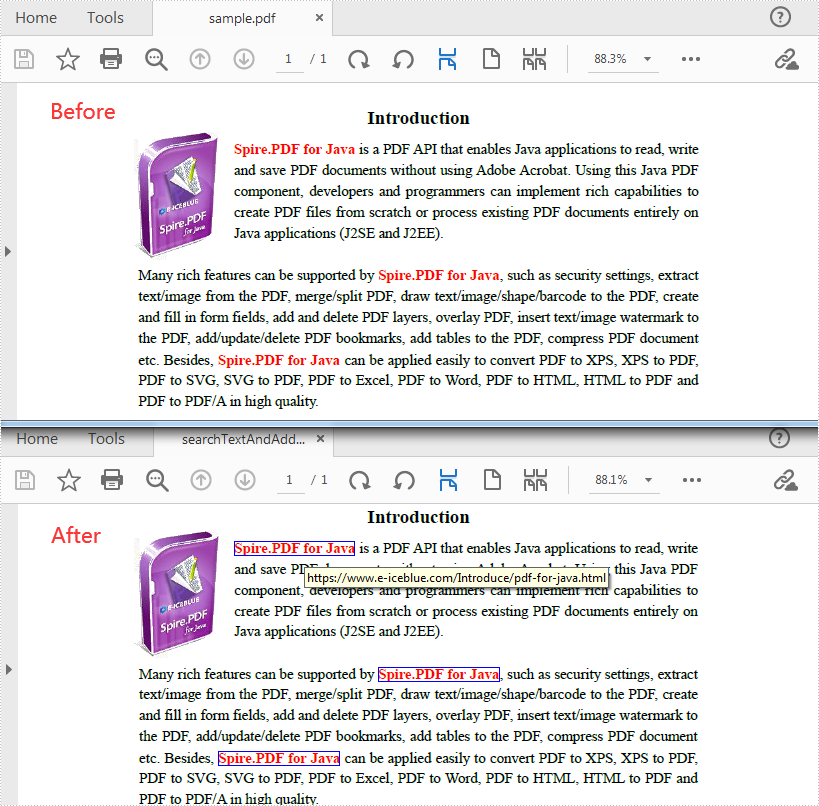
A hyperlink refers to an icon, graphic, or text that links to another file or object. It is one of the most commonly used features for manipulating documents. Spire.PDF for Java supports creating a new PDF document and adding various hyperlinks to it, including ordinary links, hypertext links, email links and document links. This article will show you how to add hyperlinks to specific text in an existing PDF.
Install Spire.PDF for Java
First of all, you need to add the Spire.Pdf.jar file as a dependency in your Java program. The JAR file can be downloaded from this link. If you use Maven, you can easily import the JAR file by adding the following code to your project's pom.xml file.
<repositories>
    <repository>
        <id>com.e-iceblue</id>
        <name>e-iceblue</name>
        <url>https://repo.e-iceblue.com/nexus/content/groups/public/</url>
    </repository>
</repositories>
<dependencies>
    <dependency>
        <groupId>e-iceblue</groupId>
        <artifactId>spire.pdf</artifactId>
        <version>12.9.0</version>
    </dependency>
</dependencies>
Find Text and Add Hyperlinks for Them in PDF
With Spire PDF for Java, you can find all matched text in a specific PDF page and add hyperlinks to them. Here are the detailed steps to follow.
- Create a PdfDocument instance and load a sample PDF document using PdfDocument.loadFromFile()method.
- Get a specific page of the document using PdfDocument.getPages().get() method.
- Find all matched text in the page using PdfPageBase.findText(String searchPatternText, boolean isSearchWholeWord) method, and return a PdfTextFindCollection object.
- Create a PdfUriAnnotation instance based on the bounds of a specific find result.
- Set a URL address for the annotation using PdfUriAnnotation.set(String value) method and set its border and color as well.
- Add the URL annotation to the PDF annotation collection as a new annotation using PdfPageBase.getAnnotationWidget().add() method.
- Save the document using PdfDocument.saveToFile() method.
- Java
import com.spire.pdf.*;
import com.spire.pdf.annotations.*;
import com.spire.pdf.general.find.*;
import com.spire.pdf.graphics.PdfRGBColor;
import java.awt.*;
public class SearchTextAndAddHyperlink {
public static void main(String[] args) {
//Create a PdfDocument instance
PdfDocument pdf = new PdfDocument();
//Load a sample PDF document
pdf.loadFromFile("C:\\Users\\Test1\\Desktop\\sample.pdf");
//Get the first page
PdfPageBase page = pdf.getPages().get(0);
// Find all matched strings and return the reesult oject
ListPdfTextFragment> results = null;
PdfTextFindOptions findOptions = new PdfTextFindOptions();
findOptions.setTextFindParameter(EnumSet.of(TextFindParameter.WholeWord));
//loop through the find collection
for(PdfTextFragment find : results)
{
// Create a PdfUriAnnotation instance to add hyperlinks for the searched text
Rectangle2D[] linkBounds = find.getBounds();
PdfUriAnnotation uri = new PdfUriAnnotation(linkBounds[0]);
uri.setUri("https://www.e-iceblue.com/Introduce/pdf-for-java.html");
uri.setBorder(new PdfAnnotationBorder(1f));
uri.setColor(new PdfRGBColor(Color.blue));
page.getAnnotationsWidget().add(uri);
}
//Save the document
pdf.saveToFile("output/searchTextAndAddHyperlink.pdf");
}
}
Apply for a Temporary License
If you'd like to remove the evaluation message from the generated documents, or to get rid of the function limitations, please request a 30-day trial license for yourself.
C#/VB.NET: Replace a Picture in Excel
Sometimes after you have finished an Excel workbook, you may need to replace some of the existing pictures with better ones for the purpose of making the workbook more appealing and persuasive. In this tutorial, you will learn how to replace a picture in Excel using Spire.XLS for .NET.
Install Spire.XLS for .NET
To begin with, you need to add the DLL files included in the Spire.XLS for .NET package as references in your .NET project. The DLLs files can be either downloaded from this link or installed via NuGet.
- Package Manager
PM> Install-Package Spire.XLS
Replace a Picture in Excel
The following are the detailed steps to replace a picture with another one using Spire.XLS for .NET.
- Create a Workbook object.
- Load a sample file using Workbook.LoadFromFile() method.
- Use Workbook.Worksheets[0] to get the first worksheet.
- Use Worksheet.Pictures[0] property to get the first picture from the first worksheet
- Use Image.FromFile() method to load an image from the specified file, and set it as a new value of ExcelPicture.Picture property. To do so, the original picture will be replaced with the new one.
- Save the document using Workbook.SaveToFile() method.
- C#
- VB.NET
using Spire.Xls;
using Spire.Xls.Collections;
namespace ReplacePictureinExcel
{
    class Program
    {
        static void Main(string[] args)
        {
            //Create a Workbook instance
            Workbook workbook = new Workbook();
            //Load the Excel file
            workbook.LoadFromFile("input.xls");

            //Get the first sheet
            Worksheet sheet = workbook.Worksheets[0];

            //Get Excel picture collection
            PicturesCollection pictureCollection = sheet.Pictures;

            //Get the first picture from the collection
            ExcelPicture excelPicture = pictureCollection[0];

            // Creates an Image from the specified file.
            excelPicture.Picture = System.Drawing.Image.FromFile("input.png");

            //Save the document
            workbook.SaveToFile("ReplaceImage.xlsx", ExcelVersion.Version2013);
        }
    }
}
Imports Spire.Xls
Imports Spire.Xls.Collections
Imports System.Drawing

Namespace ReplacePictureinExcel
	Class Program
		Private Shared Sub Main(args As String())

			'Create a Workbook instance
			Dim workbook As New Workbook()
			'Load the Excel file
			workbook.LoadFromFile(Input.xls)

			'Get the first sheet
			Dim sheet As Worksheet = workbook.Worksheets(0)

			'Get Excel picture collection
			Dim pictureCollection As PicturesCollection = sheet.Pictures

			'Get the first picture from the collection
			Dim excelPicture As ExcelPicture = pictureCollection(0)

			' Creates an Image from the specified file.
			excelPicture.Picture = Image.FromFile(image)

			'Save the document
			workbook.SaveToFile("ReplaceImage.xlsx", ExcelVersion.Version2013)
		End Sub
	End Class
End Namespace
The original file:
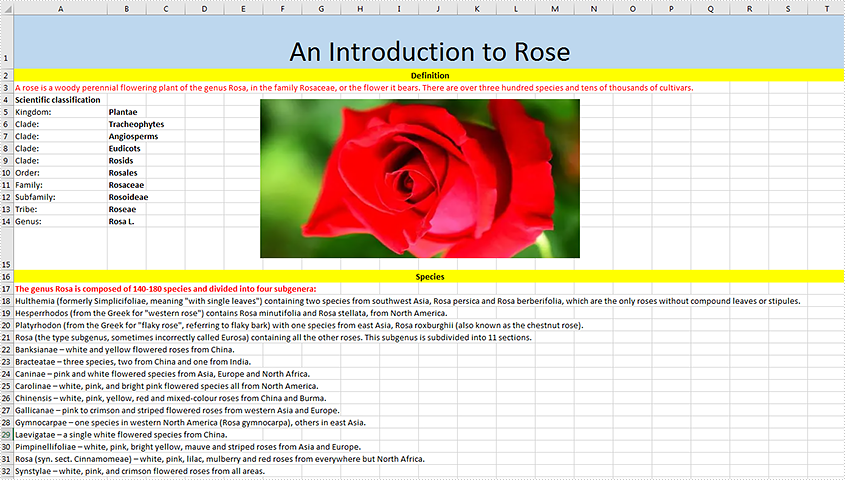
The generated file:

Apply for a Temporary License
If you'd like to remove the evaluation message from the generated documents, or to get rid of the function limitations, please request a 30-day trial license for yourself.
Java: Add Data Bars in Excel
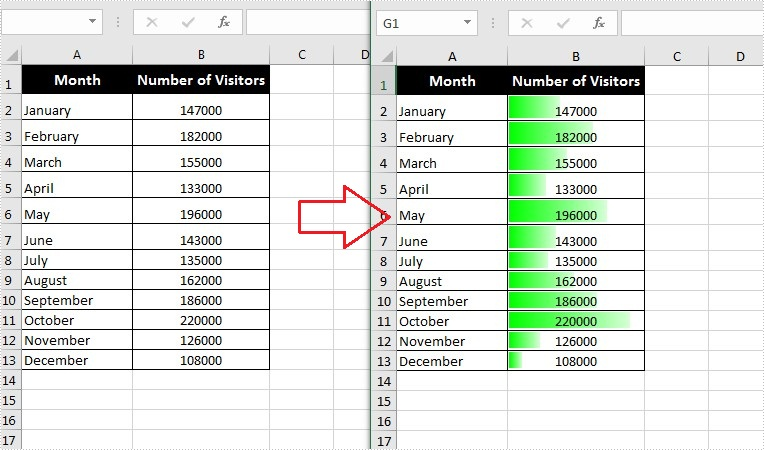
Data bars are a type of conditional formatting Microsoft Excel offers for visualizing the values in Excel cells. They can help you compare the values quickly because a cell with a longer bar represents a larger value, while a cell with a shorter bar represents a smaller value. This article will introduce how to add data bars in a range of cells using Spire.XLS for Java.
Install Spire.XLS for Java
First of all, you're required to add the Spire.Xls.jar file as a dependency in your Java program. The JAR file can be downloaded from this link. If you use Maven, you can easily import the JAR file in your application by adding the following code to your project's pom.xml file.
<repositories>
    <repository>
        <id>com.e-iceblue</id>
        <name>e-iceblue</name>
        <url>https://repo.e-iceblue.com/nexus/content/groups/public/</url>
    </repository>
</repositories>
<dependencies>
    <dependency>
        <groupId>e-iceblue</groupId>
        <artifactId>spire.xls</artifactId>
        <version>16.8.4</version>
    </dependency>
</dependencies>
Add Data Bars in Excel
The following are steps to add data bars in a range of Excel cells through conditional formatting:
- Create a Workbook instance.
- Load an Excel file using Workbook.loadFromFile() method.
- Get the worksheets collection using Workbook.getWorksheets() method, and then get the first worksheet using WorksheetsCollection.get() method.
- Get a specific cell range using Worksheet.getCellRange() method.
- Add a new conditional formatting to the cell range using ConditionalFormats. addCondition(), and then set the type of the new conditional formatting to DataBar using ConditionalFormatWrapper.setFormatType() method.
- Set the color of the data bar using DataBar.setBarColor() method.
- Save the document to another file using Workbook.saveToFile() method.
- Java
import com.spire.xls.*;
import com.spire.xls.core.IConditionalFormat;
import com.spire.xls.core.spreadsheet.collections.XlsConditionalFormats;

import java.awt.*;

public class applyDataBars {
    public static void main(String[] args) {
        //Create a Workbook instance
        Workbook workbook = new Workbook();

        //Load an Excel file
        workbook.loadFromFile("C:\\Users\\Administrator\\Desktop\\test.xlsx");

        //Get the first worksheet.
        Worksheet sheet = workbook.getWorksheets().get(0);

        //Add a conditional formatting and specify ranges
        XlsConditionalFormats conditional = sheet.getConditionalFormats().add();
        conditional.addRange(sheet.getCellRange("B2:B13"));

        //Add the conditional formatting of data bars
        IConditionalFormat format = conditional.addCondition();
        format.setFormatType( ConditionalFormatType.DataBar);

        //Set color for the data bars
        format.getDataBar().setBarColor( Color.GREEN);

        //Save to file
        workbook.saveToFile("ApplyDataBars.xlsx", ExcelVersion.Version2013);
    }
}
Apply for a Temporary License
If you'd like to remove the evaluation message from the generated documents, or to get rid of the function limitations, please request a 30-day trial license for yourself.
Add Multiline Watermarks to PowerPoint in Java
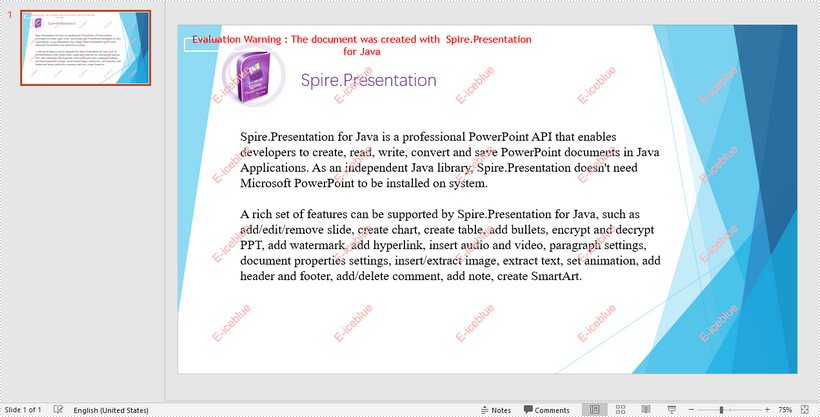
This article demonstrates how to add multiline watermarks to a PowerPoint slide using Spire.Presentation for Java. To add watermarks to all slides, use one more for loop outside the two for loops in the following code snippet.
import com.spire.presentation.*;
import com.spire.presentation.Presentation;
import com.spire.presentation.drawing.*;

import java.awt.*;
import java.awt.geom.Rectangle2D;
import java.awt.image.BufferedImage;


//Create a Presentation object
Presentation presentation = new Presentation();

//Load the sample PowerPoint file
presentation.loadFromFile("C:\\Users\\Administrator\\Desktop\\Spire.Presentation.pptx");

//Specify watermark text
String watermarkText = "E-iceblue";

//Get the size of the watermark text
Image image = new BufferedImage(1, 1, BufferedImage.TYPE_INT_ARGB);
Graphics2D g2d = (Graphics2D) image.getGraphics();
Font font = new Font("Arial", Font.BOLD, 20);
g2d.setFont(font);
FontMetrics fm = g2d.getFontMetrics();
Rectangle2D strSize = fm.getStringBounds(watermarkText, g2d);

//Initialize x and y coordinate
float x = 30;
float y = 80;

for (int rowNum = 0; rowNum < 4; rowNum++) {
    for (int colNum = 0; colNum < 5; colNum++) {

        //Add a rectangle shape
        Rectangle2D rect = new Rectangle2D.Float(x, y, (float) strSize.getWidth() + 10, (float) strSize.getHeight());
        IAutoShape shape = presentation.getSlides().get(0).getShapes().appendShape(ShapeType.RECTANGLE, rect);

        //Set the style of the shape
        shape.getFill().setFillType(FillFormatType.NONE);
        shape.getShapeStyle().getLineColor().setColor(new Color(1, 1, 1, 0));
        shape.setRotation(-45);
        shape.getLocking().setSelectionProtection(true);
        shape.getLine().setFillType(FillFormatType.NONE);

        //Add watermark text to the shape
        shape.getTextFrame().setText(watermarkText);
        PortionEx textRange = shape.getTextFrame().getTextRange();

        //Set the style of the text range
        textRange.getFill().setFillType(FillFormatType.SOLID);
        textRange.getFill().getSolidColor().setColor(Color.pink);
        textRange.setLatinFont(new TextFont(font.getName()));
        textRange.setFontMinSize(font.getSize());

        x += (100 + strSize.getWidth());

    }
    x = 30;
    y += (100 + strSize.getHeight());
}

//Save the document
presentation.saveToFile("output/Watermark.pptx", FileFormat.PPTX_2013);
Convert Shapes and SmartArt in Excel to Image in C#, VB.NET
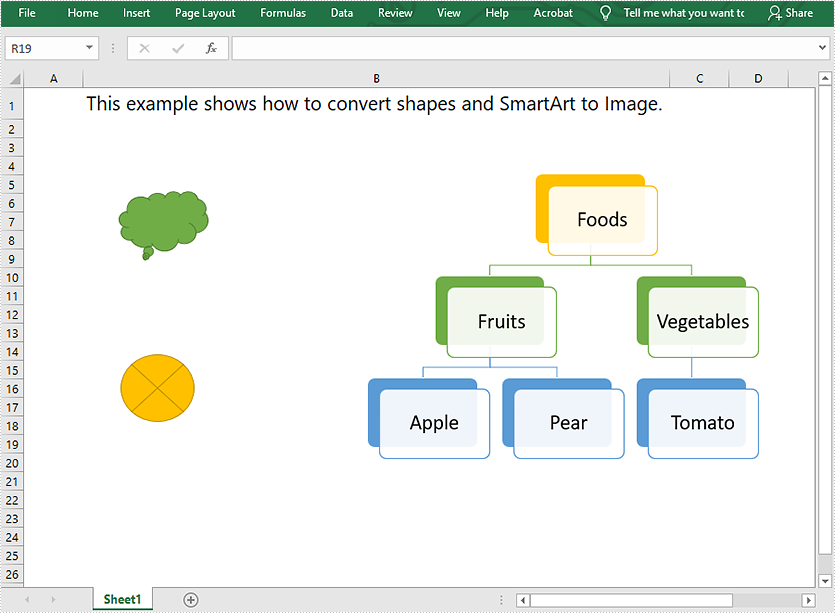
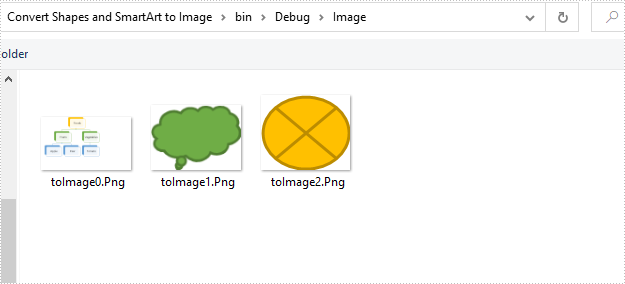
This article demonstrates how to convert shapes and SmartArt graphics in Excel to Image in C# using Spire.XLS for .NET.
The input Excel file:
using Spire.Xls;
using System.Collections.Generic;
using System.Drawing;
using System.Drawing.Imaging;

namespace Convert_Shapes_and_SmartArt_to_Image
{
    class Program
    {
        static void Main(string[] args)
        {
            //Create a Workbook object
            Workbook workbook = new Workbook();
            //Load the Excel file
            workbook.LoadFromFile("Sample.xlsx");

            //Get the first worksheet
            Worksheet sheet = workbook.Worksheets[0];

            //Create a SaveShapeTypeOption object
            SaveShapeTypeOption shapelist = new SaveShapeTypeOption();
            //Save shapes and SmartArt graphics in the worksheet to images
            List<Bitmap> images = sheet.SaveShapesToImage(shapelist);

            //Save images to file
            int index = 0;
            foreach (Image img in images)
            {
                img.Save("Image/" + "toImage" + index + ".Png", ImageFormat.Png);
                index++;
            }
        }
    }
}
Imports Spire.Xls
Imports System.Collections.Generic
Imports System.Drawing.Imaging

Namespace Convert_Shapes_and_SmartArt_to_Image
    Friend Class Program
        Private Shared Sub Main(ByVal args As String())
            'Create a Workbook object
            Dim workbook As Workbook = New Workbook()
            'Load the Excel file
            workbook.LoadFromFile("Sample.xlsx")

            'Get the first worksheet
            Dim sheet As Worksheet = workbook.Worksheets(0)

            'Create a SaveShapeTypeOption object
            Dim shapelist As SaveShapeTypeOption = New SaveShapeTypeOption()
            'Save shapes and SmartArt graphics in the worksheet to images
            Dim images As List(Of Bitmap) = sheet.SaveShapesToImage(shapelist)

            'Save images to file
            Dim index As Integer = 0

            For Each img As Image In images
                img.Save("Image/" & "toImage" & index & ".Png", ImageFormat.Png)
                index += 1
            Next
        End Sub
    End Class
End Namespace
Converted images:
Verify If a Word Document is Password Protected in Java
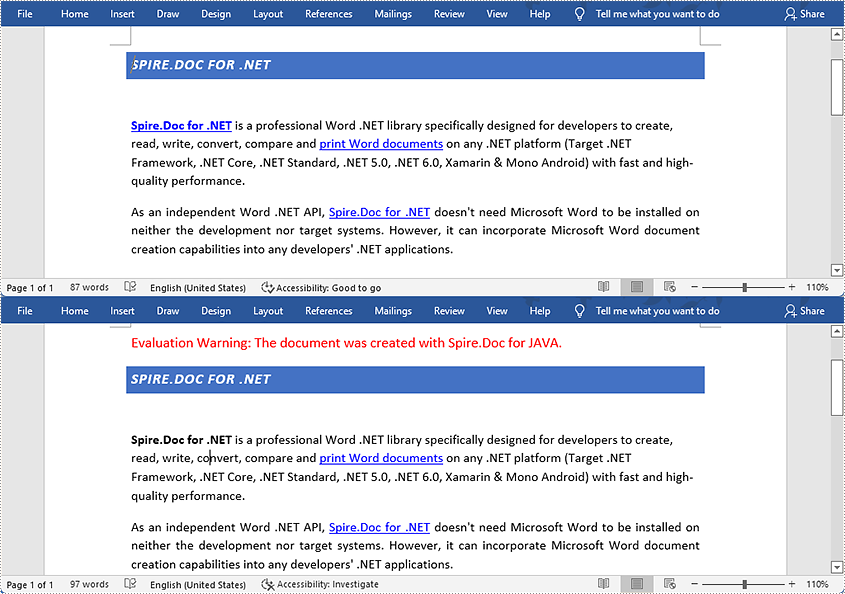
This article demonstrates how to verify if a Word document is password protected or not using Spire.Doc for Java.
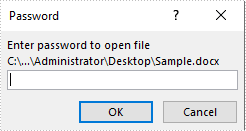
The following image shows that the input Word document is protected with password:
import com.spire.doc.Document;

public class DetectIfWordIsPasswordProtected {
    public static void main(String []args){
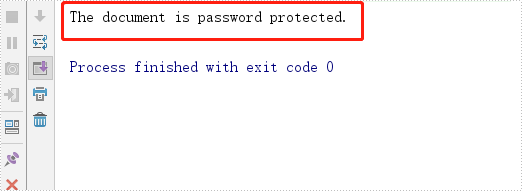
        //Detect if the Word document is password protected
        boolean isPasswordProtected = Document.isEncrypted("C:\\Users\\Administrator\\Desktop\\Sample.docx");
        if(isPasswordProtected)
        {
            System.out.println("The document is password protected.");
        }
        else
        {
            System.out.println("The document is not password protected.");
        }
    }
}
Output:
Compress High-resolution Images in PDF in Java
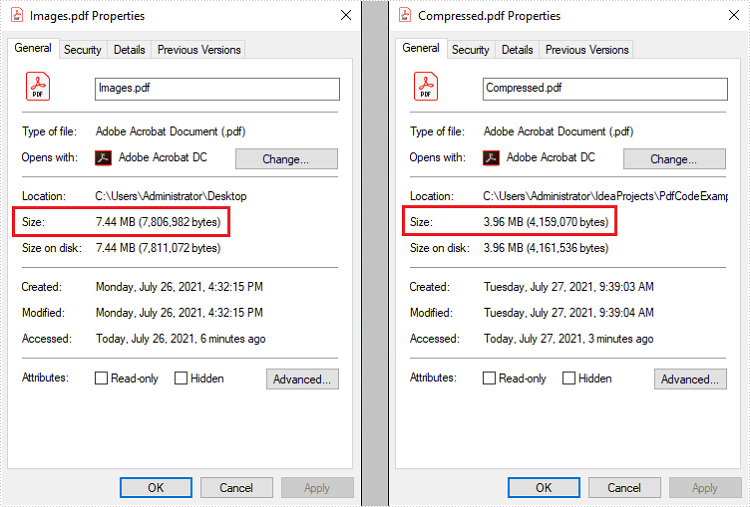
This article demonstrates how to compress high-resolution images of a PDF document using Spire.PDF for Java. Images in low-resolution will not be compressed anymore.
public static void main(String[] args) throws Exception {
        //Load the sample PDF document
        PdfDocument doc = new PdfDocument("C:\\Users\\Administrator\\Desktop\\Images.pdf");

        //Set IncrementalUpdate to false
        doc.getFileInfo().setIncrementalUpdate(false);

        //Declare a PdfPageBase variable
        PdfPageBase page;

        // Create the PdfImageHelper object
        PdfImageHelper imageHelper = new PdfImageHelper();

        //Loop through the pages
        for (int i = 0; i < doc.getPages().getCount(); i++) {

            //Get the specific page
            page = doc.getPages().get(i);
            if (page != null) {

                if(page.getImagesInfo() != null){

                    //Loop through the images in the page
                    for (PdfImageInfo info : imageHelper.getImagesInfo(page))

                        //Use tryCompressImage method the compress high-resolution images
                        info.tryCompressImage();
                    }
                }
            }
        //Save to file
        doc.saveToFile("output/Compressed.pdf");
        }