C++: Add or Remove Bookmarks in Word Documents
A bookmark in a Word document enables you to navigate to any specific place within the document without having to scroll through large blocks of text. It functions just like an internal link between sections of your document. Bookmarks are particularly useful for navigating through lengthy documents. In this article, you will learn how to add or remove bookmarks in Word documents in C++ using Spire.Doc for C++.
- Add a Bookmark to a Paragraph in C++
- Add a Bookmark to Selected Text in C++
- Remove Bookmarks from a Word Document in C++
Install Spire.Doc for C++
There are two ways to integrate Spire.Doc for C++ into your application. One way is to install it through NuGet, and the other way is to download the package from our website and copy the libraries into your program. Installation via NuGet is simpler and more recommended. You can find more details by visiting the following link.
Integrate Spire.Doc for C++ in a C++ Application
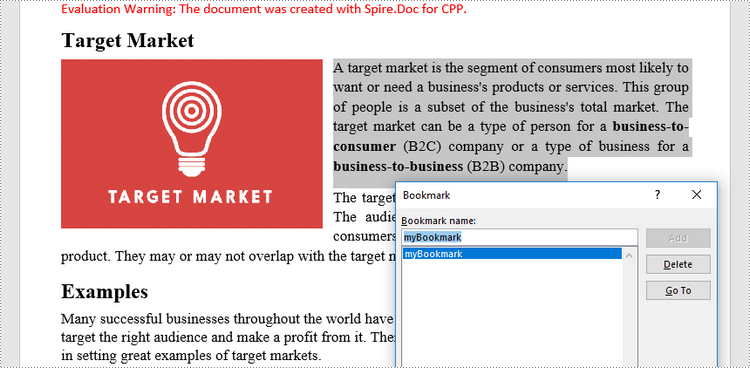
Add a Bookmark to a Paragraph in C++
Bookmarks are usually created based on whole paragraphs, especially when the paragraphs themselves are headings. The following are the steps to add a bookmark to a paragraph using Spire.Doc for C++.
- Create a Document object.
- Load a Word file using Document->LoadFromFile() method.
- Get a specific section using Document->GetSections()->GetItem() method.
- Get a specific paragraph from the section using Section->GetParagraphs()->GetItem() method.
- Create a BookmarkStart object, and insert it at the beginning of the paragraph using Paragraph->GetChildObjects()->Insert(int index, Spire::Doc::IDocumentObject *entity) method.
- Append a BookmarkEnd object at the end of the paragraph using Paragraph->AppendBookmarkEnd(LPCWSTR_S name) method.
- Save the document to another Word file using Document->SaveToFile() method.
- C++
#include "Spire.Doc.o.h";

using namespace Spire::Doc;

int main() {

 //Create a Document object
 intrusive_ptr<Document> document = new Document();

 //Load a Word file
 document->LoadFromFile(L"C:\\Users\\Administrator\\Desktop\\sample2.docx");

 //Get a specific paragraph
 intrusive_ptr<Paragraph> paragraph = document->GetSections()->GetItemInSectionCollection(0)->GetParagraphs()->GetItemInParagraphCollection(1);

 //Create a bookmark start
 intrusive_ptr<BookmarkStart> start = new BookmarkStart(document, L"myBookmark");

 //Insert the bookmark start before the selected text
 paragraph->GetChildObjects()->Insert(0, start);

 //Append a bookmark end at the end of the paragraph
 paragraph->AppendBookmarkEnd(L"myBookmark");

 //Save the document to another Word file
 document->SaveToFile(L"Output/AddBookmarkToParagraph.docx", FileFormat::Docx2013);
 document->Close();
}
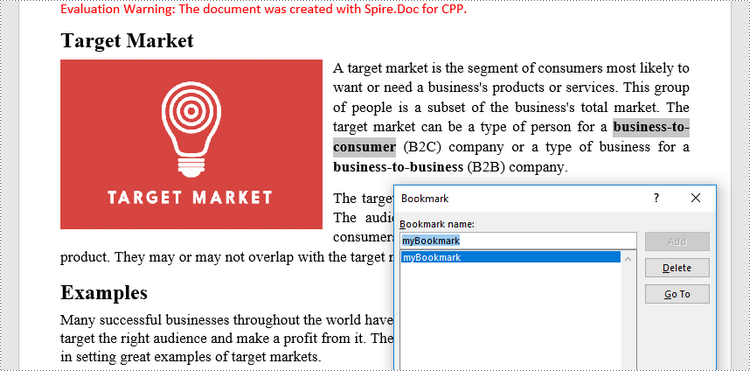
Add a Bookmark to Selected Text in C++
A bookmark can also be inserted to a specific position within a paragraph. The following are the steps to add a bookmark to selected text using Spire.Doc for C++.
- Create a Document object.
- Load a Word file using Document->LoadFromFile() method.
- Find the selected text from the document using Document->FindAllString() method.
- Find the owner paragraph of the text using TextSelection-> ->GetAsOneRange()->GetOwnerParagraph() method.
- Get the index of the text in the paragraph using Paragraph->GetChildObjects()->IndexOf() method.
- Create a BookmarkStart object, and insert it before the selected text using Paragraph->GetChildObjects()->Insert(int index, Spire::Doc::IDocumentObject *entity) method.
- Create a BookmarkEnd object, and insert it after the selected text using Paragraph->GetChildObjects()->Insert(int index, Spire::Doc::IDocumentObject *entity) method.
- Save the document to another Word file using Document->SaveToFile() method.
- C++
#include "Spire.Doc.o.h";

using namespace Spire::Doc;
using namespace std;

int main() {

    //Create a Document object
    intrusive_ptr<Document> document = new Document();

    //Load a Word file
    document->LoadFromFile(L"C:\\Users\\Administrator\\Desktop\\sample2.docx");

    //Specify text to find
    wstring stringToFind = L"business-to-consumer";

    //Find the text from the document
    vector<intrusive_ptr<TextSelection>>  finds = document->FindAllString(stringToFind.c_str(), false, true);
    intrusive_ptr<TextSelection> specificText = finds[0];

    //Find the paragraph where the text is located
    intrusive_ptr<Paragraph> para = specificText->GetAsOneRange()->GetOwnerParagraph();

    //Get the index of the text in the paragraph
    int index = para->GetChildObjects()->IndexOf(specificText->GetAsOneRange());

    //Create a bookmark start
    intrusive_ptr<BookmarkStart> start = new BookmarkStart(document, L"myBookmark");

    //Insert the bookmark start before the selected text
    para->GetChildObjects()->Insert(index, start);

    //Create a bookmark end
    intrusive_ptr<BookmarkEnd> end = new BookmarkEnd(document, L"myBookmark");

    //Insert the bookmark end after the selected text
    para->GetChildObjects()->Insert(index + 2, end);

    //Save the document to another Word file
    document->SaveToFile(L"Output/AddBookmarkToText.docx", FileFormat::Docx2013);
    document->Close();
}
Remove Bookmarks from a Word Document in C++
Using Spire.Doc for C++, you can easily get and remove all bookmarks or a particular bookmark from a Word document. The following are the detailed steps.
- Create a Document object.
- Load a Word file containing bookmarks using Document->LoadFromFile() method.
- Get a specific bookmark using Document->GetBookmarks()->GetItem() method.
- Remove the bookmark using Document->GetBookmarks()->Remove() method. To remove all bookmarks at once, use Document->GetBookmarks()->Clear() method.
- Save the document to another Word file using Document->SaveToFile() method.
- C++
#include "Spire.Doc.o.h";

using namespace Spire::Doc;

int main() {

 //Create a Document object
 intrusive_ptr<Document> document = new Document();

 //Load a Word file
 document->LoadFromFile(L"C:\\Users\\Administrator\\Desktop\\Bookmarks.docx");

 //Get a specific bookmark by its index
 intrusive_ptr<Bookmark> bookmark = document->GetBookmarks()->GetItem(0);

 //Remove the bookmark
 document->GetBookmarks()->Remove(bookmark);

 //Remove all bookmarks
 //document->GetBookmarks()->Clear();

 //Save the document to another Word file
 document->SaveToFile(L"Output/RemoveBookmarks.docx", FileFormat::Docx2013);
 document->Close();
}
Apply for a Temporary License
If you'd like to remove the evaluation message from the generated documents, or to get rid of the function limitations, please request a 30-day trial license for yourself.
C++: Apply Fonts to Excel Cells
While creating a worksheet, the default font MS Excel uses is "Calibri" with a size of 11 and a color of black. However, there are times when you may want to apply a different font style such as bold, italic to optimize the appearance of your document, or set a unique font color to highlight useful information within a large set of data. In this article, you will learn how to programmatically apply multiple font styles to Excel cells using Spire.XLS for C++.
- Apply Different Fonts to Different Excel Cells in C++
- Apply Multiple Fonts to a Single Excel Cell in C++
Install Spire.XLS for C++
There are two ways to integrate Spire.XLS for C++ into your application. One way is to install it through NuGet, and the other way is to download the package from our website and copy the libraries into your program. Installation via NuGet is simpler and more recommended. You can find more details by visiting the following link.
Integrate Spire.XLS for C++ in a C++ Application
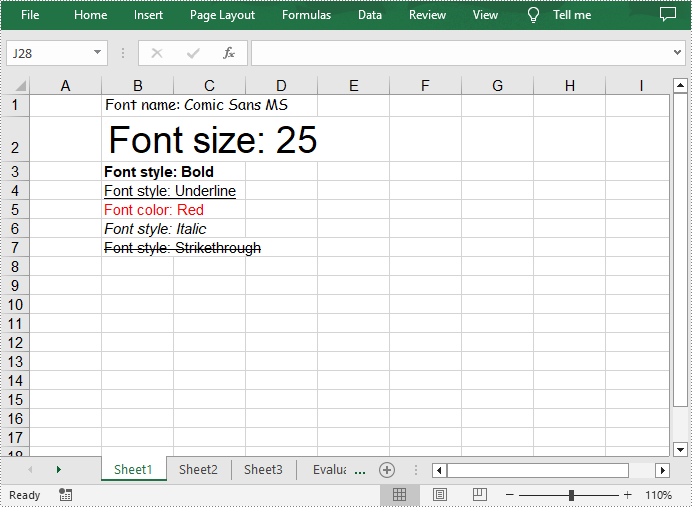
Apply Different Fonts to Different Excel Cells in C++
The ExcelFont class provided by Spire.XLS for C++ allows you to set or change the font name, color, size, and style in a cell easily. The following are the steps to apply different fonts to different cells in Excel.
- Create a Workbook object.
- Get a specific worksheet using Workbook->GetWorksheets()->Get() method.
- Get a specified cell using Worksheet->GetRange() method.
- Set the value of the cell using CellRange->SetText() method.
- Get the font in the specified cell using CellRange->GetStyle()->GetFont() method.
- Set the font name, color, size and style using the methods under the ExcelFont class.
- Save the result file using Workbook->SaveToFile() method.
- C++
#include ""Spire.Xls.o.h"";

using namespace Spire::Xls;

int main()
{
	//Specify output file path and name
	std::wstring outputPath = L""Output\\"";
	std::wstring outputFile = outputPath + L""ApplyFontToCell.xlsx"";

	//Create a Workbook object
	intrusive_ptr<Workbook> workbook = new Workbook();

	//Get the first worksheet
	intrusive_ptr<Worksheet> sheet = dynamic_pointer_cast<Worksheet>(workbook->GetWorksheets()->Get(0));

	//Set font name
	sheet->GetRange(L""B1"")->SetText(L""Font name: Comic Sans MS"");
	sheet->GetRange(L""B1"")->GetStyle()->GetFont()->SetFontName(L""Comic Sans MS"");

	//Set font size
	sheet->GetRange(L""B2"")->SetText(L""Font size: 25"");
	sheet->GetRange(L""B2"")->GetStyle()->GetFont()->SetSize(25);

	//Set text to bold
	sheet->GetRange(L""B3"")->SetText(L""Font style: Bold"");
	sheet->GetRange(L""B3"")->GetStyle()->GetFont()->SetIsBold(true);

	//Underline text
	sheet->GetRange(L""B4"")->SetText(L""Font style: Underline"");
	sheet->GetRange(L""B4"")->GetStyle()->GetFont()->SetUnderline(FontUnderlineType::Single);

	//Set font color
	sheet->GetRange(L""B5"")->SetText(L""Font color: Red"");
	sheet->GetRange(L""B5"")->GetStyle()->GetFont()->SetColor(Spire::Xls::Color::GetRed());

	//Set text to italic
	sheet->GetRange(L""B6"")->SetText(L""Font style: Italic"");
	sheet->GetRange(L""B6"")->GetStyle()->GetFont()->SetIsItalic(true);

	//Add strikethrough to text
	sheet->GetRange(L""B7"")->SetText(L""Font style: Strikethrough"");
	sheet->GetRange(L""B7"")->GetStyle()->GetFont()->SetIsStrikethrough(true);

	//Save the result file
	workbook->SaveToFile(outputFile.c_str(), ExcelVersion::Version2013);
	workbook->Dispose();
}
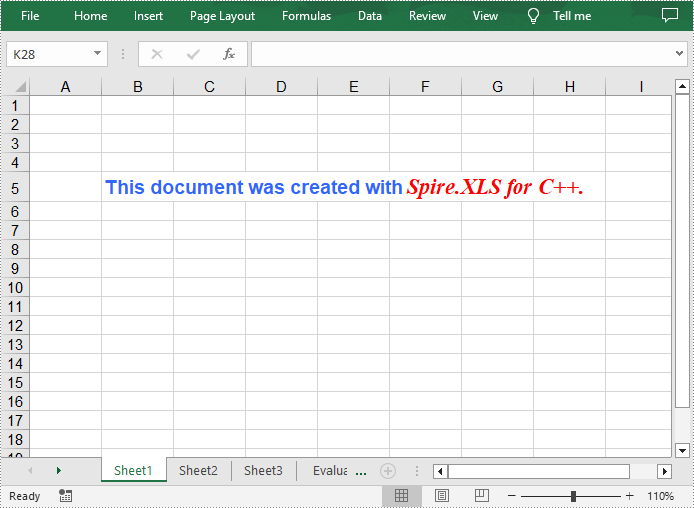
Apply Multiple Fonts to a Single Excel Cell in C++
Mixing different fonts in one cell can help you emphasize some specific characters. The following are the steps to apply multiple fonts in an Excel cell.
- Create a Workbook object.
- Get a specific worksheet using Workbook->GetWorksheets()->Get() method.
- Create two ExcelFont objects using Workbook->CreateExcelFont() method.
- Get a specified cell using Worksheet->GetRange() method, and then set the rich text content of the cell using CellRange->GetRichText()->SetText() method.
- Apply the two ExcelFont objects to the rich text using RichText->SetFont(int startPos, int endPos, ExcelFont* font) method.
- Save the result file using Workbook->SaveToFile() method.
- C++
#include ""Spire.Xls.o.h"";

using namespace Spire::Xls;

int main()
{
	//Specify output file path and name
	std::wstring outputPath = L""Output\\"";
	std::wstring outputFile = outputPath + L""ApplyMultipleFontstoCell.xlsx"";

	//Create a Workbook object
	intrusive_ptr<Workbook> workbook = new Workbook();

	//Get the first worksheet
	intrusive_ptr<Worksheet> sheet = dynamic_pointer_cast<Worksheet>(workbook->GetWorksheets()->Get(0));

	//Create a ExcelFont object and set its font style, color and size
	intrusive_ptr<ExcelFont> font1 = workbook->CreateExcelFont();
	font1->SetKnownColor(ExcelColors::LightBlue);
	font1->SetIsBold(true);
	font1->SetSize(13);

	//Create another ExcelFont object and set its font style, color and size
	intrusive_ptr<ExcelFont> font2 = workbook->CreateExcelFont();
	font2->SetKnownColor(ExcelColors::Red);
	font2->SetIsBold(true);
	font2->SetIsItalic(true);
	font2->SetFontName(L""Times New Roman"");
	font2->SetSize(15);

	//Write a RichText string to cell B5
	intrusive_ptr<RichText> richText = dynamic_pointer_cast<RichText>(dynamic_pointer_cast<CellRange>(sheet->GetRange(L""B5""))->GetRichText());
	richText->SetText(L""This document was created with Spire.XLS for C++."");

	//Apply two fonts to the text in the cell B5
	richText->SetFont(0, 29, font1);
	richText->SetFont(31, 48, font2);

	//Save to the result file
	workbook->SaveToFile(outputFile.c_str(), ExcelVersion::Version2013);
	workbook->Dispose();
}
Apply for a Temporary License
If you'd like to remove the evaluation message from the generated documents, or to get rid of the function limitations, please request a 30-day trial license for yourself.
C++: Protect or Unprotect Word Documents
Document security is particularly important when critical or private data is involved in a Word document. There are several security options in Word that you can use to protect your documents, including password protection, read-only mode, editing restrictions, and partial protection. On the contrary, when the protection is no longer required, you may need to unprotect a Word document to improve work efficiency.
In this article, you will learn how to protect or unprotect Word documents in C++ using Spire.Doc for C++.
- Password Protect a Word Document in C++
- Restrict Editing of a Word Document in C++
- Protect Sections of a Word Document in C++
- Create Editable Regions in a Word Document in C++
- Remove Editable Regions from a Word Document in C++
- Remove Restrictions from a Word Document in C++
- Remove Password from a Password-Protected Word Document in C++
Install Spire.Doc for C++
There are two ways to integrate Spire.Doc for C++ into your application. One way is to install it through NuGet, and the other way is to download the package from our website and copy the libraries into your program. Installation via NuGet is simpler and more recommended. You can find more details by visiting the following link.
Integrate Spire.Doc for C++ in a C++ Application
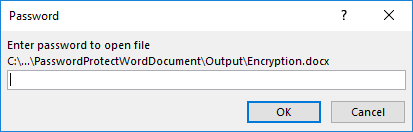
Password Protect a Word Document in C++
Encrypting a document with a password makes sure that only you and certain people can read or edit it. The following are the steps to password protect a Word document using Spire.Doc for C++.
- Create a Document object.
- Load a Word document using Document->LoadFromFile() method.
- Encrypt the document with a password using Document->Eencrypt(LPCWSTR_S password) method.
- Save the document to another Word file using Document->SaveToFile() method.
- C++
#include "Spire.Doc.o.h";

using namespace Spire::Doc;

int main() {

    //Create a Document object
    intrusive_ptr<Document> document = new Document();

    //Load a Word file
    document->LoadFromFile(L"C:\\Users\\Administrator\\Desktop\\sample.docx");

    //Encrypt the document with a password
    document->Encrypt(L"open-psd");

    //Save the document to another Word file
    document->SaveToFile(L"Output/Encryption.docx", FileFormat::Docx2013);
    document->Close();
}
Restrict Editing of a Word Document in C++
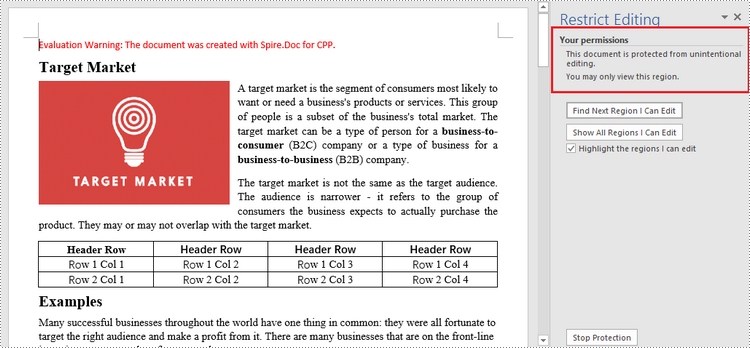
If you want to grant people permission to read your document but restrict the types of modifications that someone can make, you can protect your document with a specific protection type and a permission password.
| Protection Type | Description |
| AllowOnlyComments | Modification of comments in the document is allowed. |
| AllowOnlyFormFields | The user can only enter data in the form fields in the document. |
| AllowOnlyReading | The document is read-only. |
| AllowOnlyRevisions | The user can only add revision marks to the document. |
| NoProtection | The document is not protected. |
The following are the steps to restrict editing of a Word document using Spire.Doc for C++.
- Create a Document object.
- Load a Word document using Document->LoadFromFile() method.
- Protect the document by specifying the protection type and the permission password using Document->Protect(Spire::Doc::ProtectionType type, LPCWSTR_S password) method.
- Save the document to another Word file using Document->SaveToFile() method.
- C++
#include "Spire.Doc.o.h";

using namespace Spire::Doc;

int main() {

    //Create a Document object
    intrusive_ptr<Document> document = new Document();

    //Load a Word file
    document->LoadFromFile(L"C:\\Users\\Administrator\\Desktop\\sample.docx");

    //Protect the document by specifying the protection type and the password
    document->Protect(ProtectionType::AllowOnlyReading, L"permission-psd");

    //Save the document to another Word file
    document->SaveToFile(L"Output/RestrictEditing.docx", FileFormat::Docx2013);
    document->Close();
}
Protect Sections of a Word Document in C++
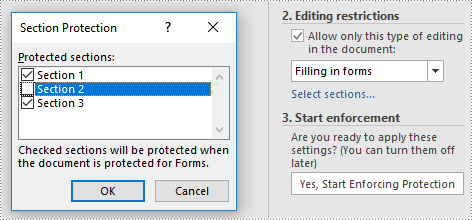
Word allows you to lock some sections of your Word document and leave the rest available for editing. The following are the steps to protect selected sections of a Word document using Spire.Doc for C++.
- Create a Document object.
- Load a Word document using Document->LoadFromFile() method.
- Set the protection type to AllowOnlyFormFields using Document->Protect() method.
- Unprotect a particular section by passing false as an argument to the Section->SetProtectForm() method. Other sections will continue to be protected.
- Save the document to another Word file using Document->SaveToFile() method.
- C++
#include "Spire.Doc.o.h";

using namespace Spire::Doc;

int main() {

    //Create a Document object
    intrusive_ptr<Document> document = new Document();

    //Load a Word file
    document->LoadFromFile(L"C:\\Users\\Administrator\\Desktop\\sample.docx");

    //Set the protection type as "AllowOnlyFormFields"
    document->Protect(ProtectionType::AllowOnlyFormFields, L"permission-psd");

    //Unprotect section 2
    document->GetSections()->GetItemInSectionCollection(1)->SetProtectForm(false);

    //Save the document to another Word file
    document->SaveToFile(L"Output/ProtectSections.docx", FileFormat::Docx2013);
    document->Close();
}
Create Editable Regions in a Word Document in C++
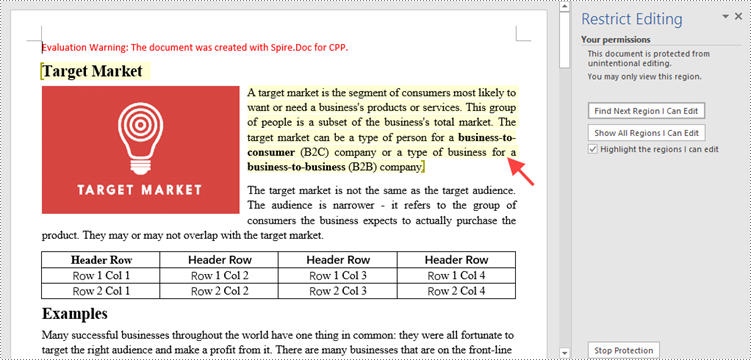
Aside from making certain sections editable, you can create editable regions based on text ranges in order to narrow down the scope of changes that users are able to make. The following are the steps to create editable regions in a read-only Word document using Spire.Doc for C++.
- Create a Document object.
- Load a Word file using Document->LoadFromFile() method.
- Set the protection type to AllowOnlyReading using Document->Protect() method.
- Create a PermissionStart object and a PermissionEnd object.
- Insert the PermissionStart object at the beginning of a paragraph using DocumentObjectCollection->Insert(int index, Spire::Doc::lDocumentObject *entity) method, which indicates the start of an editable region.
- Add the PermissionEnd object at the end of a paragraph using DocumentObjectCollection->Add(Spire::Doc::lDocumentObject *entity) method, which indicates the end of an editable region.
- Save the document to another Word file using Document->SaveToFile() method.
- C++
#include "Spire.Doc.o.h";

using namespace Spire::Doc;

int main() {

    //Create a Document object
    intrusive_ptr<Document> document = new Document();

    //Load a Word file
    document->LoadFromFile(L"C:\\Users\\Administrator\\Desktop\\sample2.docx");

    //Set the protect type to AllowOnlyReading
    document->Protect(ProtectionType::AllowOnlyReading, L"permission-psd");

    //Create tags for permission start and end
    intrusive_ptr<PermissionStart> start = new PermissionStart(document, L"regionOne");
    intrusive_ptr<PermissionEnd> end = new PermissionEnd(document, L"regionOne");

    //Add the start and end tags to allow the selected paragraphs to be editable
    document->GetSections()->GetItemInSectionCollection(0)->GetParagraphs()->GetItemInParagraphCollection(0)->GetChildObjects()->Insert(0, start);
    document->GetSections()->GetItemInSectionCollection(0)->GetParagraphs()->GetItemInParagraphCollection(1)->GetChildObjects()->Add(end);

    //Save the document to another Word file
    document->SaveToFile(L"Output/SetEditableRegions.docx", FileFormat::Docx2013);
    document->Close();
}
Remove Editable Regions from a Word Document in C++
In order to remove the editable regions, you need to find the "PermissionStart" and "PermissionEnd" tags in the document and remove them. The following are the detailed steps.
- Create a Document object.
- Load a Word document containing editable regions using Document->LoadFromFile() method.
- Traverse through all the child objects in the document, and determine if a certain child object is an instance of PermissionStart class or PermissionEnd class. If yes, remove the child object from the paragraph using Paragraph->GetChildObjects()->Remove(Spire::Doc::IDocumentObject *entity) method.
- Save the document to another Word file using Document->SaveToFile() method.
- C++
#include "Spire.Doc.o.h";

using namespace Spire::Doc;

int main() {

 //Create a Document object
 intrusive_ptr<Document> document = new Document();

 //Load a Word file
 document->LoadFromFile(L"C:\\Users\\Administrator\\Desktop\\SetEditableRegions.docx");

 //Find "PermissionStart" and "PermissionEnd" tags and remove them
 for (int i = 0; i < document->GetSections()->GetCount(); i++)
 {
  intrusive_ptr<Section> section = document->GetSections()->GetItemInSectionCollection(i);
  for (int j = 0; j < section->GetBody()->GetParagraphs()->GetCount(); j++)
  {
   intrusive_ptr<Paragraph> para = section->GetBody()->GetParagraphs()->GetItemInParagraphCollection(j);
   for (int k = 0; k < para->GetChildObjects()->GetCount(); k++)
   {
    intrusive_ptr<DocumentObject> obj = para->GetChildObjects()->GetItem(k);
    if (Object::Dynamic_cast<PermissionStart>(obj) != nullptr || Object::Dynamic_cast<PermissionEnd>(obj) != nullptr)
    {
     para->GetChildObjects()->Remove(obj);
    }
    else
    {
     k++;
    }
   }
  }
 }

 //Save the document to another Word file
 document->SaveToFile(L"Output/RemoveEditableRegions.docx", FileFormat::Docx2013);
 document->Close();
}
Remove Restrictions from a Word Document in C++
Spire.Doc for C++ allows you to remove editing restrictions without knowing the permission password. The following are the detailed steps.
- Create a Document object.
- Load a Word document containing editing restrictions using Document->LoadFromFile() method.
- Set the protection type to NoProtection using Document->Protect() method.
- Save the document to another Word file using Document->SaveToFile() method.
- C++
#include "Spire.Doc.o.h";

using namespace Spire::Doc;

int main() {

    //Create a Document object
    intrusive_ptr<Document> document = new Document();

    //Load a Word file
    document->LoadFromFile(L"C:\\Users\\Administrator\\Desktop\\RestrictEditing.docx");

    //Set the protect type to NoProtection
    document->Protect(ProtectionType::NoProtection);

    //Save the document to another Word file
    document->SaveToFile(L"Output/RemoveRestrictions.docx", FileFormat::Docx2013);
    document->Close();
}
Remove Password from a Password-Protected Word Document in C++
The password of an encrypted Word document can be removed if it is no longer needed. The following are the detailed steps.
- Create a Document object.
- Load a password-protected Word document using Document->LoadFromFile((LPCWSTR_S fileName, Spire::Doc::FileFormat fileFormat, LPCWSTR_S password) method.
- Remove the password using Document->RemoveEncryption() method.
- Save the document to another Word file using Document->SaveToFile() method.
- C++
#include "Spire.Doc.o.h";

using namespace Spire::Doc;

int main() {

    //Create a Document object
    intrusive_ptr<Document> document = new Document();

    //Load an encrypted Word file
    document->LoadFromFile(L"C:\\Users\\Administrator\\Desktop\\Encryption.docx", FileFormat::Docx, L"open-psd");

    //Remove the open password
    document->RemoveEncryption();

    //Save the document to another Word file
    document->SaveToFile(L"Output/RemovePassword.docx", FileFormat::Docx2013);
    document->Close();
}
Apply for a Temporary License
If you'd like to remove the evaluation message from the generated documents, or to get rid of the function limitations, please request a 30-day trial license for yourself.
C++: Convert Excel to CSV or CSV to Excel
Excel and CSV (Comma-Separated Values) are two commonly used file formats for managing and storing tabular data in various industries. Excel organizes data in rows and columns and provides users with a wide range of advanced features for data manipulation, analysis and visualization, whereas CSV stores data in a plain text format that is lightweight and highly compatible with various applications. Converting Excel files to CSV format can be very helpful when users need to exchange or import Excel data in different programs. Conversely, users who require more advanced data analysis features, such as creating charts or applying formulas, may find it beneficial to convert CSV files to Excel format. In this article, we will demonstrate how to convert Excel to CSV or CSV to Excel in C++ using Spire.XLS for C++.
Install Spire.XLS for C++
There are two ways to integrate Spire.XLS for C++ into your application. One way is to install it through NuGet, and the other way is to download the package from our website and copy the libraries into your program. Installation via NuGet is simpler and more recommended. You can find more details by visiting the following link.
Integrate Spire.XLS for C++ in a C++ Application
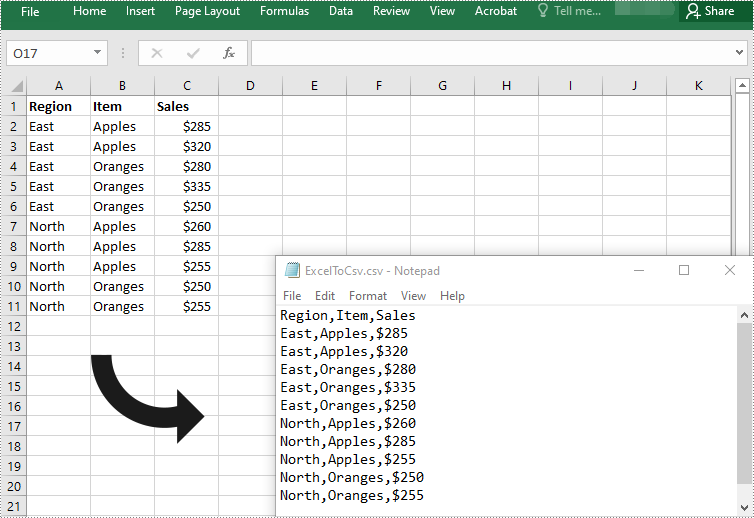
Convert Excel to CSV in C++
Spire.XLS for C++ offers the XlsWorksheet->SaveToFile (LPCWSTR_S fileName, LPCWSTR_S separator, Spire::Common::Encoding* encoding) method to convert a worksheet in an Excel file to CSV. The detailed steps are as follows:
- Initialize an instance of the Workbook class.
- Load an Excel file using Workbook->LoadFromFile() method.
- Get a specific worksheet in the workbook by its index using Workbook->GetWorksheets()->Get(int index) method.
- Save the worksheet to a CSV file using XlsWorksheet->SaveToFile (LPCWSTR_S fileName, LPCWSTR_S separator, Spire::Common::Encoding* encoding) method.
- C++
#include "Spire.Xls.o.h"

using namespace Spire::Xls;

int main()
{
	//Initialize an instance of the Workbook class
	intrusive_ptr<Workbook> workbook = new Workbook();

	//Load an Excel file
	workbook->LoadFromFile(L"Input.xlsx");

	//Get the first worksheet
	intrusive_ptr<Worksheet> sheet = dynamic_pointer_cast<Worksheet>(workbook->GetWorksheets()->Get(0));

	//Save the worksheet to a CSV file
	sheet->SaveToFile(L"ExcelToCsv.csv", L",", Encoding::GetUTF8());
	workbook->Dispose();
}
Convert Visible Data in Excel to CSV in C++
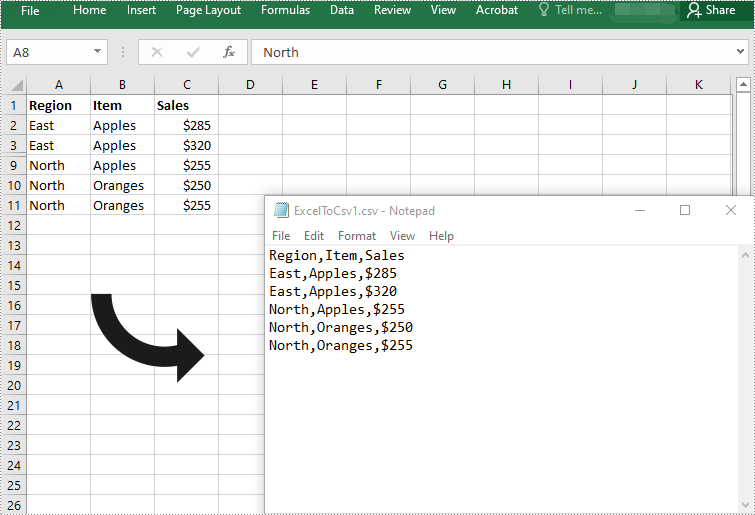
When converting an Excel worksheet to CSV using the above code, all data, including both visible and hidden data, will be saved to CSV. If you only want to save visible data in the worksheet to CSV, you can use the XlsWorksheet->SaveToFile (LPCWSTR_S fileName, LPCWSTR_S separator, bool retainHiddenData) method. The detailed steps are as follows:
- Initialize an instance of the Workbook class.
- Load an Excel file using Workbook->LoadFromFile() method.
- Get a specific worksheet in the workbook by its index using Workbook->GetWorksheets()->Get(int index) method.
- Save visible data in the worksheet to a CSV file using XlsWorksheet->SaveToFile (LPCWSTR_S fileName, LPCWSTR_S separator, bool retainHiddenData) method.
- C++
#include "Spire.Xls.o.h"

using namespace Spire::Xls;

int main()
{
	//Initialize an instance of the Workbook class
	intrusive_ptr<Workbook> workbook = new Workbook();

	//Load an Excel file
	workbook->LoadFromFile(L"Input.xlsx");

	//Get the first worksheet
	intrusive_ptr<Worksheet> sheet = dynamic_pointer_cast<Worksheet>(workbook->GetWorksheets()->Get(0));

	//Save visible data in the worksheet to a CSV file
	sheet->SaveToFile(L"ExcelToCsv1.csv", L",", false);
	workbook->Dispose();
}
Convert CSV to Excel in C++
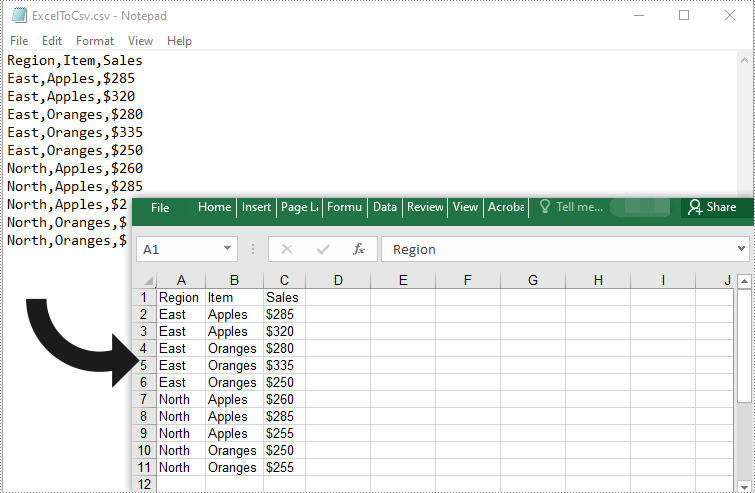
To convert a CSV file to Excel, you need to load the CSV file using Workbook->LoadFromFile(LPCWSTR_S fileName, LPCWSTR_S separator) method, then use the Workbook->SaveToFile (LPCWSTR_S fileName, ExcelVersion version) method to save it to an Excel file. The detailed steps are as follows:
- Initialize an instance of the Workbook class.
- Load a CSV file with separator using Workbook->LoadFromFile(LPCWSTR_S fileName,LPCWSTR_S separator) method.
- Get a specific worksheet in the file by its index using Workbook->GetWorksheets()->Get(int index) method.
- Set ignore error option to ignore errors when saving numbers in a specific cell range as text using Worksheet->GetRange(LPCWSTR_S name)->SetIgnoreErrorOptions(IgnoreErrorType::NumberAsText) method.
- Auto-fit column widths using Worksheet->GetAllocatedRange()->AutoFitColumns() method.
- Save the CSV file to an Excel file using Workbook->SaveToFile (LPCWSTR_S fileName, ExcelVersion version) method.
- C++
#include "Spire.Xls.o.h"

using namespace Spire::Xls;

int main()
{
	//Initialize an instance of the Workbook class
	intrusive_ptr<Workbook> workbook = new Workbook();

	//Load a CSV file with separator
	workbook->LoadFromFile(L"ExcelToCSV.csv", L",");

	//Get the first worksheet
	intrusive_ptr<Worksheet> sheet = dynamic_pointer_cast<Worksheet>(workbook->GetWorksheets()->Get(0));

	//Set ignore error option to ignore errors when saving numbers in a specific cell range as text
	sheet->GetRange(L"C2:C11")->SetIgnoreErrorOptions(IgnoreErrorType::NumberAsText);

	//Auto-fit column widths
	sheet->GetAllocatedRange()->AutoFitColumns();

	//Save the file to an Excel XLSX file
	workbook->SaveToFile(L"CsvToExcel.xlsx", ExcelVersion::Version2013);
	workbook->Dispose();
}
Apply for a Temporary License
If you'd like to remove the evaluation message from the generated documents, or to get rid of the function limitations, please request a 30-day trial license for yourself.
C++: Insert Text or Image Watermarks to Word
In Word, a watermark is a semi-transparent text or image that you can place in the background. Typically, watermarks are used to emphasize something important about a document. For example, you can use it to remind the user that the content is confidential or a draft. Or other times, you may want to add a washout mark to include the company logo in the document. In this article, you will learn how to insert text or image watermarks to Word documents in C++ using Spire.Doc for C++.
Install Spire.Doc for C++
There are two ways to integrate Spire.Doc for C++ into your application. One way is to install it through NuGet, and the other way is to download the package from our website and copy the libraries into your program. Installation via NuGet is simpler and more recommended. You can find more details by visiting the following link.
Integrate Spire.Doc for C++ in a C++ Application
Insert a Text Watermark to Word in C++
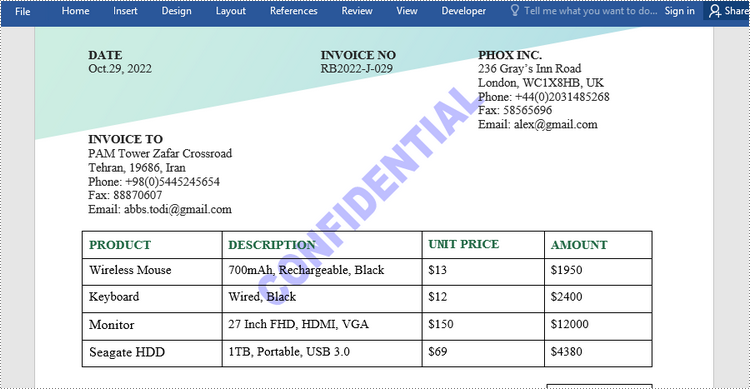
Spire.Doc for C++ offers the TextWatermark class to represent a text watermark. The content and appearance of the watermark can be set using the methods under it. Once a text watermark is created, you can apply it to the whole document by using Document->SetWatermark() method. The following are the detailed steps.
- Create a Document object.
- Load a Word file using Document->LoadFromFile() method.
- Create a TextWatermark object.
- Se the content and appearance of the watermark using the methods under the TextWatermark object.
- Apply the text watermark to the document using Document->SetWatermrak() method.
- Save the document using Document->SaveToFile() method.
- C++
#include "Spire.Doc.o.h";

using namespace Spire::Doc;
using namespace std;

int main() {

    //Create a Document object
    intrusive_ptr<Document> document = new Document();

    //Load a Word file
    document->LoadFromFile(L"C:\\Users\\Administrator\\Desktop\\sample.docx");

    //Create a TextWatermark object
    intrusive_ptr<TextWatermark> txtWatermark = new TextWatermark();

    //Set the content and format of the text watermark
    txtWatermark->SetText(L"CONFIDENTIAL");
    txtWatermark->SetFontSize(40);
    txtWatermark->SetSemitransparent(90);
    txtWatermark->SetFontName(L"Arial Black");
    txtWatermark->SetColor(Color::GetBlue());
    txtWatermark->SetLayout(WatermarkLayout::Diagonal);

    //Apply the text watermark to the document
    document->SetWatermark(txtWatermark);

    //Save the document
    document->SaveToFile(L"Output/TextWatermark.docx", FileFormat::Docx2013);
    document->Close();
}
Insert an Image Watermark to Word in C++
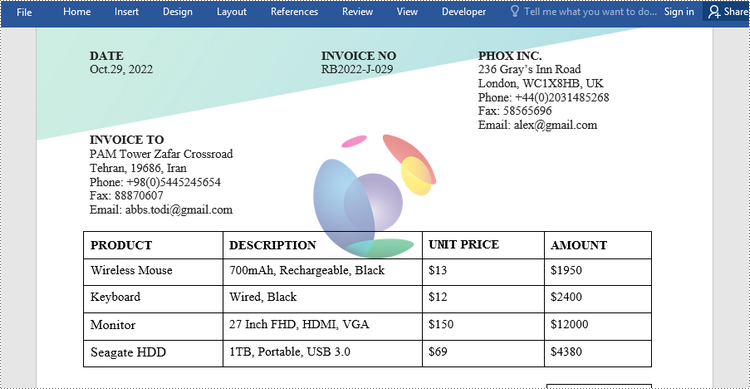
Likewise, an image watermark can be created using PictureWatermark class. Once created, you can apply it to a Word document using Document->SetWatermark() method. Here are the detailed steps.
- Create a Document object.
- Load a Word file using Document->LoadFromFile() method.
- Create a PictureWatermark object.
- Set the image and appearance of the watermark using the methods under the PictureWatermark object.
- Apply the image watermark to the document using Document->SetWatermrak() method.
- Save the document using Document->SaveToFile() method.
- C++
#include "Spire.Doc.o.h";

using namespace Spire::Doc;
using namespace std;

int main() {

    //Create a Document object
    intrusive_ptr<Document> document = new Document();

    //Load a Word file
    document->LoadFromFile(L"C:\\Users\\Administrator\\Desktop\\sample.docx");

    //Create a PictureWatermark object
    intrusive_ptr<PictureWatermark> pictureWatermark = new PictureWatermark();

    //Specify image for the watermark
    pictureWatermark->SetPicture(L"C:\\Users\\Administrator\\Desktop\\company-png.png");
    pictureWatermark->SetScaling(100);
    pictureWatermark->SetIsWashout(false);

    //Apply the image watermark to the document
    document->SetWatermark(pictureWatermark);

    //Save the document
    document->SaveToFile(L"Output/ImageWatermark.docx", FileFormat::Docx2013);
    document->Close();
}
Apply for a Temporary License
If you'd like to remove the evaluation message from the generated documents, or to get rid of the function limitations, please request a 30-day trial license for yourself.
C++: Remove Paragraphs in Word
While editing a Word document, there are numerous reasons to delete certain paragraphs in it. For example, it could be as simple as restructuring the document, or removing incorrect or irrelevant information to ensure document accuracy. In this article, you will learn how to programmatically remove paragraphs in a Word document using Spire.Doc for C++.
- Remove All Paragraphs in a Word Document in C++
- Remove a Specific Paragraph in a Word Document in C++
- Remove Blank Paragraphs in a Word Document in C++
Install Spire.Doc for C++
There are two ways to integrate Spire.Doc for C++ into your application. One way is to install it through NuGet, and the other way is to download the package from our website and copy the libraries into your program. Installation via NuGet is simpler and more recommended. You can find more details by visiting the following link.
Integrate Spire.Doc for C++ in a C++ Application
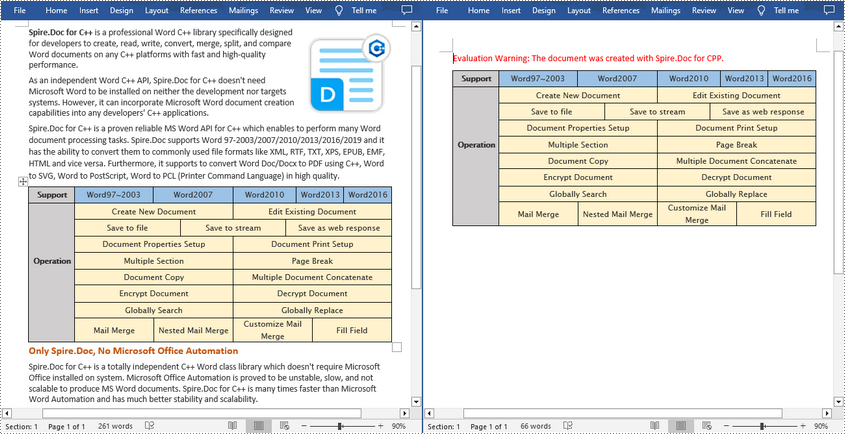
Remove All Paragraphs in a Word Document in C++
To remove all paragraphs, you need to loop through all sections in a document and then delete all paragraphs in each section using Section->GetParagraphs()->Clear() method. The following are the detailed steps.
- Create a Document instance.
- Load a Word document using Document->LoadFromFile() method.
- Traverse through each section of the document and then remove all paragraphs in the section using Section->GetParagraphs()->Clear() method.
- Save the result document using Document->SaveToFile() method.
- C++
#include "Spire.Doc.o.h"

using namespace Spire::Doc;

int main() {
 //Specify the input and output file paths
 std::wstring inputFile = L"Data\\sample.docx";
 std::wstring outputFile = L"Output\\RemoveAllParagraphs.docx";

 //Create a Document instance
 intrusive_ptr<Document> document = new Document();

 //Load a Word document from disk
 document->LoadFromFile(inputFile.c_str());

 //Remove paragraphs from every section in the document
 for (int i = 0; i < document->GetSections()->GetCount(); i++)
 {
  intrusive_ptr<Section> section = document->GetSections()->GetItemInSectionCollection(i);
  section->GetParagraphs()->Clear();
 }

 //Save the result document
 document->SaveToFile(outputFile.c_str(), FileFormat::Docx2013);
 document->Close();
}
Remove a Specific Paragraph in a Word Document in C++
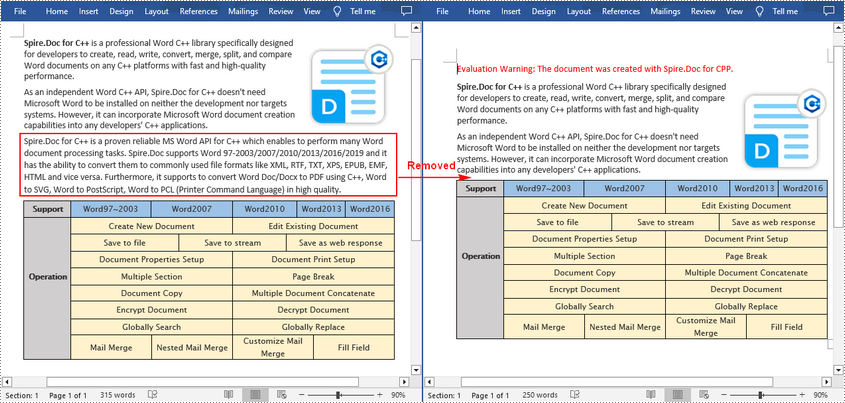
If you find a paragraph that contains duplicate or useless information, Spire.Doc for C++ allows you to delete the specified paragraph using Section->GetParagraphs()->RemoveAt() method. The following are the detailed steps.
- Create a Document instance.
- Load a Word document using Document->LoadFromFile() method.
- Get a specified section of the document using Document->GetSections()->GetItem() method.
- Remove a specified paragraph in the section using Section->GetParagraphs()->RemoveAt() method.
- Save the result document using Document->SaveToFile() method.
- C++
#include "Spire.Doc.o.h"

using namespace Spire::Doc;

int main() {
 //Specify the input and output file paths
 std::wstring inputFile = L"Data\\sample.docx";
 std::wstring outputFile = L"Output\\RemoveSpecificParagraph.docx";

 //Create a Document instance
 intrusive_ptr<Document> document = new Document();

 //Load a Word document from disk
 document->LoadFromFile(inputFile.c_str());

 //Get the first section of the document
 intrusive_ptr<Section> sec = document->GetSections()->GetItemInSectionCollection(0);

 //Remove the third paragraph in the section
 sec->GetParagraphs()->RemoveAt(2);

 //Save the result document
 document->SaveToFile(outputFile.c_str(), FileFormat::Docx2013);
 document->Close();
}
Remove Blank Paragraphs in a Word Document in C++
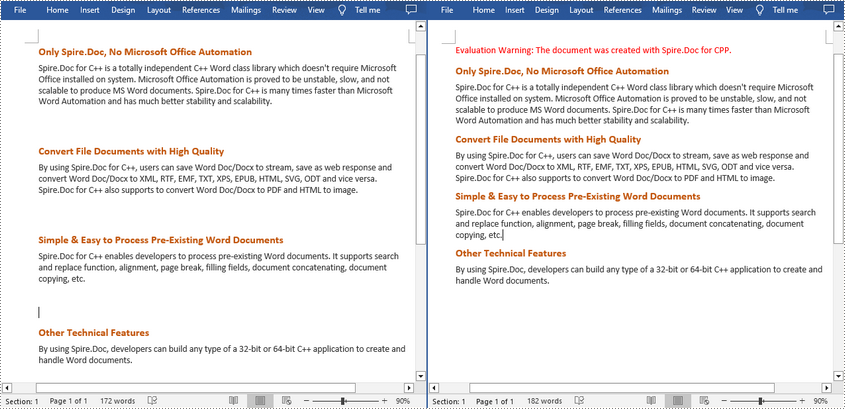
When there are many empty paragraphs/lines in a document, it quite necessary to remove them to improve readability. The following are the steps to remove all blank paragraphs/lines in a Word document.
- Create a Document instance.
- Load a Word document using Document->LoadFromFile() method.
- Traverse through all paragraphs in the document and determine whether the paragraph is a blank paragraph.
- Remove blank paragraphs from the document using section->GetBody()->GetChildObjects()->Remove() method.
- Save the result document using Document->SaveToFile() method.
- C++
#include "Spire.Doc.o.h"

using namespace Spire::Doc;

int main() {
 //Specify the input and output file paths
 std::wstring inputFile = L"Data\\Test.docx";
 std::wstring outputFile = L"Output\\RemoveEmptyLines.docx";

 //Create a Document instance
 intrusive_ptr<Document> document = new Document();

 //Load a Word document from disk
 document->LoadFromFile(inputFile.c_str());

 //Traverse each paragraph in the Word document
 for (int i = 0; i < document->GetSections()->GetCount(); i++)
 {
  intrusive_ptr<Section> section = document->GetSections()->GetItemInSectionCollection(i);

  for (int j = 0; j < section->GetBody()->GetChildObjects()->GetCount(); j++)
  {
   intrusive_ptr<DocumentObject> secChildObject = section->GetBody()->GetChildObjects()->GetItem(j);
   if (secChildObject->GetDocumentObjectType() == DocumentObjectType::Paragraph)
   {
    intrusive_ptr<Paragraph> para = Object::Dynamic_cast<Paragraph>(secChildObject);
    std::wstring paraText = para->GetText();

    //Determine if the paragraph is a blank paragraph
    if (paraText.empty())
    {
     //Remove blank paragraphs
     section->GetBody()->GetChildObjects()->Remove(secChildObject);
     j--;
    }
   }

  }
 }

 //Save the result document
 document->SaveToFile(outputFile.c_str(), FileFormat::Docx2013);
 document->Close();
}
Apply for a Temporary License
If you'd like to remove the evaluation message from the generated documents, or to get rid of the function limitations, please request a 30-day trial license for yourself.
C++: Create a Fillable Form in Word
Word allows you to create forms that other people can use to input information. Fillable forms are particularly useful when you need to gather data or feedback from many individuals and want to make sure that the formatting is consistent. The tools that you may need for creating a form include:
- Content Controls: The areas where users input information in a form.
- Tables: Tables are used in forms to align text and form fields, and to create borders and boxes.
- Protection: Allows users to populate fields but not to make changes to the rest of the document.
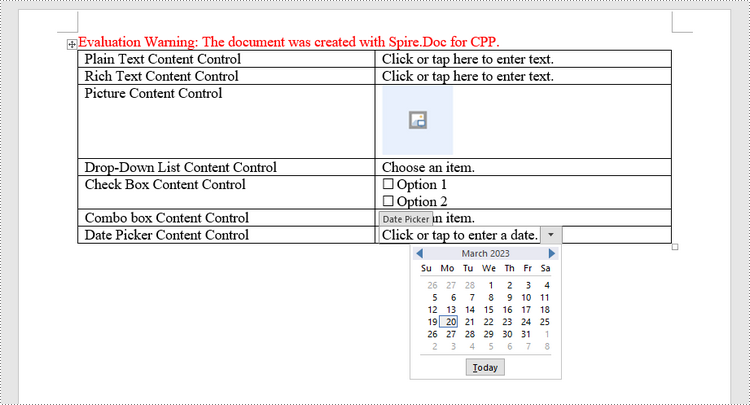
Content controls in Word are containers for content that let users build structured documents. A structured document controls where content appears within the document. There are basically ten types of content controls available in Word 2013. This article focuses on how to create a fillable form in Word consisting of the following seven common content controls using Spire.Doc for C++.
| Content Control | Description |
| Plain Text | A text field limited to plain text, so no formatting can be included. |
| Rich Text | A text field that can contain formatted text or other items, such as tables, pictures, or other content controls. |
| Picture | Accepts a single picture. |
| Drop-Down List | A drop-down list displays a predefined list of items for the user to choose from. |
| Combo Box | A combo box enables users to select a predefined value in a list or type their own value in the text box of the control. |
| Check Box | A check box provides a graphical widget that allows the user to make a binary choice: yes (checked) or no (not checked). |
| Date Picker | Contains a calendar control from which the user can select a date. |
Install Spire.Doc for C++
There are two ways to integrate Spire.Doc for C++ into your application. One way is to install it through NuGet, and the other way is to download the package from our website and copy the libraries into your program. Installation via NuGet is simpler and more recommended. You can find more details by visiting the following link.
Integrate Spire.Doc for C++ in a C++ Application
Create a Fillable Form in Word in C++
The StructureDocumentTagInline class provided by Spire.Doc for C++ is used to create structured document tags for inline-level structures (DrawingML object, fields, etc.) in a paragraph. The SDTProperties property and the SDTContent property under this class shall be used to specify the properties and content of the current structured document tag. The following are the detailed steps to create a fillable form with content controls in Word.
- Create a Document object.
- Add a section using Document->AddSection() method.
- Add a table using Section->AddTable() method.
- Add a paragraph to a specific table cell using TableCell->AddParagraph() method.
- Create an instance of StructureDocumentTagInline class, and add it to the paragraph as a child object using Paragraph->GetChildObjects()->Add() method.
- Specify the properties and content of the structured document tag using the methods under the SDTProperties property and the SDTContent property of the StructureDocumentTagInline object. The type of the structured document tag is set through SDTProperties->SetSDTType() method.
- Prevent users from editing content outside form fields using Document->Protect() method.
- Save the document using Document->SaveToFile() method.
- C++
#include "Spire.Doc.o.h";

using namespace Spire::Doc;
using namespace std;

int main() {

    //Create a Document object
    intrusive_ptr<Document> doc = new Document();

    //Add a section
    intrusive_ptr<Section> section = doc->AddSection();

    //add a table
    intrusive_ptr<Table> table = section->AddTable(true);
    table->ResetCells(7, 2);

    //Add text to the cells of the first column
    intrusive_ptr<Paragraph> paragraph = table->GetRows()->GetItemInRowCollection(0)->GetCells()->GetItemInCellCollection(0)->AddParagraph();
    paragraph->AppendText(L"Plain Text Content Control");
    paragraph = table->GetRows()->GetItemInRowCollection(1)->GetCells()->GetItemInCellCollection(0)->AddParagraph();
    paragraph->AppendText(L"Rich Text Content Control");
    paragraph = table->GetRows()->GetItemInRowCollection(2)->GetCells()->GetItemInCellCollection(0)->AddParagraph();
    paragraph->AppendText(L"Picture Content Control");
    paragraph = table->GetRows()->GetItemInRowCollection(3)->GetCells()->GetItemInCellCollection(0)->AddParagraph();
    paragraph->AppendText(L"Drop-Down List Content Control");
    paragraph = table->GetRows()->GetItemInRowCollection(4)->GetCells()->GetItemInCellCollection(0)->AddParagraph();
    paragraph->AppendText(L"Check Box Content Control");
    paragraph = table->GetRows()->GetItemInRowCollection(5)->GetCells()->GetItemInCellCollection(0)->AddParagraph();
    paragraph->AppendText(L"Combo box Content Control");
    paragraph = table->GetRows()->GetItemInRowCollection(6)->GetCells()->GetItemInCellCollection(0)->AddParagraph();
    paragraph->AppendText(L"Date Picker Content Control");

    //Add a plain text content control to the cell (0,1)
    paragraph = table->GetRows()->GetItemInRowCollection(0)->GetCells()->GetItemInCellCollection(1)->AddParagraph();
    intrusive_ptr<StructureDocumentTagInline> sdt = new StructureDocumentTagInline(doc);
    paragraph->GetChildObjects()->Add(sdt);
    sdt->GetSDTProperties()->SetSDTType(SdtType::Text);
    sdt->GetSDTProperties()->SetAlias(L"Plain Text");
    sdt->GetSDTProperties()->SetTag(L"Plain Text");
    sdt->GetSDTProperties()->SetIsShowingPlaceHolder(true);
    intrusive_ptr<SdtText> text = new SdtText(true);
    text->SetIsMultiline(false);
    sdt->GetSDTProperties()->SetControlProperties(text);
    intrusive_ptr<TextRange> tr = new TextRange(doc);
    tr->SetText(L"Click or tap here to enter text.");
    sdt->GetSDTContent()->GetChildObjects()->Add(tr);

    //Add a rich text content control to the cell (1,1)
    paragraph = table->GetRows()->GetItemInRowCollection(1)->GetCells()->GetItemInCellCollection(1)->AddParagraph();
    sdt = new StructureDocumentTagInline(doc);
    paragraph->GetChildObjects()->Add(sdt);
    sdt->GetSDTProperties()->SetSDTType(SdtType::RichText);
    sdt->GetSDTProperties()->SetAlias(L"Rich Text");
    sdt->GetSDTProperties()->SetTag(L"Rich Text");
    sdt->GetSDTProperties()->SetIsShowingPlaceHolder(true);
    text = new SdtText(true);
    text->SetIsMultiline(false);
    sdt->GetSDTProperties()->SetControlProperties(text);
    tr = new TextRange(doc);
    tr->SetText(L"Click or tap here to enter text.");
    sdt->GetSDTContent()->GetChildObjects()->Add(tr);

    //Add a picture content control to the cell (2,1)
    paragraph = table->GetRows()->GetItemInRowCollection(2)->GetCells()->GetItemInCellCollection(1)->AddParagraph();
    sdt = new StructureDocumentTagInline(doc);
    paragraph->GetChildObjects()->Add(sdt);
    sdt->GetSDTProperties()->SetSDTType(SdtType::Picture);
    sdt->GetSDTProperties()->SetAlias(L"Picture");
    sdt->GetSDTProperties()->SetTag(L"Picture");
    intrusive_ptr<SdtPicture> sdtPicture = new SdtPicture();
    sdt->GetSDTProperties()->SetControlProperties(sdtPicture);
    intrusive_ptr<DocPicture> pic = new DocPicture(doc);
    pic->LoadImageSpire(L"C:\\Users\\Administrator\\Desktop\\1.png");
    sdt->GetSDTContent()->GetChildObjects()->Add(pic);

    //Add a dropdown list content control to the cell(3,1)
    paragraph = table->GetRows()->GetItemInRowCollection(3)->GetCells()->GetItemInCellCollection(1)->AddParagraph();
    sdt = new StructureDocumentTagInline(doc);
    sdt->GetSDTProperties()->SetSDTType(SdtType::DropDownList);
    sdt->GetSDTProperties()->SetAlias(L"Dropdown List");
    sdt->GetSDTProperties()->SetTag(L"Dropdown List");
    paragraph->GetChildObjects()->Add(sdt);
    intrusive_ptr<SdtDropDownList> sddl = new SdtDropDownList();
    sddl->GetListItems()->Add(new SdtListItem(L"Choose an item.", L"1"));
    sddl->GetListItems()->Add(new SdtListItem(L"Item 2", L"2"));
    sddl->GetListItems()->Add(new SdtListItem(L"Item 3", L"3"));
    sddl->GetListItems()->Add(new SdtListItem(L"Item 4", L"4"));
    sdt->GetSDTProperties()->SetControlProperties(sddl);
    tr = new TextRange(doc);
    tr->SetText(sddl->GetListItems()->GetItem(0)->GetDisplayText());
    sdt->GetSDTContent()->GetChildObjects()->Add(tr);

    //Add two check box content controls to the cell (4,1)
    paragraph = table->GetRows()->GetItemInRowCollection(4)->GetCells()->GetItemInCellCollection(1)->AddParagraph();
    sdt = new StructureDocumentTagInline(doc);
    paragraph->GetChildObjects()->Add(sdt);
    sdt->GetSDTProperties()->SetSDTType(SdtType::CheckBox);
    intrusive_ptr<SdtCheckBox> scb = new SdtCheckBox();
    sdt->GetSDTProperties()->SetControlProperties(scb);
    tr = new TextRange(doc);
    sdt->GetChildObjects()->Add(tr);
    scb->SetChecked(false);
    paragraph->AppendText(L" Option 1");

    paragraph = table->GetRows()->GetItemInRowCollection(4)->GetCells()->GetItemInCellCollection(1)->AddParagraph();
    sdt = new StructureDocumentTagInline(doc);
    paragraph->GetChildObjects()->Add(sdt);
    sdt->GetSDTProperties()->SetSDTType(SdtType::CheckBox);
    scb = new SdtCheckBox();
    sdt->GetSDTProperties()->SetControlProperties(scb);
    tr = new TextRange(doc);
    sdt->GetChildObjects()->Add(tr);
    scb->SetChecked(false);
    paragraph->AppendText(L" Option 2");

    //Add a combo box content control to the cell (5,1)
    paragraph = table->GetRows()->GetItemInRowCollection(5)->GetCells()->GetItemInCellCollection(1)->AddParagraph();
    sdt = new StructureDocumentTagInline(doc);
    paragraph->GetChildObjects()->Add(sdt);
    sdt->GetSDTProperties()->SetSDTType(SdtType::ComboBox);
    sdt->GetSDTProperties()->SetAlias(L"Combo Box");
    sdt->GetSDTProperties()->SetTag(L"Combo Box");
    intrusive_ptr<SdtComboBox> cb = new SdtComboBox();
    cb->GetListItems()->Add(new SdtListItem(L"Choose an item."));
    cb->GetListItems()->Add(new SdtListItem(L"Item 2"));
    cb->GetListItems()->Add(new SdtListItem(L"Item 3"));
    sdt->GetSDTProperties()->SetControlProperties(cb);
    tr = new TextRange(doc);
    tr->SetText(cb->GetListItems()->GetItem(0)->GetDisplayText());
    sdt->GetSDTContent()->GetChildObjects()->Add(tr);

    //Add a date picker content control to the cell (6,1)
    paragraph = table->GetRows()->GetItemInRowCollection(6)->GetCells()->GetItemInCellCollection(1)->AddParagraph();
    sdt = new StructureDocumentTagInline(doc);
    paragraph->GetChildObjects()->Add(sdt);
    sdt->GetSDTProperties()->SetSDTType(SdtType::DatePicker);
    sdt->GetSDTProperties()->SetAlias(L"Date Picker");
    sdt->GetSDTProperties()->SetTag(L"Date Picker");
    intrusive_ptr<SdtDate> date = new SdtDate();
    date->SetCalendarType(CalendarType::Default);
    date->SetDateFormatSpire(L"yyyy.MM.dd");
    date->SetFullDate(DateTime::GetNow());
    sdt->GetSDTProperties()->SetControlProperties(date);
    tr = new TextRange(doc);
    tr->SetText(L"Click or tap to enter a date.");
    sdt->GetSDTContent()->GetChildObjects()->Add(tr);

    //Allow users to edit the form fields only
    doc->Protect(ProtectionType::AllowOnlyFormFields, L"permission-psd");

    //Save to file
    doc->SaveToFile(L"Output/WordForm.docx", FileFormat::Docx2013);
    doc->Close();
}
Apply for a Temporary License
If you'd like to remove the evaluation message from the generated documents, or to get rid of the function limitations, please request a 30-day trial license for yourself.
C++: Insert Images into Word Documents
Images can add visual variety to documents and convey information that is hard to express through text alone, such as complex concepts or emotions. They are a powerful tool to make your document easier to understand, more engaging, and more memorable. Whether you are designing a report or creating a marketing document, inserting images can enhance your communication with your readers and leave a lasting impression on them. In this article, you will learn how to insert images into Word documents in C++ using Spire.Doc for C++.
- Insert an Image in a Word Document in C++
- Insert an Image at a Specified Location in a Word Document in C++
Install Spire.Doc for C++
There are two ways to integrate Spire.Doc for C++ into your application. One way is to install it through NuGet, and the other way is to download the package from our website and copy the libraries into your program. Installation via NuGet is simpler and more recommended. You can find more details by visiting the following link.
Integrate Spire.Doc for C++ in a C++ Application
Insert an Image in a Word Document in C++
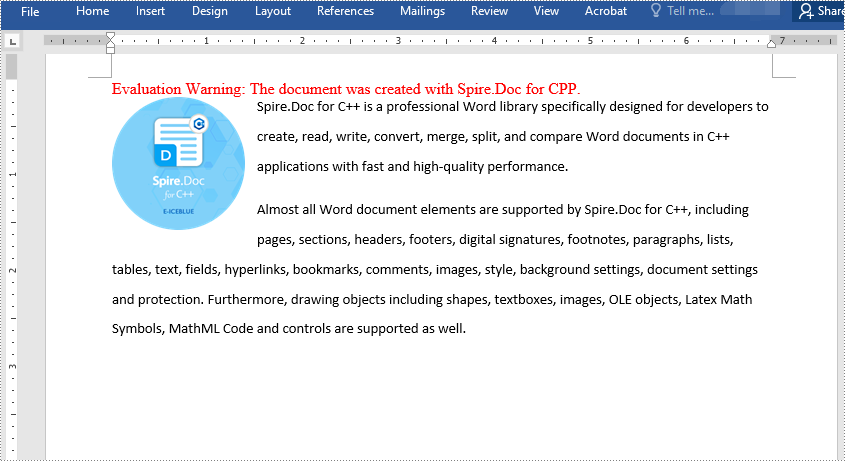
Spire.Doc for C++ offers the Paragraph->AppendPicture() method to insert an image into a Word document. The detailed steps are as follows:
- Initialize an instance of the Document class.
- Add a section using Document->AddSection() method.
- Add two paragraphs to the section using Section->AddParagraph() method.
- Add text to the paragraphs using Paragraph->AppendText() method and set formatting.
- Load an image using Image::FromFile() method.
- Add the image to the first paragraph using Paragraph->AppendPicture() method.
- Set width and height for the image using DocPicture->SetWidth() and DocPicture->SetHeight() methods.
- Set a text wrapping style for the image using DocPicture->SetTextWrappingStyle() method.
- Save the result document using Document->SaveToFile() method.
- C++
#include "Spire.Doc.o.h"

using namespace Spire::Doc;

int main()
{
 //Initialize an instance of the Document class
 intrusive_ptr<Document> document = new Document();

 //Add a section
 intrusive_ptr<Section> section = document->AddSection();

 //Add the first paragraph
 intrusive_ptr<Paragraph> paragraph1 = section->AddParagraph();
 //Add text to the paragraph and set formatting
 intrusive_ptr <TextRange> tr = paragraph1->AppendText(L"Spire.Doc for C++ is a professional Word library specifically designed for developers to create, read, write, convert, merge, split, and compare Word documents in C++ applications with fast and high-quality performance.");
 tr->GetCharacterFormat()->SetFontName(L"Calibri");
 tr->GetCharacterFormat()->SetFontSize(11.0f);
 paragraph1->GetFormat()->SetLineSpacing(20.0f);
 paragraph1->GetFormat()->SetAfterSpacing(10.0f);

 //Add the second paragraph
 intrusive_ptr<Paragraph> paragraph2 = section->AddParagraph();
 //Add text to the paragraph and set formatting
 tr = paragraph2->AppendText(L"Almost all Word document elements are supported by Spire.Doc for C++, including pages, sections, headers, footers, digital signatures, footnotes, paragraphs, lists, tables, text, fields, hyperlinks, bookmarks, comments, images, style, background settings, document settings and protection. Furthermore, drawing objects including shapes, textboxes, images, OLE objects, Latex Math Symbols, MathML Code and controls are supported as well.");
 tr->GetCharacterFormat()->SetFontName(L"Calibri");
 tr->GetCharacterFormat()->SetFontSize(11.0f);
 paragraph2->GetFormat()->SetLineSpacing(20.0f);

 //Add the image to the first paragraph
 intrusive_ptr<DocPicture> picture = paragraph1->AppendPicture(L"Spire.Doc.png");
 //Set image width and height
 picture->SetWidth(100);
 picture->SetHeight(100);
 //Set text wrapping style for the image
 picture->SetTextWrappingStyle(TextWrappingStyle::Tight);

 //Save the result document
 document->SaveToFile(L"InsertImage.docx", FileFormat::Docx2013);
 document->Close();
}
Insert an Image at a Specified Location in a Word document in C++
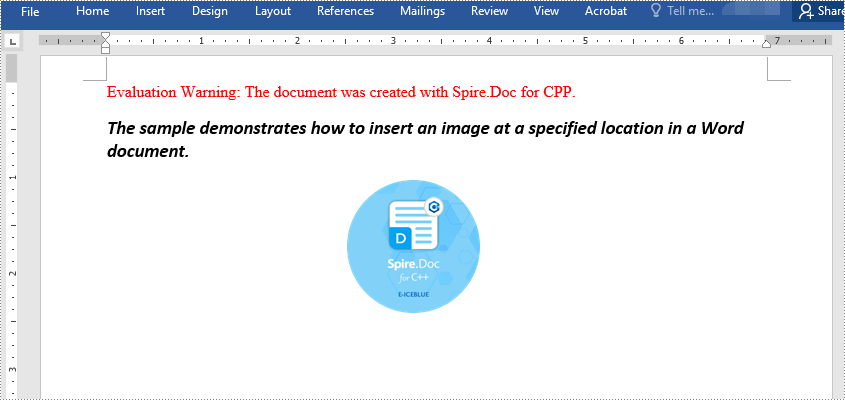
Spire.Doc for C++ enables you to insert an image into a Word document and set its position by using the DocPicture->SetHorizontalPosition() and DocPicture->SetVerticalPosition() methods. The detailed steps are as follows:
- Initialize an instance of the Document class.
- Add a section using Document->AddSection() method.
- Add a paragraph to the section using Section->AddParagraph() method.
- Add text to the paragraph using Paragraph->AppendText() method and set formatting.
- Load an image using Image::FromFile() method.
- Add the image to the paragraph using Paragraph->AppendPicture() method.
- Set width and height for the image using DocPicture->SetWidth() and DocPicture->SetHeight() methods.
- Set the horizontal position and vertical position for the image using DocPicture->SetHorizontalPosition() and DocPicture->SetVerticalPosition() methods.
- Set a text wrapping style for the image using DocPicture->SetTextWrappingStyle() method (note that the position settings are not applicable when the text wrapping style is Inline).
- Save the result document using Document->SaveToFile() method.
- C++
#include "Spire.Doc.o.h"

using namespace Spire::Doc;

int main()
{
 //Initialize an instance of the Document class
 intrusive_ptr<Document> document = new Document();

 //Add a section
 intrusive_ptr<Section> section = document->AddSection();

 //Add a paragraph to the section
 intrusive_ptr<Paragraph> paragraph = section->AddParagraph();

 //Add text to the paragraph and set formatting
 intrusive_ptr<TextRange> tr = paragraph->AppendText(L"The sample demonstrates how to insert an image at a specified location in a Word document.");
 tr->GetCharacterFormat()->SetFontName(L"Calibri");
 paragraph->ApplyStyle(BuiltinStyle::Heading2);

 //Add the image to the paragraph
 intrusive_ptr<DocPicture> picture = paragraph->AppendPicture(L"Spire.Doc.png");

 //Set image size
 picture->SetWidth(100);
 picture->SetHeight(100);

 //Set image position
 picture->SetHorizontalPosition(180.0F);
 picture->SetVerticalPosition(60.0F);

 //Set a text wrapping style for the image (note that the position settings are not applicable when the text wrapping style is Inline)
 picture->SetTextWrappingStyle(TextWrappingStyle::Through);

 //Save the result document
 document->SaveToFile(L"InsertImageAtSpecifiedLocation.docx", FileFormat::Docx);
 document->Close();
}
Apply for a Temporary License
If you'd like to remove the evaluation message from the generated documents, or to get rid of the function limitations, please request a 30-day trial license for yourself.
C++: Convert PowerPoint Presentations to Images (JPG, PNG, SVG)
Converting PowerPoint presentations to images brings you multiple benefits. For example, it makes it easy for you to share the content with others who may not have access to PowerPoint software; it preserves the formatting of the original presentation, ensuring that the content appears exactly as intended; and it protects the content in the presentation from being edited or modified by others. In this article, you will learn how to convert a PowerPoint Presentation to different image formats in C++ using Spire.Presentation for C++.
- Convert PowerPoint Presentation to JPG or PNG Images
- Convert PowerPoint Presentation to JPG or PNG Images with Specific Size
- Convert PowerPoint Presentation to SVG Images
Install Spire.Presentation for C++
There are two ways to integrate Spire.Presentation for C++ into your application. One way is to install it through NuGet, and the other way is to download the package from our website and copy the libraries into your program. Installation via NuGet is simpler and more recommended. You can find more details by visiting the following link.
Integrate Spire.Presentation for C++ in a C++ Application
Convert PowerPoint Presentation to JPG or PNG Images in C++
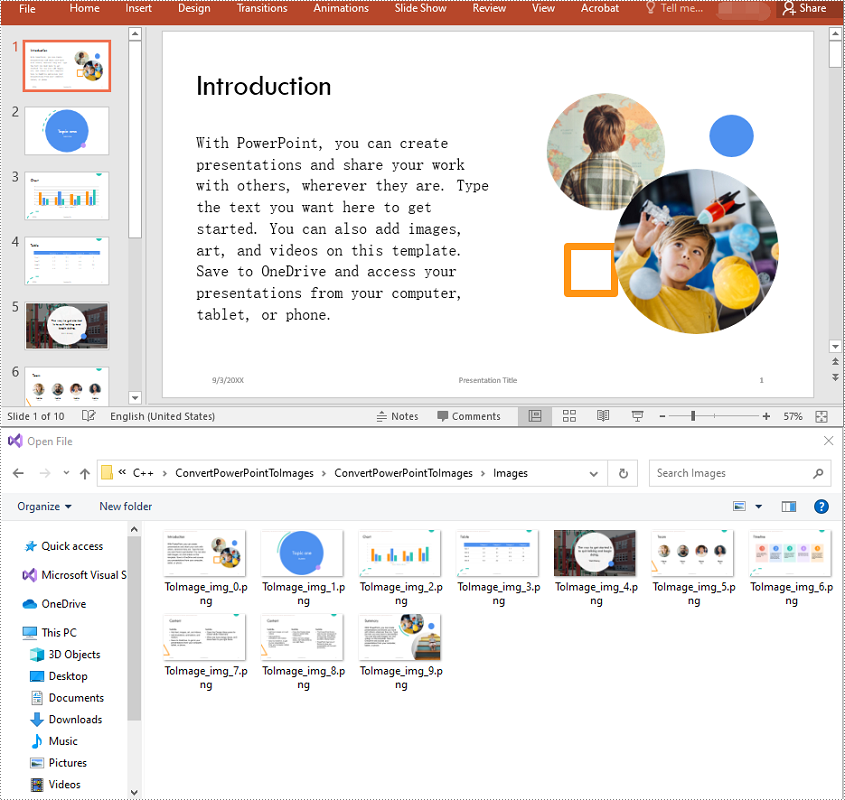
Spire.Presentation for C++ offers the ISlide->SaveAsImage() method which enables you to convert the slides in a PowerPoint presentation to JPG or PNG images. The detailed steps are as follows:
- Initialize an instance of the Presentation class.
- Load a PowerPoint presentation using Presentation->LoadFromFile() method.
- Access the slide collection of the presentation using Presentation->GetSlides() method.
- Iterate through the slides in the collection.
- Save each slide to an image stream using ISlide->SaveAsImage() method.
- Save the image stream to a JPG or PNG file using Stream->Save() method.
- C++
#include "Spire.Presentation.o.h";
using namespace Spire::Presentation;
using namespace std;
int main()
{
//Initialize an instance of the Presentation class
intrusive_ptrPresentation> ppt = new Presentation();
//Load a PowerPoint presentation
ppt->LoadFromFile(L"Sample.pptx");
//Get the slide collection of the presentation
intrusive_ptrSlideCollection> slides = ppt->GetSlides();
//Iterate through the slides in the collection
for (int i = 0; i < slides->GetCount(); i++)
{
intrusive_ptrISlide> slide = slides->GetItem(i);
//Save each slide to a PNG image
intrusive_ptrStream> image = slide->SaveAsImage();
image->Save((L"Images\\ToImage_img_" + to_wstring(i) + L".png").c_str());
}
ppt->Dispose();
}
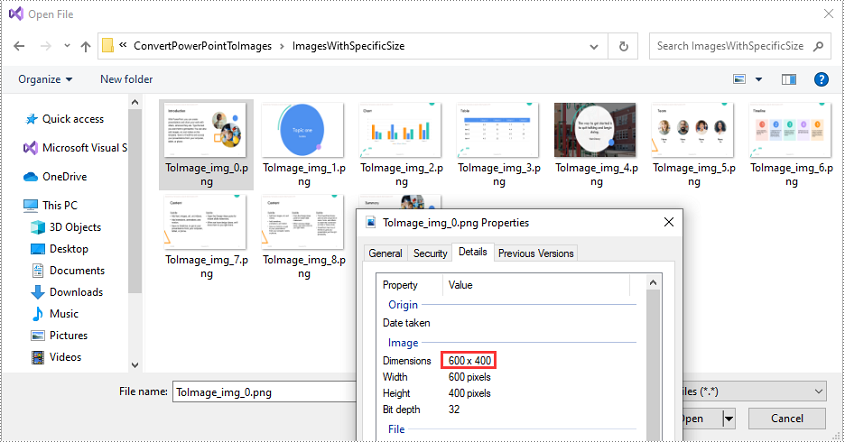
Convert PowerPoint Presentation to JPG or PNG Images with Specific Size in C++
You can convert the slides in a PowerPoint presentation to JPG or PNG images with a specific size using ISlide->SaveAsImage(int width, int height) method. The detailed steps are as follows:
- Initialize an instance of the Presentation class.
- Load a PowerPoint presentation using Presentation->LoadFromFile() method.
- Access the slide collection of the presentation using Presentation->GetSlides() method.
- Iterate through the slides in the collection.
- Save each slide to an image stream using ISlide->SaveAsImage(int width, int height) method.
- Save the image stream to a JPG or PNG file using Stream->Save() method.
- C++
#include "Spire.Presentation.o.h";
using namespace Spire::Presentation;
using namespace std;
int main()
{
//Initialize an instance of the Presentation class
intrusive_ptrPresentation> ppt = new Presentation();
//Load a PowerPoint presentation
ppt->LoadFromFile(L"Sample.pptx");
//Get the slide collection of the presentation
intrusive_ptrSlideCollection> slides = ppt->GetSlides();
//Iterate through the slides in the collection
for (int i = 0; i < slides->GetCount(); i++)
{
intrusive_ptrISlide> slide = slides->GetItem(i);
//Save each slide to a PNG image with a size of 600 x 400 pixels
intrusive_ptrStream> image = slide->SaveAsImage(600, 400);
image->Save((L"ImagesWithSpecificSize\\ToImage_img_" + to_wstring(i) + L".png").c_str());
}
ppt->Dispose();
}
Convert PowerPoint Presentation to SVG Images in C++
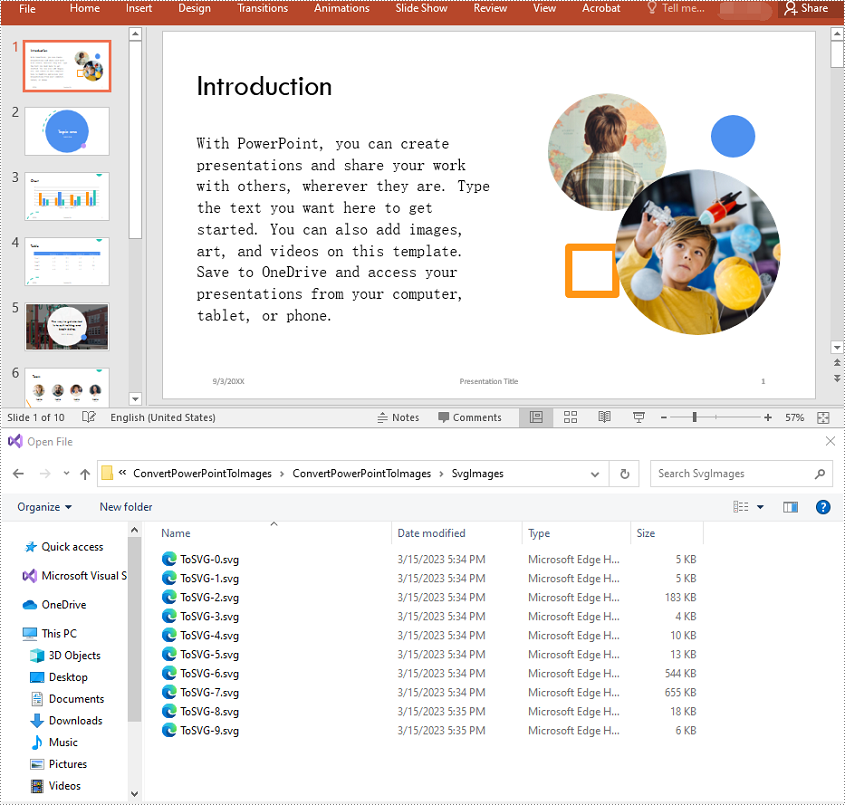
To convert the slides in a PowerPoint presentation to SVG images, you can use the ISlide->SaveToSVG() method. The detailed steps are as follows:
- Initialize an instance of the Presentation class.
- Load a PowerPoint presentation using Presentation->LoadFromFile() method.
- Access the slide collection of the presentation using Presentation->GetSlides() method.
- Iterate through the slides in the collection.
- Save each slide to an SVG stream using ISlide->SaveToSVG() method.
- Save the SVG stream to an SVG file using Stream->Save() method.
- C++
#include "Spire.Presentation.o.h";
using namespace Spire::Presentation;
using namespace std;
int main()
{
//Initialize an instance of the Presentation class
intrusive_ptrPresentation> ppt = new Presentation();
//Load a PowerPoint presentation
ppt->LoadFromFile(L"Sample.pptx");
//Get the slide collection of the presentation
intrusive_ptrSlideCollection> slides = ppt->GetSlides();
//Set whether to retain notes while converting PowerPoint to SVG
ppt->SetIsNoteRetained(true);
//Iterate through the slides in the collection
for (int i = 0; i < slides->GetCount(); i++)
{
intrusive_ptrISlide> slide = slides->GetItem(i);
//Save each slide to an SVG image
intrusive_ptrStream> svg = slide->SaveToSVG();
svg->Save((L"SvgImages\\ToSVG-" + to_wstring(i) + L".svg").c_str());
}
ppt->Dispose();
}
Apply for a Temporary License
If you'd like to remove the evaluation message from the generated documents, or to get rid of the function limitations, please request a 30-day trial license for yourself.
C++: Add or Delete Pages in PDF
When you are handling a PDF document with lots of pages, you will most likely need to add new pages to include more information or remove some redundant pages. In this article, you will learn how to programmatically add or delete pages in a PDF document using Spire.PDF for C++.
- Add a Blank Page at the End of a PDF Document in C++
- Insert a Blank Page After a Specific Page in PDF in C++
- Delete an Existing Page in a PDF Document in C++
Install Spire.PDF for C++
There are two ways to integrate Spire.PDF for C++ into your application. One way is to install it through NuGet, and the other way is to download the package from our website and copy the libraries into your program. Installation via NuGet is simpler and more recommended. You can find more details by visiting the following link.
Integrate Spire.PDF for C++ in a C++ Application
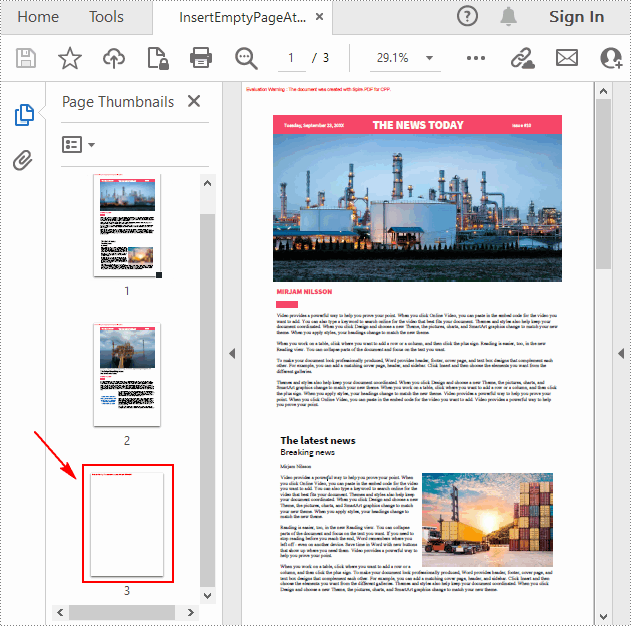
Add a Blank Page at the End of a PDF Document in C++
Spire.PDF for C++ allows you to add an empty page with specific size and margins at the end of the document using PdfDocument->GetPages()->Add(SizeF* size, PdfMargins* margins) method. The following are the detailed steps.
- Create a PdfDocument object.
- Load a sample PDF document using PdfDocument->LoadFromFile() method.
- Create an empty page with the specified size and margins and then append it to the end of the document using PdfDocument->GetPages()->Add(SizeF* size, PdfMargins* margins) method.
- Save the result document using PdfDocument->SaveToFile () method.
- C++
#include "Spire.Pdf.o.h"

using namespace Spire::Pdf;
using namespace std;

int main() {
	//Specify input and output file paths
	wstring inputFile = L"Data\\input.pdf";
	wstring outputFile = L"Output\\InsertEmptyPageAtEnd.pdf";

	//Create a PdfDocument object
	PdfDocument* pdf = new PdfDocument();

	//Load a PDF document
	pdf->LoadFromFile(inputFile.c_str());

	//Add an empty page at the end of the document
	PdfMargins tempVar(0, 0);
	pdf->GetPages()->Add(new SizeF(PdfPageSize::A4()), &tempVar);

	//Save the result document
	pdf->SaveToFile(outputFile.c_str());
	pdf->Close();

	delete pdf;
}
Insert a Blank Page After a Specific Page in PDF in C++
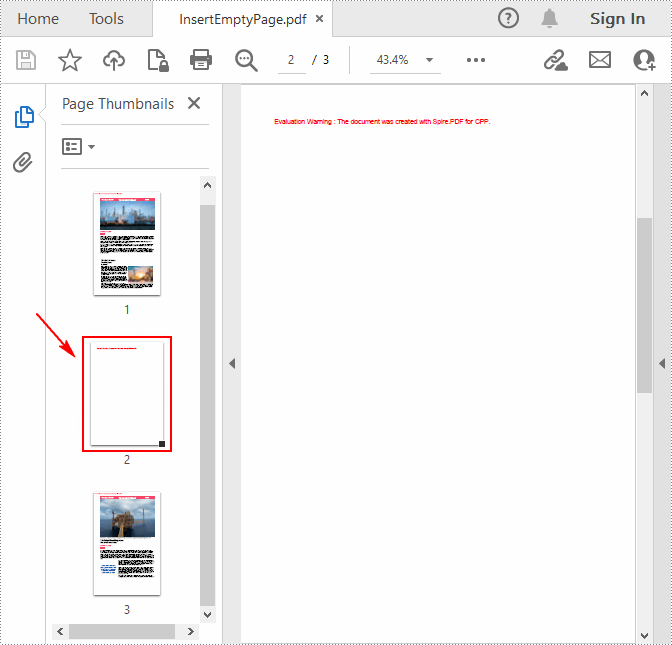
If you want to insert an empty page into a specific position of a PDF document, you can use the PdfDocument->GetPages()->Insert(int index) method. The following are the detailed steps.
- Create a PdfDocument object.
- Load a sample PDF document using PdfDocument->LoadFromFile() method.
- Create a blank page and insert it after a specified PDF page using PdfDocument->GetPages()->Insert(int index) method.
- Save the result document using PdfDocument->SaveToFile () method.
- C++
#include "Spire.Pdf.o.h"

using namespace Spire::Pdf;
using namespace std;

int main() {
	//Specify input and output file paths
	wstring inputFile = L"Data\\input.pdf";
	wstring outputFile = L"Output\\InsertEmptyPage.pdf";

	//Create a PdfDocument object
	PdfDocument* pdf = new PdfDocument();

	//Load a PDF document
	pdf->LoadFromFile(inputFile.c_str());

	//Insert a blank page as the second page
	pdf->GetPages()->Insert(1);

	//Save the result document
	pdf->SaveToFile(outputFile.c_str());
	pdf->Close();

	delete pdf;
}
Delete an Existing Page in a PDF Document in C++
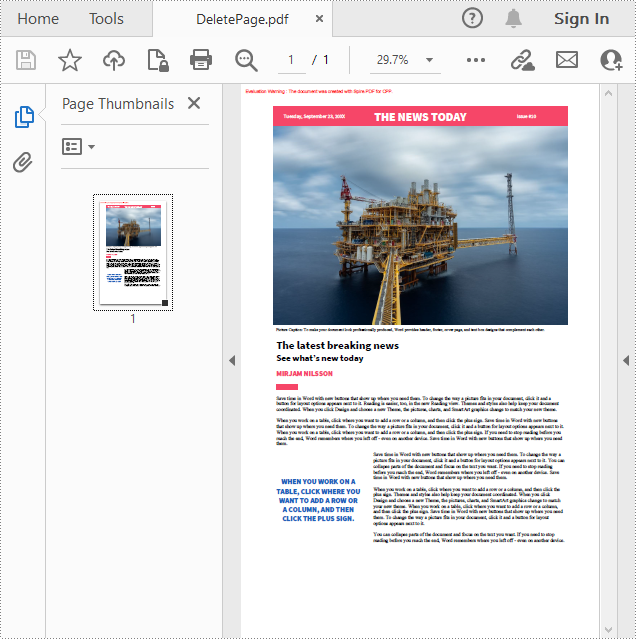
For PDF pages containing useless information, you can also remove them using Spire.PDF for C++. The following are the steps to delete a specific page in PDF.
- Create a PdfDocument object.
- Load a sample PDF document using PdfDocument->LoadFromFile() method.
- Remove a specified page from the document using PdfDocument->GetPages()->RemoveAt(int index) method.
- Save the result document using PdfDocument->SaveToFile () method.
- C++
#include "Spire.Pdf.o.h"

using namespace Spire::Pdf;
using namespace std;

int main() {
	//Specify input and output file paths
	wstring inputFile = L"Data\\input.pdf";
	wstring outputFile = L"Output\\DeletePage.pdf";

	//Create a PdfDocument object
	PdfDocument* pdf = new PdfDocument();

	//Load a PDF document
	pdf->LoadFromFile(inputFile.c_str());

	//Delete the first page in the document
	pdf->GetPages()->RemoveAt(0);

	//Save the result document
	pdf->SaveToFile(outputFile.c_str());
	pdf->Close();

	delete pdf;
}
Apply for a Temporary License
If you'd like to remove the evaluation message from the generated documents, or to get rid of the function limitations, please request a 30-day trial license for yourself.